
 |
Composing & Sending > Attach unique recipient PDFs |
I want to send PDFs where each recipient gets their own unique file
Sending a mail merge where everyone gets their own unique attachment sounds complicated.
It’s not. It’s actually a pretty simple process. The only complexity really comes from Google and Dropbox being cagey around giving you the deep link URLs to your files.
We’ll cover how to solve that, and how to send a mail merge where each recipient gets their own unique PDF, in this guide.
Step-by-step guide
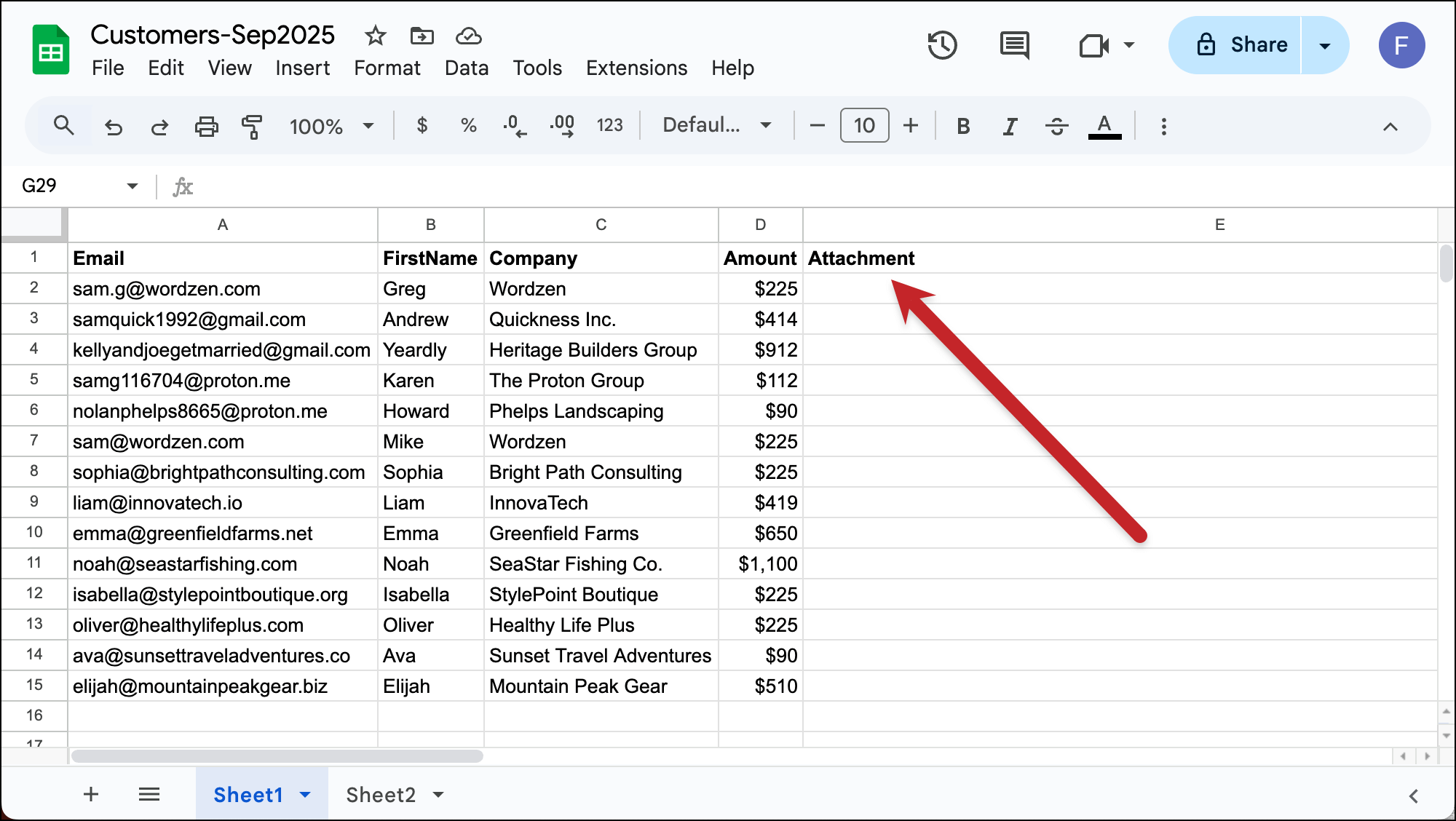
1. Add a column to your Google Sheet of contacts called Attachment.
In order to send everyone a unique attachment (like, for instance, a PDF invoice), you need an column in your Google Sheet called Attachment. You can have anything after the word Attachment (like Attachment1) — but in order for GMass to know you want to attach the files, the column header needs to start “Attachment.”
2. Put a link to each PDF in the Attachment column
So here’s the big moment of this process.
You need to put a publicly accessible link to the PDF in the Attachment column.
That doesn’t mean you’re sharing the PDF with anyone; you can keep this URL a secret to everyone in the world except this Google Sheet. However, GMass needs to be able to grab each PDF to attach it to each recipient’s email. And to be able to grab it, the URL can’t be password protected or otherwise obscured by permissions.
So here’s how to get the publicly available link:
- If the PDFs are hosted on your web server, or your cloud storage server like Amazon S3, it’s easy, just grab the URL (e.g., https://www.yourserverwhatever.net/files/invoice12412.pdf)
- If the PDFs are on Dropbox, you’ll need to edit the sharing link and change dl=0 to dl=1. So they’ll give you a URL like https://www.dropbox.com/scl/fi/ykt7rtdhpj5ng/invoice12412.pdf?rlkey=ce2anpgfdgtf8uvl&dl=0 and you change the end part from a 0 to a 1. More instructions are in this article.
- If the PDFs are in Google Drive… you gotta do a whole bunch of stuff to get to the publicly available URL. Follow the instructions in this article. (It’s about images, but the same principal applies.)
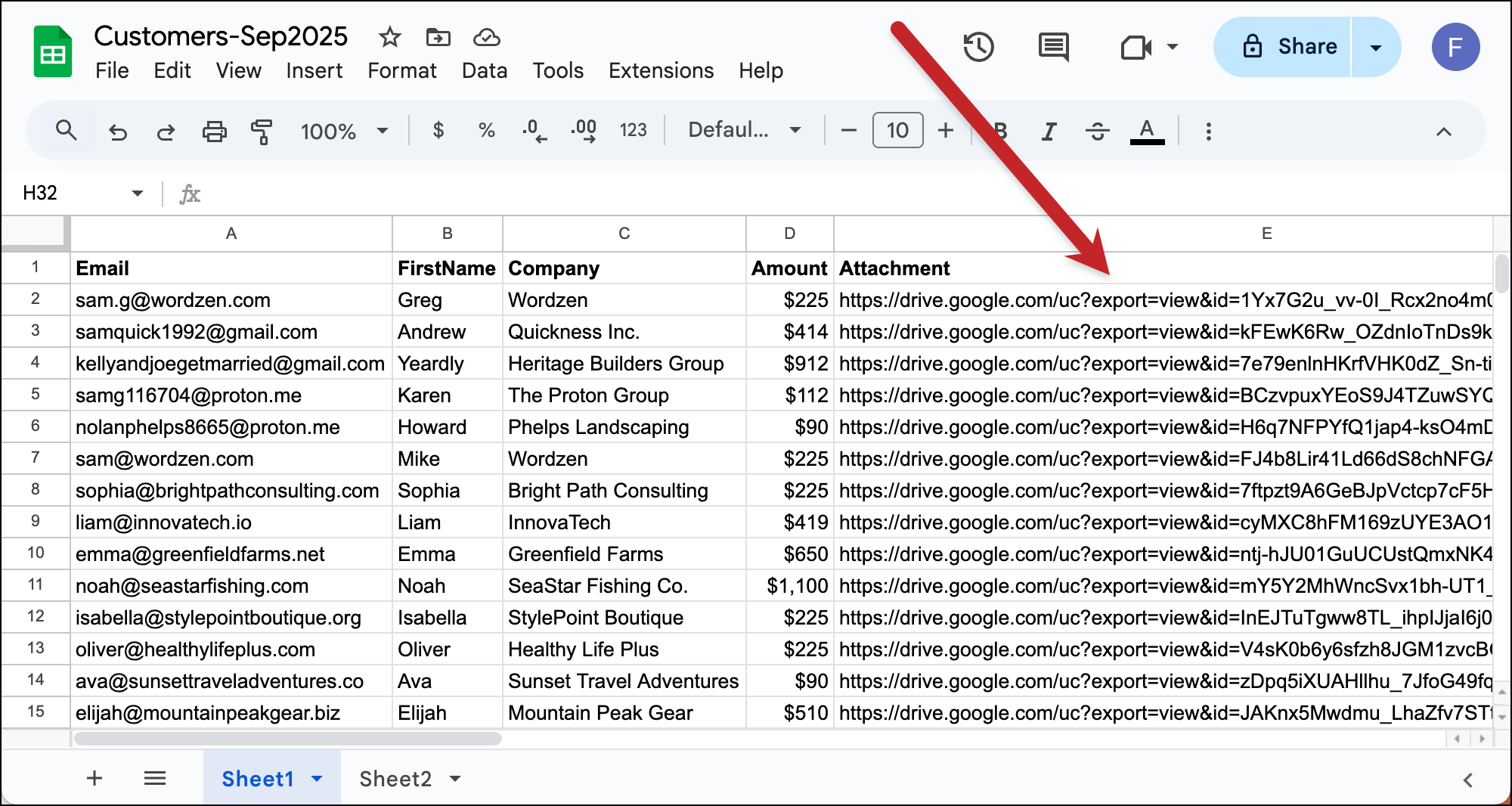
99.9% of time when people have trouble with mail merge attachments it’s because they’re not linking to the publicly available URL. So really focus on this step.
3. Connect your Google Sheet to GMass and create your campaign
Once your attachments are in, connect your Google Sheet to GMass to start working on your campaign.
Compose your campaign, but do not include a merge tag for your attachments. Because you have an Attachment column in your Google Sheet, GMass knows to attach those files automatically.
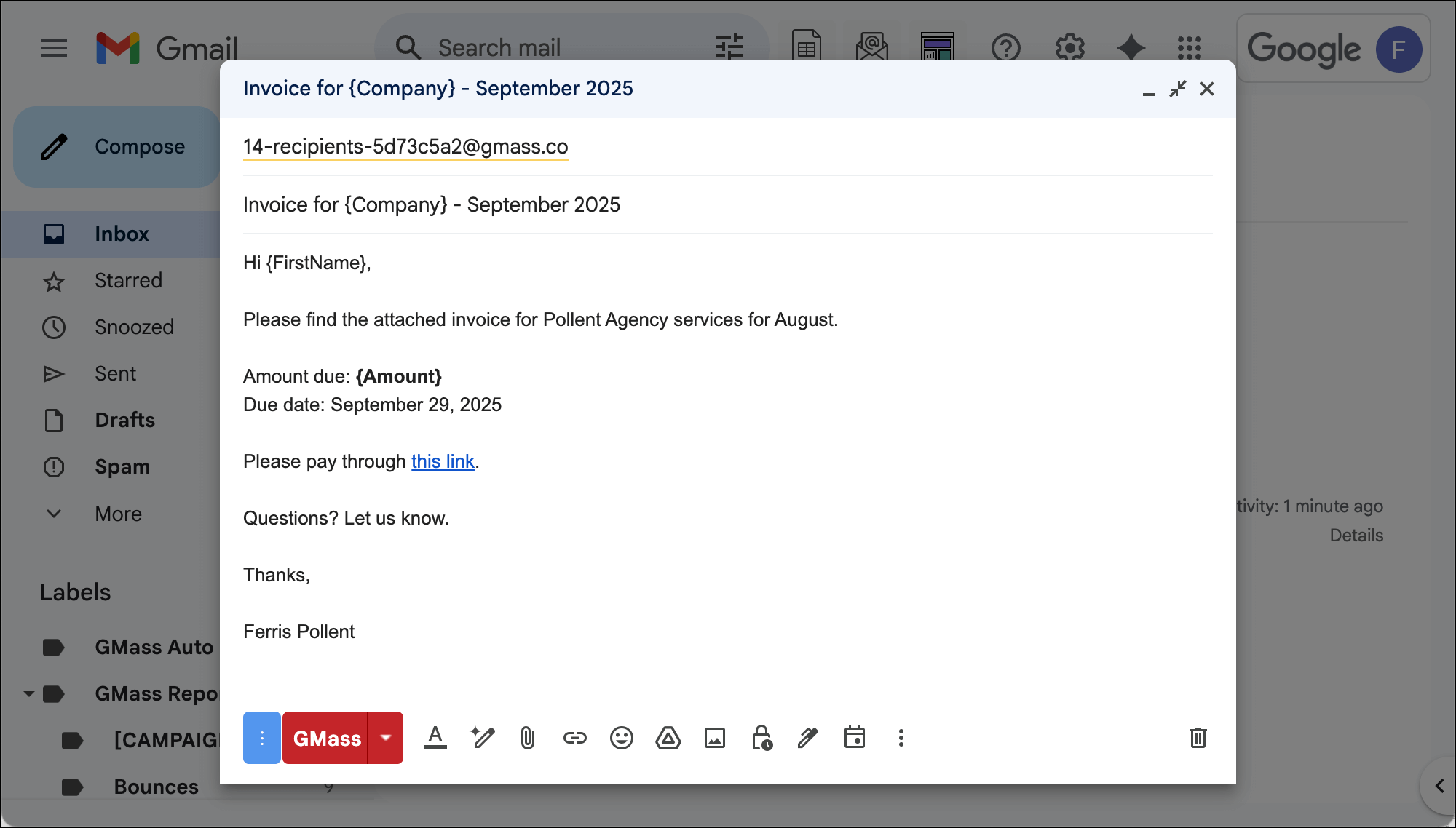 4. When all is set, create drafts to test your attachments
Once your campaign is set (including any auto follow-ups or other settings you might use), we want to test things to make sure all the attachments are working right.
So in the GMass settings, go to the Action section and choose Create Drafts.

Then click the red GMass button. GMass will create drafts of all the emails in your campaign with their attachments.
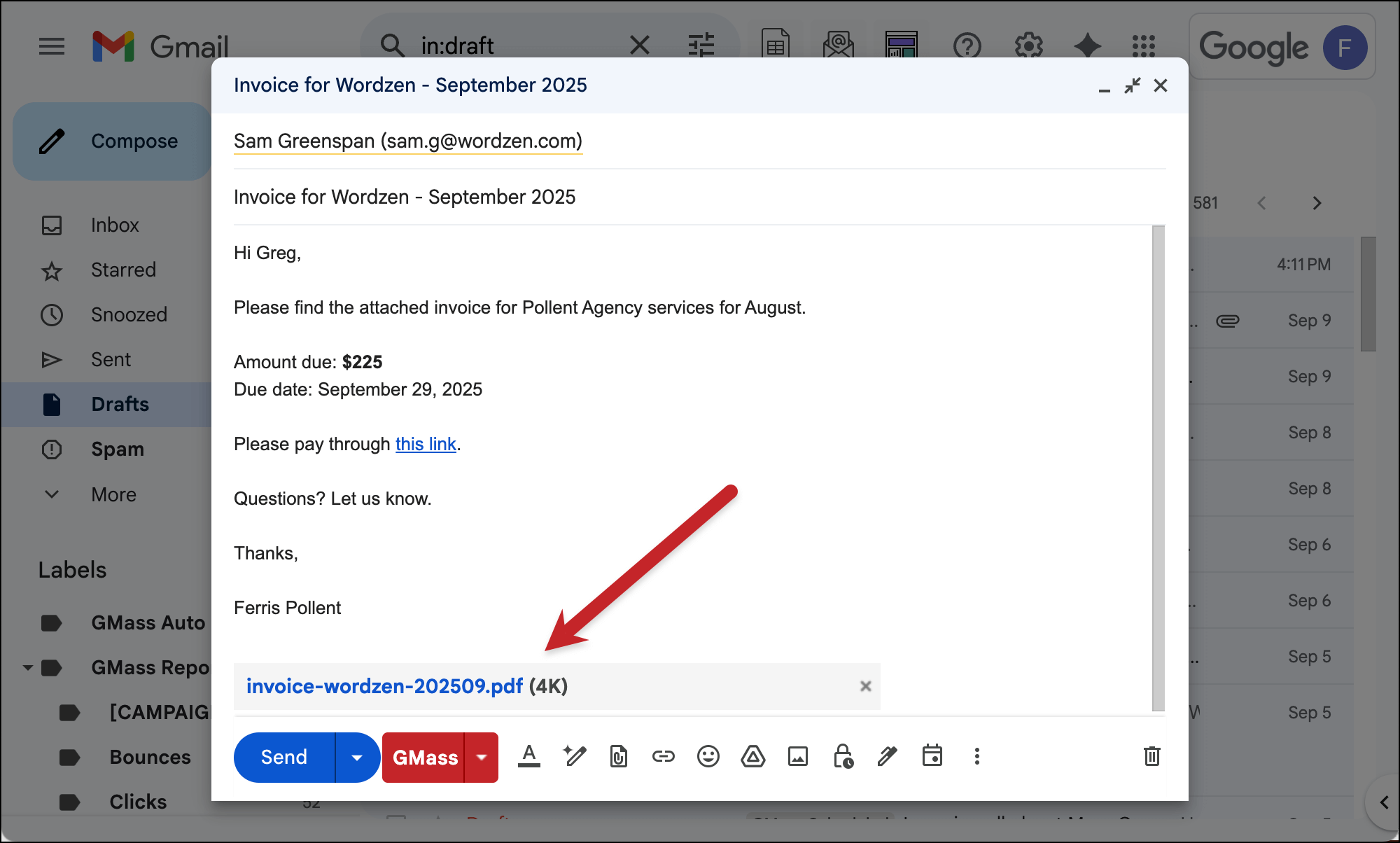
You’ll get an email from GMass telling you that the drafts are ready, and you can find them in the Gmail Drafts folder.
Spot check some drafts to make sure the correct files were attached. (You can see in my example here everything worked perfectly.)
5. Either send the drafts or delete them to try again
If all looks good in your drafts, click the link in the email from GMass to send them out.
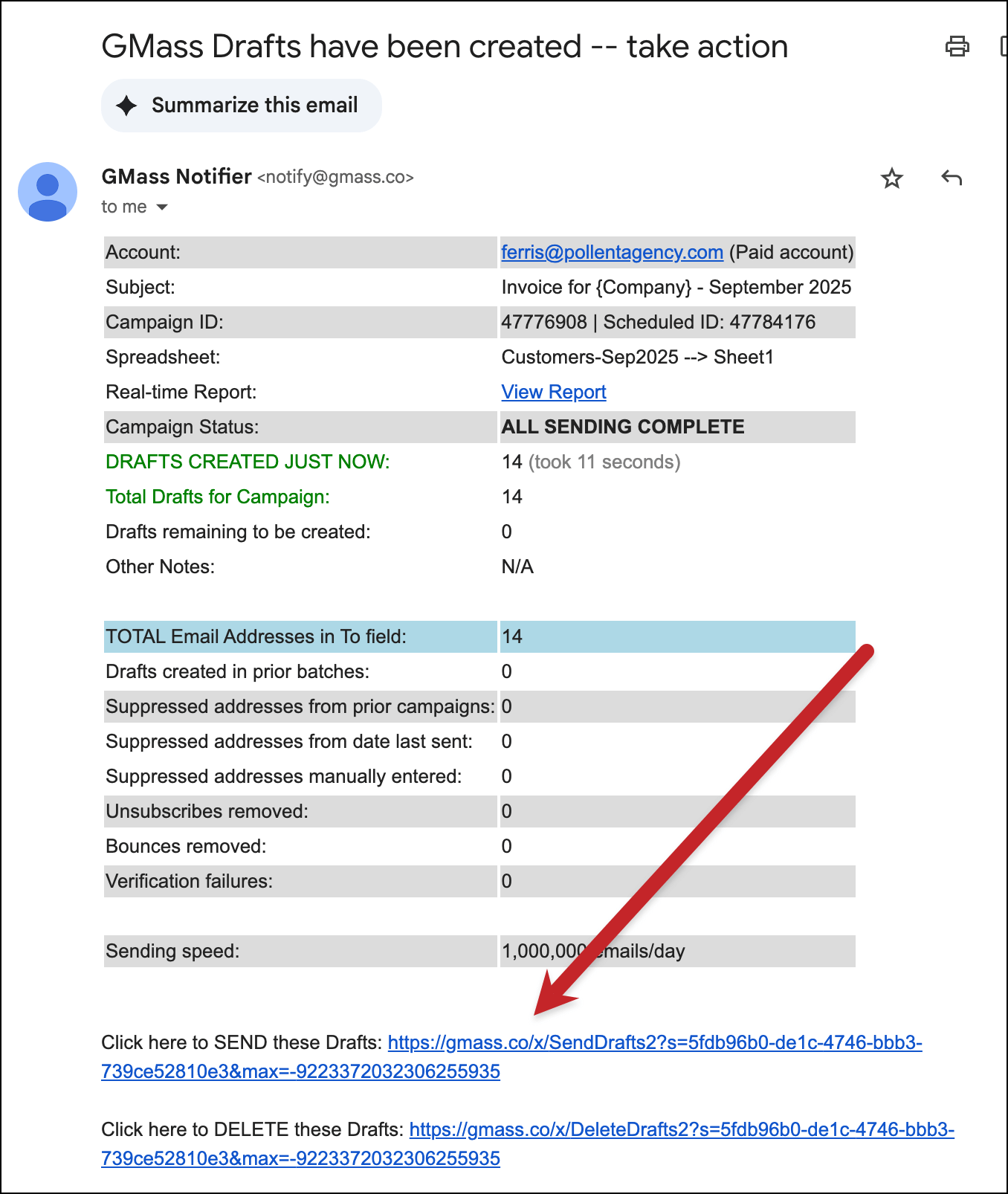
If there was a problem, click the link in the email to delete the drafts. You can then go back into the campaign draft and fix what’s wrong.
✅ You’re all set.
More resources
- Here’s more information on mail merge PDF techniques in GMass.
- We also have documentation on mail merge with all types of attachments.
- And check out more nuances of formatting your Google Sheet to optimize it for mail merge.