
Want to send a beautifully-designed email in Gmail like a newsletter, eCommerce promo, or other marketing message?
Gmail has always made it really hard. Forget a drag-and-drop builder; they don’t even have a native HTML editing feature.
So… we’ve fixed that problem and filled the void.
It’s now about 100x faster and easier than ever before to create and send perfectly-designed HTML emails inside Gmail.
Just tell GMass’s AI template builder what you want and it will build your layout for you right there inside the Gmail compose window.
In this guide I’ll show you how to use this tool to get the most out of it to create stunning HTML email templates inside Gmail — all with a few sentences and a click of a button.
AI Template Creation in Gmail: Table of Contents
- Quick Background on Why We Made This
- How to Use GMass’s AI Template Creator
- Editing your Generated Template
- Reusing Your HTML Templates in the Future
- Not a GMass User Yet? Here’s How to Get Started
Quick Background on Why We Made This
If you aren’t familiar with GMass, we’re the original tool for sending full email campaigns inside Gmail.
More than 400,000 people use GMass to send every possible type of email with their Gmail account — everything from newsletters to sales outreach to internal communications to wedding invitations.
Over the years, some users (in particular, email marketers) have asked about pre-made templates. We’ve always resisted creating some canned templates because those are pretty easy to find elsewhere. (A few years ago, I wrote this guide to finding and using HTML email templates in Gmail.)
But now, with AI, we’ve created something even better than a few pre-made templates or a drag-and-drop email builder.
You tell our tool the exact template you want and it generates it for you right there in the Gmail compose window.
It’s quite literally never been easier to create or use a HTML template inside of Gmail.
How to Use GMass’s AI Template Creator
Here’s a rundown of everything you need to know to use this tool.
Where to find the AI template creator
The template creator is in the GMass settings box.
You can use it at any point during the campaign creation process — whether or not you have anything written in the email or not.
Open the settings box and click on the green ChatGPT icon.
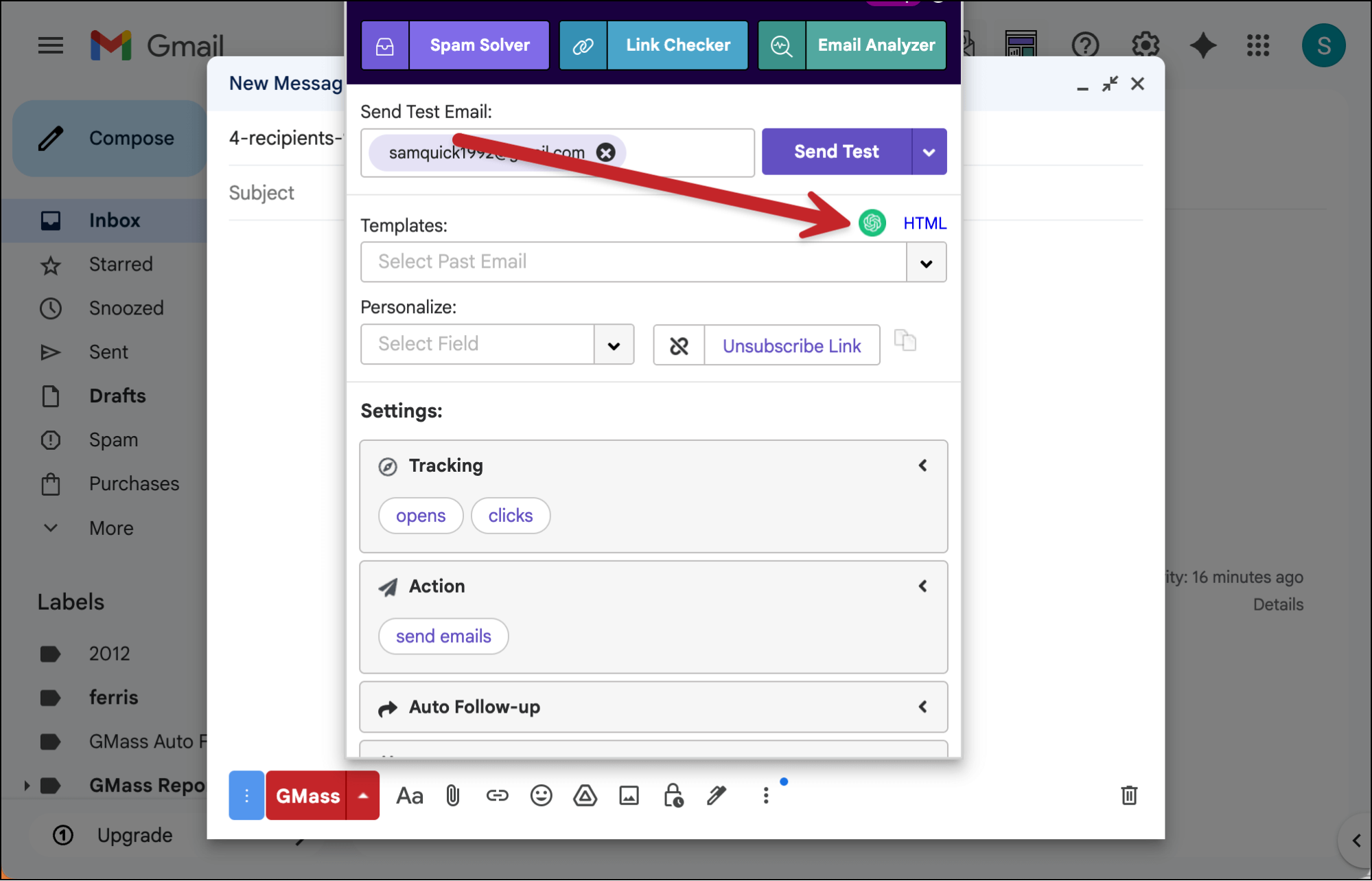
That brings up the popup with all of GMass’s various AI campaign creation tools.
The template creation is in the Templates tab.
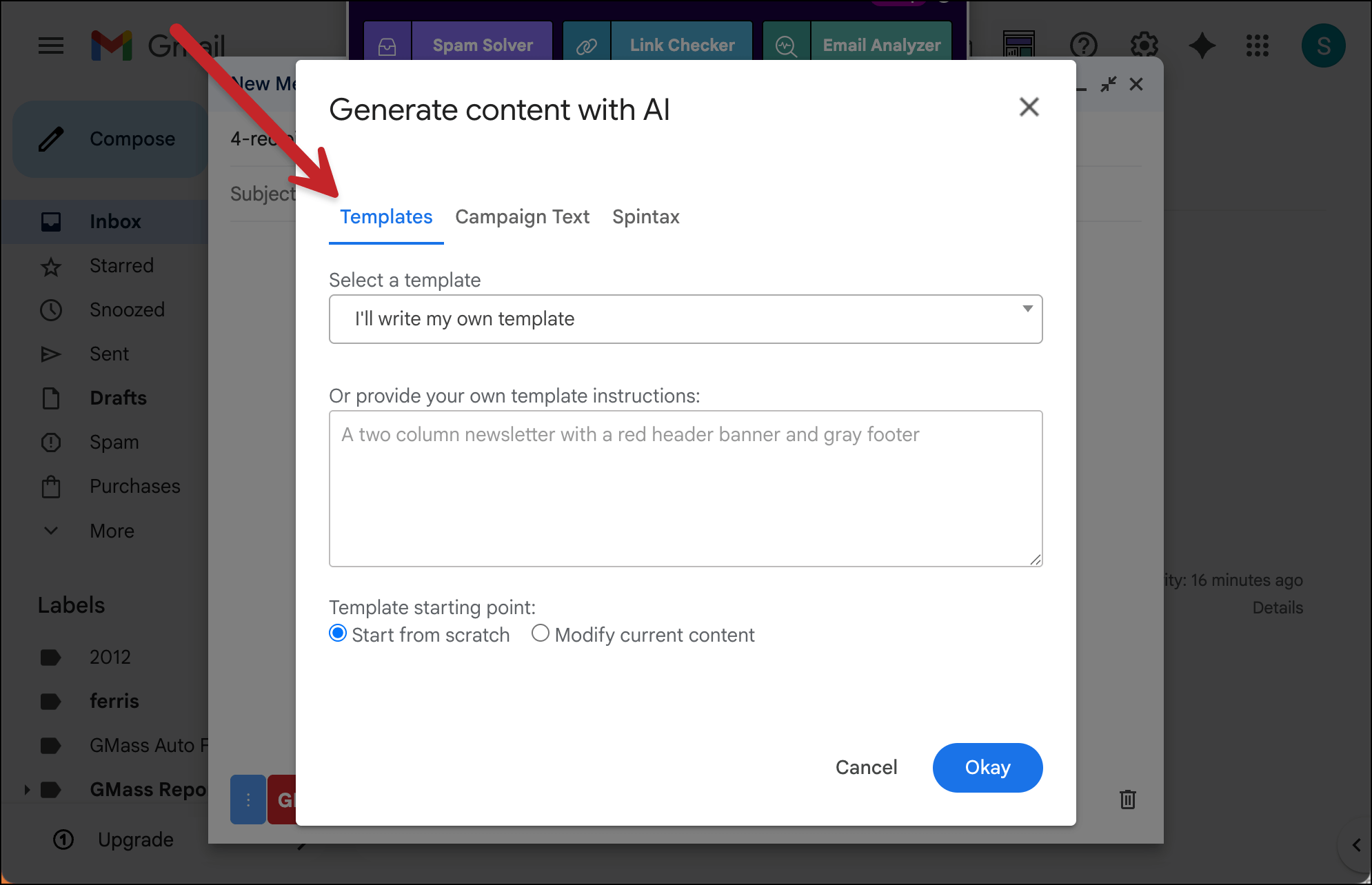
Options with the AI template creator
You’ll see a few options in the box. Here’s what they are and what they do.
Select a template
The Select a template dropdown has some common marketing, promotional, transactional, and other design-focused email types you can use as a jumping off point.
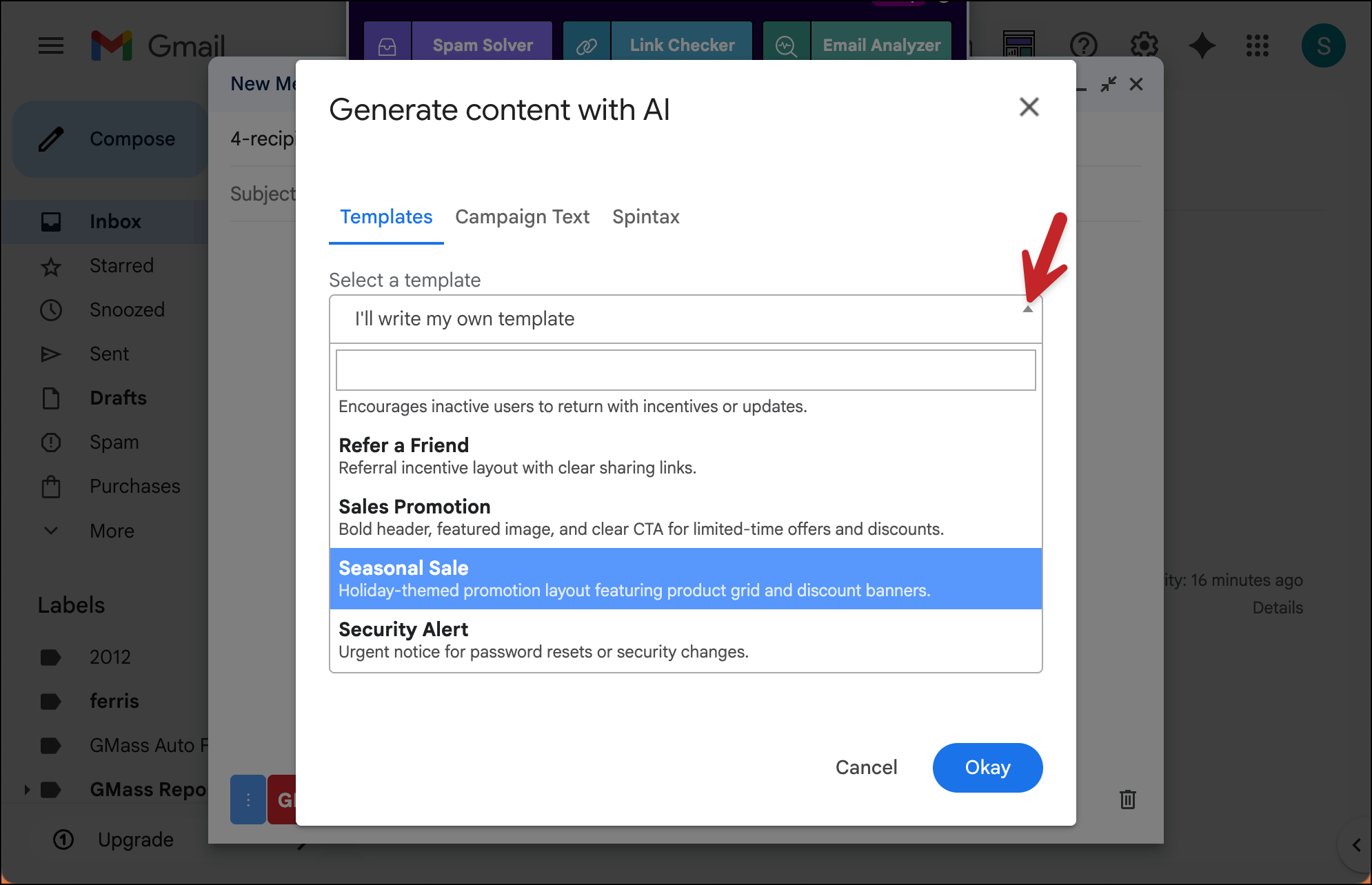
Once you choose one of these templates, a basic prompt will appear in the box below. You can generate the template with just that prompt, or alter it as desired.
Provide your own instructions
If you don’t want to use the select a template option, you can jump right to Provide your own template instructions.
Here, you can describe exactly what you want your template to look like and the AI generator will create it. Include colors, layout styles, and anything else you want to include in your template.
Check out my prompt below. You can make yours more complex than this or less complex; standard AI prompting rules apply.
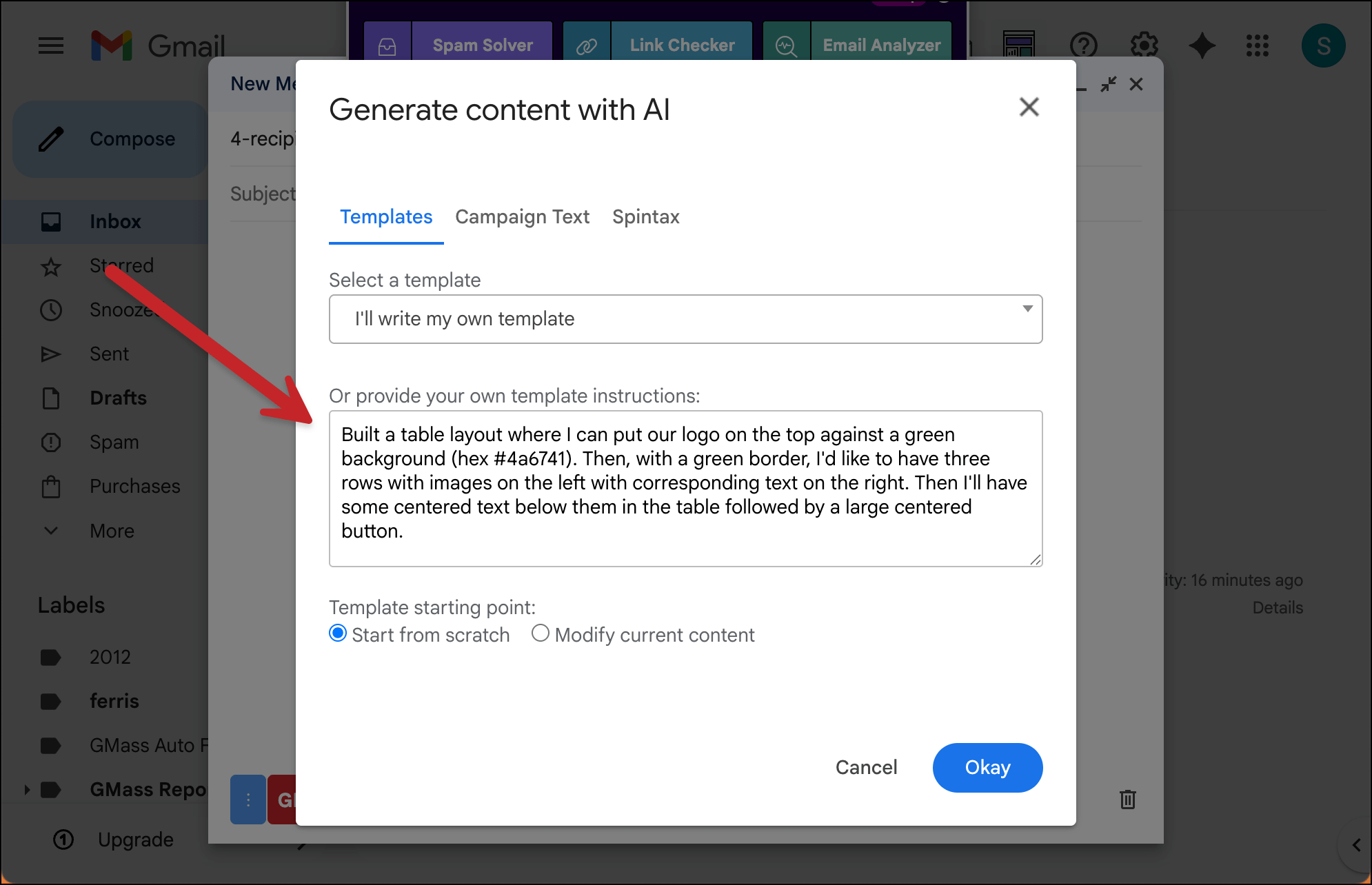
Start from scratch vs. modify current content
The final options are Start from scratch and Modify current content.
When you choose Start from scratch, GMass will overwrite everything in the compose window with your new template.
And when you choose Modify current content, GMass will build the template preserving the content you’ve typed into your email.
You can also use the “modify current content” option to iterate on a generated template. For instance, let’s say you decide after seeing the AI’s template you want a new background color, you can do that here.
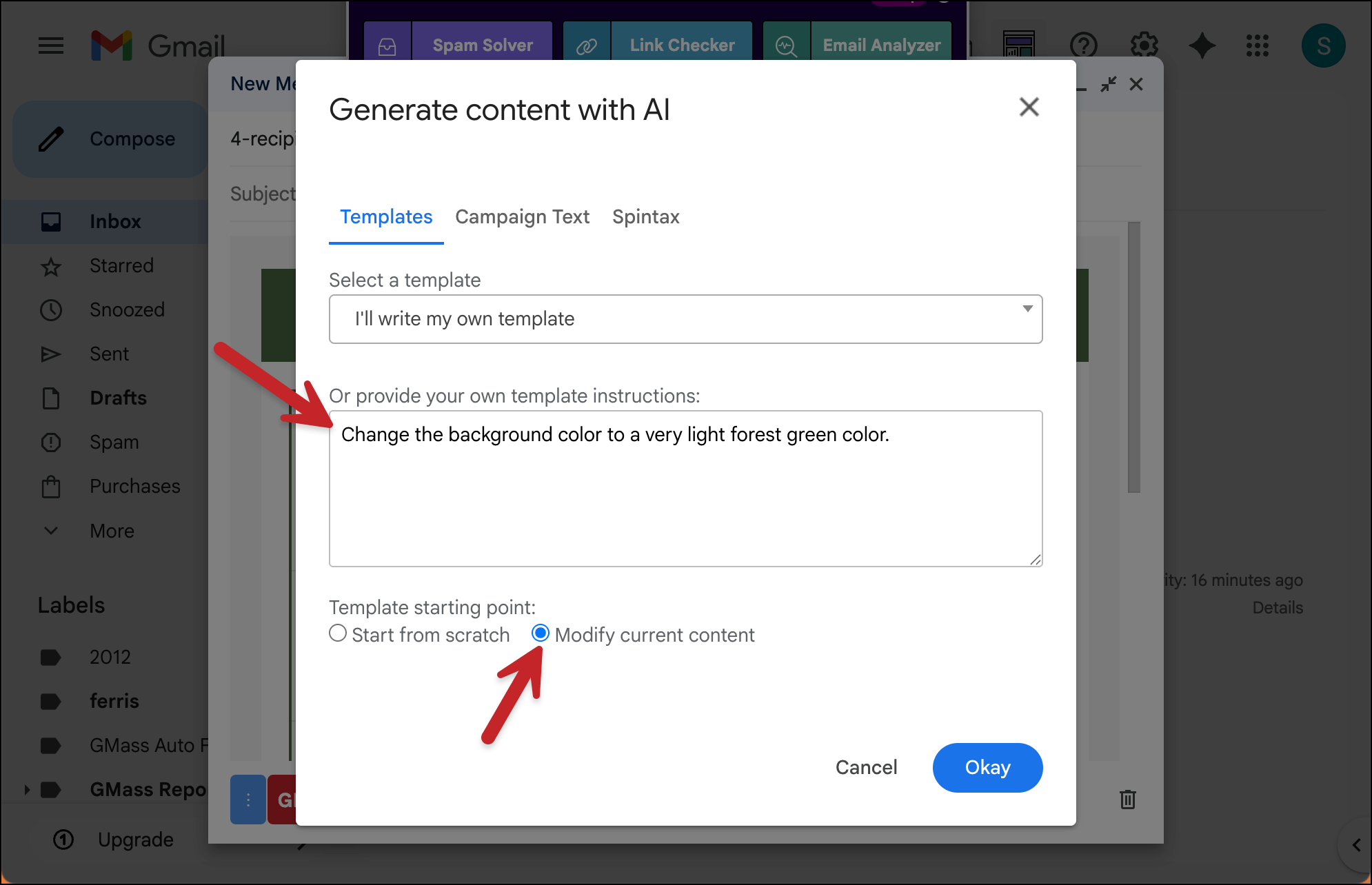
Accepting your template
Once your prompt is ready, click the Okay button. It will take a moment to create your template (in my tests, it was maybe 30 seconds for a simpler template and could be about a minute for a more complicated one).
GMass will show you a preview of what’s been generated. You can then choose to accept it or try again.
Editing your Generated Template
As I just demonstrated above, you can use the same AI tool to edit your HTML template. Just choose “Modify current content.”
That should cover you in most cases, but there are a few other options as needed.
Making manual edits to your template
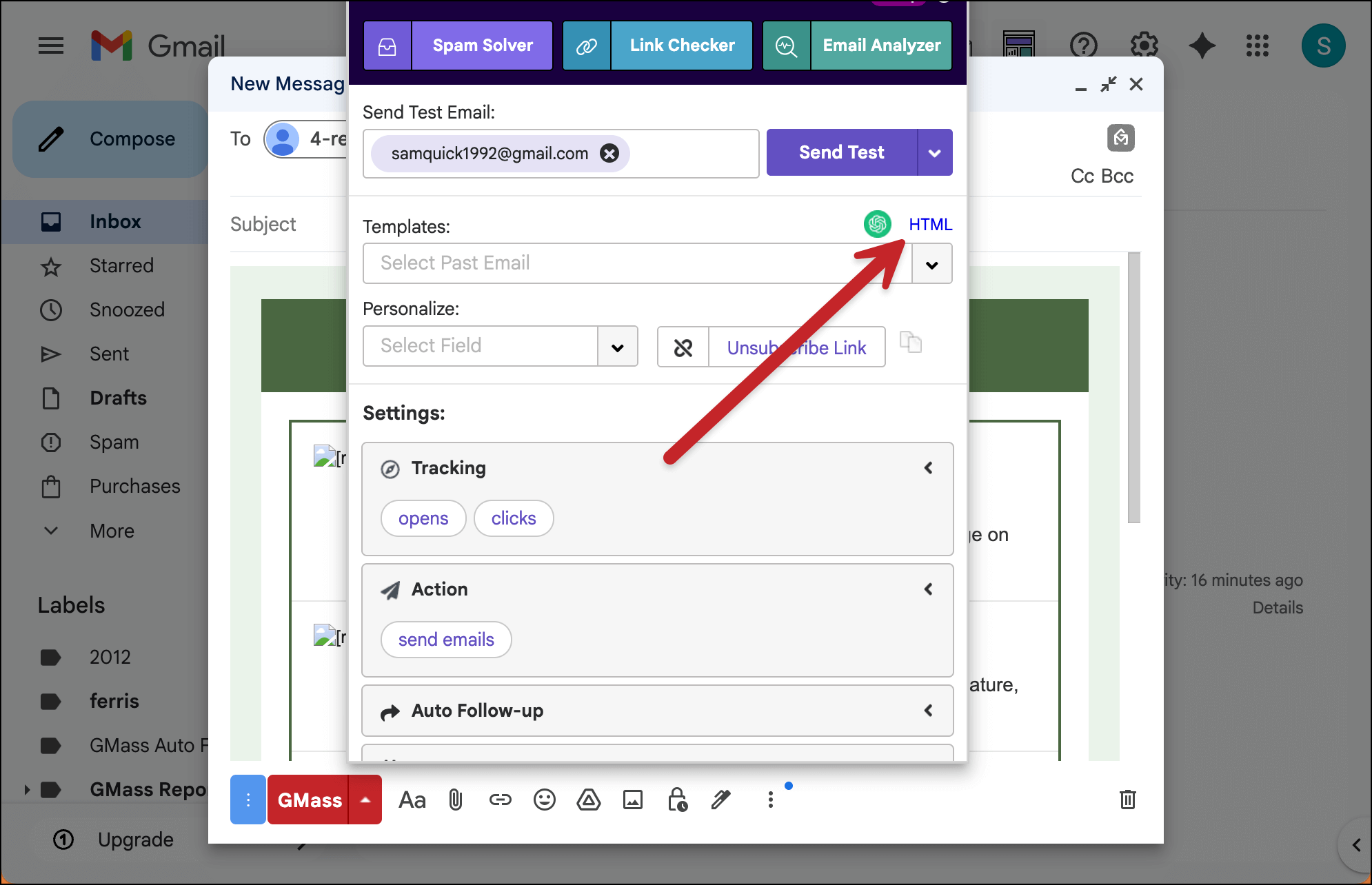
If you’d like to get in there and make a few manual edits, you can do that as well. While Gmail doesn’t allow for HTML editing, GMass does.
In the GMass settings box, click the HTML link.
You can then edit the raw HTML as needed.
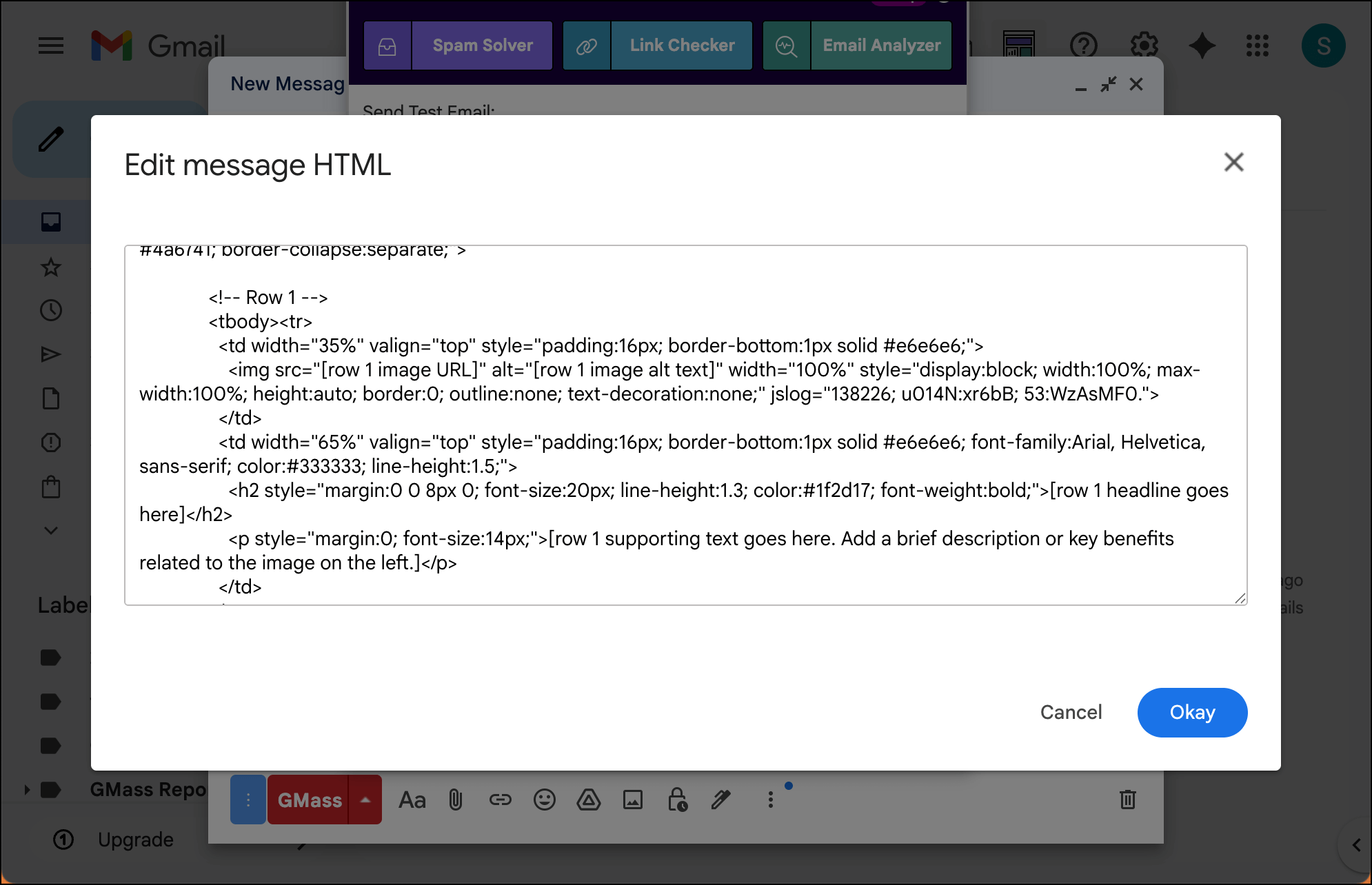
It’s important to know about this as we talk about the next big question with these generated templates…
What about the images?
So as you might have noticed in my screenshots, the images are “broken” in the template.
That’s because I had the AI generator create my template without providing any content, so it just put in text and image placeholders.
The text is easy to edit. As for the images, you have a few options for getting them into place.
Option 1: Delete the broken image and embed your own image in its place
In the first row of my table, I’ll delete the broken image by clicking on it, then selecting Remove.
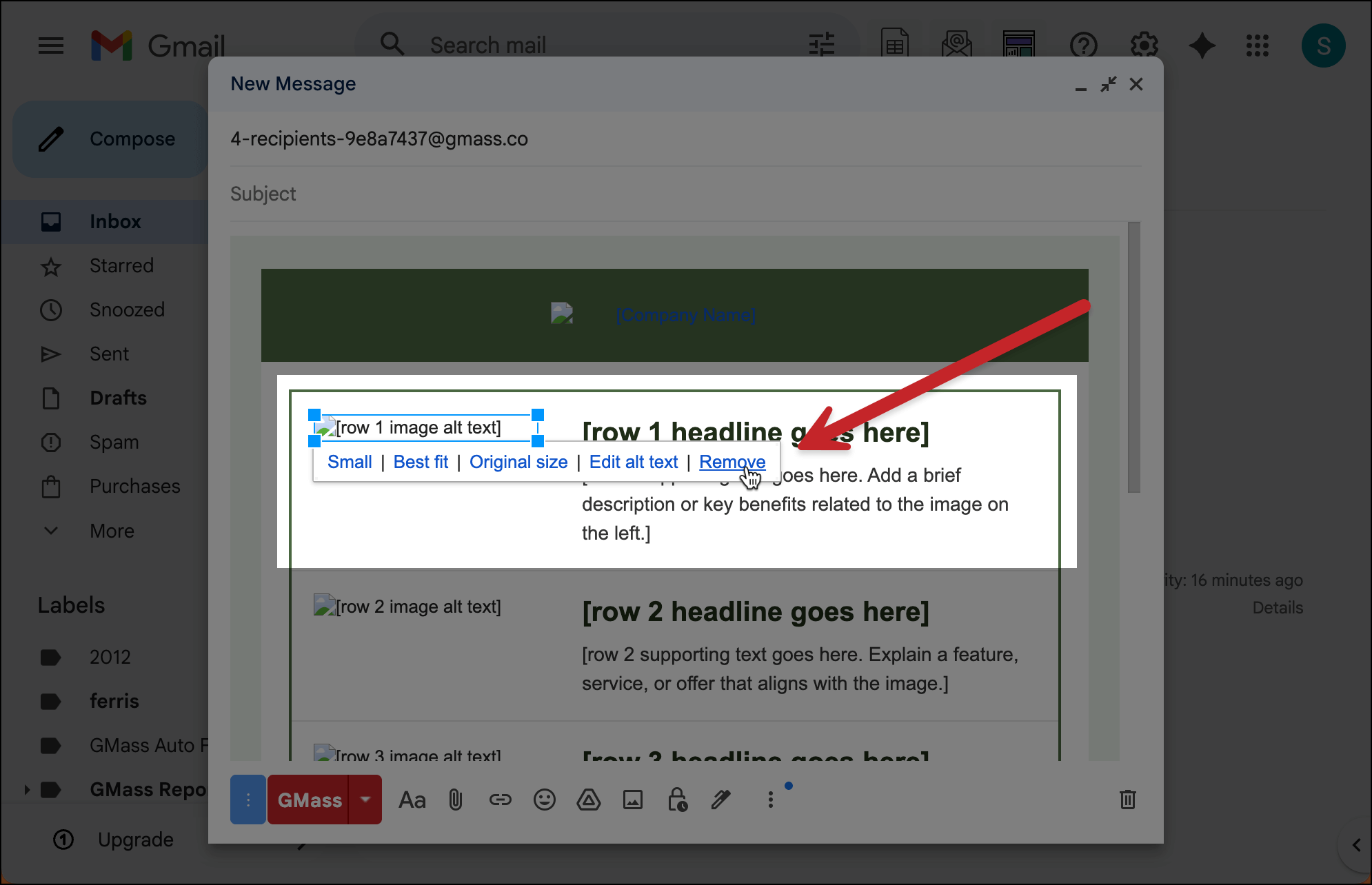
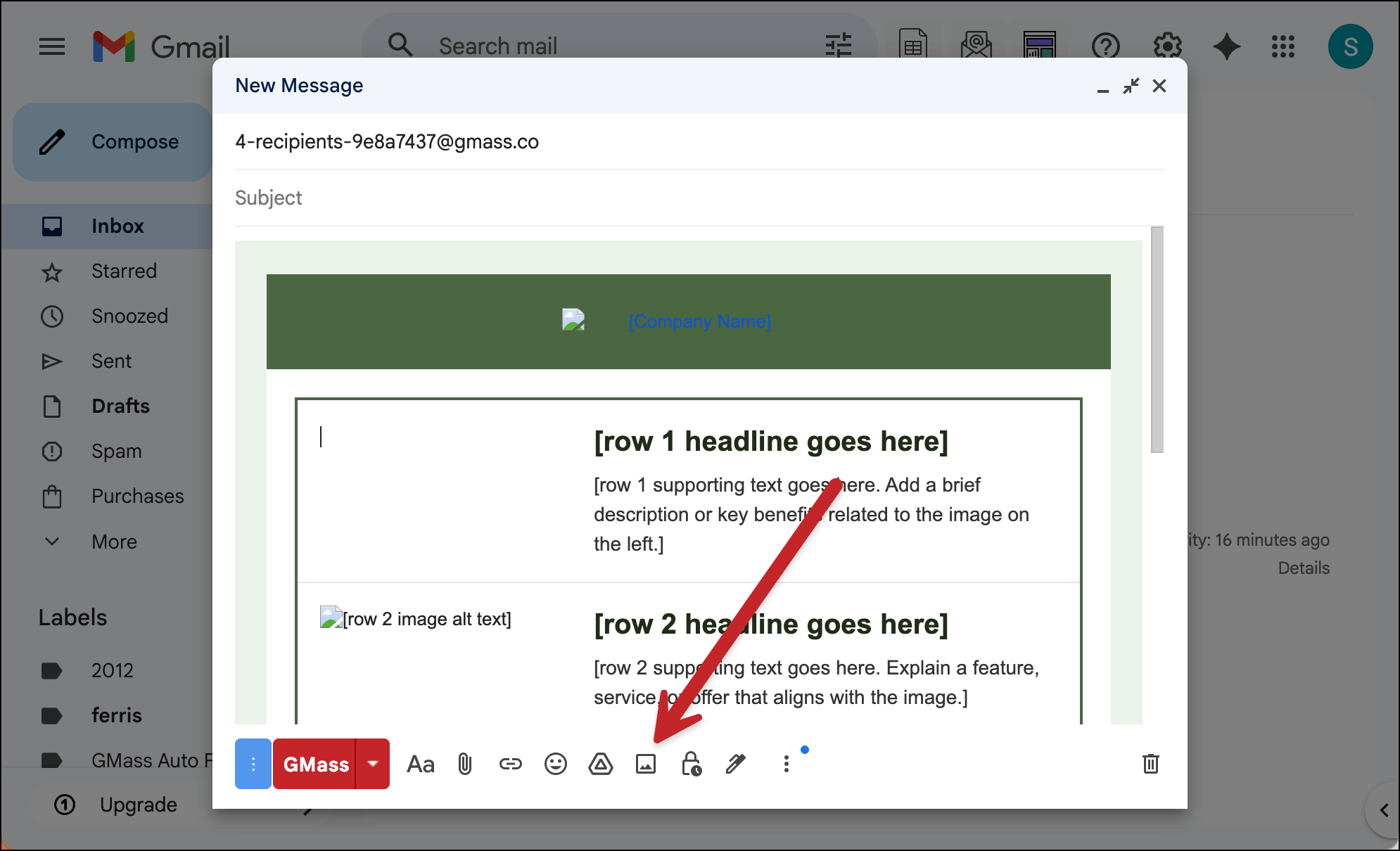
Now, with the cursor in the correct spot where the image used to be, I’ll upload my own image by clicking the image icon in Gmail.
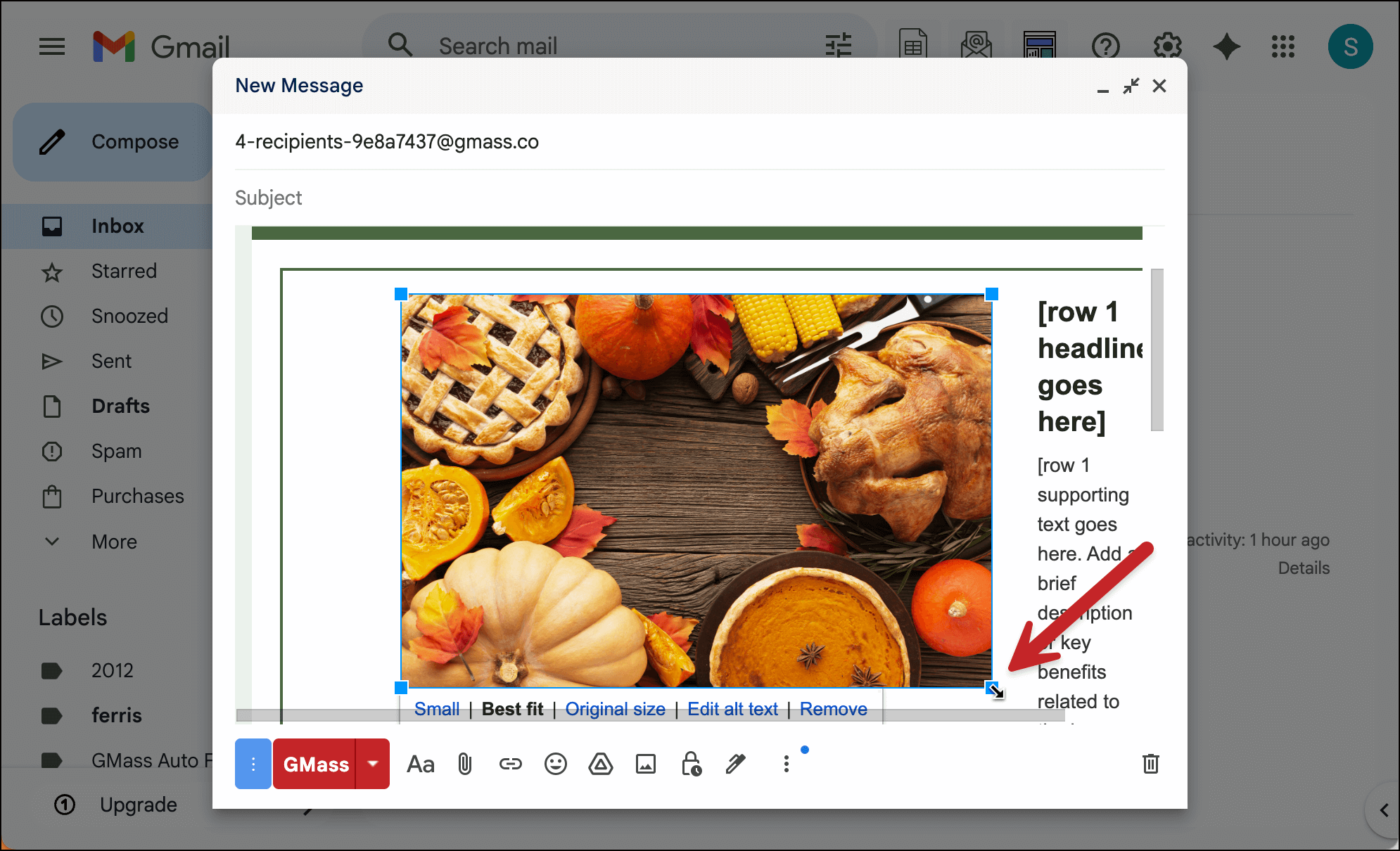
The image is too big, so I’ll click on it and drag to resize.
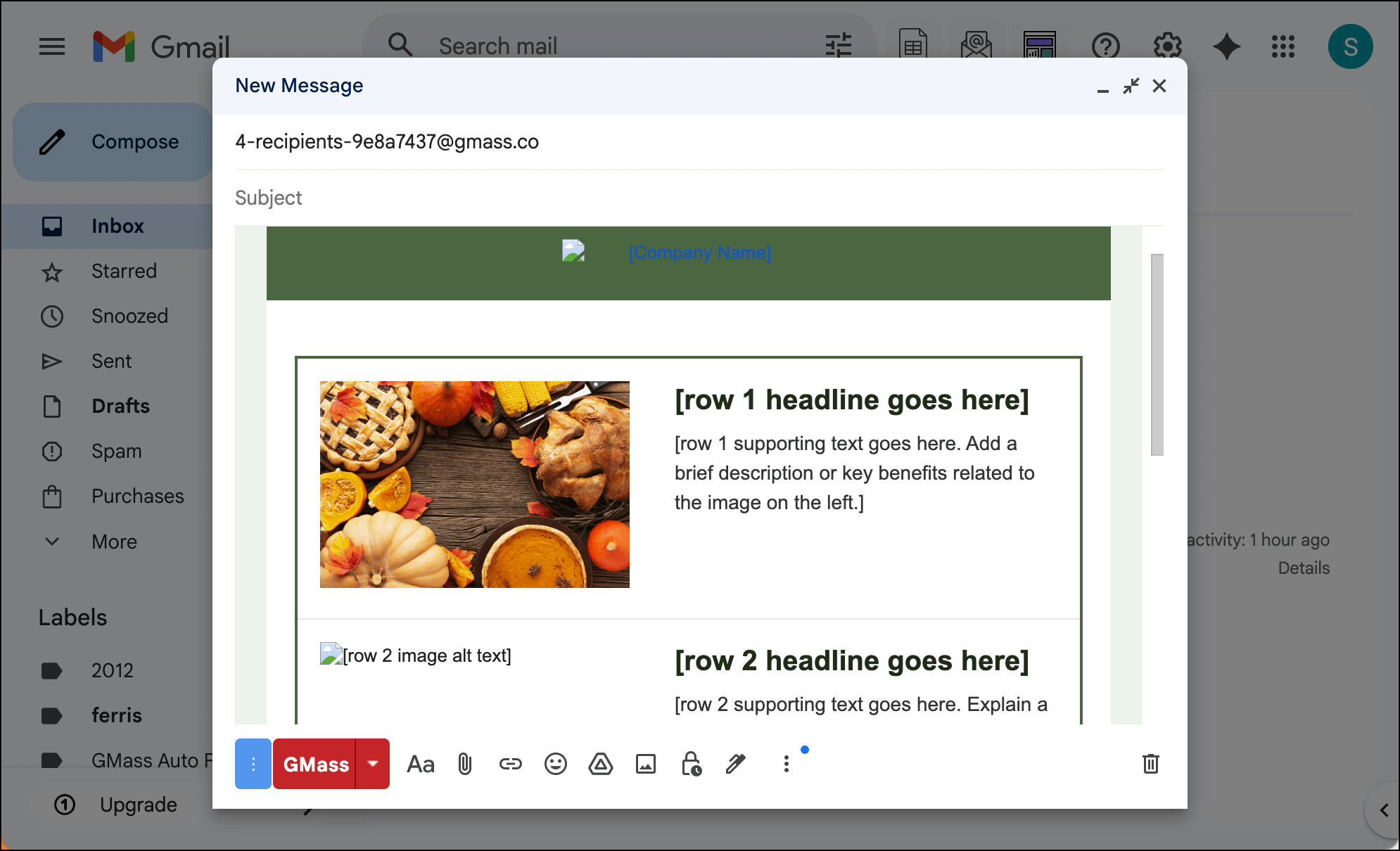
And now my image is in the correct spot.
I recommend this method for two reasons.
- It’s easier than editing the raw HTML.
- Google likes it when you embed images like this (rather than linking to images on an external server). So it’s a smart move to help keep you out of the spam folder.
Option 2: Linking to images on your server
Next, I’ll demonstrate how to link to an image on a server.
I’ll go into the raw HTML for my email template and find the row 2 image.
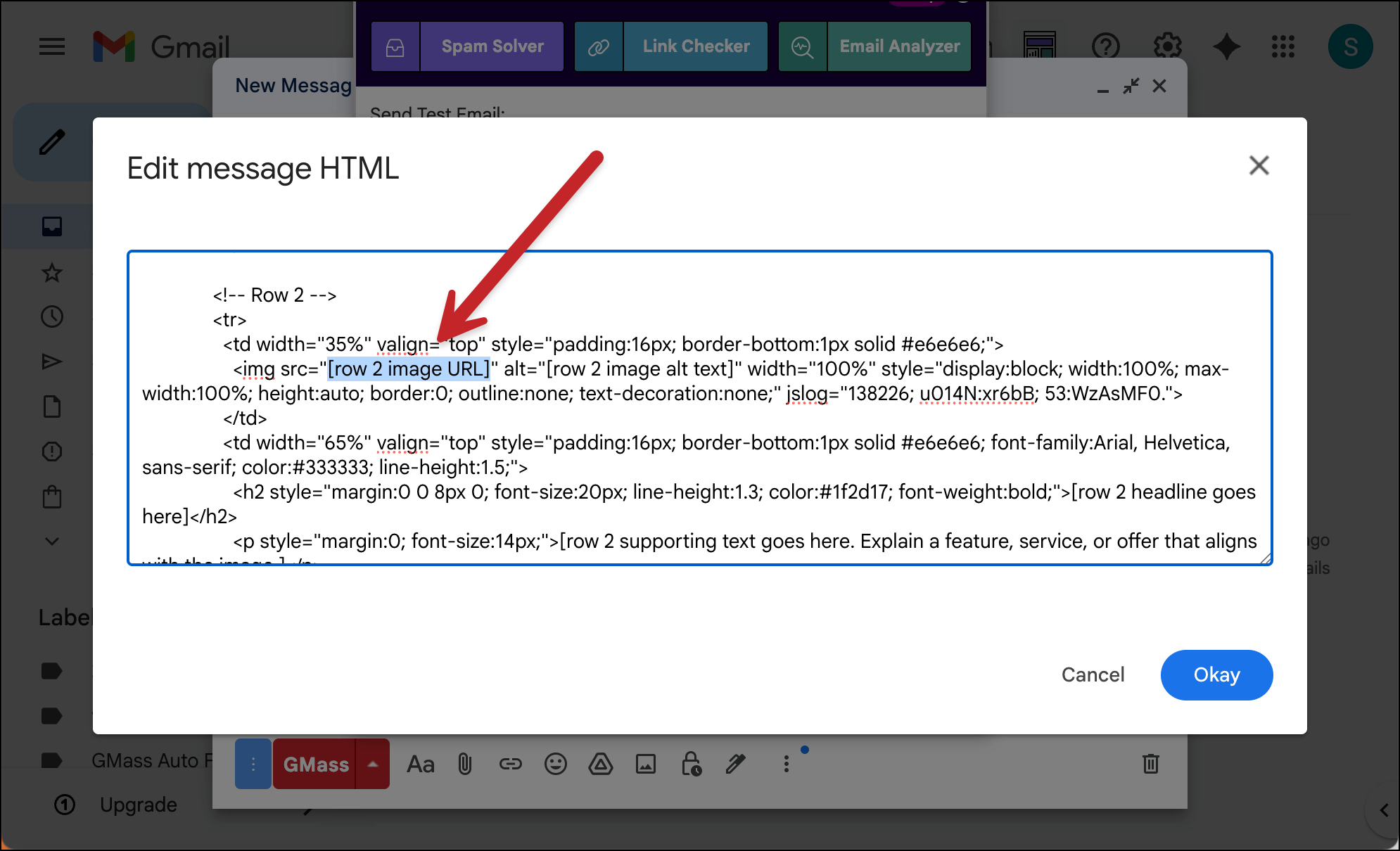
Now I’ll paste in the URL of the image where it’s stored on my server.
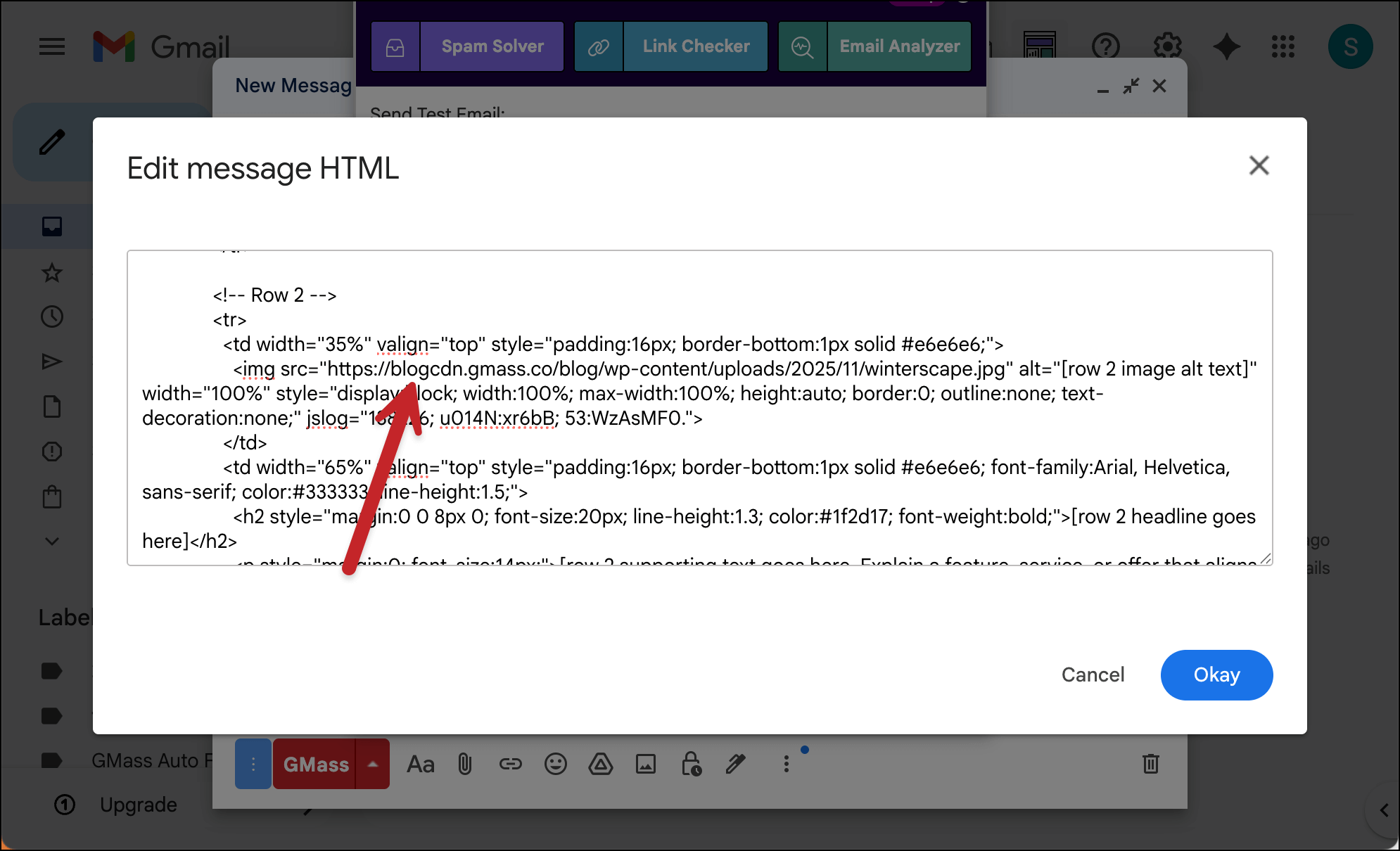
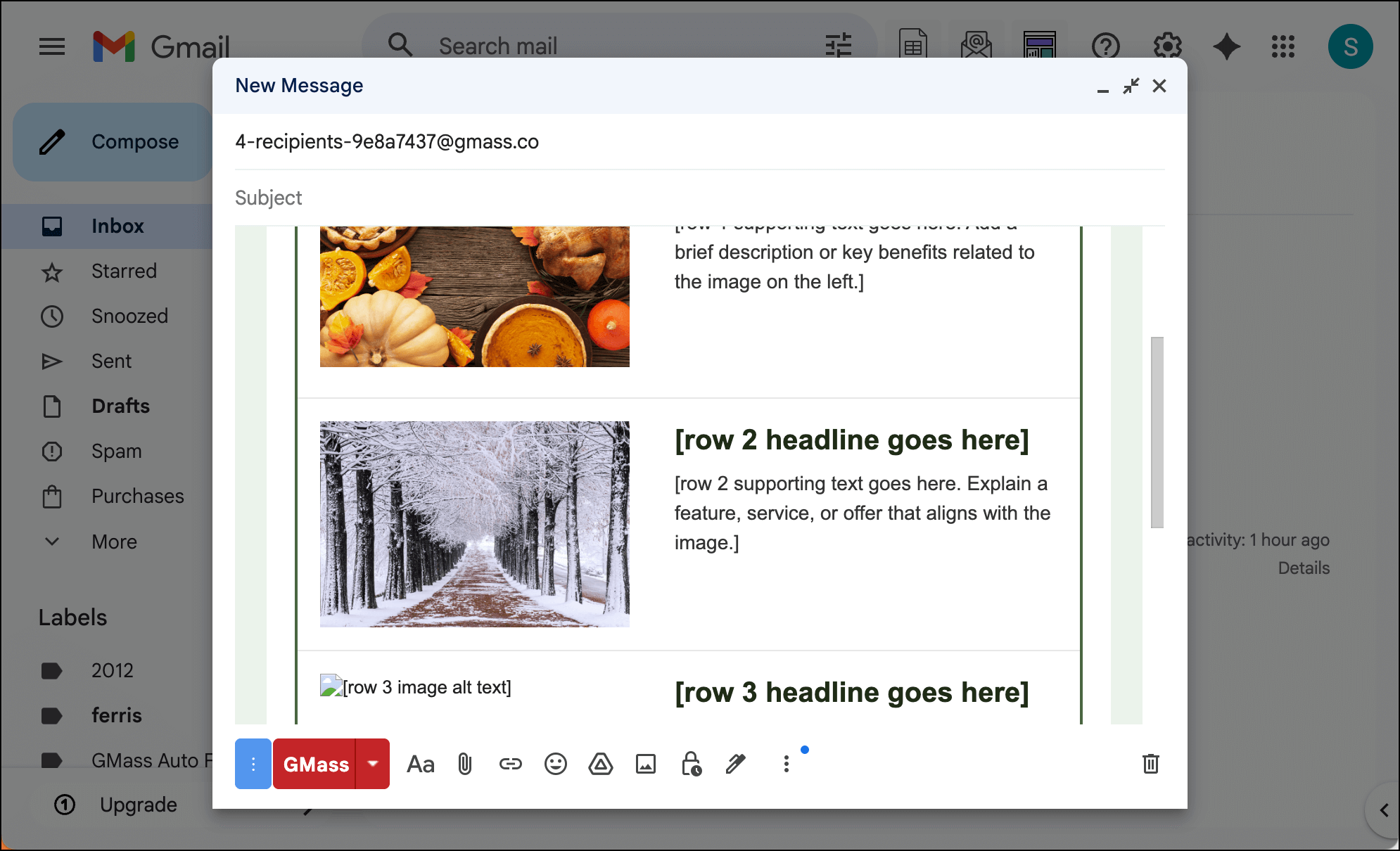
The image is now in the correct spot, linked on the external server.
Again, I recommend the embedding method over the external linking method for the reasons I described earlier.
However, if you’re comfortable editing the HTML and want to use external links, this is the best way.
Option 3: Let the AI do the work
This AI template generator is smarter than you might realize.
So here’s how you can get it to do the dirty work for you on images.
Here’s how.
I uploaded my image near the bottom of the email.
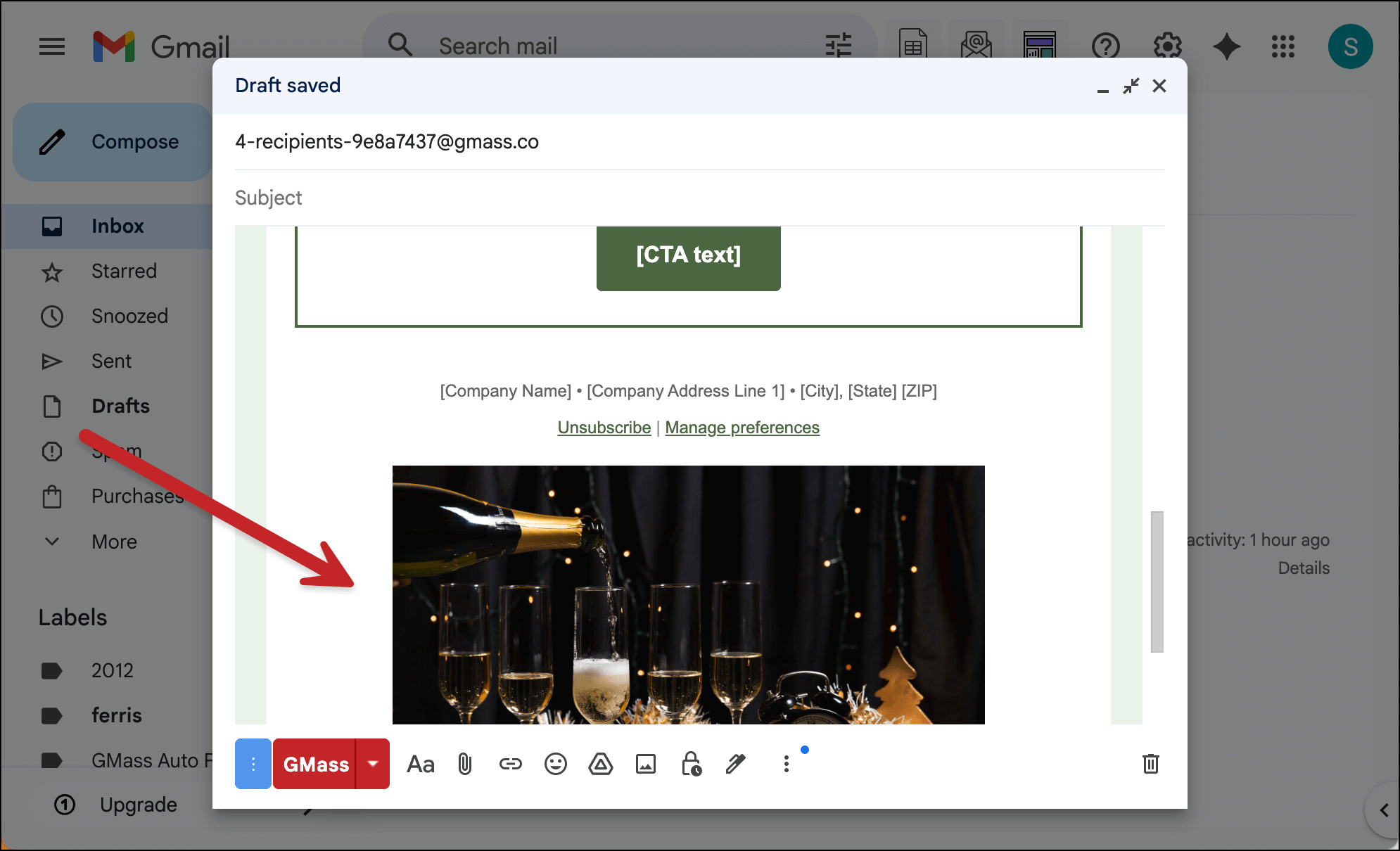
Then I pulled up the AI generator tool, told it what to do, and made sure to choose Modify current content.
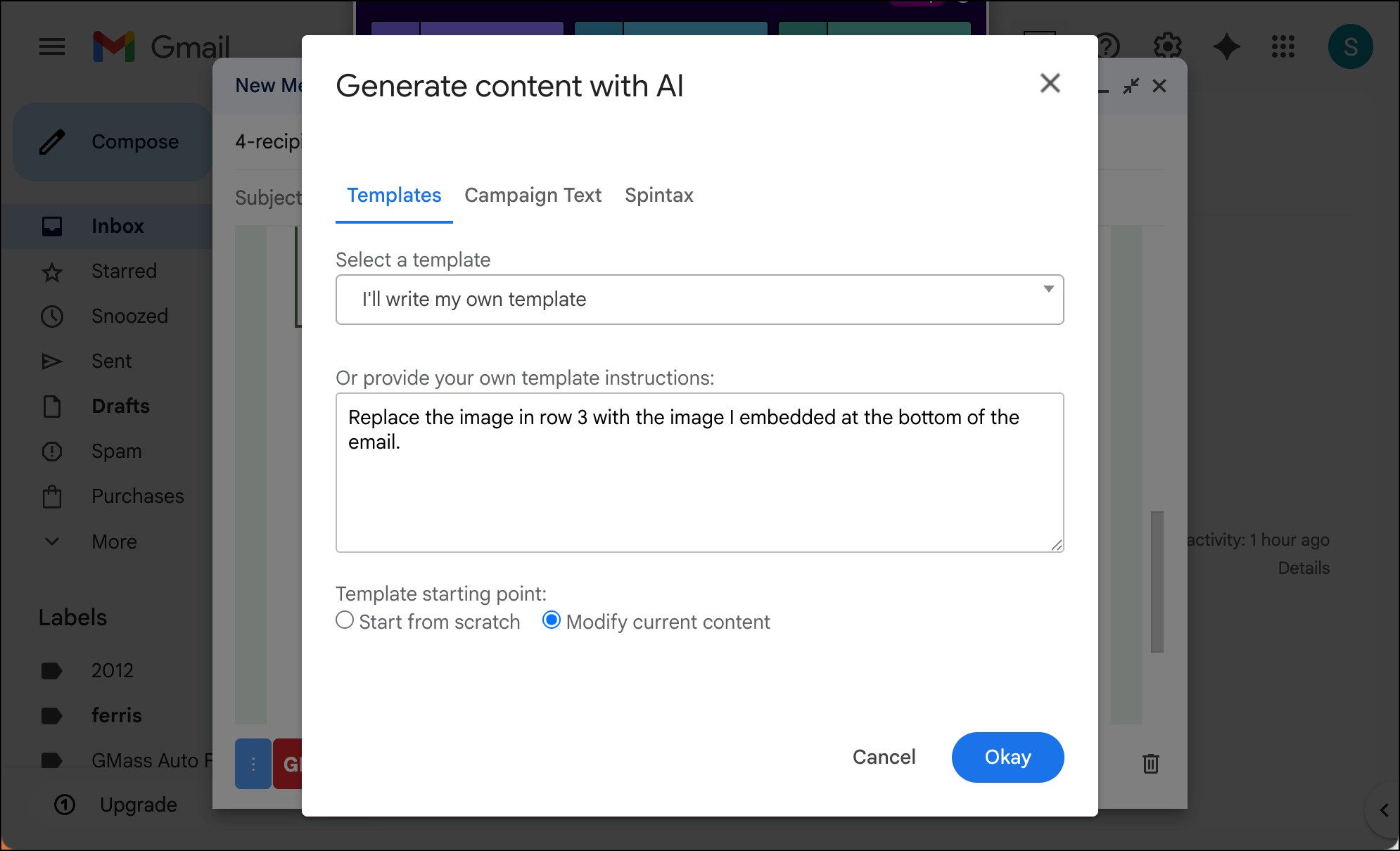
And, voila.
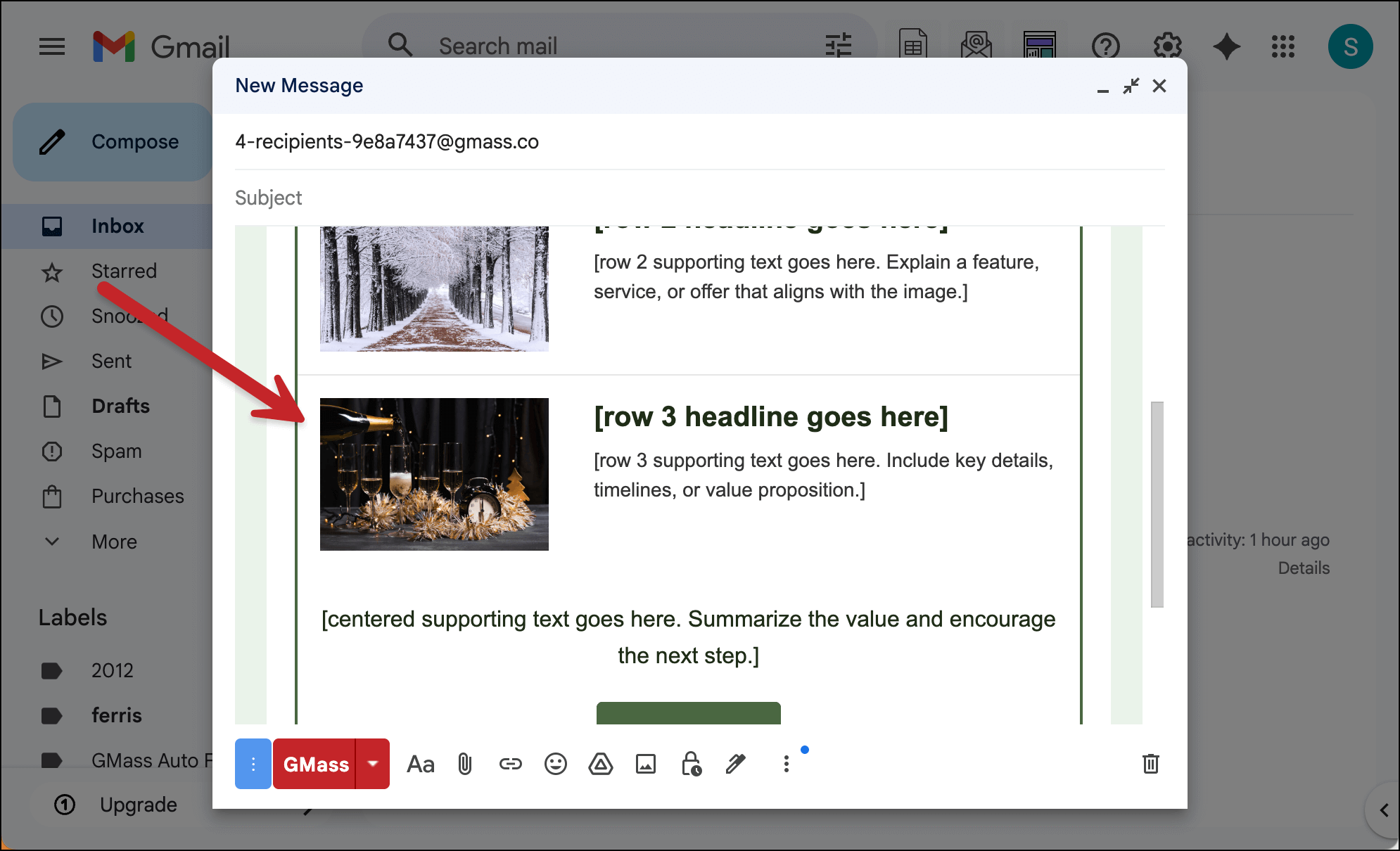
The only downside here is that it takes the AI some time to work through this. So the delete-embed-resize method from option 1 was a bit faster. This, however, was even easier.
Reusing Your HTML Templates in the Future
So you did it. You’ve created the perfect template with the AI generator.
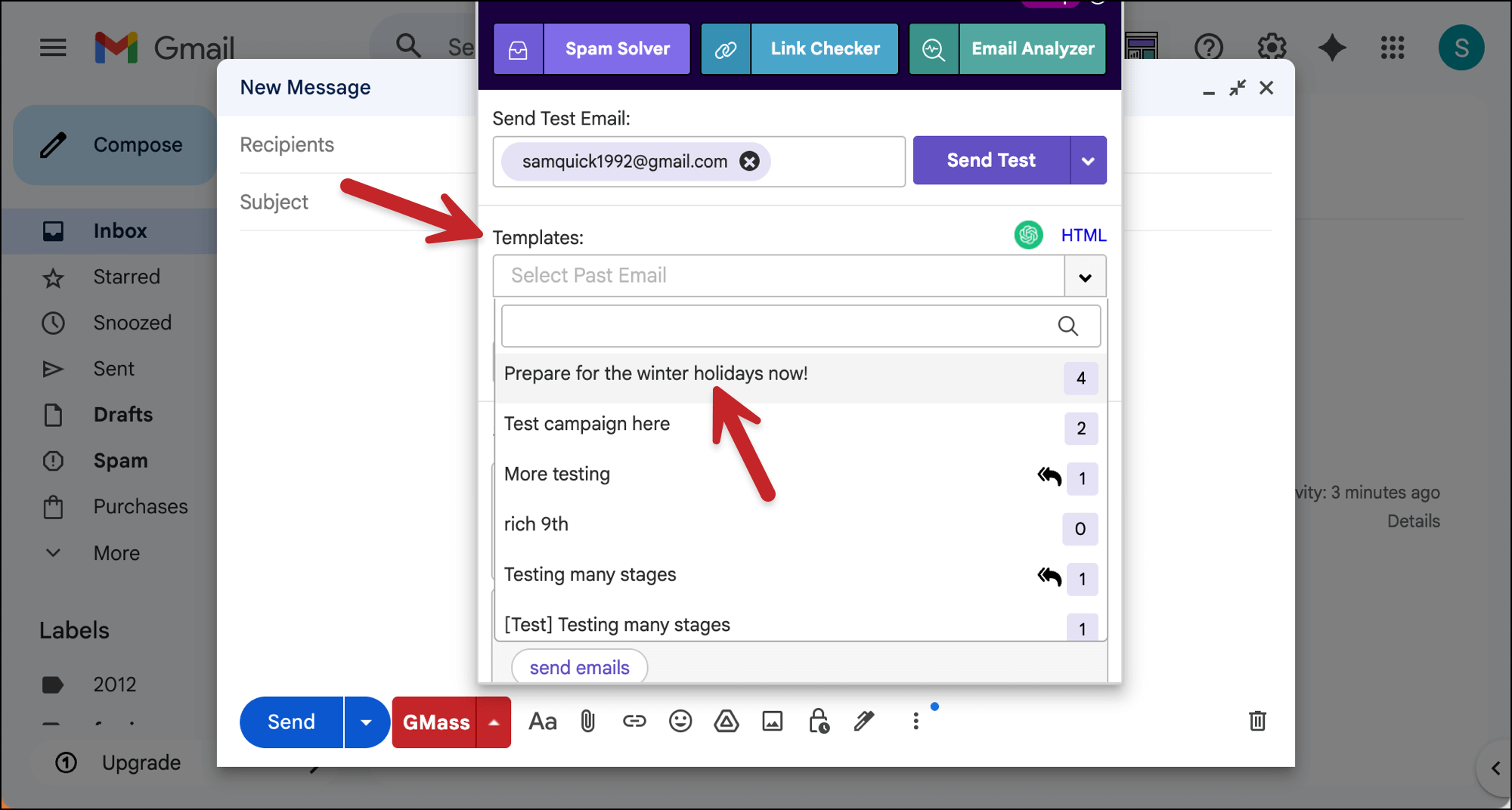
Good news: You can now easily reuse this template in the future using GMass’s other template feature.
With GMass, every email you send becomes a reusable template.
So in the future, if you want to reuse this HTML template, you can choose it from the dropdown box in the GMass settings box.
(And, of course, you can always use the AI template tool to edit that edition of it as necessary as well.)
Not a GMass User Yet? Here’s How to Get Started
This AI HTML email template generator is just the latest GMass feature to transform Gmail into a world-class email campaign sending platform.
It doesn’t matter what type of emails you need to send. With GMass, you can create, send, and track those emails from your Gmail account — with better results than you’ve ever had before.
You can try out GMass for free — no credit card required — by installing the Chrome extension. Come see why 400,000 people love GMass and give it an average of 4.8 out of 5 stars across 10,000+ reviews.