
 |
List Management > Filter specific rows |
I want to send to just a few rows in my Google Sheet and need help writing the filter
You may have a Google Sheet of contacts (or even an entire Google Sheets CRM) — but you don’t want to send your campaign to everyone on that spreadsheet.
That’s where GMass filters come in. You can use filters to send only to specific rows of a Google Sheet who match specific criteria.
While we do already have a guide to GMass filters, in this workflow I’ll show you real world examples of how to write the filter you need.
Step-by-step guide
Here’s how to create a filter.
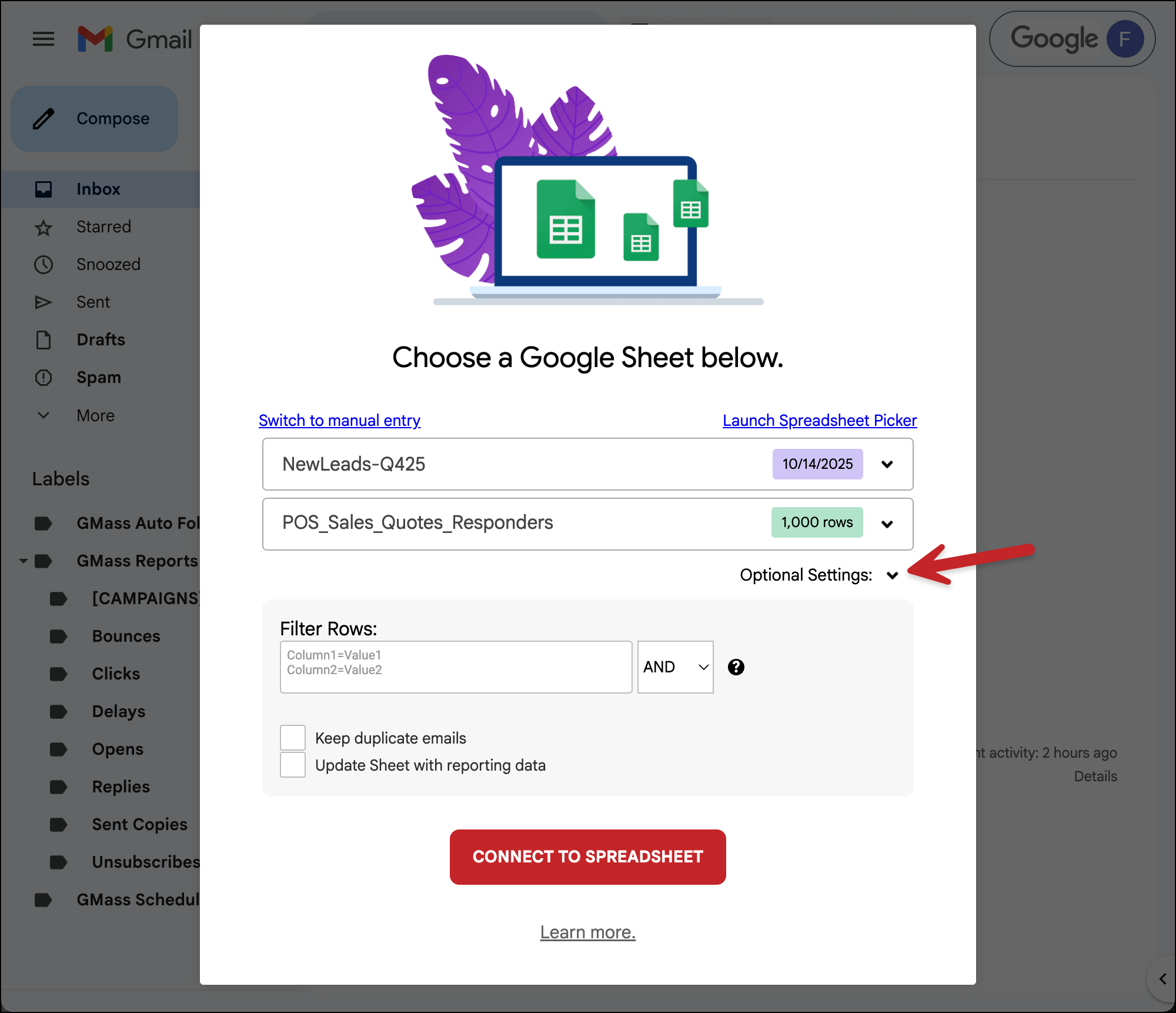
1. Connect to your Google Sheet, then open the Optional Settings
You’ll start by connecting your Google Sheet, then opening the Optional Settings in the connection box.
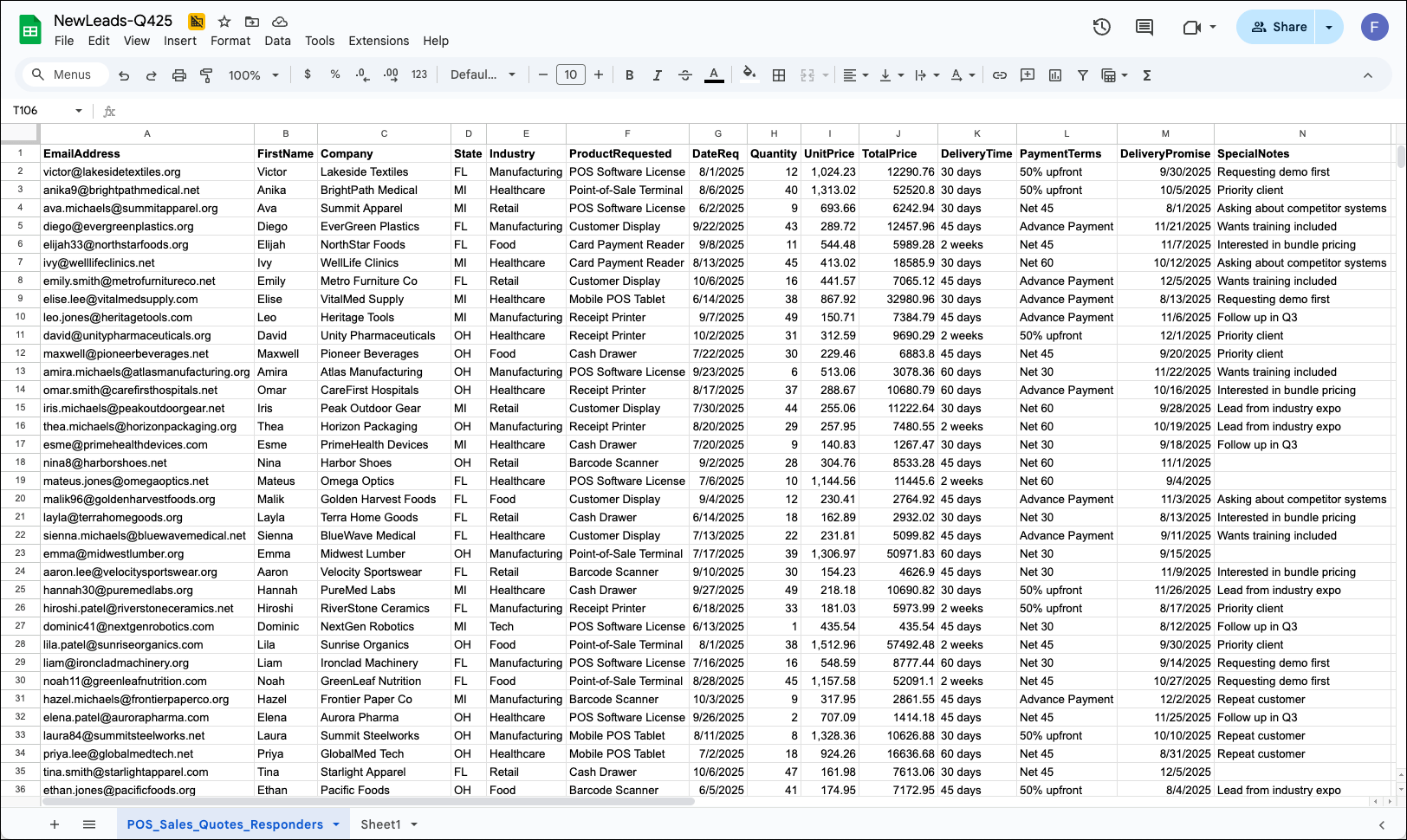
And since I’ll be referencing it a lot in this workflow, here’s a look at my Google Sheet.
2. Writing a basic filter
Let’s start with a basic filter on the sheet.
Say I only want to send to contacts in the Manufacturing industry.
Filters take on the form of Column Header and Value.
So I’ll create a filter that says Industry=Manufacturing.
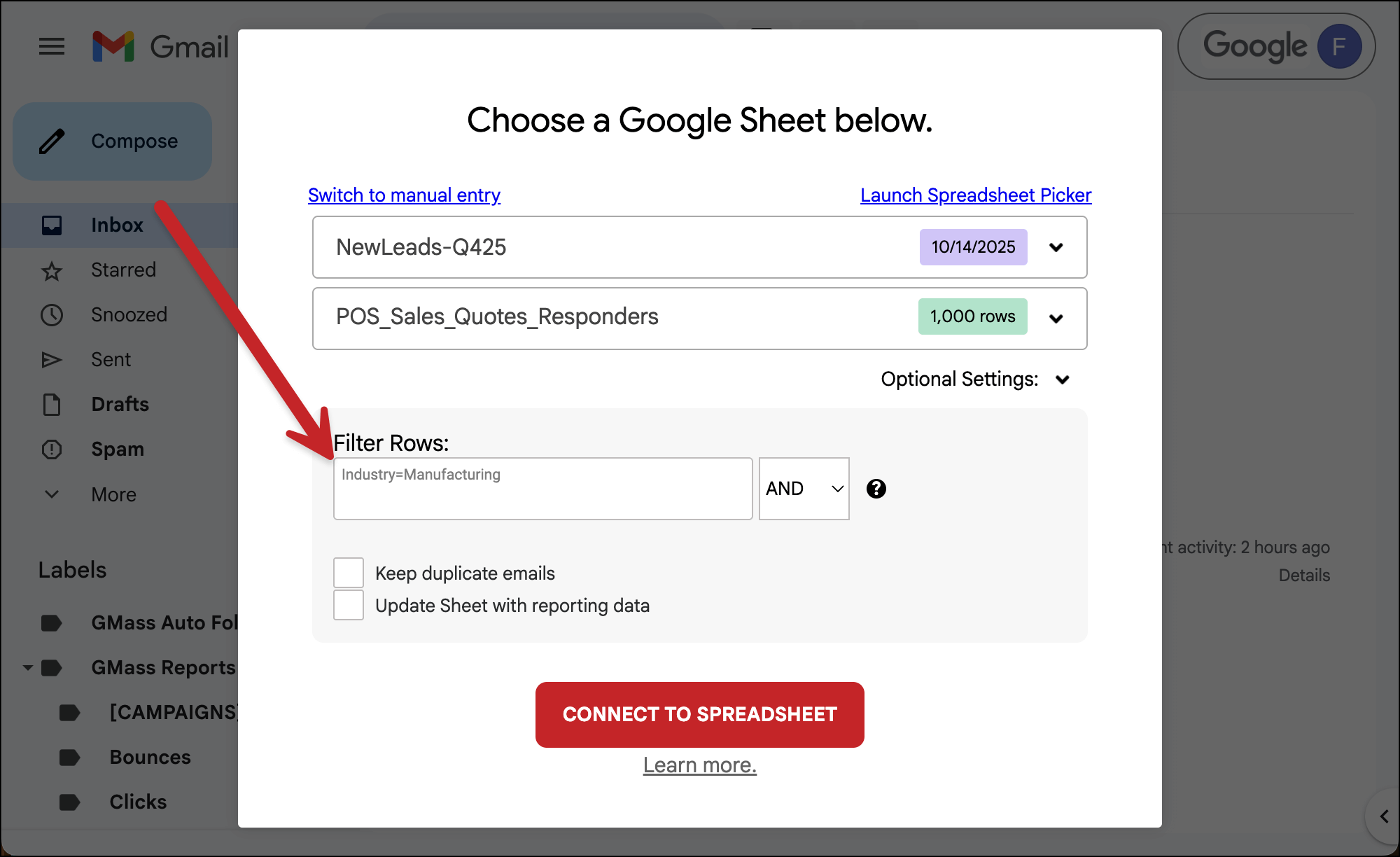
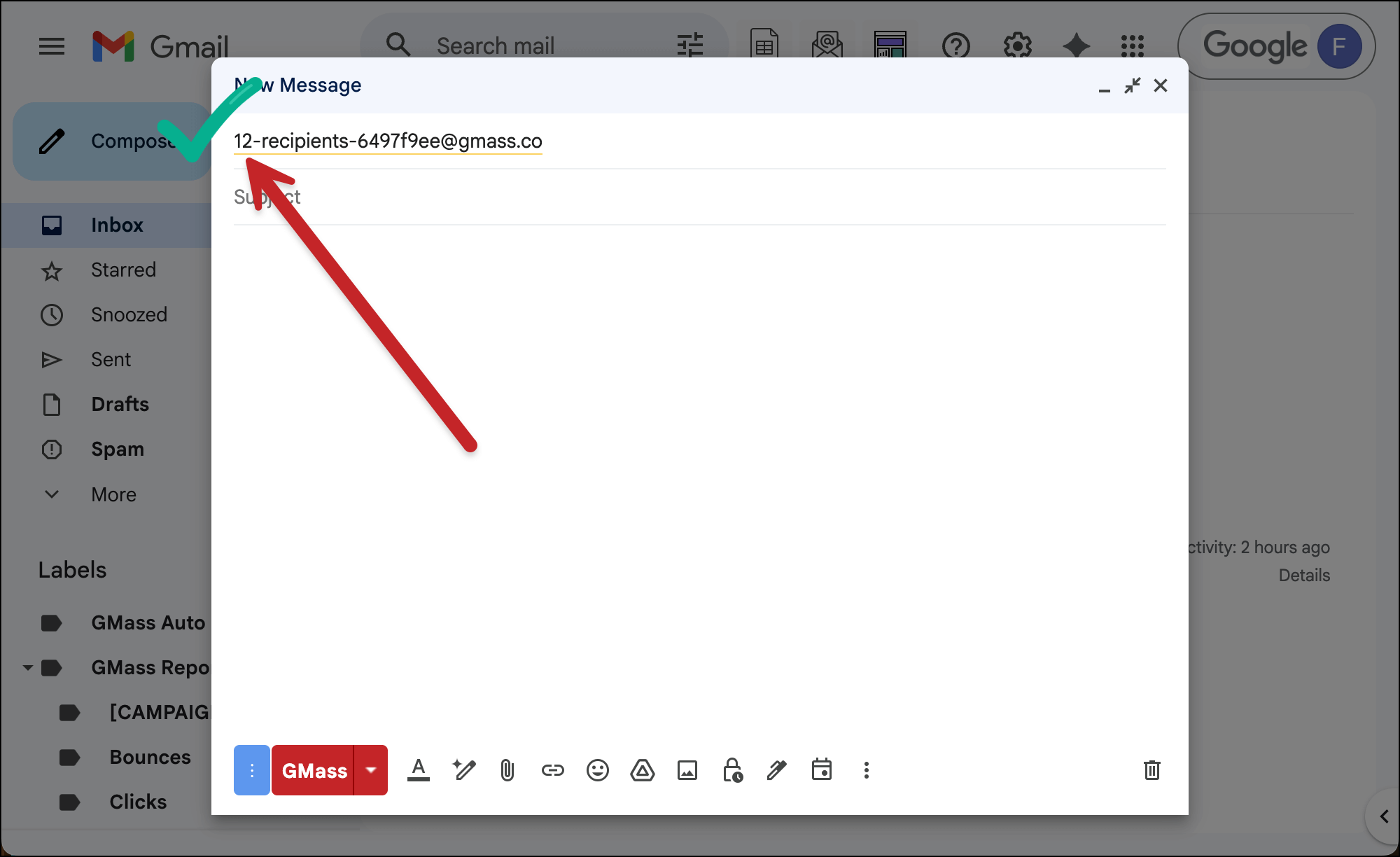
Now when I click the Connect to Spreadsheet button, I should see that my campaign is only going to the 12 contacts on the sheet who are in Manufacturing.
2. Using a numerical comparison filter
What if I wanted to create a filter to only send a campaign to people paying at least $1,000 per unit?
GMass filters use the standard comparison operator notation for that.
In this case, I’ll do UnitPrice>=1000.
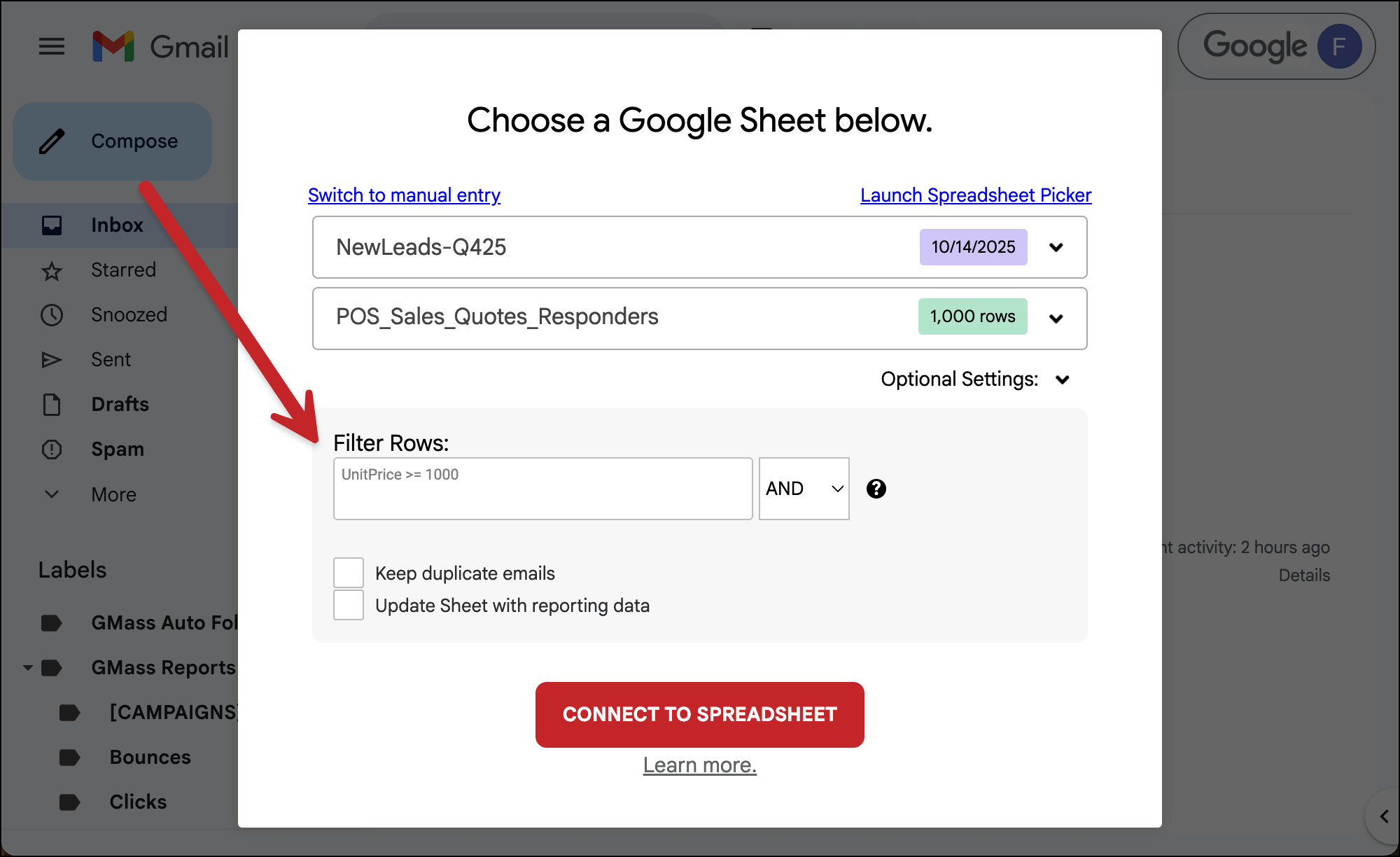
This gives me the 10 contacts on my sheet with a unit price greater than or equal to 1,000.
Note: On my Google Sheet, the prices had to be formatted as *numbers* and not *currency*.
3. Using a date
The same operators work on a date column. For instance, let’s say I want to see everyone who put in their request since September 1st.
DateReq>=9/1/2025
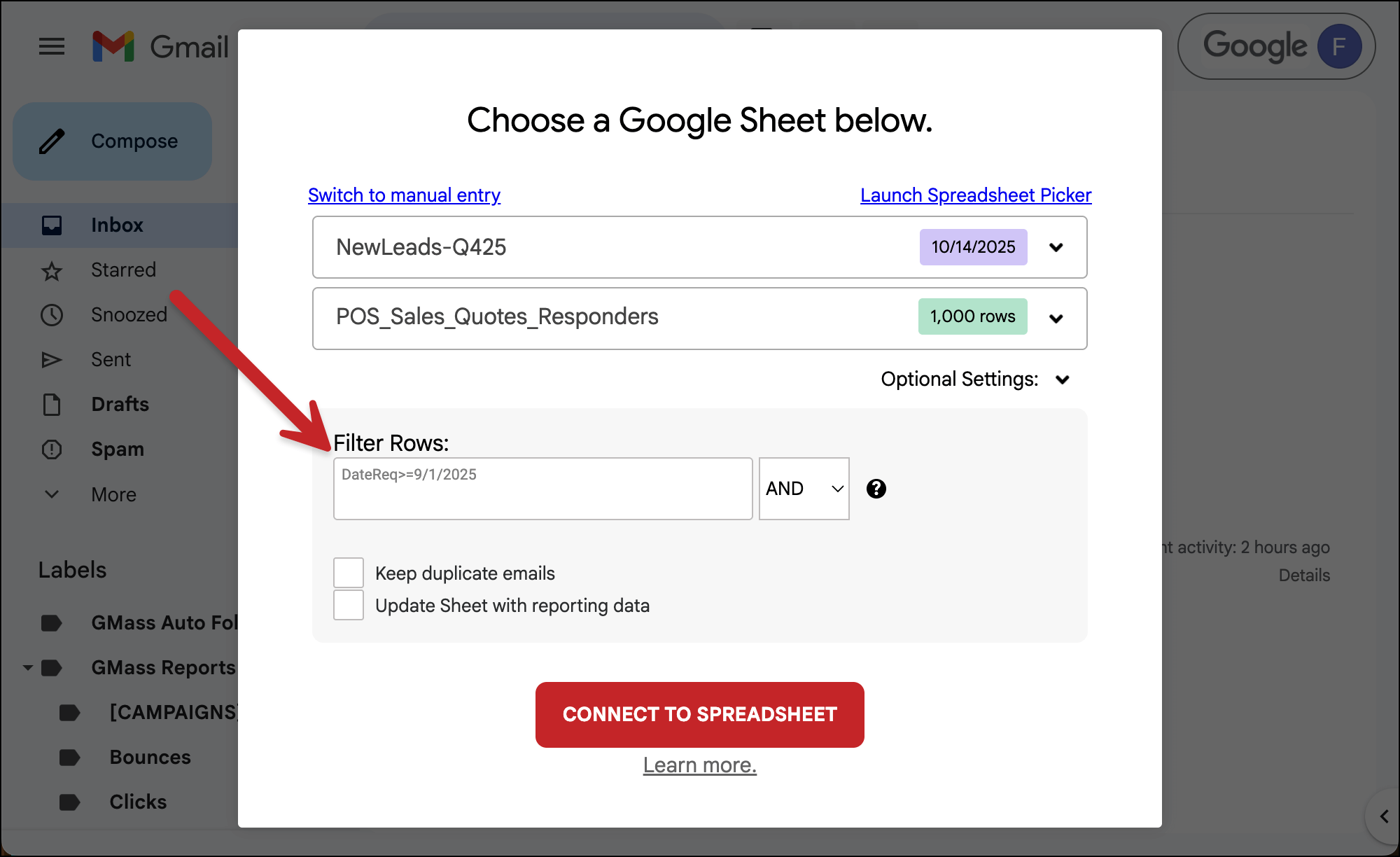
That returns the 14 people whose date requests are in September in October.
There’s also a CurrentDate variable you can use in GMass filters.
So here’s a filter I could use to send a message to everyone we promised delivery to after today’s date to give them an update.
DeliveryPromise>CurrentDate
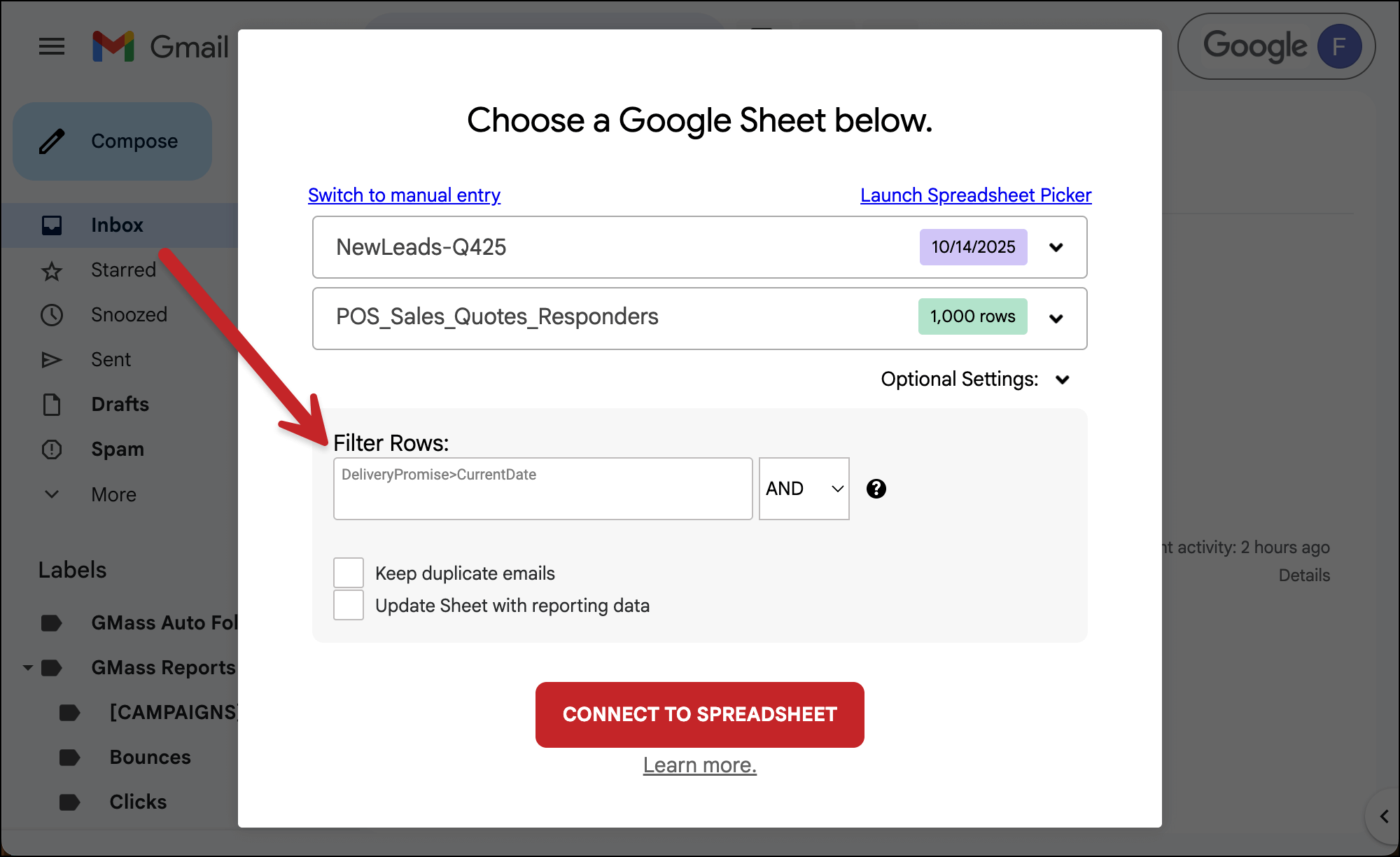
That returns the 18 people who fit that criteria.
4. Using a partial filter
The last basic filter I’ll cover is a partial filter — where you want to filter by something that doesn’t match the entirety of a cell.
For instance, let’s say I want everyone whose payment is Net 30, 45, or 60.
I could create a filter for the PaymentTerms column where I use the ~ operator (for partial matching) and the word “Net.”
PaymentTerms~Net
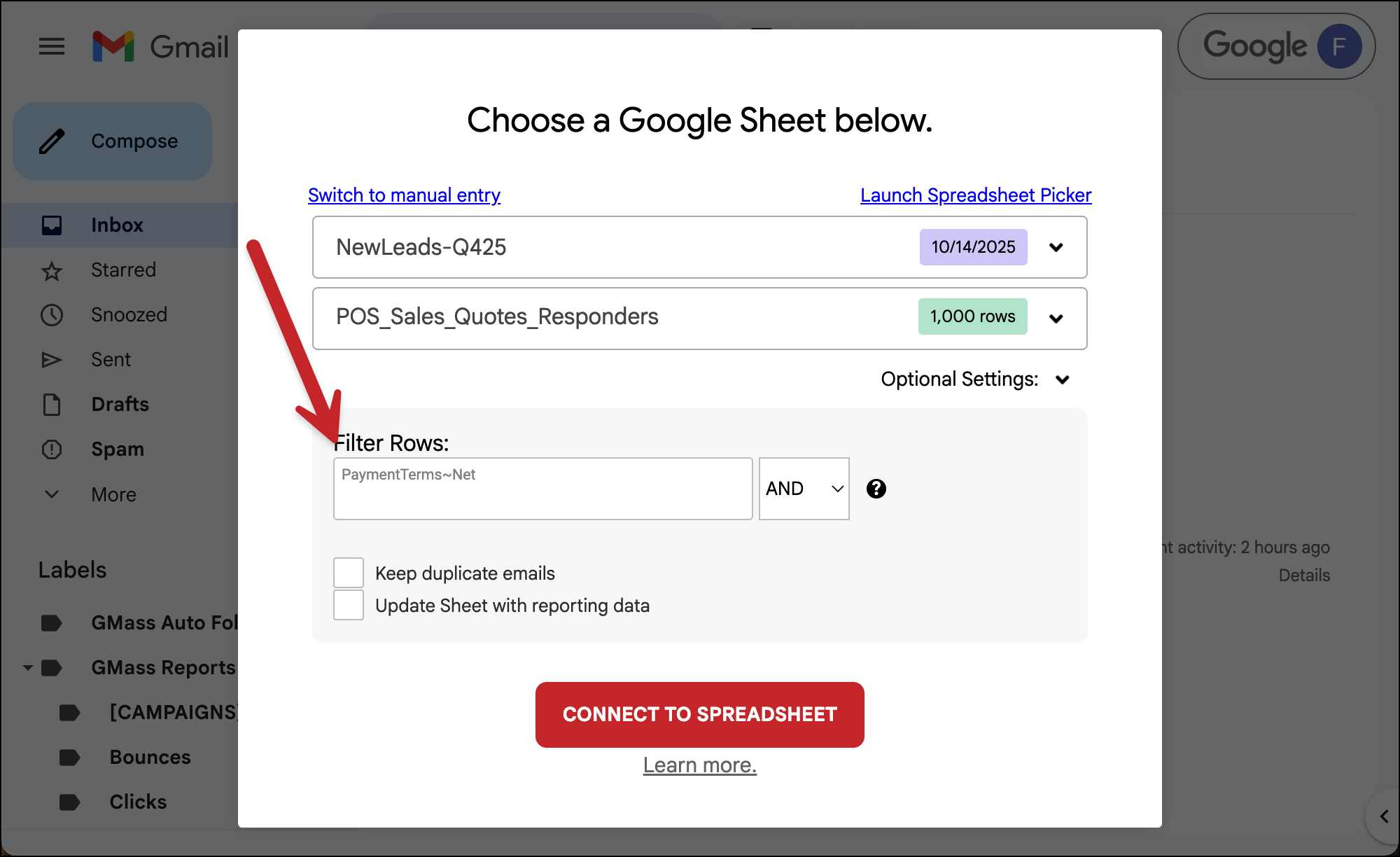
That gives me only the 22 contacts who have some form of net payment.
5. Combining multiple criteria in a filter with AND
What if we want to reach out to everyone who’s in manufacturing and also in the state of Florida?
You can use the AND option for that. Put each criteria on its own row and make sure the dropdown is set to AND.
Industry=Manufacturing
State=FL
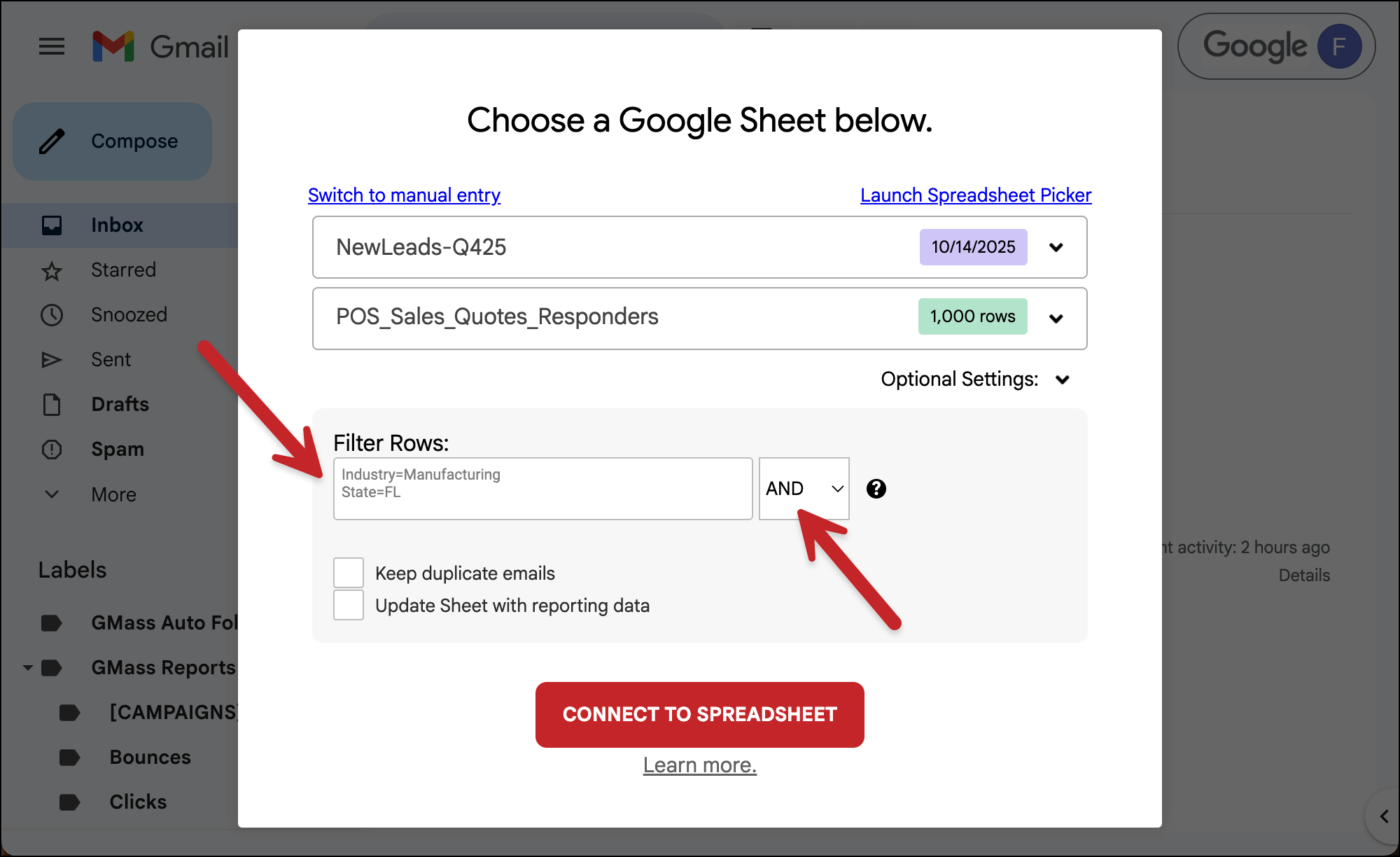
That returns just the four contacts who are both in manufacturing and in Florida.
This also works with numbers, for instance, if we want everyone who’s total price is at least $5,000 but less than $10,000.
TotalPrice>=5000
TotalPrice<10000
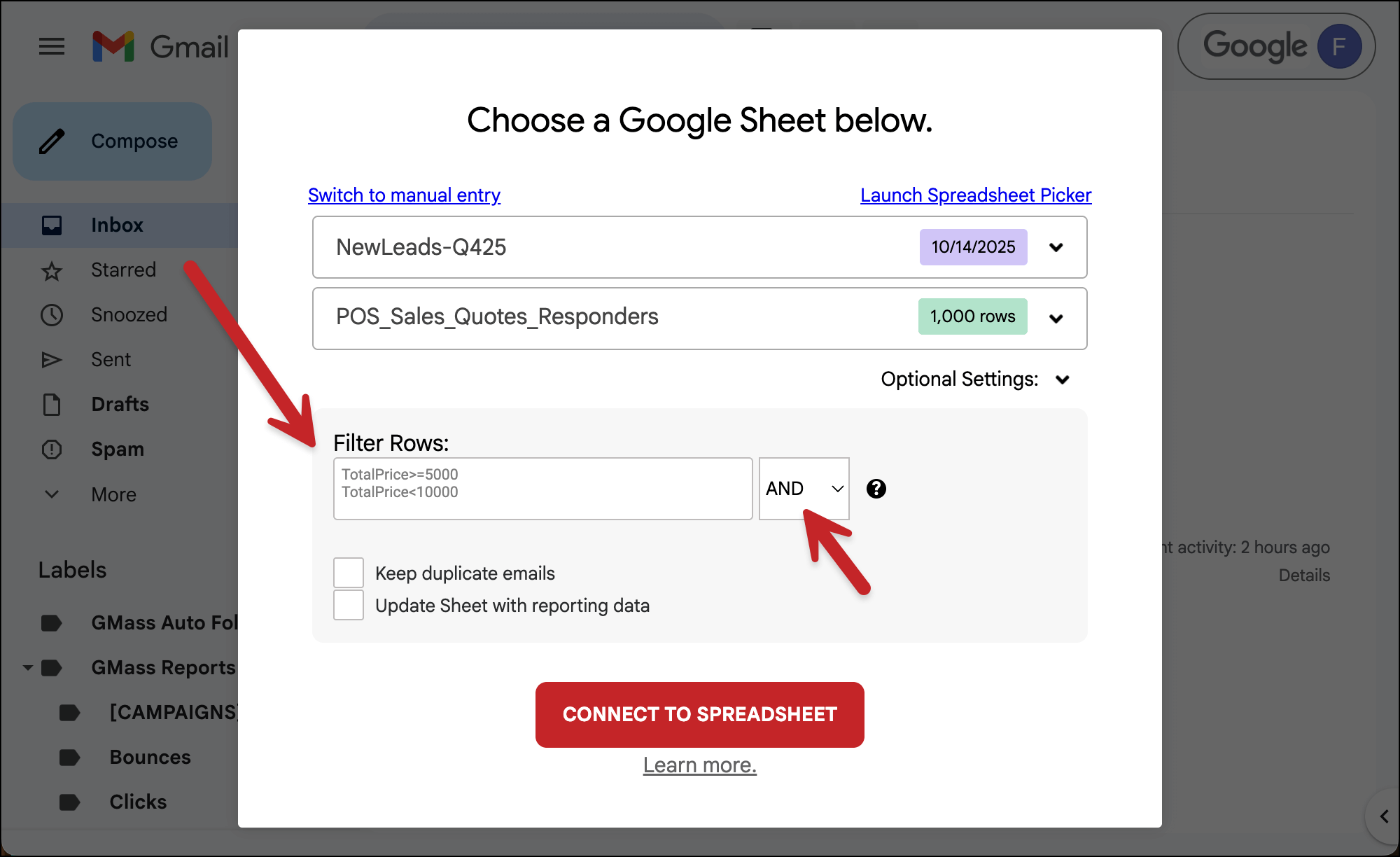
That returns the 13 people whose total price is in that range.
6. Combining multiple criteria in a filter with OR
And finally, here’s how to use the OR option.
Let’s say we want people who requested any point-of-sale product (a POS Software License, a Mobile POS Tablet, or a Point-of-Sale Terminal).
I’ll create a filter using OR to do that. I’m partial matching on “POS” and “Point” in this case.
ProductRequested~POS
ProductRequested~Point
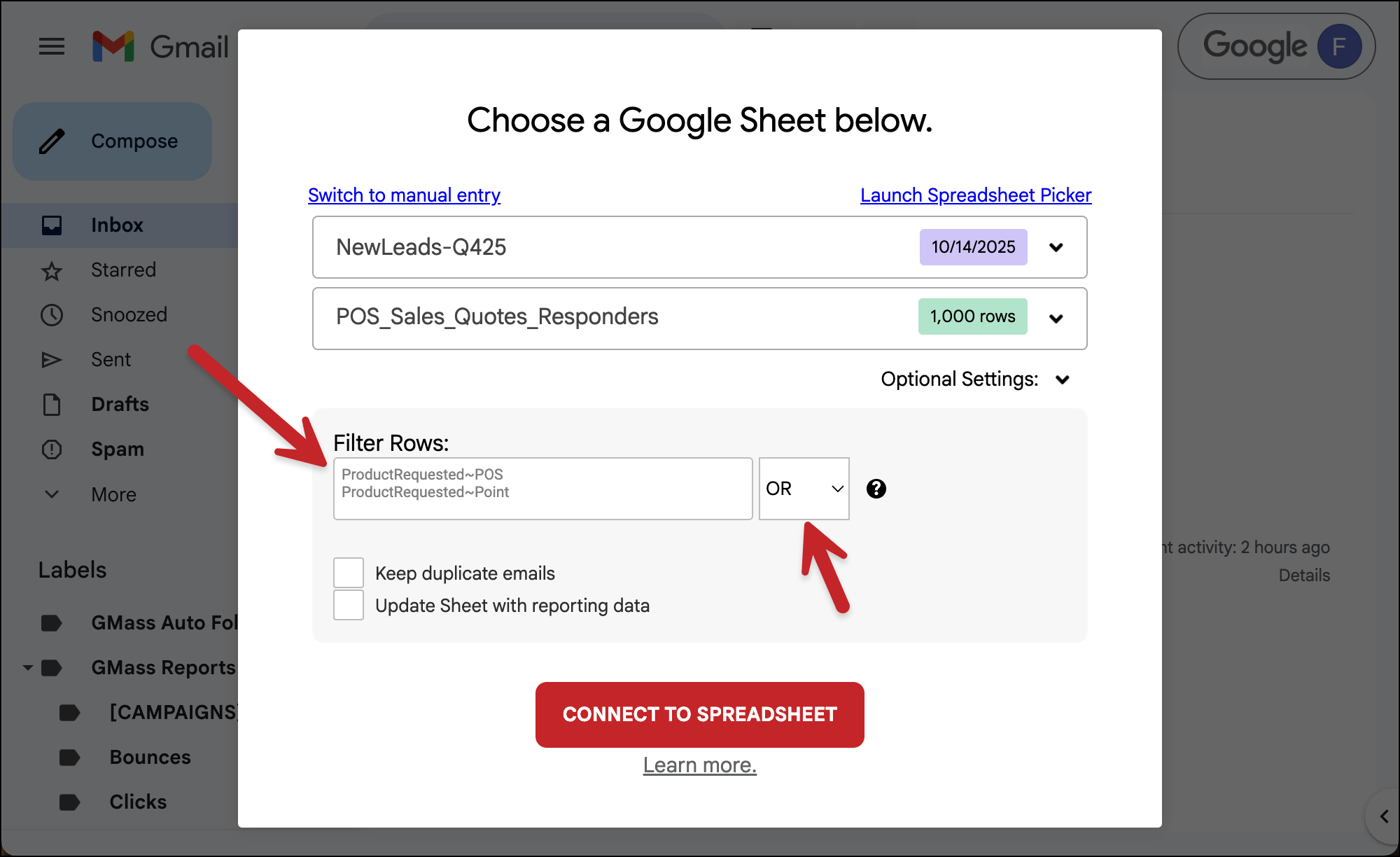
That returns all 17 customers who requested one of those products.
And that’s how to use filters to send only to certain rows of your Google Sheet in a GMass campaign. Mix and match everything I’ve covered above to fit what you’re looking to do.
✅ You’re all set.
More resources
- Once again, check out our full writeup of filtering your Google Sheet for more.
- You may also be interested in conditional content, which lets you change the message in your email based on different criteria. (For instance, everyone in manufacturing could get a sentence on manufacturing while everyone in healthcare gets something different.)