
 |
Automations & Sequences > Send instantly when added |
I want emails to send as soon as someone is added to my Google Sheet
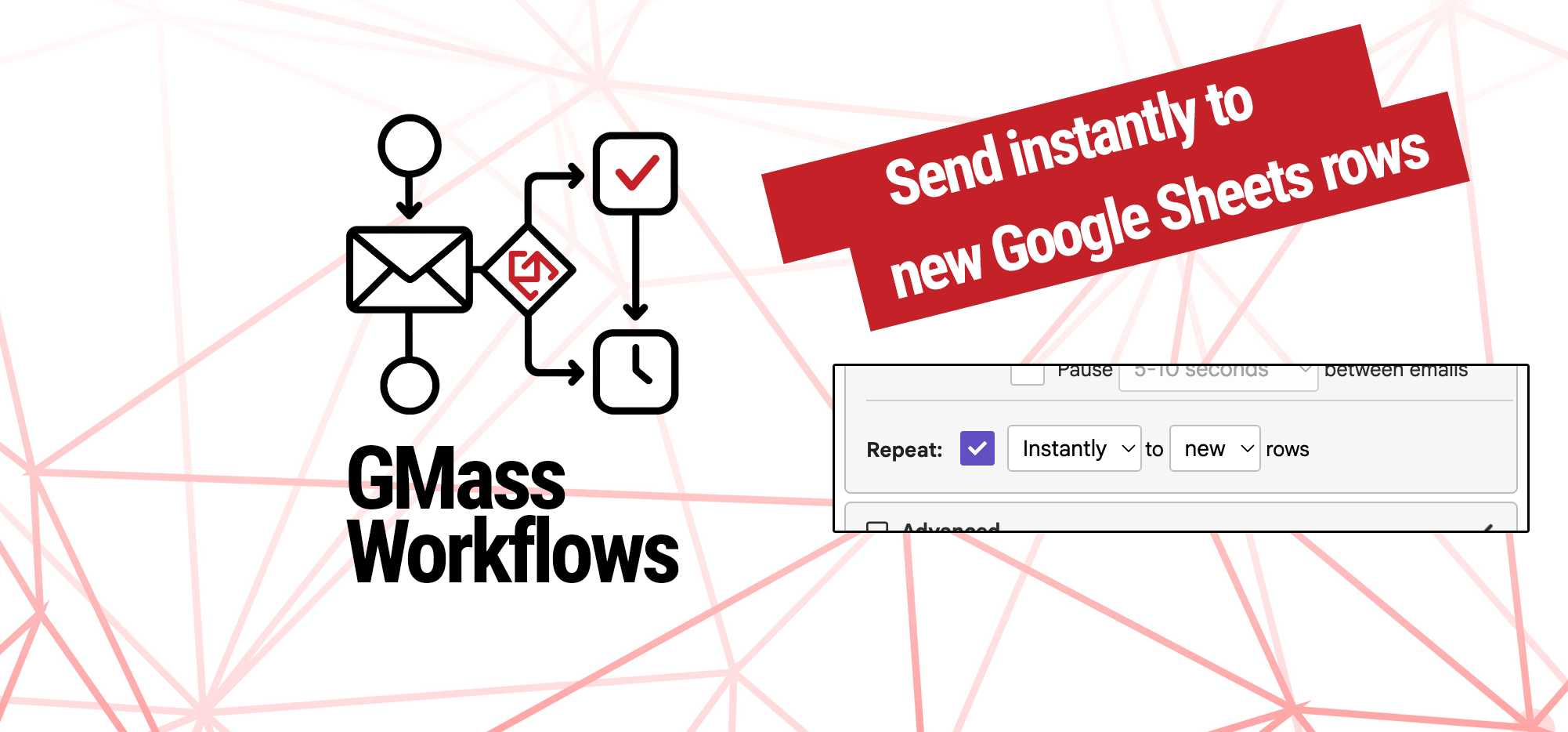
GMass has powerful automation features, including the ability to enter someone into a campaign when you add them to your Google Sheet.
Sending those emails the instant people are added does take an extra step (as compared to, say, sending within an hour or two or within a day).
Here’s how to do it.
Step-by-step guide
1. Connect your Google Sheet to your new campaign
You’ll need to have at least one person in your Google Sheet to get started. (You can use your own info here if you aren’t ready to put in live contacts yet.)
Go into Gmail.
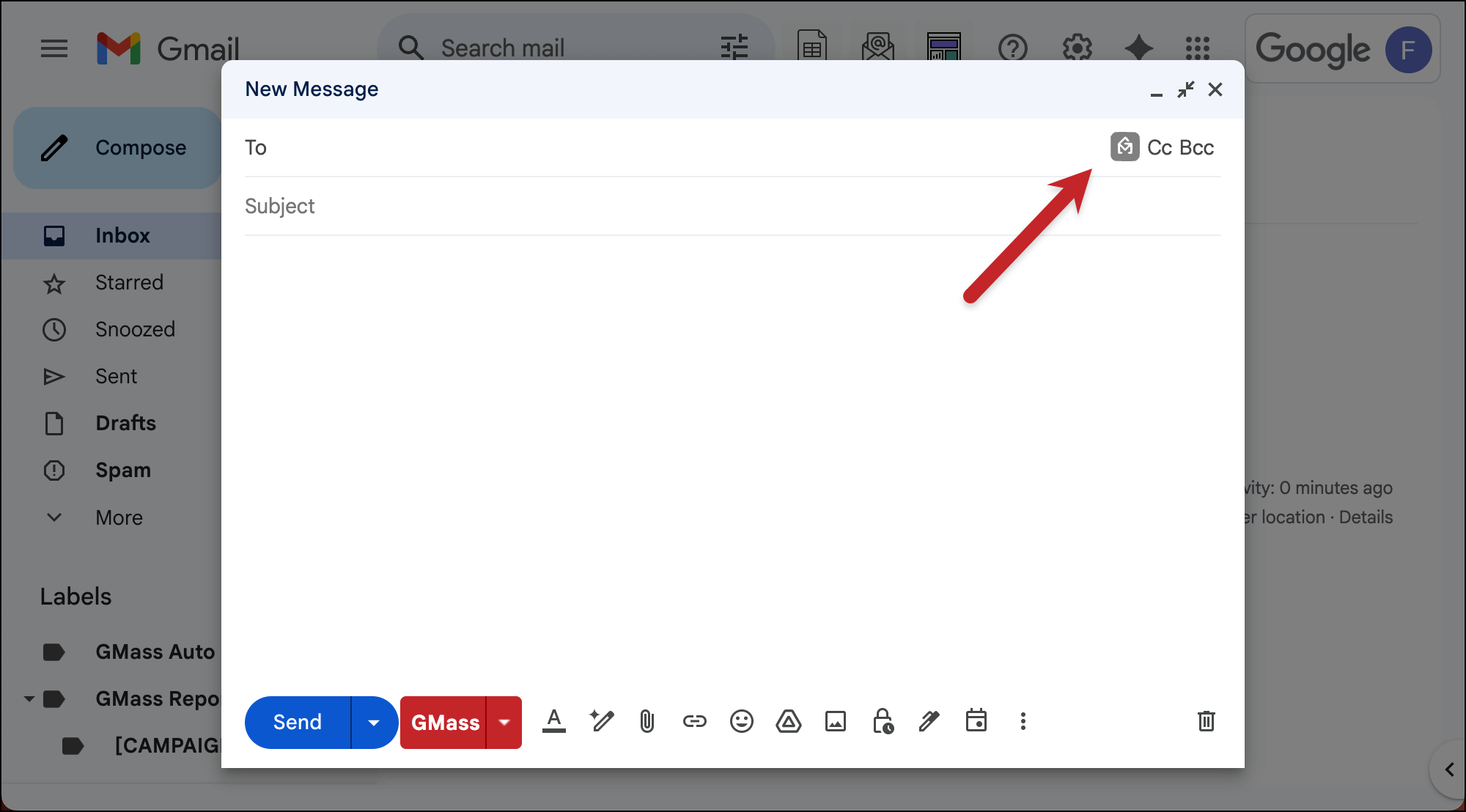
Open a new compose window, then click the GMass icon in the To field to connect your Google Sheet.
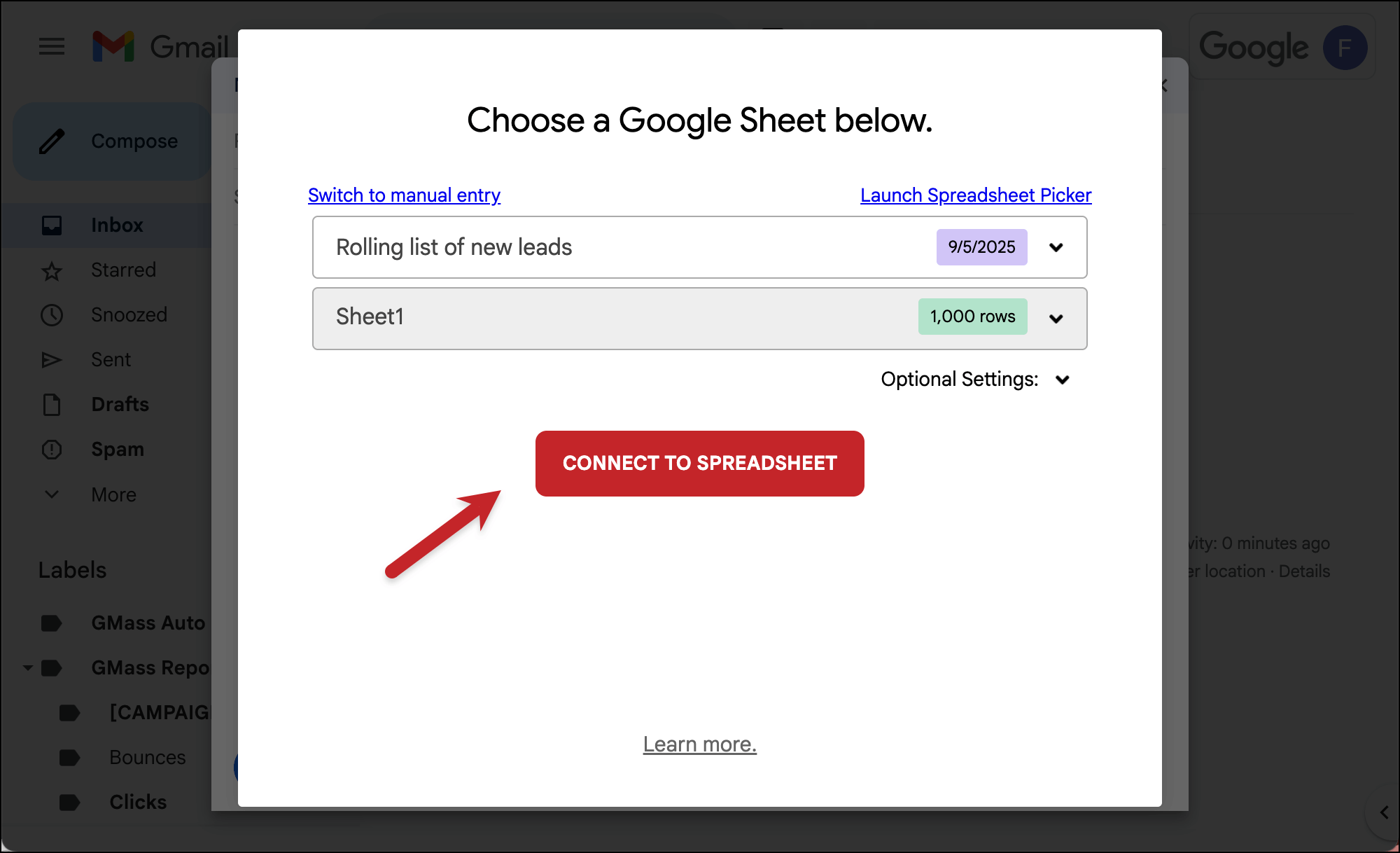
Choose your Google Sheet from the dropdown. Then click Connect to Spreadsheet.
2. Create your email campaign
Now write your email.
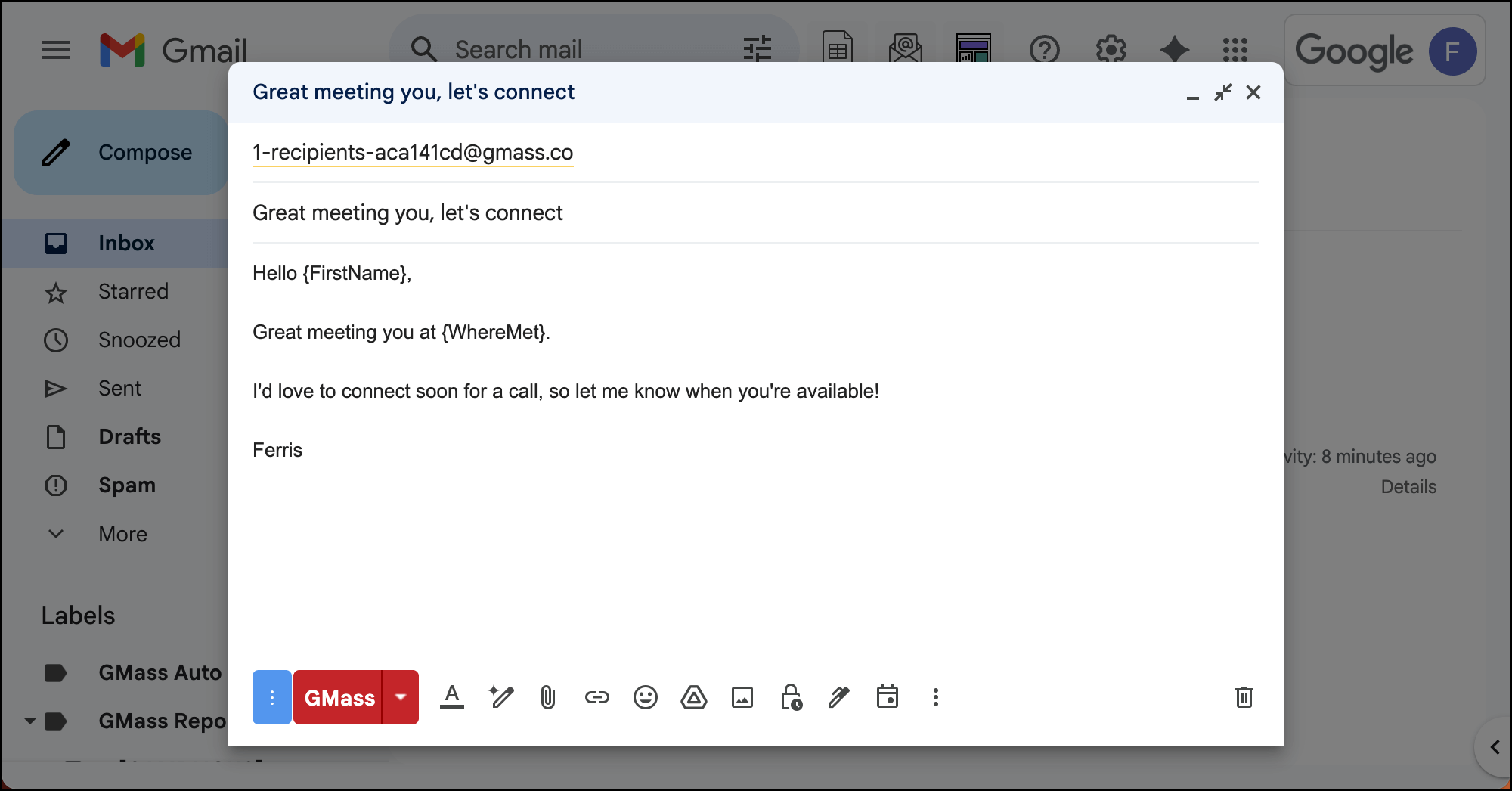
You can also go into the GMass settings to set up auto follow-ups (or anything else you want for this campaign).
3. Make this a recurring campaign, instant on new rows
Once your sequence is done, go to the Schedule section of the GMass settings box.
Check the box next to Repeat. Choose Instantly from the “Day” dropdown menu. Keep the other dropdown on new rows.

4. Start your campaign, then set up the recurrence script
When everything is good to go, hit the red GMass button to launch your campaign to everyone initially on your Google Sheet. (In my example, my own email was the only contact on there.)
After you send the campaign with the GMass button, you’ll get a new email in your inbox from GMass Notifier with the subject Install this script into your Google Sheet.
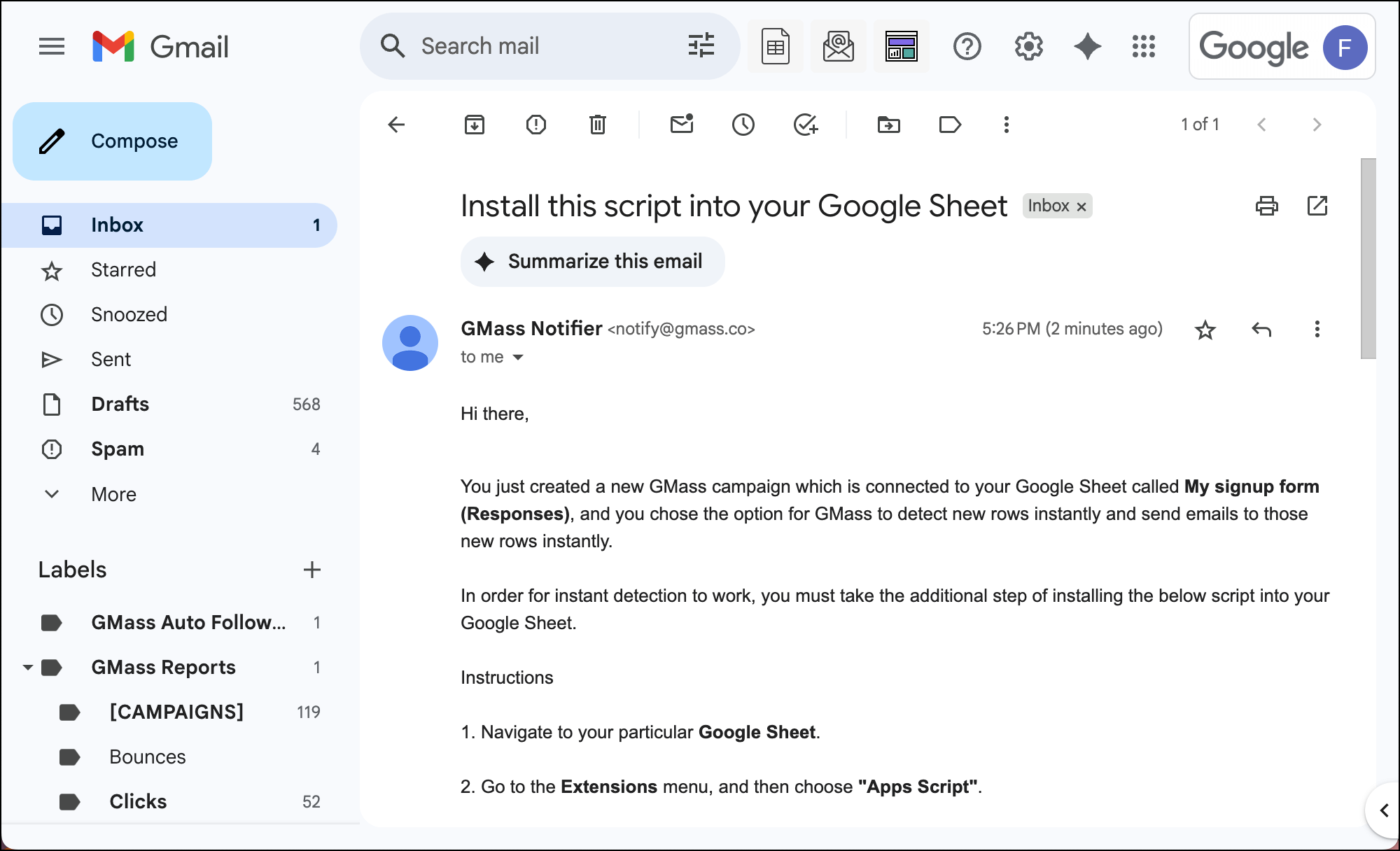
It’s an extra step Google makes you take as we send messages the moment someone signs up on our form.
We’ll go through the process here.
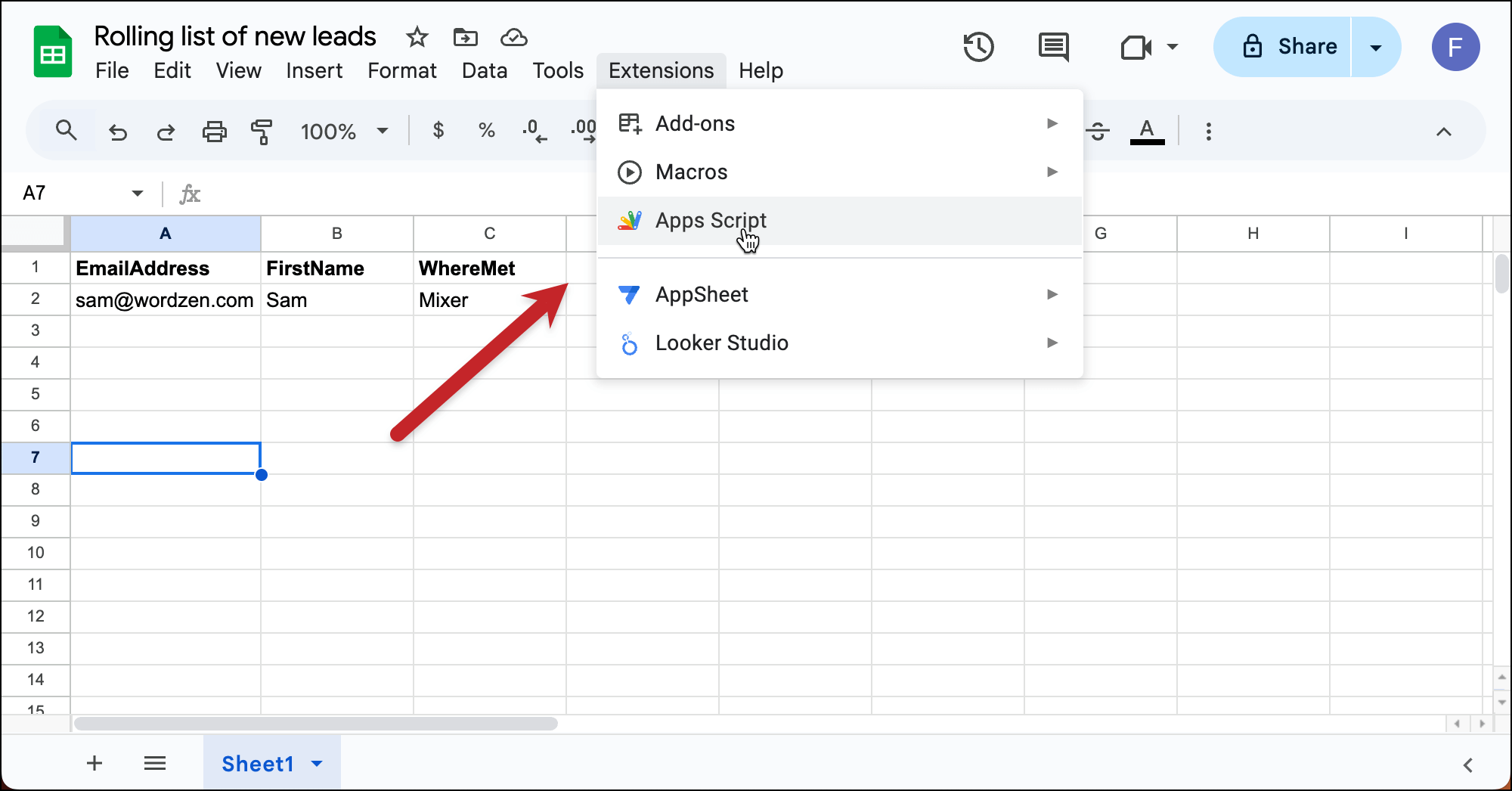
Go back to your Google Sheet of responses and head to Extensions > Apps Script.
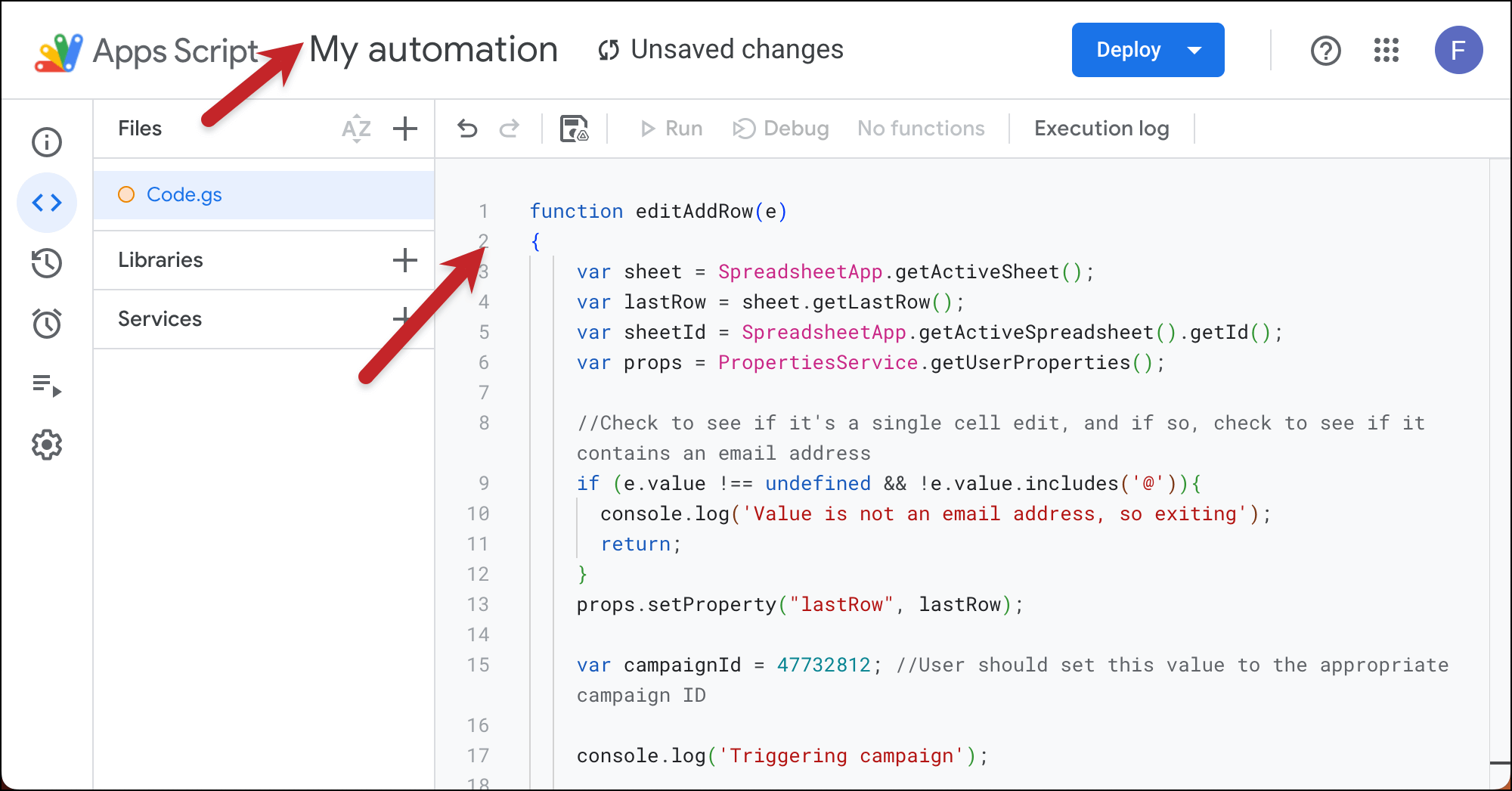
Give your Apps Script any name you want. Then copy the code block inside that Install this script into your Google Sheet and paste it over everything in the code section in the Google Apps Script window.
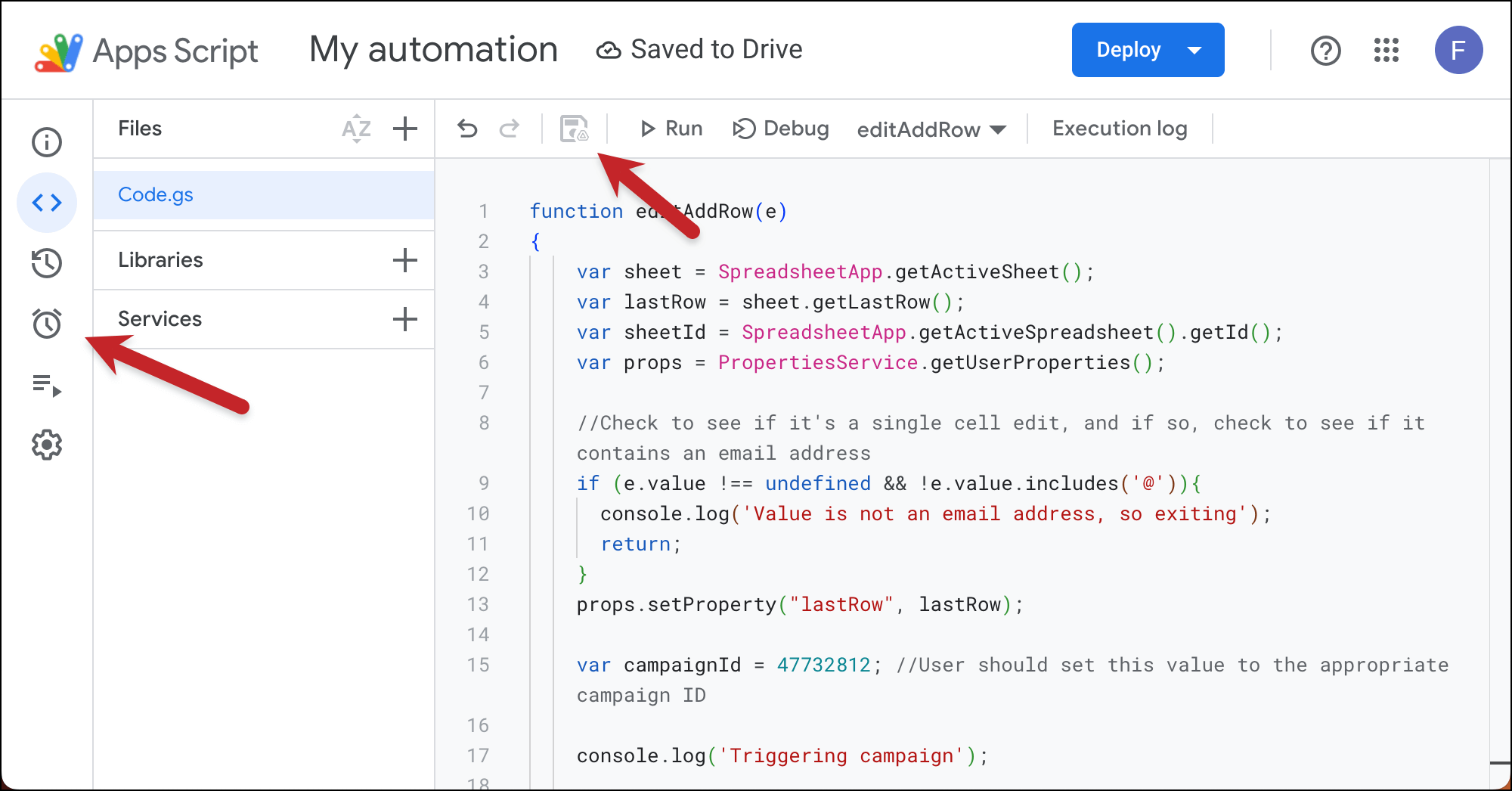
Click the disk icon to Save the script.
Then click the Triggers menu on the left (it looks like a stopwatch).
Click the Add Trigger button on the bottom right.
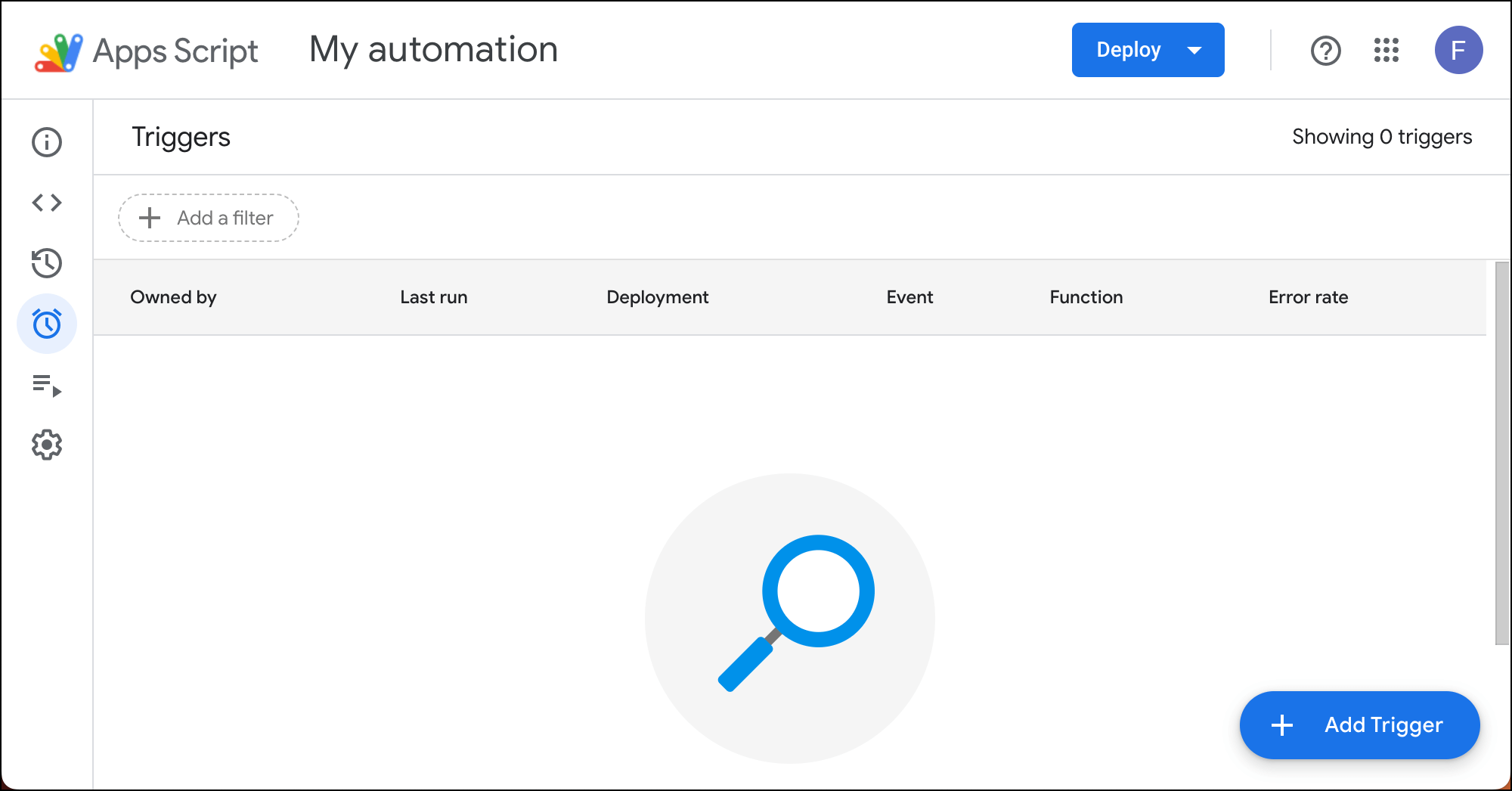
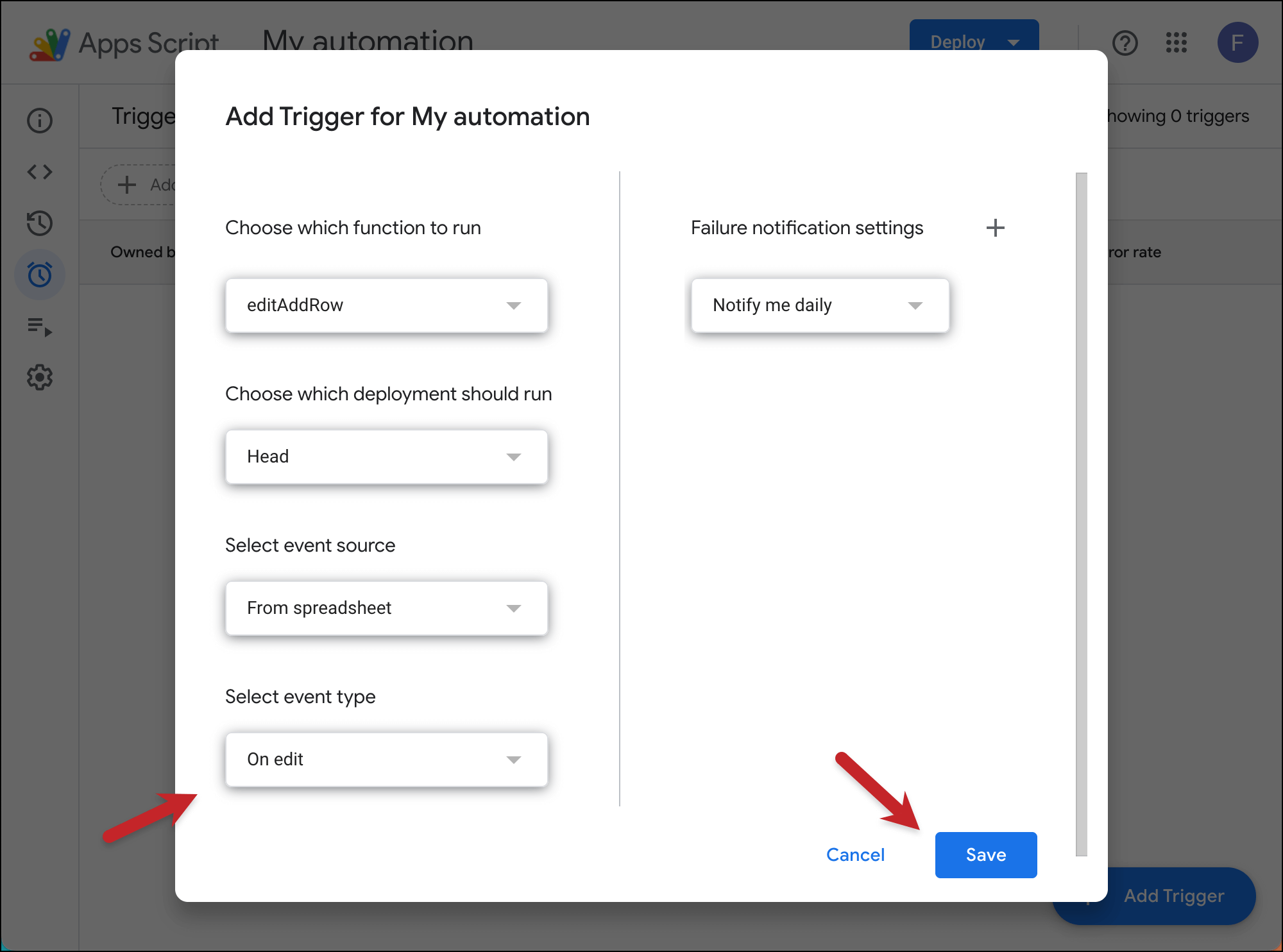
Now follow the instructions from the email. You set the menus to editAddRow, Head, From spreadsheet, On edit, and Notify me daily.
I chose “On edit” because I’m going to be manually entering in new contacts. If you’re automatically feeding them to a sheet, from a form on your website for instance, the email with the script instructions will tell you the alternative event type to choose.
Then click Save.
That’s done. You can close the window.
And now, whenever you add a new row to this Google Sheet, they’ll instantly your email.
✅ You’re all set.
More resources
- I know it can look intimidating to set up a Google Apps Script. Check out our full guide to setting up instant recurring campaigns for even more screenshots and instructions.
- Here’s more about GMass’s recurring campaign automations — including all the ones that don’t require a script.
- GMass also has triggered emails, another automation that goes out instantly when someone takes an action on a campaign (like opening, clicking, or replying).