
 |
Automations & Sequences > Welcome email to Google Form signups |
I want to collect signups in a Google Form and send automatic welcome emails
Google Forms are an underrated (and free) way to collect email signups.
If you’re using a Google Form to collect emails, you can then get GMass involved to send an automated welcome message to everyone who signs up.
Here’s how.
Step-by-step guide
1. In Google Forms, save responses to a Google Sheet
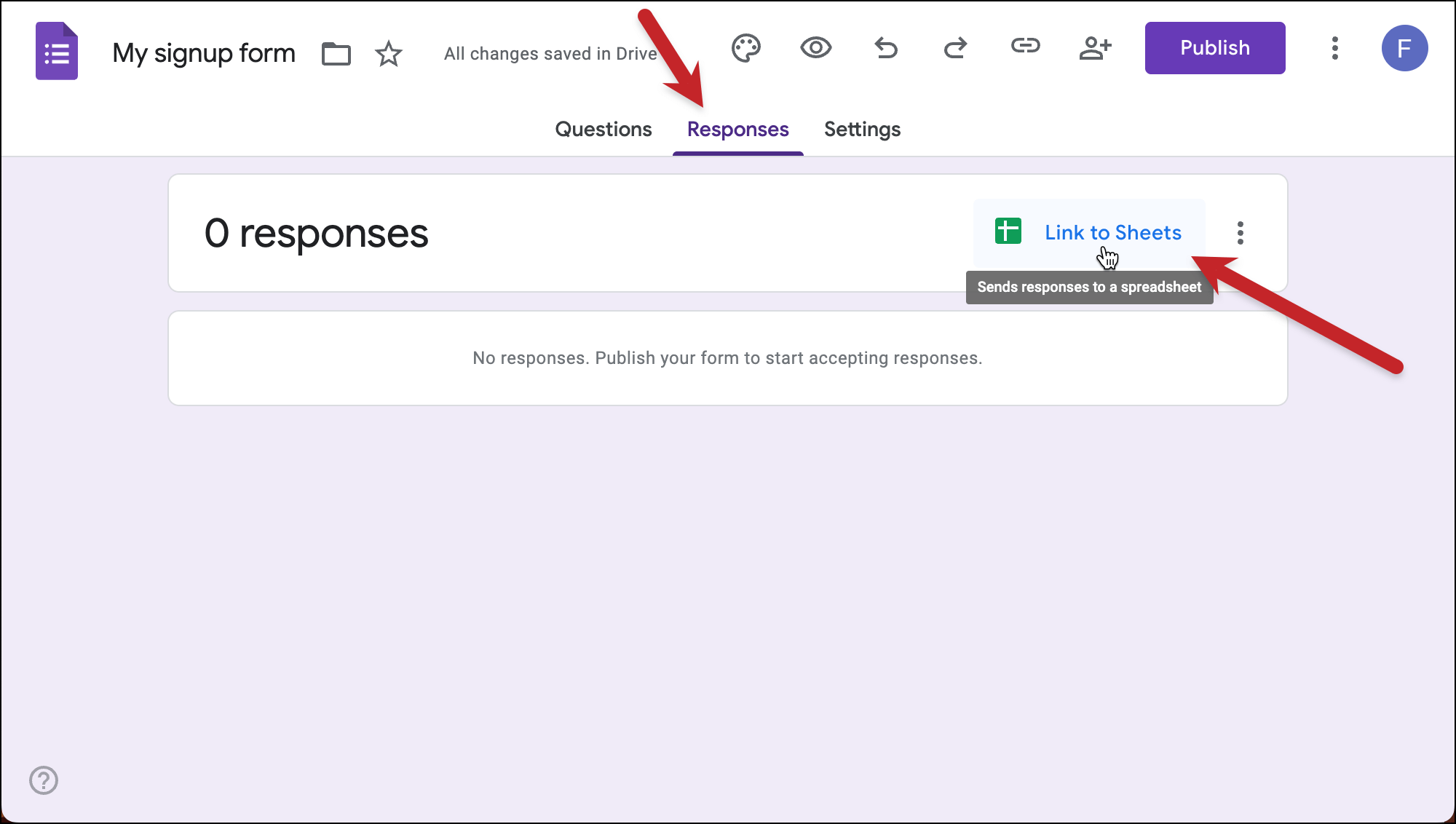
While you’re creating your signup form in Google Forms, go to the Responses tab.
Click the option to Link to Sheets.
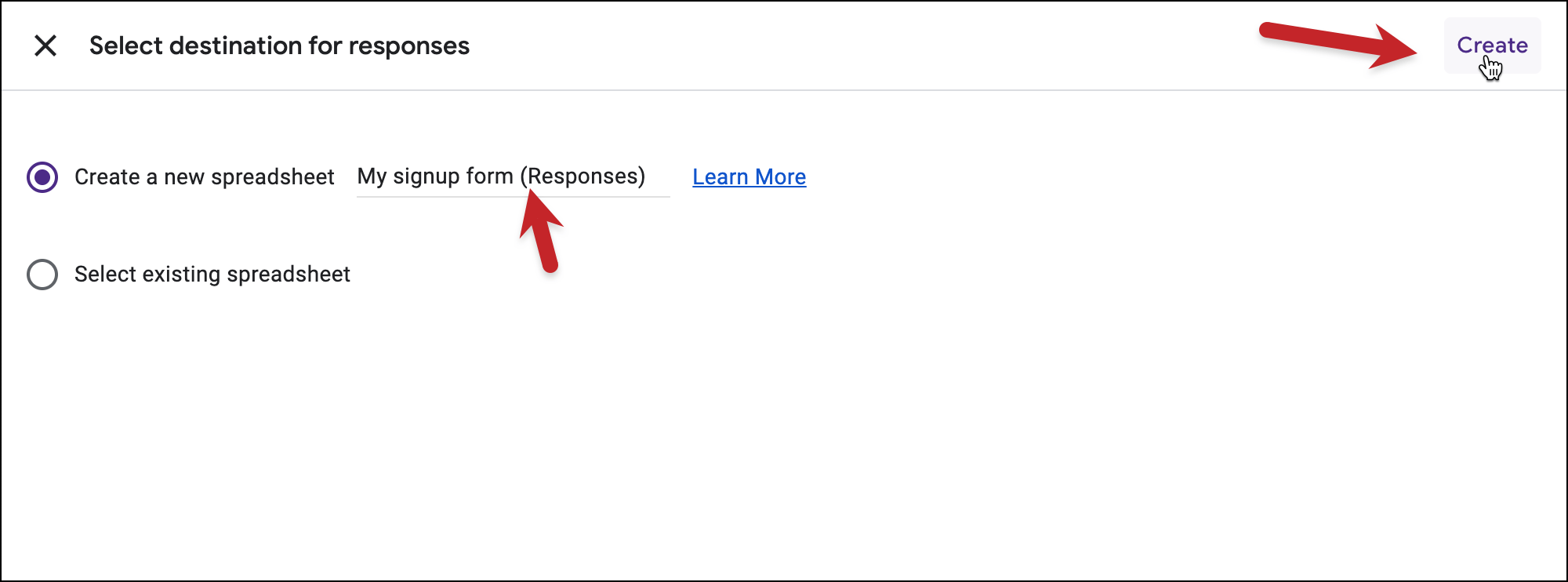
Choose the option to Create a new spreadsheet, give your sheet any name you want, then click the Create link.
Change the names of the columns in the sheet to names that are better for mail merge. For instance, I changed the names from “What’s your email address?” to EmailAddress and “What’s your first name?” to FirstName.
(Don’t worry. As long as you don’t change the order of the columns, the Google Form will still feed them properly.)
2. After you publish your form, fill it out yourself
We need to have an initial email in your Google Sheet to get started.
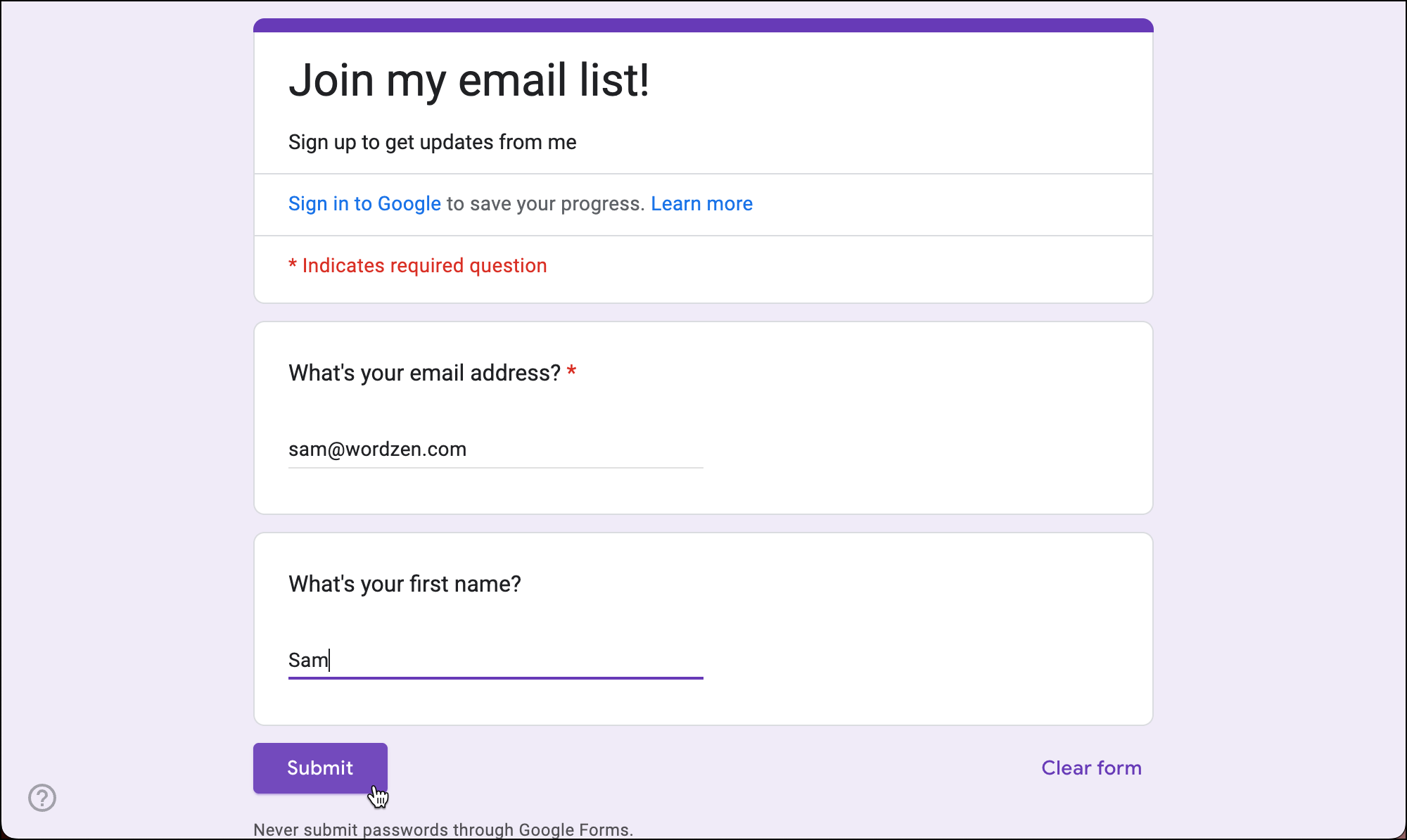
Fill out your form in an incognito browser window. I like to use a different email address from a different Gmail account.
Then make sure your info went into the Google Sheet.
3. Connect your Google Sheet to your new campaign
Head over to Gmail.
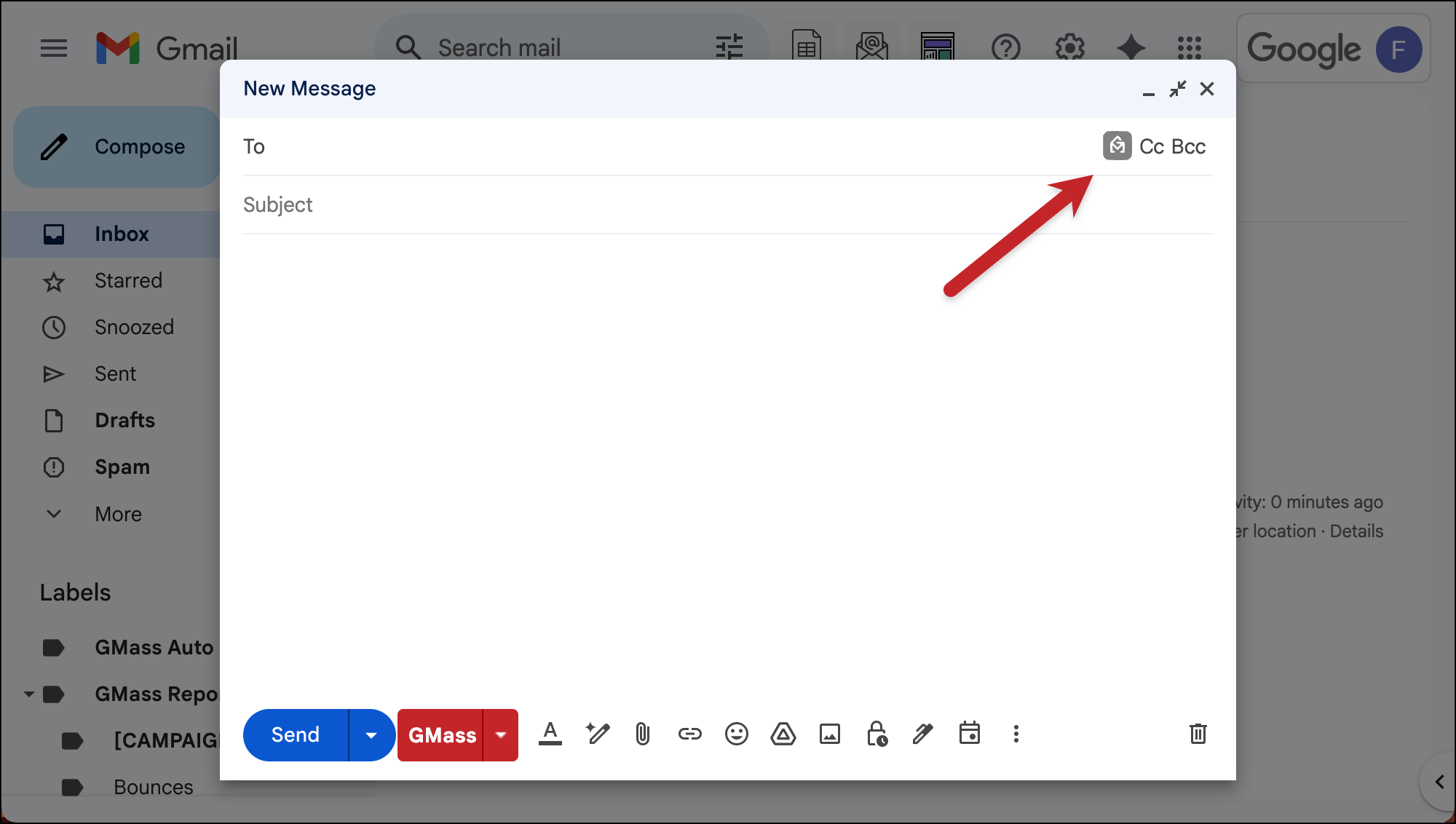
Open a new compose window, then hit the red GMass icon in the To field to connect your Google Sheet.
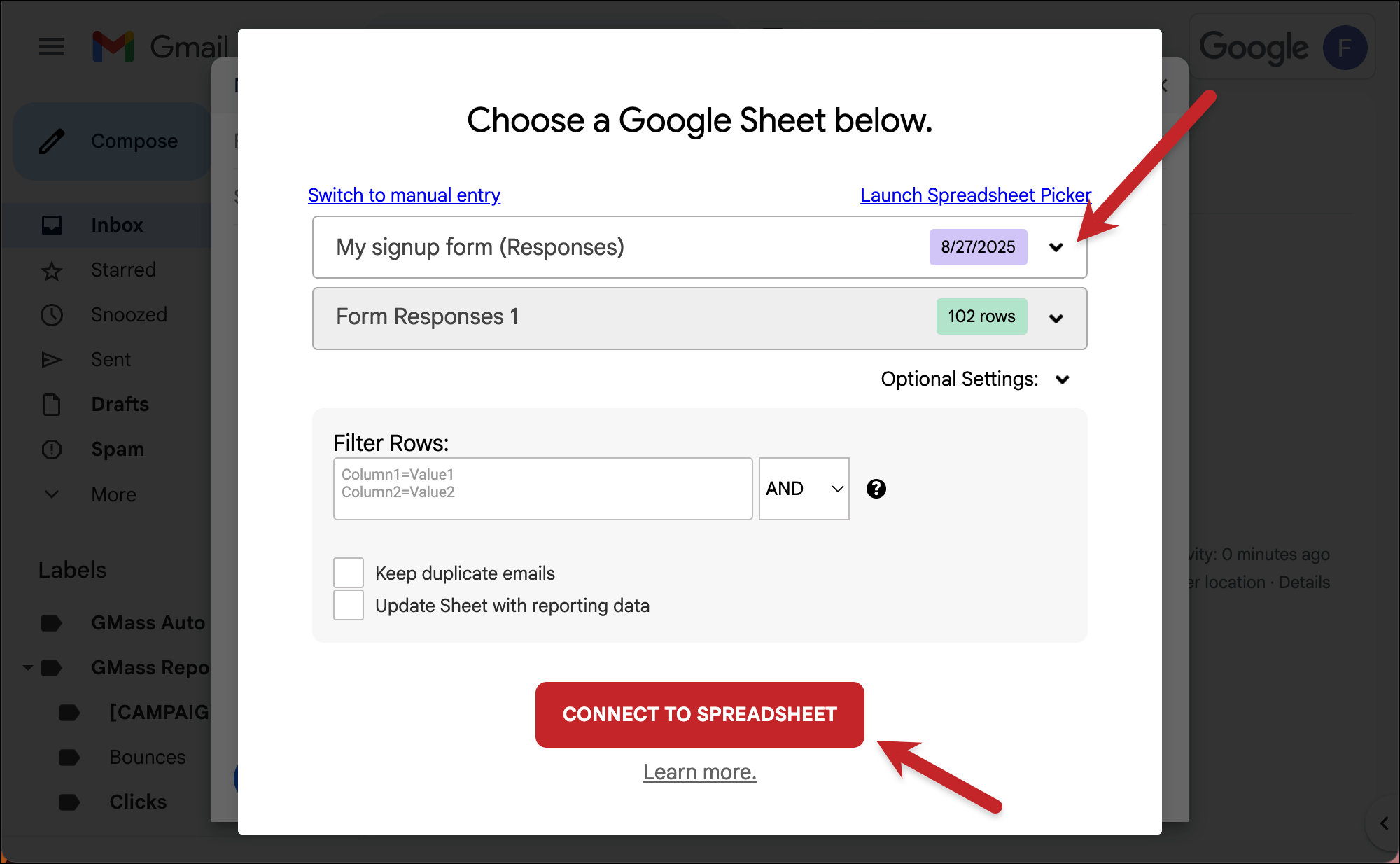
Choose the Google Sheet from the dropdown. Then click Connect to Spreadsheet.
4. Type up your welcome email
Now type up your welcome email. (Please make it better than this one.)
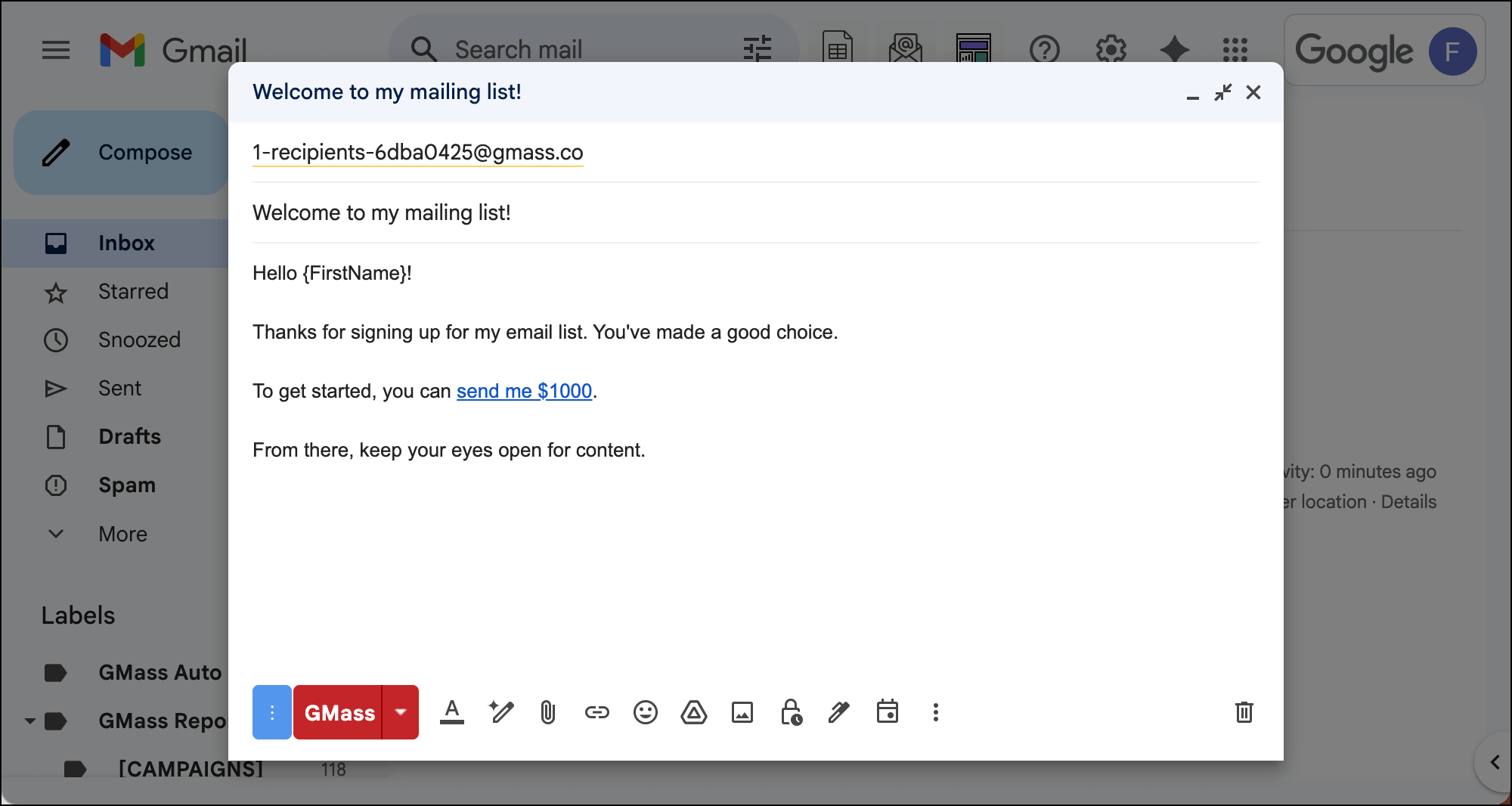
You can also use any GMass settings you want here (auto follow-ups, scheduling, and so on).
5. In the GMass settings, make this a recurring campaign, instant on new rows
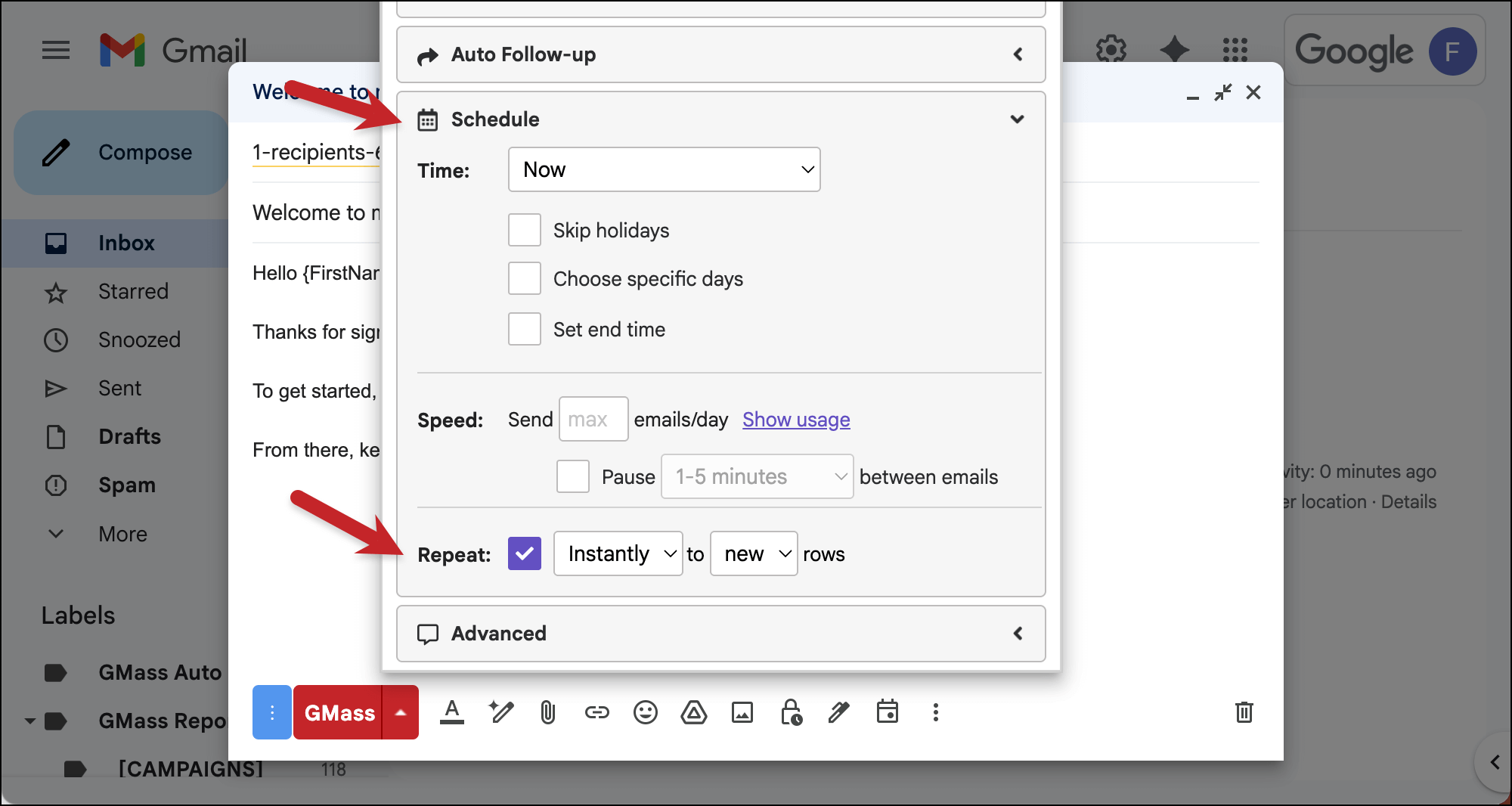
Open the GMass settings box for your campaign.
In the Schedule section, check the box next to Repeat. Choose Instantly from the “Day” dropdown menu. And keep the other dropdown on new rows.
6. Start your campaign — then set up the instant recurrence script
Once your welcome email is good to go, hit the red GMass button to get it started. Right now your email is the only address in the Google Sheet, so you’ll be the only recipient.
After you send the campaign, you’ll get a new email in your inbox from GMass Notifier with the title Install this script into your Google Sheet.
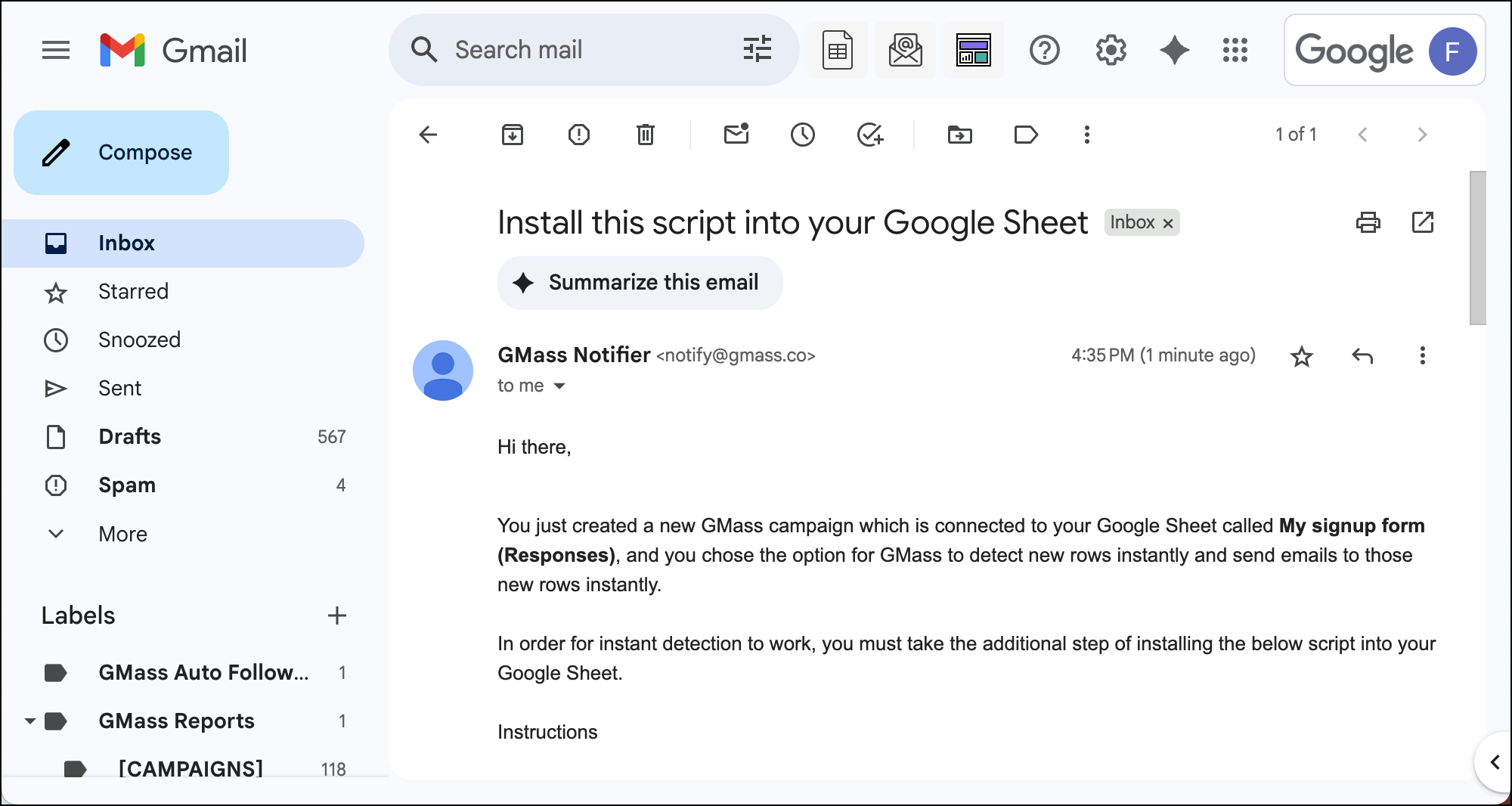
It’s an extra hurdle Google makes you jump through as we send messages the instant someone signs up on our form.
We’ll go through those instructions quickly here.
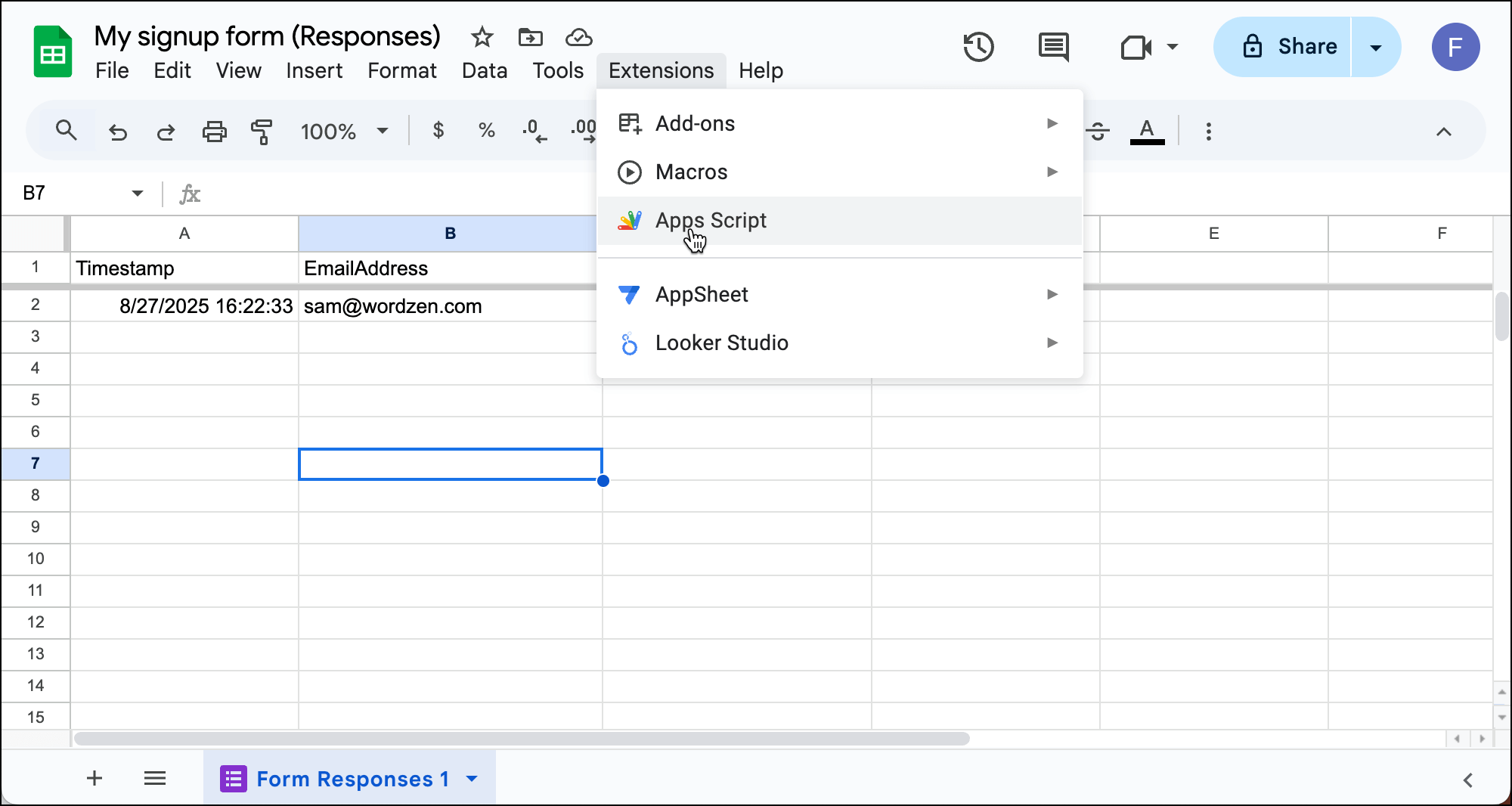
Go back to your Google Sheet of responses and go to Extensions > Apps Script.
Give your Apps Script whatever name you want. Then copy the code block inside that Install this script into your Google Sheet and paste it over everything in the code section in the Google Apps Script window.
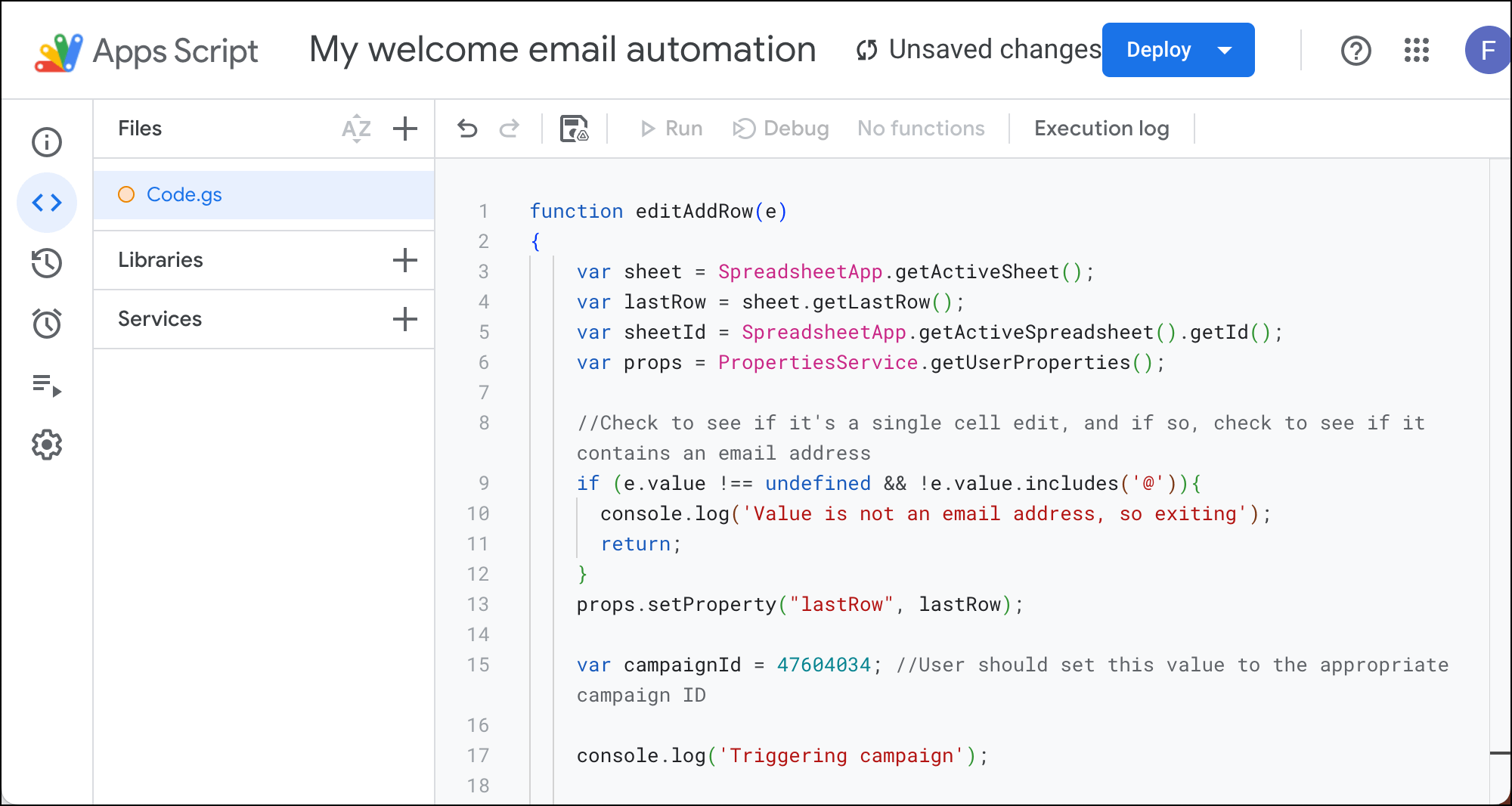
Click the floppy disk icon to Save this script.
Then click the Triggers menu on the left.
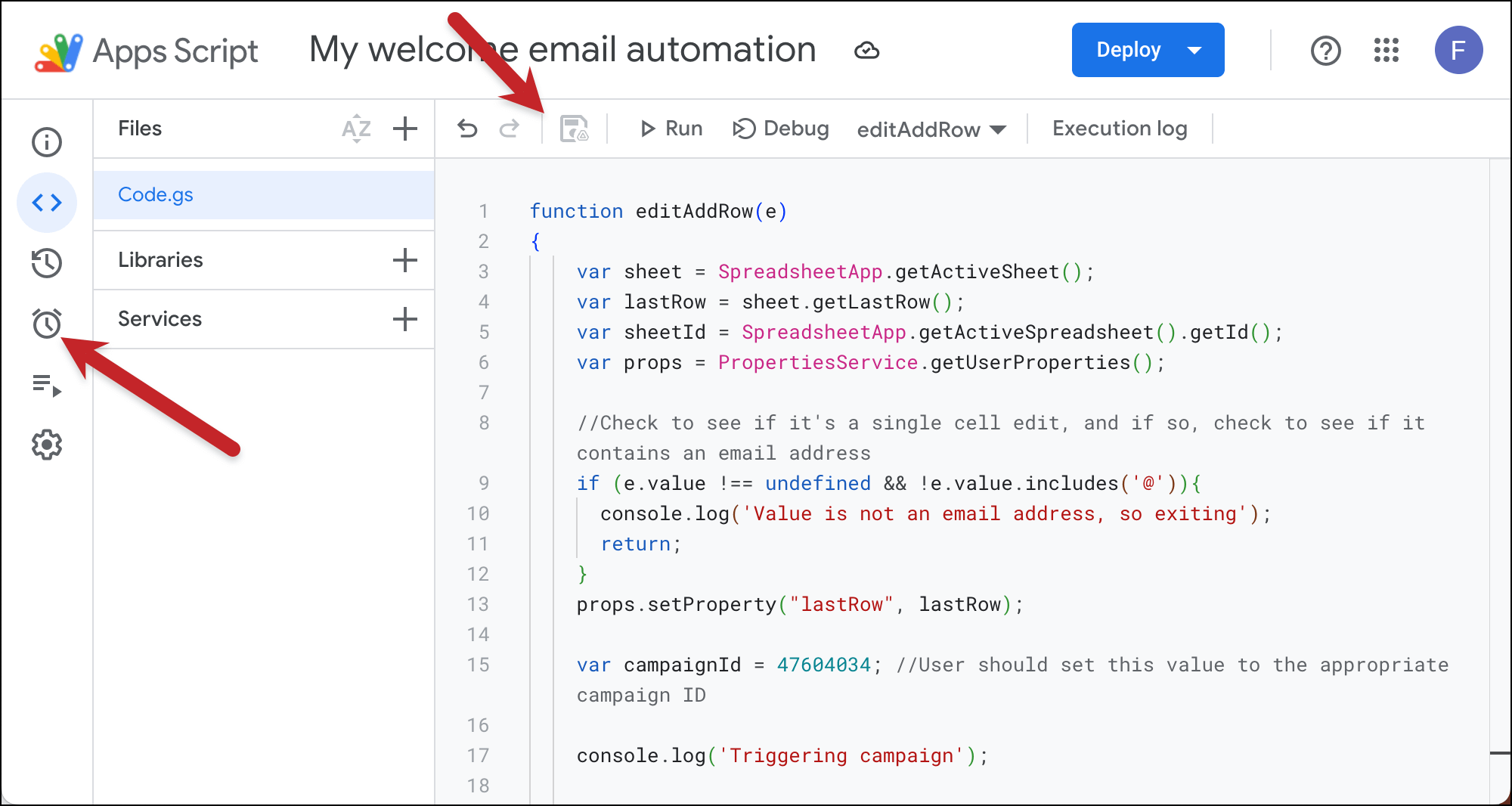
Click the + Add Trigger button.
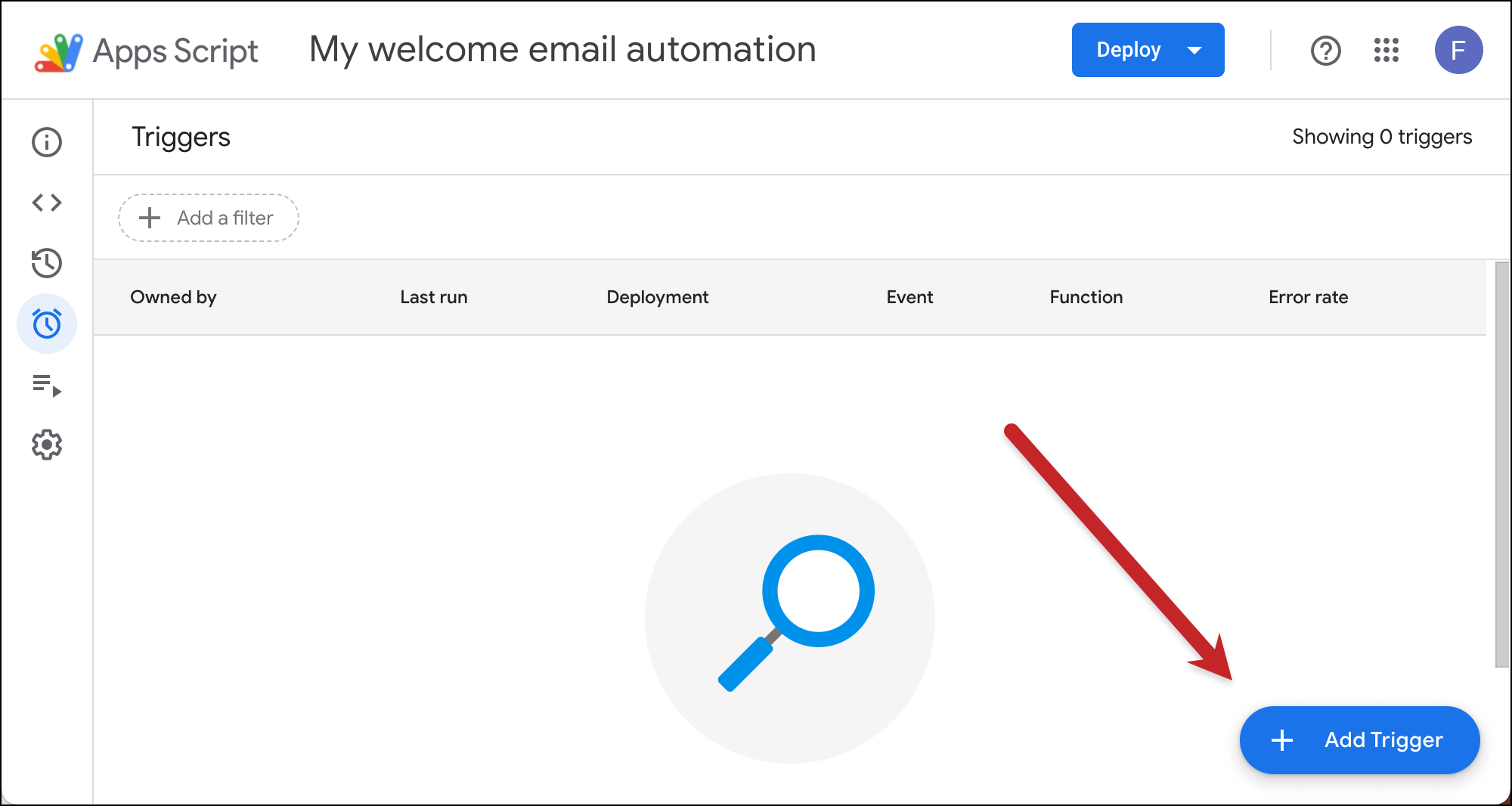
Follow the instructions from the email. You want the menus to be editAddRow, Head, From spreadsheet, On form submit, and Notify me daily. Then click Save.
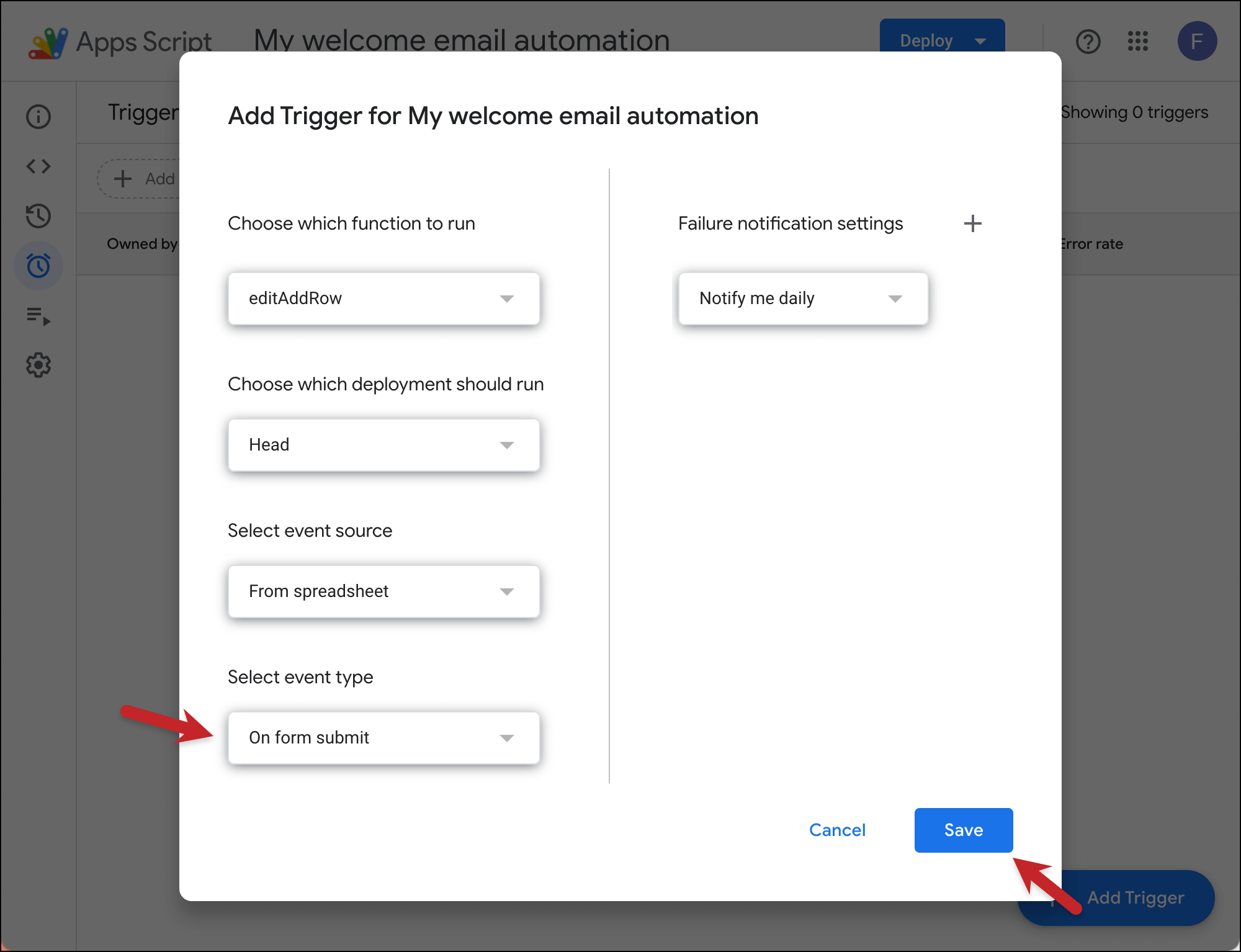
That’s all set. You can close the window.
And now, whenever anyone fills out your Google Form, they’ll instantly get your welcome email. (Test it out with another email address if you’d like to try.)
✅ You’re all set.
More resources
- The whole Google Apps Script thing can be slightly intimidating if you’ve never done it before. Check out our full article on setting up instant recurring campaigns for even more screenshots and instructions.
- And here’s more about GMass’s powerful recurring campaign automations.