

If you’ve built anything on top of GMass before (an app, a dashboard, any other tool), you probably used our API: an API key, a set of endpoints, and code you wrote and control.
The GMass MCP server is the other side of the “headless GMass” coin: Where an AI client is running the show in GMass for you.
That could be ChatGPT or Codex (via a ChatGPT plugin), Claude or Claude Code (via a Claude connector), an agentic tool like Hermes or Grok Bot, or a harness you built yourself.
Connect the MCP and your AI client gets all the tools it needs for building and launching campaigns, reading and analyzing reports, and running your GMass account.
In this article, I’ll cover how to set up the MCP with your AI client. I’ll also dig into what you can do and what to expect with the GMass MCP server.
GMass MCP Server: Table of Contents
- GMass MCP Server at a Glance
- How to Connect Your AI Client to the GMass MCP Server
- How Campaign Launches Work Over MCP
- The GMass MCP Server vs. the GMass API
- GMass MCP Server: Next Steps
- Every GMass MCP Tool, by Category
GMass MCP Server at a Glance
- Server URL:
https://mcp.gmass.co - Transport: Streamable HTTP
- Sign-in: OAuth, with the Google account you use for GMass. (No API key needed.)
- Plans: Included in GMass Premium, Professional, or Team plans.
- Tools: 99, covering campaigns, reports, lists, and account management.
How to Connect Your AI Client to the GMass MCP Server
Setting up an MCP server is pretty easy in every client at this point — in fact, as you’ll see below, a lot of the time you can just ask the AI agent to do it for you.
But here are the quick setup steps if you want to do this the old-fashioned (and by that I mean 2025) way.
Codex
You can use the GMass ChatGPT plugin to give both ChatGPT and Codex access to the GMass MCP server.
But if you want to add it to Codex directly, you can do so in the app or from the command line.
In the Codex app
In the app, go to Settings > Plugins. Click the Add button, then choose Add MCP server.
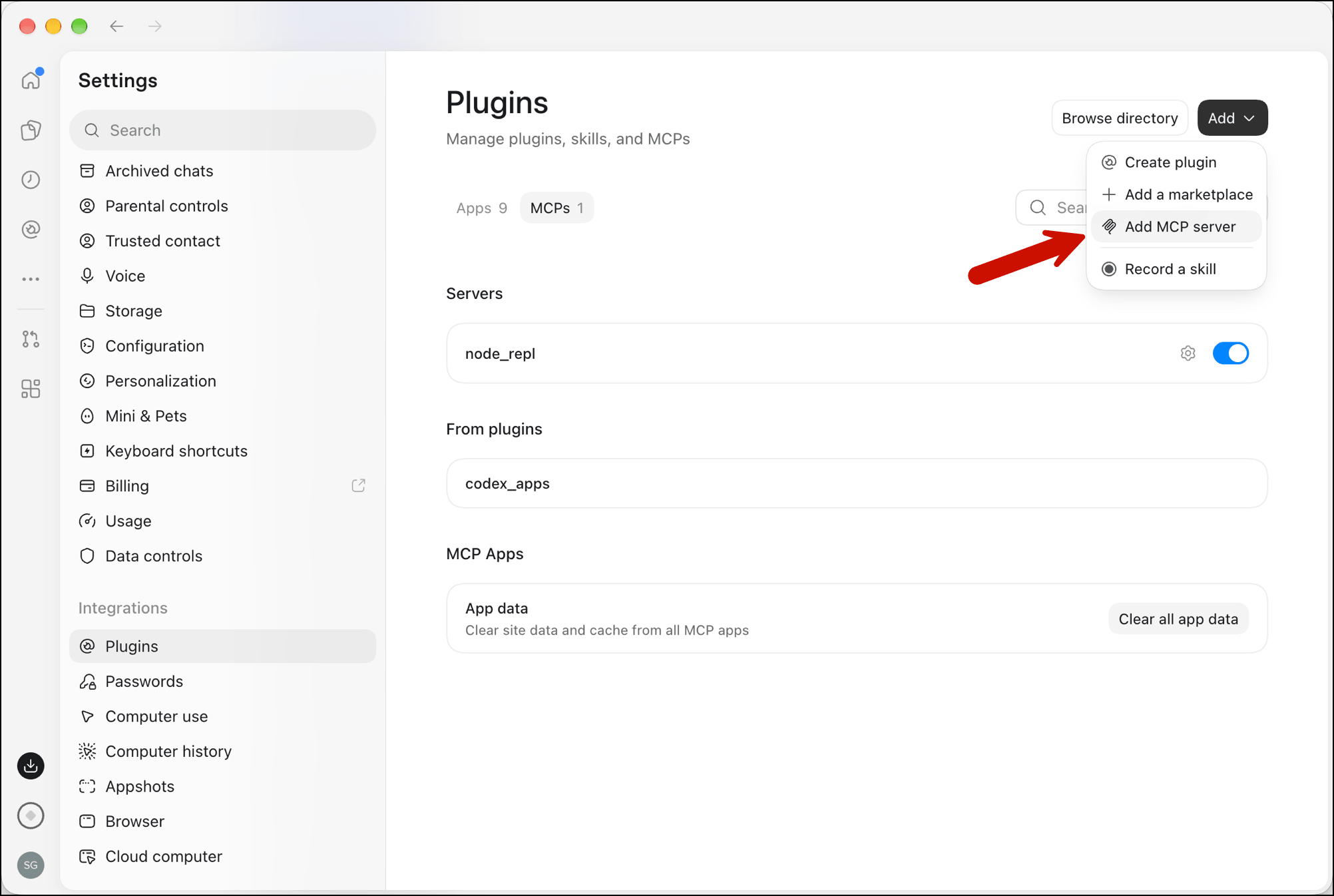
Give it a name of your choice (I used just GMass), then toggle the type to Streamable HTTP.
Enter https://mcp.gmass.co as the URL.
You can leave the bearer token and header fields empty since GMass uses OAuth to sign you in.
Then click Save.
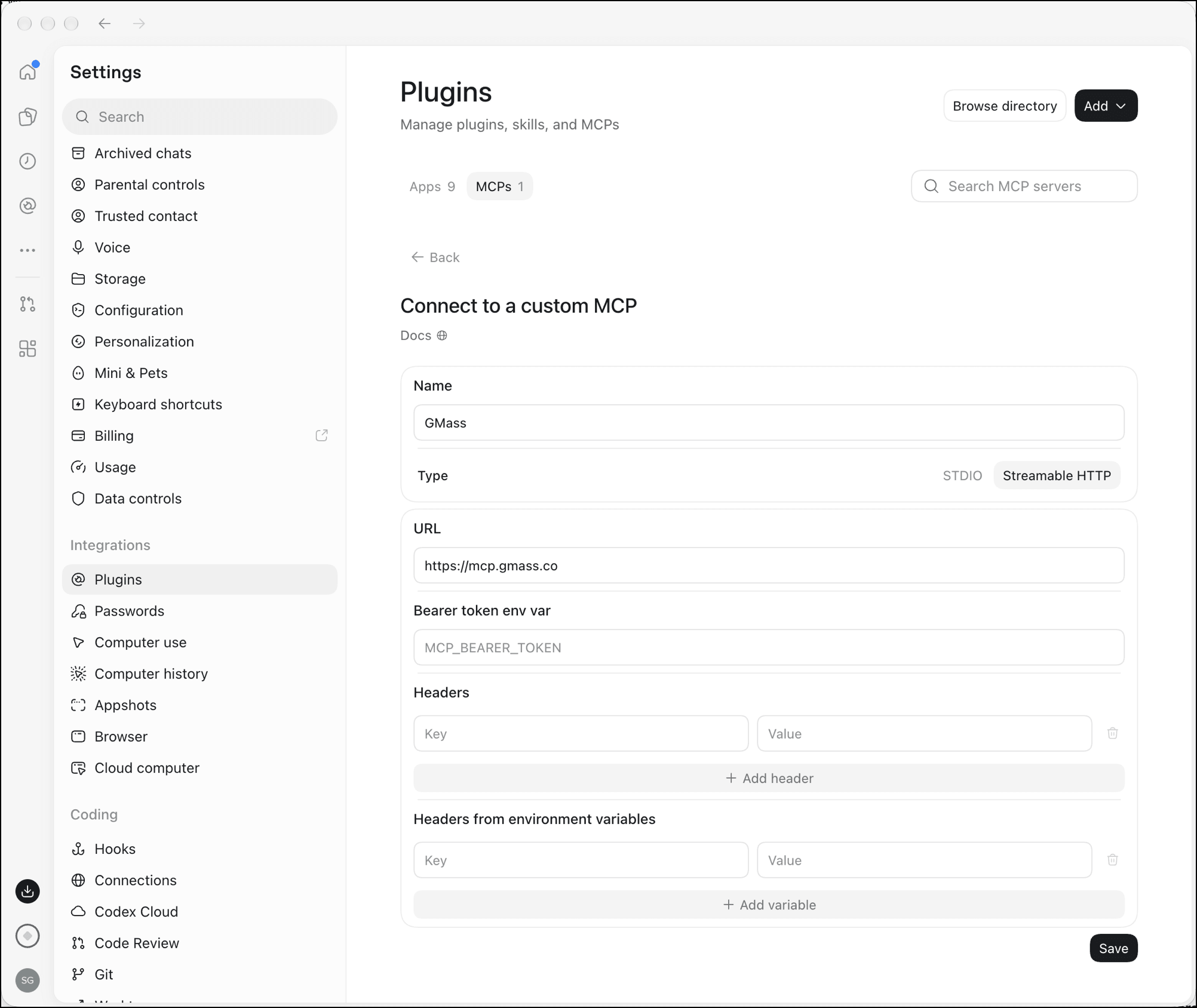
Now click the Authenticate button to start the OAuth login flow.
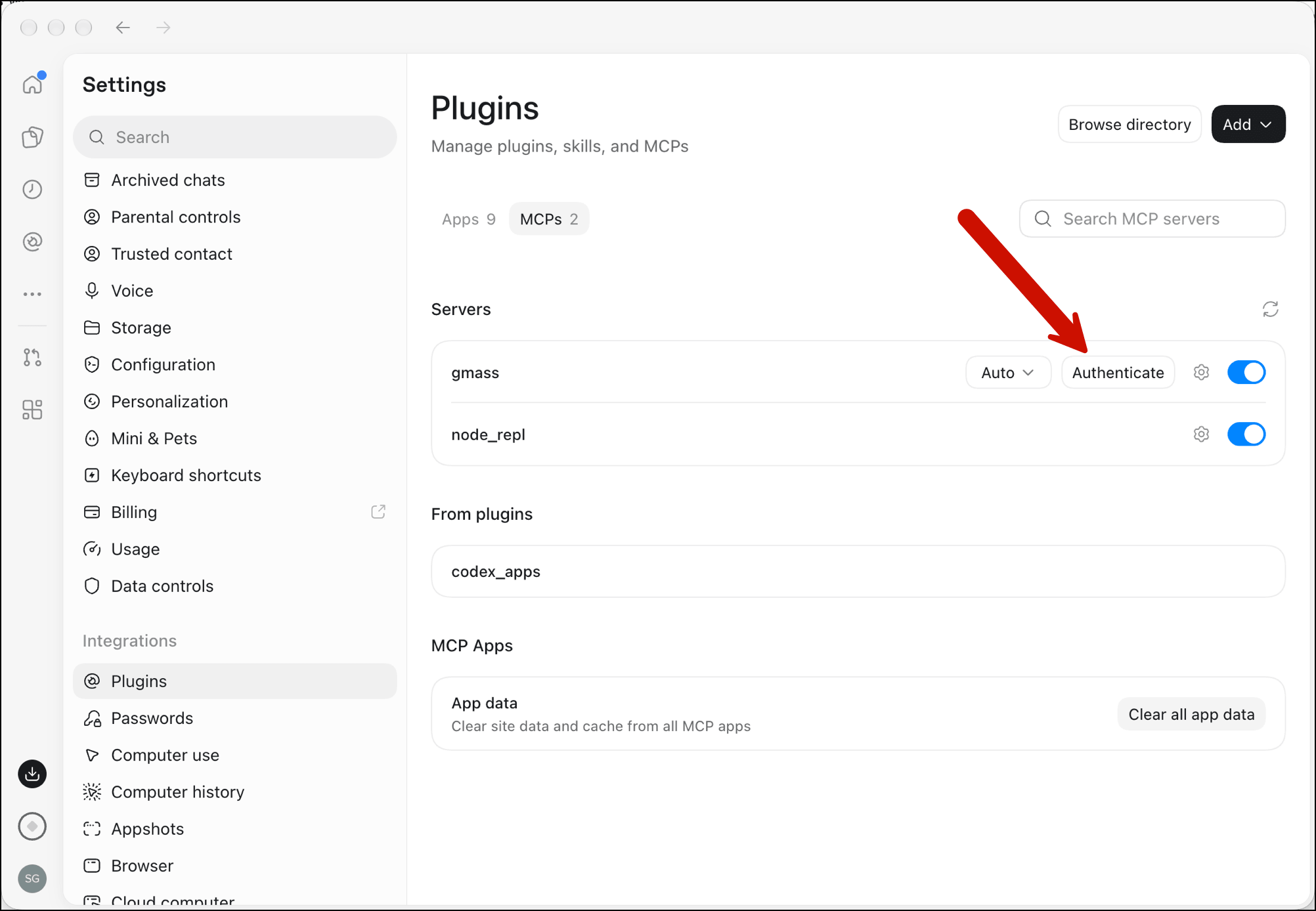
Once you’ve been authenticated, you’re all set to call the GMass MCP server in Codex.
From the CLI
Go to the terminal and type in the following:
codex mcp add gmass --url https://mcp.gmass.co
codex mcp login gmass
You’ll then go through the OAuth login flow in your browser.
Claude Code
Claude Code picks up connectors you’ve added to your Claude account. So if you’ve added the Claude connector, you’ll be able to use the MCP server in Claude Code.
If you want to install it via the CLI, go to the terminal and enter:
claude mcp add --transport http gmass https://mcp.gmass.co
Then run /mcp inside Claude Code, select GMass, and sign in.
Cursor
In Cursor, the quickest option is to add GMass to ~/.cursor/mcp.json for every project, or .cursor/mcp.json in one project’s root.
{
  "mcpServers": {
    "gmass": {
      "url": "https://mcp.gmass.co"
    }
  }
}
Cursor will then point you to your browser so you can sign in to GMass.
Hermes Agent
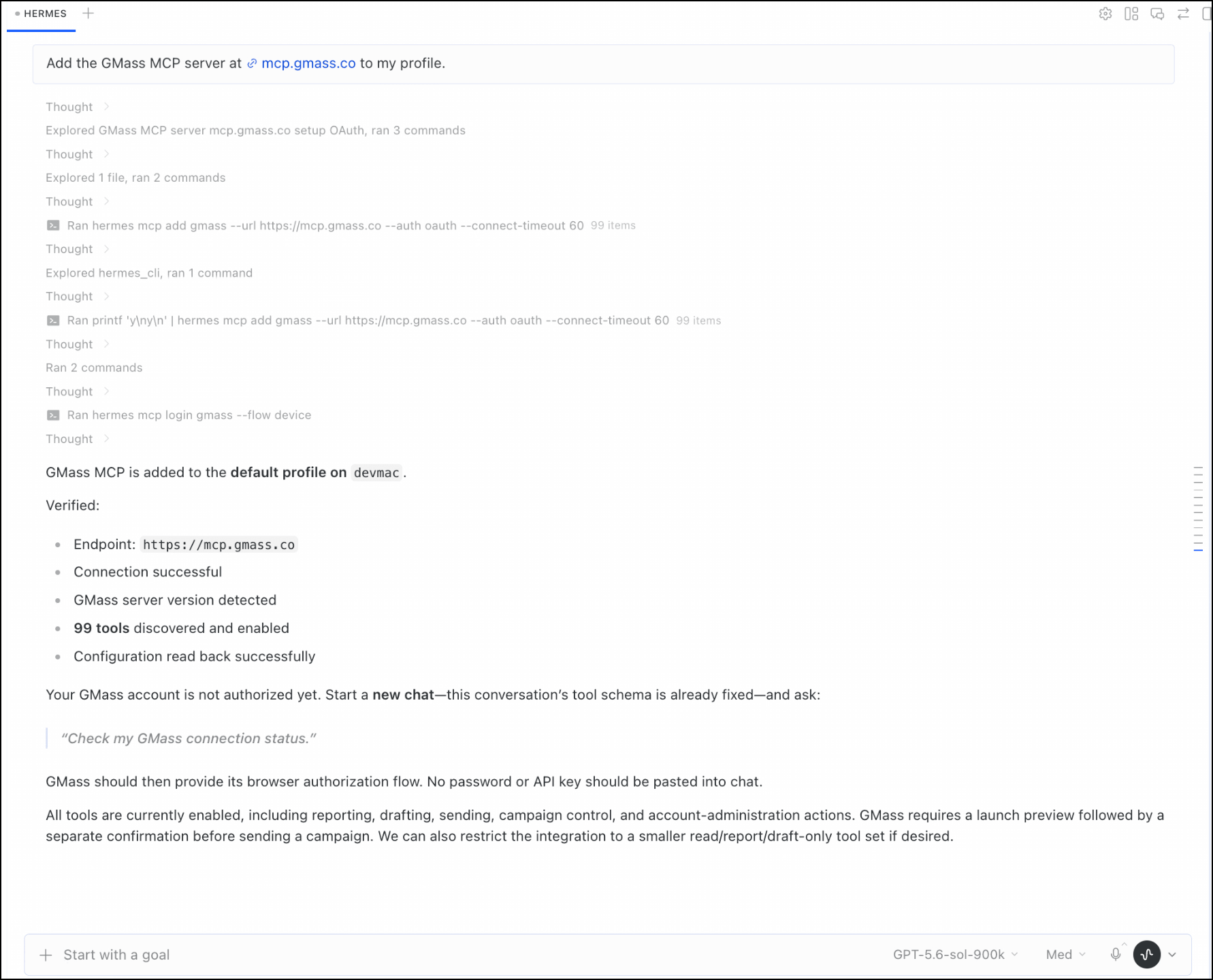
The easiest way to add the GMass MCP server in Hermes is to say something like “Add the GMass MCP server at https://mcp.gmass.co to my profile.”
Hermes will configure the server and restart its backend. Then it will walk you through signing in with its own OAuth flow.
Start a fresh chat afterward to load the tools.
If you want to set this up by hand instead, add the server to ~/.hermes/config.yaml:
mcp_servers:
  gmass:
    url: "https://mcp.gmass.co"
    auth: oauth
Then run hermes mcp login gmass from a fresh terminal, outside any Hermes session, and start a new session or run /reload-mcp.
Grok Bot
In Grok Bot, just like in Hermes, the easiest option is to ask your “chief of staff” Bot (or any Bot) to “Add the GMass MCP server at https://mcp.gmass.co“.
When you need to sign in, it will show you a Connect card so you can log in to GMass in the browser.
Then type @ in a Bot’s chat to use it.
Any other AI clients
You can see from the above that there are basically two approaches:
- Ask the AI agent to add the GMass MCP server
- Enter the details into a config file or form.
Both paths then lead to a browser-based login to GMass, and after that you should be good to go.
Note: Your client needs to support OAuth with dynamic client registration or client ID metadata documents. Don’t know if it does? Ask it, then if it says no, ask it to check more carefully. If it still says no, then it probably doesn’t.
How Campaign Launches Work Over MCP
Most of the GMass MCP server’s tools work how you’d expect: You ask the agent to do something (or the agent comes up with an idea to do something) and it does it.
There’s only one exception, and that’s sending the campaign. Because no one wants an AI agent deciding to send a campaign without your permission.
The four steps to send a campaign
We’ve built in guardrails that add a little intentional friction to the process of actually sending out the campaign.
Here are the four steps:
- Draft.
create_campaign_draftcreates the campaign as a real Gmail draft, addressed to a set of addresses or a GMass list (from your Google Sheet or the other sundry GMass list sources). The body will be HTML unless you ask for plain text. - Settings. The AI client asks what settings you want, like follow-ups, scheduling, and suppression. It will also make some judgment calls (like whether or not to use tracking); you can always veto its picks.
- Preview.
prepare_campaign_launchreads the actual Gmail draft and returns the full picture: subject, body, recipients or list, attachments, sending account, and every setting. It also returns a preview token that’s good for 30 minutes and a specific confirmation phrase: Launch campaign [review ID]. - Launch. You reply with that exact phrase — seriously, it won’t send without that exact phrase, I tried — and
launch_campaignsends or schedules the campaign.
Also, if you chose to create drafts to spot-check before sending, this is when GMass will create those drafts. Then you can look them over and choose to send them or delete them to fix something.
If you’re building your own agent…
If you’re calling the MCP server’s tools from your own agent or harness instead of a client like ChatGPT or Claude, there’s one main decision for you regarding the launch process — and it’s about whether or not to skip the confirmation before sending campaigns.
We recommend keeping the confirmation step.
The server checks that the phrase matches the preview, but it has no way to know who typed it. The tool instructions tell the AI to get the phrase from you in a separate reply, and that reply is what keeps a human in charge of the send.
(Yes, it’s one more message for you to type. We decided that was a fair trade to reduce the risk of AI prematurely sending a campaign to your entire contact list.)
You could override that in your own harness and let your AI agent supply the phrase, but you should know the risk there of it going rogue.
The GMass MCP Server vs. the GMass API
The API and the MCP server both let you run GMass without the Gmail interface. The difference is who works out the steps.
The API is how other software connects to GMass. For instance, a dashboard pulls in campaign reports. Or an app creates lists and launches campaigns. Or you integrate GMass into your backend server to send transactional email. Regardless of what software is calling it, though, the steps are set ahead of time.
The MCP server is how an AI agent connects to GMass. Instead of following steps set in advance, the agent works out what to do from what you ask. It can also use GMass alongside the other tools it’s connected to — or connect to new tools if something comes up.
The agent adds in judgment and handles much of the heavy lifting. It can write the email, decide who to include, and interpret the results. The API can’t do any of that on its own.
But… the trade-off is predictability. The API returns the same result for the same call every time, while the agent’s results depend on how it reads your request.
Running a model also makes each action slower and more expensive, so high-volume, repeated work belongs on the API. And while in theory you could set Hermes or another agent loose on GMass… the MCP connection generally requires you to be actively in the loop.
So for a quick, over-simplified rule of thumb: API to use GMass inside software and code, MCP to use GMass inside AI tools.
GMass MCP Server: Next Steps
With the GMass MCP server connected, an AI agent can build and launch campaigns, read your reports, and manage your account — all from inside your AI client.
And getting set up is generally as easy as telling your agent to install the GMass MCP server. (Or, at most, pasting a few lines into a form or config file.)
If you’re already a GMass subscriber (on a Premium, Professional, or Team plan), you can start using the MCP server right now in whatever AI client you use. And a reminder: You can also use the ChatGPT plugin or Claude connector to make the setup and integration even faster in those two ecosystems.
If you’re not a GMass subscriber yet, you can try GMass for free — just install the Chrome extension to get started.
And when you’re ready to subscribe, you can hand over the reins to your AI agent to run your campaigns and your account using the GMass MCP server.
Every GMass MCP Tool, by Category
Current as of November 2026.
Your AI client also gets each tool’s full definition, including parameters, when it connects.
Connecting (5)
Reads: get_started, get_connection_status, get_profile, get_account_mcp_connections
Changes: revoke_account_mcp_connection
Building and launching (5)
Reads: prepare_campaign_launch (builds the preview; sends nothing)
Changes: create_campaign_draft, send_campaign_test (sends test emails), launch_campaign (sends or schedules), edit_campaign
Sheets and lists (7)
Reads: list_google_sheets, list_google_sheet_worksheets, get_account_email_lists, get_account_email_list_recipients
Changes: create_list_from_google_sheet, update_account_email_list_recipient, delete_account_email_list_recipient
Create drafts batches (4)
Reads: get_campaign_drafts, prepare_campaign_draft_action
Changes: send_campaign_drafts (sends), delete_campaign_drafts
Campaign controls (5)
Reads: get_campaign_control_status
Changes: pause_campaign, resume_campaign (can send), cancel_campaign, stop_campaign_followups
Reports (10)
All reads: list_campaigns, get_campaign, get_campaign_recipients, get_campaign_opens, get_campaign_clicks, get_campaign_replies, get_campaign_bounces, get_campaign_blocks, get_campaign_unsubscribes, search_campaign_processing_log
Account settings (4)
Reads: get_account_settings, get_account_settings_options
Changes: update_account_settings, update_notification_settings
Suppression (8)
Reads: get_account_unsubscribes, get_account_unsubscribe_domains, get_account_bounces
Changes: add_account_unsubscribes, remove_account_unsubscribes, add_account_unsubscribe_domains, remove_account_unsubscribe_domains, remove_account_bounces
Unsubscribe link and polls (4)
Reads: get_account_unsubscribe_link, get_account_polls
Changes: update_account_unsubscribe_link, update_account_polls
Sending domain (8)
Reads: get_account_dkim, get_account_dns
Changes: set_tracking_domain, create_account_dkim_key, set_account_dkim_active, delete_account_dkim_key, add_account_dns_record, delete_account_dns_record
Note: The GMass MCP cannot make changes at your DNS provider or domain registrar. You could probably have your AI agent connect there to handle that for you as well. The tools above only handle the GMass side of things.
SMTP (6)
Reads: get_account_smtp_servers
Dashboard link: get_account_smtp_configuration_link
Changes: update_account_smtp_server, set_default_account_smtp_server, delete_account_smtp_server, send_account_smtp_test (sends a test email)
Delivery routes (4)
Reads: get_account_delivery_routes
Changes: add_account_delivery_route, update_account_delivery_route, remove_account_delivery_routes
MultiSend (3)
Reads: get_account_multisend
Dashboard link: get_multisend_connection_link
Changes: disconnect_multisend_account
Holidays (5)
Reads: get_account_holidays
Changes: select_standard_account_holiday, add_account_holiday, add_suggested_account_holidays, delete_account_holiday
Team and access (8)
Reads: get_account_team, get_account_delegated_access
Changes: add_team_members, remove_team_members, set_team_auto_join, add_delegated_access, set_delegated_access_right, remove_delegated_access
Templates (4)
Reads: get_account_templates, get_account_template_shares
Changes: set_account_templates_visible, set_account_template_shares
Webhooks (3)
Reads: get_account_webhooks, get_account_webhook_logs
Changes: update_account_webhook
Billing (3)
All reads: get_account_billing, get_account_billing_contacts, get_account_invoices
API keys (3)
Reads: get_account_api_keys
Changes: create_account_api_key (the secret shows only in the dashboard), revoke_account_api_key