
You have pretty tight control over your GMass auto follow-ups inside of each campaign.
In that campaign’s Settings box you can choose who gets each stage, how many days GMass should wait between stages, whether the message goes out as a reply or a new thread, which days of the week you want to send, what time you want to send, and more.
But if and when you need even more fine-tuning: There’s another layer of auto follow-up controls in the GMass dashboard.
Go to Dashboard > Settings > Auto Follow-ups, and you will find seven checkboxes.
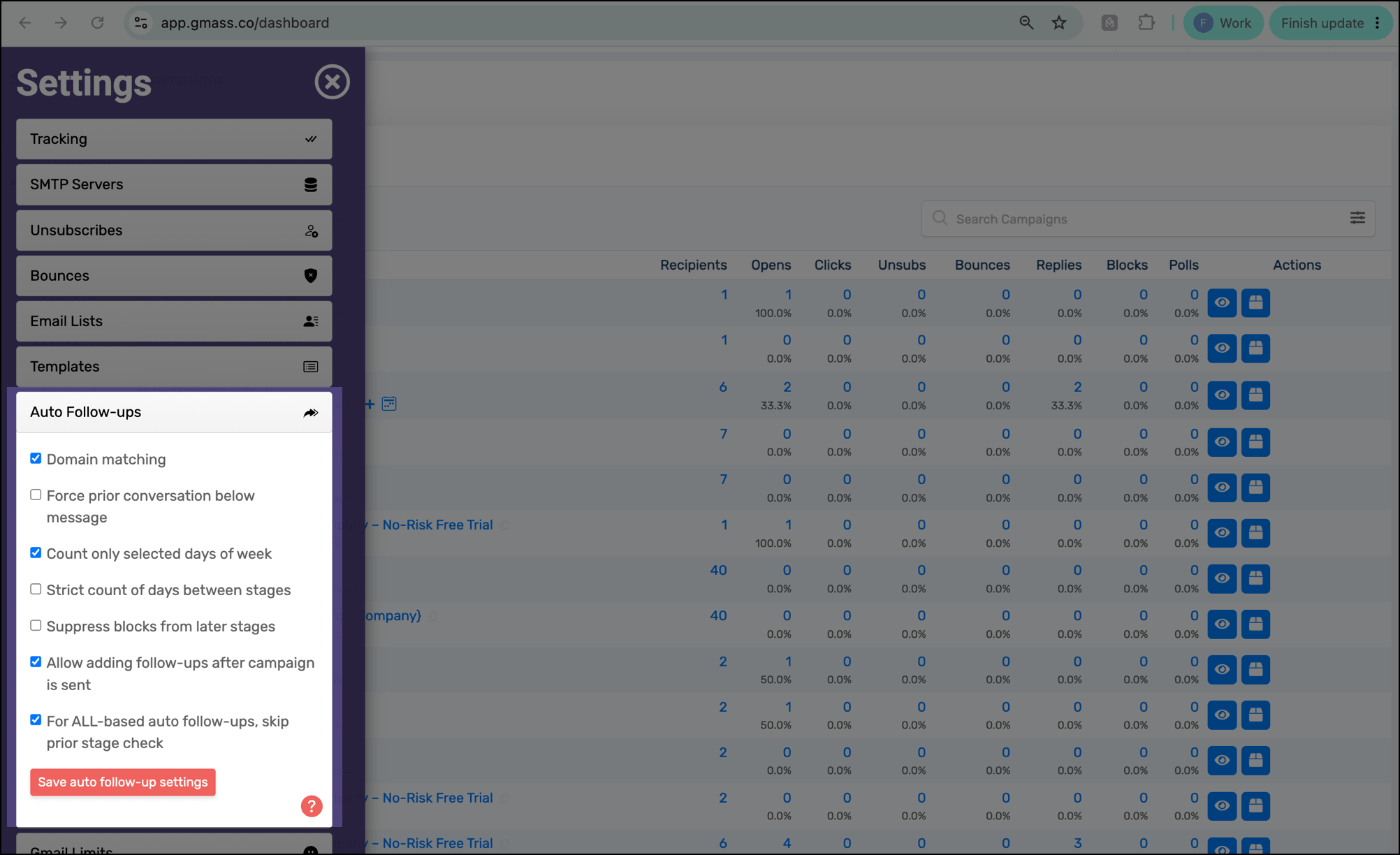
These settings all control your auto follow-ups at the account level; that is, when you change one, it affects all campaigns going forward.
And mostly, these settings handle the most nuanced situations.
Here is what all seven settings do and when you’ll want to use each one.
Domain Matching
What it does
If one person at a domain replies, GMass stops the campaign’s remaining auto follow-ups to the other recipients at that same domain.
Normally, GMass evaluates replies recipient by recipient. If you have auto follow-ups set to only go out to people who haven’t replied… you email five people… and one replies… that one person who replied would not receive the rest of the follow-up sequence.
Same deal when there are multiple people at a single company. You email five people at acme.com, one replies, so that person stops getting the rest of the follow-up sequence. The other four people would continue receiving follow-ups.
Domain matching changes that. Once GMass detects a reply from one person at acme.com, it treats the reply as engagement from the company and stops the remaining follow-ups to the other acme.com recipients in that campaign as well.
When domain matching is useful
Turn it on when your goal is to get one response from the organization, rather than a separate response from every person you contacted at that organization.
Say you email ten employees at the same company to find the person who handles purchasing. As soon as one employee replies, continuing to email the other nine may feel unnecessary. Or worse, it makes it look like you’re not paying attention and letting your automations run wild. Domain matching prevents that.
Leave it off when each recipient should be treated independently, even when several recipients work at the same company.
Read more about stopping auto follow-ups when anyone at a company replies.
Force Prior Conversation Below Message
What it does
GMass includes the prior email conversation underneath most auto follow-ups automatically. It comes down to the auto follow-up settings you use in a campaign.
- If you send a plain-text auto follow-up, GMass automatically sends it as a reply to the prior message, so it appears in the same thread.
- If you send a rich-text auto follow-up and choose “same” thread, GMass automatically, again, sends it as a reply.
- But if you send a rich-text auto follow-up and choose “new” thread, GMass sends it with its own subject line as a new email.
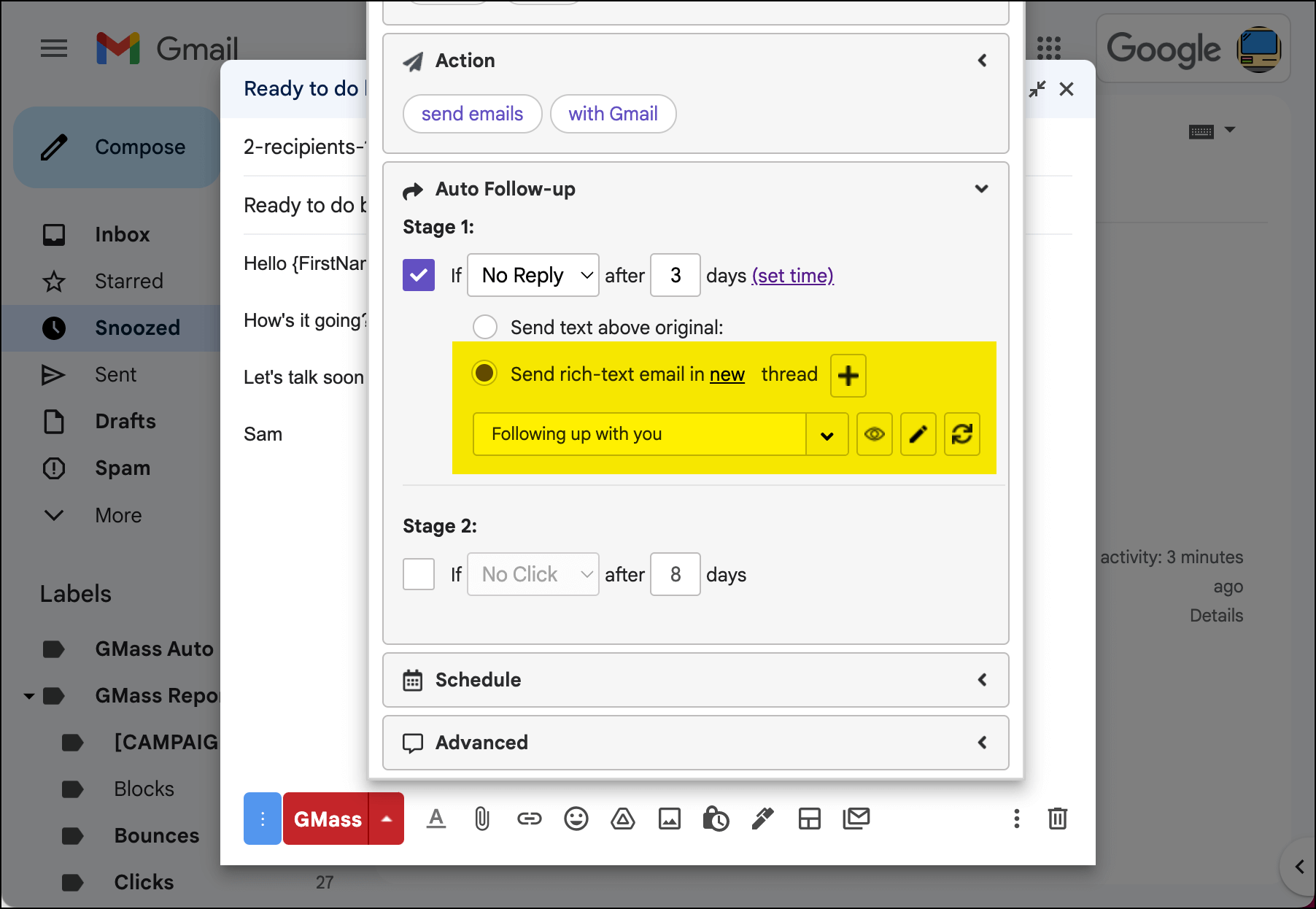
If you want the new subject line and new thread but still want the recipient to see the prior conversation, this setting gives you both.
With Force prior conversation below message enabled, GMass adds the earlier conversation below the new follow-up.
The email gets the benefit of a new subject line to grab recipients’ attention, while still showing the conversation history to make it clear what you are following up about.
When to use the force prior conversation below option
This setting is useful when one or more of your follow-up stages is a rich-text follow-up using a different subject line to start a new thread.
If every stage is a plain-text follow-up or a rich-text follow-up set to send in the same Gmail thread, the setting won’t make a visible difference because the conversation is already there.
Count Only Selected Days of Week
What it does
When you’ve limited a campaign to specific sending days (e.g., weekdays only), GMass counts only those selected days when calculating the auto follow-up delay.
This one could use an example.
Suppose your campaign sends on weekdays only, the original email goes out on Wednesday, and Stage 1 is scheduled for four days later.
With the default calculation, GMass counts all calendar days:
- Thursday is Day 1.
- Friday is Day 2.
- Saturday is Day 3.
- Sunday is Day 4.
The follow-up is due Sunday, but Sunday is not an allowed sending day, so GMass holds it until Monday.
With Count only selected days of week enabled, Saturday and Sunday do not count at all:
- Thursday is Day 1.
- Friday is Day 2.
- Saturday and Sunday are skipped.
- Monday is Day 3.
- Tuesday is Day 4.
The follow-up goes out Tuesday.
Why you might turn on the count only selected days option
The default calendar-day method can cause a large number of follow-ups that came due over the weekend to bunch up on Monday. Counting only your selected days preserves a business-day-style cadence and can spread that volume more evenly.
This setting matters only when you are using GMass’s Choose specific days feature. If all seven days are allowed, every day is already a selected day, so there is nothing to exclude from the count.
We go even more in depth on this in this section of our Choose specific days article.
Strict Count of Days Between Stages
What it does
GMass preserves the intended delay between one follow-up stage and the next, based on when each recipient actually received the prior stage.
By default, the number of days on each auto follow-up stage is tied to the original campaign. That lets GMass “catch up” when a campaign is paused, delayed by Gmail’s sending limits, or otherwise falls behind.
That flexibility can occasionally compress the spacing between stages.
For example:
- Stage 1 is set for Day 2.
- Stage 2 is set for Day 5.
- The intended gap between those stages is three days.
If Stage 1 is delayed and a particular recipient does not receive it until Day 4, the normal schedule may still try to send Stage 2 around its original Day 5 target. GMass has protections against stages going out back-to-back — including a minimum gap in the auto follow-up logic — but the full three-day spacing may not be preserved.
With Strict count of days between stages turned on, Stage 2 is anchored to that recipient’s actual Stage 1 send. If Stage 1 went out on Day 4, Stage 2 waits the prescribed three days and goes out around Day 7.
When strict spacing is useful
Use it when the rhythm between messages matters more than keeping every stage close to its originally intended calendar date.
This is particularly helpful for long-running campaigns, campaigns that may hit sending limits, and sequences where one email logically builds on the previous email.
Leave it off when you prefer GMass’s more flexible catch-up behavior after delays.
We go more in depth on this feature (with more examples) in our article about stopping auto follow-ups on a reply.
Suppress Blocks From Later Stages
What it does
If an email is blocked during a campaign sequence, GMass suppresses that address from the campaign’s remaining auto follow-up stages.
A block is not always the same thing as a permanent bounce. A receiving server may reject an email because of a temporary issue like a full inbox, a policy decision, rate limiting, or some other condition that might not apply to the next message.
That’s why by default, GMass doesn’t treat every block as proof that the address should never be tried again.
But with this setting, a block tells GMass: Do not send any more stages of this campaign to this address. If you try to email the person in a new campaign, GMass won’t suppress those messages.
How it differs from “Treat blocks as bounces”
GMass has a separate setting under Dashboard > Settings > Bounces called Treat blocks as bounces. That’s the more aggressive option. It adds blocked addresses to your bounce list, which suppresses them from the remaining follow-ups and future campaigns.
If you already treat blocks as bounces, this auto follow-up checkbox is effectively redundant because the bounce-list suppression is broader.
You can go here to learn more about GMass block and bounce handling.
Allow Adding Follow-Ups After Campaign Is Sent
What it does
Normally, when you send a campaign, GMass removes the draft from your Gmail Drafts folder once it’s done sending. So you can’t open that draft anymore to make alterations to your campaign.
But when Allow adding follow-ups after campaign is sent is enabled, GMass keeps the campaign draft in the Drafts folder after it finishes sending so you can go back to add auto follow-up stages later.
You can open it later, add or edit follow-up stages, and save the campaign again.
Important: Turn this on before you need it
A lot of GMass users have found this setting useful. But… as much as we can build great features, we can’t build a time machine.
So turn this setting on before you need it. It preserves campaign drafts going forward from that moment. It cannot bring back a draft that GMass already removed after a completed campaign.
Also remember that retained drafts remain in Gmail until you delete them yourself. That is the small housekeeping tradeoff that comes with this.
Here’s our full write-up on how to add follow-ups after a campaign is sent. Also, in that article, we cover what to do if you haven’t turned this feature on in the dashboard but decide you want to write follow-ups to a campaign after all.
For ALL-based Auto Follow-Ups, Skip Prior Stage Check
What it does
One of the options for auto follow-ups is to send them to Everyone (rather than, say, only sending until someone replies or clicks).
But there are certain cases where recipients can get left out of an “Everyone” stage if it comes after auto follow-up stages that weren’t sent to “Everyone.”
This desperately needs an example.
Suppose you configure this sequence:
- Stage 1: Send after three days to people who have not replied.
- Stage 2: Send after seven days to everyone.
Some recipients reply before Stage 1. So, as intended, they don’t receive Stage 1.
Normally, GMass also checks whether a recipient received the prior stage before including that person in a later stage. So even though Stage 2 says Everyone, the Stage 2 audience is still constrained by who received Stage 1. The early responders who skipped Stage 1 also skip Stage 2.
But if you’ve turned on For ALL-based auto follow-ups, skip prior stage check, then Stage 2 is allowed to go back to the original campaign audience. A recipient does not need to have received Stage 1 to qualify for the ALL-based Stage 2.
Note: The setting affects only later stages whose action is Everyone. It does not make “No reply,” “No click,” “No open,” or other behavior-based stages ignore their normal eligibility rules.
Second note: Yes, in the dashboard, GMass refers to these “Everyone” stages as ALL-based auto follow-ups.
When you would use the “skip prior stage check” option
Use this setting when Everyone truly means everyone who received the original campaign — and you might send some campaigns like the example I laid out before that aren’t exactly pure drip campaigns (a mix of stop triggers and sends to everyone).
For instance, your earlier stages might be behavioral reminders (“send if no reply” or “send if no click”) while your final stage is a universal announcement, deadline notice, correction, or last message that every original recipient should see.
Why We Have Such Nuanced Auto Follow-Up Settings at GMass
Most GMass users can create effective auto follow-up sequences without changing any of these checkboxes. The defaults are designed to work for the most common campaigns.
We know that.
But even though that’s the “most common,” it’s not the same as “every possible sequence.”
We’re always working to make GMass’s auto follow-ups stand out from the rest of the email world. We make them easier (by letting you type them right into the settings box). We don’t require flowcharts for who gets what. We offer things like unlimited stages and advanced scheduling. And a whole lot more.
And, yes, we also want to make sure you can have the exact control you want over your auto follow-up sequences so they go out exactly when you want and to whom you want. That’s what these advanced auto follow-up settings in the GMass dashboard are for.
If you’re already a GMass customer, these auto follow-up options are already available in your account.
And if you haven’t tried GMass yet but you just read through 2,000 words on these super in-the-weeds settings tweaks — well, then, you’re probably ready to try GMass.
It’s free to try, with no credit card required. Just download the Chrome extension to get started.
I never knew the power of auto follow-up settings until reading this blog post! Just like how a couples massage in NJ can deepen the connection between partners and bring a sense of relaxation and harmony, GMass Auto Follow-Up Settings can help streamline communication and ensure important emails don’t fall through the cracks. Both are essential for enhancing relationships and productivity. Thank you for shedding light on the importance of these tools!
I never knew the power of auto follow-up settings until reading this blog post! Just like how a couples massage in NJ can deepen the connection between partners and bring a sense of relaxation and harmony, GMass Auto Follow-Up Settings can help streamline communication and ensure important emails don’t fall through the cracks. Both are essential for enhancing relationships and productivity. Thank you for shedding light on the importance of these tools!