
 |
GMass & Infrastructure > Multiple team users |
I want to set up multiple users in my GMass team account
Need to set up the users in your GMass team account?
Here’s how to do it.
Step-by-step guide
Make sure you’re the administrator of the GMass team account (in other words, you’re the one who signed up for it).
Then we can start adding users.
1. Go to the My Team section of the GMass dashboard
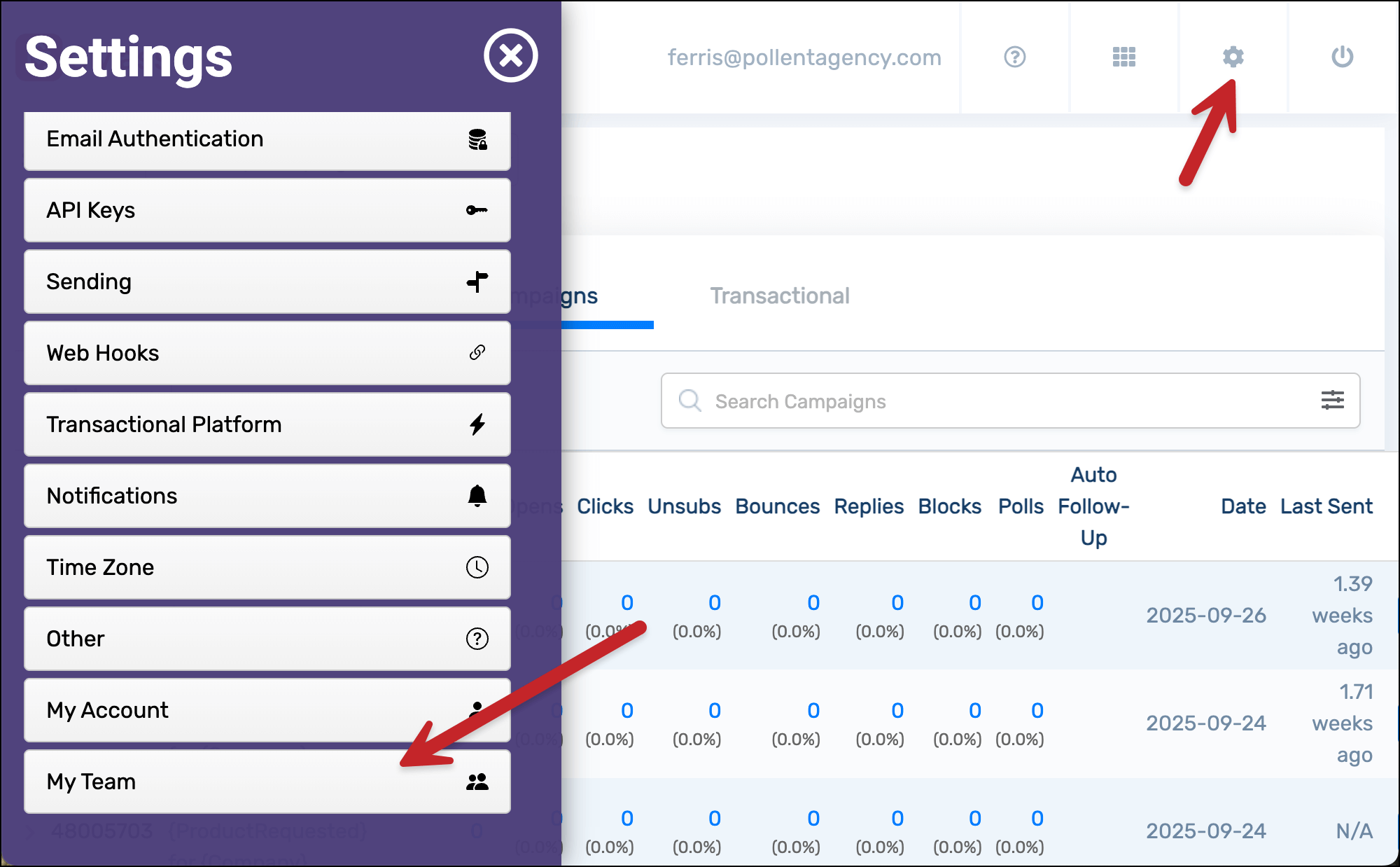
Go to the GMass dashboard. Open the Settings.
Then click into My Team.
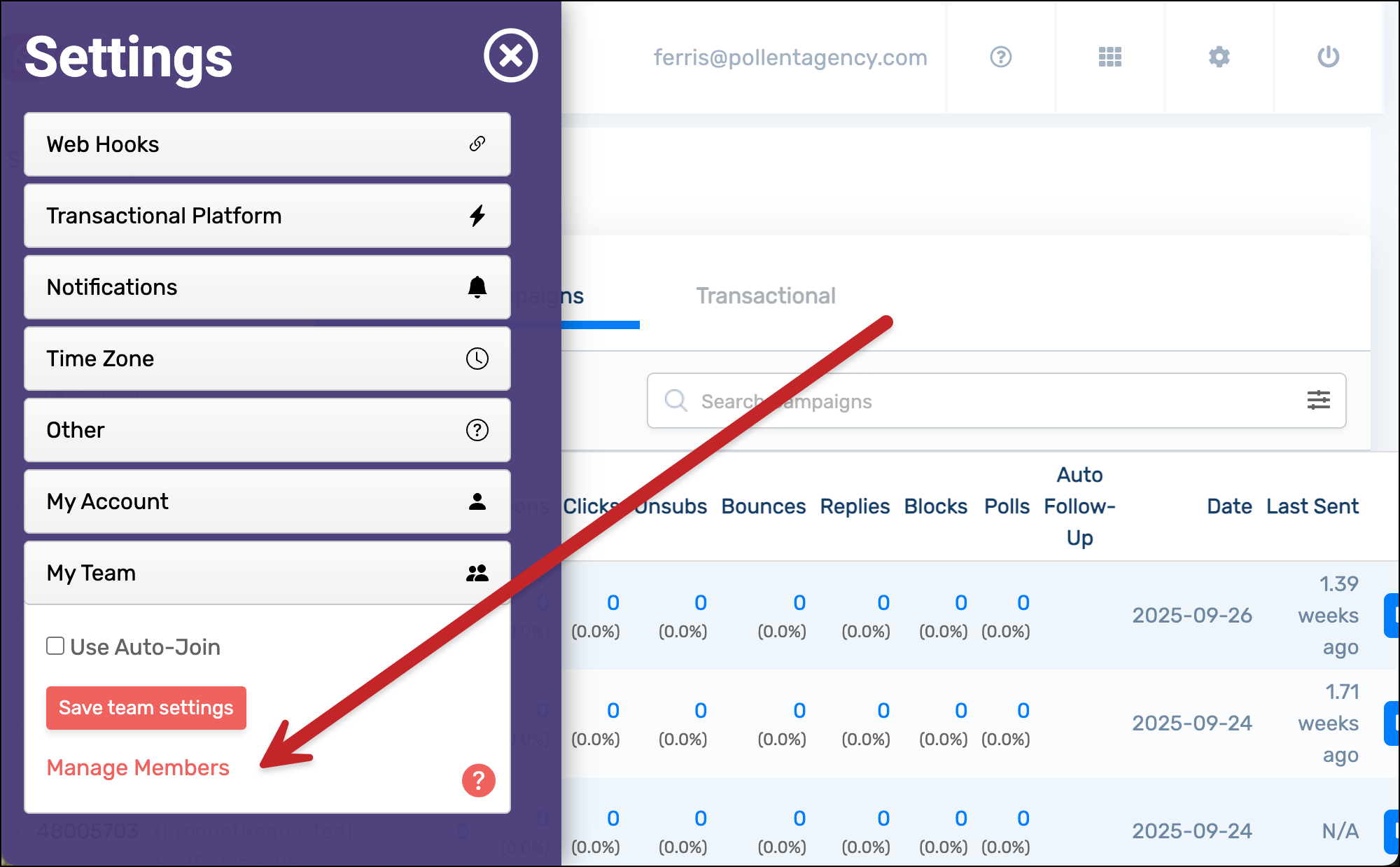
Now click on Manage Members.
2. Type in team members’ email addresses to add them
Type in your team members’ email addresses. You don’t need to add everyone now; you can always come back in the future to add or remove members.
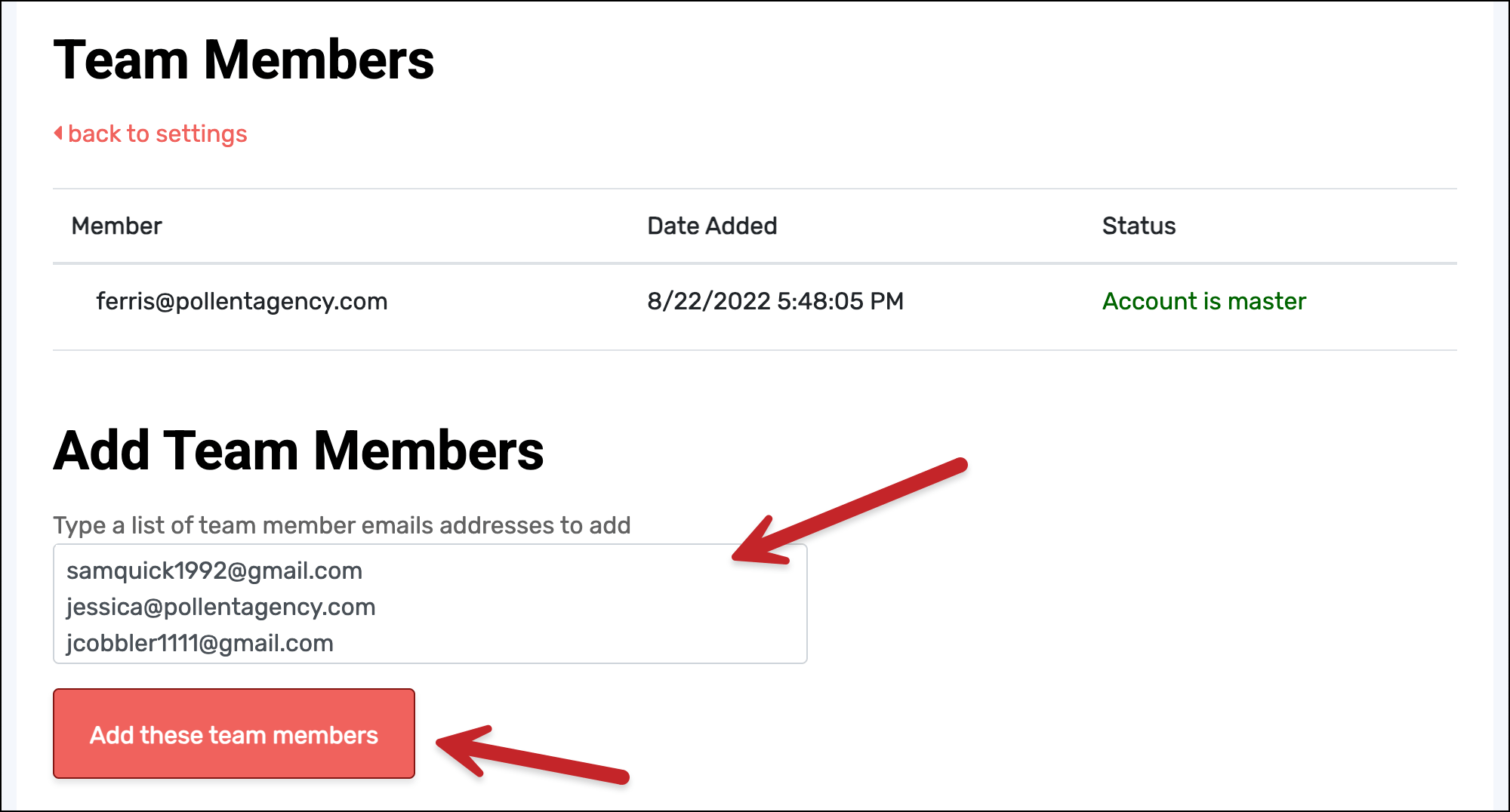
Then click the Add these team members button.
Each team member will receive an email letting them know they’ve been added to a team plan. If they haven’t already, they can then install the GMass Chrome extension and set up their account.
✅ You’re all set.
More resources
- Here’s more information on how to manage your team plan.
- Check out all the features and benefits of GMass for teams, including sharing templates, unsubscribe and bounce lists, and more.
- Want a team member to send follow-ups to your mass emails?