
 |
Automations & Sequences > Replies into new sequence |
I want to put everyone who replies to a campaign into a new campaign sequence
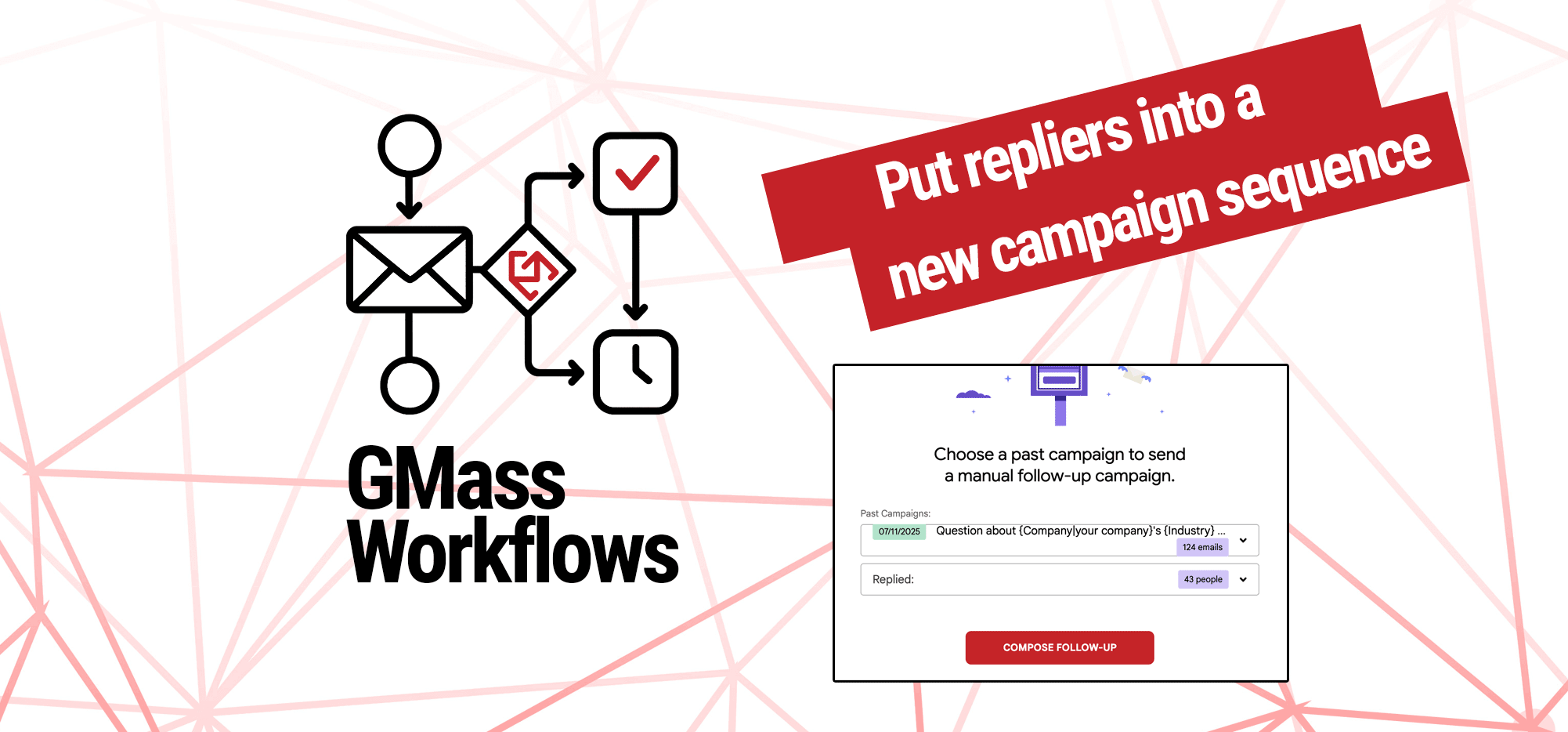
In GMass, you can easily create a new campaign based on recipient behavior. For example, getting everyone who replied into a new sequence.
There are two different ways you might want to do this:
- A manual, one-time campaign sequence to people who replied to a previous campaign
- An ongoing automation that automatically sends a new sequence to people who reply to a campaign
In this guide I’ll show you how to do both versions.
Step-by-step guide – one-time campaign
To send a new campaign to everyone who replied to a prior campaign, we’ll use GMass’s behavior-based segmentation.
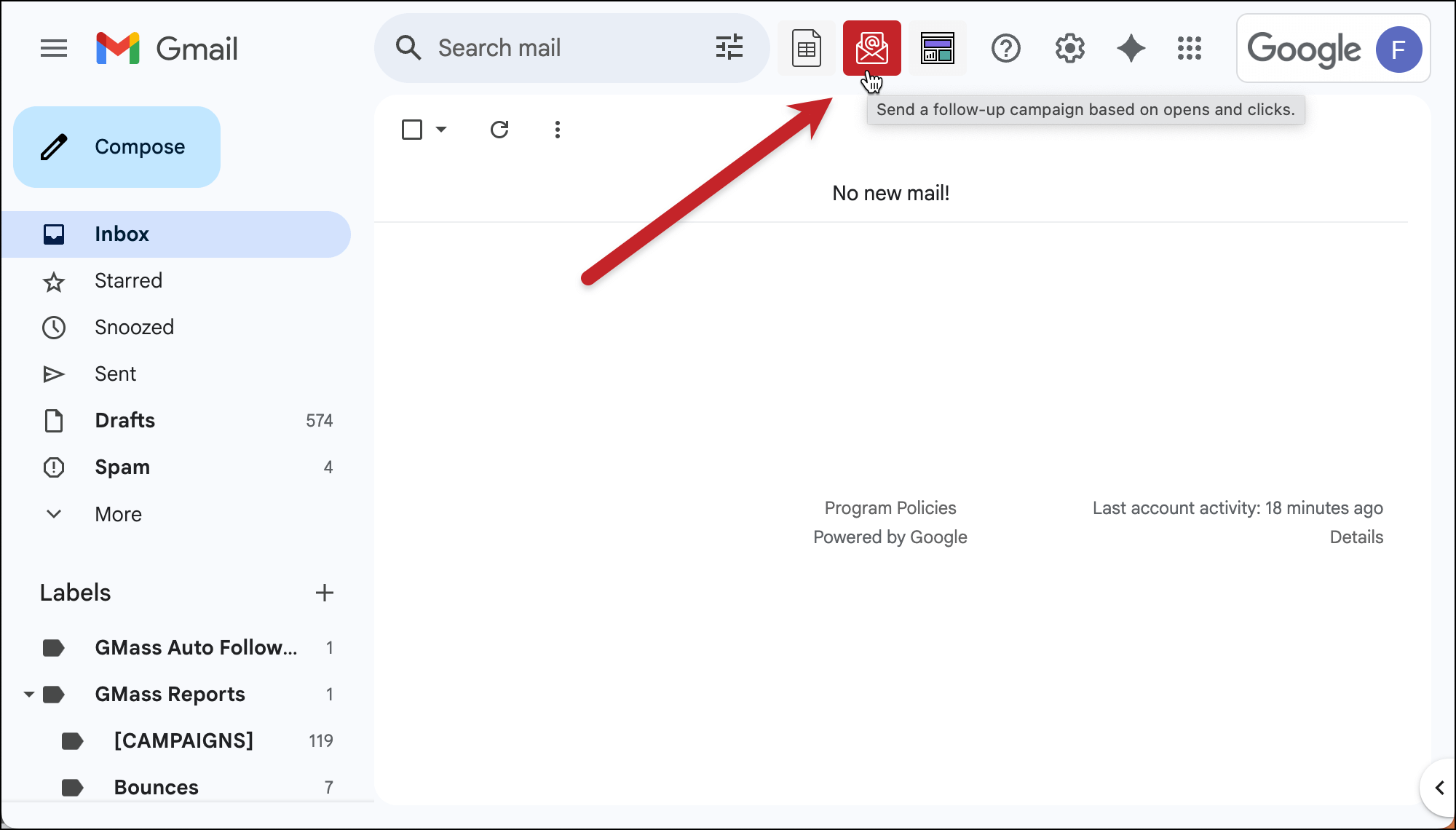
1. Click the envelope icon to initiate a behavior-driven campaign
In Gmail, click the envelope icon near the search bar.
2. Pick your campaign and behavior
In the pop-up, choose your prior campaign from the first dropdown.
Then choose “Replied” from the second dropdown. That means you’ll be sending a new campaign to everyone who replied to the first campaign.
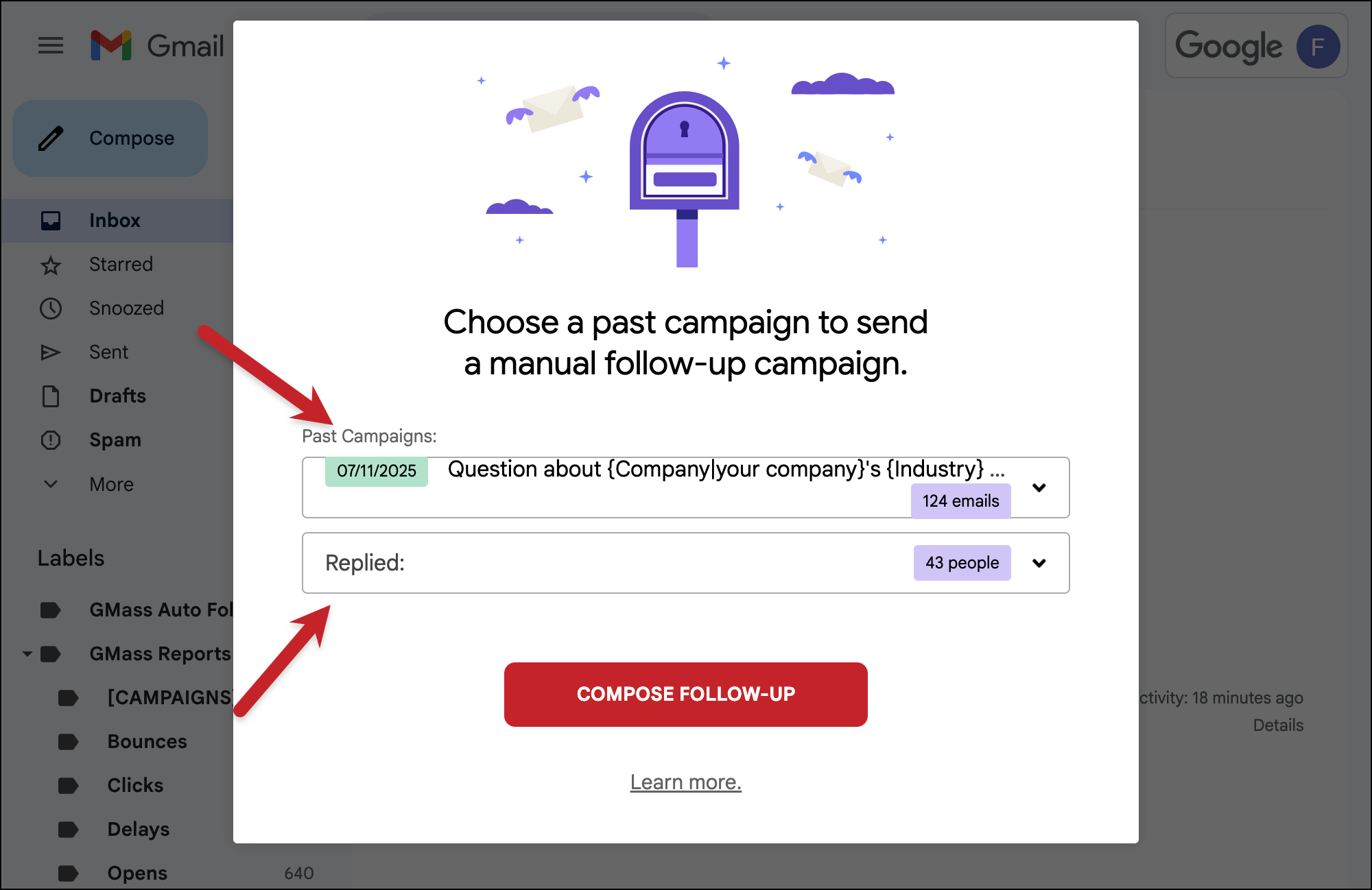
Then click the Compose Follow-Up button.
3. Compose your campaign and follow-ups
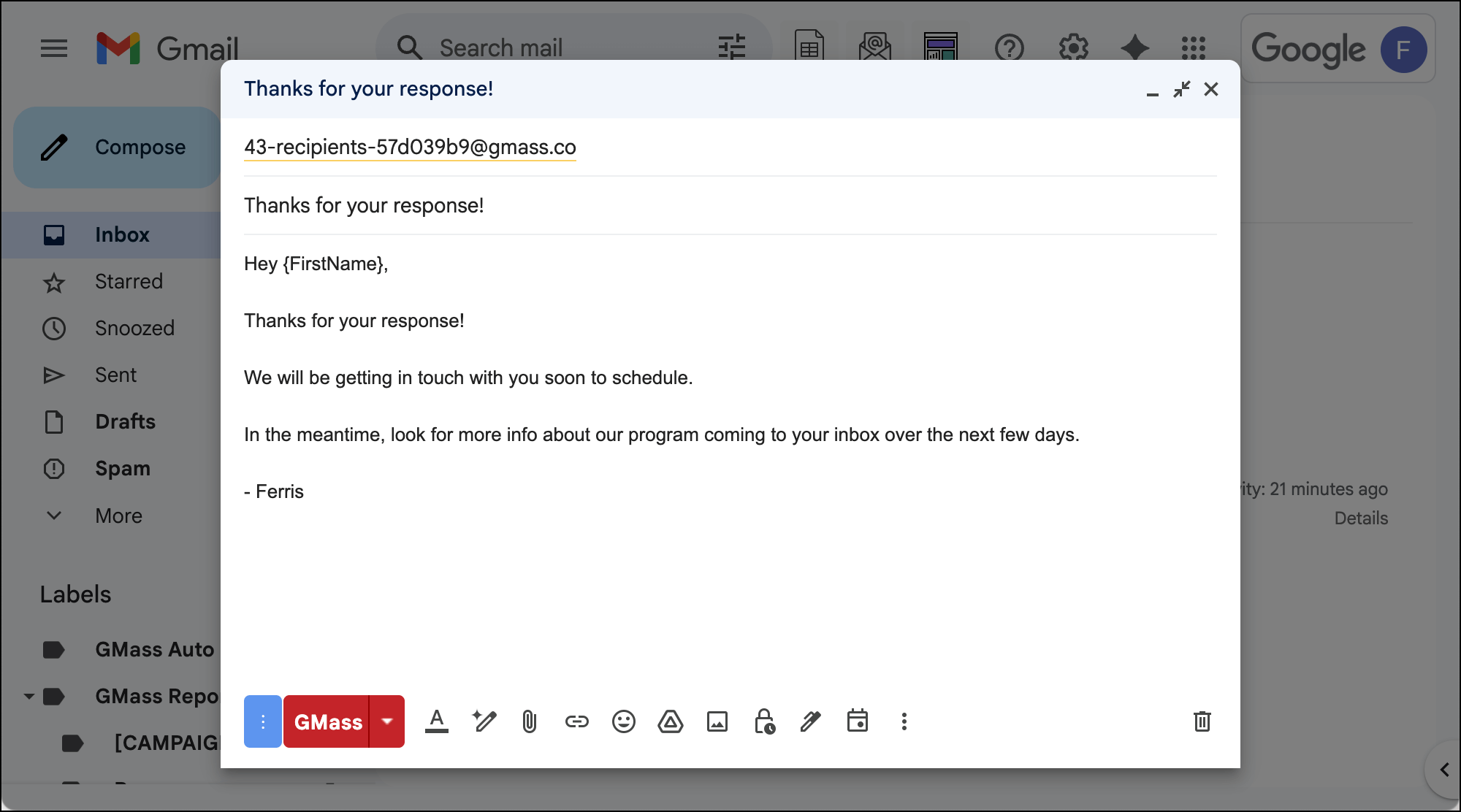
GMass will bring up a new Gmail compose window.
Compose your new email and sequence to all those who replied to your prior campaign.
You can use the merge tags from your initial campaign here, as GMass is still pulling the data from the initial campaign’s Google Sheet.
And you can also set up auto follow-ups for your sequence (and any other settings you want as well).
4. Send your campaign
Once your follow-up campaign sequence is all ready to go, you can send it by clicking the red GMass button.
Now everyone who replied to your initial campaign will receive it.
✅ You’re all set.
Step-by-step guide – ongoing automation
The previous instructions were all for sending a one-time campaign to everyone who replied.
But what if you want to set up an ongoing automated campaign that goes out to people who replied?
These are often referred to as subsequences, and you can do this using GMass’s dynamic lists and recurring campaigns.
Here’s how to set it up.
1. Click the envelope icon to initiate a behavior-driven campaign, and choose your prior campaign
Much like we did with the one-time campaign, we will once again start with a behavior-based segmented campaign.
Same deal with the pop-up box. Pick the ongoing campaign and specify you want to send you new campaign to people who’ve replied to it.
3. Make the campaign dynamic
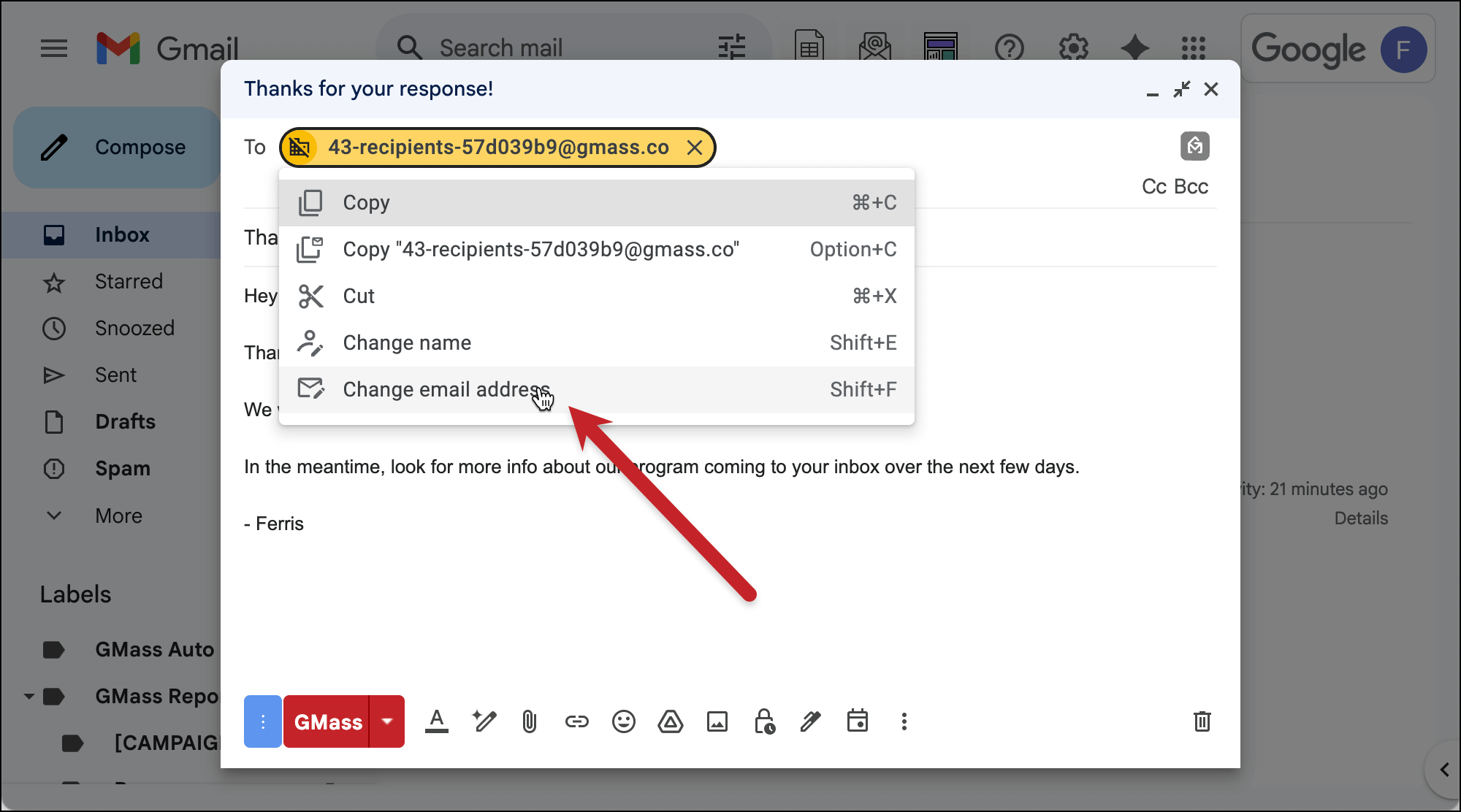
When the Gmail compose window pops up, right click on the email alias in the To field (something like 43-recipients-3241kjasd@gmass.co). Choose “Change email address” to edit the email address.
Add the word “-dynamic” right before the @ symbol. This turns your GMass campaign dynamic.
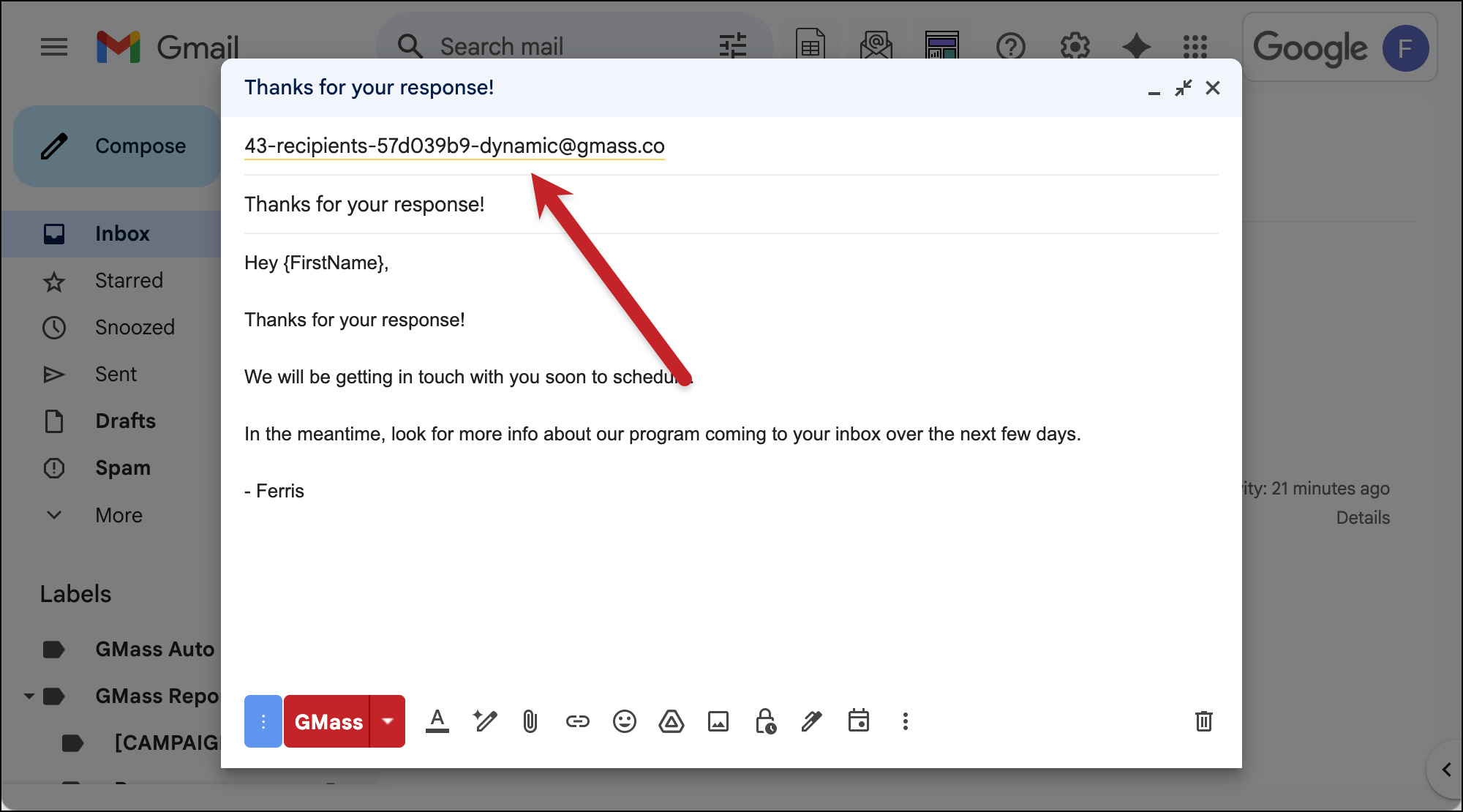
When you use dynamic addresses in GMass, your Google Sheet becomes your “single source of truth.” That means GMass will always use the addresses in the Sheet when it sends a campaign — even if those addresses have changed since you initially connected the Sheet to your campaign.
4. Compose your follow-up campaign and make it recurring
Now you can compose your campaign and follow-ups.
Then go to the GMass settings. In the Schedule section, set this up as a Recurring campaign at the frequency you want to send.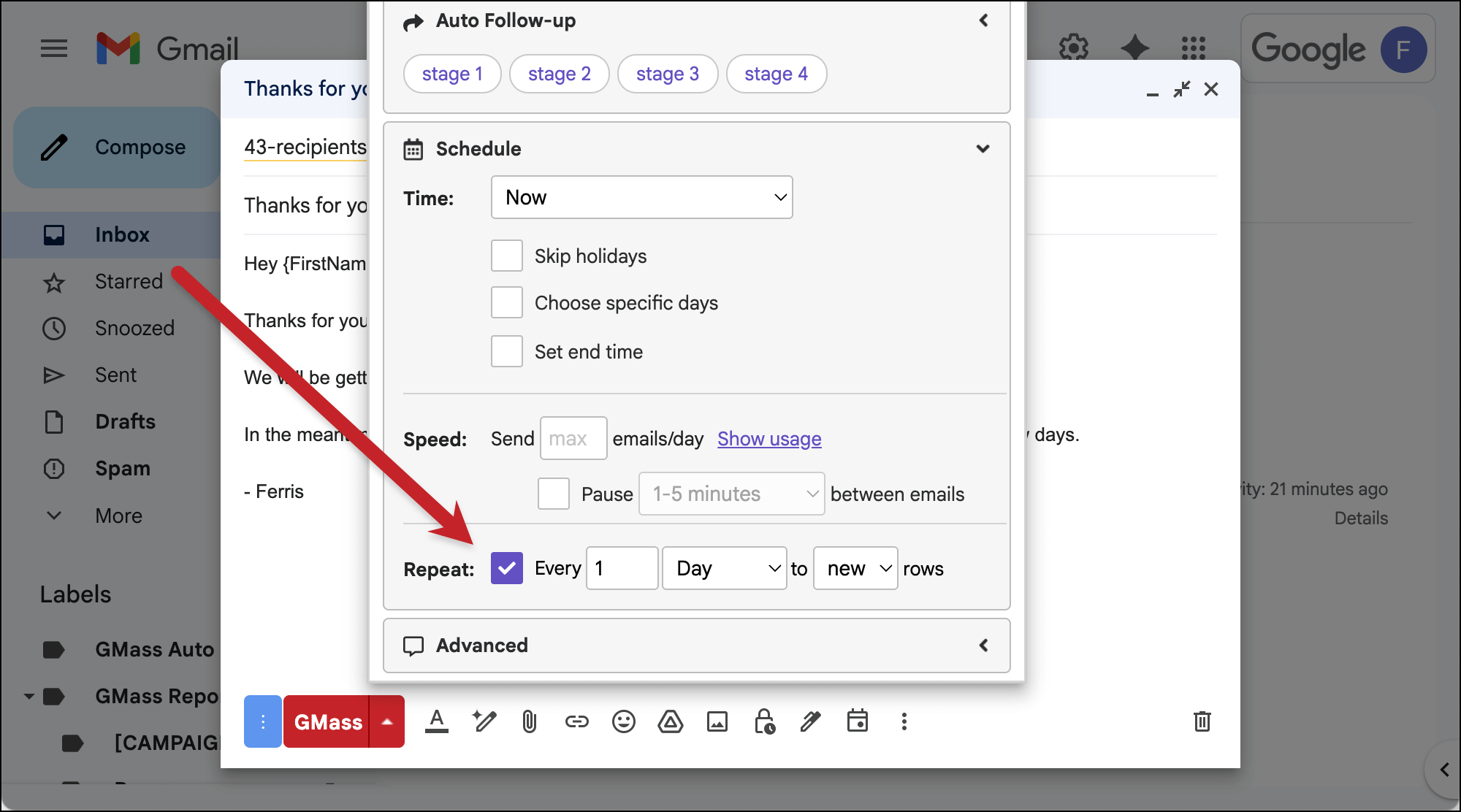
5. Click the GMass button to start this automation
Once everything’s ready, click the red GMass button. That initiates this automation.
And now, whenever someone replies to your initial campaign, they’ll automatically receive this follow-up.
✅ You’re all set.
More resources
- Check out our documentation on behavior-based, segmented follow-up campaigns.
- Here’s more about subsequences in GMass.
- And here’s more about the power of dynamic lists.
- Want to only send a follow-up based on replies that contain a specific word? Check out triggered emails.