
 |
GMass & Infrastructure > Share account access |
I need to give someone else access to my GMass account
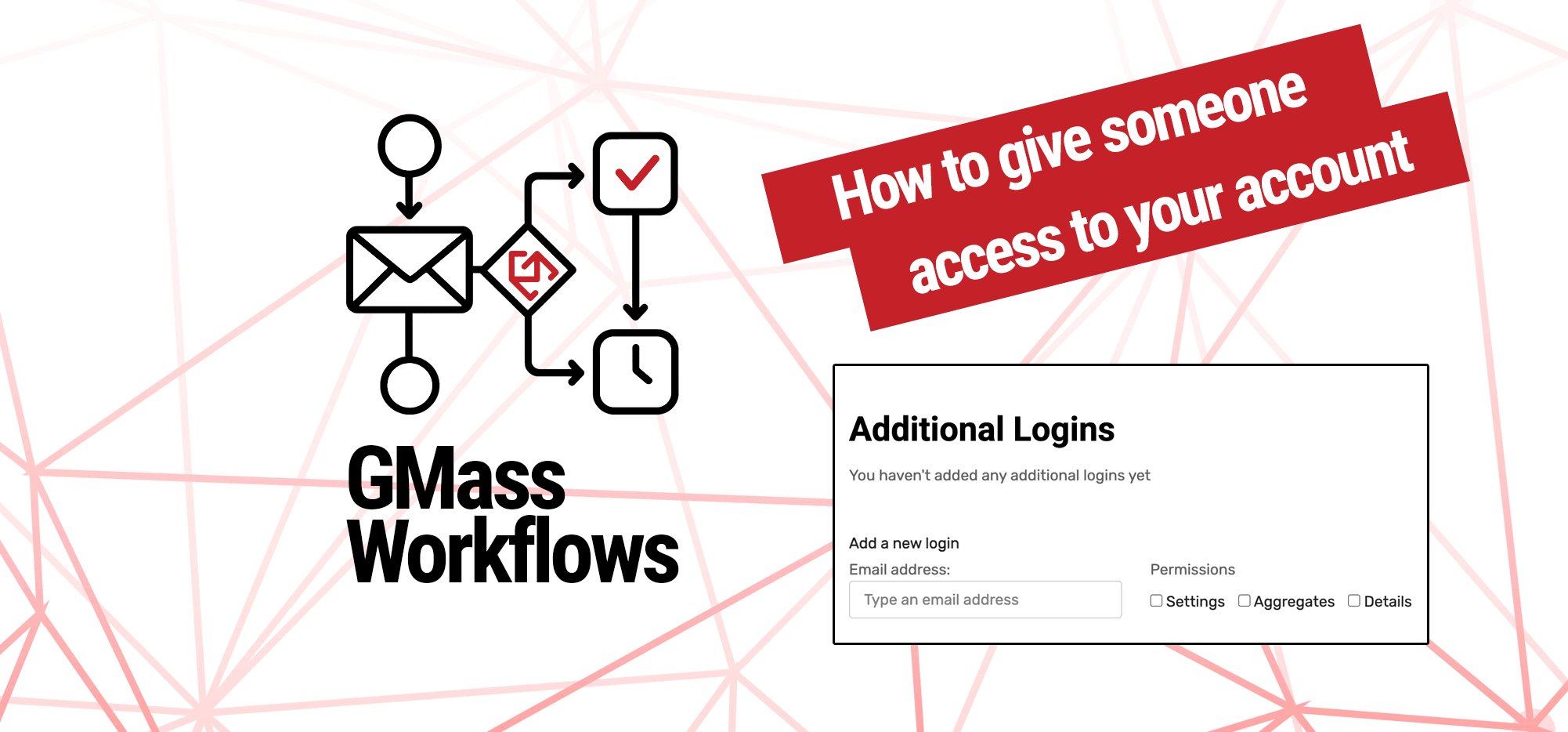
Yes, you can share access to your GMass account. In this guide I’ll show you how.
However, before we jump in, it’s important to note that the only way for someone to actually send campaigns from your GMass account is by having access to your Gmail. (Other than maybe by building a tool with the GMass API.)
Because GMass works inside Gmail, that’s where you initiate campaigns. So while someone can access and manage your account dashboard, they can only send campaigns if you let them in to your Gmail.
Now let’s get into sharing account access.
Step-by-step guide
Here’s how to give someone else access to your GMass account.
Note: This person does NOT need to be on your team plan. They do, however, need a GMass account.
1. Go to the My Account section of the GMass dashboard settings
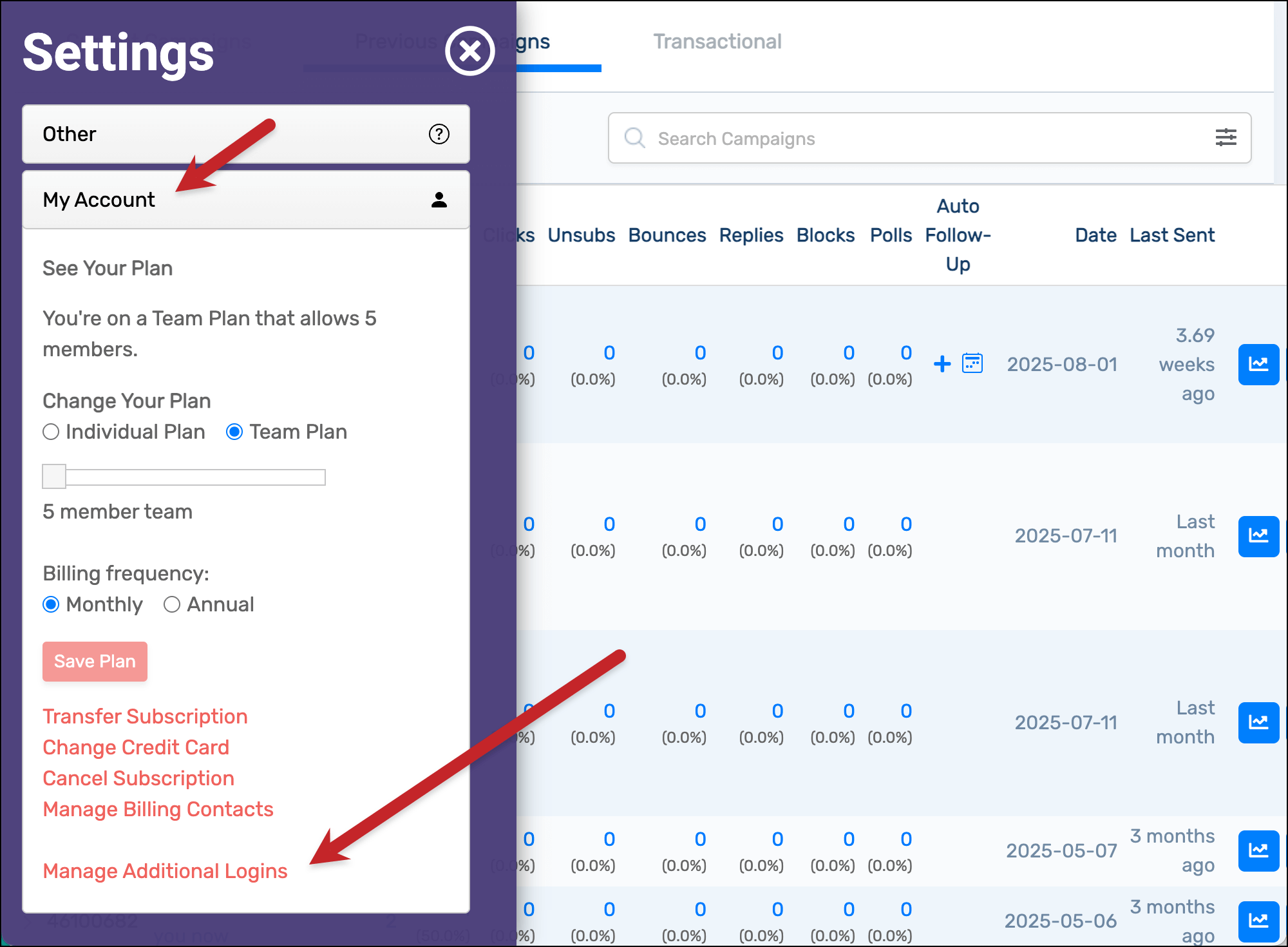
In the GMass dashboard, open the settings. Scroll down to the My Account section. Then click on the link to Manage Additional Logins.
2. Enter the person’s email address and give them permissions
Enter the person’s email address in the box.
Then decide what permissions to give them. Here’s what the options are:
- Settings, which enables the other person to view and manage your account settings.
- Aggregates, which shows the other person your campaign stats but not detailed reports (so they can’t see the email addresses of your campaign recipients).
- Details, which shows the other person your full campaign reports including recipients’ email addresses.
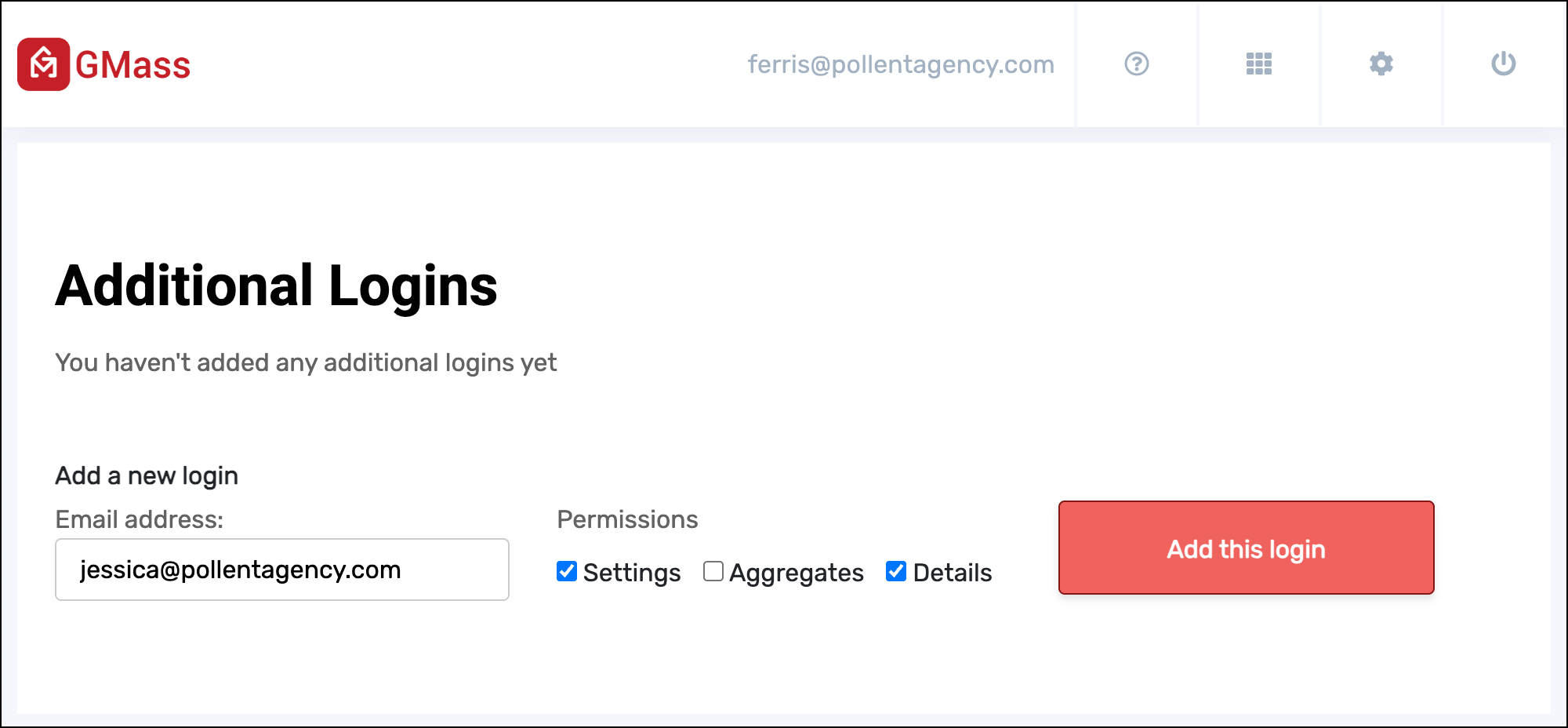
Now click Add this login and the other person will have access to your dashboard.
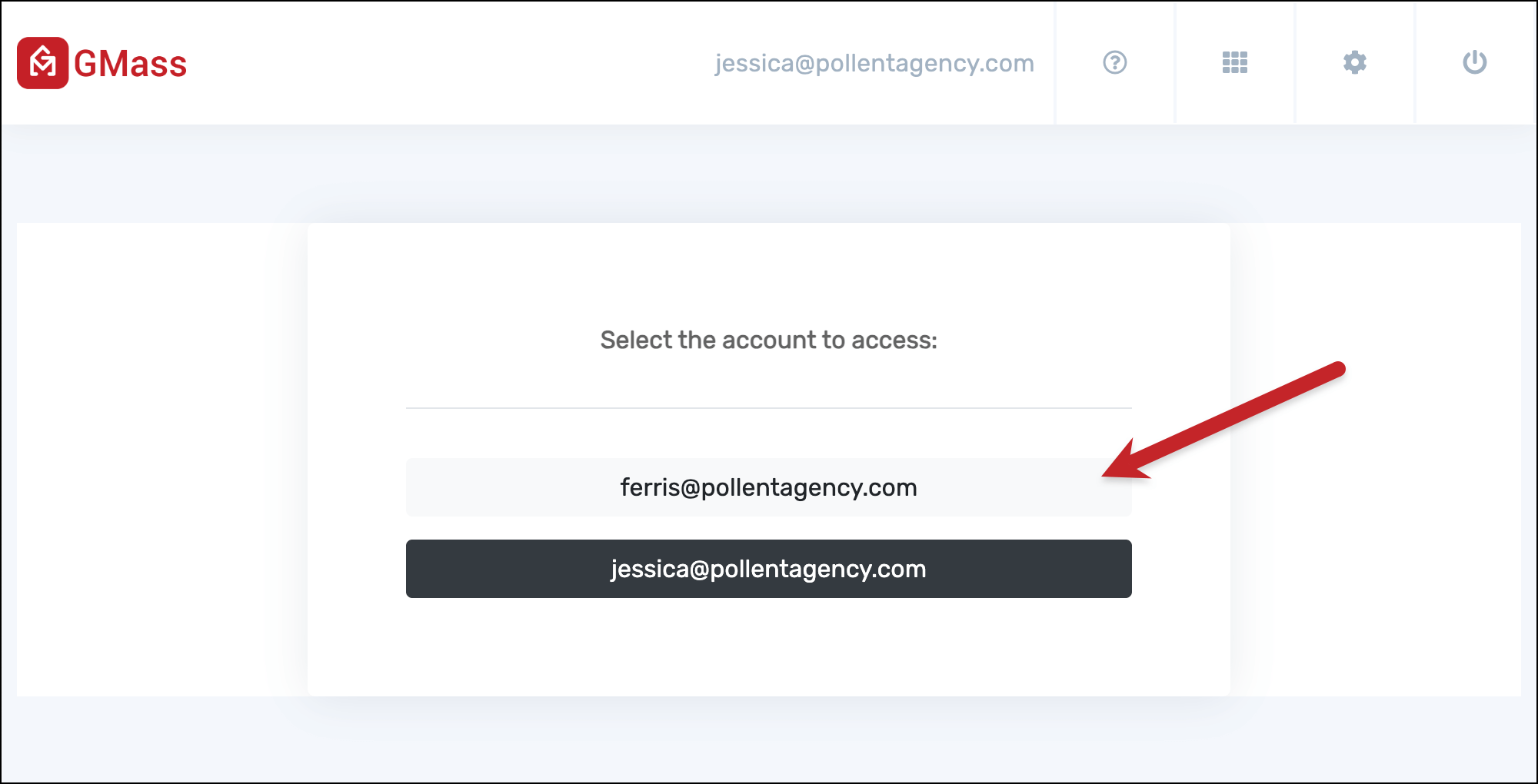
The next time they head to the GMass dashboard, they’ll have the option to access their own account dashboard or yours.
✅ You’re all set.
More resources
- Here’s a complete guide to sharing GMass account data and access.
- Check out our guide to using the GMass dashboard to the fullest.