
 |
List Management > Exclude Sheet contacts from campaign |
I want to send to everyone in a list except the people in a particular Google Sheet
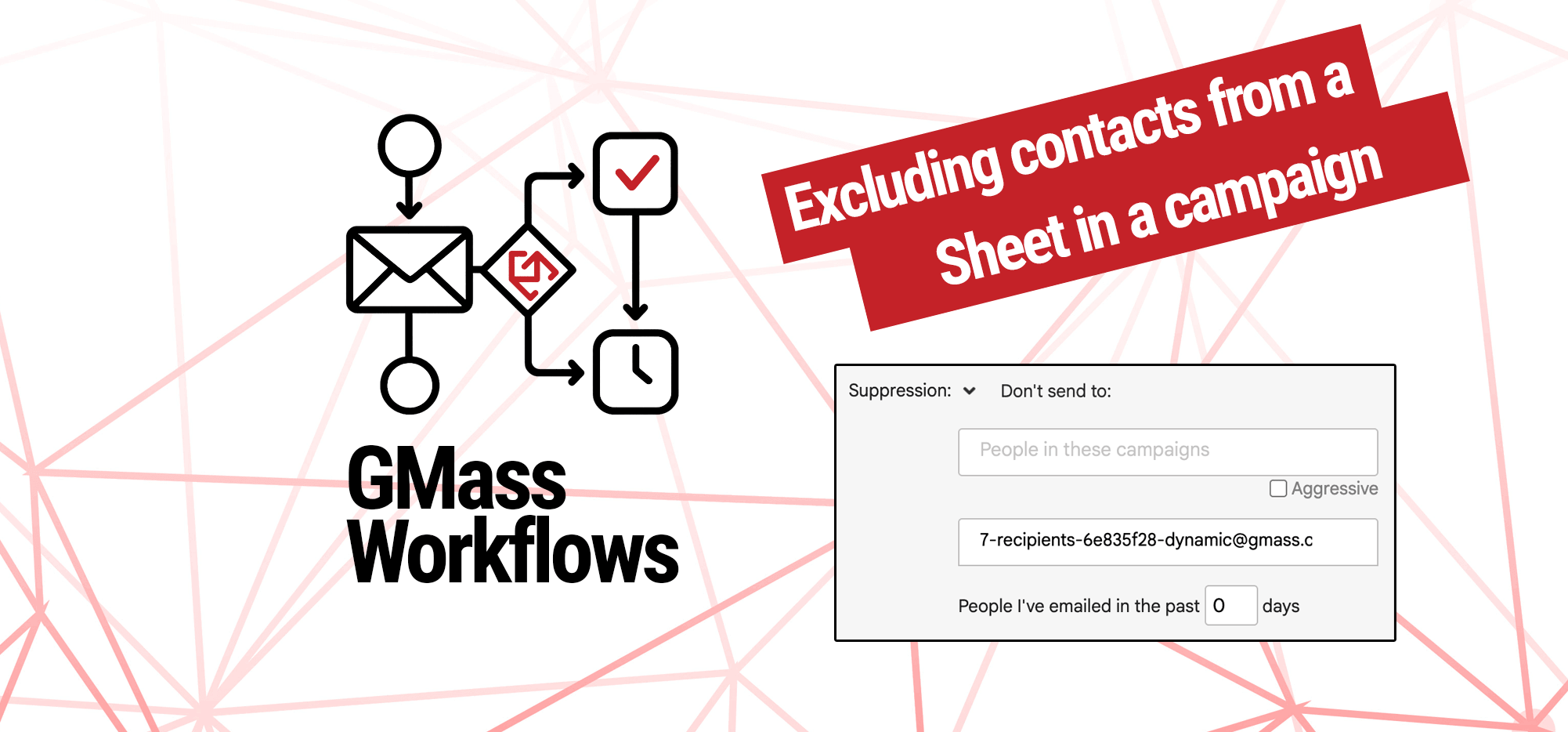
Want to send an email campaign to a list of people but exclude everyone on a specific Google Sheet?
Good news: You don’t need to manually delete those people, temporarily unsubscribe them, or use any sort of complicated Google Sheets lookup formulas.
In this workflow, I’ll show you the best way to exclude contacts in a Google Sheet from a campaign.
Step-by-step guide
1. Connect your Google Sheet of contacts to exclude to a new GMass campaign
Yes, we’re going to create a “campaign” with the Google Sheet of contacts you want to exclude. No, we won’t actually send that campaign, but we need to create a GMass list of all the people to exclude and this is the best way to do so.
Connect your exclusion Sheet to a new GMass campaign.

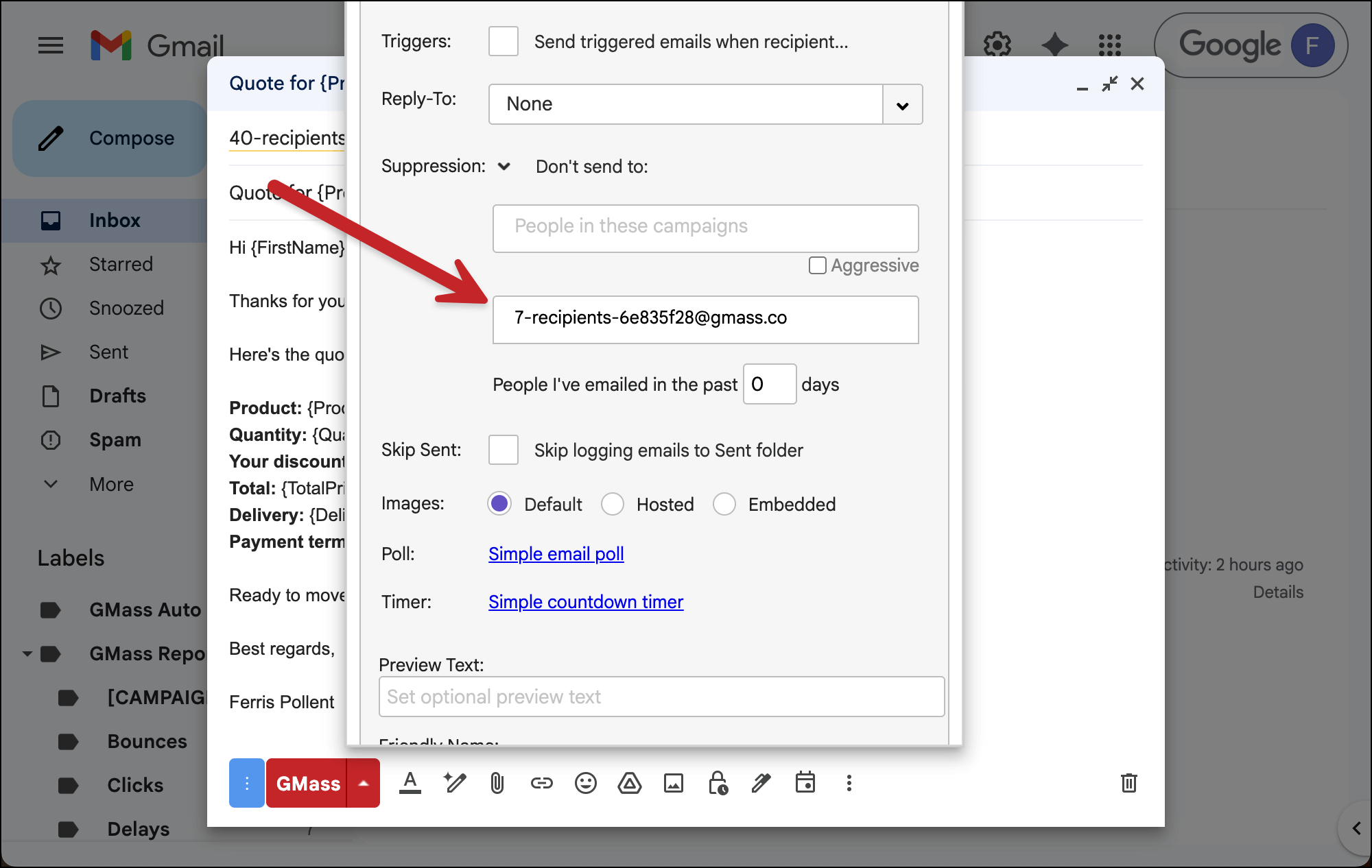
Now, when the Gmail compose window pops up, copy the list address that GMass generated. (In my case, it was 7-recipients-6e835f28@gmass.co).
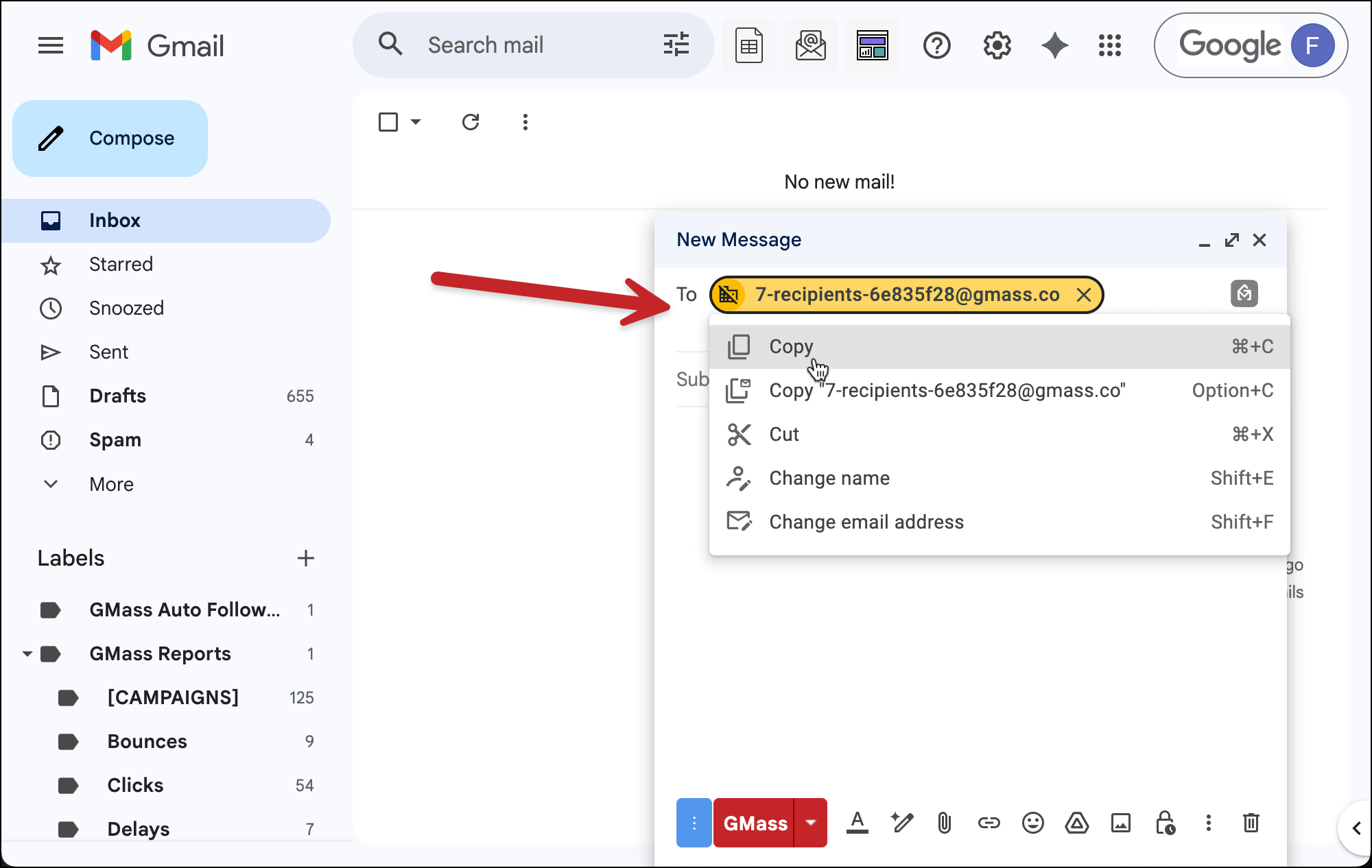
Now close this Gmail compose window.
2. Create your real campaign
Now it’s time to create your real campaign.
Connect your full Google Sheet of contacts…
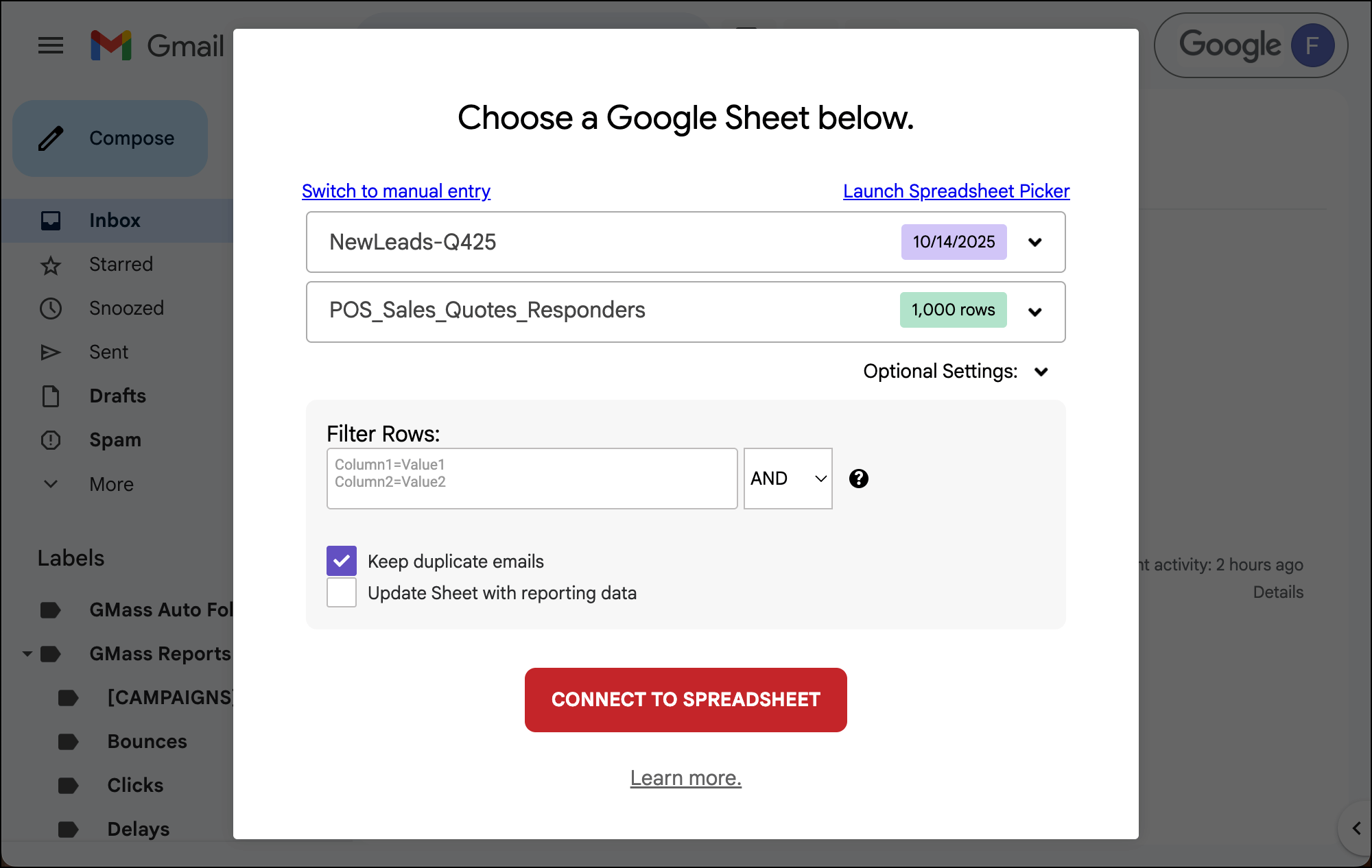
…type up your campaign and any auto follow-ups…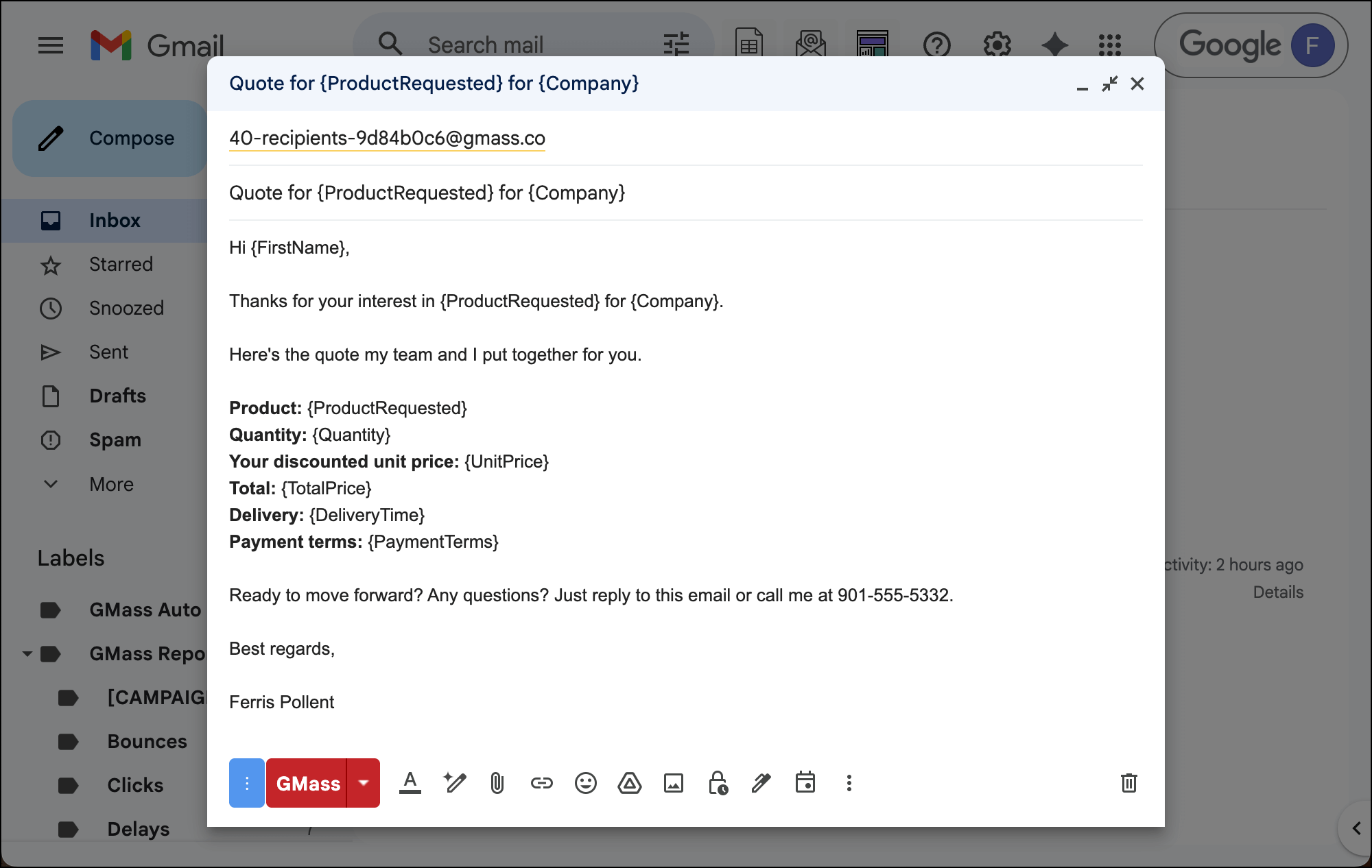
And use any settings you want for your campaign.
3. Use your newly-created alias as a suppression list
Now the big moment — where we exclude the correct people from the campaign.
We’ll do that using GMass’s suppression list feature.
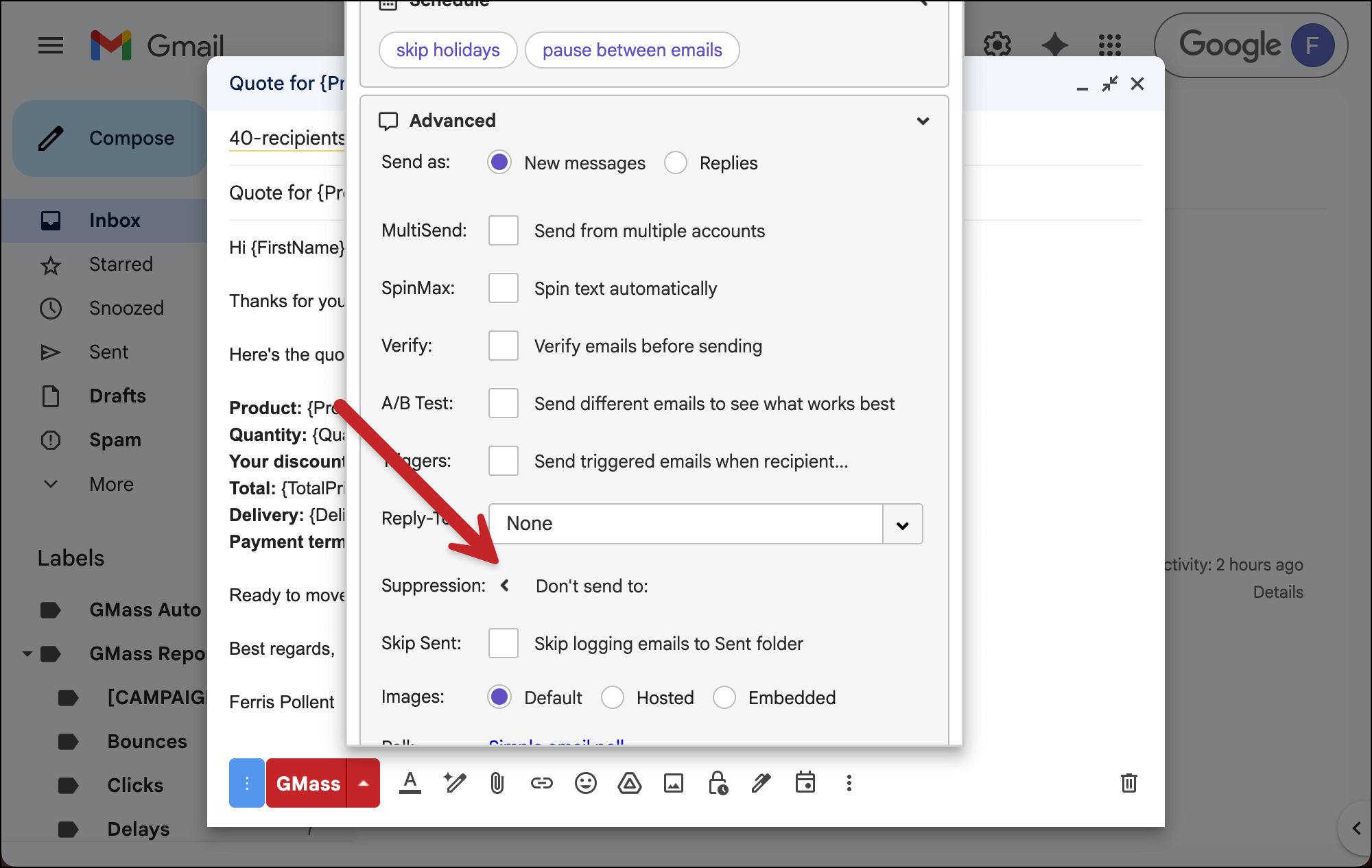
Open the settings for your campaign, then go to the Advanced section. Click the carat next to Suppression.
Now, in the field where it says These domains and email addresses, paste in the alias we created earlier using our exclusion sheet.
4. Make the alias dynamic
One last step to make this work, all based on GMass’s powerful dynamic lists feature.
We want to turn our suppression list dynamic. That way, if you add or remove people from your exclusion Google Sheet going forward, GMass will (or won’t) send them the emails. Essentially, it makes that Google Sheet the dynamic and single source of truth for who to exclude from your campaign.
Manually edit the alias address you pasted in, typing -dynamic before the @ symbol.
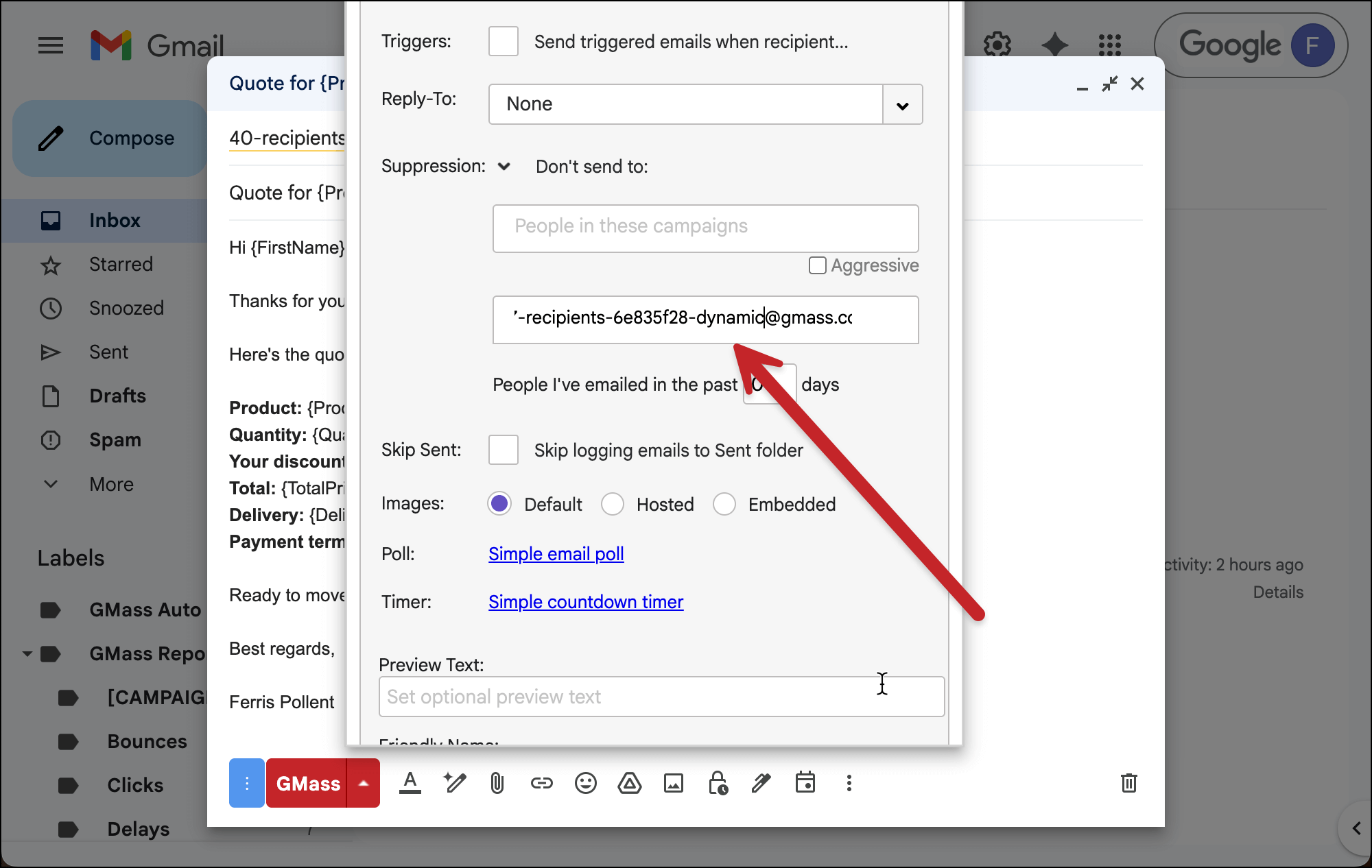
Then hit Return/Enter to lock that address into the suppression field.
5. Send your campaign when you’re ready
You now have the suppression list in place for your campaign.
Go ahead and add new people to or remove people from the exclusion Google Sheet anytime before you send.
And when you hit the red GMass button to send, GMass will suppress the messages to any addresses that were on your suppression Google Sheet.
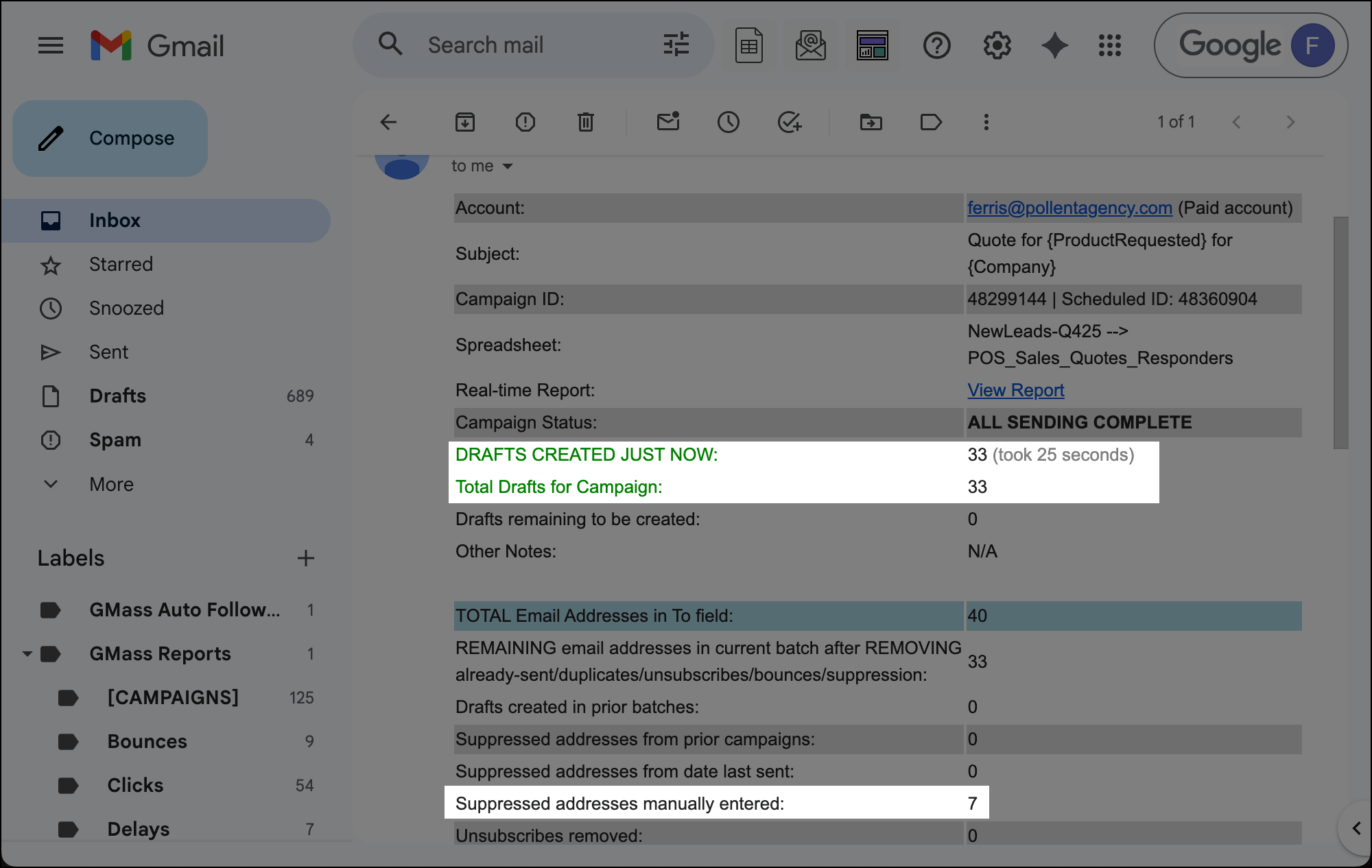
(For my test, if you were eagle eyed through all of they above, you’ll see I had 7 people in my exclusion Google Sheet and 40 people in my campaign. So when I generated drafts of my campaign, GMass correctly created 33 emails and suppressed 7.)
✅ You’re all set.
More resources
- I glossed over it a bit as to not get too bogged down during the workflow, so here’s a deeper explanation of using dynamic lists for suppression in GMass.
- Here’s more on using suppression lists (and why it’s better than unsubscribing people).