
 |
Composing & Sending > Import HTML template |
I want to use my own HTML template
Gmail is not natively made for HTML. Fortunately, GMass doesn’t abide by that — and enables you to use your own HTML templates seamlessly inside Gmail.
Here’s how to do it.
Step-by-step guide
1. Connect your Google Sheet to a new GMass campaign
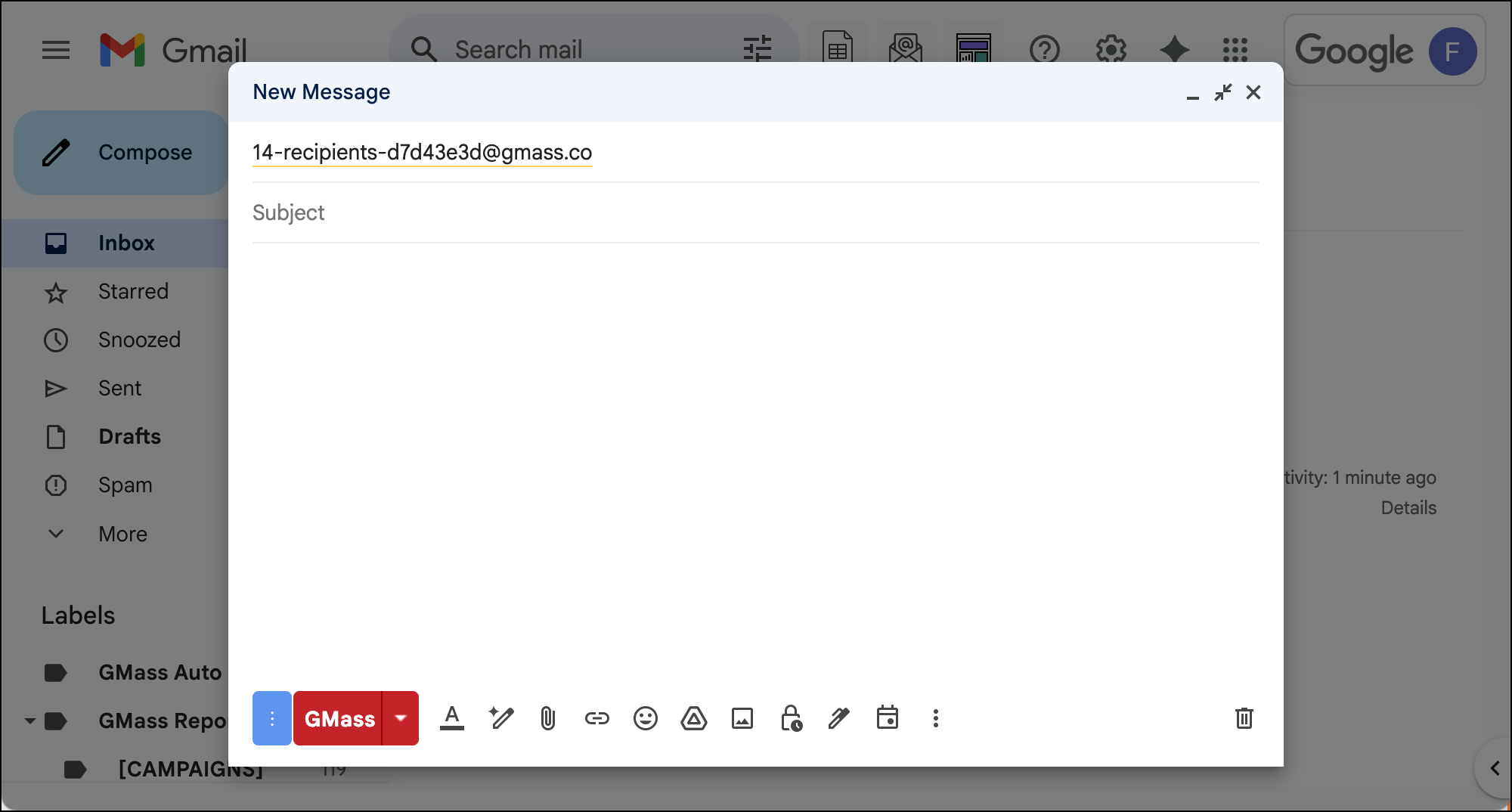
Create a GMass campaign as you normally would.
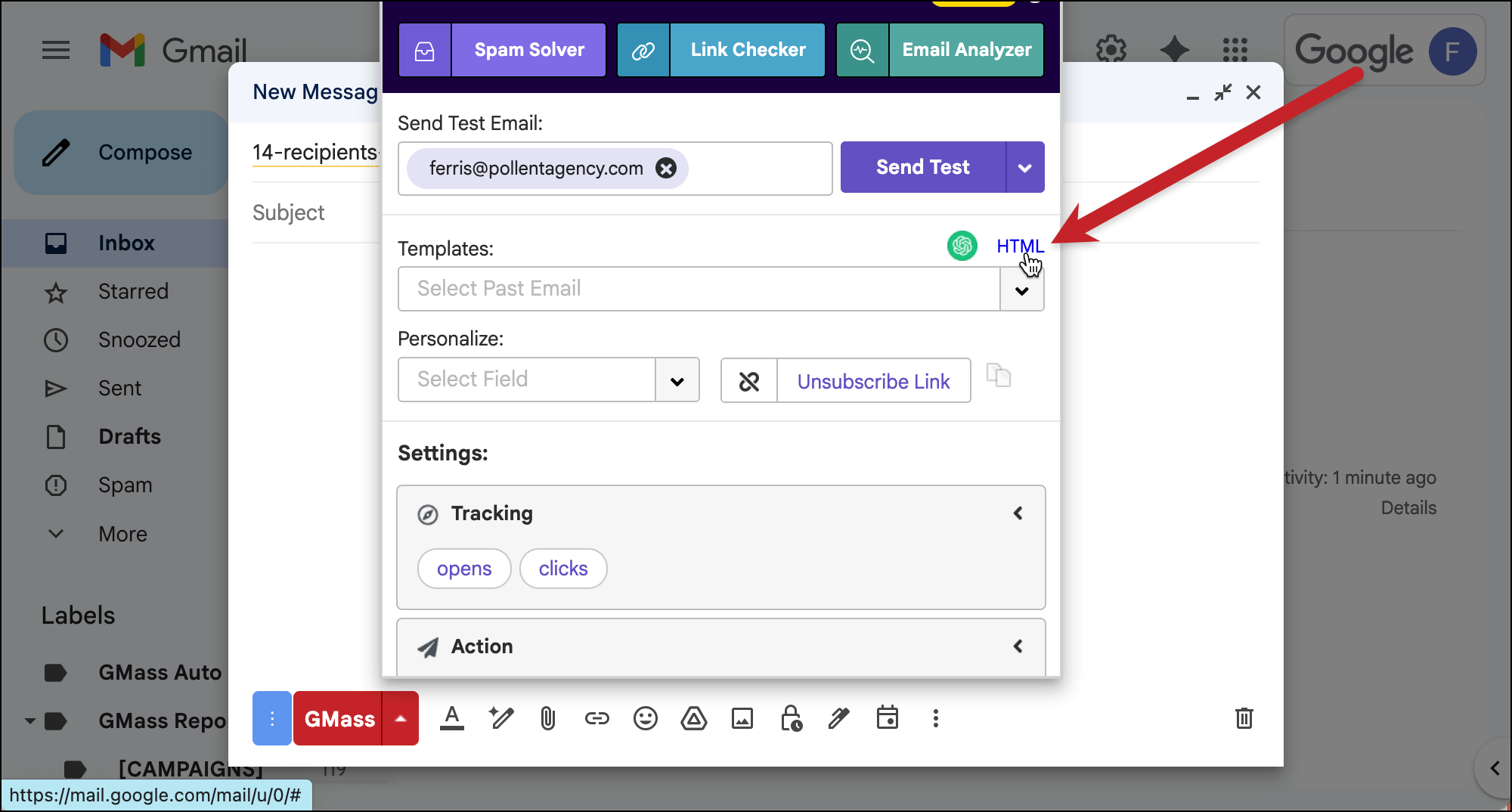
2. In the GMass settings, click the HTML link and paste in your HTML template.
Open the GMass settings. Then click the HTML link.
That brings up a window that shows you the HTML for your message.
Paste in your template.
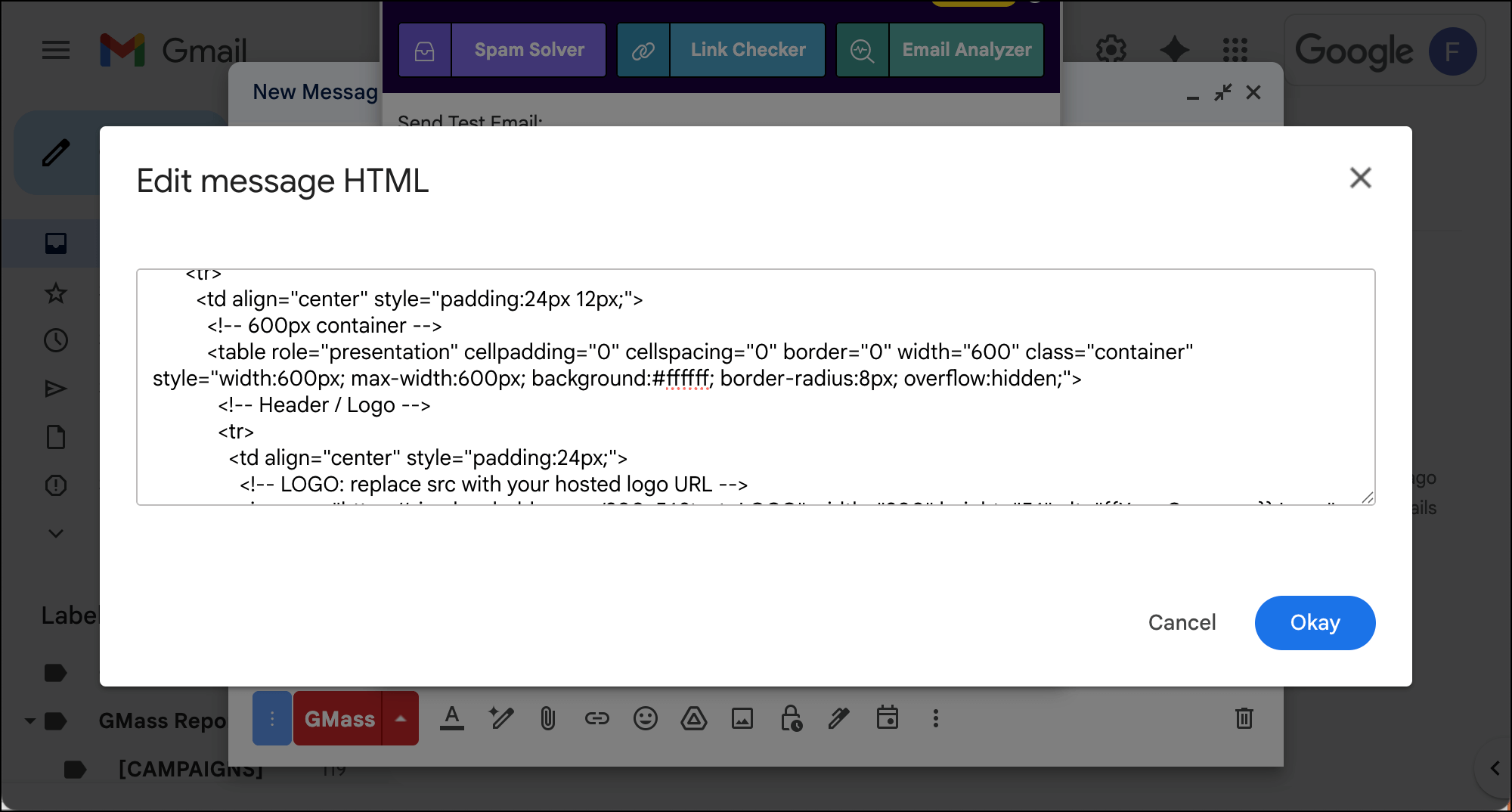
Then click the Okay button.
You should see your HTML template now in the email.
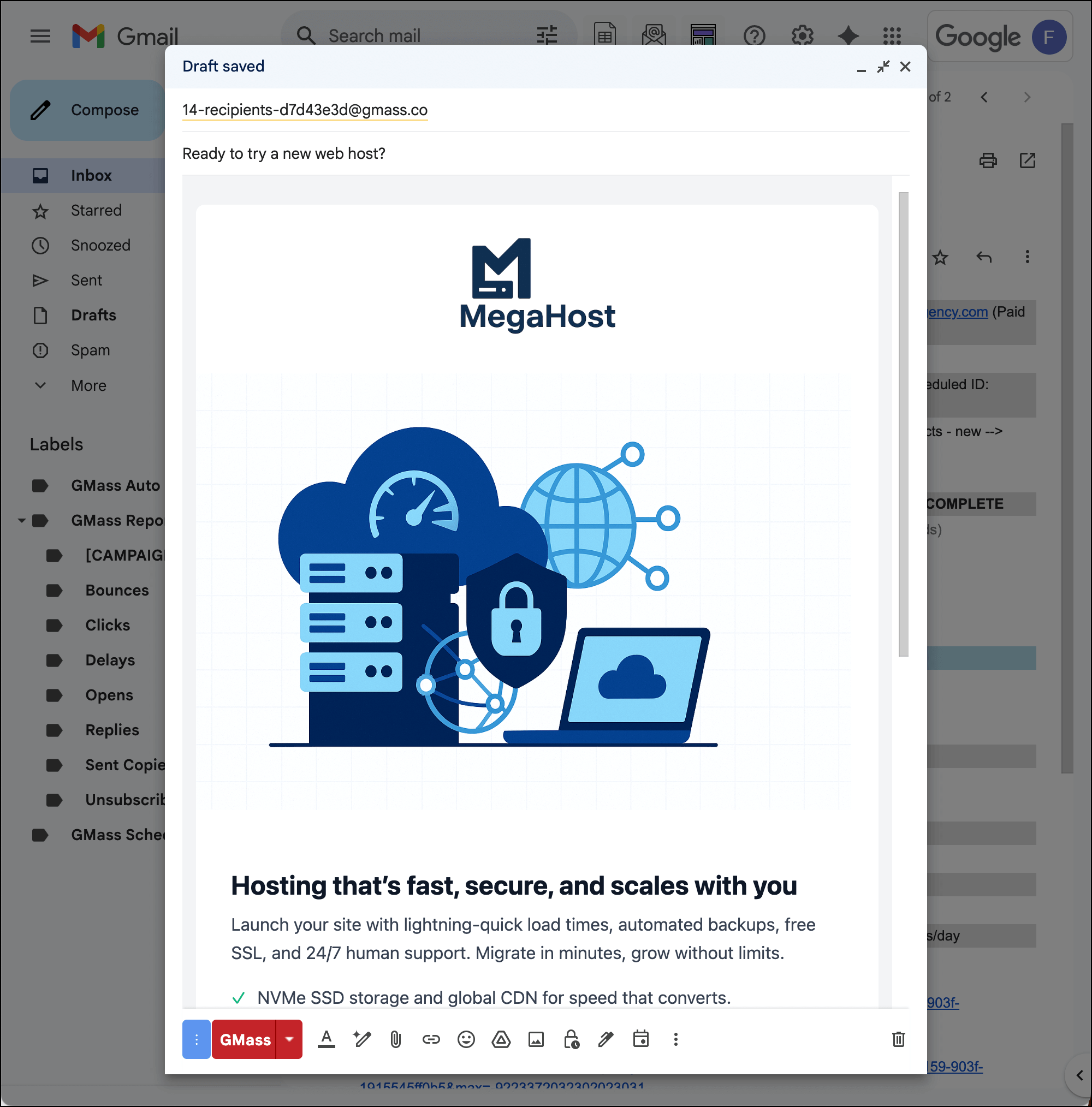
✅ You’re all set… unless you want to try a pro move
3. Optional: Replace your hosted images with embedded images
Assuming the images in your template are hosted (somewhere like https://cdn.yourwebserver.com/email-images/companylogo600.png), they should look normal and work just fine.
However, if you want to make your email more Gmail-native — potentially giving it a little deliverability bump along the way — you can replace your hosted images with embedded images.
Note: You should be comfortable with HTML to do this, because it likely will take a little tweaking.
To do so, delete an image from your email. Let’s do it with the logo first.
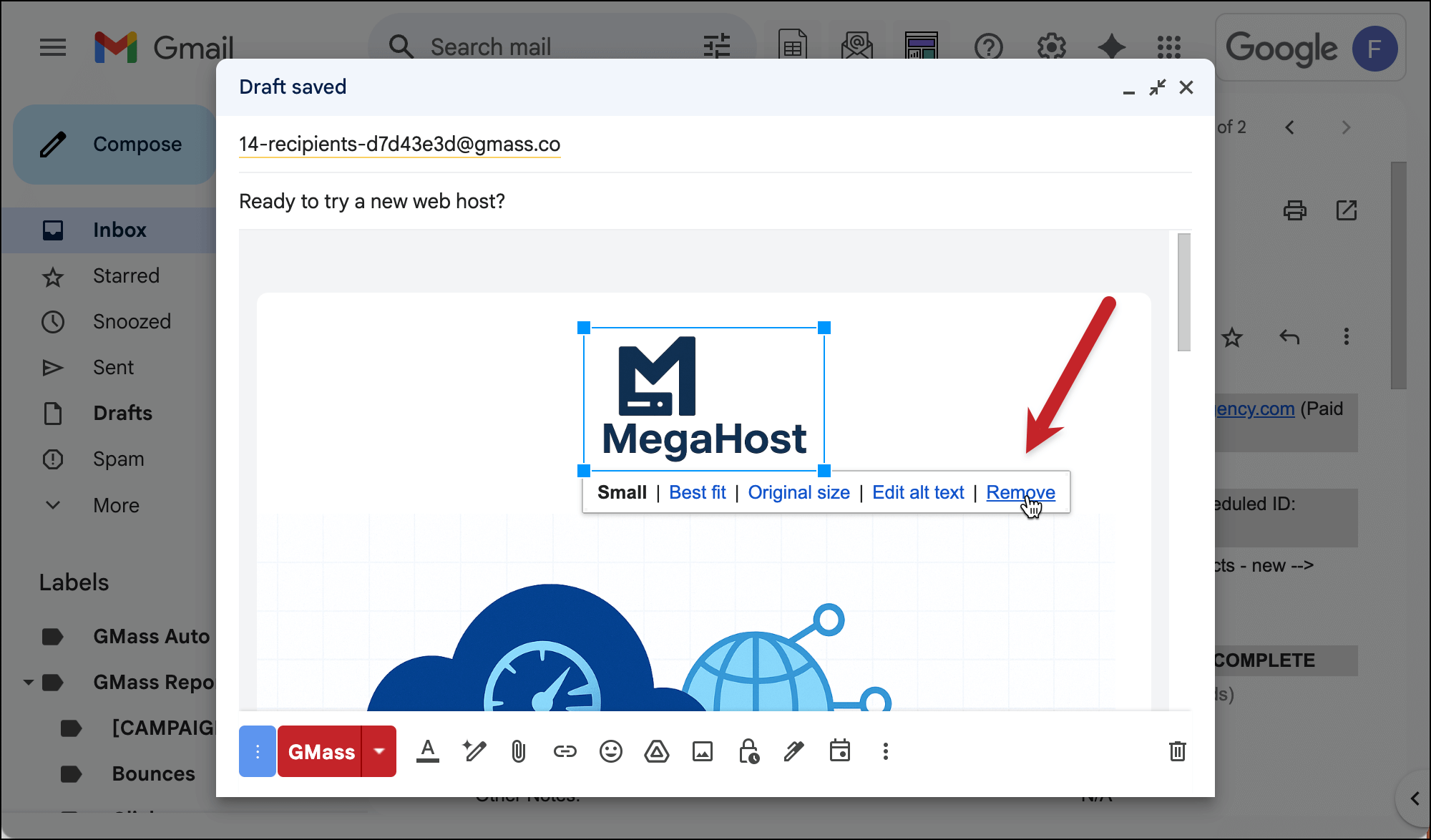
Now click the Insert Photo button.
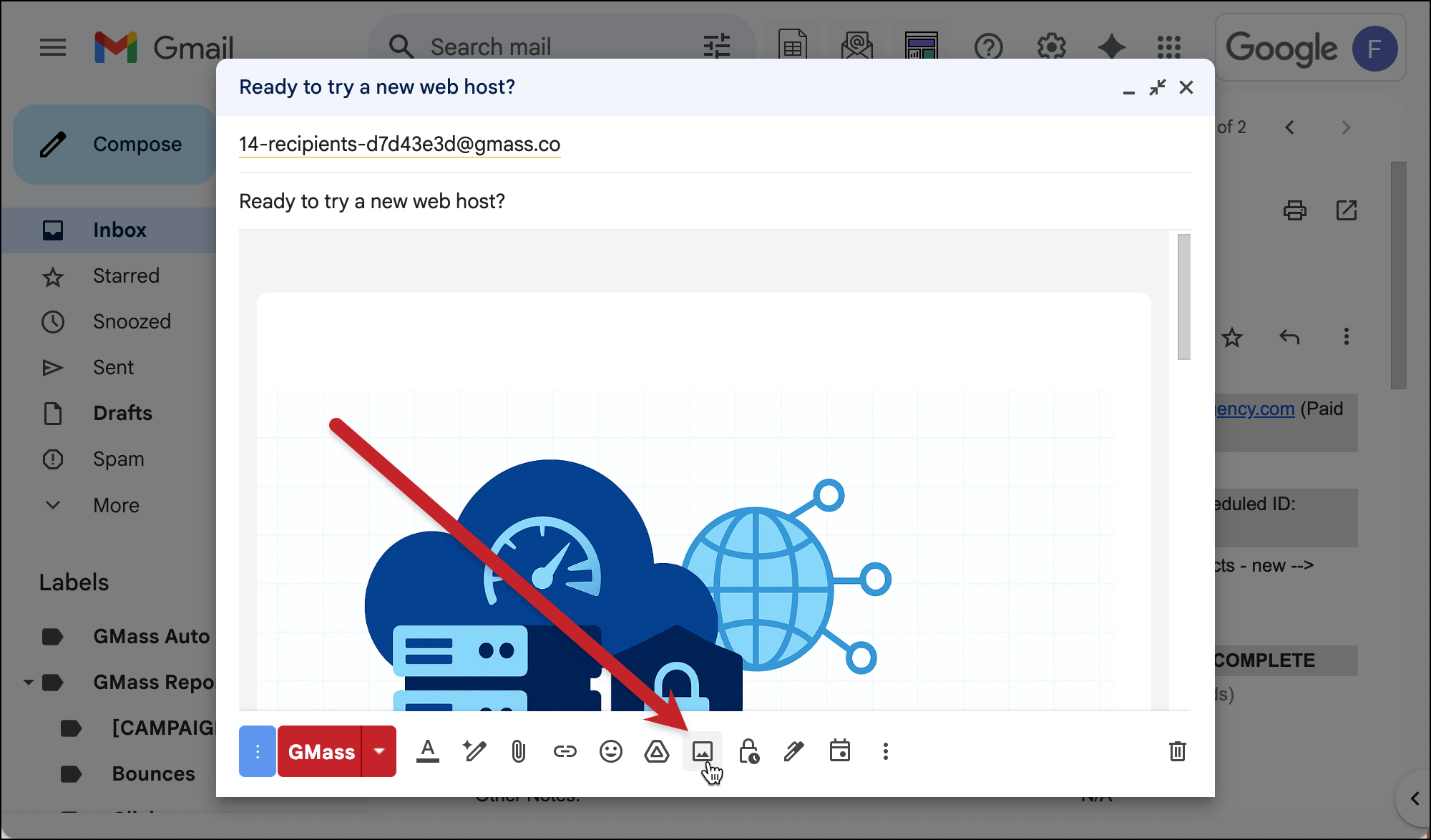
Choose your logo.
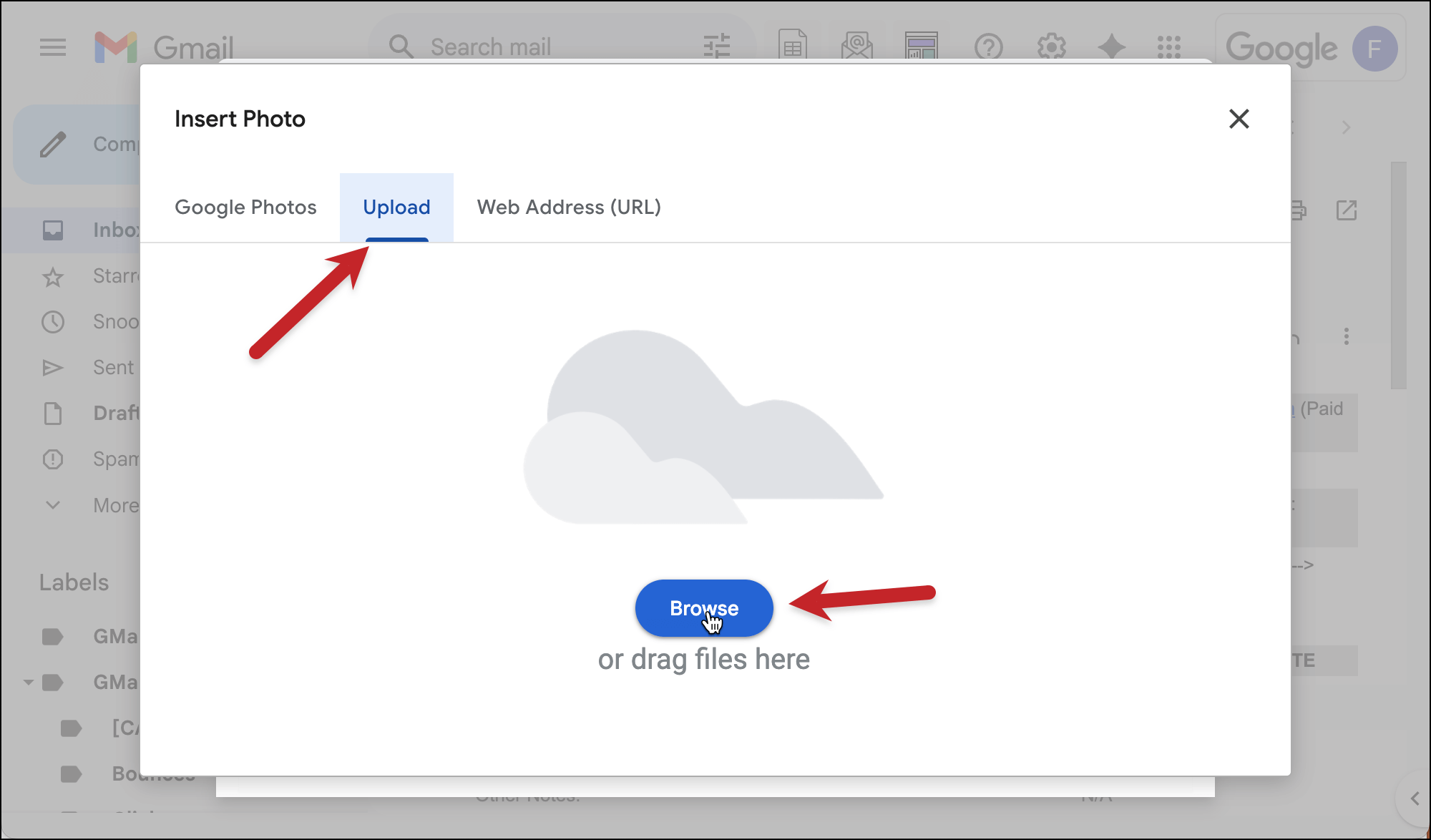
It will almost definitely be the wrong size. That’s ok. Now go back into the GMass settings and back into the HTML.
Find the image in the code, make sure it’s in the right spot, and edit the width to be the right size.
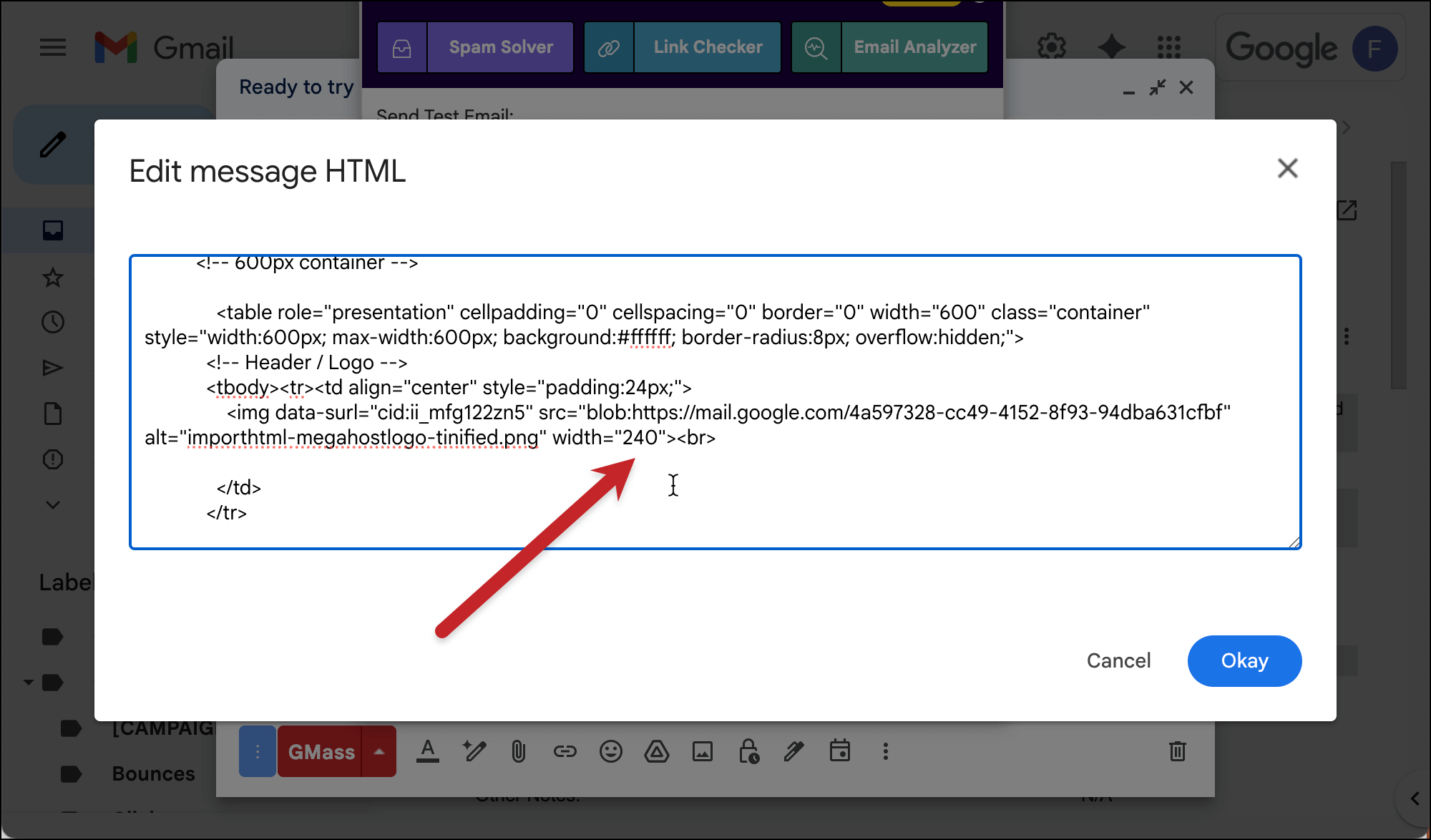
It should look correct now. (Tweak the size again if it doesn’t.) Repeat this for your other images as well.
✅ You’re all set.
More resources
- Here’s more context about embedded vs. hosted images and why you should take the time to do step 3 above.
- Check out our guide to different ways to get HTML templates in Gmail.
- And here’s an in-depth look at different ways to send HTML emails in Gmail.