
 |
Automations & Sequences > Links in follow-ups |
How do I include links in my auto follow-ups?
GMass’s plain text auto follow-ups are really easy to write — they’re right there in the settings box — which means a ton of people use them. That’s great!
However, it can be tricky to include the type of links you want in a plain text email. You can include a hyperlink (e.g., https://www.gmass.co) but you can’t include hyperlinked text (e.g., GMass). That’s because hyperlinked text requires HTML, and plain text emails (by definition) don’t use HTML.
That can also create a problem for click tracking, since click tracking also requires HTML links.
It can also create a problem if you’re running your auto follow-up sequence to stop when someone clicks. Without HTML links and click tracking, it’s impossible for the system to know that someone clicked.
In other words… there are plenty of times when you need hyperlinked text in auto follow-ups.
In this guide, I’ll show you how you can include links in your auto follow-ups to get the results you want.
Step-by-step guide
1. If you want to include a raw hyperlink, you can just type it in
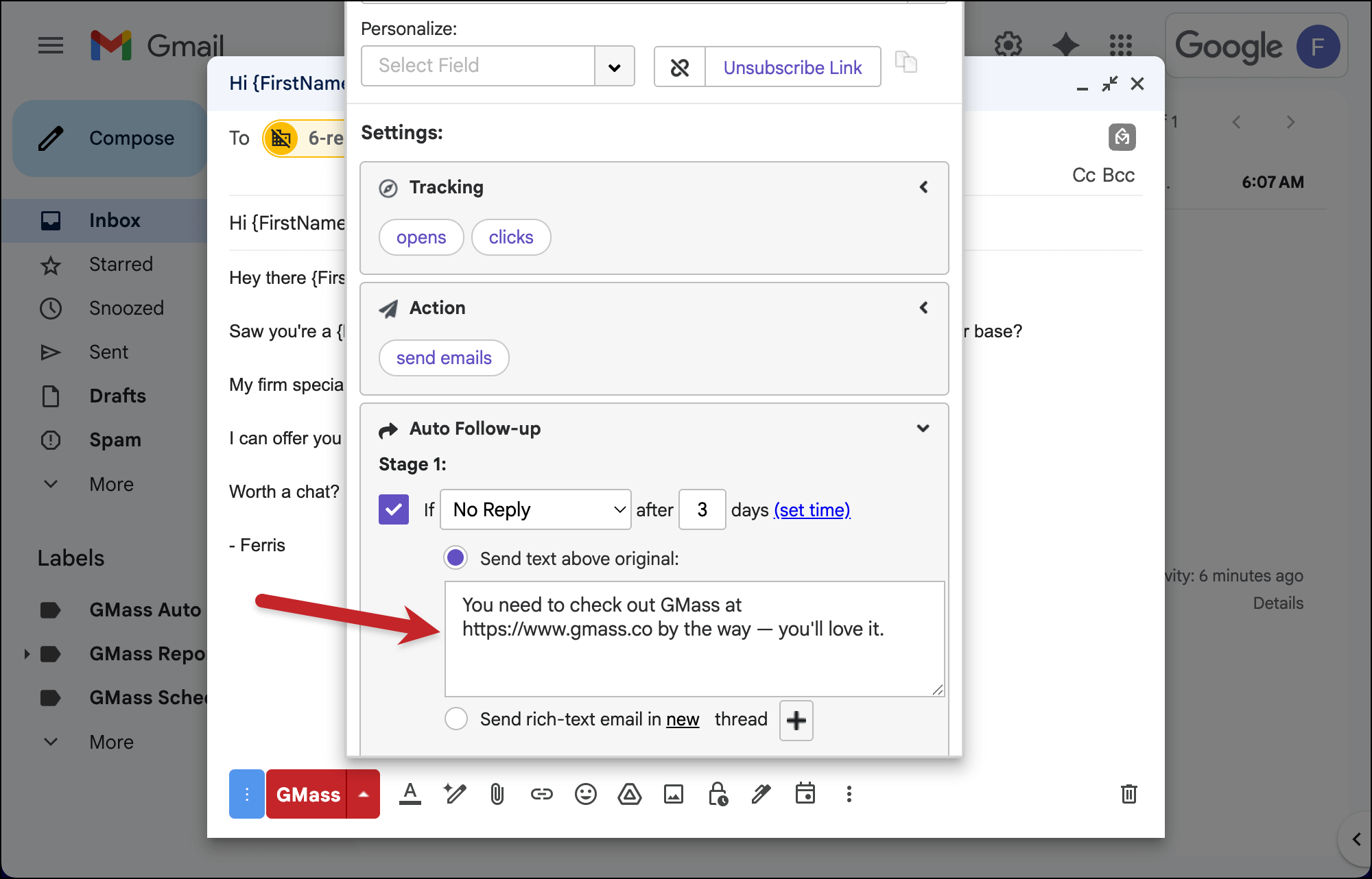
Before we move on, if you want to include a raw hyperlink (e.g., https://www.gmass.co), you don’t need to do anything special.
Just type it into your auto follow-up message in the GMass settings box.
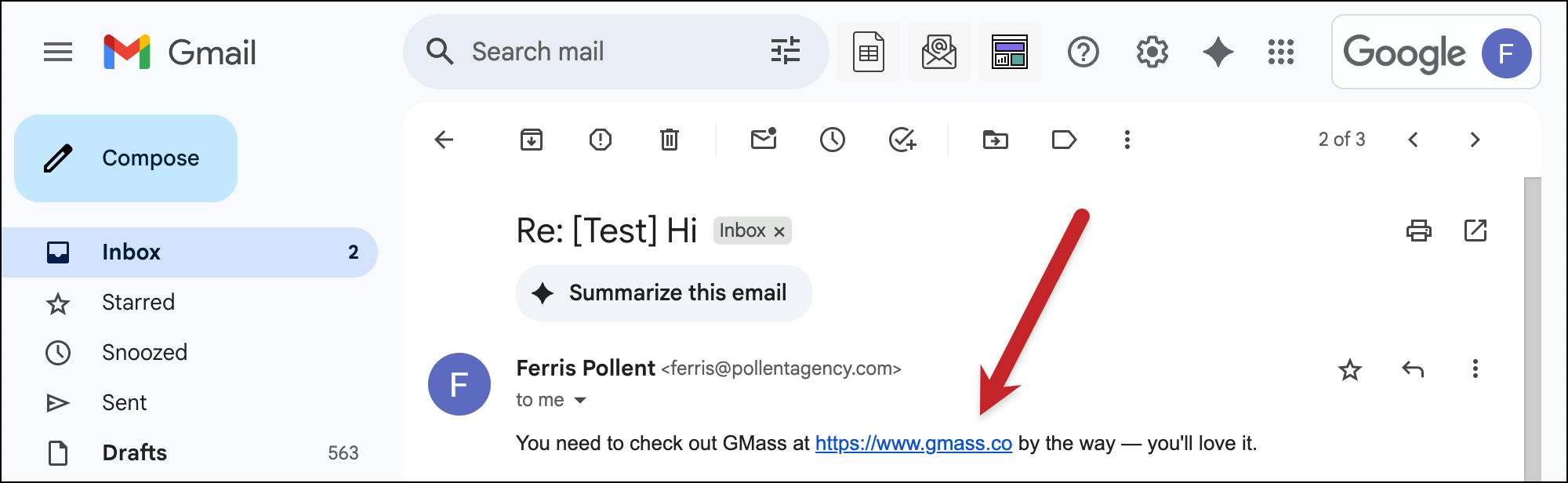
When that auto follow-up goes out, that text will be linked.
If that solves your problem, you’re all done here. But otherwise, let’s keep going.
2. To send hyperlinked text, create a rich-text auto follow-up
In order to send hyperlinked text in a follow-up (e.g., GMass), you’ll need to create an HTML email. We’ll use GMass’s rich-text auto follow-ups to do so.
In the follow-up stage you’re working on, select the radio button next to “Send rich-text email in a new thread” and then click the button with the + symbol.
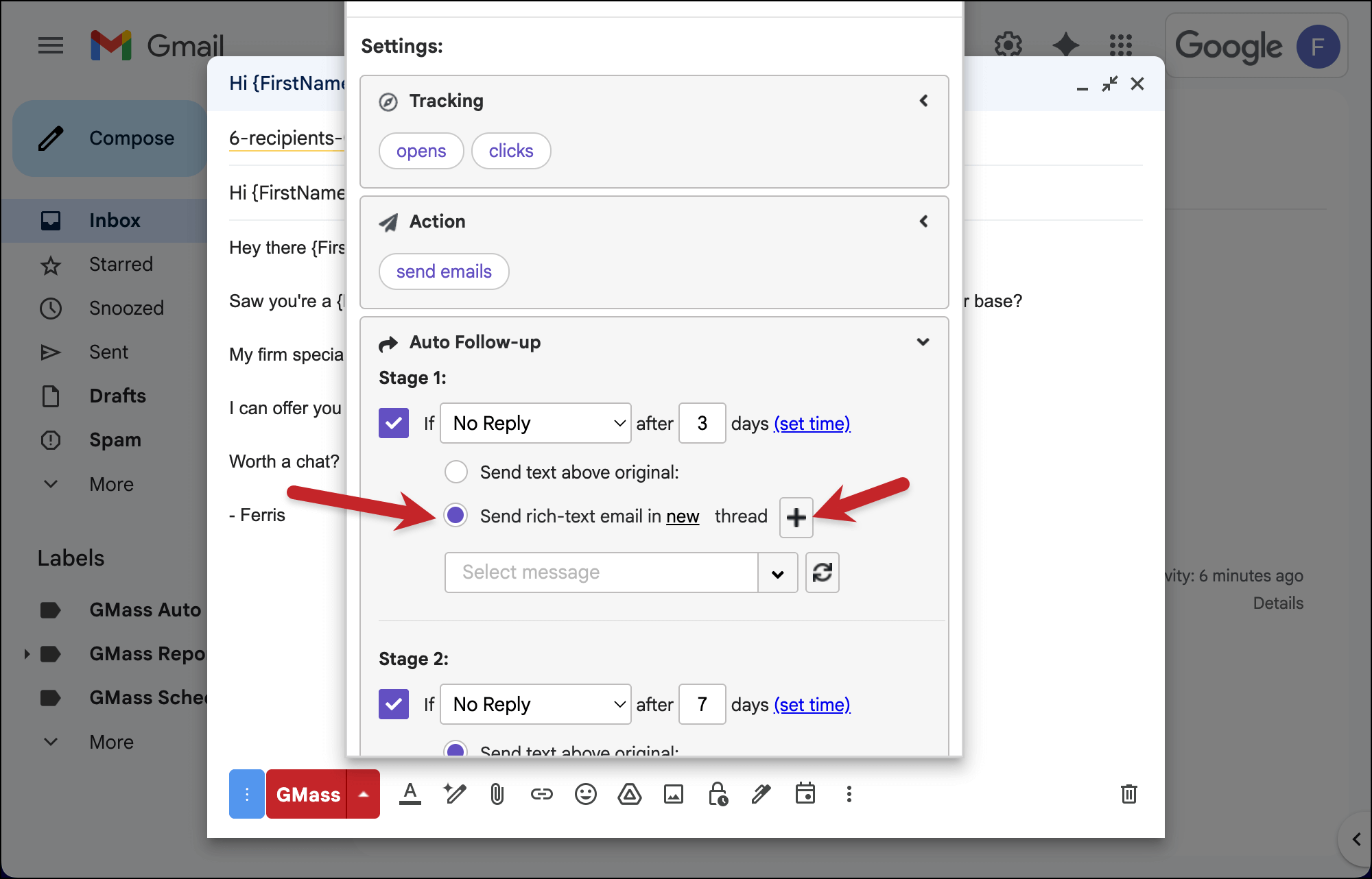
Note: You don’t have to have this email appear in a new thread. You can change that in the settings box to have the auto follow-up go out in the same thread.
3. Compose your follow-up email
That will bring up a new Gmail compose window.
Delete the instructional text in that email (but do NOT delete the special email address) and compose your auto follow-up. Give it a subject line, even if you’re sending it in the same thread; that helps with finding the email in the dropdown box in the next step.
Feel free to use any and all HTML, including hyperlinked text.
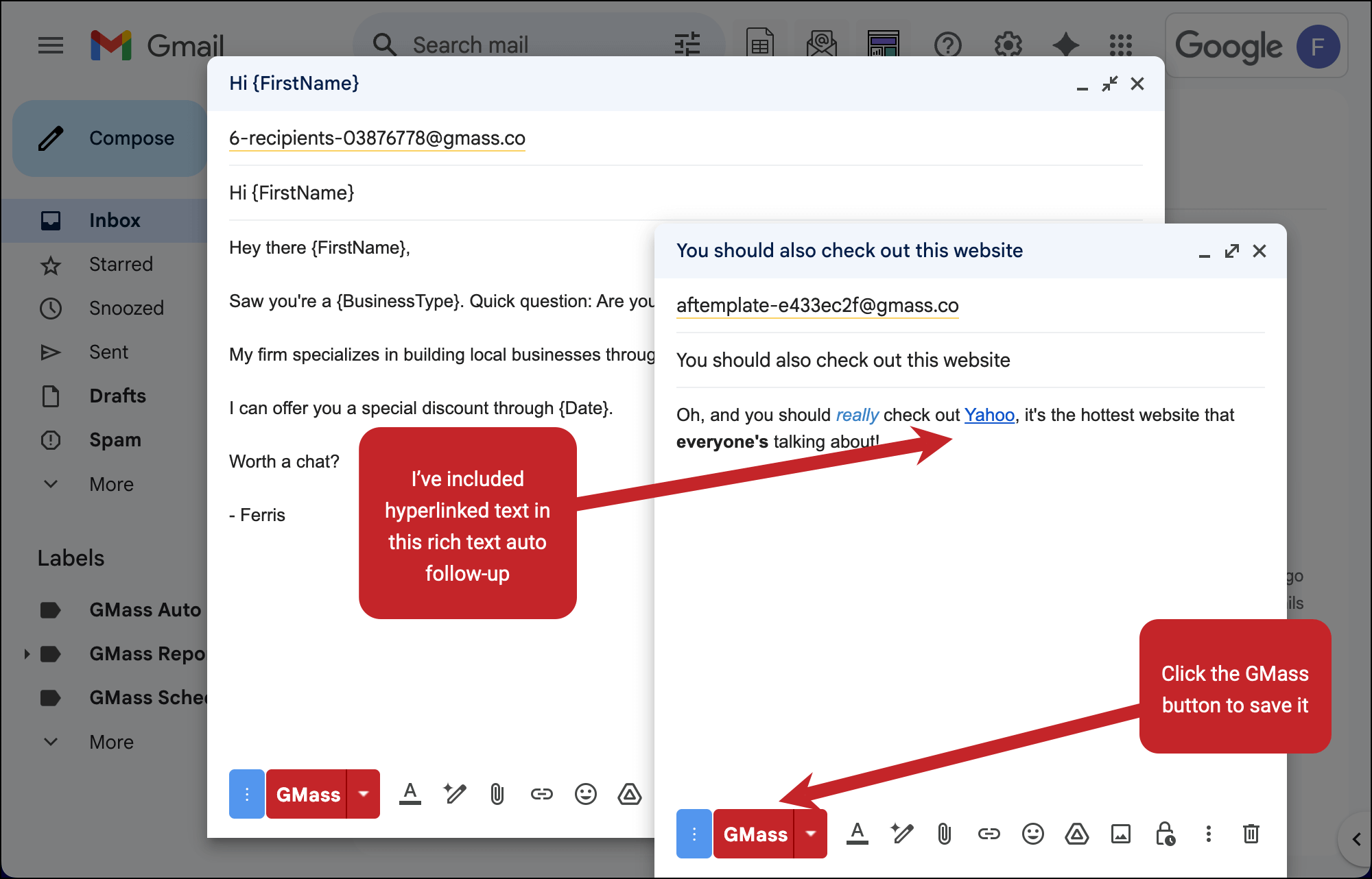
Once you’re done writing your auto follow-up, click the red GMass button to save it.
4. Now use that auto follow-up in your campaign
The auto follow-up compose window will close and you’ll be back to your campaign.
Go back into the Settings, and into the Auto follow-ups section.
Click the refresh symbol next to the dropdown menu in your follow-up stage.
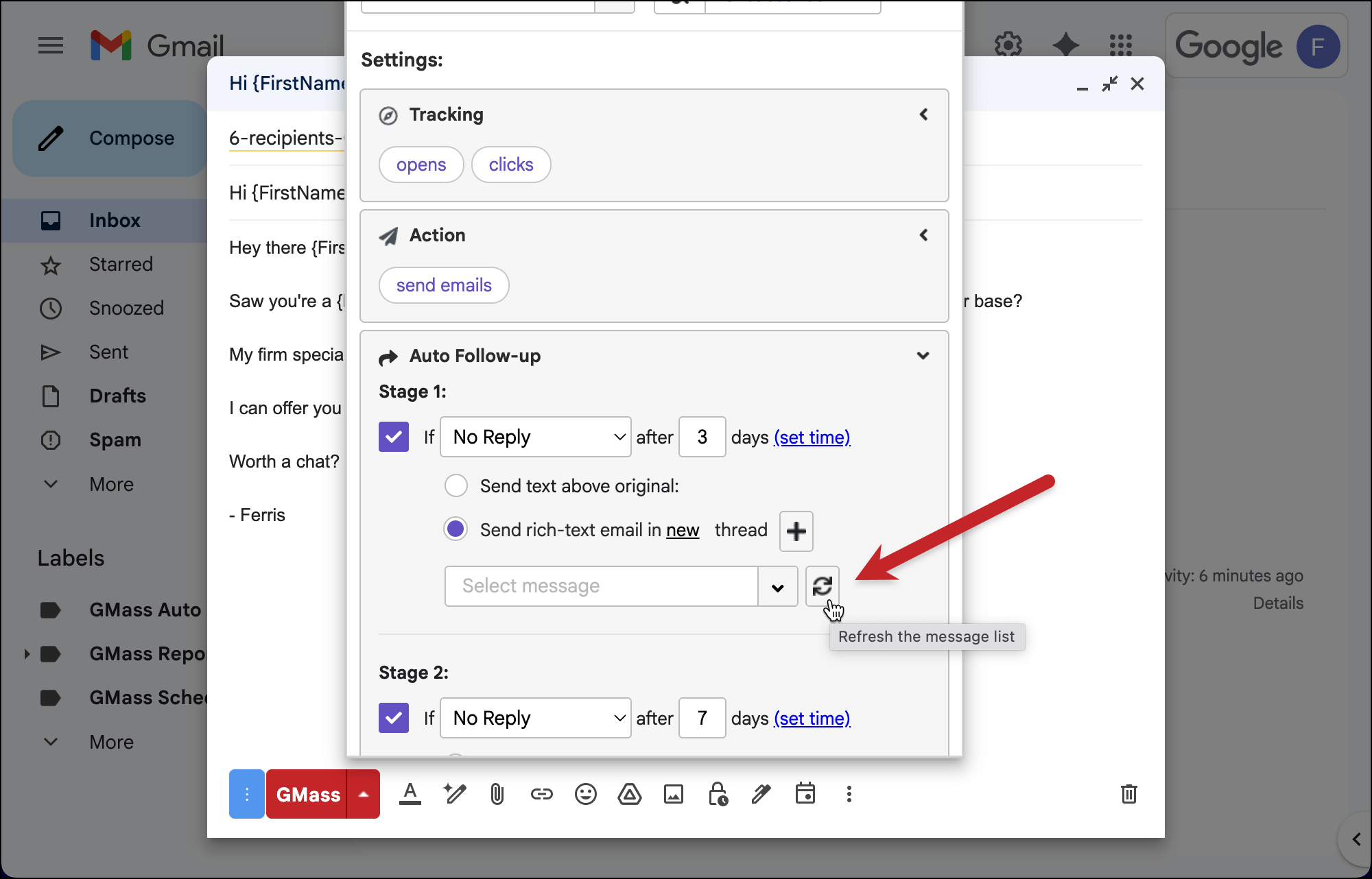
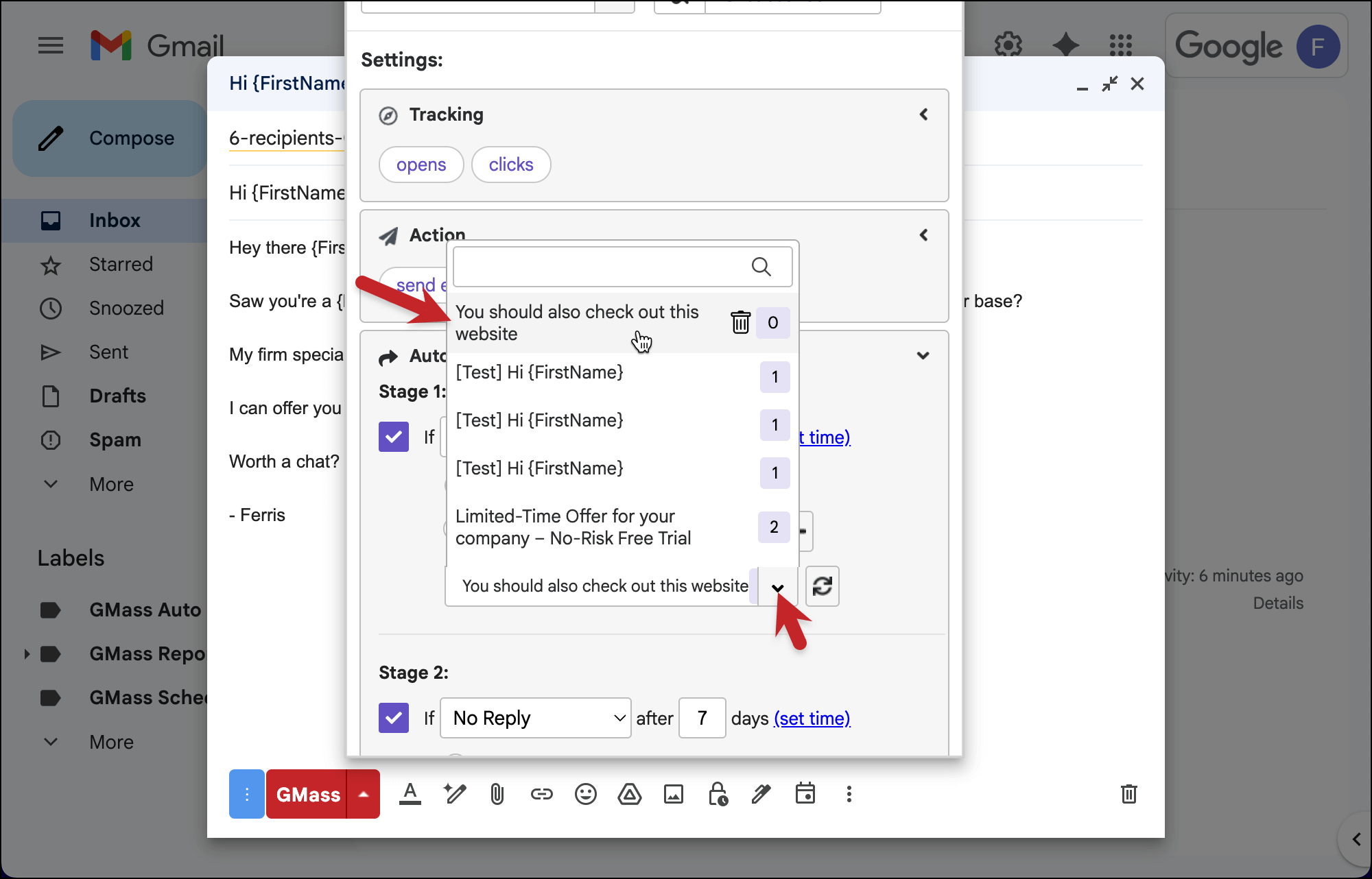
That loads the new auto follow-up into your list of messages.
Select it now from the dropdown menu.
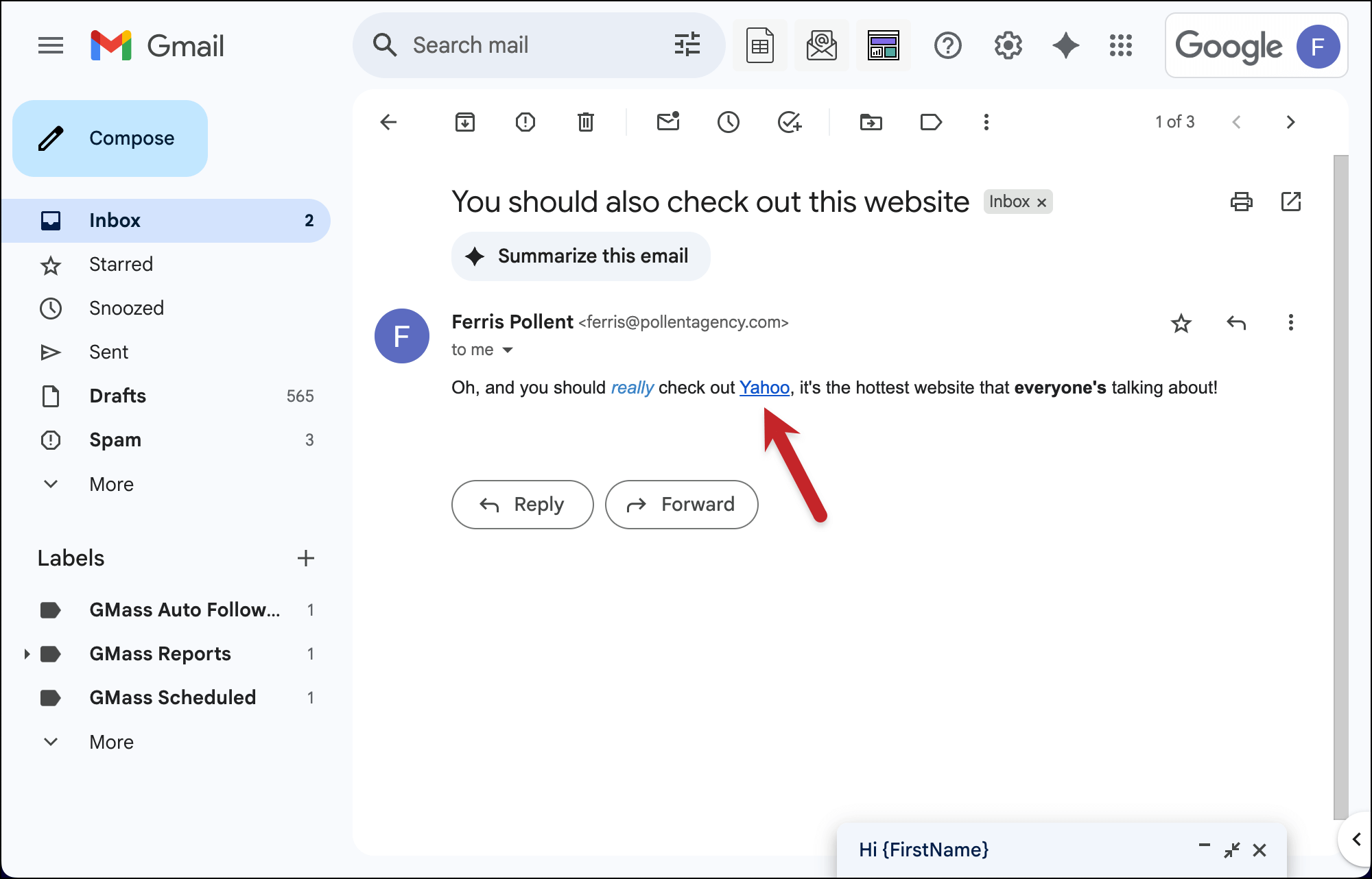
So now, when this auto follow-up goes out, it will contain hyperlinked text that you can use for click tracking (or however else you wanted to use it).
✅ You’re all set.
More resources
- Check out our full guide on using rich content in auto follow-up sequences.
- For more on hyperlinks vs. hyperlinked text (and why the former doesn’t work with click tracking), check out our workflow on making sure a campaign is fully tracked.
- Did you know you can create a sequence that stops on a reply or click?