
 |
Composing & Sending > Multiple recipients |
I want to send each email in a campaign to two or three recipients, not just one
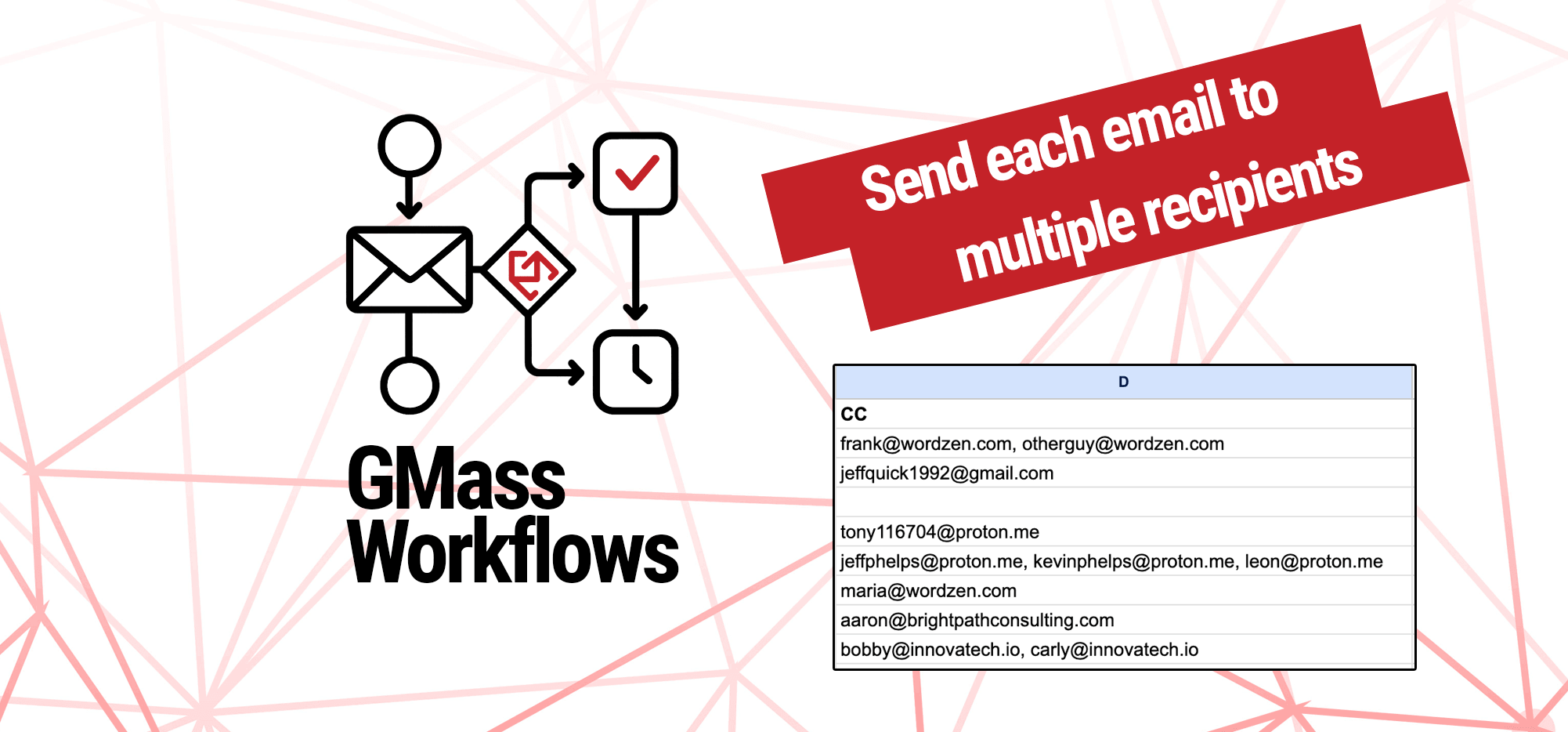
Want to have multiple recipients in your GMass campaign instead of just one?
No problem.
Here’s how to set that up.
Step-by-step guide
1. Add a CC column to your Google Sheet of contacts
Each GMass campaign has one person in the To: field. That’s the person in your email column on your Google Sheet.
But you can include more recipients on each email you send in a campaign by CCing (or BCCing) them.
So in your Google Sheet of contacts, add a column with the header CC.
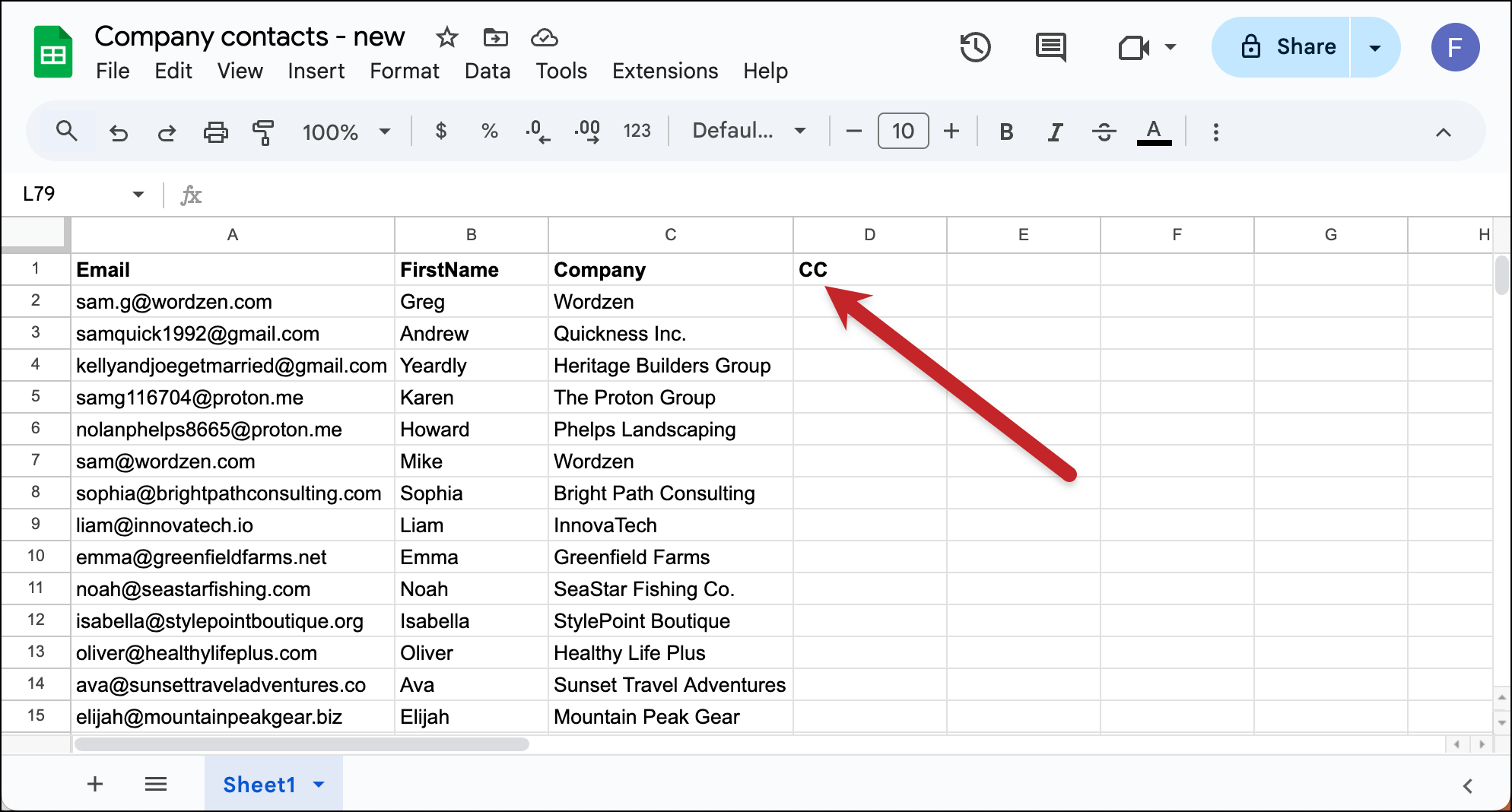
You need to make the header just CC. This is a rare case in GMass where there’s no flexibility with your column header.
If you want to BCC, you can also have a column called BCC.
2. Add recipients to the CC column
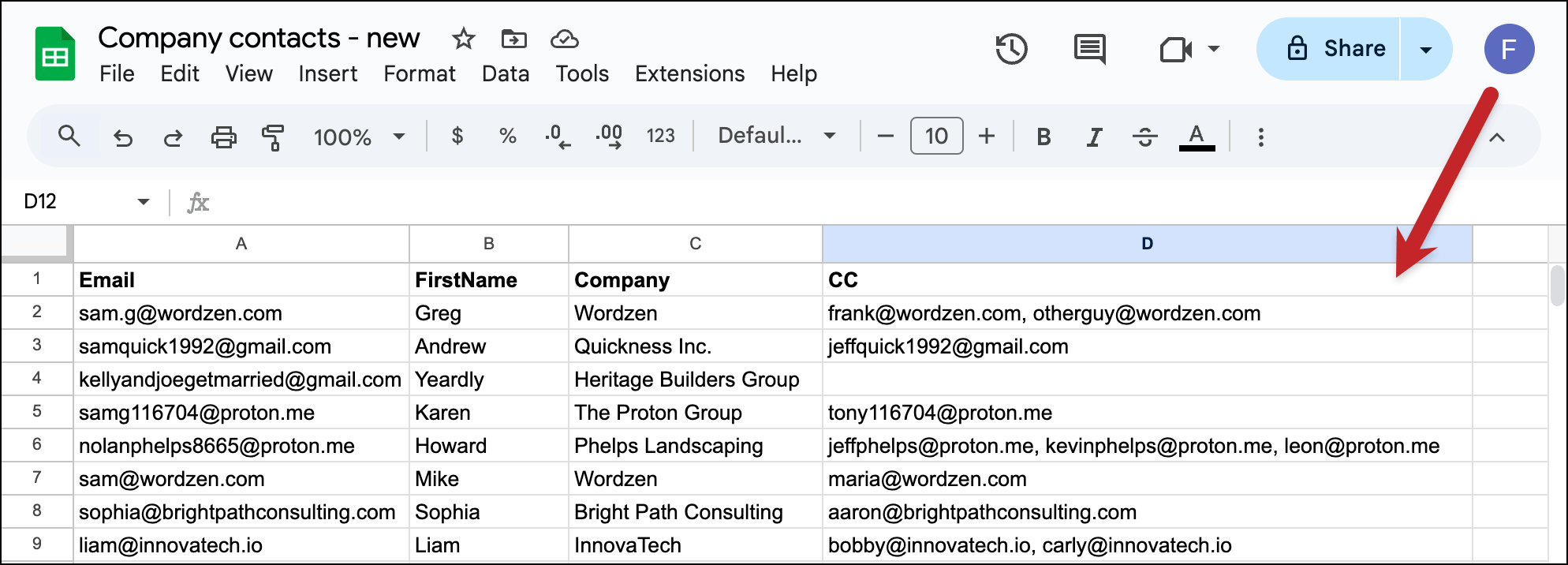
Now add the email addresses of the people you want to CC on each message.
You can separate multiple addresses with a comma.
3. Connect your Google Sheet and create your campaign
Connect your Google Sheet to GMass and create your campaign.
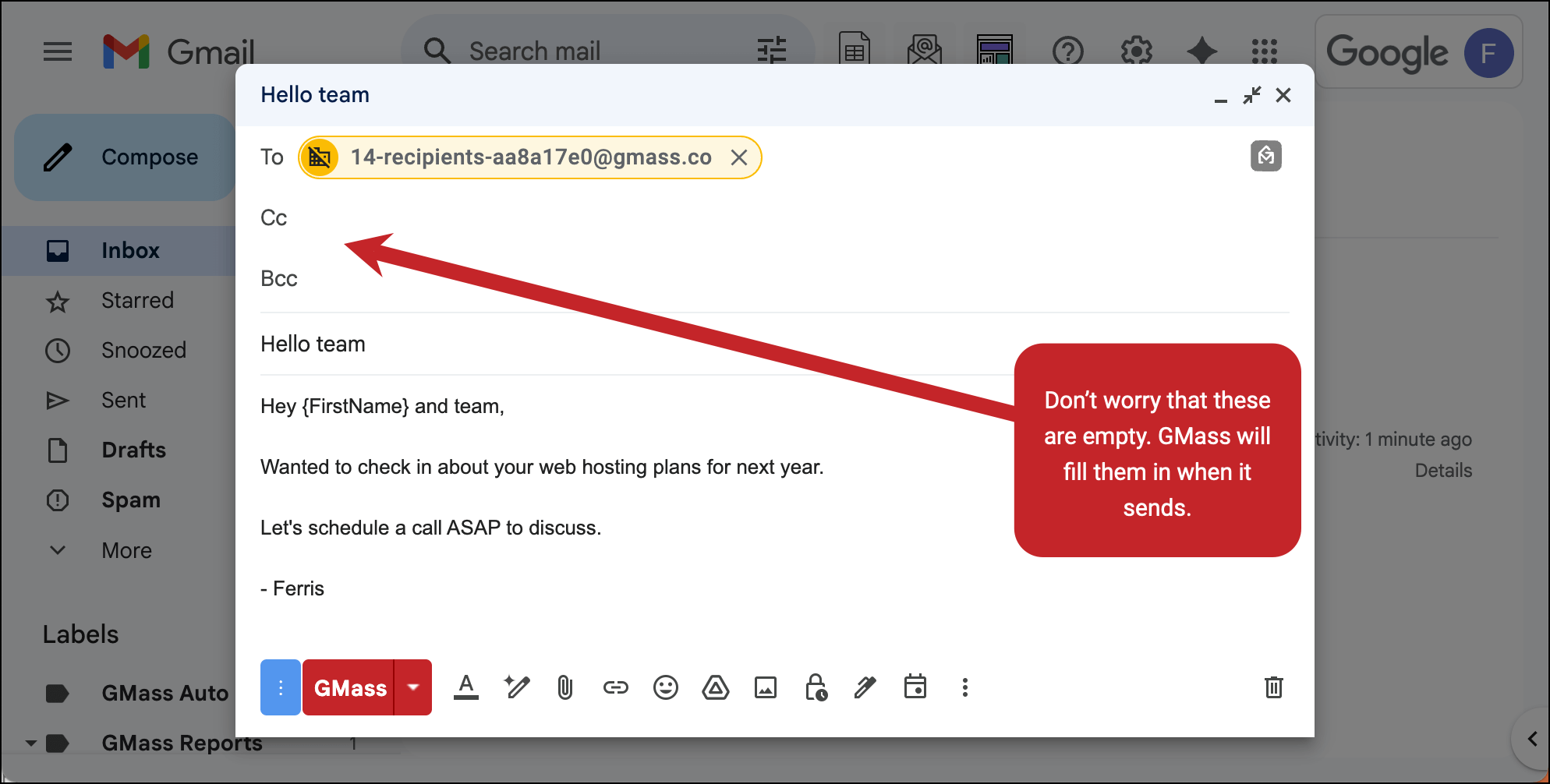
You don’t need to add anything to the To, CC, or BCC field for mail merge — GMass will automatically CC and BCC the correct recipients on each email.
4. When all is set, create drafts if you want to test
Once your campaign is set (including any auto follow-ups or other settings you might use), you might want to test to make sure all the recipients are set up right.
So in the GMass settings, go to the Action section and choose Create Drafts.
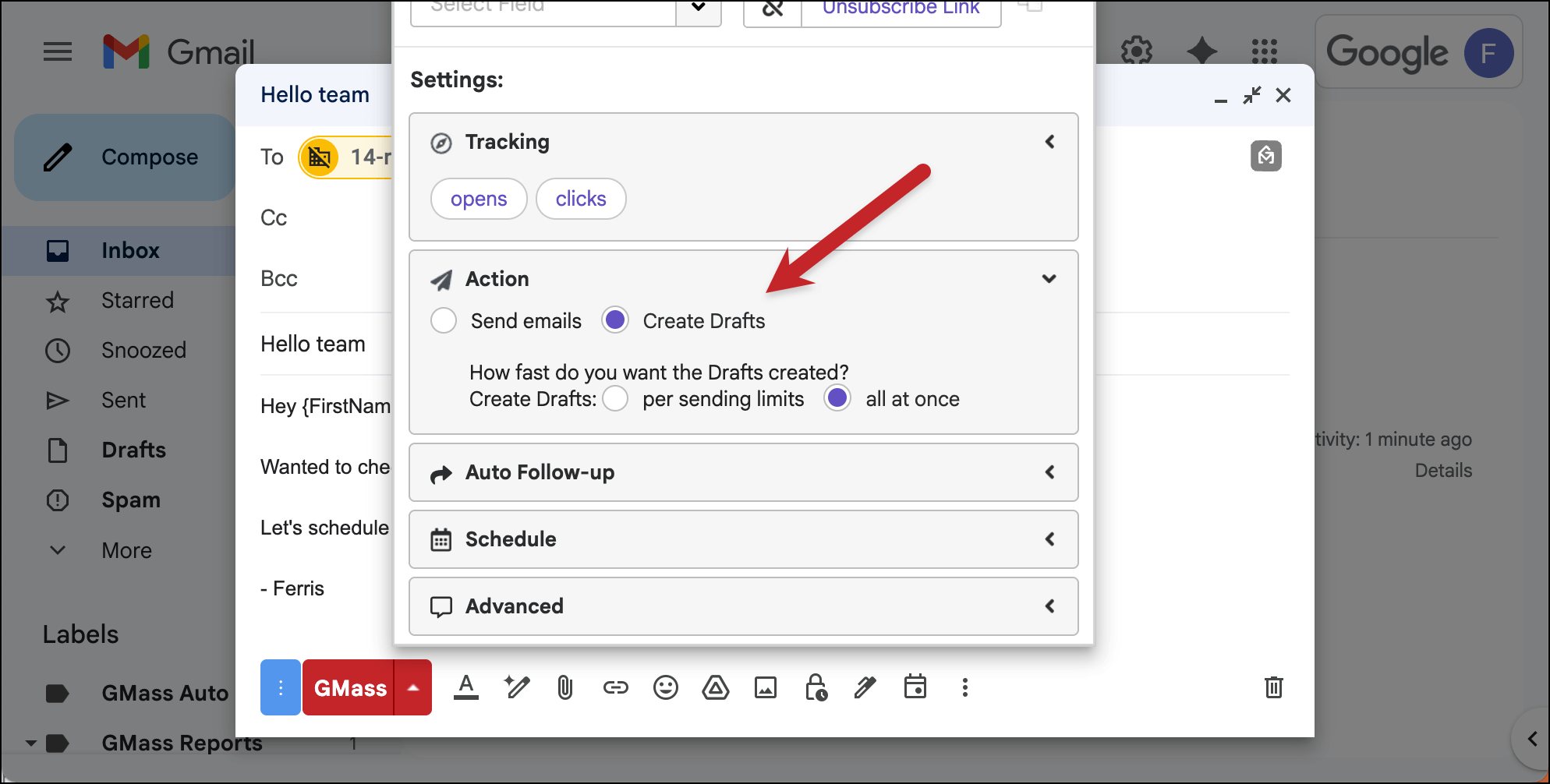
Then click the red GMass button. GMass will create drafts of all the emails in your campaign.
You’ll get an email from GMass telling you that the drafts are ready, and you can find them in the Gmail Drafts folder.
Spot check some drafts to make sure the correct addresses are included. (As you can see here, mine worked as expected.)
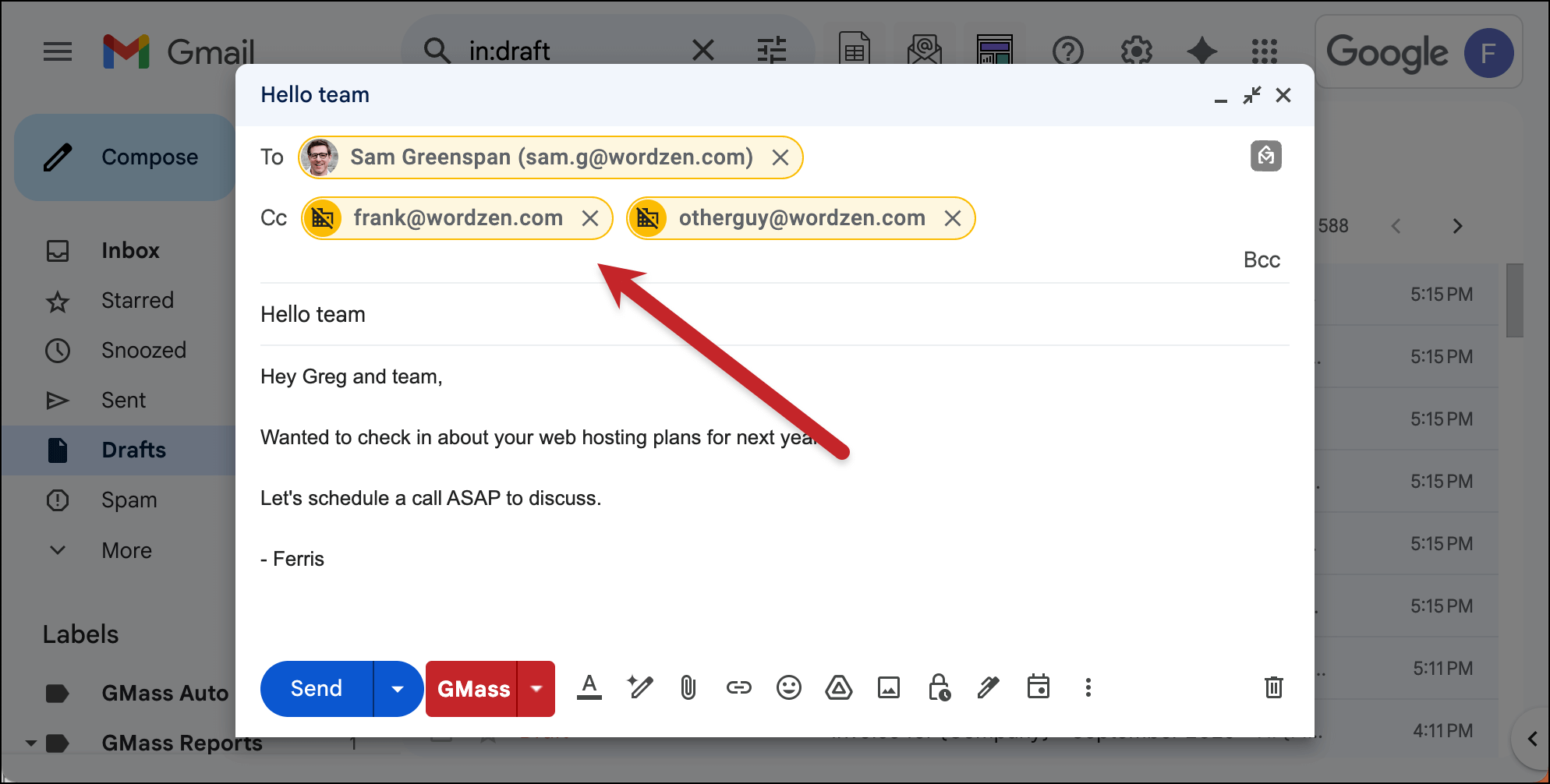
5. Either send the drafts or delete them to try again
If all looks good in your drafts and everyone’s CCed properly, click the link in the email from GMass to send them out.
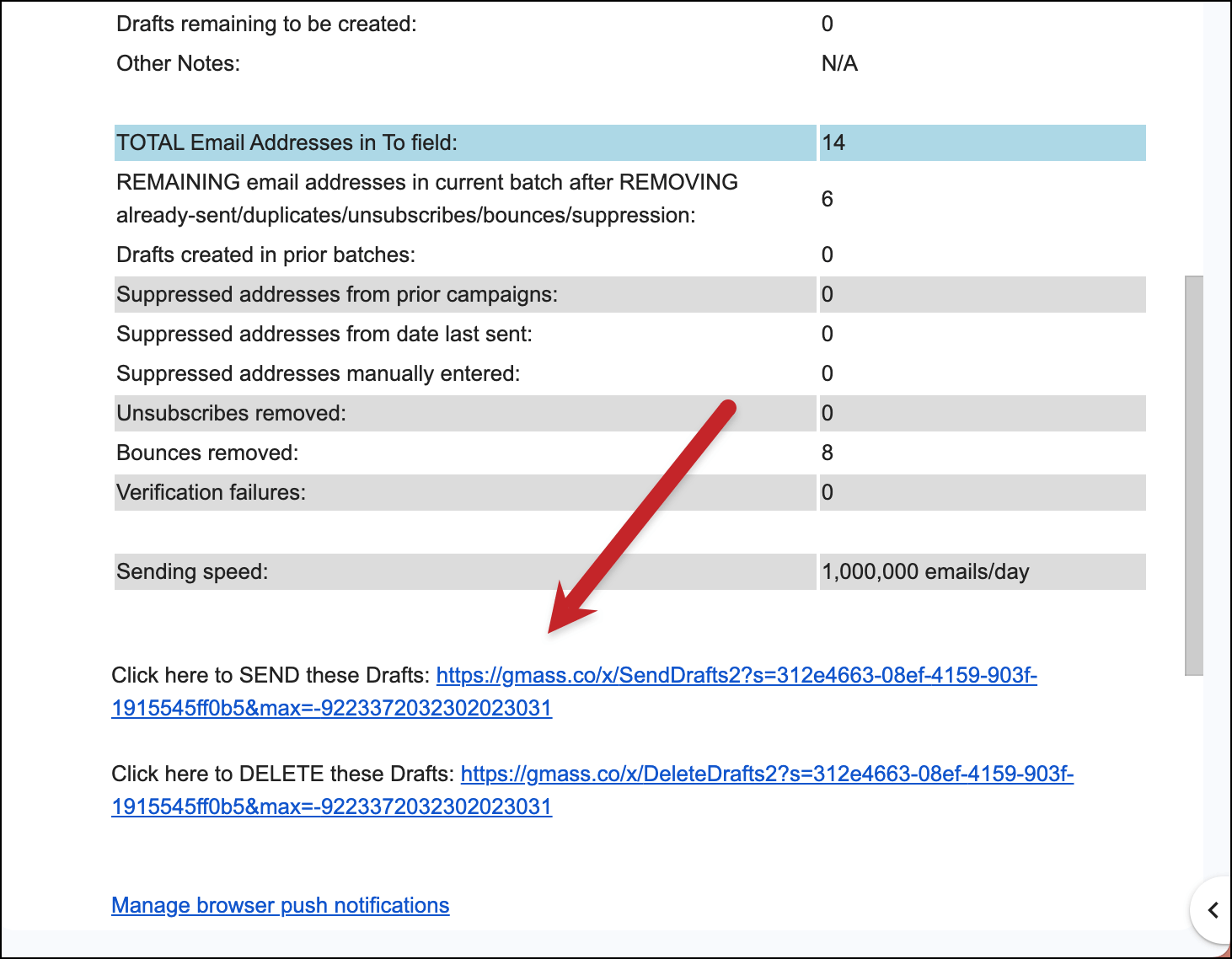
If there was a problem, click the link in the email to delete the drafts. You can then go back into the campaign draft and fix what’s wrong.
✅ You’re all set.
More resources
- Here’s the full documentation on using CC and BCC in GMass mail merges.
- What’s the best way to send an email to multiple recipients?
- You can also send to multiple lists in a single campaign in GMass.