
 |
Automations & Sequences > Auto-send to new rows |
I want to connect a Google Sheet to a campaign and have the Sheet keep feeding the campaign as new rows are added
With GMass, you don’t upload a CSV of contacts to a campaign — you connect a Google Sheet. That distinction is important.
Because you’re connecting the Google Sheet, your contact list isn’t frozen at the time you create your campaign. You can dynamically update the sheet before the campaign goes out — or create a recurring campaign that goes to new rows you add in the future.
In this guide, I’ll show you how to do both.
Step-by-step guide
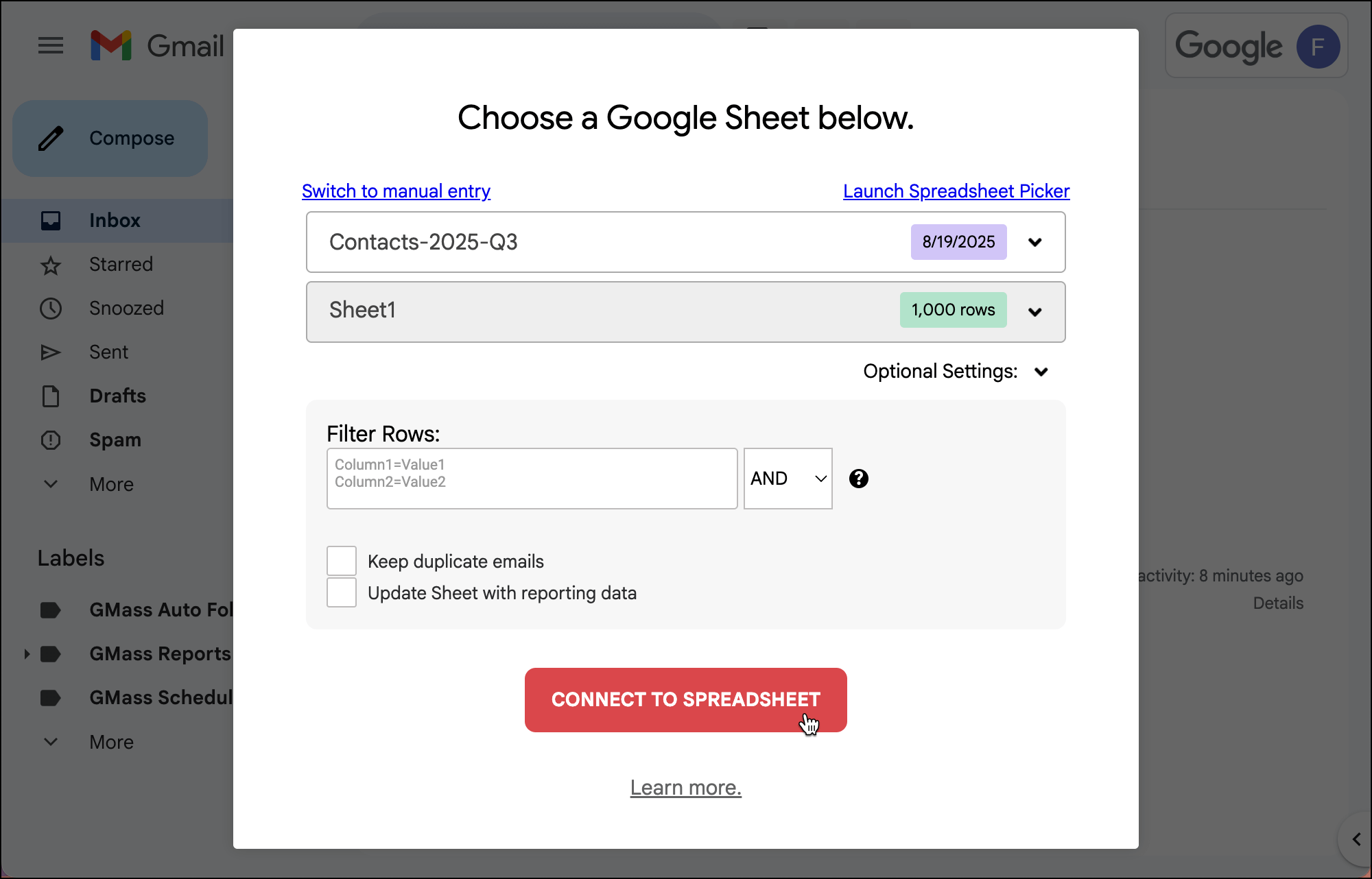
1. Connect your Google Sheet to your campaign as you normally do
Connect your Google Sheet of contacts to your campaign as you normally would. No need to do anything different at this stage.
2. Make your campaign dynamic
We’re now going to make our campaign dynamic. That makes it so the Google Sheet serves as the complete “source of truth” for the contacts in the campaign — if someone’s in there, they get an email and follow-ups; if they’re not in there, they aren’t.
For our purposes in this guide, making the sheet dynamic allows us to add new rows before the campaign goes out and those contacts will also get the initial send.
In the Compose window, edit the alias email address GMass created, by adding the word “dynamic” before the @ symbol.
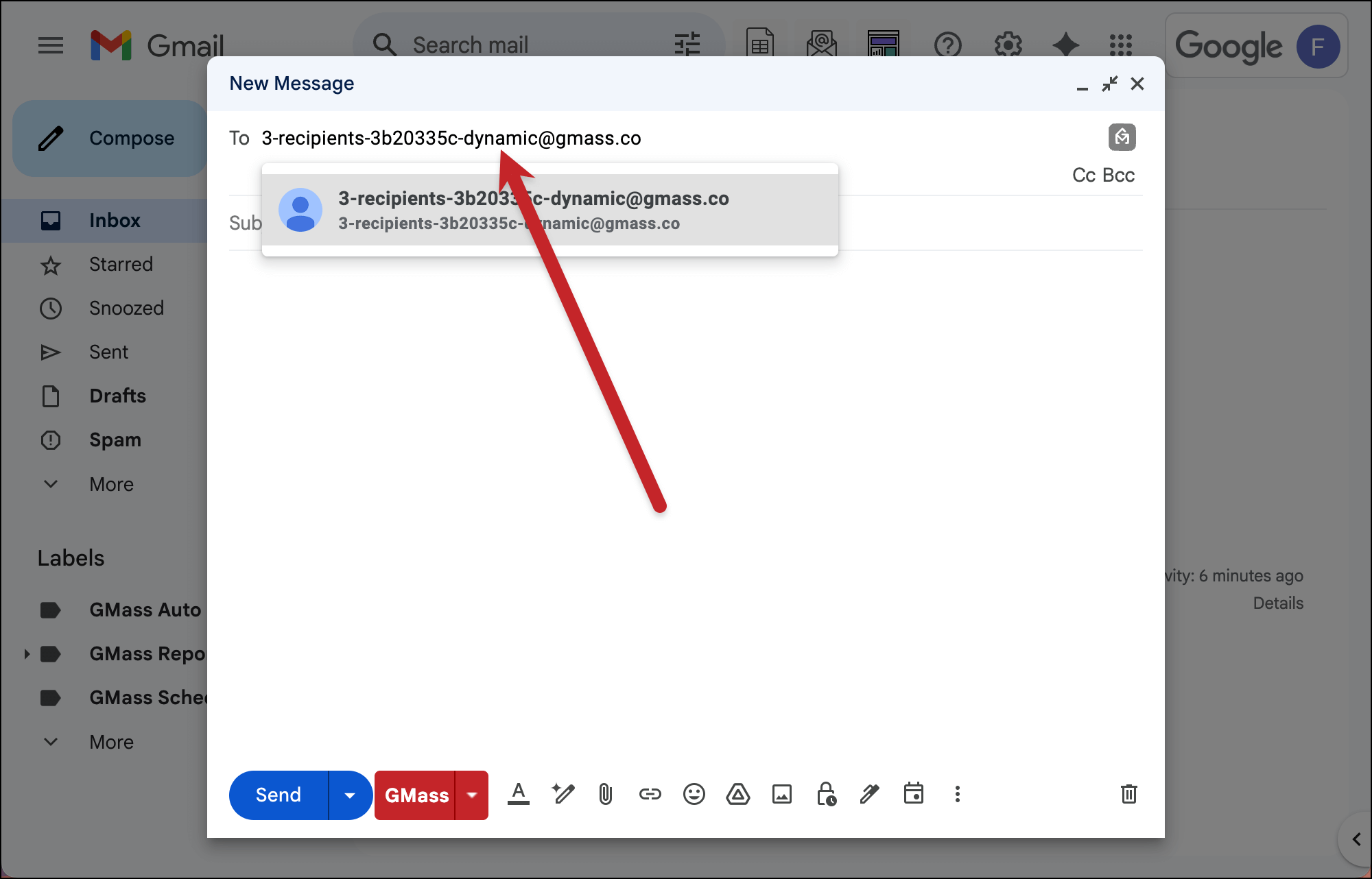
With this set up, you can now add more rows to your Google Sheet right now (or any other time before your campaign sends) and GMass will include those new contacts automatically.
3. In the GMass settings, make this campaign recurring
After (or, I suppose, before) you’ve written your campaign, go to the GMass settings box..
Open the Schedule section.
In the Repeat area, check the box.
Then choose how often you want GMass to check your Google Sheet for new rows you’ve added. You can pick basically any frequency, even instant.
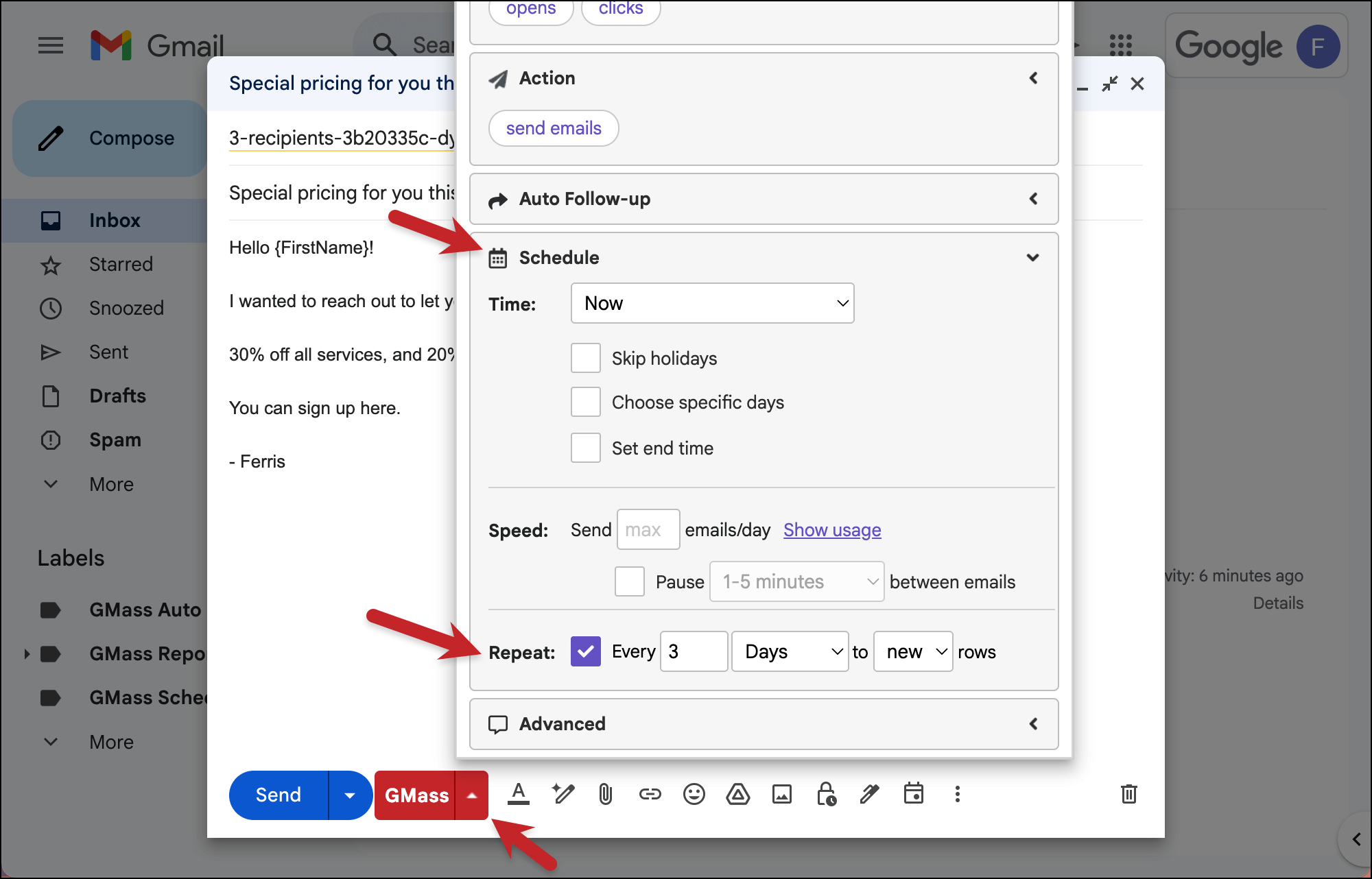
With this setting, GMass will now check your Google Sheet indefinitely for new rows. And whenever you add one, GMass will send that new contact your campaign.
4. Send your GMass campaign when you’re ready
Once the rest of your campaign is done, hit the red GMass button to send.
Thanks to your dynamic address, GMass will send to everyone currently in your Google Sheet. (Or, if you schedule your campaign for a future date, GMass will send to every row in your Google Sheet once that moment arrives.)
And thanks to the recurring campaign, GMass will regularly check your Sheet for new rows and send to those new contacts when they’re added.
✅ You’re all set.
More resources
- Check out our full guide to sending recurring emails with GMass.
- And also check out more about dynamic lists.
- If you want your message to send out instantly when you add a new row, check out our guide to instant recurring campaigns.