
 |
Automations & Sequences > Send long drip sequence |
I want to send everyone on my list a 20-step educational email sequence
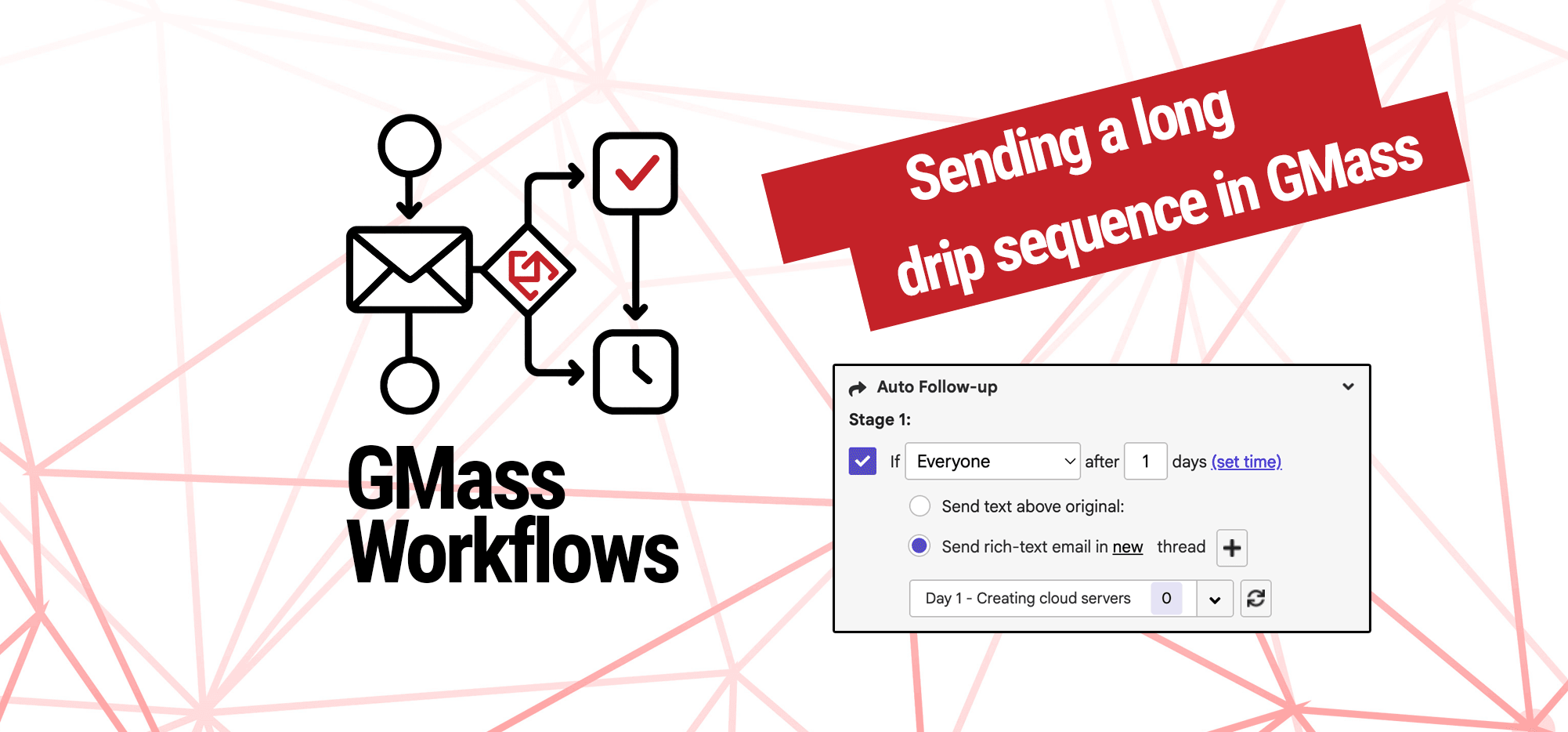
You can send any type of drip campaigns with GMass — including long ones, like educational sequences.
In this guide, I’ll show you how to send those sequences so every recipient gets every email.
Step-by-step guide
1. Set up your campaign and initial email
Connect your Google Sheet of contacts, then type up the initial email in your campaign.
2. In the GMass settings, create the first “follow-up” stage
We’ll use GMass’s auto follow-ups to create our sequence.
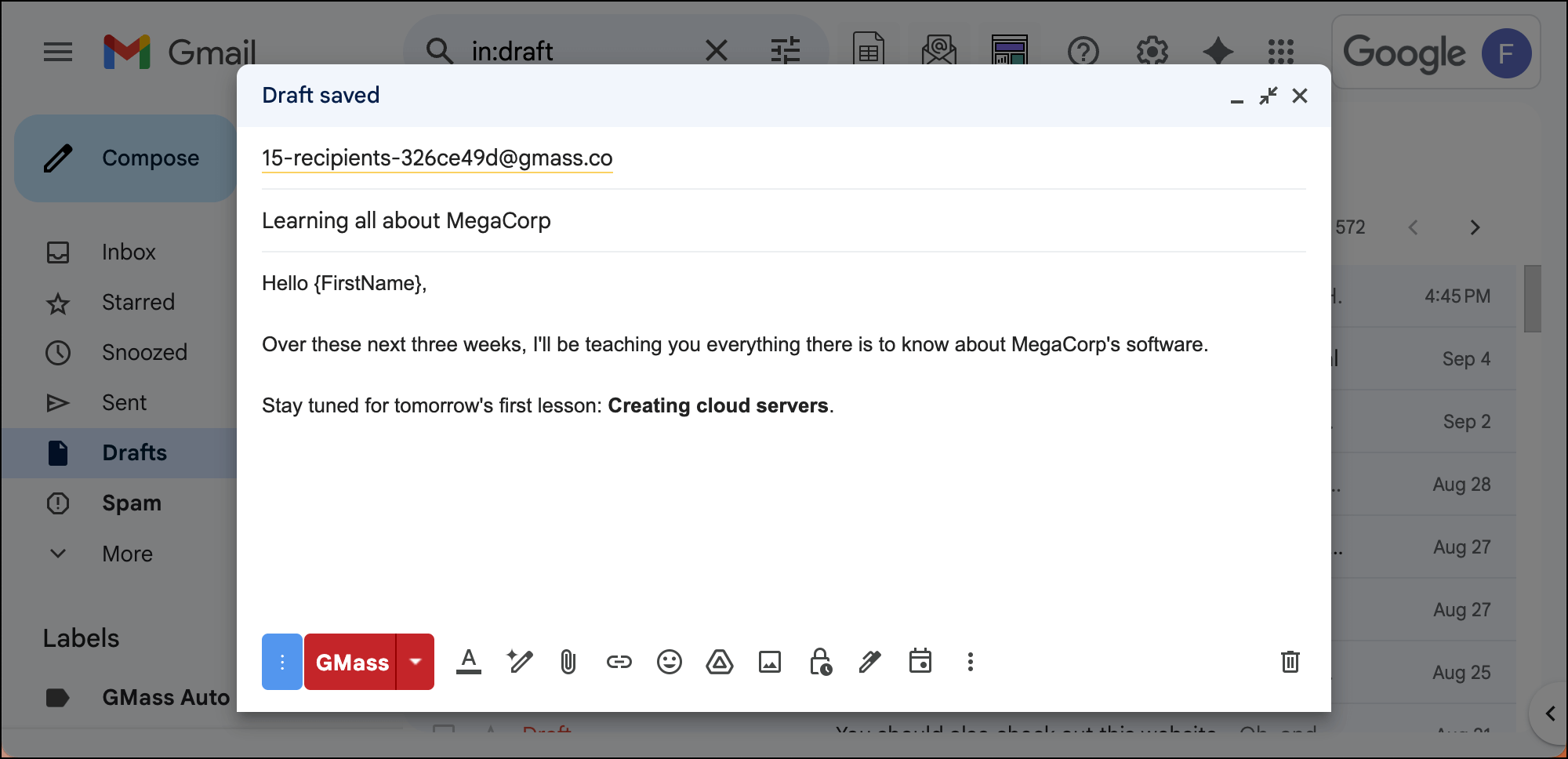
In the GMass settings, click into the Auto Follow-up section, then check the box by Stage 1.
Because this is a drip campaign going to all contacts, choose Everyone from the dropdown box.
Then set how many days you want this email to go out after your initial email. (I chose 1 day, which feels typical for educational sequences.)
You can also optionally set a time. If you don’t set a time, these messages will go out at the same time as your initial campaign.
3. Create a rich-text follow-up
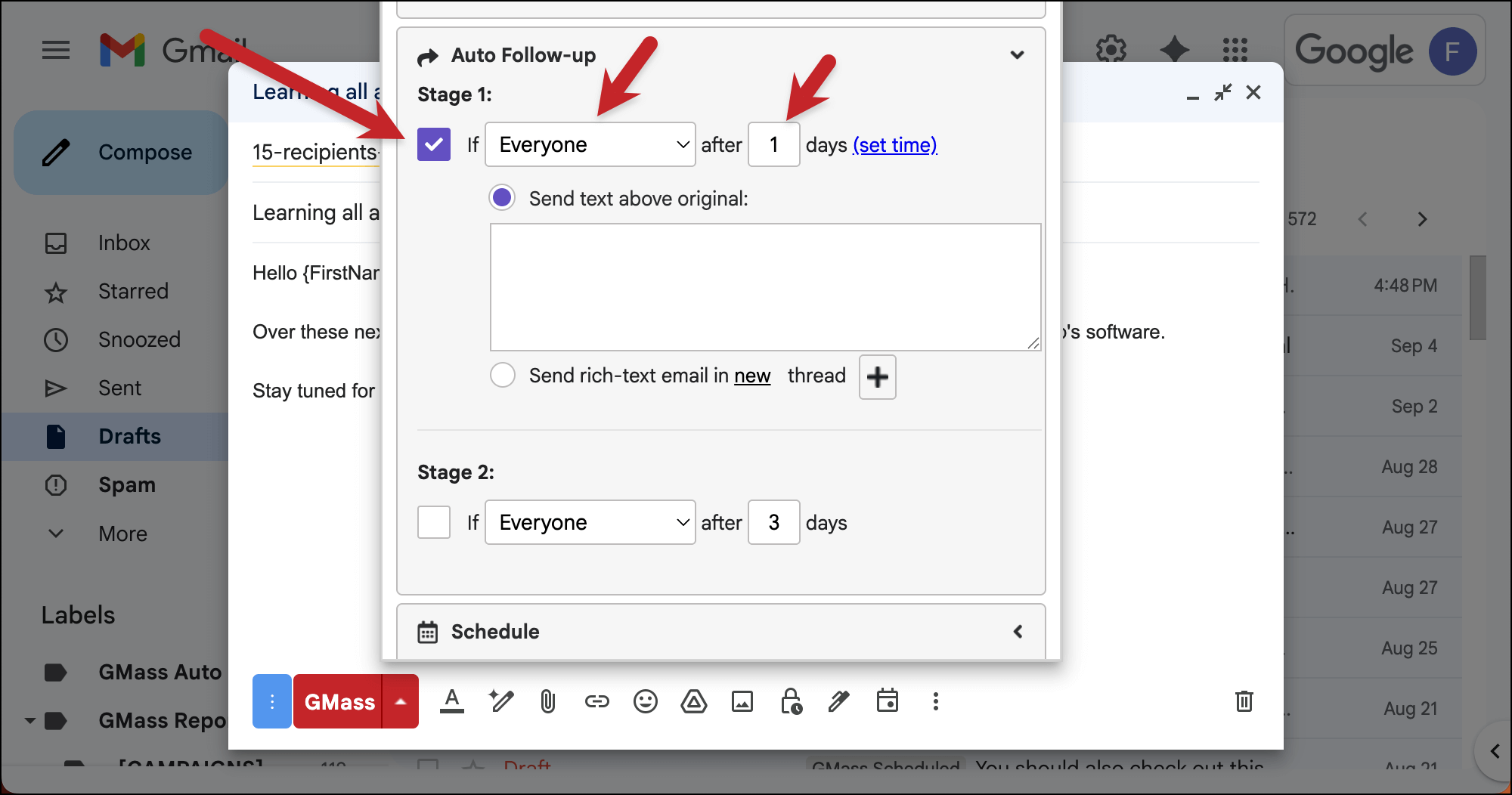
For this sequence, we’re going to use rich-text follow-ups rather than plain text email follow-ups.
The plain text are easier (you just type them into the text area in the settings box), but for educational drip campaigns, rich-text make more sense:
- With rich-text, each email can come in its own thread with its own subject line, which is standard for drip campaigns. (With plain text, the emails go out as replies in the same thread.)
- With rich-text, you can use, well, rich text. That means formatting, images, and other elements that are common in educational sequences.
- With rich-text, you can track clicks. That way you’ll know which links in your emails are getting the most interest; valuable information going forward.
So I’ll click the radio button to Send rich-text email in new thread. Now click the + button to create your rich text message.
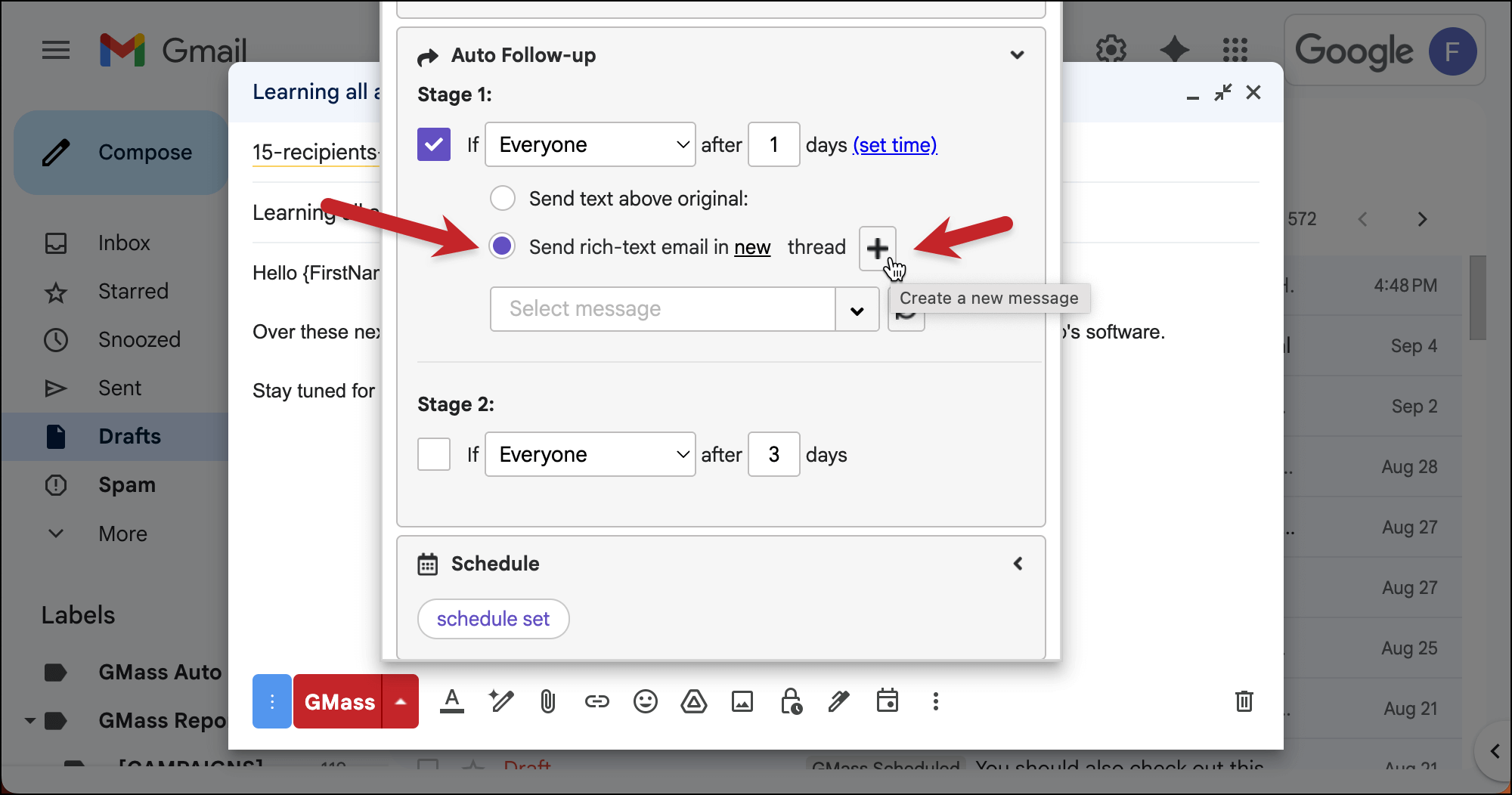
That brings up a new Gmail compose window.
Don’t touch the address (aftemplate-a3413ewhatever@gmass.co).
But delete the subject line and write your own. Also delete the instructions in the body and type up your lesson.
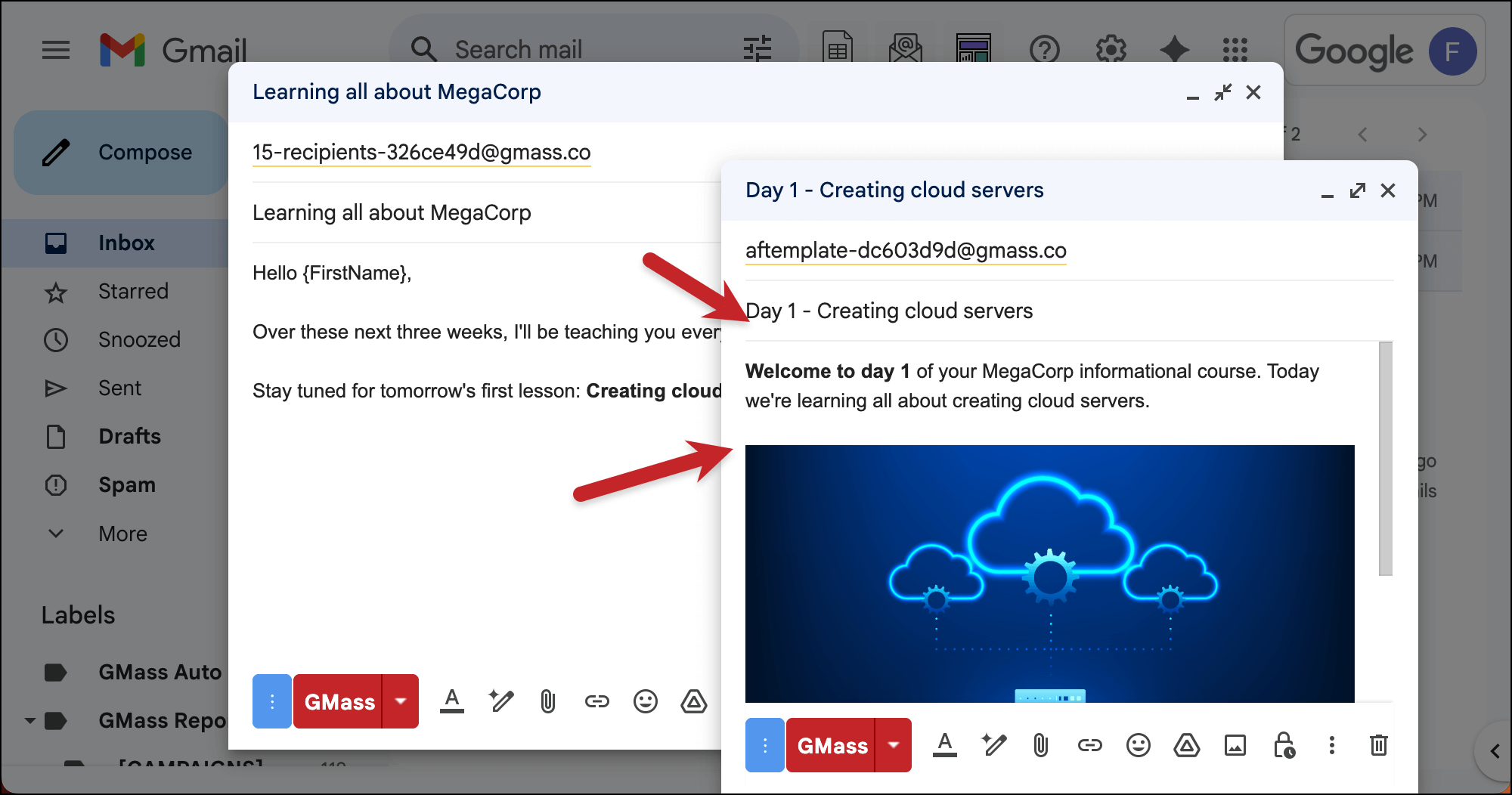
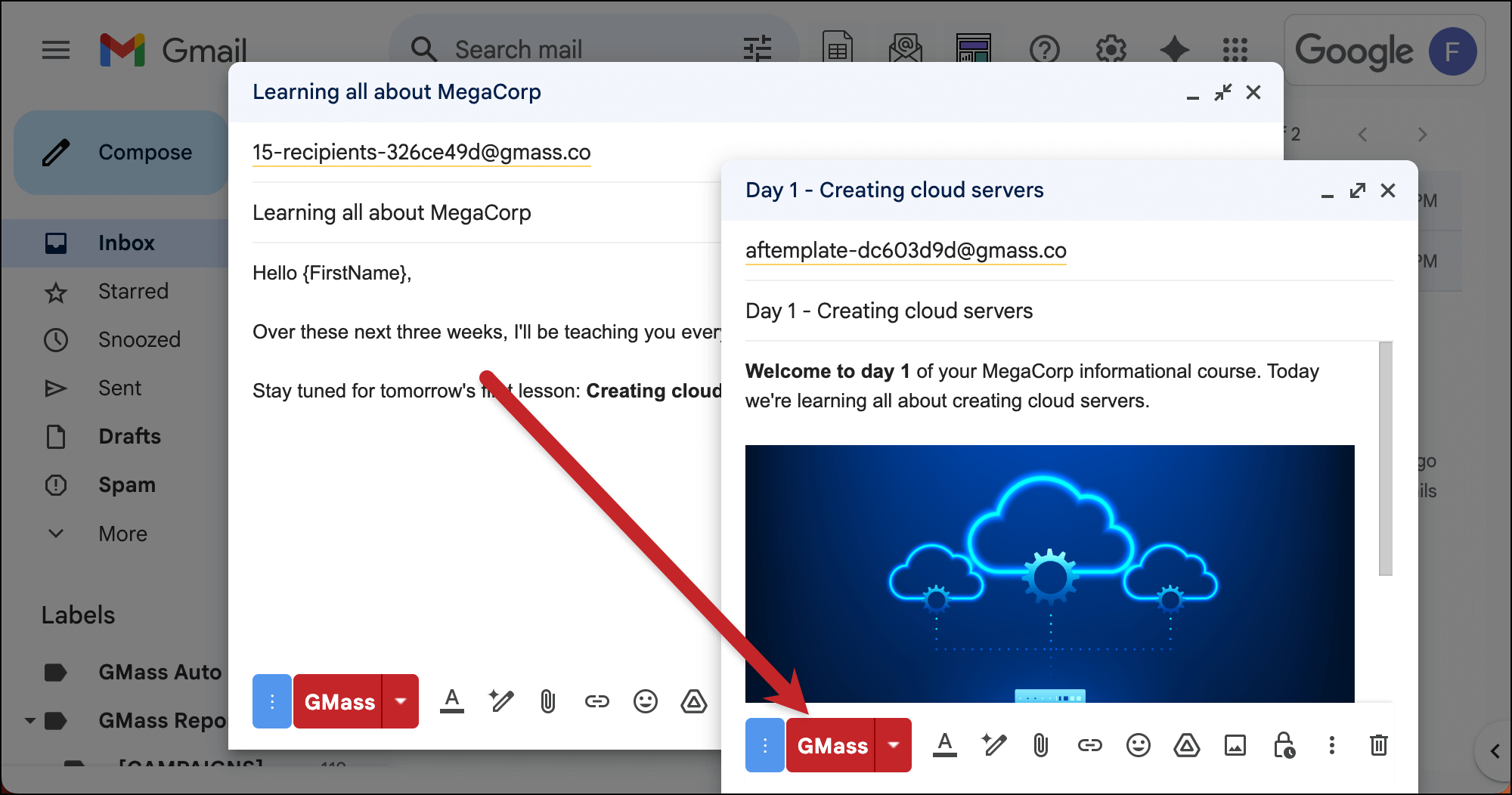
Once it’s all done, click the red GMass button in that compose window to save it to GMass.
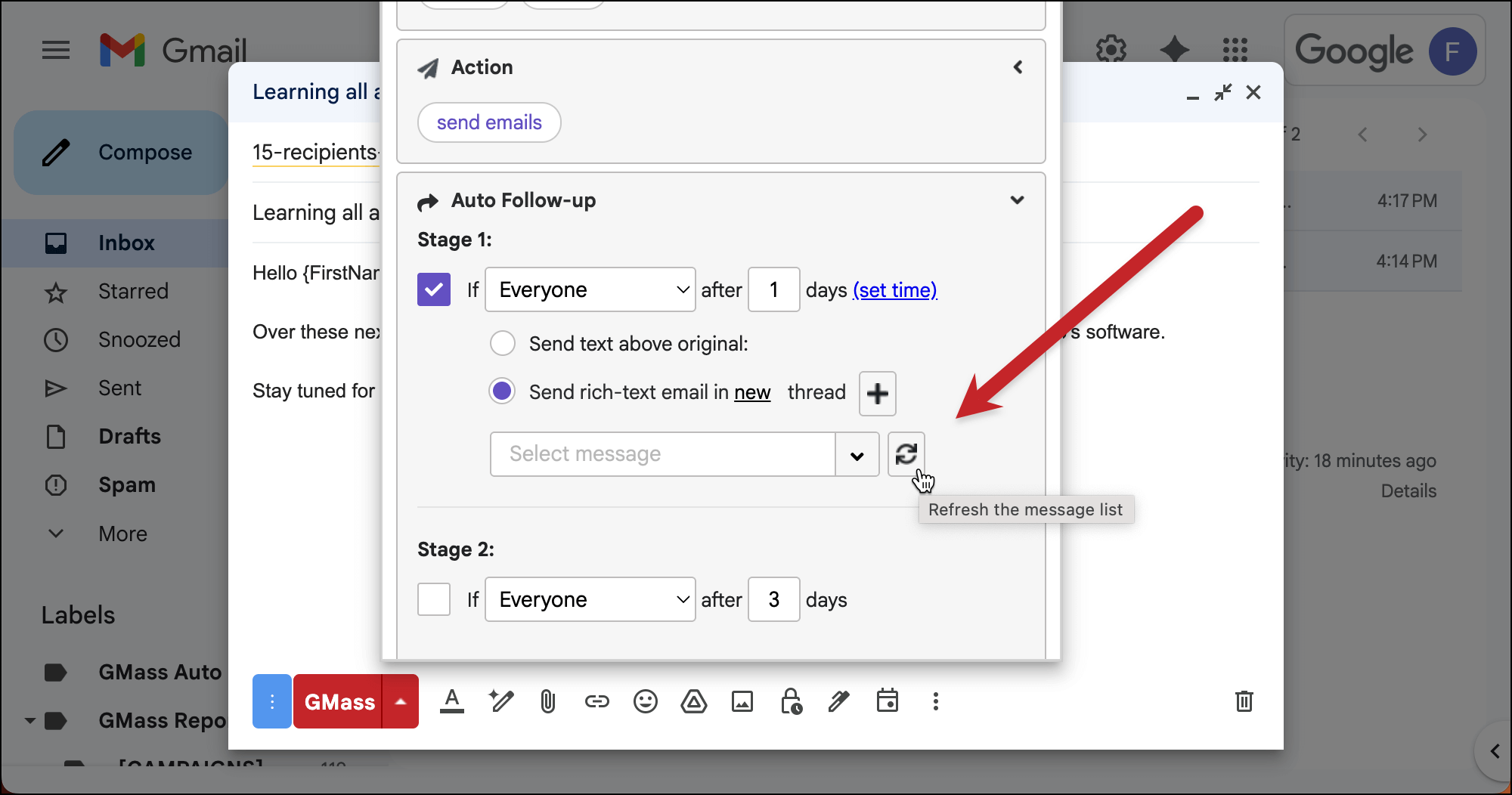
Now, back in your original campaign, open the GMass Settings box back up and go back to the Auto Follow-up section.
Click the refresh button next to the dropdown list in Stage 1.
The message you just created should be first on the list. (If it’s not, scroll to find it or search for it.)
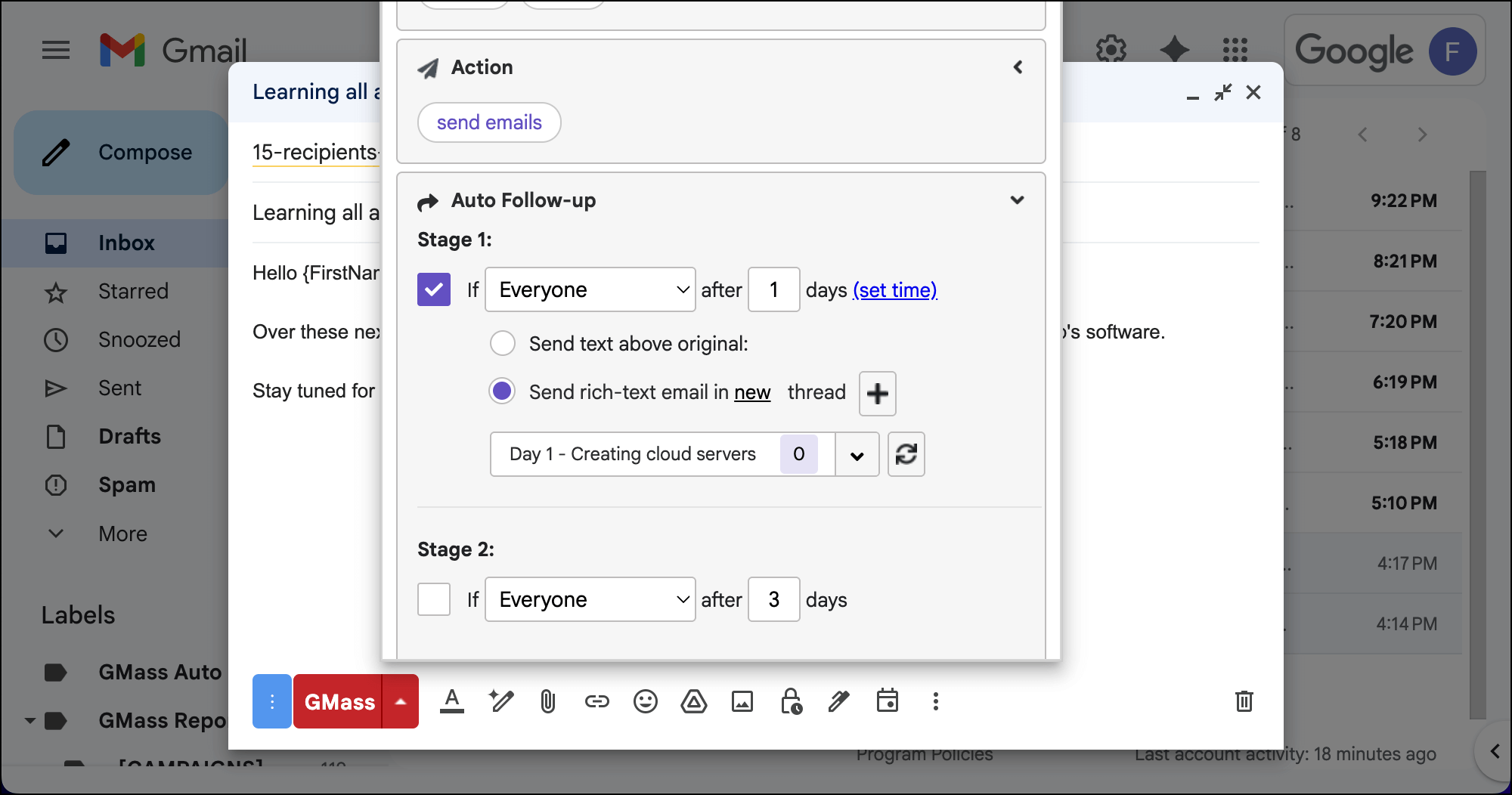
Now your first stage is all set.
4. Repeat for as many stages as you need
You can now repeat step 3 for every stage of your educational series.
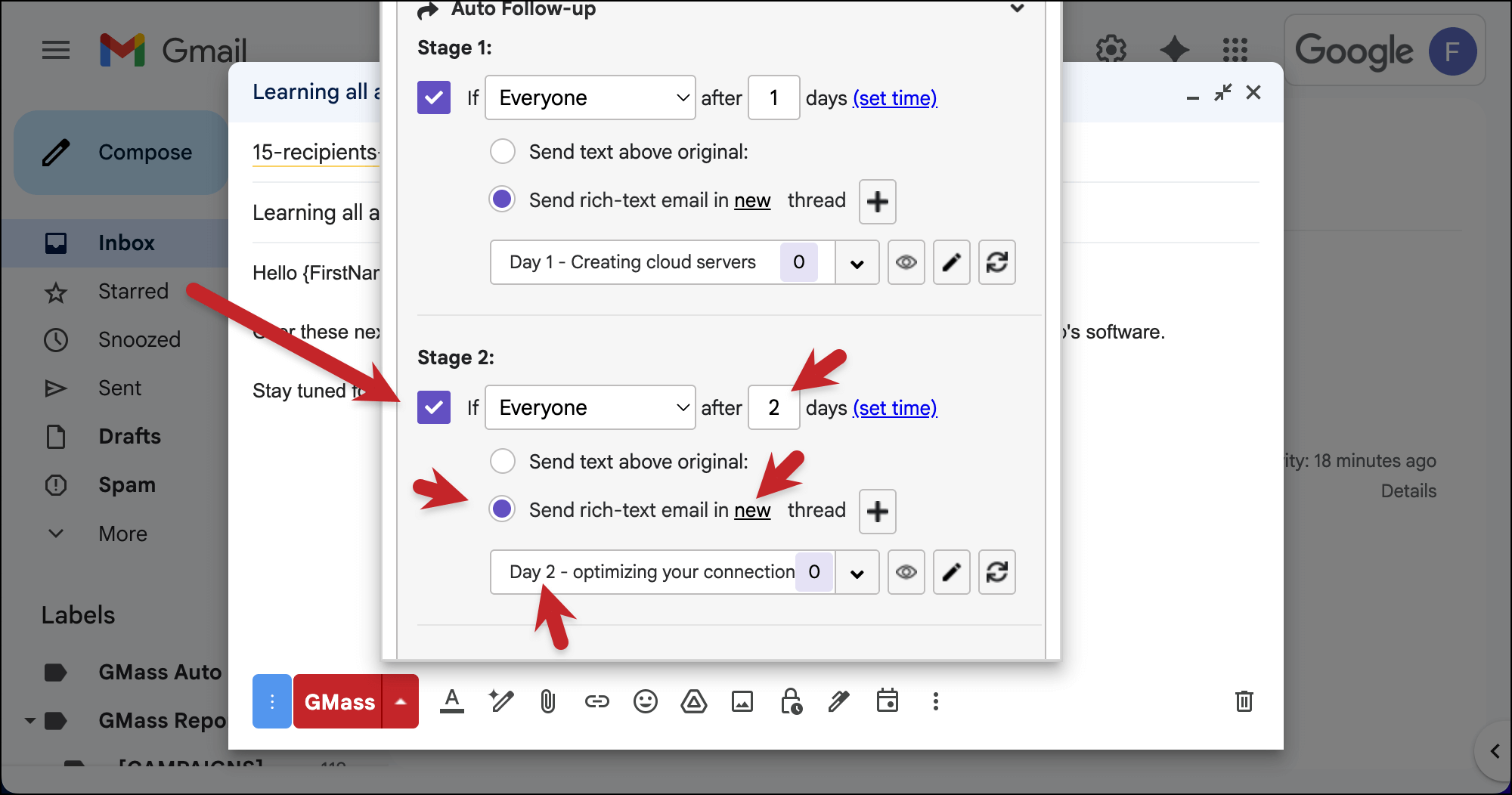
Since GMass offers unlimited stages, you can make your drip series as long as you need.
✅ You’re all set.
More resources
- If you want to set up your educational sequence as an automation that goes out every time someone signs up on your website, read up on GMass’s recurring campaign automations.
- Here’s the official documentation on rich text emails.
- You can (and should) test your entire sequence before you send.
- Read more about GMass’s unlimited stages for your campaigns.