
 |
Composing & Sending > Test mail merge |
I want to make sure the mail merge personalization works before I send my campaign
Mail merge is like magic when it works — and makes your email look like pure, unfiltered garbage when it doesn’t.
So yeah, it’s absolutely worth testing your mail merge personalization before you send out your campaign.
And that’s a pretty simple process in GMass; it only takes a few clicks.
Here’s how to do it.
Step-by-step guide
1. Make yourself the first entry on your Google Sheet of contacts
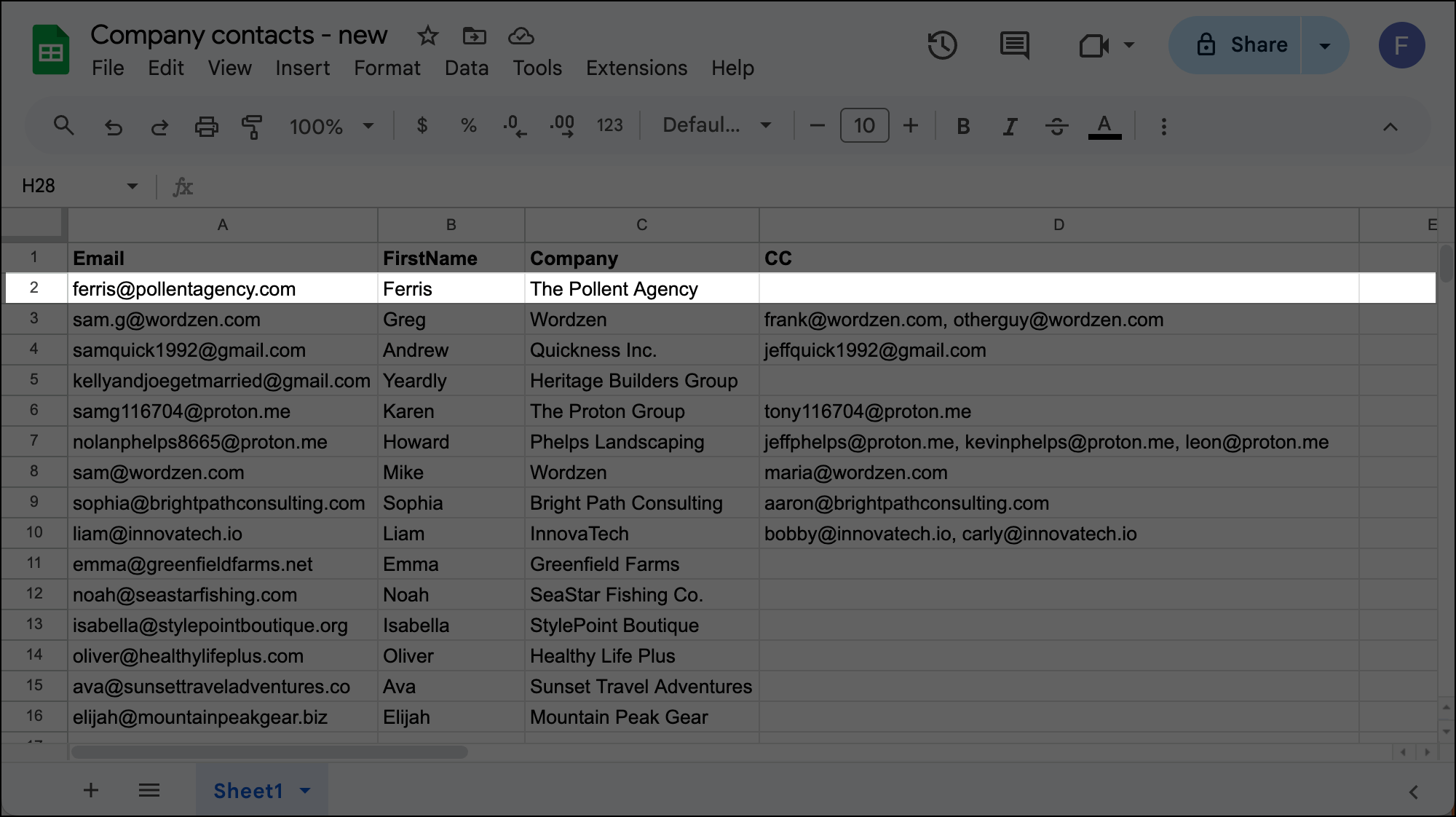
When you’re putting together your Google Sheet of contacts for the campaign, make yourself the first entry. (So the second row of your Google Sheet.) That will allow you to send a test of your sequence to yourself.
2. Connect your Google Sheet and compose your campaign
Now, like always in GMass, connect your Google Sheet and compose your campaign.

Also create any auto follow-ups. You can use the same mail merge tags in those.

3. Test the mail merge sequence to yourself
First, we’ll test our entire sequence to make sure the mail merge works right in every stage.
Go into the GMass settings, click the arrow next to Send Test in the top right, then check the box to Send all stages.
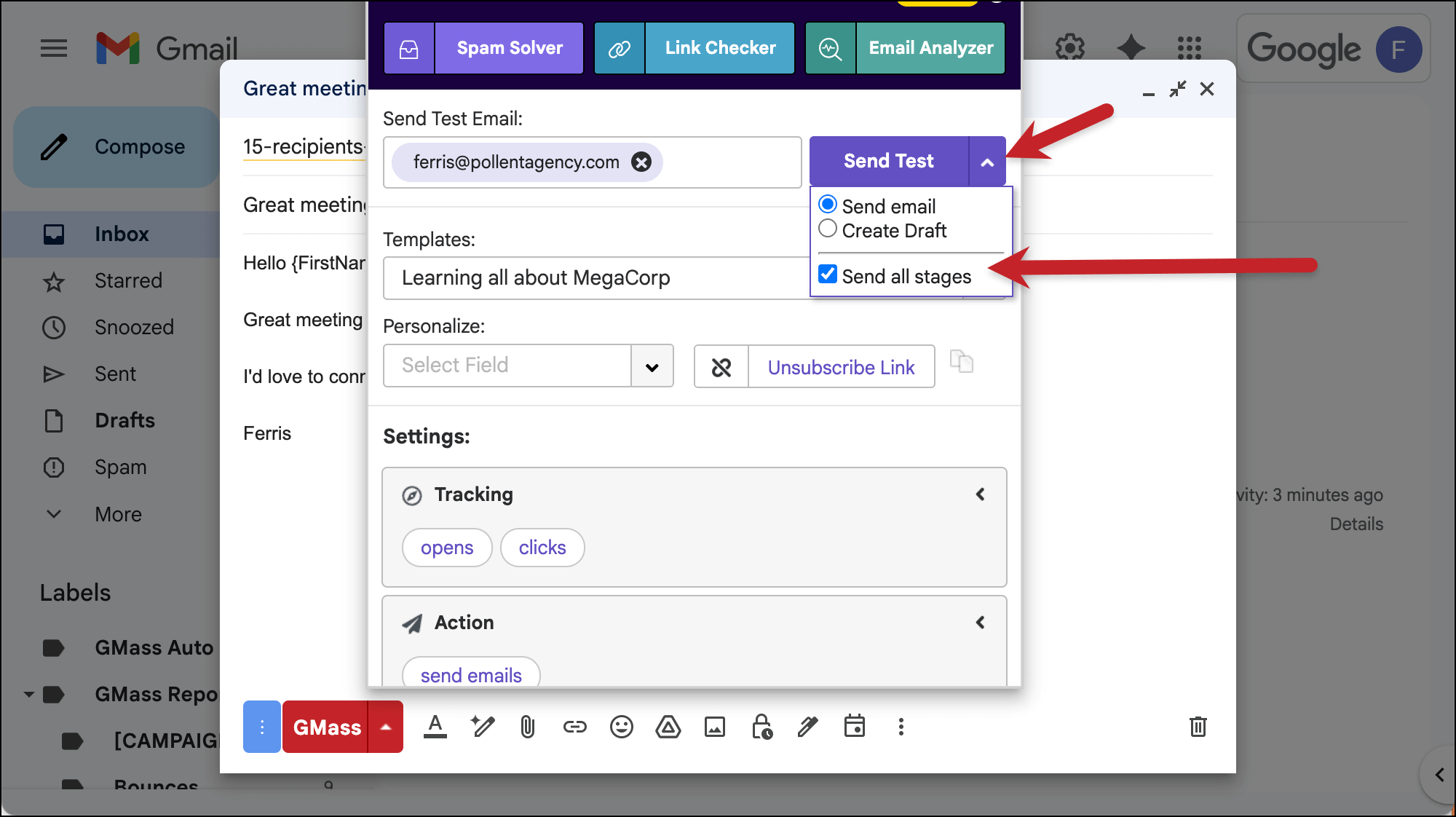
Then click the Send Test button.
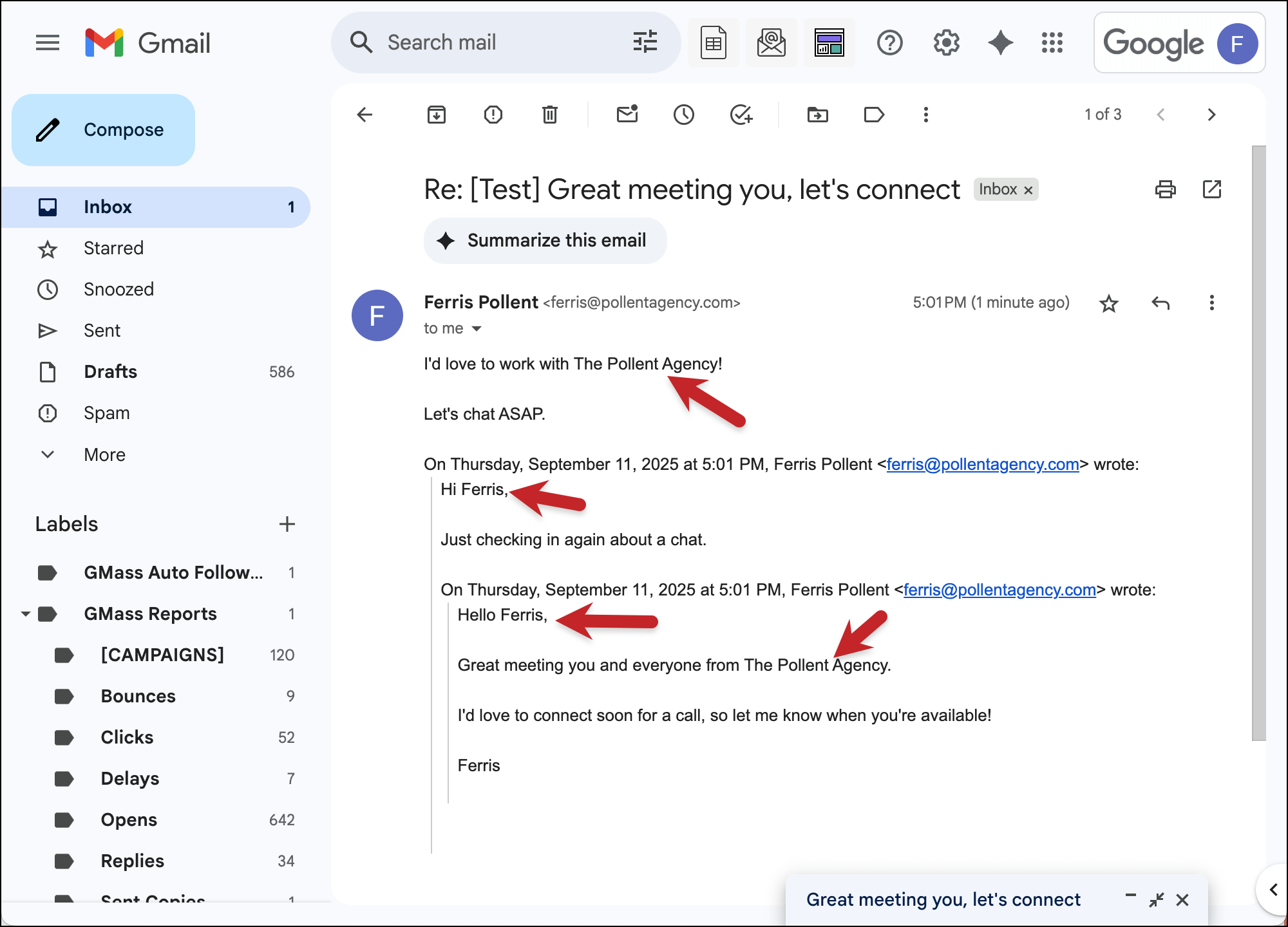
You’ll receive the entire sequence sent to your email address (this is why we set up your info as the first row of the Google Sheet). Make sure everything looks right there.
4. If desired, create drafts to check everyone’s drafts
If you were just doing basic mail merge like I did (simple text like names and companies), your self test may be good enough to give you the confidence to send your campaign.
However, if your mail merge is more complicated, including things like images, attachments, or (as I did in my example) CCed and BCCed addresses, you may want to test everyone’s messages.
To do that, we’ll have GMass create drafts of all your messages so you can spot check them.
Open the GMass settings box and in the Action section, select the radio button next to Create drafts
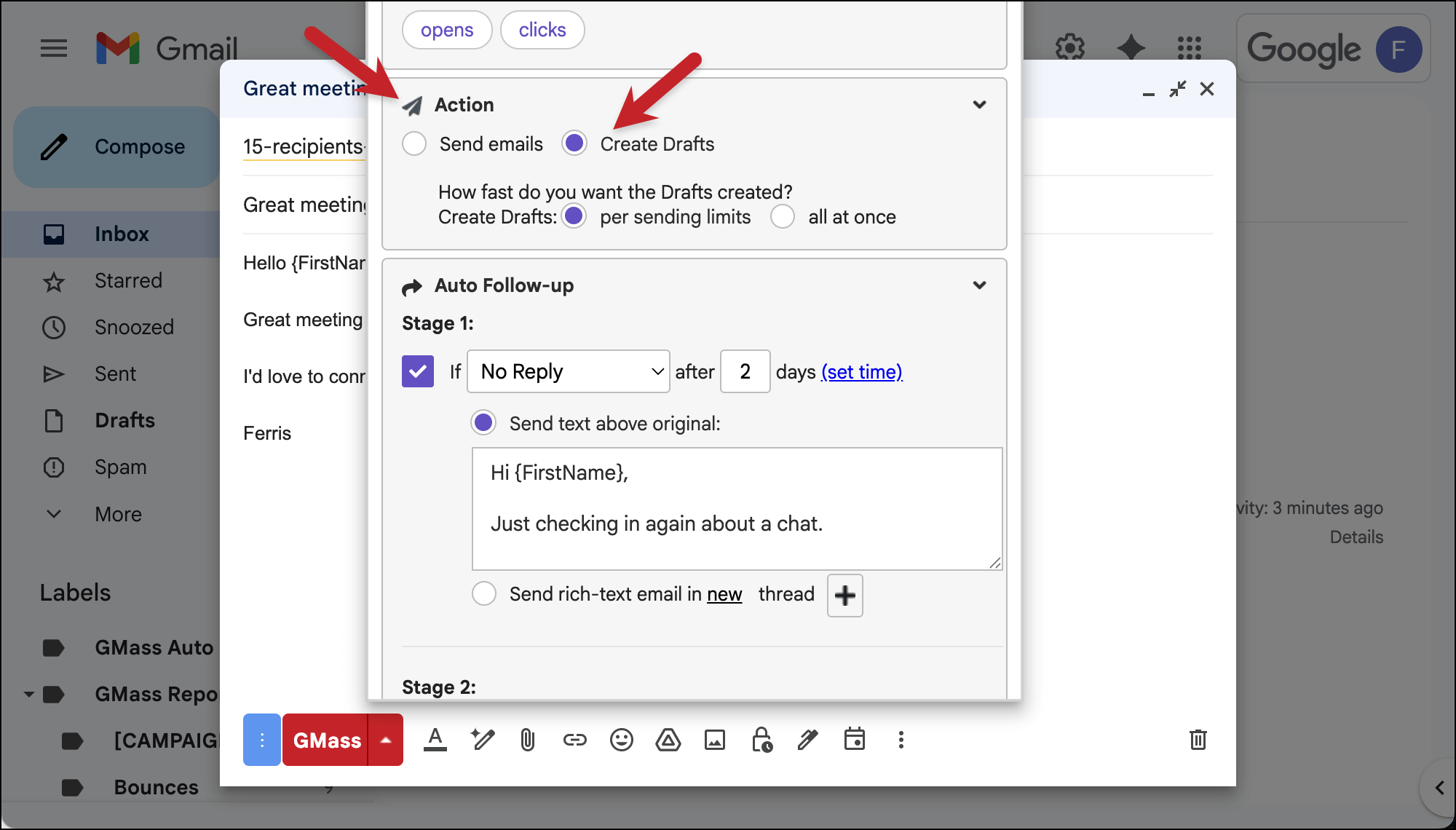
Now click the GMass button.
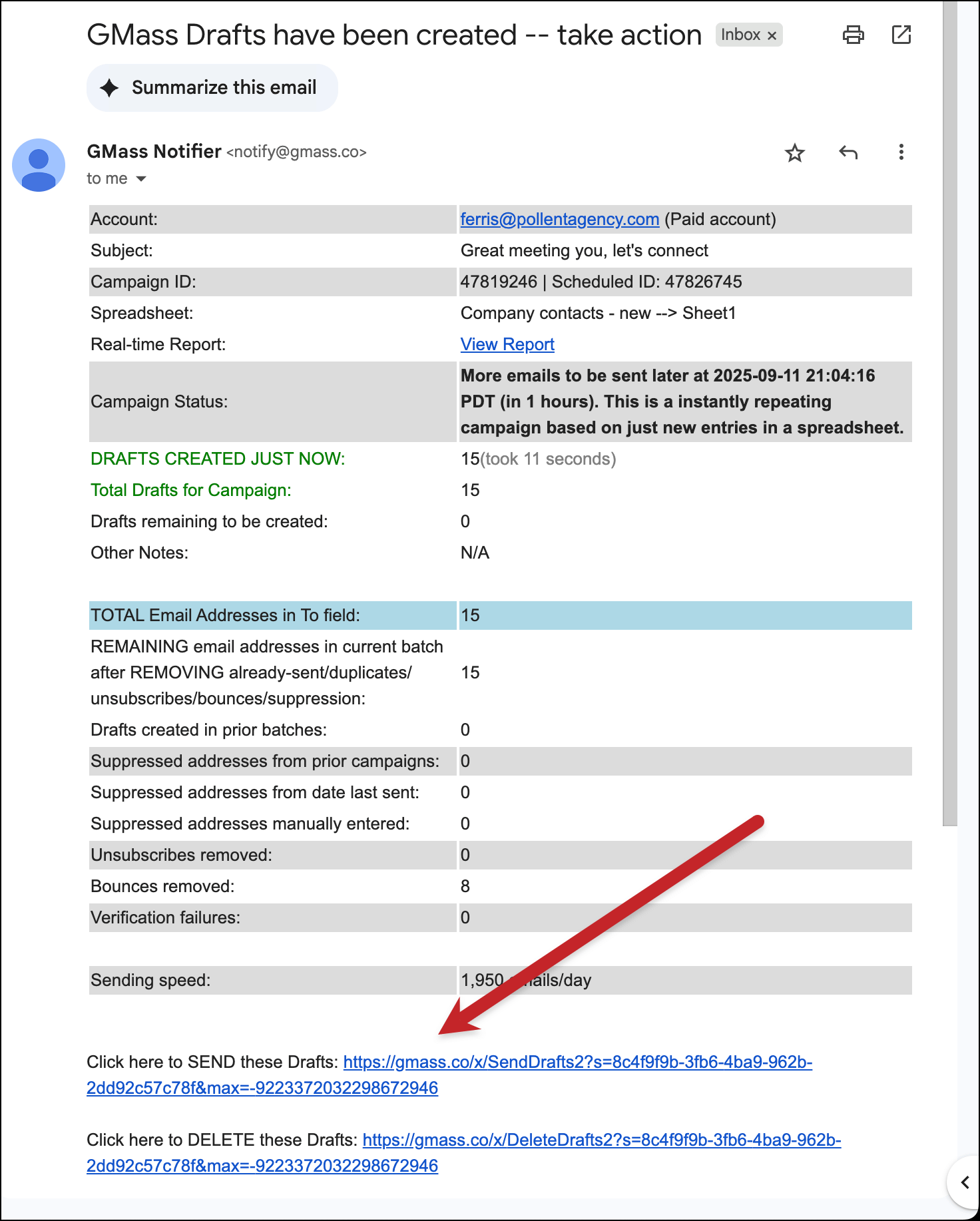
Soon (depending on the size of your campaign) you’ll receive an email from GMass telling you that your drafts have been created.
You can now go into the Gmail Drafts folder, where you’ll find all the drafts of these emails. Spot check a few to make sure the mail merge is correct.
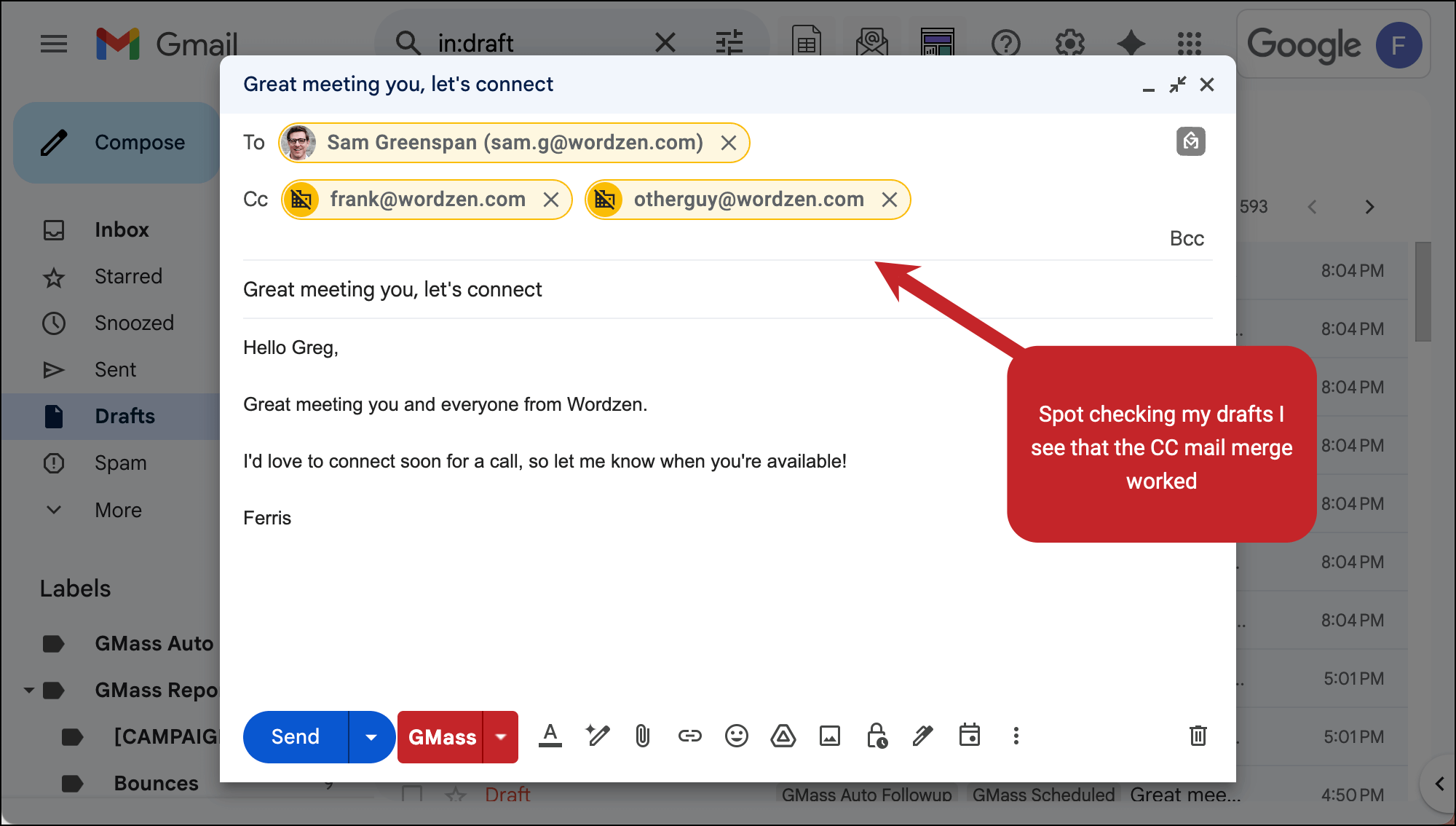
Assuming all is good, click the link at the bottom of GMass’s drafts email to send them. If there’s a problem with the mail merge, click the link to delete the drafts and fix the problem.
✅ You’re all set.
More resources
- Here’s more about GMass’s just create drafts feature.
- And here’s the documentation on testing your entire sequence.
- I talked about more complex mail merges in this article; read up on mail merging links, images, attachments, and CC/BCC addresses.
- Still running into trouble? Here’s how to fix common mail merge errors in Gmail.