
 |
Automations & Sequences > Automations on specific days |
How do I send a campaign that goes to different customers on specific days (like renewal reminders)?
Need to create a campaign that goes out to different recipients on specific days (like renewal reminders)?
We can do that using a combo of GMass’s recurring campaigns and filtering features.
Here’s how.
Step-by-step guide
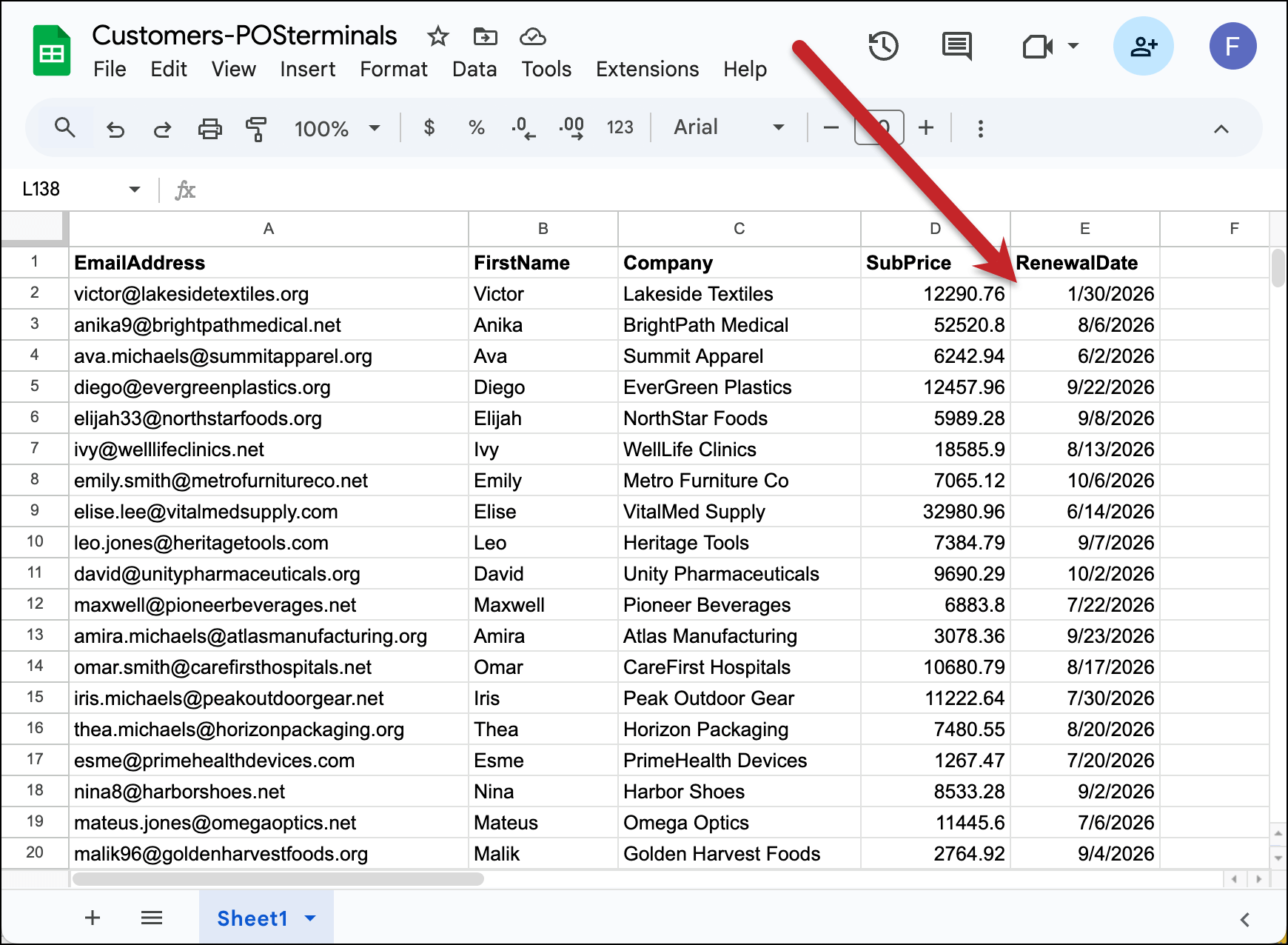
1. Prepare your Google Sheet with the date you want to email the customer
In my example, I’ve prepared by Google Sheet and for each customer I have the date I want to remind them about renewing their service.
2. Connect the Google Sheet using a date filter
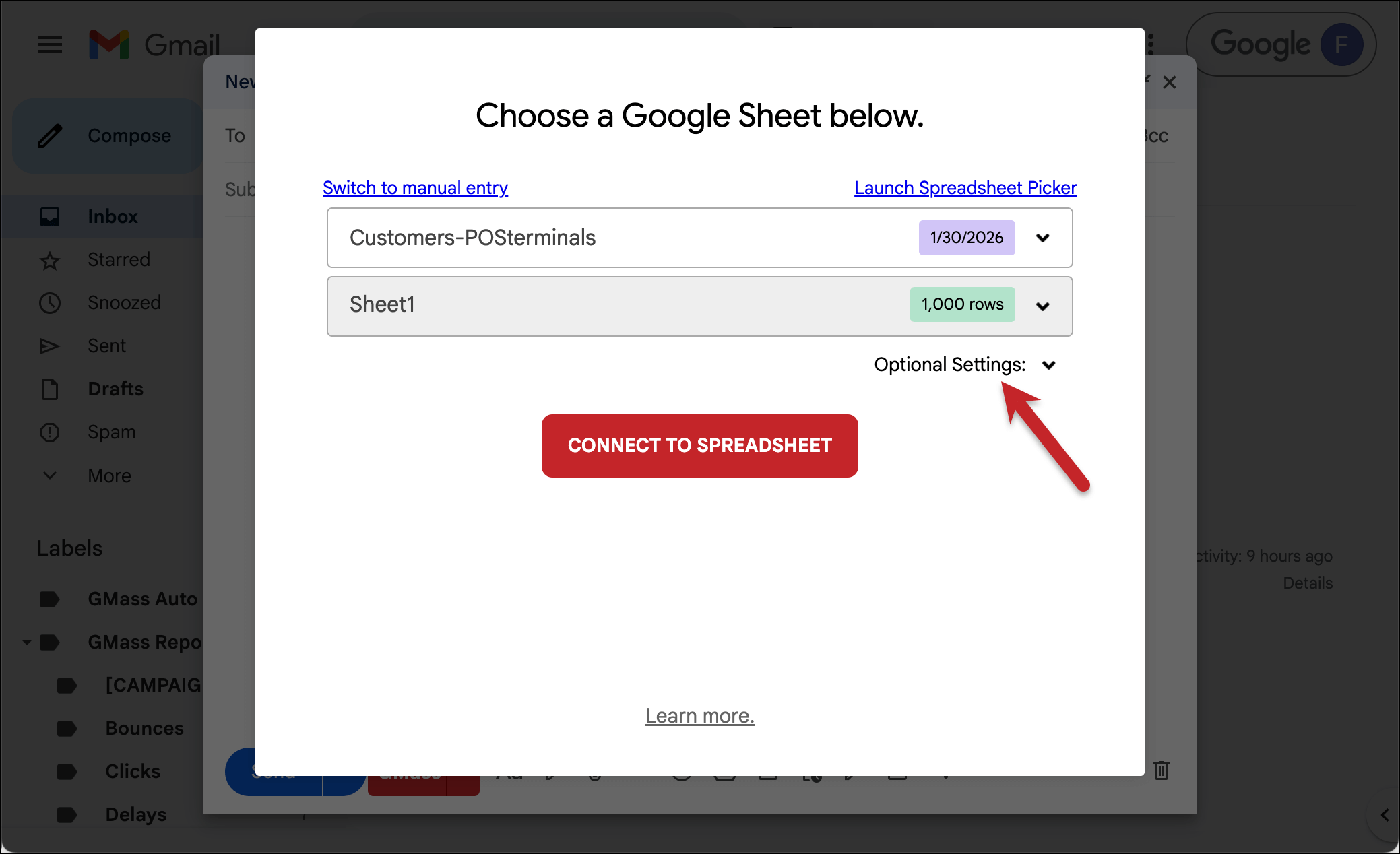
Once the sheet is ready, head to Gmail and connect the Google Sheet to a new campaign.
Then click on Optional Settings in the connection box.
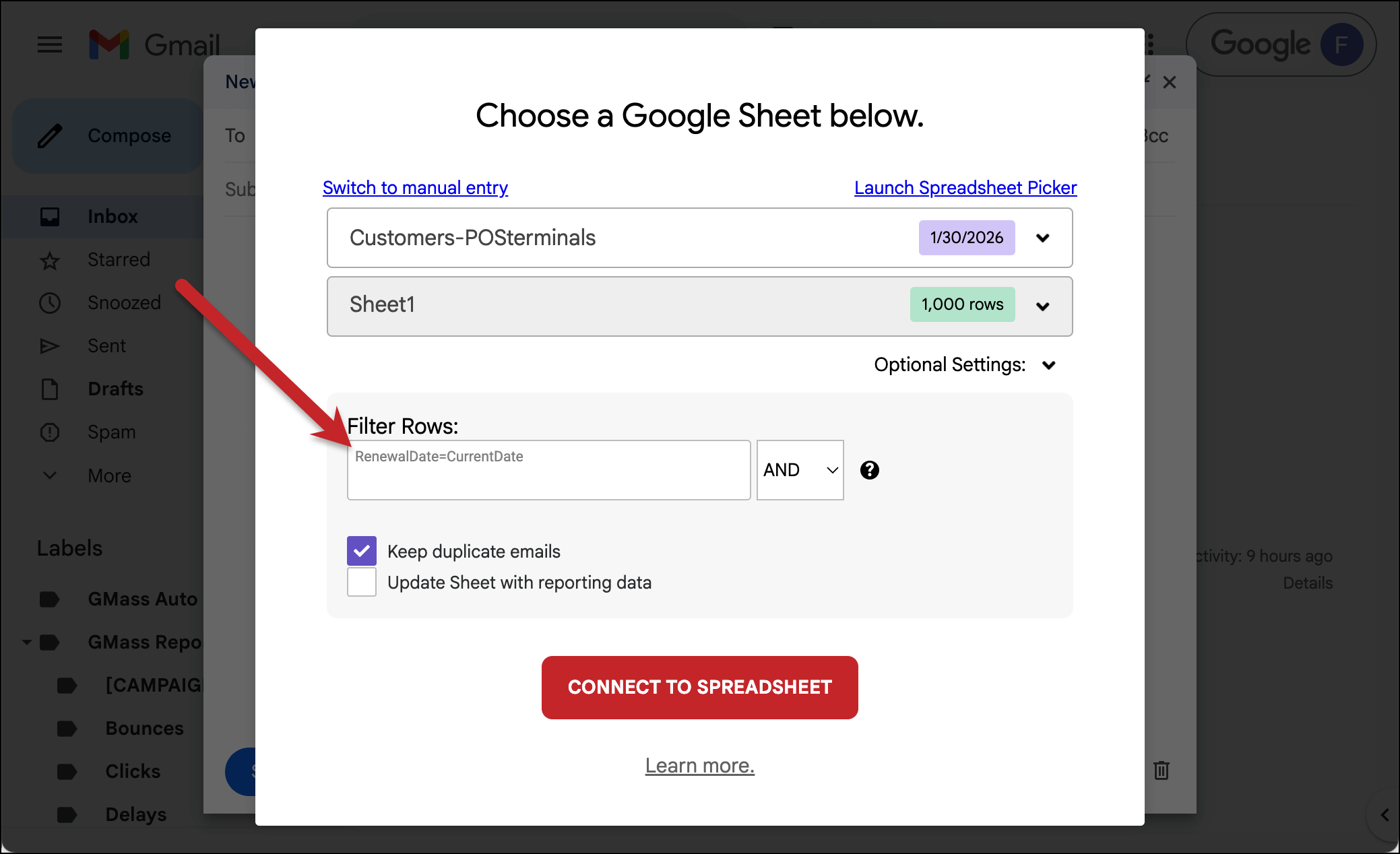
We’re going to use a filter here to make sure GMass sends this email to each recipient only on their designated renewal day.
To do that, we need to filter by column (in my Google Sheet, I called the column RenewalDate, but you can use whatever column header you want). And we need to use the Filtering notation of “CurrentDate”.
So in the filter box, we’ll type RenewalDate=CurrentDate
Then you can click Connect to Spreadsheet.
3. Compose your campaign and make it recurring
Now you can compose your campaign.
(You might notice that the email address for my campaign starts with “1-recipients”. That’s because only one person matched today’s date on the day I connected the sheet. That actually shows the filter worked perfectly!)
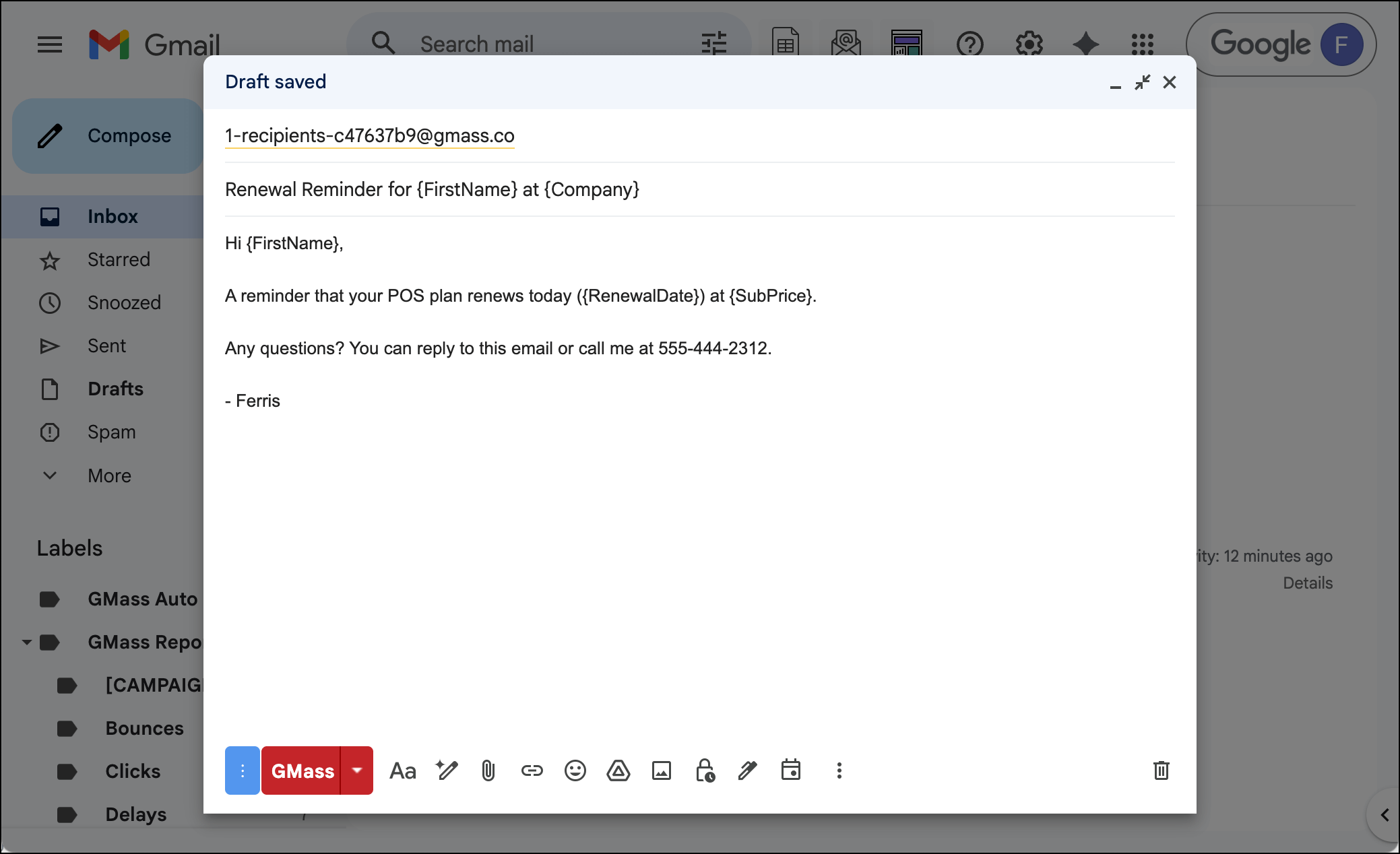
Then go to the GMass settings. In the Schedule section, set this up as a Recurring campaign at the frequency you want to send. Here, we’re sending it daily to all rows.
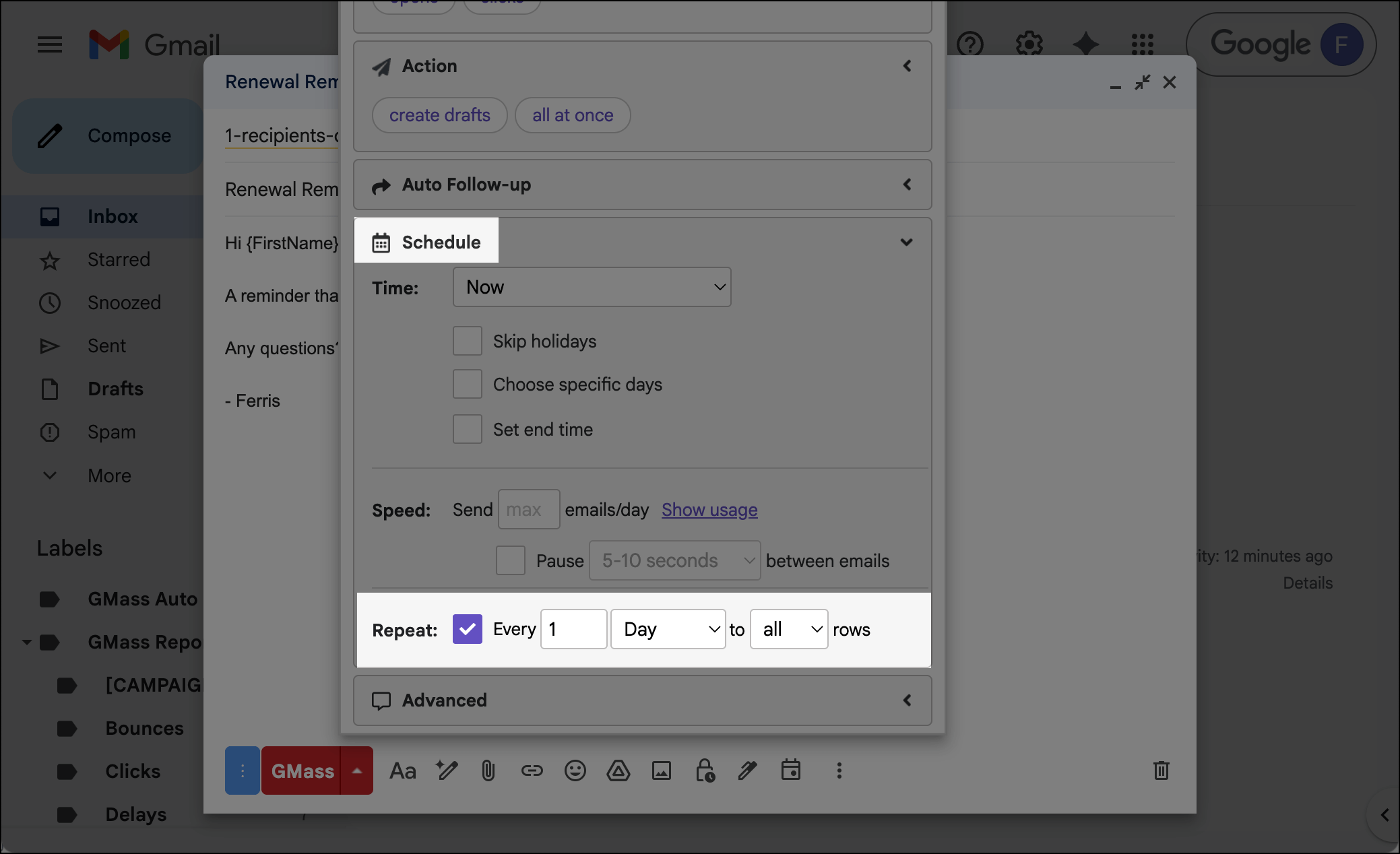
What does that mean? It means that every day, GMass is going to check your spreadsheet, see if today’s date matches any dates in your date column — and if so, it will send the campaign to the correct recipient. If no one’s date matches today, no emails will go out.
GMass will continue to check your sheet daily indefinitely, sending when the date in the filtered column matches today’s date.
4. Click the GMass button to start this automation
Once everything’s ready, click the red GMass button. That initiates this automation.
And now, every time someone’s renewal date comes up, they’ll automatically receive this email.
✅ You’re all set.
More resources
- You can read more about recurring campaigns in GMass here.
- With an automation like this, you can also check out advanced personalization options like using conditional content.