
 |
Composing & Sending > Copy self on every email |
I want to send an email campaign and also receive a copy of every email sent
Want to include a copy of every email you send in a campaign?
You don’t necessarily need to do this; you’ll have every email in your Gmail Sent folder. But if, for whatever reason, you want to do this, it’s quite simple with GMass.
(You also might want to do this if, say, you want to copy other people from your team on every email you send in a campaign.)
Step-by-step guide
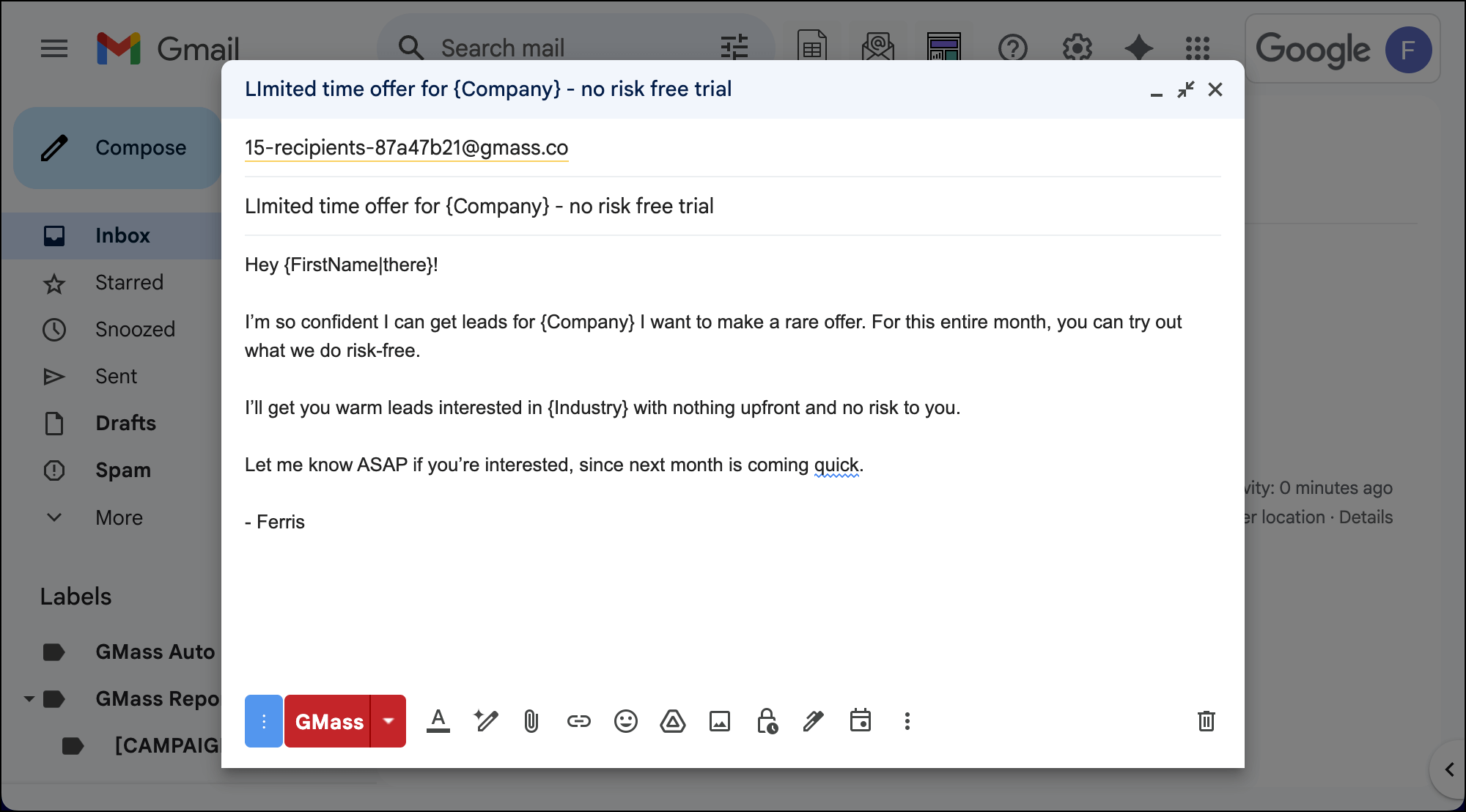
1. Connect your Google Sheet of contacts and compose your campaign
You’ll take all the usual steps for creating a GMass campaign: Connecting your Google Sheet of contacts, composing your campaign and follow-ups, and choosing any other settings you want.
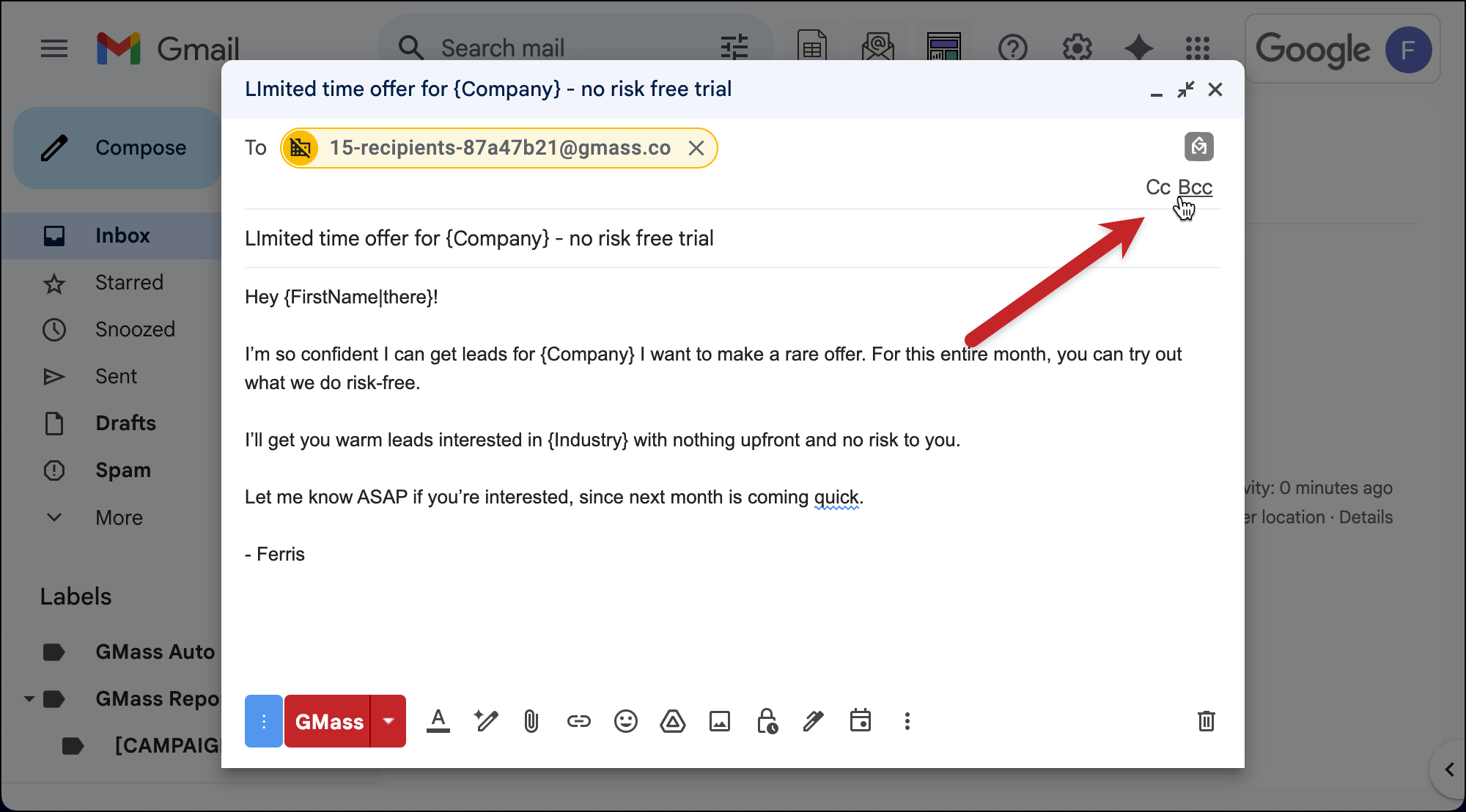
2. Click into the To field of your campaign to bring up CC or BCC options
Because GMass campaigns are sent through Gmail, they operate like regular Gmail emails. Just, you know, fancy ones.
So that takes us to the big reveal of this whole workflow: You can simply CC or BCC yourself and you’ll get a copy of every email sent.
Click into the To field to bring up the CC and BCC options.
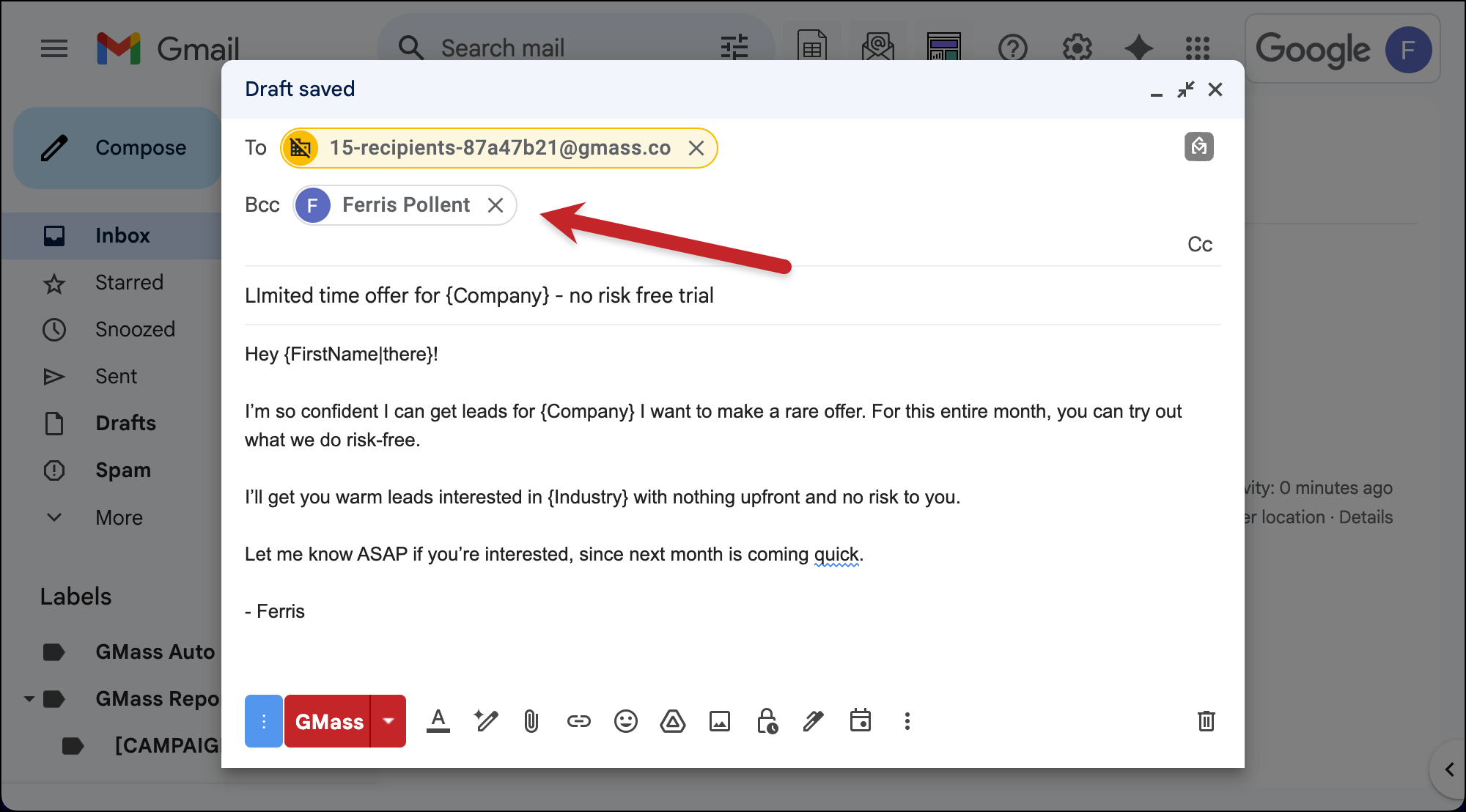
If you want your recipients to see that you’ve copied yourself on every message, choose CC.
If you don’t want them to know but still want a copy, choose BCC.
3. Send your campaign
Click the red GMass button to send your campaign. You’ll receive a copy in your inbox of every single email.
Do note: Those count against your daily Gmail sending limit. So for every email you send, it counts double against your limit since two messages are going out (one to the recipient, one to you).
✅ You’re all set.
More resources
- Want to get even more sophisticated with CC and BCC in GMass? You can mail merge in specific addresses to CC or BCC for every email in a campaign.
- As I mentioned, copying yourself on every email makes you burn through your Gmail sending limits at 2x speed. Here’s how to break those limits.