
 |
Scheduling > Send during specific hours |
I want my campaign to send only during certain hours of the day
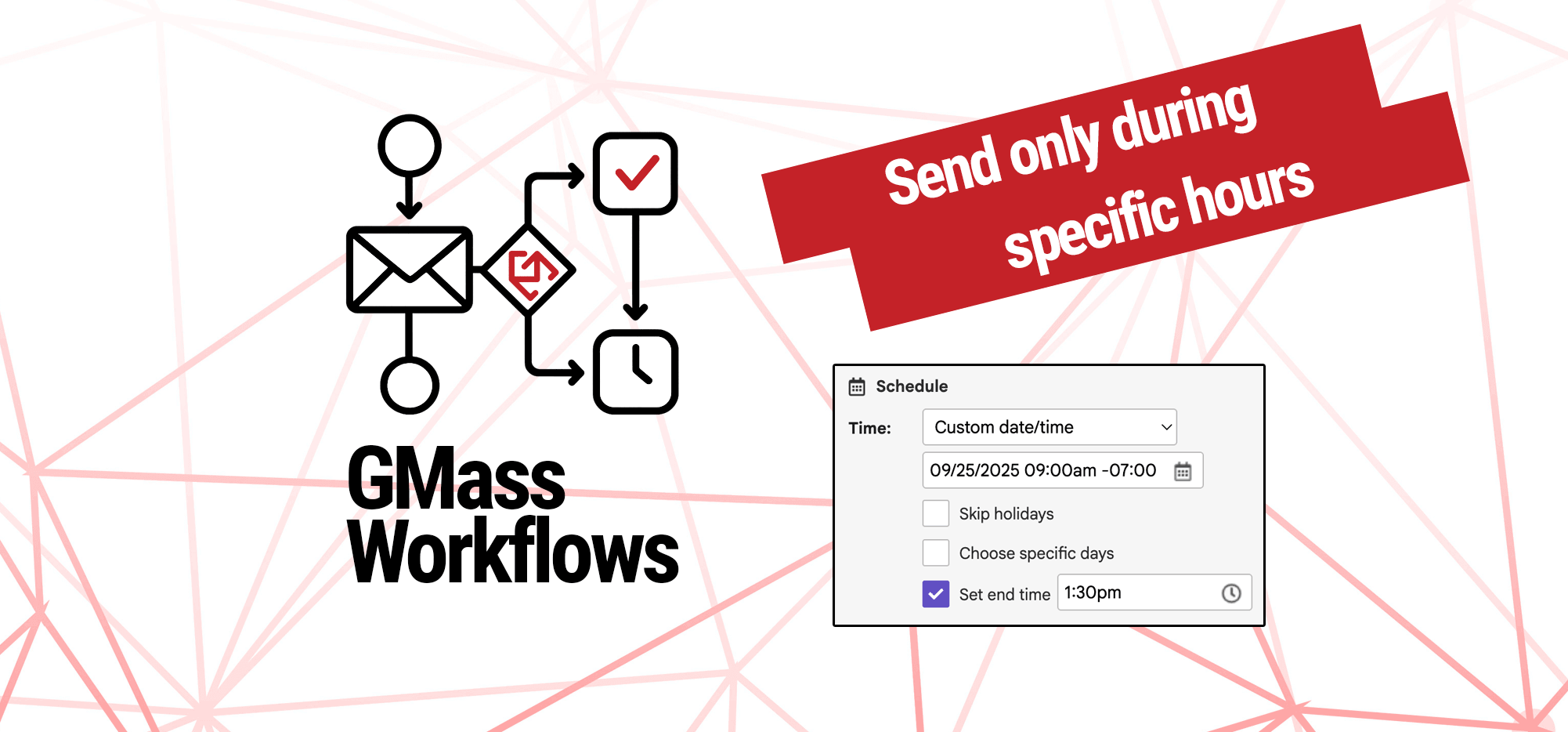
Want to send your campaign only during certain hours of the day?
We can do that in just a few steps with GMass.
Step-by-step guide
When you’re in the Gmail compose window working on the draft of your campaign, open the GMass settings box.
1. In the Schedule section, select a start time
Open the Schedule section in the settings.
You can either:
- Go with “Now” for when you’re sending or…
- Set a specific start time.
In this screenshot below, I’ve set a specific start time (9:00 AM in my time zone).
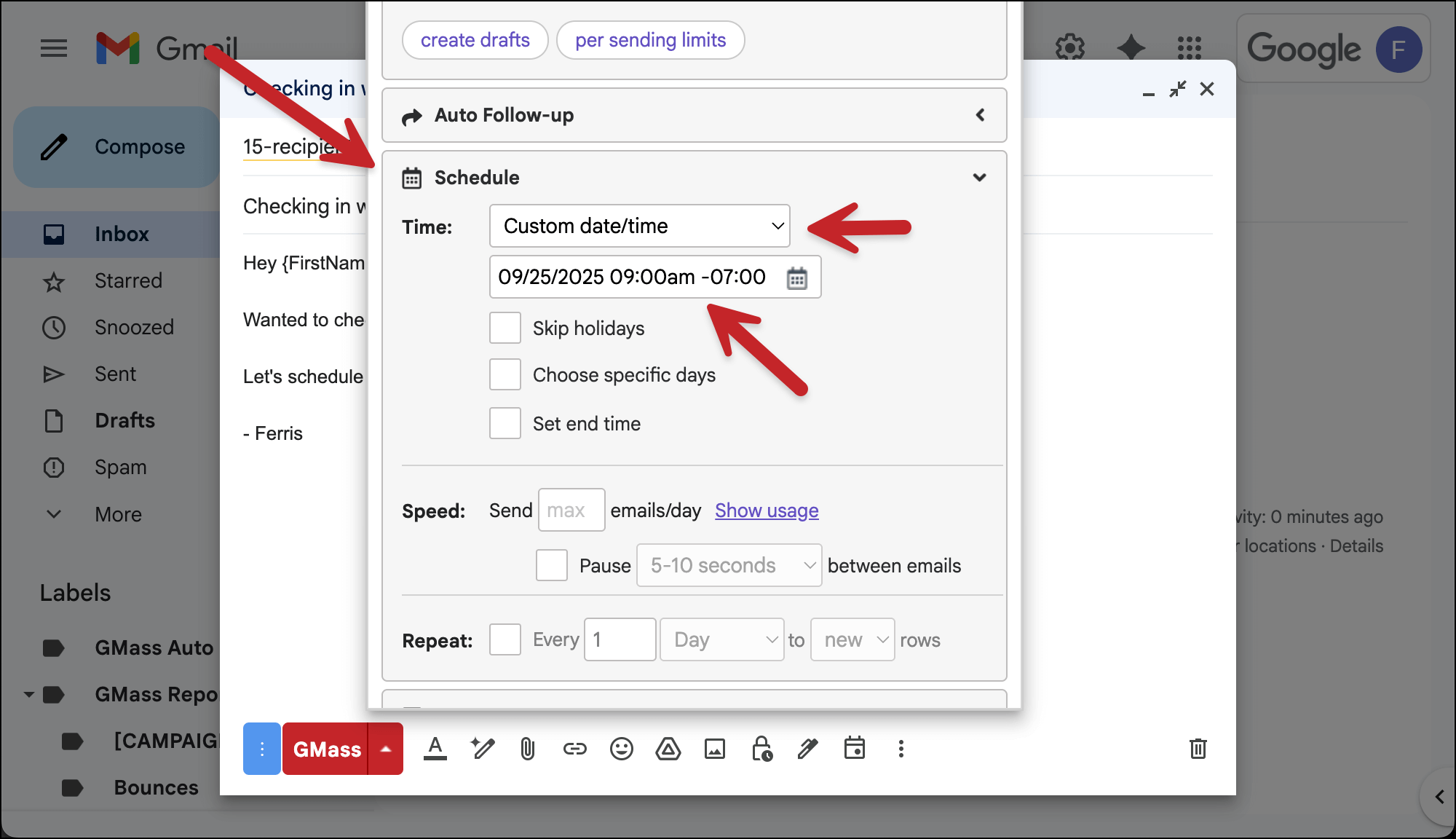
Either way, whatever time you initially send out your campaign becomes the start time of your daily sending window.
That means if your campaign is spread over multiple days, those will start sending at this designated time on future days.
2. Select an end time
Now, just slightly lower in the settings box, you’ll see the option to Set end time.
Set the end of your daily sending window there.
For instance, my start time is 9:00 AM and I’ve made my end time 1:30 PM.
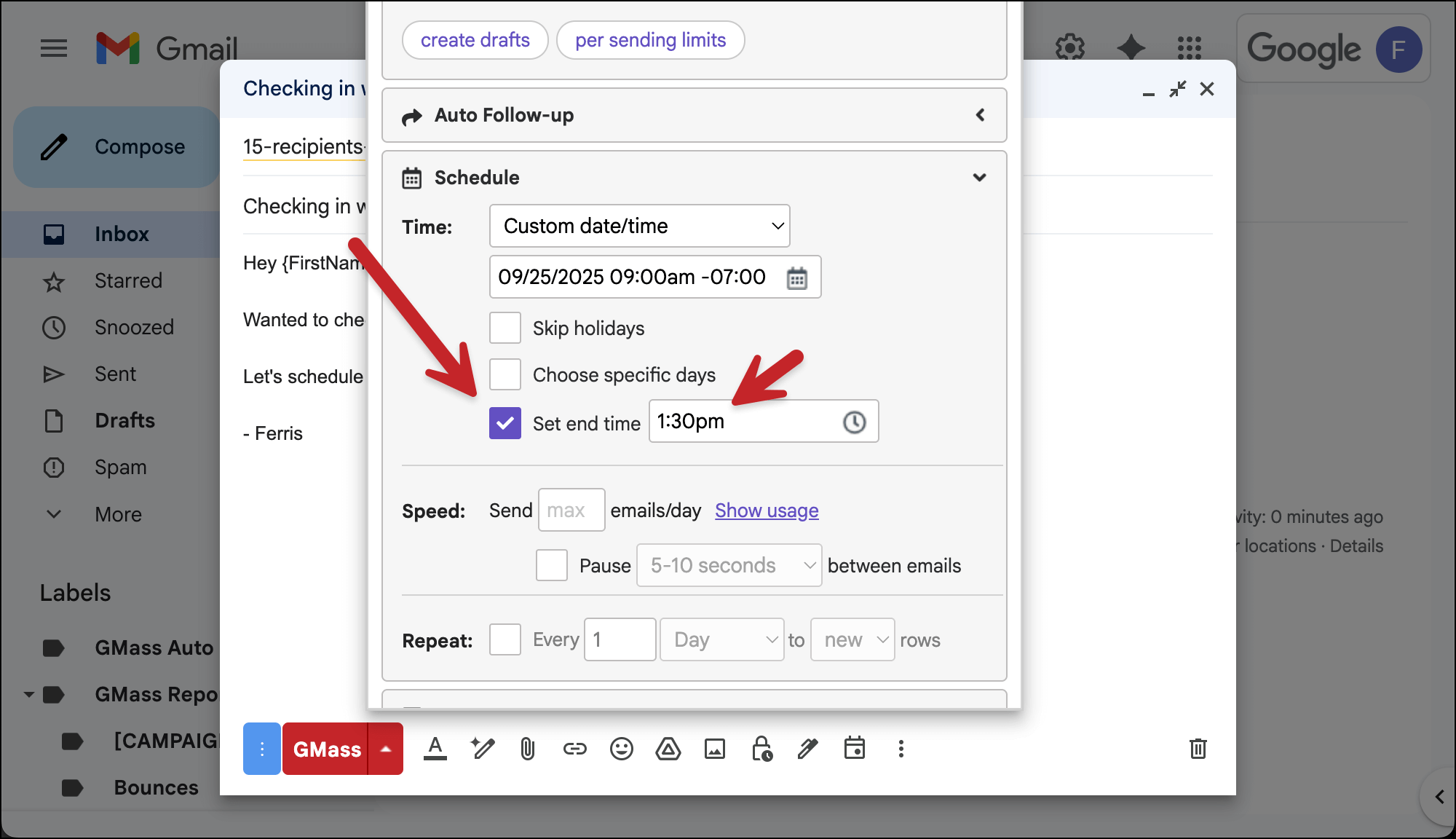
You’ve now created a daily sending window for your campaign.
This sending window will apply to:
- Campaigns spread over multiple days
- Recurring campaigns
- Auto follow-ups*
- Triggered emails
In all cases, emails will only go out between your chosen start time and end time.
✅ You’re all set… unless you want to change auto follow-ups
3. Optional: Set a different start time for auto follow-ups
There is one exception to the above.
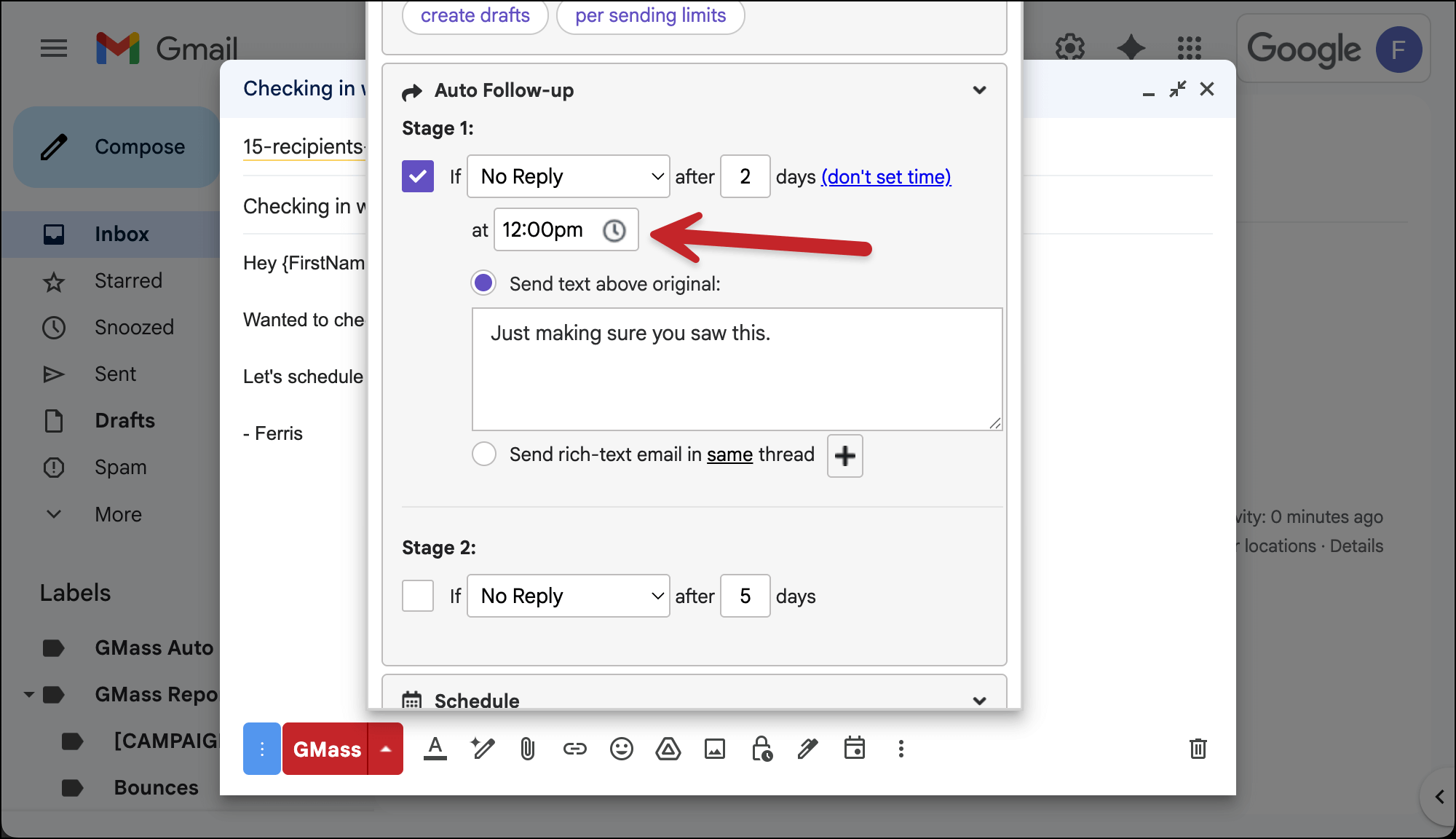
Auto follow-ups can receive their own separate start time. (They will, however, always inherit the same end time as the main campaign.)
You can set up a different start time for each auto follow-up campaign in the Auto Follow-up section of the settings box.
Just click the set time link for your auto follow-up stage and enter a start time.
More resources
- Here’s more about the set end time feature.
- And you may want to read on the nuances of scheduling and understanding the timing of multi-day campaigns in GMass.
- If you want to set which days you want to send on, not just the time window, check out the choose specific days feature in GMass.
- Here’s how to change the default time zone of your GMass account.