
 |
GMass & Infrastructure > Share campaign reports |
How do I share my campaign reports with someone else?
Want to give someone else access to your GMass campaign reports?
There are plenty of ways to do so — a lot of it comes down to just how much data you want to share and how you want to share it.
In this guide I’ll walk through different methods for sharing your reports.
Step-by-step guide to sharing with full recipient data
First up, I’ll show you how to share your campaign report including full data on all recipients.
This is best for sharing your reports internally; you might not want to share this with a client and definitely wouldn’t want to share it publicly.
Option 1. Grab the link to your web-based campaign report
There are a few ways to get to the web-based campaign report, which shows live reporting in real time.
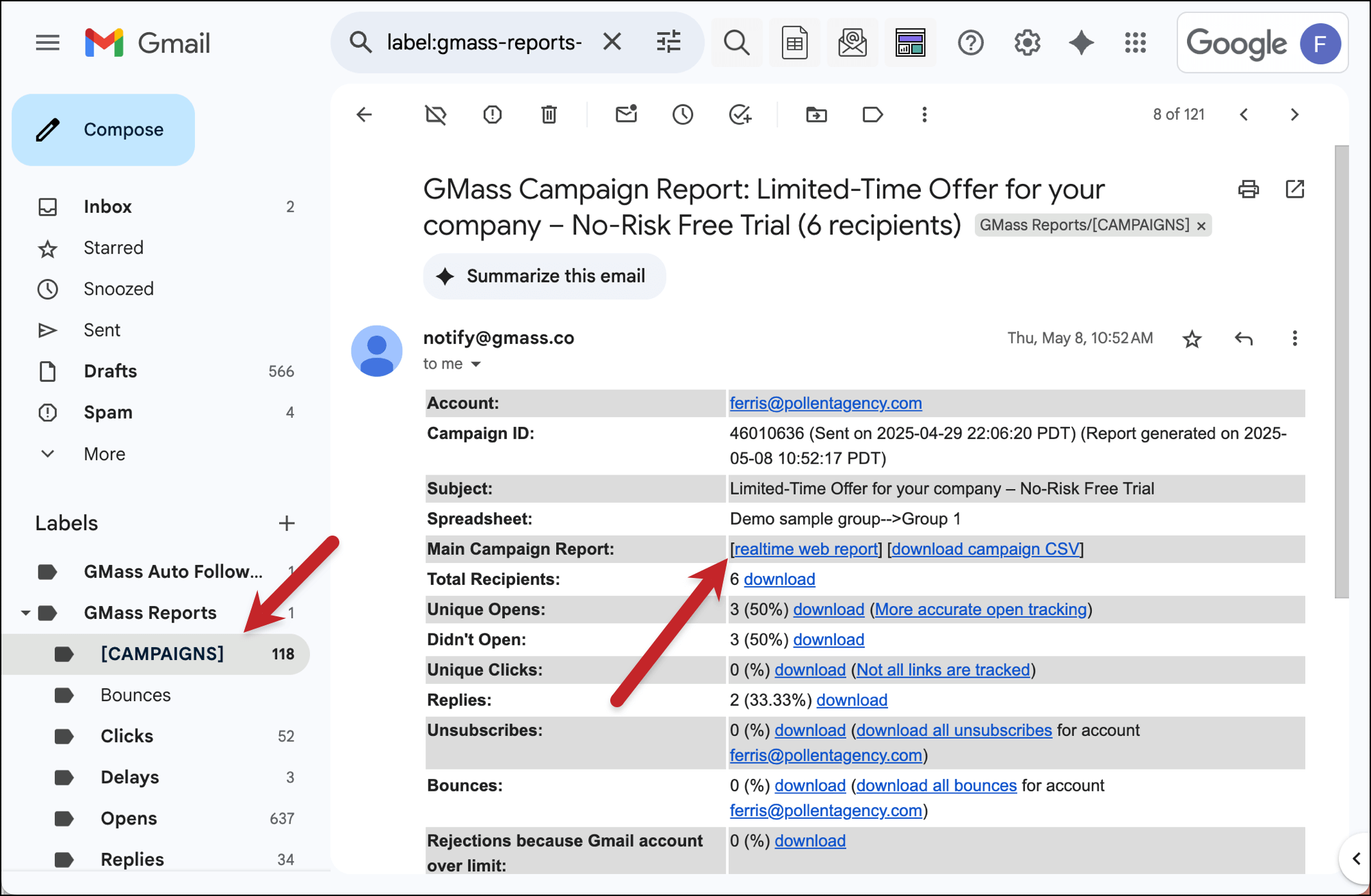
One is in Gmail, in the campaign report GMass sends you. You’ll find that under the GMass Reports > [CAMPAIGNS] label. Copy that link.
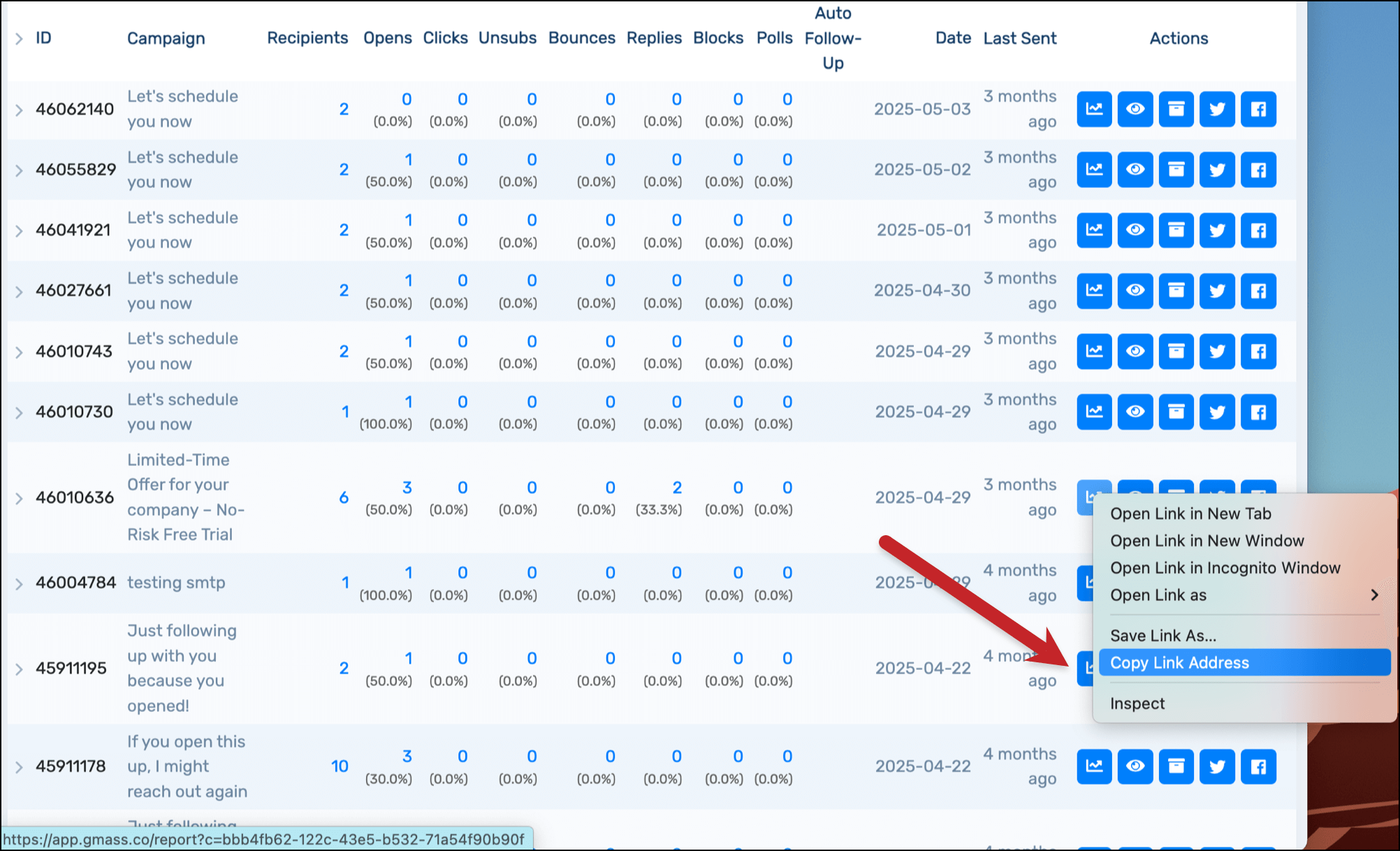
The other way is in the main section of the GMass dashboard. Copy the link from the report icon.
Both links go to the same place: The web-based campaign report.
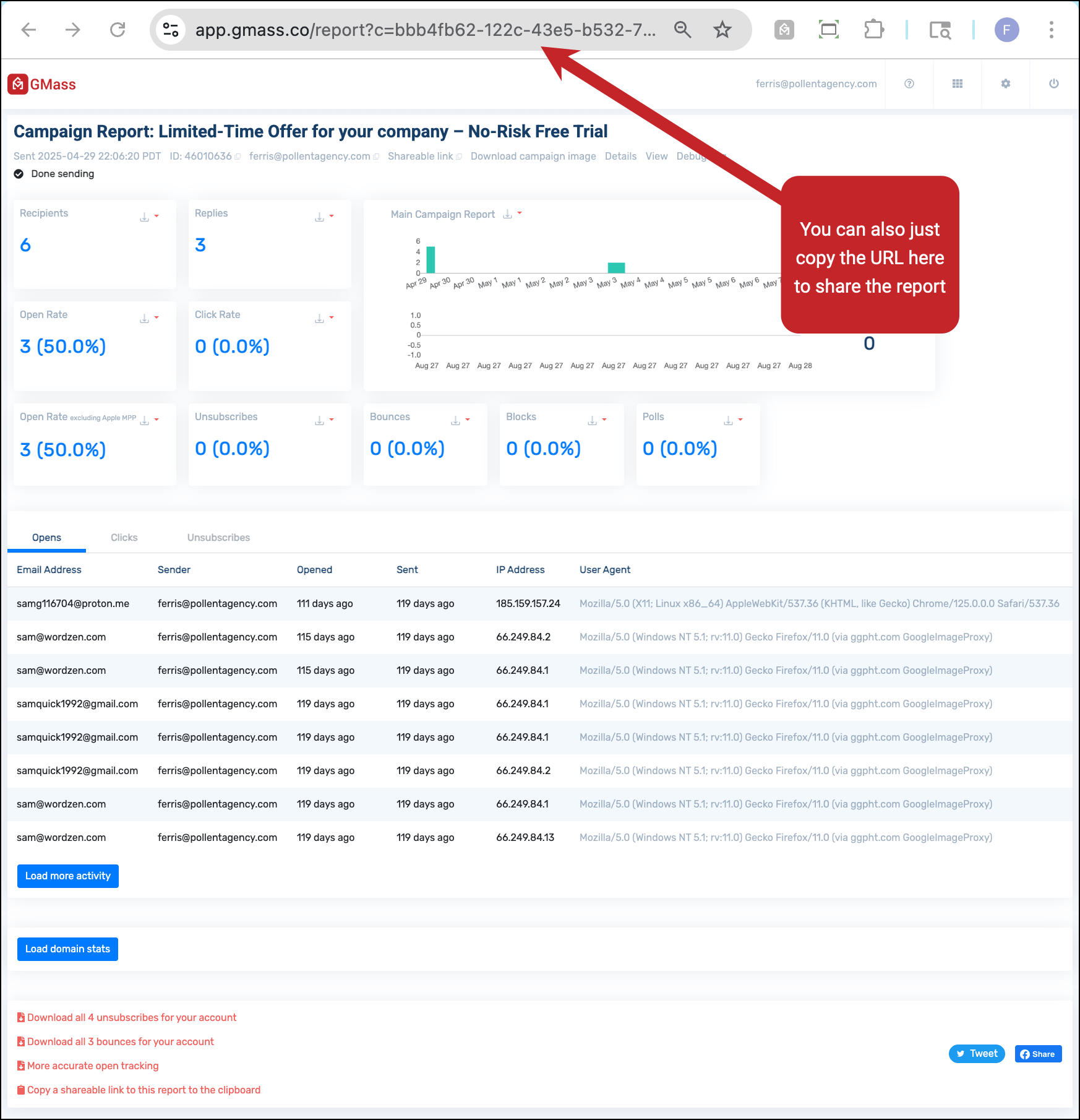
And anyone who has that link can access your full report. That means they can see all the recipients’ email addresses (or even download that list of recipients). So be careful who gets this access.
Option 2. Automate sending reports to someone else
If you don’t want to go through the process of sending the reporting link to every campaign, instead you can create an automation that sends all your campaign reports to another email address.
Note: The person does need to be a GMass user.
To create the automation, open the Gmail compose window. Put share@gmass.co in the To field, and the other person’s address in the subject line.
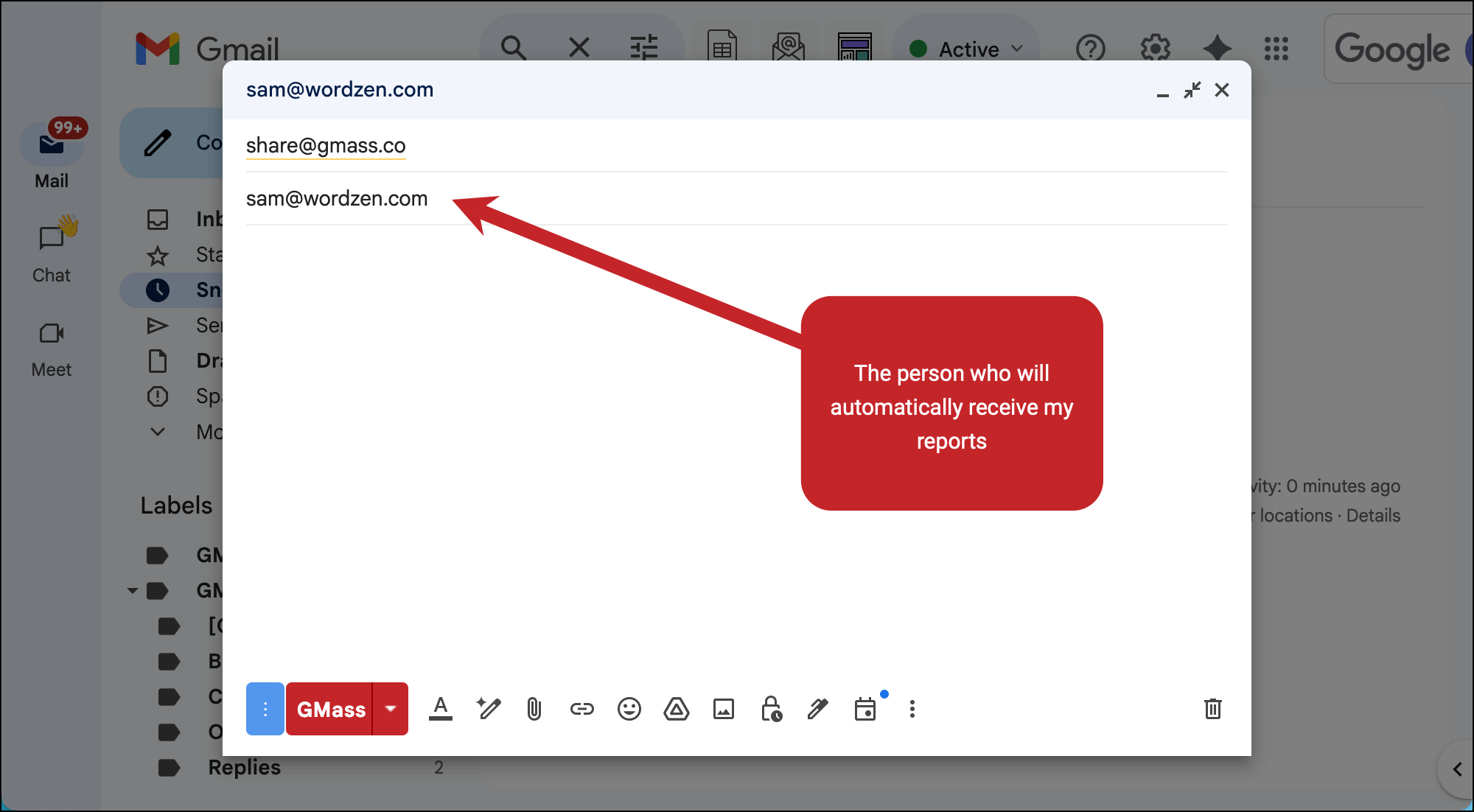
But again, be careful! This person gets all your reports for every single campaign. And they’ll keep getting those reports indefinitely, so you may forget they have access.
To revoke their access down the road, repeat this process but send the email to revoke@gmass.co instead.
Option 3. Sharing with the GMass API
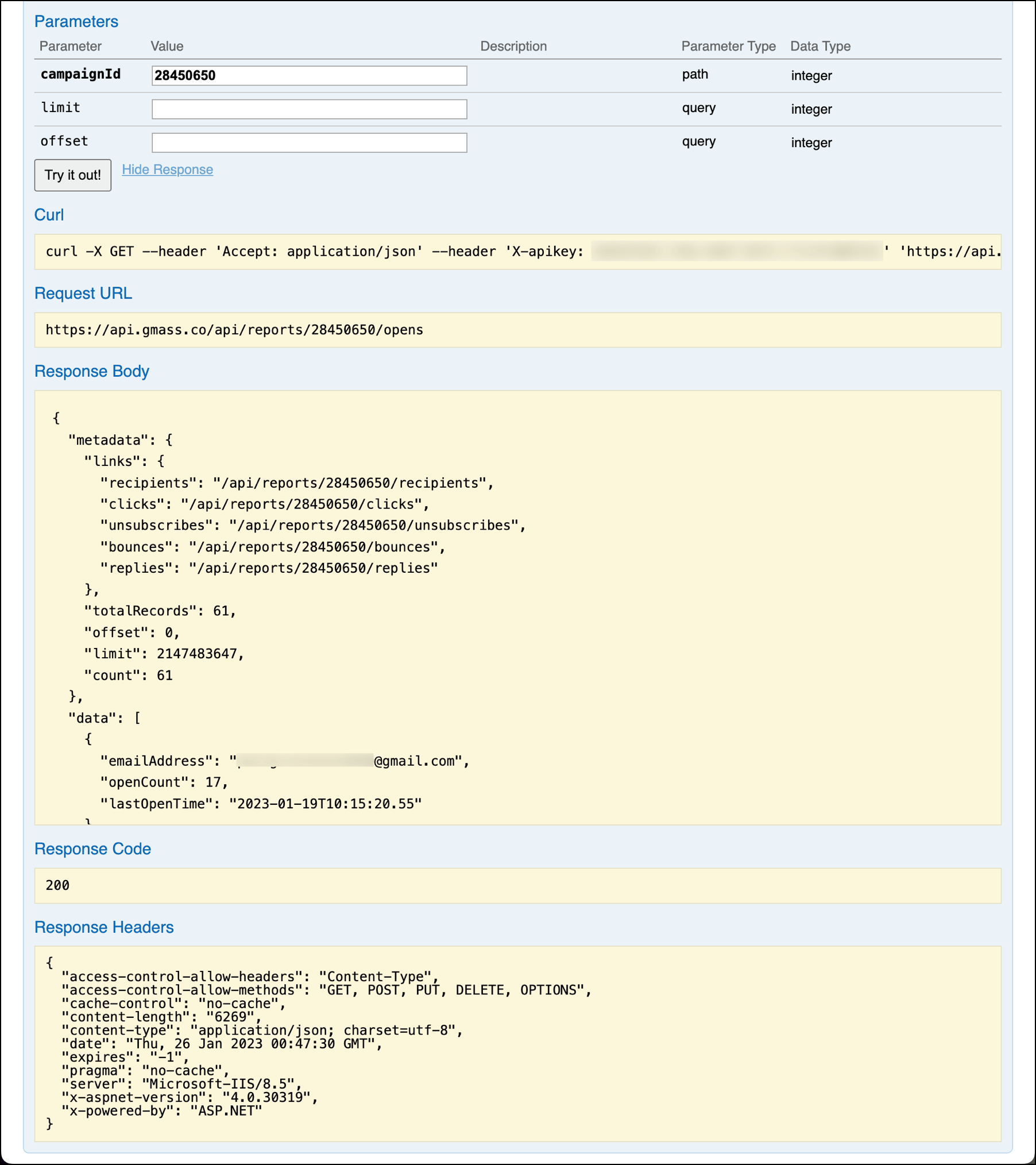
Need to share your report data with another app or tool? You can do that with the GMass API.
Just use the reports endpoint to send whatever campaign data you need.
Step-by-step guide to sharing without recipient data
Now I’ll show you how to share your reports without revealing your recipients’ email addresses.
This is a better option for sharing with clients, other companies, or social media
1. Grab the sharable link from your web-based campaign report
Follow the steps in the previous section to access your web-based campaign report.
Then, at the top, copy the Shareable link.
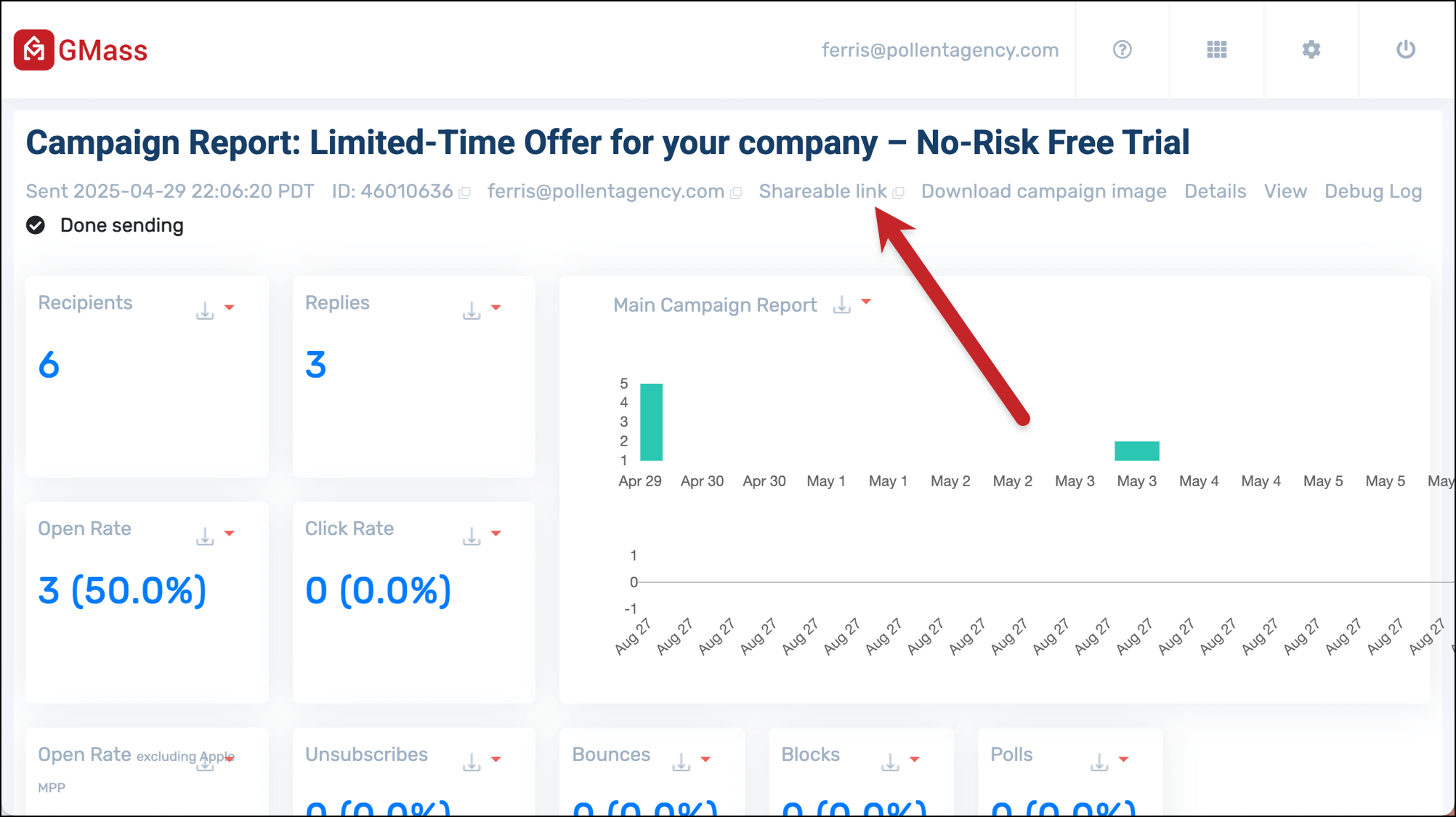
When you share that, the recipient will see a version of your web-based campaign report without recipient email addresses or the option to download them. Notice the difference between how the report looks here and the full report in the earlier section.

You can also share this version on social media.
✅ You’re all set.
More resources
- Here’s a complete guide to sharing GMass account data and access (this goes beyond reports to include things like unsubscribe and bounce lists).
- Check out our guide to GMass campaign reports and more details on sharing those reports.