
 |
GMass & Infrastructure > SMTP After Gmail Limits |
I ran into Gmail limits, connected an SMTP server, and want the remaining emails to keep sending now
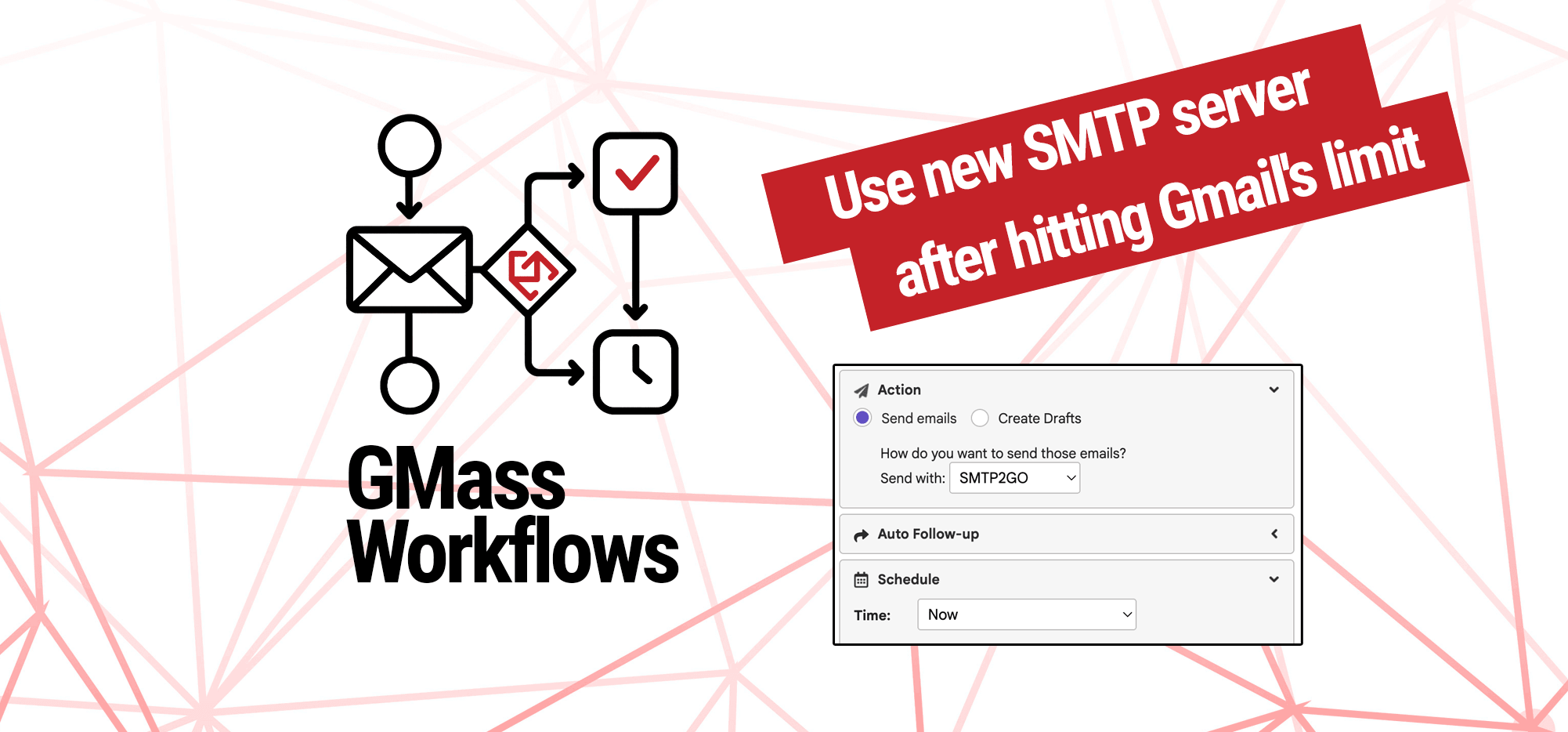
One of GMass’s most popular features is the ability to break Gmail’s limits, often by using a third-party SMTP server.
But what happens if you don’t have a server hooked up until after you run into Gmail’s sending limits?
Here’s what you can do to resume sending — however many emails that may be — after you connect a SMTP server to your over-the-limit campaign.
Step-by-step guide
Here’s how to connect a SMTP server to your account and then continue sending your large campaign using that server.
1. Connect your SMTP server in the GMass dashboard
Once you have the credentials for your SMTP server (whether it’s from SendGrid or wherever), go to the GMass dashboard.
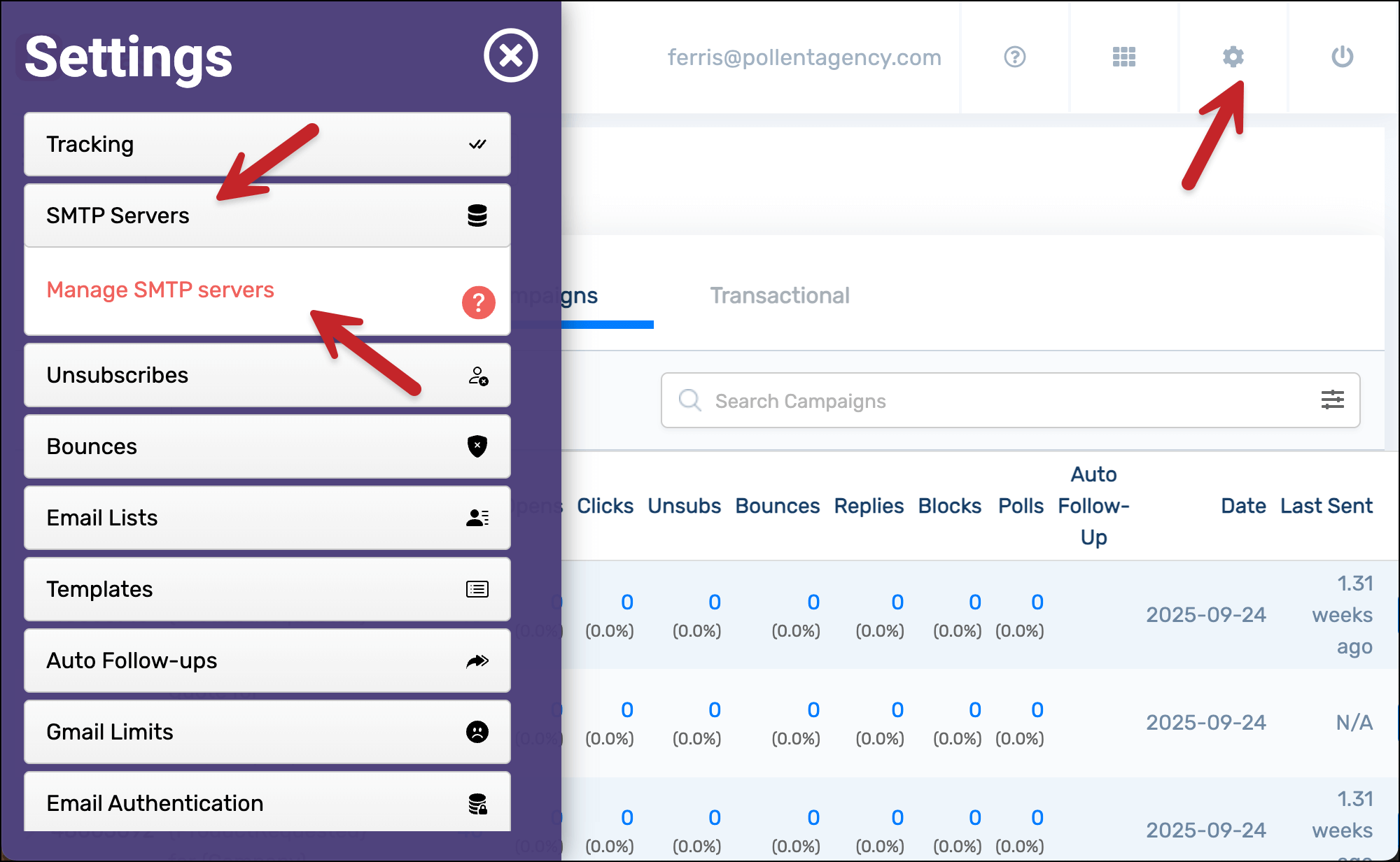
Open the settings, click on SMTP Servers, then click on Manage SMTP servers.
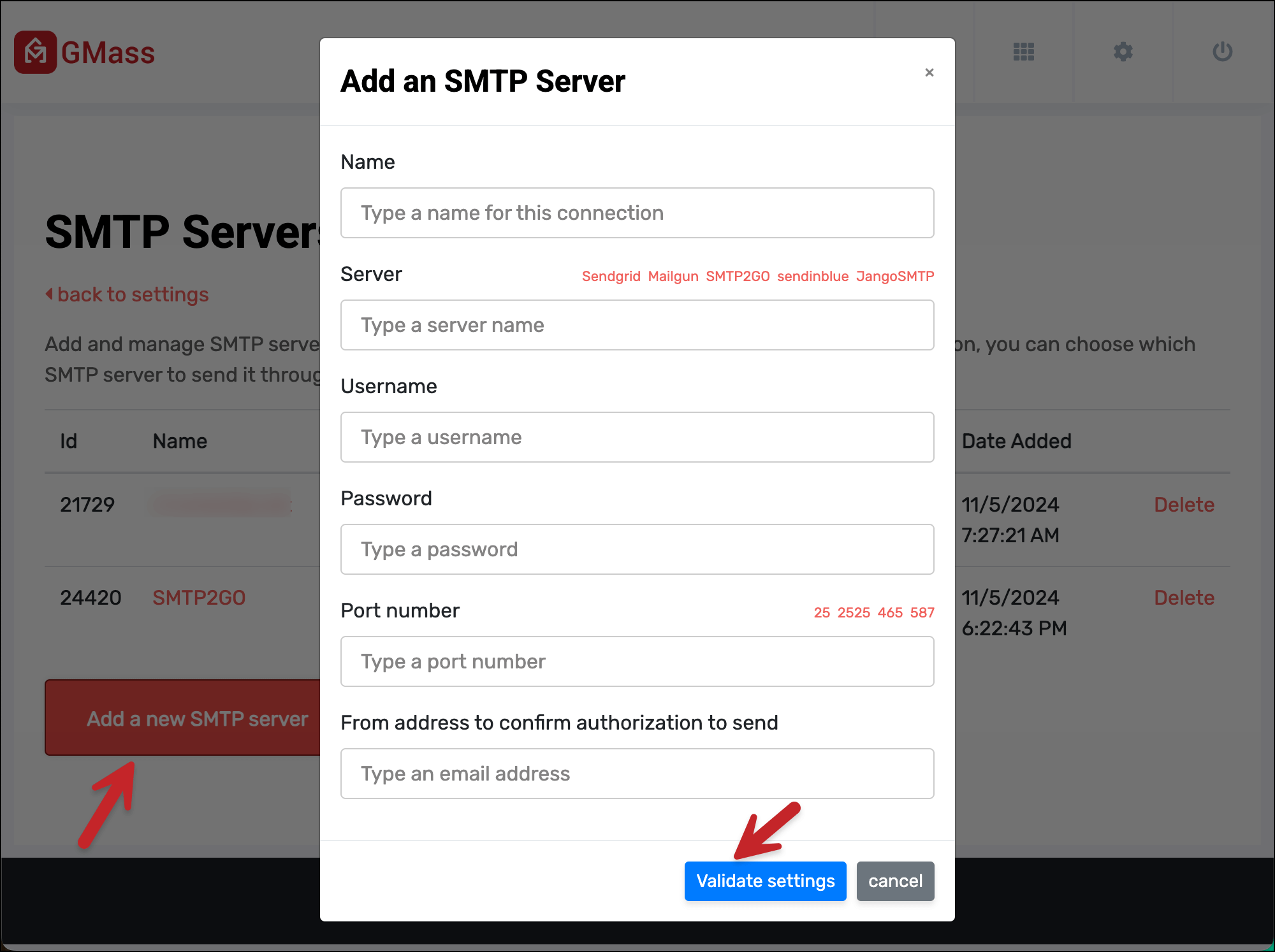
Click the Add a new SMTP server button. Then enter your credentials. Click Validate settings once everything is in.
2. Go back to your GMass campaign to change the settings
Go back to Gmail. Go into your Drafts folder to find the draft of your campaign. Open the GMass settings box and pause the campaign.
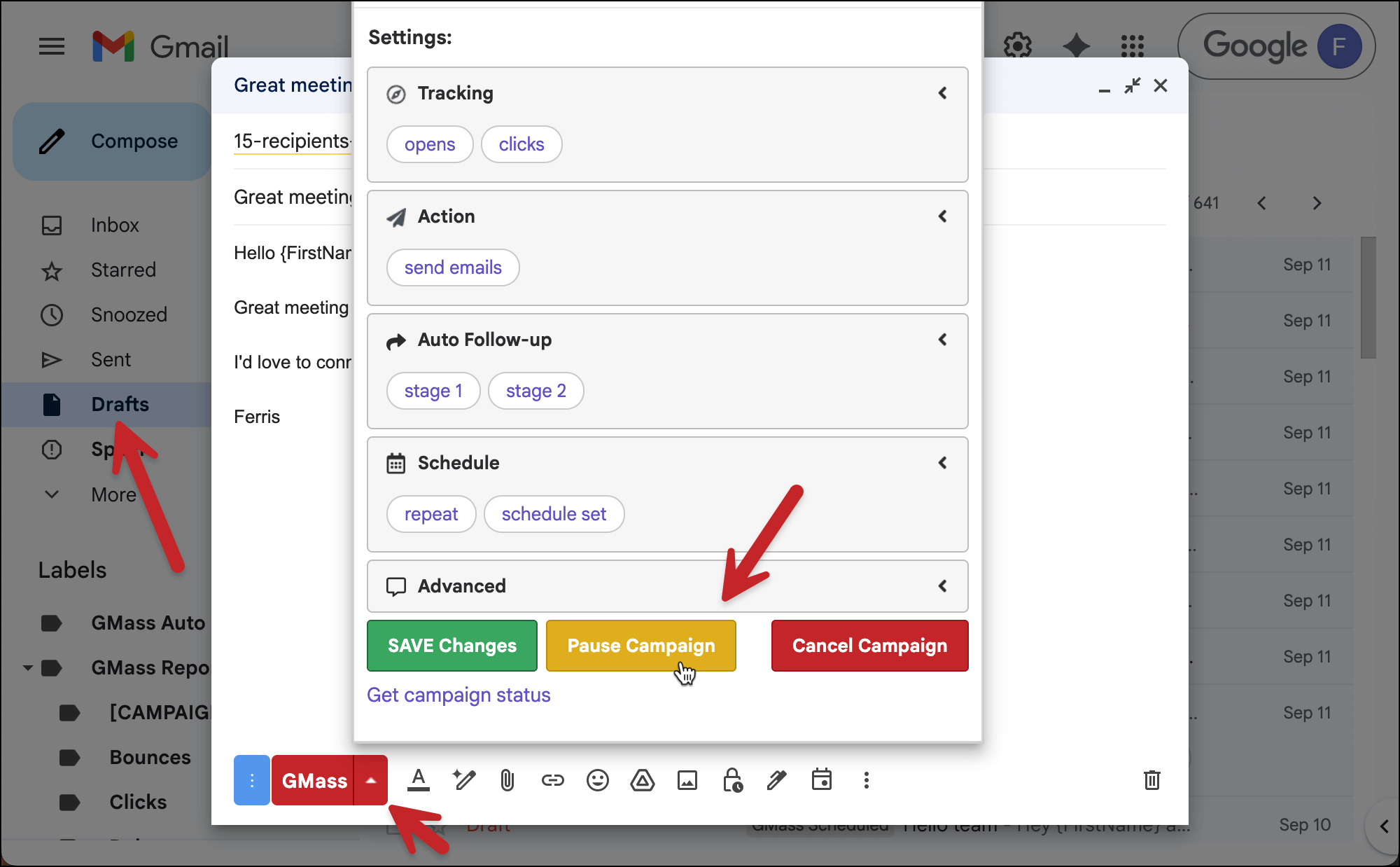
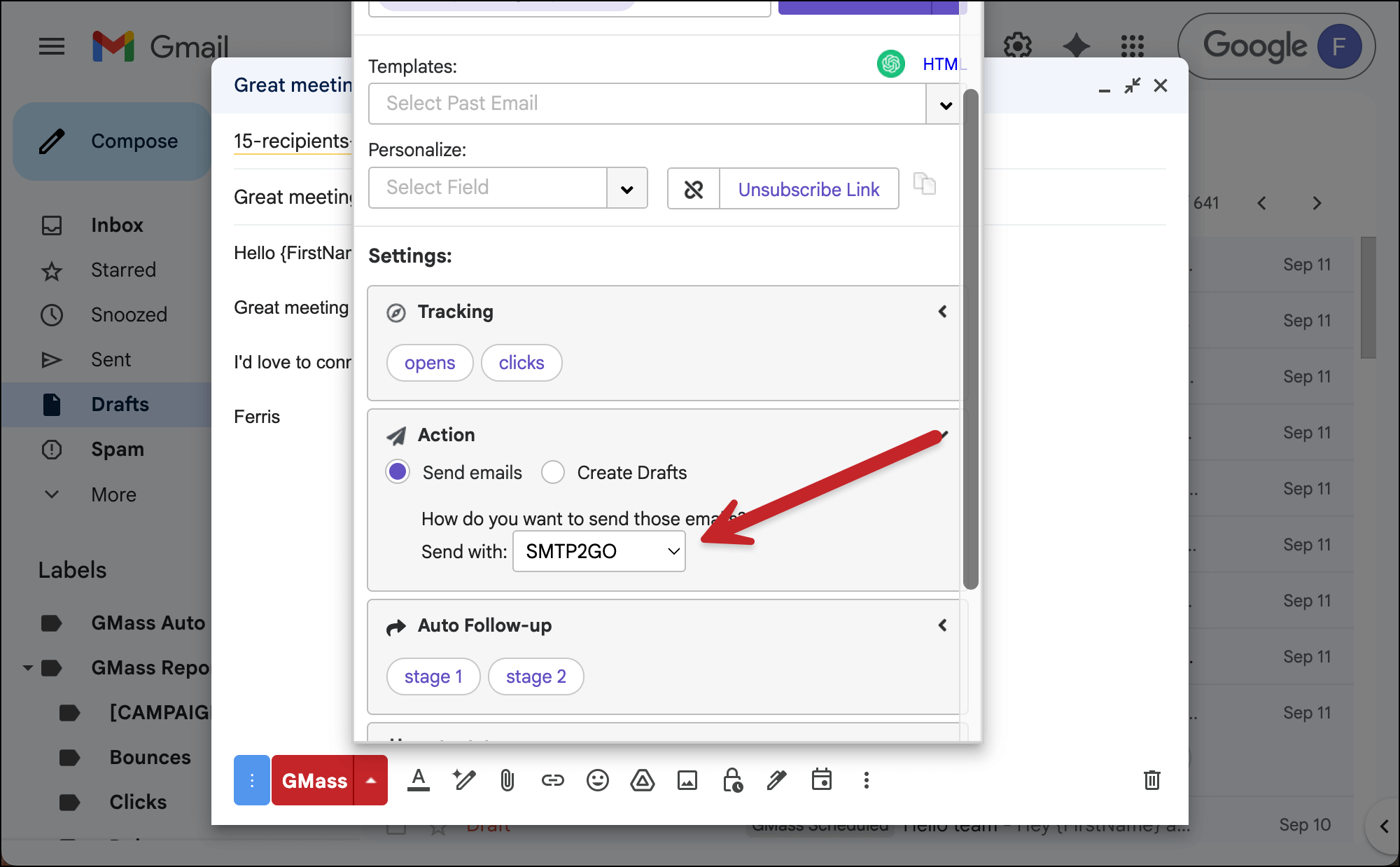
Now, in the Action section of the settings, you’ll change the sending method by choosing your SMTP server from the dropdown.
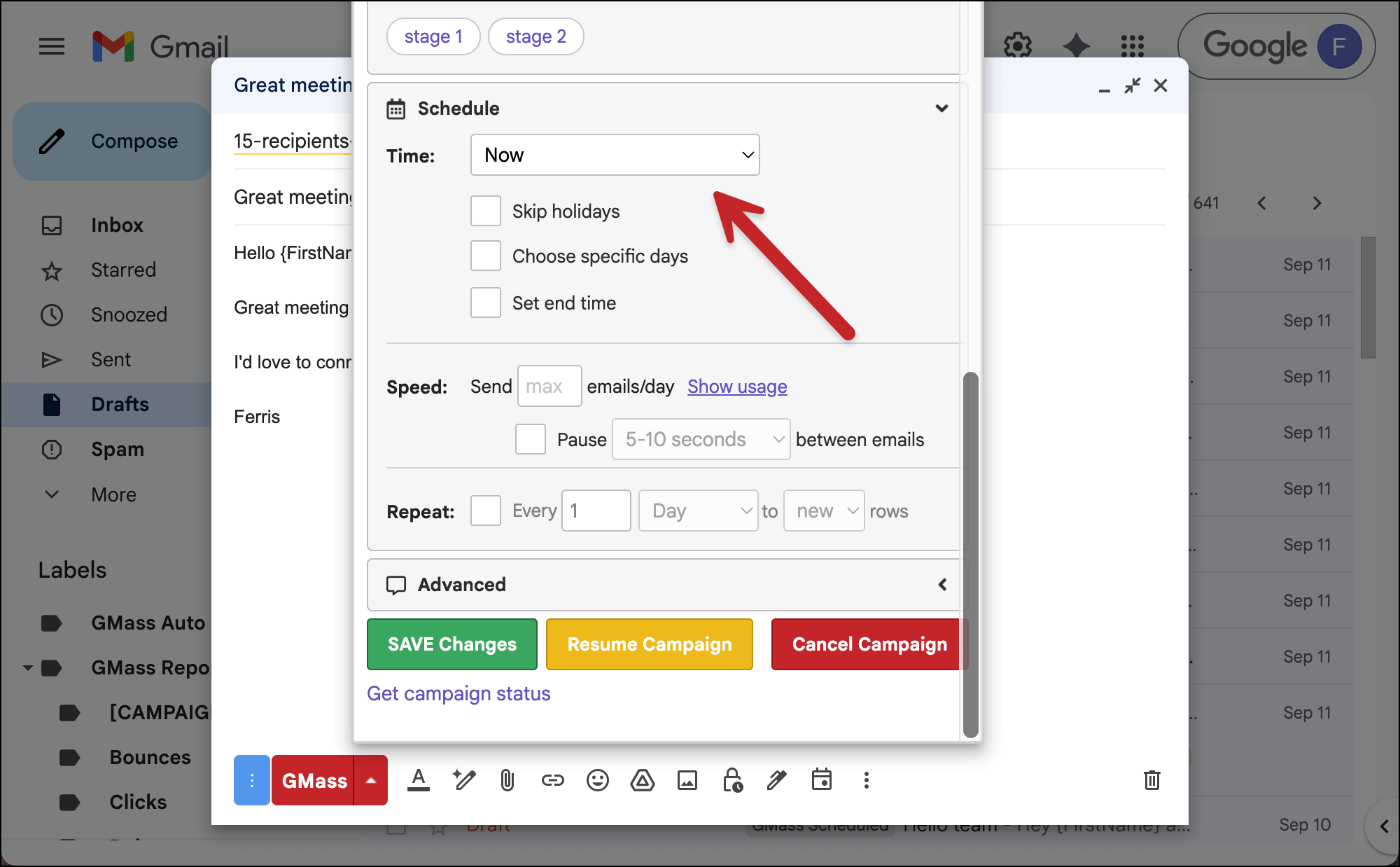
And finally, go to the Schedule section of the settings. And change the Time to Now.
3. Save your changes and resume the campaign
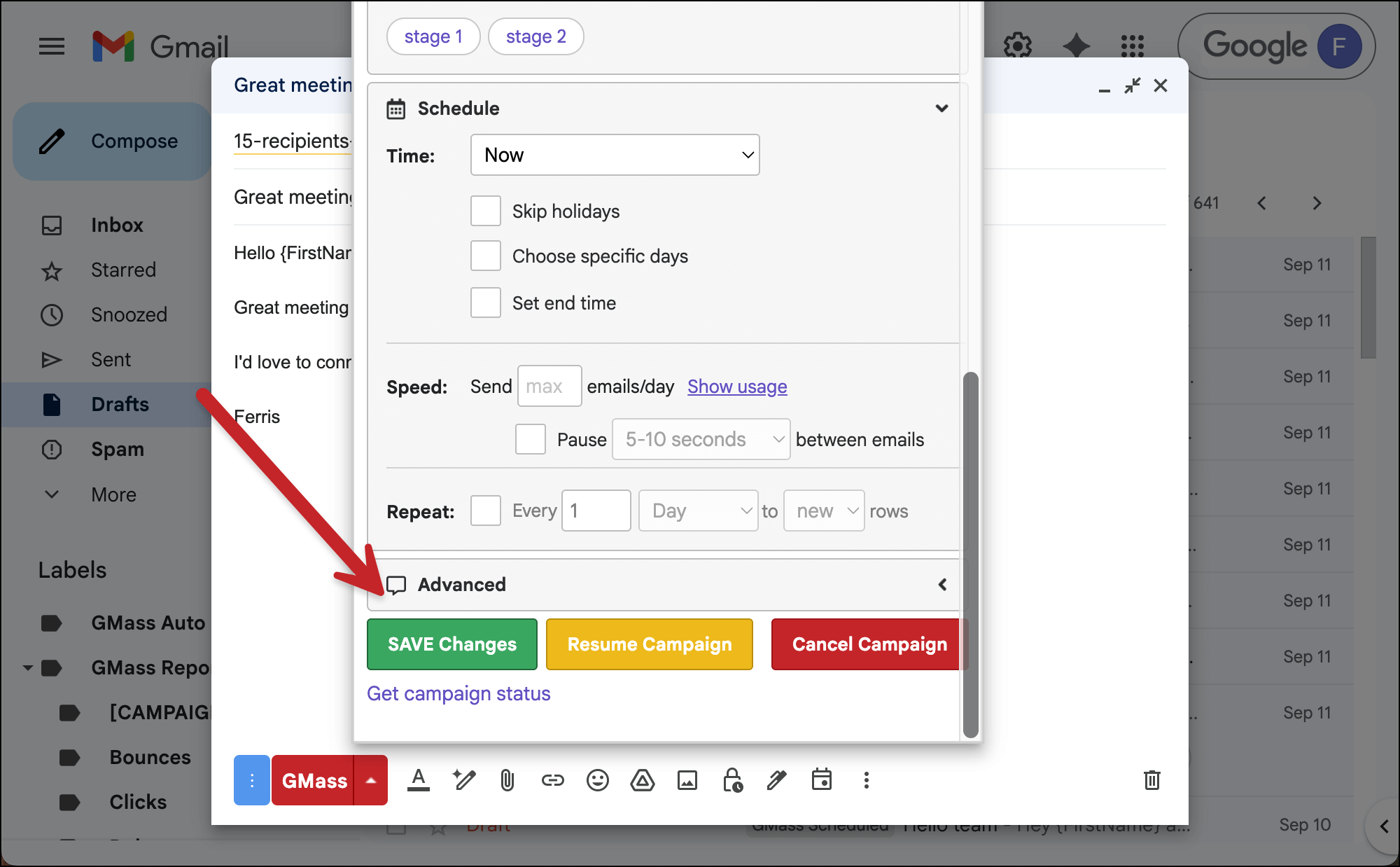
Click the green SAVE Changes button to save those changes you made.
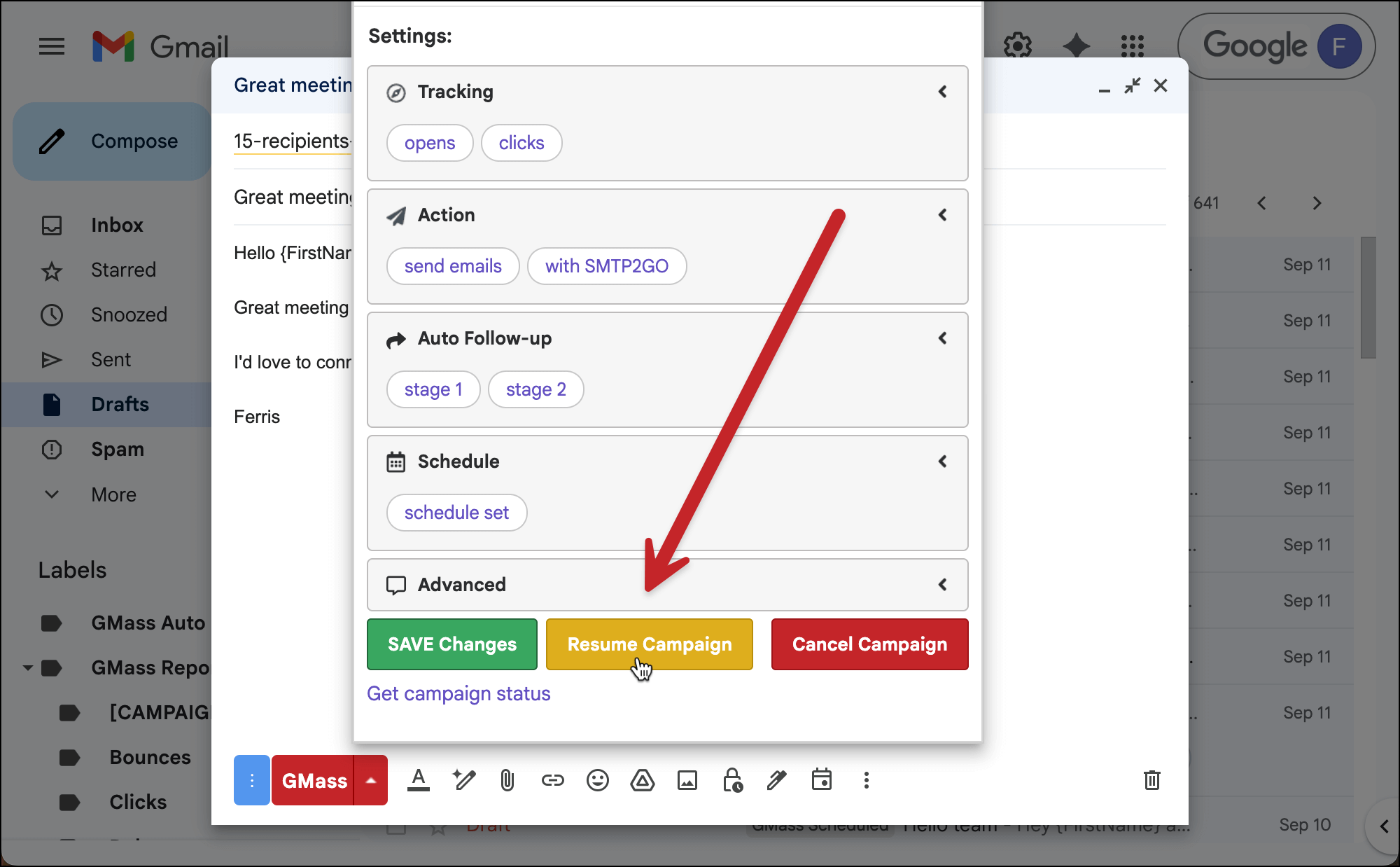
Then re-open the draft and the settings box. Click the Resume Campaign button. GMass will continue sending your campaign using the SMTP server.
✅ You’re all set.
4. (Optional) Have GMass automatically send through your SMTP when you hit Gmail’s limits in the future
If you want GMass to automatically flip over to your default SMTP server when you hit Gmail’s limits in the future, head back to the GMass dashboard.
Open the Settings. In the Gmail Limits section, check the box that says Reroute to my default SMTP server.
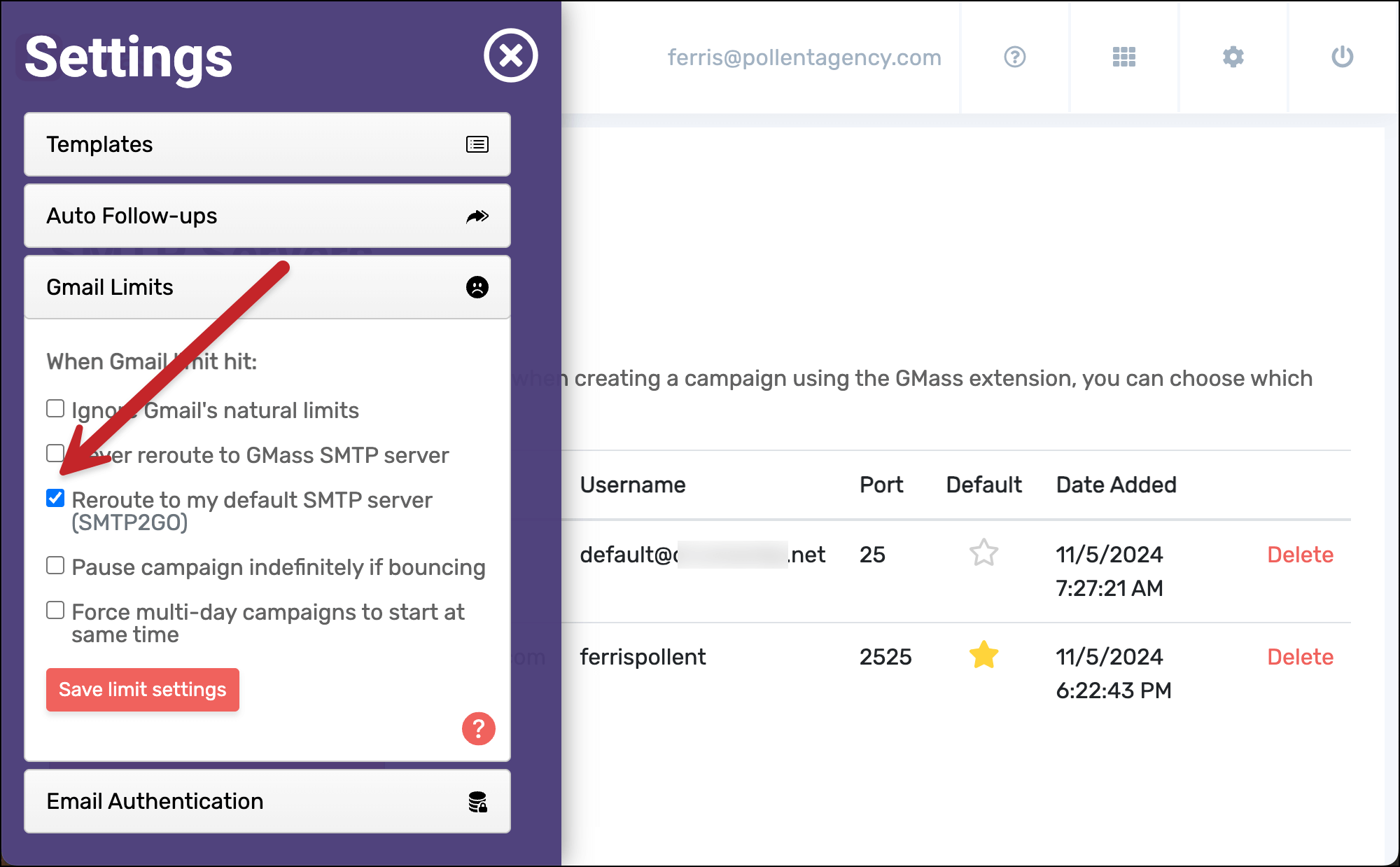
Now you won’t have to go through the steps in this workflow for future campaigns.
More resources
- Here’s our full write-up on how to send unlimited emails in Gmail with a SMTP server.
- There are lots of SMTP options in GMass. Here’s a guide to what each of them does.
- And more on breaking Gmail’s limits if you want an even deeper dive.