
 |
Scheduling > Send on specific days and times |
I want my campaign to send only between 1 and 5 PM Monday through Thursday
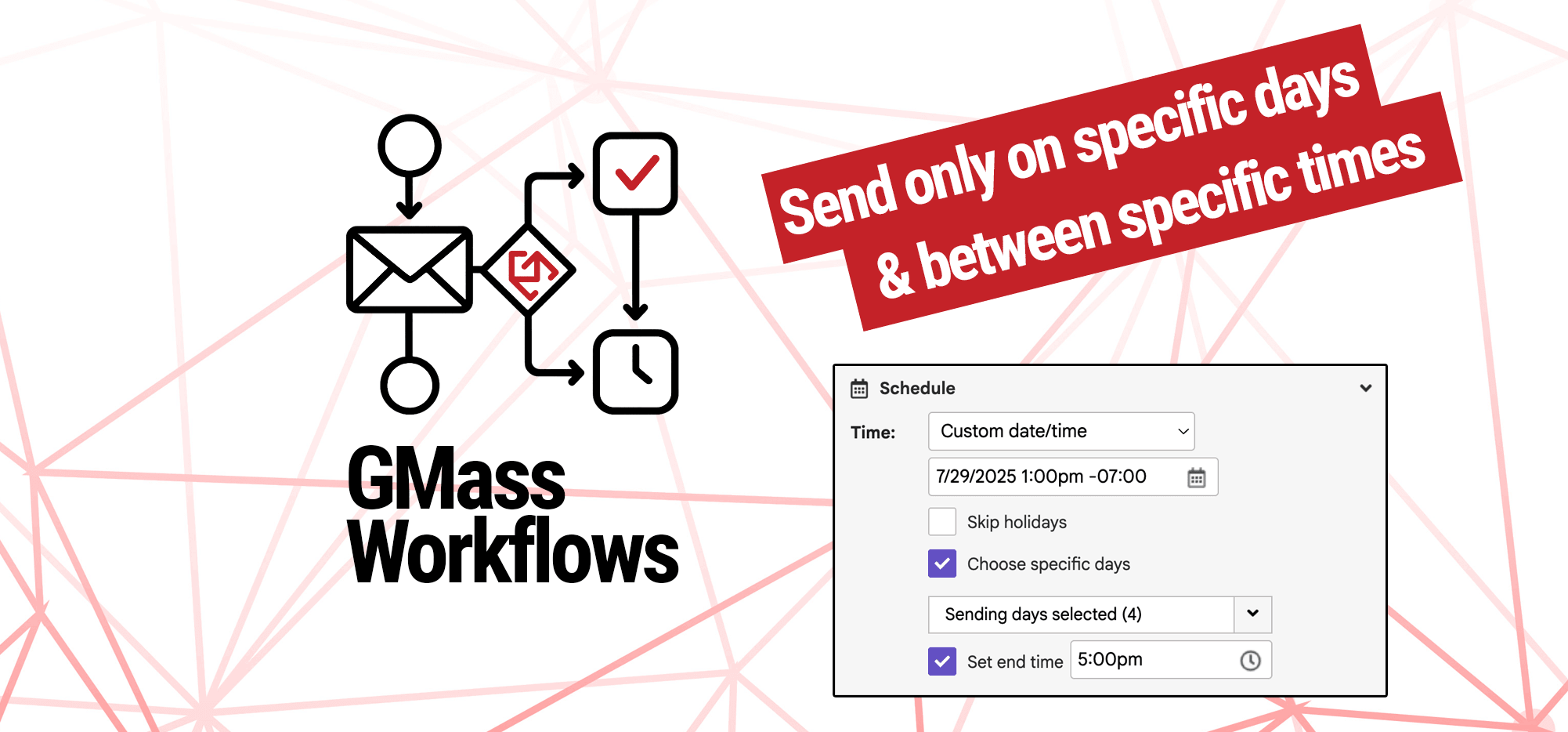
Want to send your campaign on specific days of the week, and/or in a specific time window on those days? Fortunately, you’re just a few settings away.
Step-by-step guide
When you’re in the Gmail compose window working on your draft, here’s what to do.
1. Open the GMass settings box and head to the Schedule section

2. Set the specific sending days of the week
Check the box next to Choose specific days.
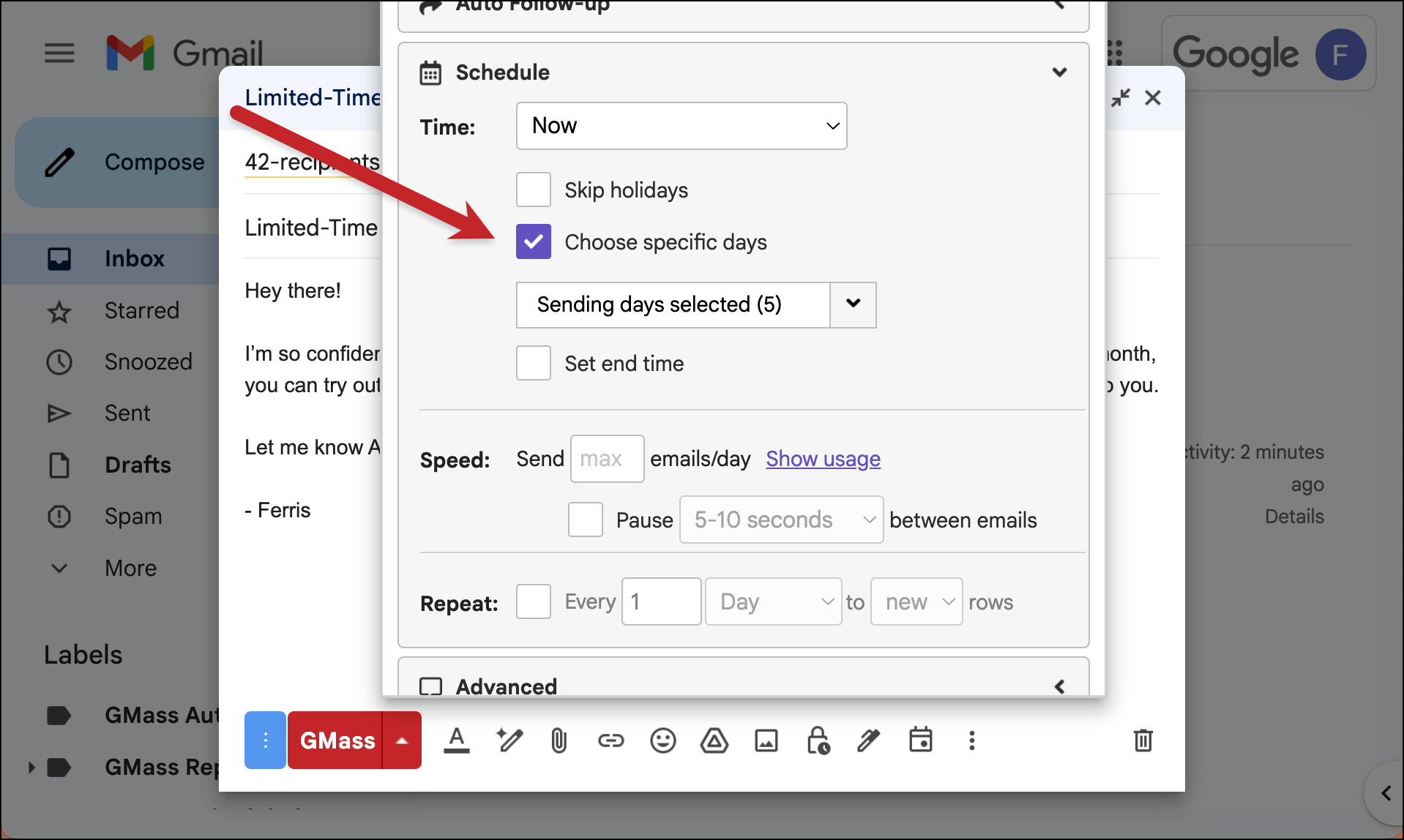
In the dropdown menu, check the boxes next to the days on which you want to send. (Note: These days are in your timezone. Here’s how you can change the default time zone for your GMass account.)

3. Set your start and end time.
You’ll set the start time in the Time dropdown. Whatever time you choose here as the initial time to send your campaign will be used as the start time on all subsequent days. We’ll choose 1 PM.
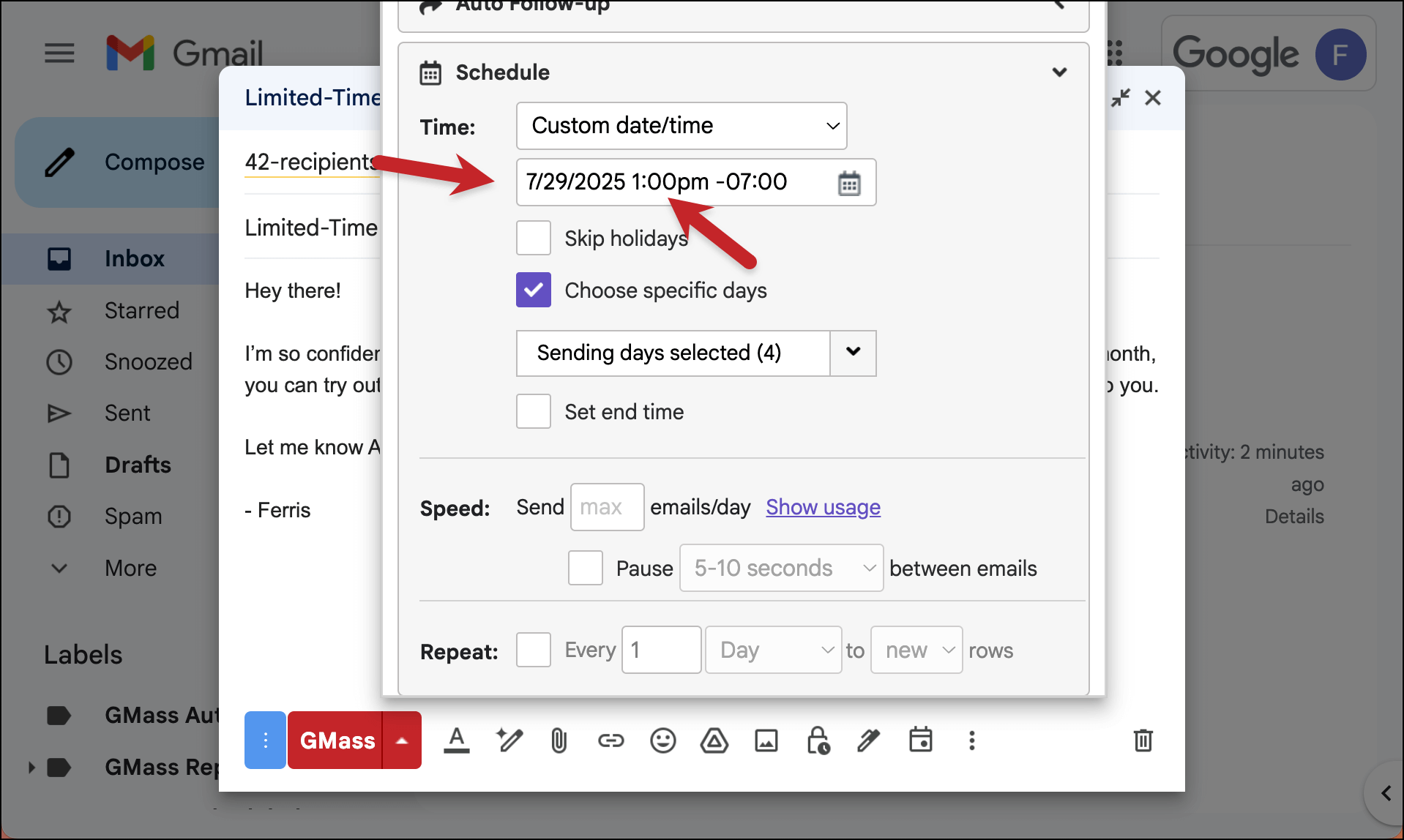
To set the end time, check the box next to Set end time. Then enter the time. That same end time will be used on all future send days.
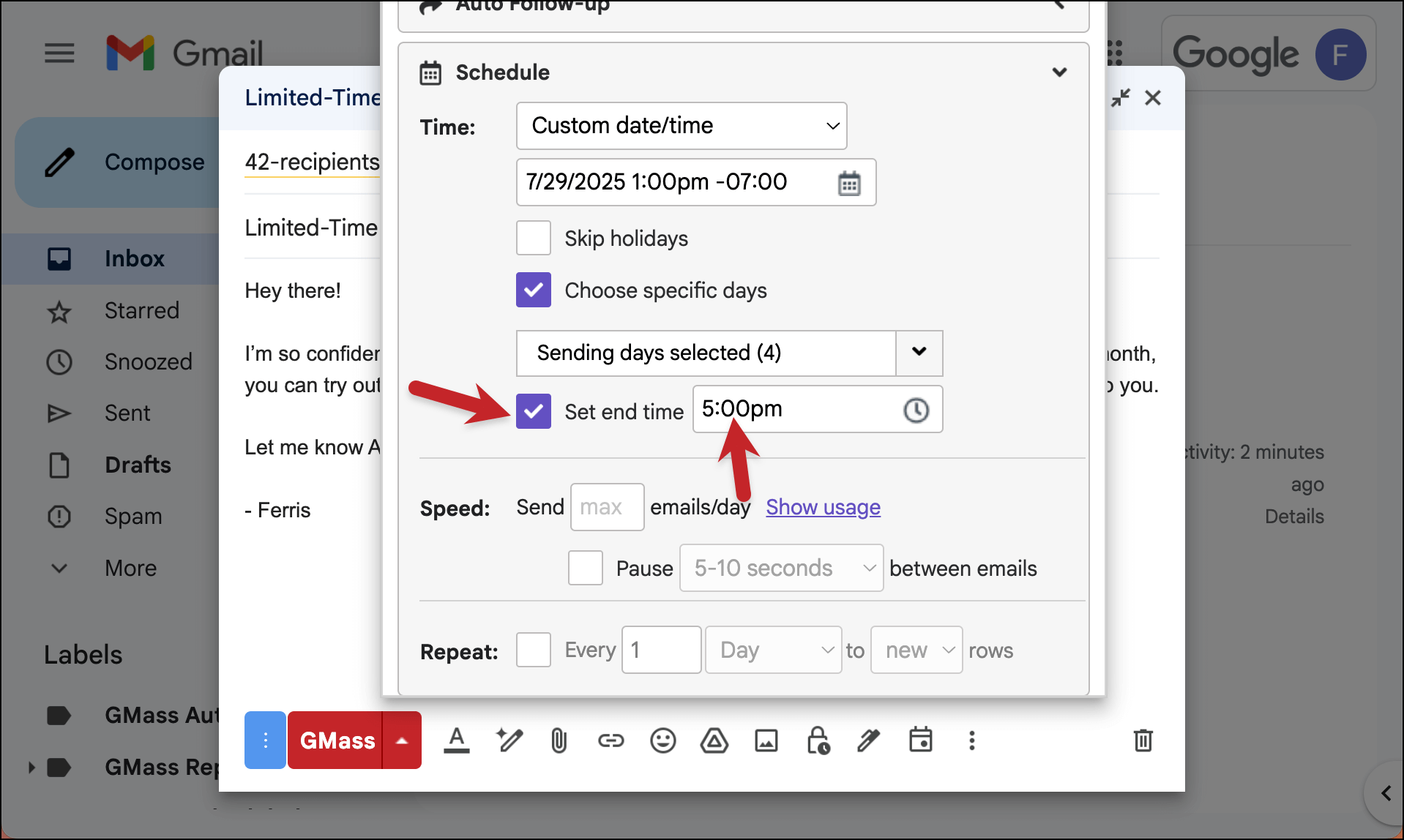
✅ You’re all set.
More resources
- All about the choose specific days feature in GMass.
- In particular, you may want to read up on how GMass calculates the days and an optional setting to only count your “business days” to avoid bunching.
- All about the set end time feature.
- More on the nuances of scheduling and understanding the timing of multi-day campaigns in GMass.
- How to change the default time zone of your GMass account.
Related workflows
- None yet.