
 |
Composing & Sending > Speed up slow campaign |
I want to speed up a campaign that’s sending too slowly
Sending out a big (or even medium-sized) campaign and wish it would go faster?
In this workflow, I’ll show you all the settings you can tweak to speed up your campaign.
And note that “speed up your campaign” has two meanings that we’re including:
- Make emails go out faster during the day, increasing your daily sending speed.
- Make a large campaign that’s spread across multiple days go out in fewer days.
Step-by-step guide
We’re going to start by going through all the settings that could be affecting your speed. After that, we’ll look into sending infrastructure itself.
Important note before we start: You may not want to alter some of the settings I’m going to discuss. For instance, you might want to have 1-5 minute pauses between emails, or skip sending on holidays or weekends, or keep verifying email addresses. That’s ok. All I’m doing here is covering all the possible ways to speed up a slower campaign; you’ll need to decide on the “speed vs. features” balance that makes you satisfied.
To get started, go into Gmail, head to your Drafts folder, and find the draft of your campaign. (It remains in the Drafts folder as long as it’s still an active campaign.)
1. Pause your campaign
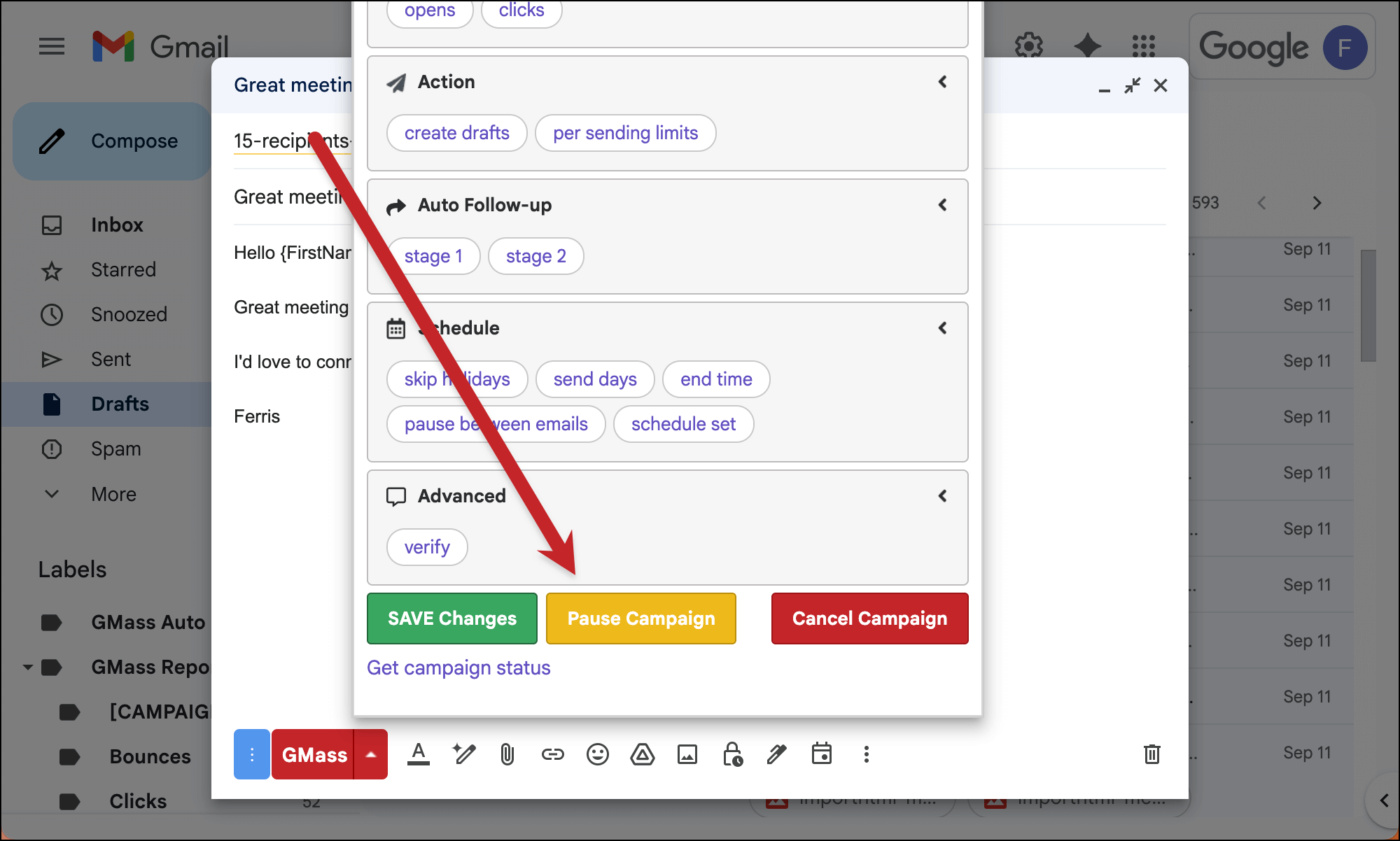
Before we start changing campaign settings, it’s best practices to pause your campaign.
You can do that in the GMass settings box.
2. Turn off speed throttling
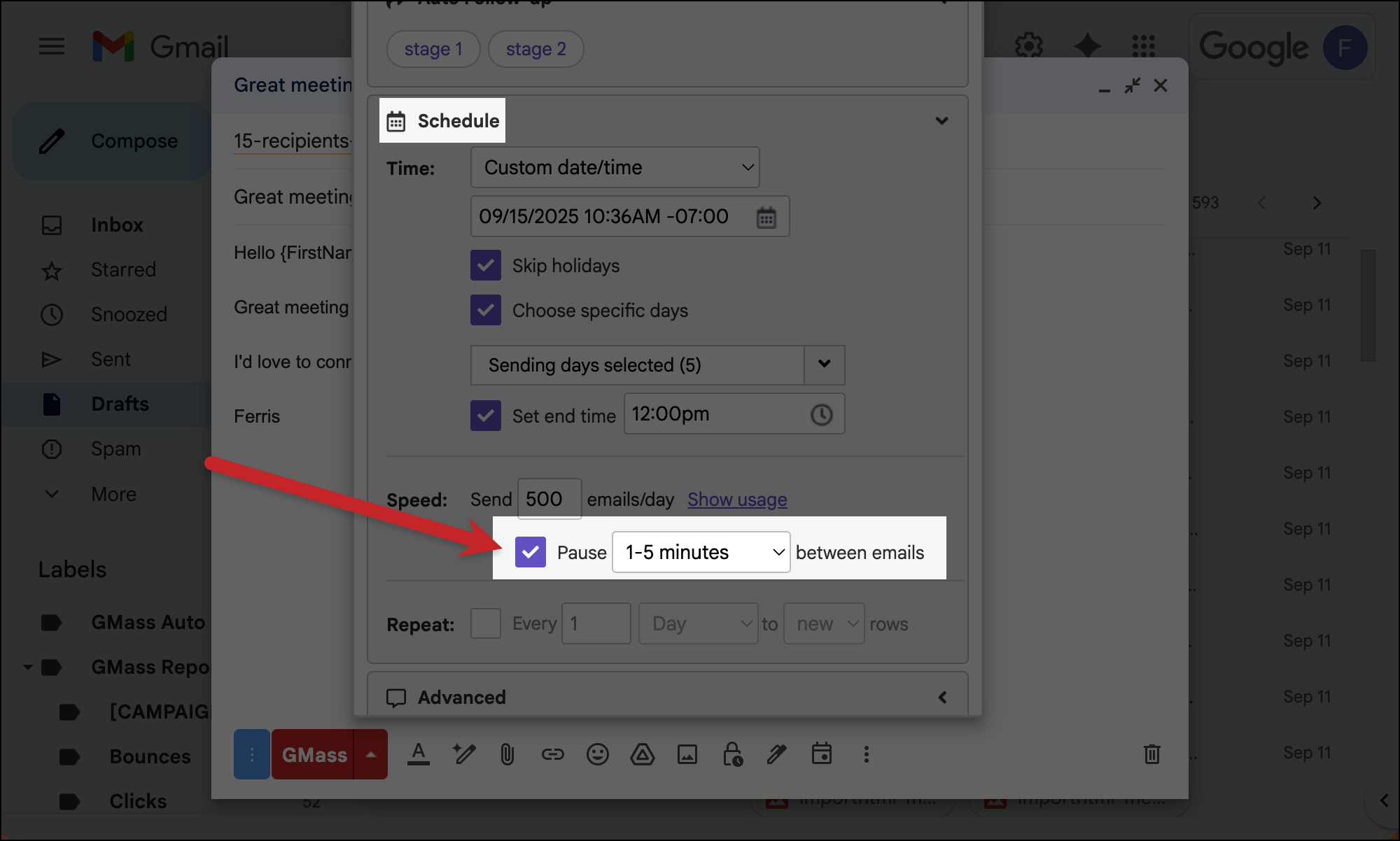
The first step in not throttling your campaign’s speed is… not throttling your campaign’s speed.
In the GMass settings box, go into the Schedule section. If you’ve added a pause in between your emails, you can either turn that off or switch to a shorter pause. (For instance, if you added a pause of 1-5 minutes, switch to 5-10 seconds for faster sending.)
3. Make sure you’re sending “max” emails/day
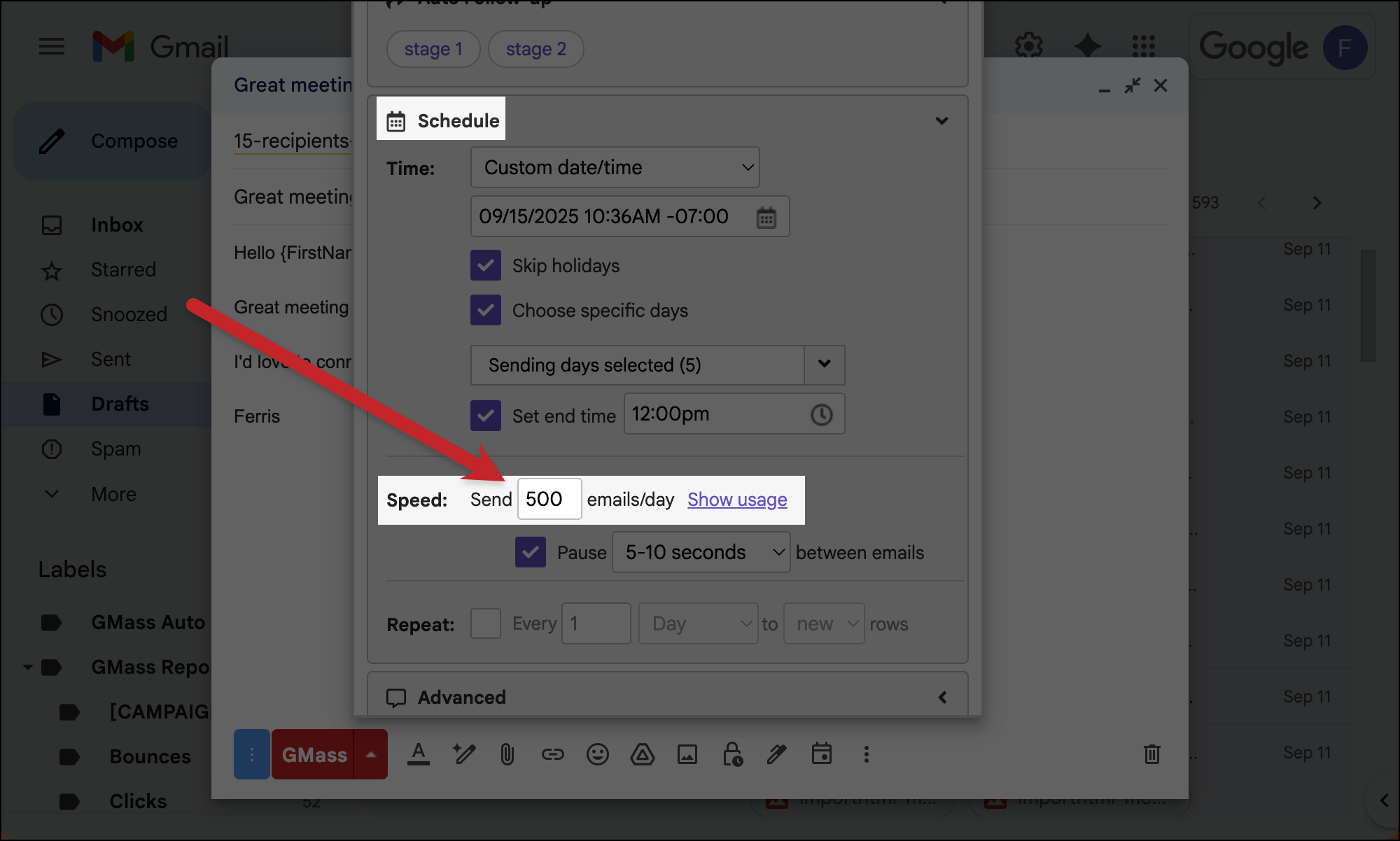
Also in the schedule section, make sure your Speed is set to Send max emails/day.
You might’ve put a limit on your number of daily emails, but for speed, we want to send max emails daily. (Don’t worry, GMass will stop once it hits Gmail’s limits. And later in this guide, we’ll talk about really speeding up your campaign by breaking those limits.)
You can see in my screenshot I had my campaign set to 500 emails/day. I’ll delete the “500” to get it back to “max.”
4. Check your sending windows (times and days)
The last thing we’ll do in the Schedule section of the GMass settings is check our sending windows.
If you have a campaign end time set, that limits the time during the day during which GMass will send your emails. By removing the end time, you’ll increase your daily email volume.
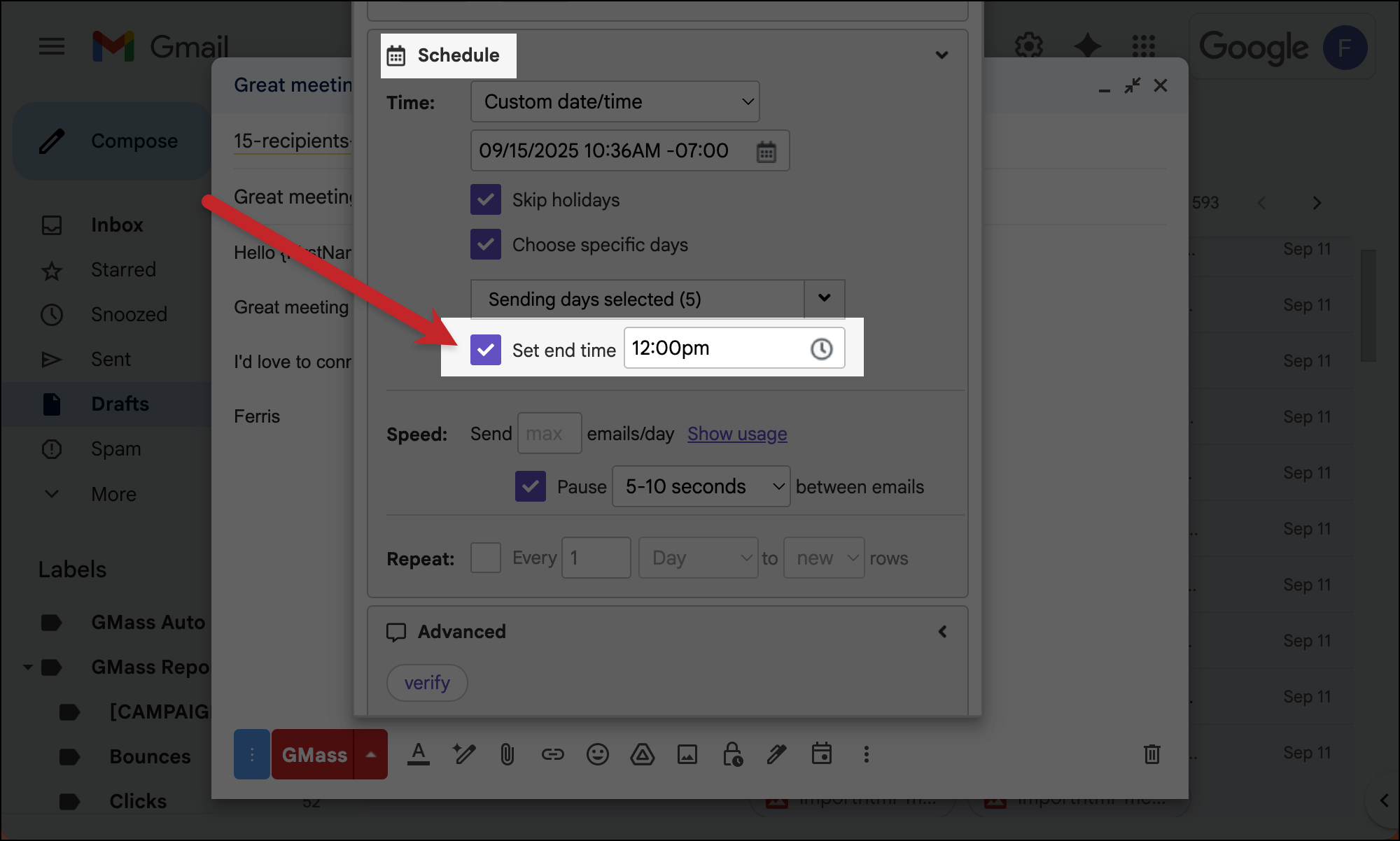
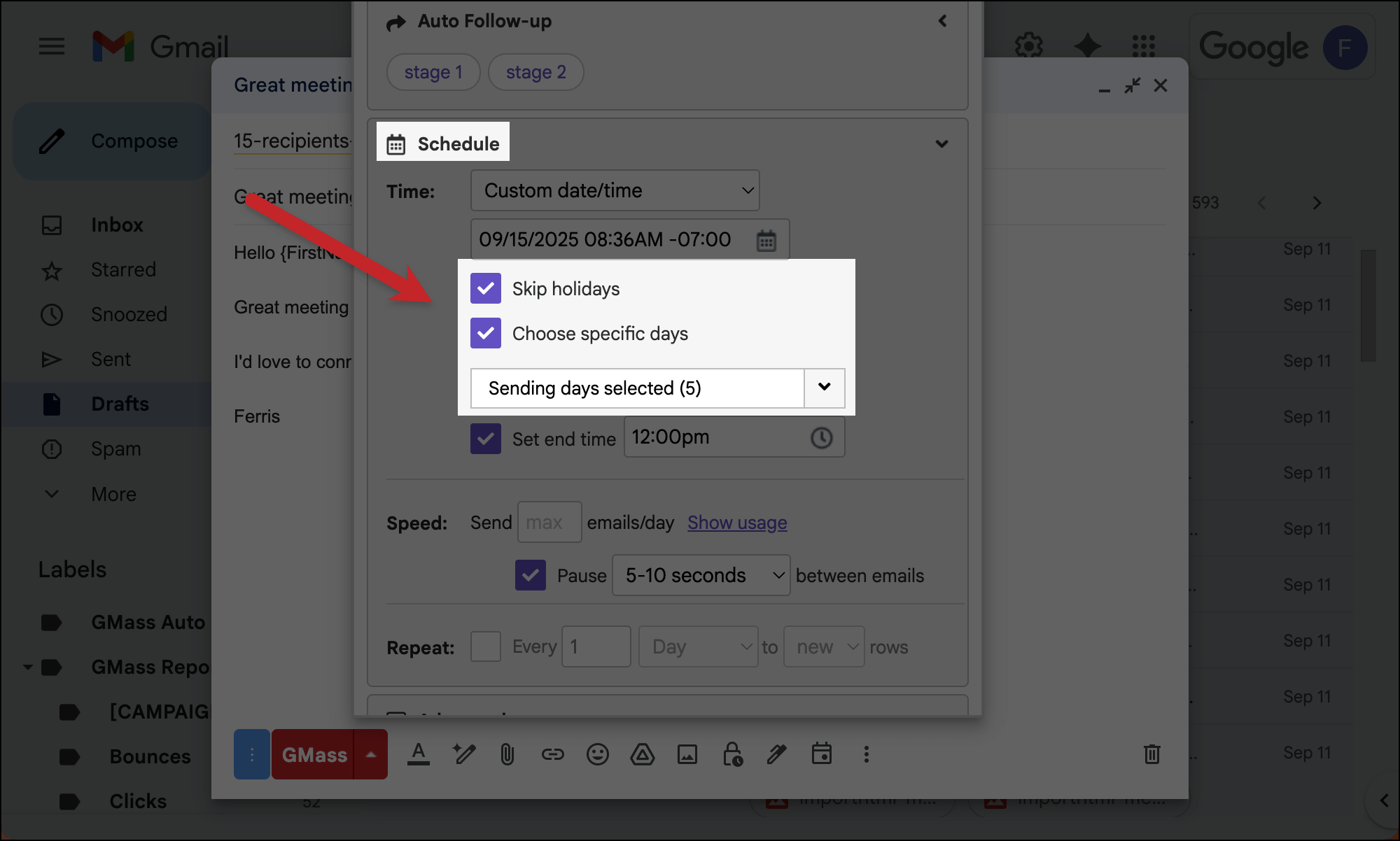
Also look at whether you’re using GMass’s Skip holidays and/or Choose specific days features. Those can eliminate entire days for sending.
You may want to skip fewer holidays or add more allowable sending days; both can help speed up a campaign.
5. Turn off email verification
GMass’s free, built-in email verification is popular — but it does slow down a campaign.
That’s because GMass needs to actually verify each email address before your email to that address goes out. While the verification process is usually a matter of seconds and not minutes, those seconds can really add up.
To turn off email verification, go into the Advanced section of the GMass settings and uncheck the box by Verify emails before sending.
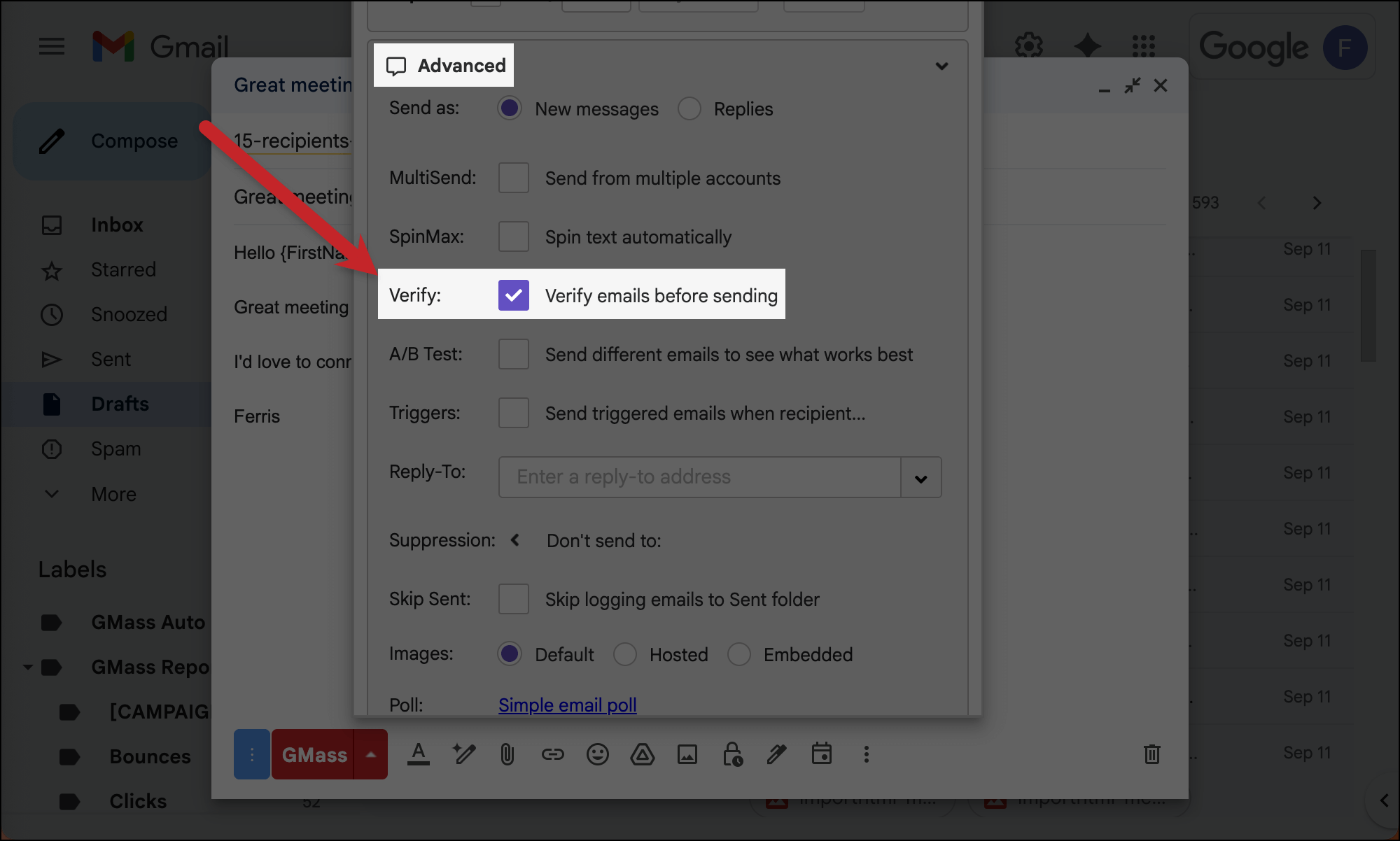
As I said at the top of this guide, you may not want to turn off email verification. And that’s fine; just be aware of how it affects your sending speed.
6. Use a SMTP server to break Gmail’s limits
Alright. Now we’ve covered all the settings you can tweak to speed up your sending speed.
Next up: Getting out more emails per day.
Gmail imposes limits on the number of emails you can send in a day (up to 500/day for free Gmail accounts and up to 2,000/day for paid Workspace accounts). GMass, however, has no limit.
You can break through Gmail’s limits by connecting a SMTP server to your account and having it handle your overage.
There are two main options for sending through SMTP with GMass.
- Connect your own SMTP server.
- Ask GMass to send through our servers. (There are options for opt-in campaigns and for cold campaigns.)
If you’re going to use your own third-party SMTP server (e.g., SendGrid), after you’ve set up your account with that server, head to the GMass dashboard.
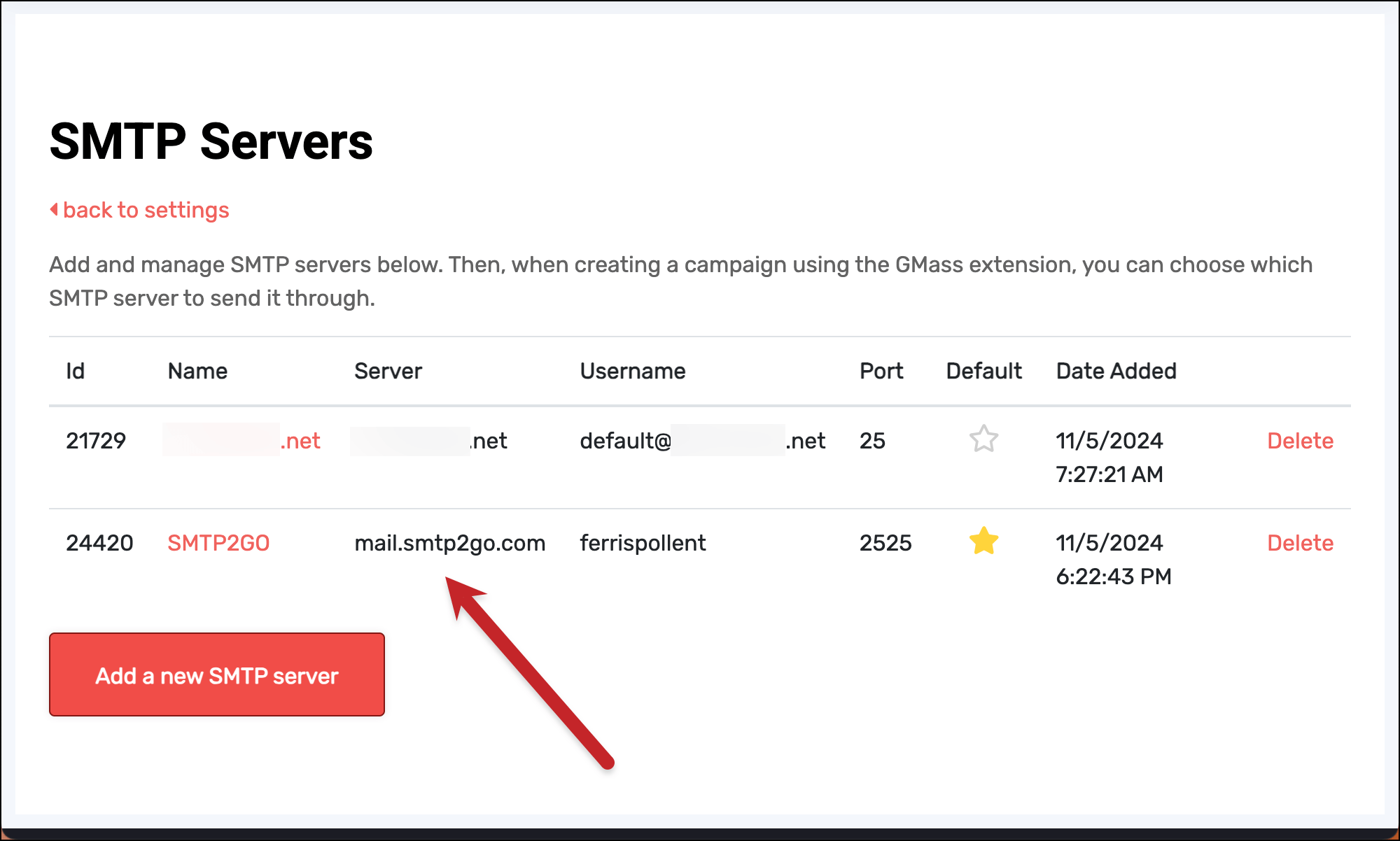
In the SMTP Servers section of the Settings, click Manage SMTP servers.
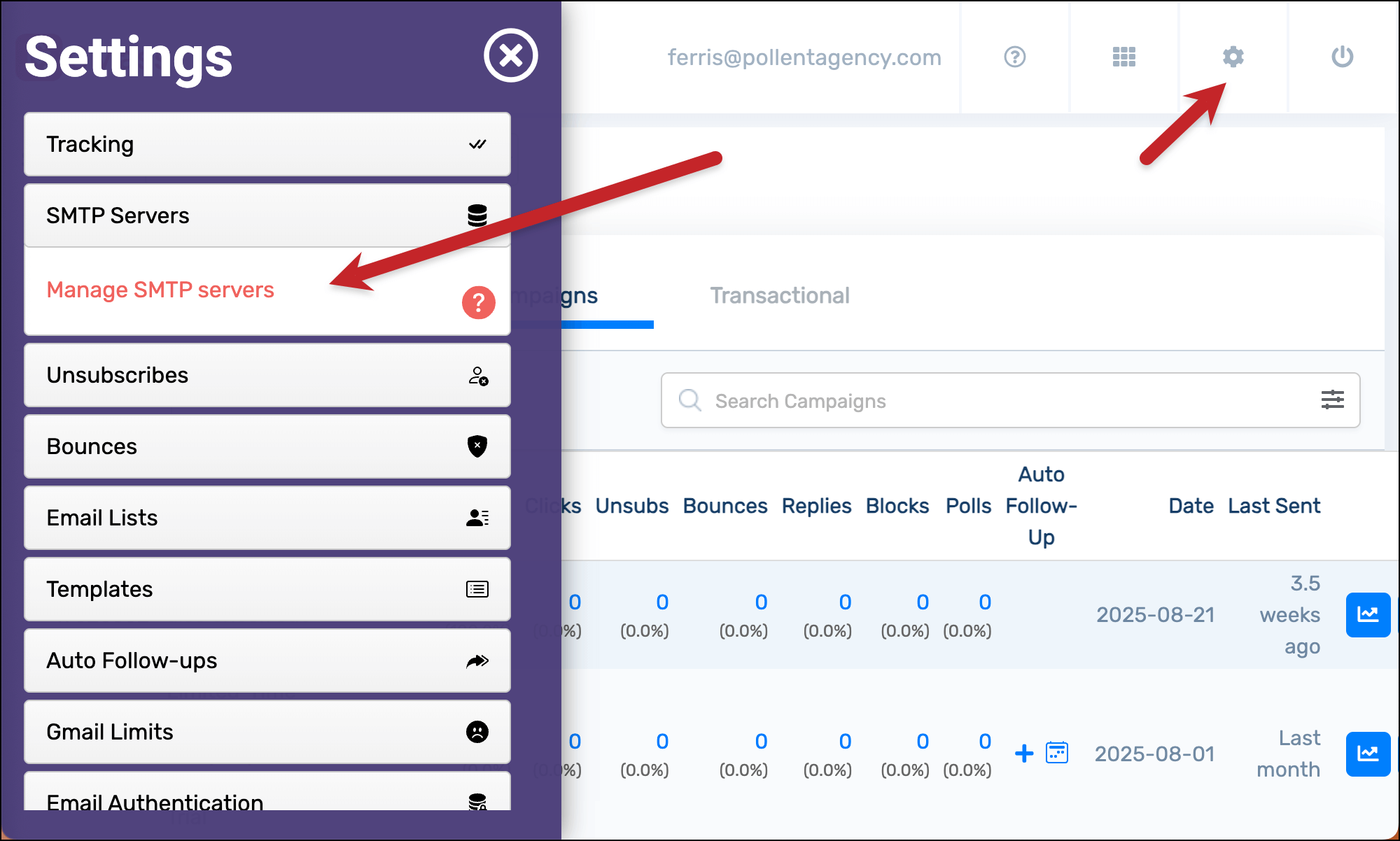
Click the button to Add a new SMTP server. Then enter your credentials. Your server will now appear in the list.
Now, back in the Settings options, go to the Gmail Limits section. And check the box to Reroute to my default SMTP server.
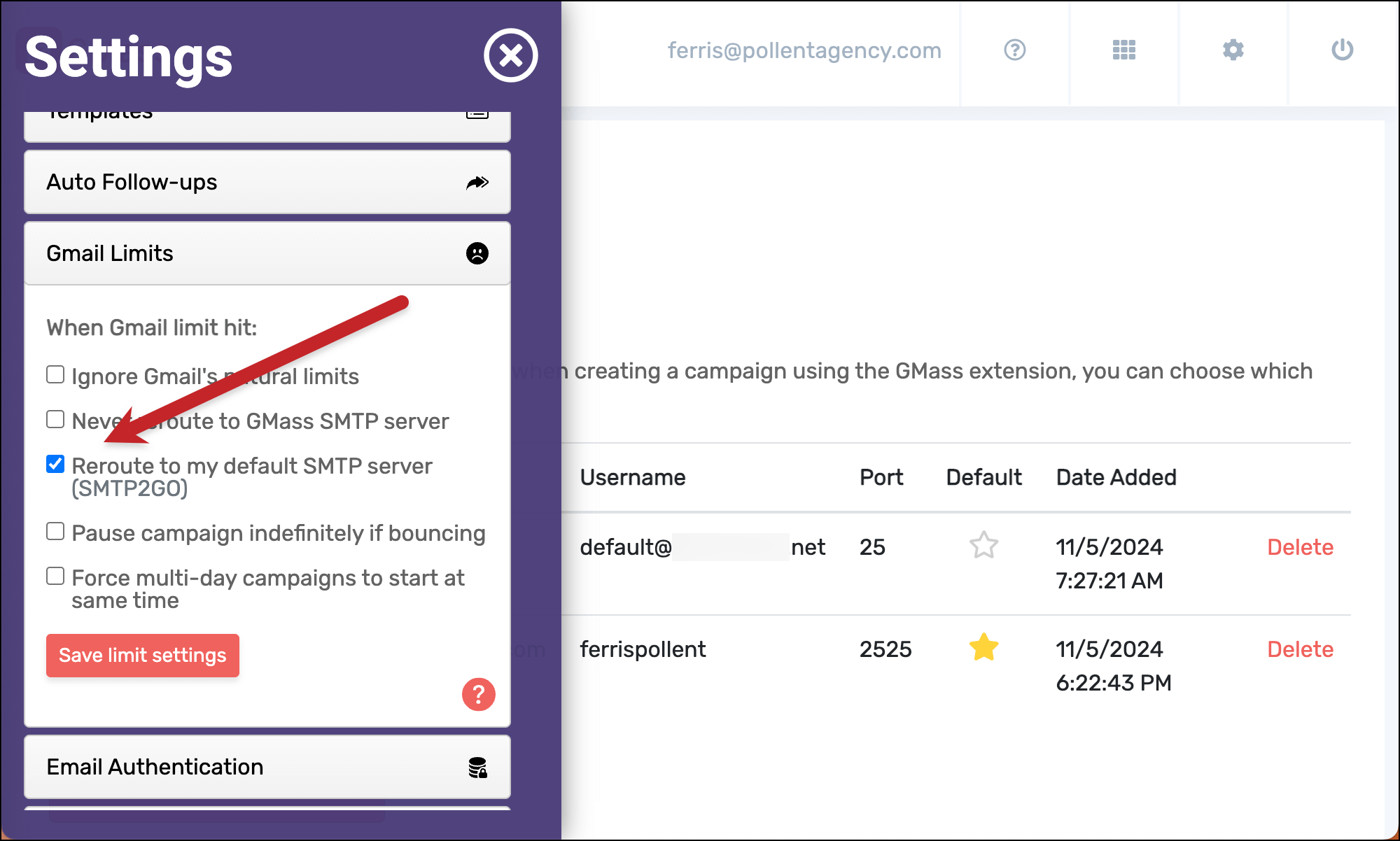
Now when GMass detects you’ve hit Gmail’s daily limit, it will start rerouting your messages through your sending server instead.
7. Resume your campaign sending
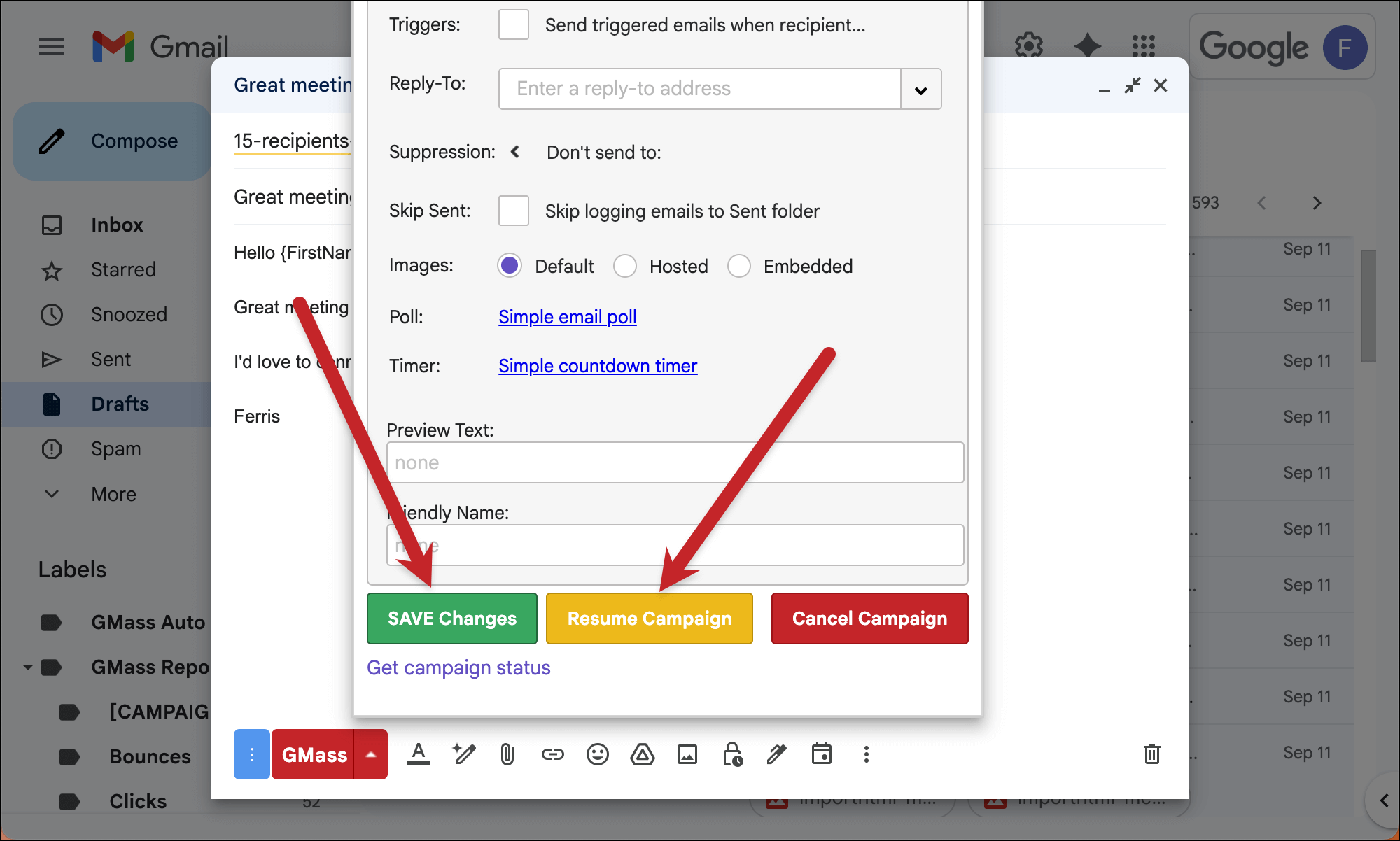
Back in the campaign settings box, click the green button to SAVE Changes.
Then click the yellow button to Resume Campaign.
✅ You’re all set.
More resources
- What are the Gmail bulk mail limits — and how to break them.
- Learn more about using an end time to set a daily sending window for a campaign.
- And here’s all the info about using the skip holidays or choose specific sending days feature(s).
- Here’s the full documentation on speed throttling in GMass.
- You can learn more about our email verification service (and why it slows down your sending).