

I don’t have to tell you how important it is to respond fast when someone replies to your campaign. I mean… I will tell you, to build rhetorical momentum, but I don’t actually have to.
Suffice to say: When someone sends you a reply, you want to make sure you don’t miss that reply.
Spotting replies matters. Spotting them fast and responding fast matters.
And there’s still nothing that catches our attention better and quicker than a text message.
Here’s how you can get text alerts every time someone replies to your GMass campaign.
Text Alerts from GMass Campaigns: Table of Contents
- Step 1: Get Your Email-to-Text Address
- Step 2: Add Your text.email Address as a Forwarding Address in Gmail
- Step 3: Send Your GMass Campaign
- Step 4: Create Your Gmail Filter
- Getting Text Alerts from GMass Campaigns: Next Steps
Step 1: Get Your Email-to-Text Address
If you aren’t living and breathing everything GMass does — and, c’mon, why aren’t you? — in January 2026, we launched a new tool called text.email.
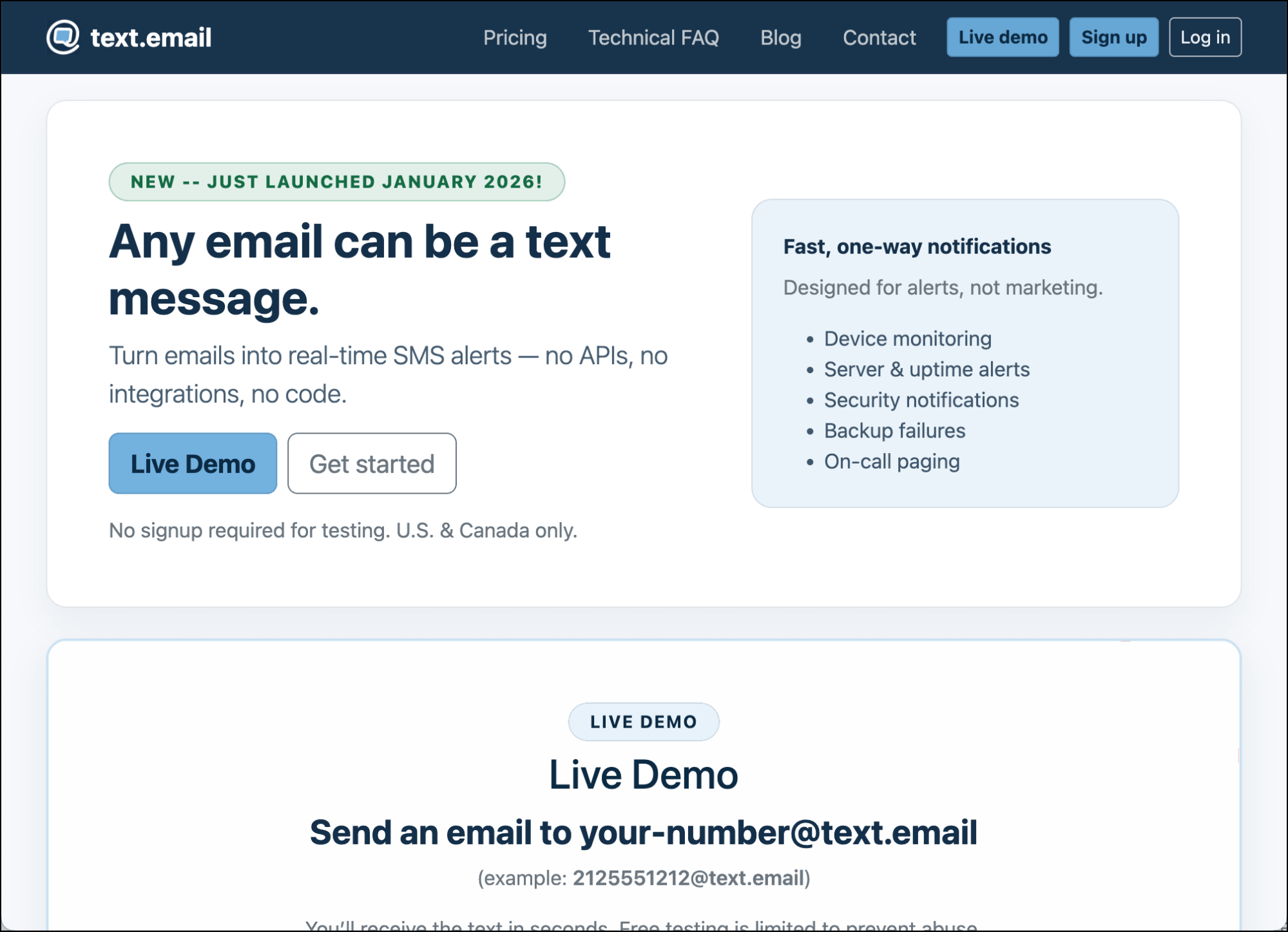
With text.email, you send an email to a specific address and it’s instantly converted into a text.
We built it specifically for alerts, whether they’re from a server that’s failing or an email campaign that’s succeeding.
You can sign up in about 30 seconds flat at text.email. When you do, you’ll get a special address (yournumber@keyword.text.email). We’ll need that email address for the next step.
Step 2: Add Your text.email Address as a Forwarding Address in Gmail
We now need to set up our Gmail account to forward messages to our text.email address.
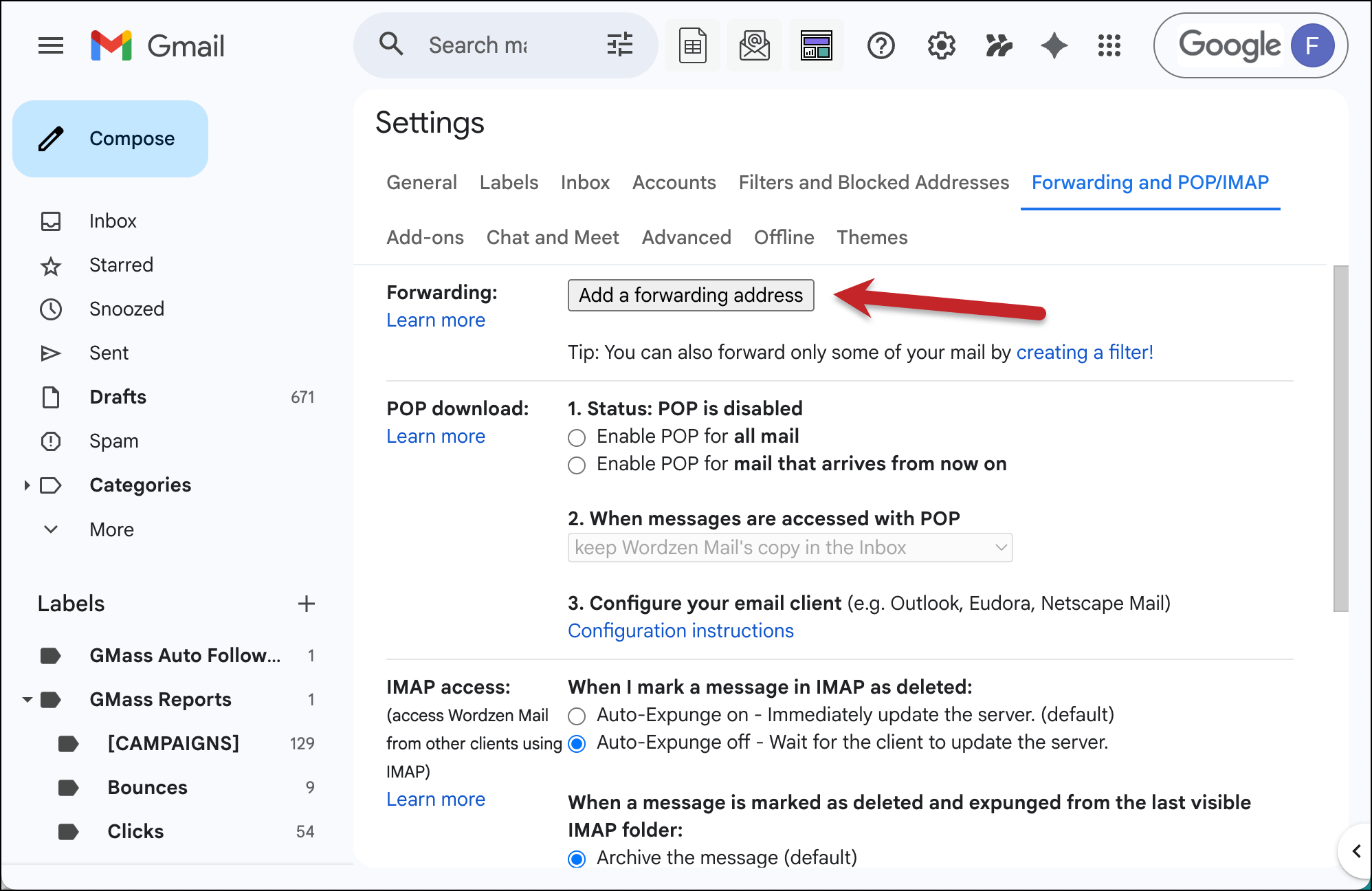
In Gmail, open the Settings and go to the Forwarding and POP/IMAP tab.
Click the button labeled Add a forwarding address.
Enter your text.email address in the box.
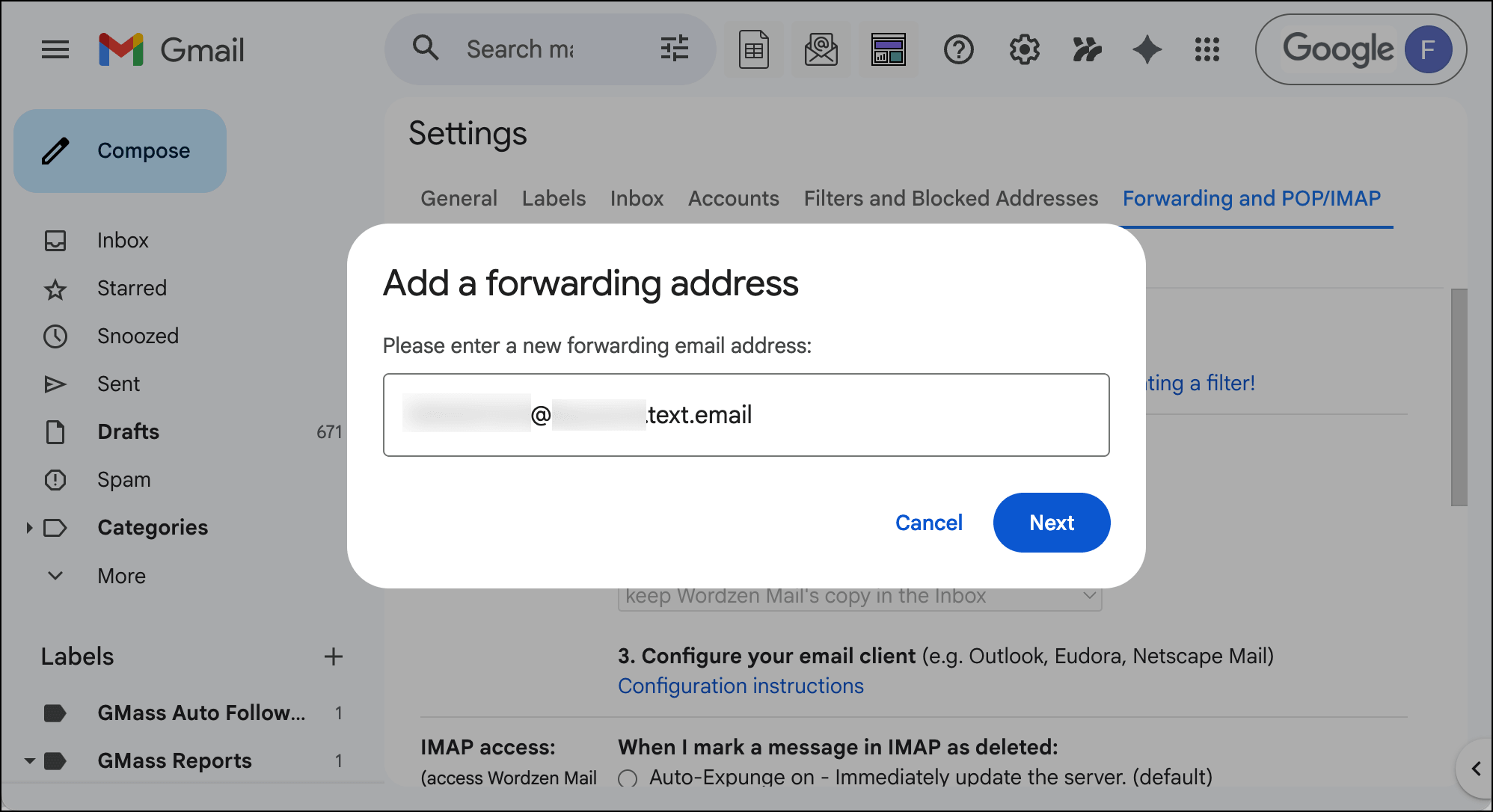
You’ll receive a link texted to you (via your text.email address) to confirm. Tap that link on your phone to give permission for forwarding.
Step 3: Send Your GMass Campaign
Alright, time to send your campaign.
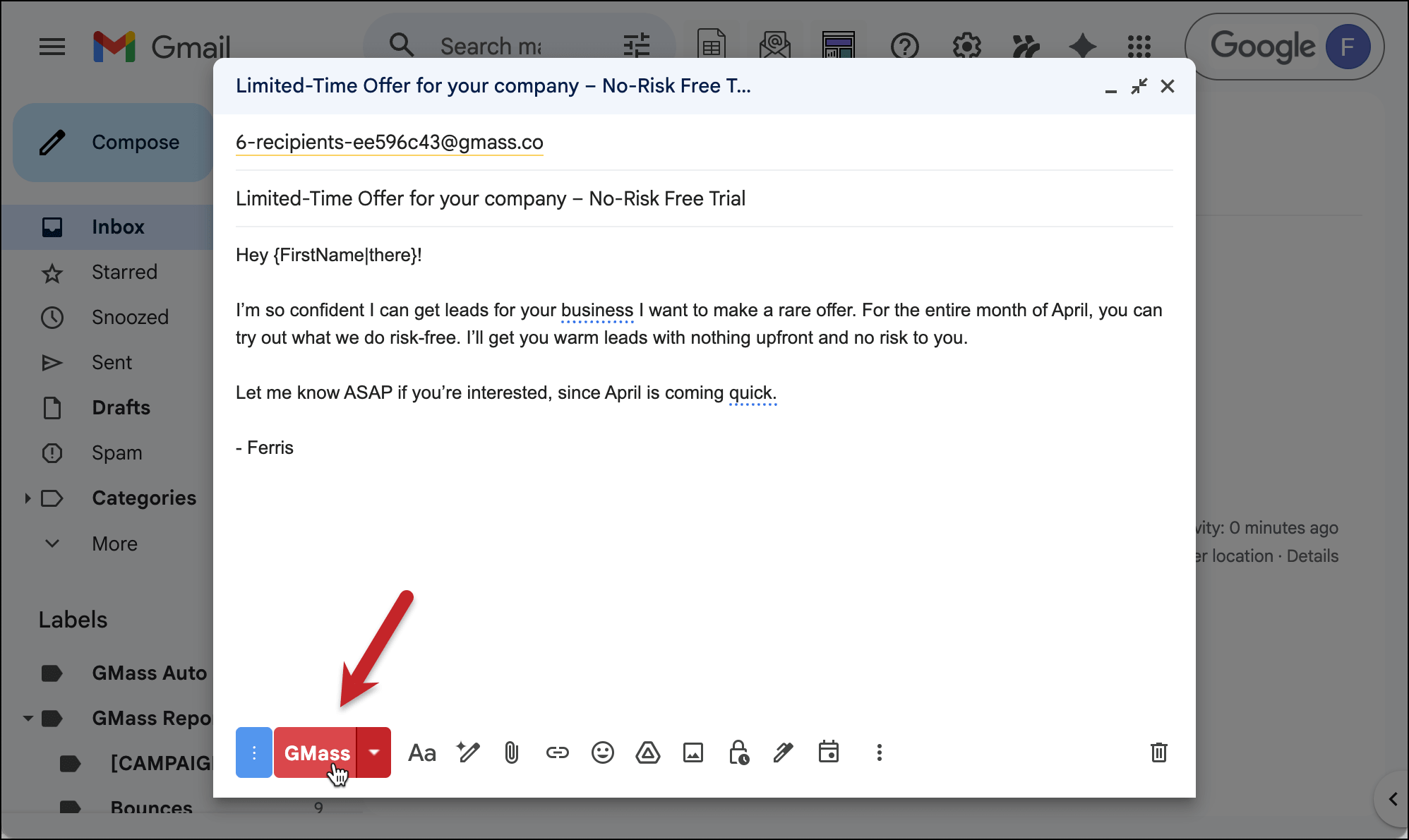
Connect your Google Sheet, create your campaign, and send it, as usual, by clicking the red GMass button.
Now you’re ready to set up a filter to forward messages to your text.email address.
(Yes, I could’ve created the filter before I sent the campaign. But I like to set it up after so I make sure I know exactly what I’m going to say in the campaign, word-for-word, since I’ll need to pull out a direct quote to make my filter.)
Step 4: Create Your Gmail Filter
Now we need to create a search filter around the campaign replies.
In the search bar, click on the filter icon.

In the “Has the words” field, type all or part of your campaign’s subject line or a unique snippet from the body, in quotes.
Filtering can be a little finicky; this is the safest way to make sure the right emails are forwarded.
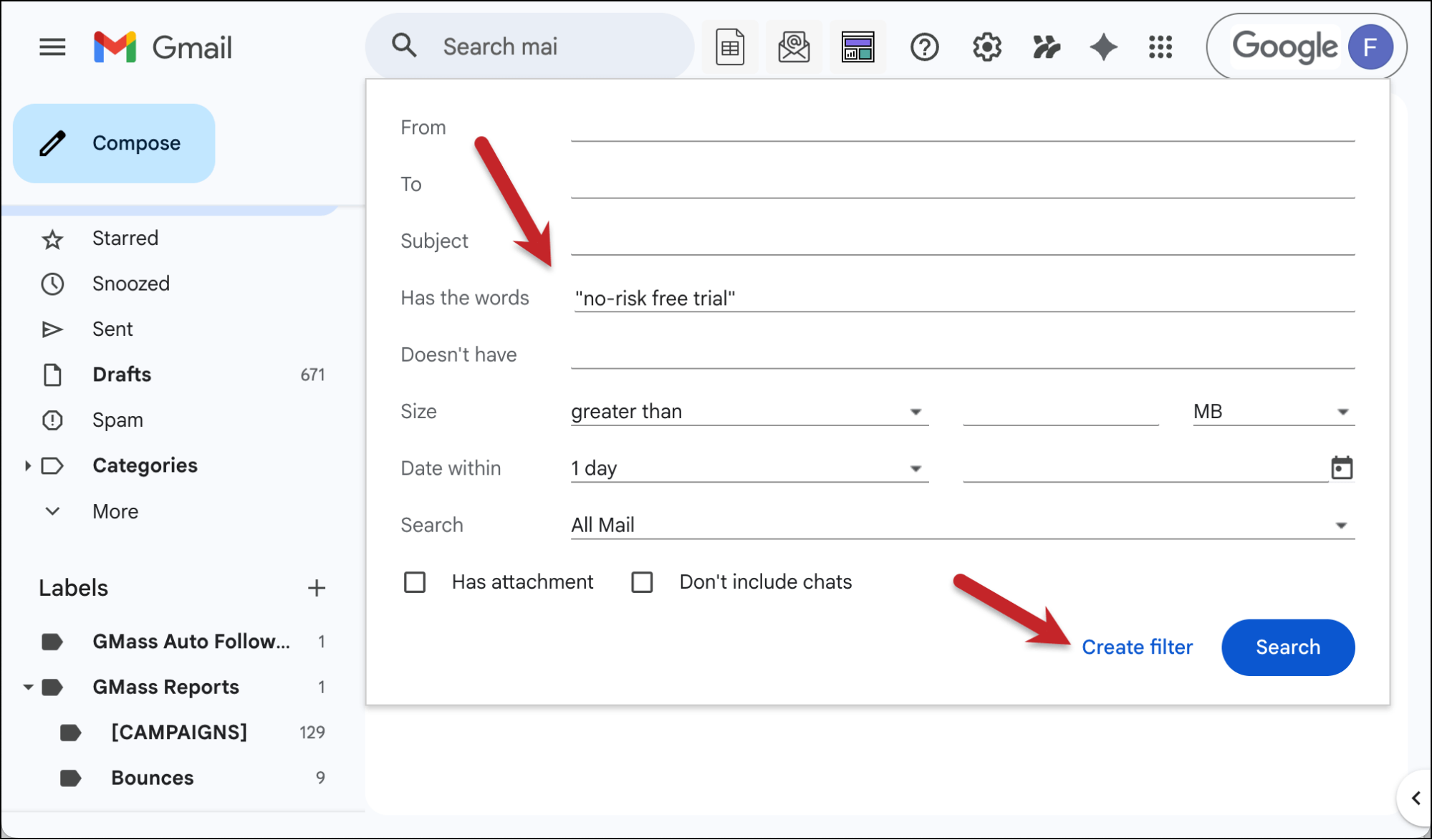
Now click the Create filter… what is that, a link? It’s not really a button. Click whatever it is.
Forward your filtered emails to your text.email address
After you’ve confirmed you want to create the filter, you’ll see another window asking you what action you want when a message matches your filter.
We want to Forward it. Check the box next to Forward It and choose your text.email address from the dropdown.
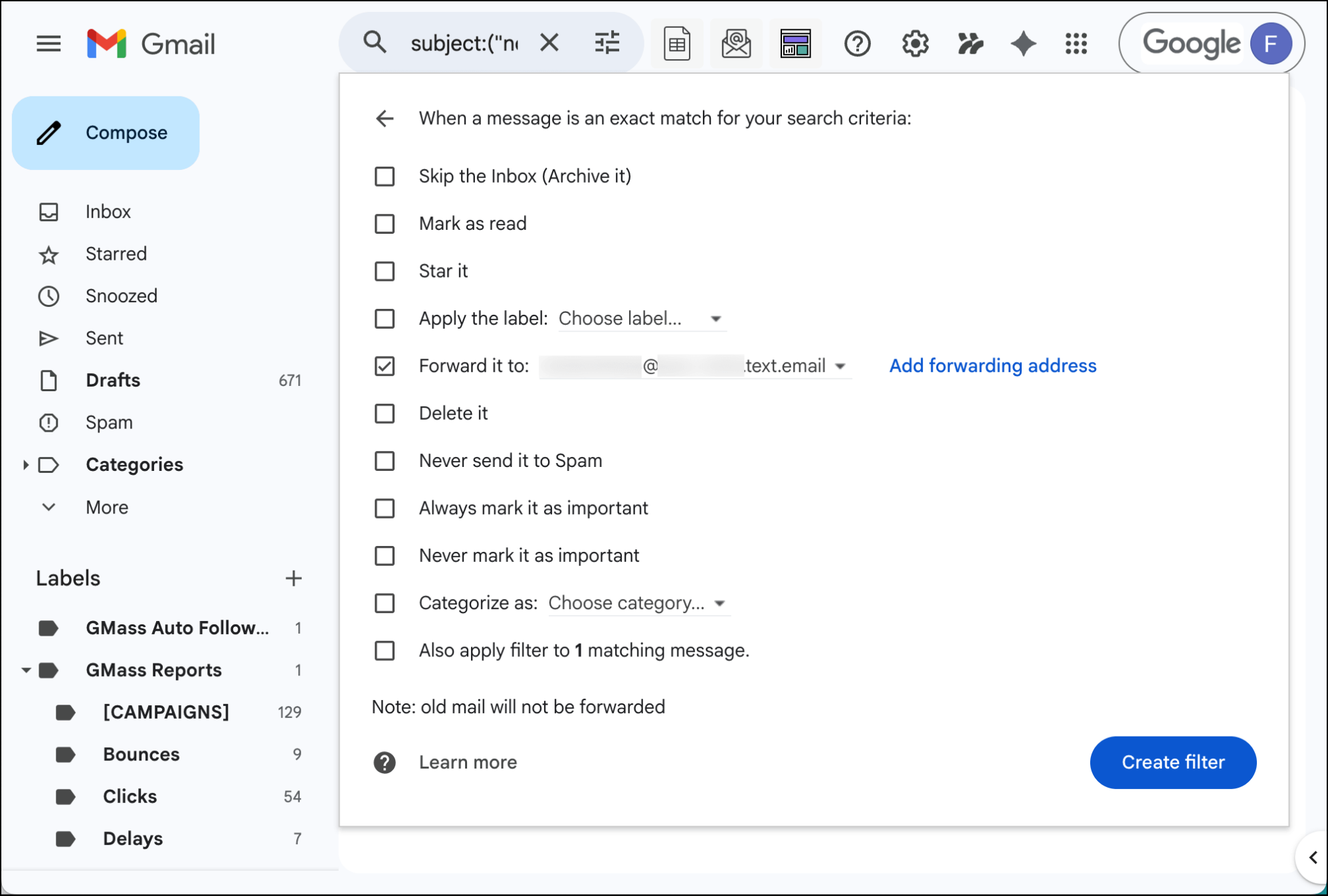
(If your text.email address isn’t there, make sure you clicked the confirmation link to allow forwarding that you received as a text.)
Then click Create filter. You may have to give Gmail permissions here; it’s pretty hardcore about protecting where your emails are forwarded.
And now, whenever someone replies to your campaign, you’ll get a text notification.
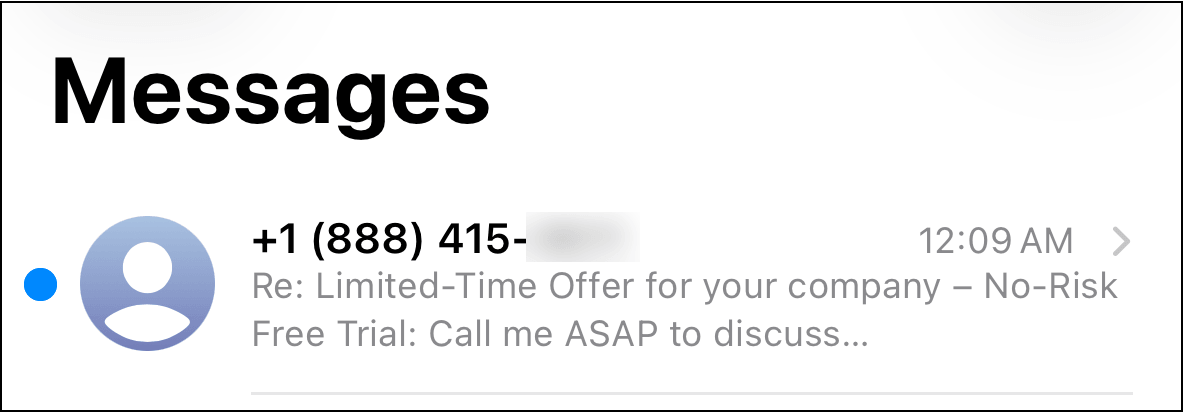
You can use this same process for other campaigns in the future, or even figure out commonalities between your campaigns so that one filter can work for all of them. (Perhaps using a unique keyword in your signature.)
Getting Text Alerts from GMass Campaigns: Next Steps
That’s the entire process for getting text alerts to key replies from your campaign.
If you want to get fancier with it, you could make the filter more specific (for instance, eliminating out of office replies by adding “out of office” to the “Doesn’t have” filter line).
But as-is, with this text.email address and Gmail filter you’ll see all the replies to your campaign as near-instant alerts on your phone.
You can sign up for your email-to-text address by going to text.email.
And if you’re not a GMass subscriber, give it a shot (see why 400k+ people rely on GMass to send their email campaigns straight from Gmail).
Both text.email and GMass offer free trials so you can check them out — and set up this workflow to see it in action for yourself.
Only GMass packs every email app into one tool — and brings it all into Gmail for you. Better emails. Tons of power. Easy to use.
TRY GMASS FOR FREE
Download Chrome extension - 30 second install!
No credit card required