
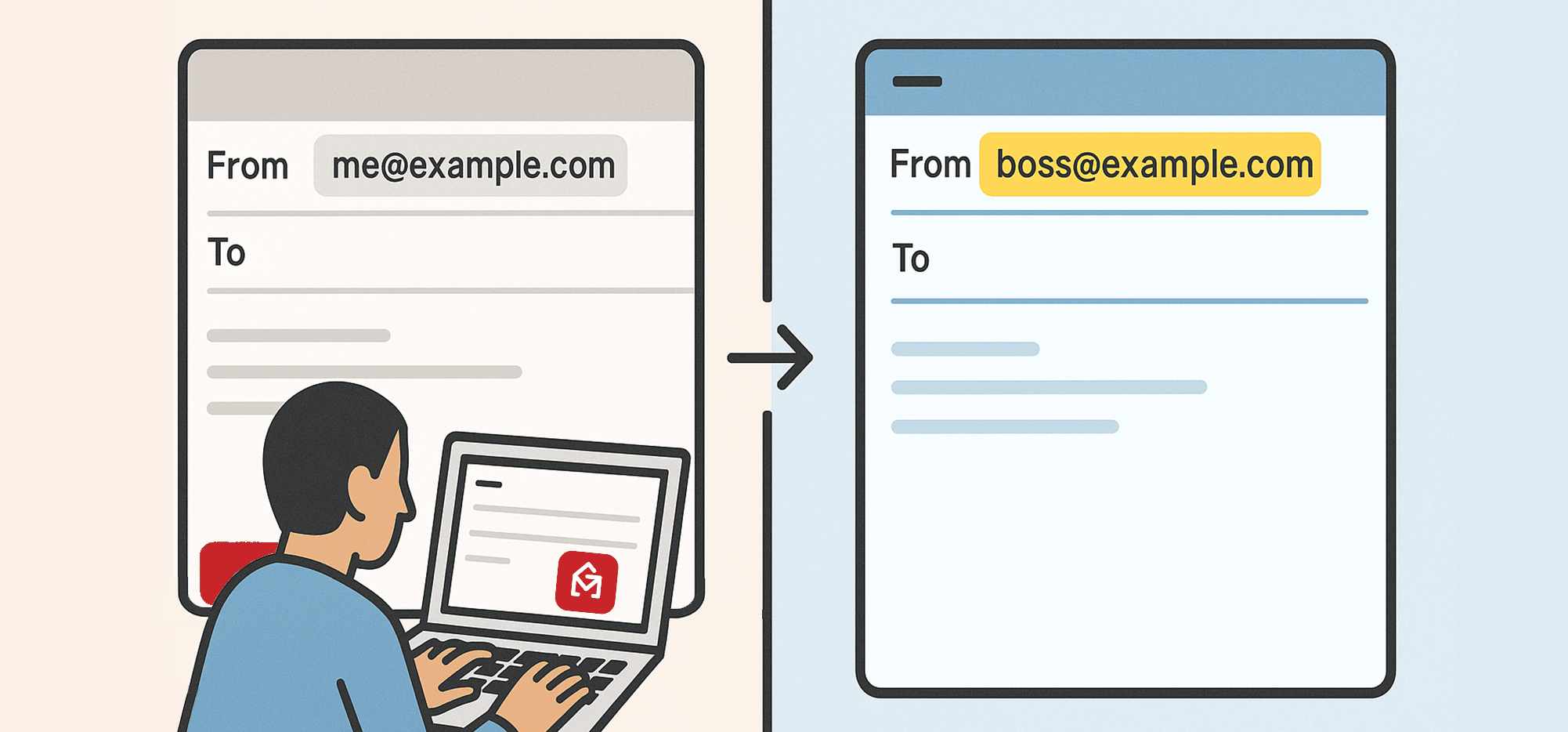
GMass works inside your Gmail account. But what happens if you want to send a GMass campaign from someone else’s account?
Like, for instance, your boss?
There are actually two different techniques you can use to send a GMass campaign from your boss’s email account (or someone else’s).
Both have their own pros and cons. And fortunately, both are pretty easy to set up.
In this article, I’ll go step-by-step through both techniques. I’ll also cover the plusses and minuses of both so you can choose the method that’s best for you and your team.
Note: I use the terms “boss” and “assistant” throughout for clarity. However, this technique is applicable across many other use cases as well.
Sending GMass Campaigns From Your Boss’s Account: Table of Contents
- Technique #1: Using Gmail Delegated Access
- Technique #2: Using GMass MultiSend
- Sending GMass Campaigns From Your Boss’s Account: Final Comparison and Next Steps
Technique #1: Using Gmail Delegated Access
Gmail has a built-in feature called delegated access that allows you to give someone else access to your account.
Using this feature, your boss can give you access to their Gmail account (which includes you being able to read their emails and send on their behalf).
Then you can send GMass campaigns through that account.
Pros of using the delegated access technique
Here’s why you might want to use this method.
1. The assistant sends from inside the boss’s account.
With this method, the campaign is fully owned by the boss’s GMass account.
That means the boss won’t need shared analytics dashboards or any other type of shared access to monitor it. They can also then use it as a future template, a reusable list, and more.
2. This method doesn’t feel like a workaround.
The other method I’ll describe in this article is something of a hack. The delegated access technique is not.
Both techniques work well; the delegated access method is just a bit less convoluted when it comes to where the campaign lives and how it’s distributed.
Cons of using the delegated access technique
Here’s why you might not want to delegated access to send GMass campaigns from another account.
1. The assistant now has full access to the boss’s Gmail account.
This is THE big con of this method.
Maybe your boss is comfortable with you having full access to read their entire email history and to send emails on their behalf. But… maybe they aren’t.
If they aren’t, they won’t want you to get unrestricted and unmonitored access to their email like this.
2. This technique has an extra setup step that “feels” technical.
In order for the delegated access technique to work, you need to authorize your browser to send with your boss’s GMass account.
It’s really just a cut and paste job (and I walk through it step-by-step below), but it does feel a little technical.
How to set up delegated access for sending GMass campaigns through another account
Here’s how to set up delegated access and then how to properly connect GMass.
#1. Grant access in the boss account
Your boss needs to go into their Gmail account, then to Settings > Accounts > Grant access to your account.
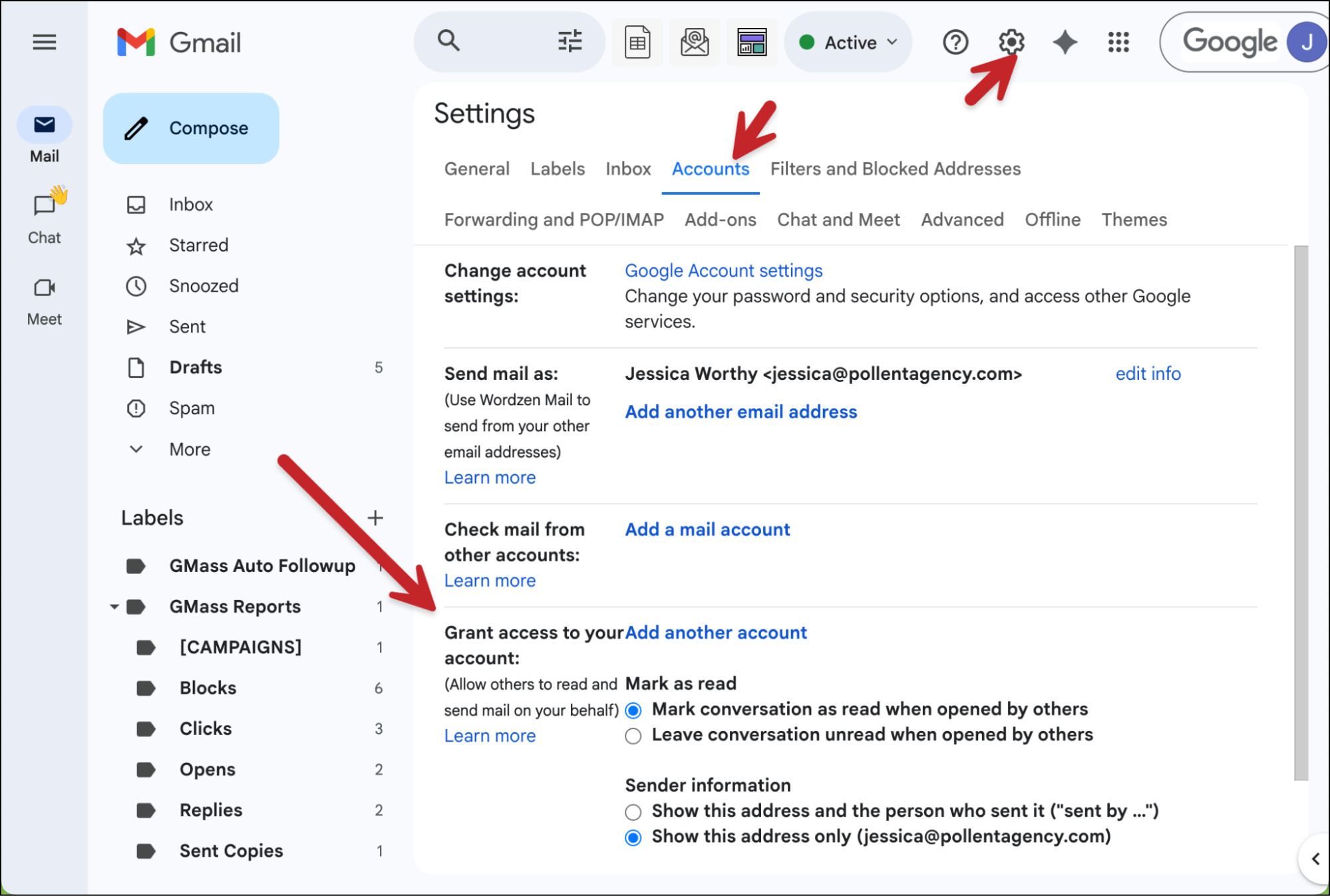
Note: If you do not see this option, the most likely reason is your Google Workspace admin hasn’t enabled it for your organization. They can do that in the Admin settings under Apps > Google Workspace > Gmail > User Settings > Mail delegation.
Click Add another account.
In the pop-up, add the person’s Gmail account. Google requires them to be part of the same Google Workspace organization. (GMass does not, however, require the person to be on the same team plan.)
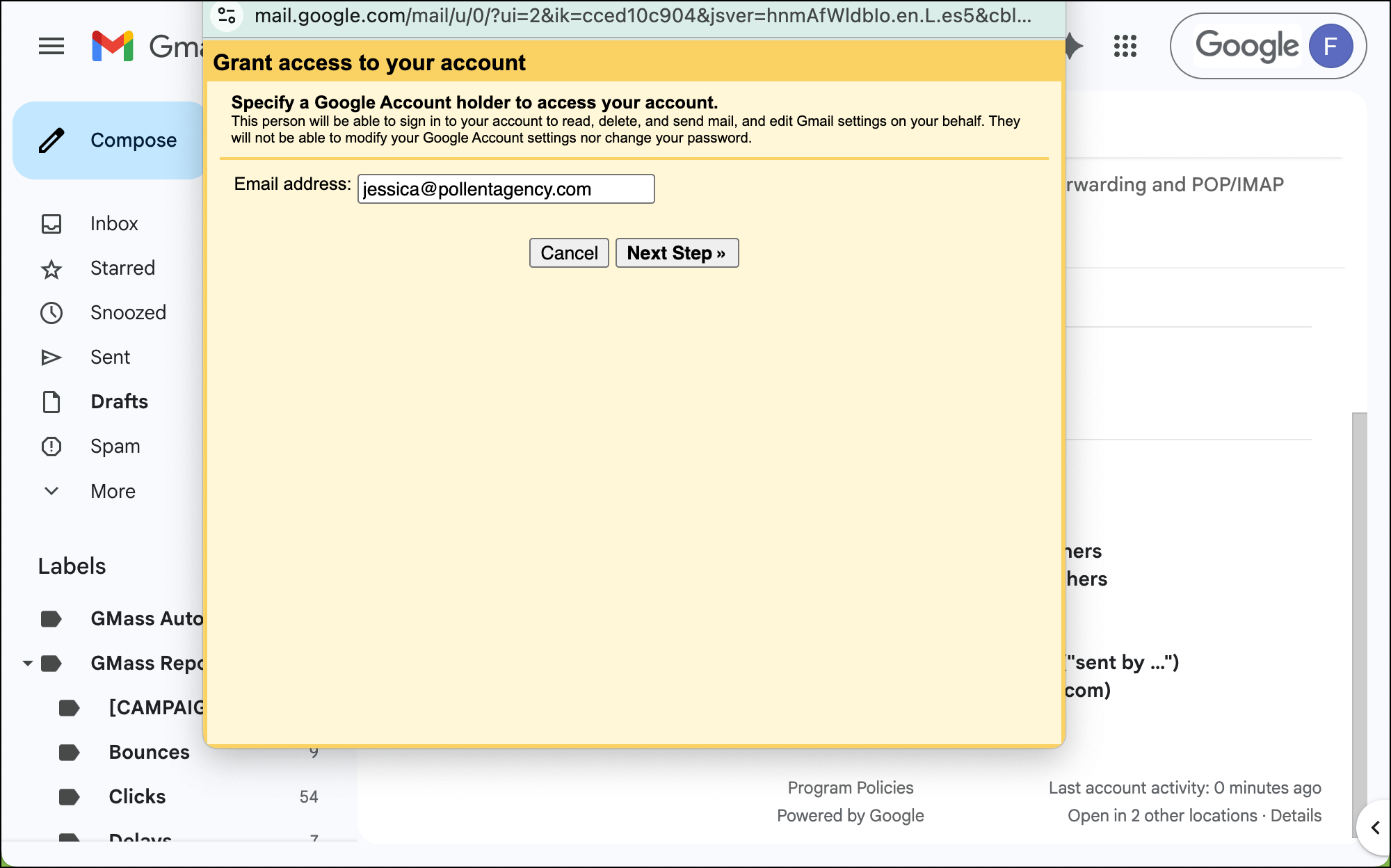
Google sends an email to the assistant’s address. From there, you can click the link to accept the request to read email on your boss’s behalf.
#2. Set up GMass to work for your boss’s account
Now that you have access to your boss’s account, you’ll need to make one small tweak to GMass in your browser to send campaigns on their behalf.
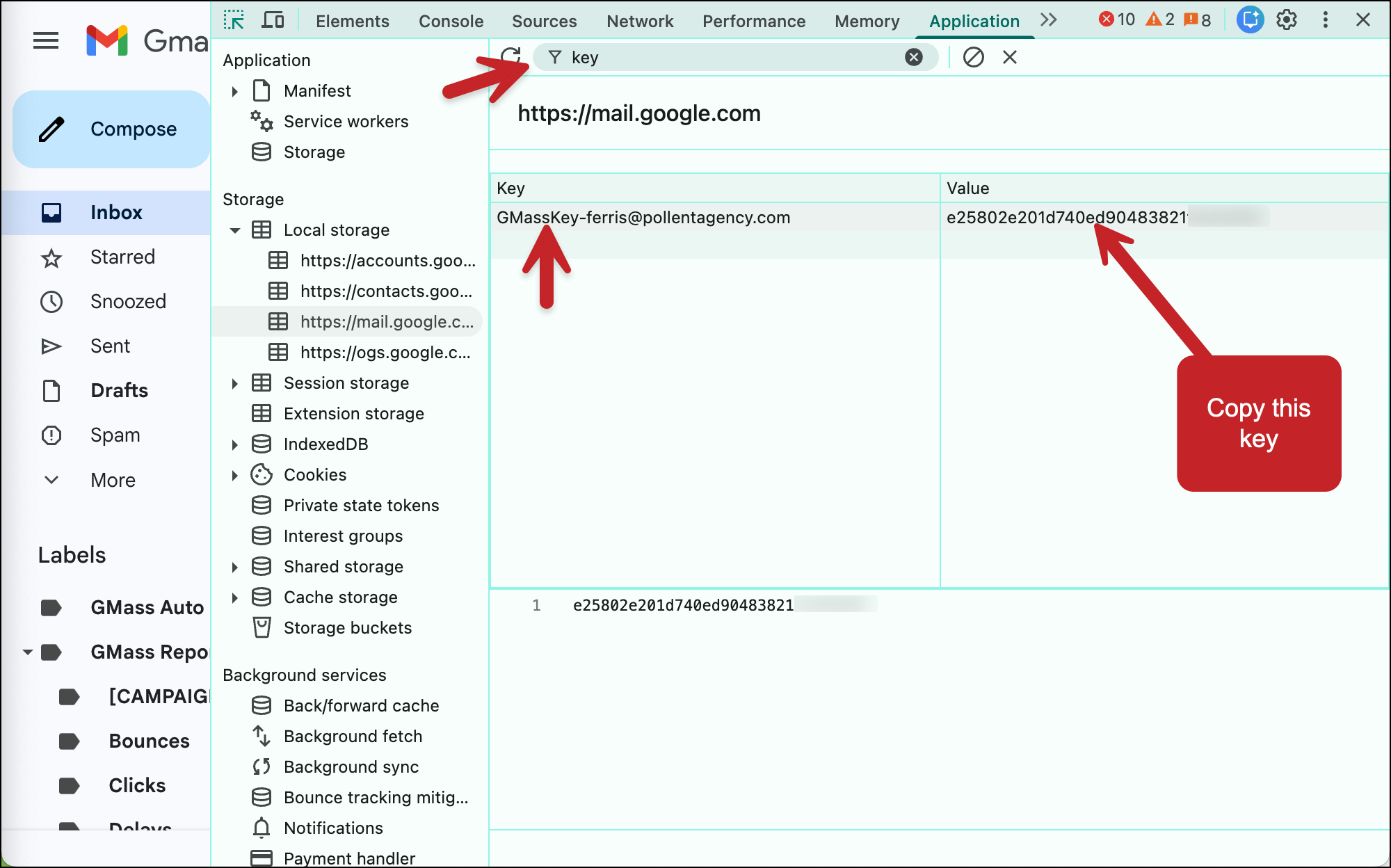
Back on your boss’s computer, in Gmail, go to the Chrome menu’s View > Developer > Inspect Elements.
Click on Application, then Local Storage, then click on mail.google.com.
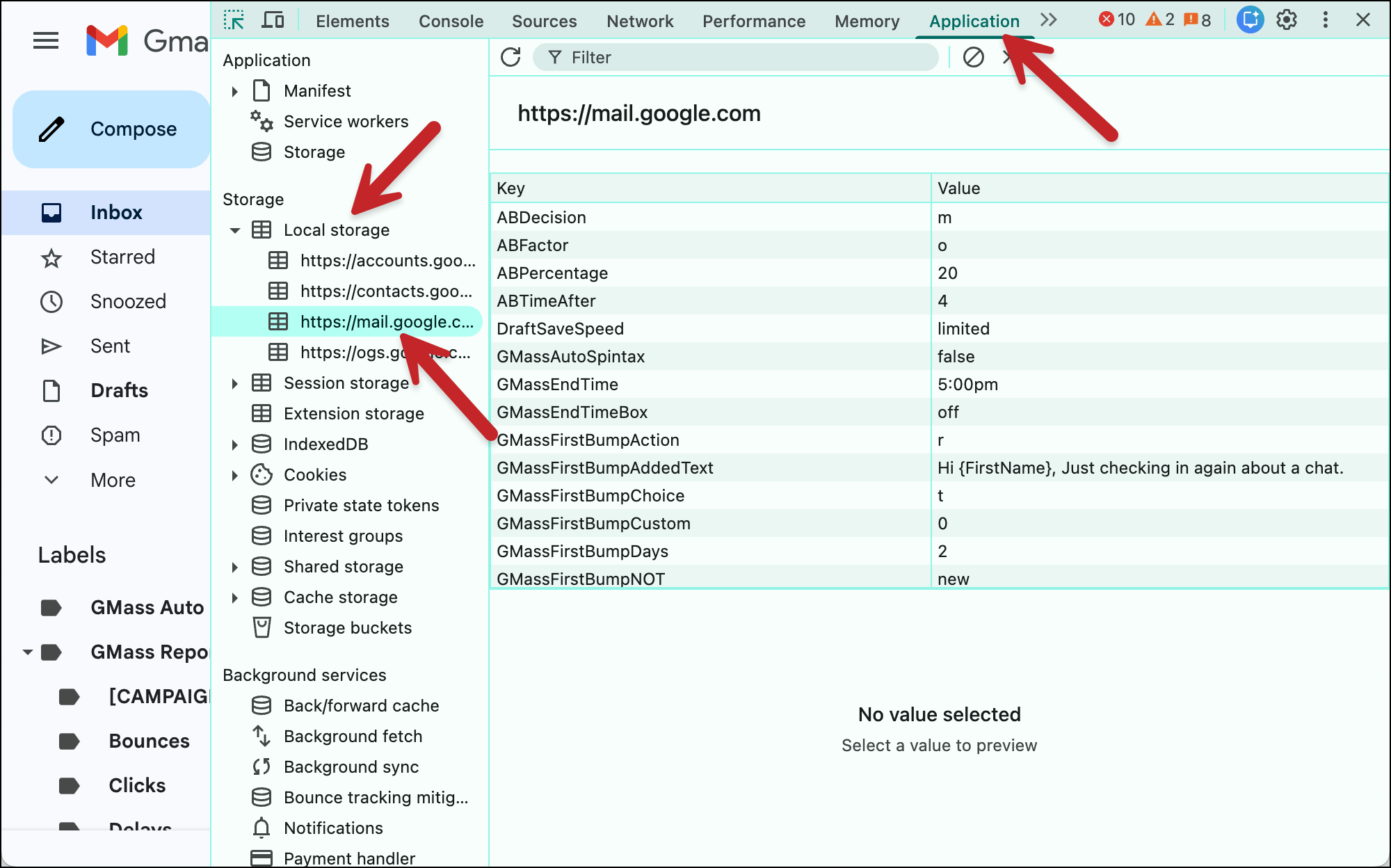
In the Filter box, type key. This will bring up the GMass key for the account. Copy the value.
Now, over in the assistant Gmail account, follow the same steps. (Bring up the Inspect Elements console in Chrome and go to Applications > Local Storage > mail.google.com.)
Scroll to the bottom of the list. Then click the empty bottom row to edit it.
In the left column (called the “Key” column), type in GMassKey-yourbossesemail@yourdomain.com — and this is case-sensitive.
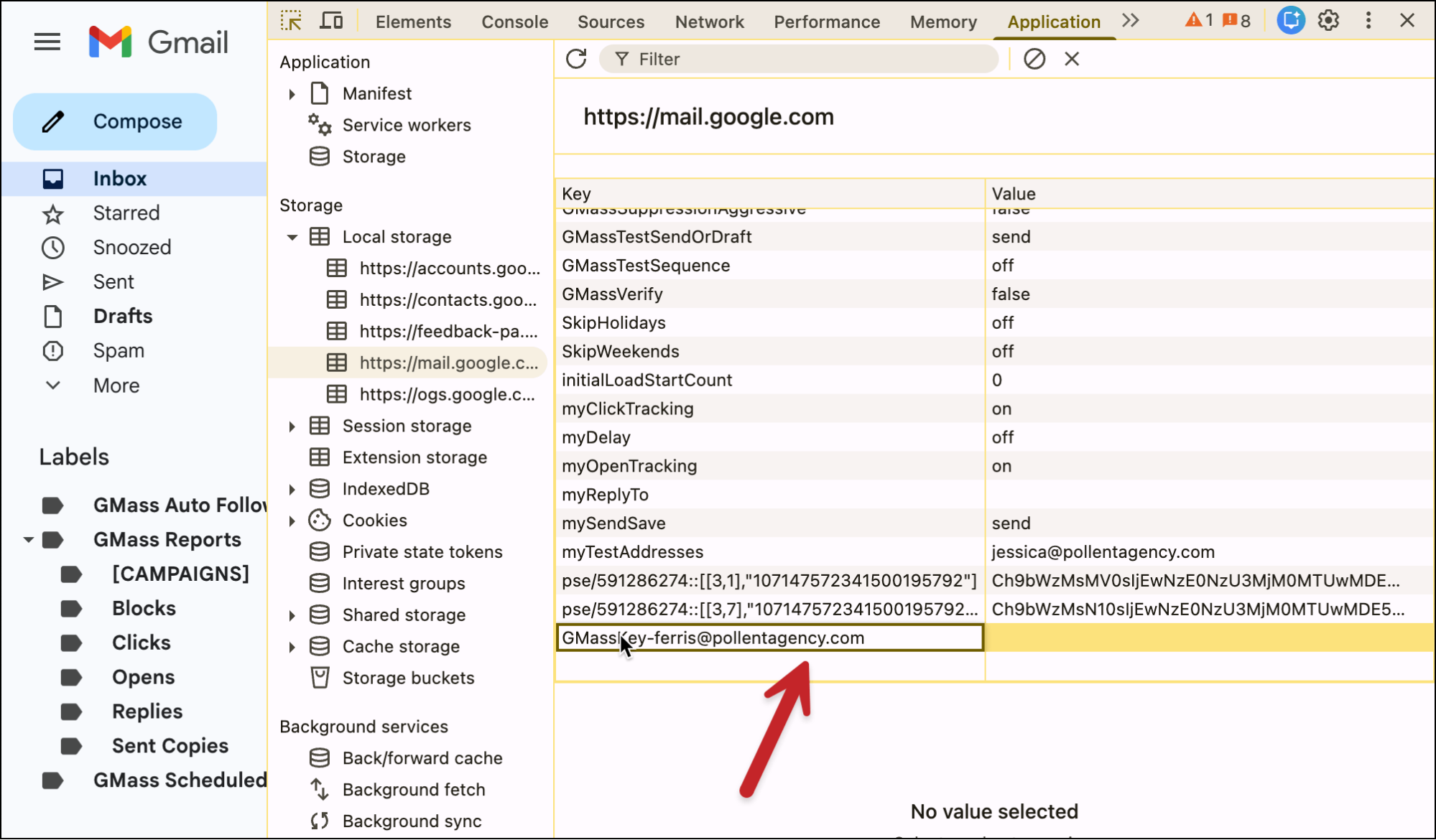
And in the right column (called the “Value” column), paste in the value you copied from the boss’s account.
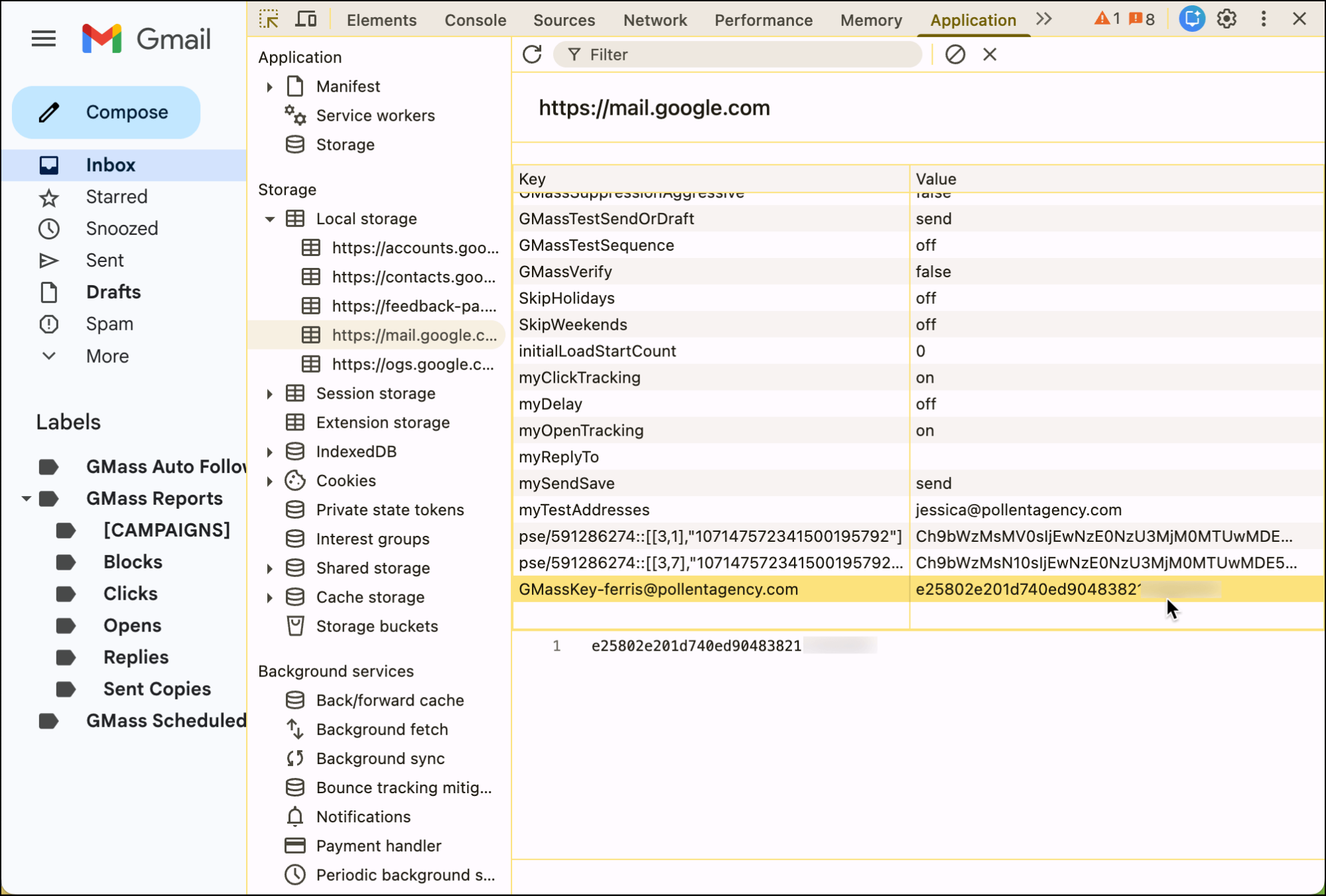
You can close the console and, just to be safe, reload the browser.
GMass now has the ability to send campaigns using your boss’s email from your browser.
#3. Sending a campaign from your boss’s account
In your Gmail tab, click on the icon in the top right corner. That will bring up your list of connected accounts in the browser.
Choose your boss’s account from that list to open their inbox in another tab.
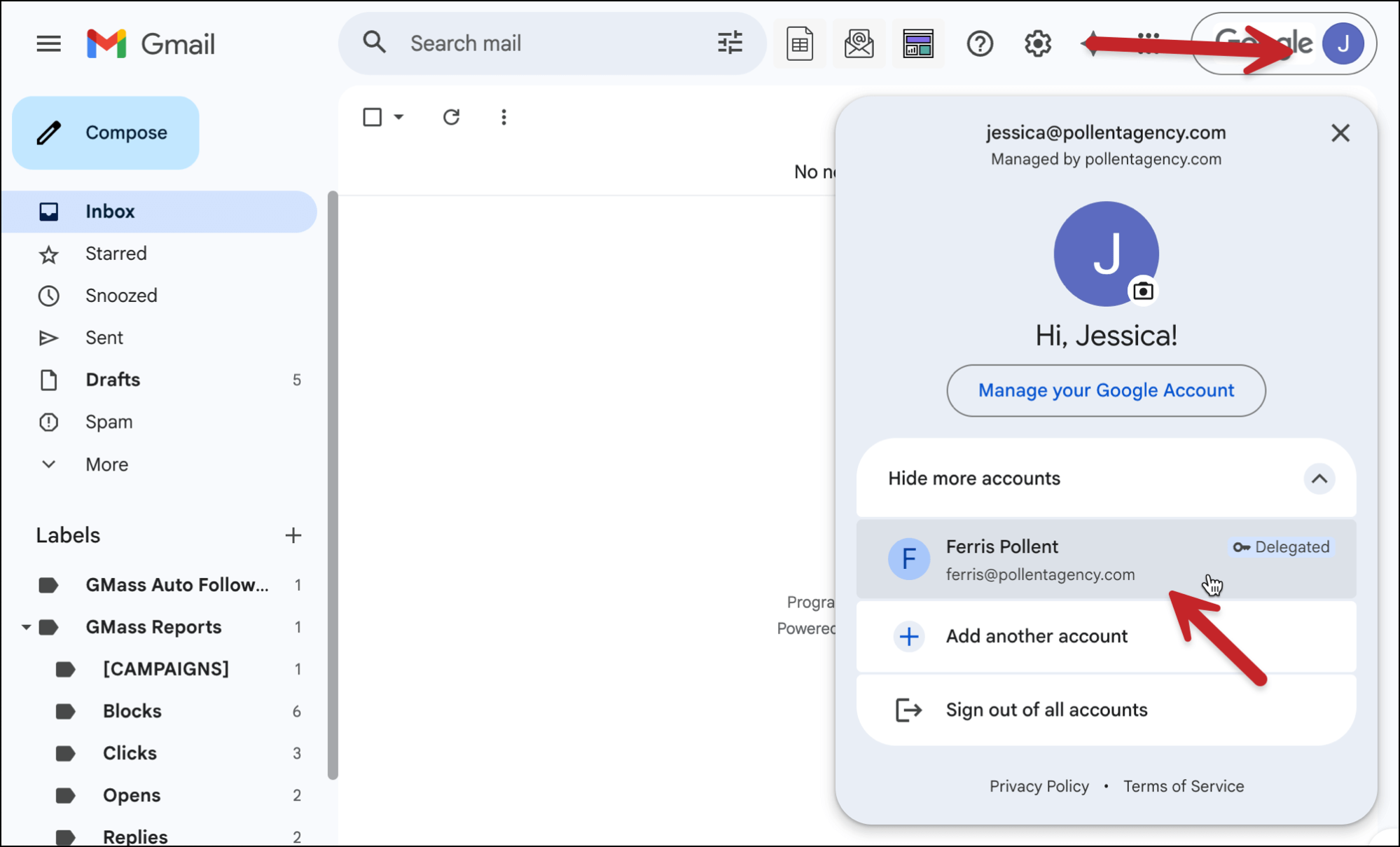
Now create a GMass campaign as you normally would.
Because you pasted in their GMass key, GMass will work for their account in your browser (as well as your own).
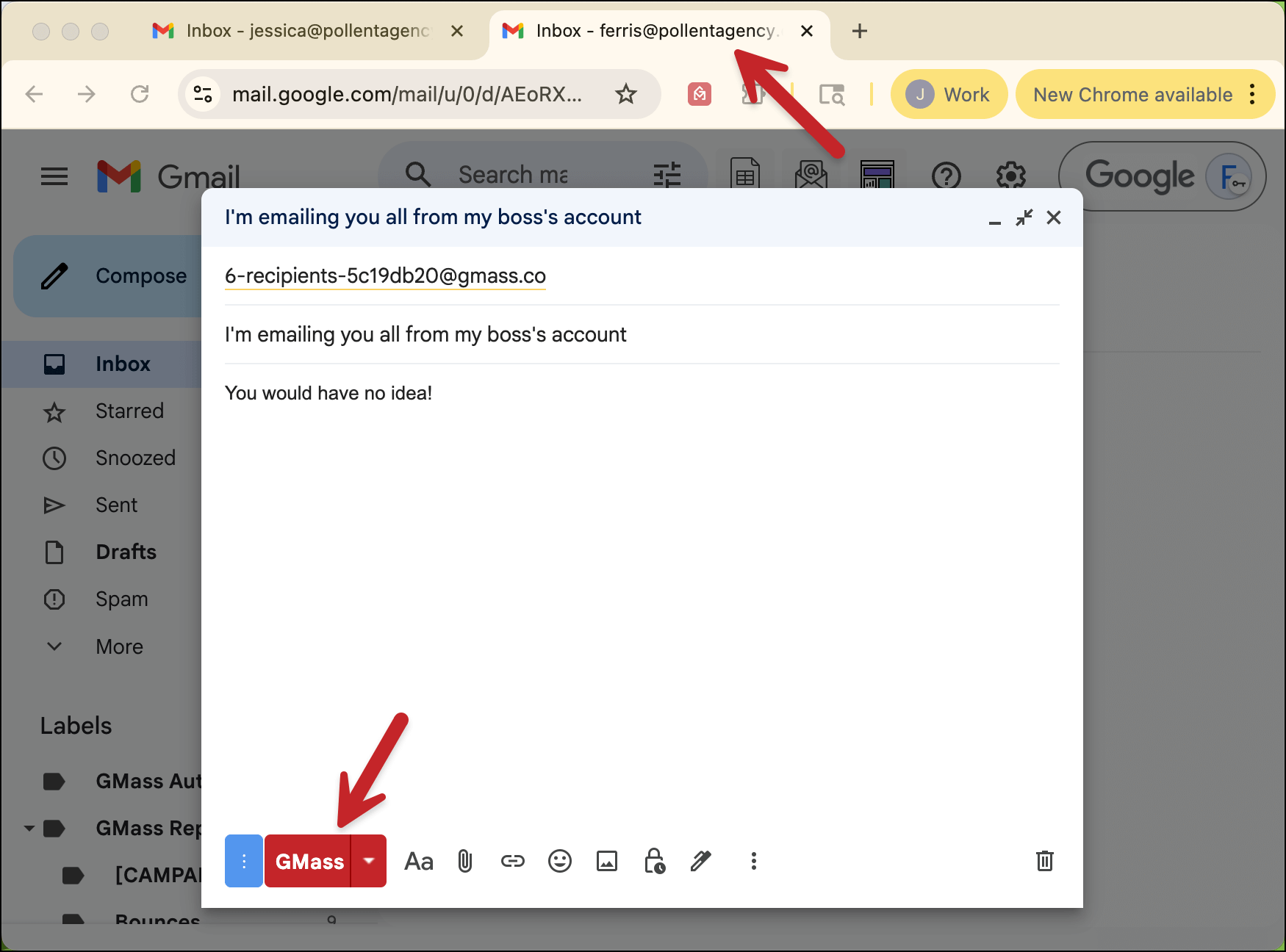
And here’s how the campaign looks to a recipient. As you can see, there’s no evidence this was sent by a delegate.
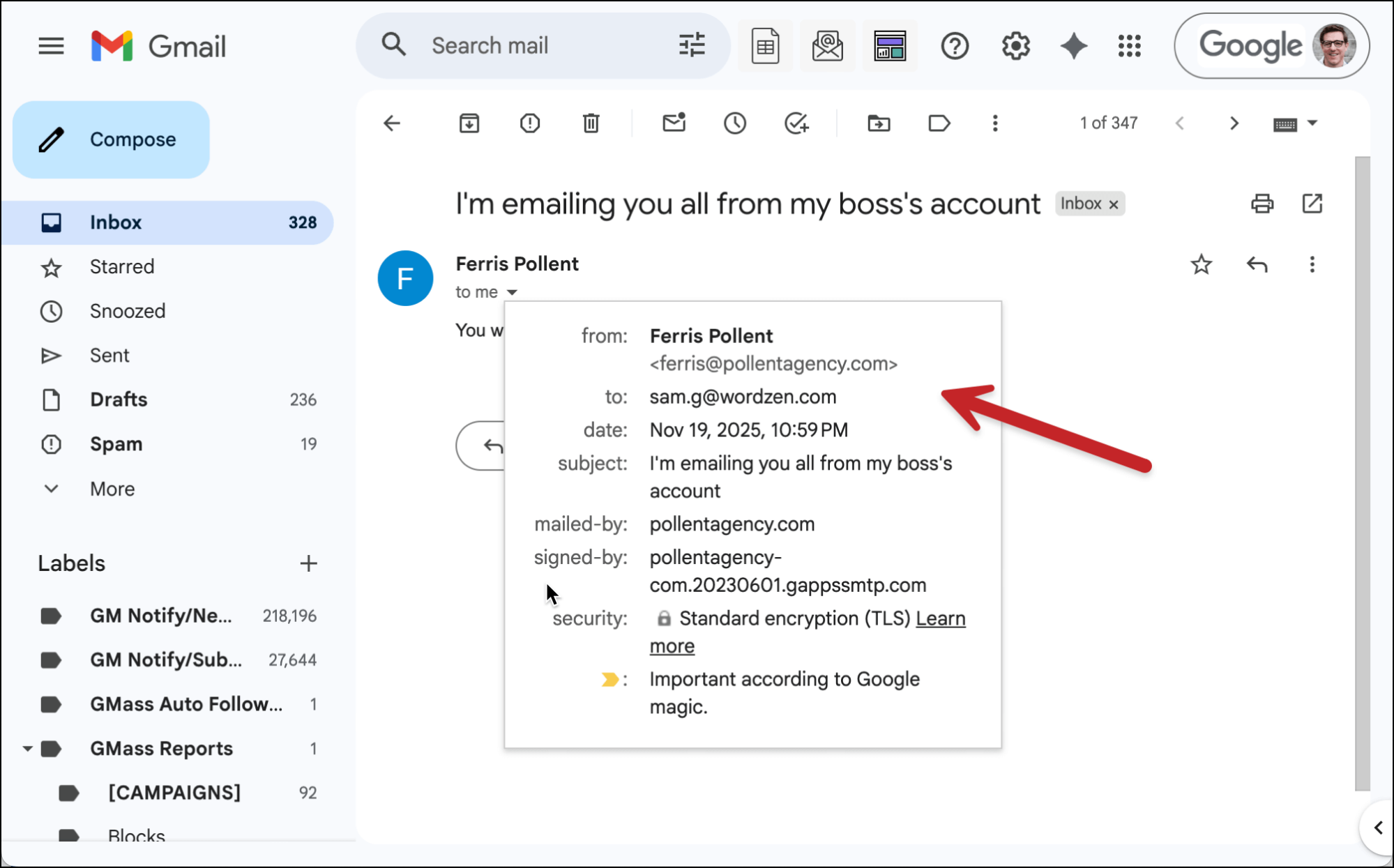
That campaign is in the boss’s Sent folder and is visible in their GMass dashboard (and elsewhere around GMass, like in their list of templates).
Technique #2: Using GMass MultiSend
The first technique in this article employed a Gmail feature. This second technique uses a GMass feature.
For this method, we’ll use GMass’s MultiSend inbox rotation feature. If you’re not familiar, that feature lets you distribute the sending of a campaign across multiple email addresses (not just your own).
So we’ll use it as a bit of a hack to send through your boss’s account.
Pros of using the MultiSend technique
Here’s why you might want to use this method.
1. The assistant does not have access to the boss’s inbox.
As I mentioned earlier, the biggest downside to your boss giving you full access to their email account is, well, you get full access to their email account.
If your boss wants you to be able to initiate campaigns from their account without having access to their messages, that’s only doable with the MultiSend method.
2. Even though the assistant doesn’t have inbox access for their boss, they can still respond to emails that come in as replies to a campaign.
Thanks to GMass’s unified inbox (called The Reply Project), when someone replies to your boss’s email in the campaign, you’ll be able to read and respond to that reply.
You’d also be able to reply if you have delegated access — but in this case, you can see replies and respond to them even without being able to see your boss’s other emails.
3. The assistant does not have to be on the same Google Workspace plan as the boss.
With Gmail delegation, both accounts need to be in the same Google Workspace organization.
GMass’s MultiSend does not have those restrictions. The assistant could be in a different Workspace organization — or even a free gmail.com account.
Cons of using the delegated access technique
Here are the downsides of this method.
1. The campaign is “owned” by the assistant’s account, not the boss’s, so there’s an extra step to share results.
With the MultiSend technique, you’re initiating the campaign with your GMass account and just sending through the boss’s email.
That means your GMass account “owns” the campaign.
So for your boss to monitor the results, you’ll need to share access. That’s easy to do, but it’s an extra step.
This also means the assistant account is the one that has the template saved. (Again, it’s sharable but that’s an extra step.)
2. This technique is only possible on Team or Professional plans.
MultiSend is only available on GMass’s highest-tier plans: the Professional plan and the Team plans.
So if you have a different GMass plan, you’ll need to upgrade to use this technique.
How to set up a MultiSend campaign to send through another account
Here’s the method for using MultiSend to send from your boss’s account.
#1. Add your boss’s account as a MultiSend account
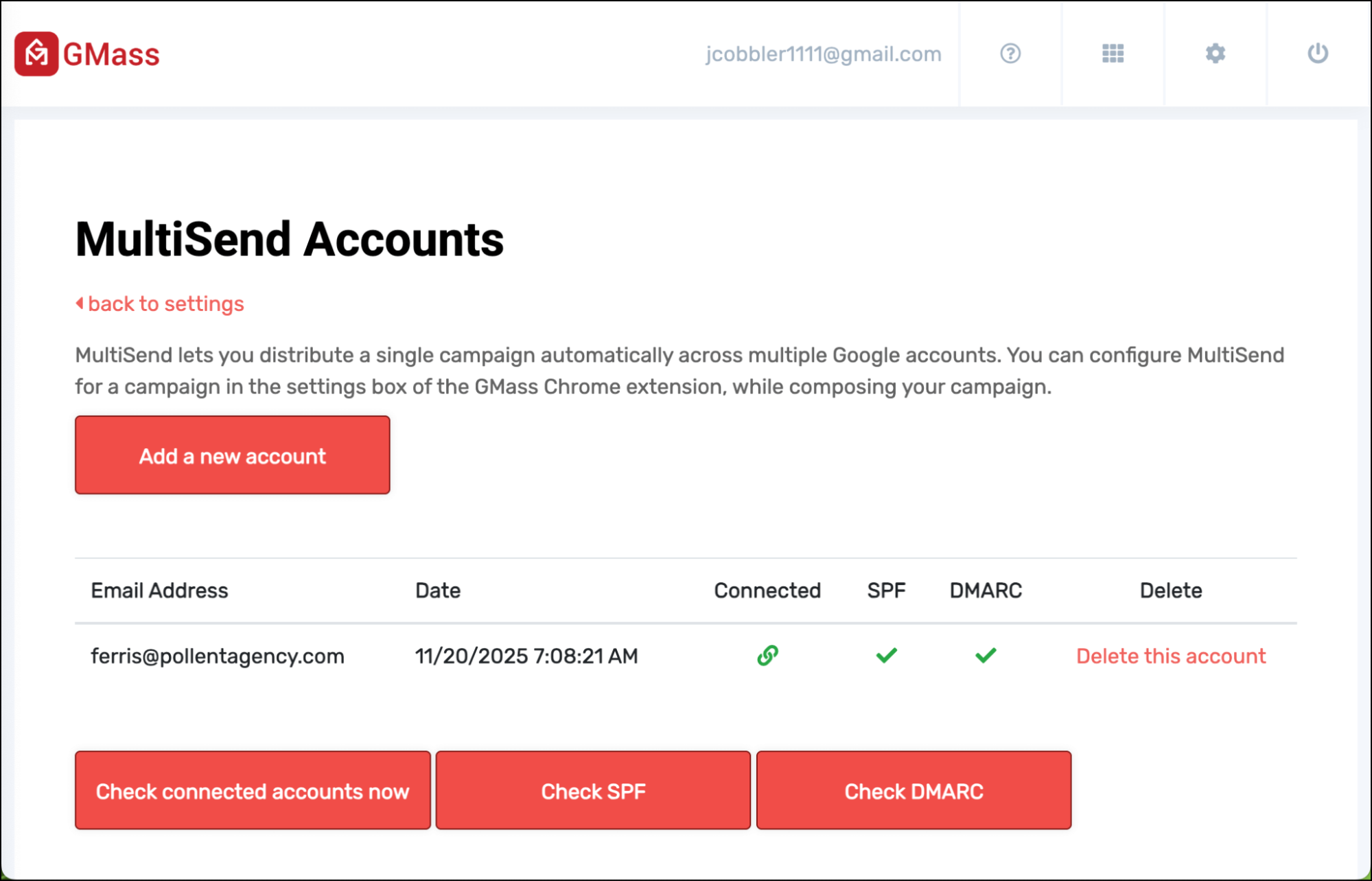
Head to the GMass dashboard. Open the Settings, go to Sending, and click on Manage MultiSend Accounts.
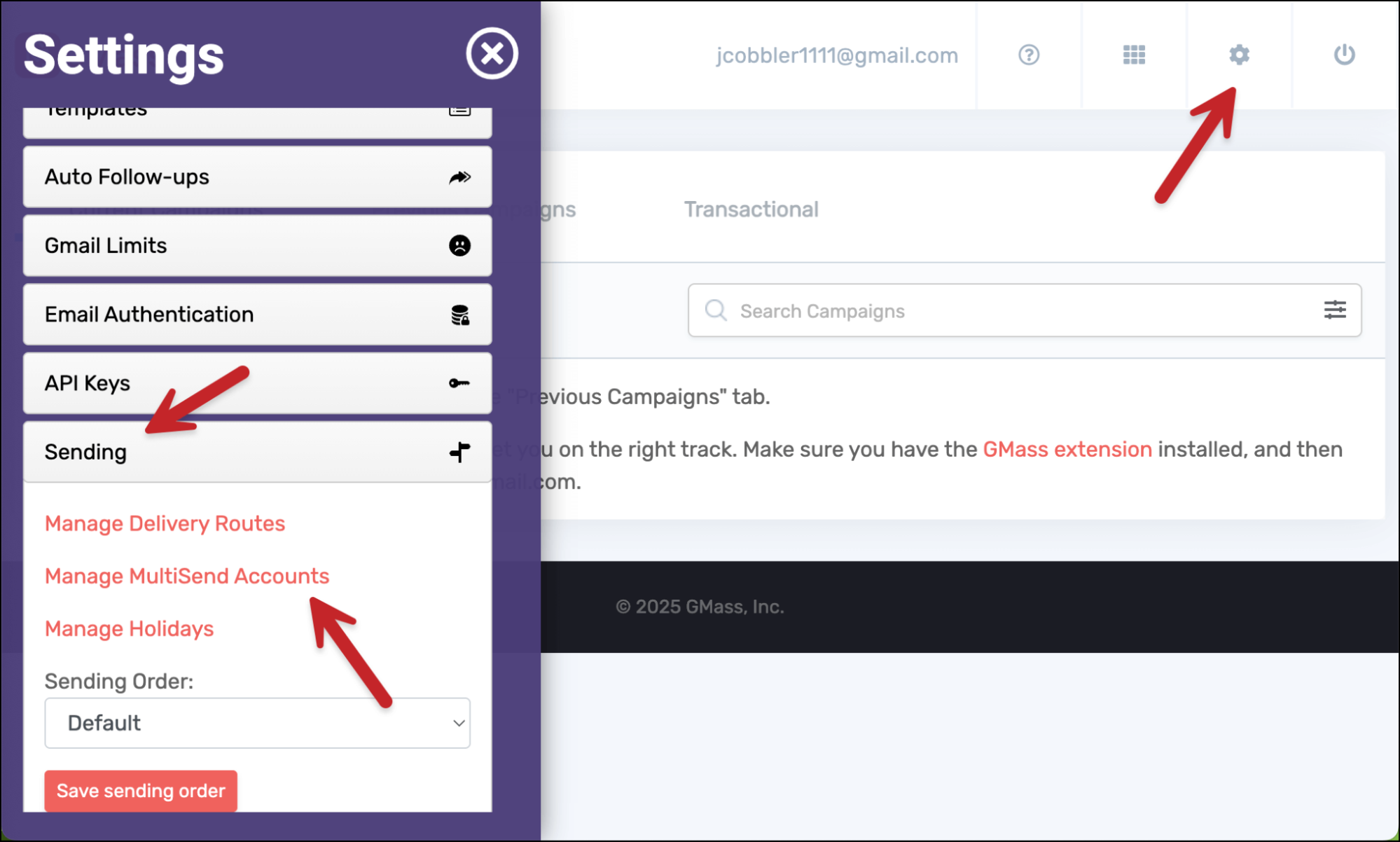
Click Add a new account.
The Google oAuth window will pop up and you’ll need to log into your boss’s account. (Or they can do it on your computer. You won’t have regular access to their email; this is just granting access to GMass and authorizing you to send GMass campaigns using their address.)
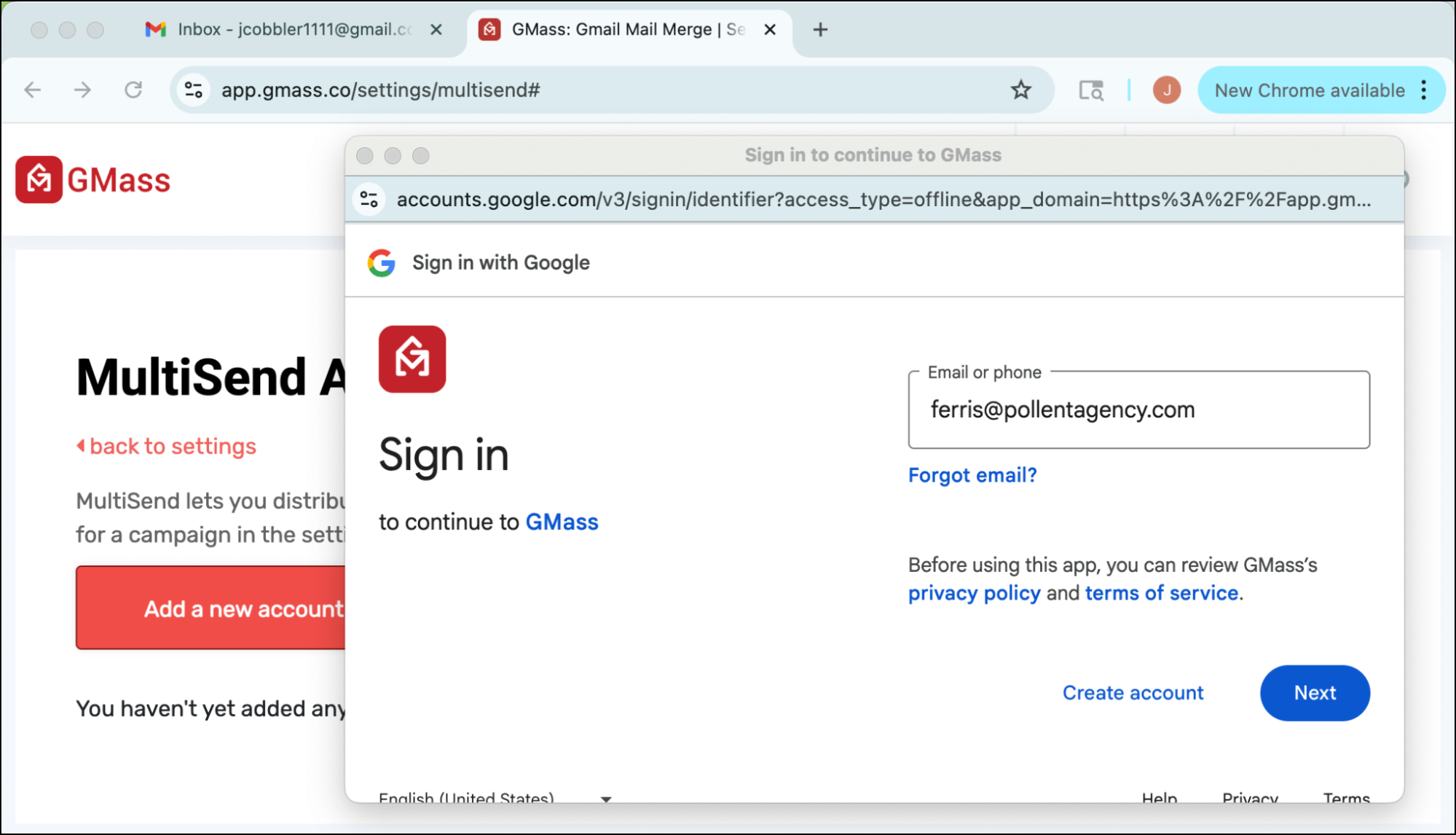
Once you’ve completed the authorization, your boss’s account will appear on the list.
#2. Create a MultiSend campaign with your boss as the only sender
Back in Gmail, create a GMass campaign as you normally would.
Then go into the settings box, open the Advanced section, and go to MultiSend.
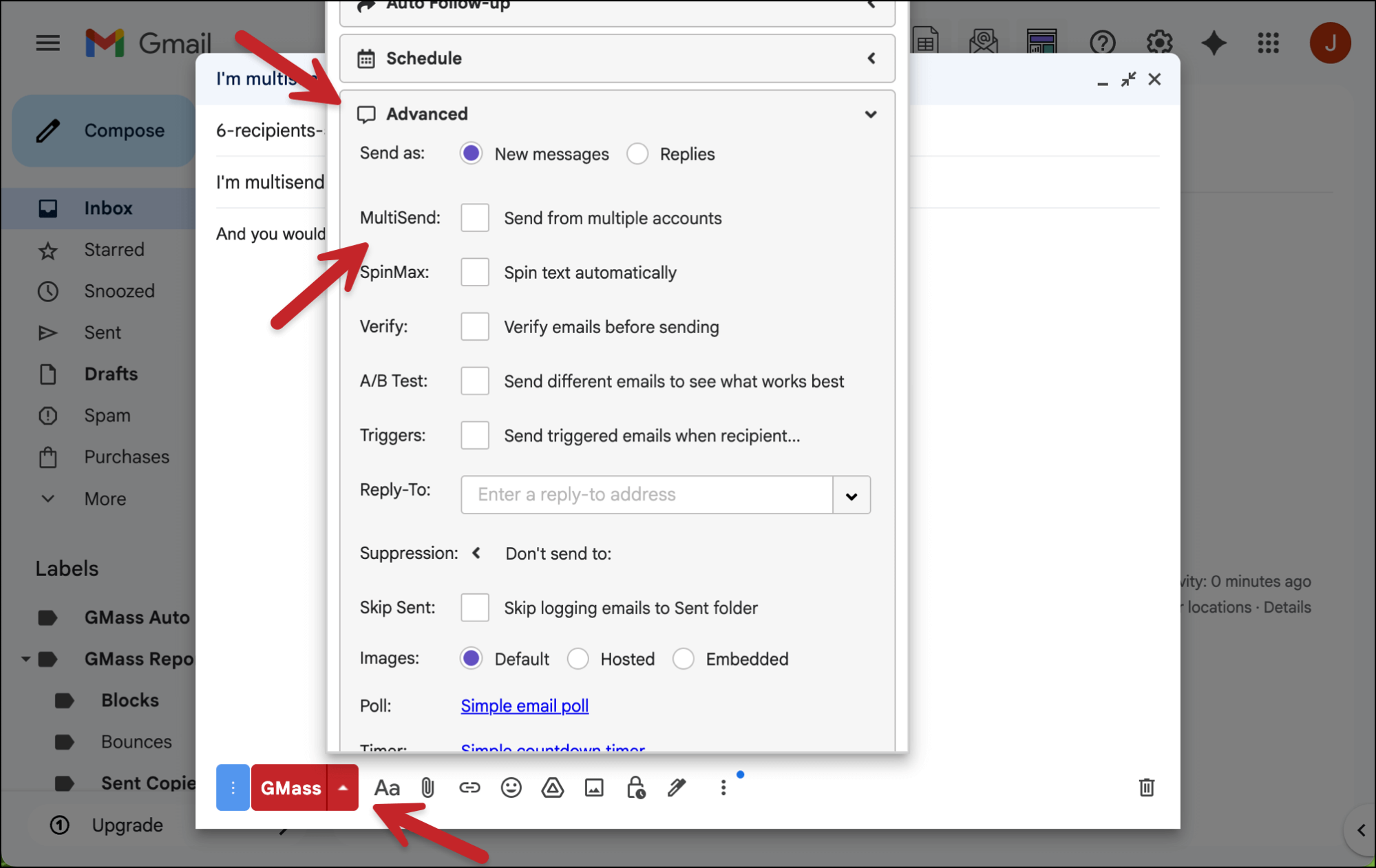
Check the box next to MultiSend.
Then, in the dropdown, make sure only your boss’s account is checked.
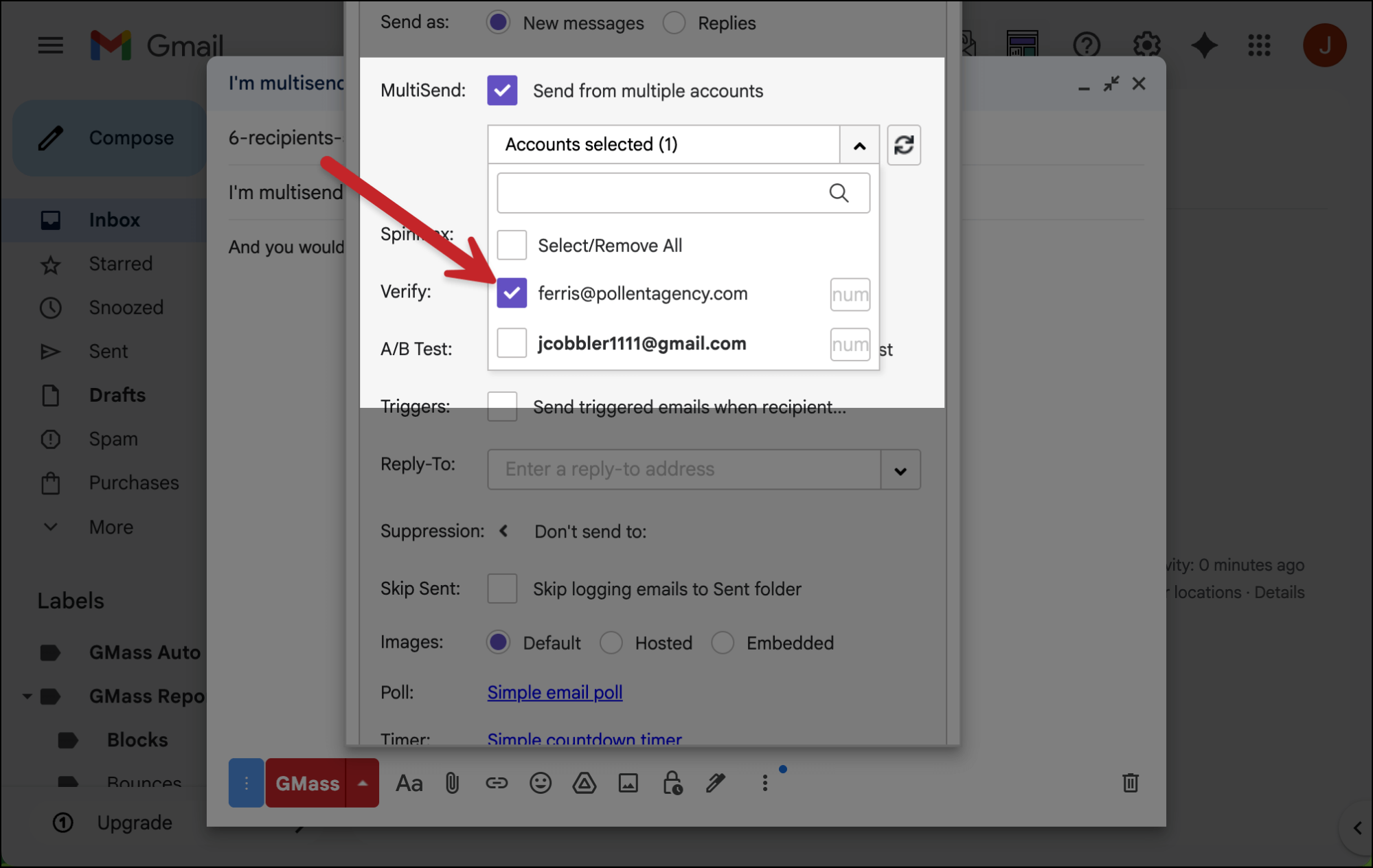
So now, when you send the campaign, all emails will go out from your boss’s email address.
The emails will be in their Sent folder as well.
Sharing dashboard access with your boss
As I mentioned in the pros/cons section, one of the downsides of this method is that the campaign “lives” in your GMass account, not your boss’s.
That means you’ll need to share reports for the campaign with them. There are a few options…
- If you’re on a team plan and they’re the team leader, they can see results for your campaigns in the GMass dashboard.
- You can share access to your GMass dashboard with them in the account settings.
- You can share the web-based campaign report with them so they can see real-time updates.
Regardless, you’ll want to find at least one way to share the reporting with them so they can monitor the campaign.
Sending GMass Campaigns From Your Boss’s Account: Final Comparison and Next Steps
There are two ways you can send a GMass campaign from someone else’s email (with their permission and knowledge, of course).
The techniques are:
- Delegated access, where you gain full access to the other person’s inbox.
- MultiSend, where you use a workaround to send a campaign without full access to their inbox.
Either way, this is another great example of just how flexible GMass can be. Whatever you want or need to do, there’s a way (often more than one way) to do it in GMass.
If you’re not a GMass user yet, you can get started by installing the Chrome extension. (There’s a free trial with no credit card required.)
You’ll be up and running in minutes and, as this article showed, soon enough you’ll have GMass doing everything you’ve ever needed in email.