

In 2022, we launched a new Chrome extension, called Tracker Blocker, that is a companion extension for GMass. If you’re using GMass to send campaigns, Tracker Blocker worked so your open-tracking reports are as accurate as possible.
We update it regularly as open tracking tech changes, so no fear!
Get it now!
Install Tracker Blocker from the Chrome Web Store
What is it?
The Tracker Blocker extension was created to solve a longstanding problem that GMass users have: triggering “false” opens when they open an email from their Sent folder (among other scenarios we’ll detail momentarily).
GMass, or any other Gmail-based campaign sending tool, sends emails directly from your Gmail account, and as a result, they are logged to your Sent folder.
It’s impossible, however, to distinguish your contact opening the email in their Inbox versus you opening the email from your Sent folder. Other scenarios may also lead you to opening the email and triggering an “open”, such as:
- Opening an email from your Sent folder
- The email bouncing, and then you opening the bounce notification
- Someone replying to your email, and then opening the reply
- You set your campaign to create DRAFTS, and then open an individual DRAFT for editing
The Tracker Blocker extension prevents these “false” opens by preventing the browser from registering an open on your own emails.
Give me the basics!
This extension is a simple extension that blocks network requests to our open tracking server. This prevents false opens from registering if you open an email you’ve sent with GMass.
Click the black GMass icon in the upper-right of your browser to open the settings panel. If you don’t see the black GMass icon, then click the “puzzle piece” icon, find the Tracker Blocker extension in the list and “pin” it.
There’s only one checkbox to toggle, for blocking pixels.
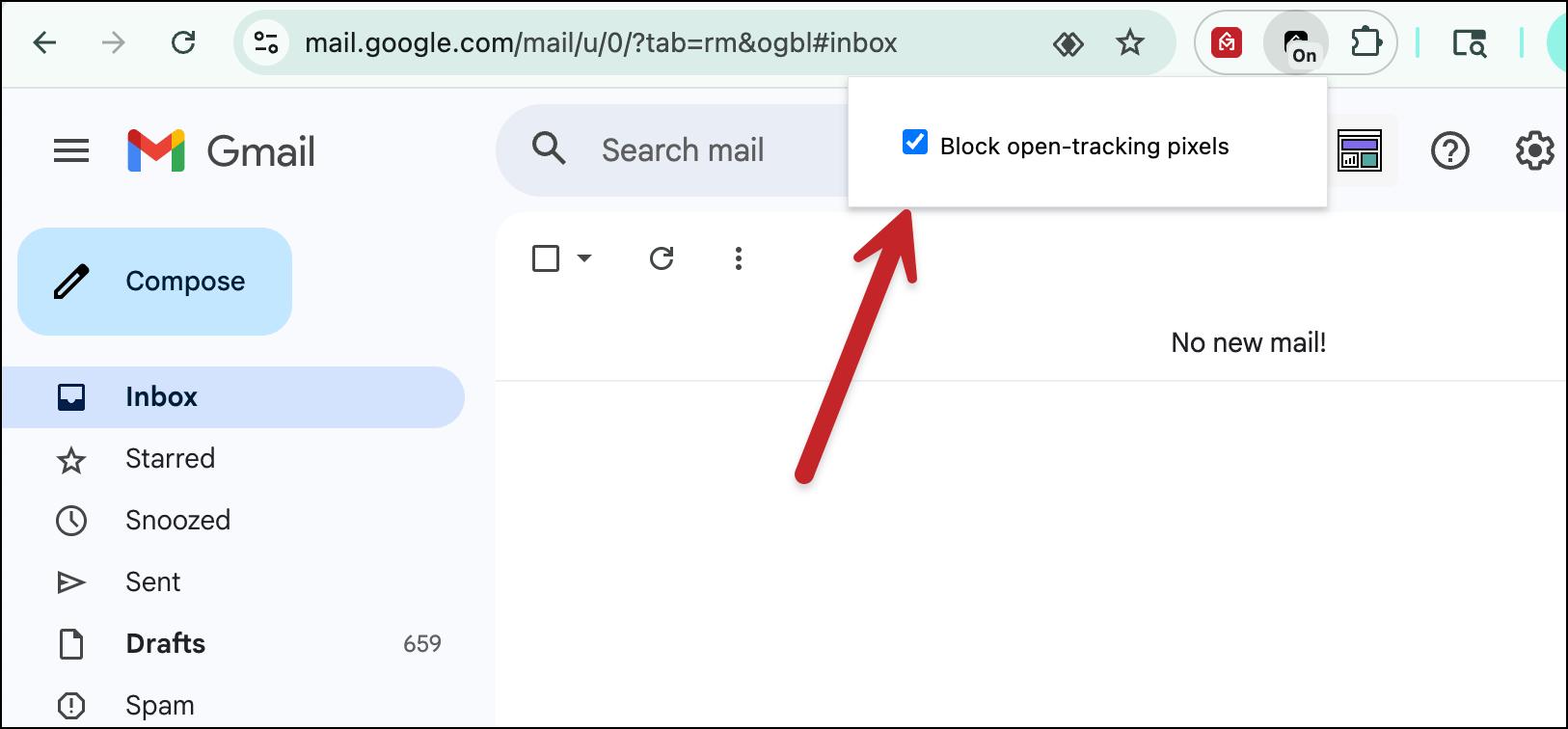
As long as that box is checked, GMass will block its own open tracking pixels so you can look at your campaign emails without risking false triggers.
If the “Block” box is unchecked, then opens will register. Perhaps you’re a new GMass user, and you want to test the open tracking functionality to see how the reports look. In that case, you may want to leave the box unchecked. The “Block open-tracking pixels” box must be checked though to enable the pixel blocking functionality.
How do you know when an open pixel is blocked?
Want to see it working? When Tracker Blocker is on, open a campaign email that has open tracking in your Sent folder. You’ll see a counter on the Tracker Blocker icon increment, showing the pixel was blocked.
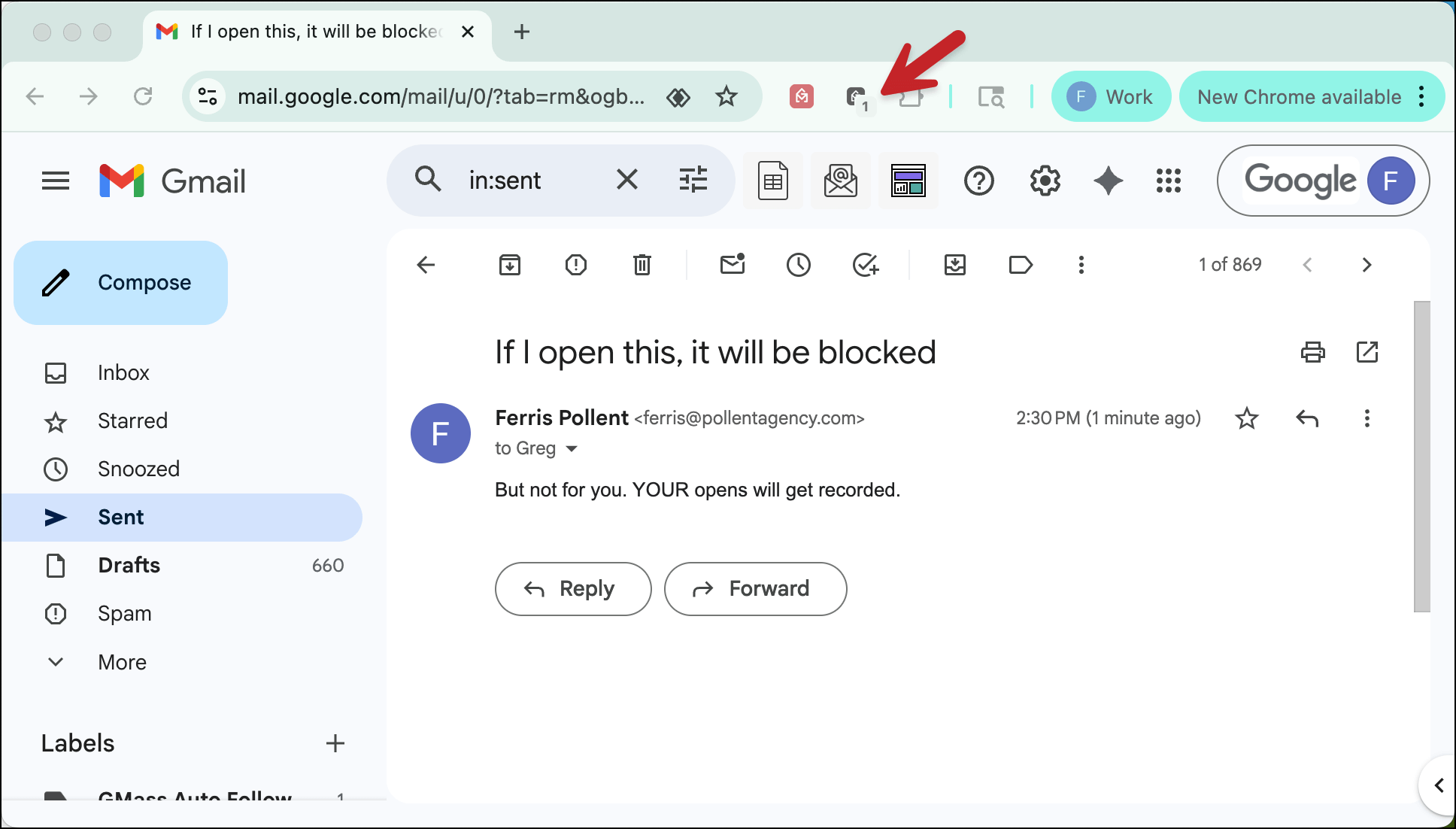
You can reset that counter by toggling Tracker Blocker’s pixel blocking off (and then back on again).
Important: Make sure you pin the Tracker Blocker extension
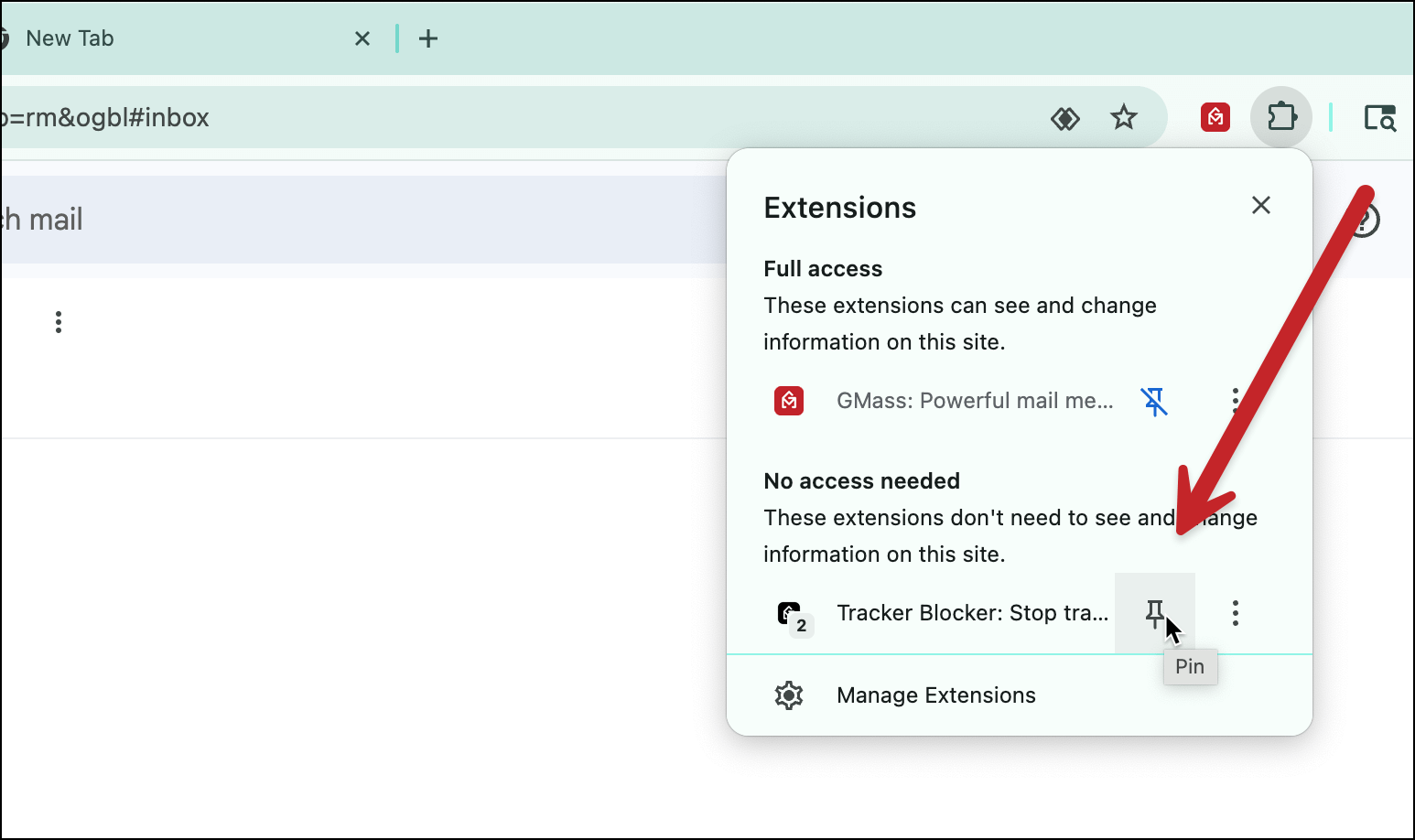
If you don’t pin the extension, you’ll have to dig into the Extensions menu to see blocked pixel counts. Tracker Blocker is meant to be displayed so you can watch the tally in real time.
Want to see how the blocking is working behind the scenes?
You can test the blocking functionality and prove its working with a bit of technical wizardry. First open up Chrome’s Developer Tools by right-clicking anywhere in Gmail and choosing “Inspect”. Then navigate to the Console tab. Now open up an email sent by GMass that you know has an open tracking pixel. Once you do, you’ll see a line appear in the console that looks like:
GET https://ci4.googleusercontent.com/proxy/mbvlSfX7TS0l48CkU54uxsc97v37z7XfcbDWLwQkg9OCbq4wuXGEIv5mxst6... net::ERR_BLOCKED_BY_CLIENT

You may find that when you open an email that has the pixel, that three network requests are actually blocked, and as a result, three browser notifications popup on your computer. We’re not sure why this is, but we suspect that Gmail is specifically trying three times to load an image when it detects a problem. Unfortunately that’s not something we can control.
Additionally, if you’re having opens logged to the Label GMass Reports–>Opens, you will notice that a notification won’t appear here with Tracker Blocker running.
I thought GMass’s open tracking pixel was unblockable…
If you’ve kept up with GMass’s developments over the years, you might recall that in 2021, we re-programmed our open tracking pixel to make it unblockable by pixel blockers. This generated quite some controversy, as you can tell if you read the comments in that blog post.
In order to allow Tracker Blocker to block the GMass open tracking pixel, we did have to modify the URL pattern of the pixel. It is now slightly blockable, but only if you know the pattern we’re using, and to our knowledge, we’re the only ones that know the pattern.
Will pixels be blocked on mobile devices?
Because Chrome extensions, by their very own nature, only work on desktop operating systems and not on mobile, it is simply not possible to block open tracking pixels from firing on mobile devices. This includes native email client apps like the Gmail app and logging into webmail clients using a web browser on mobile devices.
You can, however, use open tracking hardening to help you avoid false opens when you check an email in your Sent folder on mobile.
How do other email outreach platforms solve this problem?
All email outreach platforms that connect to Gmail face this same issue of allowing “opens” to be triggered by the user opening up their own Sent email.
But mostly, from what we’ve seen, they prefer to say “open tracking doesn’t matter” rather than trying to solve the problem. From our users, we know this simply isn’t true: Open tracking is still valuable as long as the metric is trustworthy and accurate.
If the platform is a Chrome extension like GMass, they could implement pixel blocking like GMass (though most don’t). Examples of these types of Chrome extensions include Saleshandy and Mixmax.
If the email platform is entirely web-based, then there’s simply no way for the platform to prevent false “opens”, unless the platform also offers a Chrome extension that can block pixels, and none of them do. Examples of these platforms include the cold email tools Mailshake and Lemlist.
Frequently Asked Questions:
Q: If GMass users can use this for more accurate open tracking, can’t email privacy advocates also use it to stop us from tracking their opens?
A: Yes, but we suspect that the use case for privacy will be limited. We’ve concluded that by analyzing other Chrome extensions that also block tracking pixels and seeing that their install count isn’t particularly impactful.
Q: Why didn’t you just bake the pixel blocking functionality into the GMass extension instead of creating a whole other extension we have to install?
A: Because Tracker Blocker is based on new Chrome extension technology, called Manifest V3, that Chrome requires, and baking it into GMass isn’t possible anymore. Furthermore, we plan to support competitors’ platforms and block their pixels as well, so it made sense to make this a different extension entirely.
Q: Aren’t there other pixel blocking extensions already in the Chrome Web Store? Why did you create your own?
A: There are other pixel blocking extensions, but in analyzing them, we found that they’re a) not supported well, b) they haven’t been updated in a long time, and c) they’re based off of the older Chrome extension technology (Manifest V2) that’s been phased out. That means, eventually, all of these extensions will just stop working, unless their developers decide to rewrite them.
Email marketing. Cold email. Mail merge. Avoid the spam folder. Easy to learn and use. All inside Gmail.
TRY GMASS FOR FREE
Download Chrome extension - 30 second install!
No credit card required

Ajay is the founder of GMass and has been developing email sending software for 20 years.
Now this is great initiative and i’m happy with this now i force my team to create campaign with gmass thanks for being with us.
The extension doesn’t seem to work. It’s not blocking false opens. How can I troubleshoot it?
Hello team,
I sent two emails to my client using Gmass and recorded the Gmass ID. The next day, the ‘open’ rate of these two IDs was 0. Then, I opened these two emails to check the communication records. At this time, I opened the email as a sender, but this action was recorded in the ‘open’ data, and the open rate also changed from 0 to 100. Why? Where can I set the conditions for tracking the ‘open’ rate? Is there any method that can be provided to me?
Looking forward to your reply.
Libby
Hello team,
I sent two emails to my client using Gmass and recorded the Gmass ID. The next day, the ‘open’ rate of these two IDs was 0. Then, I opened these two emails to check the communication records. At this time, I opened the email as a sender, but this action was recorded in the ‘open’ data, and the open rate also changed from 0 to 100. Why? Where can I set the conditions for tracking the ‘open’ rate? Is there any method that can be provided to me?
Here is the Gmass ID for your reference: 45839687, 45840293
Looking forward to your reply.
Libby