
A Google mail merge template is not — I repeat, not — merely an email that starts with {FirstName}.
A quality mail merge template is more than dropping someone’s name into an email. Or even dropping things like their company name, or a URL, or an AI-researched fact about the recipient’s hometown.
The true point of a mail merge template is to customize each email in a way that shows you understand the individual recipient — and you understand them so well that it feels like you wrote them an individual message.
In this guide, I’ll walk you through exactly how to create mail merge templates in Gmail that actually work.
We’ll cover the complete setup process and share some proven templates you can copy and adapt.
Whether you’re doing sales outreach, sending party invitations, or just trying to email your team without sounding like a robot, this guide should get you the results you’re after.
Google Mail Merge Template: Table of Contents
- The Anatomy of a Google Mail Merge Template That Works
- 5 Google Mail Merge Templates You Can Copy
- How to Create and Send Your Template in Gmail
- Google Mail Merge Template: Next Steps
The Anatomy of a Google Mail Merge Template That Works
Mail merge requires three things: An email template, a data source, and software that brings them together.
Email template components
Let’s start with the email itself.
A good mail merge template has four key elements:
Subject line with merge fields
The goal of most emails isn’t just to get someone to open it; it’s to get someone to take an action. But… they can’t take that action if they don’t open the email in the first place. It’s a real paradox. Not, like, a captivating paradox that you’ll want to run out to tell your friends, but in our little world, it’s a paradox.
Your subject line is the first thing recipients see, so it needs to grab their attention.
Something like “Quick question about {Company}” works way better than “Business proposal” because it shows you actually know who you’re emailing.
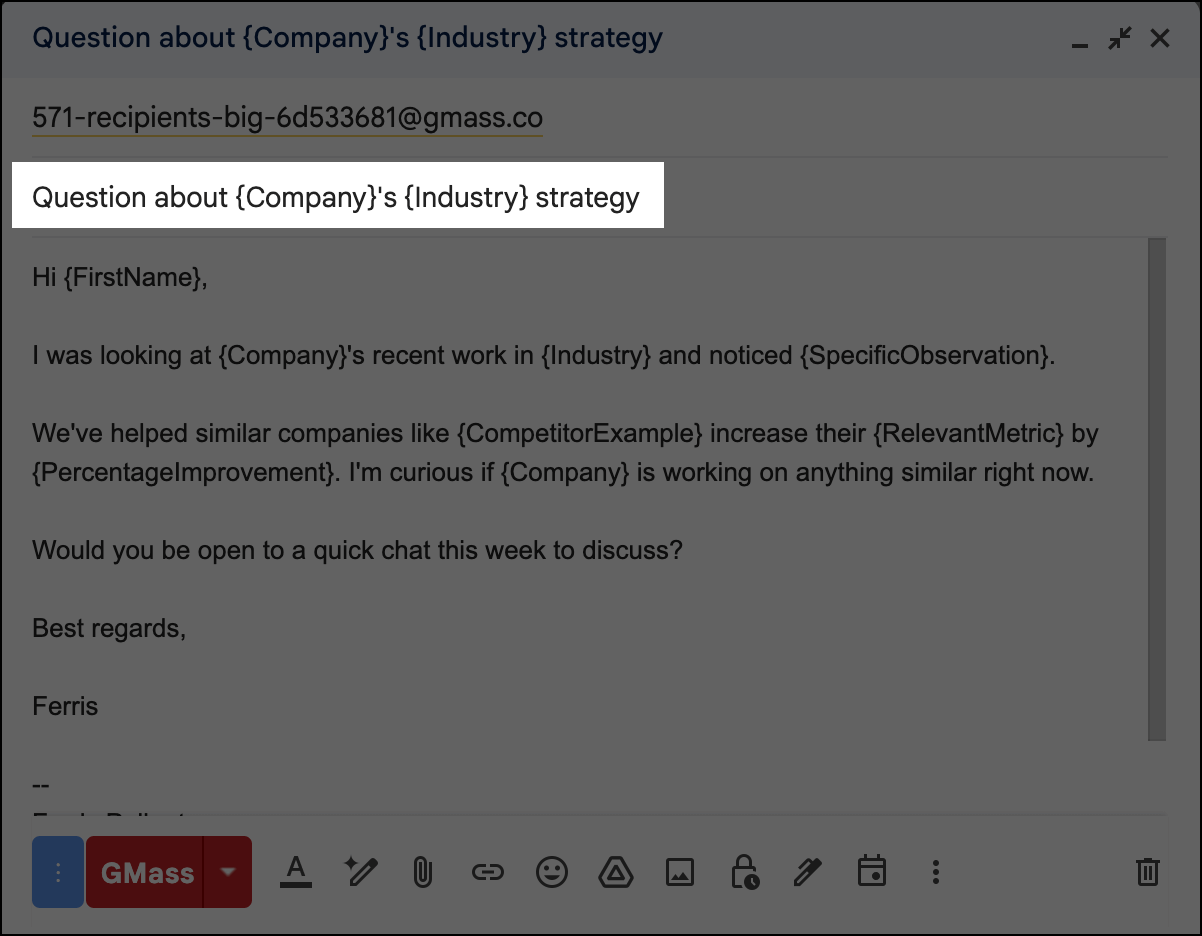
Even better? Hitting a pain point, like merging in the name of their competitor or a specific problem you saw on their website.
Email body structure
Keep the email tight, conversational, and scannable.
You want short paragraphs, laser focus on the recipient, and a single call-to-action.
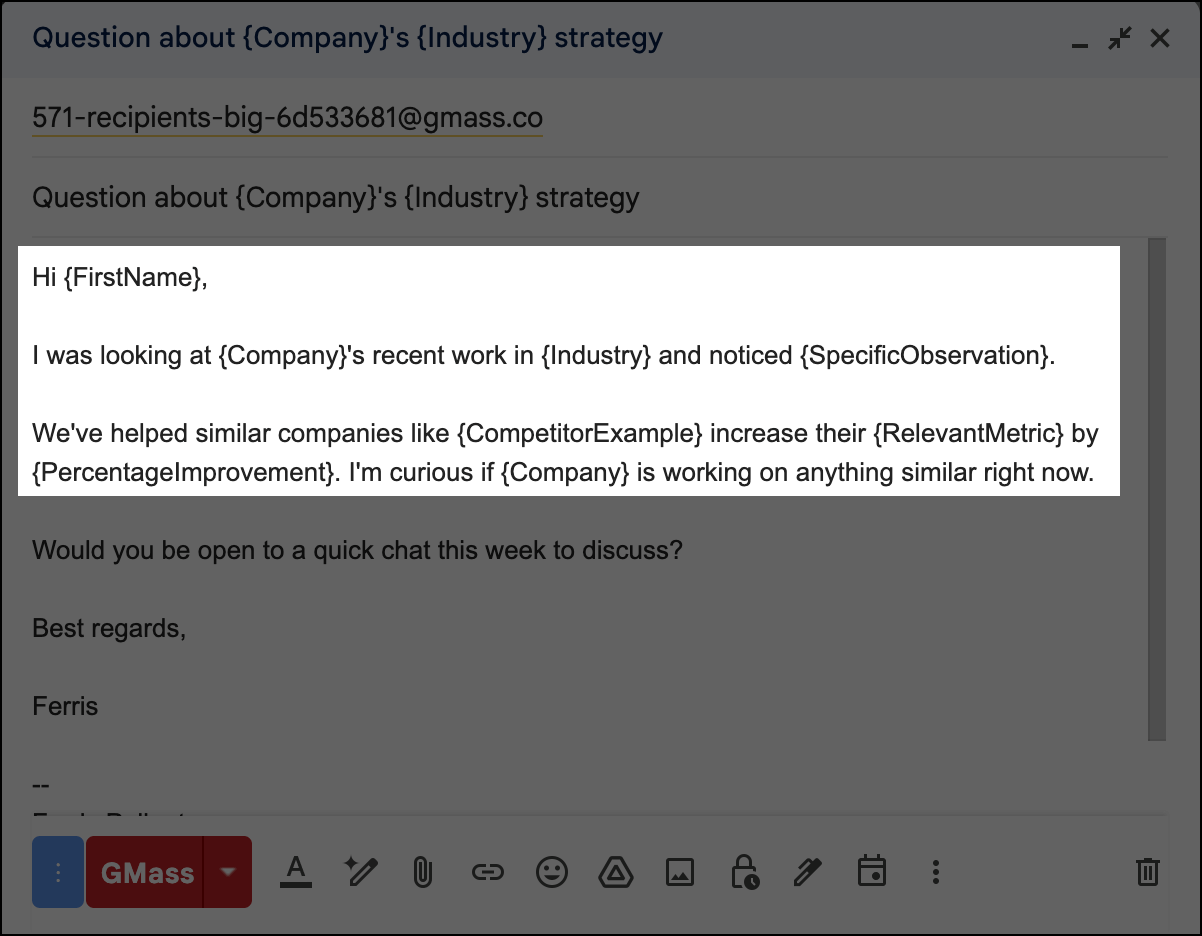
The goal of an email is to get someone to take one specific action. This is true, again, for everything from cold outreach to birthday party invites.
Strategic merge field placement
Don’t just throw {FirstName} at the beginning and call it a day. Use merge fields where they add context: “I noticed {Company} recently {RecentNews}.”
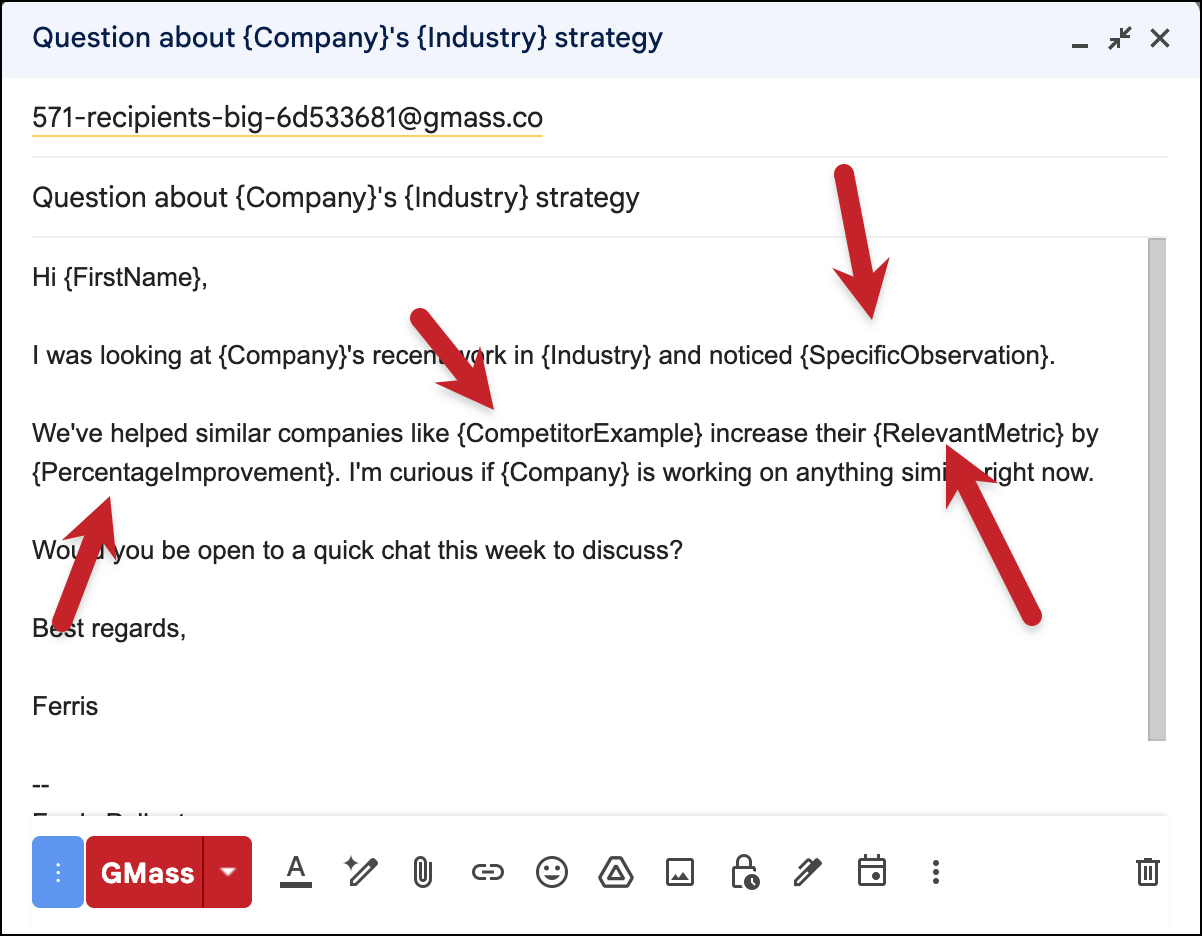
The merge fields you use should feel natural, organic, and additive. You don’t want to pepper in data for the sake of data.
Clear call-to-action
What do you want them to do? Reply with availability? Click a link?
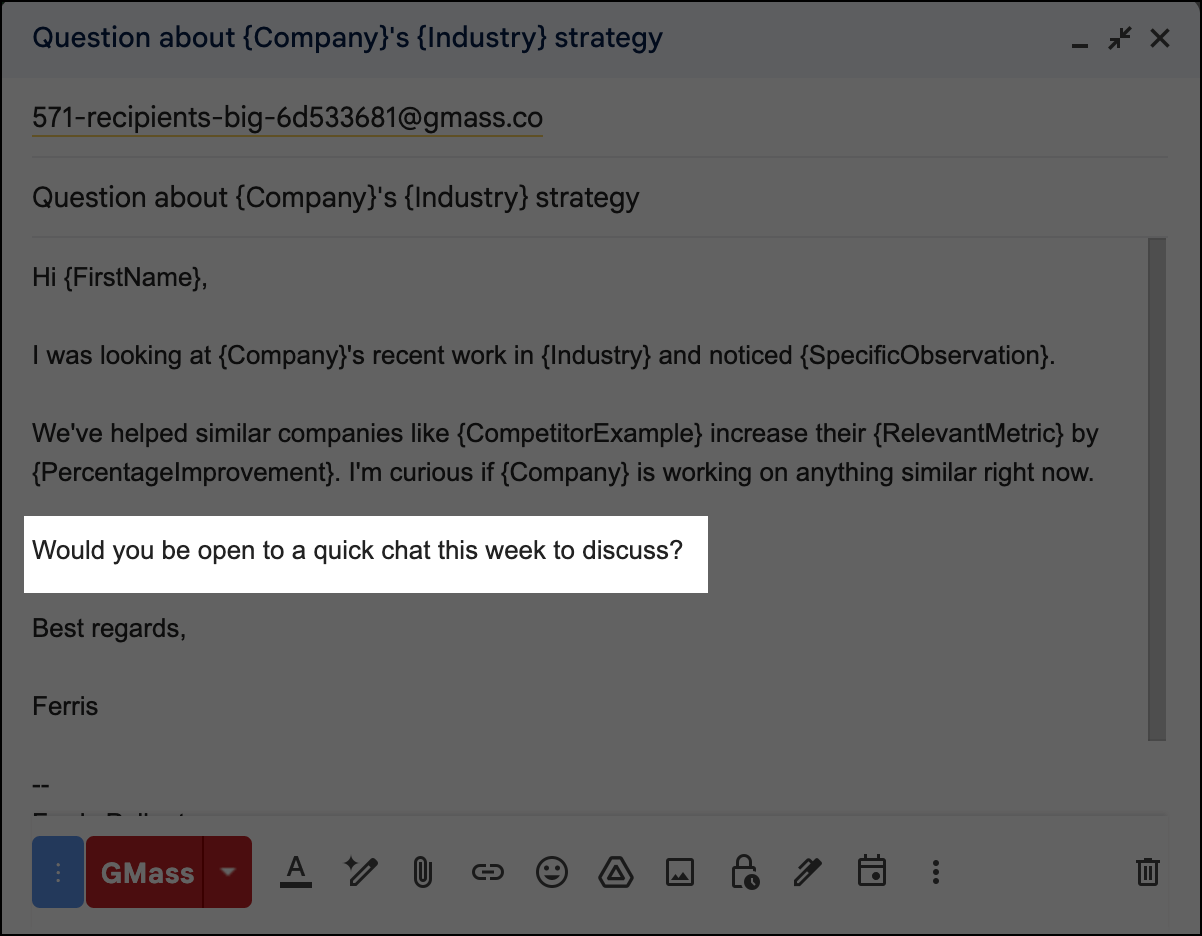
Make it obvious and easy — and so it doesn’t feel like a major commitment.
Data source (Google Sheets setup)
With Gmail mail merges, your data source is almost always going to be a Google Sheet.
Fortunately, Google Sheets are great for mail merging. Here’s what you need to include:
Essential data columns
At a minimum: Email.
From there, it’s up to you what you want to merge into your email to best catch each recipient’s attention and drive a response.
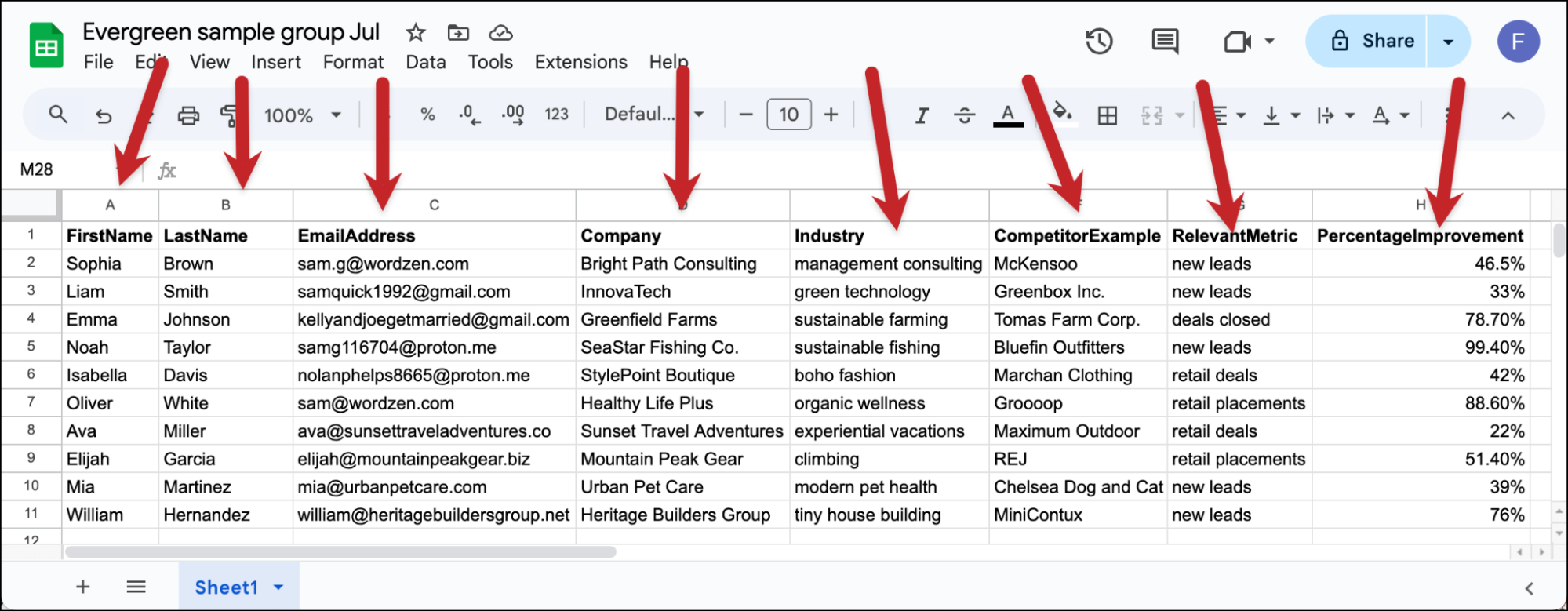
The more research you do, the more relevant your merge data will be — and the more likely you are to get a response.
Column headers
The first row of your Google Sheet is where you put your column headers — and those become the merge tags.
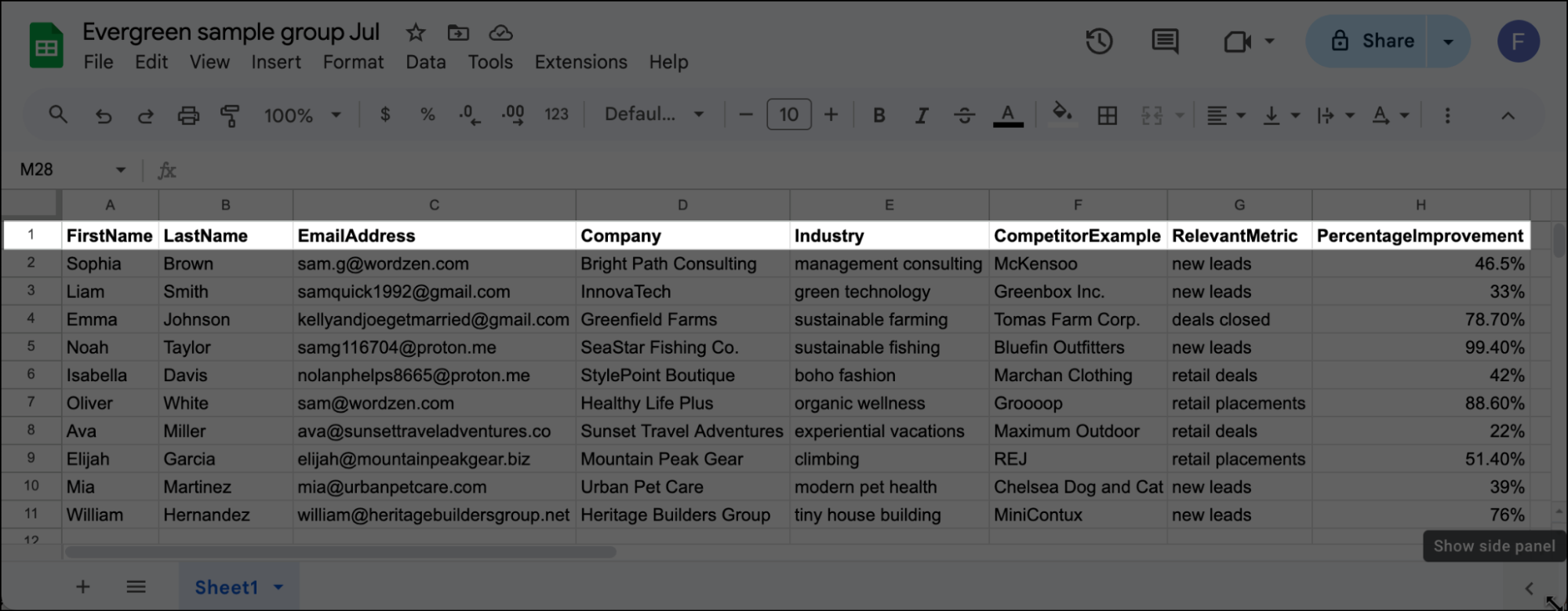
I like to bold them for visual separation, but that’s optional.
I also strongly recommend not using spaces or special characters (like punctuation) in your column headers. That helps eliminate the possibility of issues with your mail merge software.
Gmail mail merge software options
You’ve got three main options for software that can unite your Google Sheets data source with your email template to create your individual, personalized mail merge messages:
Gmail’s built-in mail merge
Google rolled out a rudimentary mail merge feature in 2023, and it’s included with some Workspace plans. (Though, notably, not the Business Starter plan — aka the cheapest option which pretty much everyone uses.)
The good news: If mail merge is included in your Google Workspace plan, it’s a free option. (Or, at least, not an extra charge on top of what you’re paying for Workspace.)
The bad news: It’s extremely limited. I wrote a whole article on the limitations of Gmail’s built-in mail merge but in brief, you can’t even do things like add merge tags to the subject line or schedule your email.
Building your own with Google Apps Script
It’s technically possible to build a Google Apps Script to send a mail merge. While you don’t necessarily have to be a software developer, you’ll have to be comfortable with code.
And, of course, if you want a feature, you’ll have to figure out how to code that.
Plus there’s a decent chance your eyes went wide with terror at the phrase “Google Apps Script” and you’re already ready to skip to the next possibility.
Using third-party software like GMass
The best way to send mail merges in Google is with third-party software.
You’ll get powerful software and be able to send sophisticated mail merges with the simplicity of just clicking a few buttons.
There’s advanced personalization, scheduling, analytics, automated follow-ups — basically everything Gmail’s tool can’t do.
And third-party tools like GMass are Chrome extensions, so they work inside Gmail.
For anything beyond the most basic mail merge, you’re going to need this third option.
5 Google Mail Merge Templates You Can Copy
Here are five proven mail merge templates that can work across multiple different scenarios.
For each one, I’ve laid out the email template, the Google Sheets setup, and why this format gets results.
Template 1: Sales outreach
Use case: Cold outreach to potential clients or partners
Subject line: Question about {Company}’s {Industry} strategy
Email template:
Hi {FirstName},
I was looking at {Company}’s recent work in {Industry} and noticed {SpecificObservation}.
We’ve helped similar companies like {CompetitorExample} increase their {RelevantMetric} by {PercentageImprovement}. I’m curious if {Company} is working on anything similar right now.
Would you be open to a quick chat this week to discuss?
Best regards,
Your name
Required Google Sheets columns:
- FirstName
- Company
- Industry
- SpecificObservation
- CompetitorExample
- RelevantMetric
- PercentageImprovement
Why this works: It shows you’ve done your research, mentions specific results, brings up a competitor to drive a little fear, and has a clear, low-commitment ask.
Yes, it will take more time to mine for this data than a lot of cold emailers want to spend. So — that means it’s a great way to differentiate yourself by putting in that time.
Template 2: Event invitations
Use case: Inviting people to webinars, conferences, or company events
Subject line: {FirstName}, you’re invited: {EventName} on {EventDate}
Email template:
Hi {FirstName},
Based on your work in {Industry} at {Company}, I thought you’d be interested in our upcoming {EventName}.
We’ll be covering:
• x
• y
• z
The event is {EventDate} at {EventTime}. {EventLocation}
Register here for free: {RegistrationLink}
Looking forward to seeing you there!
– Your name
Required Google Sheets columns:
- FirstName
- Company
- Industry
- EventName
- EventDate
- EventTime
- EventLocation
- RegistrationLink
Why this works: It’s personal but informative, clearly states the value, and makes it easy to take action.
I made the registration link a mail merge tag here because, ideally, you’d send everyone personal registration links tied to their email address. If you aren’t going to do that, though, you don’t need to merge in the link.
Template 3: Customer follow-up
Use case: Following up with existing customers after they make a purchase or use your service
Subject line: How’s {ProductService} working out for {Company}?
Email template:
Hi {FirstName},
It’s been {TimeSincePurchase} since {Company} started using {ProductService}. I wanted to check in and see how things are going.
A few questions:
• Are you seeing the {ExpectedBenefit} we discussed?
• Any challenges with {SpecificFeature}?
• What questions can I answer for your team?
Thanks for being a great customer!
Your name
Required Google Sheets columns:
- FirstName
- Company
- ProductService
- TimeSincePurchase
- ExpectedBenefit
- SpecificFeature
Why this works: Shows you remember their specific situation and asks for feedback. This can be a good way to spot at-risk customers and improve your product.
Template 4: Newsletter/update announcement
Use case: Sharing company news, product updates, or industry insights with your audience
Subject line: {Company} update: {MainAnnouncement}
Email template:
Hi {FirstName},
Wanted to share a quick update for you and everyone at {Company}: {MainAnnouncement}
This means {ImpactOnRecipient}, which I thought would be particularly relevant for {Company} given your work in {RelevantArea}.
Key details:
• {Detail1}
• {Detail2}
• {Detail3}
You can learn more here: {Link}
As always, reply if you have any questions!
Your name
Required Google Sheets columns:
- FirstName
- Company
- MainAnnouncement
- ImpactOnRecipient
- RelevantArea
- Detail1, Detail2, Detail3
- Link
Why this works: Balances company news with personal relevance, making broadcast content feel individually crafted.
If you think the three details is overkill, you can drop that part. Even just having the ImpactOnRecipient merge will blow their minds.
Template 5: Job candidate outreach
Use case: Recruiting or reaching out to potential hires
Subject line: {FirstName}, interesting {Role} opportunity at Company
Email template:
Hi {FirstName},
I came across your profile and was impressed by your experience with {RelevantSkill} at {CurrentCompany}.
We’re looking for a {Role} at Company to help us {ProjectDescription}. Given your background, I think you’d be a great fit.
Would you be interested in learning more? I’d love to set up a quick call to discuss.
Best,
Your name
Required Google Sheets columns:
- FirstName
- CurrentCompany
- RelevantSkill
- Role
- YourCompany
- ProjectDescription
Why this works: Shows you’ve researched their background, clearly explains the opportunity, and maintains a professional but personal tone.
How to Create and Send Your Template in Gmail
We’re now ready to create your template in Gmail and send it off.
I’m going to show you how to do this in GMass. It’s one of, if not the, most popular Gmail mail merge software options (400,000 users!), plus since it works inside Gmail, it has the quickest learning curve.
Step 1: Get all your data into your Google Sheet
Put any and all relevant data into your Google Sheet.
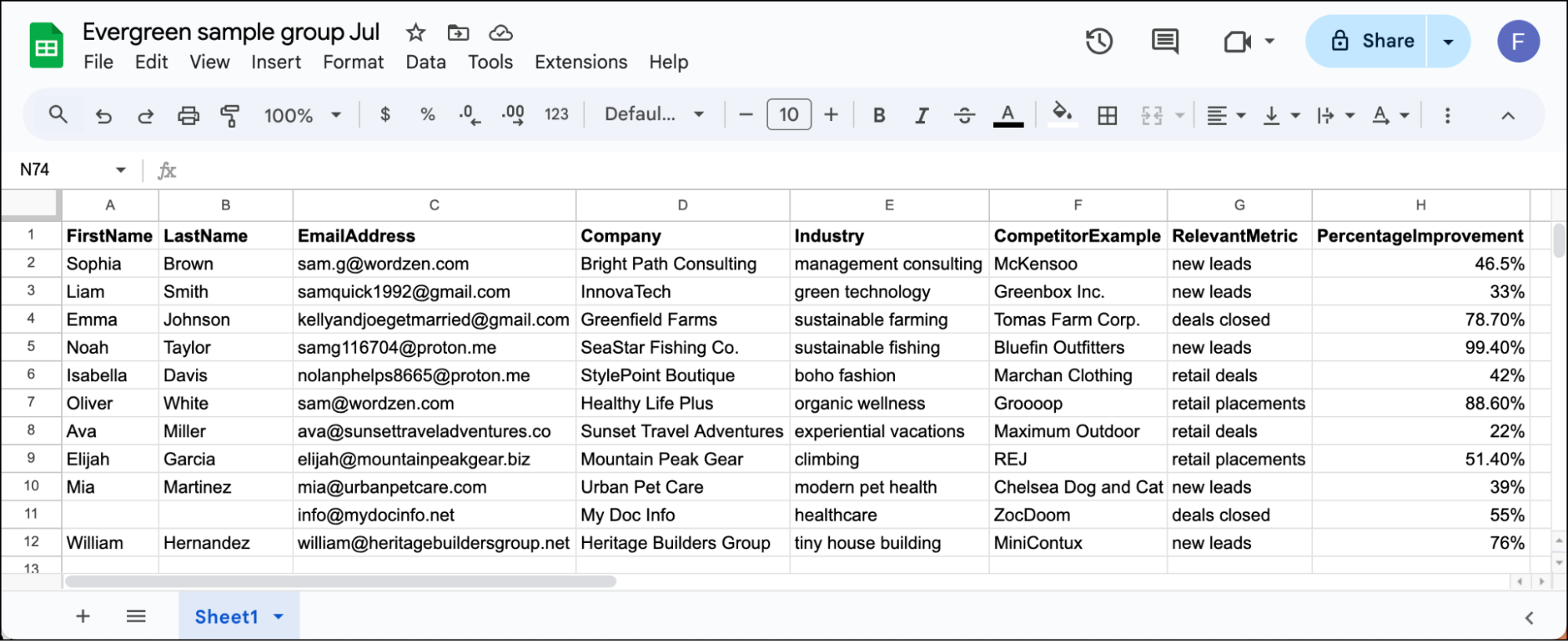
Don’t worry if you’re missing some data for some recipients; when we set up the template we’ll use something called fallback values for situations like that.
Step 2: Install GMass in Chrome
GMass is a Chrome extension, so you can install it from the Chrome Web Store with a click.
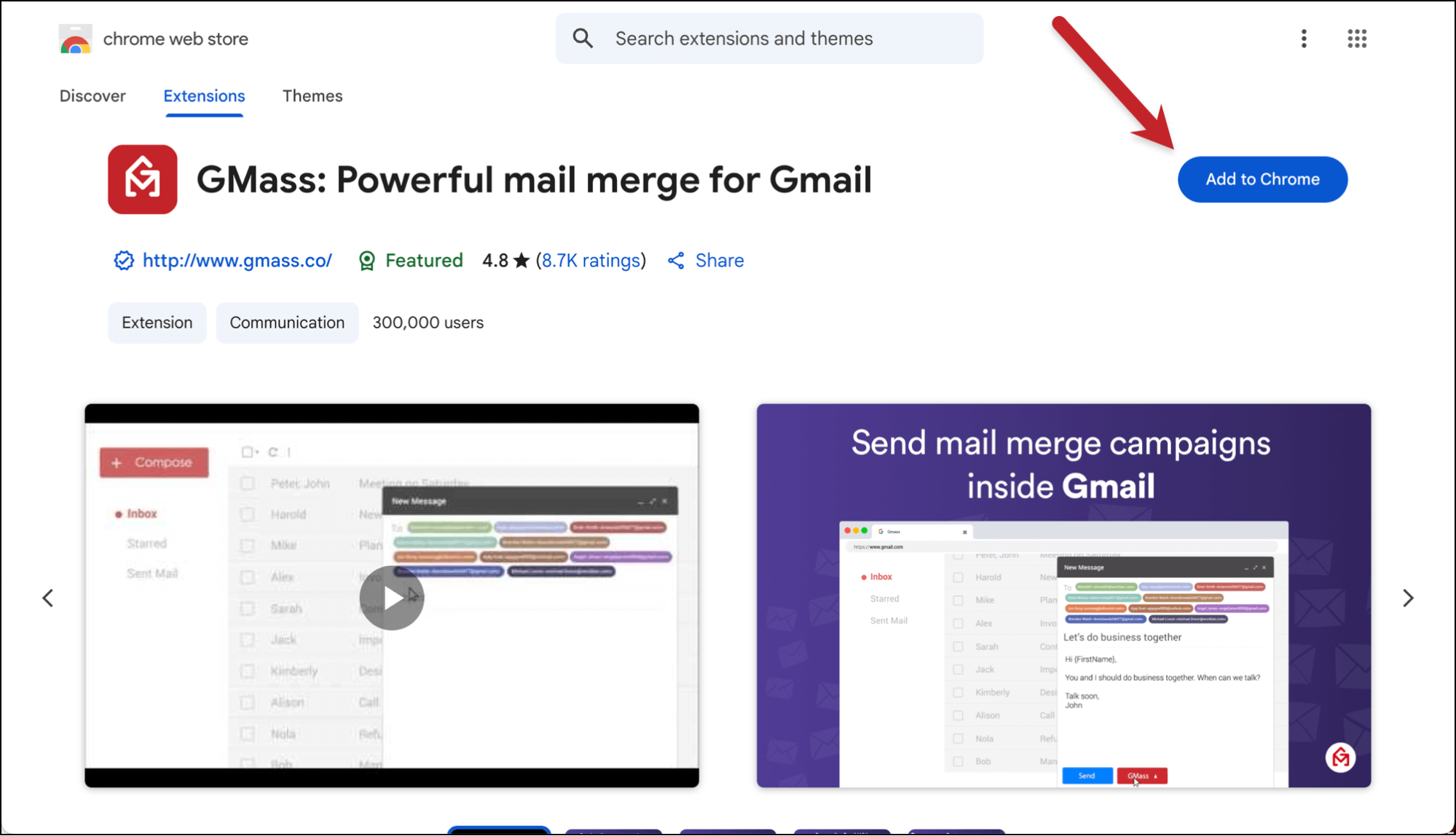
From there, head over to Gmail. You’ll need to give GMass permissions in Gmail and Google Sheets, then you’re all set to go.
(You’ll start with a free trial of Gmail with no credit card required.)
Step 3: Create a new campaign
Open a new compose window in Gmail, just like you would if you were typing a regular one-on-one email.
You’ll see a new GMass icon in the To: line. Click on that icon.
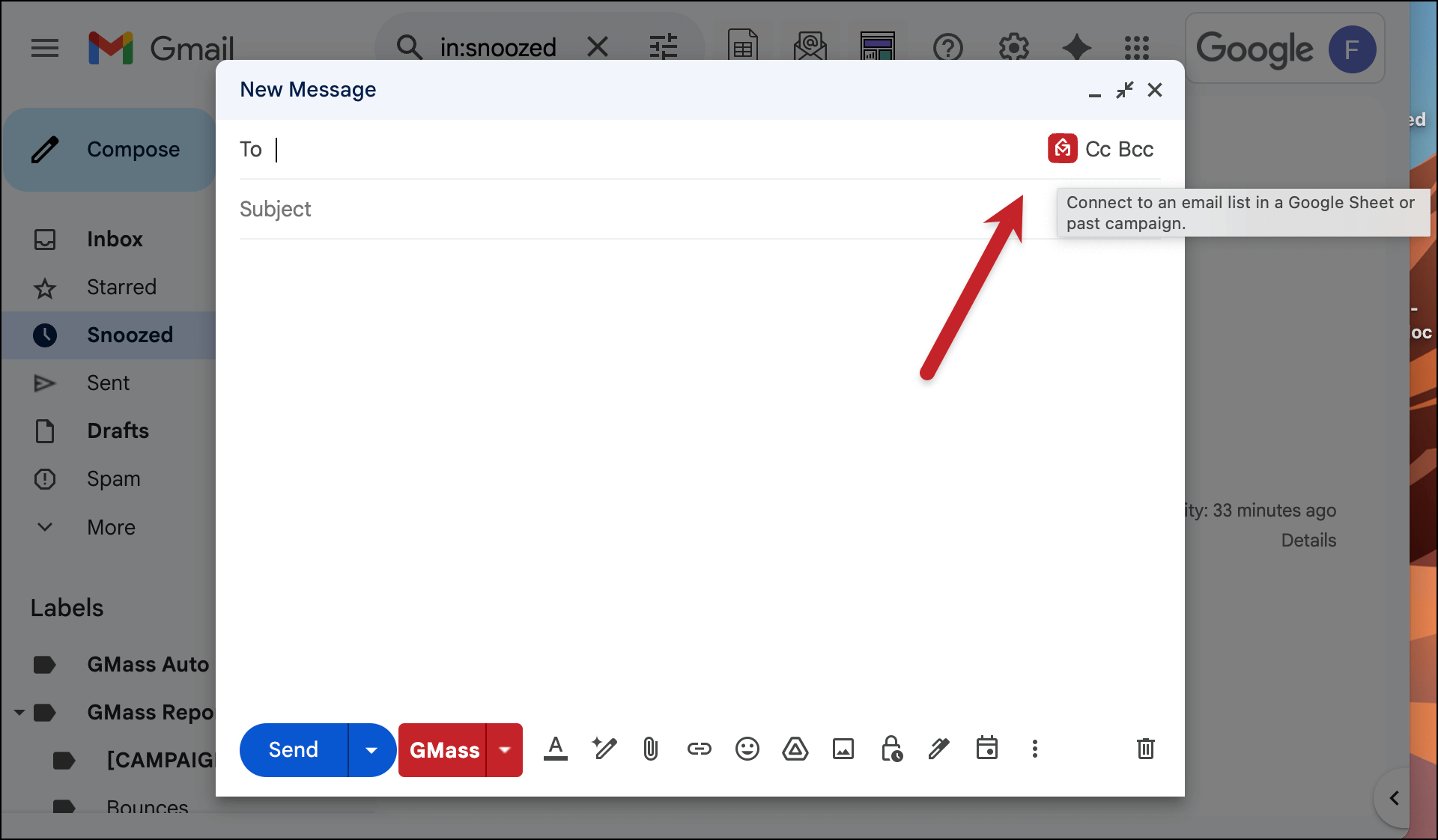
Now you can connect your Google Sheet of contacts.
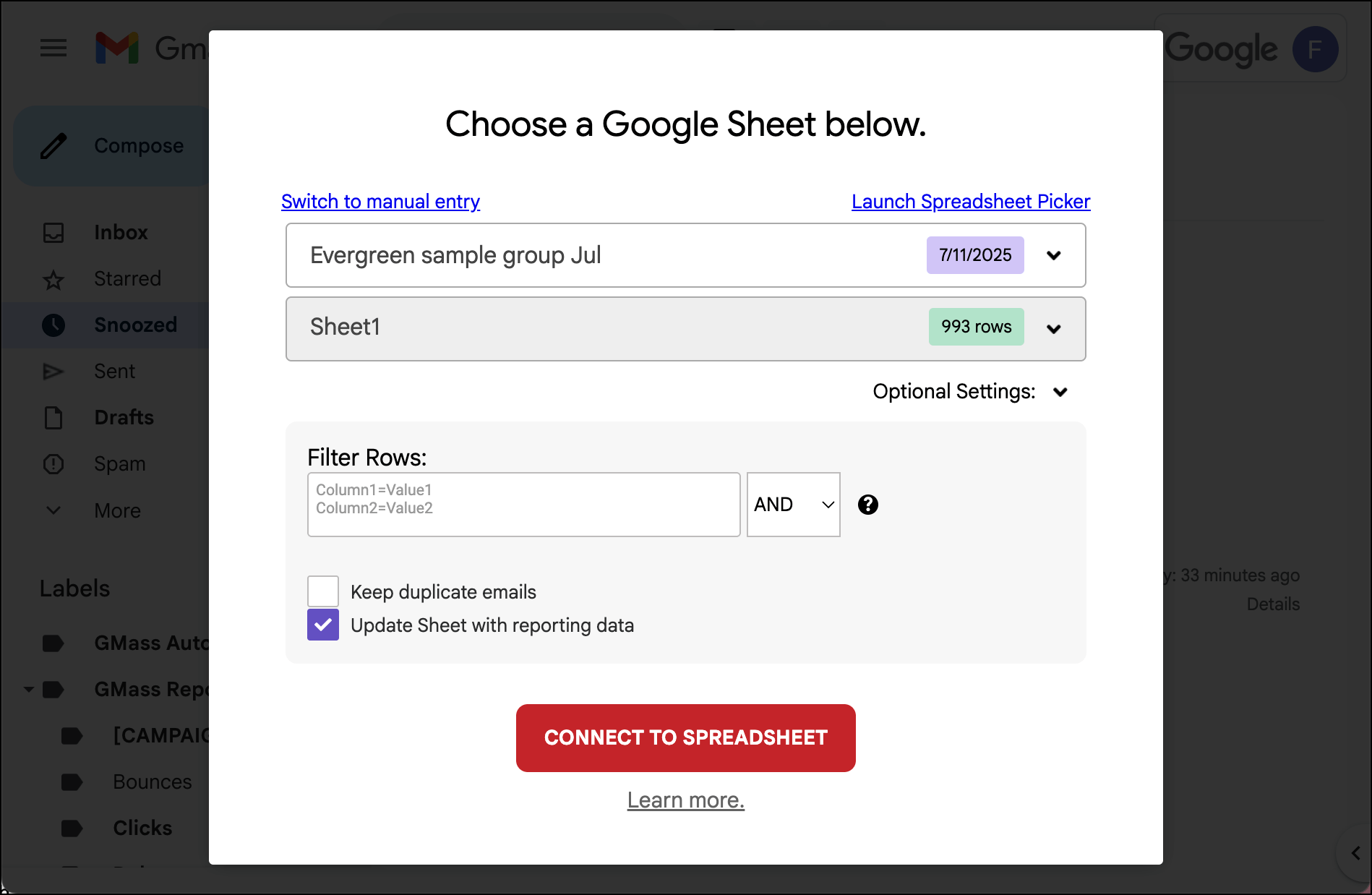
While there are plenty of options as you get more advanced with GMass, for now we can keep this super basic and just choose to connect to the spreadsheet.
Step 4: Compose your Google mail merge template
Next up, you can type up your email template.
Any time you want to insert a merge tag, type a left curly brace.
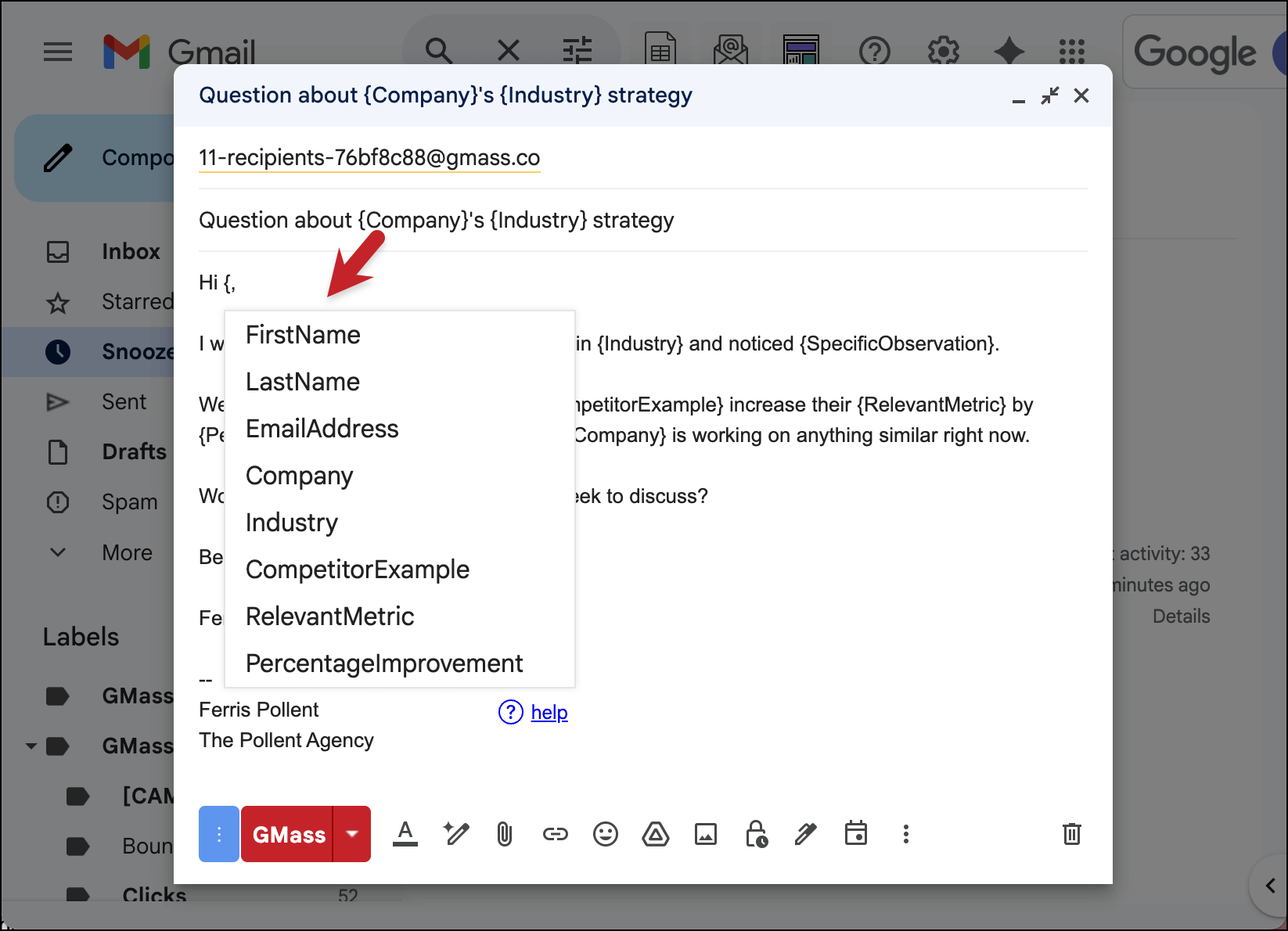
GMass will show you a list of all your column headers/merge tags, and you can insert them wherever you need in your email.
Step 5: Fallback values
What happens if you don’t have every piece of data for every recipient? That’s when we’ll use fallback values.
A fallback value is a default bit of text that appears when a merge field is empty for a recipient.
So as you can see here, I’ve added a fallback value for FirstName and for Company.
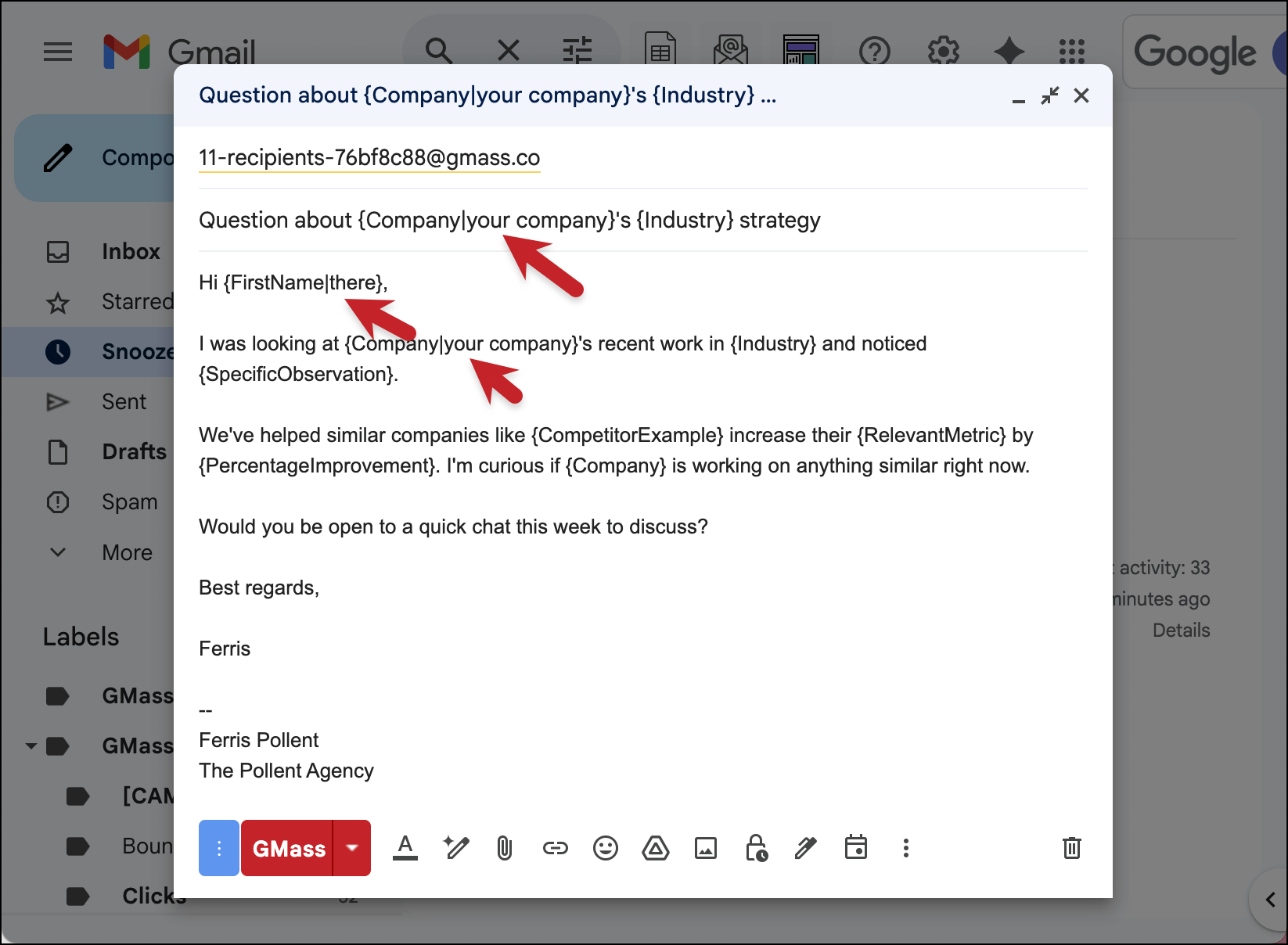
To add these yourself, just type the pipe | symbol, then your fallback value.
Step 6: Any optional settings
Again, we don’t want to get too fancy with this first mail merge.
But if you want to configure any optional settings, you can do so by clicking the arrow next to that new GMass button in your compose window.
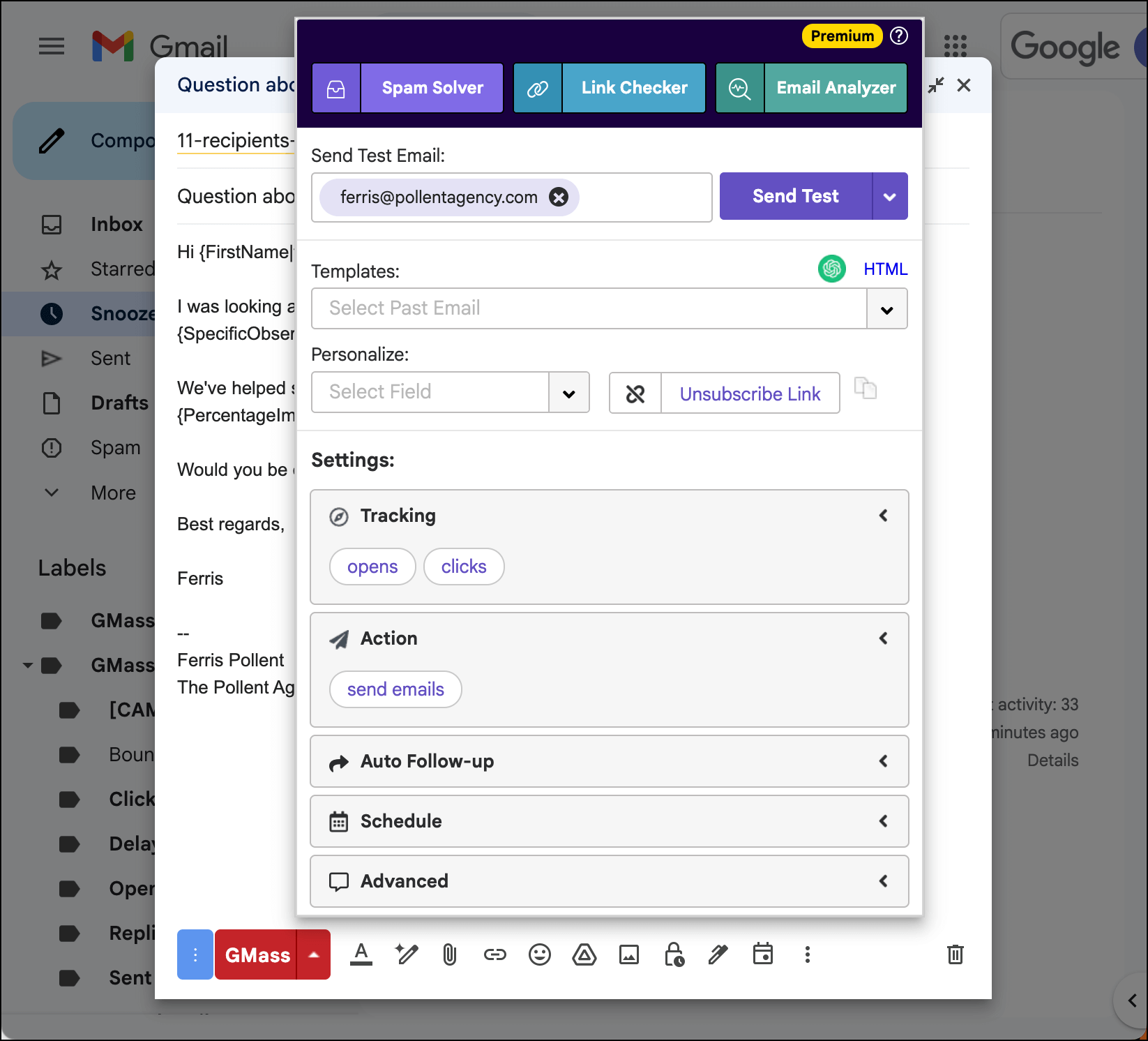
All the settings for your campaign are in one box — things like scheduling, adding follow-ups, A/B testing, and a whole lot more.
Step 7: Create your drafts
I’ve sent hundreds of mail merge campaigns, and I’m still terrified before each one that the merging won’t work right.
Which is why I never send out my Google mail merge template without spot checking it first.
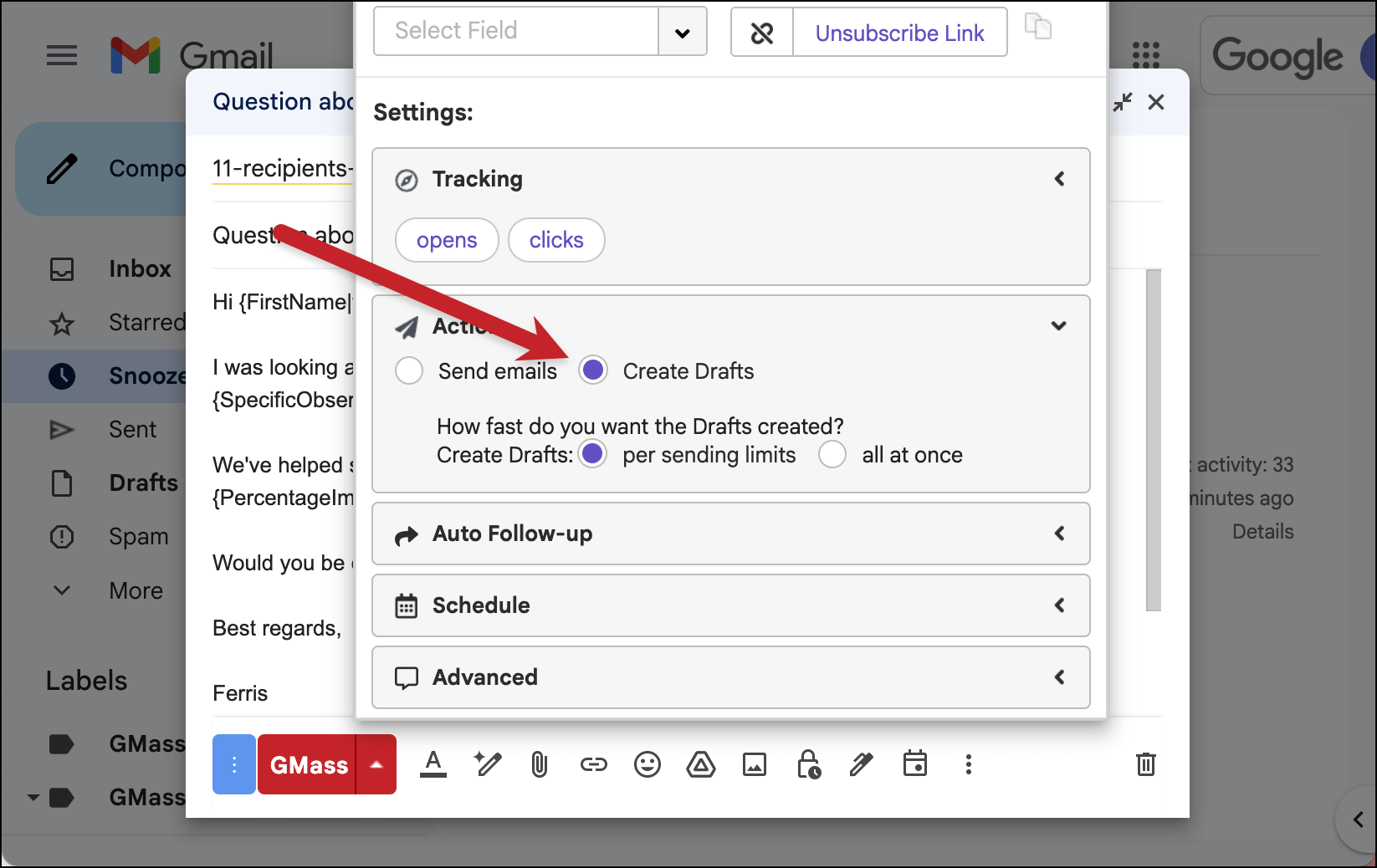
In the GMass settings box, we’re going to choose the create drafts option.
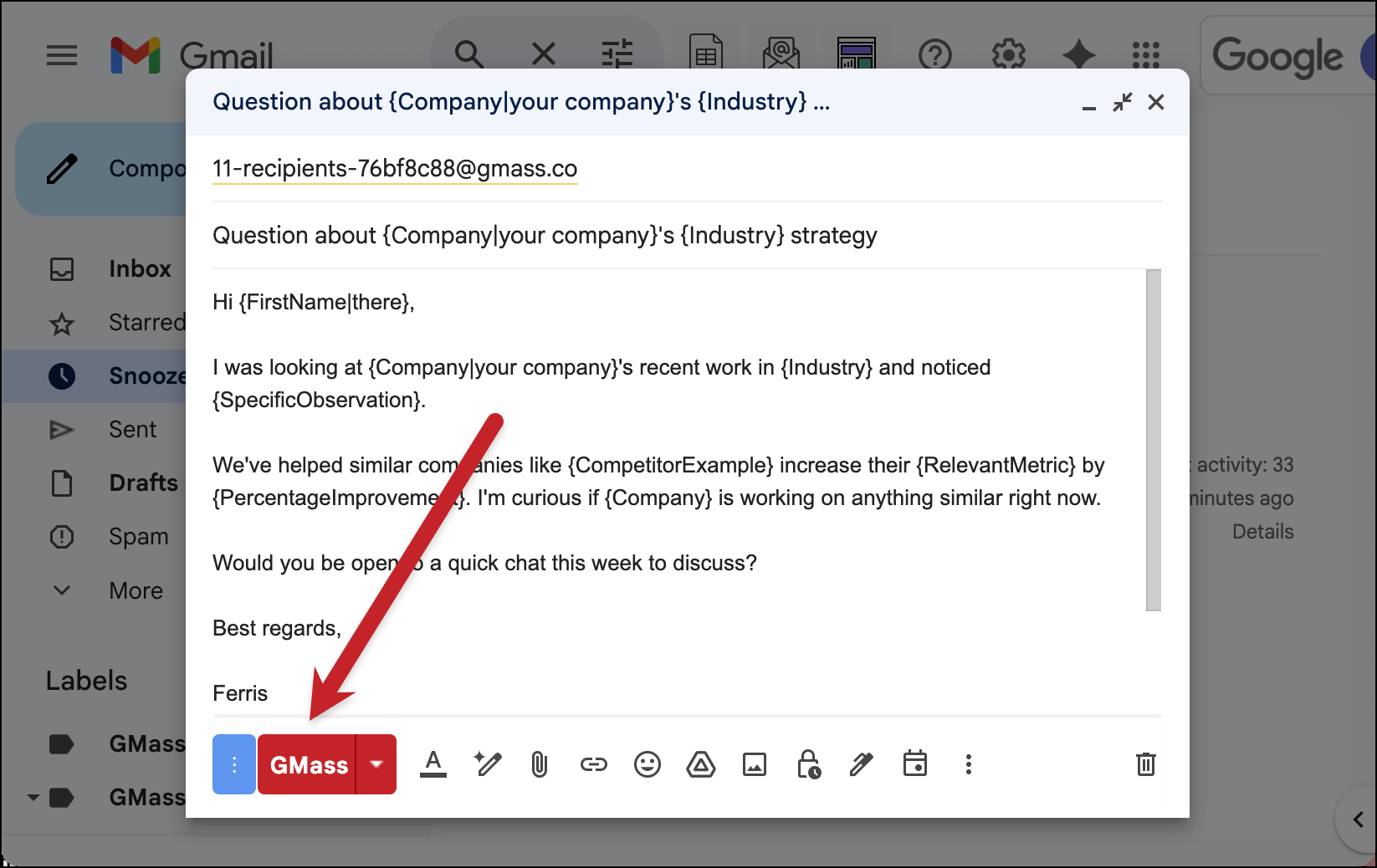
Then, click the red GMass button to initiate the campaign. (Do not click the normal blue Gmail send button or the mail merging won’t work.)
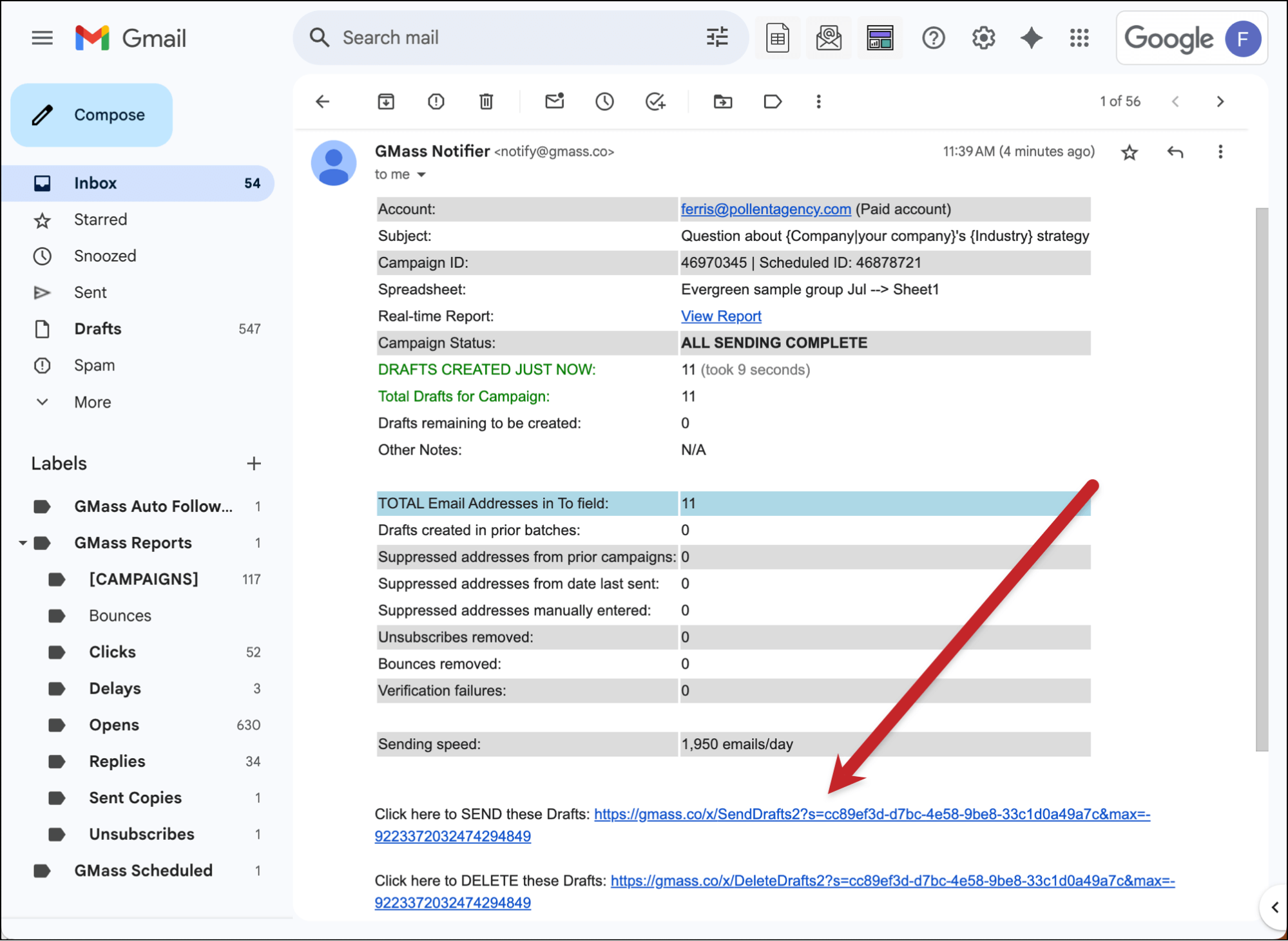
GMass will now create the drafts of all your messages. It could take a few minutes, depending on the size of your list. But once they’re done, you’ll get an email alert from GMass and you can find every draft in Gmail’s Drafts folder.
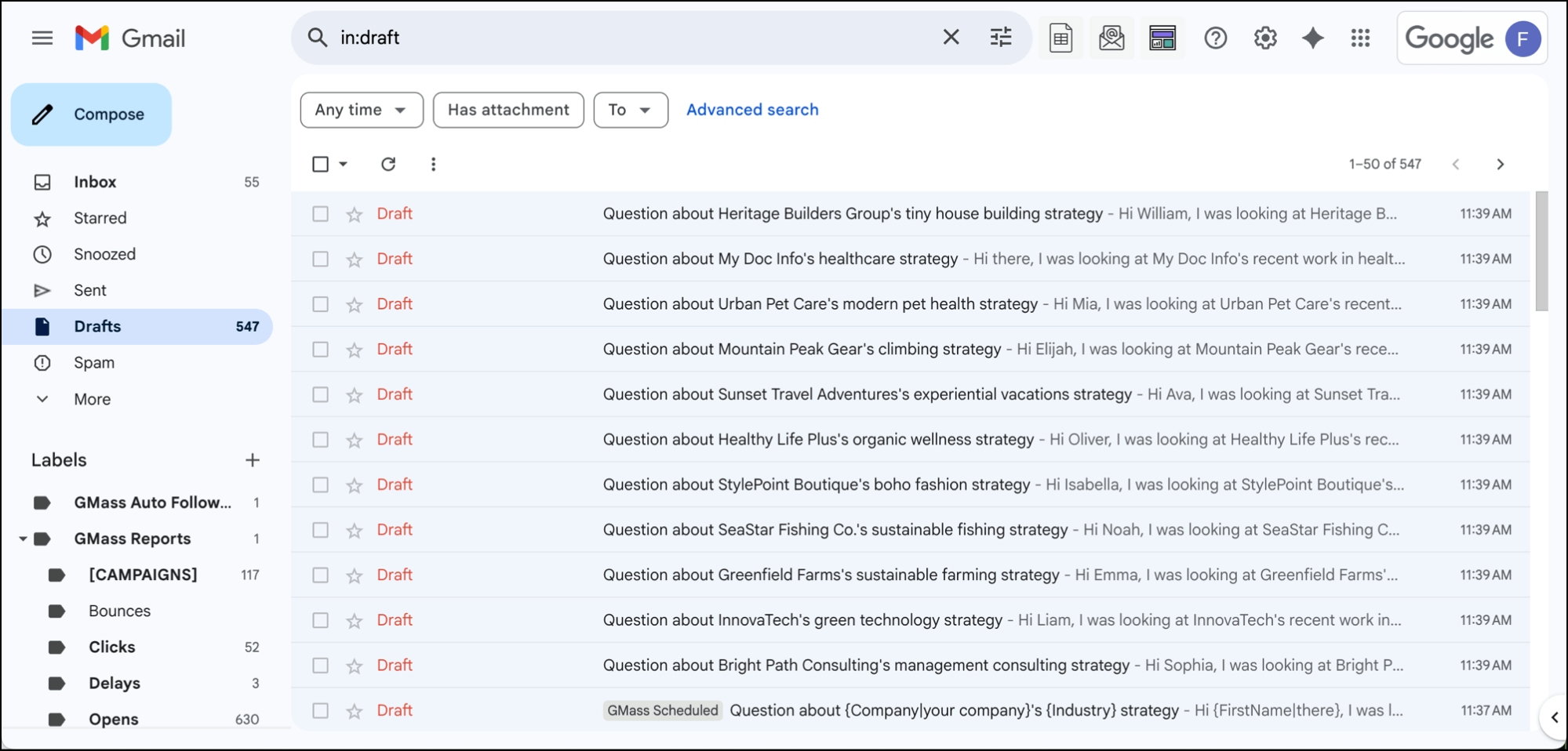
Spot check a few to make sure the mail merging all worked as expected.
If it didn’t, there’s a link in that GMass alert email to delete the drafts. You can then fix your template and try again.
Step 8: Send the campaign
But if the drafts look good, you’re ready to send them off.
Click the link in the GMass alert email to send those drafts to your recipients.
Everyone will get their own unique, individual, personalized message.
Google Mail Merge Template: Next Steps
Mail merges aren’t only about saving time (though they do that). They’re about creating personalized conversations at scale.
When you get the template structure right — the email design, the data setup, the right software to connect it all — you can send hundreds of emails from your Gmail account, all of which feel like they were one-on-one.
GMass gives you all the advanced template features we’ve covered — all without leaving Gmail.
Plus this article has just scratched the surface of everything GMass can do…
- Personalized mail merge attachments and images
- A/B testing
- Spam Solver, to help get your campaigns to the inbox
- Automated follow-ups
- Advanced scheduling
- Great analytics
- And so much more
Ready to give it a try?
You can install GMass free and test out these template strategies with no credit card required.
See why nearly 400,000 users love GMass for mail merges (and more) and why they give GMass an average of 4.8 out of 5 stars across 15,000+ reviews.