
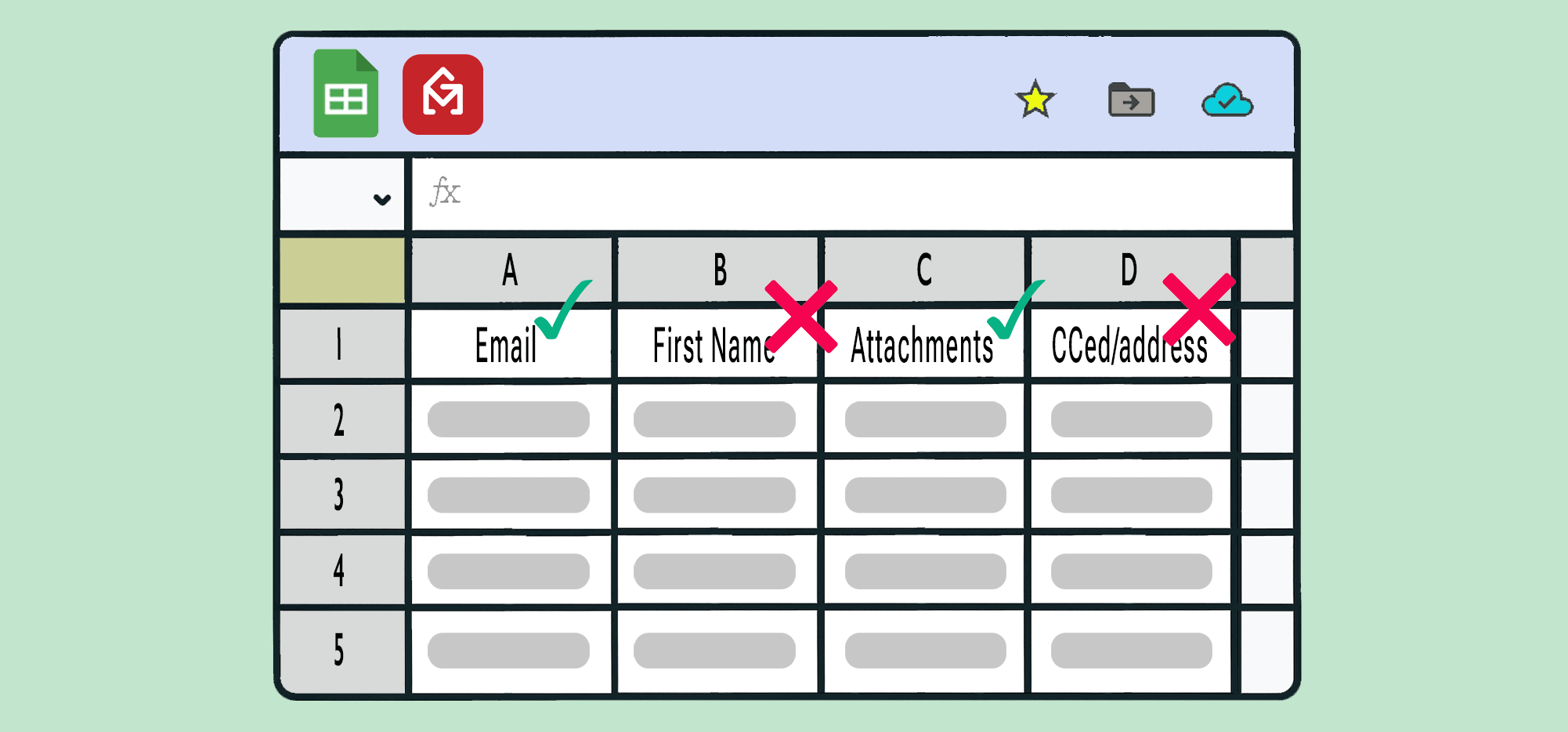
The way you format your Google Sheet for a mail merge campaign can make a serious difference between a smooth experience and a frustrating one.
I work personally with tons of users here at GMass on their Google Sheets mail merges and, over the years, I’ve had many of them reach out because of issues with their mail merge.
The good news is: I can almost always diagnose their problem immediately with one look at their Google Sheet.
The bad news is: They had to get me involved. As much as I love helping, no one really wants me to have to help with their mail merge errors. They want a smooth, simple process.
Well… if you format your sheet properly, it absolutely will be.
Here are my six best tips for formatting your Google Sheet to make it ready for mail merge.
Format Google Sheets for Mail Merge: Table of Contents
- Tip #1: Beware of all spaces in your column headers
- Tip #2: Don’t change your column headers after you connect your Google Sheet
- Tip #3: Validate your email addresses
- Tip #4: Enter your data with the finished product in mind
- Tip #5: Make sure images and attachments deep link to files
- Tip #6: Set the Google Sheet’s time zone for date calculations
- Formatting Your Google Sheet for Mail Merging: Next Steps
Tip #1: Beware of all spaces in your column headers
This is my first tip because it’s the most common cause of mail merge errors.
Spaces and mail merge tags are not friends.
(Quickly, in GMass, the first row of your Google Sheet serves as your column headers.)
Avoiding spaces in column headers/merge tags
That’s why in every example I ever use in GMass (seriously, check every article on this website) I make my column header FirstName rather than First Name. Email or EmailAddress rather than Email Address. StartDate rather than Start Date. And on and on and on.
In theory, spaces will work with mail merge. But it can get awful sticky — and prone to mistakes — when you use more advanced mail merge techniques like fallback values and conditional content with spaces.
(While we’re on the subject, also definitely avoid special characters in your column headers, like punctuation.)
Avoiding hidden whitespace
Spaces in column headers/merge tags aren’t the only troublesome spaces.
Beware — seriously, BEWARE — of a space you can’t see after your column header.
EmailAddress won’t merge if you just type {EmailAddress}.
Hidden spaces can sink you. If a merge tag isn’t working right, go invisible space hunting.
Tip #2: Don’t change your column headers after you connect your Google Sheet
I’ve made this tip second because I’ve found it’s the second-most likely reason people’s Google Sheets mail merges don’t work right. And I think it technically counts as “formatting,” though I’m stretching the definition a little.
Once you’ve connected your Google Sheet to your GMass campaign, don’t change the names of the column headers. That will break all your merge tags.
For example, if your sheet originally had a column called CompanyName when you connected it to your campaign but you change that to BusinessName in your Google Sheet after, the mail merge won’t work anymore.
Keep your column headers consistent and you won’t run into that trouble.
Note: This is true even if you’re using GMass’s dynamic lists feature, where your Google Sheet becomes the “one source of truth” for your campaign. You can add and remove rows of contacts at any point when you’re working with dynamic lists — just don’t mess with the column headers.
Properly naming columns
Most columns in GMass can have whatever name you want. Even the column of email addresses can have whatever name you want — GMass merely looks for the first column of email addresses.
There are, however, three column headers that need to have certain words in them:
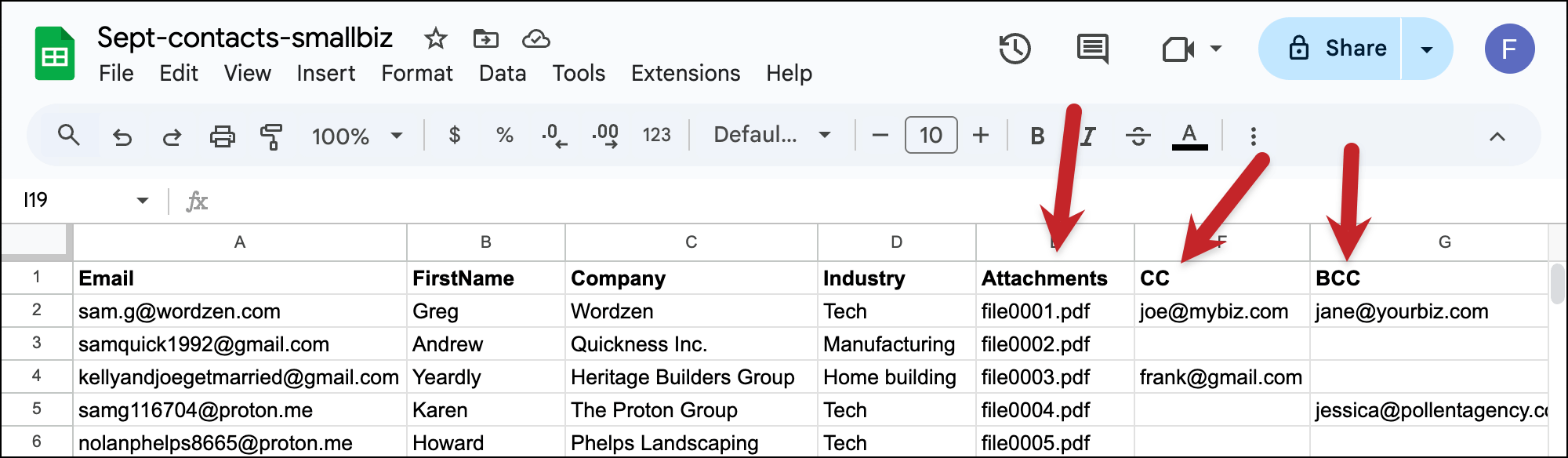
- If you’re using personalized attachments, that column has to start with the word “attachment.” For instance, Attachments or attachmentfiles.
- If you’re going to mail merge CC and BCC email addresses, those columns need to just be called CC and BCC, respectively. Do not add other words on the end, like don’t make it CCaddresses.
Don’t rearrange columns
One more related point: It’s also best not to rearrange the order of your columns after you’ve connected your Google Sheet to your GMass campaign.
If you have multiple columns of email addresses, GMass will use the leftmost one for your campaign. So make sure your columns are in the proper order before you connect your sheet.
Tip #3: Validate your email addresses
GMass has free email verification built in, which is a super popular feature and helps prevent a whole lot of bounces.
But you may also make mistakes when you enter email addresses.
If you catch those in Google Sheets, you can fix the emails and the messages will still go out. If there are typos in email addresses once GMass validates them, GMass will see they aren’t working and suppress the emails.
How to find email address typos in Google Sheets
You can use Google Sheets’s data validation option to check for common email address typos (double periods, misspelled words like gmil or yahoo, and typos in domain suffixes like .ocm).
In Google Sheets, go to Data > Data Validation.

Click the button to Add rule.
In the Apply to Range, enter your column with email addresses.
In criteria, choose Custom formula is. Then paste the following into the formula bar:
=AND(REGEXMATCH(A2, "^[a-zA-Z0-9._%+-]+@[a-zA-Z0-9.-]+.[a-zA-Z]{2,}$"), NOT(REGEXMATCH(A2, "..|^.|.$|@.|\.@")), NOT(REGEXMATCH(LOWER(A2), "@(gmial|gmai|gmil|gmal|gail|yahooo|yaho|outlok|outloo|gmaill|yahou).|.(cm|con|ocm|ent|orgg|og)$")))
And if data is invalid, choose to show a warning. Click Done.

Now Google Sheets will automatically flag emails with clear typos so you can correct them before connecting your Sheet to GMass.
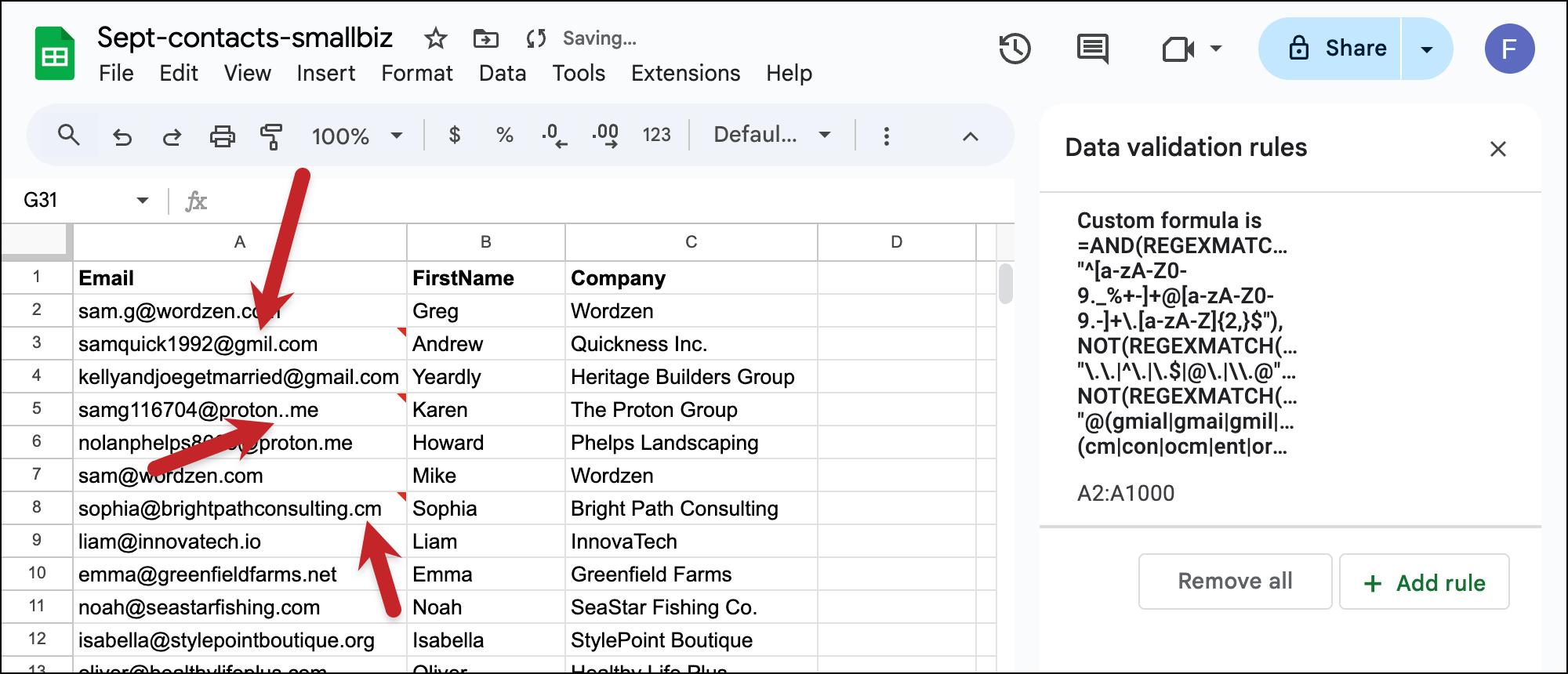
This won’t catch everything, but it will catch about 95% of the typos you might have in email addresses. And that alone can help you rescue emails in every campaign that would otherwise be wasted.
And yes, we know .cm is a real top-level domain. However, we’ve found GMass users are far more likely to mistype .com as .cm than to send emails to people with the .cm domain. If you do email lots of .cm folks, get rid of the cm option from the regex formula.
Tip #4: Enter your data with the finished product in mind
Let’s say I’m creating a Google Sheet and I want to talk about my contacts’ industries.
My instinct is to enter the industries with an initial capital letter. That’s probably your instinct too. It’s just how we’re conditioned to type things in a list.

But when I do that, I’m not thinking of the final merge.
Because in my email, I’d probably write something like “I can help people in {Industry} get more customers.” And when that merge happens, the result will be: “I can help people in Manufacturing get more customers.”
That’s wonky capitalization that screams sloppy mail merge.
So as you enter data, think about your final product. Type accordingly.
What if you have a column with thousands of things incorrectly capitalized? That happens too. In that case, use a Google Sheets formula to fix things. For instance, in my spreadsheet above, I could format everything properly by pasting this into cell E2: =ARRAYFORMULA(LOWER(D2:D)).
Tip #5: Make sure images and attachments deep link to files
GMass offers the ability to send personalized images and/or attachments to each contact in a mail merge.
It’s a great feature (I can say that without bragging because I didn’t build it) that people use for everything from pitches to invoicing.
In order to use personalized images or attachments, each one needs to have a public URL. (Not that anyone in the public can see them; GMass just needs to be able to retrieve them from a web server so they can’t be password protected or otherwise blocked from access.)
This is nice and easy when you have the links on your own server, a CDN, or Amazon S3. All the file URLs are straightforward there.
It gets trickier when your images or links live on Google Drive or Dropbox. Because they obscure the hell out of the actual root file links.
In my experience, 99.9% of the time when someone has an issue with GMass’s personalized attachments or personalized images, it’s because they’re not deep linking to the actual URLs on Dropbox or Google.
For full instructions on retrieving actual image URLs, check out my walkthroughs for Google Drive and Dropbox.
And for attachments, check out my full instructions on retrieving actual file URLs from Google Drive or Dropbox here.
Tip #6: Set the Google Sheet’s time zone for date calculations
You can use dates in Google Sheets + GMass’s conditional content and recurring campaigns to set up all sorts of interesting automations, from renewal reminders to happy birthday messages.
But before we start relying fully on the machines to do proper date calculations, it’s important to make sure they’re all operating from the same time zone.
I recommend setting the time zone in both your Google Sheet and your GMass account to ensure emails are going out when you want them to be.
Setting the default time zone in Google Sheets
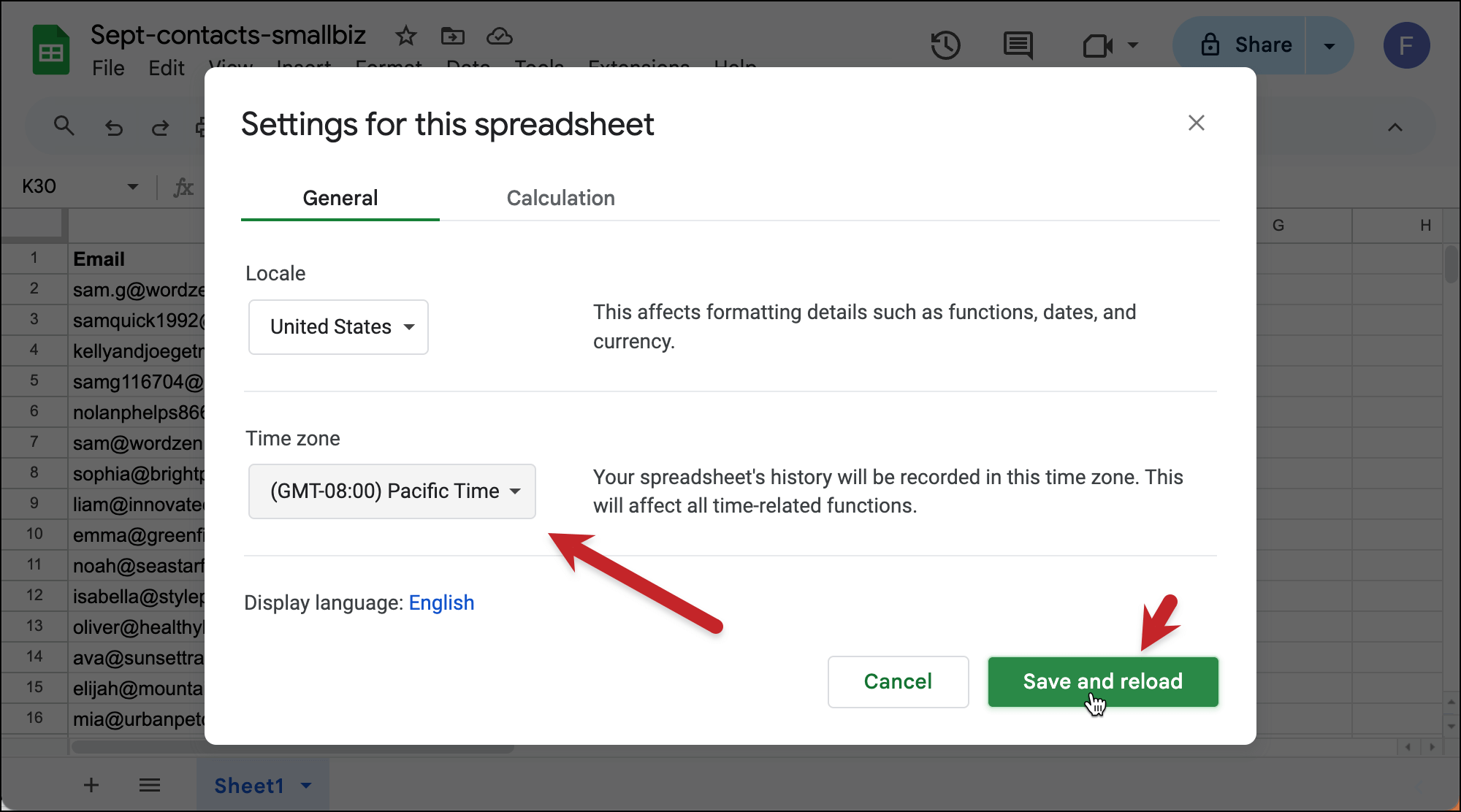
Go to File > Settings in your Google Sheet.
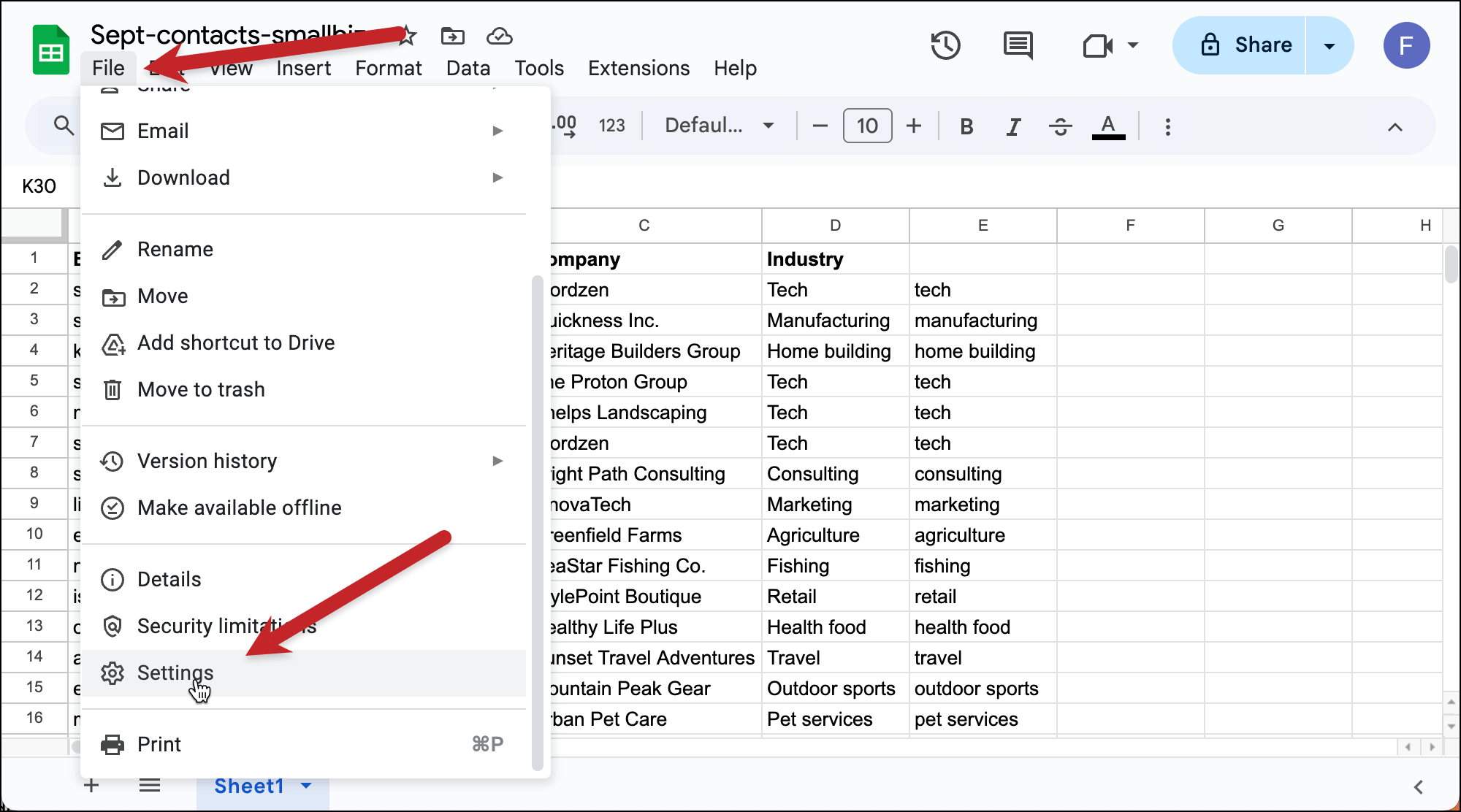
Now choose your preferred time zone.
Setting the default time zone in GMass
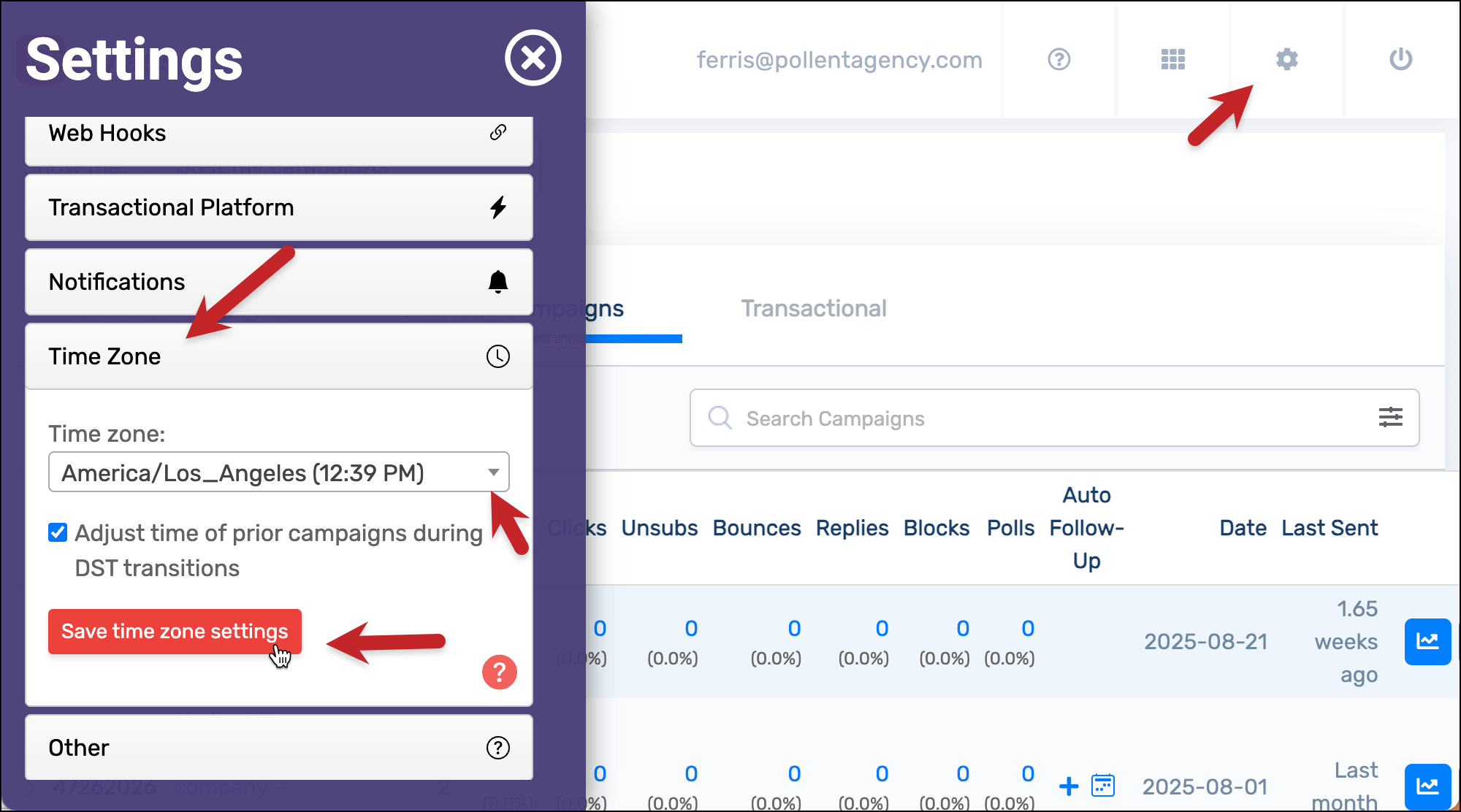
You can set a default time zone for your GMass account in the dashboard.
Open the Settings (the gear icon in the top right), then go to the Time Zone section.
Pick your desired time zone from the dropdown, then save the settings.
Now when you use date calculations to send emails, there won’t be any weird surprises.
(Also, if you are going to do date calculations in GMass, make sure to give a quick glance to the dates section in our conditional content documentation.)
Formatting Your Google Sheet for Mail Merging: Next Steps
When your Google Sheet is formatted correctly, GMass becomes incredibly powerful.
Those CC and BCC columns? Automatic. Personalized attachments? Handled. Dynamic images and links? Displaying properly. Basics like names and companies? Perfect every time.
The beauty is that once you understand these formatting rules, you can build incredibly sophisticated campaigns that still feel simple to execute.
GMass does the heavy lifting — you just need to give it a properly formatted spreadsheet.
Ready to see your perfectly formatted sheet in action?
Install GMass (it’s free to try — no credit card required!) and turn your formatted spreadsheet into campaigns that leverage every powerful feature, from automated follow-ups to behavior-based triggers to detailed analytics.
Email marketing, cold email, and mail merge all in one tool — that works inside Gmail
TRY GMASS FOR FREE
Download Chrome extension - 30 second install!
No credit card required