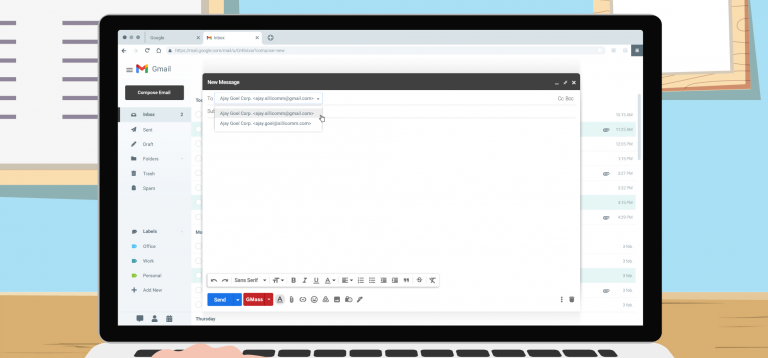
Yes, you can send 10,000 emails with Gmail. (Or 50,000. Or 100,000. Or 1,000,000.)
But you’ll need a little help..
Because normally, if you’ve got a list of a few thousand people (or tens of thousands) and you want to email them straight from your Gmail account, you’ll hit a wall fast.
Gmail only lets you send up to 500 emails a day from a free gmail.com account, or up to 2,000 a day from a Google Workspace account. Go over that and Google starts blocking the messages.
GMass is the Gmail mail merge and mass email tool that helps you break Gmail’s limits. (All totally within the terms of service too.)
GMass is a Chrome extension that transforms your Gmail/Google Workspace account into a mass-email sender: you write your campaign the way you’d write any normal email inside Gmail, and GMass can help you deliver it to a list far bigger than Gmail’s limits would normally allow.
There are a few different ways GMass helps you send your 10,000 emails or more. In this guide I’ll walk you through all of them so you can pick the one that’s best for you.
Send 10,000 Emails with Gmail: Table of Contents
Quick Answer: The Fastest Way to Send 10,000+ Emails from Gmail
The fastest way to send 10,000+ emails from your Gmail account is by using GMass’s sending server.
Let me explain:
Gmail’s daily limit is based on the number of emails you send the normal way: Hit Send, email goes through Gmail’s native sending server (without you ever realizing this is the pipeline).
But Google actually allows you to use other sending servers with your account. The emails still go through your Gmail account (they’ll be in your Sent folder and all that) — but you’re using someone else’s infrastructure to actually send the messages. Again, this is all behind the scenes so you won’t know the difference.
And when you use a sending server, you can send as many emails through Gmail as you want.
So… how do you actually DO this?
The GMass Chrome extension facilitates it in two ways:
- It enables you to actually use sending servers with your Gmail account
- GMass actually has its own sending servers for this, so you don’t have to go through the technical process of setting up your own.
And here’s how the process works:
- You create a campaign in GMass with a large list
- You send it
- GMass instantly assesses your account to determine if you’re eligible to send through the server (as long as you’re sending opt-in emails, you should be good to go)
- Your emails go out.

(Want to take care of that approval process before you send? You can also apply in advance.)
That’s it. No technical setup on your end, no delays, and nothing you will even notice.
What if you’re sending cold email?
As I said above, GMass’s sending server is for people sending permission-based emails.
But what if you’re sending cold outreach?
GMass has a sending server for you as well. It’s called ColdSMTP, and it’s a dedicated SMTP server for cold emailers.
What does this cost?
All GMass subscribers are eligible to send through the dedicated sending servers.
In addition, there’s a small usage fee for sending over SMTP on top of your plan; 50 cents for every 1,000 emails. (Your first 10,000 emails sent through the in-house sending server are included.) Check out the GMass pricing page for details.
Again, though, this is by far the easiest way to break Gmail’s limits and send 10,000+ emails through your Gmail account.
Check out the GMass pricing page to pick a plan. You can use GMass’s in-house sending server on all plans!
Other Great Ways to Send 10,000 Emails Through Gmail
Using GMass’s in-house sending servers is the fastest and easiest route to send 10,000 emails, but it isn’t the only route.
Depending on your situation, another method may fit better.
Here are some other options, and when each one makes sense.
MultiSend: inbox rotation across multiple accounts
Every Gmail and Workspace account has its own daily sending limit.
But if you have 10 accounts, each one has its own sending limit.
So one way to break Gmail’s limits is to distribute your campaign across multiple accounts. Instead of trying to send 10,000 emails through one account, you could send 1,000 emails each through 10 accounts.
Doing that manually, though, is a whole lot of work and a whole lot of logistics.
Inbox rotation is the solution. That’s a technique where your sending platform (like GMass) automatically distributes your campaign across a whole bunch of connected accounts. It handles the whole process automatically, and has a unified inbox where you can monitor all the replies and analytics in one spot.
GMass’s inbox rotation feature is called MultiSend, and it’s part of the Professional plan.
This is the best fit when you’d rather keep sending through Gmail accounts versus routing your campaign through a separate server.
Using your own SMTP server
Earlier in this article, I covered the process for using GMass’s own sending servers to break Gmail’s limits.
You can also connect your own third-party SMTP server (or multiple SMTP servers) to GMass to send your large campaigns.
This is good if you want your own sending server (for your emails only), or if you want to tinker with the technical side of things. You also may go this route if you’re a cold emailer without enough sending history to get onto GMass’s ColdSMTP.
GMass subscribers on every plan can connect third-party SMTP servers. The same overage pricing does apply that I discussed earlier: First 10,000 emails send through SMTP are included, then 50 cents for every 1,000 emails beyond that.
Multi-day distribution: send at your daily limit, automatically
If you’d rather keep everything inside Gmail’s normal sending limits, GMass can spread one large campaign across multiple days for you.
Connect a Google Sheet with your recipients, write your message in Gmail, and hit the GMass button. GMass will start sending until it detects you’ve hit Gmail’s limits. Then the sending pauses, and 25 hours later, GMass resumes sending. (See our article on timing for more.)
This process continues until your whole campaign has been sent.
This method works best when your emails are not time-sensitive. If you need to send 500,000 emails in an hour, you should use a commercial emailing service built for high-volume speed. GMass isn’t optimized for raw speed — it’s optimized for deliverability.
Controlling the pace
GMass automatically sends the maximum your account allows per day — up to 500/day for regular Gmail or up to 2,000/day for Google Workspace — but you can override that with the Speed setting in the Settings box. Set your own daily number if you want to leave room in your quota for everyday email.

Why send fewer than the maximum? If you also send regular one-to-one email from the account, leave yourself room — set your campaign to 450/day instead of 500, or 1,900 instead of 2,000, so you keep a buffer for everyday correspondence.
However… GMass counts your other sending and adjusts.
If you’re a Google Workspace user sending a single mass email to 8,000 people, GMass sends up to 2,000/day over 4+ days.
But if you also send other email during those days (e.g., one-to-one replies, or campaigns from any other tool), GMass counts those against your limit before each batch and throttles your campaign accordingly so you don’t trip your Gmail quota. For example, if you’ve sent 100 regular emails in the last 24 hours, GMass sends 1,900 in that day’s batch instead of 2,000. After each batch you get a report showing how many sent, when the next batch goes out, and an explanation for any throttling.

The Proof: Real High-Volume Campaigns Sent Through Gmail
These are real GMass campaigns from about a week ago (we delay the list so opens, clicks, and replies have time to accumulate).
They show what high-volume Gmail sending looks like in practice: individual campaigns reaching from tens of thousands up to hundreds of thousands of recipients, sent through the methods above.
| From Address | Subject | Recipients | Open Rate | Replies | Date |
|---|
| nataliaq@xxxxxxxxxx.com | ☀️ Y__r B______d D______s a S____r M______r — S__e Up to 5__! | 24,406 | 4.2% | 10 | July 26 |
| office.email@xxxxxxxxxxxx.my | M_____s of t_e G_____l A______y of C___s B N_G E____y P______s B____________录 | 21,779 | 10.9% | 0 | July 26 |
| bobbi.v@xxxxxxxxxxxxxxxxxxxxxxx.com | {___________} | 14,484 | 0.1% | 14 | July 25 |
| alison.sullivan@xxxxxxxxxxxxxxxxxxxxxx.com | {___________} | 14,465 | 0.2% | 26 | July 25 |
| anais.frazier@xxxxxxxxxxx.com | {___________} | 12,830 | 0.1% | 17 | July 25 |
| lumostiktok1@xxxxxx.me | Q___k P__d C___________n O_________y f_r Y__r T____k V____s 😊 | 11,263 | 1.7% | 7 | July 26 |
| lumostiktok3@xxxxxx.me | Q___k P__d C___________n f_r Y__r T____k V____s 💰 | 11,253 | 2.3% | 7 | July 26 |
| lumostiktok2@xxxxxx.me | S____t P__d L_______g O_________y f_r Y__r T____k C_____t 🎬 | 10,608 | 1.6% | 4 | July 26 |
| hanna.nowak@xxxxxxxxxxxxx.info | {____________} | 10,244 | 0.1% | 6 | July 26 |
Like every campaign sent through GMass, these come with full analytics on opens, clicks, unsubscribes, bounces, and replies. Each segment can feed a follow-up campaign or export to a CRM like Salesforce or HubSpot. Here’s a report from a campaign of roughly 400,000 emails sent through Gmail via SendGrid:

Gmail’s Sending Limits, Explained
Everything I’ve covered so far is about getting past Gmail’s limits.
Here’s how those limits actually work, which is useful whether you’re planning a campaign or just trying to understand why Google blocked a send.
How many emails can you send from Gmail per day?
For individual Gmail accounts, the daily send limit is up to 500 emails per rolling 24-hour period. Most personal users never notice it. Note that Google counts each recipient as a separate email, so one message to five people counts as five.
For Google Workspace accounts (formerly G Suite), the daily limit is up to 2,000 emails per rolling 24-hour period, per email address. If you’re one person sending normal email, you won’t hit it — but a bulk campaign to a large prospect list will, because one email addressed to 5,000 recipients counts as 5,000.
Here’s Google’s official guide to Gmail’s sending limits.
How sending limits are counted
Google counts every recipient as a separate email, and the daily maximum applies to all the email you send that day, not just your bulk campaigns.
So if you send four individual emails to your boss on different topics, two test versions of your campaign, and then include your boss in the final campaign, that’s seven emails (4 + 2 + 1). Send a meeting reminder to 85 members of your cycling club, and that’s 85.
This is one of the reasons why many people keep a separate account just for bulk sending. (The other: They don’t want to risk the deliverability on their primary email address if one of their bulk sends winds up with a bunch of spam reports.)
Pushing hard against these limits in a short window can also trigger temporary blocks even when you’re under your daily cap, so it’s best to ramp up gradually rather than spike your sending.
How many recipients does Gmail allow?
- Free Gmail account: up to 500 emails per 24 hours
- Paid Google Workspace account: up to 2,000 emails per 24 hours
- Free trial period: Workspace trial accounts are held to 500-email maximums until the account converts to paid and clears a waiting period.
- Email alias: using an email aliasdoesn’t change your limits. Your primary address and all its aliases share one daily limit (up to 500 for Gmail, up to 2,000 for Workspace).
If you repeatedly try to exceed these limits, your account may be suspended for up to 24 hours. You can still receive email and use other Google services during that window — you just can’t send.
Gmail BCC limit: how many can you BCC?
When you CC or BCC an address, Google counts each unique address as a separate email, exactly like the To line.
In other words: there’s no numerical advantage to moving names to CC or BCC
Some senders use BCC to email a group without exposing everyone’s addresses. It works, but it’s a holdover from before affordable email marketing services existed. (What once cost $1,000+/month in the earliest days of such services now costs a small fraction of that.)
With GMass, even though you put many addresses in the To line, each email sends individually and each recipient sees only their own name. Plus you can (and should) customize each message using mail merge personalization. That’s the better practice, and it improves everything from deliverability to results.
How well does Google enforce the limits?
After analyzing over a million email accounts that have sent through our platform, we know that Google sometimes gives you your full quota (up to 500/day for Gmail, up to 2,000/day for Workspace), sometimes decreases it, and sometimes increases it.
That’s right: an account with a strong reputation sending clean campaigns can occasionally send more than 500 or 2,000/day without suspension or bounces. See our breakdown of the factors we believe Google takes into account when setting your true sending limit.
Regardless, though, I wouldn’t exactly count on poor limit enforcement as a strategy.
For the Sake of Completeness: Other Less Popular/Effective Ways to Send 10,000 Emails in Gmail
Alright. We told you the best and most popular ways to break Gmail’s limits.
Here are their cousins who weren’t invited to the family reunion but they still gossiped about during dinner.
Multiple accounts (the manual way)
You can establish more than one authorized Gmail or Google Workspace account, each with its own limit (yourname@gmail.com, yourname1@gmail.com, yourname@yourdomain.com, and so on) to expand capacity.
And then you can manually divide up your list and send from each address.
Essentially, you’re doing the GMass MultiSend inbox rotation technique I discussed earlier — only you’re doing it all manually. (And you aren’t having the unified replies/analytics.)
I haven’t seen many people stick with the manual method for more than a few campaigns before they realize it just makes sense to let the software handle this for them.
Google Groups
Google Groups is a legacy Google feature (and it sure does wonder why its parents took Google Reader and Google+ to that farm upstate and never brought them back).
Groups can work as an exception to the per-message limits if your recipients are genuinely connected to one another: a team, a club, an interest group.
You can put up to 100 addresses in a group, and an email to that group counts as one email against your limit, though it’s delivered to all 100. Your account has an upper limit of 3,000 external addresses per day, so this only works if you stay under that. It also means managing groups: 30 groups of 50 reaches 1,500 people as 30 “emails,” but that’s 30 groups to administer. It doesn’t fit most campaigns, but it’s an option for the right audience. (Here’s how to create a Google Group in Gmail.
Pasting 10,000 addresses into the To field
Sure, you could paste 10,000 addresses into the To field. It won’t work with regular Gmail, but it will work with GMass (you don’t have to use a Google Sheet for your contacts).
If you’re sending non-personalized email — or only personalizing with first/last name from your Gmail contacts — you can paste all your addresses straight into the To field. It can slow the Gmail interface down, but we ran the experiment and found the Gmail Compose window can hold up to 50,000 addresses.
Sending Bulk Email Without Getting Blocked
Here are a few habits keep your mass email out of trouble:
1. Set up authentication. This isn’t optional: Google’s bulk sender guidelines require it. Make sure you’ve set up SPF, DKIM, and DMARC to authenticate your emails. (Sending through a gmail.com address? Use GMass’s from address replacement technique to pass.)
2. Send worthwhile content so recipients don’t mark you as spam. A few spam complaints can route your future email to junk and dent your sender reputation.
3. Validate your addresses before sending. Undeliverable emails hurt your reputation, and on a list of 2,000 it’s common for dozens to have gone bad. (GMass has built-in email address verification included.)
4. Don’t spam. Short-term gains from cutting corners get erased by long-term penalties from spam monitors.
5. Check your sending IP’s reputation. A shared server with a bad neighbor can drag your deliverability down.
6. Check your “From” reputation. If your address is already known to filters as a junk sender, start clean.
7. Check if you’re going to spam. Use GMass’s Spam Solver tool to test your campaign before you send. It will let you know your inbox vs. spam rate and help you improve your email until it’s going where you want it to go.
Ready to Send 10,000 Emails Through Your Gmail Account?
So, again… YES, you can break Gmail’s limits to send 10,000+ emails through your Gmail account.
Sending high-volume campaigns from Gmail means managing Gmail’s limits, and GMass gives you several ways to do it:
- Send through GMass’s own server with instant approval. The fastest and easiest route.
- MultiSend inbox rotation. To distribute one campaign across multiple sending accounts.
- Connect your own SMTP service. If you’ve got the technical chops and want more control over your large-scale sends.
- Multi-day distribution. Don’t mind your campaign taking a little longer? Distribute it over the course of a few (or many) days.
Email marketing, cold email, and mail merge inside Gmail
Send incredible emails & automations and avoid the spam folder — all in one powerful but easy-to-learn tool
TRY GMASS FOR FREE
Download Chrome extension - 30 second install!
No credit card required
Ajay is the founder of GMass and has been developing email sending software for 20 years.
Love what you're reading? Get the latest email strategy and tips & stay in touch.