
If you’re sending invoices one at a time — and not doing invoice mail merge — you’re wasting hours every month for no reason.
And it’s ok. Once upon a time, when I was a younger, more naive young man, I did that too. Now I know those 50 monthly invoices that I sent individually over the course of 2+ hours… yeah, I could’ve sent them in five minutes or less using a Google Sheets mail merge.
So many hours of my life in that era I could’ve spent on more important things, like voting for Jordin Sparks on American Idol or researching which Zune to buy.
In this guide, I’ll show you all the different ways you can use Google Sheets, mail merge, and Gmail to send invoices in a fraction of the time.
I’ll also give you a step-by-step walkthrough of the top method for Google Sheets invoicing, plus some tips to avoid frustration and mistakes along the way.
Invoice Mail Merge: Table of Contents
- Why Google Sheets + Gmail Mail Merge Is the Smartest Method for Invoicing
- The Four Options for Sending Invoices Through Google Sheets + Gmail
- Step-by-Step Guide: Bulk Invoice Sending in Gmail Using GMass
- Beyond Invoices: What Else You Can Send Using GMass
- Saving a Ton of Time and Get Payments Sooner with Invoice Mail Merge: Next Steps
Why Google Sheets + Gmail Mail Merge Is the Smartest Method for Invoicing
Your invoice data probably already lives in a spreadsheet — maybe QuickBooks exports, maybe your own system, maybe an Excel spreadsheet or Google Sheet you’ve been using since day one.
Keeping everything in Google Sheets makes a ton of sense because:
- Your formulas calculate totals, taxes, late fees, and everything else automatically.
- Updates happen in real-time; change a payment status and it’s reflected immediately.
- No exporting and importing between systems.
- Google Sheets makes collaboration simpler than any other app in the world.
- No monthly fees for dedicated invoice software that does less than a spreadsheet.
Plus, if you’re already using Google Sheets to track your expenses, payments, and client information — why add another tool to your workflow?
You can run your mail merge directly from the data you’re already maintaining.
The Four Options for Sending Invoices Through Google Sheets + Gmail
There are a handful of ways to send invoices through Google Sheets using Gmail. Here are the pros and cons of each.
Not Actually an Option: Gmail’s Built-in Mail Merge
In 2023, Google low key added a mail merge feature to Gmail. You might not even know it exists — they announced it quietly and basically never promote it.
There’s a reason.
If you have certain Google Workspace plans (not the popular Starter plan most people use), you can find it hidden in Gmail.
(One of its many) fatal flaws? It can’t attach individual files as part of a mail merge.
That’s right — Google’s own mail merge tool can’t attach your invoice PDFs. You can personalize the email text, but the actual invoice? Not possible. For invoice sending, this is completely useless.
Option 1: Building your own Google Apps Script (the DIY route)
If you’re technical, and really want to avoid paying for software, you could write your own Google Apps Script to handle invoice mail merge.
You can start with the code that Google provides.
From there, you’ll need to:
- Edit it to meet your needs. You’ll need to do this coding yourself, or work with an LLM to vibe it up.
- Manage attachment handling from Google Drive.
- Build error handling for failed sends.
- Create your own tracking system.
- Debug inevitable issues.
If that sounds overly complicated… that’s because it is.
But again, totally free. If you’ve got a week to set aside and you like getting into the technical weeds, you’ll be able to figure something out.
Option 2: Basic Google Sheets add-ons (YAMM, Mailmeteor, Mail Merge with Attachments, others)
You can find Google apps add-ons in the Google Workspace Marketplace. And there’s an entire genre of Google Sheets add-ons that let you create and send mail merges from inside Google Sheets (well, while going back and forth a whole bunch between there and Gmail).
Many of them allow you to add individual attachments like invoice PDFs.
Yet Another Mail Merge (YAMM) is probably the most well-known basic mail merge tool for Google Sheets. It’s suuuuper cheap — around $25/year — and it can attach files. Mailmeteor is similar, with a free tier for very small sends.
These tools work for the absolute basics. You can connect a spreadsheet, personalize some text, and attach files.
But…
For professional invoice sending, they fall short.
They have limited functionality around (or don’t even offer) things like automated follow-ups, scheduling, tracking, unsubscribe and bounce management, A/B testing, and dozens more.
Most will only take attachments from Google Drive, you can’t use invoices stored in places like Dropbox, Amazon S3, or even your own server.
And as you’ll see later in this article, Google Drive is probably the least convenient place to store attachments.
The interfaces are generally clunky; the dance of going back and forth between Gmail and a Google Sheets add-on is inelegant.
For occasional personal use, these might work. For regular business invoicing, you’ll quickly hit their limitations.
(I know this for a fact because people tell me all the time as I’m working with them on the next option…)
Option 3: GMass: Gmail’s professional mail merge solution
GMass takes a different approach. Instead of being an add-on that makes you send email in Google Sheets (which, um, isn’t a place people send email normally), it’s a full email platform that works inside Gmail itself.
You use your Google Sheet with client data and invoice URLs, but all the real emailing is done in Gmail.
The features that matter for invoicing:
- Personalized PDF attachments stored anywhere
- Set up an automated email that sends monthly invoices automatically (NO other software can do this)
- Advanced analytics and tracking
- Automated payment reminder sequences
- Break through Gmail’s sending limits for large campaigns
- Works directly in Gmail, not through a clunky sidebar
- Spam Solver, to make sure your emails go to the inbox
- Send attachments through the GMass API if needed
Step-by-Step Guide: Bulk Invoice Sending in Gmail Using GMass
Here’s your walkthrough of how to create an email template and have it go out — fully personalized and with the correct invoice attached — to everyone on your list.
Step 1: Set up your Google Sheet
Your spreadsheet needs at least two columns:
- Email — the client’s email address
- Attachment — the URL to the PDF on a server. (Because GMass literally grabs the invoice from there and makes it an attachment.)
Other columns you might want to use for mail merge:
- FirstName — for personalizing the greeting
- InvoiceNumber — unique identifier for the invoice
- Amount — total due
- DueDate — when payment is expected
- CC or BCC — if you are including more than one recipient from a company
- Attachment2, Attachment3, et. al. — if you need to attach more than one file
- Company, ServiceDescription, PaymentTerms, PlanExpiration, et. al. — anything else that makes sense to send
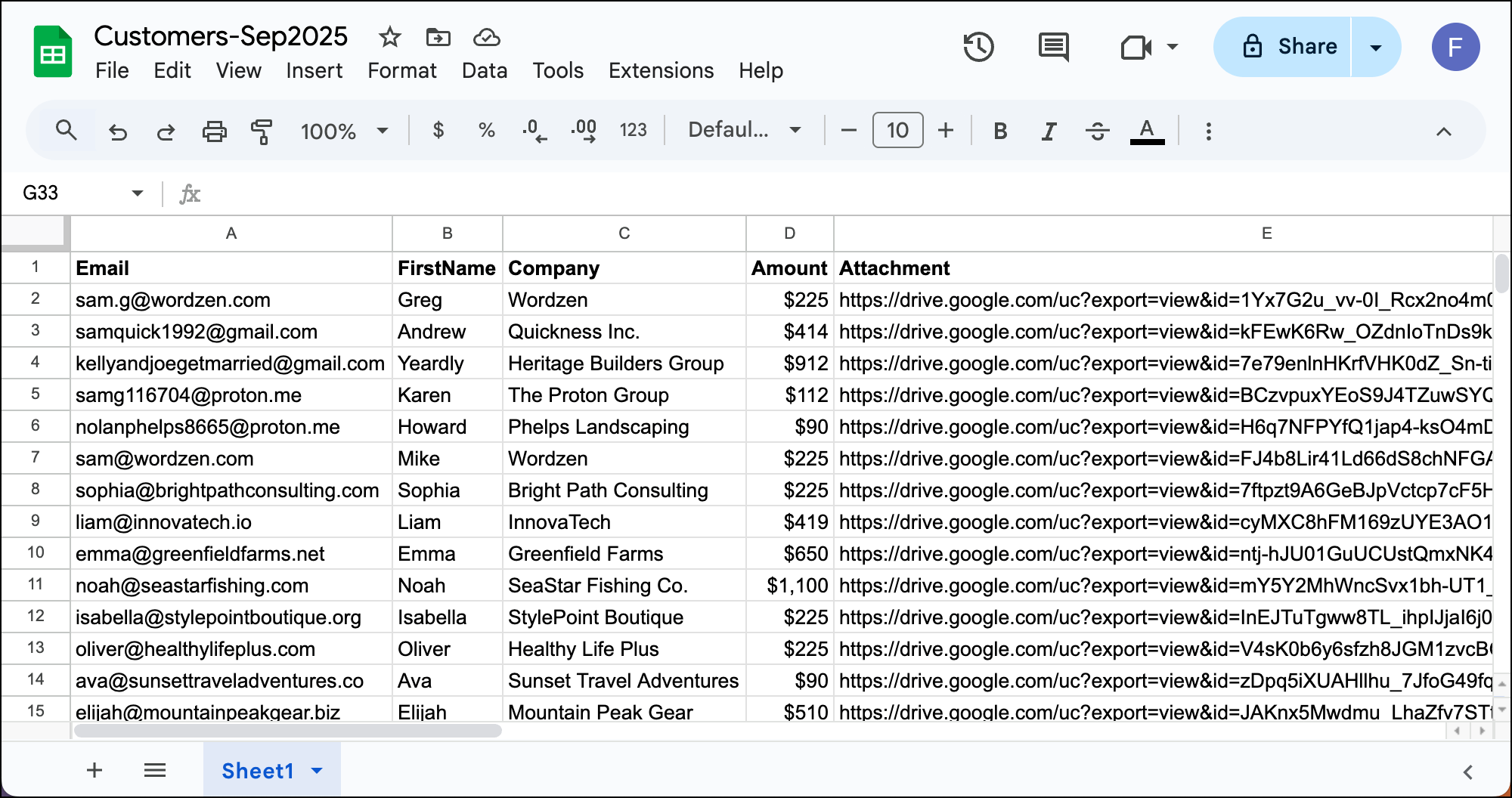
Make the first row of your Google Sheet these column headers; those become your mail merge tags. (Here are some tips for formatting your Google Sheet for a smooth mail merge.)
Note: You can generally use whatever column headers you want. But the attachment column name needs to start with the word “Attachment” — you can call it Attachment, AttachmentFile, Attachment1, AttachmentPDF, whatever makes sense to you.
Step 2: Store your invoice PDFs
As I noted earlier, you need a publicly accessible URL for each invoice PDF.
That doesn’t mean anyone in the world can just access them. You shouldn’t share those URLs publicly! But GMass needs to be able to grab the PDFs off a server so it can attach them, and it won’t work if those files are password protected or if the server is locked down.
Here are the three common options for storing your PDFs:
Option 1: Google Drive (my least favorite option)
Upload all your invoice PDFs to Google Drive. They can be in any folder or scattered across multiple folders.
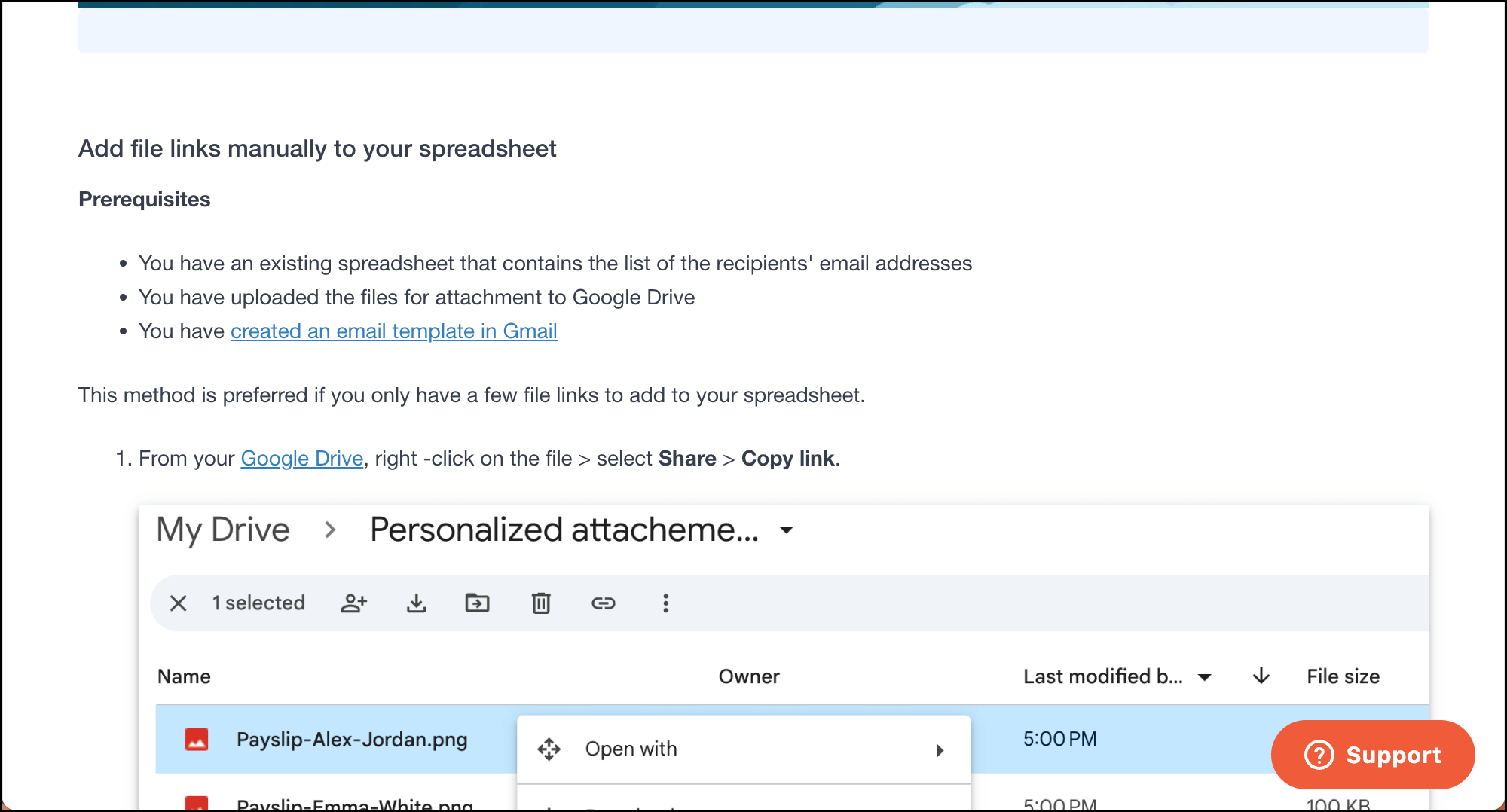
Grab the deep link to each Google Drive file and put it in the right row of your spreadsheet. (You can find instructions here for finding that deep link to your Google Drive PDFs; Google likes to obscure it a bit for #reasons.)
You’ll also need to give GMass permission to access your Drive files; GMass only asks for permissions when it needs them.
Also, check your Google Drive settings and make sure “Convert uploaded files to Google Docs format” is turned OFF. You want your PDFs to stay as PDFs.
One more thing: You need to set the permissions on the files (or folder containing them) to allow public access.
Yes, Google makes you jump through a lot of hoops to use their storage. For as easy as it is to use Google Sheets, using Google Drive can feel like the opposite. That’s why this is my least favorite option.
Option 2: Your web server (my favorite option)
Whenever possible, I tell people to use their own web server for storing the invoices. It’s easier than finding the URLs on Google Drive or one of the cloud providers and keeps everything in house.
So if you generate invoices on your company website or have them on your server, use the full URL in the attachment column, like: https://yourcompany.com/invoices/INV-2024-001.pdf
Again, the PDFs need to be publicly accessible (not behind a login).
Option 3: Cloud storage (Dropbox, AWS S3)
Public Dropbox folders or AWS S3 buckets work great. Copy the public share link and paste it in your attachment column. Make sure it’s a direct link to the PDF, not a preview page.
Like Google Drive, the folks at Dropbox like to obscure the link to your files a bit. The shortcut: When you grab a Dropbox link, change the dl=0 at the end to dl=1. (I like to use a find-and-replace in Google Sheets to change all those URLs in bulk.)
Step 3: Connect your Google Sheet to GMass
First up, grab the GMass Chrome extension.
Yes, GMass is a Chrome extension and not a Google Workspace add-on — that’s how it integrates right into Gmail, rather than sitting in a sidebar in Google Sheets.
You can try out GMass free and send up to 50 emails a day during the trial. And this process with personalized invoice PDF sending will work during the trial.
If you want some help getting it installed, check out the GMass quickstart guide.
Once it’s installed, open a Gmail compose window. Click the GMass icon that’s now in the To field.
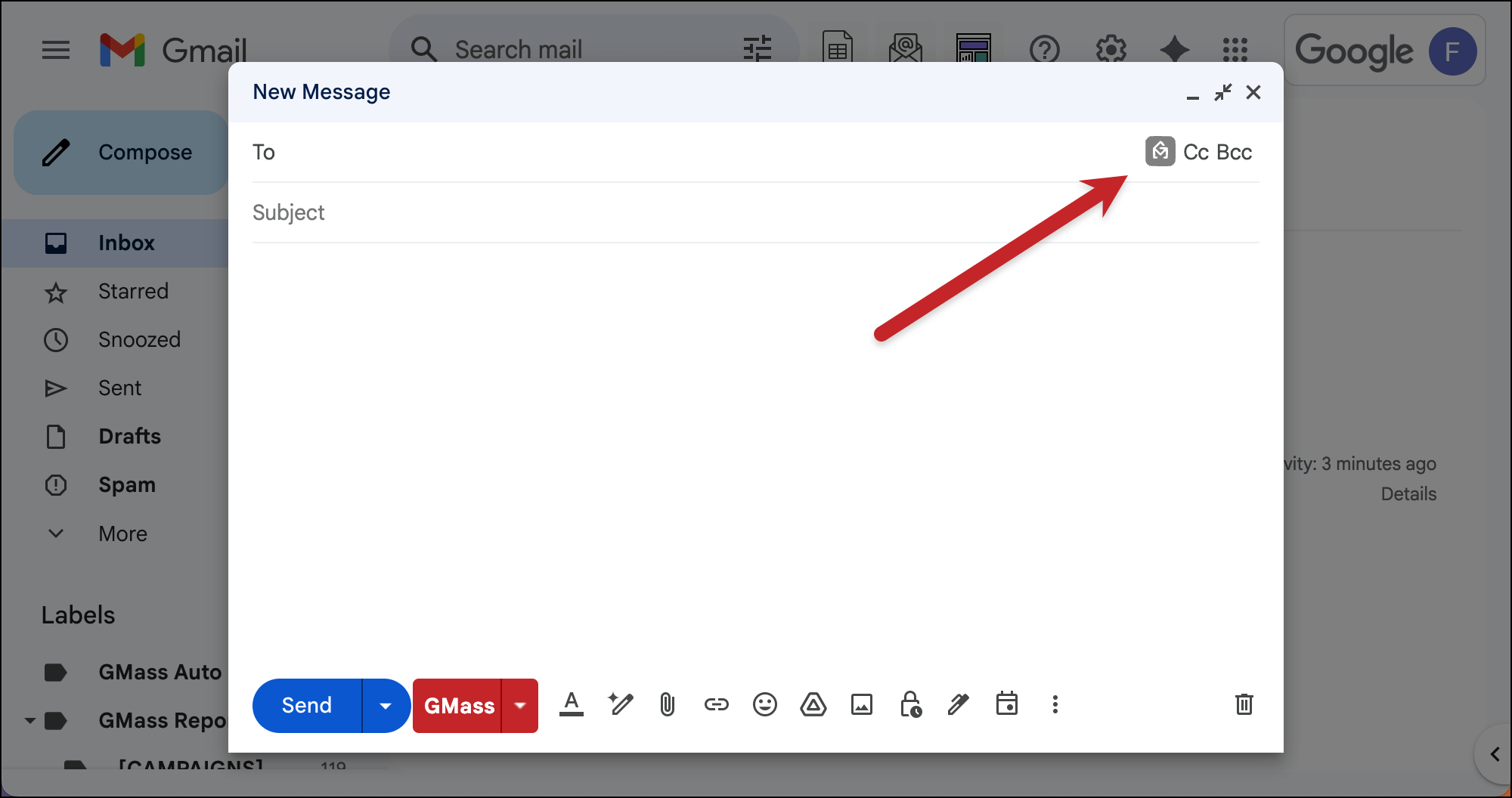
Choose the option to From a Google Sheet.
Pick your Google Sheet with invoices from the dropdown. Then click Connect to Spreadsheet.
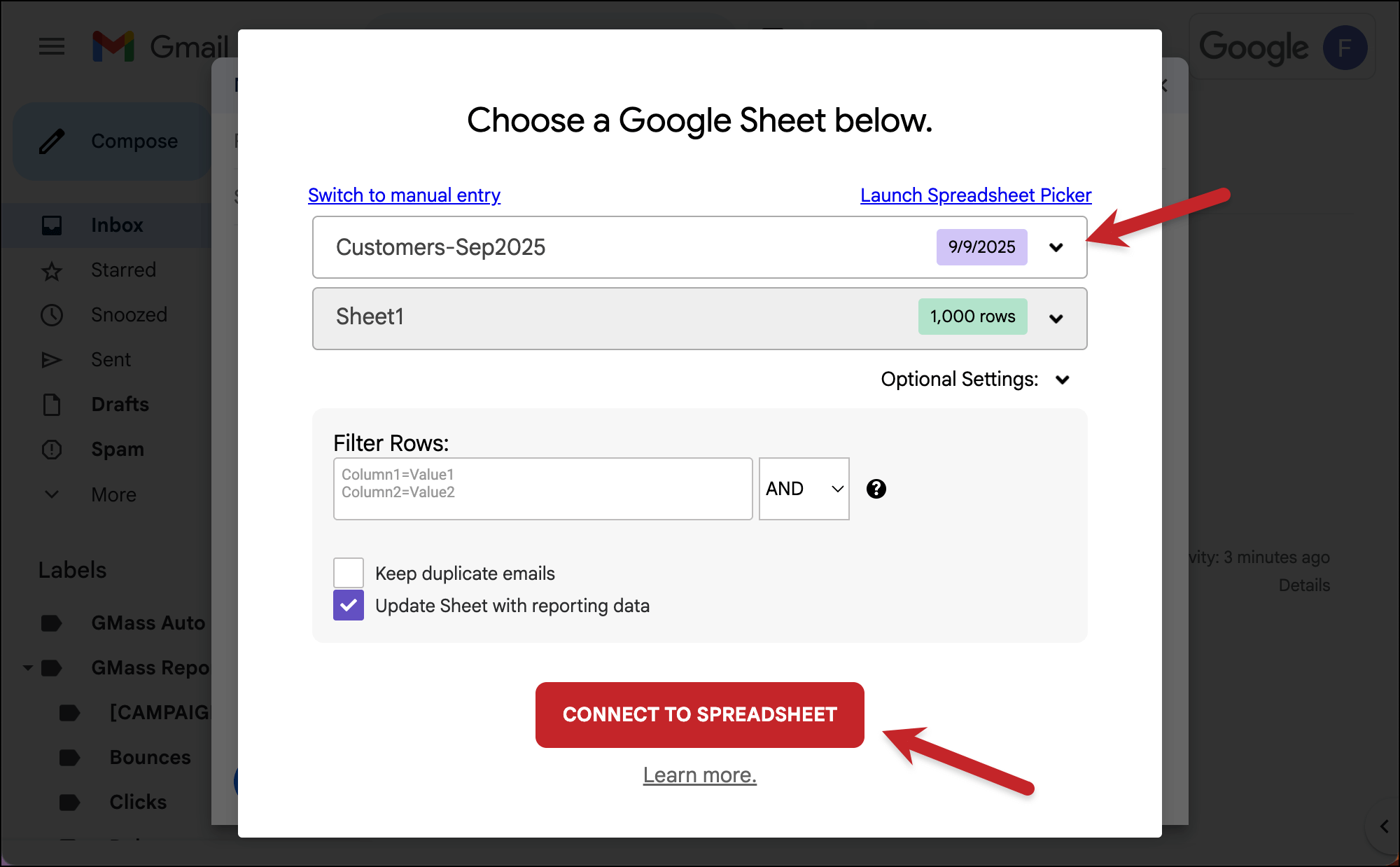
Your compose window now shows all your recipients in the To field (well, they’re compressed into a GMass alias address to keep things neat, but they’re there).
Step 4: Write your invoice email
Write your standard invoice email, but use merge tags for personalization.
Merge tags are just your column headers in curly brackets.
You don’t have to go back and forth to Google Sheets to get these merge tags. Just type a left curly brace { and GMass will show you a list of all available options.
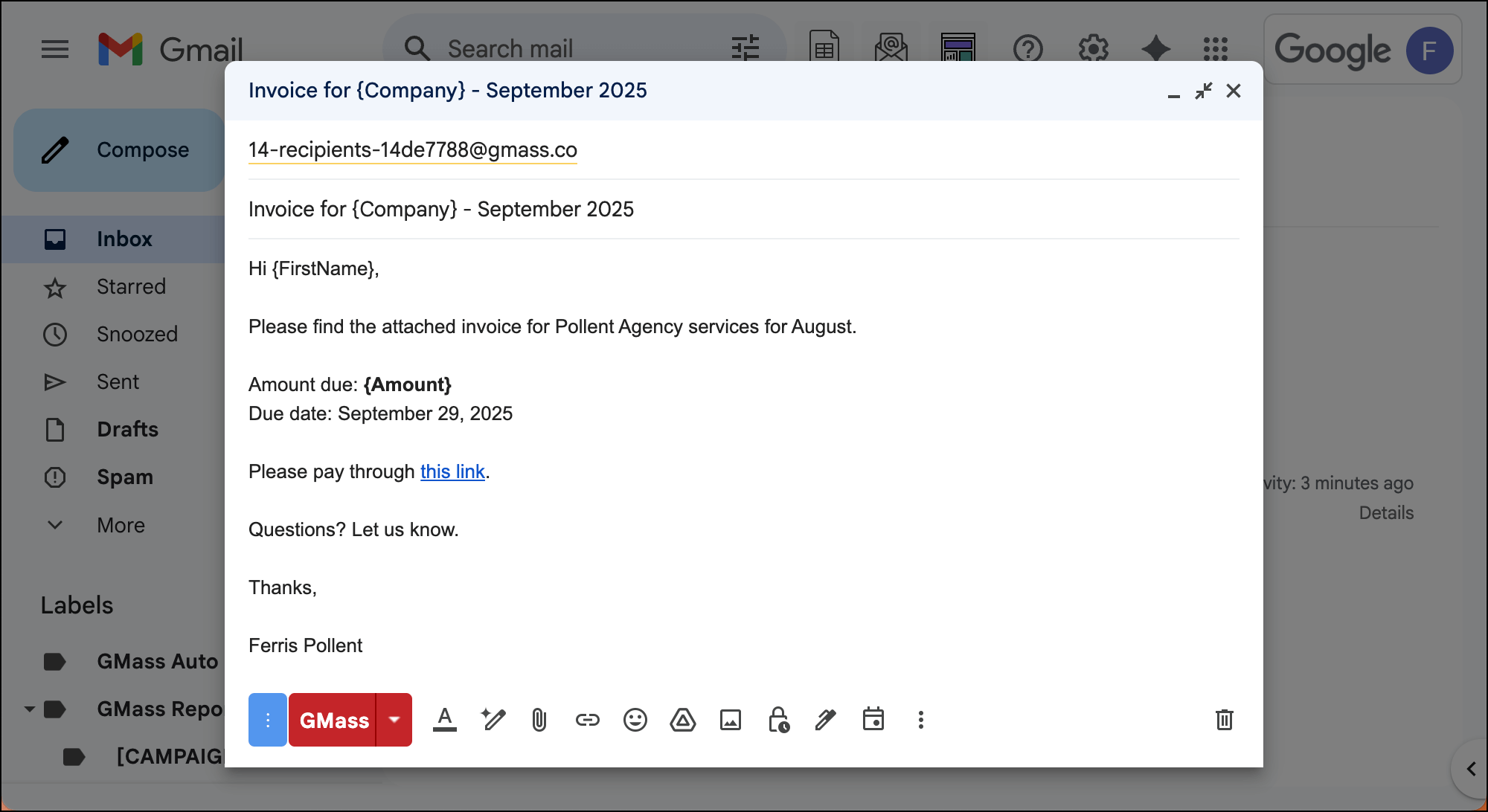
Every recipient gets their personalized version. Sarah from ABC Corp sees her name, her invoice number, her amount. Mark from XYZ Inc sees his details.
⚠️IMPORTANT: Don’t attach any files manually in Gmail or and do NOT put {Attachment} at the bottom of the email.
When you have an Attachment column in a Google Sheet, GMass sees that and handles all attachments automatically. If you manually attach something, that file goes to everyone in addition to their personalized attachment.
Step 5: Set up payment reminders
Want to make sure people have paid their invoices? In the GMass settings box (the arrow next to that red GMass button), click Auto Follow-up and create a reminder sequence.
We’ll set these reminders to go out as long as someone hasn’t clicked on the payment link. Once they click that link, the reminders stop.
A possibility:
- Follow-up 1 (7 days after invoice): A friendly check-in. Maybe they missed the email or forgot to process it.
- Follow-up 2 (Day before due date): Gentle urgency. Payment is due tomorrow.
- Follow-up 3 (3 days overdue): Professional but firm. The invoice is now past due.
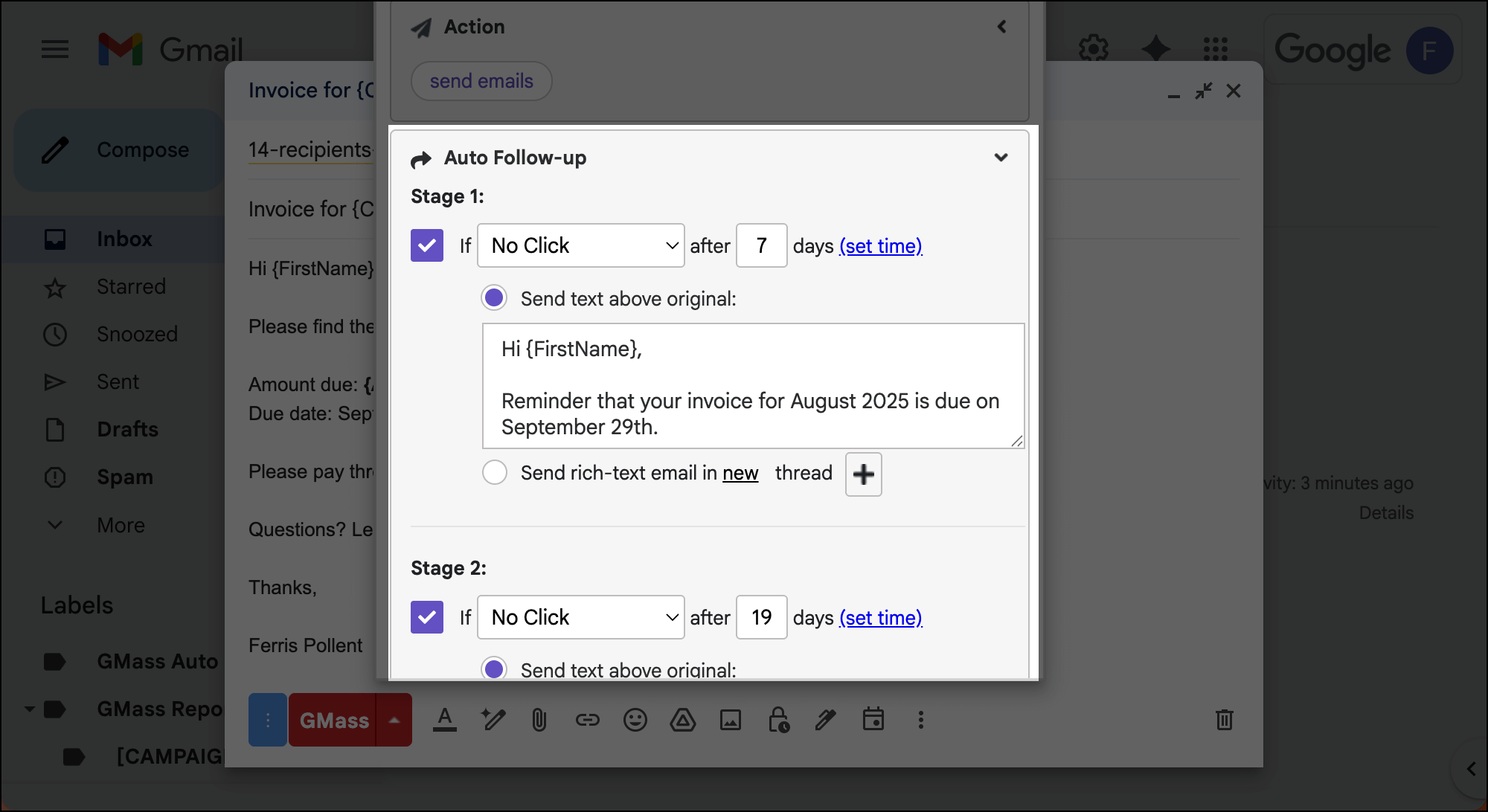
You can personalize follow-ups with the same merge tags from your spreadsheet.
Also, now you can optionally use other settings, like scheduling or even A/B testing.
Step 6: Create drafts
You CAN send out your emails right away.
But with something as high stakes as personalized invoices, it’s smart to make sure everything’s working right.
GMass has an option called “Create drafts” where instead of just blasting out your mail merge, GMass actually creates the drafts of all your emails and puts them in your Gmail Drafts folder.
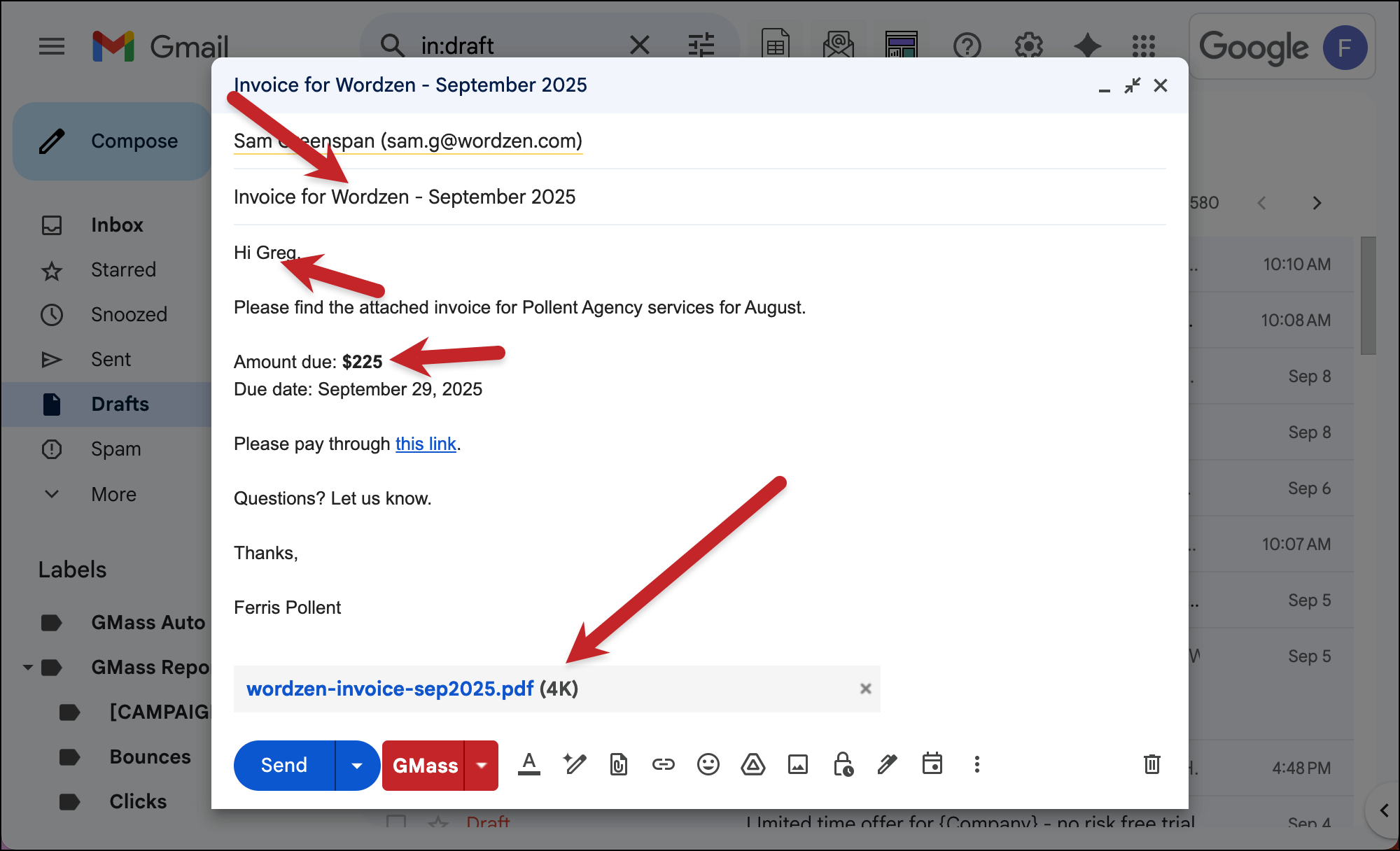
That way, you can spot check to make sure the right invoices are getting attached and all the mail merge personalization is working.
Choose “Create drafts” in the Action section of the GMass campaign settings.
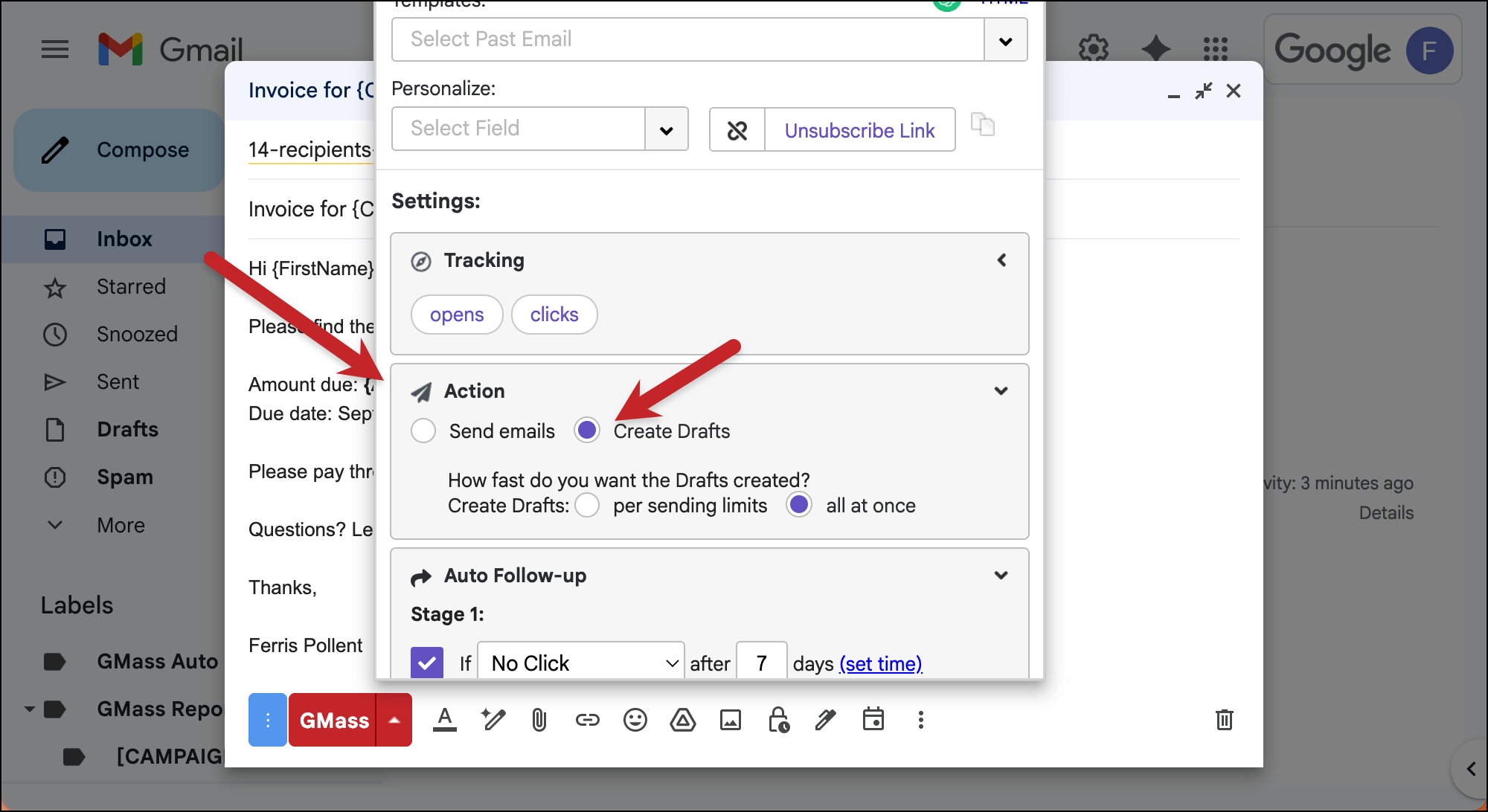
Then, once your campaign is ready, click the red GMass button. Do not click the blue Gmail send button or the mail merge won’t work.
GMass will send you an email once all your drafts are ready, and now you can check them to make sure everything worked right.
For instance, here’s one of my drafts and I can see all the mail merge tags filled properly and the correct file is attached.
If it did, click the link in that email from GMass to send them out to your recipients.
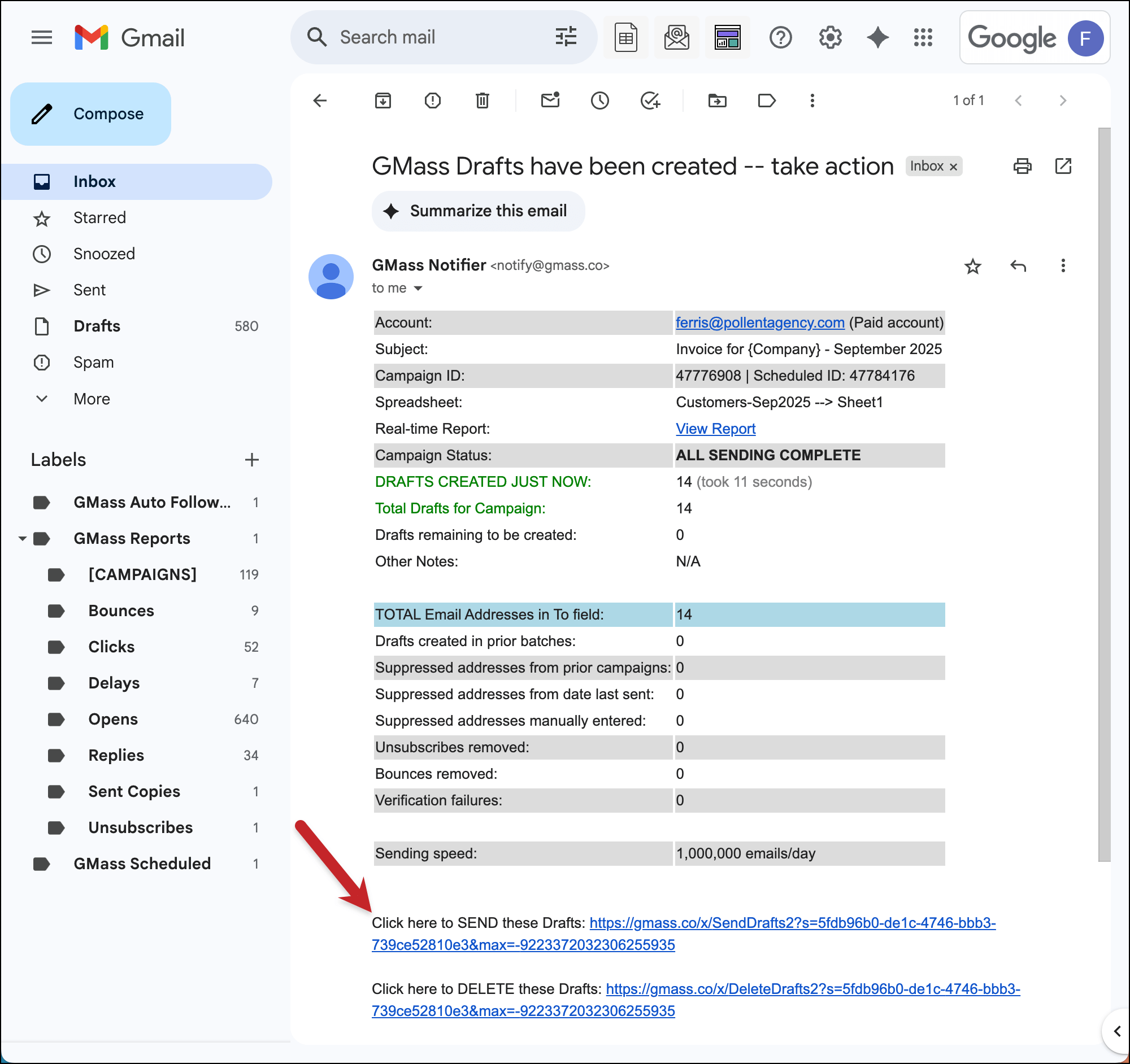
If it didn’t, click the link to delete the drafts in that email from GMass and fix the problem. (99% of the time the problem is you didn’t drill down to the publicly available PDF URLs in Dropbox or Google Drive).
Once your campaign is sent, GMass tracks everything: opens, clicks on payment links, replies, bounces. You’ll know exactly who’s seen their invoice and when.
Some technical details and FAQs
Here are a few things that you might be wondering about this step-by-step process.
Can you do multiple attachments per recipient?
Yes. Add columns named Attachment1, Attachment2, Attachment3. GMass attaches them all to each recipient’s email.
Can you mix sources?
Have some PDFs in Google Drive, others on your web server? No problem. Use filenames for Drive files, full URLs for web-hosted files, all in the same campaign.
Are there file size limits?
Gmail’s standard 25MB total attachment limit applies. Most invoice PDFs are under 500KB, so this rarely matters. But if you are sending mammoth attachments, consider hosting them and sending links instead.
What if I don’t have an invoice PDF for everyone?
If someone’s Attachment cell is blank, GMass sends their email without attachments. This is useful for clients who’ve asked for different delivery methods or when you’re mixing invoice and non-invoice emails.
Also, iIf GMass can’t find a file, it sends the email without the attachment rather than failing the entire campaign. You’ll see which ones failed in your reports.
Beyond Invoices: What Else You Can Send Using GMass
Once you’ve got GMass configured for invoices, you realize the same setup works for all your document distribution needs:
Monthly statements — Same process, different PDFs. Great for subscription businesses sending regular account summaries.
Quotes and proposals — Personalized pricing documents with expiration dates. Set up auto follow-ups to close deals faster.
Contracts for signature — Attach the contract PDF and include a link to your e-signature platform.
Tax documents — 1099s, W-9s, year-end summaries.
Receipts and confirmations — After payment, send bulk receipts with the same system.
Onboarding documents — New client packets with personalized contracts, NDAs, and welcome materials.
The infrastructure you build for invoices can become your document distribution system for everything.
Saving a Ton of Time and Get Payments Sooner with Invoice Mail Merge: Next Steps
Manual invoice sending is tedious work that doesn’t grow your business.
Set up your spreadsheet once, connect GMass, and turn two hours of monthly admin work into a five-minute task.
Your clients get professional, trackable invoices with automated reminders. You get your time back and faster payments.
GMass offers a free trial, and you can send up to 50 emails daily while testing. There’s no credit card required and, yes, you can actually try this entire invoice attachment method during your trial.
Just install the GMass extension to get started. See why nearly 400,000 people rely on GMass for invoice sending (and beyond) — and why they give it an average of 4.8 out of 5 stars across tens of thousands of reviews.
Only GMass packs every email app into one tool — and brings it all into Gmail for you. Better emails. Tons of power. Easy to use.
TRY GMASS FOR FREE
Download Chrome extension - 30 second install!
No credit card required