

There’s endless advice out there on how to send cold email — but a lot less advice on what to do when your campaign actually works and now you need to send out bulk sales quotes.
Most of the hardcore cold email software options out there aren’t set up to also send personalized messages using a Google Sheets mail merge. (Fortunately, there’s one email platform for both cold email and follow-ups like sales quotes; we’ll get to it soon.)
And sending out sales quotes manually takes hours. In those hours, competitors could already be moving in on your prospects.
So in this article, I’m going to show you how to send bulk sales quotes in a matter of minutes.
Each of your prospective customers will get their quote personalized with the right pricing, terms, and specifications.
Each one looking like you spent 20 minutes carefully crafting it just for that prospect.
Each one ready to close a deal.
Here’s how to pull it off…
Bulk Sales Quotes: Table of Contents
- Why Bulk Quote Sending Matters
- What You’ll Need to Send Personalized Quotes at Scale
- Step-by-Step Guide: Setting Up Your Bulk Quote System
- Advanced Personalization Techniques for Bulk Sales Quotes
- Bulk Sales Quotes: Next Steps
Why Bulk Quote Sending Matters
Speed wins deals.
Multiple studies have shown the longer you wait to respond to a lead, the less likely you are to close them.
Good news: Most of your competitors aren’t moving all that quickly. The average B2B response time is 42 hours.
If you can beat that… 78% of B2B customers buy from the vendor who responds first.
Clearly, we need a process to generate sales quotes fast — that’s a huge advantage.
But we also need a process to generate them accurately.
That’s one of the biggest downsides of manually sending deal proposals with copying and pasting. Manual quote processes kill consistency. Wrong pricing for one client. Old payment terms for another. Forgot to update the delivery timeline.
That’s unprofessional and can also kill a deal.
The good news is… you can handle 10x the quote volume without hiring anyone.
A good bulk quote system lets one person do the work of an entire sales operations team. You respond to every inquiry within an hour instead of days. You never miss a follow-up. You maintain perfect consistency across hundreds of quotes.
Most important, each prospect still feels special. They get quotes that reference their specific needs, their industry challenges, their requested quantities.
The personalization that converts, delivered at scale.
What You’ll Need to Send Personalized Quotes at Scale
First, you need a Google Workspace account or free Gmail email address. You’ll use that for sending
Second, you need to use the Chrome browser.
And third, you’ll need to install the GMass Chrome extension. GMass is the mass email extension for Gmail that turns it into your quote-sending machine. (GMass is that one-of-one software I talked about earlier that excels at both cold email and regular mail merge.)
Why this specific combination?
Because you’re already in Gmail all day. Your quotes go out from your regular email address, so they actually get delivered and opened.
And you can set everything up in about 20 minutes without learning new software or migrating to a new platform.
Step-by-Step Guide: Setting Up Your Bulk Quote System
Alright. Time to make this happen.
Step 1: Organize your quote data in Google Sheets
Open a new Google Sheet. This becomes your quote command center.
Create these columns (assuming they match your quotes):
- Email – Where the quote goes
- FirstName – For a personal greeting
- Company
- ProductRequested – What they want
- Quantity – How many
- UnitPrice – Price per item
- TotalPrice – Quantity × UnitPrice, calculated automatically by Google Sheets
- DeliveryTime – When they’ll get it
Add these extra columns if relevant (and any others you need for your deal):
- PaymentTerms – Net 30, Net 60, or whatever you offer
- Discount – If applicable
- ValidUntil – Quote expiration
- Industry – For targeted messaging
- SpecialNotes – Custom details
- Attachment – For PDFs or detailed specs. With GMass, you can send unique PDFs to each recipient with mail merge as needed. I’ll cover this more later in this article.
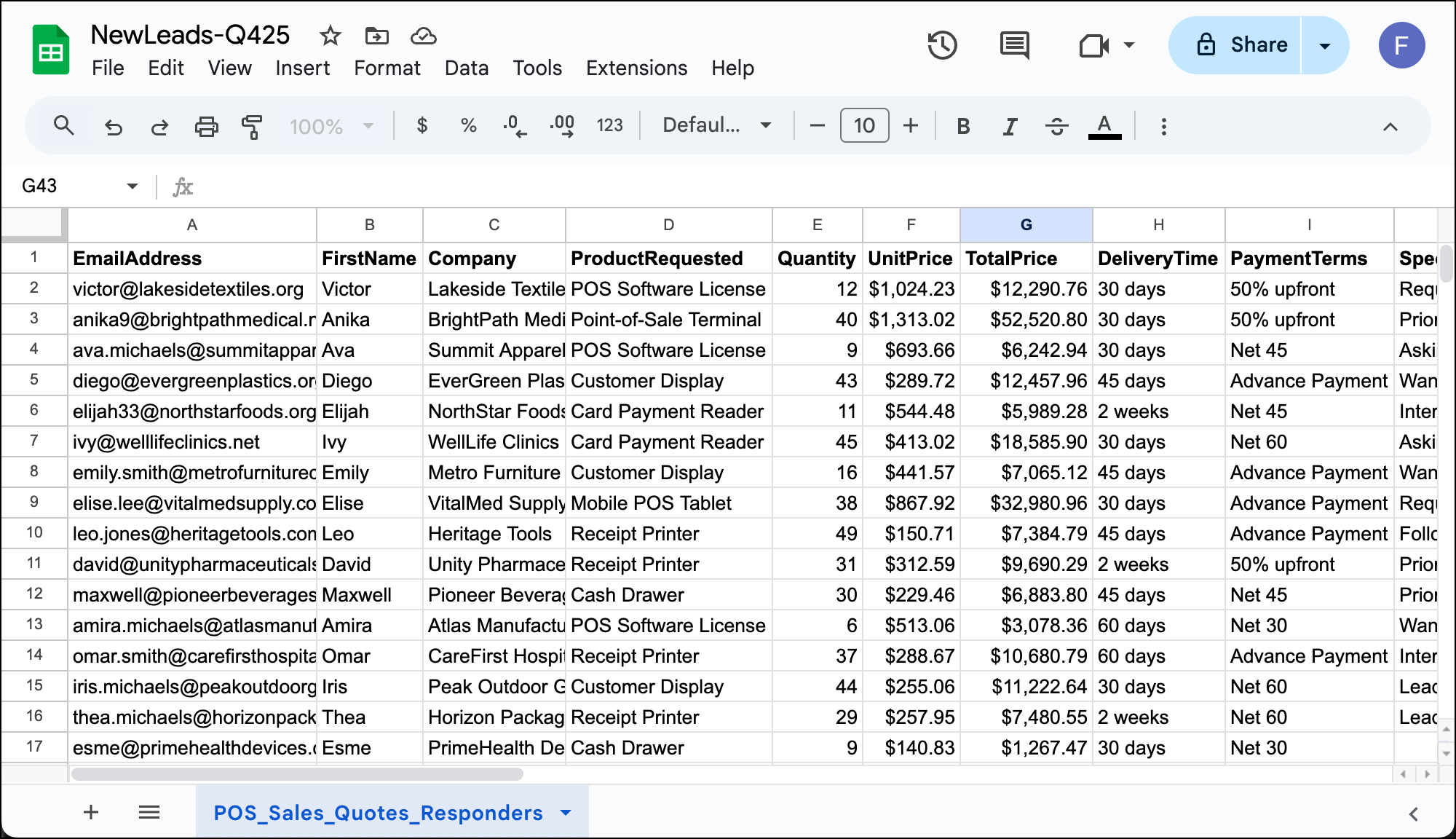
All of those should be your column headers in the first row. You’ll use those for mail merge in the next step.
For calculations, use Google Sheets formulas. (Example: My TotalPrice column is the Quantity column multiplied by the UnitPrice column.)
And make sure to format your prices properly so they display as $1,299 instead of 1299.
Step 2: Connect your Google Sheet to GMass
Head over to Gmail.
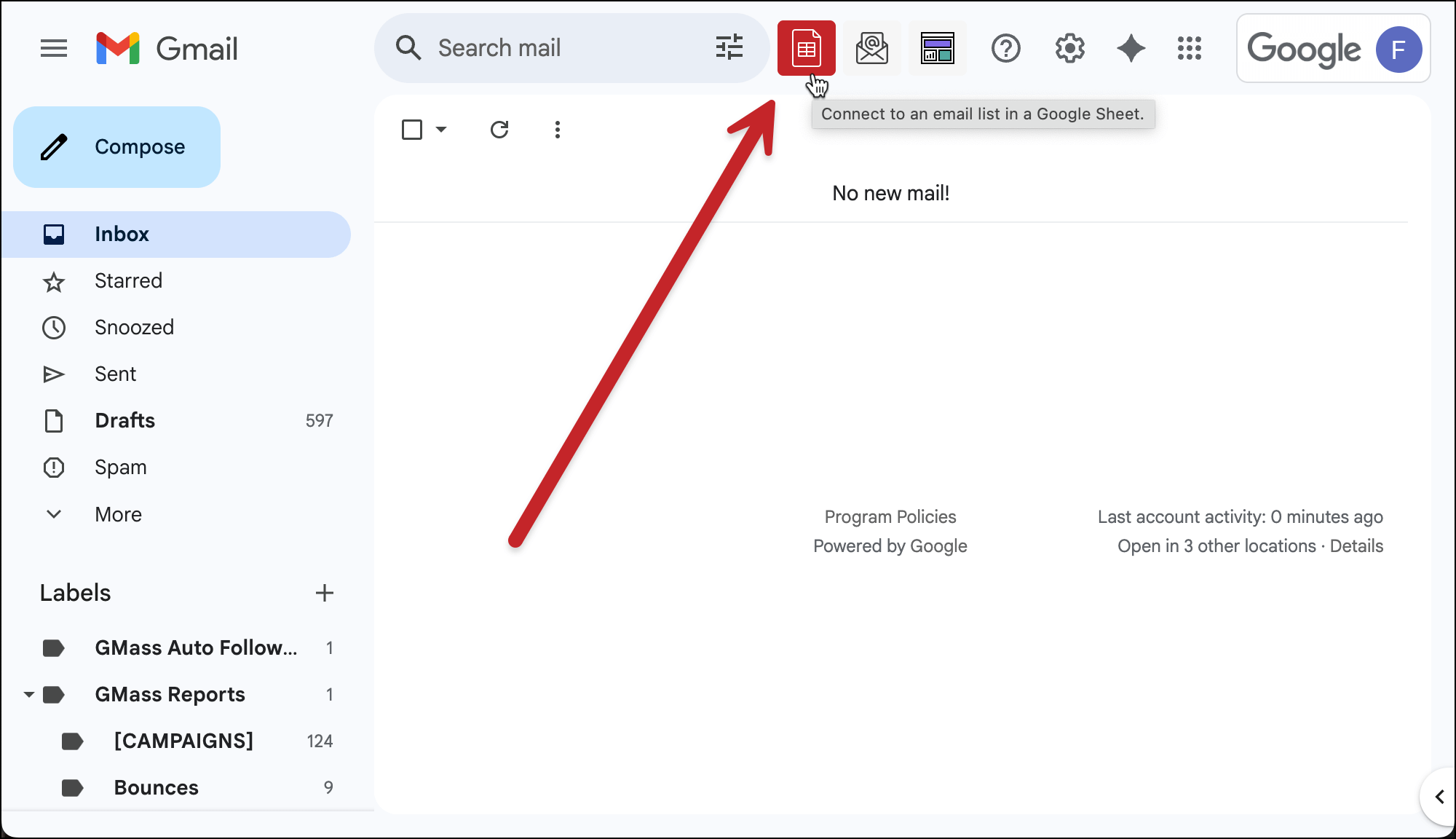
Click the GMass spreadsheet icon (it’s up there next to the Gmail search bar).
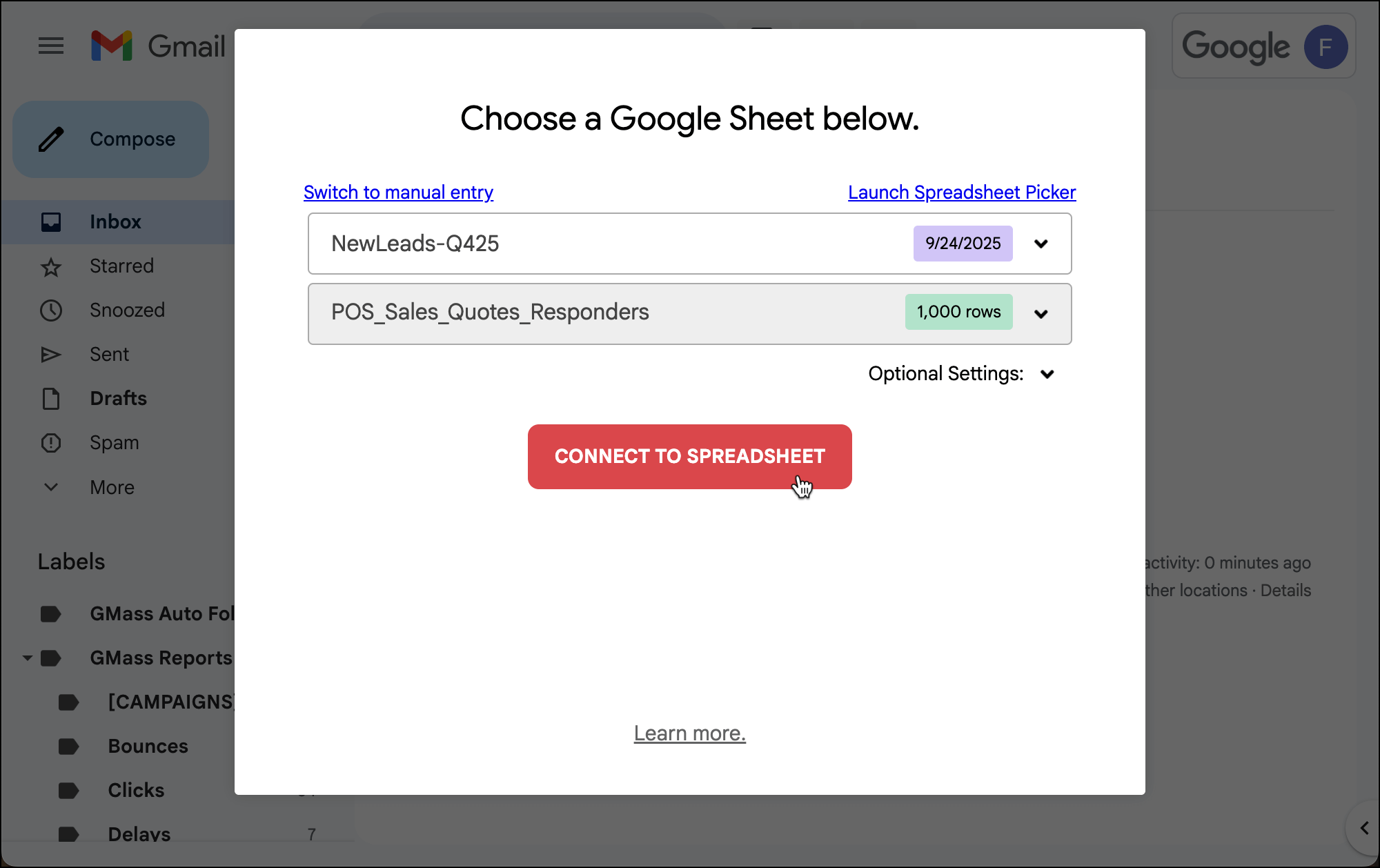
A popup appears. Select your quotes spreadsheet.
Click Connect to Spreadsheet.
GMass adds all the email addresses to the To field (compressed as one email alias) in a new compose window.
Don’t worry, each person gets their own individual email and won’t see other recipients. (Or know that you sent this to multiple people.)
Also, GMass instantly reads your column headers and turns them into mail merge tags.
Step 3: Create your quote template into Gmail
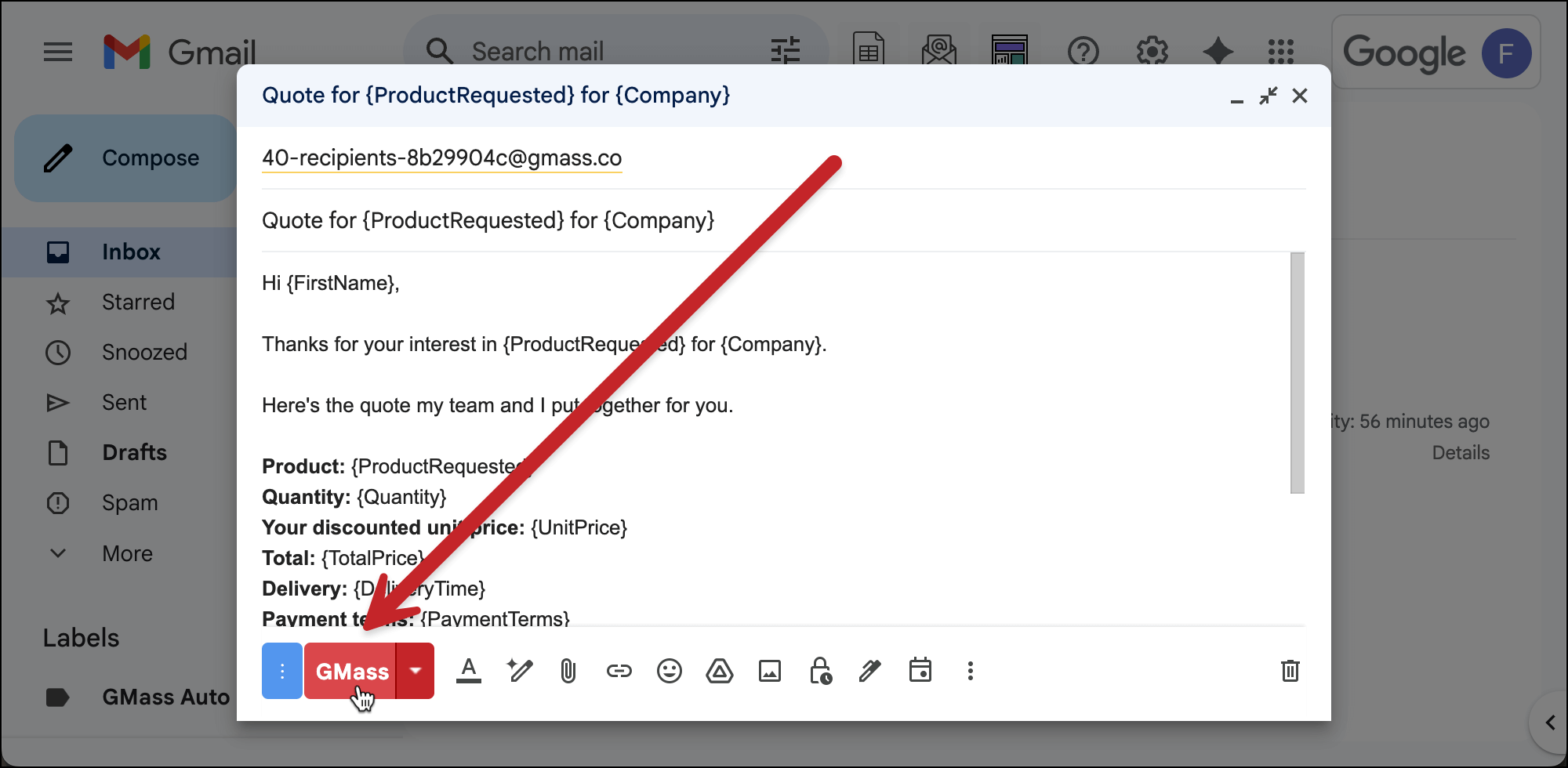
Now, in the compose window, write up your quote like you’re writing to one specific client.
Anytime you need to use mail merge, just type a left curly brace { and GMass will show you all your mail merge tags.
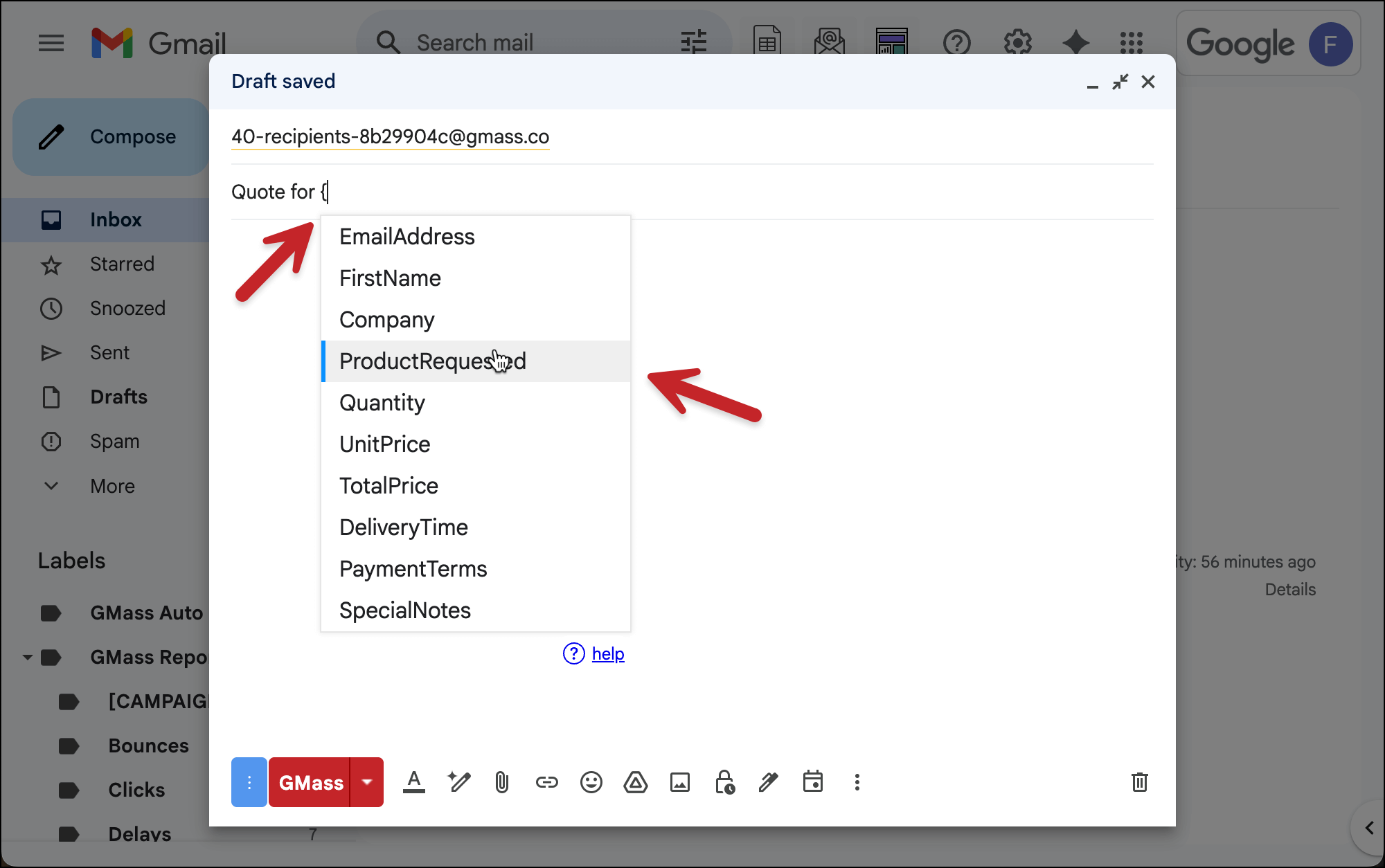
Here’s an example:
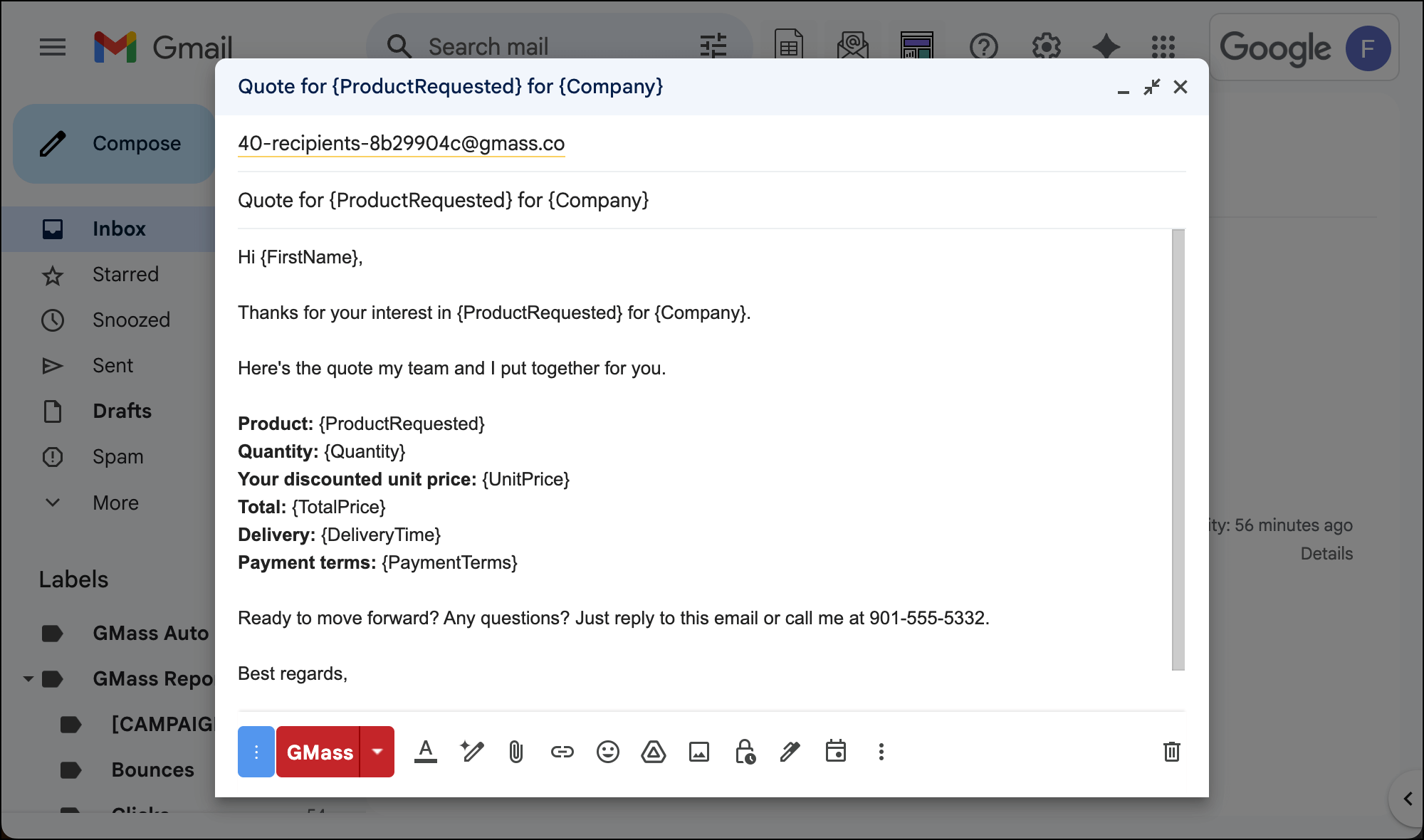
Notice I’m keeping everything short and using bullet points and bold text for easy scanning.
Step 4: Configure your campaign settings
Click the little arrow next to the GMass button. This opens the GMass settings for this campaign.
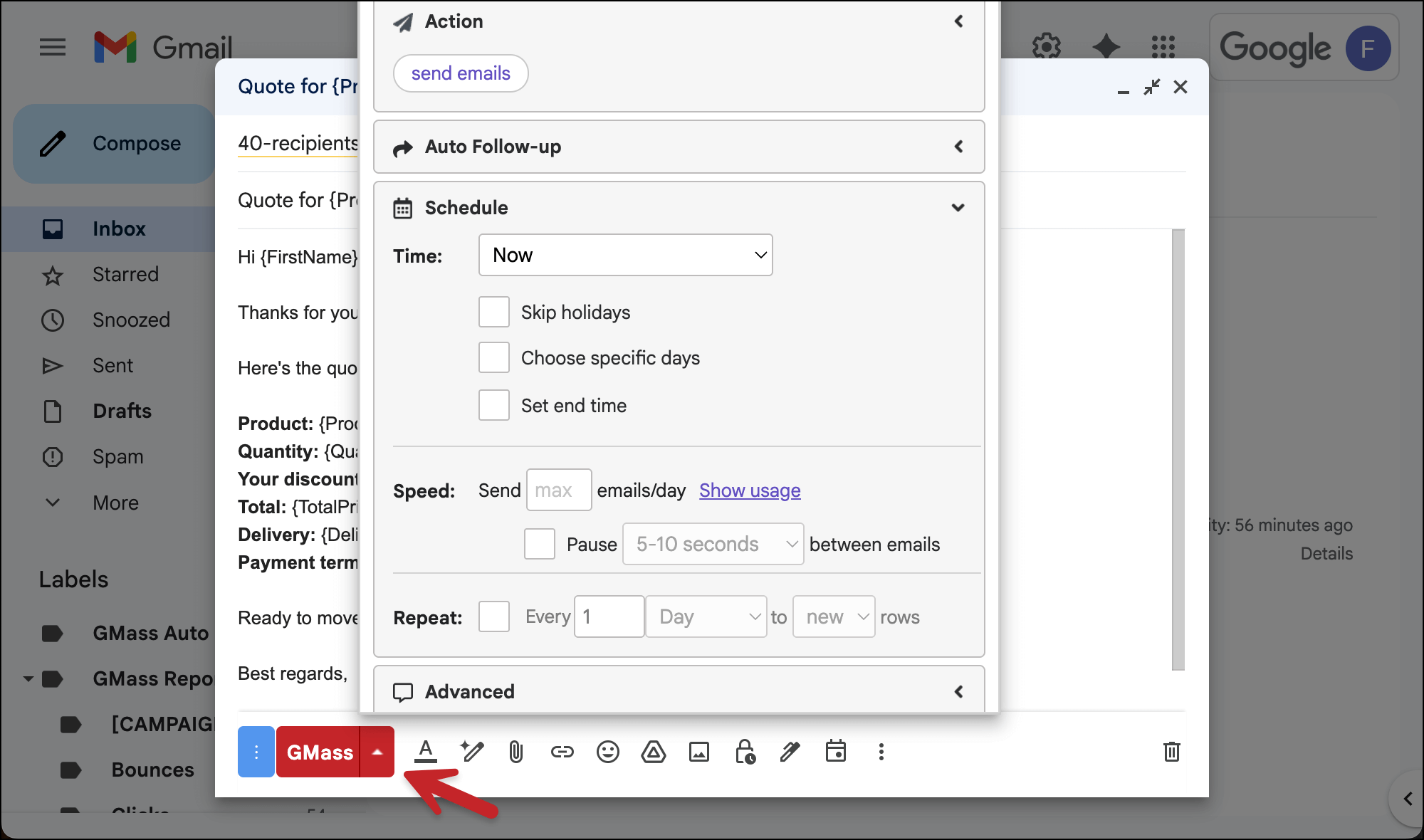
Here you can pick some options, for instance:
- Scheduling, if you want to send at a specific time.
- Tracking opens and/or clicks.
- Auto follow-ups, if you want to send reminders. More on those later in this article.
- Speed throttling, if you want to add pauses between your sends to better simulate human sending.
However, all of this is optional. You can send this campaign without tweaking a single setting if you want.
One setting we have to have, though, is creating drafts for the sake of testing…
Step 5: Test, then send
Before you blast out a mail merge campaign of bulk sales quotes, you need to make sure that everything works right.
In the settings box, go to the Action section. And click the radio button to Create Drafts. With that setting, GMass generates all your campaign drafts first, so you can review them before sending.
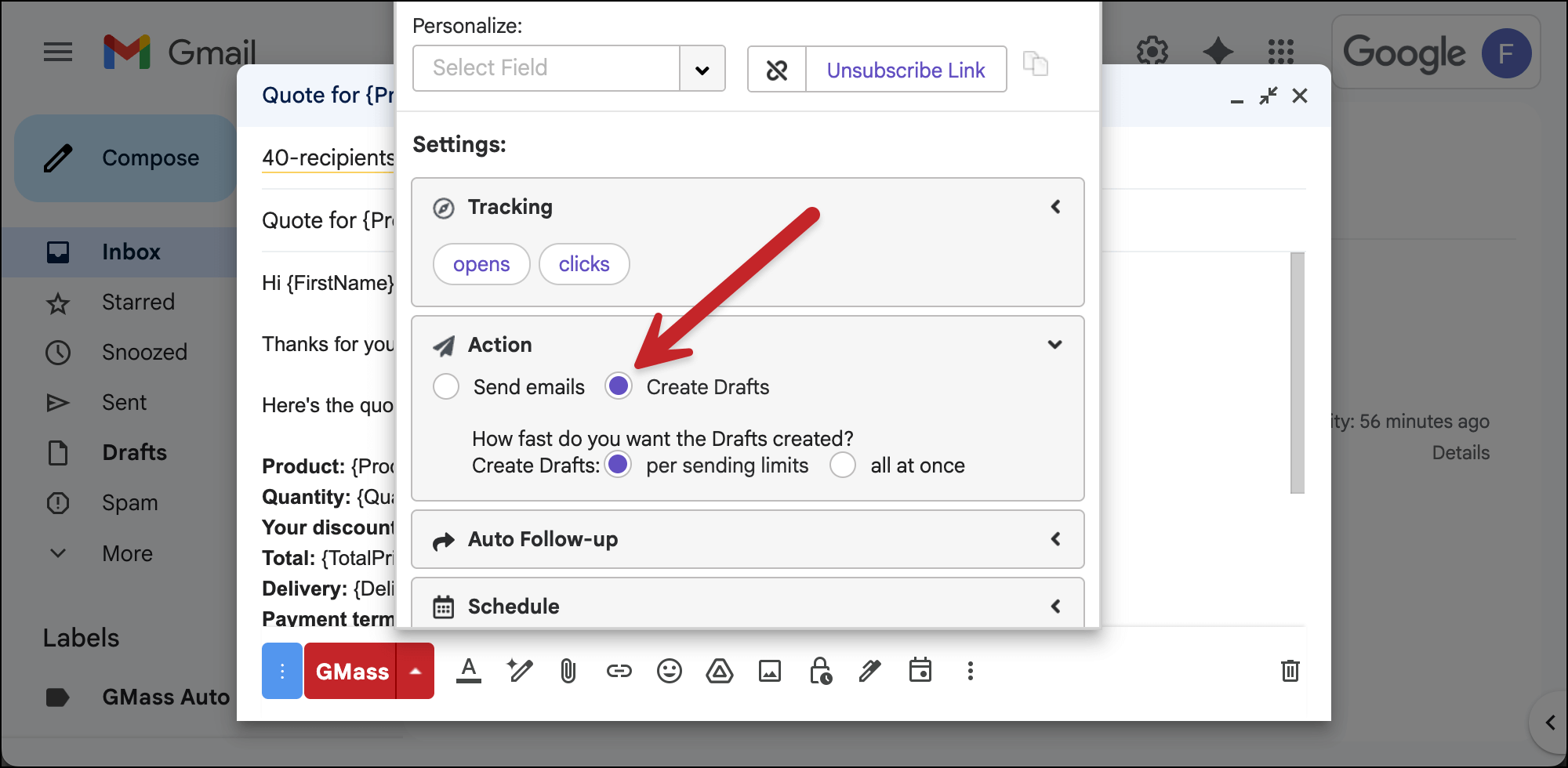
Yes, speed matters — but taking a few minutes to check your drafts is a worthwhile (and, arguably, un-skippable) use of a few minutes.
Once Create Drafts is on and your campaign (and follow-ups) are all ready, click the red GMass button. Do NOT click the regular blue Gmail send button or none of your mail merge will work.
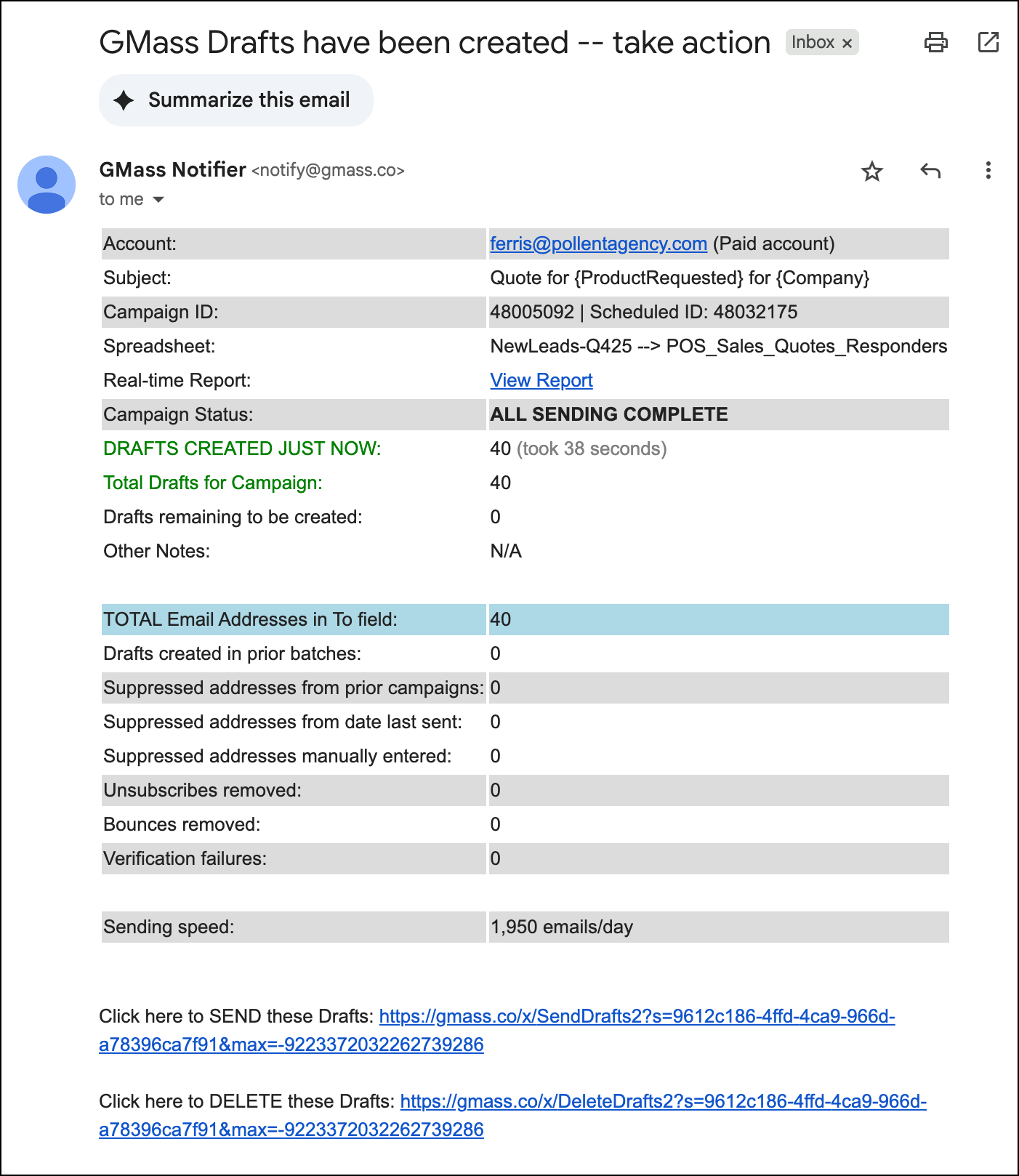
It will take a few moments, but soon you’ll get an email from GMass that your drafts are ready.
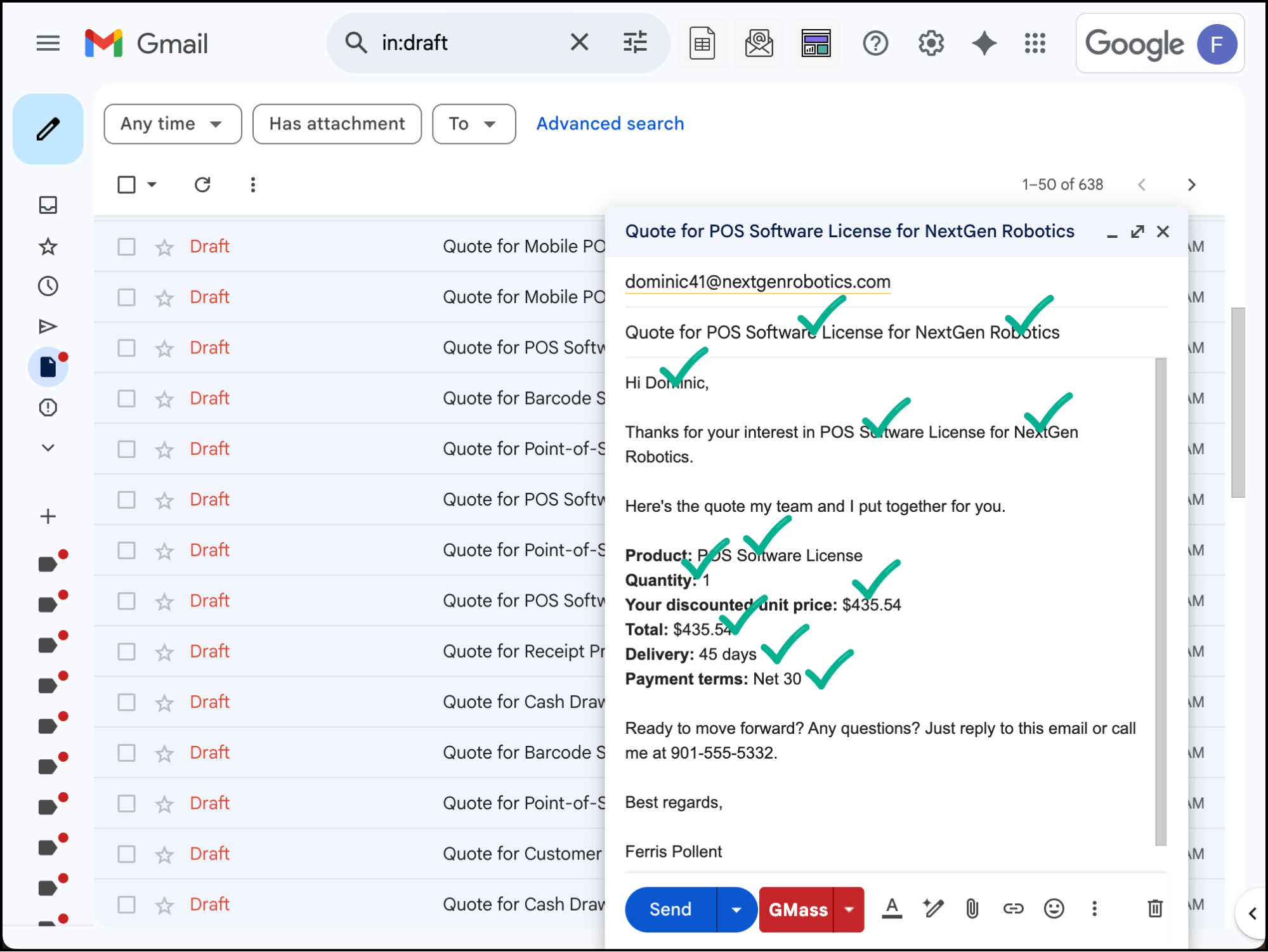
You’ll find all of them in the Gmail Drafts folder.
Spot check your drafts to make sure the mail merge tags are all working correctly. Do NOT hit the blue send button on these either.
If all looks good, go back to that email GMass sent you that your drafts had been created and click the link at the bottom to send these messages.
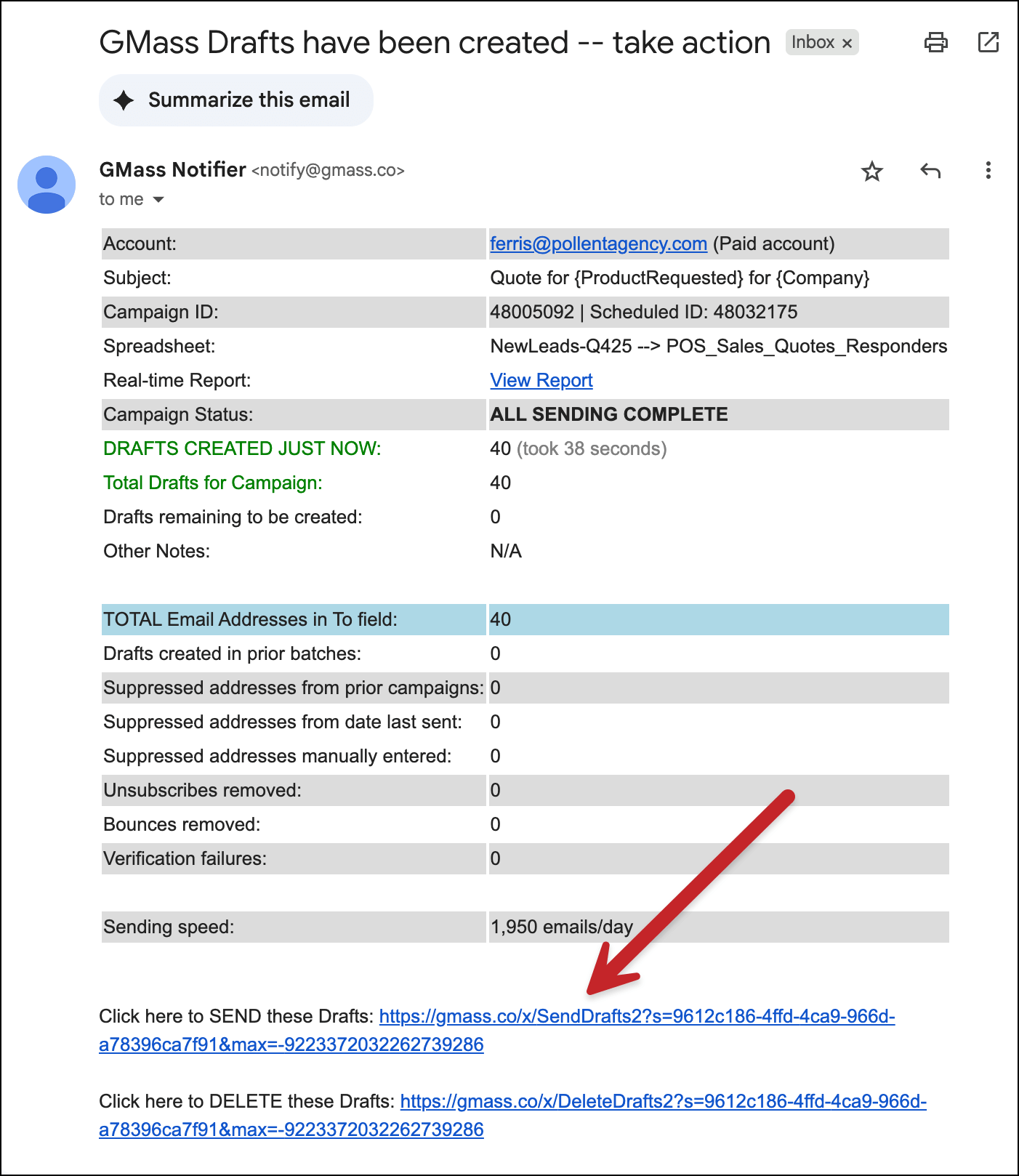
If something is off, you can click the other link in that GMass email to delete these drafts. Then go back into your campaign draft and fix the problem.
From there, you can monitor your GMass reporting dashboard. You’ll see opens, clicks, and replies happening in real-time.
When someone opens multiple times (or replies), that’s your cue to call them — they’re interested.
Advanced Personalization Techniques for Bulk Sales Quotes
Now that we’ve covered the main process for using GMass’s mail merge to send out your sales quotes, here are some even more sophisticated things you can do to send even more effective messages.
Personalized attachments
Each quote can include its own unique PDF attachment.
Here’s how:
Add an Attachment column to your Google Sheet. For each row, enter the path to that company’s file: Acme_Corp_Quote_2024.pdf or https://drive.google.com/file/d/[fileID].
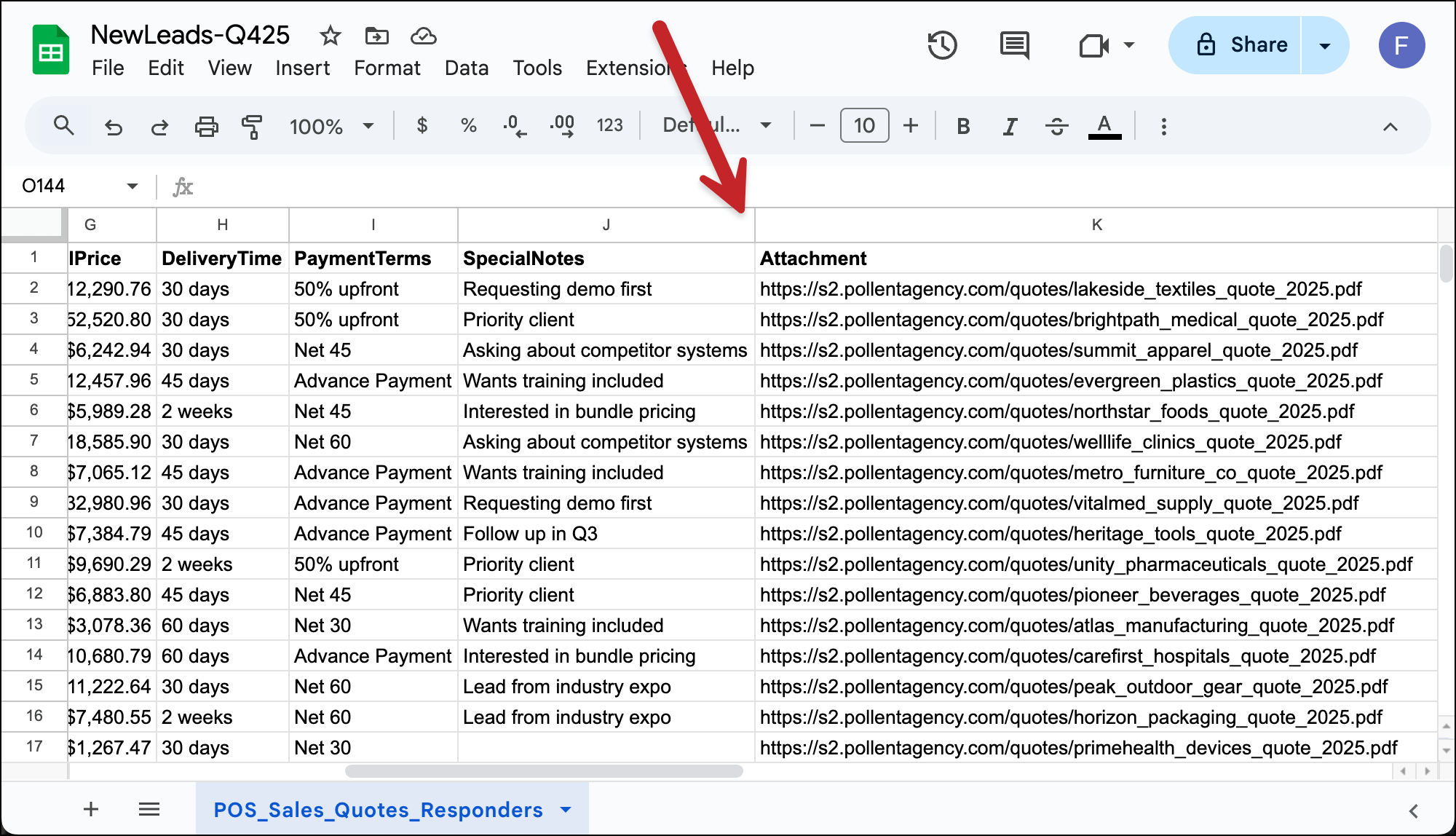
Check out this guide for more detailed info on how to find those URLs if you store the files in Google Drive or Dropbox.
There’s nothing else you need to do. Once you connect this Google Sheet to a GMass campaign, GMass will automatically grab each file and add it as an attachment to the right recipient.
Now when John from ABC Corp gets his quote, he also gets the detailed PDF specifically created for his company. Sarah from Net Corp gets her completely different PDF.
This is a pro move because, well, basically no one out there knows that there’s software that can do this.
So when your prospects get your messages with their own unique attachments, they can only assume you took a ton of time sending that quote to them and just them.
Industry-specific messaging with conditional content
Different industries care about different things. (Retailers want inventory turnover, manufacturers want production efficiency, and so on.)
GMass’s conditional content lets you tailor your messaging to each one, all in the same template.
For the above example, you could add an Industry column to your sheet.
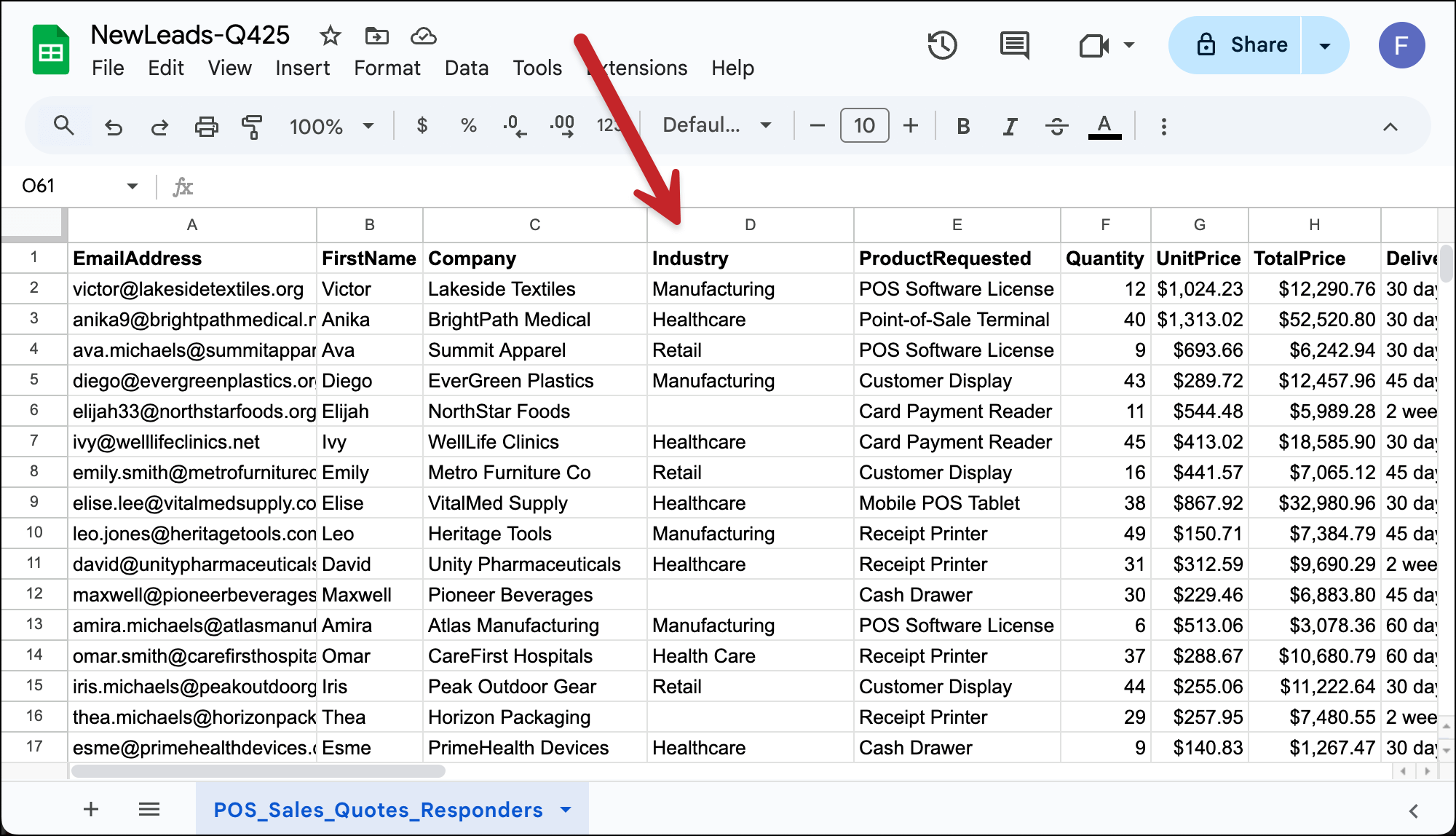
And let’s say you’ve reached out mainly to people in retail, manufacturing, and healthcare.
In your email template, write:
{{If Industry="Retail" Then}}
Lost sales from stockouts and wasted cash from overstock aren’t just headaches—they’re existential threats in retail’s thin-margin environment. Our POS-driven inventory system ensures you hit demand precisely, freeing up capital and preventing walkouts.
{{Else If Industry="Manufacturing" Then}}
Every minute of downtime bleeds productivity, and slow changeovers kill throughput. Our POS-integrated operations tools cut downtime by 60% and shave half an hour off every shift transition—keeping lines moving and orders on time.
{{Else If Industry="Healthcare" Then}}
Regulatory fines and staff burnout aren’t theoretical—they’re daily risks. Our HIPAA-compliant solution automates recordkeeping, reducing paperwork by 2 hours per clinician per day while protecting patient data end-to-end.
{{Else}}
Our solutions are popular across many industries and we know they'd be a huge benefit for {Company}.
{{End If}}
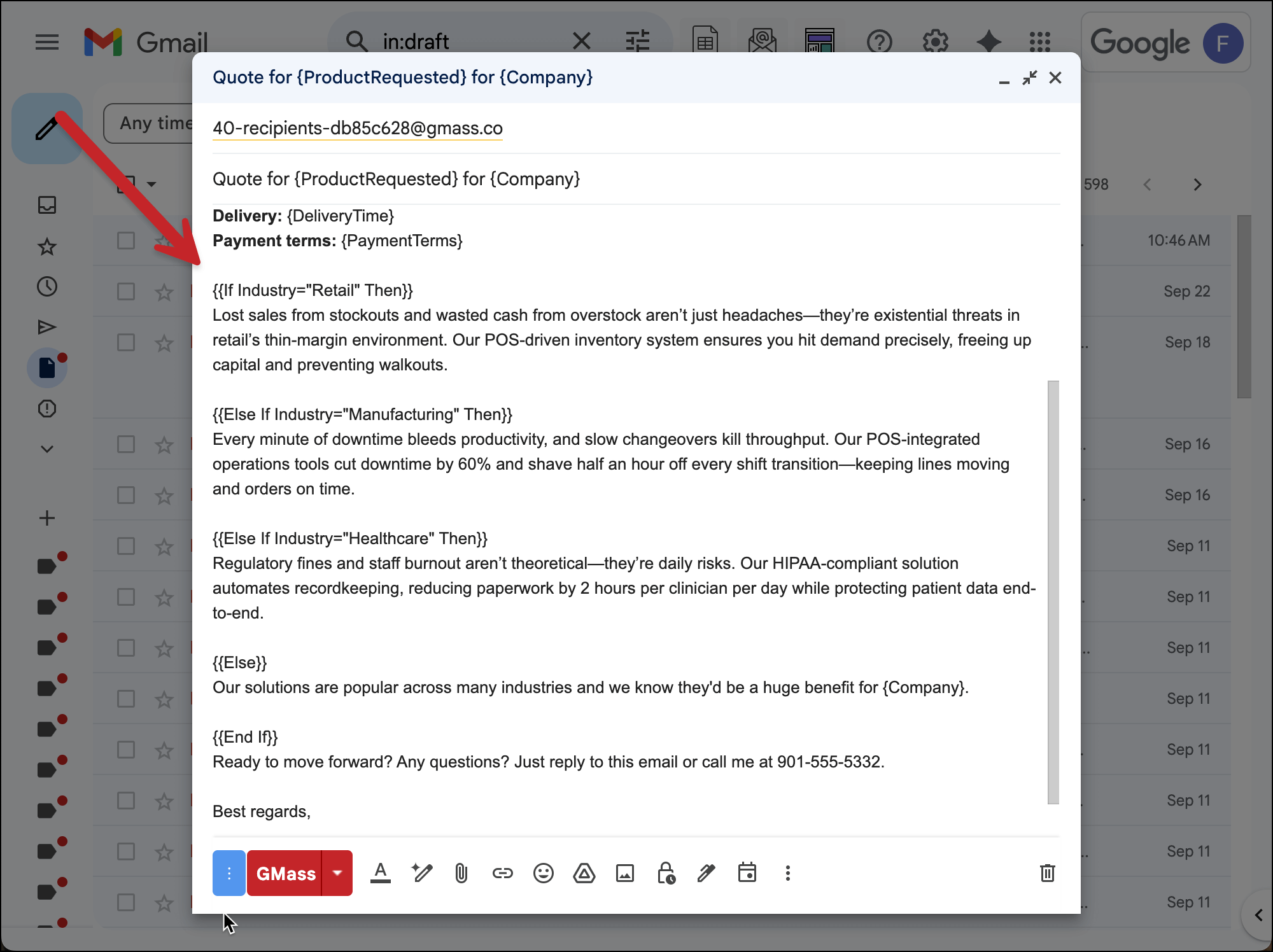
Each recipient only sees the relevant paragraph for their industry.
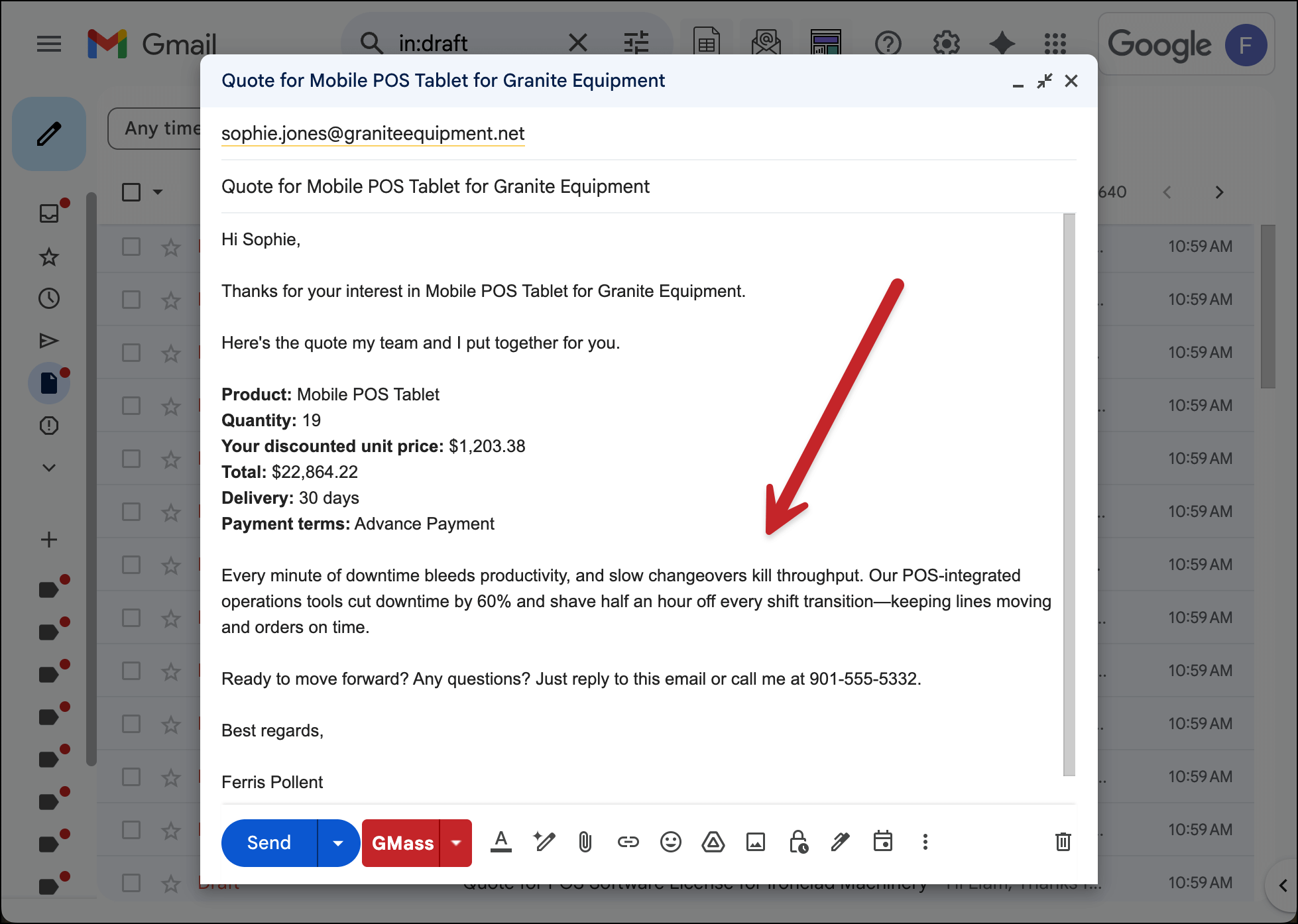
Again, though, you’ve got to test this by creating drafts before you send. (I’ve been writing demos about this software for years now and I even made a typo my first time trying it this time.) You don’t want to mess this one up.
Follow-up sequences that convert
GMass makes it really easy to send auto follow-ups (you can type them right into the settings box). But if your auto follow-ups are “Quick bump”… then it’s not worth the trouble.
Your follow-ups need different angles. Here’s an example sequence that works:
Stage 1 (Day 2): Gentle check-in
Hi {FirstName},
Just making sure you received the quote for {Quantity} units of {ProductRequested}. The pricing of {TotalPrice} is locked in until the end of next week.
Any questions I can answer?
Stage 2 (Day 5): Add urgency
{FirstName},
Quick heads up: Your quoted price of {TotalPrice} expires in TWO days. After that, pricing updates to reflect current material costs (typically 5-7% higher).
Ready to lock in this rate?
Stage 3 (Day 7): Alternative option
{FirstName},
Perhaps {ProductRequested} might not be the right fit right now. Would a smaller initial order help? I can quote {Quantity}/2 units at {UnitPrice} each.
Or would different payment terms make this work better for {Company}?
Let me know how I can help.
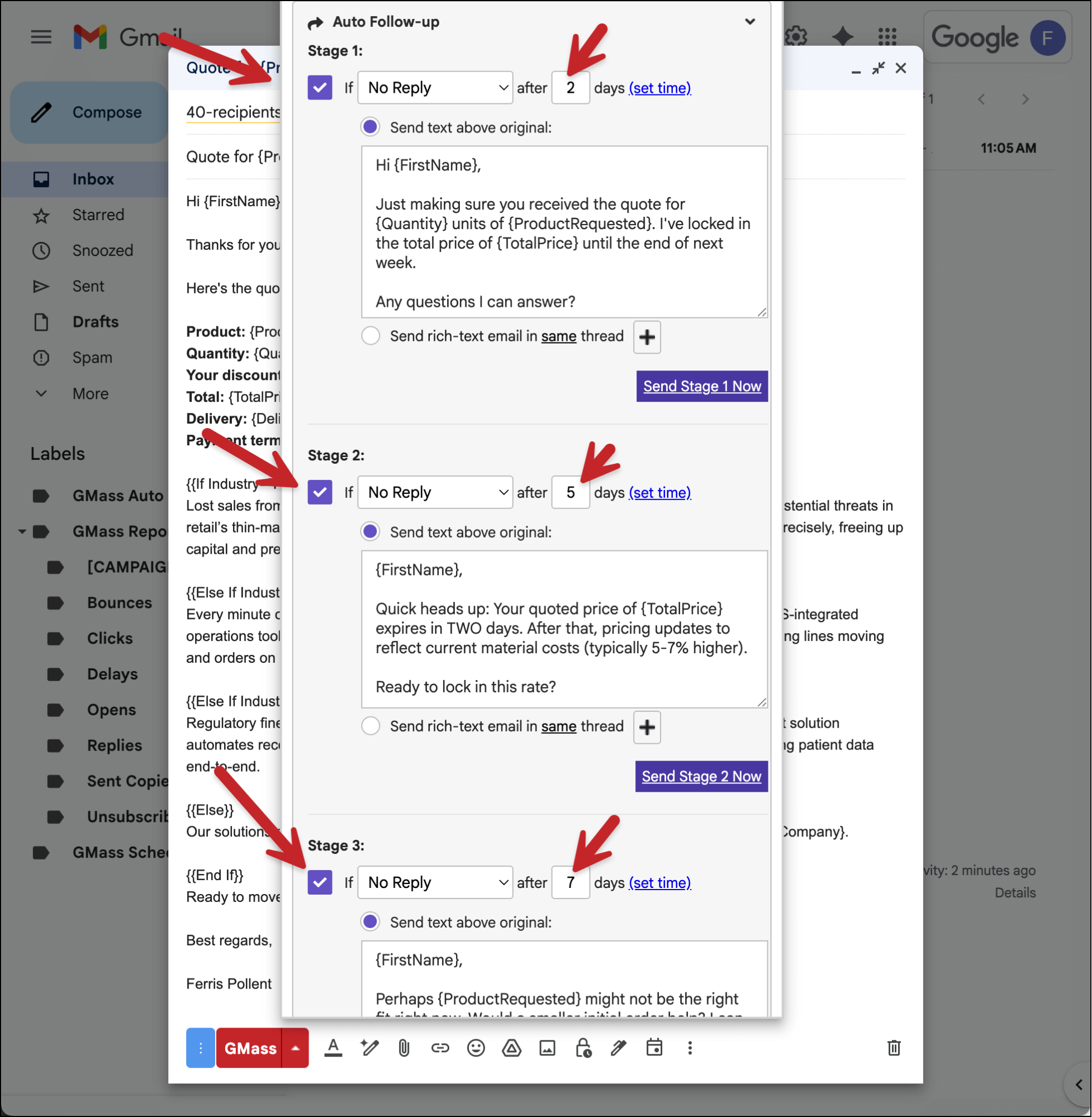
Set these up in your GMass Auto Follow-up settings. Each stage only sends if there’s no reply. The moment someone responds, the sequence stops.
Bulk Sales Quotes: Next Steps
We just turned hours of sending bulk sales quotes into minutes.
Your prospects get professional, personalized quotes while they’re still hot from their initial inquiry. Your math is always right. Your follow-ups happen automatically.
Faster quotes mean more conversations. More conversations mean more closes. And you’re doing it all from Gmail — the same place you already work every day.
GMass makes all of this work seamlessly right inside Gmail, so there are no integration headaches and no learning curve.
Just install the Chrome extension and start sending quotes that actually close deals. GMass’s free trial — with no credit card required! — gives you everything you need to test this with your actual quotes and actual prospects.
See why 400,000+ people use GMass to send all types of different emails — and why they give GMass an average of 4.8 out of 5 stars across tens of thousands of reviews.