

Wondering how to send a text from Gmail?
Everyone knows how useful Gmail can be. It lets you set up meetings, chat with team members, create to-do lists, and more.
But can you send text messages from Gmail?
In this article, I’ll describe the old and new methods you can use to send text messages directly from Gmail.
This Article Contains:
(Click on a link to jump to that specific section.)
Let’s jump right into it.
How to Send a Text from Gmail
Gmail used to have a straightforward process for sending a text message using your Gmail address.
Under the Labs tab in Gmail Settings, you could enable Text Messaging (SMS) in Gmail Chat.
But that was back in 2014.
There’s no more Labs tab today (it’s been renamed Advanced), and the text messaging feature that used Gmail’s chat window has been removed.
So how do you send a text from Gmail now?
I’ll describe three other methods you can use today send text messages through Gmail:
For each method, I’ll cover the step-by-step process and also highlight its limitations.
Old Method: Using a Mobile Service Provider’s SMS Gateway
SMS (Short Message Service) gateways enable a computer to send an SMS message to a telecommunications network (for example, Verizon, AT&T, etc.).
These gateways take a message sent through an email client like Gmail and route it to a mobile network. The mobile network, in turn, delivers the message to the recipient.
But here’s the problem. Starting in 2024 and through 2025, the carriers all killed their gateways. Verizon’s email to text through vtext.com, AT&T’s email to text through txt.att.net, T-Mobile’s email to text through tmomail.net, and all the other carriers too (Boost Mobile, Cricket, U.S. Cellular) — all gone.
-
Why did the carriers all shut down their gateways?
There are three main reasons. One is spammers ran wild on these. Two is the result of spammers running wild: New regulations came about that require special compliance for any applications sending texts. And three is there’s not a huge financial incentive for the carriers to bring back their system.
Fortunately, there are alternatives.
New Method: Using a Third-Party Service
If you were using one of the old carrier methods and you REALLY need to get your email-to-SMS alerts back for things like server notifications or backup failures, there’s one drop-in replacement.
Sending text alerts (a drop-in replacement for the old carrier gateways)
text.email is a true replacement for the carrier gateways. Just replace your old email there (yournumber@vtext.com or whatever) with your new text.email address (yournumber@secretkeyword.text.email) and you’ll start getting crucial alerts to your phone again.
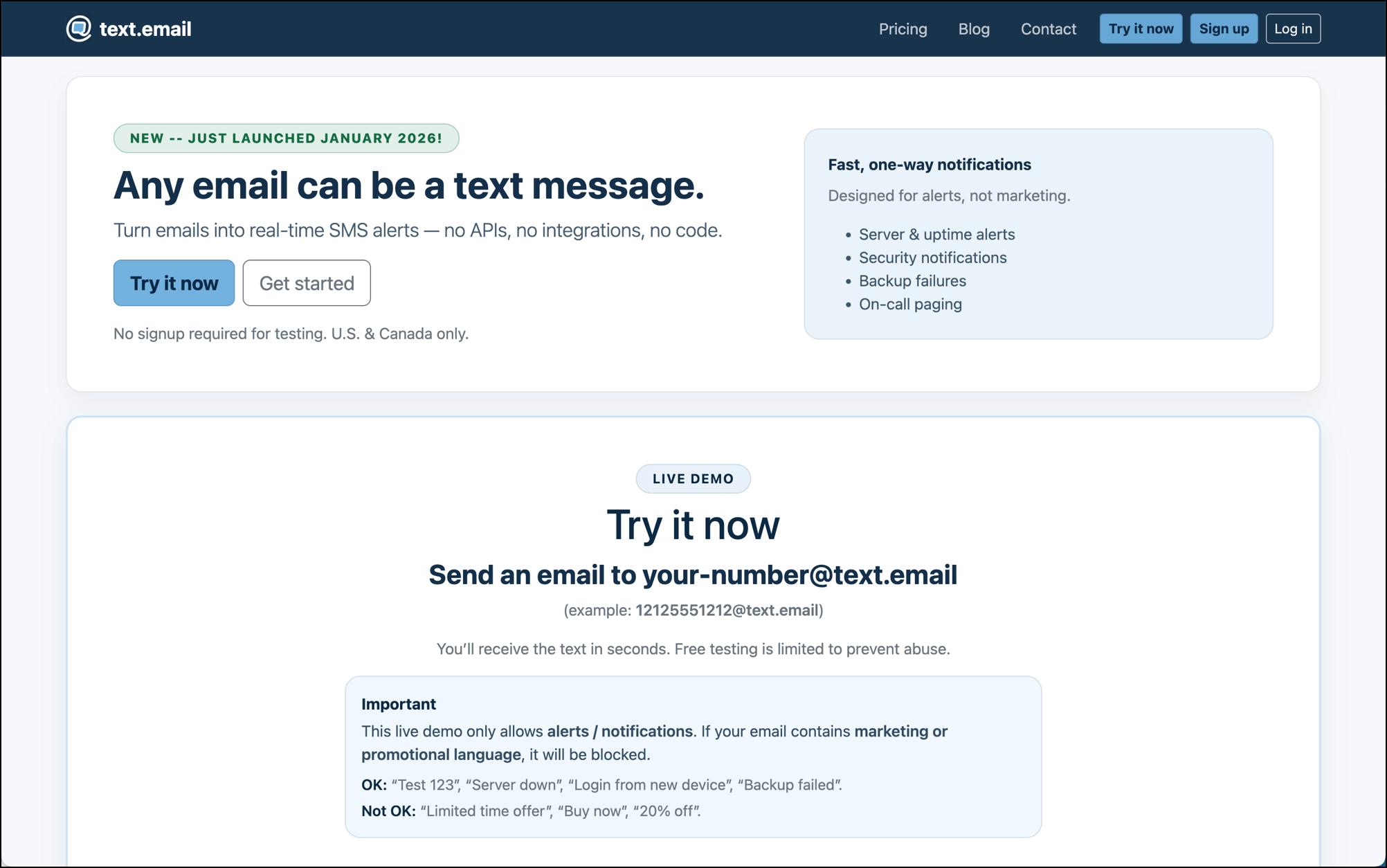
Again, it’s really simple.
- Open Gmail and click on Compose. (Or, in your server or device settings, go to the area where you set the email address for alerts.)
- Compose a text to yournumber@yoursecretkeyword.text.email
- Type in your message and hit Send.
Limitations
There’s really only one limitation here: text.email is for alerts and crucial messages to individuals (or small teams) only. It’s not meant for marketing texts, appointment reminders, or any other B2C purpose.
Sending bulk or marketing texts
If you have an extensive mailing list, remembering each recipient’s SMS gateway is nearly impossible. And as I mentioned before, some mobile network providers don’t even offer an SMS or MMS gateway.
In such scenarios, you can opt for third-party email-to-SMS services that help you send bulk text messages from Gmail.
One such texting service is TextMagic.
TextMagic helps you send SMS texts via email, have online conversations, and more. And in addition to Gmail, it also works with other email service providers like Yahoo.

Here’s how to get started with TextMagic:
- Register and create an account on TextMagic.
- Login with your Username and Password.
- Navigate to the Services section in the left menu and select the Email to SMS page.
- Click Add allowed emails and enter your Gmail inbox address.
Once done, you can use your email account to send SMS via Gmail.
Here’s how to use TextMagic to send text messages through Gmail:
- Open Gmail and click on Compose from the Main Menu.
- In the To field, enter the recipient’s 10-digit cell phone number (no country code) followed by “@” and the SMS gateway address textmagic.com
- Type your message in the text body and hit Send.
Any responses to your text will be routed back to your Gmail account.
Limitations
Even though it’s an easy-to-use service, TextMagic has its limitations:
- It’s relatively expensive to send bulk text messages via TextMagic. TextMagic charges $0.004 (£0.033) for each message you send using this service to a US number (pricing varies across countries). However, inbound messages are free.
- TextMagic doesn’t provide email-to-SMS support for all countries. For example, the service is unavailable in India, China, and South Africa, etc.
So which should you choose?
If you need to send alerts or you used to use the carrier gateways before they went away, check out text.email.
If you want to send larger text blasts, use TextMagic.
And if you’re on the lookout for the best Chrome extensions for Gmail, why not try out one that will streamline your entire email marketing experience?
The Best Extension to Improve Your Email Marketing Experience: GMass

GMass is an email outreach tool that works right inside your Gmail inbox. Its advanced mail merge capabilities and ease-of-use make it a popular tool used by employees in large companies like Twitter, LinkedIn, Google, and Uber.
Perfect for any Gmail user, from churches and SMBs to solopreneurs, GMass takes your Gmail experience to the next level.
Here’s a quick look at what’s in store for you:
- Powerful email personalization: GMass can send personalized emails by automatically customizing the sender name, subject line, message body, and more.
- Automated follow-ups: set up workflows to send automated follow-up emails to increase recipient response rates.
- Accurate reporting and analytics: access advanced reports showing core email metrics like unique opens, unique clicks, replies, unsubscribes, and blocks in real-time.
- Smart email list builder: build a custom email list right inside Gmail within seconds.
- Convenient add-on with the Gmail mobile app: access all of GMass’ functionalities directly from the Gmail app for Android devices.
- Custom tracking domains: use your own tracking domains to boost your sender reputation.
- Send unlimited emails: bypass Gmail sending limits and send virtually unlimited emails. Just link your GMass account to a third-party SMTP server or email API provider like SendGrid.
The best part?
To use GMass, just download the Google Chrome extension, sign up using your Gmail account, and you’re good to go!
Wrapping Up
While Gmail doesn’t have a dedicated feature for SMS messaging anymore, you can use the methods I’ve covered in this article to send emails as SMS text messages.
The right method for you ultimately depends on your needs. The point is that even with tons of advanced features, Gmail can’t meet all your requirements as standalone software.
That’s why you need powerful tools like GMass to enhance Gmail’s capabilities. With advanced mail-merge and outreach features, GMass is a must-have for any Gmail user.
Sign up for GMass today and link your Gmail account to take your email game to the next level!
Email marketing, cold email, and mail merge all in one tool — that works inside Gmail
TRY GMASS FOR FREE
Download Chrome extension - 30 second install!
No credit card required

Ajay is the founder of GMass and has been developing email sending software for 20 years.
Unfortunately we are on the receiving end of a mass messaging campaign that originated from a gmail account. In the the message is a link to pornography which is very problematic for several reasons. Blocking does not work. When you block one two more send you messages with links. Is there a way to somehow disable messages from email accounts? ATT and google have been of no help as they say they cant cross over phone/email
I agree this is a great article telling people how to do it why don’t you tell other people how to block it. Whoever wrote this article is an idiot and it should be taken down immediately
Blocking an incoming message depends on the device’s blocking instructions – consult your user manual.
Great read!
I need Heip now
Why do any of these things?
With GMail you can simply enter a phone number as the address and send.
Within the US the country code is optional.
No you can’t without also know the @mobilegateway address.
Just tried the Chrome extension. It worked fine with one problem:
The message is sent from a phone number that is unknown to the recipient. With so many spam texts these days, the recipient is likely to delete/disregard/ignore the text.
Textnow number code…If anyone can help
Other alternative is to use hotmail.com. I struggled with it for long. Called google tech support (they don’t know much and will tell you to do search internet)
I used @vtext.com to send to verizon phone. It worked once then stopped. Hotmail works every single time just fine.
Please can you give me the hotmail method to try?
One of the best illustrations of GMAIL being used for text messaging. “SMS open and response rates as high as 98% and 45%, respectively — in contrast to corresponding figures of 20% and 6% for email.” – Chris Pemberton (“Tap Into The Marketing Power of SMS”) Although I’m still not a fan of text messaging because of robocall scammers… Complaints about spam texts were up 146% in 2020. This is not to bypass email spam, phishing, and website hackers.
Nevertheless, great breakout Ajay!
It’s hard to come by well-informed people for this topic, but you seem like you know what you’re talking about! Thanks
After fighting to install it in Chrome, it works neither in Chrome nor in Firefox (which has a built-in “extension” to utilize Chrome extensions). I opened a Compose box in the email, addressed the email, and filled in the subject and body, but the red GMass button was not there. There’s no way to send it as either an SMS or MMS. What’s the use if it won’t work?
Hi gmass.co admin, You always provide great examples and real-world applications, thank you for your valuable contributions.
Makes sense—Gmail is great, but adding GMass really takes it to the next level for outreach and mail-merge tasks. Definitely worth considering for power users!