

Before we dive into a Google Docs vs Microsoft Word mail merge showdown, we need to handle some business up front:
We need to make sure that’s actually the debate you’re trying to settle.
I’ve personally helped (quite literally) thousands of users navigate mail merge over the years, and, as a result, I’ve learned the fuzziness around the concept and the tools involved.
When people say “Google Docs mail merge”…
- Sometimes they’re talking about a Google Sheets mail merge, not Google Docs.
- Sometimes they want to send mail merge emails through Gmail.
- And sometimes they actually do want to create documents.
Likewise, when they say “Microsoft Word mail merge”…
- Sometimes they want to create documents.
- Sometimes they want to create emails to send out using Outlook.
This confusion isn’t your fault. Google’s ecosystem in particular can be obtuse, and the term “mail merge” itself means different things to different people.
But that confusion might be costing you hours of unnecessary work — or preventing you from getting started at all.
In this guide, we’ll find the right solution for what you actually want to do — and show you how to pull it off.
Google Docs vs Microsoft Word Mail Merge: Table of Contents
- What People Actually Mean by “Mail Merge”
- Microsoft Word Mail Merge: Creating Personalized Documents
- Google Docs Mail Merge: Documents and beyond
- Google Docs for Gmail Mail Merge? Nope. You Don’t Need It
- Google Sheets + GMass: The Modern Solution
- How to Set Up This Google Sheets Mail Merge in 5 Minutes
- When to Use Each Mail Merge Solution
- Google Docs vs. Microsoft Word Mail Merge: Next Steps
What People Actually Mean by “Mail Merge”
So… what is a “mail merge”?
Here are the two most common meanings:
Document generation
This is: Creating personalized letters, certificates, labels, or envelopes that you’ll print (or save as PDFs).
Think employee contracts with individual details, award certificates with student names, or mailing labels for holiday cards.
Email campaigns
This is: Sending personalized, individualized mass emails. This is what most people actually want when they search for mail merge these days, whether it’s for cold outreach, newsletters, or internal communications.
Here’s where it gets tricky: When someone searches for “Google Docs mail merge,” they might actually need Google Sheets (for the data) or Gmail (for sending emails). Google Docs might not even be part of the equation.
Meanwhile, “Word mail merge” needs Word for the template, Excel for the data, and potentially Outlook for sending emails.
This distinction matters, because ambiguity around which tools are necessary can turn a 10-minute task into a 2-hour headache.
Microsoft Word Mail Merge: Creating Personalized Documents
Let’s start with the veteran: Microsoft Word’s mail merge feature has been around since the ‘80s, and it shows — in both good and bad ways.
How it works
Word’s mail merge follows a predictable pattern: Your data lives in Excel, your template lives in Word, and if you’re sending emails, they go through Outlook. It’s a three-step dance that Office users have been doing for decades.
The process is straightforward if you’re creating documents. Open Word, head to the Mailings tab, connect your Excel spreadsheet, insert merge fields, and you’re ready to roll.
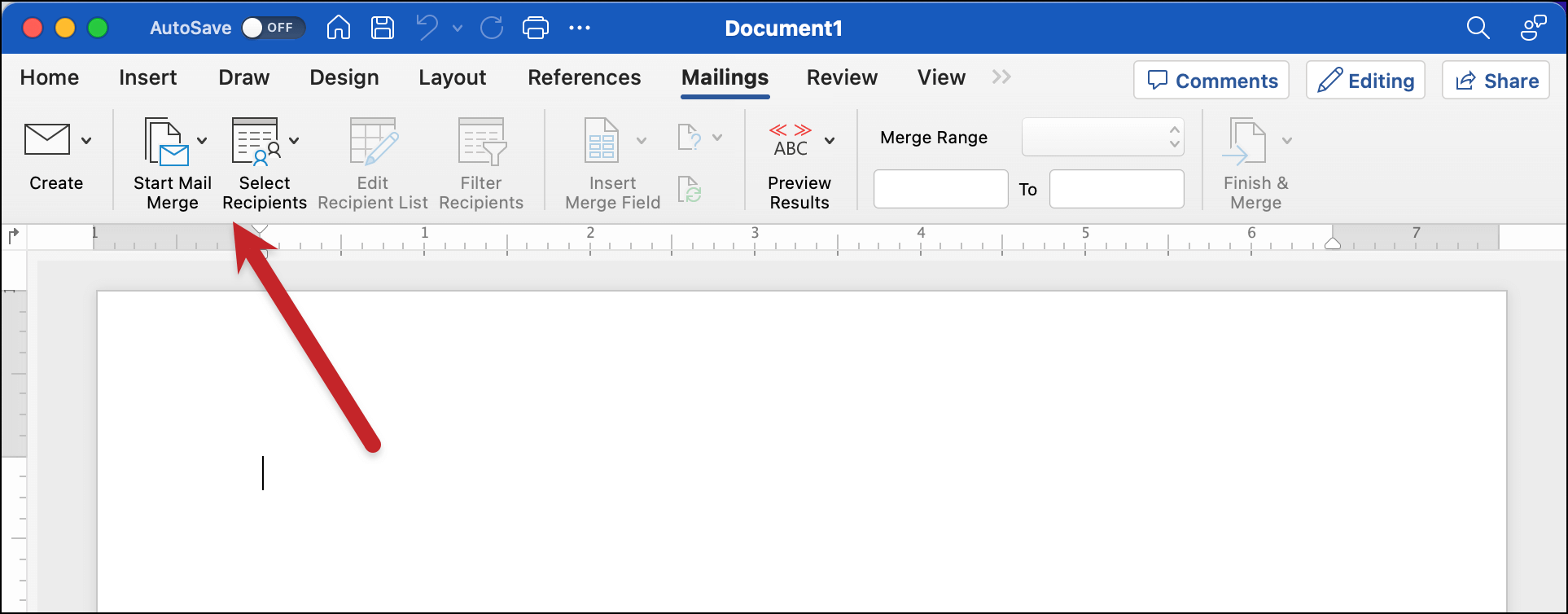
Word will generate individual documents for each row in your spreadsheet, which you can then print or save to distribute.
Where Word excels (pun definitely intended)
It works flawlessly for documents. No add-ons, no workarounds, no confusion — unlike Google Docs, which does take extra software.
If you need to create 500 personalized letters, Word is great. The built-in mail merge wizard walks you through every step, and the preview feature lets you check everything before committing.
Formatting control is advanced. Need complex layouts with tables, images, and precise formatting? Word handles it all.
Your merged documents look exactly like your template, every time. (Well… at least in theory. Anyone who’s ever done any formatting in Microsoft Word knows things can get pretty wonky pretty quickly.)
Where the outlook isn’t as great for Word (pun once again intended, and forced)
But here’s where Word starts showing its age, especially for email campaigns.
Setting up email merges through Outlook is gratuitously clunky.
You still create your template in Word, but now you need Outlook configured correctly, and the whole process feels like you’re forcing these programs to talk to each other against their will.
Suddenly that easy-to-use wizard from Word becomes more like an evil warlock and makes me write corny premises like this.
Zero email analytics. Sent 1,000 emails? Or even 10? Good luck knowing who opened them or who clicked your links. You’re flying blind, which is unacceptable for modern email campaigns.
No automation features. Want to send follow-ups to people who didn’t respond? Schedule emails for optimal times? Automatically personalize based on recipient behavior? Not happening with Word and Outlook.
Google Docs Mail Merge: Documents and beyond
Now for the plot twist which I actually spoiled earlier: Google Docs doesn’t have mail merge built in.
I know. You searched for “Google Docs mail merge” and found dozens of articles about it.
But here’s what they’re not telling you upfront: Every single one requires third-party add-ons or custom scripts. (Even, ahem, the article about this on our website.)
It’s workaround time
To make mail merge work in Google Docs, you need:
- A Google Sheet with your data (names, addresses, custom fields)
- A Google Doc with your template and merge tags
- A third-party add-on like Autocrat, Mail Merge for Docs, or one of their ilk
- Patience to figure out how these pieces fit together
Popular add-ons like Autocrat or Mail Merge for Google Docs essentially act as bridges, pulling data from Sheets and pushing it into Docs templates. They work, but it’s nowhere as smooth as the Microsoft Word process.
Where Google Docs shines
Collaboration is seamless. Multiple people can work on the same template or data source simultaneously. Changes sync instantly. No more emailing files back and forth.
It’s free(ish). With a basic Google account, you get Docs and Sheets. You might even be able to find an add-on to do Docs mail merges for free. However, many add-ons charge for premium features or higher volumes.
Cloud storage is included. Everything auto-saves, versions are tracked, and you can access your merges from any device.
Where Google Docs is limited
It’s sad because I really love the Google Workspace suite… but it’s true. For document generation, Google Docs mail merge just can’t compare to Word’s native feature.
Add-on dependency is risky. Your entire mail merge process depends on third-party tools that could break, change pricing, or disappear.
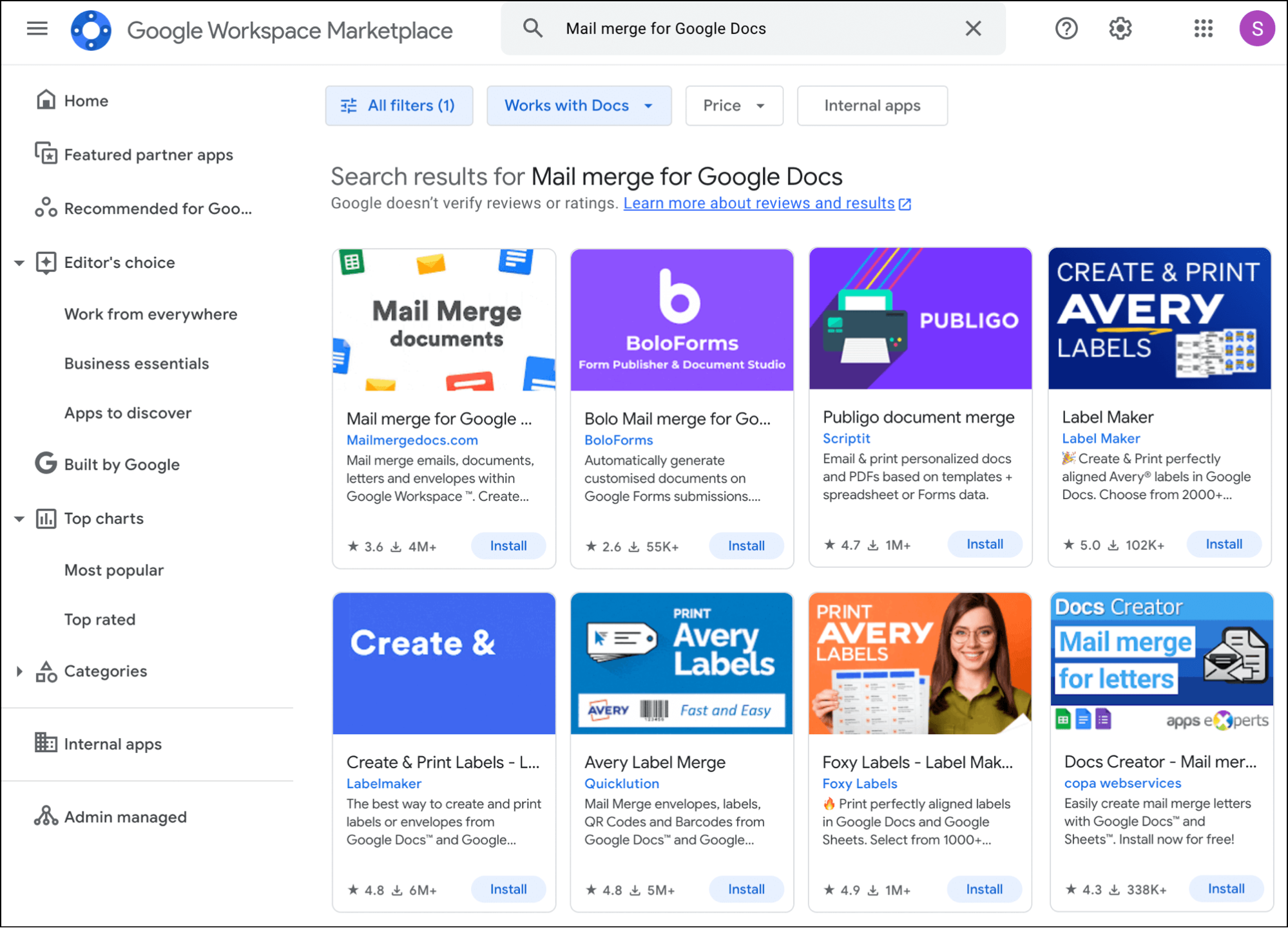
Over here at our company, we run a Chrome extension. So I can tell you firsthand: Google changes things constantly, which will break any third-party tools that aren’t super actively maintained by experts. (Important note: We are experts who super actively maintain ours.)
The learning curve is deceptive. While Google Docs itself is simple, figuring out which add-on to use, how to format merge tags with that add-on (is it {{name}} or <<name>> or {name}?), and troubleshooting when things go wrong? That’s all more complex.
Google Docs for Gmail Mail Merge? Nope. You Don’t Need It
Here’s what clicked for me after watching thousands of users struggle with “Google Docs mail merge”: Most of them never needed Google Docs in the first place.
They were trying to send emails. They had their recipients’ data in Google Sheets. They assumed they needed Google Docs as an intermediate step because, well, that’s how Word does it.
But you don’t. You can go straight from Google Sheets to Gmail.
No document template needed.
This is where the Google suite far outdoes Microsoft. Suddenly, that complicated three-part process (spreadsheet → word processor → email client) becomes a simpler two-step one (Sheets → Gmail).
So how do we do it?
Google Sheets + GMass: The Modern Solution
This is where GMass enters the picture.
GMass is a Chrome extension that works directly inside Gmail. You connect your Google Sheet, compose your email right in Gmail, and send personalized emails to hundreds or thousands of recipients.
No new interface to learn, no word processor documents to create, no software chains to manage.
Why this combination dominates
You’re already in Gmail. Instead of learning new software, you’re using the Gmail compose window you use every day.
The only difference? You’ll click the red GMass button instead of the blue Send button to send off your campaign.
Real personalization, not just name-swapping. Sure, you can do the basic “Hi {FirstName}” stuff. But you can also personalize entire paragraphs, images, attachments, links — even CC and BCC fields. Try doing that in Word.
Email campaigns, not just mail merge. GMass includes features that Word and Docs users can only dream about:
- Automatic follow-up sequences (with unlimited stages)
- Email tracking (opens, clicks, replies)
- Schedule sending for optimal times
- A/B testing your messages
- Bounce and unsubscribe management
Break Gmail’s sending limits. Gmail normally limits you to up to 500 emails/day (free accounts) or 2,000/day (Workspace).
GMass breaks right through those limits with a built-in SMTP integration or distributing campaigns across multiple days or even sending accounts.
Professional deliverability tools. GMass’s Spam Solver tests your emails before sending. Custom tracking domains improve your sender reputation. Free email verification prevents bounces. This isn’t just mail merge — it transforms Gmail into a complete email platform.
How to Set Up This Google Sheets Mail Merge in 5 Minutes
Want to see how simple this actually is? Here’s how to go from zero to sending your first campaign at record speeds.
Step 1: Install the Chrome extension
Head to the Chrome Web Store, search “GMass”, and click install.
Step 2: Prepare your Google Sheet
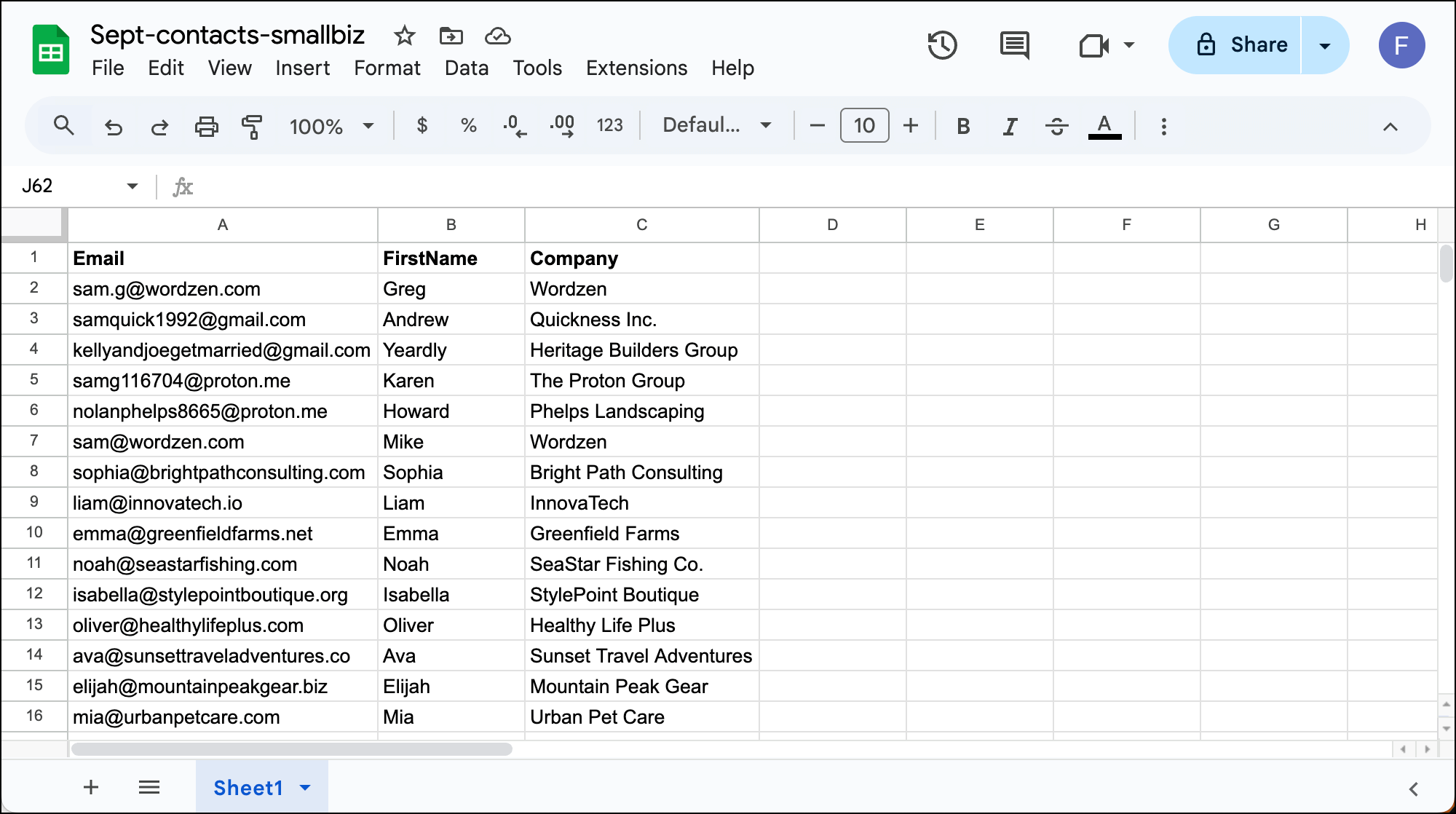
Create a Google Sheet with your contacts. First row = headers (Email, FirstName, Company, whatever you need). Each row below = one recipient.
Step 3: Connect in Gmail
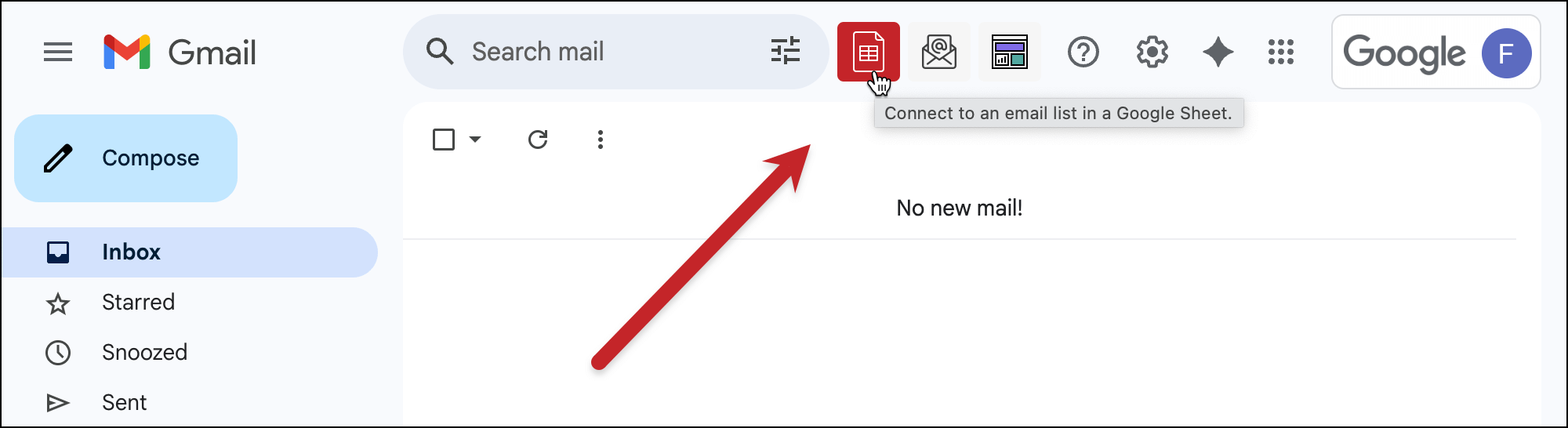
Click the GMass sheet button in Gmail.
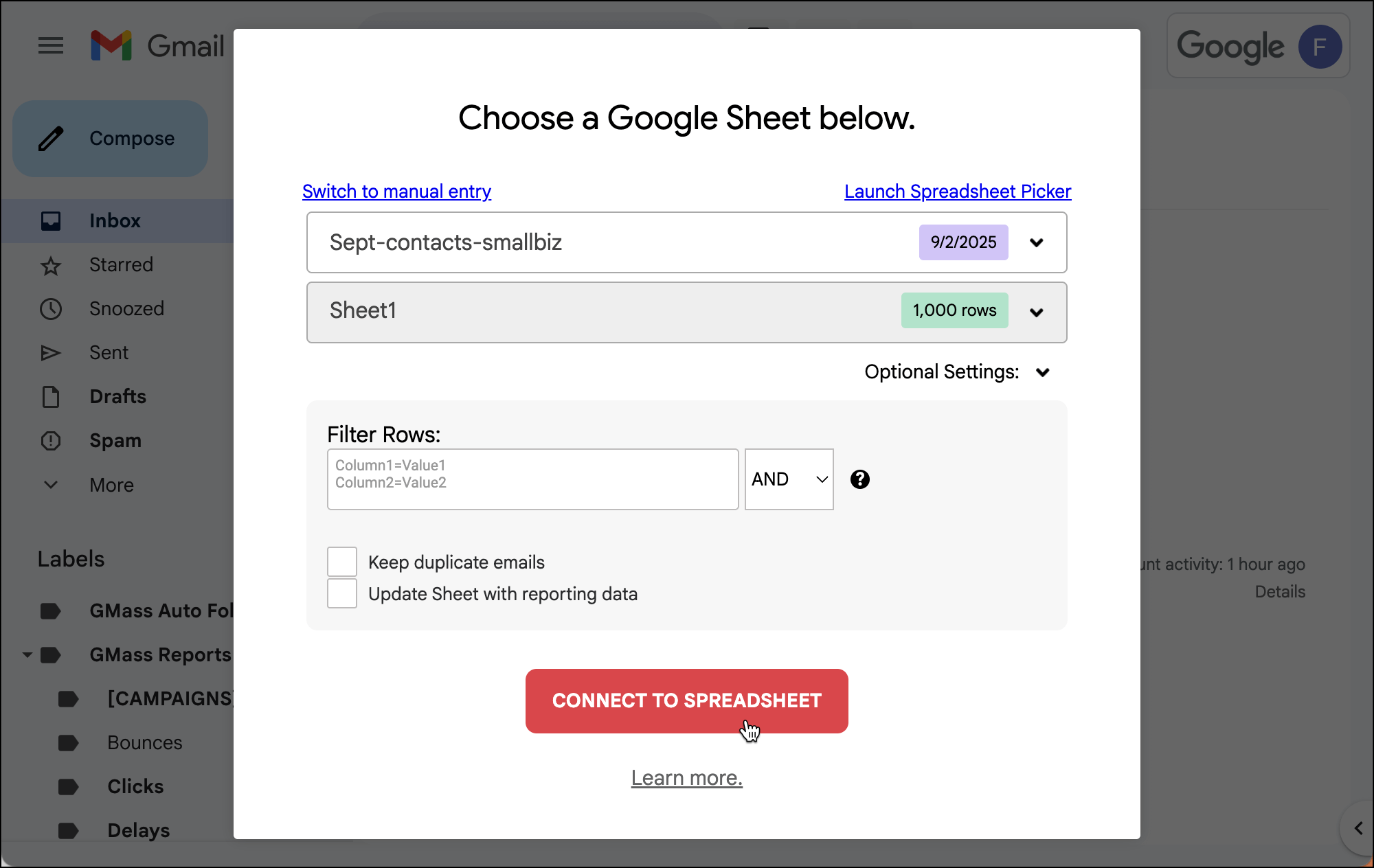
Select your Sheet. Your column headers are now your merge fields.
Step 4: Compose your email
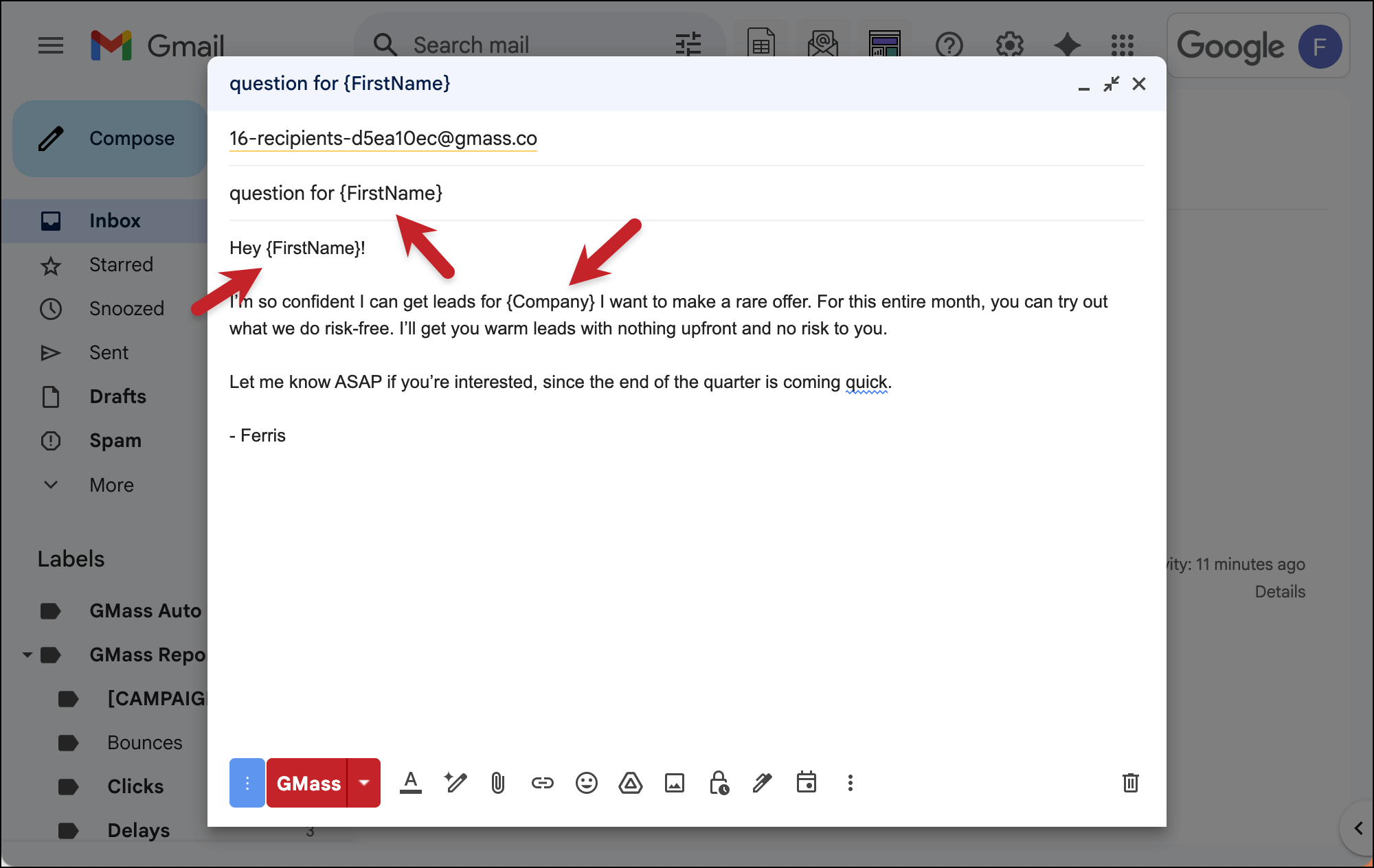
Write your email in Gmail as you normally would. Add merge fields like {FirstName} or {Company} wherever you want personalization. You don’t have to memorize them; just type a left curly brace { and GMass will show you all available merge tags.
Step 5: Configure your settings
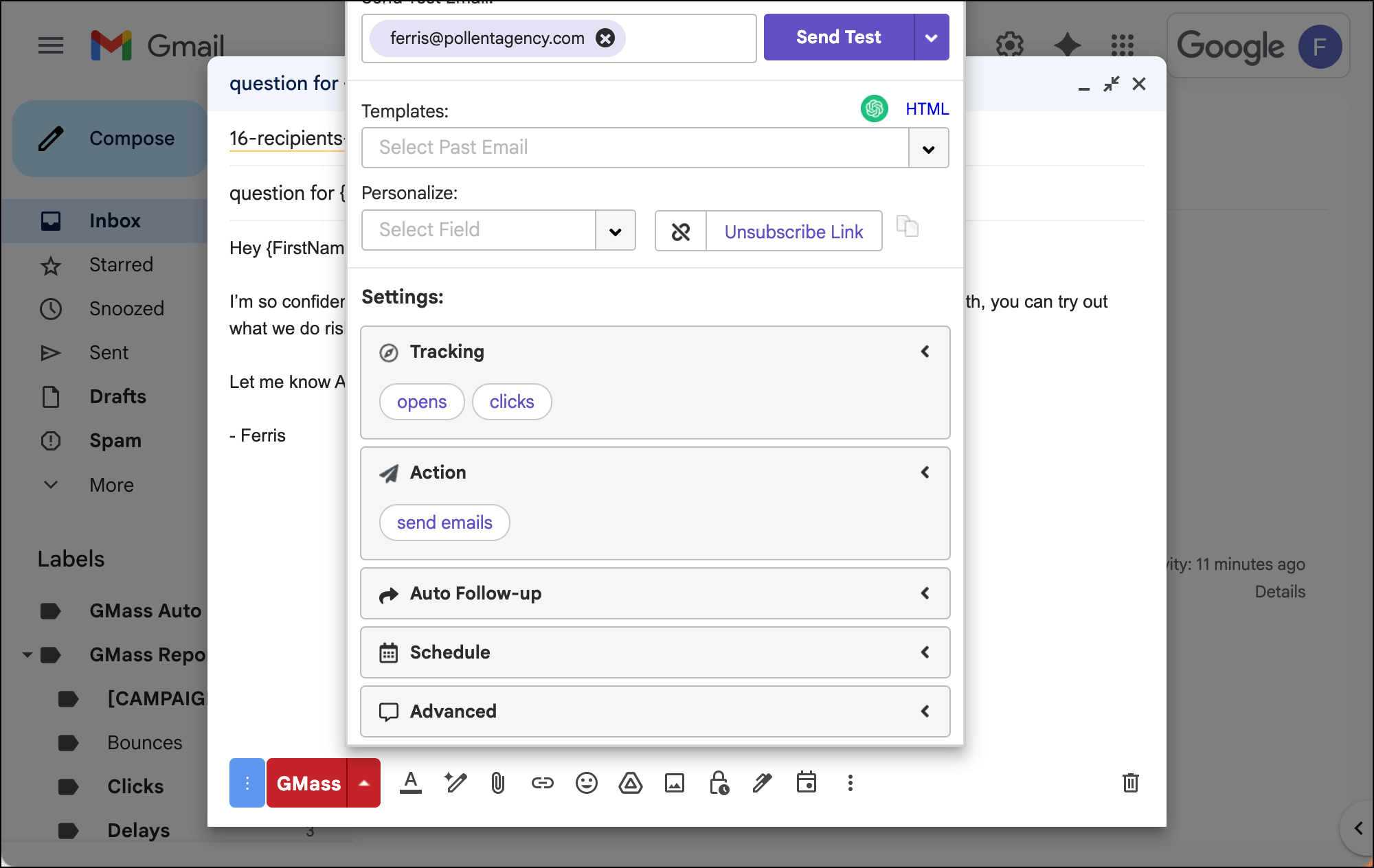
Click the GMass settings arrow. Set tracking, scheduling, follow-ups — whatever you need. Or just leave the defaults. Since we’re going for speed here, maybe this isn’t the right moment to tinker with the settings.
Step 6: Test with Spam Solver
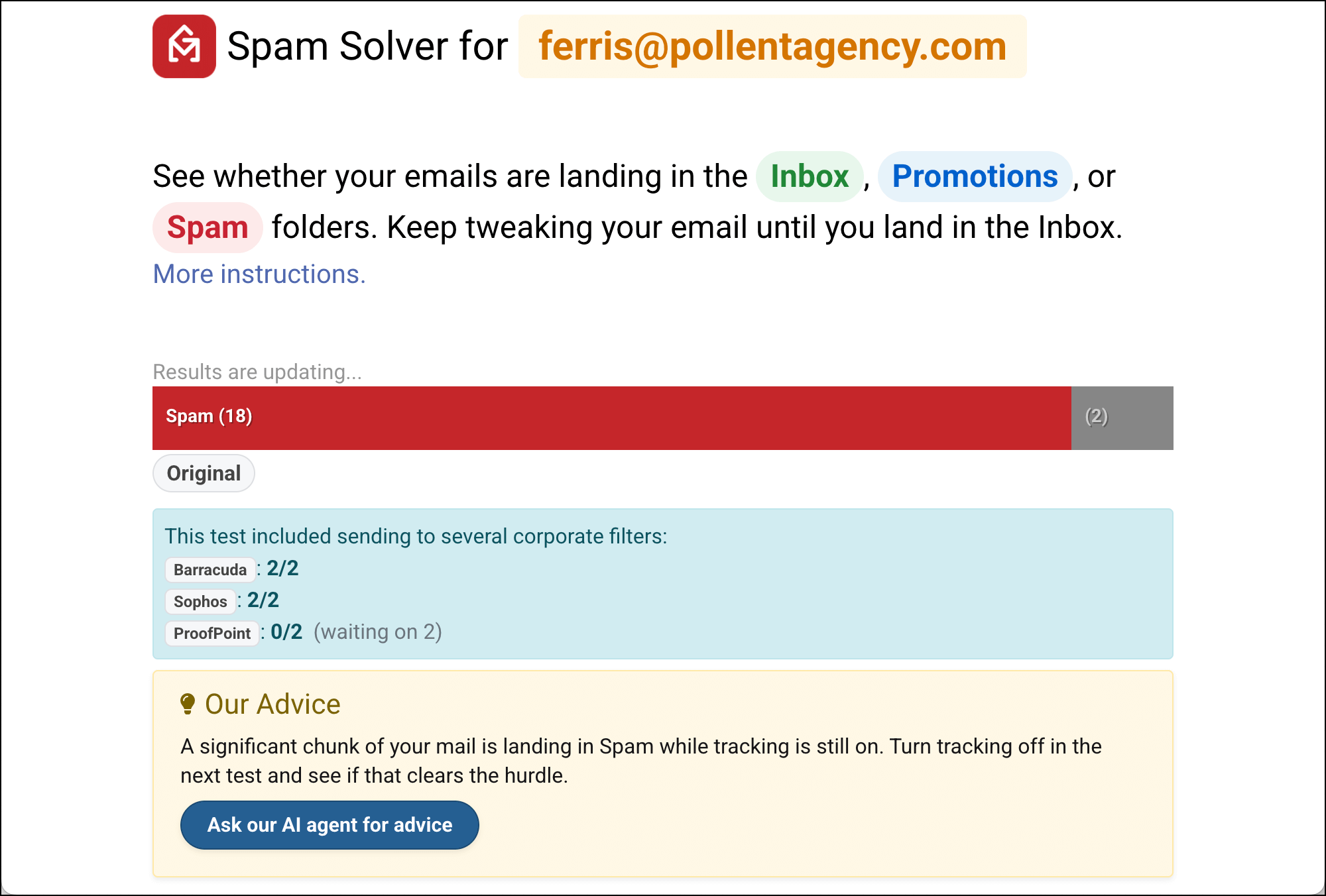
GMass’s built-in Spam Solver tool tests deliverability before you send. It’ll tell you if you’re likely to hit the inbox or spam.
It will also suggest things to fix if you’re seeing a high spam rate. (Like I was for this test — yikes!)
Step 7: Send
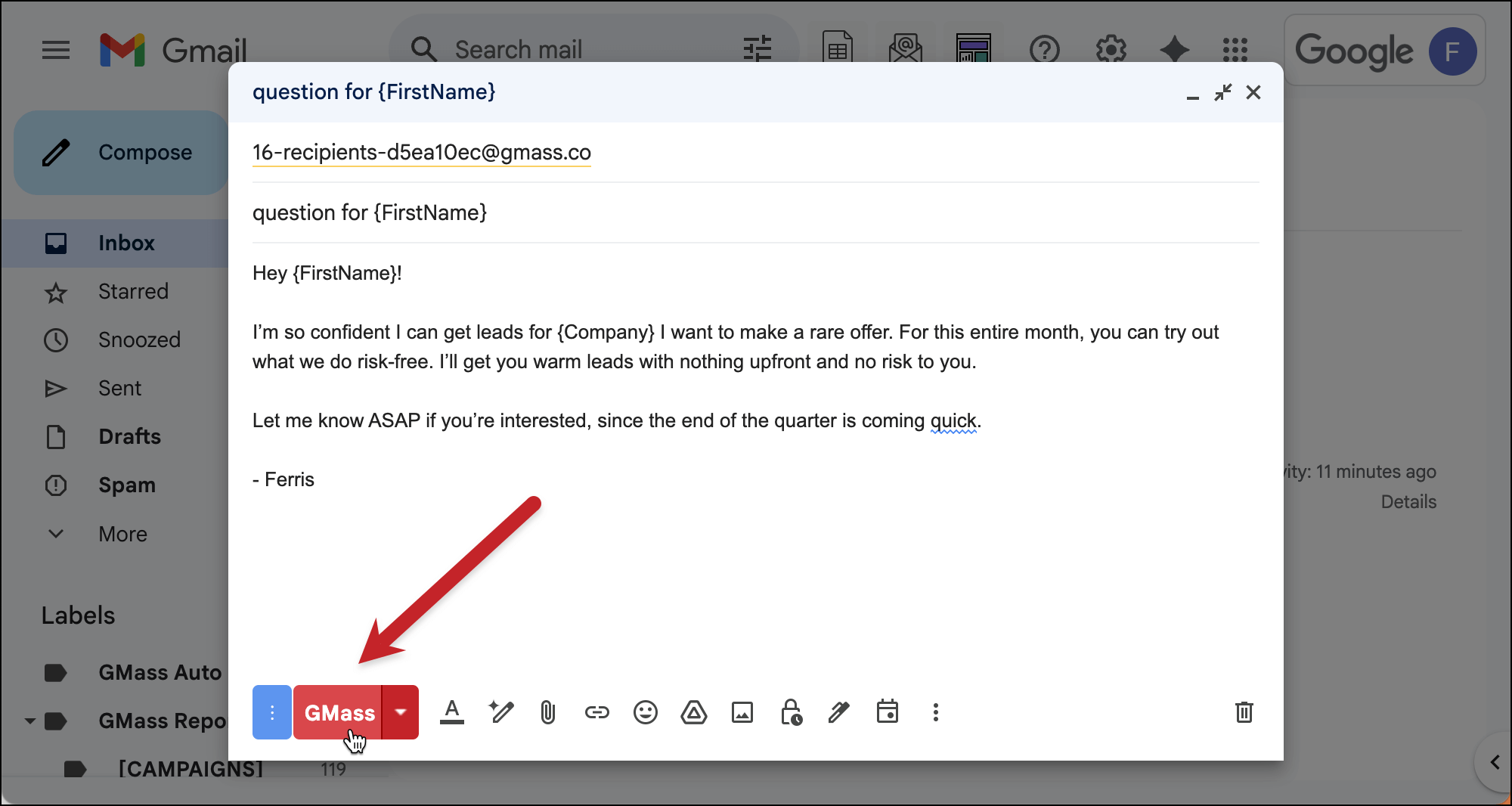
Click the red GMass button instead of the blue Send button.
That’s it.
The entire process takes less time than installing Microsoft Office.
When to Use Each Mail Merge Solution
To review, here’s when it’s best to use each mail merge option:
Use Word Mail Merge when:
- Creating printed documents (letters, certificates, labels)
- Working in a locked-down corporate environment
- You’re already deep in the Microsoft ecosystem
- You need complex document formatting
Use Google Docs + Add-ons when:
- You’re already using Google Workspace and not in the Microsoft ecosystem
- Collaboration on templates is important
- You’re creating simple documents occasionally
Use Google Sheets + GMass when:
- Sending any kind of email campaign
- You need to track email engagement
- Follow-ups are part of your process
- You’re sending emails at any sort of volume
- Professional deliverability matters
- You want to spend time on strategy, not technical setup
Google Docs vs. Microsoft Word Mail Merge: Next Steps
Mail merge means different things depending on context.
If you’re creating physical documents, Word is still king. It’s built for this, it’s good at it, and trying to replicate its functionality in Google Docs can be frustrating.
But if you’re sending emails — which is what something like 90% of “mail merge” is actually about — then wrestling with documents is missing the point entirely. You don’t need Word or Docs.
You need a proper email platform that happens to work inside Gmail.
That’s GMass.
You can lose hours of productivity juggling unnecessarily between Google Docs, Microsoft Word, Google Sheets, Microsoft Excel, Microsoft Outlook, Gmail, and other random tools.
People are building complex workarounds for problems that have already been solved. They’re using document tools for email jobs.
Stop doing that.
Getting started with GMass
GMass was the original mail merge option inside Gmail, and is still by far and away the leader in that world today.
And… you can try it for free. No credit card required.
Send up to 50 emails per day on the free trial. Install the Chrome extension, connect a Google Sheet, and send your first campaign in the next 5 minutes.
See why GMass’s 400,000 users give it an average of a 4.8-star rating across 10,000+ reviews.
You’ll immediately see why trying to do mail merge through Google Docs or wrestling with Word and Outlook feels like using a giant medieval sword to perform surgery.
Email campaigns aren’t document problems. They’re email problems. Use email tools.
Get GMass free — and stop fighting with Docs when all you want to do is send great emails.
GMass is the only tool for marketing emails, cold emails, and mail merge — all inside Gmail. Tons of power but easy to learn and use.
TRY GMASS FOR FREE
Download Chrome extension - 30 second install!
No credit card required