
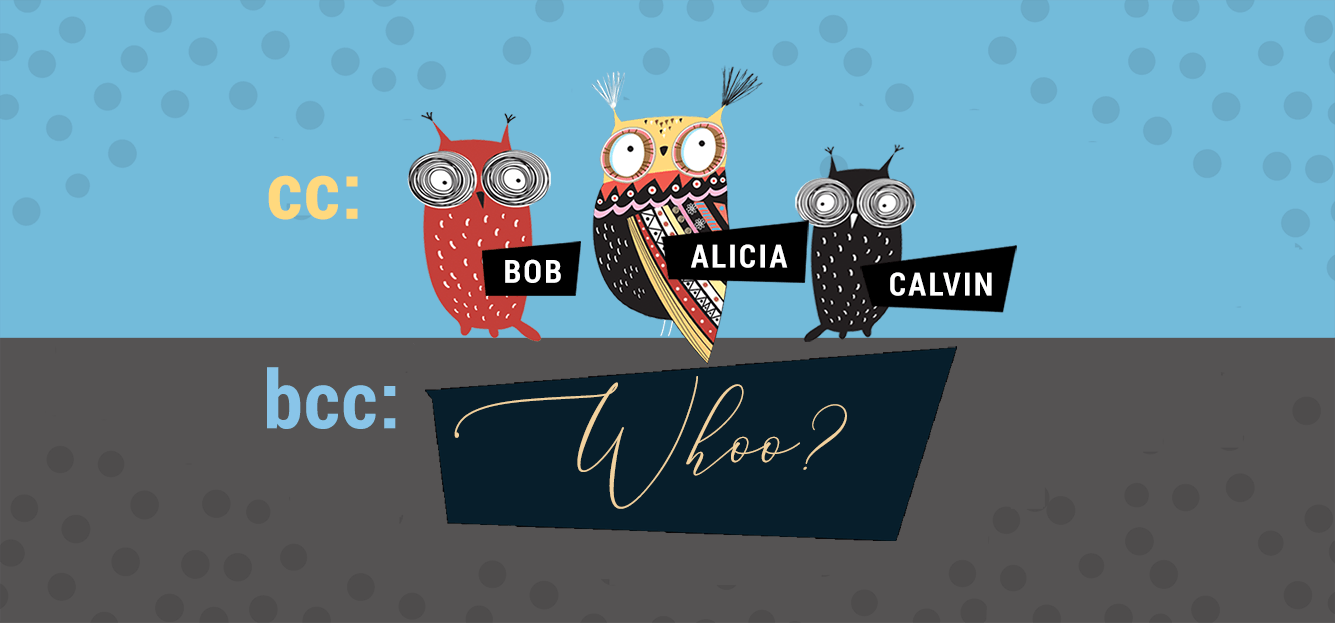
Want to know how to use the CC and BCC features in Gmail?
Gmail’s CC and BCC features can help you send emails to multiple recipients.
However, the approach that each one uses is slightly different.
Don’t worry.
In this article, I’ll show you how to use each of those Gmail features correctly.
However, the CC and BCC features also have several limitations. That’s why I’ll also demonstrate how to use mail merge tools to make the process far easier!
Also check out how to use BCC email including a better way to send emails to multiple recipients in my guide to using BCC.
This Article Contains:
(use the links below to jump to a particular section)
Let’s go.
How to Use CC in Gmail?
The CC (carbon copy) field allows you to send a copy of your email to multiple recipients.
The term “carbon copying” comes from the carbon paper you use to make copies of documents — the email service makes copies of your email and sends it to CC’d recipients.
A. How Is “CC” Different from “To” in Gmail?
The difference between the CC and To field lies in email etiquette.
The To field is used for primary recipients — people required to act in response to your mail.
On the other hand, the CC feature applies to secondary recipients — people who need to be in the loop about the conversation and, ideally, aren’t supposed to take any action.
The correct usage of To and CC fields usually defines who needs to take action and who simply needs the information.
B. How to CC in Gmail
Here’s a step-by-step guide on using the CC field to send mail to multiple recipient lists in Gmail.
I’ll explain the steps when using:
1. How To CC Using Web Browser
Step 1
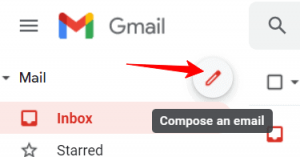
Log in to your Gmail account and click the Compose button to open up the Gmail compose window.
Step 2
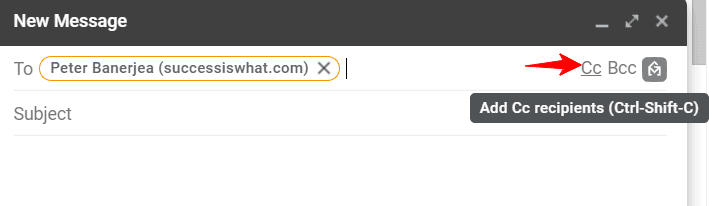
In the To address box, type your primary recipient’s email address. You can separate multiple addresses using a comma, space or by pressing the enter key.
To send a copy of your mail to secondary recipients, you must add each one as a CC recipient.
Click the CC button, as shown below.
Step 3
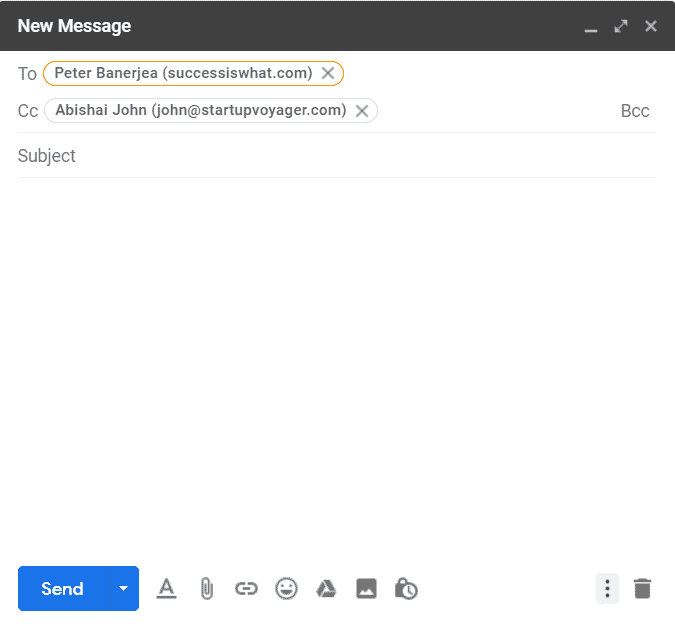
Enter the email address of recipients who’ll receive a copy of the email in the CC field.
Step 4
Compose your new message and hit Send when your message is complete.
All your recipients (primary + CC’d) will receive the email.
Let’s see how it looks at a recipient’s end.
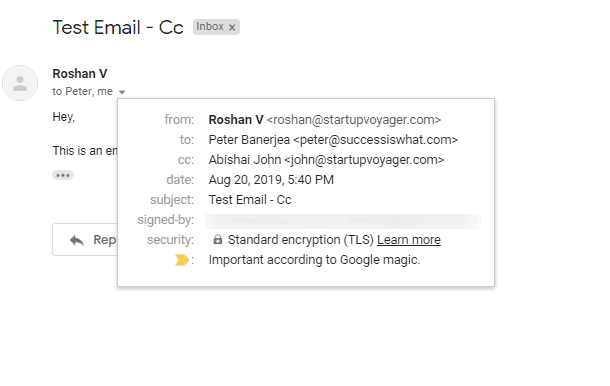
All recipient addresses in the To and CC fields are visible to everyone in the email.
2. How To CC In Android and iOS (iPhone)
Note: While I’ve used Android screenshots, the process highlighted here is the same for both Android and iOS devices.
Step 1
Open the Gmail app on your Android or iOS device and click on Compose to write your new message.

Step 2
In the To field of the new email, type your primary recipient’s email address. You can separate multiple addresses using a comma or space.
To add a CC recipient, click on the downward arrow on the top right corner in the To address box, as shown below. This will display the CC and BCC fields.


Step 3
In the CC field, enter the mail addresses of the recipients who’ll receive a copy of the email.

Step 4
Compose your message and hit Send. Both your primary recipient and the CC’d person will receive the email.

Let’s now look at some issues of using Gmail’s CC method.
C. 3 Major Problems with Gmail’s Carbon Copy Method
Some of the problems linked with CC’ing recipients in Gmail are:
1. Displays Mailing List to All Recipients
The recipients in Gmail’s CC list are not hidden from each other. This is fine when you’re sending an email to a group of people who know each other.
However, when you email a group where people don’t know the other parties, using the CC feature is a breach of privacy.
Think about it:
If you’re sending marketing or sales emails, would you think of giving away your mailing list?
Because that’s what you’re doing by using the To/CC field in Gmail!
To protect the identity of your recipients, never use the CC field to communicate confidential information.
2. Impractical for Mass Mailing
Do you need to email dozens or even hundreds of recipients at a time?
Manually adding each recipient to the CC line would be a painstaking and error-prone process. You could misspell an email address, leave someone out, or mistakenly add someone as To. The list goes on.
3. Unintentional Reply All
A significant problem with using the CC line in Gmail is that any CC’d person could mistakenly click “Reply All” instead of the “Reply” button while responding to your mail.
An unintentional “Reply All” broadcasts their response to every address involved in the communication (including the CC list), resulting in a potentially embarrassing situation.
Now that we’ve covered how to CC in Gmail, let’s explore how to BCC in Gmail since it can solve the first limitation to an extent.
How Do You BCC in Gmail?
The BCC (blind carbon copy) field allows you to send an email to a multiple recipient list.
Each address in the BCC field is known as a tertiary recipient.
When using the BCC option, the main recipient of the mail will be unaware of other recipients you’ve included. As a result, a BCC email is a little more confidential than CC.
While your BCC recipient can’t see who else has been added, they’ll know that they were added to the BCC line and weren’t the only ones being addressed.
A. How to Use Blind Carbon Copy in Gmail
Here’s a step-by-step guide on using the BCC line for sending an email to undisclosed recipients in the Gmail email client. (The process is the same for your mobile Gmail app.)
Use the same first steps as in How to CC in Gmail.
Except, this time, click on add BCC instead of CC.
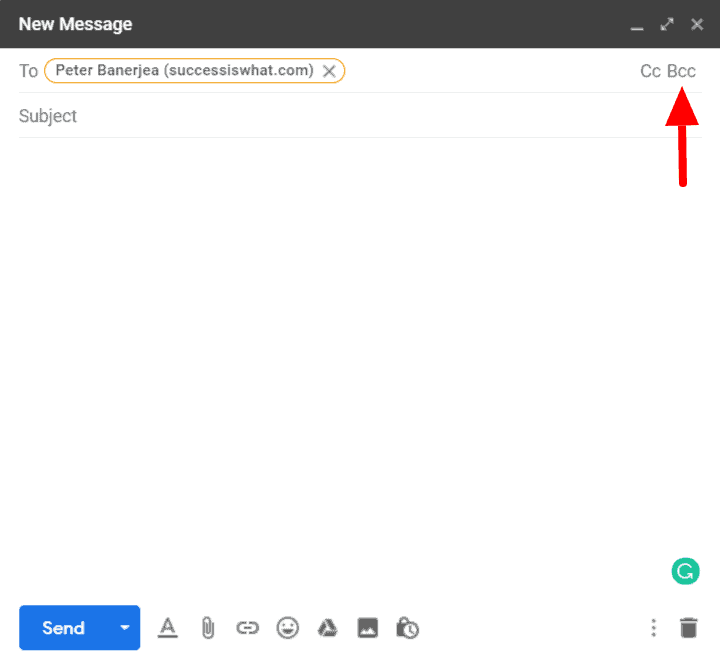
Enter the tertiary recipient you’d like hidden in the BCC address field.
Then, compose the message and send it.

On the recipient side, it will look something like this:

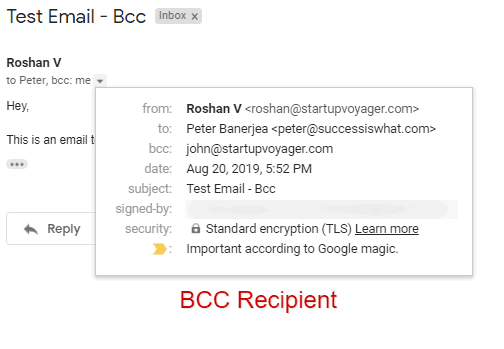
The main recipient of your email can’t see who else has been added. However, each BCC recipient will know that they’ve been BCC’d to this mail.
For more information on using BCC in Gmail, read my ultimate guide.
Let’s now look at some potential issues of using BCC in Gmail.
B. 3 Major Problems with Gmail’s BCC Method
The three major problems with using the BCC field in Gmail include:
1. Unprofessional
Because your recipients in the BCC address field know instinctively they aren’t the only ones added to this mail, it could raise questions or suspicion. That’s why you should never use the BCC feature for formal conversations, as it could lead to distrust among your team members.
2. No Personalization
Gmail’s BCC or CC feature doesn’t allow you to personalize emails.
This means that your recipients receive an email without their name being mentioned. This is enough for many people to mark your email as spam or just delete it.
Moreover, this makes it an impractical method to send pitches and marketing emails.
Why?
As you can’t mention a person’s name and customize their sales message, your BCC list recipient will receive a bland, generic marketing email that disappoints them. You won’t be able to address their concerns and make a personal connection to boost your conversions.
3. No Stats or Analytics from Your Emails
Gmail doesn’t give you any stats or analytics from your BCC or CC emails.
While this might not be an issue for personal communication, it’s a significant problem if you want to track how many people opened or clicked on your sales message.
However, Gmail doesn’t give the sender any features to analyze data — such as when the email was opened or what links were clicked, etc.
These statistics indicate how well your emails are being received, so can you really operate efficiently without them?
Moreover, these stats are helpful not only for email marketers and salespeople but also for anyone who regularly sends mass emails to a group.
Fortunately, you can easily overcome the problems associated with Gmail’s CC and BCC features by using an email marketing tool like GMass.
How to Send Mass Emails with GMass (and Avoid CC and BCC problems)
GMass is a powerful email marketing software that allows users to run email campaigns from their Gmail inbox. Its powerful mail merge features have made it a popular Chrome extension for employees from top companies like Facebook, Twitter, Google, and LinkedIn.
Individuals, schools, social clubs, and churches can also use GMass to send emails from their Google account to a target audience.

It’s super easy to send emails to multiple recipients in Gmail using the GMass extension.
Here’s how to do it:
- Enter email addresses in the “To” field.
- Compose your email subject and message.
- Click the “GMass” button (instead of Gmail’s Send button).
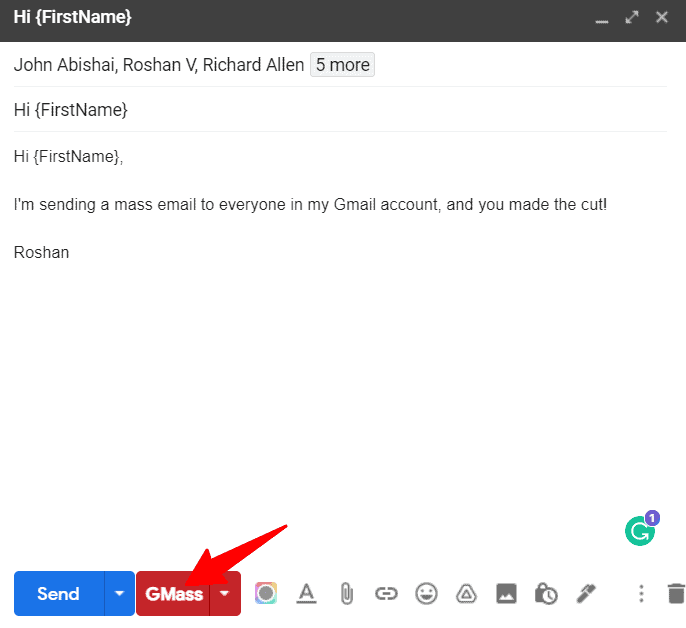
You’re done! Now you can send emails to multiple recipients within seconds!
Did you notice the {FirstName} field in the screenshot?
This personalization feature allows you to address each recipient in your distribution list by their own name. You will never need to say a generic “Hi” again in your bulk emails.
And instead of manually adding each recipient from your distribution list, you can use one of these three easy ways:
And with GMass, if you want to use CC and BCC, you can — and you can personalize them for every recipient. Check out our guide to mail merge CC and BCC to see how you can include different CC and/or BCC addresses for everyone on your email list.
Benefits of Using GMass
Here are the top seven reasons to use GMass to send your emails:
- Automatically personalize your bulk emails to multiple people, including the subject line, message body, images, and much more. This way, you can quickly craft emails personalized to each recipient at scale.
- Create sequences to send an automated direct response as follow-up emails. You can customize all aspects of your follow-up emails, such as the time between them or the number of follow-ups.
- Analyze your email performance with detailed email analytics reports right inside your Gmail inbox. You can analyze open rate, response rate, bounce rate, etc.
- Email scheduling helps you schedule the right time to send automatic emails so that each recipient gets them when they’re most likely to check their inboxes.
- Set up behavior-based email campaigns.
- Save any email you send to group members as a template to reuse for your future emails.
- Make use of GMass’ powerful capabilities on your smartphone with the GMass add-on for the Gmail app on Android devices.
To enjoy such unique advantages of GMass, just download the Chrome extension and sign up using your Gmail account.
Final Thoughts
Mailing to multiple recipients doesn’t have to be a tiring and complicated process.
While Gmail’s CC or BCC field can help, using a mail merge app like GMass is a far better solution. It has tons of features to get the best out of your email campaigns and maximize your conversions for all future emails.
Why not download the GMass Chrome web extension right now and experience it for yourself?
Only GMass packs every email app into one tool — and brings it all into Gmail for you. Better emails. Tons of power. Easy to use.
TRY GMASS FOR FREE
Download Chrome extension - 30 second install!
No credit card required

Ajay is the founder of GMass and has been developing email sending software for 20 years.
Is this company even real then?
Was there something we could assist you with?
We’ve responded to your ticket directly.
The reason for the bounces is due to your SendGrid account running out of credit which caused your emails to bounce.
I’ve installed the gmass app, but I also see the option to add a monthly subscription, I am not sure I understand what the difference is between the two.
1. Can I send emails with just the app, or do i need to the subscription?
Hi Lance,
You can use GMass for free albeit with a 50 email per rolling 24-hour sending limit. Paid subscription plans do not have such limits.
While this seems to be a simple task, there are still those who are confused on how to use the CC and BCC features in Gmail. Thank you for writing an article about this topic and for showing us how use those Gmail features. Keep sharing!
What is the cause of these rejected/bounced emails?
Individual recipient errors (36):
Some of your errors are Gmail server errors. Your campaign will automatically re-send to these affected email addresses.
Email Address: xxxxeacher@gmail.com
Error: Google.Apis.Requests.RequestError
Backend Error [500]
Errors [
Message[Backend Error] Location[ – ] Reason[backendError] Domain[global]
Hi Tom,
An error 500 is basically the result of an issue with Google servers as GMass sends your emails. When GMass transfers data to and from your Gmail account (via numeric identifiers specific to Gmail and the Gmail API), the server either took too long to respond or is busy to receive another send request to the API to send an email to the intended recipient at the time of the error.
This type of error is temporary and is basically flood protection to the Gmail API so GMass will automatically retry sending to those listed email addresses where the error occurred as stated in the copied error message.
Hi Marvin,
Your article was very useful most especially on using the GMass. But how can one hide an attachments from cc emails on gmail platform
Hi Kenechukwu,
Unfortunately, that wouldn’t be possible since a CC’ed address would receive the same email as the email address in the TO field which includes attachments.
When I an receive an individual reply back from someone that was included in a BCC email, I cannot find that one individual that replied out of everyone it was BCCd to. when one individual replies to that email directly to me I do not see that one individual’s email address in my inbox it comes in under one of the other emails that was in that mass mailing along with all the other ones that I grouped together
Hi Danielle,
Please contact our support team directly with the campaign ID so we can assist you in troubleshooting. Please see gmass.co/g/support.
Please what’s the different between the CC and the BCC. If I want to send a multiple message to a group of people using the Gmass Which one should I use. Is it the CC or the BCC.
SO just making sure I get this. I can send it to a whole group of addresses, but they will only see there email address? Not others? My members dont want others to have their address or be able to reply all. I am willing to pay the premium price for this.
Hi,
Yes, GMass will send each address foud in the TO field a separate email.
If someone I have cc’d replies to my email, but not the main recipient, will my auto-follow up emails continue to the original recipient? And what happens if I manually reply to an email that also has auto-follow ups turned on? Will my own reply cause the auto-follow ups to stop?
Hi Kathleen,
If anyone CC’ed replies, it would register as a reply from the main recipient since the reply is added to the same thread. If your auto follow-ups are set to send to those who did NOT reply, then the auto follow-ups would stop since a reply has been registered. No, your own replies to the same thread will not trigger your auto follow-ups to stop.
when using gmass and sharing email to multiple emails using To tab , i could see all the emails list visible to other client too cant we hide without using bcc option
Hi Navneet,
The BCC/CC feature when using with GMass acts differently from the regular use.
When using the BCC/CC feature in GMass, emails sent to each recipient in the TO field will CC/BCC to all of the addresses in the BCC/CC field.
For example: if you have john@gmail.com and david@gmail.com in the TO field and have navneet@gmail.com and marvin@gmail.com in the CC field.
With the regular Gmail send button – it will send 1 email TO both John and David and CC Navneet and Marvin in the same email.
With the GMass button – 2 emails will be sent, 1 email for each John and David. Both of those emails will be CC’ed to Navneet and Marvin.
can I make a list of people to include in CC?
Hi JC,
Please note that the CC function behaves differently when using GMass. If you have 100 recipients CC’ed to marvin@gmail.com and send your email using the GMass button, what will happen is GMass will send 1 email for each recipient in the TO field and each of those 100 emails will be CC’ed to marvin@gmail.com
If you want to CC just another person which would be unique to each recipient such as when you want to send an email to a student and CC’ing the student’s parents, you can do this by following the steps in this article: https://www.gmass.co/blog/secret-feature-set-the-cc-and-bcc-fields-in-a-mail-merge-from-a-spreadsheet-column/
You have noted very interesting points! ps nice website .
Anyone you add to the “Bcc” field will see that they were added using “Bcc.” They will also see message recipients in the “To” and “Cc” fields. Note : If they don’t use Gmail, they may not see this information.
I have a question?
What to write in Bcc/Cc in that empty slot. I just can’t leave it empty all the time. It always shows Empty whole slot for typing in my computer.
Kindly answer back.
Hi Munir,
Yes, you can leave it empty. The CC/BCC fields are totally optional fields.
don’t ever focus in more than three markets, be smart with this.
Pls someone hack my gmail and i cant receive otp again if i want to do tranfer on my account
great list…i’ve had a lot of those bookmarked for inspiration.
The the next occasion I just read a weblog, I am hoping it doesnt disappoint me around that one. I am talking about, It was my solution to read, but I personally thought youd have something interesting to convey. All I hear is really a number of whining about something that you could fix in case you werent too busy seeking attention.
An intriguing discussion will probably be worth comment. I do believe that you can write regarding this topic, may possibly not often be a taboo subject but generally individuals are inadequate to communicate on such topics. Yet another. Cheers
There are a couple of interesting points with time in this posting but I do not know if I see these people center to heart. There exists some validity but I’m going to take hold opinion until I check into it further. Great write-up , thanks and we want a lot more! Included with FeedBurner as well
The next occasion Someone said a blog, Lets hope it doesnt disappoint me as much as this place. I am talking about, I know it was my method to read, but I actually thought youd have some thing fascinating to say. All I hear is actually a few whining about something that you could fix if you werent too busy interested in attention.
There are certainly plenty of particulars like that to take into consideration. That could be a nice level to deliver up. I offer the thoughts above as basic inspiration however clearly there are questions just like the one you bring up the place the most important thing shall be working in sincere good faith. I don?t know if finest practices have emerged around issues like that, however I am positive that your job is clearly recognized as a good game. Both girls and boys really feel the affect of just a second’s pleasure, for the remainder of their lives.
When I originally commented I clicked the -Notify me when new surveys are added- checkbox and after this each time a comment is added I recieve four emails with similar comment. Perhaps there is however you are able to remove me from that service? Thanks!
berlin… […]u Not every blog has got the facts right but this one seems to have managed t ld[…]…
Once I originally commented I clicked the -Notify me when new comments are added- checkbox and now every time a remark is added I get four emails with the same comment. Is there any means you can remove me from that service? Thanks!
There are some fascinating points in time in this article however I don know if I see all of them middle to heart. There may be some validity but I will take hold opinion until I look into it further. Good article , thanks and we want extra! Added to FeedBurner as well
I am not sure where you’re getting your information, but good topic. I needs to spend some time learning more or understanding more. Thanks for great info I was looking for this information for my mission.
Iím impressed, I need to say. Really not often do I encounter a blog thatís each educative and entertaining, and let me tell you, you could have hit the nail on the head. Your idea is excellent; the problem is one thing that not enough persons are talking intelligently about. I am very pleased that I stumbled across this in my search for something referring to this.
I know this is extremely boring and you are skipping to succeeding comment, however I just needed to throw you a big thanks you cleared up some things for me!
You actually make it seem so easy with your presentation but I find this topic to be really something that I think I would never understand. It seems too complicated and extremely broad for me. I am looking forward for your next post, I will try to get the hang of it!
I do consider all of the concepts you’ve introduced on your post. They’re very convincing and will certainly work. Nonetheless, the posts are too short for starters. Could you please lengthen them a bit from next time? Thanks for the post. Pristina Hotels
Amazingly, your piece goes to the heart of the topic. Your clarity leaves me wanting to know more. Just so you know, i’ll immediately grab your feed to keep up currently with your online blog. Sounding Out thanks is merely my little way of claiming what a masterpiece for a fantastic resource. Take On my best wishes for your subsequent publish.
I simply had to thank you so much again. I do not know the things that I would have tried without the type of pointers discussed by you over this theme. It previously was a very scary crisis in my view, however , noticing the very skilled technique you managed that forced me to jump over contentment. I am just happier for this support and thus expect you know what a great job you’re providing instructing people by way of your blog post. Probably you haven’t got to know any of us.
When I originally commented I clicked the “Notify me when new comments are added” checkbox and now each time a comment is added I get three emails with the same comment. Is there any way you can remove me from that service? Thanks a lot!
When I initially commented I clicked the “Notify me when new comments are added” checkbox and now
each time a comment is added I get three emails with the same comment.
Is there any way you can remove me from that service?
Thank you!
my website – สาระน่ารู้ทั่วไป
Heya i?m for the first time here. I found this board and I find It truly useful & it helped me out much. I hope to give something back and aid others like you aided me.
Cheers for this kind of data I was checking all Google to locate it!
Thanks a large amount just for this particular information. I clearly cherished reading it and have to share it with my local freinds.
I’m impressed, I must say. Genuinely rarely must i encounter a weblog that’s both educative and entertaining, and let me tell you, you’ve hit the nail around the head. Your notion is outstanding; ab muscles something that insufficient consumers are speaking intelligently about. We are happy that we came across this in my look for something with this.
What’s Happening im new to this, I stumbled upon this I have found It absolutely useful and it has aided me out loads. I hope to contribute & assist other users like its helped me. Great job.
Heya i’m for the first time here. I found this board and I find It truly useful & it helped me out a lot. I hope to give something back and aid others like you helped me.
When I initially left a comment I seem to have clicked the -Notify me when new comments are added- checkbox and now every time a comment is added
I get 4 emails with the same comment. There has to be a way you are able
to remove me from that service? Thanks!
Feel free to surf to my page – slot maxwin
Right here is the perfect webpage for anybody who really wants to find out about this topic. You know a whole lot its almost tough to argue with you (not that I actually would want to…HaHa). You certainly put a fresh spin on a subject that has been discussed for ages. Wonderful stuff, just excellent!
When I originally commented I seem to have clicked on the -Notify me when new comments are added- checkbox and now whenever a comment is added I get four emails with the exact same comment. There has to be an easy method you are able to remove me from that service? Thank you.
I found your weblog web site on google and test a couple of of your early posts. Proceed to maintain up the superb operate. I simply further up your RSS feed to my MSN News Reader. Seeking ahead to studying more from you afterward!?
ulike-typer-roulettes
Here is my blog post – deposit