
Sending bulk mail in Gmail sounds simple enough… until you actually try to do it.
And that’s when you learn what so many others have learned before you: Gmail wasn’t built for mass email campaigns.
Gmail is an email provider, not a campaign sending platform. There are pretty tight daily sending limits. There’s nothing you’d find in even the most basic mass mailing platform, like analytics.
But…
Despite that reality, millions of people want to send bulk email in Gmail. After all, it’s the same place they send all their other emails.
And it is possible — you just need the right tools and know-how.
In this guide, I’ll show you exactly why Gmail’s built-in options fall short, what alternatives actually work, and how to set up a professional bulk email system inside of your Gmail account.
Plus I’ll show you how to break Gmail’s limits legally, avoid spam folders, and track your campaigns like a pro.
Sending Bulk Mail in Gmail: Table of Contents
- The 4 Reasons You Can’t Send Bulk Email in Gmail Without a Third-Party Tool
- The Better Alternatives for Bulk Email in Gmail
- Step-by-Step Guide: Sending Bulk Mail in Gmail with GMass
- Pro Tips for Bulk Email Success with Gmail
- Why GMass Beats the Competition for Gmail Bulk Email
- Ready to Send Professional Bulk Email in Gmail?
The 4 Reasons You Can’t Send Bulk Email in Gmail Without a Third-Party Tool
Unfortunately, Gmail puts some unavoidable and insurmountable roadblocks in your way if you want to send bulk email without incorporating outside software.
1. The daily sending limits will stop you in your tracks
You may not even know Gmail has daily sending limits; it’s tough to hit them when you’re sending day-to-day emails.
But the limits are real — and they’re way too low for bulk emailers.
Free Gmail accounts can send up to 500 messages per day, but you have to ramp up to that volume. New accounts start much lower than that.
Paid Google Workspace accounts get up to 2,000 per day, but again, newer accounts often start much lower.
Both of these limits include every email you send, whether it’s part of a bulk campaign or not. Oh, and CCing or BCCing someone on a message counts against your limit.
2. Gmail’s native mail merge tool is too flawed for bulk email
In 2023, Gmail introduced a mail merge tool. You likely never heard about it, because it got NO fanfare.
Possibly because it’s flawed — significantly flawed.
First off, it’s not available on free Gmail plans or on the most popular Workspace plan (the $7/month Business Starter that most of us use).
Second, if you do pay for a more expensive plan and get access, you can’t add mail merge to subject lines, can’t schedule campaigns, can’t set up follow-ups, and you’re hard capped at 1,500 recipients per day and per campaign.
It’s a rudimentary tool with hard limits, which makes it essentially useless for bulk campaigns.
3. There’s no deliverability help
Gmail gives you no tools to test whether you’re going to spam, no deliverability features like speed throttling or spintax, and no analytics to see what’s working.
You’re flying blind, which means a lot of your emails could end up in spam folders without you ever knowing it.
4. You can’t natively track campaigns in Gmail
Want to know who opened your email? Who clicked your links? How many people unsubscribed? Gmail’s not going to tell you — none of that is tracked. Nothing is.
All of these reasons are why bulk emailers ultimately hunt down other tools to give them the power to send real campaigns in Gmail…
The Better Alternatives for Bulk Email in Gmail
So yeah, you can’t natively send bulk email in Gmail. But you can send bulk email campaigns in Gmail if you bring in the right third-party tools.
Tools to turn Gmail into an email sending platform
GMass: GMass created the first tool to turn Gmail into a sending platform and is still the most popular platform today. Plus GMass is the only option that helps you break Gmail’s sending limits. (All while staying completely legal within Google’s terms of service.)
Mixmax: Miamax works inside Gmail, but is primarily a sales team collaboration and management platform. Email is a feature, but it’s not the focus.
Yesware: Yesware also works inside Gmail but is also more of a sales team platform than a pure email sending platform option.
Tools that send through your Gmail account from another interface
The tools we just covered actually transform Gmail itself into an email sending platform. There are also some tools out there that can send messages through your Gmail account but not inside Gmail. These work on their own websites or in Google Sheets.
YAMM (Yet Another Mail Merge): The cheapest option at around $25/year, but you’ll hit serious limitations. You’re capped at about 45,000 emails per month due to daily sending limits, and there’s zero automation or advanced features.
Mailmeteor: A step up from YAMM with better tracking (and in price), but you’re still limited by Gmail’s daily caps of 2,000 emails. Good for smaller campaigns, but won’t scale for serious bulk email.
Instantly and Smartlead: Instantly and Smartlead are both platforms made for hardcore cold emailers. They can send from their website through Gmail but are designed exclusively for cold outreach at scale. They’re also both expensive options.
Lemlist and Mailshake: Lemlist and Mailshake are both platforms for sales teams doing email, LinkedIn, and phone outreach. They can send campaigns through your Gmail account but will cost you quite a bit along the way.
The reality: if you’re serious about bulk email through Gmail, GMass is really your only option that can handle professional-level campaigns without arbitrary limits or expensive feature bloat.
Step-by-Step Guide: Sending Bulk Mail in Gmail with GMass
GMass is the most versatile option for sending bulk email campaigns with Google Workspace or Gmail.
It’s also the best option for sending bulk campaigns since it’s the only platform that offers unlimited emails, campaigns, and contacts on every plan.
Let’s walk through setting up a real bulk email campaign that can handle thousands (or tens of thousands! Or hundreds of thousands!) of recipients while keeping you in your cozy and familiar Gmail interface.
Step 1: Install and set up GMass
Head to the Chrome Web Store and install the GMass extension.
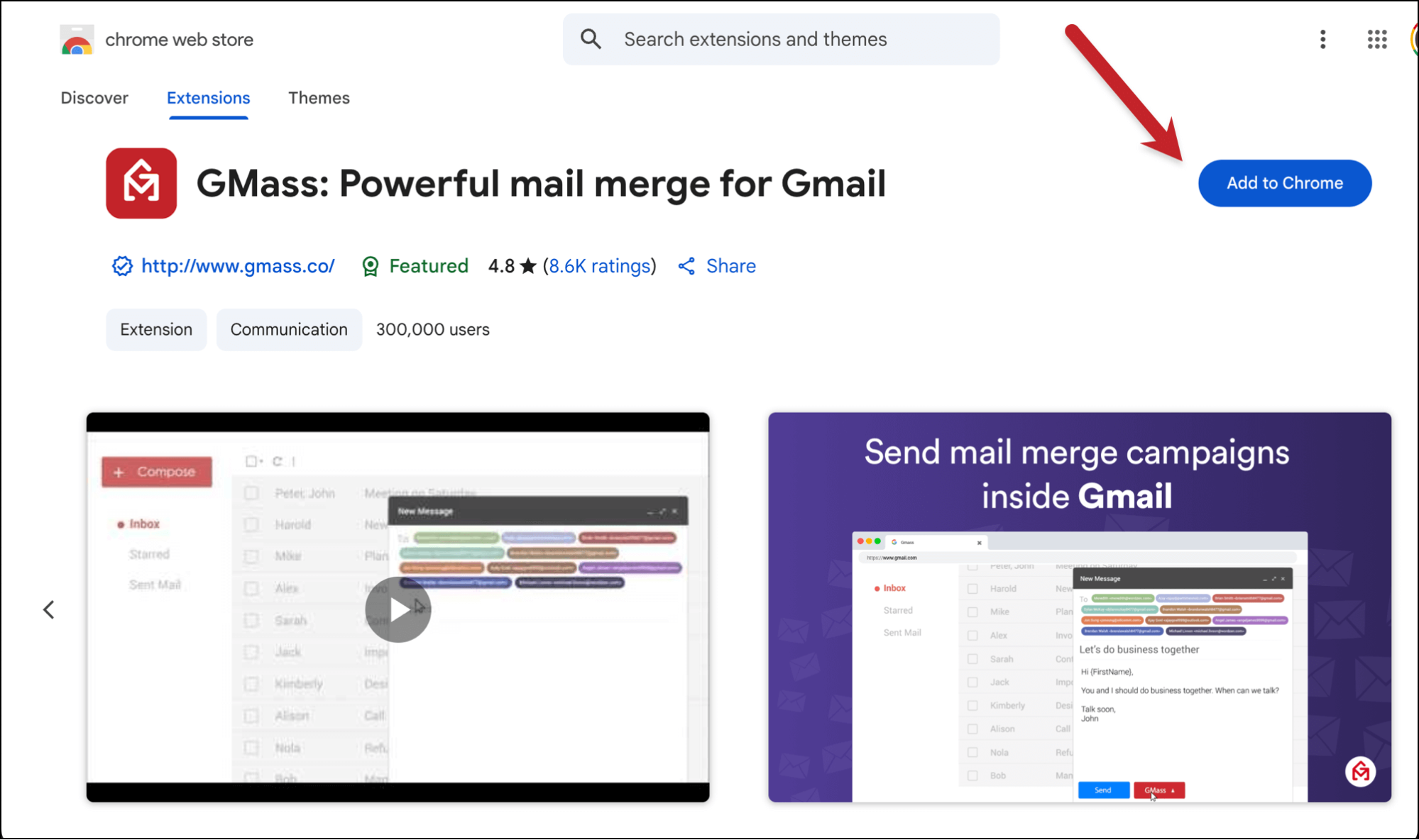
Once you have it set up (it takes a few seconds), open Gmail. You’ll need to give GMass the usual permissions and then you’ll automatically jump into a free trial (no credit card required).
Note: If you want to send bulk email campaigns, you’ll need to subscribe to a paid plan. The free trial of GMass has a limit of 50 emails per day.
Step 2: Set up your contact list in Google Sheets
GMass has a native connection with Google Sheets for mail merges.
Open a new Google Sheet and set up your contact data.
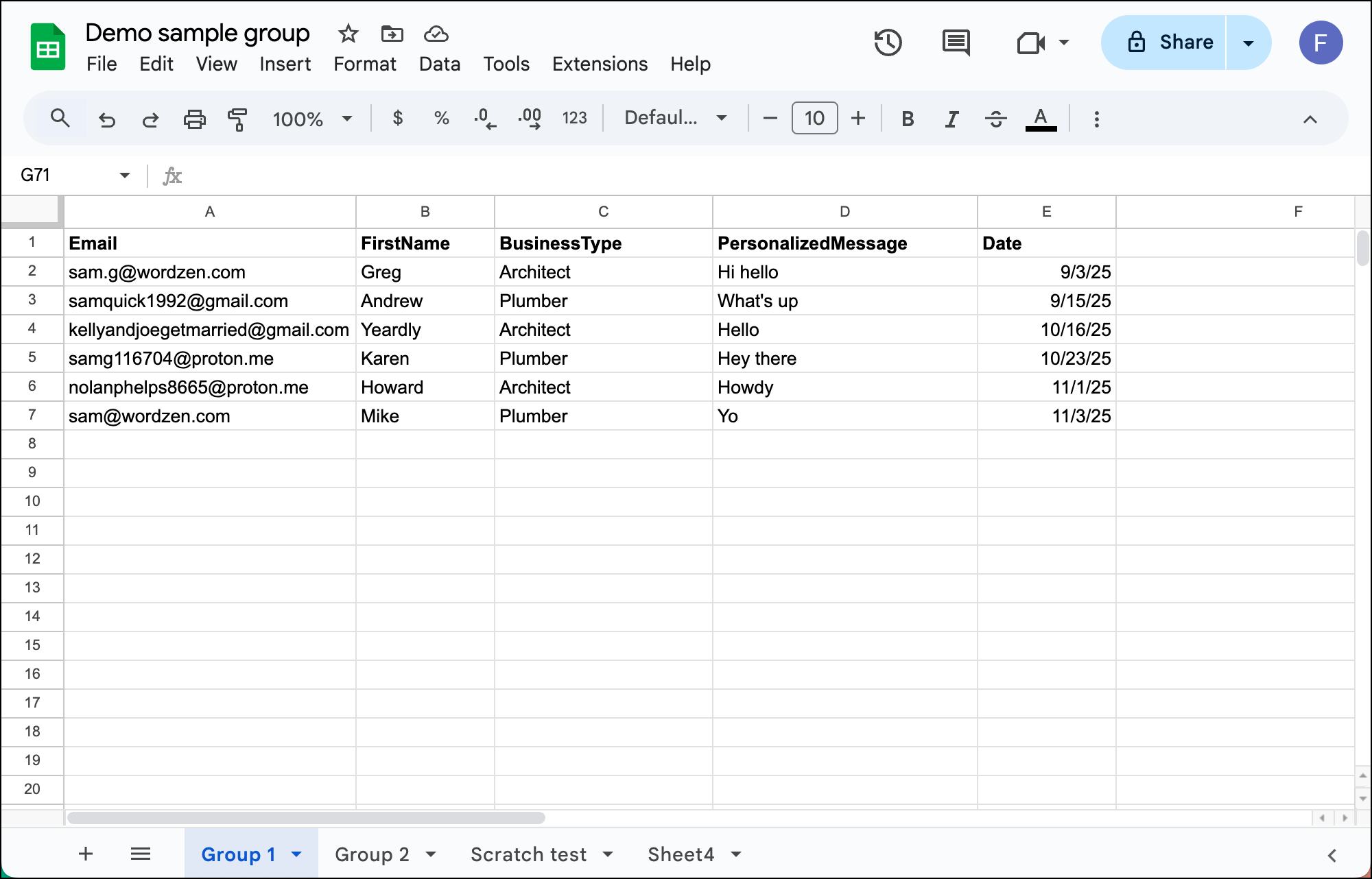
Use the first row of the Google Sheet as a header row, where you give your columns names like EmailAddress and FirstName.
You can create columns for any data you want to merge into your emails later.
It’s also always smart to clean up your list before you connect it to a campaign.
Remove duplicates, fix obvious typos or broken email addresses, and delete any emails that look suspicious. GMass has built-in email verification included, but starting with a clean list helps your deliverability.
Key difference from other bulk email platforms: GMass connects to a Google Sheet — it doesn’t require you to upload a CSV of contacts. That gives you more flexibility to add and change your contacts after you begin. (And to create recurring campaigns that go out whenever you add new rows to your Google Sheet.)
Step 3: Compose your campaign in Gmail
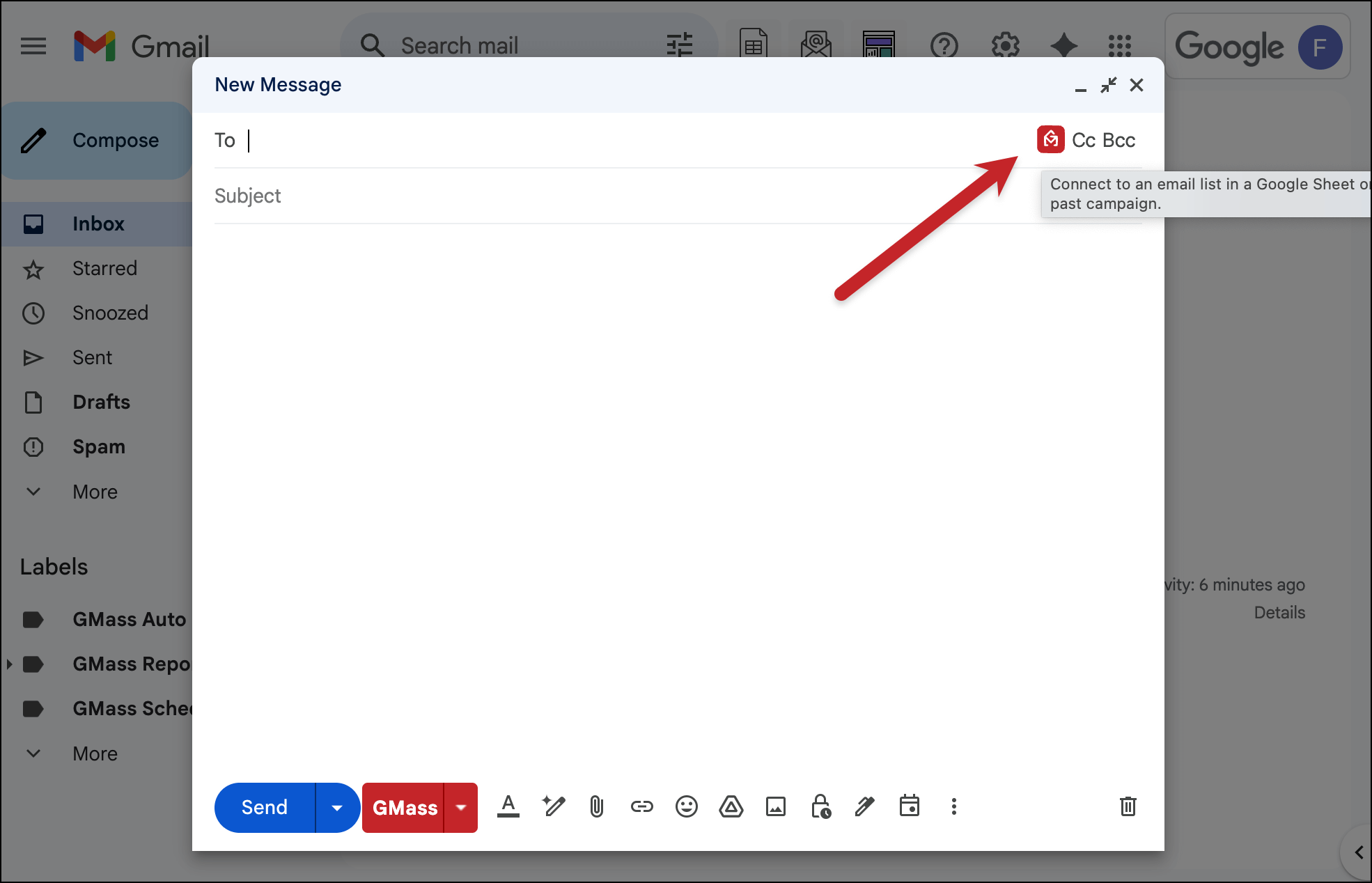
Hit Compose in Gmail like you normally would for a one-on-one email.
Click into the To: field, then click that new red GMass icon you see on the right side. You can use that to connect to your Google Sheet of contacts.
Now write your email. Use curly braces for mail merge personalization: “Hi {FirstName}” or “I noticed {Company} is based in {City}.”
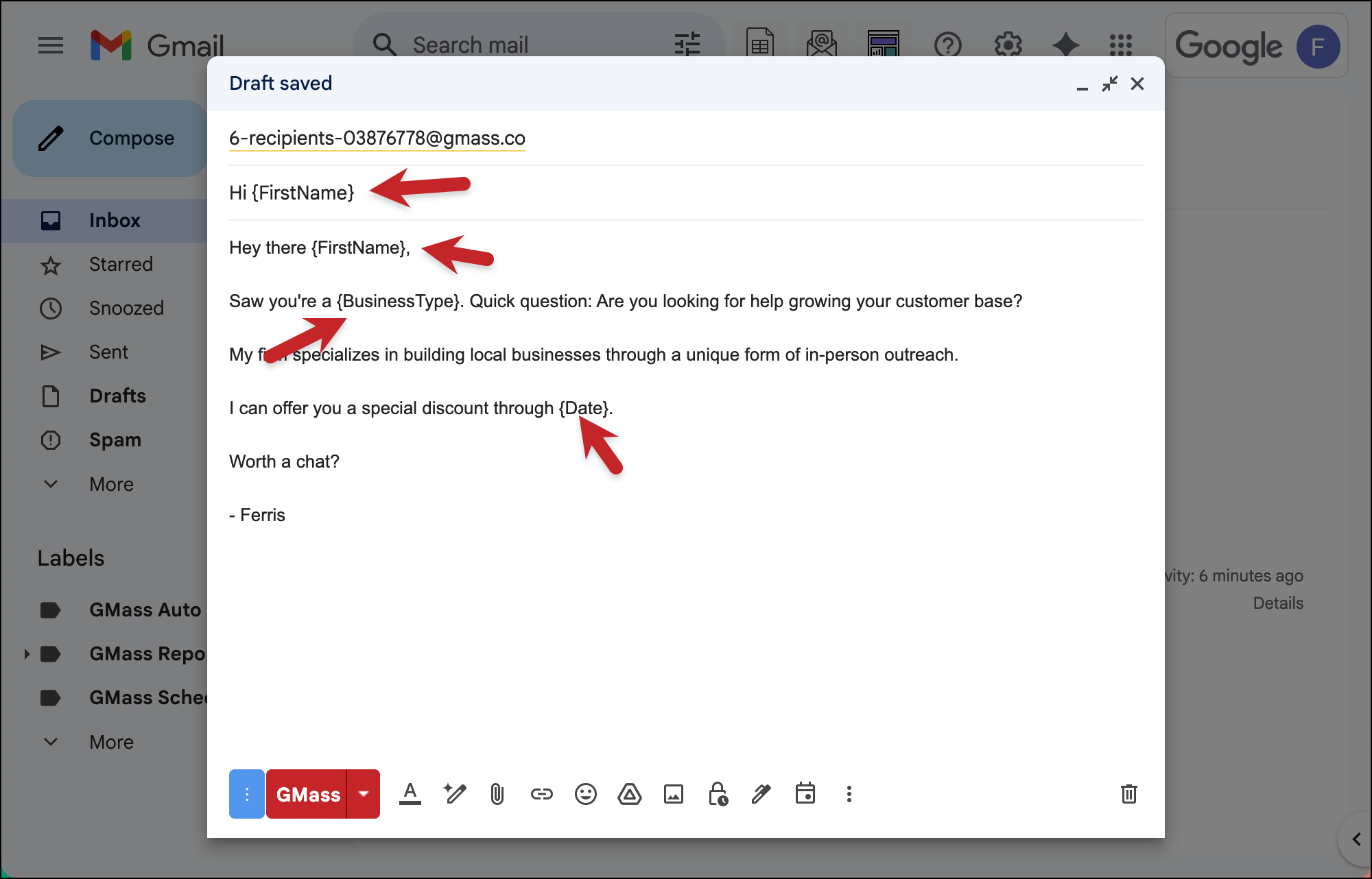
Key difference from Gmail’s mail merge: You can personalize your subject line too. Try something like “{FirstName}, quick question about {Company}” — this alone will dramatically improve your open rates.
Step 4: Configure your campaign settings
Click the GMass button in your compose window to open the settings panel.
This is where you can fine tune your campaign. For example…
Scheduling: Set exactly when your campaign goes out. Choose specific days to send (skip weekends or other times if you want if you want), set daily end times, and even skip holidays automatically.
Sending speed: Throttle your sends to improve deliverability. Instead of blasting 10,000 emails at once, spread them over several hours with pauses between each send.
Follow-ups: Set up automated follow-up sequences. You can create unlimited follow-up stages spaced days or weeks apart. And set up the trigger to stop your sequence to a recipient (for instance, keep sending your follow-ups until they reply).
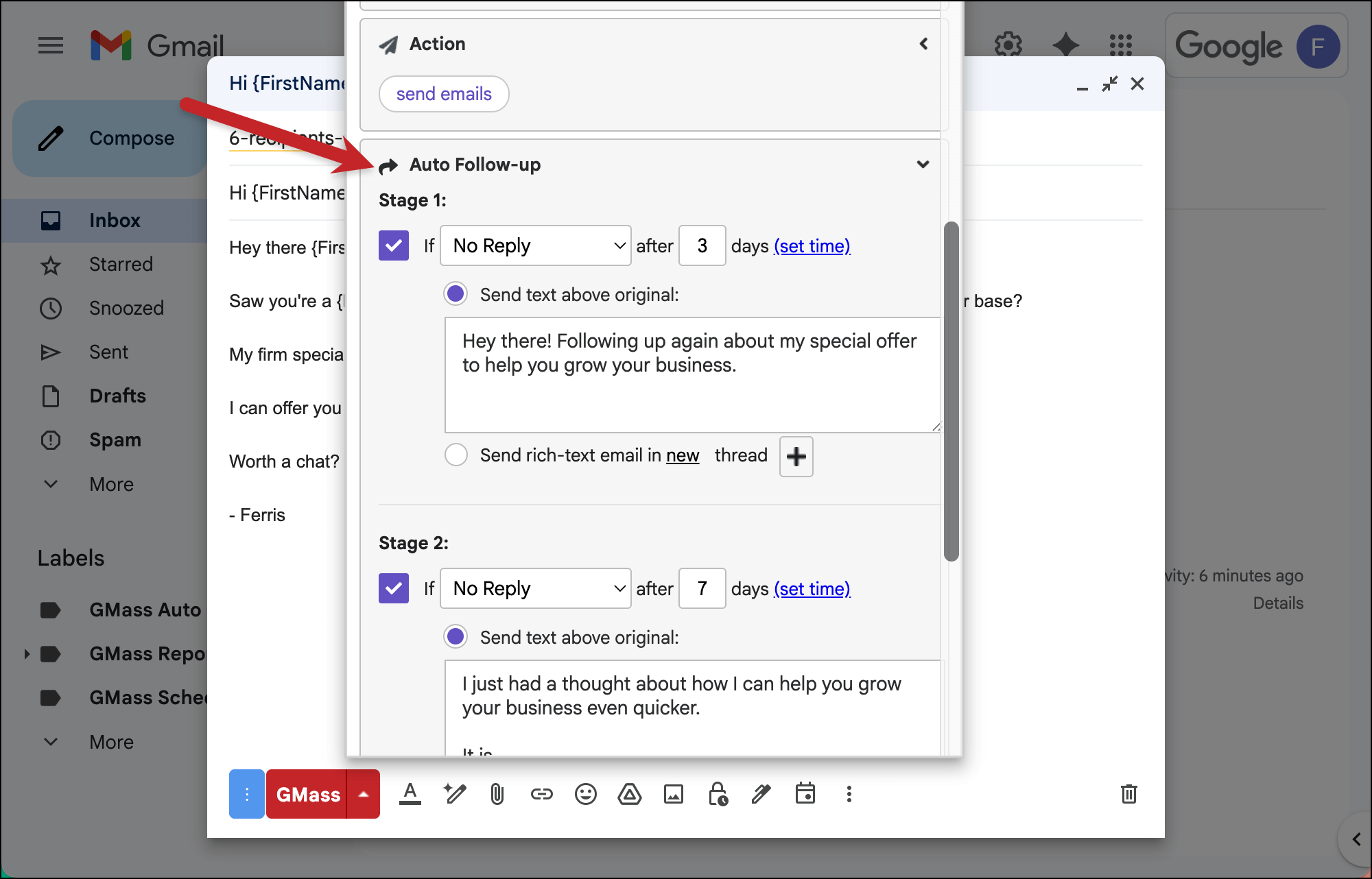
And more: GMass makes it easy to do everything from A/B tests to quick email polls to countdown timers. And all those options are available in a matter of clicks in the settings box.
Step 5: Break Gmail’s limits (the right way)
If you’re sending bulk email campaigns, this is where GMass becomes your MVP.
Instead of being stuck with Gmail’s daily limit of 500 to 2,000 emails, you have several options:
Automatic Daily Distribution: Tell GMass to send to 50,000 people, and it’ll automatically spread the sends across multiple days while staying within your daily limits.
SMTP Integration: Connect GMass to an SMTP service like SendGrid (or multiple SMTP services). Now you can send virtually unlimited emails while still using Gmail’s interface and keeping emails in your Sent folder.
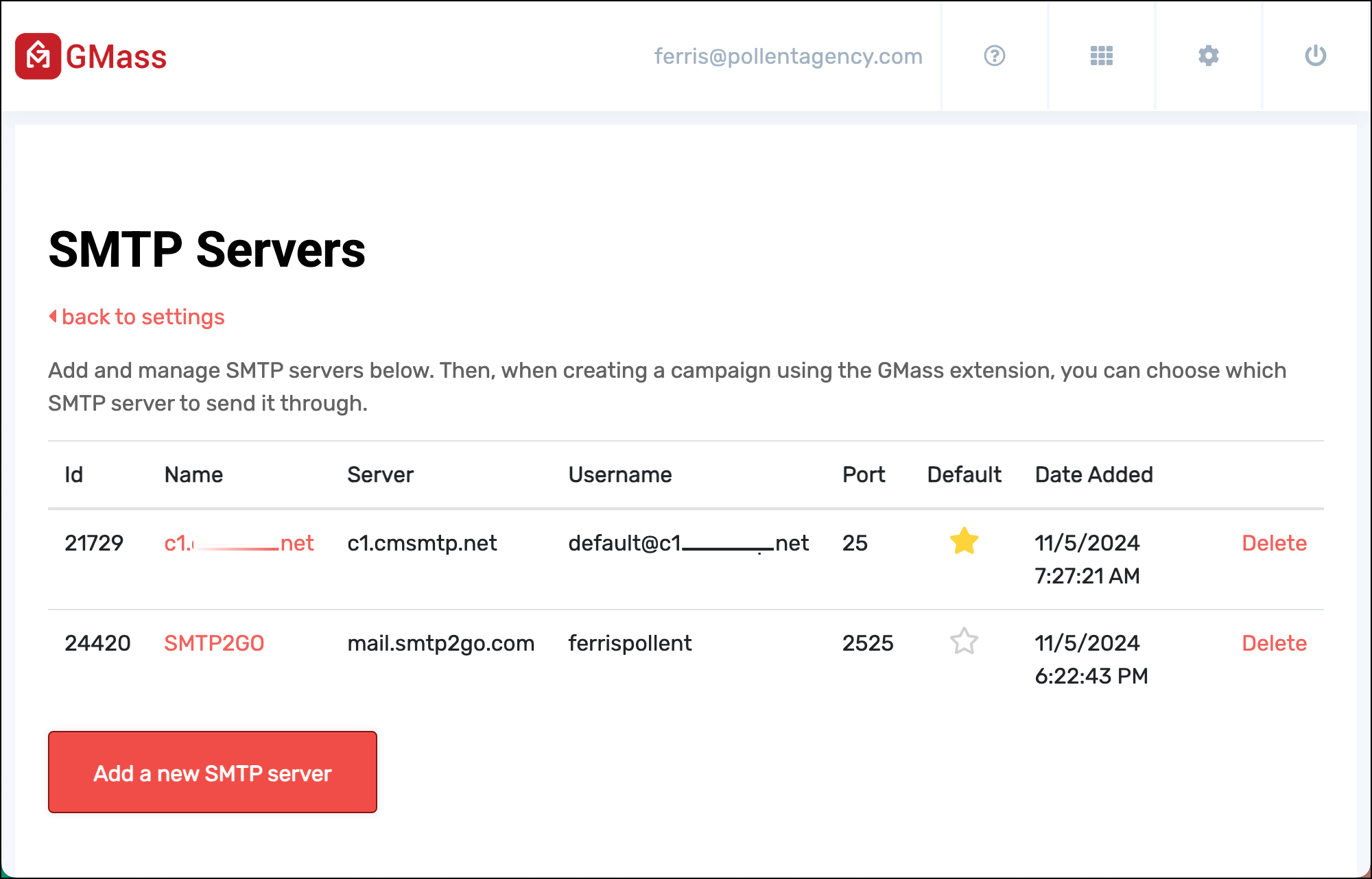
GMass even has in-house SMTP servers to help with opt-in campaigns and with cold outreach campaigns if you don’t want to set up your own SMTP account.
Inbox Rotation: With GMass’s MultiSend, you can distribute your email across as many sending addresses as you want. So instead of sending 10,000 emails from one account, use 50 email accounts sending 200 emails each. (With only one GMass account required!)
Step 6: Optimize for deliverability
As I discussed earlier, Gmail doesn’t have any built-in tools to help you with your deliverability.
And with bulk email campaigns, deliverability is everything.
Here’s how GMass steps in to get your message to your recipients’ inboxes.
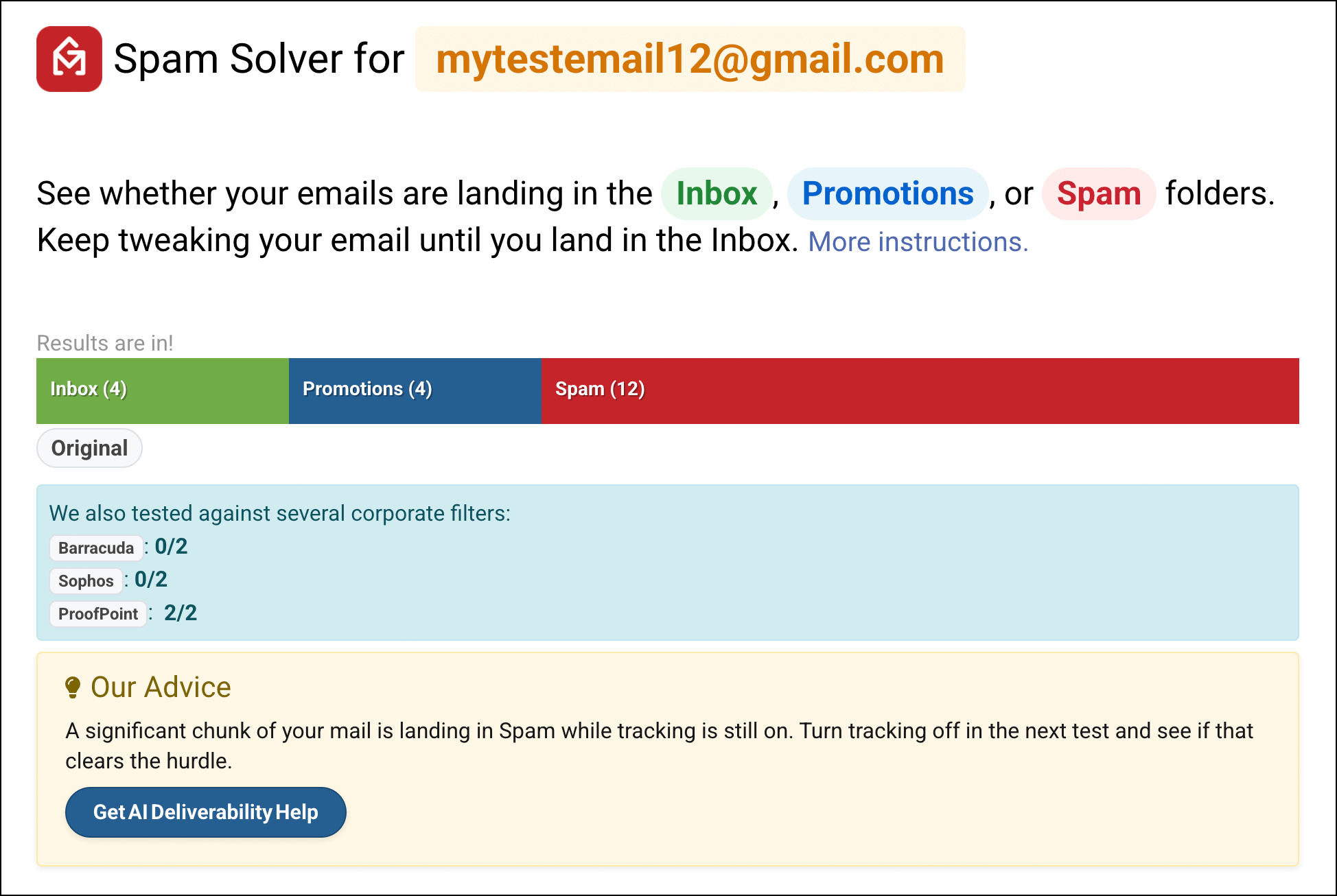
Spam Solver: This tests your email content, subject line, and sending setup on real inboxes, then gives you AI-powered recommendations to improve your inbox rate.
Email Verification: GMass automatically checks every address on your recipient list and flags problematic email addresses that could hurt your sender reputation.
Custom Tracking Domains: Set up your own tracking domain so your reputation is entirely your own (with a shared tracking domain, you risk other people’s history affecting you).
Step 7: Launch and monitor your campaign
Hit the red GMass button to send your campaign.
Need to pause it to make a change? You can do that in the settings box.
Track everything through GMass’s analytics dashboard: open rates, click-through rates, replies, bounces, unsubscribes, and more. The data even gets written back to your Google Sheet so you can see exactly which contacts engaged.
Pro Tips for Bulk Email Success with Gmail
Now that we’ve set you up to send bulk emails through Gmail, here are a few tips that will help you along the way.
Start small and scale gradually
Don’t jump from 0 to 10,000 emails overnight. You need to ramp up to that volume.
Start slow. Start with a few hundred emails, run Spam Solver, monitor your metrics, then gradually increase volume.
This builds your sender reputation and helps keep you out of spam folders.
Personalize (and go beyond first names)
“Hi {FirstName}” is better than “Hi there” — but just marginally.
Effective personalization goes deeper. Reference their company, location, industry, or something specific about their business. Or, even better, split your list to better personalize around different recipients’ pain points.
Clean your list
A list filled with old addresses is a breeding ground for bounces and spam reports. Periodically cleaning dead and disengaged emails is a smart move.
Or… let your email software clean your list for you.
Use GMass’s built-in email verification and offer an unsubscribe option. GMass will automatically suppress any future emails you try to send to addresses that are unsubscribed or hard bounced.
That way, you won’t send messages that can have a serious negative impact on your sender reputation without having to do any manual work.
Test everything
A/B test your subject lines, email content, send times, and follow-up sequences. GMass makes this simple with built-in split testing.
Even small improvements in open rates compound when you’re sending thousands of emails.
Why GMass Beats the Competition for Gmail Bulk Email
Let’s talk numbers. At 100,000 emails per month:
- GMass: $25/month for unlimited emails and contacts
- Mailchimp: $350+/month (and climbing with contact-based pricing)
- Other platforms: Contact limits, overage fees, or both
But the real advantage isn’t only centered around bulk email cost. There are other low cost tools out there. Except none of them offer everything you’ll get with GMass.
GMass is the only tool that gives you unlimited bulk email sending directly inside Gmail with professional-level features like advanced automation, deliverability optimization, and detailed analytics.
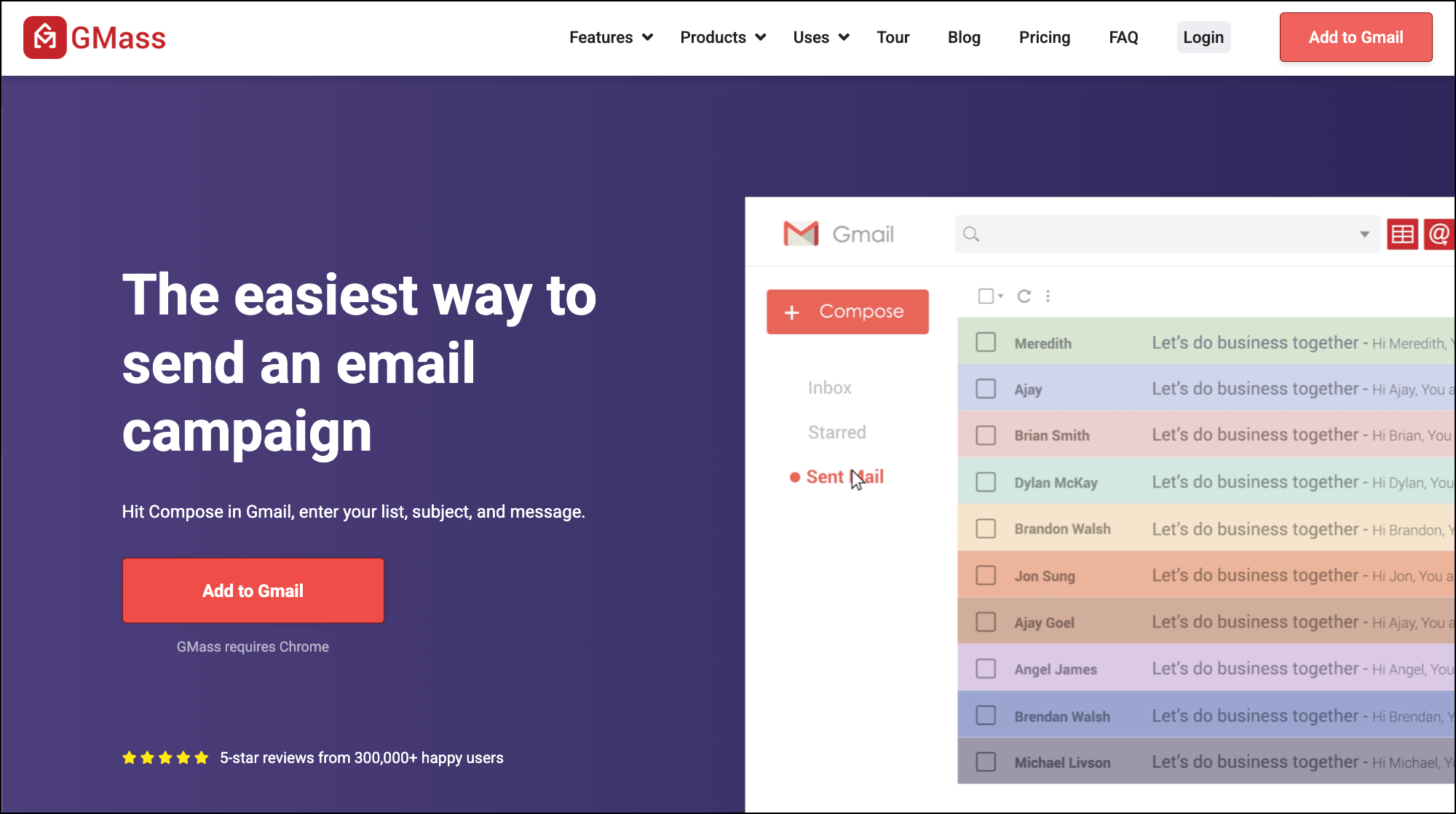
You’re not learning a new platform. You’re not leaving Gmail. You’re just making Gmail capable of handling serious bulk email campaigns.
Ready to Send Professional Bulk Email in Gmail?
Gmail can absolutely handle bulk email — but only when you give it the right tools.
DIY approaches hit walls fast because of Gmail’s built-in limitations.
But with GMass, you get unlimited sending capacity, professional deliverability tools, and advanced automation while keeping the Gmail interface you already know.
GMass transforms Gmail into a legitimate bulk email platform without forcing you to learn new software or leave the inbox where you spend your day.
Ready to see what professional bulk email in Gmail looks like? Install GMass and start your free trial — no credit card required. You’ll be sending your first campaign in minutes.
Send incredible emails & automations and avoid the spam folder — all in one powerful but easy-to-learn tool
TRY GMASS FOR FREE
Download Chrome extension - 30 second install!
No credit card required