<img height="1" width="1" style="display:none" src="https://www.facebook.com/tr?id=1822615684631785&amp;ev=PageView&amp;noscript=1"/>

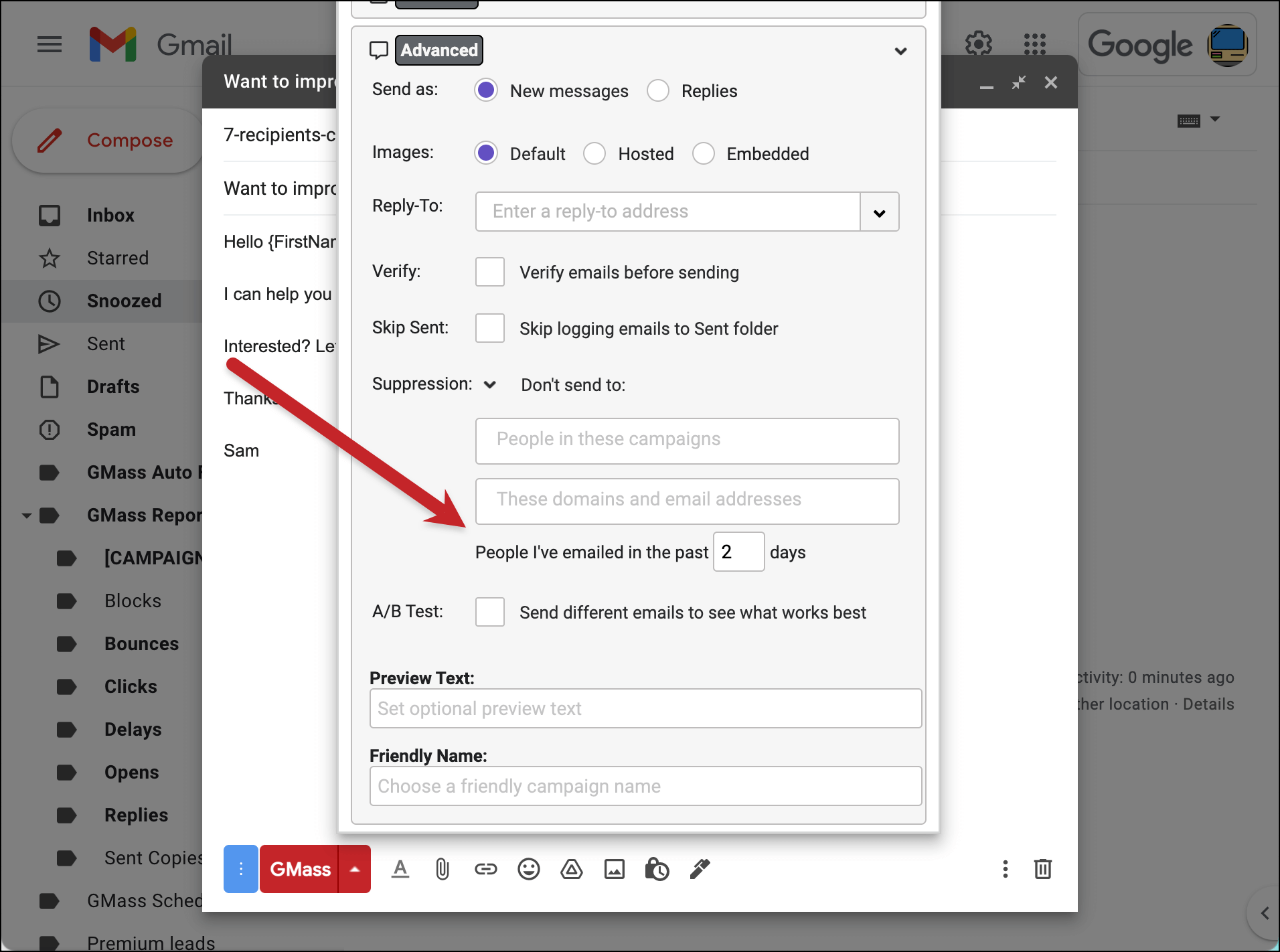
When creating a Gmail mail merge campaign, you can suppress recipients based on how many days it has been since they last received an email from you.

This a part of the GMass Suppression features which also allow you to suppress email addresses that received past email campaigns — or suppress emails to specific domains or email addresses for a particular campaign.

These are different than the GMass unsubscribe features — as suppression works on a campaign-by-campaign basis. In a way, it’s like “unsubscribing” people from just one particular campaign (without adding them to your unsubscribe list).

Days since suppression lists

Why suppress based on number of days since the last email?

Let’s say you’re engaging in cold prospecting, and you have many spreadsheets containing different email lists from different sources. You’re sending multiple mail merge campaigns over the next week, each one connected to a different spreadsheet. Since you’re cold prospecting, you want to make sure that one prospect doesn’t receive the same cold email from you as part of two different campaigns.

You could suppress all past campaigns for each new campaign, but this would get tedious because if you were sending 20 cold prospect campaigns, you’d have to suppress all 19 against the 20th to make sure that 20th campaign didn’t contain any duplicates from the past 19. If certain campaigns were scheduled for the future, you wouldn’t even be able to choose them from the Campaign Suppression tool because the campaign wouldn’t exist yet.

In this case, it would be much easier to set the suppression based on number of days since an email was last received. If I started my cold prospect campaigns 3 days ago, I could just set my Suppression Days value to 3, and that would ensure that I don’t send again to anyone that has already received an email from me.

Timing

The suppression list is calculated on-the-fly whenever your campaign runs. For example, if your campaign is sending 200 emails/day at 3PM, and you have Suppression Days set to 10 days, then every day at 3PM, the system will look back exactly 240 hours (24 hours x 10 days) and pull a list of everyone you’ve sent to in the last 240 hours and skip sending the current batch to those people.

Other Suppression Resources

You may be interested in reading how to suppress based on recipients of a prior email campaign or based on domains and/or specific email addresses. Lastly, you can also create a dynamic suppression list from a Google Sheets spreadsheet.

Email marketing, cold email, and mail merge inside Gmail


Send incredible emails & automations and avoid the spam folder — all in one powerful but easy-to-learn tool


TRY GMASS FOR FREE

Download Chrome extension - 30 second install!
No credit card required
Love what you're reading? Get the latest email strategy and tips & stay in touch.


Last year, we launched the Just create Drafts feature, which allows you to have your mail merge campaign created as Gmail Drafts first, so you can spot check them for accuracy, and then click a link to send all of the Drafts.

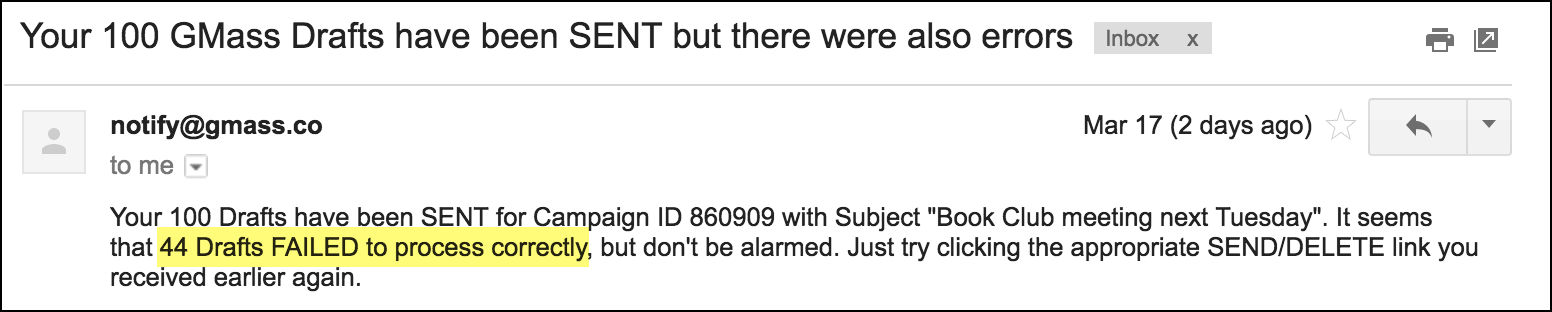
We just enhanced the feature to work more efficiently. Before, often several of the Drafts would fail to send when you clicked the link, causing you to have to click the link a second time to get all the Drafts sent. You would have received an email informing you of this, that looked like:

This was due to a sometimes faulty Gmail API that would return an error to GMass rather than sending the Drafts. We’ve now worked around the Gmail API issues to make this feature much more convenient to use. Now, GMass will attempt to send all Drafts, and upon a failure, will attempt to send several more times.

Now, it should be rare that you have to click the link multiple times to send all the Drafts.

See why 99% of users say they’ve had their best deliverability ever with GMass


Email marketing, cold email, and mail merge all in one tool — that works inside Gmail


TRY GMASS FOR FREE

Download Chrome extension - 30 second install!
No credit card required
Love what you're reading? Get the latest email strategy and tips & stay in touch.


A GMass power user, Sol Orwell, has published an excellent guide on staying in touch with your LinkedIn contacts by using GMass and other tools.

Check out Sol’s article on staying in touch with LinkedIn contacts.

Email marketing, cold email, and mail merge inside Gmail


Send incredible emails & automations and avoid the spam folder — all in one powerful but easy-to-learn tool


TRY GMASS FOR FREE

Download Chrome extension - 30 second install!
No credit card required
Love what you're reading? Get the latest email strategy and tips & stay in touch.


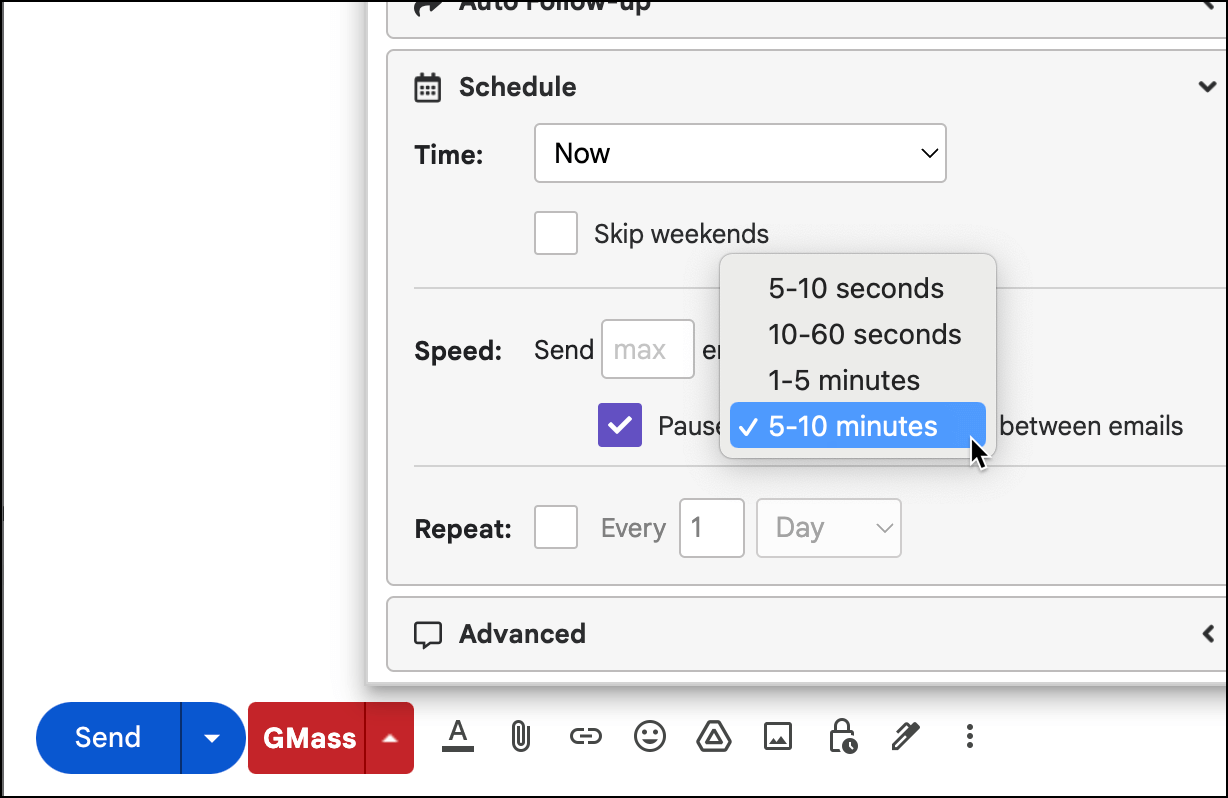
You can now choose to throttle your email campaign, adding a few seconds of pause after each individual email is sent. This is instead of the default way of sending emails as quickly as possible.

When you check the “Pause” box, your campaign will pause for the designated time between emails. The exact number of seconds is determined at random, but you can choose between 4 ranges:

  • 5-10 seconds
  • 10-60 seconds
  • 1-5 minutes
  • 5-10 minutes

These settings are new as of July 2023. Going forward, you can control the delay between emails on a per-campaign basis.
An example

If you’re sending a campaign to 100 email addresses, normally those 100 email messages would all be sent from beginning to end before you can even snap your fingers. With the “Pause…” setting, every individual email will be spread out over 5 to 10 seconds, meaning the campaign will send slowly and take anywhere from 5 to 15 minutes to fully send.

Minimum Time = 100 emails x 5 seconds/email ~ about 5 minutes.
Maximum Time = 100 emails x 10 seconds/email ~ about 15 minutes.

Why would you want to slow down the sending speed of your email campaign?

There are several reasons:

1. If you send many emails to the same corporate domain, then you may wish to use this feature so that you don’t flood any one email server with a bunch of emails from you at once, which may cause that server to flag you or block you entirely. Typically this isn’t an issue with a large email service provider like Gmail or Yahoo! or Hotmail, but if you’re sending hundreds of emails to @company.com, then company.com’s email server may have checks in place to prevent one sender from flooding its server. In that case, a few seconds pause between emails may solve this.

2. If you frequently get your Gmail accounts suspended or disabled by Google, this may also help you fly under the radar. Adding a few seconds pause in between emails will make your sending patterns look more natural, and may help you fly under the radar of Gmail’s detection systems.

3. If you frequently get “You have exceeded your limit” bouncebacks from Gmail, this can help GMass detect those bounces sooner and pause your campaign sooner. Typically when you’ve exceeded your limit, Gmail may wait a few minutes before bouncing your emails back, and in those few minutes GMass continues to send, not realizing that a bunch of “You have exceeded your limit” bouncebacks is about to flood your Inbox. When GMass detects these, it pauses your campaign for 4 hours. If you add a few seconds pause, it allows GMass the ability to catch these before too many emails go out, resulting in the same error.

4. If you’re just looking for a way to slow down your campaign and make your sending pattern seem more natural, then this setting is for you.

Of course, I’m mostly speculating on the above benefits. I’d love to hear from YOU after you use the feature to see if:

1. Your deliverability has improved, as measured by open rates.
2. If your’e now able to deliver more email to a single domain than you were before
3. If it helps with account suspensions

This MailChimp article also explains the issue of sending speeds and throttling emails in this manner, although MailChimp states that they can’t actually throttle emails like GMass now can.

Another major email provider, Mailjet, has this article on sending speeds.

Use the “Pause” setting and the “max emails/day” settings together or separately

You can use the “Pause…” setting and the “max emails/day” setting independently of each other, or together.

If you use them both, then GMass will throttle both the number of emails sent per day and add the 5-10 second pause in between the emails sent in each daily batch.

If you use just the “Pause” setting and leave the “max emails/day” set to the maximum, then GMass will attempt to send your entire campaign, subject to your Gmail’s account limits, at once, but with the 5-10 second pause in between individual emails.

If you set just the “max emails/day” setting and leave the “Pause” setting off, GMass will send the set amount of emails per day, but send each daily batch as fast as possible.

Sometimes the “Pause” setting is auto-applied

There are some instances where the “Pause a few seconds…” setting is applied automatically to your email campaign even when you didn’t set it.

For example, if you are sending from a newer Gmail account with little or no sending history, GMass may auto apply this Setting to improve your email deliverability.

If your campaign is bumping up against Gmail’s sending limits, where you begin receiving “You have reached a limit” bounces, GMass may force subsequent batches of the campaign to be sent with a delay between emails, so that GMass can help deliver your emails and detect future limit issues sooner during the campaign sending process rather than later.

Finally, if GMass detects that you are approaching your sending limit while sending a campaign, GMass may auto-apply the delay after 80% of your emails have been sent, because sometimes Gmail starts bouncing emails with the “You have reached a limit” message even before your account has sent its maximum allowed emails for the day. This way, GMass can detect that your account is bouncing emails and pause your campaign, before too many bounces are generated.

You can check out your sending speed in real time

Want to know your sending speed?

Head over to the web-based campaign report for your campaign. (You can access that via the link in the campaign reporting email you receive, or through the GMass dashboard.)
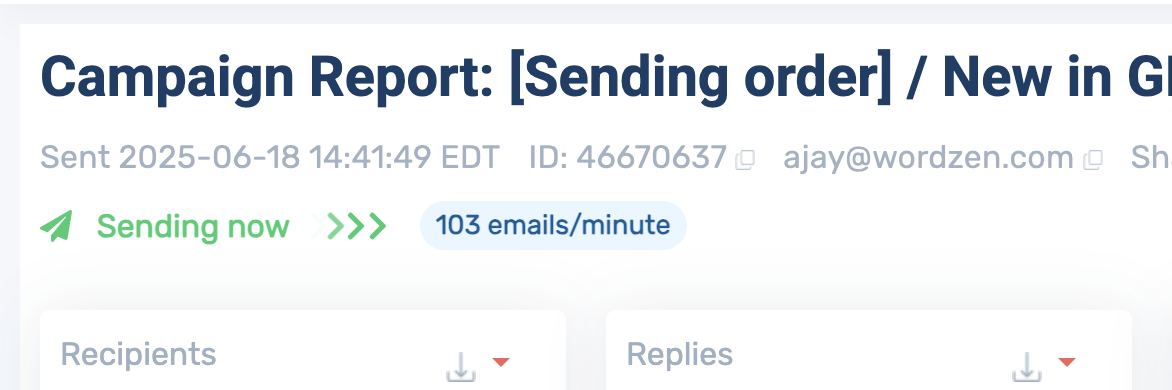
Monitor your sending speed in your campaign reports

There, at the top of the report, you’ll see that your campaign is sending and the speed — all in real time.

Ready to transform Gmail into an email marketing/cold email/mail merge tool?


Only GMass packs every email app into one tool — and brings it all into Gmail for you. Better emails. Tons of power. Easy to use.


TRY GMASS FOR FREE

Download Chrome extension - 30 second install!
No credit card required
Love what you're reading? Get the latest email strategy and tips & stay in touch.



Gmail announced yesterday that the email size limit has been upped from 25 MB to 50 MB, but there’s a catch — it’s only for RECEIVING emails. Meaning, if you’re a Gmail or G Suite user, you are still limited to sending an email with a max of 25 MB of content, but if a NON Gmail user sends YOU an email, that email can contain 50 MB of data. That data can be anything from inline images to attachments to even 50 MB worth of HTML, although that would be a heck of a lot of HTML.

Yesterday tech blogs were quick to cover the Gmail announcement, but most of them did so incorrectly, including PC Magazine and ubergizmo, both of whom incorrectly referenced the limit as an attachment size limit instead of an overall email size limit. Even the venerable TechCrunch failed to emphasize that the limit is for RECEIVING only. Having built GMass, which is a plugin for Gmail that adds mass email and mail merge capabilities to any Gmail or G Suite account, I’ve become an expert on Gmail, so you can count on me and my blog for accurate and detailed information.

GMass enforces an overall email size limit of 12 MB. Why do we do this when Gmail has a 25 MB size limit? Because while it’s fine to send large attachments for person-to-person email, sending large attachments in mass clogs networks and frustrates recipients.

Assume for a moment that you are sending a mail merge campaign in Gmail to 1,000 recipients, and each contains a 20 MB attachment. That’s 20 Gigabytes of data sent across the Internet, an astronomical amount for a 1,000 recipient email campaign. Even with our current limit of 12 MB, you can easily saturate a network, so please use attachments sparingly in email, and be aware that the size of an attachment can double when its encoded into the format necessary to transmit over email. Meaning, if you attach a 5 MB file to an email campaign, that 5 MB will expand to about 10 MB after it is base-64 encoded and put into MIME format.

Ready to transform Gmail into an email marketing/cold email/mail merge tool?


Only GMass packs every email app into one tool — and brings it all into Gmail for you. Better emails. Tons of power. Easy to use.


TRY GMASS FOR FREE

Download Chrome extension - 30 second install!
No credit card required
Love what you're reading? Get the latest email strategy and tips & stay in touch.
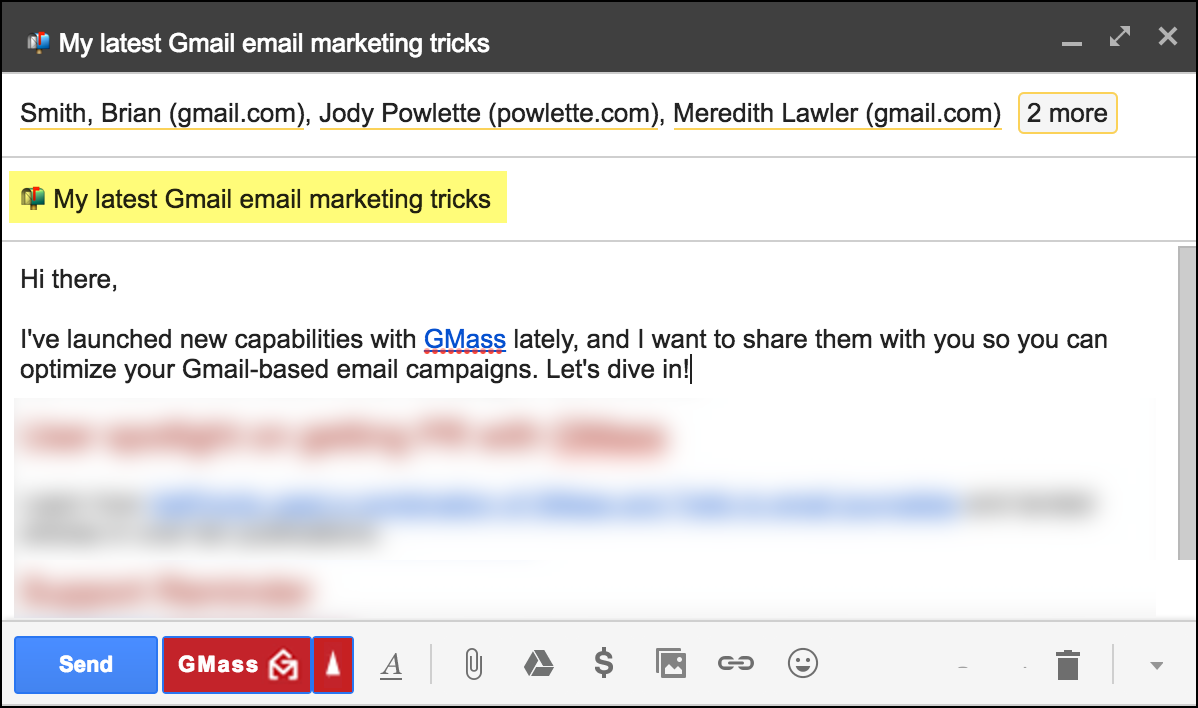


If you’ve sent a mass email with GMass by copying and pasting addresses into the To field, and fewer emails were sent than you expected, then the reason is likely that your list of email addresses was tainted with extraneous characters.

For example, if you paste in 500 email addresses into the Gmail Compose To field, put in your Subject and Message, hit the GMass button, and then find that only 300 emails were sent, you should examine what you placed in the To field.

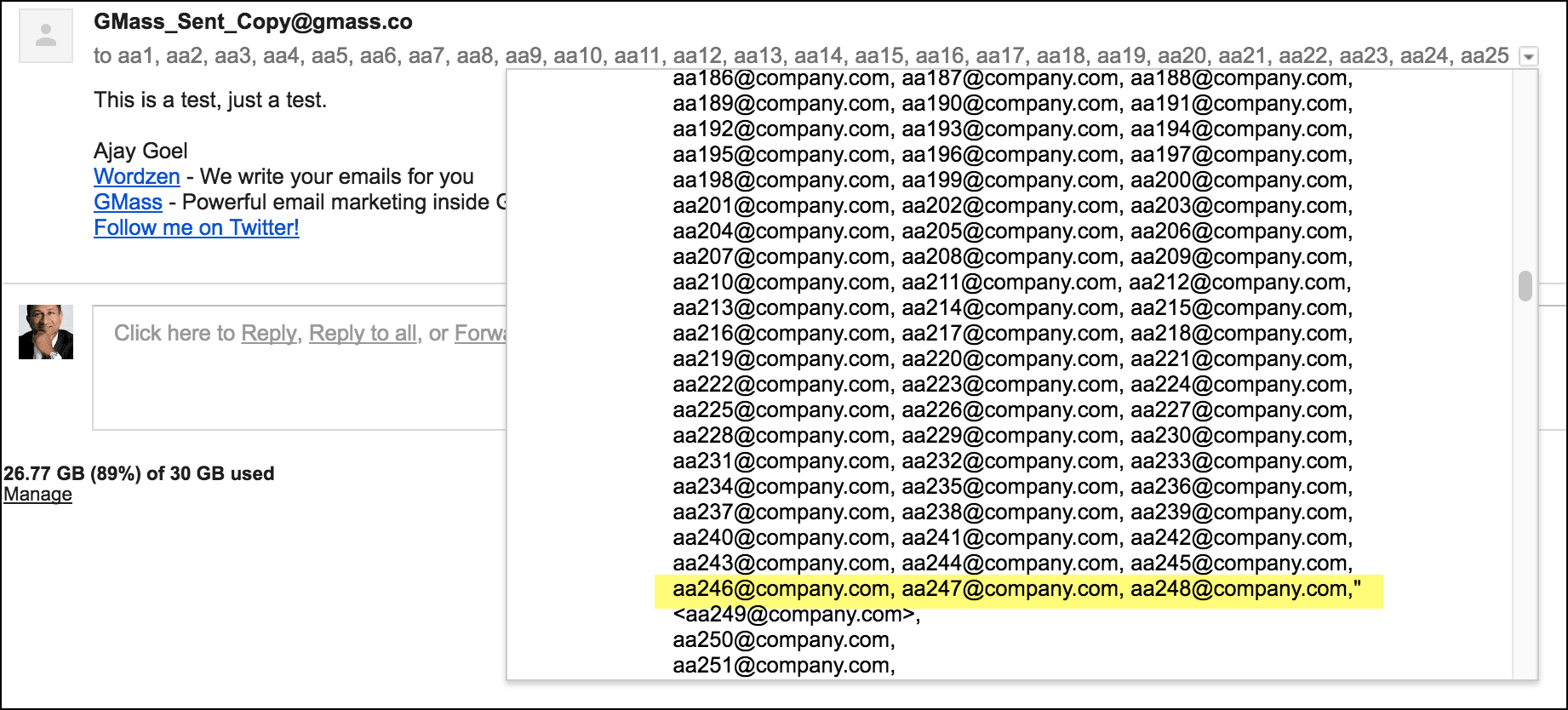
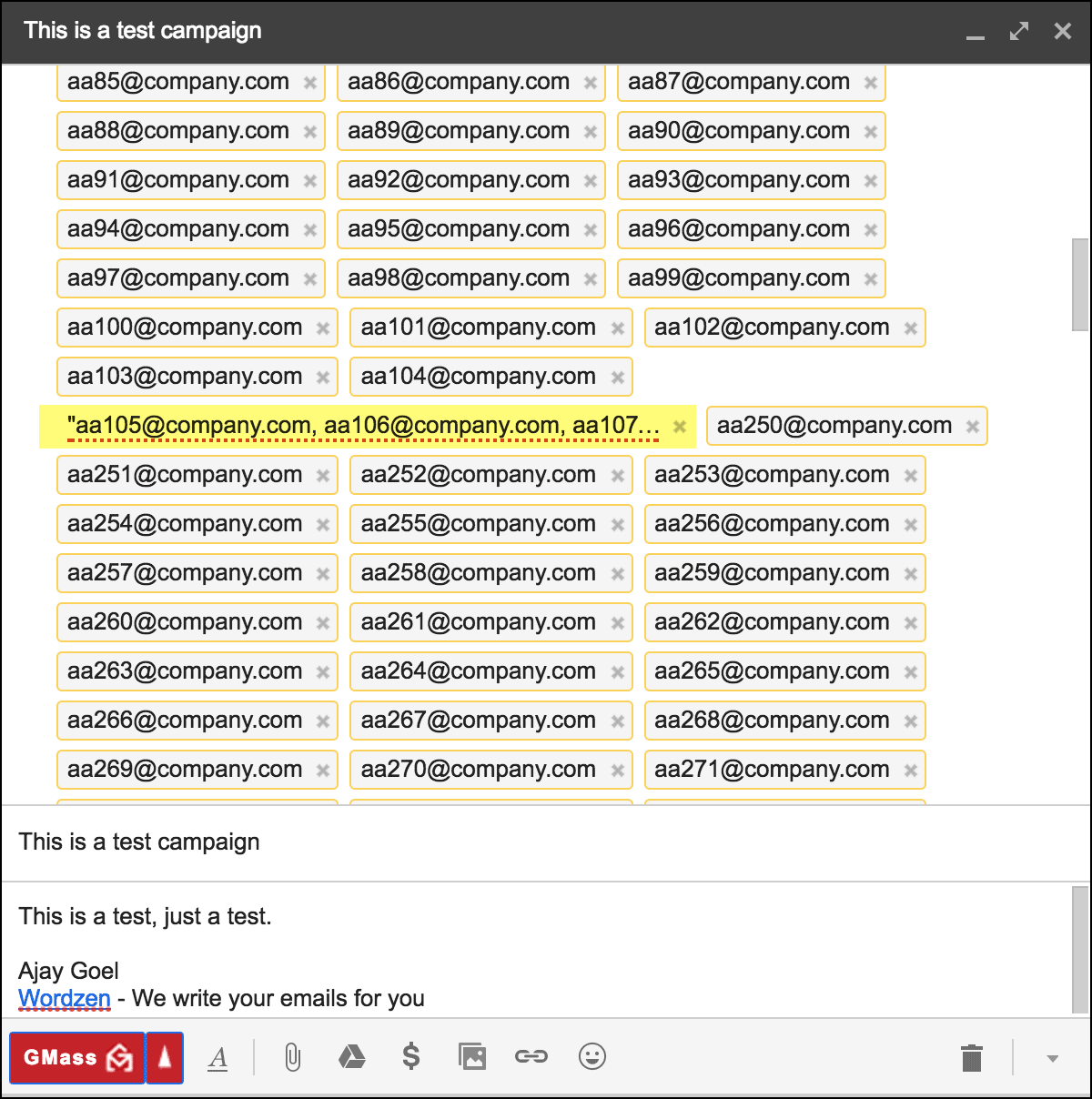
You’ll likely find that a large portion of the email addresses were surrounded by a pair of double-quotes. When that happens, everything inside the double-quotes is treated as one single email address. Those are likely the email addresses that did not receive the email and make up the difference between the expected count and the actual sent count.

How can you examine what you had in the To field after you’ve already sent your mass email?

The Gmail Label GMass Reports –> Sent Copies stores a copy of every email campaign you send in GMass. Examine the right message, and look at the To field and see if you can determine what email addresses didn’t receive your email and why.

The To list showing the first double-quotes
The To list showing the ending double-quotes.

Pay attention to the count of your email addresses in the To field.

If the Gmail Compose window email count isn’t what you expected it to be, there’s likely something wrong with the list of email addresses you pasted.

Pay attention to the color of your email addresses in the To field.

If you have extraneous characters in your list of email addresses, Gmail will subtly underline the invalid email addresses in red in the To field.

You might also be interested in…

Learning how many email addresses you can paste into Gmail’s Compose window without destroying your browser!


Email marketing, cold email, and mail merge inside Gmail


Send incredible emails & automations and avoid the spam folder — all in one powerful but easy-to-learn tool


TRY GMASS FOR FREE

Download Chrome extension - 30 second install!
No credit card required
Love what you're reading? Get the latest email strategy and tips & stay in touch.


If you’re sending mail merge campaigns in Gmail with GMass, or even a different mail merge service, there are several reasons why personalization may fail. If you find that the right values aren’t being substituted for your mail merge tags, see if any of the below reasons are the cause.

1. You sent yourself a test email, but your email address isn’t in the spreadsheet or the To field.

GMass, like many mail merge services, has a Send Test Email button.

You can enter any email address and have a test email sent to that address. If, however, your campaign is set up to merge with a Google Sheets spreadsheet, and that spreadsheet has columns that you’re using throughout your Subject and Body for personalization, and your test email address isn’t also in the spreadsheet, GMass won’t know what values to use for the mail merge. Therefore, the mail merge tags will be replaced with blank values, or fallback values if you’re using fallback syntax. This is the most common reason why personalization fails.

2. You hit the Send button instead of the GMass button.

Despite a recent usability enhancement that hides the regular Gmail Send button when you have many email addresses in the To field, there are certain situations where the Send button isn’t hidden and still gets clicked accidentally when the intention is to click the GMass button. If you do this, not only will your email not be personalized, but one single email will go to everyone in the To field, exposing your list to everyone on it.

3. You connected to a spreadsheet but used the standard merge tags of {FirstName} and {LastName} instead of the ones specific to your spreadsheet.

If you are attempting to personalize a mail merge campaign with the recipient’s first name, and you notice that some emails are personalized while others aren’t, you likely made the mistake of using {FirstName} as the merge tag when the column in your spreadsheet containing first names was not “FirstName”. When you do this, the first name personalization will work for email addresses that are Gmail Contacts where Gmail has stored the first name along with the email address, but will fail for all other email addresses.

4. You connected to a spreadsheet, scheduled a campaign, and then deleted the spreadsheet rows before the campaign was scheduled to send.

GMass never stores the data from your spreadsheet internally. Anytime GMass needs personalization data for an email address, it queries it from your Google Sheet. If you delete the spreadsheet rows or delete the entire spreadsheet itself, GMass can’t pull the personalization data for an email address.

5. Some extra HTML snuck inside your curly brackets.

If you insert a merge tag and then use the Bold or Italics option, occasionally, that can mangle the HTML behind your campaign.

Remove formatting

Behind the scenes, a bolded merge tag should look like:

<b>{FirstName}</b>

But sometimes, if it gets mangled, behind the scenes it might end up being:

{<b>FirstName</b>}

even though on screen it looks normal.

That breaks our personalization engine because GMass expects the part between the curly brackets to exactly match your spreadsheet column.

The easiest way to fix this is to highlight the text and use the Gmail “Remove formatting” icon to remove any bold, italics, or special text styling. That will rid you of the HTML tags inside the curly brackets. Then, you can try re-styling once again.

11/18/20 Update: GMass will now automatically correct situations where the HTML tags are inside the curly brackets. GMass will now move them to the outside and treat what’s left inside the curly brackets as the merge tag.

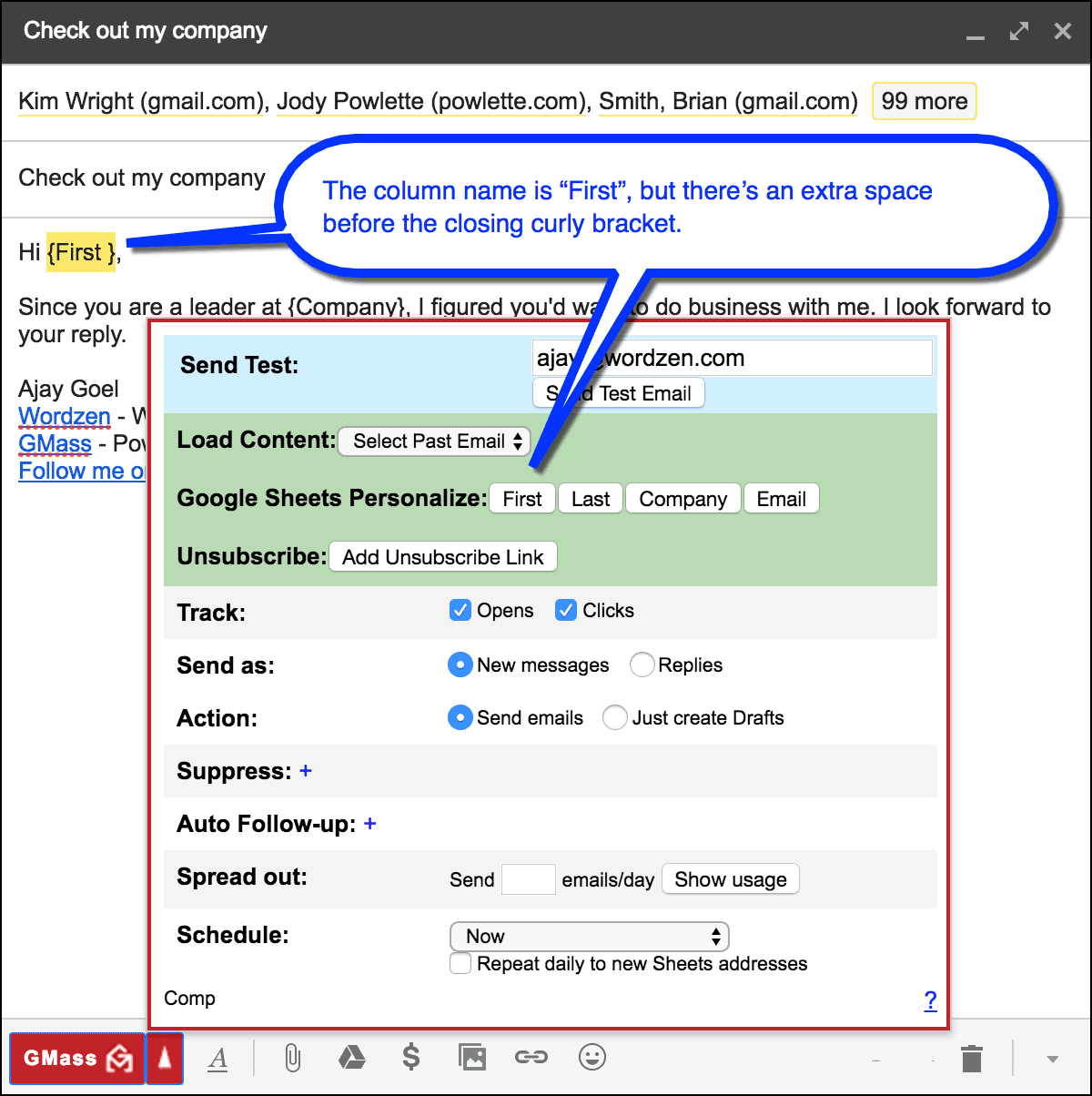
6. You had an extra space before or after the curly bracket.

When you insert personalization tags, make sure they are inserted accurately. In most cases GMass will provide you with one-click buttons to insert your mail merge tags.

The buttons will correspond to either the columns in your Google Sheets spreadsheet or they will be the standard personalization buttons of FirstName, LastName, and EmailAddress. The buttons, however, can only be used to insert the mail merge tag into the Body. If you wish to personalize the Subject, you’ll need to copy/paste the tag into the Subject.

Resources:

For a comprehensive guide to personalization in GMass, see the Complete Guide to Mail Merge Personalization in Gmail.

Ready to transform Gmail into an email marketing/cold email/mail merge tool?


Only GMass packs every email app into one tool — and brings it all into Gmail for you. Better emails. Tons of power. Easy to use.


TRY GMASS FOR FREE

Download Chrome extension - 30 second install!
No credit card required
Love what you're reading? Get the latest email strategy and tips & stay in touch.


GMass uses Gmail Drafts as the storage mechanism for every mail merge campaign you send. After GMass is finished sending the mail merge campaign, it deletes the Draft, because it no longer has any use for it. If you, however, accidentally delete a campaign’s Draft before it or its auto follow-ups finish sending, then you may wish to recover the Draft.

If you’ve deleted your Draft and one of these is true…

  1. The campaign has NOT finished sending yet, because it’s scheduled to send a certain number of emails per day.
  2. The campaign HAS finished sending, but it has auto follow-ups assigned to it, and not all auto follow-ups have been sent.

…then you should attempt to recover the Draft.

If the campaign hasn’t finished sending, you will need to recover the Draft to allow the campaign to finish sending to all of your recipients.

If the campaign has auto follow-ups, you may want to recover the Draft if you wish to make changes to any of the auto follow-up settings.

If your campaign has finished sending, but still has pending auto follow-ups, but you don’t wish to make any changes to your auto follow-up settings, then you don’t need to recover the campaign’s deleted Draft.

So, how do you recover the mail merge campaign’s Draft if you accidentally deleted it?

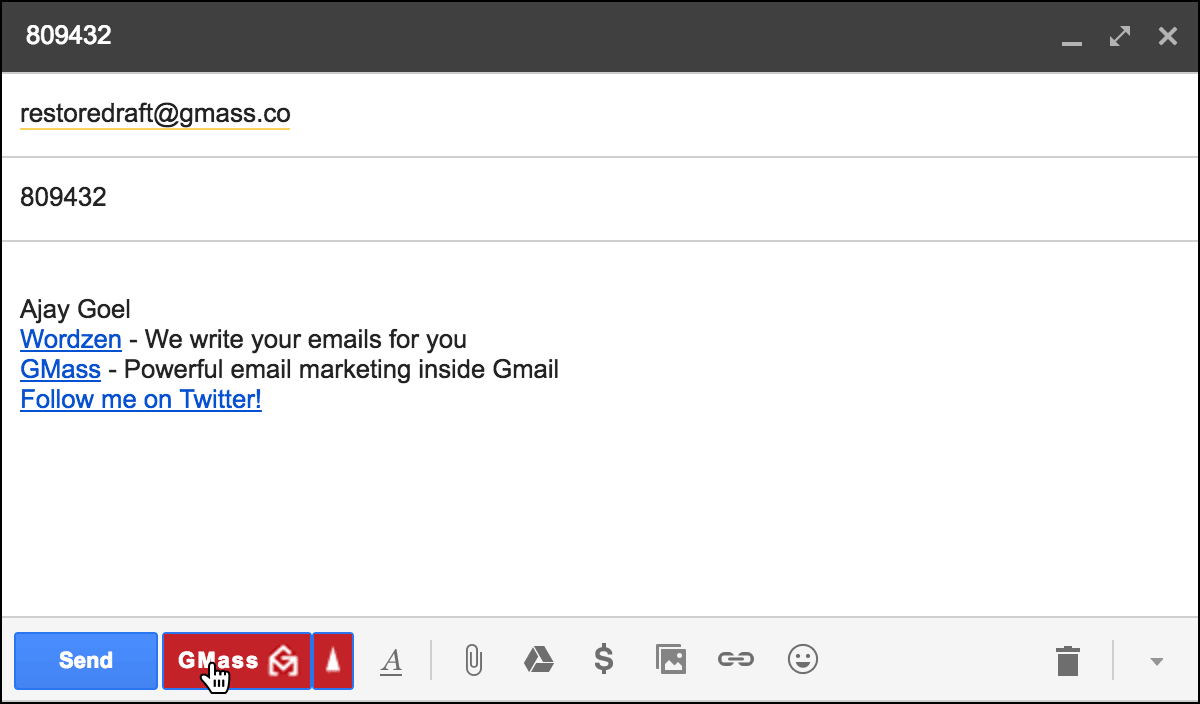
I’m restoring the Gmail Draft for the GMass Campaign with ID 809432.
  1. Click Compose to launch a new window.
  2. Set the To field to restoredraft@gmass.co.
  3. Set the Subject to the numeric ID of the campaign whose Draft you want to restore.
  4. Hit the GMass button. Do not hit the Send button.

If successful, the Draft will be recovered, and you’ll find it under either:

  • The Gmail Drafts Label
  • The GMass Scheduled Label
  • The GMass Auto Followups Label

Wherever you find it, it’s only one Draft, and based on the state of the campaign, it may have one or more of the above Labels attached to it.

  • If the campaign has finished sending but has pending auto follow-ups, it will have just the GMass Auto Followups Label applied to it.
  • If the campaign is in the middle of sending and also has pending auto follow-ups, it will have BOTH the GMass Scheduled and the GMass Auto Followups Labels applied to it.
  • If the campaign has finished sending but does NOT have any auto follow-ups, it will have just the GMass Scheduled Label applied to it.
  • If the campaign has finished sending and does NOT have any auto follow-ups, then it won’t have any Label applied to it other than the standard Gmail Drafts Label.

What do the Gmail Labels mean?

If a Draft has the GMass Scheduled Label, that means it’s a pending mail merge campaign and emails will still be sent. If the GMass Scheduled Label is removed, the campaign will fail to send.

If a Draft has the GMass Auto Followups Label, that means the campaign has auto followups attached to it. This Label is simply for organizational purposes, so you the user, can easily see which campaigns still have pending auto followups. Whether this Label is applied to the Draft or not has no bearing on whether the auto follow-ups send or not.

I don’t use GMass, I deleted an important Gmail Draft, and I want to recover it

If the Gmail Draft you deleted has nothing to do with GMass, and you still want to recover it, try following the tricks in this awesome article.


Ready to transform Gmail into an email marketing/cold email/mail merge tool?


Only GMass packs every email app into one tool — and brings it all into Gmail for you. Better emails. Tons of power. Easy to use.


TRY GMASS FOR FREE

Download Chrome extension - 30 second install!
No credit card required
Love what you're reading? Get the latest email strategy and tips & stay in touch.


You can now pay for GMass, the ultimate Gmail mail merge tool, with PayPal. We recognize that many of our international users don’t have access to credit cards, and so we’re happy to formally provide a way to subscribe via PayPal.

To subscribe via PayPal, go to the GMass PayPal Subscription page.

Important points to note:

  1. Please choose the appropriate plan. If you’re subscribing an @gmail.com account, make sure to choose a “Gmail” plan. If you’re subscribing a G Suite account, make sure to choose a G Suite plan (labeled as Google Apps in the dropdown).
  2. When you subscribe with PayPal, we will have to manually activate your GMass account, so please be patient after you subscribe.
  3. When you’re taken to the PayPal page, the page will note payment to Silicomm Corporation. That is one of the companies involved in the development of GMass.
Ready to transform Gmail into an email marketing/cold email/mail merge tool?


Only GMass packs every email app into one tool — and brings it all into Gmail for you. Better emails. Tons of power. Easy to use.


TRY GMASS FOR FREE

Download Chrome extension - 30 second install!
No credit card required
Love what you're reading? Get the latest email strategy and tips & stay in touch.


Note: The technique in this article is now deprecated. There’s a MUCH easier way to do this using GMass’s dynamic lists.

When sending mail merge campaigns in Gmail with GMass, you can already suppress a list of addresses that belong to a prior campaign. Here is a detailed guide on using Suppression Lists in GMass. Additionally, if you’re using the GMass unsubscribe link, then GMass is already suppressing anyone on your Unsubscribe List.

You may, however, want to use a Google Sheets spreadsheet as the source of a suppression list, such that you can add new email addresses to just the spreadsheet, and have all of your future mail merge campaigns automatically suppress any email address that is on the spreadsheet.

To accomplish this, you have to set up a spreadsheet to hold the email addresses, and then create a container email campaign that will continuously update itself with the email addresses in the spreadsheet. You can do this with a combination of our mail merge and Google Sheets integration, the recurring campaigns feature, and the option to “Just create Drafts”.

Step-by-step guide:

  1. Create your suppression spreadsheet in Google Sheets. You really only need one column. In this example, the column is simply “email”.
    The dynamic suppression spreadsheet
  2. Use GMass to connect to the spreadsheet.
    Connect to dynamic suppression sheet
  3. After the Compose window appears, set the Subject to something like “Dynamic Suppression List”. In the GMass Settings in the Compose window, set the campaign schedule to Repeat hourly and set it to Create Drafts. That will ensure that no emails are actually sent. Click the GMass button to start the creation of your dynamic suppression campaign.
    Create drafts of repeating campaign

Now, every hour, the campaign that you just created called “Dynamic Suppression List” will be updated with any new addresses from your Google Sheets spreadsheet. No emails will actually be sent, but Drafts will be created, which you can delete if you want to keep your Gmail account clean.

You can then use this campaign as the Suppression List for your future email campaigns, by selecting it in the Suppress option under Advanced area of the GMass Settings.

Now suppress the dynamic list

Important note about timing:

The suppression campaign will only be updated once hour, since that’s how often the campaign will run and pick up new addresses added to the spreadsheet. Therefore it is possible that if you send a campaign and use that campaign as a Suppression List, it may not suppress addresses that were added to the spreadsheet in the last 60 minutes. The odds are low, but it could happen. So if you do update your dynamic suppression Google Sheet, go for a quick walk before you use it as a suppression list in a campaign.

Ready to transform Gmail into an email marketing/cold email/mail merge tool?


Only GMass packs every email app into one tool — and brings it all into Gmail for you. Better emails. Tons of power. Easy to use.


TRY GMASS FOR FREE

Download Chrome extension - 30 second install!
No credit card required
Love what you're reading? Get the latest email strategy and tips & stay in touch.


It might seem strange that 18 months after I launched GMass I’m writing a post about how to create a GMass account, but with our ever-growing user base, we find that people are sometimes confused about which of their Gmail accounts have GMass accounts versus which are just “aliased” to a Gmail account that has a GMass account. So let’s clear up the confusion.

To create a GMass account:

1. Install the GMass Chrome extension

You can install the extension either from the GMass website or from the Chrome Web store. To install it from our website, just go to www.gmass.co and click on any of the big ADD GMASS TO GMAIL buttons.

Remember to use Chrome. To install it from the Chrome Web Store, go here and click on the ADD TO CHROME button in the upper-right.

2. Connect your Gmail account to GMass

Log into the Gmail account for which you want to use GMass. When you login to Gmail, click any GMass button, and you’ll be prompted to link your Gmail account to GMass.

This is actually the step that creates your GMass account. Simply installing the GMass extension doesn’t create a GMass account. It only makes the buttons appear in your Gmail account.

If you want to bypass the step of logging into Gmail and clicking on the GMass popup, you can also directly link your Gmail account to GMass (just log in to Gmail), which will instantly create a GMass account. Just make sure you install the GMass extension at some point as well.

Items to note:

  1. If you login to a different Gmail account that you own, and the GMass buttons show up, that does not mean that you have a GMass account for that Gmail address. You can easily create one though, by clicking any GMass button, and following the prompts to link that new Gmail account to GMass.
  2. Many people use various aliases within a single Gmail account. For example, if your Gmail account is johnsmith@gmail.com, you may have an alias address of johnsmith@company.com set up inside your johnsmith@gmail.com account. In this case, as far as GMass is concerned, you need only create a GMass account for johnsmith@gmail.com, since that is the actual Google account GMass is connecting to. You will then be able to use GMass to send from either johnsmith@gmail.com or johnsmith@company.com. Now, if johnsmith@company.com is also a G Suite account, you may additionally want to create a separate GMass account for johnsmith@company.com. Make sure you have the GMass extension installed, and then log out of any other Gmail accounts and then log in directly to the johnsmith@company.com G Suite account.
See why GMass has 300k+ users and 7,500+ 5-star reviews


Email marketing. Cold email. Mail merge. Avoid the spam folder. Easy to learn and use. All inside Gmail.


TRY GMASS FOR FREE

Download Chrome extension - 30 second install!
No credit card required
Love what you're reading? Get the latest email strategy and tips & stay in touch.


GMass