Ajay is the founder of GMass and has been developing email sending software for 20 years.
Since GMass uses the native Gmail Compose window as the basis for campaign creation, and since GMass allows you to copy/paste a list of addresses right into the To field, I thought it would be fun to see just how many email addresses the To field of the Compose window can hold. Is there a limit? Is there a connection between how many addresses Gmail will let you put in the Compose window and Gmail’s actual email sending limits? Would the Gmail anti-spam pre-crime team detect that I’ve pasted thousands of email addresses into the To field and shut down my account before I even have the chance to hit Send (or the GMass button)?
Let’s find out.
First, I need a big list of email addresses I can paste in. Easy enough — I use SQL Server to store my users’ data, so I can just copy/paste email addresses from SQL Server into the Gmail Compose window.
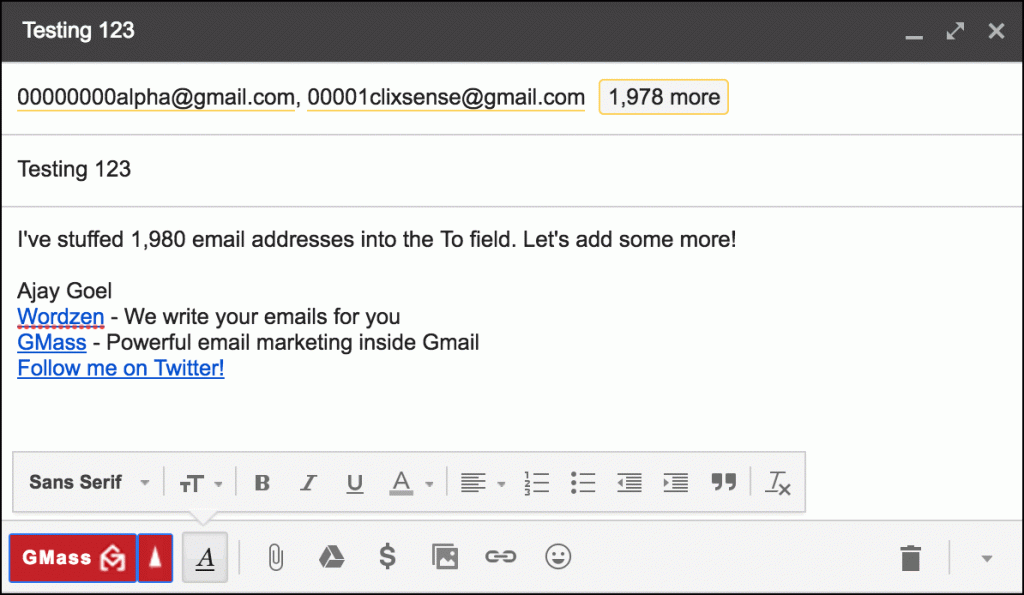
Here I’ve pasted 1,980 email addresses in the To field. Note that in the screenshots below, the Gmail Send button is hidden by GMass, to prevent a user from making the grave mistake of hitting the wrong button.
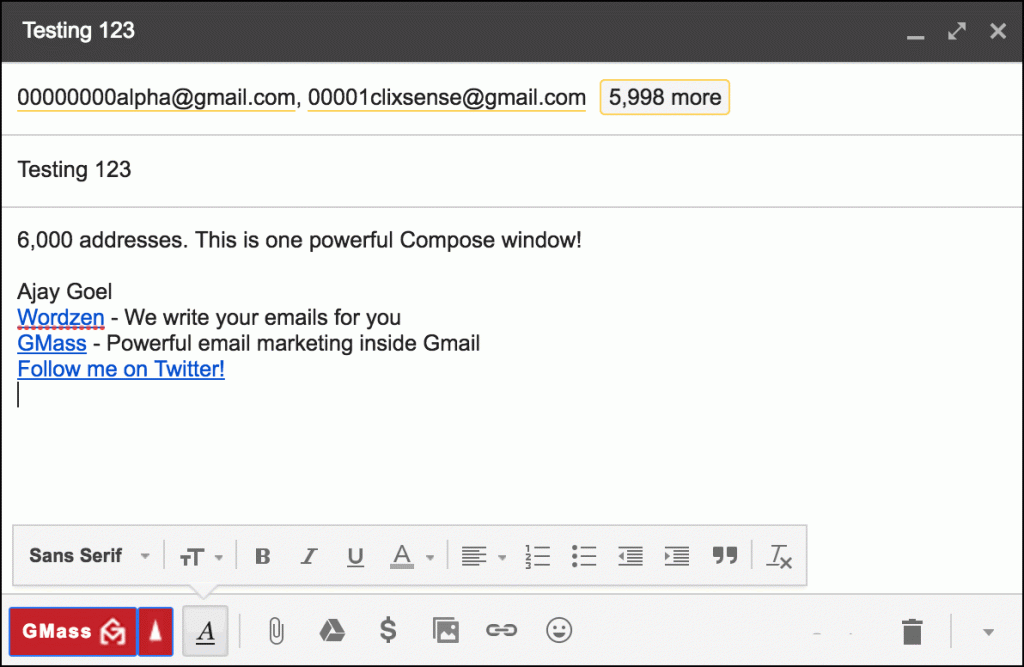
Might as well keep going…6000 email addresses!
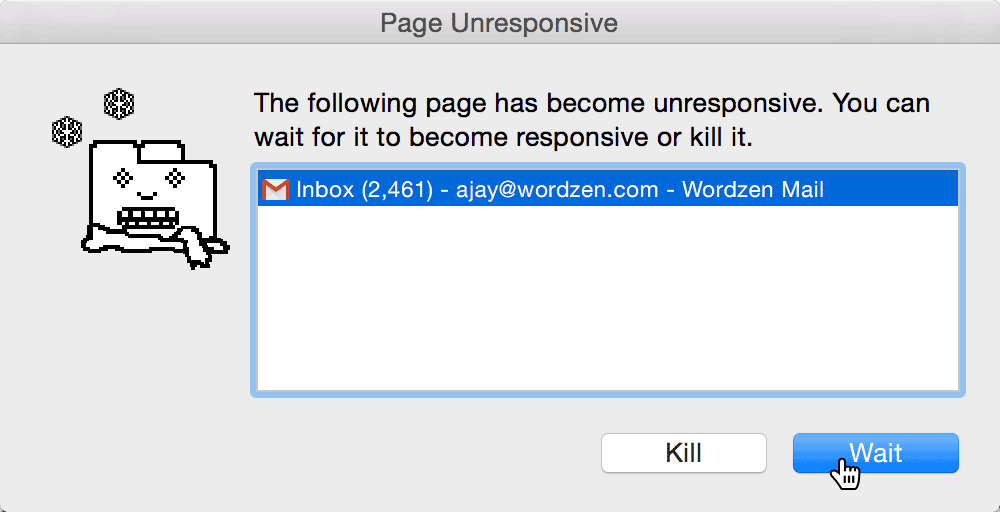
As the number of addresses gets bigger, each subsequent paste into the To field gets slower, and additionally, I get an increasing number of Chrome “Page Unresponsive” alerts.
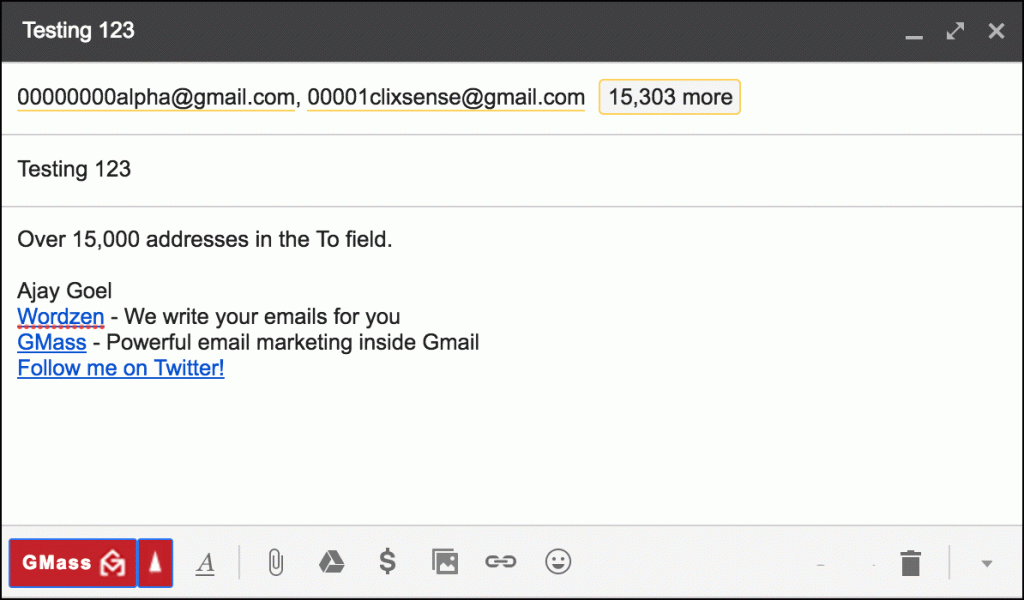
A whopping 15,000 email addresses.
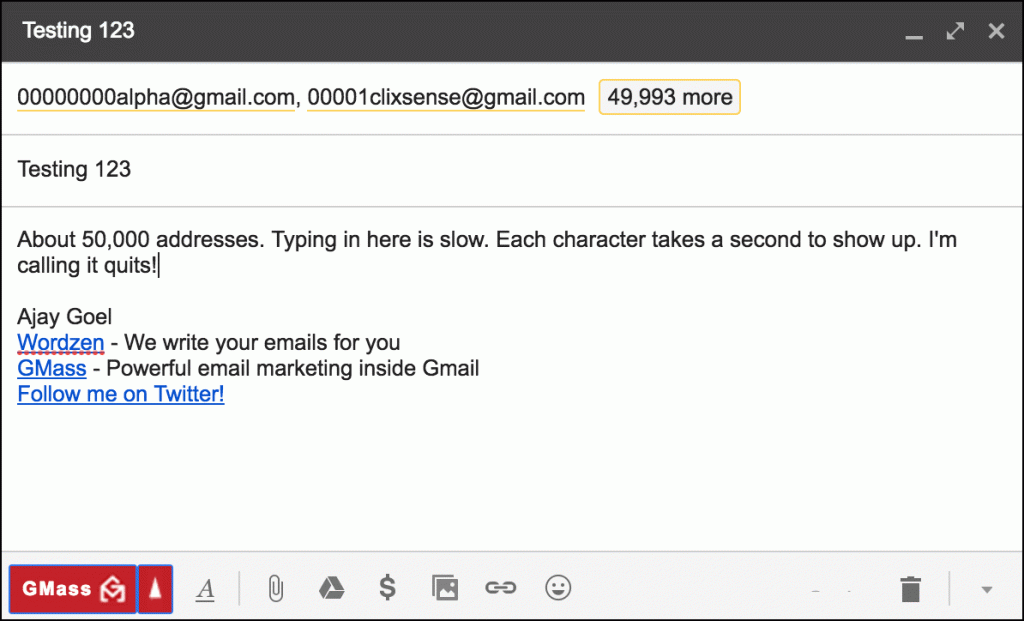
From 15,000 I went to 20,000 with ease. I then decided to jump from 20,000 to 50,000. After clicking “Wait” on no fewer than 20 of the “Unresponsive Page” dialogs, and after waiting about 45 minutes, finally, the Compose window revived itself to life, with almost 50,000 addresses.
How do I know if the Compose box is still working?
As a Gmail expert, I’m used to the behavior of elements of the Compose window, so I would regularly test these to make sure they are still behaving normally. For example, I know if that if I type a few words in the Message area, the URL will change to reflect a new Gmail Message ID, since Gmail has just re-saved the Draft. I know that I should be able to click the X next to an email address in the To field to remove it. The count of total addresses should be accurate.
Copy/paste addresses directly into the To field, or use Google Sheets?
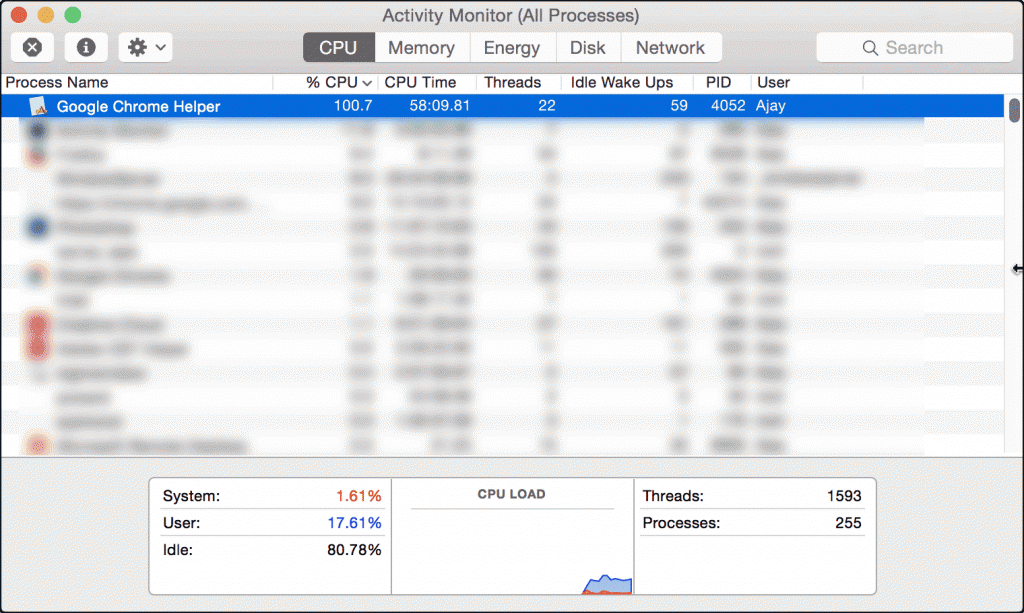
Even though I’ve shown that the To field can hold plenty of email addresses, it’s still more efficient to paste a large number of email addresses into a Google Sheets spreadsheet rather than into the Compose window directly. Why? Because when you put your addresses into a spreadsheet, when GMass connects to it, it creates one single “alias” email address that represents all of the addresses in the spreadsheet. So the Compose window To field will only show one address. When the To field shows thousands of addresses, the JavaScript required to process all of that email address data slows down the inner workings of the Compose window significantly. Additionally, with the CPU resources Chrome will consume just to handle that Compose window, your entire computer is likely to slow down during a large copy/paste operation into the To field. Here is my CPU usage right now, as I attempt to go from 20,000 addresses to 50,000 addresses (so pasting 30,000 more) into the To field.
In Conclusion
While in theory it seems that the Gmail Compose window can hold an unlimited number of email addresses, it becomes impractical to paste so many addresses after the 10-20,000 address mark. The Compose window reacts too slowly, you get too many “unresponsive” dialog boxes, and the waiting time required for the “paste” operation to complete is unbearable. If you’re using GMass to send mail merge campaigns with Gmail, then I recommend using our Google Sheets integration if you’re needing to send to more than 20,000 addresses.
Email marketing, cold email, and mail merge inside Gmail
Send incredible emails & automations and avoid the spam folder — all in one powerful but easy-to-learn tool
Love what you're reading? Get the latest email strategy and tips & stay in touch.
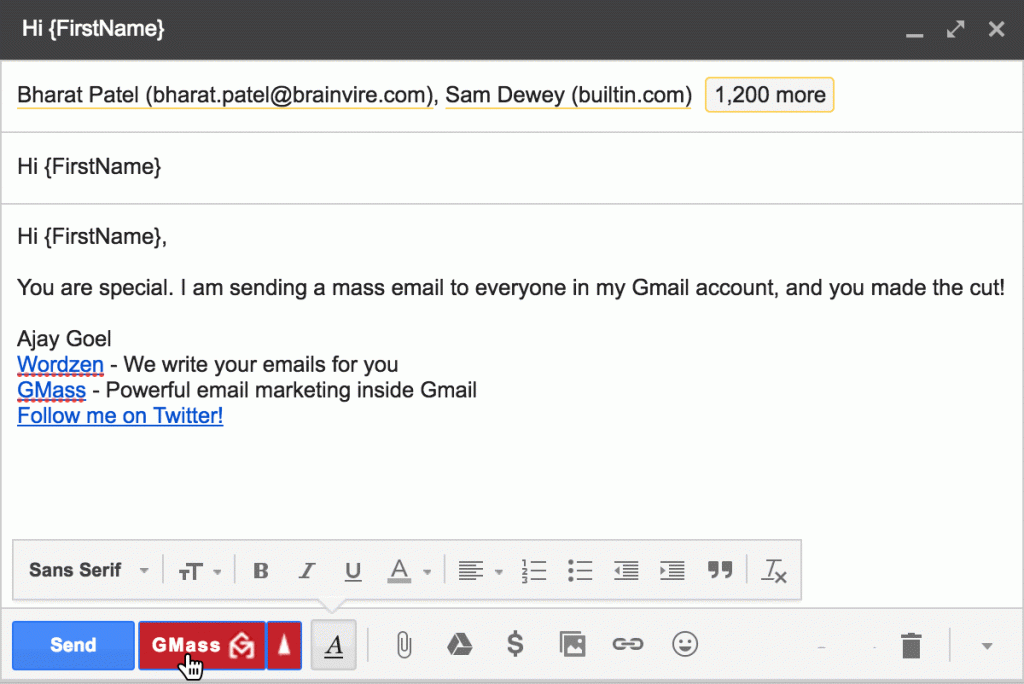
Using Gmail and my Gmail extension GMass, it’s easy to send a mass, personalized email to every email address in your Gmail account — and a way better option than the old BCC email technique. You simply need to get all of the email addresses in the To field, compose your Subject and Message, and hit the GMass button (instead of the Gmail Send button). In this article, I will show you three different methods for launching that Compose window with all of your email addresses. Each has pros and cons.
1. Use the GMass “Build Email List” button
In Gmail, you can search your conversations using the Search bar at the top. Once you have a list of matching conversations, you can use the GMass Build Email List button (the magnifying glass) to scrape all the email addresses inside those matching conversations. It will find all of the email addresses in the From and To lines of those matching email messages.
For example, if I wanted to send a mass email to everyone with whom I’ve had a conversation about “iPhone”, I could search for “iPhone” in my Gmail account, and then hit the GMass Build Email List button to instantly create a list of all those email addresses.
So, if I want to search for something that will match just about every email message in my account, I just need to search for a short word like “the”. Assuming that almost every email will contain the word “the”, the Build Email List button will now create an email list of almost every single email address in your account. Note that this technique will pull all addresses in the To Line of each matching message. If you’re part of a group email to say 20 people, it will also pull those 19 other addresses, which may be people with whom you have no relationship. Once the email list is built, a Gmail Compose window will open with all of the addresses in the To line. Then just type a Subject, Message, personalize as needed, and then hit the GMass button to send individual personalized emails to each address.
Pros: Easy to do, requires no exporting/importing, and can be done via just the Gmail interface
Cons: May not find every single email address in your account, and may find some addresses of people with whom you’ve had no direct contact. Limited to searching through 5,000 messages max.
2. Use Google Contacts to select all of your contacts, then hit the Email icon
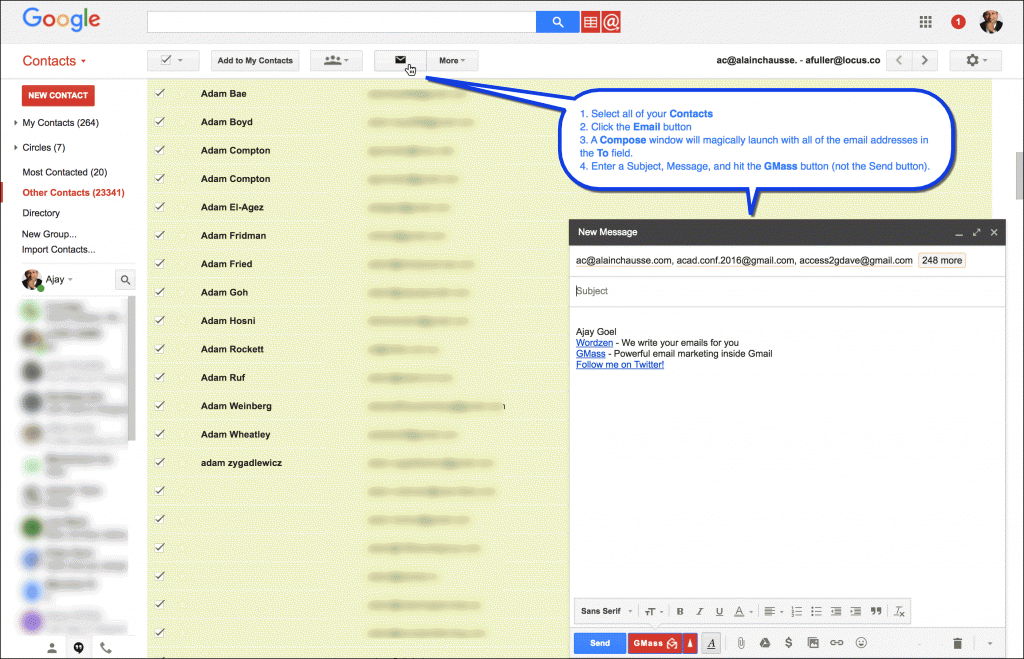
If you use Google Contacts to track your contacts, you can use the Google Contacts Interface to select all or some of your contacts, and then hit the Email button to launch a Gmail Compose window with all of those addresses in the To line.
First, from inside Gmail, choose Contacts in the upper-left menu:
Then, navigate to the list of Contacts, select all of them with the checkbox tool, and click the Email button. Note that it will only select the contacts on the current page, and you would have to go to the next page of contacts to separately select those. Therefore, this method is inherently limited because it will only allow you to select 250 contacts at a time.
Several important considerations when using Google Contacts:
You can launch Contacts from within Gmail, which will nest the Google Contacts interface inside Gmail. This is the preferred method, and I’ll explain why shortly.
Alternatively, you can launch Google Contacts in a separate window by going to https://www.google.com/contacts in a separate browser window. This is the least preferred method.
Google has a new “preview” version of Google Contacts that has been around for a while, but is shunned by many in favor of the classic Google Contacts interface. The classic interface is far more useful, so for this demonstration of sending a mass email to all the email addresses in your Gmail account, we will stick to the classic interface, and I’ll explain why shortly.
After composing your email message, be sure to hit the GMass button instead of the Send button to send individual personalized emails to each recipient.
Why you shouldn’t use Google Contacts outside of Gmail
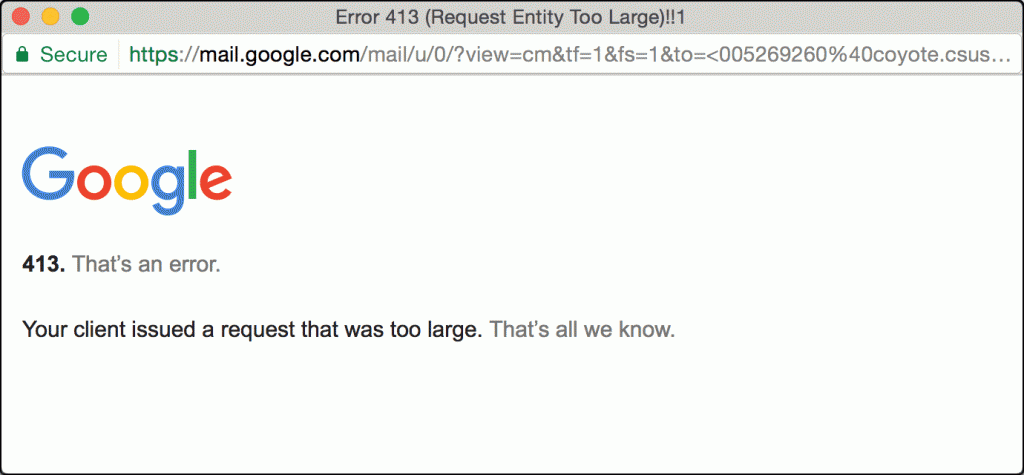
If you go to https://www.google.com/contacts/ directly in the browser instead of accessing your Contacts from inside Gmail as described above, you will run into the issue of the Email button failing when you select too many contacts.
If you select too many contacts, and hit the Email button, you will see this error:
Pros: Easy to do, and Google Contacts are often broken down into logical groups of people, so you can send a mass email to just certain groups of people.
Cons: If you select too many contacts at once, you may get a “Bad request” error instead of the Gmail Compose window launching. You also can’t select Contacts across multiple pages, and only 250 contacts are displayed per page.
3. Export the email addresses from Google Contacts into a Google Docs spreadsheet
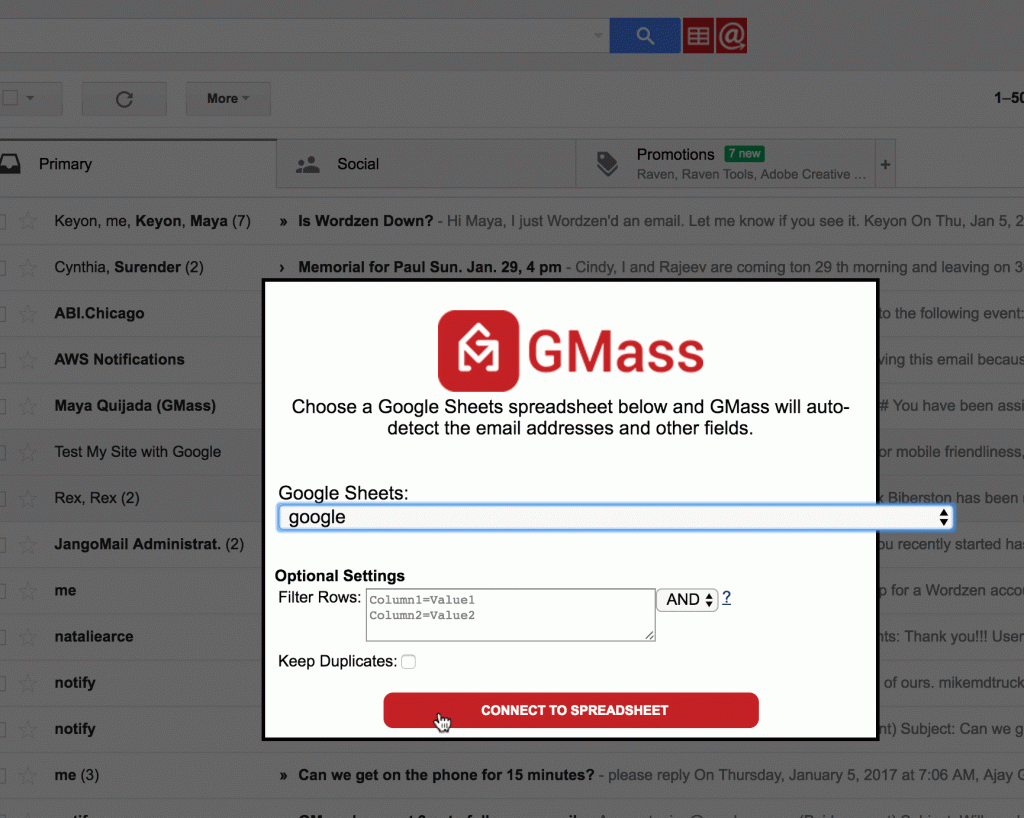
Finally, you can easily export all of your Google Contacts as a CSV file, and then upload the CSV file into Google Sheets, and then use GMass to connect to your Google Sheets spreadsheet to pull out the email addresses. Don’t worry, it’s easier than it sounds.
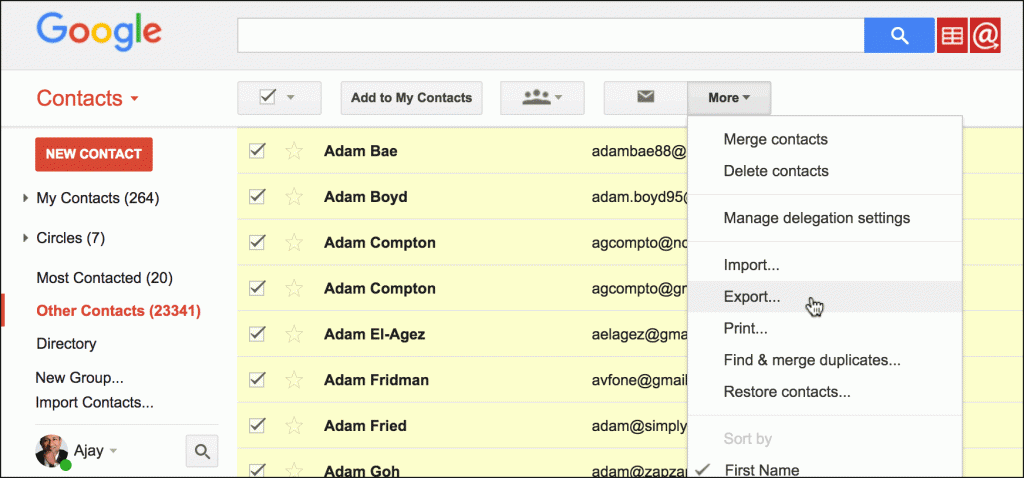
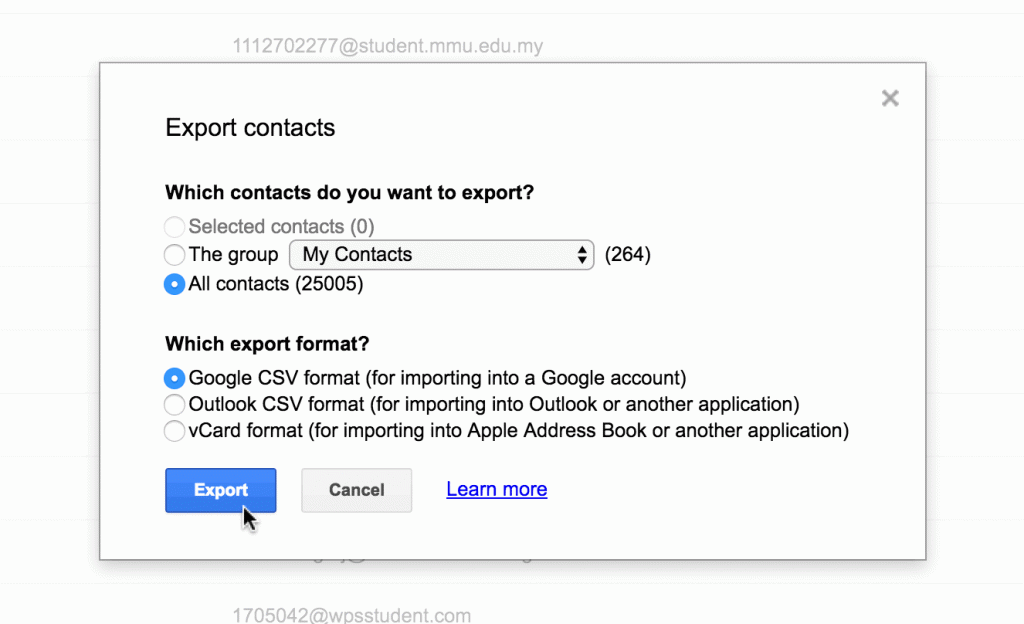
First, in Google Contacts, export all or some of your contacts to a CSV file.
Choose Export and then choose the Contacts you want to export. In my case, I will export all 25,005 contacts:
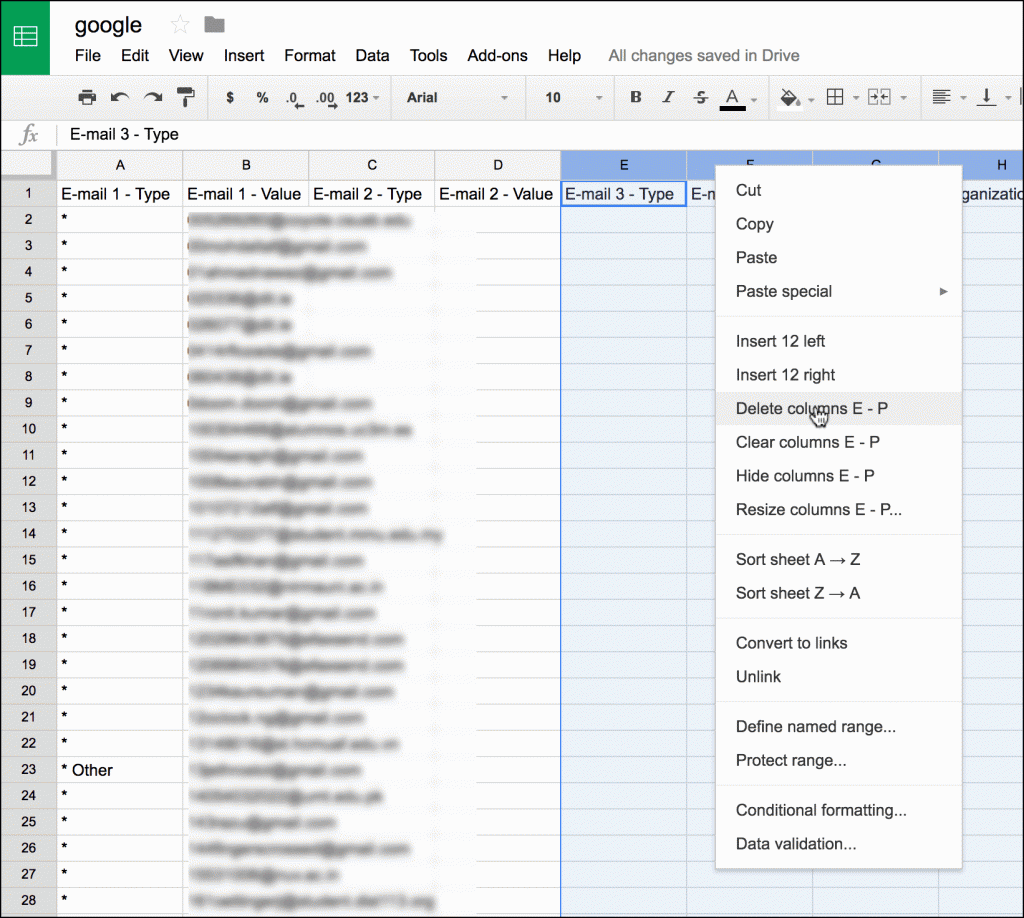
Then, upload the CSV file into a Google Sheets spreadsheet.
After your spreadsheet is created, you should clean it up by deleting the extraneous columns. If you don’t, your spreadsheet might have more data than GMass can process. So, just delete all the empty columns.
Finally, you’ll have a Compose window with all of the email addresses in the To line. If you have more than 1,000 addresses, GMass will consolidate the addresses into an “alias” address, as is shown in the screenshot below. This alias address is an address that represents all 24,997 addresses.
As is the case in the above screenshot, GMass may also hide the Gmail Send button in certain cases, to prevent you from clicking it accidentally and making a huge mistake. Hitting the GMass button will send a tracked, personalized email to each contact, while hitting the Gmail Send button will send one email to all of your recipients, exposing everyone in the To line to each other.
Pros: Will guarantee that you pull every single email address that is a Google Contact.
Cons: Not everybody you’ve sent email to / received email from may be a Google Contact. Requires the most effort, although it’s still pretty easy.
Stay away from the new “preview” version of Google Contacts
It’s pretty but it lacks all the important functions of the classic version.
It doesn’t allow you to export.
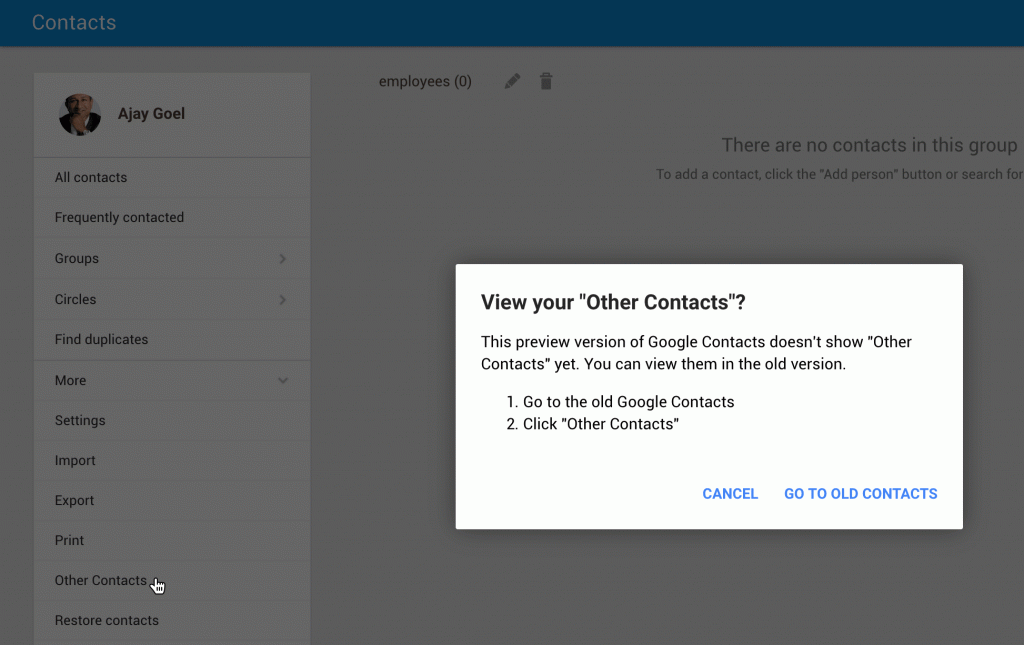
2. You can’t select your Other Contacts, where most of your email addresses usually live.
3. There is no Email icon by which to launch a Compose window with the selected Contacts already in the To field.
Many people agree that it sucks. The “preview” version of Google Contacts is the ugly and seemingly forgotten step-child of the classic Google Contacts. Stay away!
Additional Things to Know:
If you want to personalize each email with the recipient’s first name, you can use this syntax in your message:
Hi {FirstName|auto-first|there},
This syntax is explained in detail in our mail merge personalization guide, but what it does is looks for a First Name associated with the email address in your Gmail account, and if found, then it’s used. If not found, then GMass will attempt to auto-detect the first name from the email address. Finally, if unable to auto detect the first name, it will just use “Hey there”.
If you want to trackopens and clicks, just make sure the appropriate checkboxes are checked in GMass Settings.
If you want to pace out your emails at say, 50 emails/day, instead of sending them all at once, to make sure you don’t anger too many people at once, use the “Spread out” feature in the GMass Settings box.
You may be wondering if the technique above are free, especially with the use of GMass. Anybody can use GMass for free to extract all of the email addresses from their Gmail account and get them into the To field of a Gmail Compose window. You can also send 50 emails/day for free with GMass. You would only need to subscribe to GMass if you want to send mass emails more than 50 emails/day. Therefore, you are “free” to use the GMass “Build Email List” or “Connect to spreadsheet” functions for free to just pull the email addresses out of your Gmail account. You could then take your email list and use it with a different email marketing system like MailChimp if you don’t want to use GMass for the actual sending.
Email marketing, cold email, and mail merge inside Gmail
Send incredible emails & automations and avoid the spam folder — all in one powerful but easy-to-learn tool
Love what you're reading? Get the latest email strategy and tips & stay in touch.
This article is geared towards software developers interested in the Gmail API.
GMass makes extensive use of two APIs — the Inbox SDK API, made by Streak, and the Gmail API provided by Google. The Gmail API manages all of the backend operations for GMass, including applying the “GMass Scheduled” Label to pending campaigns and actually sending a user’s mail merge campaign. GMass is built on the .NET platform and all backend code is written in C#. Google provides a .NET client library for the Gmail API, but recently I discovered a bug in the client library that was a show-stopper, until I figured out how to call the Gmail API using raw HTTP calls.
While the Gmail API asserts that a Draft up to 35 MB in size can be created, I was getting an error from the .NET client library anytime I attempted to create a Draft greater than 1 MB in size. The error was:
Message[Requestpayload size exceeds the limit: 1048576 bytes.]
I would only get this error when creating a large Draft with the .NET library. Testing the Users.drafts.create method manually using the test form provided by Google did allow me to create large Drafts, which confirmed that the issue was with the .NET library. I therefore set out to create my own function to call the Gmail API to create a Draft and bypass the functionality of the client library.
Like many popular APIs, the Gmail API has an endpoint that you can make an HTTP POST to. In the case of the drafts.Create method, that endpoint is:
Using the HttpClient object will be familiar to most .NET developers, but the differentiating part of the call is that the mediaType has to be set to “message/rfc822”, as that is what the Gmail API requires.
Also note the payload is formatted according to how the payload is formatted on the Google test form for this method. In my code it’s assumed that:
ThreadID is the Gmail Thread ID if the created Draft is to be part of an existing thread, or non-existent if not
RawDraft is a base 64 encoded string of the fully formatted email draft. If you want to see an example of a base 64 encoded Draft from your own Gmail account, use the Users.drafts.get method test form to plug in a Draft Id from your own account, set the Format to RAW, and retrieve the base 64 string.
EmailAddress is the Gmail account address for whom we’re creating the Draft.
OAuthKey is a string containing a valid unexpired OAuth 2.0 key to access the Gmail account of EmailAddress.
After calling the Gmail API, resultContent will contain a string containing the created Draft ID and its Message ID, and these values can easily be extracted with this code:
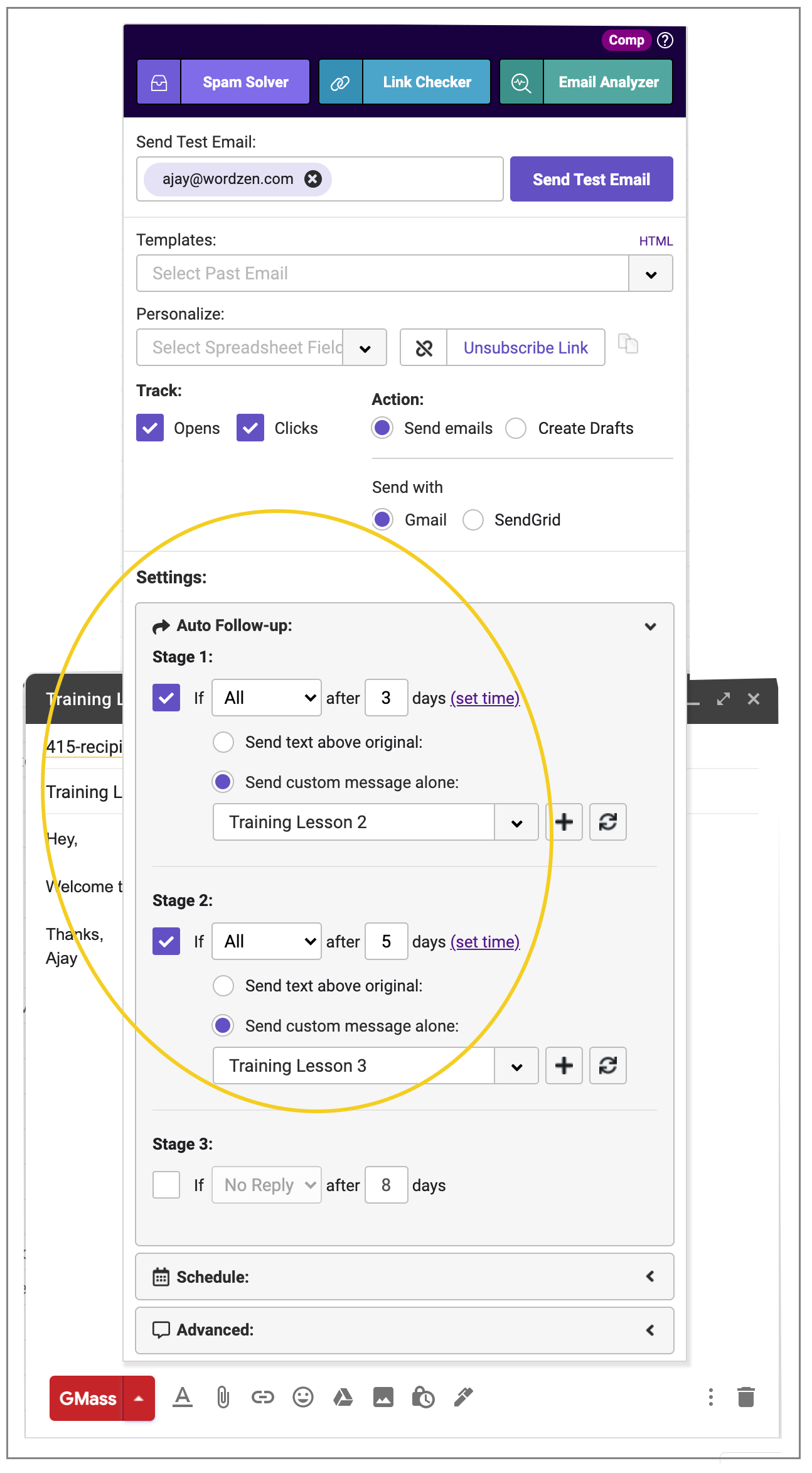
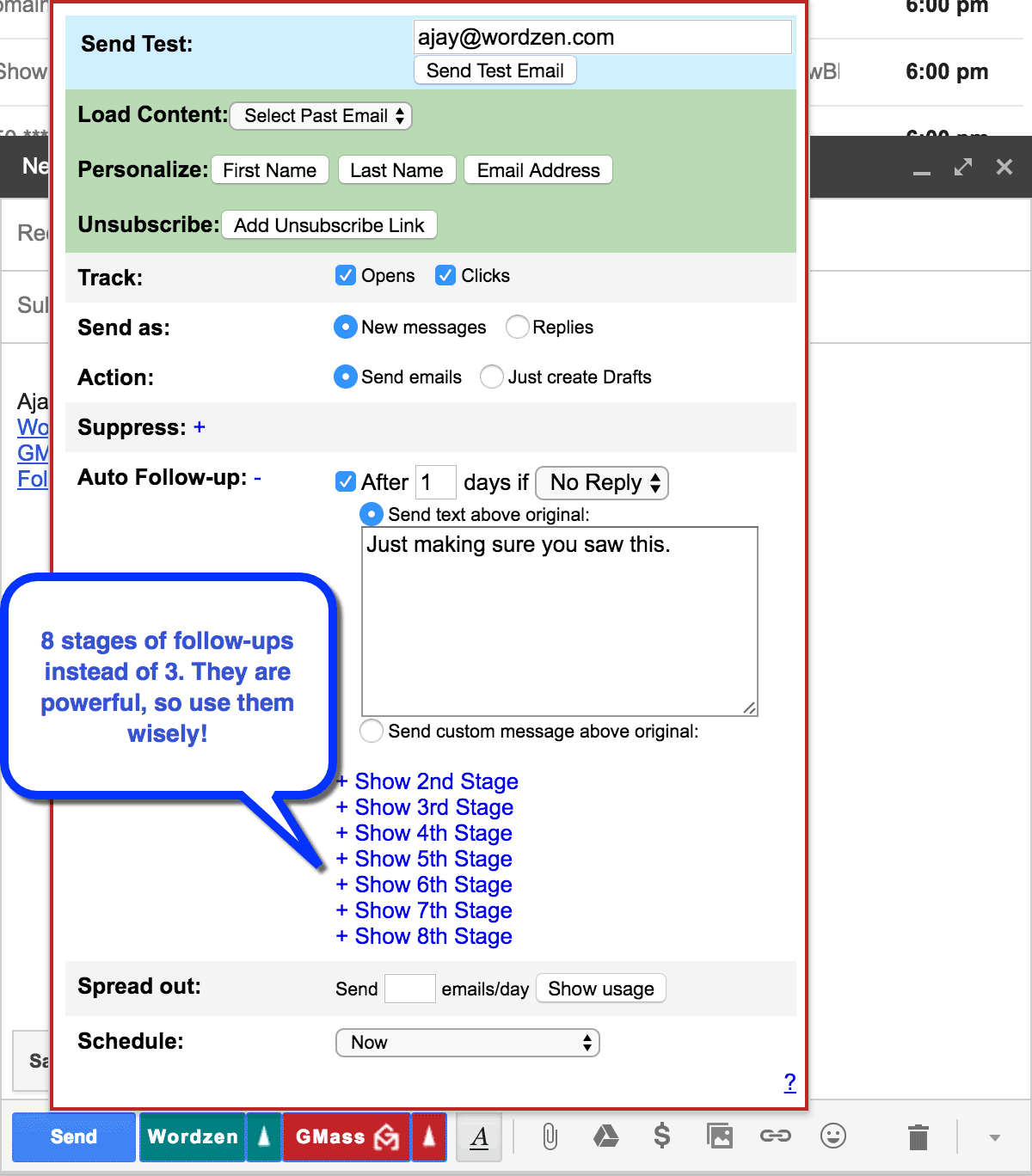
We’ve just rolled out a major update to the automatic email follow-up feature, where now, in addition to your original campaign, you can set a series of 8 follow-up emails. We’ve also now made it easier to edit auto follow-up settings after your campaign is scheduled, and finally, you can use the auto follow-up feature with a custom message to create a “welcome” series of emails for your new signups.
Be sure to reload Gmail in your Chrome browser to get these updates. You may need to clear your cache, and then reload. Now, let’s dig in…
8 stages of follow-up emails
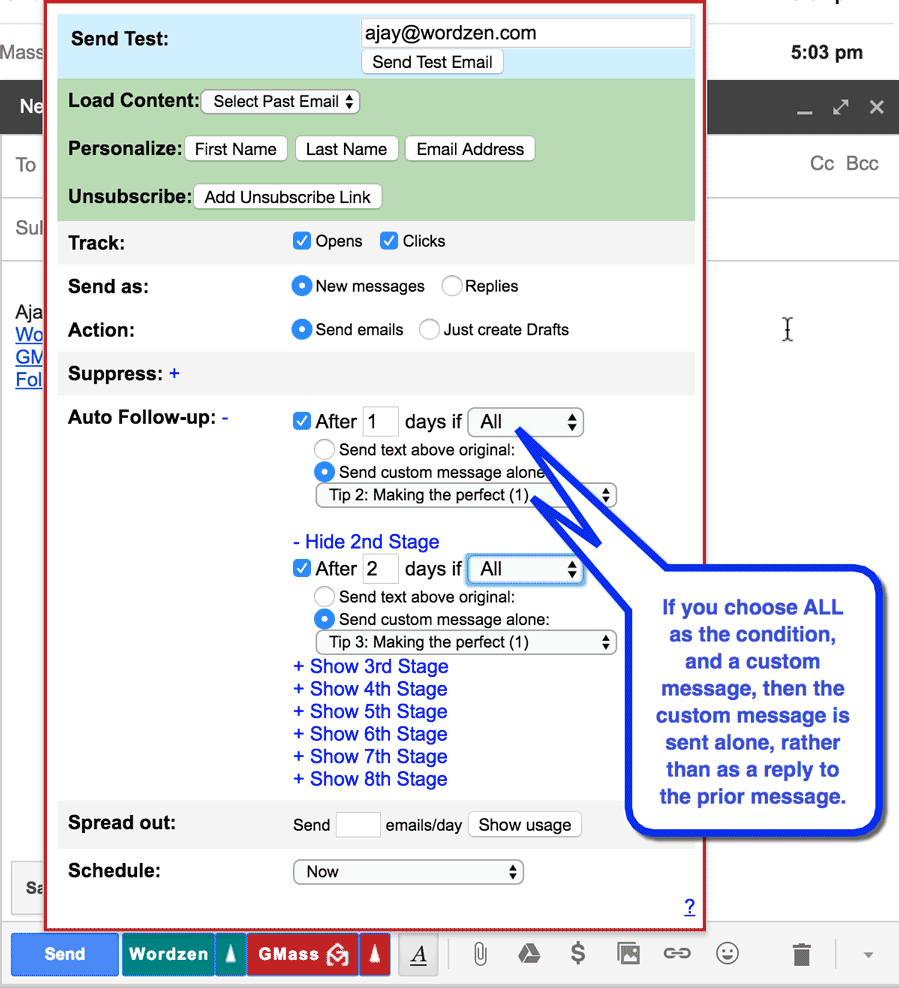
The additional stages are easily seen in the GMass Settings box. Where you’re used to seeing just 3 stages of auto follow-ups, now you will see 8. Configure the auto follow-ups to your heart’s content…just be aware that sending too many follow-ups for your particular situation can annoy, and even infuriate your recipients. Use this new power wisely.
Easier editing of auto follow-up settings
Before, if you wanted to make changes to auto follow-ups after scheduling a campaign, you would click the @ button at the top, find your campaign, click Edit Auto Follow-ups, make your changes, and hit Save. This was a cumbersome process that frustrated users.
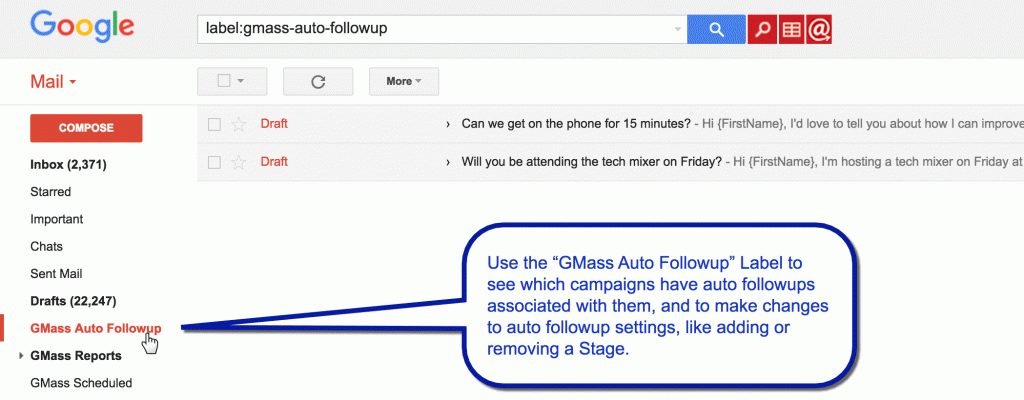
Now, any campaigns that have auto follow-ups assigned will show up in a new GMass Auto Followups Gmail Label. Just click that Label, and you’ll see a list of your campaigns that have auto follow-ups. To make changes, open up the Draft, click the GMass Settings arrow, make your changes, and hit the GMass button to save your changes. Also, see this article that details how to edit auto follow-up settings after you’ve already set a campaign.
A slight change that enables you to send a “welcome” series of emails to your new signups
We recently introduced the ALL option for auto follow-ups, where a follow-up is sent to EVERYONE that is a part of the original campaign instead of just those who didn’t reply or just those who didn’t open. The ALL option is helpful when you want to send a series of emails to everyone, regardless of their behavior. For example, if I’m an auto repair shop, and I want to send a series of 5 emails that include a different tip every week on maintaining your engine, I could configure a campaign and 4 follow-up stages with the ALL option, where each stage uses an already-formatted email from the Custom Message dropdown. BUT, I don’t want each stage to be a reply to the last email in the sequence…I want each stage to send as a new message. That’s why we’ve made this important change: When using the auto follow-up feature, if you set a stage to ALL and choose a Custom Message instead of entering in text, then that particular Stage will go out as a new thread rather than a reply to the previous stage. You will also notice that the text above the dropdown changes to “Send custom message alone”.
The year is winding down, and while I’ll be celebrating with my family in Ohio, I will also be aggressively writing code to improve GMass. Help me decide what mail merge feature to add to GMass next. Use the Comments to tell me what you like and don’t like.
Here are some ideas, gleaned from user feedback and my own brain:
More email sending power: Gmail and G Suite accounts restrict your sending ability to 500 and 2,000 emails per day, respectively. We could potentially let you configure GMass to send through your own SMTP server, or set up a shared external SMTP server that our trusted users could use. You would still use Gmail and GMass as your interface, but the actual emails would go through an external SMTP server, not Google’s mail servers, and you could send far beyond Gmail’s limits.
More auto follow-up stages: Right now, GMass lets you set 3 auto follow-ups with a campaign. Some users have asked for the option to set more.
Skip weekends with auto follow-ups: Right now, when you set auto follow-ups to go out 3 days, 5 days, and 8 days, after the original campaign for example, if one of those days falls on a weekend, the follow-up email is still sent.
CRM integration with Salesforce: The ability to have email sends and replies, opens, and clicks, sync back with the Contact or Lead in Salesforce.
Ability to add a random number of seconds in between each email send: Some users have asked for each individual email to be sent a few seconds after the previous email, because of the belief that doing so will make a campaign seem less spammy.
Ability to use GMass from Inbox instead of Gmail: Right now GMass only works with classic Gmail and not Google’s new Inbox. Are you an Inbox user? Do you want to use GMass with Inbox?
Better analytics: We already give you stats like your open rate, click rate, and let you download all of your reports. How about seeing an open or click report by domain, or over time? Do you want bar graphs and pie charts to help visualize data?
Easier way to customize the From Name / Reply-To:Right now, it’s laborious to change the From Name associated with your GMass campaigns, and some users have reported that setting the Reply-To in Gmail doesn’t stick with GMass. Should I make this easier to control?
Real-time human editing of your campaign before sending: Through my other product, Wordzen, you can have your emails proofread by a human before you send them. Do you want a tighter integration with GMass?
Dashboard:A dashboard where you can see everything happening with your account, from campaigns in progress to future scheduled campaigns to recent delivery statistics.
Personalized attachments: The ability to upload a bunch of files to Google Drive, and then set a column in your Google Sheets spreadsheet for each recipient, specifying what attachment should be sent with the email.
Please respond in the comments below to indicate your enthusiasm for any of the above-mentioned mail merge features, or if you have a feature request that isn’t mentioned, please let us know!
I will go be actively reading and responding to the comments and then ultimately determining which feature to build next.
Ready to transform Gmail into an email marketing/cold email/mail merge tool?
Only GMass packs every email app into one tool — and brings it all into Gmail for you. Better emails. Tons of power. Easy to use.
Love what you're reading? Get the latest email strategy and tips & stay in touch.
GMass has an affiliate program, making GMass the only mail merge system for Gmail that provides its 500,000 users the opportunity to make money by referring more users to GMass.
As of January 2026, GMass has paid out more than $550,000 to affiliates. If you refer a paying subscriber to GMass, you will earn:
50% of the first year’s net monthly fees for any new individual plan subscriber.
20% of the first year’s net monthly fees for any team plan subscriber.
20% of the second and third year’s net monthly fees for both team plans and individual plan subscribers.
So to run the math on an example for you…
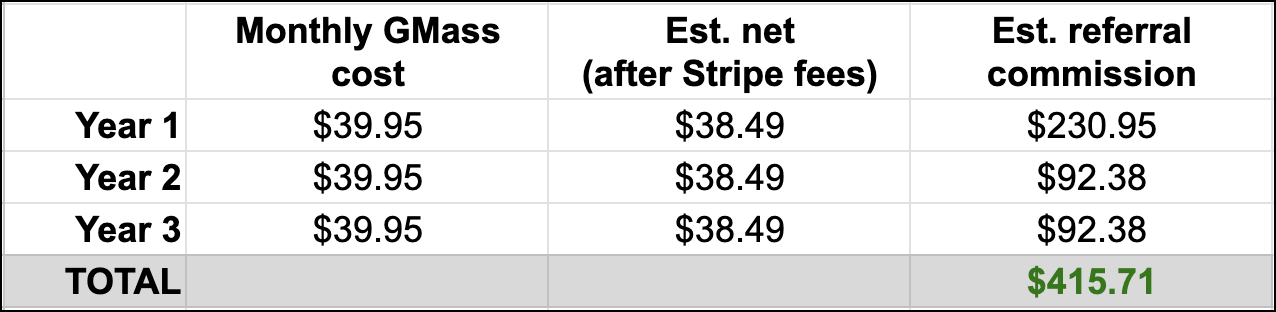
If you find a new customer who subscribes to our (most popular) Premium plan at $39.95/mo. and they maintain their subscription for three years, you’ll receive an estimated (*based on the net price after Stripe fees) $230.95 for their first year and $92.38 for years two and three — a total of $415!
And again, that’s just for one new customer.
What our affiliates say…
GMass is a real game-changer for email marketing. But what really impressed me is their affiliate program. They offer generous commissions for up to three years for every new subscriber I refer to GMass.
It’s a win-win situation for me and my referrals. GMass is the only mail merge system for Gmail that pays you to share it with others.
Make recurring commissions — including possibly the most generous year-one commission in the biz
GMass’s affiliate program is recurring — as long as the person who signed up stays subscribed, you’ll continue to get your commissions for up to three years.
Our commission structure is also set up to help you max out your payments; the 50% year one payout is one of the most lucrative in the business.
What our affiliates say…
It’s been 2 years, and I’ve earned tons of income from the GMass affiliate program. The commissions are good and even when I’m not creating new promotions, I’m still getting high recurring payouts.
– Daniel
Immediate approval — start making commissions today
Follow the instructions later in this article to get set up with the program. The process takes roughly 30 seconds.
Open to anyone worldwide (with flexible payment options to match)
GMass is a popular product around the world, so the GMass affiliate program is also available around the world.
We offer quarterly payouts via PayPal, Amazon gift card, or Payoneer to facilitate our global group of ambassadors.
Promote GMass however you want
As long as you’re promoting GMass legally and not portraying GMass negatively in any way, you can promote as you see fit.
That includes cold email (as long as it’s not spam), paid media, and even word-of-mouth. That’s right: If you recruit someone to GMass and they sign up without your affiliate code, just let us know within 7 days.
And when someone does click your affiliate link, we give you a lengthy 90-day cookie for them to sign up for an account.
Independently run
There’s no need to go through the lengthy sign up and application process you get from a major affiliate platform. At GMass we run our own program which makes for quick signups and tons of flexibility.
Sell a product that really sells itself
Once a person finds out about GMass and starts using it, they tend to understand its incredible value almost immediately. (Check our 9,000+ glowing reviews. That’s the recurring theme.)
GMass has a high free trial-to-paid conversion rate and paid subscribers tend to stick with the platform once they sign up.
That’s all good news for you as an affiliate. Yes, you’ll need to educate people about GMass and its benefits. But once you get them to try it… we like to think GMass does a pretty great job selling itself.
What our affiliates say…
As an email deliverability and email marketing consultant, I’m referring GMass directly to my clients. If someone asks me about the best email automation tools, then I’m referring GMass as it’s really best.
At the end of the day, clients need value, so if we are able to explain the real value of using a product, the client will purchase it. And we will able to make a commission by it. My clients are happy to purchase the GMass subscription from my affiliate link.
It costs you nothing, so there’s really no downside if you ever plan to tell anyone about GMass (that could be worth $300+)
As we said earlier, GMass gets rave reviews and we know lots of our users recommend the platform to others. We see it every day on social media!
So if you think you ever might refer someone to GMass… might as well sign up for the affiliate program to have it handy.
Even if you’re not a traditional affiliate marketer, you could make hundreds of dollars for every person you refer over the course of their subscription.
There’s really no downside.
How to Sign Up to Start Referring New Users — Instant Activation!
You’ll get your GMass affiliate code, linking instructions, and other program information immediately.
How to Get Credit for GMass Users You Refer
There are two methods by which you can claim a new user signup:
The new user clicks on a link containing your affiliate code. If your affiliate code is 2f87b89368894da3bd32zad434fdb8a3 for example, the link would be in the format of: www.gmass.co/?a=2f87b89368894da3bd32zad434fdb8a3. We’ll then cookie the site visitor for 90 days. Note that the visitor must be a first-time visitor to the GMass website.
You can manually let us know that a user you referred has signed up, if you do so within seven days after the user creates their account. To manually let us know:
Compose a new message in Gmail
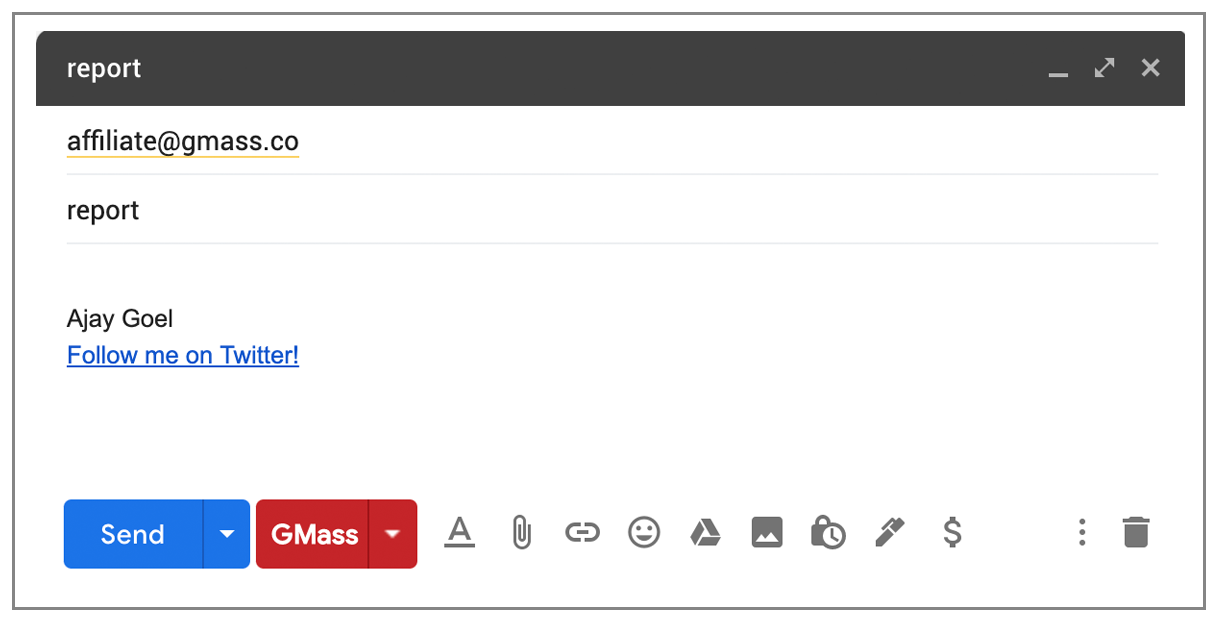
Put affiliate@gmass.co in the To field
Put the Gmail account email address of the user you referred in the Subject line
Then hit the main GMass button. Do not hit the Send button.
Payouts
Unlike most affiliate programs, GMass will handle all payouts internally and without the use of a third party. After you sign up, we will work with you to determine the best method of payment. Possible options include: PayPal, Amazon gift card, and Payoneer. Generally, payments will be made to you once a quarter.
Payouts will only be made when an affiliate is owed $20 USD or more.
What our affiliates say…
The GMass Affiliate program is amazing with good recurring commissions. Also, the conversion rate is too good! I really enjoy promoting it.
We’ll notify you by email whenever someone you refer takes an action, including:
Signing up for GMass
Subscribing to GMass
Canceling a GMass subscription
That way you’re always in the know. We used to be able to notify you when your referral merely installs the Chrome extension before creating an account, but we can’t do that anymore since Chrome disabled the ability to do inline extension installs.
How to check your reporting
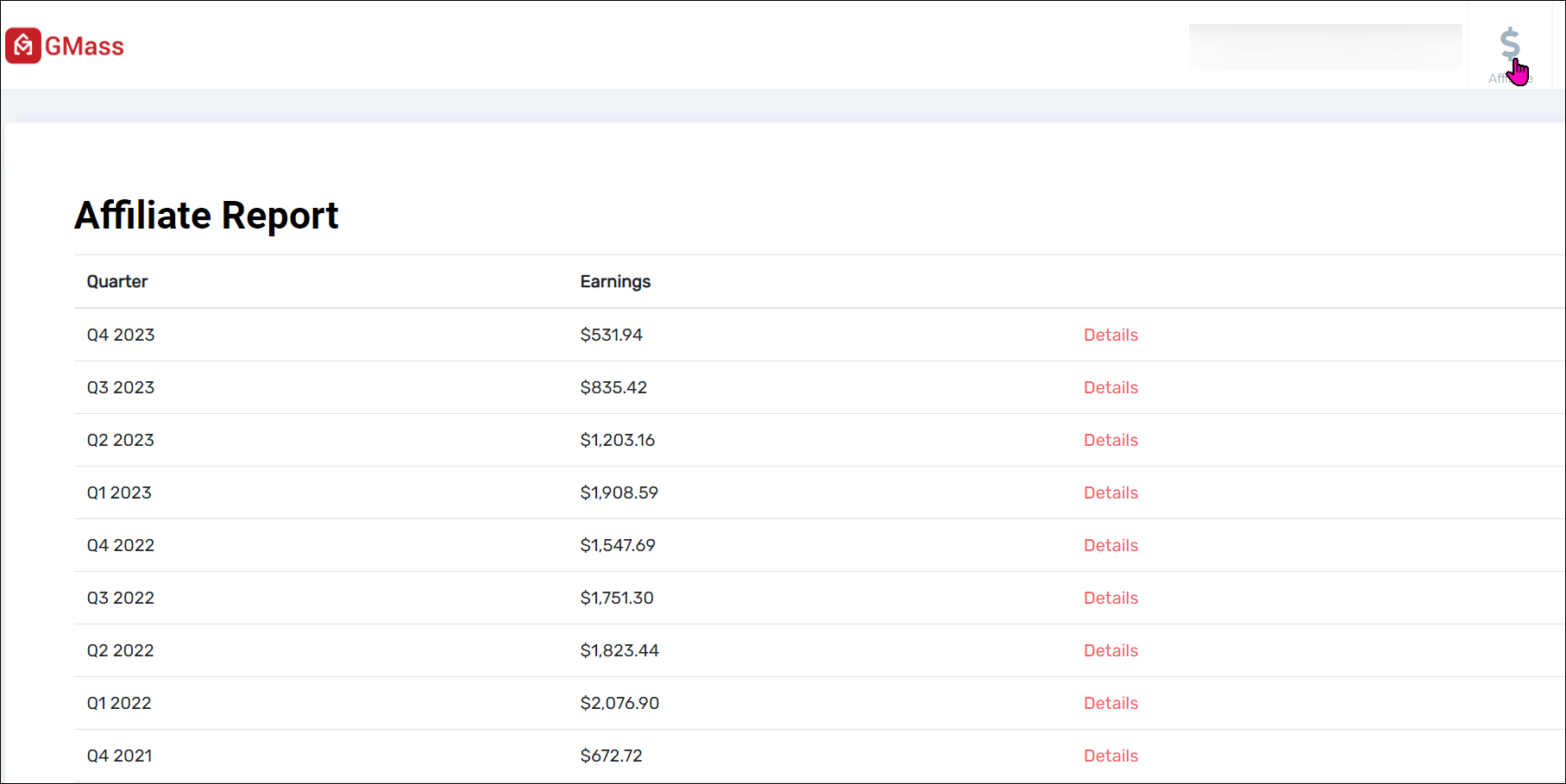
You can check your affiliate report in the GMass dashboard. At anytime you can get a report of all the accounts that have signed up with your Affiliate ID, and whether they are free or subscribed accounts.
As an affiliate, you’ll see a dollar sign icon in the top right. When you click on it you’ll see your affiliate report.
Click into the Details link to see a more granular breakdown of your affiliate commissions for each quarter.
You can also check your reports by sending an email.
To get that report:
Compose a new message in Gmail
Put affiliate@gmass.co in the To field
Put the word report in the Subject line.
Then hit the main GMass button. Do not hit the Send button.
The report contains the financial details of all of your referrals, including the revenue generated by each referral and the portion that will be paid back to you. The data updates every Sunday afternoon, so that you can get updated data on how much you’ve earned every week if you like.
Program Rules and FAQ
The paying subscriber you refer must visit the GMass website by clicking a link with your unique affiliate code so that we can track the referral, OR you must let us know within seven days of someone signing up that you are the one who referred them, using the method above.
If using a link with your affiliate code as the source of your referrals, we will cookie your referrals for 90 days. That way, even if they don’t immediately install the GMass extension and connect their account, they will have 90 days to do so for you to still be credited with the account.
If you let us know manually within seven days of a signup that you referred that new user, we may choose to conduct additional research to verify that you do indeed have a relationship with that user. This aspect of the GMass affiliate program is subject to abuse since it’s dependent on you the affiliate, being honest.
You cannot refer yourself or others at your own Google Workspace domain. Meaning, if you have a GMass account joe@abcwidgets.com, and you refer sam@abcwidgets.com, that does not qualify. If, however, you refer sam@xyzcompany.com, that does qualify.
Only accounts that are new GMass users can count as an account that you refer. Meaning, you cannot take credit now for a GMass user that signed up last month.
You may not promote GMass in any way that portrays GMass negatively, including sending spam to promote GMass.
You may not bid on any restricted terms (defined here) for search or content-based campaigns on Google, Bing, Yahoo, Facebook, Capterra, or any other advertising networks.
Restricted terms are any terms that use GMass’s brand name, including the following: GMass, GMass Inc., GMass.co, GMass coupon code, GMass promo code, GMass promo, GMass sales, GMass deals.
You may not use the restricted terms, including any changes or misspellings, in sequence with other keywords.
You may not use the restricted terms as your title, ad copy, display name, or display URL, nor as part of a domain or subdomain for your website.
If you automate PPC campaigns, it is your responsibility to exclude the restricted terms. We have a no tolerance policy on PPC bidding on restricted terms.
Any affiliates with ads or pages using the restricted terms will be removed immediately from the GMass affiliate program and forfeit any outstanding and recurring payments.
We do not compensate for just new users. A new user has to subscribe to a paid GMass plan in order for us to pay you, the affiliate.
Any new subscribers you refer must be legitimate subscribers, meaning they can’t be spammers or phishers or use GMass for any nefarious activities.
Any new subscribers you refer must have created their GMass account after you signed up. As an affiliate, you are not required to have a paid GMass subscription yourself.
95% of subscribers pay via Stripe, and 5% pay via PayPal. Unfortunately, due to PayPal’s antiquated system, we can’t calculate referral fees from subscribers that pay with PayPal. Please encourage your referrals to pay via Stripe so that you get credit for them.
Payouts are based on the net revenue per subscriber after Stripe fees.
Payouts on team plans are on base subscription plan prices only, not overages for extra users on top of the base plan. For instance, if one of the customers you recruit subscribes to the 10-user team plan but has 13 users, your commission is on the price of the 10-user team plan and will not include commissions for the three additional users.
GMass, Inc. reserves the right to terminate the affiliate program at any time, including termination of all payouts, for any reason. In general though, as an affiliate, you can expect to be treated fairly and compensated appropriately for referring paid subscribers.
The rules are subject to change at any time, and when they do, we will update this blog post with those changes.
Time to Get Started!
So if you haven’t done so already, it’s time to sign up for the GMass affiliate program.
Whether you’re an established affiliate marketer, a cold emailer who sees this as a new opportunity, a rookie publisher, someone who just wants to get paid for recommending GMass to friends, or anyone in between — this program is made for you.
So sign up via our quick applicationwe look forward to sending you your first commission check.
Ready to transform Gmail into an email marketing/cold email/mail merge tool?
Only GMass packs every email app into one tool — and brings it all into Gmail for you. Better emails. Tons of power. Easy to use.
Love what you're reading? Get the latest email strategy and tips & stay in touch.
I had a user report to me this morning that she sent a campaign with GMass, and the email went out with a blank body to all her recipients.Yikes!
I dove in, learned that she was using Canned Responses, a Labs feature of Gmail, and decided to use it myself. What I discovered was shocking: Canned Responses interacts with Gmail’s internal architecture in such a way that it breaks the functionality of many Gmail extensions, including GMass.
Without Canned Responses:
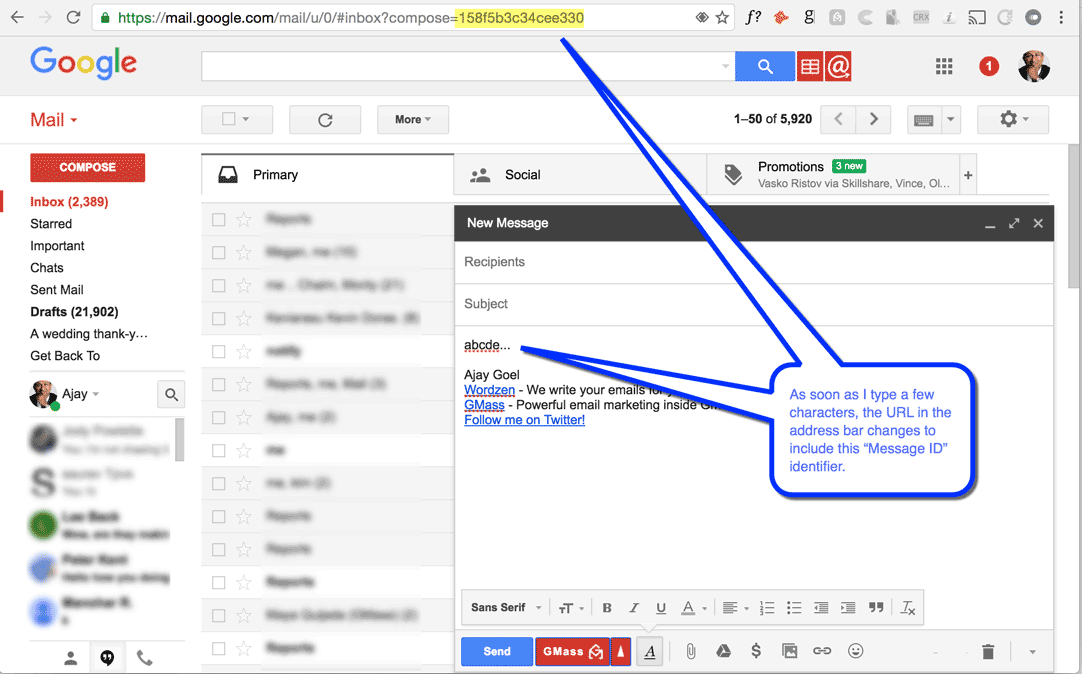
When you launch a Gmail Compose window, and start typing, you might notice that every few seconds, the URL in the address bar of the browser changes. That’s because Gmail is saving your message every few seconds and internally, generating a new “Message ID”, an internal identifier for your message. You can try it yourself. Launch a Compose window, and type a few characters in the Subject field, and you’ll notice that almost immediately the URL changes to include this Message ID.
With Canned Responses:
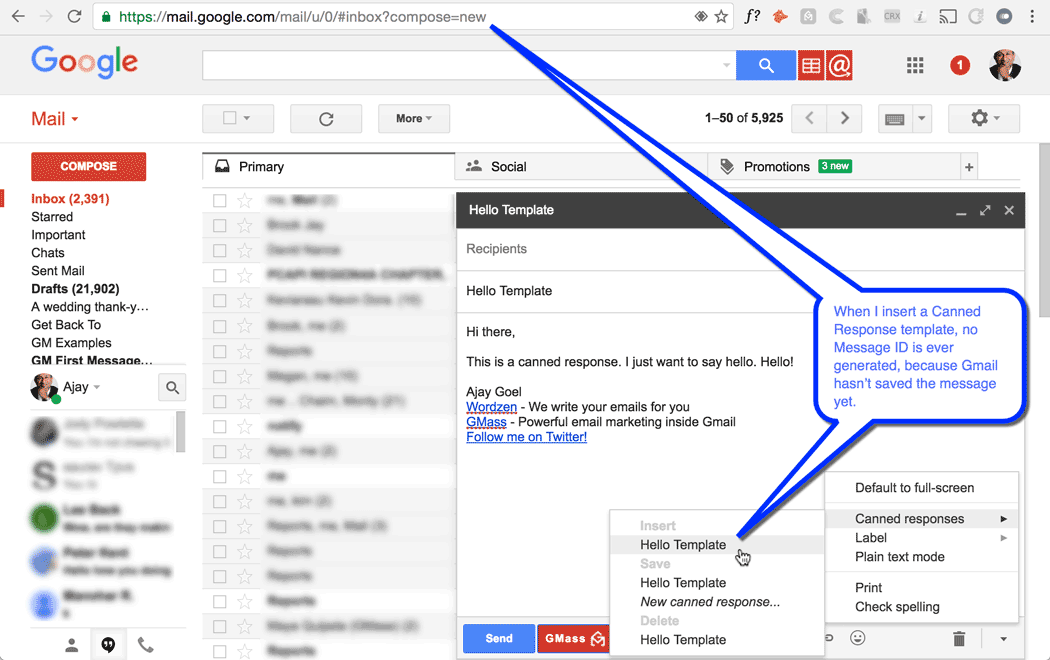
Now do a test where you launch a Compose window, and don’t type anything in any of the fields. Instead, choose to insert a template from your Canned Responses menu. The Subject and Body will populate, but notice how a “Message ID” is never generated. Gmail hasn’t yet saved the message. Many Gmail extensions, including GMass, rely upon Gmail saving the message and generating a Message ID in order to “tag” the message to perform some function. Now just type a character or word, anywhere in the Subject or Message fields. Voila! You should now see a Message ID in the URL.
Another side effect of using a Canned Response with GMass is that when clicking the GMass button to send your campaign, you may get a popup alert telling you that your Subject line is blank, even though your Subject line isn’t blank. Keep reading to learn how to work around this issue.
So the trick is…
The trick to using Canned Responses successfully with GMass or any other Gmail extension is to make at least one more change to your message after inserting the Canned Response. That can include something as simple as typing a character in the Subject or Message and then just deleting it. That will be enough to trick Gmail into saving the message and generating a Message ID that includes your Canned Response.
With GMass specifically, you can ensure your Canned Response is appropriately set by using the Send Test Email function by clicking the Settings arrow next to the main GMass button. If the test email arrives as you expect, then you know you can send your mail merge campaign.
Ready to transform Gmail into an email marketing/cold email/mail merge tool?
Only GMass packs every email app into one tool — and brings it all into Gmail for you. Better emails. Tons of power. Easy to use.
Love what you're reading? Get the latest email strategy and tips & stay in touch.
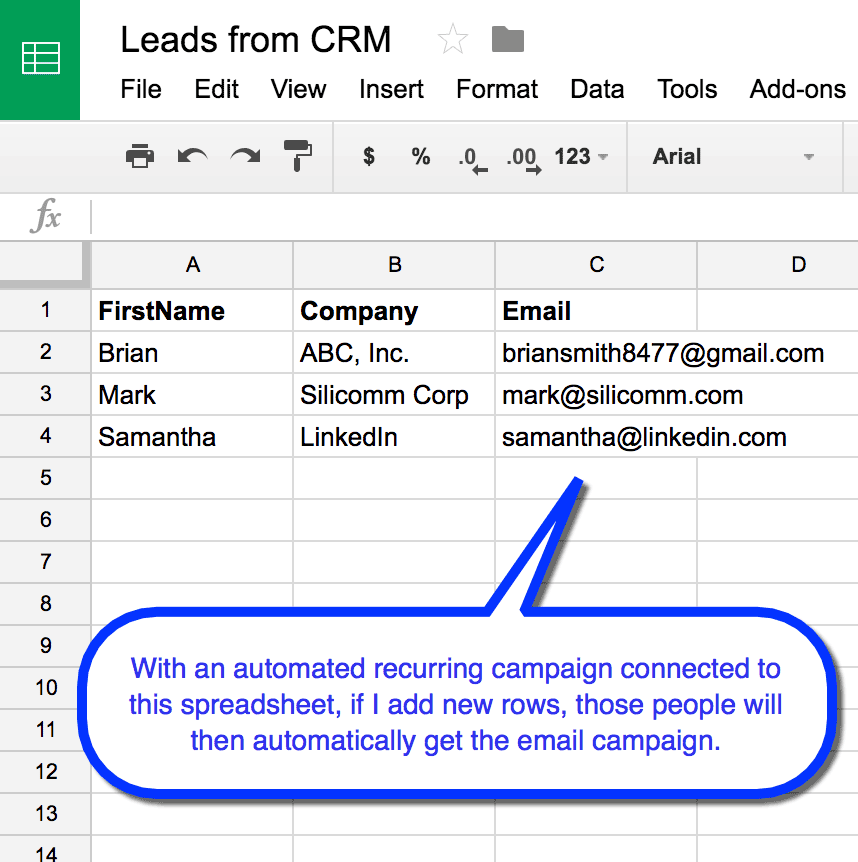
With GMass, you can send emails automatically to new rows added to your Google Sheet.
This is the second most powerful feature we have ever built (the most powerful feature is auto follow-ups). Now, with automated recurring email campaigns, you can connect a campaign to a particular Google Sheet, and have your email campaign send to any new email addresses in the spreadsheet at the time interval of your choosing (weekly, hourly, instantly, and so on). Additionally, you can set auto follow-ups on a campaign, for a fully automated drip campaign system. Just add your new prospects to your spreadsheet, and the prospects will automatically start receiving your sequence of emails, including any auto follow-ups.
You can also configure a recurring campaign to send to all addresses in the Sheet, instead of just new addresses, to conduct a recurring reminder-style email campaign to the same set of people.
Set up an automated email campaign
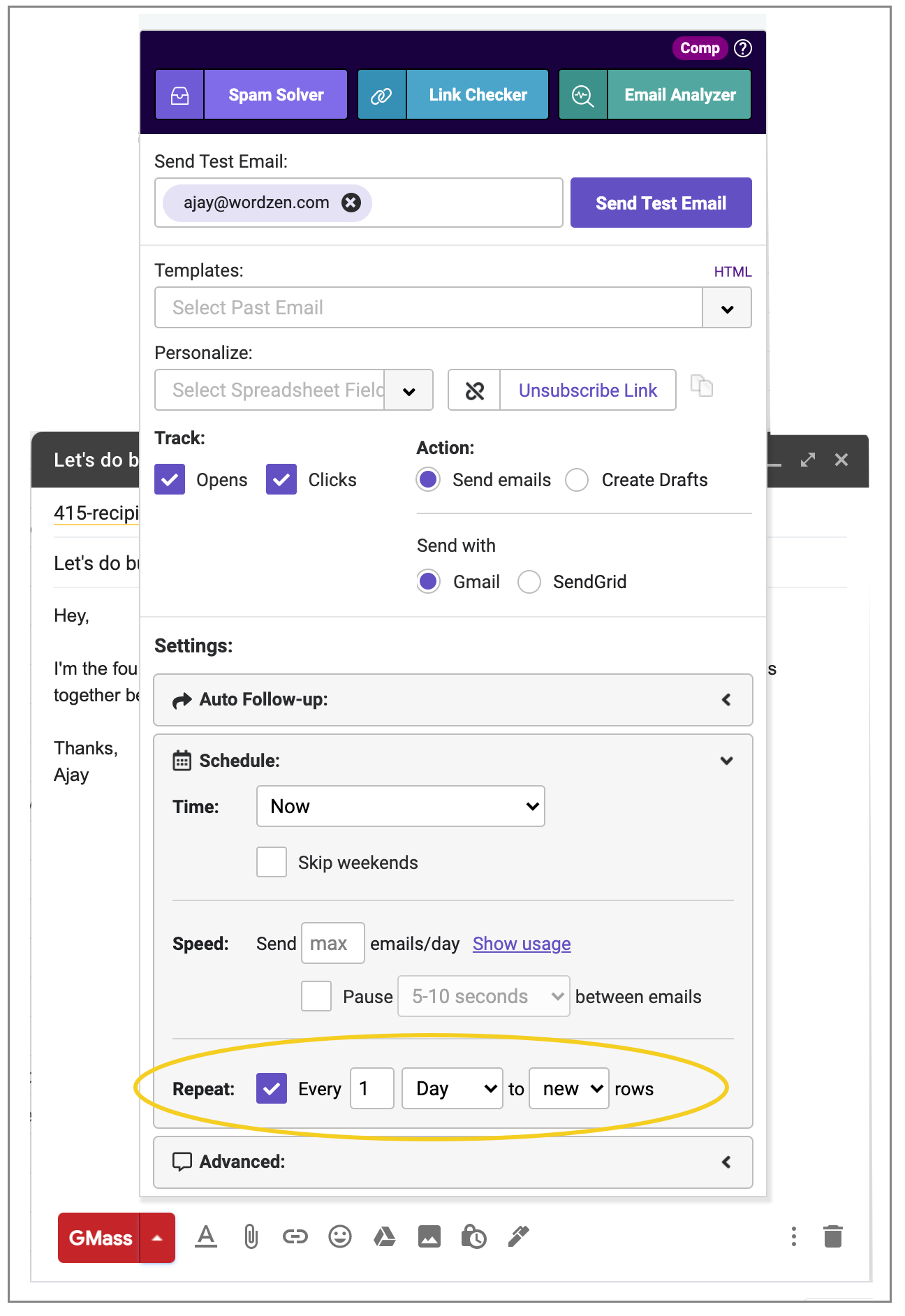
Just check this one magical box when setting up your mail merge campaign…the one that says “Repeat every 1 Day.” You can set it to repeat hourly, daily, weekly, monthly, or instantly.
This checkbox will show up anytime you compose a campaign after connecting it to a Google Sheets. It will cause the campaign to send daily or hourly, based on the time the campaign is first sent, and it will send to any new email addresses found in the spreadsheet every day or hour. If you set your campaign to have auto follow-ups, then each new email address in the spreadsheet will get the original campaign and the sequential automatic follow-up emails, based on their behavior.
You can enter them manually, or you can use a number of automated systems available, like Zapier, to tie your Google Sheet to any number of outside databases or CRM systems.
Just add new rows and those people will get the email campaign and any associated automatic follow-up emails.
Here at my company, we house our data in a SQL Server database, and we use Zapier to push data from SQL Server into a Google Sheets daily. We then have a daily recurring GMass campaign set to email new GMass users every day. The campaign connects to the spreadsheet every day, finds any new rows, and sends the mail merge campaign.
The auto follow-up option to send to “all”
Now, in addition to setting auto follow-ups based on those who didn’t reply and who didn’t open, you can also set the follow-up to go to everyone who received the original email by choosing All, regardless of their behavior. This is useful for creating for example, a series of welcome emails designed to introduce various features of your product or service to a new subscriber. You can use this new option, with a spreadsheet, to fully automate a “welcome series” campaign, if your new customers are added to the Sheet automatically every day.
The new “All” option will send the follow-up to everyone that was part of the original campaign, regardless of whether they opened or replied.
Practical Examples
What can you do with an automated campaign?
I’m using the hourly recurring campaign feature to ask free GMass users to subscribe to a paid account. In GMass, if you’re a free user and you attempt to send more than 50 emails, you get a popup asking you to subscribe. Each time that happens, your account is logged to a table in our database. Every few minutes, the data from that table is copied over to a Google Sheet, via an internal tool we wrote. Then, every hour, GMass checks that spreadsheet for new addresses, and sends an email asking the user to subscribe.
What else can you use it for?
Continuous lead flow
If you update your spreadsheet throughout the day with new leads, you can set up a daily recurring cold email pitch which will send to any new addresses every day.
After-purchase coupon offer
If you have everyone that has purchased from your website synced into a spreadsheet, you can send them a coupon for their next purchase. Sending these emails about an hour after the purchase can be advantageous, because if you send the coupon immediately after purchase, the shopper will wish they could have applied it to the current purchase. Delaying the email by an hour or so, however, will make the coupon more attractive.
Asking for reviews
Whether you’re a restaurant with a Yelp review page, a mobile app company, or even a Chrome extension developer, there’s likely a place online where users can post reviews. Setting up an automatic email flow asking for a review after a user has taken some action (downloading your app, taking an important step in your software onboarding process), can greatly increase the chances of a user writing a positive review. Ask them when you’re product is top of mind and when they’ve just had a pleasant experience with it, but don’t ask them immediately after. An hour or so may be the perfect delay.
Frequently Asked Questions
Q: What’s the big deal about recurring automated email campaigns?
A: The big deal is that now instead of creating and sending a new campaign every day or every week to your new prospects, you can set your campaign up just once and still have it sent to new prospects, just by adding the new prospects to your spreadsheet. You control who gets your sequence of emails by who you add to your spreadsheet.
Q: I’ve set my campaign to recur daily, but now I’ve changed my mind and want to stop it. How do I do that?
A: Just find the campaign in your GMass Scheduled Label, open the Draft, click the GMass Settings arrow and click the red Cancel button.
Q: I’ve set my campaign to recur daily, but now I want to change the spreadsheet it’s connected to. How do I do that?
A: Once you’ve set up an automated recurring email campaign, you can’t alter the spreadsheet or the spreadsheet filter it uses. You will need to cancel the campaign and create a new one that is connected to the new spreadsheet.
Q: How are auto follow-ups related to this new capability?
A: If you create a recurring automated email campaign with auto follow-ups configured, then every day when the email campaigns sends to new rows in the spreadsheet, those new email addresses will also receive a sequence of auto follow-up emails based on whether or not they open, reply, or are just a part of the campaign.
Q: If I set a filter when connecting to my Google Docs spreadsheet, when the campaign recurs, will it only send to new rows that match the original spreadsheet filter?
A: Yes, it will. For example, let’s say you have a spreadsheet with a column called “DripCampaign” and you’ve set each row to “yes” or “no” for this column. When you use GMass to connect to the spreadsheet, you set a spreadsheet filter of “DripCampaign=yes”. When you set your campaign, you set it to repeat daily. When the campaign looks for new additions to the spreadsheet every day, it will only look for rows where DripCampaign=yes.
Q: How does this feature “know” which addresses in the spreadsheet are new?
A: When GMass checks the spreadsheet for “new” addresses, it actually grabs ALL of the email addresses and then removes the ones that have already received an email from that particular campaign. That’s how it finds all of the “new” addresses. Therefore, you can rearrange your spreadsheet in the middle of a campaign, move rows around or delete rows, and you won’t have to worry about GMass sending to an email address for a second time.
Q: I’ve sent the campaign at 4:00 PM, but I want it to recur daily at 2:00 PM instead of 4:00 PM. How can I change that?
A: Just find the campaign under the GMass Scheduled Label, click the GMass Settings arrow, and change the scheduled time to the next day at 2:00 PM, and then hit the GMass main button.
Q: My recurring campaign has a daily start time of 1:00 P.M. and an end time of 4:00 P.M. What happens if my recurring campaign gets a new row and is scheduled to send outside that window.
If you’re using GMass’s end time feature, and have a recurring email that would fall outside of your daily sending window, GMass will hold that email until the next allowed time and then send it.
This is also true if you are using scheduling features like skipping certain days of the week or holidays; GMass will hold recurring campaigns until the next allowable send time.
Q: Can I send a recurring campaign if my campaign uses multiple lists?
A: Yes. If you’re using multiple lists in a single campaign with GMass Multi Merge, you can run recurring campaigns. Set up your recurring campaign as normal. GMass will monitor all the connected Google Sheets for new rows and send accordingly.
Q: Why are some people still getting this email even though I removed them from the Google Sheet?
A: Often it’s because you set the campaign to recur to “ALL” and the initial emails in the sheet are still receiving your recurring campaign. Here’s an explanation of why that’s happening and a workaround.
See why 99% of users say they’ve had their best deliverability ever with GMass
Email marketing, cold email, and mail merge all in one tool — that works inside Gmail
Love what you're reading? Get the latest email strategy and tips & stay in touch.
Occasionally, a user is unable to handle all the sales generated by using GMass and therefore wants to uninstall GMass.
If you find yourself in this predicament, this is how you do it. It’s a two or three step process to fully remove GMass from your Chrome browser and from your Gmail account.
Step 1:
Remove the GMass extension from your browser by navigating Chrome to chrome://extensions, finding GMass in the list of extensions, and either unchecking the Enabled box it or deleting it entirely with the trash can icon. This will remove the GMass buttons from the Gmail interface.
Step 2:
Disconnect GMass from your Gmail account. Go to Apps Connected to your Google Account, and find GMass, select it, and click REMOVE. This will prevent GMass from connecting to your account and sending emails on your behalf.
Step 3:
If you’ve installed the GMass Add-on, in which case the GMass icon shows up on the right sidebar on desktop and at the bottom on mobile, you can remove the Add-on from your account by going to your Gmail Settings, navigating to the Add-ons tab, and removing GMass.
See why 99% of users say they’ve had their best deliverability ever with GMass
Email marketing, cold email, and mail merge all in one tool — that works inside Gmail
Love what you're reading? Get the latest email strategy and tips & stay in touch.
My wife and I with our brand new 2016 Lexus NX 200t on August 1, 2016. We used GMass to negotiate the price of the car and never set foot in the dealership other than to pick up the vehicle.
As an email marketing and general purpose mail merge tool for Gmail, GMass can be used in an infinite number of ways. A few months ago in August, I used it to not only buy a new 2016 Lexus NX 200t, but to ensure I paid the lowest possible price.
I used James Bragg’s system of buying a new car, which recommends you fax blast a letter detailing the exact car you want to every dealership within a 100 mile radius. You then let the dealerships compete against each other to offer you the lowest possible price. I adapted his method to email, and GMass was the perfect solution to coordinate, track, and automatically follow-up with car dealerships.
Setting up the email campaign to the dealers:
1. Using a combination of Edmunds.com and the Lexus.com websites, I spec’d out exactly what I wanted, from options to accessories to acceptable colors.
2. Then, I noted the Invoice Price and the MSRP for inclusion in the email. This way dealerships would know that I did my homework and was a serious buyer.
3. Next, I looked up every dealership within a 100 mile radius of Chicago and called each one and asked the receptionist for the email address of the sales manager. It’s important to work with a sales manager as opposed to any old sales associate, because the sales manager has the greatest power to negotiate at-cost or below-cost deals. I placed the sales manager’s name, email address, and other contact information in a Google Sheets spreadsheet.
The spreadsheet I made of all Chicago area Lexus dealers and sales managers
4. Next, I used GMass to connect to my spreadsheet and then drafted my email in Gmail. Here’s the email:
The mail merge campaign I created to send to the 10 Lexus dealers in Chicago. I’m personalizing each email with the sales manager’s name and the dealership name.
Using GMass, I personalized each email with the sales manager’s name and the name of the dealership.
5. I included an automatic follow-up to be sent 24 hours later to any salesperson that didn’t reply.
Setting an auto email follow-up would trigger a new email 24 hours later to anyone that didn’t reply to the original email.
6. Finally, I scheduled my email to go out on the last Tuesday of the month, which in my case was Tuesday, July 26, 2016. Bragg recommends sending your offer on Tuesdays, Wednesdays, and Thursdays close to the end of the month.
7. I hit the GMass button and my campaign was scheduled.
After I sent the email:
1. Within ten minutes of the email being sent, two dealers called with an offer. Lexus of Naperville offered $3,750 off MSRP and Lexus of Highland Park offered $3,033 off MSRP.
2. Because these two dealers called rather than replying to the email, I didn’t want them to receive the 24 hour follow-up email. So I manually entered their addresses into the GMass auto follow-up suppression system to ensure they didn’t get the 24 hour follow-up.
3. Within the first three hours, five dealerships had replied to my email, either by calling or replying to the email.
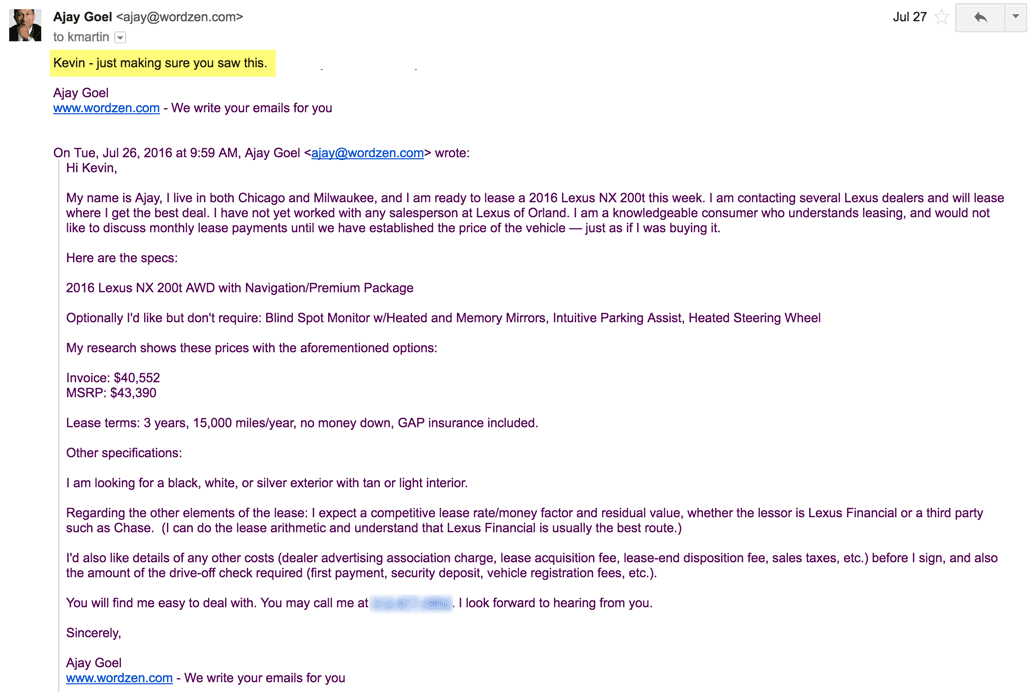
4. By the time the auto follow-up went out 24 hours after the original email, only two dealerships hadn’t responded, so only two follow-up emails were sent. Both of these dealerships responded within an hour to the follow-up, which is typical. That is the power of automatic follow-up emails…they essentially ensure you get a response. Each manager explained that he didn’t work the day before and had just arrived at the office. I suspect neither would have responded if it wasn’t for the auto follow-up, because they would have thought that the opportunity was gone since it was 24 hours old, but the auto follow-up email made it seem like the opportunity was still fresh and available. Here’s an example of one of the auto follow-up emails:
The auto follow-up email that went out to a dealer 24 hours after the original email, because he hadn’t replied yet.
After the initial round of communication, in which all nine dealers responded, I now had 8 offers from 9 dealerships. The 9th dealership did respond to my email but never actually made an offer. Throughout the process, I never set foot in a single dealership. I did it all from home, and apart from having to be on the phone for a few minutes, conducted all of the business by email and in an automated fashion.
Lessons learned from the negotiations:
1. Many dealerships called in response to the email instead of emailing back. I can understand that — by speaking, they’re hoping to lock up the deal right away, and the phone requires two-way communication so it’s also validation for the dealer that I’m a legitimate buyer.
2. The car with the exact options I wanted wasn’t available at any of the nine dealerships. Why? Because most car manufacturers, including Lexus, package the various options together into two or three different car configurations. Mathematically speaking, if a car offers 10 options, that’s 55 different possible configurations of options, and no car manufacturer wants to make 55 different versions of their car. So they make two or three versions, with sets of options they think will be most attractive to buyers. So the car I ended up leasing had more options than the car I detailed out in the email.
2. In one case, the sales manager cornered me: “Tell me where I need to be on price to lock this up.” As Bragg will tell you, refuse this question. Stay true to the process of making the dealer offer the lowest price, and you can walk away an honest man. You are communicating to the dealers that you’re going to buy from the person that offers the lowest price, and if you spit out a price to lock in a particular dealer, you’re not giving every dealer a fair chance to compete for your business. For me, I wanted to a) get the lowest price, and b) conduct my shopping in an ethical manner.
3. What I didn’t know prior to speaking with dealerships is that at the time Lexus was offering two incentives on new car leases:
Waiving the first month’s payment, whatever that may be based on the purchase price, money factor, taxes, and other variables.
$500 lease cash applied to the final negotiated price of the car. Meaning, if I negotiated the purchase price of $1,000 off MSRP, the purchase price effectively became $1,500 off MSRP. Every dealer offered this, although some were more transparent about it than others.
4. Leasing a new car in Chicago is always a losing game regardless of how good a negotiator you are, because of Chicago’s ridiculous car lease taxes. Despite a recent law that lowered car lease taxes by taxing the monthly payment instead of the full price of the car, you still pay a whopping 17% tax (sales tax and use tax) on the monthly payment of a car lease. My wife’s mom is a resident of Wisconsin, however, and she graciously agreed to let us lease the car in her name, saving us a significant $60/month x 36 months = $2,160. That’s how much higher Chicago lease taxes are than Milwaukee’s.
5. The best offer came from Bredemann Lexus in Glenview, Illinois. The initial offer was:
$1,200 under invoice for any NX 200t that I wanted, and then all other standard fees from Lexus Financial, which amount to:
$700 acquisition fee
$169 in document fees
.00085 money factor, which amounts to a low 2.04% finance rate
$500 lease cash-back on the final negotiated price of the car
First month’s payment covered by dealer
Following Bragg’s process, I conducted a second round of negotiations with each dealer to provide them the opportunity to lower their initial price. In this case, Bredemann, who unbeknownst to them, had already offered the best price, agreed to another $120 off the purchase price.
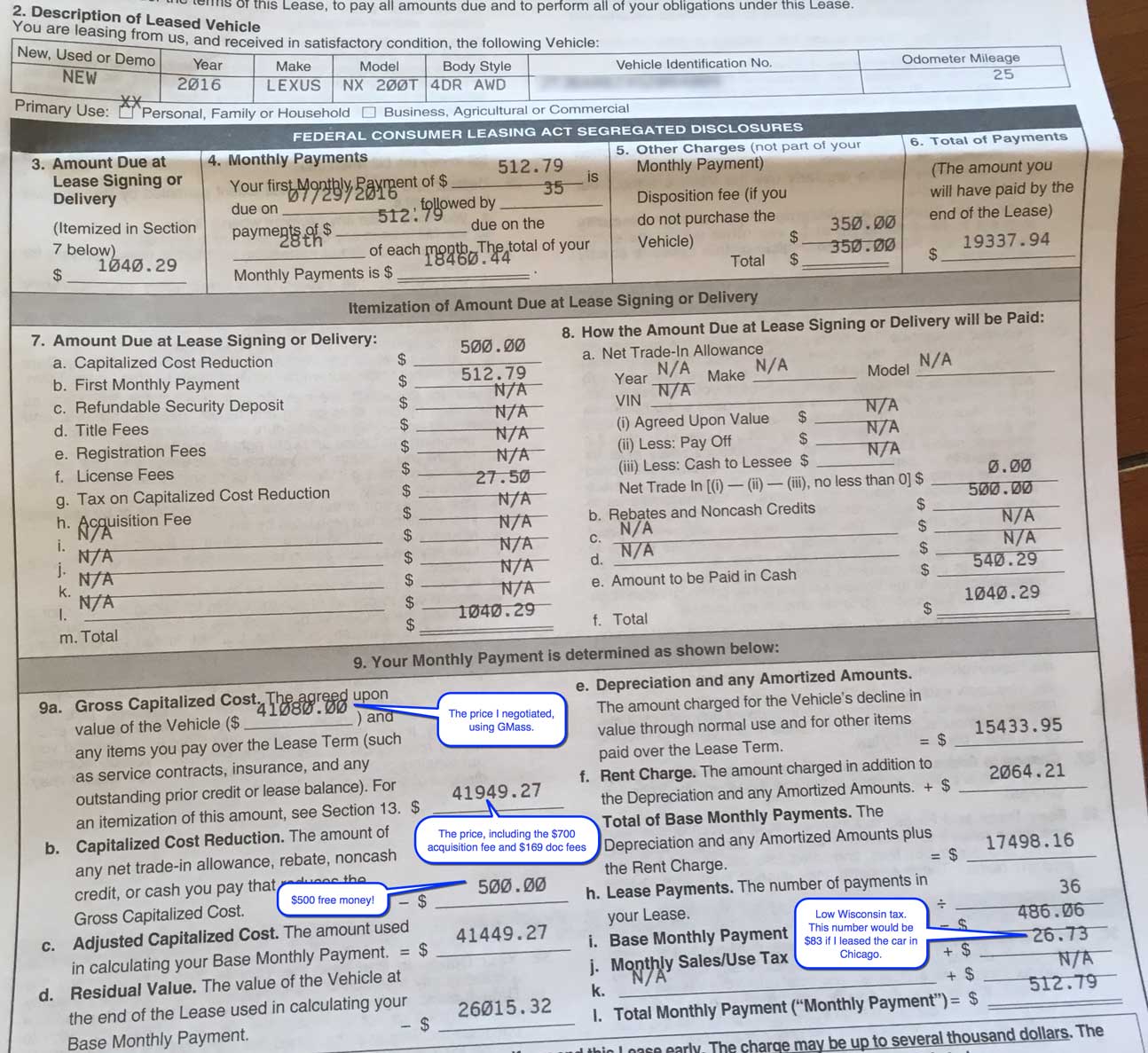
The Lexus lease contract:
The final Lexus lease contract. Note the final negotiated price and the $500 bonus cash. Total monthly payment = $512.79.
Final thoughts:
Using GMass, I negotiated and bought (well, leased) a new 2016 Lexus NX 200t for $41,080, when the sticker price was $44,854. I used scheduling to send the emails early on a Tuesday morning, I used open-tracking to track which dealerships received my offer, and I used auto follow-ups to ping the sales managers that never responded.
Anyone can use GMass to facilitate the same car buying process. The best part — GMass lets you send up to 50 emails a day for free, so unless you’re planning on contacting more than 50 car dealerships (which would be insane), you don’t have to pay to conduct this process.
Be someone’s car buying hero and share this!
See why GMass has 400k+ users and 9,000+ 5-star reviews
Email marketing. Cold email. Mail merge. Avoid the spam folder. Easy to learn and use. All inside Gmail.
Love what you're reading? Get the latest email strategy and tips & stay in touch.
In the last few days, we’ve noticed an increase in the number or errors returned to GMass by the Gmail API. The Gmail API is the interface by which GMass connects to your Gmail account and sends email messages through your Gmail account. When the Gmail API spits back an error, it is usually temporary and intermittent and errors received during campaign sending can be overcome by resending your email to just the recipients that resulted in errors in the first place. These errors are taking place on Google’s servers and are not indicative of anything being wrong with GMass.
Usually you will notice errors in the form of a “backend error” from the Gmail API and you will see these in the email confirmation that you get after a campaign finishes sending. You might see:
listed under the Individual Recipient Send Errors of the email confirmation.
If you see that your mail merge campaign resulted in these errors, you can resend your campaign to just the email addresses that didn’t receive it because of this error.
The GMass team is working on a way to automatically re-try sending these emails, but for now, you can follow the instructions below to manually resend your campaign to the errored addresses.
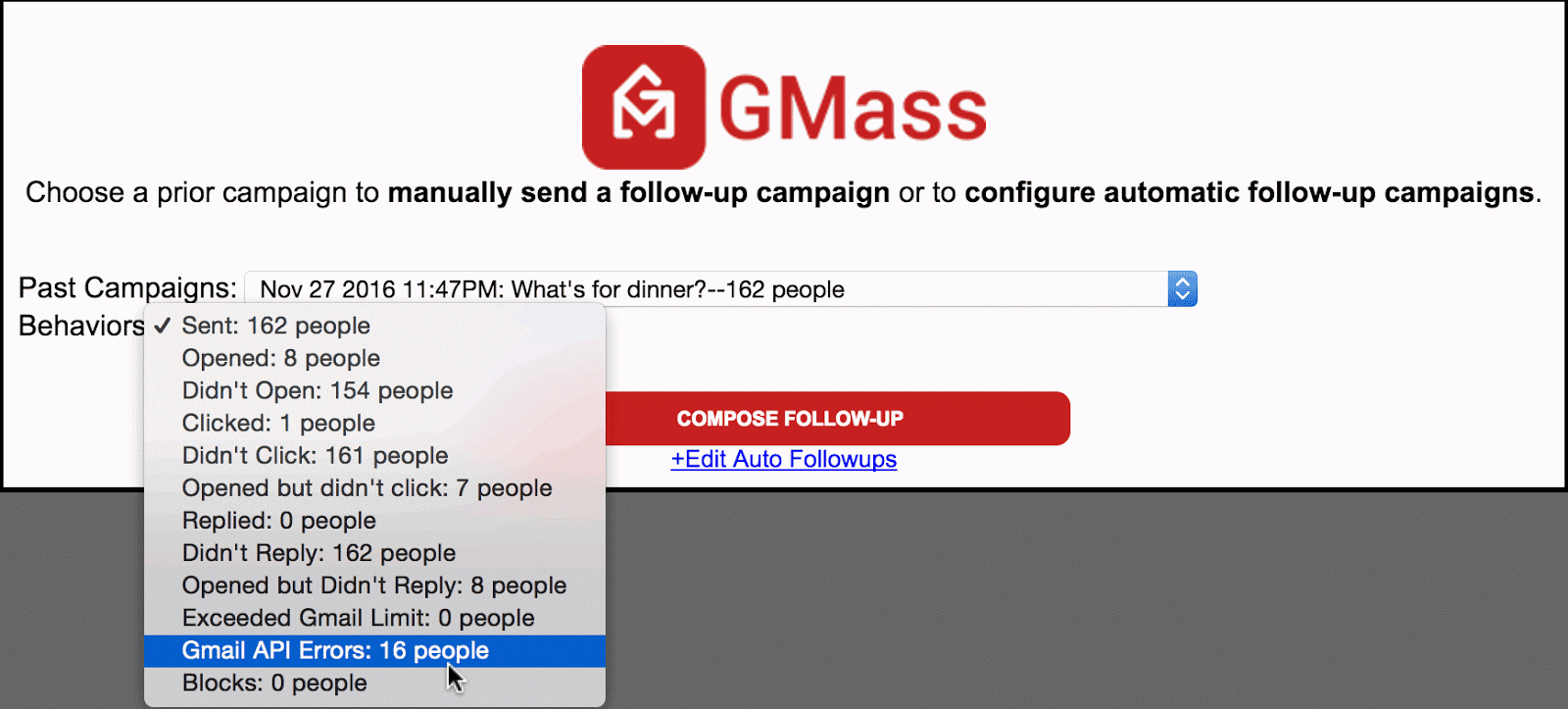
1. Click the red @ button near the Gmail Search bar. This is the manual follow-up tool.
2. Choose the campaign from the dropdown that experienced the blocking.
3. Under Behaviors, choose Gmail API Errors.
4. Next click the main COMPOSE FOLLOW-UP button.
5. A Gmail Compose window will launch and the To field will be filled with the addresses you want to send to, the addresses that previously blocked your campaign.
6. Next load up the content of your campaign by clicking the GMass Settings arrow and choosing your original campaign from the Load Content dropdown. Your Subject and Message will be set.
7. Lastly, ensure all other GMass Settings are how they should be, such as Tracking of opens and clicks, and make sure the Schedule is set to the desired time of sending.
8. Finally, hit the red GMass button to send. Your campaign will now go to the email addresses that errored out the first time.
Ready to send better emails and save a ton of time?
GMass is the only tool for marketing emails, cold emails, and mail merge — all inside Gmail. Tons of power but easy to learn and use.
Love what you're reading? Get the latest email strategy and tips & stay in touch.
GMass, the ultimate email marketing tool for Gmail, offers lots of mail merge personalization options, from simple mail-merge personalization to fallback values and even automatic first name detection. Sometimes, you may need to get a little more sophisticated and include a personalized link or URL for each recipient of your email marketing campaign.
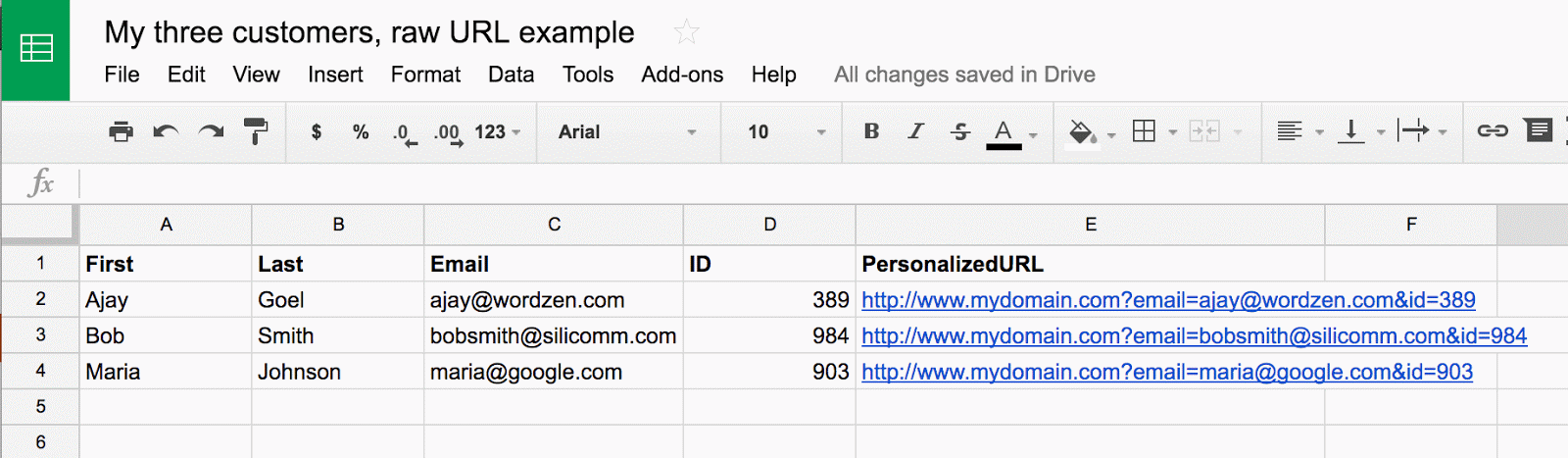
The best practice for including a personalized URL is to include the full URL, with personalization in place, or an HTML code snippet of the link, as a column in your Google Docs spreadsheet.
Raw URL Example
Below is an example of a spreadsheet where the personalized link is in raw form, with just the URL specified.
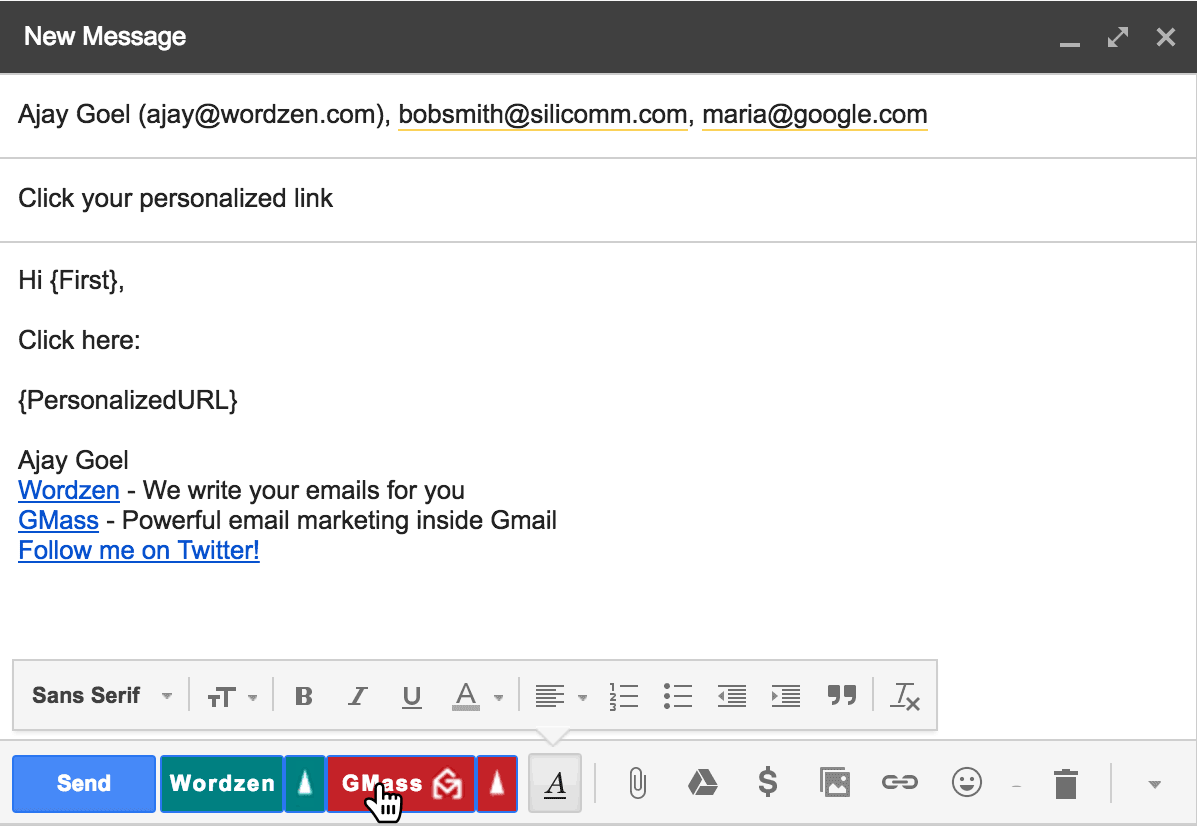
After using GMass to connect to your spreadsheet, the Compose window launches, and your message might look like this:
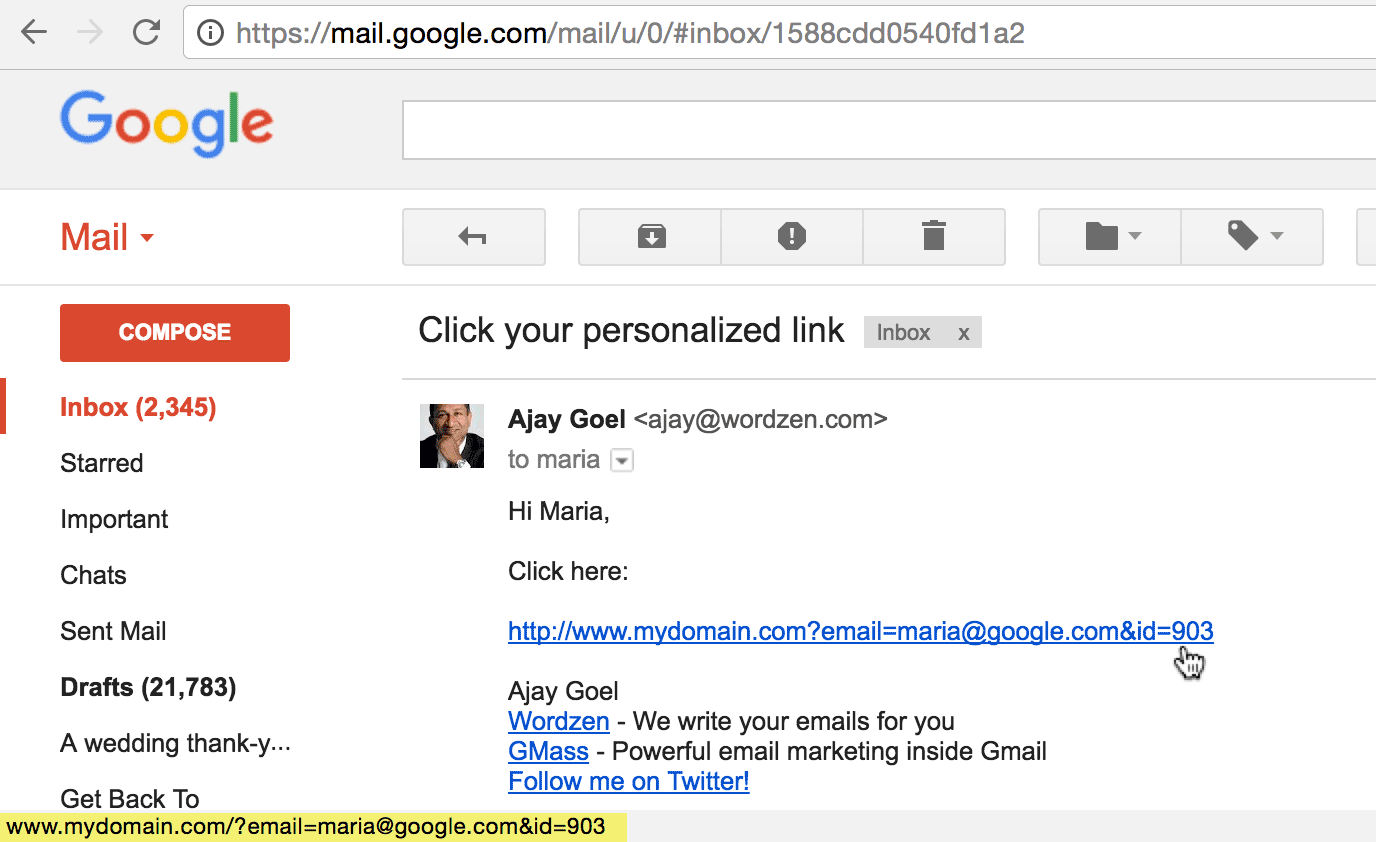
When your email is sent, the recipient, maria@google.com, will get a message that looks like this:
The link appears just as it did in the row for maria@google.com in the spreadsheet. Hovering over the link shows that it points to the same URL as is displayed.
URL with Anchor Text Example
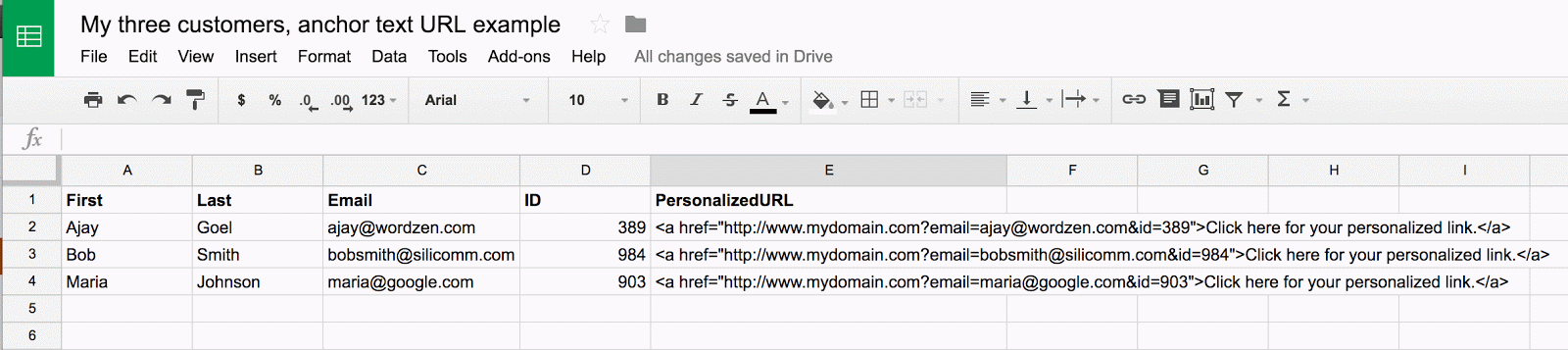
Next is an example of a spreadsheet where the personalized link is part of an HTML anchor tag, such that meaningful text is displayed that, when clicked, will take the user to the personalized URL. The full <a href> anchor tag will be inserted into the HTML message at the point designated by the {PersonalizedURL} mail merge tag.
After using GMass to connect to your spreadsheet, the Compose window launches, and your message might look like this:
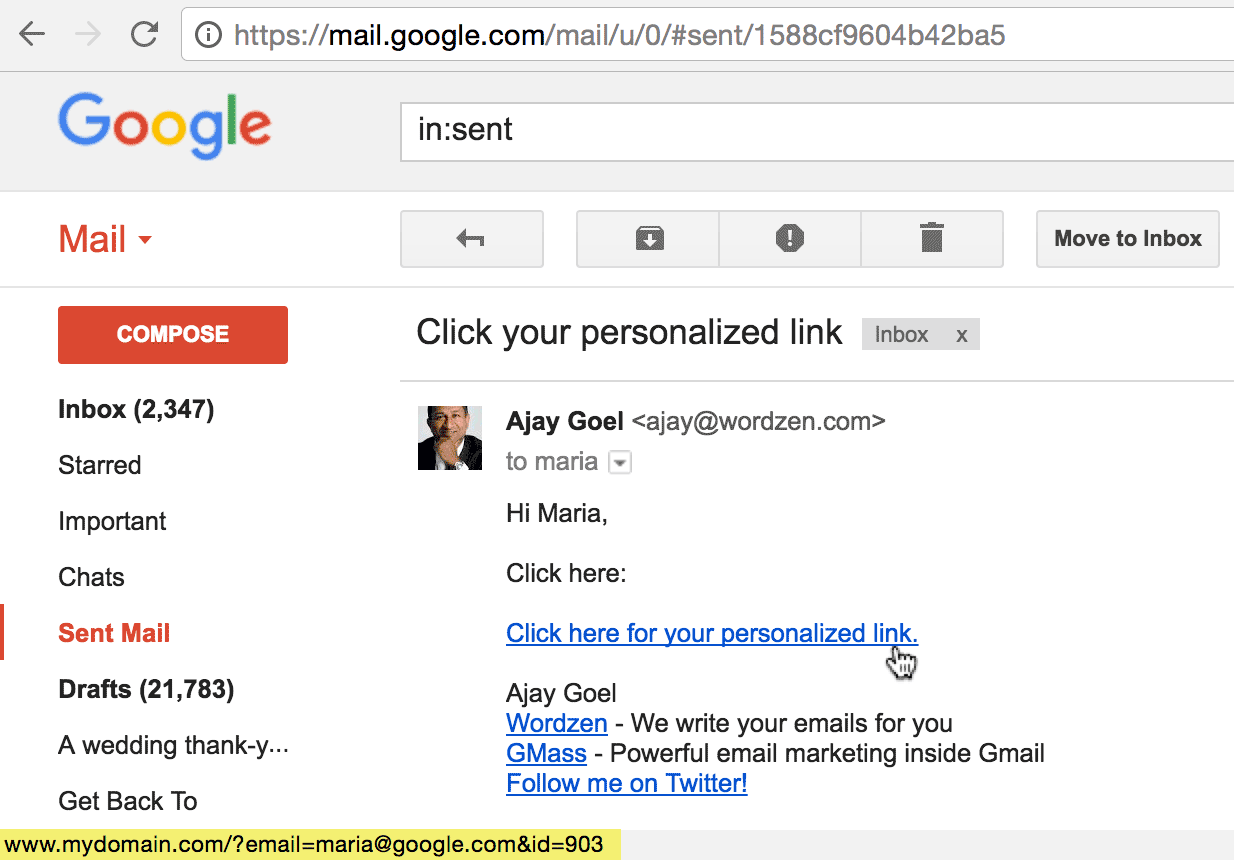
When your email is sent, the recipient will get a message that looks like this:
The anchor text is displayed, since it was surrounded by <a href> tags in the spreadsheet cell, but hovering over the link displays the target URL in the bottom status bar of the browser (highlighted in yellow).
Click tracking will not be applied
If you enable click tracking in GMass settings, these particular links will not be modified, regardless of whether you use the raw URL or anchor text approach. That’s because GMass applies click tracking to links before it applies mail merge personalization, so by the time the links are personalized, the click tracking process has already finished altering links in the campaign. In addition, theoretically, because these links are unique to each recipient in the first place, it’s not necessary for GMass to click-track them since they are trackable on the web server of the domain in the personalized URL.
Do not personalize links directly in the Compose window
The reason we advocate placing the full personalized URL as a column in your spreadsheet is because the Gmail Compose window is prone to altering a personalized link and rendering it a broken link. This is due to how Gmail encodes a message behind the scenes.
In this example:
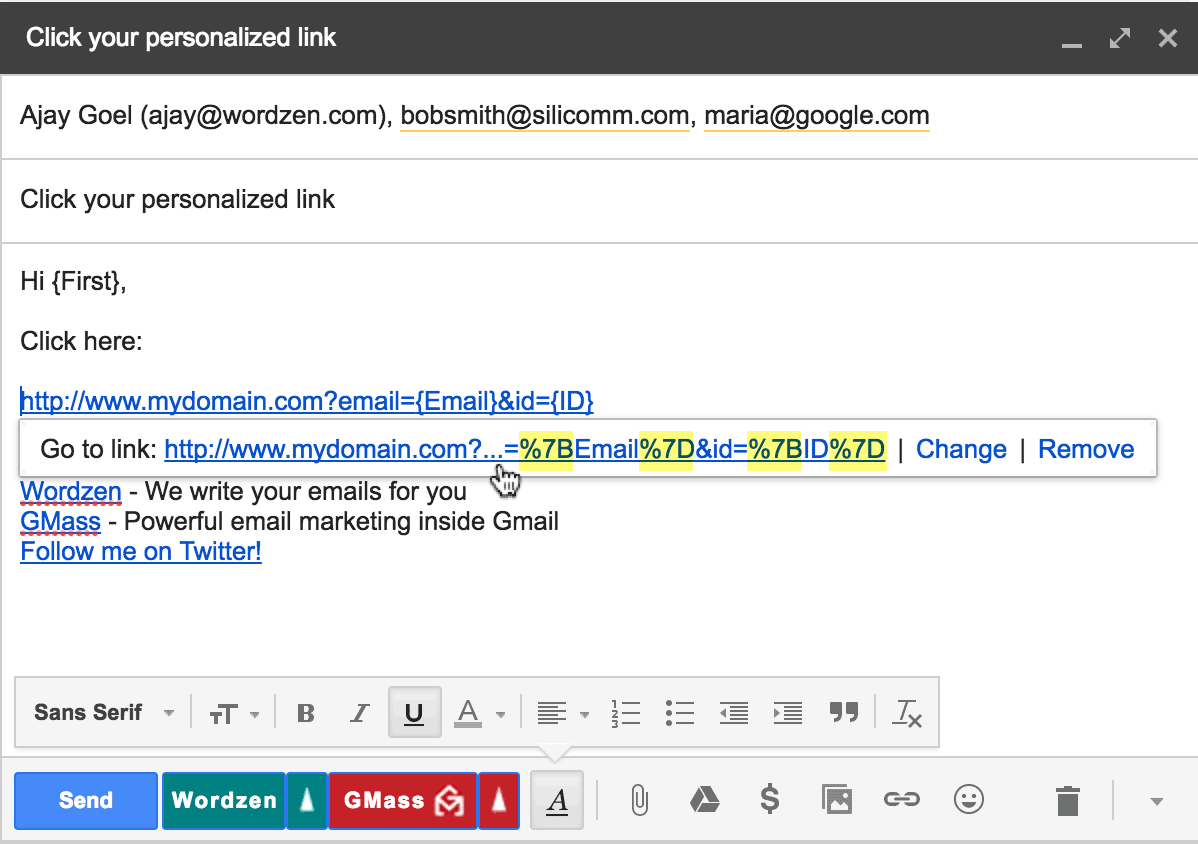
Do NOT personalize URLs as shown above.
The user has attempted to personalize a URL directly inside the Gmail Compose window, by inserting the mail merge personalization variables as part of the URL. In theory this should accomplish the same objective as placing the full personalized link in the spreadsheet cell, but this actually does not work because Gmail encodes the curly brackets into their HTML-encoded form, replacing the left curly bracket with %7B and the right curly bracket with %7D. This encoding would break the GMass personalization process, causing these merge tags to not be replaced with their appropriate values.
Summary
If you need to send personalized URLs as part of a Gmail-based email marketing campaign, include the full personalized URLs, one for each recipient, in your Google Docs spreadsheet rather than including the mail merge personalization variables as part of the link in the Compose window.
Ready to transform Gmail into an email marketing/cold email/mail merge tool?
Only GMass packs every email app into one tool — and brings it all into Gmail for you. Better emails. Tons of power. Easy to use.


 Using Gmail and my Gmail extension GMass, it’s easy to send a
  For example, if I wanted to send a mass email to everyone with whom I’ve had a conversation about “iPhone”, I could search for “iPhone” in my Gmail account, and then hit the GMass Build Email List button to instantly create a list of all those email addresses.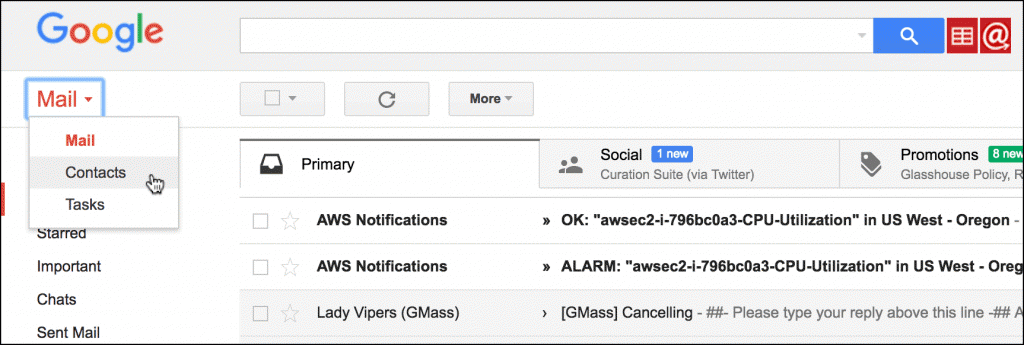
 Then, upload the CSV file into a Google Sheets spreadsheet.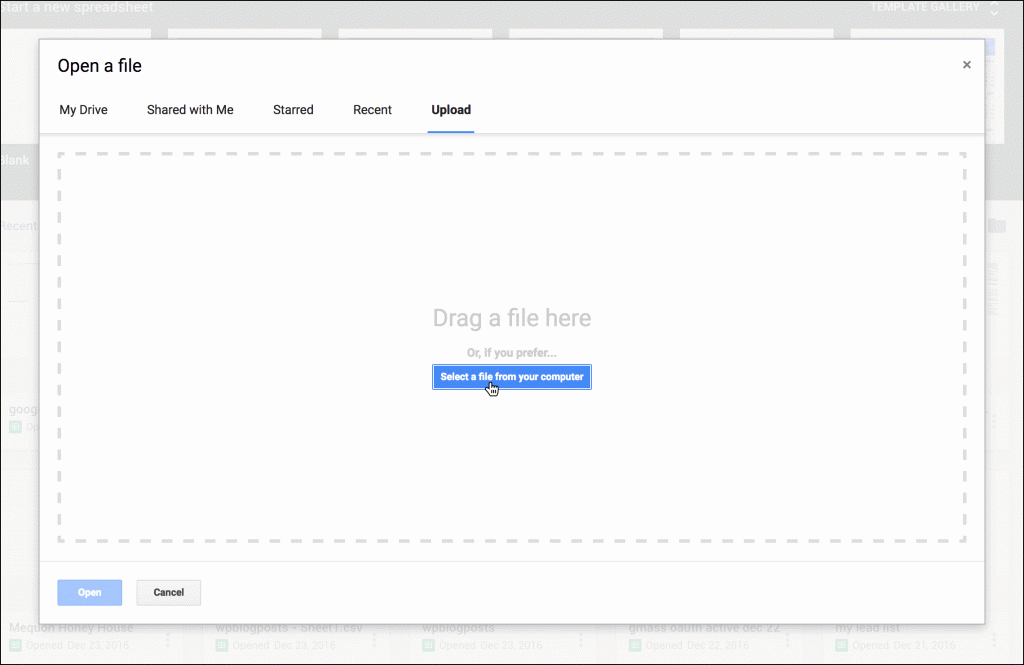
 Finally, you’ll have a Compose window with all of the email addresses in the To line. If you have more than 1,000 addresses, GMass will consolidate the addresses into an “alias” address, as is shown in the screenshot below. This alias address is an address that represents all 24,997 addresses.
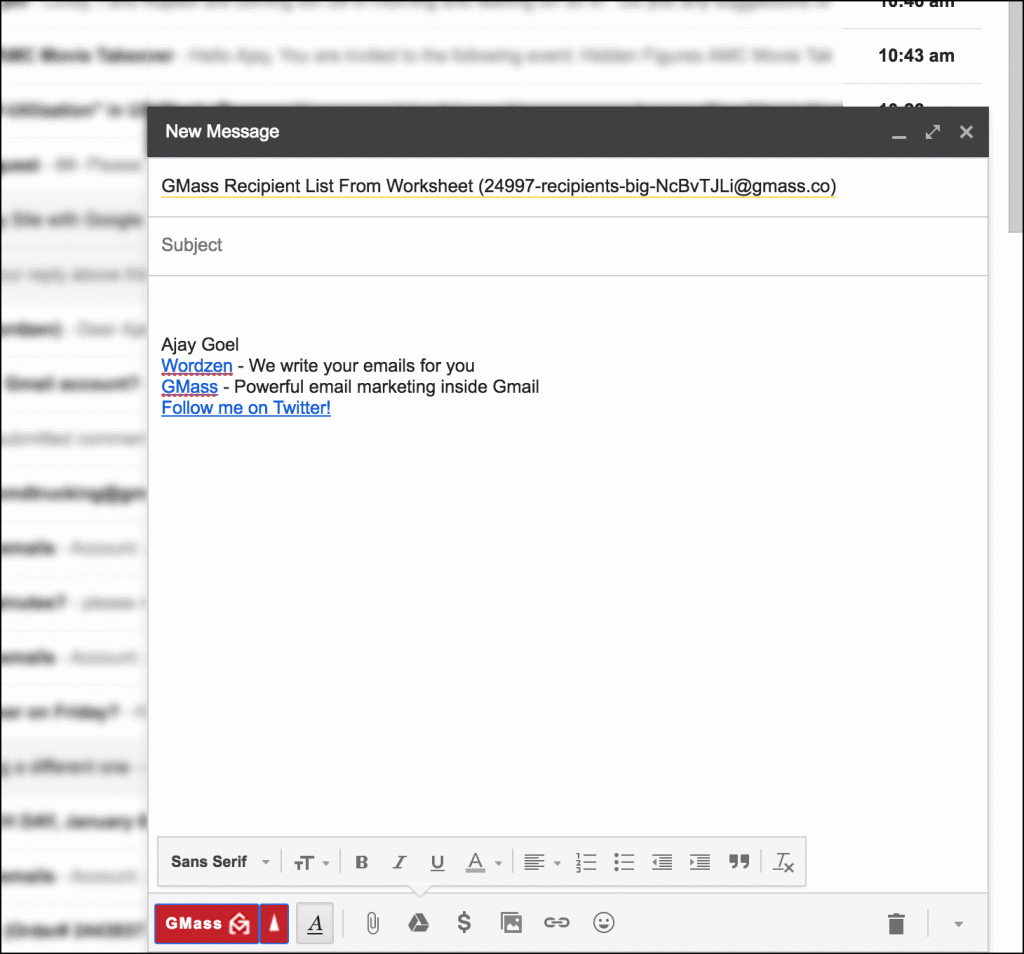 As is the case in the above screenshot, GMass may also hide the Gmail Send button in certain cases, to prevent you from clicking it accidentally and making a huge mistake. Hitting the GMass button will send a tracked, personalized email to each contact, while hitting the Gmail Send button will send one email to all of your recipients, exposing everyone in the To line to each other.
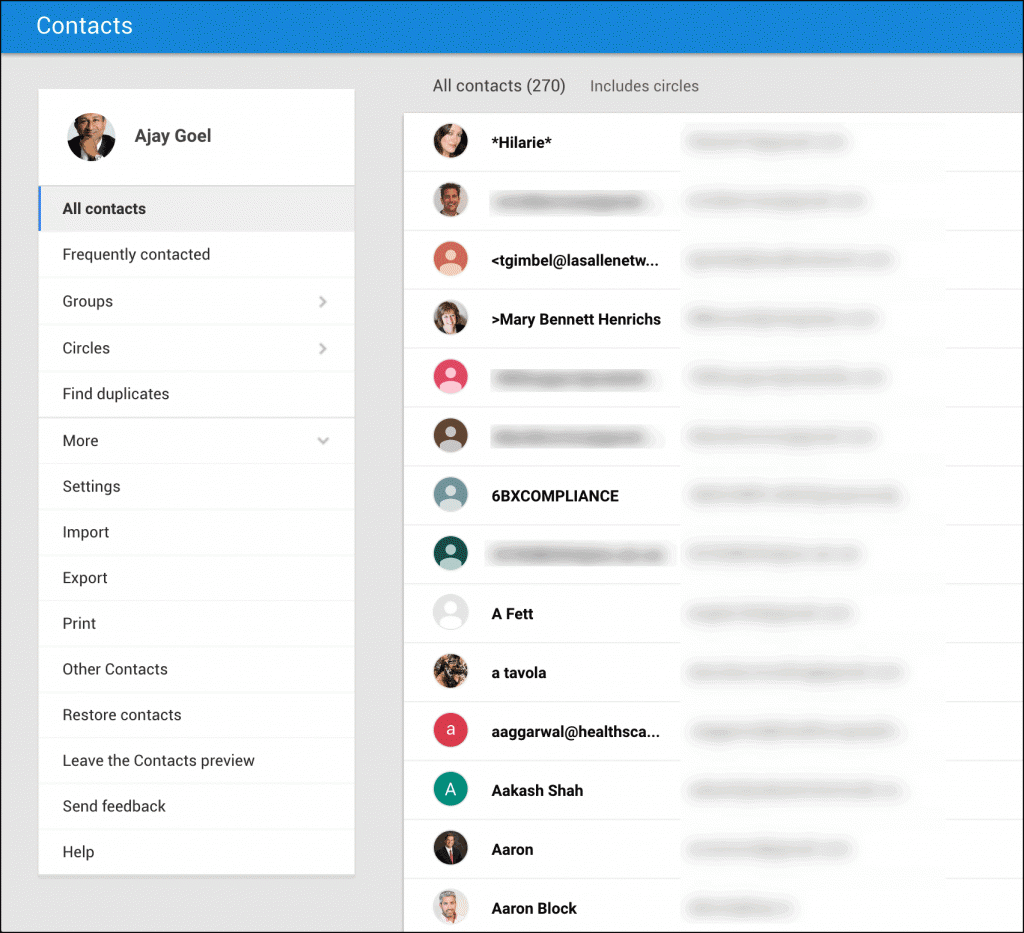 It’s pretty but it lacks all the important functions of the classic version.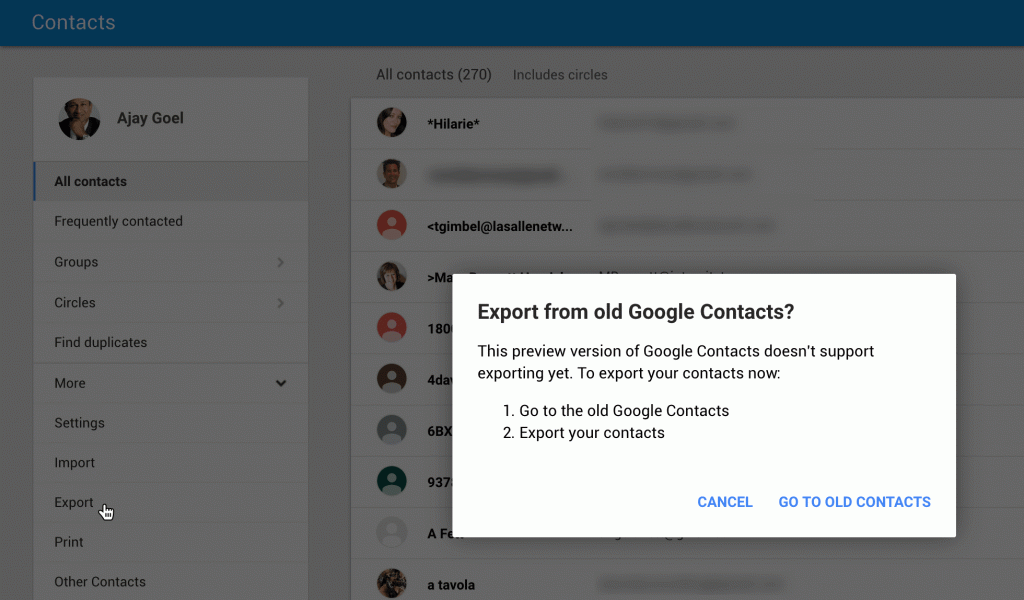
 The additional stages are easily seen in the