<img height="1" width="1" style="display:none" src="https://www.facebook.com/tr?id=1822615684631785&amp;ev=PageView&amp;noscript=1"/>

We’ve just deployed an enhancement to our mail merge tool such that you can easily view a campaign’s content while viewing a Campaign Report, and similarly, you can now easily view a Campaign Report while viewing a campaign’s content. Be sure to reload Gmail in Chrome (and clear your cache) to get the update.

While viewing a Campaign Report in the GMass Reports –> [CAMPAIGNS] Label, a link will appear at the top of your Gmail window to the campaign content.

Similarly, when viewing the campaigns content in the GMass Reports –> Sent Copies Label, a link will appear to the campaign’s report.

You can continuously toggle between the report and the campaign!

Ready to transform Gmail into an email marketing/cold email/mail merge tool?


Only GMass packs every email app into one tool — and brings it all into Gmail for you. Better emails. Tons of power. Easy to use.


TRY GMASS FOR FREE

Download Chrome extension - 30 second install!
No credit card required
Love what you're reading? Get the latest email strategy and tips & stay in touch.



If you suddenly find that the GMass button has disappeared from your Gmail interface, this guide will help you.

First, determine if the extension is failing completely or failing partially. If none of the GMass buttons show up, that means the extension is failing entirely. If some of the buttons show up but others don’t, then the extension is failing partially.

The three areas of buttons

There are three sections of buttons that the extension adds to Gmail.

Steps if some of the buttons are showing up

  1. Check for conflicting extensions. Perform step 5 under the section below.
  2. Check for blocking extensions. Perform step 6 under the section below.

If some of the buttons are showing but others are missing, it could also be the result of a change Gmail has made to its interface that GMass hasn’t adapted to yet. Usually Gmail rolls out changes slowly. So while the change may be affecting you, it may not be affecting other users. These are the most difficult situations to resolve, because if we can’t duplicate the issue on our end, it’s hard to fix. In these cases, we usually ask you to join us for a live screenshare so we can troubleshoot with you live. Go to the “Still not fixed?” section below.

Steps if no GMass buttons are showing up

  1. Make sure the GMass extension is enabled in Chrome. Go to chrome://extensions (copy/paste that into your address bar) and look for GMass in the list of extensions and make sure there’s a checkmark next to it, indicating that it’s enabled. You have to install the extension on each computer that you wish to use GMass. The installation of the extension is tied to an individual computer, not an individual Gmail account.

    Make sure GMass is enabled in your list of Chrome extensions.
  2. Check to see that the GMass icon shows to the right of the address bar in Chrome.

    Ensure the GMass icon shows to the right of the Chrome address bar.
  3. Try reloading Gmail again. Every time you reload Gmail, your browser will attempt to fetch the GMass buttons from our server. If there was a connection issue the last time you loaded Gmail, the buttons may not have loaded.
  4. Shut down all of Chrome, by making sure all Chrome windows are closed, and that Chrome is not an active running process anymore. Then relaunch Chrome and reload Gmail. Sometimes Chrome doesn’t properly load an extension and needs to be started from scratch in order for it to recognize a new browser extension.
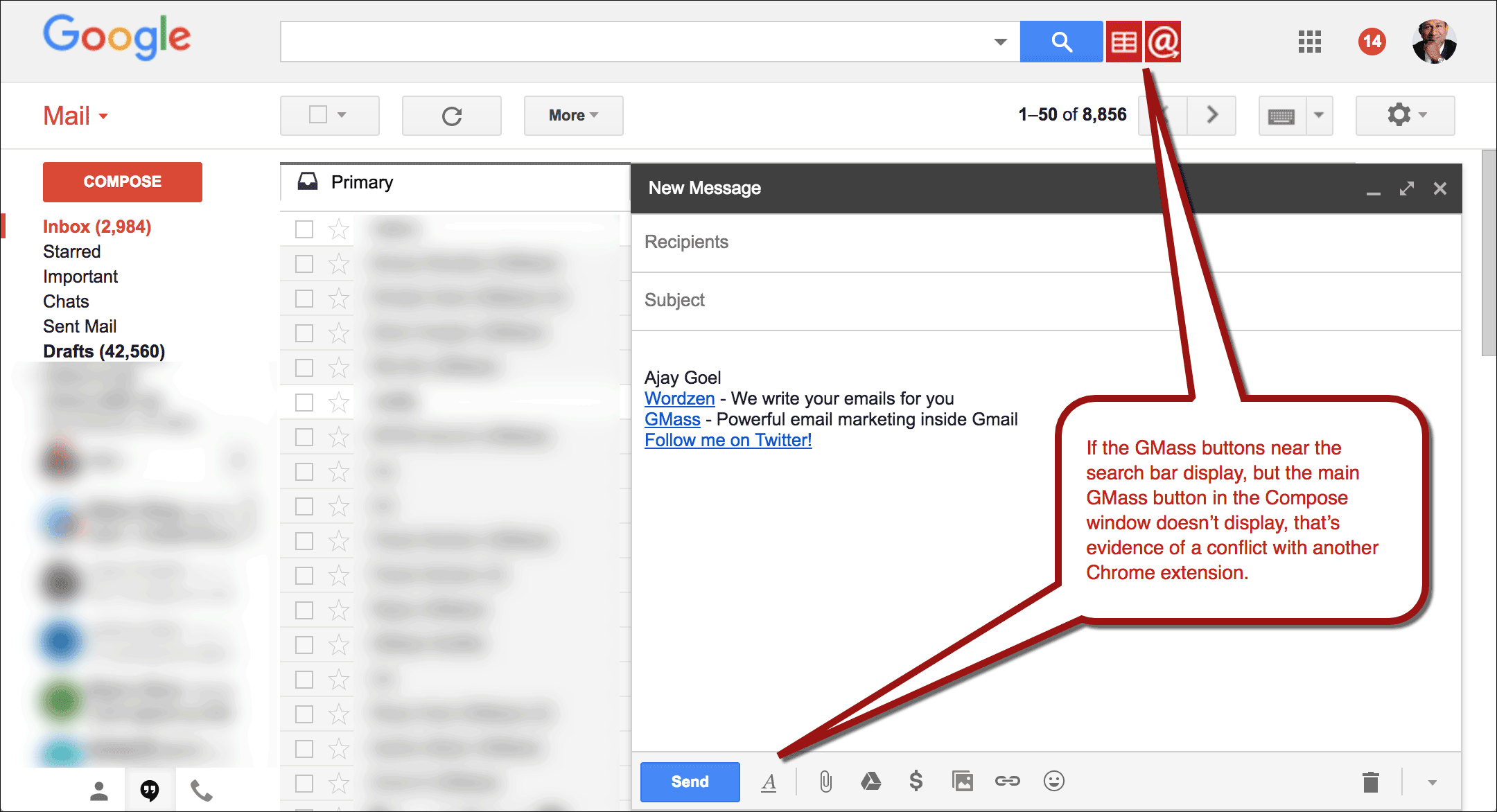
  5. Check for conflicting extensions. If the red GMass buttons appear to the right of the Gmail Search field, but the GMass button doesn’t appear when you Compose a new email, that’s a sign of a conflicting browser extension.
    Do you have a conflicting Chrome extension installed?

    Go to chrome://extensions and see what might be conflicting with GMass. You may have to conduct some trial and error by disabling one extension at a time, reloading Gmail, seeing if that fixes it, and if not, re-enable that one, and disable a different one, and repeat.

  6. Check for blocking extensions. Some Chrome extension that attempt to protect your privacy by blocking trackers end up blocking GMass inadvertently. We’ve seen this happen with an extension called Privacy Badger. If you have Privacy Badger listed under chrome://extensions, try disabling it and then RELOADING Gmail.
  7. If you use multiple Chrome identities, make sure the GMass extension is enabled for the particular Chrome identity you’re currently signed onto. In certain cases, we’ve seen that browsers that have “Extension sync” turned on have trouble, so try turning off “Extension sync”.
  8. Ensure that your Chrome browser is able to access these URLs. These are the URLs that Gmail accesses behind the scenes in order to display the GMass buttons. In the past a firewall or web filter has been known to block GMass domains.Click each URL to make sure each loads:Main Site URL
    https://www.gmass.co

    Script URLs
    https://ext.gmass.us/gmass/getuserstatus (should load this)
    https://cdn.gmass.us/ext2022/gmass.js (should load a long text script)
    OR
    https://ext.apigma3.net/gmass/getuserstatus (should load this)
    https://cdn.apigma3.net/ext2022/gmass.js (should load a long text script)

    GMass has a built in failover system. If your network cannot access *.gmass.us, then it falls back to *.apigma3.net. For GMass to work, your computer must be able to access either both *.gmass.us URLs or both *.apigma3.net URLs.

  9. Sometimes the extension can become corrupted. Try a) removing the GMass extension entirely by going to chrome://extensions, and clicking the Trash icon next to GMass, b) reloading Gmail, c) re-installing the extension from our homepage, and then d) reloading Gmail again.
  10. If you’re technically inclined, open up the Chrome Developer Tools console, and monitor the activity under the Console and Network tabs as you load Gmail. Filter the Network log by the word “gmass”. The browser connects to the GMass server every time you reload Gmail. Determine if there are any errors while connecting to the GMass server.

    Chrome Developer Tools
    Use Chrome Developer Tools to determine what’s happening when Chrome connects to the GMass server.
  11. Check to see whether your network is using a proxy, by going to chrome://settings and going to Advanced settings. A proxy can interfere with GMass’s ability to function because the proxy isn’t granting the GMass Chrome extension the same privileges as the GMass server would. Opening the proxy settings will open a separate window that is different on Windows vs Apple machines.
    Chrome Proxy Settings
    Check to see if the browser is connecting directly to sites or using a proxy.

    In the example below, the browser is attempting to connect to the GMass server via a proxy, but the proxy is being blocked by the proxy’s CORS policy.

    GMass Proxy Issue
    An example where GMass fails due to a proxy server.

    If a proxy is interfering with GMass, try adding a proxy exception for GMass.

    proxy exception
    Add a proxy exception for both gmass.co and gmass.us. This example shows how you would do it on a Mac.


  12. Make sure Chrome’s Local Storage isn’t full. GMass, along with many other apps, use something called “Local Storage” in Chrome. Resource-hogging apps can fill up the 5 MB limit of Local Storage, and this can prevent the GMass button from appearing in the Compose window. If the buttons at the right of the search bar show, but the main GMass button doesn’t show in the Compose window, it could be because your “Local Storage” has reached its limits. You can confirm that this is indeed the issue by opening up Chrome’s Developer Tools, looking at the Console, and looking for errors that say: “Failed to execute ‘setItem’ on ‘Storage'”
  13. Do you work for a big company like Google or Salesforce? If your organization controls your Chrome browser’s setting, there’s a chance that running extensions inside Gmail has been disabled by your network administrator. If GMass is installed properly but there’s no trace of GMass in the Chrome Dev Tools Console, it’s likely that Chrome extensions are prevented from running on Gmail within your organization. Try installing another popular extension like Boomerang or Grammarly and see if they work inside Gmail. Most big companies have a “whitelist request” procedure that you can go through to ask that GMass be allowed to be used.

Still not fixed?

If these steps don’t resolve the issue, please contact our Support team and include:

  1. A screenshot of entire your Gmail interface, showing the search bar and a blank Compose window
  2. A screenshot of your extensions listing under chrome://extensions

If we still can’t determine the cause of the missing GMass buttons, we will schedule a remote screen share session with you to resolve the issue live. We use GoToMyAssistant to conduct screen share sessions.

Ready to send better emails and save a ton of time?


GMass is the only tool for marketing emails, cold emails, and mail merge — all inside Gmail. Tons of power but easy to learn and use.


TRY GMASS FOR FREE

Download Chrome extension - 30 second install!
No credit card required
Love what you're reading? Get the latest email strategy and tips & stay in touch.


If you’ve subscribed to a Team Plan, you’ll want to manage the members of your Team.

A team plan allows you to subscribe one account that is the “team leader” and then add accounts to your team, each with the full powers of GMass.

Team plans can be purchased in packs of 5 users, 10 users, 25 users, 50 users, and 100 users. See pricing.

Managing Your Team Account

After you purchase a team account from the GMass pricing page, make sure you have the GMass Chrome extension installed.

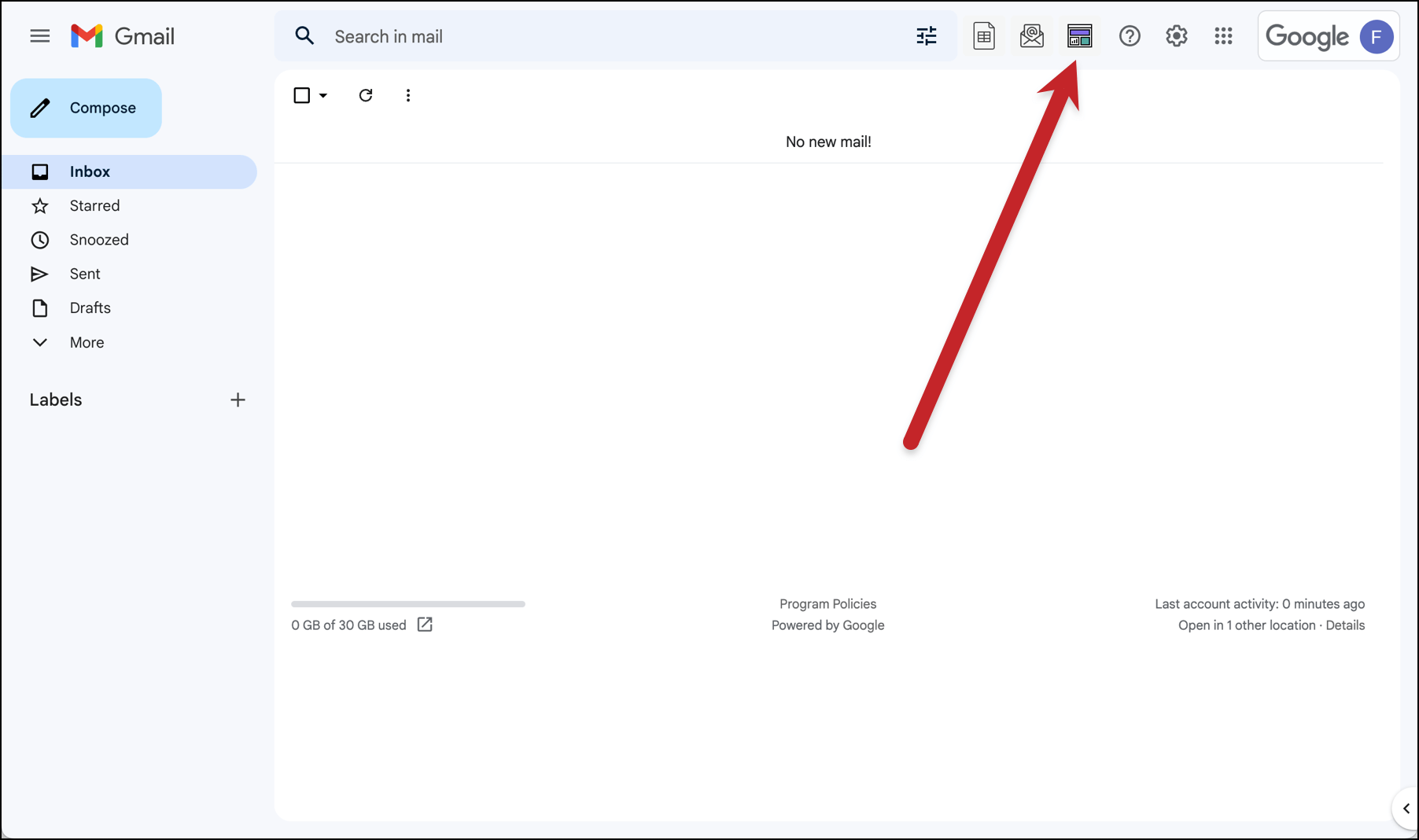
You can manage your team in the GMass dashboard (here’s a direct team management link ). You can also get there by clicking the dashboard icon in Gmail…

The dashboard icon for GMass

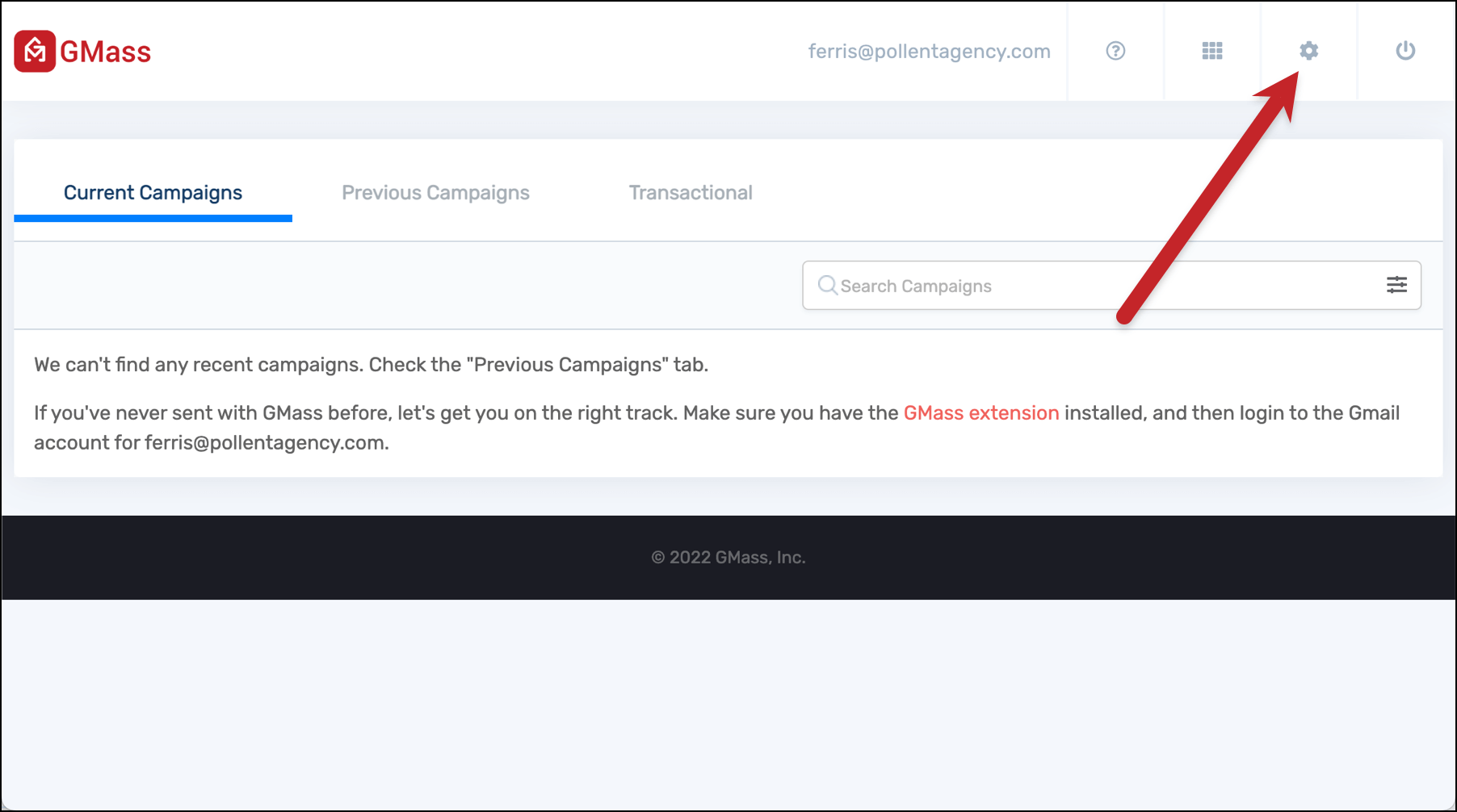
Then clicking the settings icon in the dashboard.

Dashboard settings

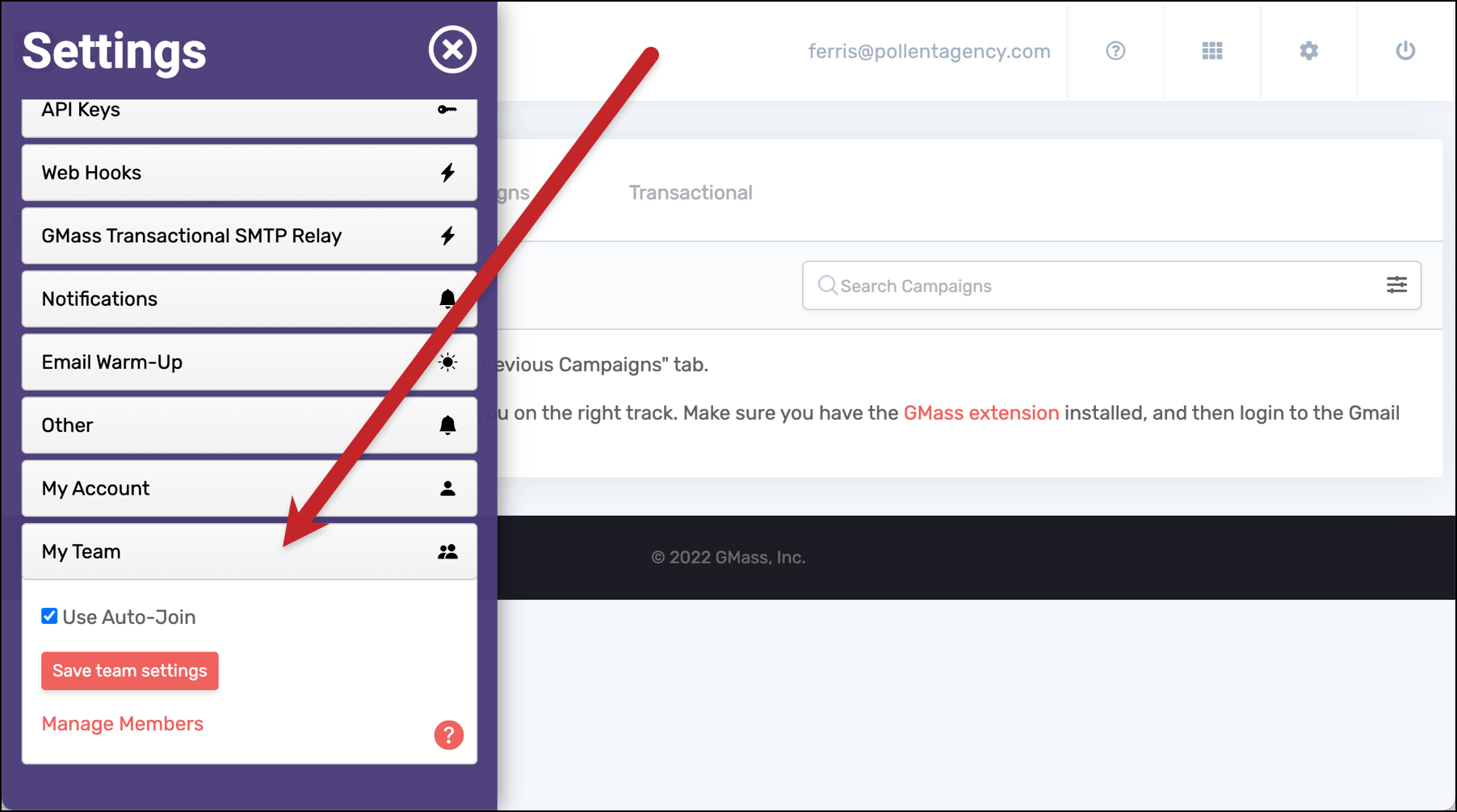
And opening up the My Team section at the bottom of the features.

My team management

Click on the Manage Members link to bring up your page of members.

Managing members

Adding new team members

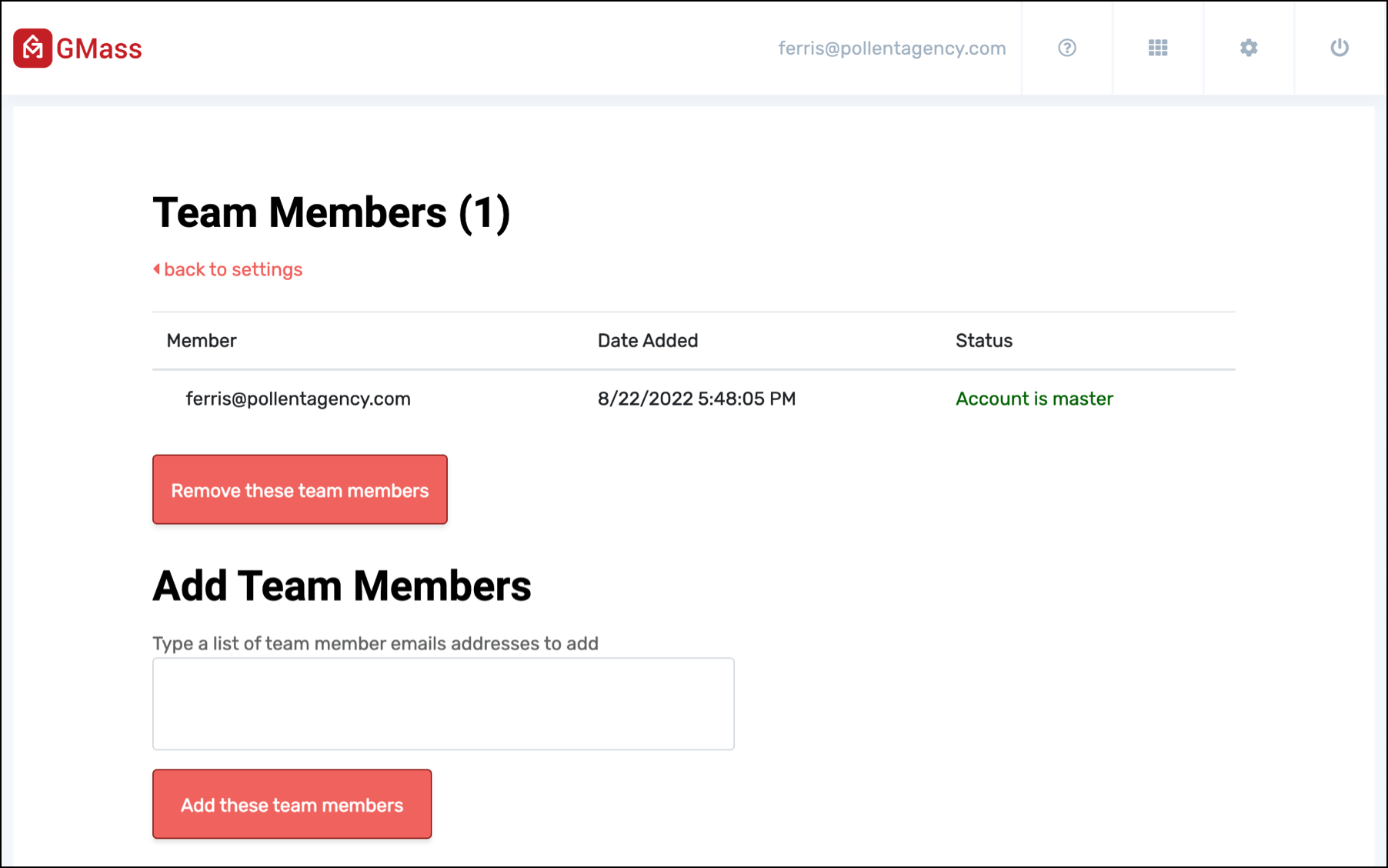
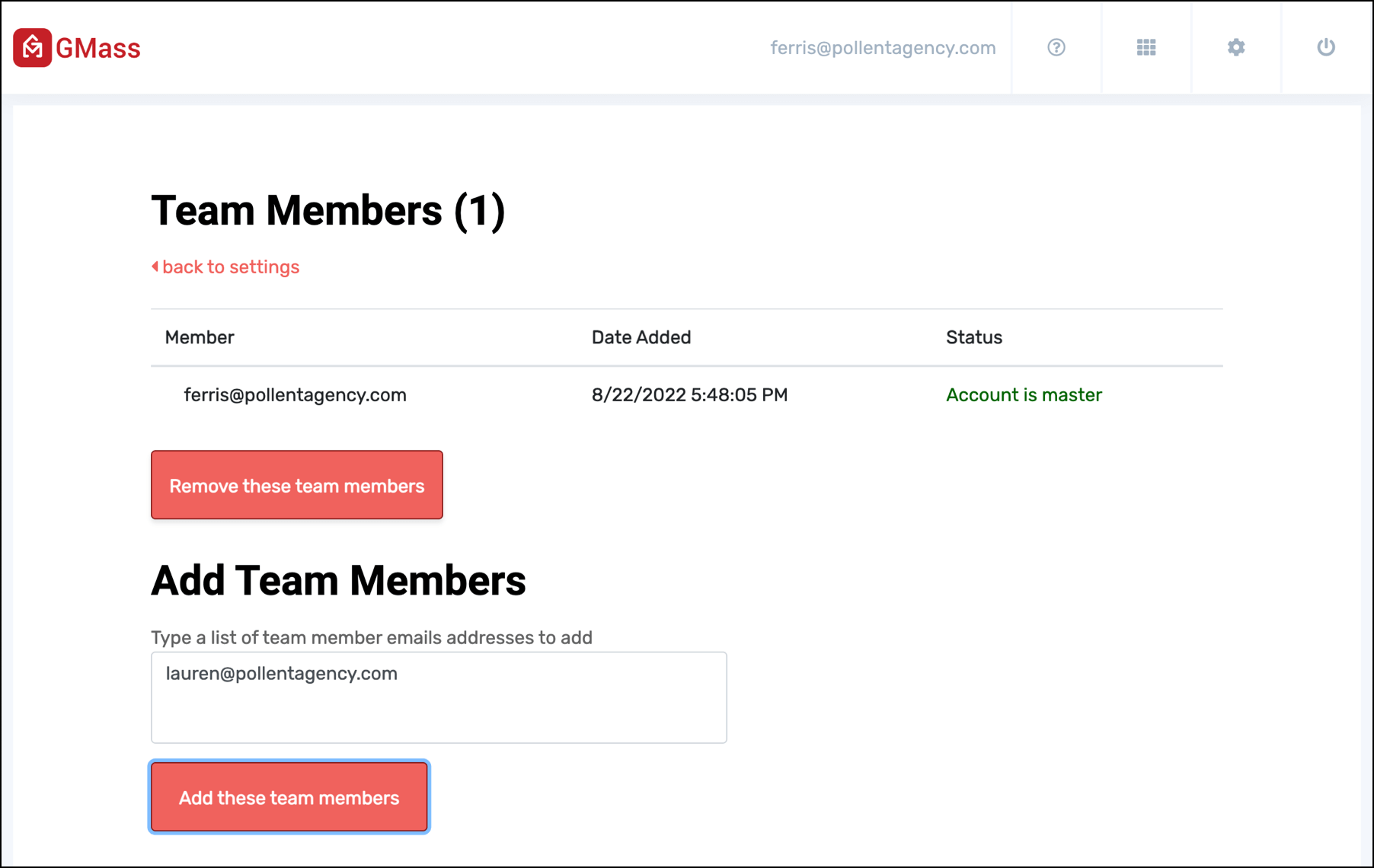
To add a team member, type in their address into the Add Team Members box. Then click the Add these team members button.

Add team members

You can also add multiple team members at once.

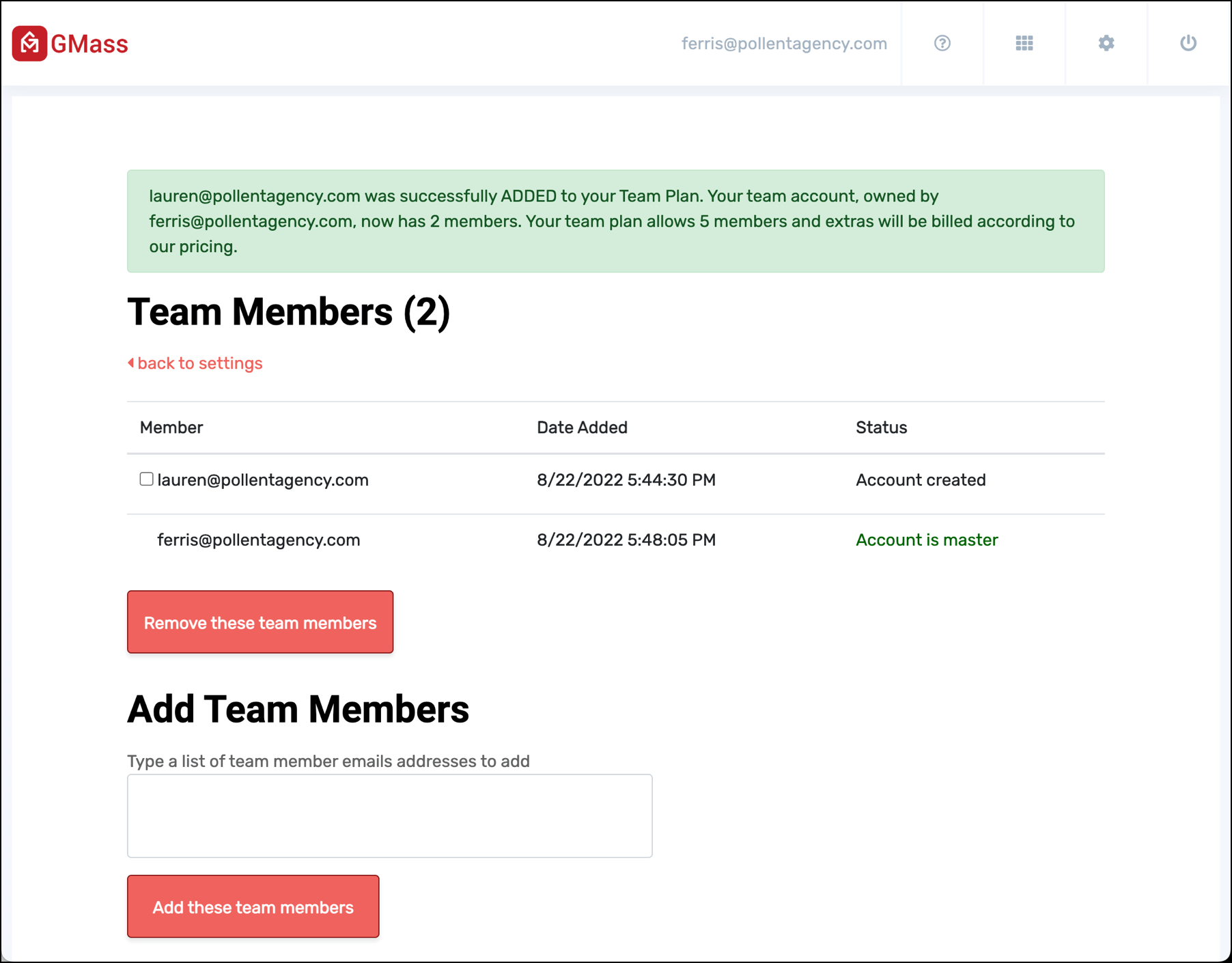
Your new team member will now appear in the list.

Added team member in the list

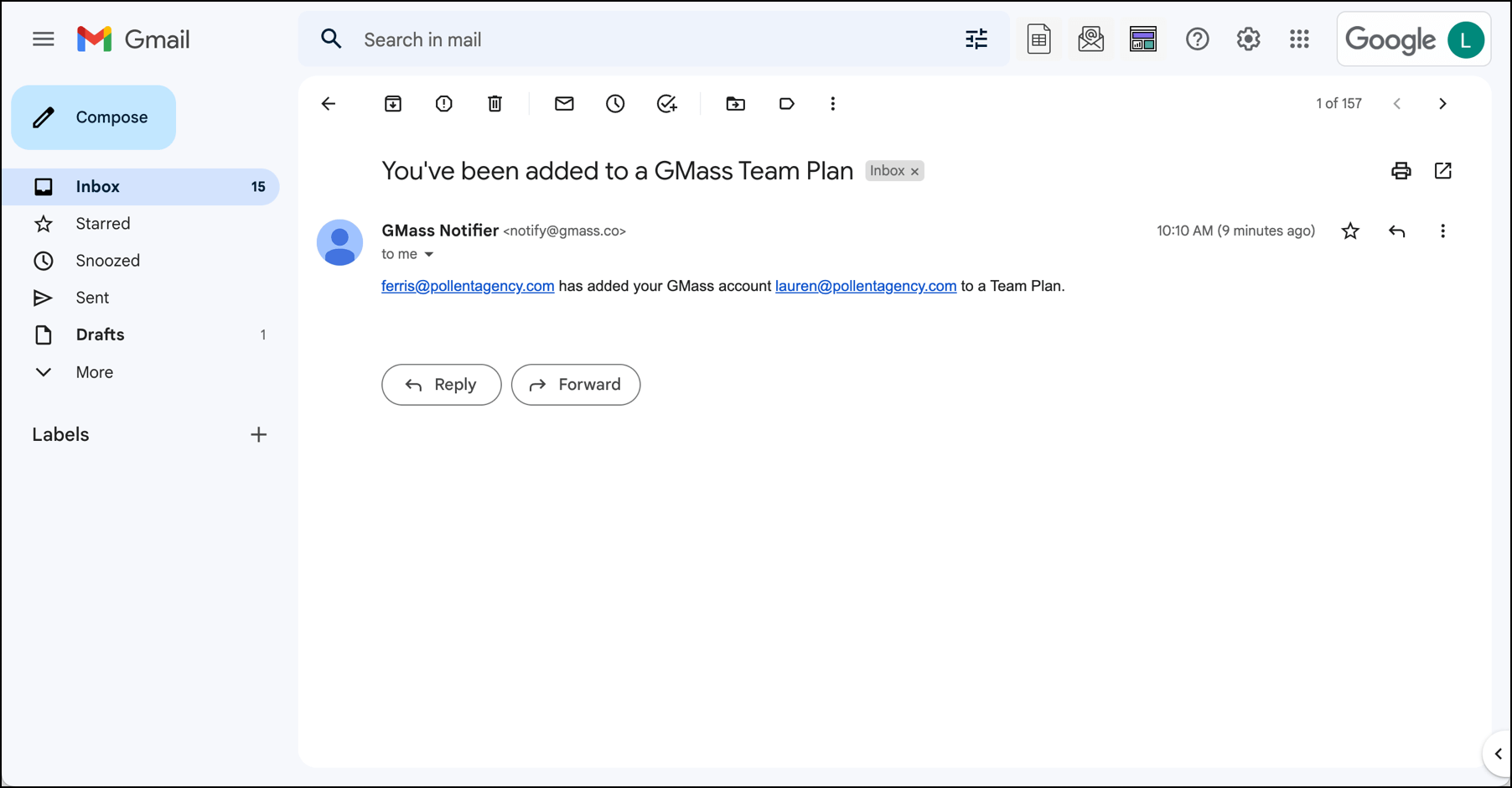
And they’ll receive an email letting them know they’re now part of your team plan.

Notification email

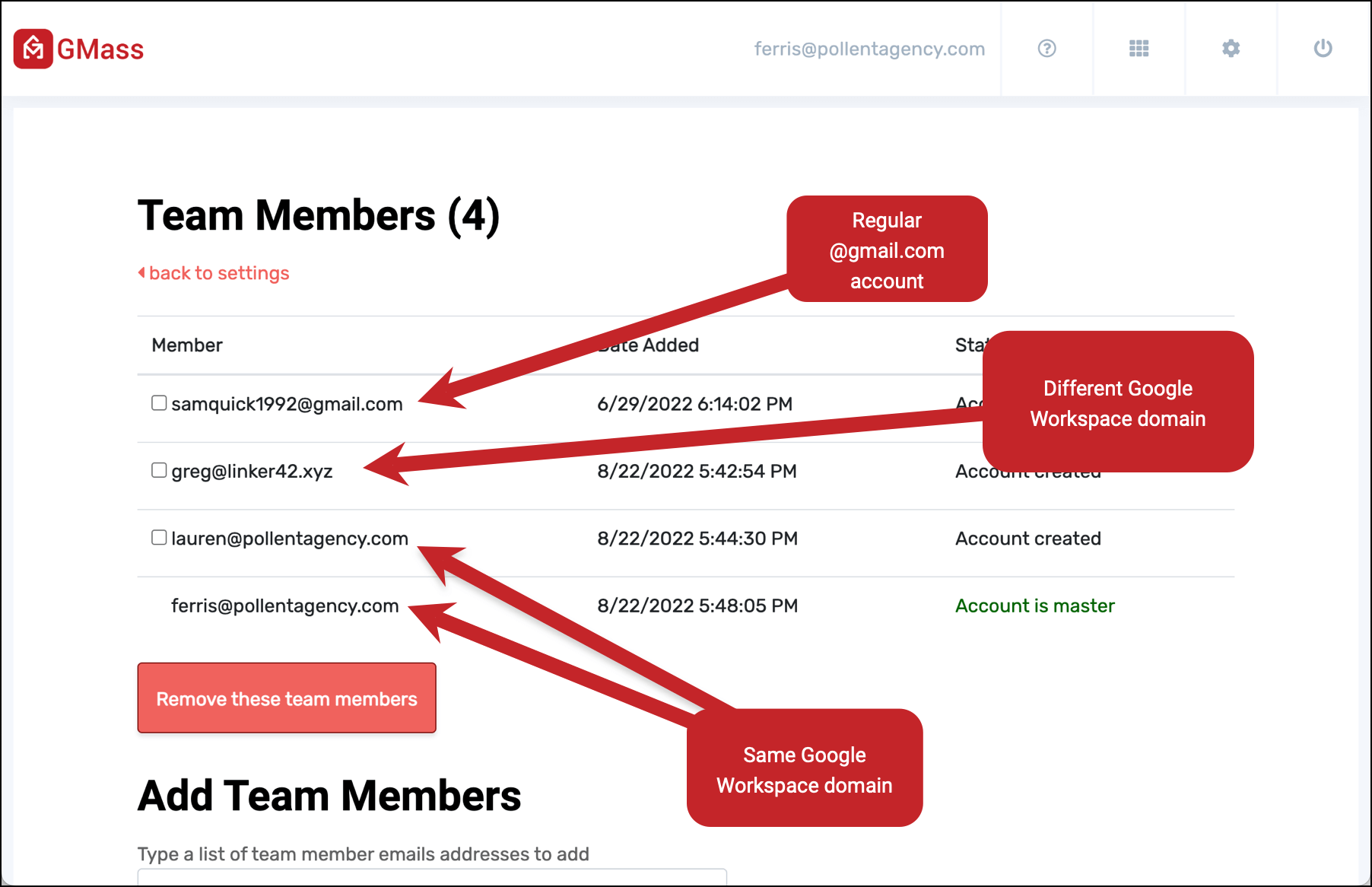
As you can see here, team members can have the same Google Workspace domain, different Google Workspace domains, or regular Gmail addresses.

Team members with different addresses

Removing team members

You can remove team members by checking the box next to them, then clicking the Remove these team members button.

Managing Team Campaigns As the Team Leader

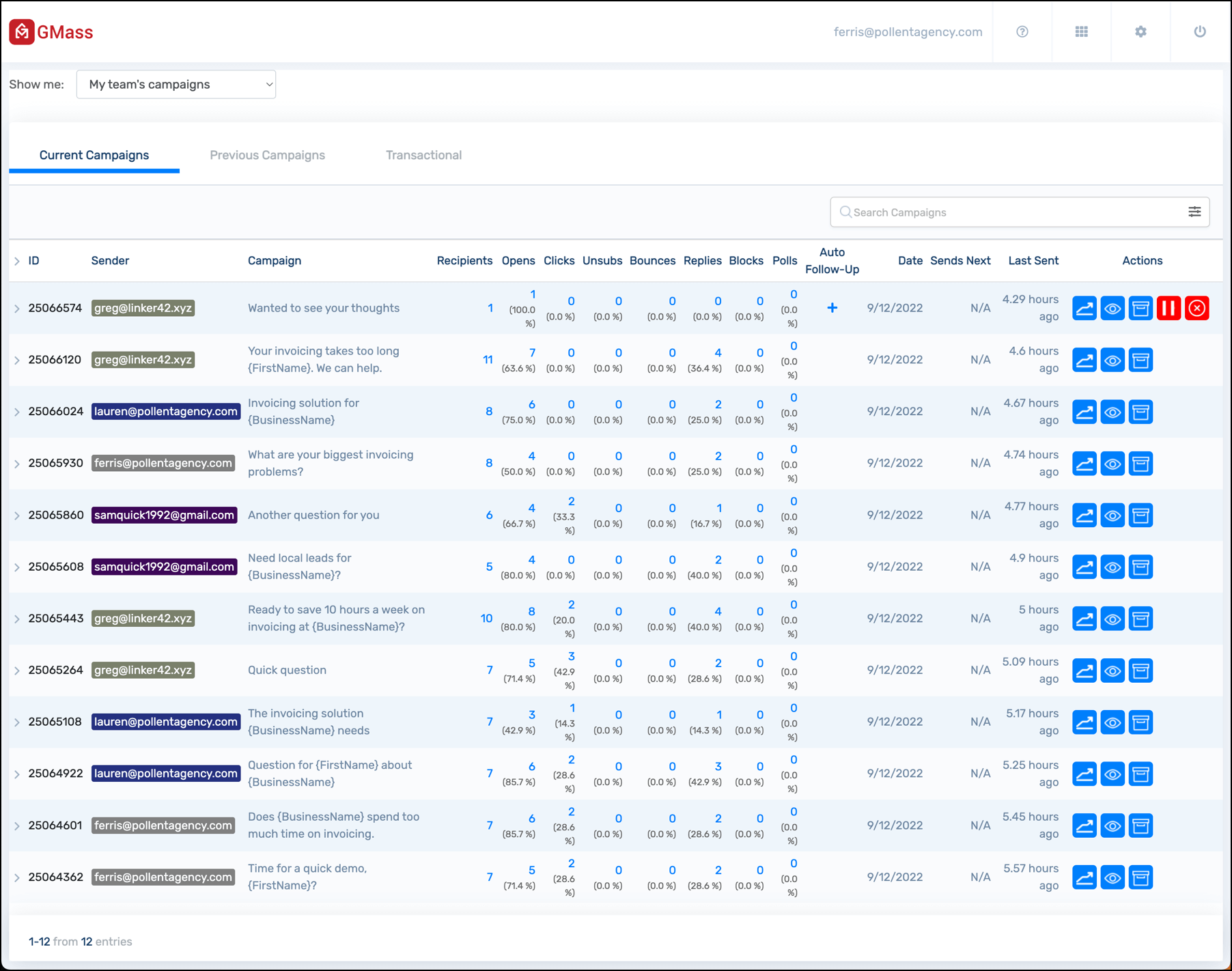
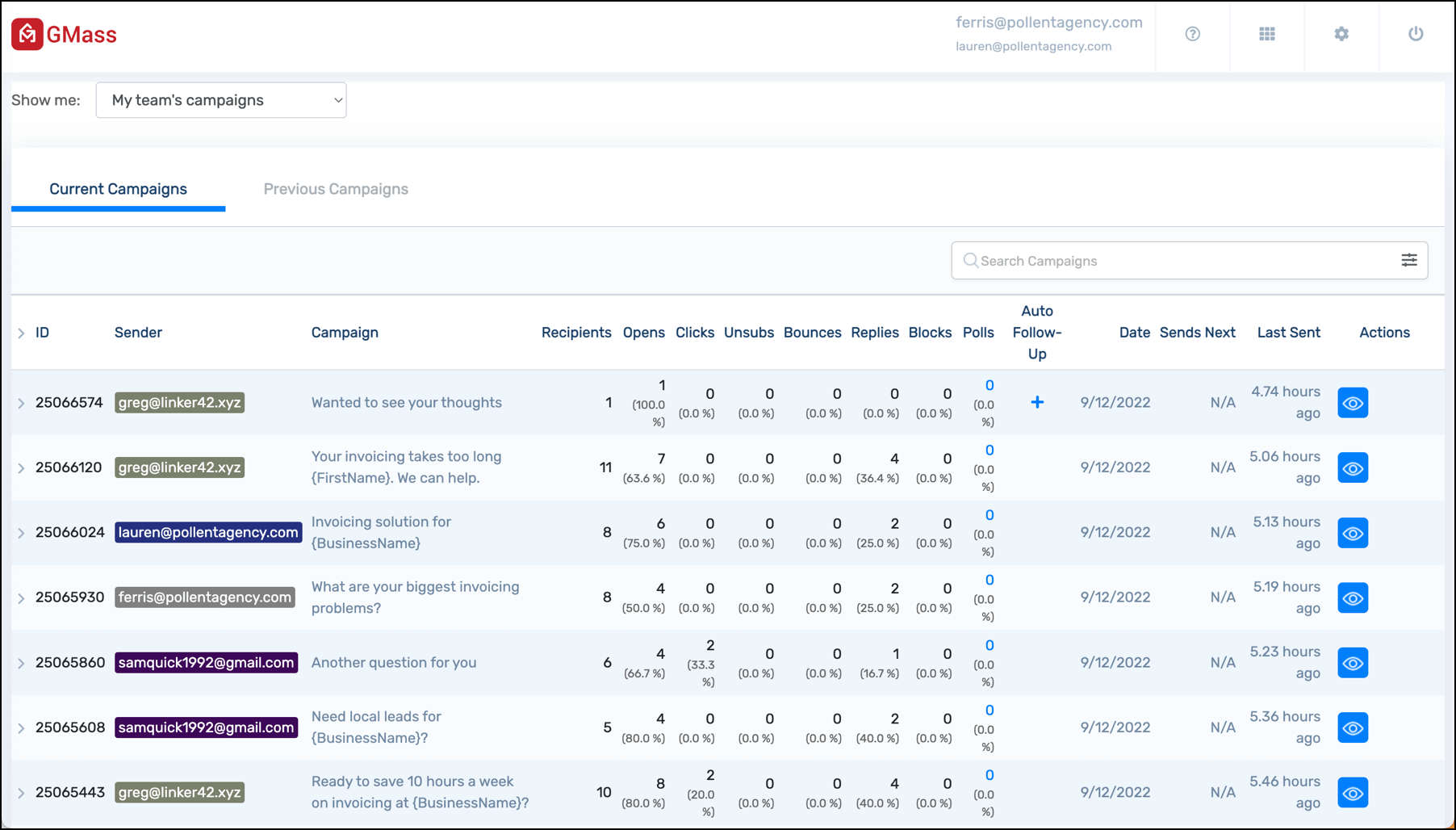
As the team leader, you can check any of your team members’ campaigns from the GMass dashboard.

Manage campaigns as team leader

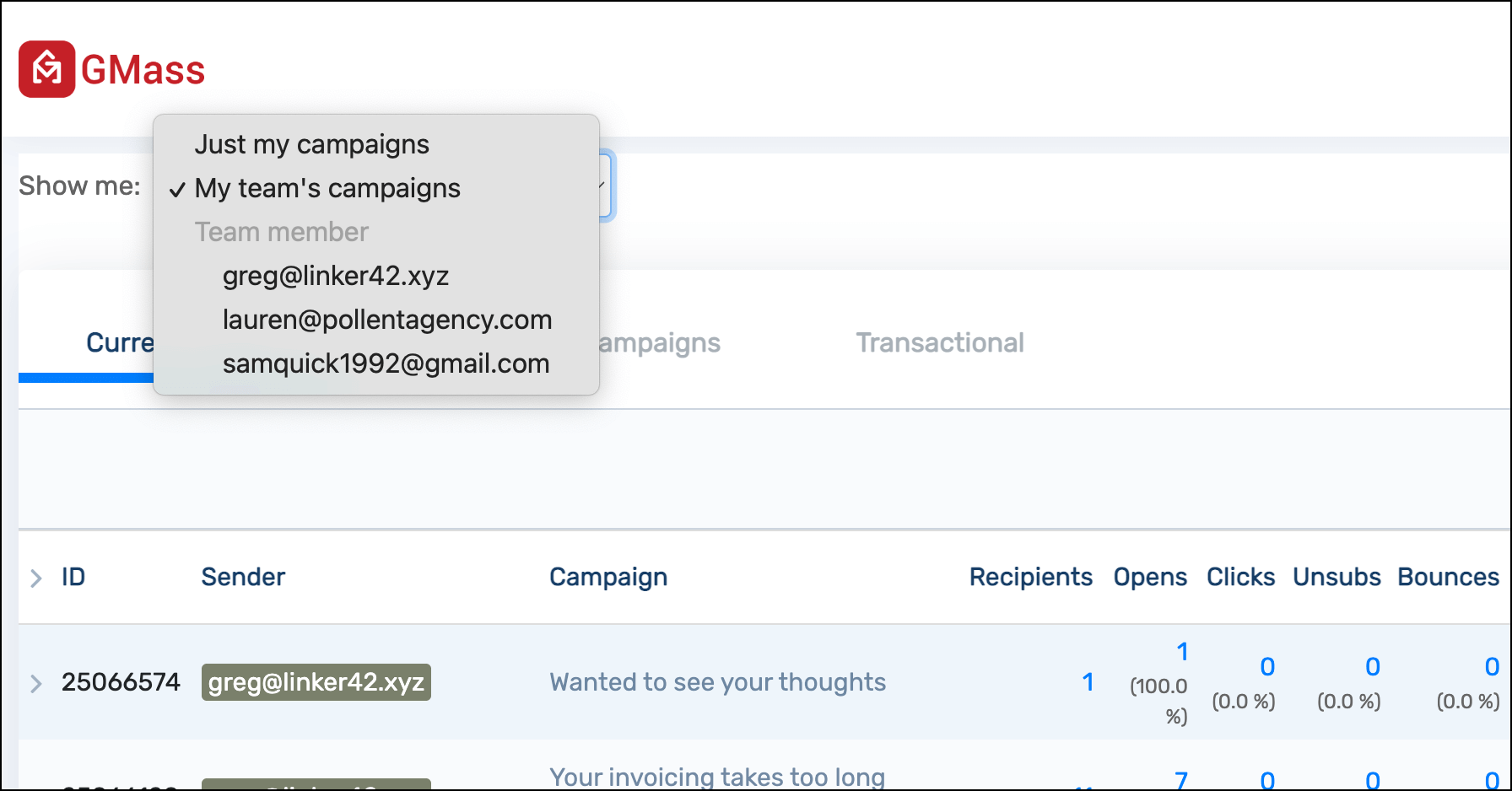
On the main dashboard screen you’ll see a dropdown menu which can show you:

  • Just my campaigns
  • My team’s campaigns (including your own)
  • Just the campaigns from an individual Team member

Choose whose campaigns to view

And for each of those options you can see Current Campaigns, Previous Campaigns, and Transactional emails, sorted from newest to oldest.

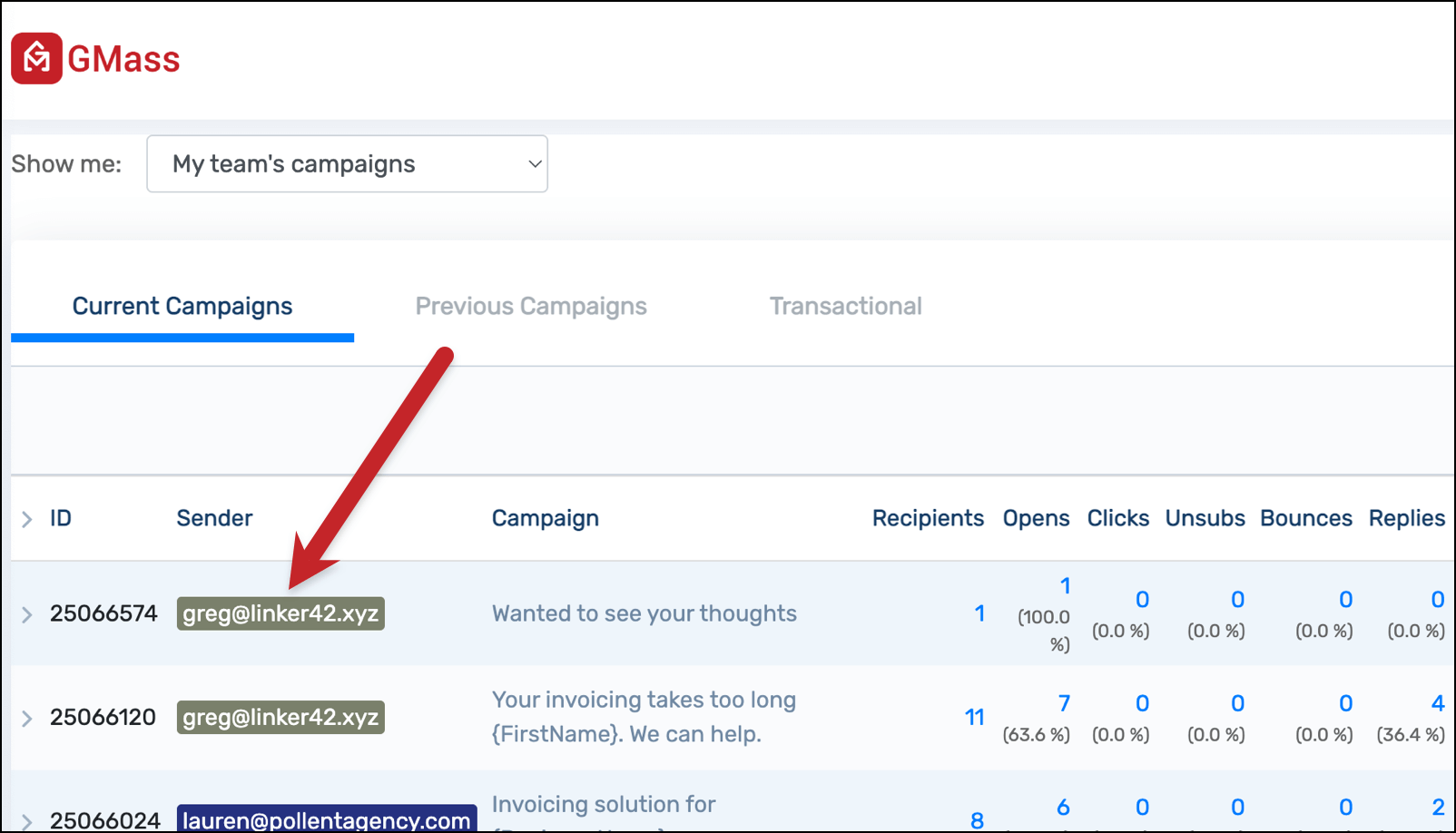
You can also view an individual team member’s campaigns by clicking on their email address in the Sender column.

Filter with a click

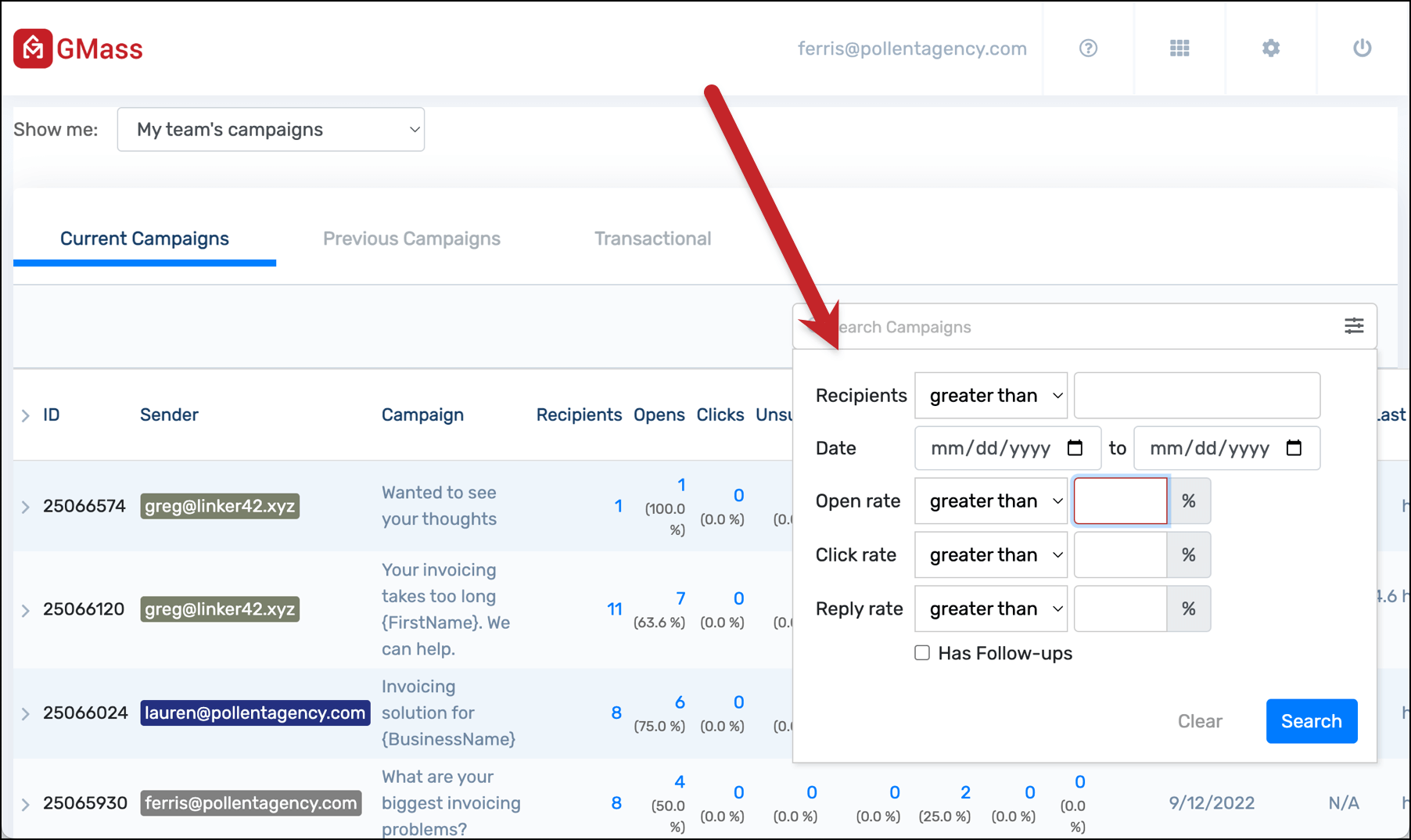
The advanced search works whether you’re viewing your own campaigns or everyone’s campaigns.

Filter by criteria including number of recipients, date, open rate, click-through rate, reply rate, and whether or not the campaign has follow-ups. You can toggle back and forth between just your campaigns, everyone’s campaigns, or individual team members’ campaigns and the filter will stay on.

Advanced search options

As team leader you can view the detailed web report for anyone’s campaign (including recipient email addresses); click the graph icon to access the web report.

You can also view the email message by clicking the eye icon.

Archive a campaign from the view by clicking the box icon.

And finally, you can pause or cancel a recurring campaign or a campaign that has auto follow-ups from any team member.

What team members can and can’t see (plus sharing your dashboard)

Other team members will only see their own campaigns in the GMass dashboard.

You can share your dashboard with a team member, multiple team members, or any other GMass user. Those team members will then be able to see the campaign stats for everyone on the team.

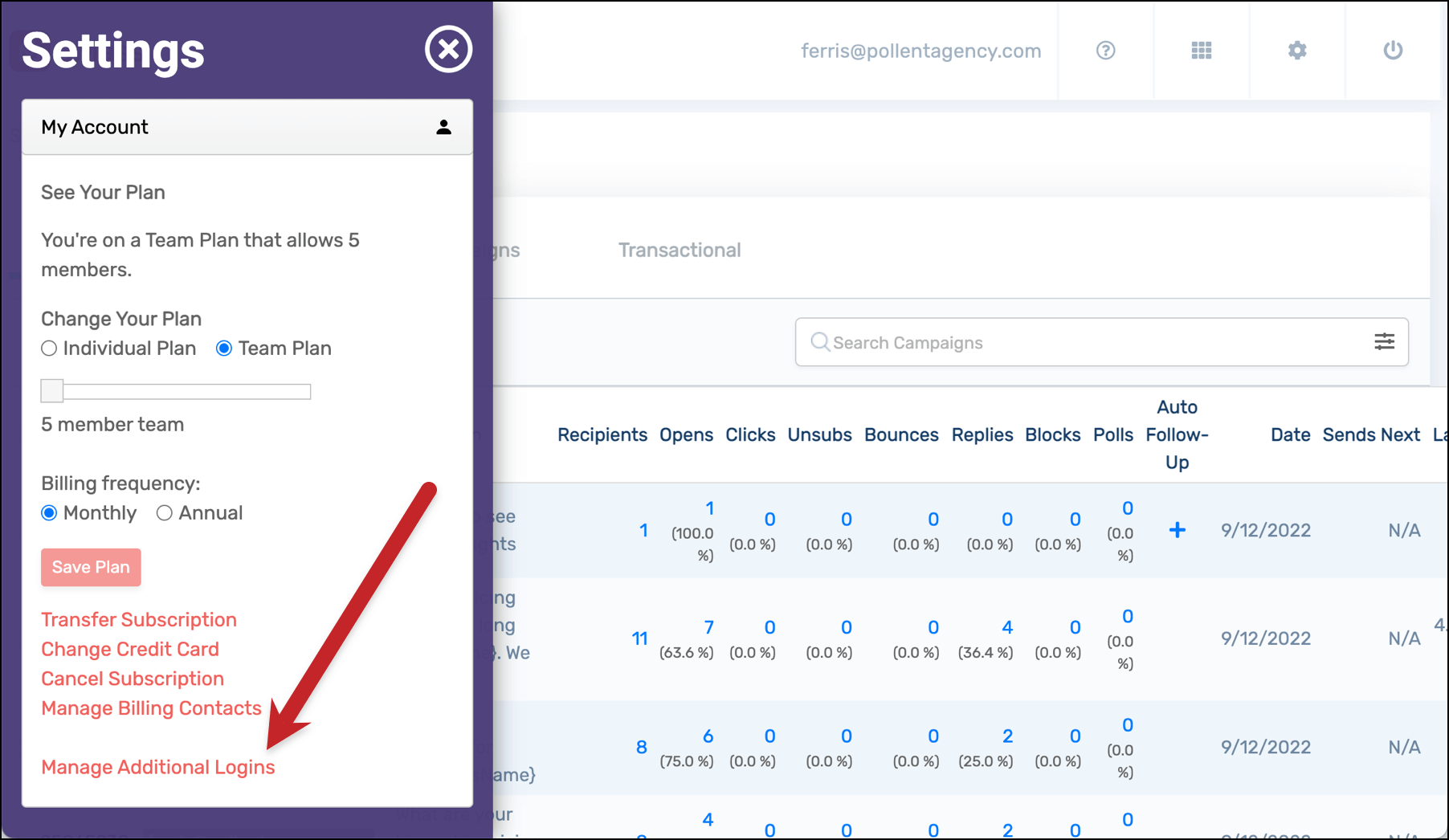
Go into the My Account section of the GMass dashboard settings, then click on Manage Additional Logins to set up additional logins.

Additional logins option

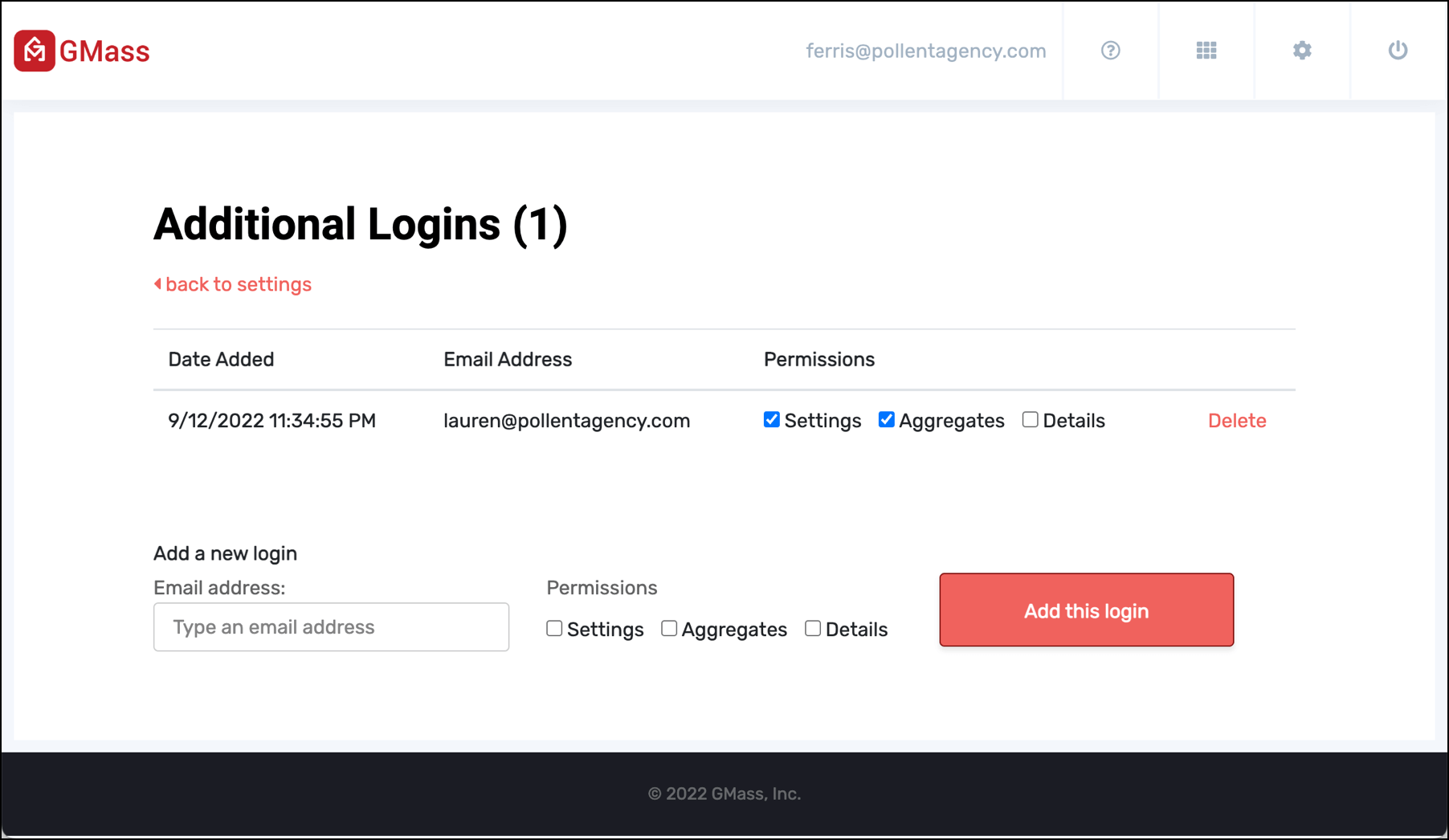
You can add new logins with different levels of permission:

  • Settings lets the user view and change your account settings.
  • Aggregates shows the user campaign stats but not detailed campaign reports (so they won’t be able to see recipient email addresses).
  • Details shows allows the user to see detailed campaign reports, including recipients’ email addresses.

Additional logins options

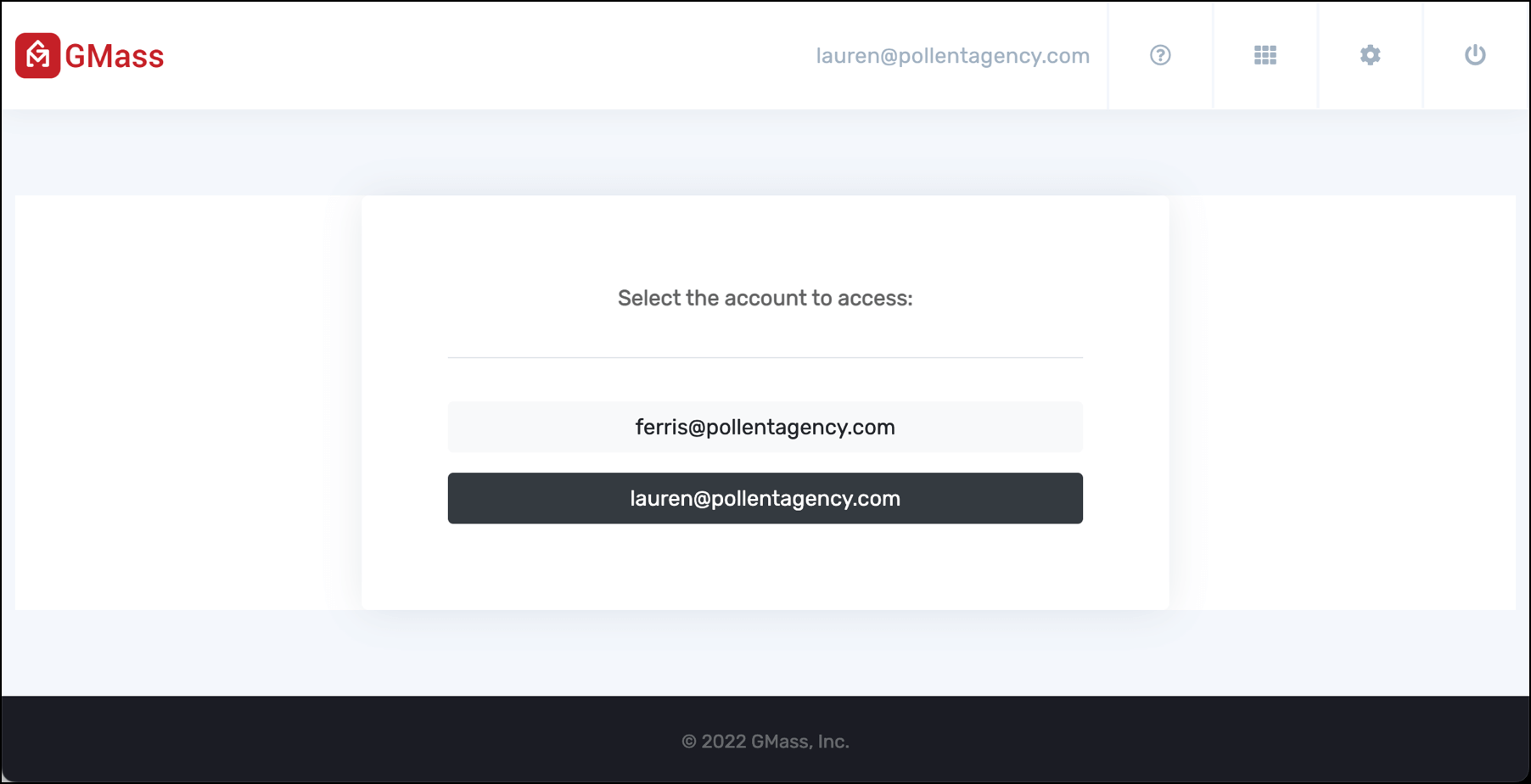
Here’s what that user will see when they log into their dashboard — a choice between their own dashboard and the shared dashboard:

Choosing dashboard

And then, if you’ve chosen “Aggregates” rather than “Details,” here’s what the team dashboard will look like for that user.

Team view of dashboard

Other Team Management Functions

To change the leader of your team plan

Using the account transfer process to transfer the team subscription to a new account. Transferring the team leader to a new person will transfer the Team Plan subscription to the new address. That new address will become the billing contact on the subscription and will assume the powers of managing the team. The current team leader will become a member of the team under the new owner.

To switch from individual subscriptions to a team plan

You can consolidate several individual subscriptions into one team plan.

Features for teams

GMass makes working with your team easy with its collaboration features. Share templates, share reports, log in to each other’s dashboards, share unsubscribe and bounce lists universally, and more. Read about team collaboration features here.

Ready to transform Gmail into an email marketing/cold email/mail merge tool?


Only GMass packs every email app into one tool — and brings it all into Gmail for you. Better emails. Tons of power. Easy to use.


TRY GMASS FOR FREE

Download Chrome extension - 30 second install!
No credit card required
Love what you're reading? Get the latest email strategy and tips & stay in touch.


After you’ve launched a campaign, you may wish to edit it either before it actually sends or perhaps in between batches of sends.

To edit a mail merge campaign:

  1. Find the campaign under the GMass Scheduled Label.
  2. Open up the Draft for the campaign.
  3. From here, you can edit any aspect of the campaign, including the Subject, Message, or any of the campaign settings under the GMass Settings arrow, like Open Tracking, Click Tracking, the send time, and auto follow-up settings.
  4. After you’re done making changes, click the green SAVE Changes button. Alternately, you can also click the main GMass button. Both have the same effect.

If you can’t find the campaign under the GMass Scheduled Label, that means it has already finished sending. However, it is possible that the campaign’s associated auto follow-up emails have NOT finished sending. If you wish to modify the auto follow-up settings for a campaign but the original message for the campaign has already finished sending, you can also edit the campaign’s settings under the GMass Auto Follow-ups Label.

Frequently Asked Questions

Q: I see the Draft for my campaign in both the “GMass Scheduled” Label and the “GMass Auto Follow-ups” Label. Does it matter from where I make changes to the campaign?

A: No, it does not. You can make changes to your campaign from either Label. GMass stores a campaign’s data in a Draft, and you can make changes to the campaign wherever you find the Draft. Based on the type of campaign, that may be the GMass Scheduled Label or the GMass Auto Follow-ups Label. You can also find the Draft just in the Drafts folder of Gmail.

Q: Can I change the Google Sheet that is associated with a campaign?

A: Yes, you can. But be careful — if the new Sheet you change it to has different column headings than the old Sheet, your merge tags could be affected. Here’s a YouTube video on editing the Sheet connected to a campaign.

Q: If I connect to a spreadsheet and then schedule a campaign, and then later on, I add email addresses to the spreadsheet before the campaign sends, will the new addresses be sent to?

A: No, for a regular non-repeating campaign, and yes, for a campaign that repeats daily. When you connect to the spreadsheet, GMass pulls the recipient list at that time, and for a non-repeating campaign, even if you schedule the campaign to send later, it will still only send to the recipients it initially pulled. However, the rest of the data, used for personalization, is pulled only at the time of sending. So, for example, if you connect to a spreadsheet with 10 rows of email addresses, and you schedule the campaign to send tomorrow, and then before tomorrow, you change the value of a FirstName cell from “John” to “Jon”, then Jon is the value that will be used for personalization.

But, if you add 2 more rows to the campaign before the campaign is sent, those 2 rows will still be ignored. However, if you use the recurring campaign feature with Google Sheets, the the two new rows will be sent to when the campaign runs next. A campaign connected to a Google Sheet that is set to repeat daily will pull the new addresses from the spreadsheet at the time of sending.

Q: Can I see analytics on how my campaign performed each time I edited it?

A: Yes. In the web-based report for your campaign, click Edit History to see a breakdown of how your campaign performed for each version.

Edit history of email campaign

Q: I accidentally deleted the Draft associated with my campaign. Can I still make changes?

If you deleted the Draft associated with a campaign, that accomplishes the same thing as canceling a campaign. Meaning, the campaign will cease sending emails. It will not, however, cease sending auto follow-up emails to anyone that has already received the campaign. Therefore, if you accidentally delete the Draft, you will no longer have a means to edit the campaigns auto follow-up settings, and auto follow-up emails may still go out. You can, however, restore a deleted Draft.

Q: I made changes to my campaign while it was sending. Will the new changes take effect immediately?

Yes, almost. If you edit a campaign while it is sending, GMass will notice that you’ve made a change. It will pause your campaign for a few seconds, pick up the new settings, and resume sending automatically. Note that a few emails may still send with the old settings after you’ve made your changes, but no more than 50 should send before the changes are picked up.

Q: My campaign is currently running, but I want it to stop and resume tomorrow afternoon. What do I do?

Just edit the date and time, and click SAVE CHANGES, and the campaign will stop shortly and resume sending on the date/time you entered.


Ready to transform Gmail into an email marketing/cold email/mail merge tool?


Only GMass packs every email app into one tool — and brings it all into Gmail for you. Better emails. Tons of power. Easy to use.


TRY GMASS FOR FREE

Download Chrome extension - 30 second install!
No credit card required
Love what you're reading? Get the latest email strategy and tips & stay in touch.


I have a love-hate relationship with Craigslist. I hate that its interface hasn’t evolved since 1995, that posting an ad is always a crapshoot, and that there’s zero support available, but I love that it’s still so highly trafficked that you can post an ad for almost anything and get flooded with responses. Whenever we have a job opening, we almost always post our job ad to Craigslist, amongst other job boards.

Using GMass, the disjointed mess of handling responses to a Craigslist ad becomes navigable and, dare I say, easy for Gmail users. No need to create a separate account to receive CL responses, and no response is left hanging. The main facets of what I’ll teach you in this article are:

  1. How to set up Gmail Labels and organize your Craigslist responses into these labels. For example, you might place your rejections into a Rejections Label, you might place your “maybes” into a Maybe Label, and the candidates you’re most excited about you might place into an Interview Label.
  2. How to then build an email list by scraping a particular Label.
  3. How to send a mass email to everyone in the Label, such that the email goes out as a reply to each person’s original message to you. That way you can send a personalized email to everyone you want to continue in your interview process, as well as a courtesy rejection email to everyone that didn’t make the cut.

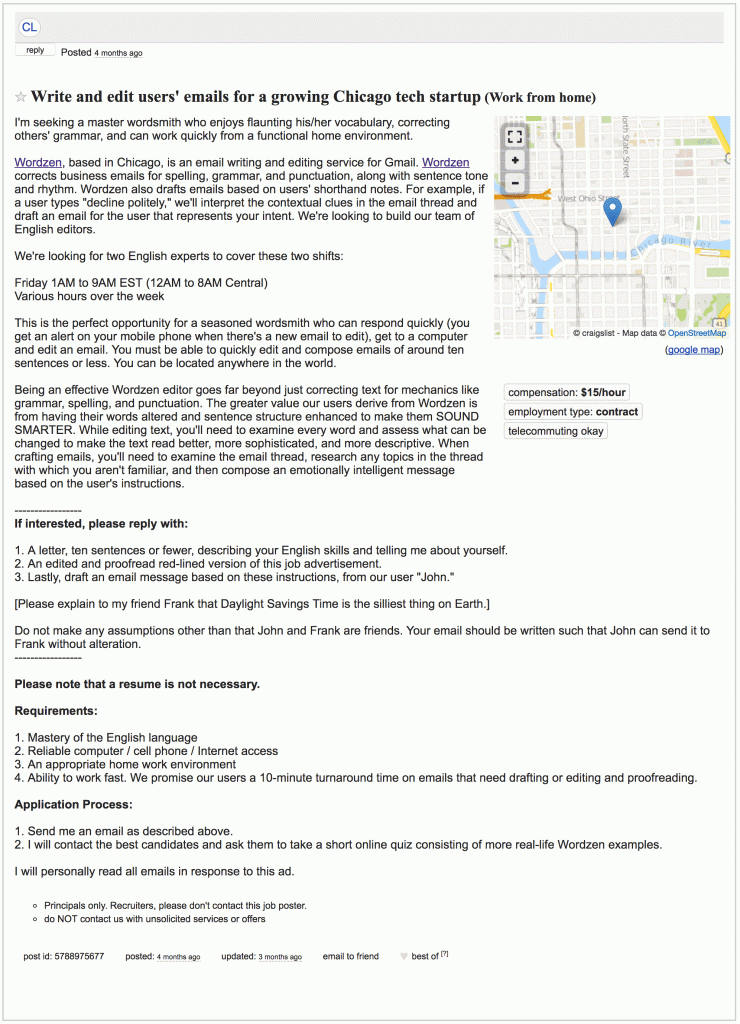
Here is the Craigslist Ad

A few months ago, when hiring new editors for our other service, Wordzen, I posted a job ad on Craigslist.

As anyone who has posted on Craigslist knows, the responses can be hard to keep up with, because they come at different times, with different subject lines, and varying degrees of professionalism.

Setting Craigslist Reply Options

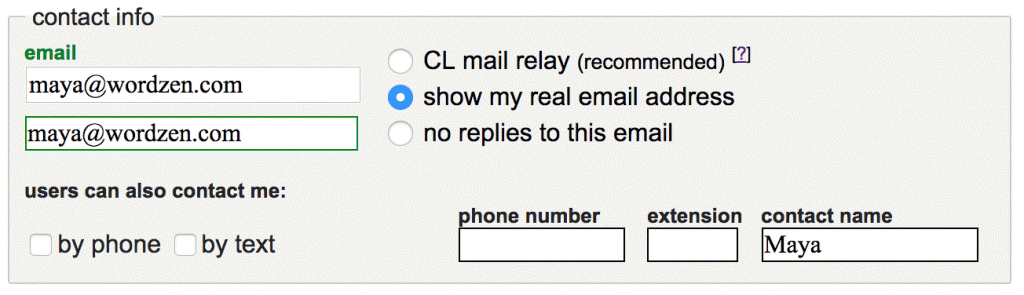
Craigslist gives you a few options to receive responses. The Craigslist Mail Relay system allows you to mask both your and the responder’s email address by showing alias addresses in place of your real account. It’s a great option for protecting the privacy of people selling items on Craigslist, but in the case of a job opening, I always choose “show my real email address” to convey that the job is real. Some prefer to select “no replies to this email” and include the email address in the posting – it’s a matter of personal preference. I prefer to show my email address so that candidates can easily reference the posting in their initial email to me.

Set up Gmail Labels to filter the Craigslist Responses

I created a Gmail Label called Editor Hire to store all of the applications in one place, and to get them out of my Inbox:

I created the Label “Editor Hire” where all applications would arrive, based on the Gmail filter I set. I would then manually move them into Decline, Maybe, and the other Labels after reviewing each one.
These are the Gmail filters that ensured all applications were routed to the “Editor Hire” Label.


Although there were still a few stray messages that I had to manually label, most skipped my Inbox and were filtered to Editor Hire.

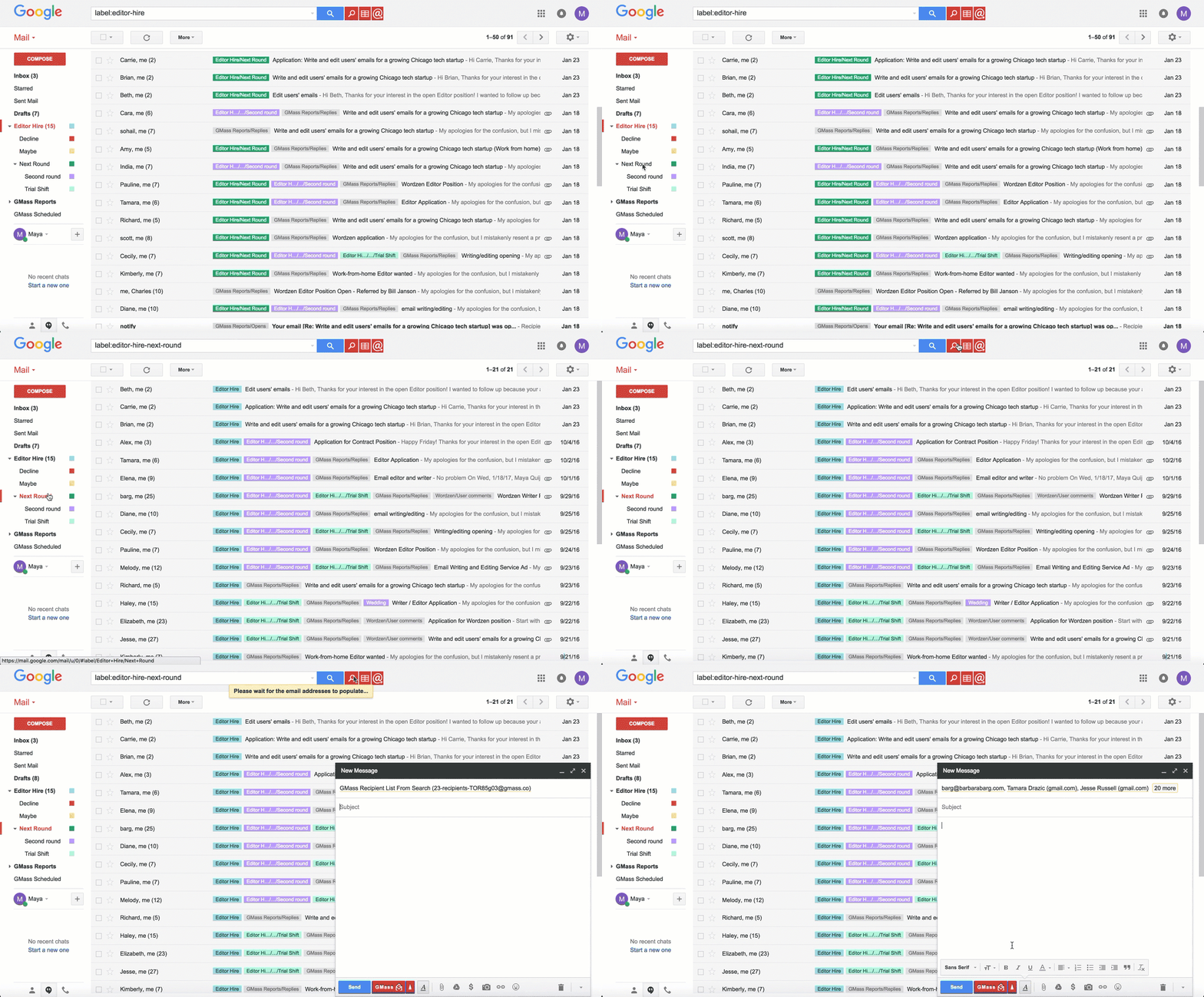
As I had time to review applications, I created a few more labels for groups of applicants I would need to contact with different messages. Rejected candidates would go into Decline, people I was undecided on would go into Maybe and my favorite candidates went to Next Round.

Use GMass to respond to groups of candidates at a time

When I was ready to send my favorite applications to the first interview round, I needed to send an email with a link to all of the individuals in the Next Round Label. I opened up the label, clicked the GMass Build Email List button (magnifying glass button), and GMass built my recipient list for me and populated the To field with all of their email addresses.

I began my email with:

Hi {First Name|there}

so that most people would be greeted by their first name and at worst they would be greeted with “Hi there”. You can learn more about personalization here.

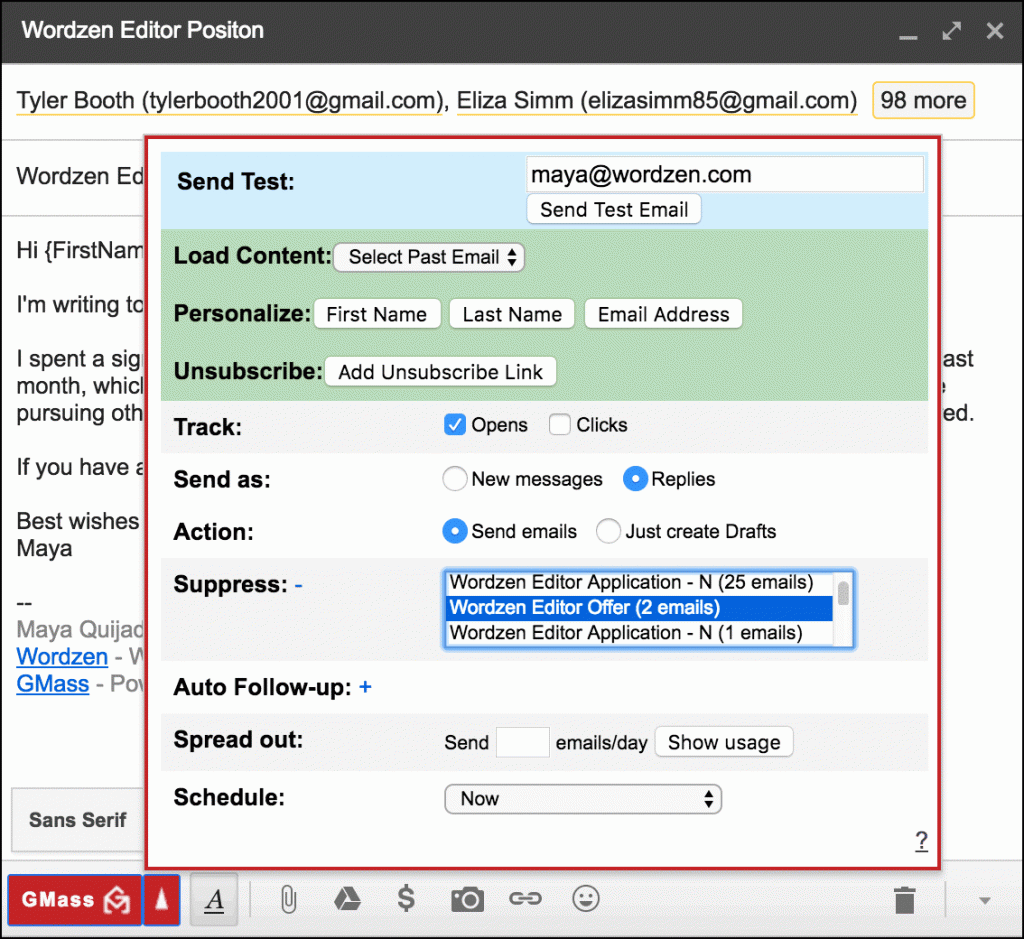
Here’s the important part: I set the campaign to Send as replies, GMass sent my email to each of the candidates not as a new thread, but in the same thread as our most recent conversation.

You can see the rest of my settings below:

What the sent emails look like

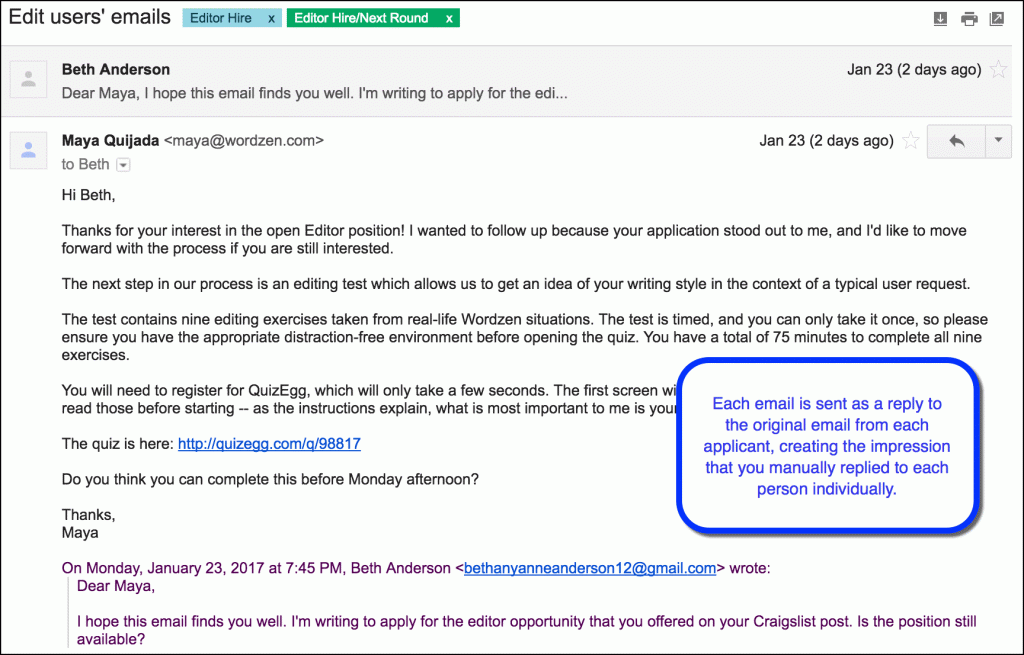
Example 1 of an email sent in response to a favored candidate
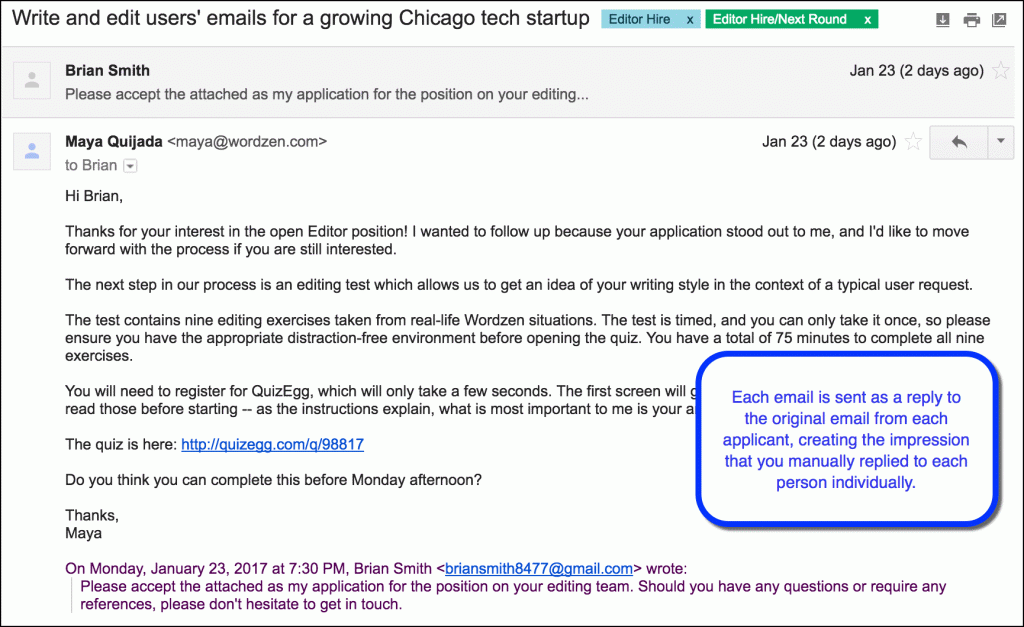
Example 2 of an email sent in response to a favored candidate

Notice that my email was sent in the same thread as the application (the most recent received message), and the Personalization Tag was replaced with the recipient’s first name.

The Rejection Letter

After I finished my assessment process and hired a couple editors, I wanted to inform everyone else that I hired someone and thank them for their time in applying to my opening. Doing so was simple. Remember the general Editor Hire Label I made at the beginning? I built a list from that label using the GMass Build Email List button – the magnifying glass – and I used suppression lists to prevent sending to the two people I hired.

Alternate way to retrieve all responses to the ad

If you used the Craigslist Mail Relay as your method of collecting replies to your ad, then building an email list of everyone that responded doesn’t even require Gmail Labels.

Craigslist Mail Relay
If you chose the Craigslist Mail Relay, a search for @reply.craigslist.org will yield all of your responses. Just click Build Email List to email everyone.

Want to get even fancier?

  1. If you’re afraid to send a mass email to a group of people because you think you did something wrong…use the Preview as Drafts feature.
  2. Use auto follow-ups to send automatic reminder emails to your YES candidates, to ensure you get a reply from them.
Ready to send better emails and save a ton of time?


GMass is the only tool for marketing emails, cold emails, and mail merge — all inside Gmail. Tons of power but easy to learn and use.


TRY GMASS FOR FREE

Download Chrome extension - 30 second install!
No credit card required
Love what you're reading? Get the latest email strategy and tips & stay in touch.



If you find that the GMass button in the Compose window is too big, then you can now set your account to have a smaller button. You may want to do this if you have other Gmail extensions installed which are taking space along the main button bar in the Compose window, or if you are getting a horizontal scroll bar in the Compose window.

To control the size of the GMass button:

Set the size of the GMass button to small or big.
  1. Ensure you have the latest GMass extension from the Chrome Web Store. You should have version 2.0.0 or higher. If you don’t, point Chrome to chrome://extensions and click the Update extensions now button in the upper right.
  2. Reload Gmail.
  3. Click Compose to launch a new window.
  4. Set the To field to button@gmass.co.
  5. Set the Subject to “small” or “big”.
  6. Hit the GMass button. Do not hit the Send button.
  7. Reload Gmail.

The button size will be set for your account. You will need to re-load Gmail for the change to take effect. If you set your button to “small”, this is what it will look like:

This is what the small GMass button looks like.
Ready to transform Gmail into an email marketing/cold email/mail merge tool?


Only GMass packs every email app into one tool — and brings it all into Gmail for you. Better emails. Tons of power. Easy to use.


TRY GMASS FOR FREE

Download Chrome extension - 30 second install!
No credit card required
Love what you're reading? Get the latest email strategy and tips & stay in touch.


When sending a mail merge campaign in Gmail, you can set a Reply-To address individually on each campaign, by setting it directly in the GMass Settings box.

You can also set the Reply-To in your Gmail account settings, and GMass will respect that setting, but it’s more manageable to set it directly in GMass’s Settings.

Which setting takes priority?

If you have a Reply-To address set in your Gmail Settings, that setting will be respected and used for your GMass campaigns. If, however, you set a Reply-To address in the GMass Settings box, that setting will override what you have set in your Gmail settings.

So where should you set the Reply-To address?

If you’re using a dedicated Gmail/Google Workspace account for your email campaigns, and you want replies to all of your campaigns to go to an email address different from the From address, then you might as well set that Reply-To in your Gmail settings, so you don’t have to remember to set it in the GMass Settings box each time.

If you’re using the same Gmail/Google Workspace account to send campaigns as you use to manage your personal email, then it’s better to set the Reply-To in the GMass settings box for each campaign you send. This is because it’s likely that you want replies to your personal emails to go to your From Address but you want replies to your campaigns to go elsewhere.

Why set a Reply-To address at all?

When a Reply-To address is set for your campaign, replies go to that address instead of the From address.

There are many reasons you might want replies to your email campaign to be sent to a different address than your From Address.

  1. Let’s say you’re sending a promotional campaign to all of your customers, and you want your assistant Mary to handle the replies. Now you could set your Reply-To to mary@company.com.
  2. Let’s say you’re sending an announcement out about a new feature in your software product, and you anticipate people replying with questions about the feature. You may want to set your Reply-To to your support address. In GMass’s case, if I were sending a campaign announcing a new GMass feature, I would set the Reply-To to our Zendesk support address.
  3. Let’s say you’re sending a campaign to some VIP contacts, and you want to personally handle the responses. In this case, you would not set a Reply-To at all, because you want the replies to come back directly to you. (If the Reply-To is blank, replies come back to the From Address of the email.)

How do you set the Reply-To in the GMass Settings?

Reply To in the GMass settings

Just open up the Settings box with the arrow button, and look for the Reply-To setting under Advanced. If you’re sending campaigns with GMass, this is the easiest way to control where replies are sent.

Word of caution: If you use a different reply-to address, GMass won’t be able to detect replies to your campaign (unless emails to that reply-to address also end up in the inbox from which you’re sending). GMass will give you a warning if you’re using a different reply-to address for a campaign with auto follow-ups that only stop on reply.

Warning for reply to address on auto follow-up campaign

How do you set the Reply-To in Gmail?

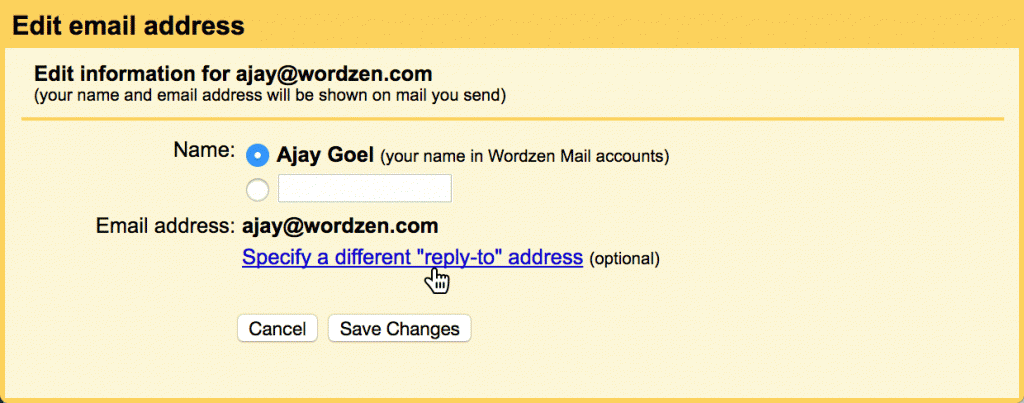
Setting the Reply-To in Gmail is easy. Go to Gmail Settings, then Accounts, and click edit info next to the email address whose Reply-To you want to set:

Then click the “Specify…” link.

Enter in the address, and hit Save Changes.

I’ve set the Reply-To for my ajay@wordzen.com to the address of my assistant, maya@wordzen.com.

It’s important to note that the Reply-To setting is specific to each Address that is set up in your Gmail account. If you’ve configured Gmail to send “from” more than one address, you can specify a different Reply-To for each. Similarly, when using GMass to send mail merge campaigns, whichever From Address you use in the Gmail Compose window will determine which Reply-To address is used.

How the Reply-To header works technically

When you set a Reply-To address, Gmail adds a Reply-To header to all of the emails you send so that when someone replies to your email, the reply will be sent to the Reply-To address instead of your From Address. Meaning, when somebody hits Reply, the To field of their “reply” email will be set to the Reply-To address you set in your account, rather than your From Address.

How the timing works

Gmail Settings

If you set a Reply-To in your Gmail settings, GMass will use whatever Reply-To address is set at the time you hit the GMass button. Let’s say you change the Reply-To in your Gmail account to your assistant’s email address, and then you use GMass to schedule a mail merge campaign for tomorrow afternoon. After scheduling the campaign, you remove the Reply-To address because you want to continue your day responding to your person-to-person emails, and you want those replies to come back to you, not your assistant. When the mail merge campaign sends the next afternoon, it will still send with a Reply-To set to your assistant’s address, since that’s what was set in your Gmail account at the time you scheduled the campaign.

GMass Settings

If you set a Reply-To in the GMass settings box, then you can modify that up until the point in time when GMass sends the campaign, and the latest setting will always be used.

A history lesson on Reply-To and the Gmail API

Before GMass had its own Reply-To field in the Settings box, it could only set the Reply-To based on your Gmail account settings for each From Address. Even that limited ability took time and effort because of how GMass stores campaign data and how Gmail stores DRAFTS. GMass uses a Gmail DRAFT as a template of each campaign you create.

A Gmail Draft itself doesn’t carry the Reply-To setting from your Gmail account. That’s because, unlike the Subject, Message, From Address, and Attachments, your Reply-To setting in Gmail is tied to your entire Gmail account, and not specific to a particular message or Draft. So, since GMass used the Gmail Draft as a means of storing campaign details, it previously didn’t have access to your Gmail account’s Reply-To setting.

In 2018, Gmail introduced a “Settings” API, which allows programmers to pull the Reply-To setting from your Gmail account. This enabled GMass to query your account to pull the Reply-To address, and if one is set, then it could use it when sending your emails for your campaign.

This approach lacked flexibility, because if you wanted replies for just a particular campaign to go to a different address, you would have to change your Gmail account-wide Reply-To setting, and that would affect even 1-on-1 emails that you may have sent around the same time you sent your mail merge. You would have to remember to change your Reply-To back after your campaign is finished. Furthermore, changing the Reply-To in Gmail Settings just for a GMass campaign takes you out of the GMass experience.

That’s why we introduced the ability to set your Reply-To address right in the GMass Settings box — so that  you can change or remove the Reply-To for each individual email marketing campaign you send.

Email marketing, cold email, and mail merge inside Gmail


Send incredible emails & automations and avoid the spam folder — all in one powerful but easy-to-learn tool


TRY GMASS FOR FREE

Download Chrome extension - 30 second install!
No credit card required
Love what you're reading? Get the latest email strategy and tips & stay in touch.


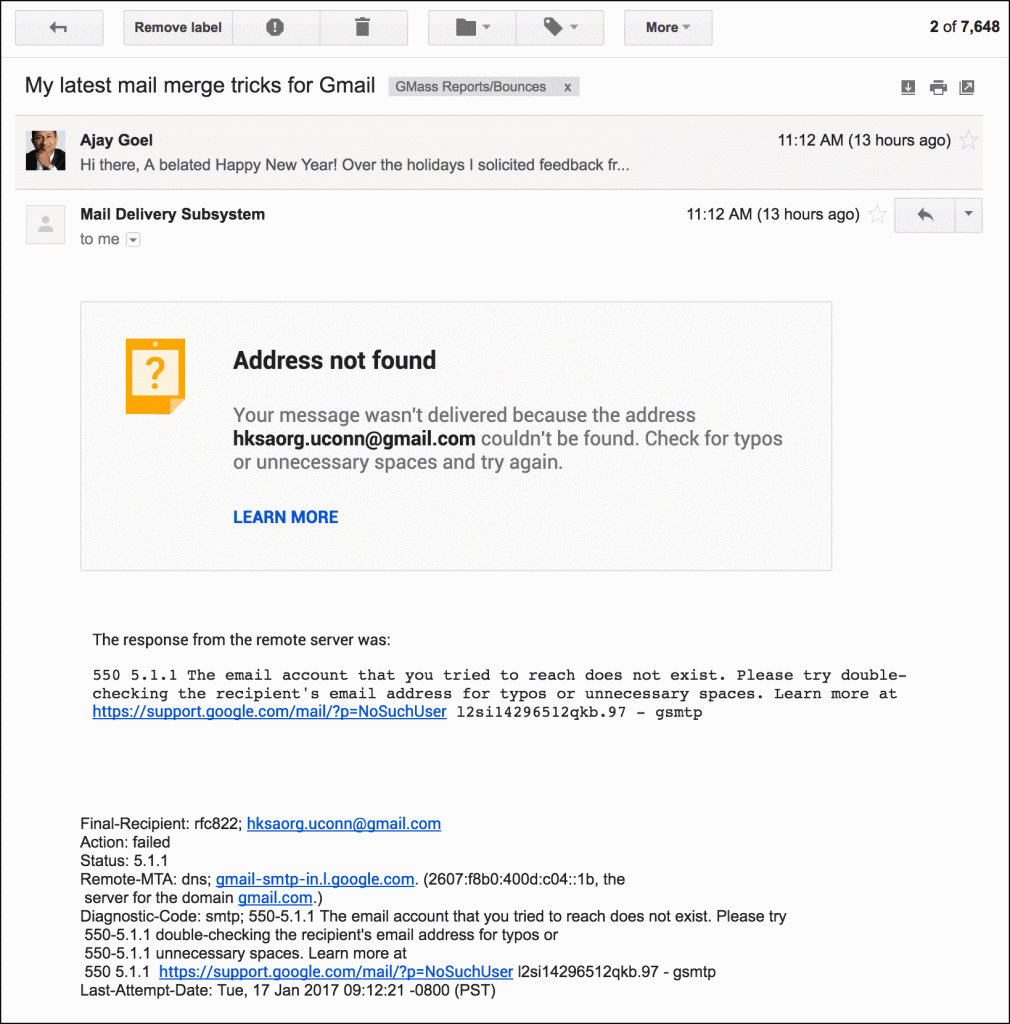
A few days ago, I noticed that bounce notifications from Gmail were no longer cryptic plain text emails with SMTP codes and headers, but instead looked far more aesthetically pleasing. So much so, that I now look forward to receiving an otherwise dreaded bounce notification. Here is an example of the new Gmail bounce notice in all its glory:

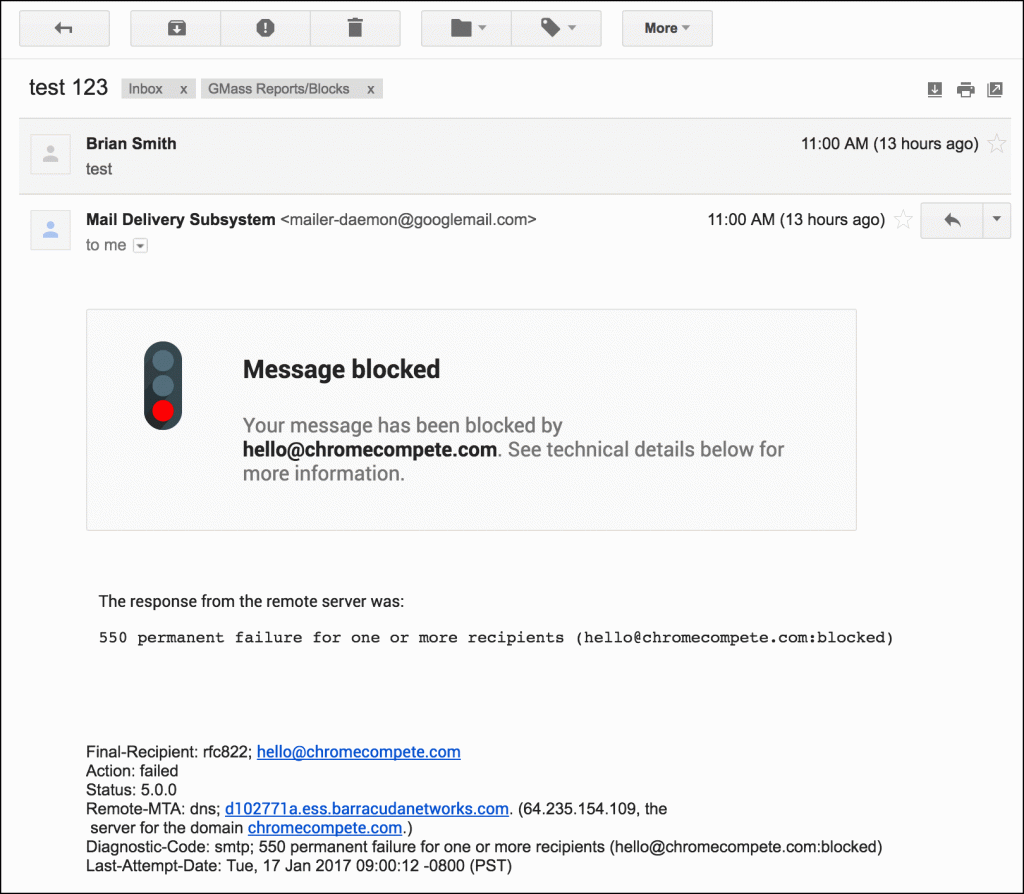
Google quietly rolled out this enhancement, as there was no mention of it on even the official Gmail blog. Still, the GMass team welcomes this enhancement. Gmail now translates the actual SMTP bounce code into a more readable message that is friendly to a non-techie email user. Additionally, if an email bounces because the email has been blocked and not because the email address is invalid, Gmail displays a “stop sign” to help you quickly identify the reason for the bounce:

Remember, if you use GMass to send a mass email campaign, GMass will find all bounces, blocks, and replies and categorize and process them for you as part of its Reply Management function. Bounces will be moved into the GMass Reports –> Bounces Label, and block notifications will be moved into the GMass Reports –> Blocks Label. Additionally, GMass stores a list of email addresses that have bounced because the address is invalid, and automatically suppresses these addresses from future mail merge campaigns.

Ready to transform Gmail into an email marketing/cold email/mail merge tool?


Only GMass packs every email app into one tool — and brings it all into Gmail for you. Better emails. Tons of power. Easy to use.


TRY GMASS FOR FREE

Download Chrome extension - 30 second install!
No credit card required
Love what you're reading? Get the latest email strategy and tips & stay in touch.


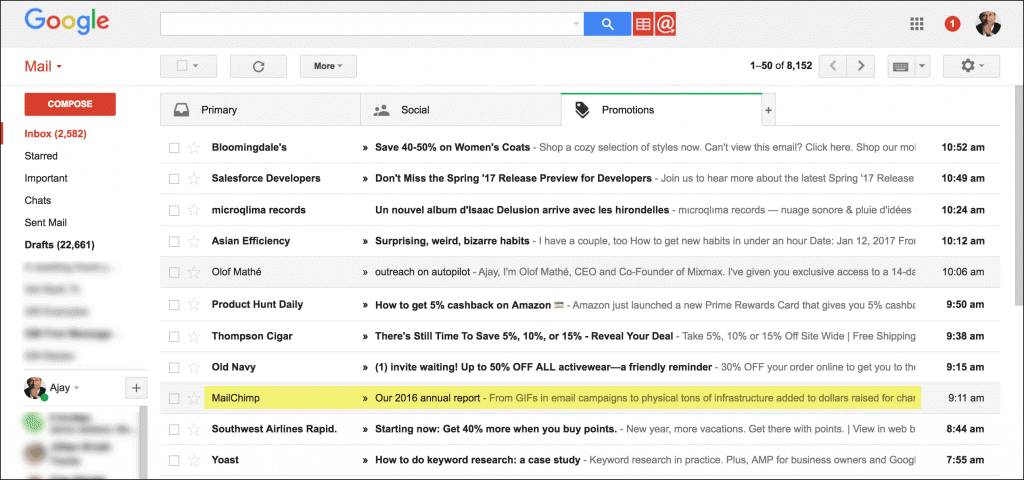
Every year I look forward to receiving MailChimp’s Annual Report. It’s funny, pretty, and full of interesting statistics. It also lands squarely in my Gmail Promotions folder, along with other name-brand emails:

GMass can hardly be called a competitor to MailChimp, given that MailChimp is a full-service email marketing service provider that integrates with hundreds of external systems, and GMass is a Gmail extension to send low-volume mail merge campaigns. In its annual report, MailChimp states that its users sent over 246 billion emails last year. In comparison, GMass sent a paltry 67 million emails last year.

Would you rather send 246 billion emails that all land in the Promotions folder, or would you rather send 67 million emails that all hit the Inbox? Actually, you’d be wise to choose the former. Even if only 0.1% of people ever check email in the Promotions folder, that’s still 246 million eyeballs versus 67 million. Fine, MailChimp, you win because of your massive scale. But unless you, as an email marketer, have a list of 246 billion emails, you might consider GMass over a traditional email marketing service provider if you want your emails to go straight to the Inbox.

Because GMass integrates with your Gmail or G Suite account, all emails are sent from Gmail’s own servers, meaning they almost always land in the recipient’s Inbox, not the Promotions folder and not the Spam folder. And, because GMass is integrated with your Inbox, it can do things like send automatic follow-ups to people who don’t reply, a feature MailChimp will never have.

Ready to transform Gmail into an email marketing/cold email/mail merge tool?


Only GMass packs every email app into one tool — and brings it all into Gmail for you. Better emails. Tons of power. Easy to use.


TRY GMASS FOR FREE

Download Chrome extension - 30 second install!
No credit card required
Love what you're reading? Get the latest email strategy and tips & stay in touch.


Since GMass uses the native Gmail Compose window as the basis for campaign creation, and since GMass allows you to copy/paste a list of addresses right into the To field, I thought it would be fun to see just how many email addresses the To field of the Compose window can hold. Is there a limit? Is there a connection between how many addresses Gmail will let you put in the Compose window and Gmail’s actual email sending limits? Would the Gmail anti-spam pre-crime team detect that I’ve pasted thousands of email addresses into the To field and shut down my account before I even have the chance to hit Send (or the GMass button)?

Let’s find out.

  1. First, I need a big list of email addresses I can paste in. Easy enough — I use SQL Server to store my users’ data, so I can just copy/paste email addresses from SQL Server into the Gmail Compose window.
  2. Here I’ve pasted 1,980 email addresses in the To field. Note that in the screenshots below, the Gmail Send button is hidden by GMass, to prevent a user from making the grave mistake of hitting the wrong button.
  3. Might as well keep going…6000 email addresses!
  4. As the number of addresses gets bigger, each subsequent paste into the To field gets slower, and additionally, I get an increasing number of Chrome “Page Unresponsive” alerts.
  5. A whopping 15,000 email addresses.
  6. From 15,000 I went to 20,000 with ease. I then decided to jump from 20,000 to 50,000. After clicking “Wait” on no fewer than 20 of the “Unresponsive Page” dialogs, and after waiting about 45 minutes, finally, the Compose window revived itself to life, with almost 50,000 addresses.

How do I know if the Compose box is still working?

As a Gmail expert, I’m used to the behavior of elements of the Compose window, so I would regularly test these to make sure they are still behaving normally. For example, I know if that if I type a few words in the Message area, the URL will change to reflect a new Gmail Message ID, since Gmail has just re-saved the Draft. I know that I should be able to click the X next to an email address in the To field to remove it. The count of total addresses should be accurate.

Copy/paste addresses directly into the To field, or use Google Sheets?

Even though I’ve shown that the To field can hold plenty of email addresses, it’s still more efficient to paste a large number of email addresses into a Google Sheets spreadsheet rather than into the Compose window directly. Why?  Because when you put your addresses into a spreadsheet, when GMass connects to it, it creates one single “alias” email address that represents all of the addresses in the spreadsheet. So the Compose window To field will only show one address. When the To field shows thousands of addresses, the JavaScript required to process all of that email address data slows down the inner workings of the Compose window significantly. Additionally, with the CPU resources Chrome will consume just to handle that Compose window, your entire computer is likely to slow down during a large copy/paste operation into the To field. Here is my CPU usage right now, as I attempt to go from 20,000 addresses to 50,000 addresses (so pasting 30,000 more) into the To field.

In Conclusion

While in theory it seems that the Gmail Compose window can hold an unlimited number of email addresses, it becomes impractical to paste so many addresses after the 10-20,000 address mark. The Compose window reacts too slowly, you get too many “unresponsive” dialog boxes, and the waiting time required for the “paste” operation to complete is unbearable. If you’re using GMass to send mail merge campaigns with Gmail, then I recommend using our Google Sheets integration if you’re needing to send to more than 20,000 addresses.

Ready to transform Gmail into an email marketing/cold email/mail merge tool?


Only GMass packs every email app into one tool — and brings it all into Gmail for you. Better emails. Tons of power. Easy to use.


TRY GMASS FOR FREE

Download Chrome extension - 30 second install!
No credit card required
Love what you're reading? Get the latest email strategy and tips & stay in touch.


GMass