<img height="1" width="1" style="display:none" src="https://www.facebook.com/tr?id=1822615684631785&amp;ev=PageView&amp;noscript=1"/>

When scheduling multi-day mail merge campaigns, you can now choose to skip the weekends. While the Skip Weekends checkbox under the Scheduling section may look simple, its underlying functionality is actually quite complex. What is a weekend? A weekend is 12:00 AM Saturday to 11:59 PM Sunday, based on your computer’s local time.

Skip Weekends
By checking “Skip Weekends”, no emails will be sent on a weekend. The auto follow-up Stages will count based on business days (Mon-Fri) rather than all days.

The “Skip Weekends” setting applies under the following scenarios:

  • You’re sending an email campaign where you use the “spread out” feature to send only a certain number of emails/day. With “Skip Weekends” on, the campaign would only send Monday through Friday.
  • You have a long-running campaign, sending 24 hours/day. As soon as it becomes Saturday, by your chosen time zone, the campaign will pause and resume sending on Monday morning at 8:00 AM by your chosen time zone. Your “chosen” time zone is your computer’s local time zone unless you manually changed the time zone offset in the Scheduling Date/Time field.
  • You’re sending an email campaign that recurs daily or hourly, based on new rows found in your Google Sheet. With “Skip Weekends” on, the campaign wouldn’t check for new spreadsheet rows during the weekend.
  • You’re sending a reminder email campaign every month on the 1st of the month. With “Skip Weekends” on, if the 1st of a month falls on a weekend, the email will be sent the following Monday instead.
  • You’ve configured auto follow-up emails and set your various Stage 1, Stage 2, and other Stage’s Days. With “Skip Weekends” on, it is assumed that the number of Days set for the various Stages are “business” days. Meaning, if you launch a campaign on Wednesday, and set Stage1=3 Days, then that means 3 “business” days, so Stage 1 will send on Monday.
  • If your campaign unexpectedly exceeds your Gmail account limits and starts generating Gmail’s “You have reached a sending limit” bounces, GMass detects that and pauses your campaign. Normally your campaign is paused for four hours. With “Skip Weekends” on, if four hours later is a weekend, then the campaign is pushed back to Monday morning at 8am, your local time.
  • You send an email campaign right now, and it happens to be the weekend. With “Skip Weekends” on, your mail merge would send at the same time on the following Monday instead of right now.

Practically speaking…

Practically speaking, why would you want to use the “Skip Weekends” setting? Generally, it’s because you want your recipients to get your email when they’re most likely to be working, and then they’d expect you to be working. Specifically, with each scenario described above:

  • If you’ve intentionally spread out your campaign to send only a certain number of emails/day, you may wish to skip the weekends so that your recipients get their emails only when they’re likely to be working.
  • If you’re using auto follow-up emails, it’s more likely your recipients will believe the follow-up is a manually typed out email just to them if it’s on a weekday rather than on the weekend.
  • If you’re setting up a daily recurring mail merge campaign tied to a spreadsheet, you may want to be able to add rows to your spreadsheet on Saturday and Sunday but not have those emails send until the following Monday.

Timing Examples

Here is how the timing works when Skip Weekends is checked:

  • If you send a campaign during the course of a weekend, it will instead send on the following Monday at the same time. For example, let’s say it’s Saturday at 3pm your local time. You send a campaign “now” but with “Skip Weekends” checked. It would not send until Monday at 3pm your local time.
  • With auto follow-ups, the Days you set for the various Stages are counted as business days, meaning Monday through Friday only. If you start a campaign on Wednesday at 11am, and set your Stage 1 auto follow-up to go in 4 Days, the Stage 1 follow-up would send on Tuesday at 11am, since Tuesday is four “business” days after Wednesday.
  • With automated recurring campaigns, if the campaign is set to repeat daily to new rows found in a Google Sheet, then the campaign sends Monday to Friday at the same time, to new email addresses found in the spreadsheet. If the campaign is set to repeat hourly, then the campaign would check for new spreadsheet rows and send during the 11pm hour on Friday night, and then resume checking the spreadsheet and sending on Monday right after midnight strikes.
  • GMass pauses your campaign when it detects that it’s bouncing because you’ve exceeded your sending limits. If a batch of emails is sending at Friday at 10pm at night, and GMass detects “over limits” bounces, then the campaign would resume sending at Monday at 8am. We’ve chosen Monday at 8am specifically for these scenarios, rather than the stroke of midnight on Monday.

Other things to know

  1. Remember, a weekend is defined by your computer’s local time, not GMT time. Some reports and notifications in GMass are shown in GMT time, but weekends are defined by your local time.
  2. The “Skip Weekends” setting sticks, meaning if you set it for one campaign, the box will be automatically checked the next time you launch a Compose window.
  3. “Skip weekends” can sometimes cause confusion with the timing of auto follow-ups, especially in recurring campaigns. You can always check when follow-ups are scheduled for a campaign and who will receive them with the calendar view.
Ready to transform Gmail into an email marketing/cold email/mail merge tool?


Only GMass packs every email app into one tool — and brings it all into Gmail for you. Better emails. Tons of power. Easy to use.


TRY GMASS FOR FREE

Download Chrome extension - 30 second install!
No credit card required

Love what you're reading? Get the latest email strategy and tips & stay in touch.


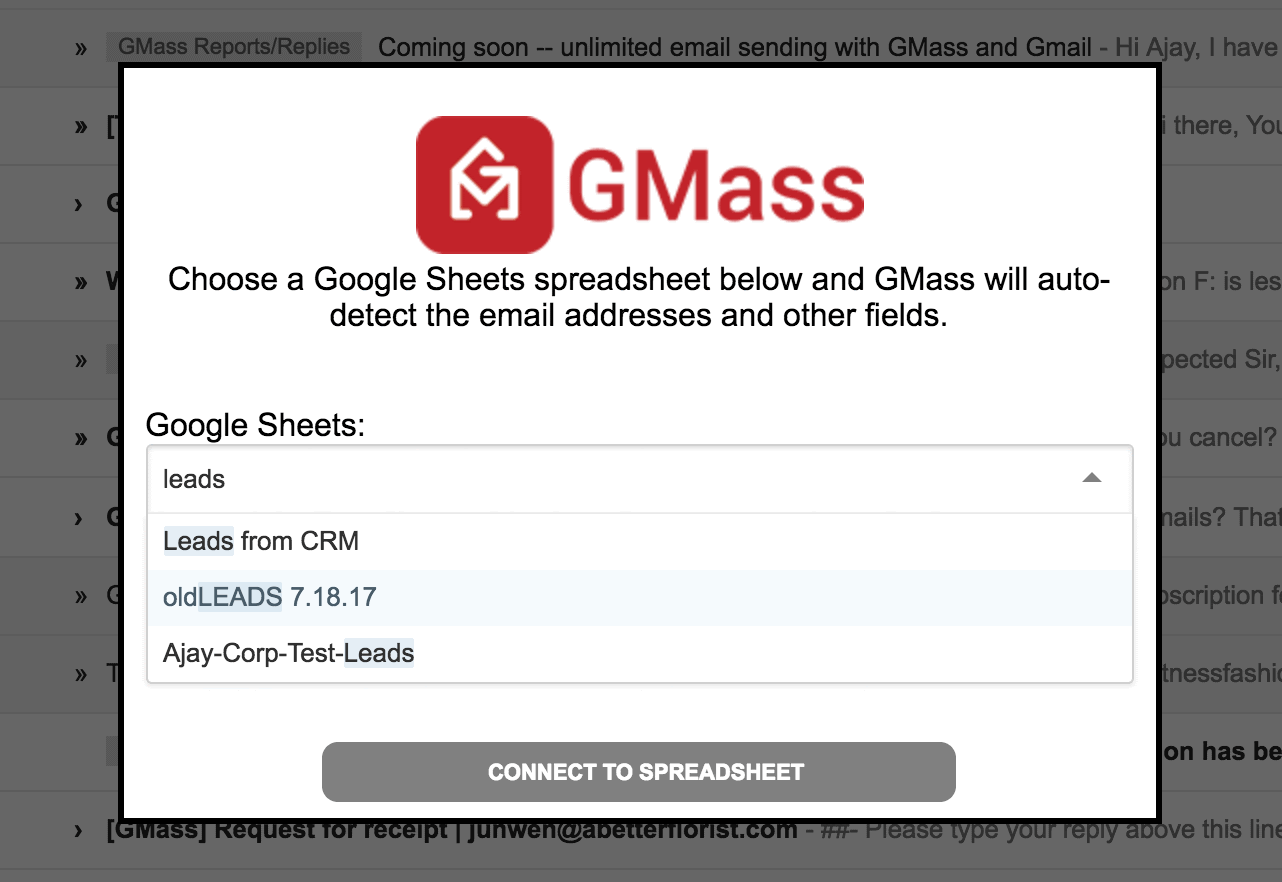
If you’ve used our Google Sheets integration to send your mail merge campaigns, you may have noticed how UGLY our spreadsheet dropdown used to be. If you had lots of spreadsheets, finding the right one was a pain.

No longer! Now, the spreadsheet dropdown is BEAUTIFUL, and you can easily search for the right spreadsheet just by typing a few characters that match any part of the name.

Google Sheets Dropdown
Just type a few characters, and your matching spreadsheets will appear.

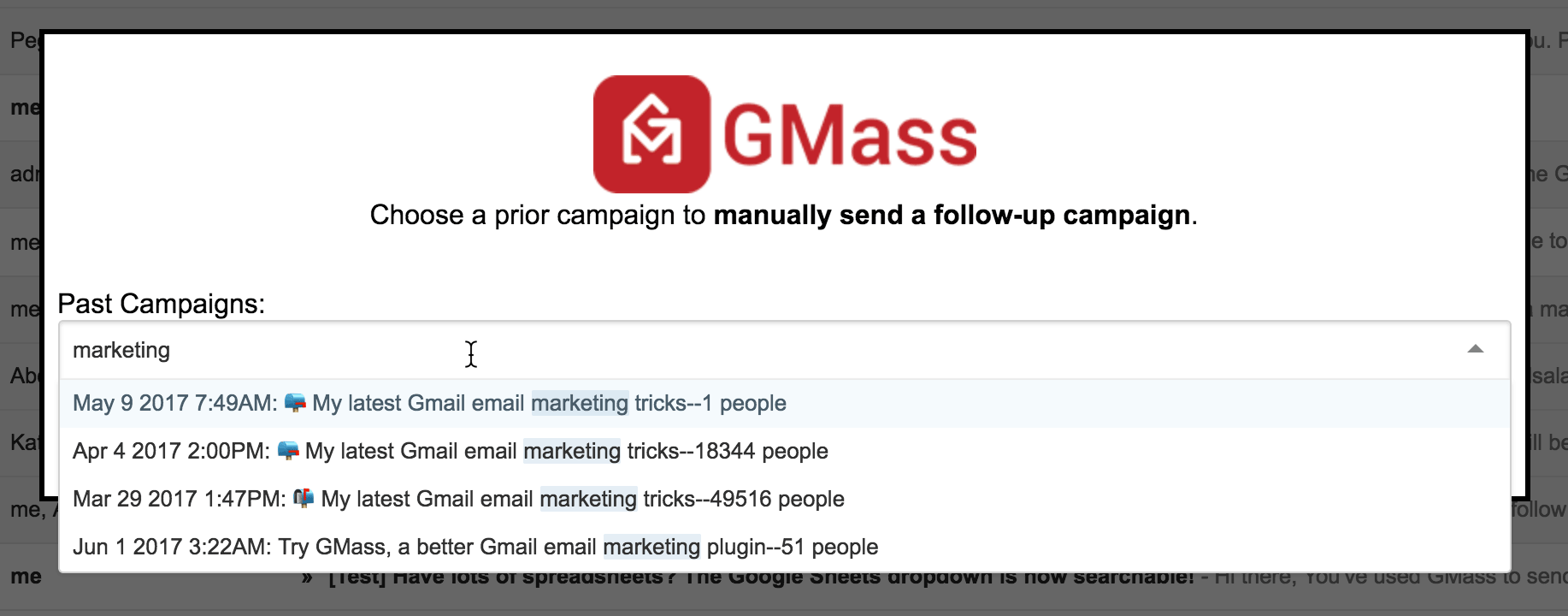
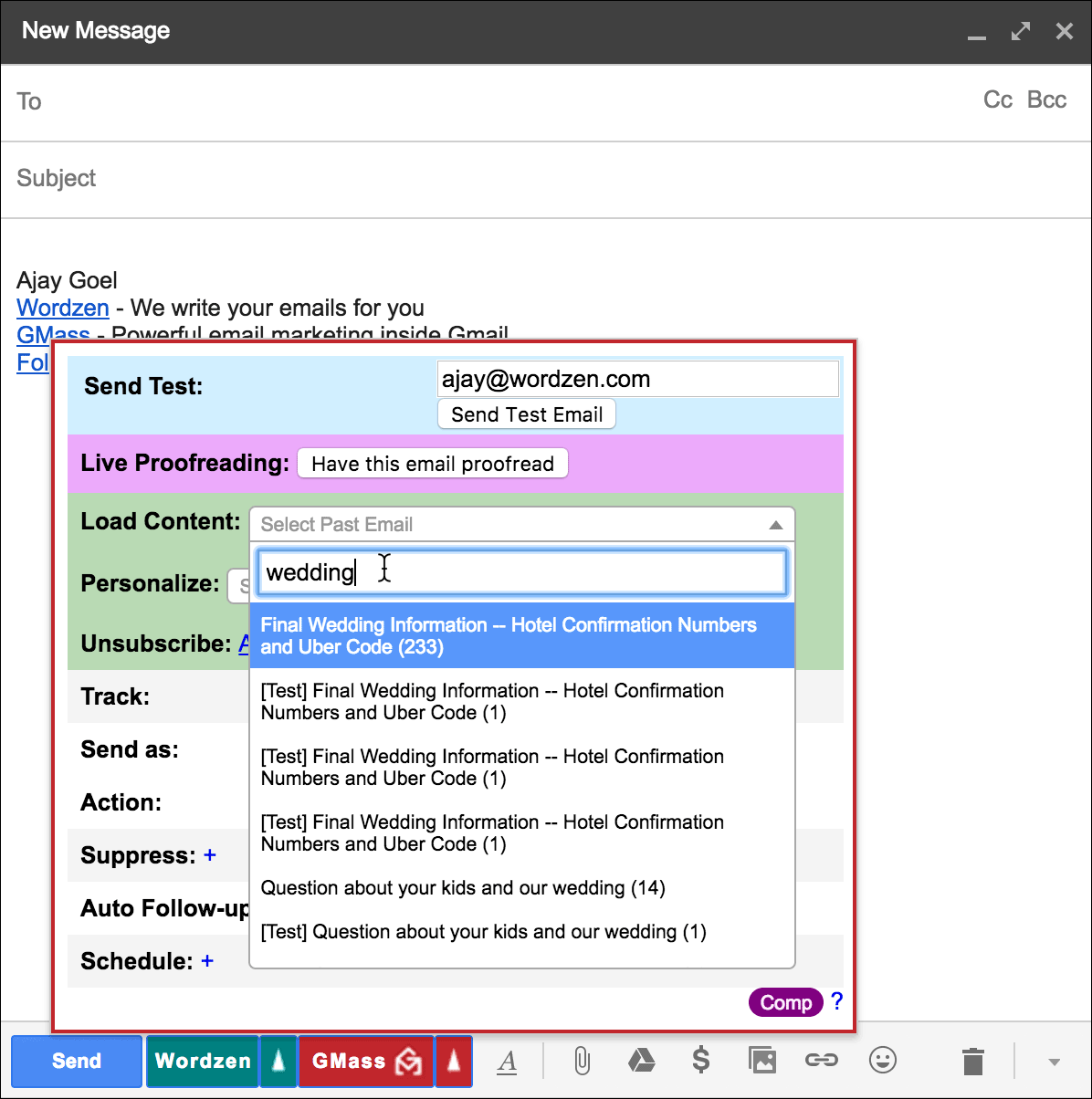
​In fact, we’ve updated all of the major dropdown menus in GMass to this new style, including the Past Campaigns and the Load Content dropdowns.

New dropdown
The new awesome dropdown for Past Campaigns.

And here’s the improved Load Content dropdown:

Content Dropdown
The awesome searchable dropdown menu to load a campaign’s content

To get the update, your Chrome browser has to update the GMass extension to the latest version 4.0.1, which will happen in the next 48 hours automatically. Don’t want to wait? You can also manually update the extension immediately by:

1. Going to chrome://extensions and clicking the Update extensions now button at the top.
2. Then reloading Gmail (or Google Inbox) in the browser.

Email marketing, cold email, and mail merge inside Gmail


Send incredible emails & automations and avoid the spam folder — all in one powerful but easy-to-learn tool


TRY GMASS FOR FREE

Download Chrome extension - 30 second install!
No credit card required
Love what you're reading? Get the latest email strategy and tips & stay in touch.


This article is intended for software developers or those interested in the code behind GMass.

GMass is written mostly in C# and JavaScript, and the C# backend makes heavy use of a popular email parsing component called MimeKit. In face, MimeKit, has become so popular that Microsoft is now recommending that developers use it as the standard instead of Microsoft’s own SmtpClient library.

Over the weekend, we updated some of the software components that GMass is built on in preparation for a big feature launch, and in doing so, we updated MimeKit from version 1.12 to the latest release 1.18. That upgrade unfortunately broke some of our email address validation code, and many users saw a “token offset” error as a result.

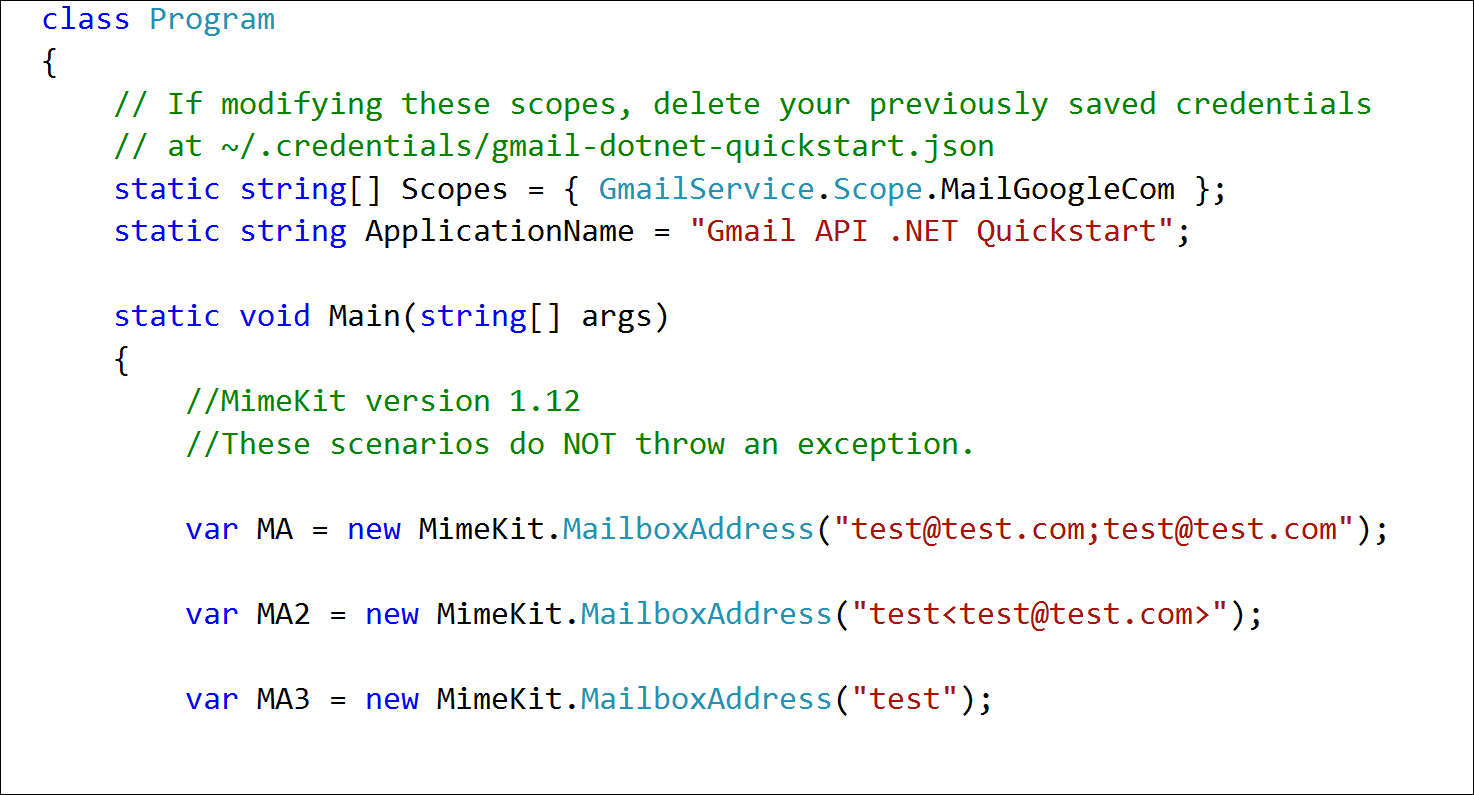
Here’s what happened. Previously, in version 1.12, the following scenarios would pass without throwing an exception:

MimeKit Sample 1
MimeKit Code Sample: These scenarios pass, and no exception is thrown.

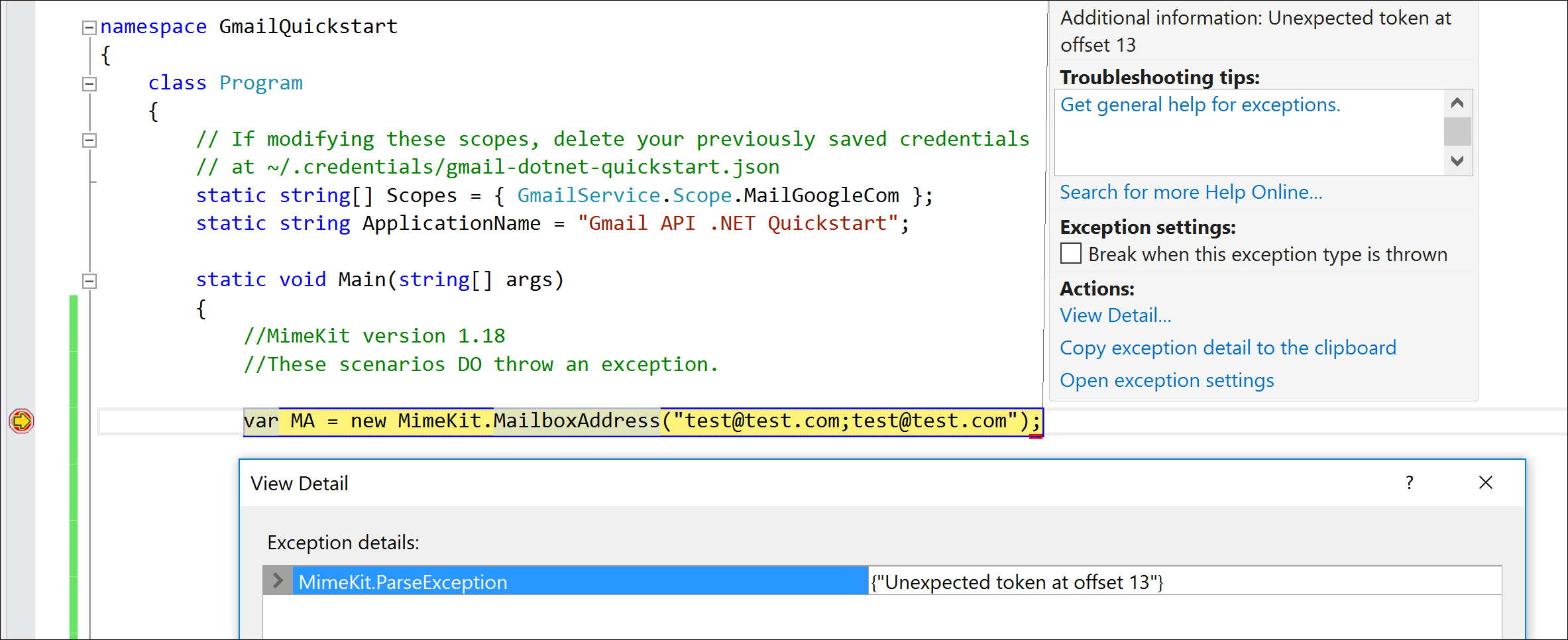
After updating to version 1.18, the top two of the three scenarios do throw an exception:

MimeKit Sample 2
MimeKit Code Sample: After updating to version 1.18, these throw a parsing exception.

The impact on GMass is such that if you’re connecting to a Google Sheets spreadsheet, and your column containing email addresses has a bad data value that is an invalid email address, such as “test@test.com;test@test.com”, whereas before our code would handle this appropriately and eventually filter the bad entry out, now all of a sudden, our code was throwing an exception.

Making matters more complex was that the MimeKit TryParse didn’t always catch a string that could not be converted into a MimeKit.MailboxAddress object. For example:

MimeKit Sample 3
MimeKit Code Sample: TryParse returns true, but the string still can’t be converted to a MailboxAddress object.

In the above samples, TryParse returns false for “test@test.com;test@test.com” but returns true for “test<test@test.com>”. It returns true for the latter because it assumes that the part outside the angle brackets is the Name, and so Name=test and Address=test@test.com. Our code though attempts to create a MailboxAddress object from the whole string, and in this case, the parse into Name and Address doesn’t happen, as the constructor assumes that the entire string represents just the Address portion of the object.

We did check the Release Notes for MimeKit before deploying the update, but there was nothing indicating the change in email parsing rules. Still however, we are eternally grateful to Jeffrey Stedfast for building and maintaining the MimeKit library for the .NET framework. Without it, my job as a software developer parsing and assembling email messages would be far more difficult.


Email marketing, cold email, and mail merge inside Gmail


Send incredible emails & automations and avoid the spam folder — all in one powerful but easy-to-learn tool


TRY GMASS FOR FREE

Download Chrome extension - 30 second install!
No credit card required
Love what you're reading? Get the latest email strategy and tips & stay in touch.


Gmail Error: You have reached a limit for sending mail. your message was not sent.

If you’re sending mail merge emails from your Gmail account, you’re likely aware of the basic limits that Gmail and G Suite set for your accounts. Generally, those limits are 500 emails/day for Gmail accounts and 2,000 emails/day for G Suite accounts. As is often the case though, users find that Gmail limits them below the stated values of 500 and 2,000 per day. For example, a new Gmail account can often only send 10-20 emails in its first 24-hour period. Similarly, a new G Suite account, especially when the domain is a new customer of G Suite, also has limits more restrictive than 2,000 emails/day.

Troubleshooting:

If you find that your sending volume is under the stated limits but are still getting the dreaded “You have reached a limit” bounce in Gmail, here are some strategies to help.

G Suite User? Contact G Suite Support

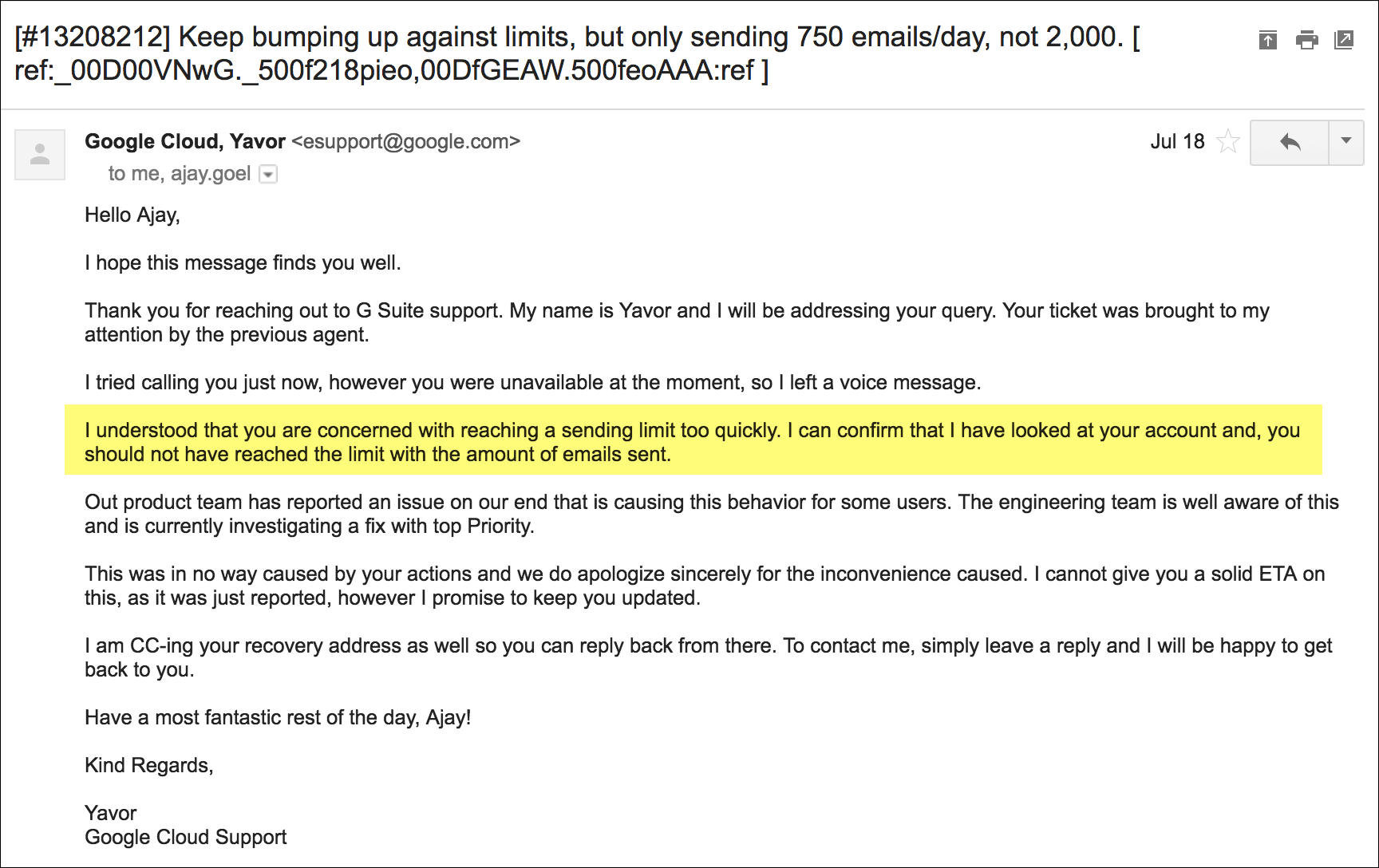
I’ve experienced cases where my own G Suite account was limited to 750 or 1,000 emails per 24 hours rather than 2,000. I contacted support, and they admitted that my account had been mistakenly limited and eventually resolved the issue and allowed me greater sending power. Here’s my correspondence with support:

G Suite Support
Correspondence with G Suite support about Gmail limits

Use the “throttle” setting to add a few seconds between emails

On Google’s official page describing Gmail sending limits, the 500 and 2,000 daily limits are mentioned. Anecdotally though, we’ve found that sending too many emails within too short a time span can also cause a limit to kick in. One support agent communicated that too many emails sent within a 10-minute period will set off red flags. Use the GMass throttle setting to add a few seconds in between emails. This will slow down the delivery of your messages, but help avoid any per-minute or per-hour limitations.

G Suite User? Perform an administrative reset

As a G Suite user, you can have your Admin reset your account’s quota if you are getting “You have reached your limit” bounces. However, this can only be done 5x/year.

G Suite Reset
Reset your Gmail quota if you are a G Suite user

Circumvent Gmail’s servers altogether

You can now use your Gmail account to send mail merge campaigns through any SMTP server, bypassing Gmail’s servers and sending limits. This will allow you to use GMass to send mail merge campaigns through your Gmail account, just like normal, but your emails will be routed through a third-party SMTP service like Sendgrid, Mailgun, or JangoSMTP.

How can you programmatically detect these bounces?

If you’re a software developer building your own mail merge system for Gmail, you may want to know how to write code to detect these “You have reached a limit” bounces. It used to be easy, because Gmail used to send these notifications from a special address, nobody@gmail.com.

In the summer of 2019, however, Google changed the address to the standard bounce notification address of mailer-daemon@googlemail.com, which then made it more difficult to detect “reached a limit” bounces from other types of bounces, like those indicating a bad recipient email address. There is however, one distinguishing factor that separates “reached a limit” bounces from all other kinds of bounces. The “reached a limit” bounce will have a Subject line of “Re: ” plus the original email’s Subject line. All other bounces from the “mailer-daemon” address will have the subject of “Delivery Status Notification (Failure)” or “Delivery Status Notification (Delay)”. For example, if the email you sent had the Subject “Company Newsletter”, and you receive an over-limit bounce, it will have the Subject of “Re: Company Newsletter”.

It’s also worth noting that the message will be in the same language as you’ve set your Gmail settings.

The full English message is:

You have reached a limit for sending mail. Your message was not sent.

The German message is:

Sie haben die Begrenzung zum Senden von E-Mails erreicht. Ihre Nachricht konnte daher nicht gesendet werden.

The Norwegian message is:

Du har nådd grensen for sending av e-post. Meldingen din er ikke sendt.

The Spanish message is:

Has llegado al límite de mensajes que puedes enviar. Tu mensaje no se ha enviado.

Further Reading

If you do find that you’re getting bounces because you’re over your Gmail limit, GMass will re-try sending those emails for you later automatically, but you can also manually re-send to the addresses that bounced.

See why GMass has 300k+ users and 7,500+ 5-star reviews


Email marketing. Cold email. Mail merge. Avoid the spam folder. Easy to learn and use. All inside Gmail.


TRY GMASS FOR FREE

Download Chrome extension - 30 second install!
No credit card required
Love what you're reading? Get the latest email strategy and tips & stay in touch.


GMass runs on a farm of Windows servers, and as the chief systems administrator, one of the constant worries in the back of my mind is whether any of the disks on any of the servers is near capacity. Naturally, I decided to Google “Windows disk space monitor”.
Given the usefulness of such a tool for any Windows server administrator like myself, I was expecting to be overwhelmed with viable options. Not only was I not overwhelmed, but the first two disk space monitors I downloaded sucked — to the point that I can’t even believe they are on the first page of Google. It goes to show that Google’s search results don’t always yield the best tools, just the most popular. Case in point, GMass is probably the world’s best Gmail mail merge tool, but a search for “Gmail mail merge” and GMass is shown near the bottom of page 1 and sometimes at the top of page 2. Yes, competition for that term is stiff indeed.

But I digress. Googling for “Windows disk space monitor” produces the following tools, and in this order:

  1. The Microsoft Performance Logs and Alerts technique
  2. A tool called Netwrix Disk Space Monitor from Netwrix
  3. A full server monitoring tool called PRGT from a company called Paessler
  4. A tool called Disk Monitor Lite from ManageEngine
  5. A tool called Meerkat, written by a sole developer and not backed by a real company
  6. A tool called Advanced Disk Space Monitor from Abaiko Software

Before I explain why 4 out of these 5 suck, let me first explain exactly what I wanted in the right disk space monitoring software:

  1. It should run as a service, so that if the server re-boots itself in the middle of the night, my disk space is still being monitored.
  2. It should have the ability to email me at defined thresholds, either in actual amount of space left or percentage of space left.

That’s all — just two simple requirements that most software calling itself “disk space monitoring” software failed to meet. Let’s break it down.

Windows Performance Logs and Alerts

The options to be alerted include: logging an entry in the Application Event Log, sending a network message to another server, initiating a performance data log, or running an EXE. That’s right — no email option, no text message option. How does Microsoft not understand the importance of email? They bought Hotmail in the late 90s, created Microsoft Exchange as their own email server platform, and now compete head-to-head against Gmail with Outlook.com. Yet the notion that a sysadmin would want to get an email to alert them of impending server doom is somehow lost upon them.

Why it sucks: No option to be emailed.

Netwrix Disk Space Monitor

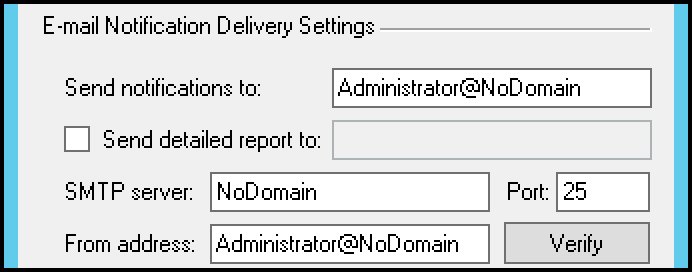
A simple, and supposedly free tool, that at first glance, I was convinced would solve my problem and my search would be over. Ehhh, not quite. Here’s a screenshot of the email settings. Let’s see if you can figure out what’s missing:

On the surface, it looks like it has everything you need to have an email sent to yourself when there’s a disk space issue. SMTP server, recipient address, From address. But wait…there’s no place to input SMTP server login information. Pretty much every SMTP server in the universe requires authentication by username and password (a few still let you authenticate by IP address), but given that there’s a thing called “spam” nowadays, Netwrix’s tool would only work circa 1999, when most SMTP servers were still open relays.

Why it sucks: No option to authenticate into the SMTP server.

Disk Monitor Lite

Total misnomer. Does some cool stuff and generates a cool report, but it doesn’t actually do any monitoring. That’s right — while it can generate on-demand reports, if you look at its feature list, nowhere will you find the ability to be alerted upon low disk space.

Why it sucks: No actual monitoring.

Paessler PRTG Network Monitor

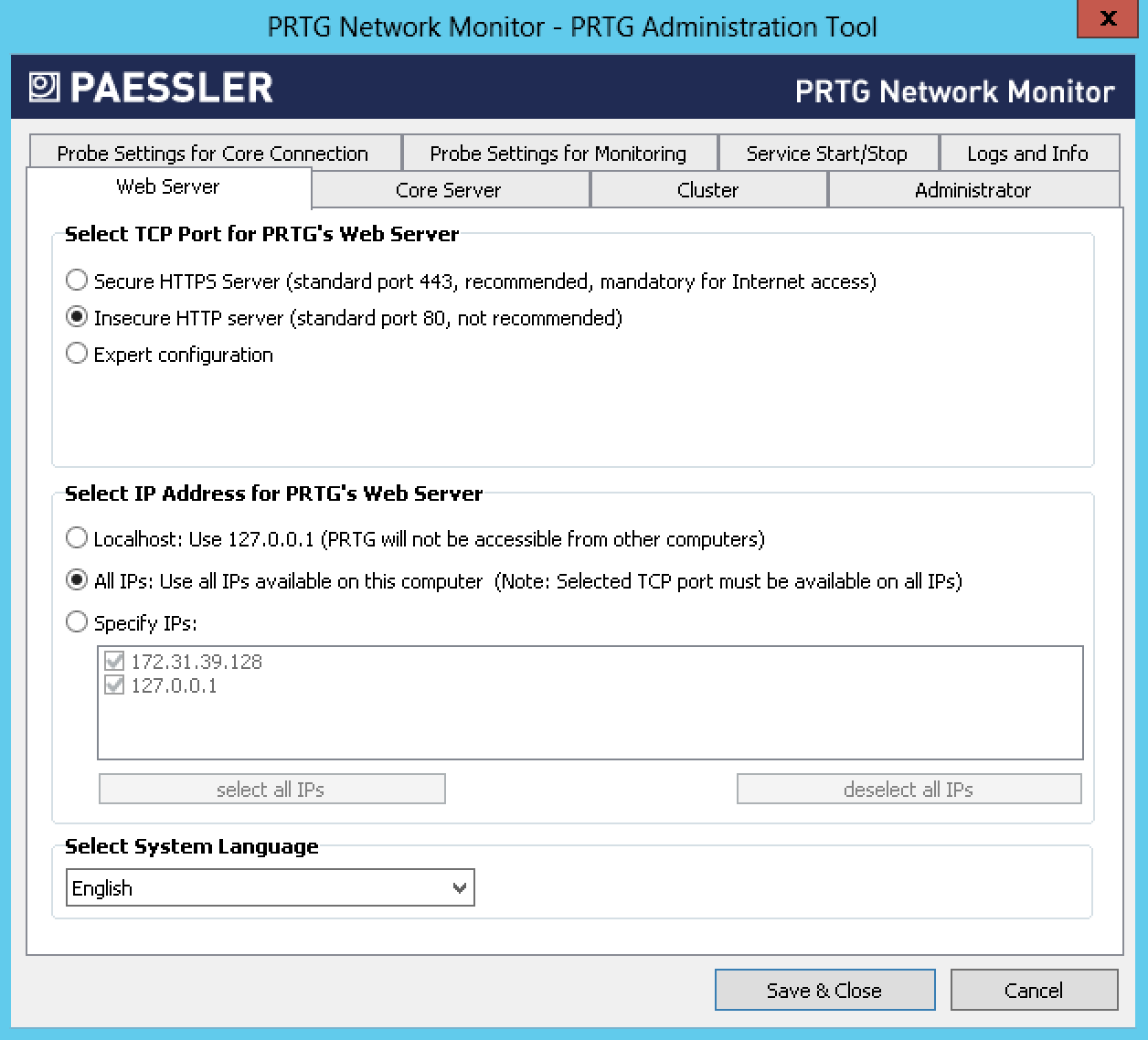
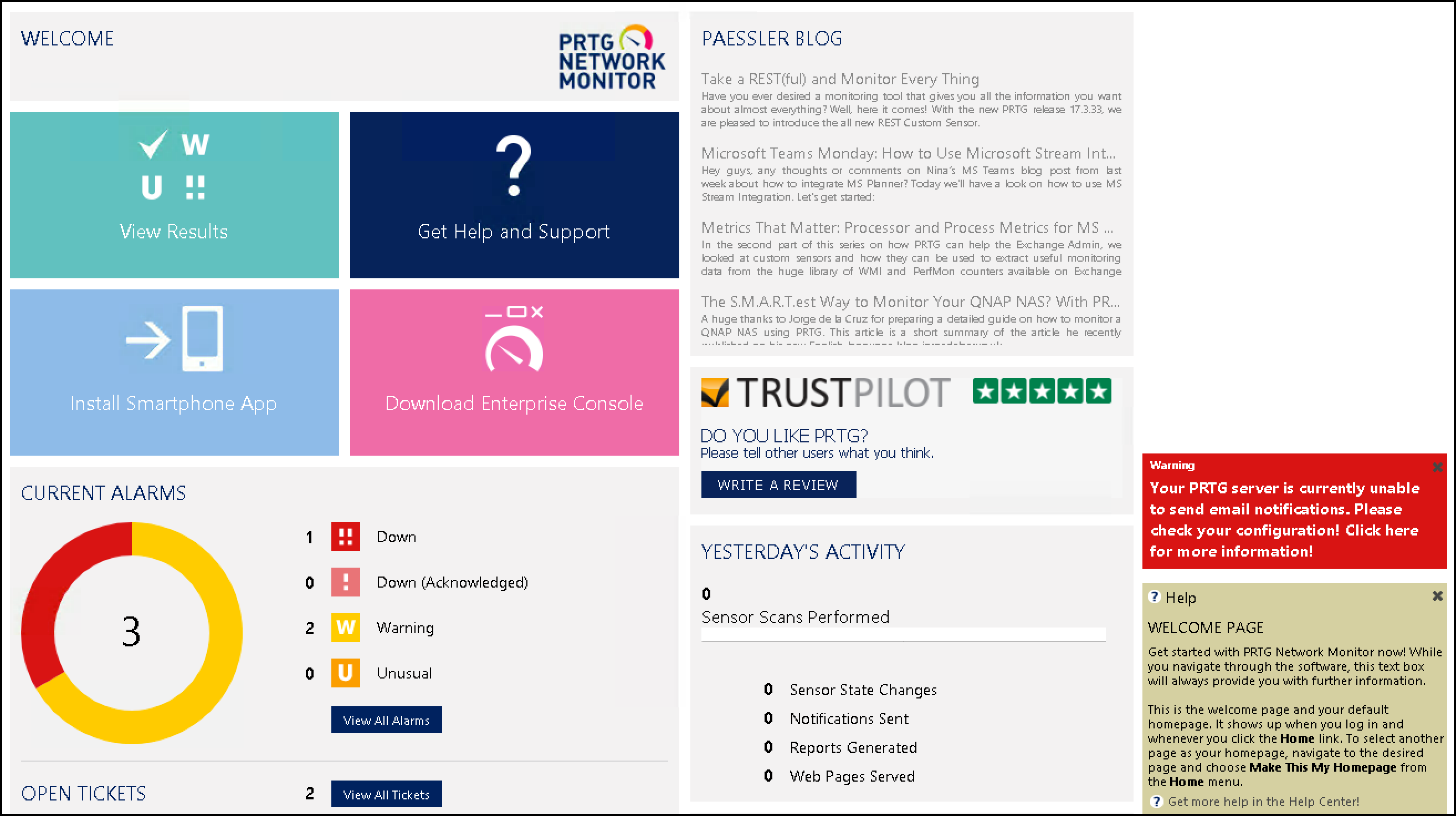
I’m betting that this tool would have done exactly what I wanted, but figuring out how to get it to do it was a hurdle I was unwilling to cross. This tool does a lot. And as such, it’s UI is complex. All I cared about was knowing when my disks were about to fill up, and this tool does 1,000 things more. Along with installing three different applications (the Network Monitor, the Administration Tool, and the Enterprise Console) to your Windows Start menu, there are at least two different user interfaces to manage.

Here’s what I saw when I first installed and launched the tool:

And here is the Enterprise Console.

Do you see any prompts that ask at what disk space threshold I want to be alerted? Neither do I. Next.

Why it sucks: It probably doesn’t, but it’s complicated as hell.

Meerkat

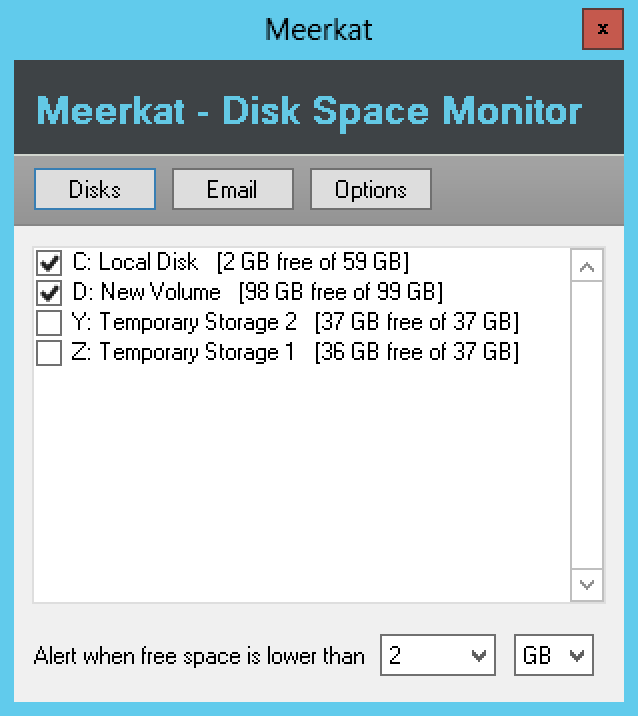
At the bottom of page 1 of the Google search results was a little tool called Meerkat. I liked that it was called “meerkat”, and I liked that it was created and explained by a sole developer. And obviously, I liked that it was free. Let’s go right to a screenshot:

Meerkat Disk Space Monitor
Meerkat Disk Space Monitor “Disks” settings

Nice. It shows me my disks, let me check the ones to monitor, and set the free space threshold to be alerted.

Meerkat Disk Space Monitor
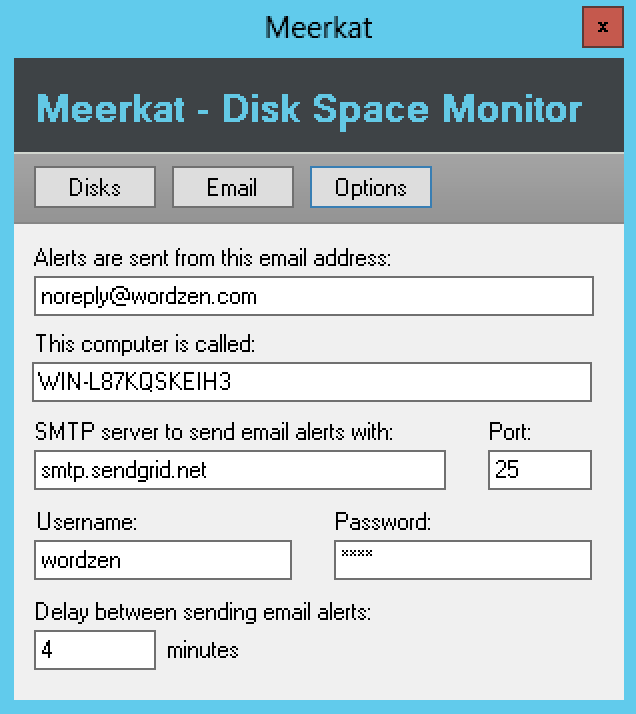
Meerkat Disk Space Monitor “Options”

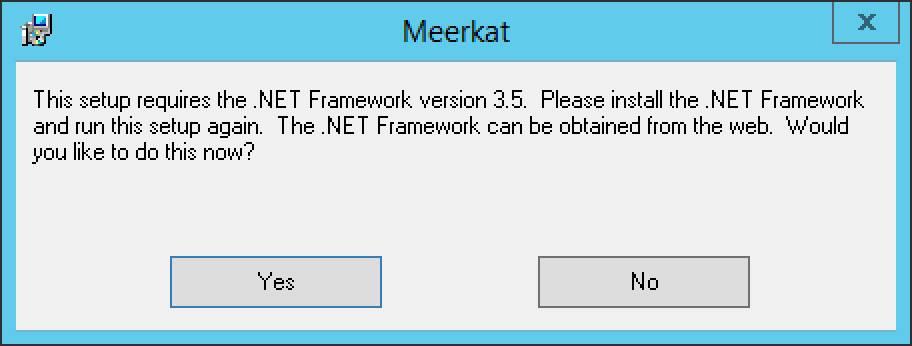
And look at that…right below the space where I set my SMTP server, I set my SMTP server username and password. Beautiful. I think I have a winner, until I go to my second server to install it. The install fails because I have .NET 4.7 installed (the latest), and it ONLY works with 3.5:

Meerkat sucks
Meerkat won’t install unless you have exactly .NET 3.5 installed.

Why it sucks: It requires a very specific .NET version, 3.5, to run. If you have anything greater, like version 4.7, which is the latest right now, it won’t install.

Advanced Disk Space Monitor (the WINNER)

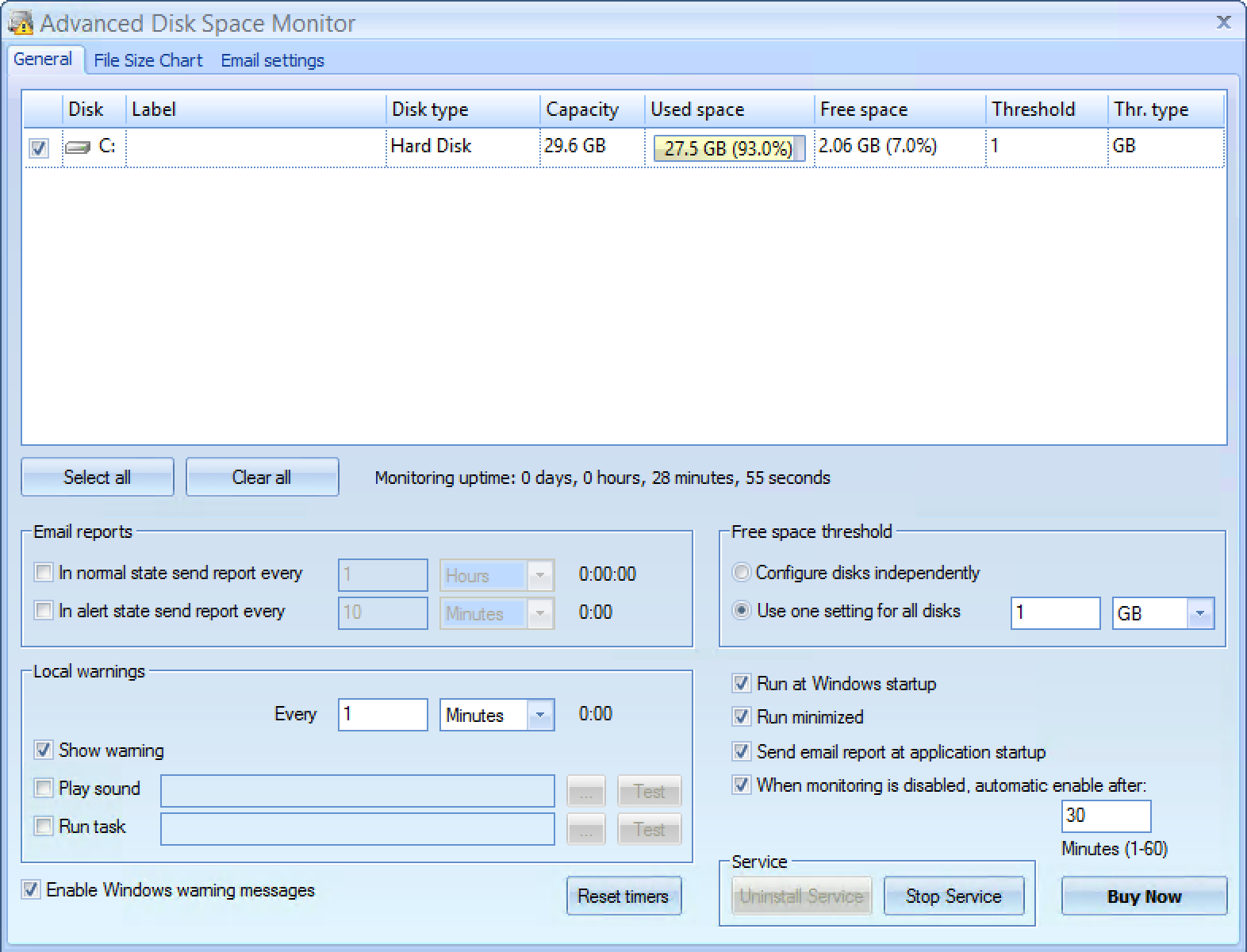
You have to go to page 2 of the search results to find the one tool that doesn’t suck. It doesn’t suck because it lets you define your thresholds for each disk individually. It doesn’t suck because it will email you an alert when you’re running out of space.

Advanced Disk Space Monitor Screenshot
The general disk space settings for Advanced Disk Space Monitor

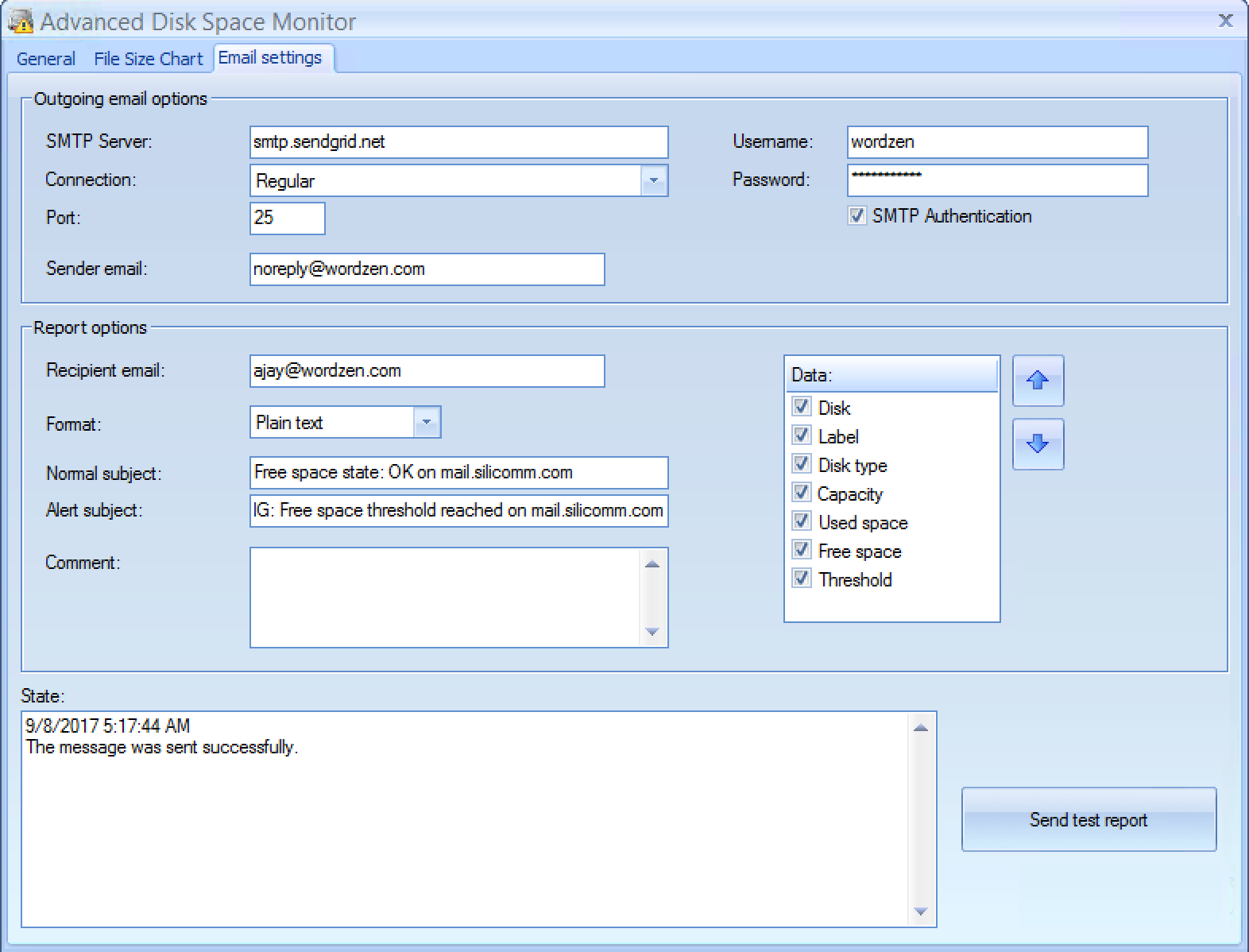
It doesn’t suck because it lets you configure a username and password for the SMTP server through which the email is sent. And finally, it doesn’t suck, because it will actually run on a Windows server with the latest .NET framework installed. Beautiful. We have a winner. It will, however, cost you $20 per license. But after all the effort I’ve put in so far, $100 for five servers is nothing.

Advanced Disk Space Monitor Screenshot
The email settings for Advanced Disk Space Monitor

Why it sucks: It doesn’t! It’s awesome.

One more option

After I found my winner, I stopped my search, but if you continue scanning through page 1 and 2 of the search results, you’ll find one more tool called Overseer. I did not sample this tool for my research, but if for some reason Advanced Disk Space Monitor doesn’t float your boat, check this one out, and perhaps comment on it below. It has a long hyphenated domain name, which looks unprofessional to me, but I forgive them because finding the right domain to launch a software product is damn near impossible these days.

TL;DR

Most Windows disk space monitors suck. The one that doesn’t, Advanced Disk Space Monitor, will not be found on page 1 of a Google search of “Windows disk space monitor.”

Email marketing, cold email, and mail merge inside Gmail


Send incredible emails & automations and avoid the spam folder — all in one powerful but easy-to-learn tool


TRY GMASS FOR FREE

Download Chrome extension - 30 second install!
No credit card required
Love what you're reading? Get the latest email strategy and tips & stay in touch.


It’s been a long time in the making, but GMass finally works with Google Inbox. We’re so excited that we’re celebrating with a relaunch of GMass on Product Hunt today, August 10. Please join the conversation there…add a comment, ask a question, shower us with praise.

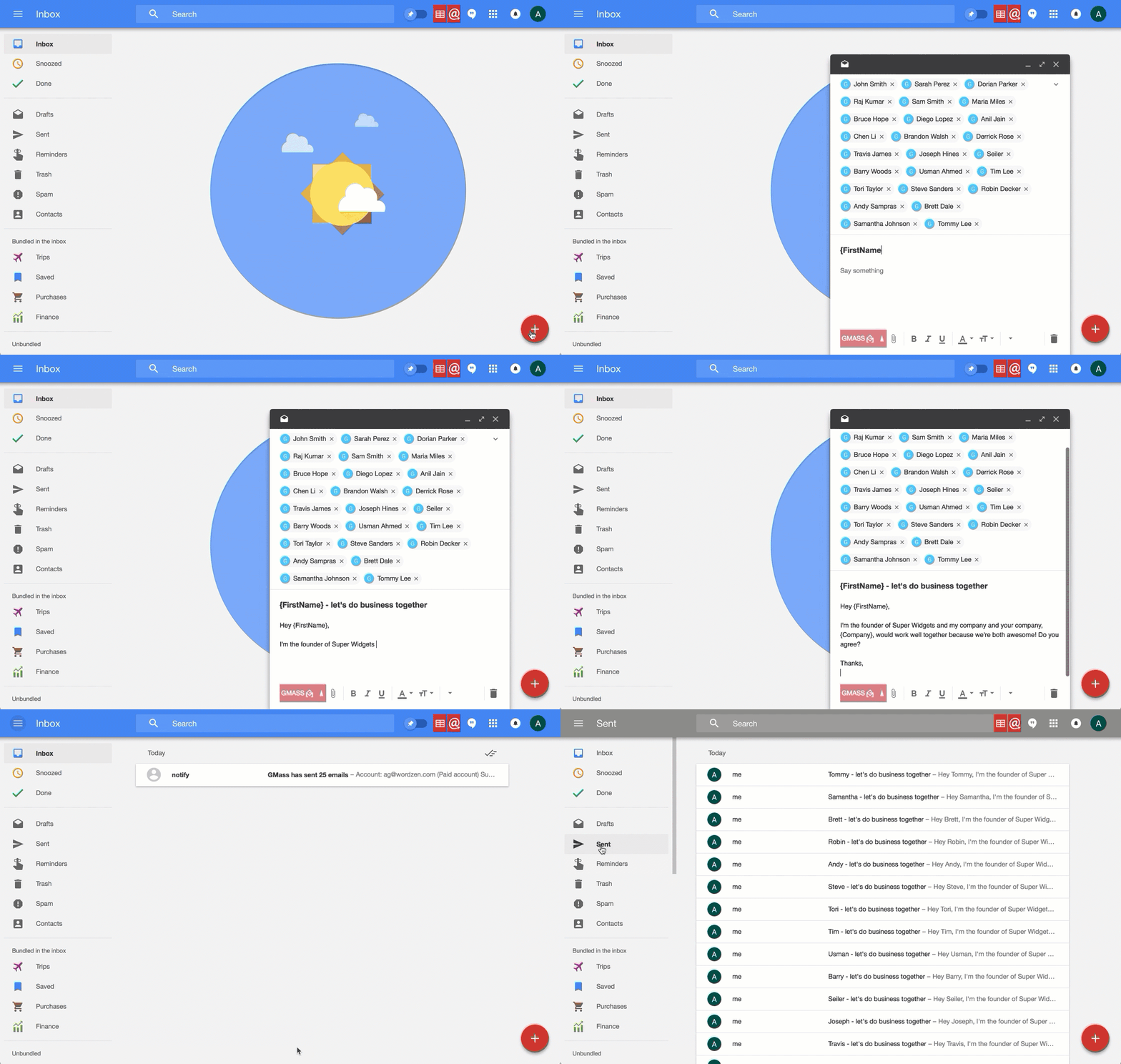
GMass in Inbox
The GMass extension now works with both Gmail and Inbox.

How do you get it?

You don’t have to do anything to get GMass to work inside Inbox, if you already have the GMass Chrome extension installed in your browser. Just fire up Inbox and the GMass buttons should appear. If they do not appear, your Chrome browser may not have the latest GMass extension, version 4.0.0. If that’s the case, go to the URL chrome://extensions and click the button at the top to “Update extensions now”. Then confirm that your version of GMass is 4.0.0.

Newbie?

If you’re a Google Inbox newbie, these resources may help:

If your account is configured for it, go to Google Inbox now.
The Wikipedia page for Google Inbox.

See why GMass has 300k+ users and 7,500+ 5-star reviews


Email marketing. Cold email. Mail merge. Avoid the spam folder. Easy to learn and use. All inside Gmail.


TRY GMASS FOR FREE

Download Chrome extension - 30 second install!
No credit card required
Love what you're reading? Get the latest email strategy and tips & stay in touch.


In Gmail you have the ability to send not only from your @gmail.com or G Suite email address, but also any “alias” From Addresses that you configure in your Gmail Settings as well under “Send mail as”. If you then send a mail merge campaign “from” one of these alias addresses, it could impact your email deliverability because your emails may not get sent through Gmail’s high deliverability email servers.

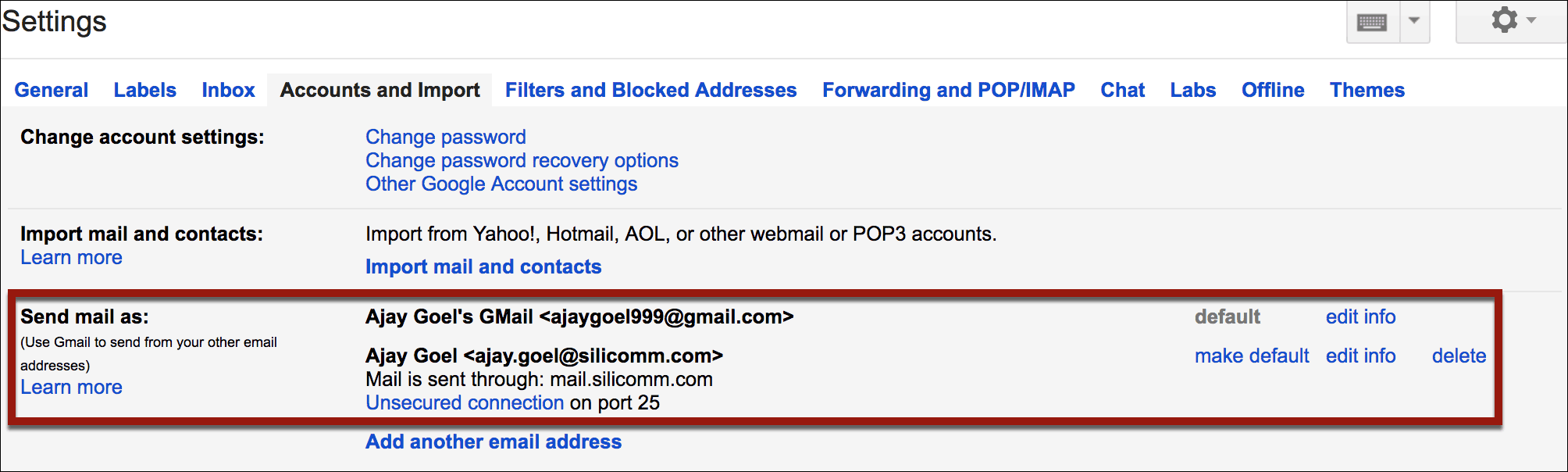
Gmail Send Mail As
How to add a new “From” address to your Gmail account.

It used to be that you could configure any additional address that you own to use as a From Address in your Gmail account and have those emails send through Gmail’s servers. A few years ago, Gmail changed that policy and now forces you to enter the SMTP server credentials for any new From Address you want to set up that isn’t hosted on Gmail or G Suite.

For example, I own the domain silicomm.com and one of my old email address is ajay.goel@silicomm.com. silicomm.com is NOT a G Suite domain. I actually run my own mail server for silicomm.com. My personal email account is ajaygoel999@gmail.com, so if I want the ability to send “from” ajay.goel@silicomm.com inside my ajaygoel999@gmail.com account, then I’ll be forced to enter the SMTP server settings to send mail from ajay.goel@silicomm.com.

When and why did Gmail make this change?

Gmail made this change around August of 2014. With the increase in usage of SPF and DKIM, it no longer made sense for Gmail to allow you to send emails from a domain that Gmail itself has no control over, through Gmail servers. Gmail was opening itself up to abuse by allowing people to send any emails they wanted from any domain they wanted through their email system.

On the other hand, you might be lucky and grandfathered in if you set up your Alias From Address before Google made this change. I have the Gmail account, ajay.silicomm@gmail.com, and I set up ajay.goel@silicomm.com as an Alias From Address way back in 2012, so I was able to do so and still use Gmail’s servers. I haven’t touched the settings since…if I want to make any changes, I’ll be forced to enter an SMTP server.

Adding a new From Address to your G Suite account

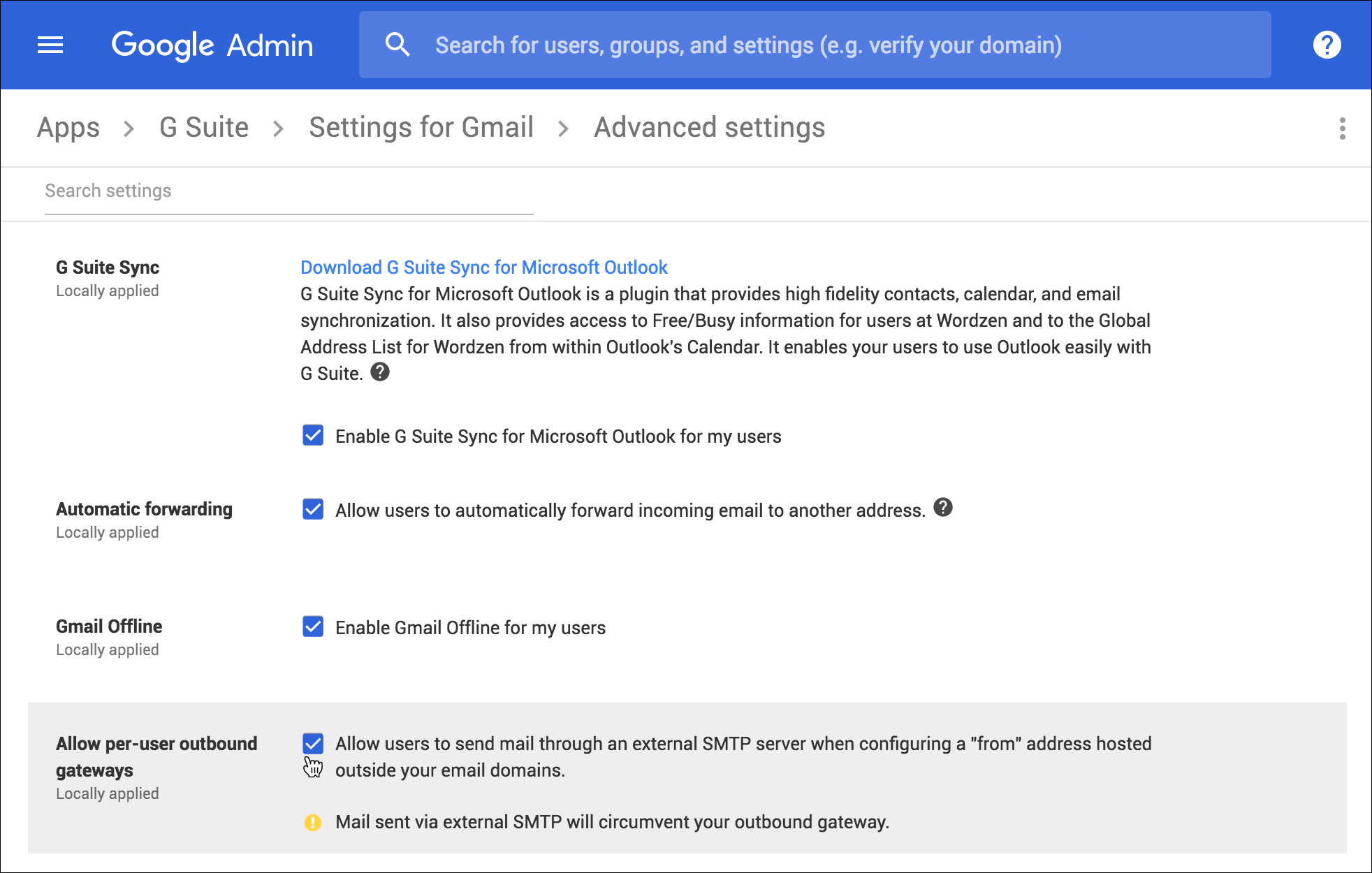
If you run into a “permissions” error when trying to add a From Address to your G Suite account, you need to have your G Suite Admin make a change to your permissions to allow you to do so. By default, this permission is OFF.

Google Admin SMTP Permissions
In order to set up additional non-G Suite From Addresses in a G Suite account, your G Suite admin must set permissions to do so.

When does Gmail ask for the SMTP server?

Whether or not Gmail asks you to input an SMTP server when you add a new “Send mail as” From Address depends on the type of Gmail account you’re logged into and the type of From Address you are adding.

Gmail G Suite
External Address SMTP Server Required SMTP Server Required
Gmail Address No SMTP Server Required
G Suite Address of Same Domain N/A No
G Suite Address of Different Domain SMTP Server Required SMTP Server Required

Regular Gmail

If you are logged into a regular Gmail account, meaning your account ends in @gmail.com or @googlemail.com:

  1. Adding a non G Suite address, like ajay.goel@silicomm.com will force you to enter SMTP server credentials.
  2. Adding a G Suite address, like ajay@wordzen.com will force you to enter SMTP server credentials.
  3. Adding another Gmail address, like briansmith8477@gmail.com (Brian Smith is my alter ego), does not require you to input SMTP server credentials.

G Suite

If you are logged into a G Suite account, meaning your account ends in your organization’s domain and uses Gmail:

  1. Similar to when you’re logged into a G Suite account, if you add a non G Suite address, like ajay.goel@silicomm.com, you will be forced to enter SMTP server credentials.
  2. If you add a G Suite address that belongs to the same G Suite domain as the account you’re logged into, you will NOT need to enter SMTP server credentials. For example, if I’m logged into ajay@wordzen.com, which is a G Suite account, and I add ag@wordzen.com as an alias From Address, I will not need to specify an SMTP server.
  3. If you add a G Suite address that does NOT belong to the same G Suite domain, then you will be forced to enter SMTP server credentials. For example, if I’m logged into ajay@wordzen.com, which is a G Suite account, and I wish to add rich@beamboard.com, which is another G Suite account, I will be forced to enter SMTP server credentials.
  4. If you add a regular Gmail account as a “Send mail as” address, you’ll be asked to enter SMTP server credentials. Be careful here though — if you specify a third party SMTP server, you’ll likely fail SPF checks since you can’t control the SPF record for gmail.com to allow your third party SMTP server to send on behalf of gmail.com.

The skinny on deliverability

Let’s say that I now have ajay.goel@silicomm.com set up to send via ajaygoel999@gmail.com. The SMTP server for silicomm.com is mail.silicomm.com, and I enter this as the credentials.

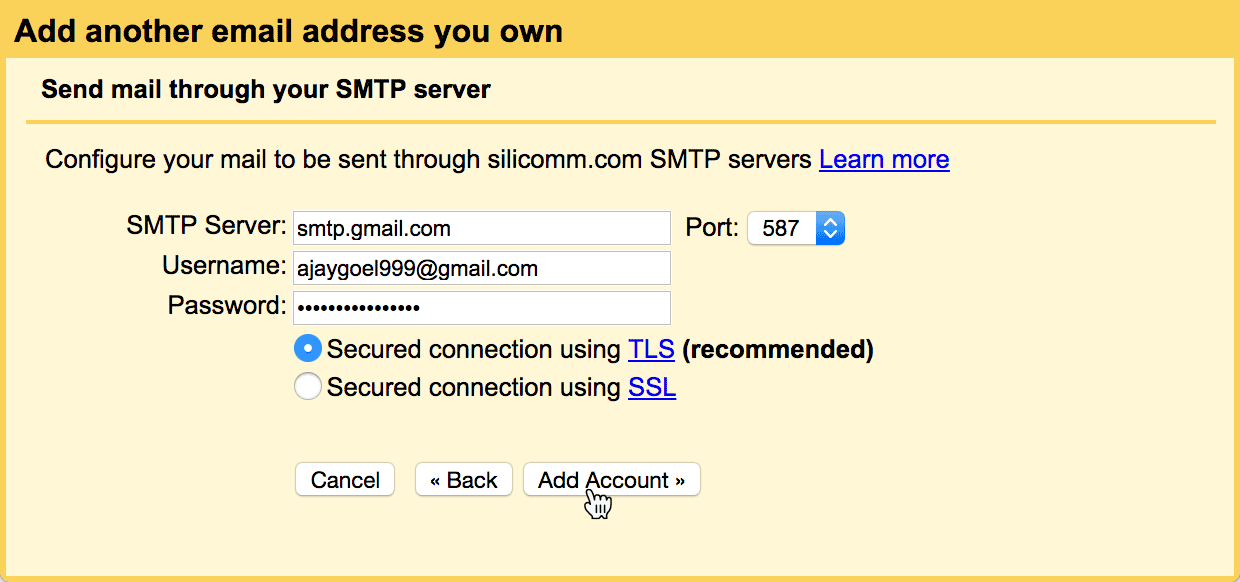
Gmail SMTP Server Info
I’m setting up a From Address of ajay.goel@silicomm.com and entering the SMTP server info for the silicomm.com domain.

If I now send a Gmail mail merge campaign from ajay.goel@silicomm.com, those emails are routed through mail.silicomm.com and not Gmail’s high deliverability servers. My mail merge may work just fine, but I may lose some deliverability benefit. One of the advantages to using GMass over a traditional email marketing service like MailChimp or Constant Contact is the extremely high deliverability advantage that Gmail’s own servers provide over a traditional ESP’s servers, which are known to be bulk mailing servers.

The third party SMTP server may not be configured to handle rapid routing of many emails simultaneously. Some SMTP servers allow a single user to only send a couple hundred emails/day. In that case, you will be limited in the number of emails you can send not by Gmail’s own limits, but by the third party SMTP server’s limits. If you start to get bounces that are not generated by Google that indicate a rate-limit or delivery problem, then it’s the third party SMTP server is restricting you.

Here is an example of a bounce generated by a third party SMTP server: server173.web-hosting.com

An example of a bounce generated by a third party SMTP server, because of a quota issue.

A hack that allows you to still use smtp.gmail.com as your third party SMTP server

If you want to route your emails through Gmail’s servers even when sending “from” an external email address, you can use Gmail’s SMTP relay server, smtp.gmail.com. Whether you can use smtp.gmail.com and what credentials you use to authenticate into smtp.gmail.com depend on your setup.

G Suite

You can authenticate into smtp.gmail.com with any G Suite account just by using the G Suite email account and password as the credentials. You must turn on “Allow less secured apps” for this to work.

Google Less Secure Apps
You must turn on “Allow less secure apps” for your G Suite account in order to authenticate into smtp.gmail.com with your G Suite email account and password.

If you don’t want to allow “less secure apps”, then you can turn on 2-step Verification and create a separate App password as described in the instructions below for Gmail. This will also work for a G Suite account.

As a G Suite user, you can also choose to authenticate into smtp-relay.gmail.com, which is a special SMTP relay just for G Suite users and not regular Gmail users.

Gmail

Unlike with G Suite where the regular account email and password will authenticate into smtp.gmail.com if you turn on “allow less secure apps”, for regular Gmail accounts, you need to set up an app-specific password to authenticate into smtp.gmail.com. I consider this a loophole in Gmail’s policies, because I don’t believe this is what Google intended, but nevertheless it is possible to use smtp.gmail.com as the SMTP server for an external address inside a Gmail account. Someone else, far smarter than I, discovered this technique and wrote about it.

Here is how you do it.

Example: Authenticating using a Gmail account from a G Suite account

Given that you can authenticate into smtp.gmail.com using a Gmail or a G Suite account, you can also now route your email in a complex manner via multiple accounts. For example, in my G Suite account ajay@wordzen.com, I can set up an Alias From Address of ajay.goel@silicomm.com (which is not a G Suite account) by authenticating into smtp.gmail.com with my regular Gmail account, ajaygoel999@gmail.com. Confused yet?

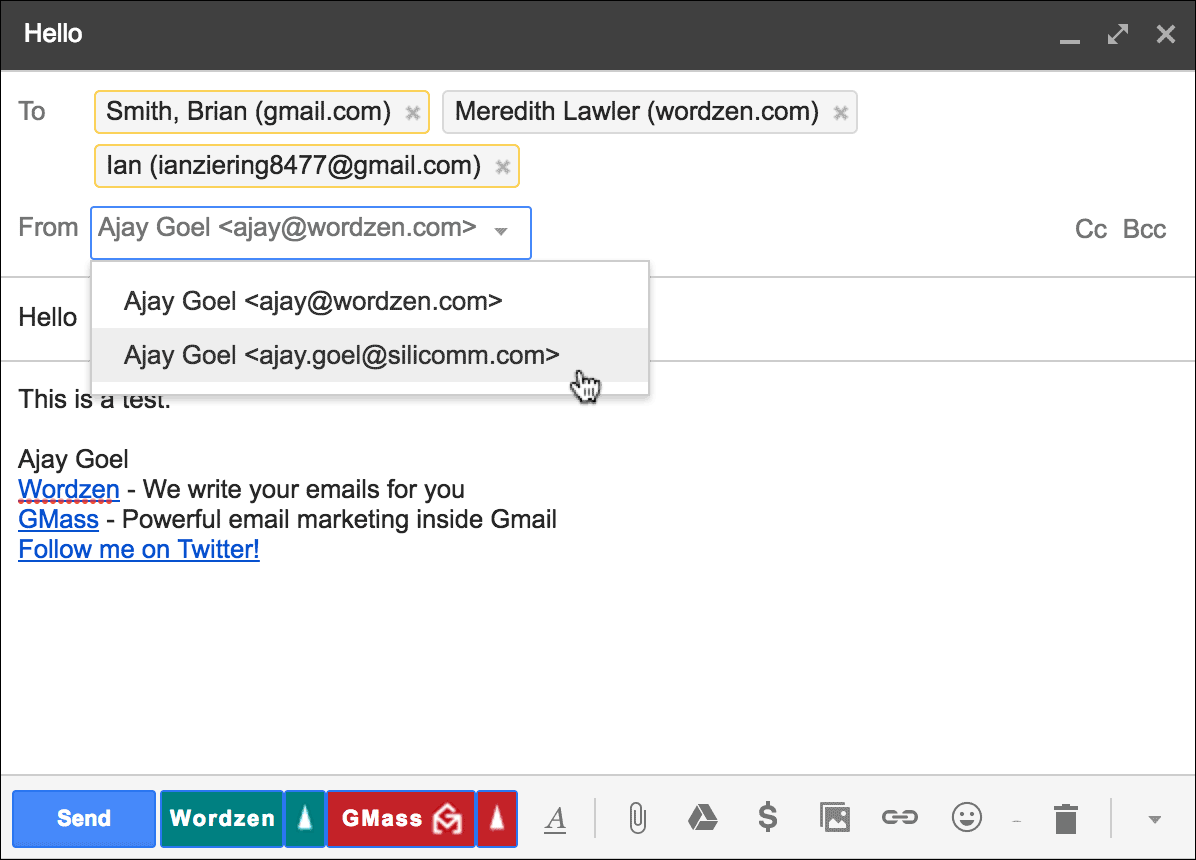
From my ajay@wordzen.com G Suite account, I want to add ajay.goel@silicomm.com as a From Address.

Note that I’m adding ajay.goel@silicomm.com as a From Address from my ajay@wordzen.com G Suite account. But instead of using my ajay@wordzen.com login for smtp.gmail.com, I’ll use my personal ajaygoel999@gmail.com account instead.

I’m authenticating into smtp.gmail.com with my ajaygoel999@gmail.com account. The password however is not the password for ajaygoel999, but a separate App password I created using this technique.

After Gmail tests the SMTP connection and sends me a verification code, I’m all set to send from ajay.goel@silicomm.com from my ajay@wordzen.com account.

I’m now composing a mail merge using the ajay.goel@silicomm.com From Address.

Given that ajay.goel@silicomm.com is set to authenticate into the SMTP server with ajaygoel999@gmail.com account, which of my Gmail accounts will the email be sent from? ajay@wordzen.com which is where I’ve set this up, or ajaygoel999@gmail.com, which is the account the SMTP server will use?

It turns out that the emails will show up in the Sent Mail for BOTH ajay@wordzen.com and ajaygoel999@gmail.com.

The sent emails show up in the Sent Mail folder for ajay@wordzen.com.
The emails ALSO show up in the Sent Mail folder for ajaygoel999@gmail.com.

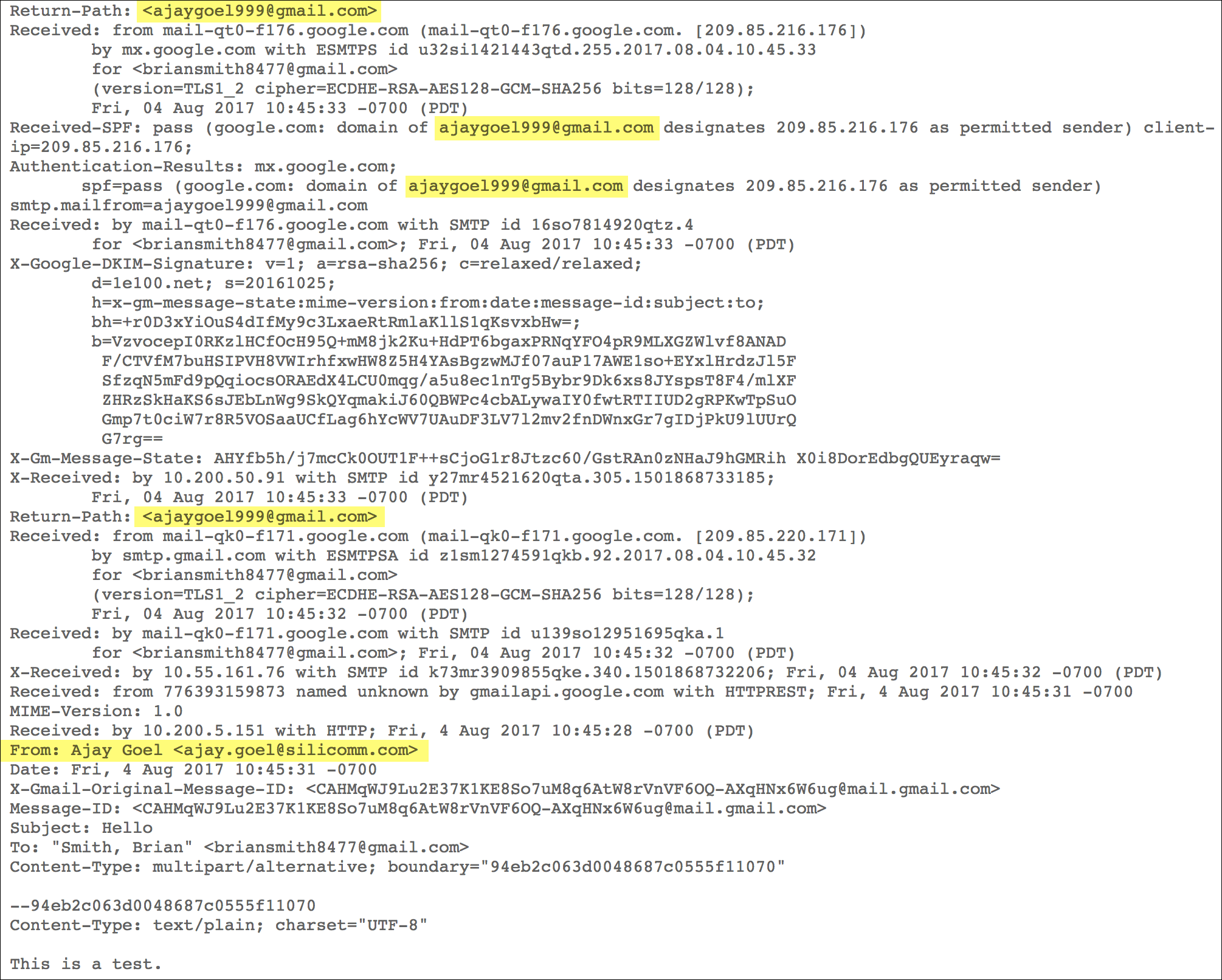
What account actually sent the 3 emails though? As expected, the ajaygoel999@gmail.com account actually sent the emails that are “From” ajay.goel@silicomm.com, since it was the ajaygoel999 account that authenticated into the SMTP server. How do we know? A look at the headers of one of the received emails clues us in.

These are the headers for the email received by briansmith8477@gmail.com, and they show that the email was sent “from” ajay.goel@silicomm.com via the ajaygoel999@gmail.com account.

If you are sending via a third party SMTP server, must you adhere to G Suite’s/Gmail’s sending limits?

If you have configured a third party SMTP server (not smtp.gmail.com) to handle email for your new From Address, you might think you can now send as much email as you want. After all, why would Google care how much email you’re sending if it’s not going through their servers? It turns out that some sending restrictions are in place. I plan to do some further testing in our lab in the near future to determine just what the sending limits are when sending through a third party SMTP server. This will be the subject of a future blog post.

If you are using smtp-relay.gmail.com or smtp.gmail.com as your SMTP server, then the limits get even more confusing. Remember, the two SMTP relays aren’t meant to be used from inside Gmail. They are meant to be used by outside devices like printers and scanners and external email systems that need to relay email through your Gmail accounts.

G Suite: Google states that the per-day limit for unique recipient emails through smtp-relay.gmail.com is 10,000 emails/day. However, we also know that the sending limit from a G Suite account is 2,000 emails/day. So the question becomes: if you’re sending from your G Suite account via the G Suite SMTP relay, are your limits 2,000 emails/day or 10,000 emails/day? What’s the answer? I don’t know, but we’ll be testing this in our labs and publishing our findings in a future blog post.

Gmail: Google states that the per-day limit for unique recipient emails through smtp.gmail.com is 2,000 emails/day. However, we also know that the sending limit from a Gmail account is 500 emails/day. So the question becomes: if you’re sending from your Gmail account using the Gmail SMTP settings for their SMTP relay, are your limits 500 emails/day or 2,000 emails/day? What’s the answer? Again, I don’t know, but we’ll also be testing this in our labs and publishing our findings in a future blog post.

Can you use a transactional email provider like Sendgrid or Mandrill as your SMTP server?

Yes. If you have an account at a transactional email service provider like Sendgrid, Mandrill, Mailgun, JangoSMTP, or any other email service provider, you can use the SMTP server credentials they provide you and enter it in the Gmail settings. Your emails sent “from” the new address will now be sent via the transactional email service provider instead of Gmail’s servers. You will likely suffer at least a tiny deliverability disadvantage though, since now your emails are being sent via an external service rather than Google’s own servers.

Gmail Use Sendgrid SMTP
I have specified Sendgrid’s SMTP server to route my emails “from” ajay.goel@silicomm.com

SPF/DKIM considerations

If you’re sending via any third party SMTP server, ensure that the SPF record for you sending domain gives permissions to the third party SMTP server to send on behalf of your domain.

How the “Treat as an alias” setting matters for your mail merges

When you set up any new From Address, whether you check the Treat as an alias has no impact on how your email will look to your recipient. As the official Google document on “Treat as an alias” explains, the differences between checking this box or not only apply when you send an email to, or receive an email from, the new “Send as” address that you’re setting up. If you’re sending a Gmail mail merge campaign to 100 people, to them your email will look the same regardless of whether you have set the From to be treated as an alias or not.

Best practices

If you’re going to send mail merge campaigns from your Gmail or G Suite account, I recommend that you do it in the most direct way possible. Meaning, if you have a G Suite account for your own domain, and you want to send your emails “from” this email address, then log in to that account to send the mail merge, as opposed to using an @gmail.com account with the G Suite address set up as an Alias From Address.

If you want to send “from” an external address that is neither a Gmail nor a G Suite address, then you’ll be forced to specify an SMTP server. Unless you have an SMTP server configured to handle your mailings and deliver them, you should use smtp.gmail.com, because that guarantees high deliverability because it’s a Gmail server.

The bottom line

If you’re sending from a “From” address that is NOT a Google-hosted address, you will be asked to specify a third party SMTP server to relay emails through. You can use smtp.gmail.com as that third party SMTP server if you wish, or you can use an external SMTP server that you manage or one from a commercial service like Sendgrid or Mandrill.

Make sure that third party SMTP server can handle mass email campaigns, and make sure you configure the SPF record of your domain to grant permission to that server to send on behalf of your domain.

There are a lot of outdated articles on the web saying you can still send via Gmail, but many of them no longer apply.

Further Reading

Once you have an additional From Address setup for your Gmail or G Suite account, you can now set the From Address for a Gmail mail merge campaign just like you would for a regular email message.

If you change the From Address, be sure to read our guide on ensuring the right From Display Name also.

Ready to send better emails and save a ton of time?


GMass is the only tool for marketing emails, cold emails, and mail merge — all inside Gmail. Tons of power but easy to learn and use.


TRY GMASS FOR FREE

Download Chrome extension - 30 second install!
No credit card required
Love what you're reading? Get the latest email strategy and tips & stay in touch.


I’m launching an email newsletter today focusing on Gmail productivity!

If you’re a GMass user, then you’re also one of the 1 billion+ Gmail users on the planet. Every Thursday I’ll send you tips and tricks for maximizing your productivity inside Gmail. If you’re spending longer than you like managing email, then this is for you. The first issue is already out.

First Issue: http://gmailgenius.com/…/27/gmail-feature-speed-through-in…/

Sign up here: www.gmailgenius.com

Ready to transform Gmail into an email marketing/cold email/mail merge tool?


Only GMass packs every email app into one tool — and brings it all into Gmail for you. Better emails. Tons of power. Easy to use.


TRY GMASS FOR FREE

Download Chrome extension - 30 second install!
No credit card required
Love what you're reading? Get the latest email strategy and tips & stay in touch.


Domain blacklists have been used to filter email for years, and in this comprehensive guide, I’ll cover:

  1. The most popular public domain blacklists and lesser known, but equally important, private domain blacklists
  2. How to determine if a domain is on a blacklist
  3. How to get off each blacklist
  4. Tips and tricks, gleaned from my own research and experience, about each blacklist

Given that GMass is an email marketing service used by over 200,000 people, we’ve seen our fair share of deliverability and spam issues. Because GMass works on top of Gmail and G Suite, we don’t maintain our own sending IP addresses. Instead, all email is sent from users’ Gmail accounts, meaning email originates from Gmail’s IP addresses.

Therefore GMass users almost never have to worry about an IP block. The one exception to this rule is if you’re sending from an alias From Address in Gmail and were required to input your own SMTP server credentials. In that case, Gmail routes your email through the external SMTP server, which makes the IP reputation of your SMTP server relevant. Far more common for GMass users, however, is the issue of domain-based blocking, since with the standard G Suite setup, your emails are sent from Gmail’s IP addresses.

Are domain blacklists the same as DNSBLs?

The term DNSBL is used often in the email deliverability industry. It stands for Domain Name Server Block List and refers only to the mechanism by which the block list is published (the Domain Name Server system). DNSBLs can be either lists of IP addresses or lists of domain names. Most DNSBLs are listings of IP addresses, and include popular blacklists like the Spamhaus Block List (SBL) and Spamcop. The blacklists that most concern GMass users are those that list domain names. This is because GMass sends emails from Gmail’s IPs, which are arguably the highest deliverability IP addresses in the world and aren’t blocked by anybody. Therefore it’s rare that an IP address will ever be the source of an email deliverability issue, except in the scenario mentioned above. A domain, however, can be the source of a deliverability issue.

This is a current and comprehensive guide to public and private domain-based email blacklists.

Overview

While IP-based email blocking is far more common, domain-based email blocking has gained popularity in recent years, and consumer email providers like Gmail and AOL and even corporate email filters like Barracuda, Symantec/MessageLabs, and Mimecast scan incoming email for the presence of domains on domain blacklists. If found, the email is rejected or sent to the Spam folder. This is why I’ve encouraged each GMass user to set up a dedicated tracking domain.

Domain-based DNSBLs fall into two categories: those that are publicly usable and searchable, meaning any email server administrator can use the list to filter email, and those that are private and used for an organization’s internal purposes only, like AOL’s. Plenty of email companies have written about domain blacklists previously, including Return Path and Sendgrid, but in this comprehensive guide, I’ll dig deeper into the nuances of both public and private blacklists.

Public Domain Blacklists

There are three main public domain blacklists: Spamhaus, SURBL, and URIBL.

Spamhaus DBL

Web lookup form: https://www.spamhaus.org/lookup/
Query via DNS: Query [domain].dbl.spamhaus.org and look for a response of 127.0.0.2
Tips and tricks: Spamhaus is the 300-pound gorilla of blacklists and publishes both an IP list and a domain list. Spamhaus will sometimes list domains that have never appeared in email flow before. It has an algorithm that detects newly registered domains, and if these domains meet a particular criteria, they are listed on the Spamhaus DBL without ever being included in a single email message. These domains are also the easiest to get delisted using the Blocklist Removal Form. Additionally, the email address that you enter to receive the confirmation removal link can determine whether your request is accepted and the link is sent, or your removal request is denied and you’re told to get in touch with Spamhaus staff. If your domain is ineligible for self-removal, you’ll have to contact Spamhaus and ask them to remove the domain, and that can be difficult.

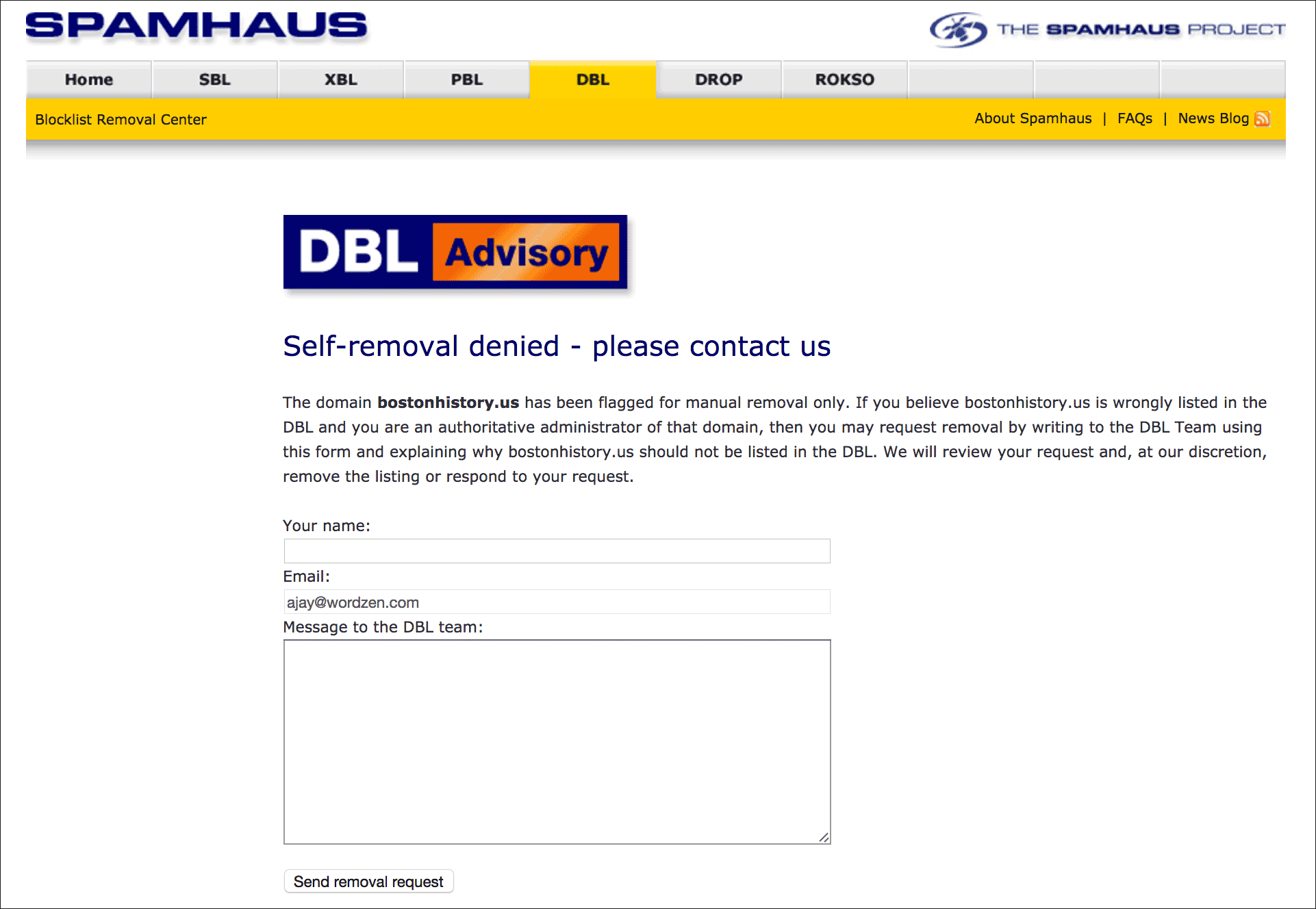
Spamhaus DBL Self Removal Denied
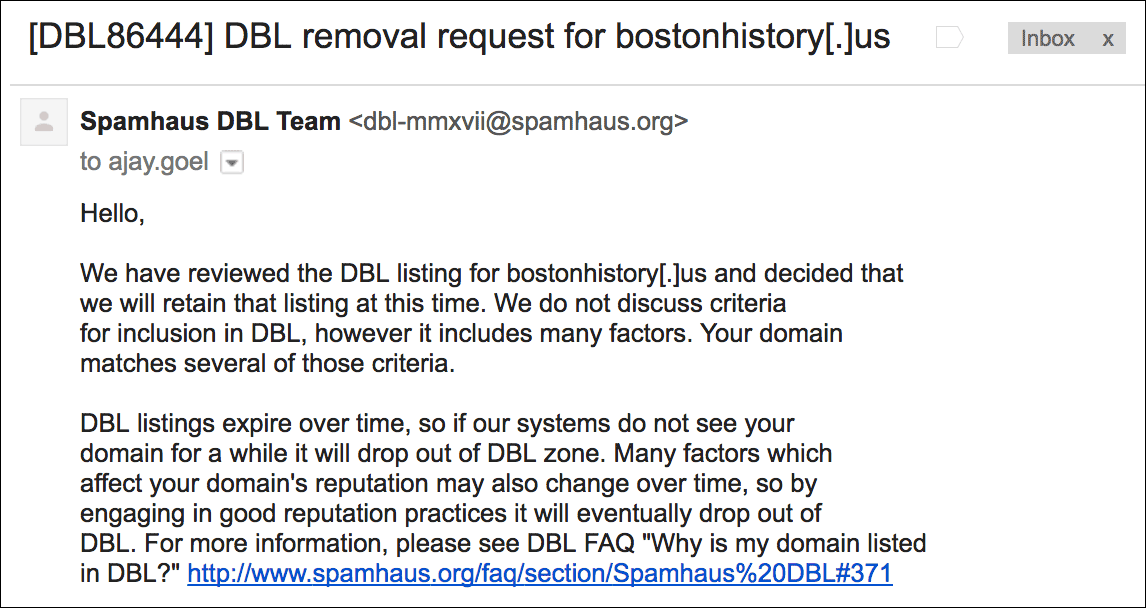
You can attempt to remove a domain yourself from the Spamhaus DBL, but if a domain is ineligible for self removal, you’ll have to contact Spamhaus.

You’ll typically get a response within 24 hours. In my case with this domain, I didn’t get any explanation about the listing, even though it’s been used in very minimal email flow.

Spamhaus DBL Rejection
In this case, my Spamhaus delisting request has been denied.
SURBL

Web lookup form: http://www.surbl.org/surbl-analysis
Query via DNS: Query [domain].multi.surbl.com and look for a response of 127.0.0.2
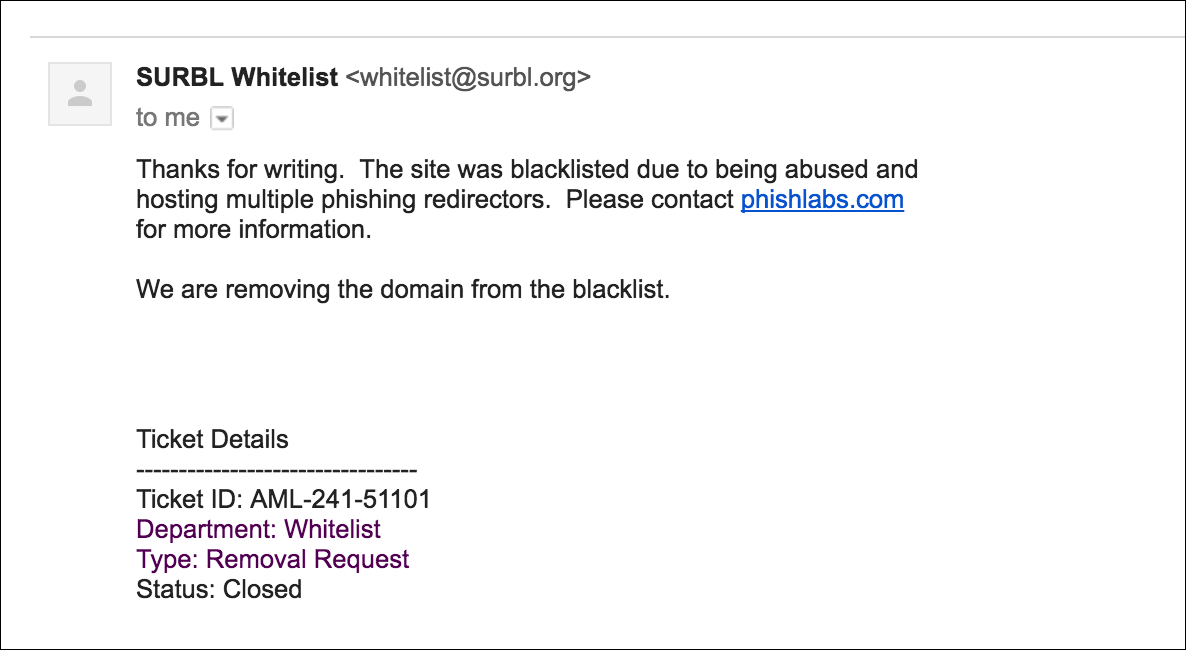
Tips and tricks: It’s relatively easy to get a domain off of SURBL, as long as you’re not a systemic spammer and have a reasonable explanation. In my experience, if you explain why your domain was used in spam and can show that you’re generally a responsible mailer, a few hours later, you’ll get a response accepting your request. I’ve never been turned down when asking for a domain to be delisted.

SURBL Whitelist Approved
SURBL administrators are helpful in providing info and reasonable in delisting domains.
URIBL

Web lookup form: https://admin.uribl.com/
Query via DNS: Query [root domain].multi.uribl.com and look for a response of 127.0.0.2
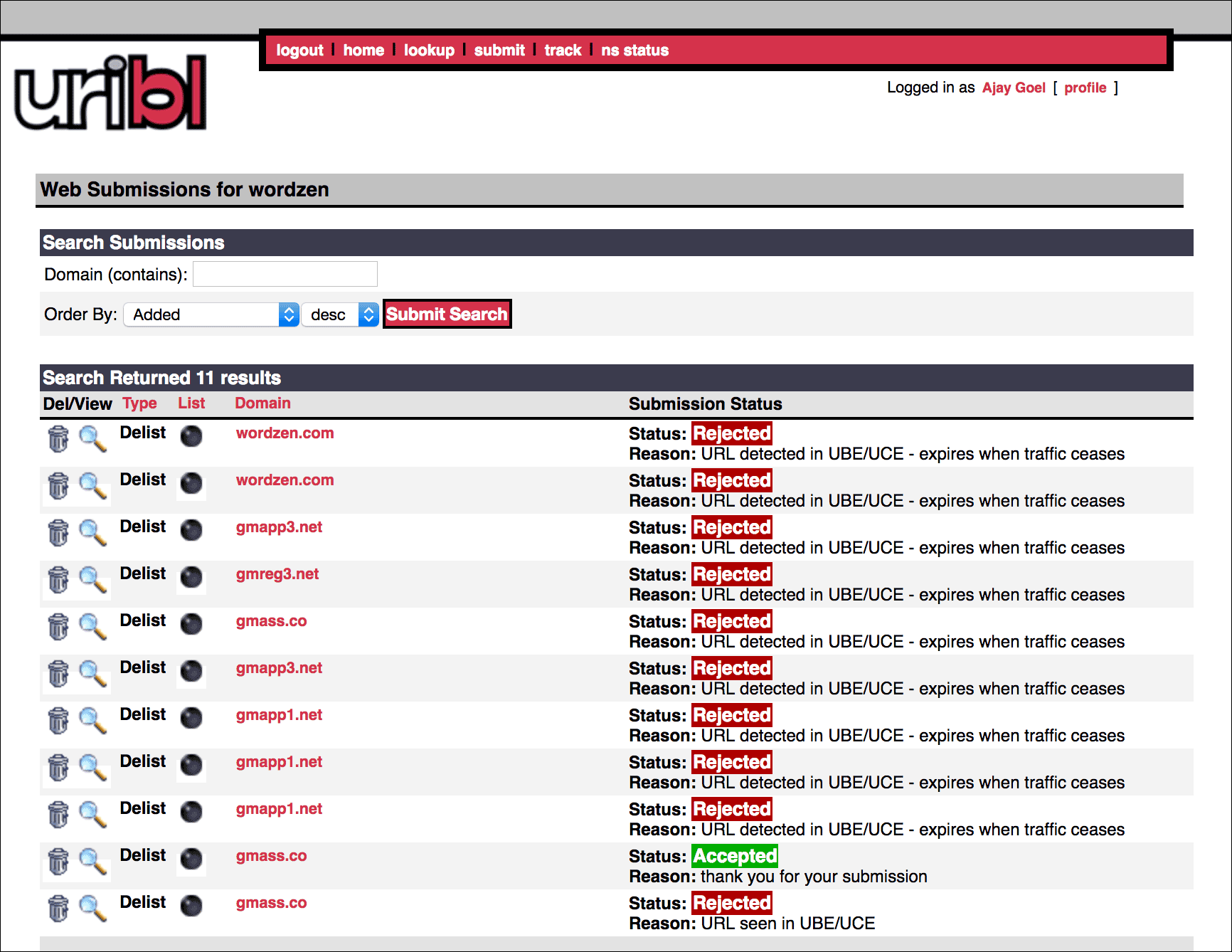
Tips and tricks: The URIBL list is very difficult to get off. You can create a URIBL account and submit a delisting request, but in my experience, most delisting requests are denied. It also seems that whether a delisting request is accepted or not is at the whim of the person who is currently reviewing requests, given that only one out of all of my requests were accepted (for gmass.co), and the request was made just one day after the previous request was denied. Here’s my own history of delisting requests:

URIBL Rejections
Most of my URIBL delisting requests were rejected.

Tips and tricks: The URIBL blacklist will be the subject of a future blog post, because it exhibits some rare and often quirky attributes. In our research though, it’s the least used of the three public blacklists. My own domain, wordzen.com, has been listed for a long time, and I’ve seen virtually no blocking of any email that includes the wordzen.com domain. Even MailChimp’s default tracking domain, list-manage.com, is grey-listed on URIBL.

Private Domain Blacklists

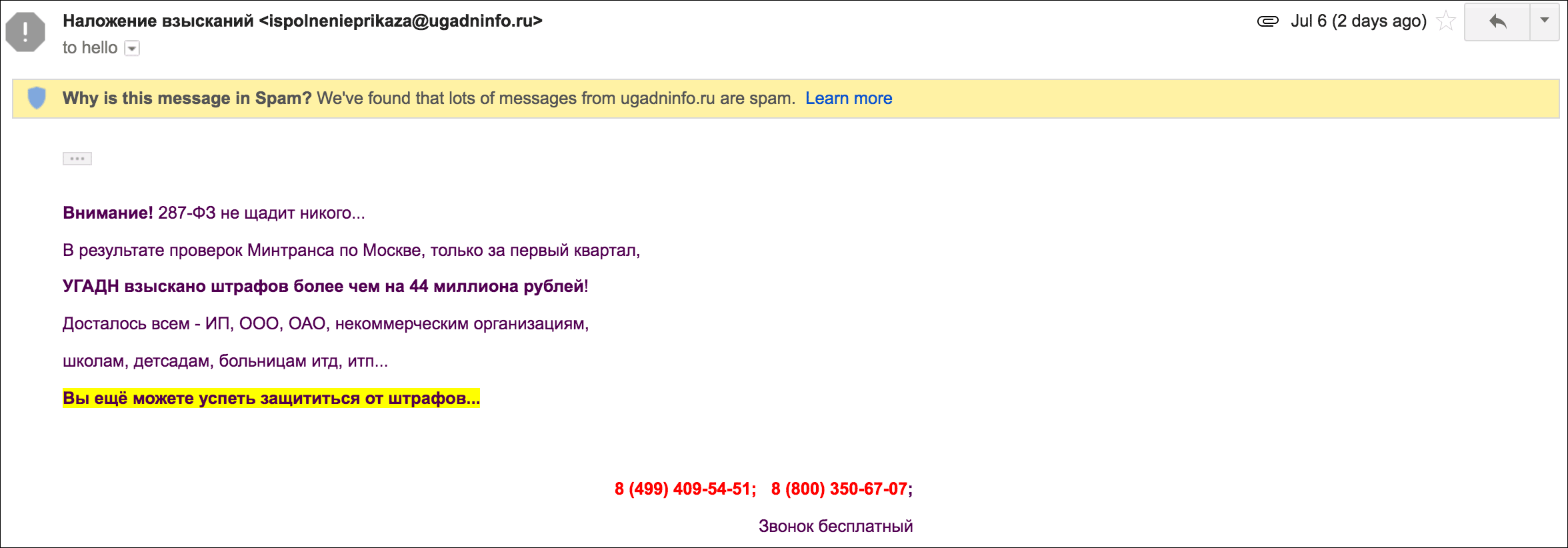
You might think that a private blacklist like the ones maintained by AOL, Barracuda, and Google are just that…private and un-searchable. While that may be true, it’s still possible to determine if your domain is on it. If you send an email with a listed domain to an address that uses a particular filter, the SMTP bounce response will indicate if the domain is on that private blacklist.

Barracuda’s Intent List

How to query: Use their web lookup form.
DNS Lookup: There is no DNS-based method to look up a domain on Barracuda’s Intent List. Barracuda does provide a DNS method for querying their IP list, but not their domain list. It is possible, however, to examine SMTP responses to determine listings.

For example, if a domain is on Barracuda’s Intent List, you’ll get a bounce with an SMTP code from Barracuda that looks like:

Remote-MTA: dns; d124601a.ess.barracudanetworks.com. (64.235.154.140, the server for the domain d211.org.)
Diagnostic-Code: smtp; 550 permanent failure for one or more recipients (henderson@d211.org:blocked)

Note that the specific domain that is on the list is not mentioned, so it will take some further analysis to determine the actual domain. How do we know that this response code is likely a domain-based block rather than an IP-based block? Because Barracuda’s response code for an IP-based block is specific to that IP address:

Remote-MTA: dns; fw2.dgcuda.com
Diagnostic-Code: smtp; 554-Service unavailable; Client host [actuarialoutpost.com] blocked using 554-Barracuda Reputation; 554 http://www.barracudanetworks.com/reputation/?r=1&ip=204.232.242.165

You might have noticed the difference between the two remote MTAs in these examples. In the first, the remote MTA is clearly a Barracuda-hosted server, because it ends with “barracudanetworks.com”. The second, dgcuda.com, appears to be an on-premise appliance running the Barracuda mail filtering software. Note the reference to “cuda”, which is likely short for Barracuda. Customers who install the Barracuda appliance can name the appliance whatever they like. Still though, the SMTP response codes will be equivalent regardless of whether the email server is hosted by Barracuda or hosted on-premise by an organization.

Here is a full list of Barracuda’s SMTP response codes.

AOL’s Domain Blacklist

How to query: The only way to know you’re on AOL’s domain blacklist is if you receive an SMTP response code containing “HVU”, which stands for High Volume URL. Like Barracuda, the SMTP response won’t indicate which domain is blacklisted; it will only tell you that one or more domains present in the email are on the blacklist.

If a domain is on AOL’s private domain blacklist, the SMTP response from AOL will look like:

Diagnostic-Code: smtp; 521 5.2.1 :  (HVU:B2) https://postmaster.aol.com/error-codes#554hvub2
Last-Attempt-Date: Sun, 09 Jul 2017 03:26:51 -0700 (PDT)

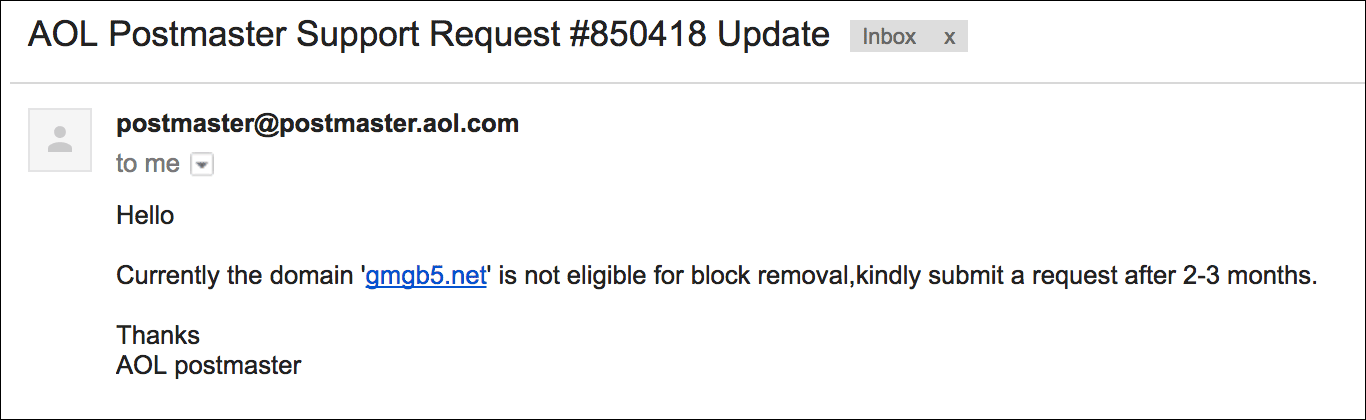
The HVU:B2 reference is specific to a blacklisted domain, as is explained on AOL’s page about their HVU response codes. You can contact AOL and ask which domain is blocked, or if you can determine that on your own, you can ask for delisting, but in my experience, AOL is fairly stringent about their domain blacklist:

AOL Postmaster Rejection
AOL denied my request to remove my domain from their domain blacklist.

Google’s Domain Blacklist

Google maintains a blacklist of domains, but the only way to tell if you’re on it, is to send an email to a Gmail or G Suite-hosted domain, and look at the reason you ended up in the Spam folder.

Gmail blocks a domain
An example of Gmail-based domain blocking

SpamRL

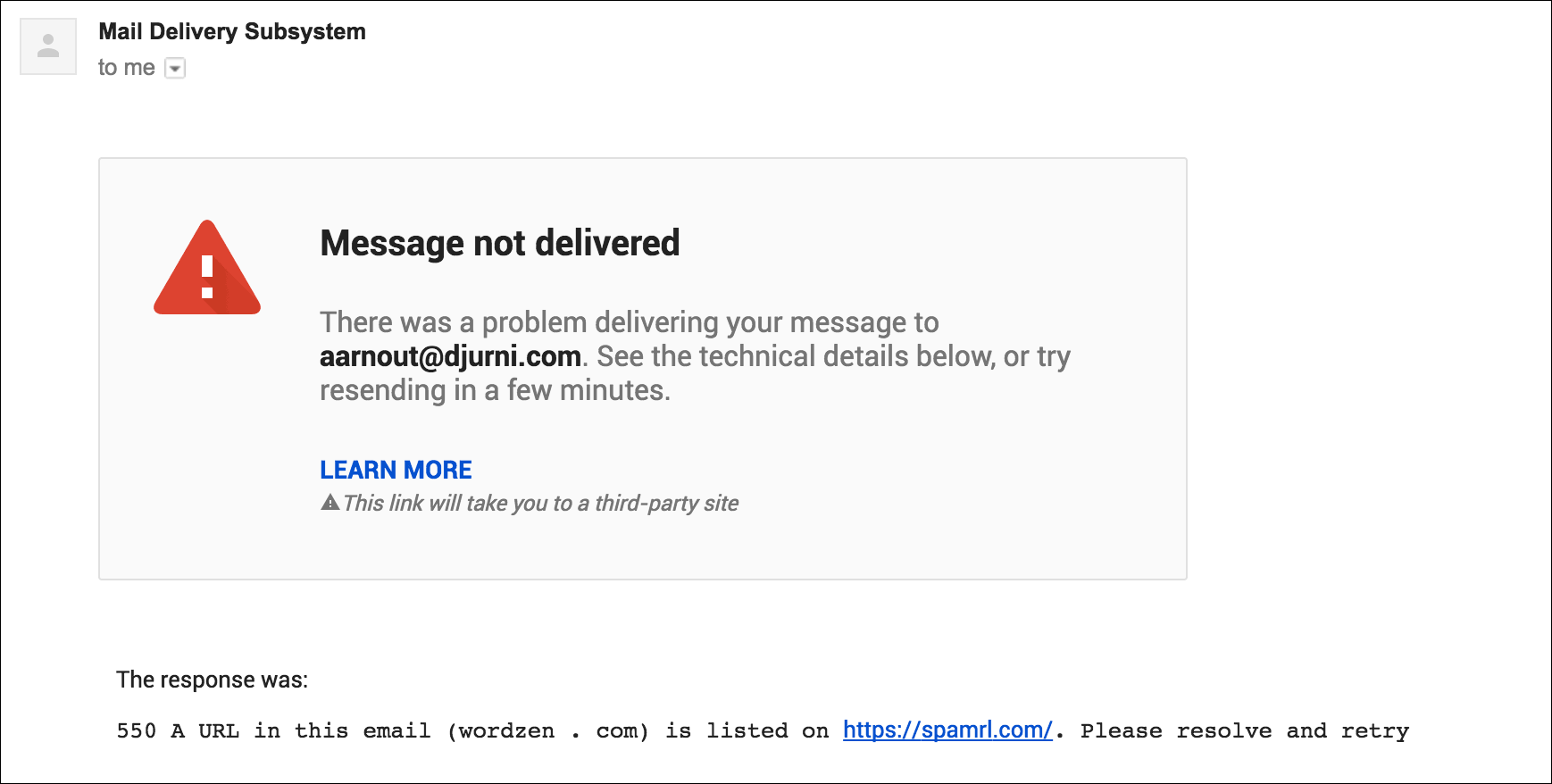
How to query: The only way to know you’re on the spamrl.com’s blacklist is if you receive an SMTP response indicating that the URL is on the list.

SpamRL Block
This is what the bounce response from a spamrl.com block looks like

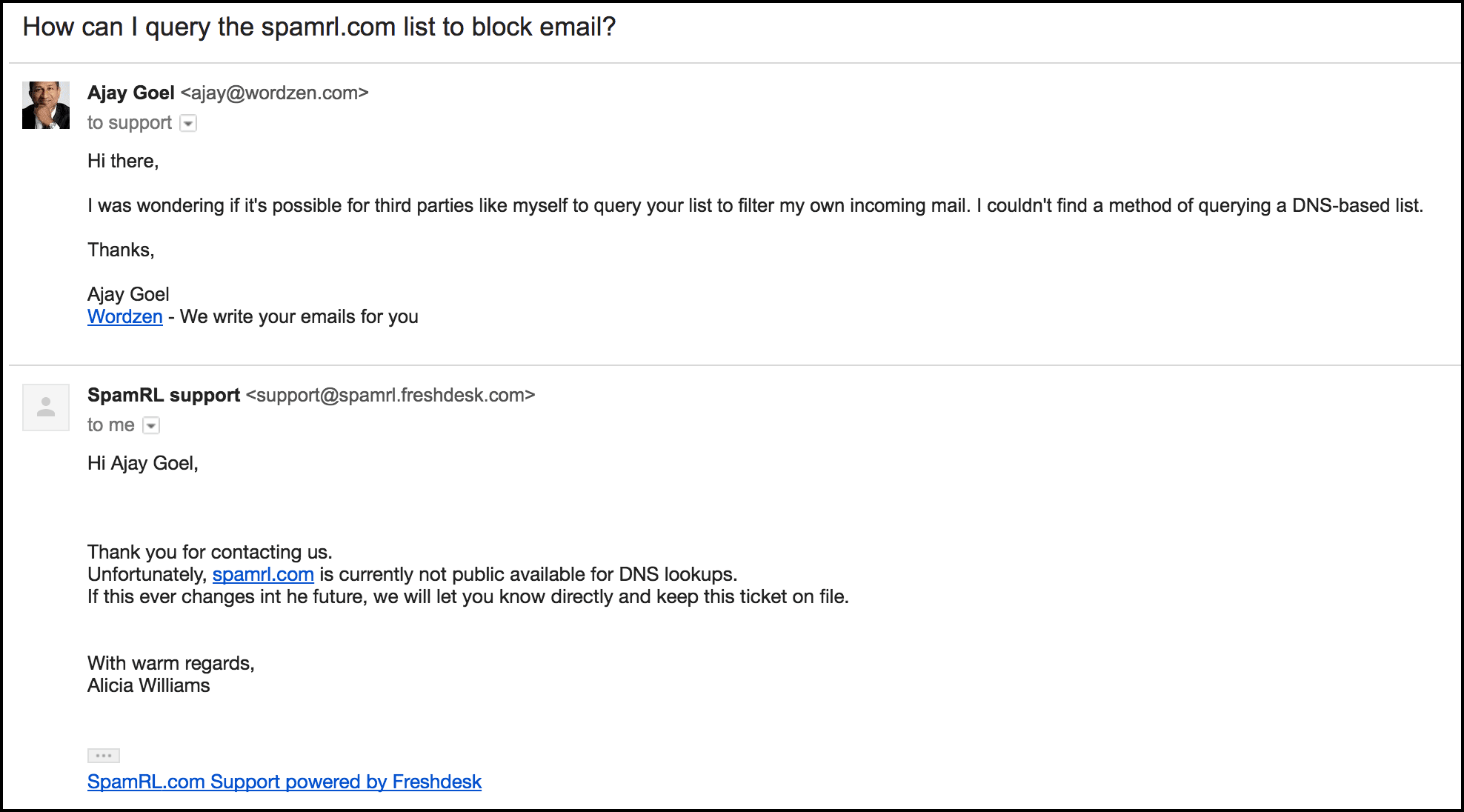
There is no web lookup form or DNS method to query the list.

SpamRL Rejection
SpamRL.com is a domain blacklist cloaked in secrecy.

You are able to self de-list your domain on SpamRL.com for up to 7 days though.

Not all lookup tools are created equal

When determining whether a domain is on one of the publicly searchable blacklists, I like to automate the process by programmatically doing the DNS lookup. As a secondary means, I’ll go to the website directly and use their lookup forms. An even easier way is to use a third party lookup tool that searches many blacklists at once.

Avoid Googling “DNSBL check”, and using one of the many forms in the search results that claim to check your domain or IP against a plethora of blacklists. This is because most lookup forms don’t properly perform the lookup against domain blacklists and instead do it against IP blacklists. An example is this lookup tool from MX Toolbox, https://mxtoolbox.com/blacklists.aspxThe prompt asks you to enter a domain or an IP address, but in reality, this check has nothing to do with domain-based blacklists. If you enter a domain, it simply converts your domain to an IP and then checks the IP against IP-based blacklists, which is entirely different from checking the domain-based blacklists that I’ve referenced above. Here’s another popular tool that does the same, converting your domain to an IP and only searching IP blacklists: https://www.ultratools.com/tools/spamDBLookup

An example of a lookup tool (that is buried deep in the search results) that does perform the correct kind of lookup is:

http://www.blacklistalert.org/

This intelligent tool, while prompting you for an IP or a domain, will determine WHETHER you entered an IP or a domain and tailor its search accordingly. If you enter a domain, the first set of results will be searching that domain properly against domain-based blacklists, however the domain blacklists it searches is limited to the publicly available blacklists that I’ve mentioned above. Here’s another tool that also performs the lookup correctly and also offers a proactive monitoring service:

https://www.blacklistmaster.com/

Which ISPs use which domain blacklists?

Now that you have an overview of what the main public and private blacklists are, you are likely wondering which blacklists are relevant to your mailings. Does Gmail use these domain blacklists to filter their email? Does Outlook.com use them? Do corporate email filters like Barracuda, Mimecast, and Symantec/MessageLabs use them?

My research shows the following:

Spamhaus SURBL URIBL
AOL Delivered Delivered Delivered
Gmail Delivered Uncertain Delivered
Outlook.com Delivered Uncertain Delivered
Yahoo Delivered Delivered Delivered
Comcast Uncertain Uncertain Uncertain
Barracuda Delivered Uncertain Delivered
Mimecast Blocked Uncertain Uncertain
Symantec/MessageLabs Blocked Delivered Delivered

Testing methodology

  • I sent emails containing various blacklisted domains to a set of seed addresses
  • If the email containing the blacklisted domain made it to the Inbox, the blacklist/ISP combination receives a Delivered status. This is only indicative that the blacklist isn’t used to outright block email. It is not indicative that the blacklist doesn’t play a factor in determining overall spammyness.
  • If the email containing the blacklisted domain did NOT make it to the Inbox, in most cases, we designate that as Uncertain, since we can’t be sure if the fact that the domain was on the blacklist caused the block, or if the domain was already internally blocked.
  • In the cases where a blacklist/ISP combination is designated as Blocked, it’s because the blacklisted domain has such little email traffic that we can reasonably determine that its presence on a particular blacklist caused the block.

What you should do

You should regularly check the domains that are important to you and the domains that appear in your email flow against both public and private blacklists. For the public blacklists, there are several blacklist monitoring services that will periodically check your domains against Spamhaus, SURBL, and URIBL, and alert you of a listing. For the private blacklists, you should either manually scan your SMTP responses and look for patterns mentioned above, or you should programmatically check them (like we do for GMass users) to determine which domains are on private blacklists. GMass users needn’t worry about this, as this is handled by our internal deliverability monitoring tools. All GMass users’ domains are checked against the public blacklists once every hour and our intelligent private blacklist detection system works in near real-time.

Resources

The Wikipedia article on DNSBLs provides a good overview of how email blacklisting works. Be sure to read the part on URI DNSBLs though, because that’s the specific type of DNSBL that is a domain-based blacklist, as opposed to an IP-based blacklist.

Here’s a handy guide to the blacklists and lookup tools mentioned in this article:

Spamhaus DBL – Spamhaus’s domain block list lookup tool
SURBL – The SURBL lookup tool
URIBL – The URIBL lookup tool
Barracuda – Barracuda’s Domain/IP lookup tool
AOL – AOL’s contact form to request delisting of a domain
SpamRL.com – their form to request delisting of a domain for 7 days

My favorite third-party domain lookup tools:

BlackListAlert.org – free multi-site lookup tool
BlacklistMaster.com – multi-site lookup and monitoring tool

See why GMass has 300k+ users and 7,500+ 5-star reviews


Email marketing. Cold email. Mail merge. Avoid the spam folder. Easy to learn and use. All inside Gmail.


TRY GMASS FOR FREE

Download Chrome extension - 30 second install!
No credit card required
Love what you're reading? Get the latest email strategy and tips & stay in touch.


There are certain, specific situations where you may be eligible for a refund from GMass. For example:

  • Incorrect email. You subscribed the wrong account and want a refund before subscribing with your correct email.

  • Plan adjustment. You initially subscribed to a plan that didn’t match your account type (Gmail vs. Google Workspace), were auto-adjusted into the correct plan, and don’t want to keep the higher-priced plan.

In those cases, we can usually help.

However, if you simply forgot you had an active subscription, it’s unlikely we will be able to grant a full refund. Here’s why:

  • Subscriptions are ongoing services. GMass provides continuous access to our infrastructure (email sending, servers, tracking, analytics, past campaign templates and data, deliverability features, support), regardless of how often you log in. Even if you didn’t actively use the product in a given month, resources were still allocated to your account.

  • Refunding shifts costs unfairly. Processing payments, maintaining servers, and handling customer support all have real costs. If we refunded every forgotten subscription, it would increase prices for all other users who are actively using GMass.

  • Industry standard. Like virtually all software-as-a-service companies, we treat GMass subscriptions like any other recurring services (e.g. streaming services, cloud storage). For example, if I forget I have a Netflix subscription and don’t watch any shows for a month, Netflix will not issue me a refund for that month. Responsibility for managing cancellations lies with the subscriber once the free trial/initial billing period has passed.

That said, we do review every refund request individually. If you believe your case has unique circumstances, reach out to GMass support (do not email team members directly) and our team will evaluate.

Not all accounts are eligible for a refund.

See why 99% of users say they’ve had their best deliverability ever with GMass


Email marketing, cold email, and mail merge all in one tool — that works inside Gmail


TRY GMASS FOR FREE

Download Chrome extension - 30 second install!
No credit card required
Love what you're reading? Get the latest email strategy and tips & stay in touch.


I just fixed a bug that was causing non-English characters in the To “Name” of a sent email to be corrupted. On the receiving end, the recipient, while receiving the rest of the email intact, would also see his/her Name in the To field corrupted.

The issue was due to the fact that GMass wasn’t properly using Encoded-Word format for the To header of sent emails. When you send a Gmail mail merge campaign in GMass, if you’re not using a spreadsheet containing your recipient addresses, you can place contacts directly in the To field of the Gmail Compose window. Gmail will add the Name of the contact if available. While the To Name portion of a contact can contain foreign characters, the email address portion cannot. For example, here is a campaign all set to go, containing foreign characters in the To Names, and these contacts are all Gmail Contacts, not from a spreadsheet:

This is a GMass campaign where the names associated with each email address contains foreign characters.

The MIME standard states that non-ASCII characters in the headers of emails must be properly encoded in Encoded-Word format, and while GMass was doing this for all other email headers, it was not for the To field. This is now fixed.

After the campaign is sent, the foreign characters in the Names of the “To” field are preserved, as seen in the Sent Mail folder, and as would also be seen by each recipient.

Note that this bug did not affect personalization in the Subject and Message. Meaning, if you had used {FirstName} or {LastName} in the Subject or Message, the personalization worked properly, even if the first and last names contained foreign characters. This was solely an issue with how the Name appeared in the To field.

Ready to transform Gmail into an email marketing/cold email/mail merge tool?


Only GMass packs every email app into one tool — and brings it all into Gmail for you. Better emails. Tons of power. Easy to use.


TRY GMASS FOR FREE

Download Chrome extension - 30 second install!
No credit card required
Love what you're reading? Get the latest email strategy and tips & stay in touch.


GMass