Ajay is the founder of GMass and has been developing email sending software for 20 years.
Many users are concerned about the privacy of their email marketing lists and whether GMass stores their email addresses and the contents of email messages, and whether any of this data is shared with third parties. The information below is meant to address these concerns.
Overview of how GMass works
GMass works by transferring data to and from your Gmail account. Most of this data transfer occurs via numeric identifiers specific to Gmail and the Gmail API. In some cases, email addresses are transferred from the GMass server back to the Gmail interface, but in a secure manner over SSL. Gmail does not allow a third party integration like GMass to connect to account data without the use of SSL.
How are your email lists used?
In order to track opens, clicks, and provide unsubscribe functionality via the GMass unsubscribe link, our database does store the email addresses to which you are sending email. This data is stored in a database, secured by two layers of firewalls, and is never shared with any third parties. GMass is similar in this regard to well-known email marketing systems like MailChimp, where storage of email addresses is required to provide standard email marketing features.
Does GMass store the content of your email message?
No. Unlike a traditional email marketing service like MailChimp, the GMass database does not store the contents of your email marketing campaigns, except for the From Address used for each campaign.
We store the From Address because in Gmail, multiple From Addresses can be authorized for use in a single Gmail account, and by storing the From Address, we are better able to support users by being able to look up their GMass account when they tell us they sent a campaign “from” a certain address.
We do not store the content (Subject / Message) of email campaigns, but the content does pass through our server ephemerally. This is required in order to add the mechanisms to an email message that allows GMass to track opens and clicks on individual email messages. This process happens in microseconds and the content of an email message does not live on our server beyond that.
Does GMass share any of your email list information with third parties?
We may share your email list information with third-party service providers, including advertising platforms such as Google, to assist in delivering targeted advertising campaigns. These third parties are required to use the information only for these purposes and in accordance with applicable data protection laws. We do not sell or trade your email information for any other purposes.
Policy for Mobile Numbers
No mobile information will be shared with third parties/affiliates for marketing/promotional purposes. All the above categories exclude text messaging originator opt-in data and consent; this information will not be shared with any third parties.
Data Deletion Requests
In compliance with GDPR, any user may request that his/her data be deleted from our servers. To make such a request send an email to datadeletion@wordzen.com from the GMass account whose data you wish to be deleted.
Email Warmup
GMass does not provide email warming services for Google accounts.
See why 99% of users say they’ve had their best deliverability ever with GMass
Email marketing, cold email, and mail merge all in one tool — that works inside Gmail
Love what you're reading? Get the latest email strategy and tips & stay in touch.
Over the last month, a small number of users have reported garbled characters appearing in their Gmail mail merge campaigns with GMass. In most cases they reported characters like “” appearing randomly throughout the text of the email that is sent after clicking the GMass button. The issue tended to surface in emails containing non-English characters.
[Example of an email with garbled characters]
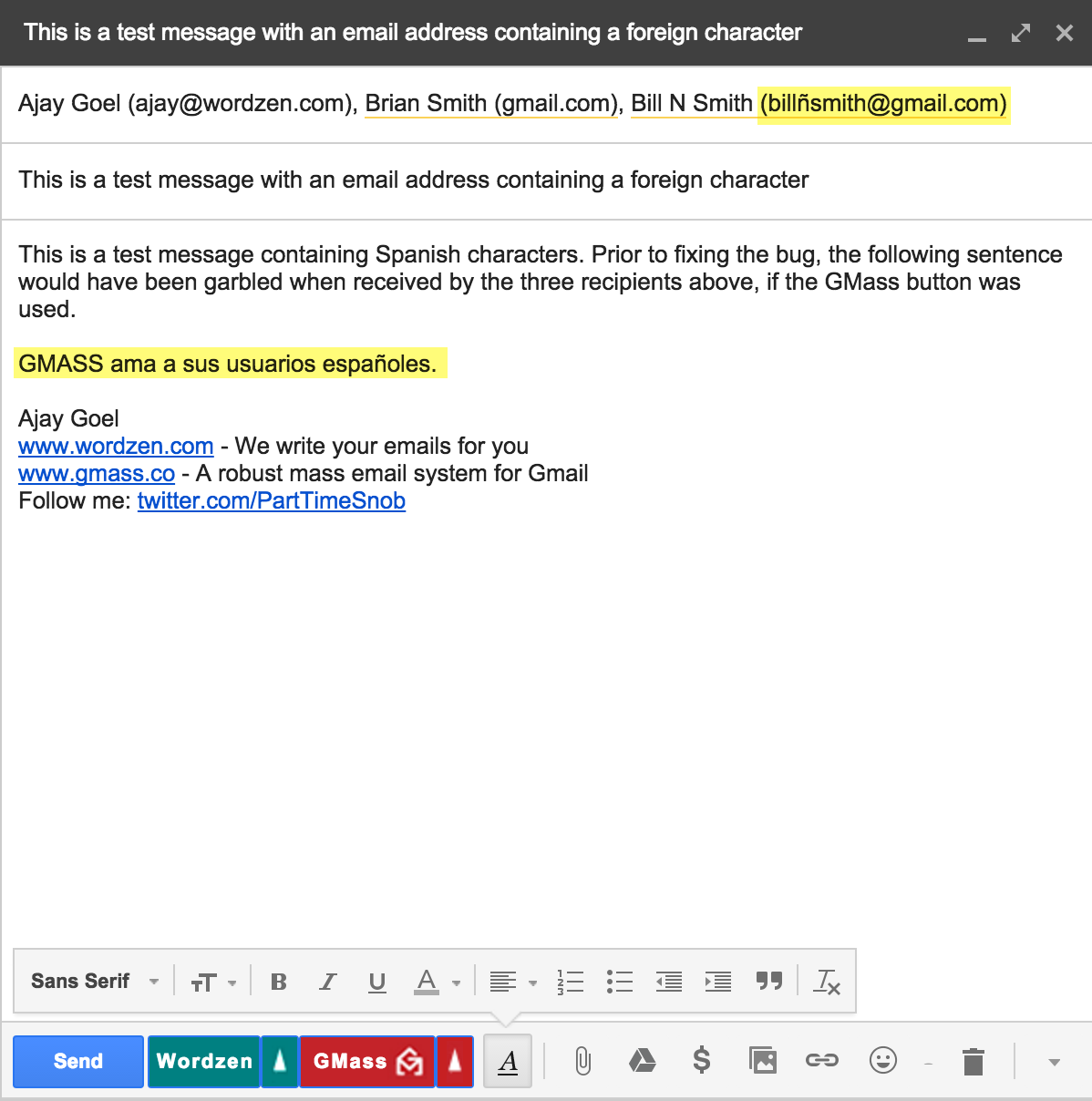
I’ve been wanting to get to the bottom of the issue for a while, but I couldn’t because I couldn’t actually reproduce the issue myself…until tonight. Earlier today, I conducted a screen share session with a user that had experienced the bug and she was able to walk me through the steps to reproduce the bug. After capturing some data, and spending all evening investigating, I finally figured out the cause and solved the problem. The problem only surfaced if the To field of a Gmail Draft contained an email address that contained a foreign character. The mere presence of a foreign character in a single email address would cause all individual emails sent to all recipients of the campaign to receive a message with garbled characters. Even if a test message was sent to just one test address containing non-foreign characters using the “Send Test Email” feature, that test would also contain garbled characters, because the To field contained an address with foreign characters when the “Send Test Email” button was clicked.
[Example of an email with an address in the To field containing an illegal foreign character]
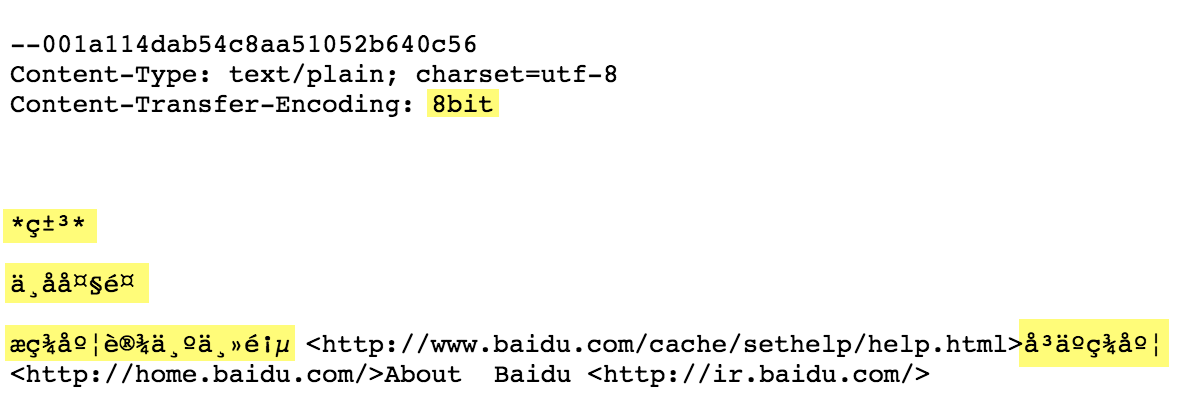
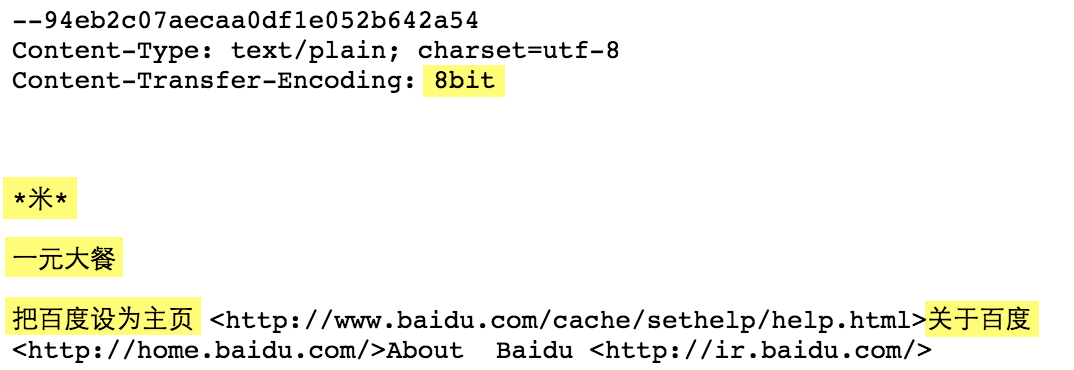
For the technical types, the issue was related to the way Gmail encodes email messages in certain situations. While the standard encoding for both the HTML and Plain Text MIME parts of a Gmail Draft are encoded as quoted-printable, if an email address in the To field contains a foreign character, then the encoding of both MIME parts becomes “8bit” instead of “quoted-printable”.
[The encoding changes to 8bit, and previously Chinese characters would be garbled]
[Now Chinese characters are handled properly in the 8bit format]
This single anomaly threw off the GMass code that disassembles a message to add open and click tracking and then reassembles it for sending. The reassemby wasn’t able to output all characters in the necessary “8bit” encoding format. The fix was to modify how the final message is outputted so that “8bit” encoding is handled properly. This required writing to a memory stream instead of a string. I’m happy to share more details with any interested parties — just get in touch.
See why 99% of users say they’ve had their best deliverability ever with GMass
Email marketing, cold email, and mail merge all in one tool — that works inside Gmail
Love what you're reading? Get the latest email strategy and tips & stay in touch.
You might say that Rich Levy lives by the axiom, “out with the old and in with the new.” A self-professed “functioning entrepreneur with a manageable start-up problem,” Levy has created several successful enterprises ranging from a sausage store to his latest venture, an ingenious digital liaison between restaurants and gastronomes in Chicago: www.mygiftie.com
Levy uses email marketing to light the fire and entice restaurant owners and managers to join his fellowship of foodies. He has tried all major platforms for email marketing and has seen the usual open and click rates of less than ten percent.
A few months ago he started using GMass, a new extension for the Chrome browser that transforms anyone with a Gmail account into an email marketing mastermind.
“I am routinely getting over 60 percent open and 50 percent click rates, then I set the appointments and close deals,” Richard said recently. “It’s very seamless to set up campaigns, launch them, and then track the results,” he added.
Levy believes the extraordinary results he gets using GMass are due to several factors. “I write short, personal notes to people with a one or two-word subject line. GMass personalizes each one and the recipient sees that it’s coming from me at my personal account,” Levy explained. “It’s not spam, it’s a real letter with a meaningful message from me to my customer or prospect.”
GMass is the brainchild of another Chicago entrepreneur, Ajay Goel, who also has a track record of creating successful companies. GMass’s features include tracking, personalization, mail-merge, and scheduling.
A visit to www.gmass.co will prompt a visitor to “Add GMass to Chrome” and the prompts take you through installation, setup, and operation.
Ready to send better emails and save a ton of time?
GMass is the only tool for marketing emails, cold emails, and mail merge — all inside Gmail. Tons of power but easy to learn and use.
Love what you're reading? Get the latest email strategy and tips & stay in touch.
While it may seem counterintuitive, when using GMass, you want to put all your recipient email addresses in the To field, not the Cc or Bcc field. The GMass button works by taking all of the email addresses in the To field and sending an individual email message to each of those addresses.
So, if you have 500 addresses in the To field and then you compose your Subject/Message and hit the GMass button, 500 individual, personalized emails will get sent, one to each address. Each recipient will only see his/her address in the To line. This might be counterintuitive because if you’re used to hitting the standard Gmail Send button, then you’re used to seeing one email go out to all 500 people, where all 500 addresses are exposed to each other. But that’s the whole point of GMass — to split up the addresses in the To field and send one email at a time to each address.
What happens if you put one or more addresses in the Cc or Bcc field?
Each of those Cc/Bcc addresses will receive a copy of every single email message that is sent to every single person in the To field. Meaning, if you have 500 addresses in the To field, and 3 address in the Cc field, each of those 3 Cc addresses will receive 500 email messages each, one for each address in the To field. In total, this will result in 1,500 extra emails being sent from your Gmail account.
For example, if you’re sending via GMass to five recipients, and you set a Cc address, the Cc address will receive all 5 emails.
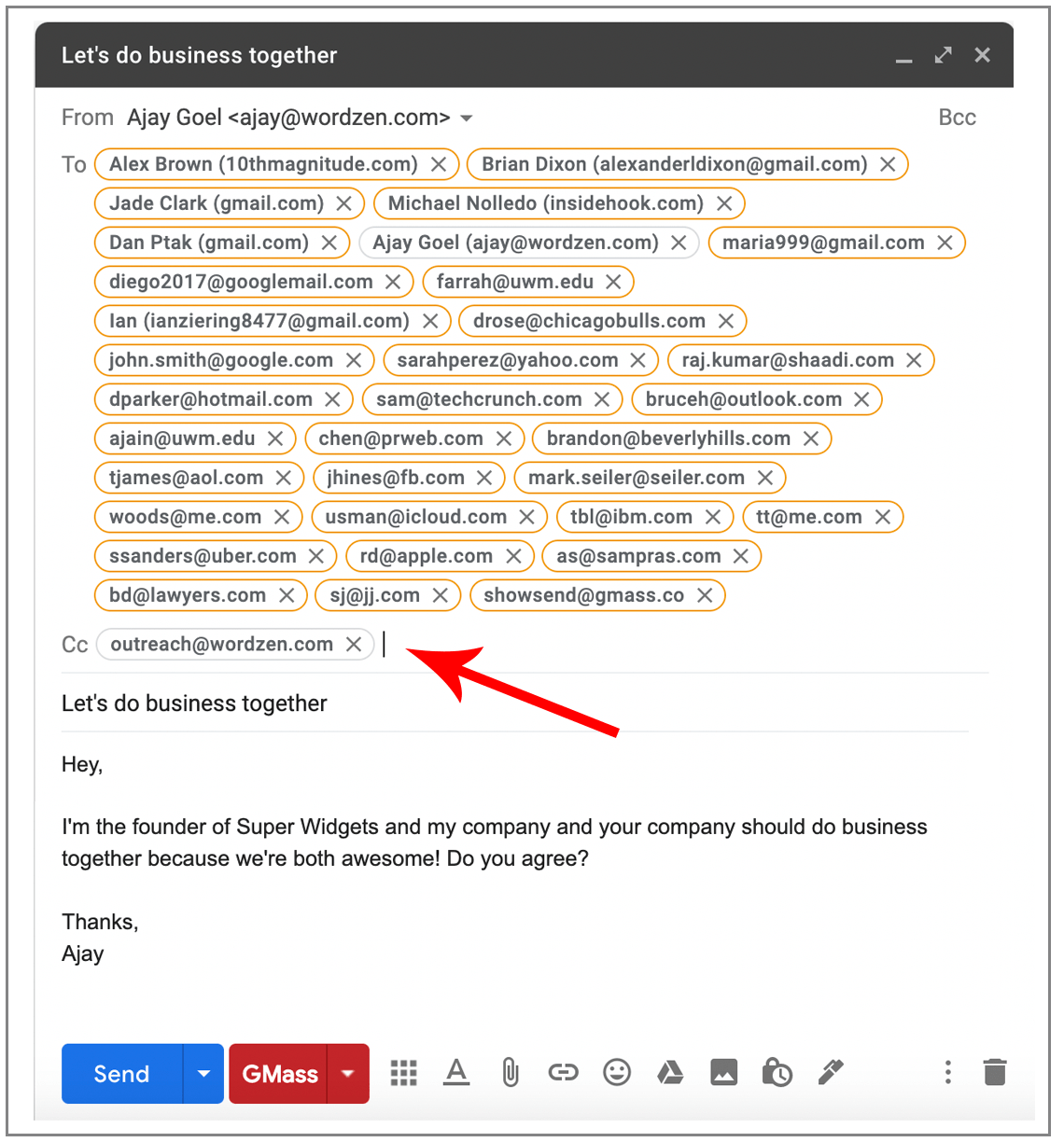
In the example above, the email is set to send to the eight recipients in the To line. If sent via GMass, each of the eight recipients will receive an individual, personalized email, and the Cc address will receive all eight email messages as well.
So what’s the purpose of using the Cc or Bcc field then?
There may be cases where you do want to have a copy of every single message sent to a Cc address. For example, if you’re a teacher sending a mass email to the parents of your 20 students with each student’s grades, and each email is personalized with the parent’s first name and the student’s grades, you may want to Cc the principal of the school. The principal of the school will receive all 20 emails sent to the 20 parents and now has proof that the communication was sent.
Additionally, you might use the Bcc field to send data to a CRM system like Salesforce.
You can get even fancier by setting individual Cc and Bcc addresses for each recipient, by setting them in a spreadsheet column. You can even personalize multiple CC and BCC addresses for every recipient on your list.
A comprehensive understanding of Cc and Bcc
If you’re still confused about how Cc and Bcc are used in general in email, please see my guide to Cc and my guide to Bcc.
See why GMass has 400k+ users and 9,000+ 5-star reviews
Email marketing. Cold email. Mail merge. Avoid the spam folder. Easy to learn and use. All inside Gmail.
Love what you're reading? Get the latest email strategy and tips & stay in touch.
You can now send a new campaign based on actions your contacts have taken on previous campaigns. Want to send a follow up to everyone that DIDN’T open your last campaign? You can do that. Want to send a follow up to everyone that OPENED but DIDN’T CLICK your last campaign? You can do that too. Or maybe you just want to re-send to exactly everyone who received a previous campaign.
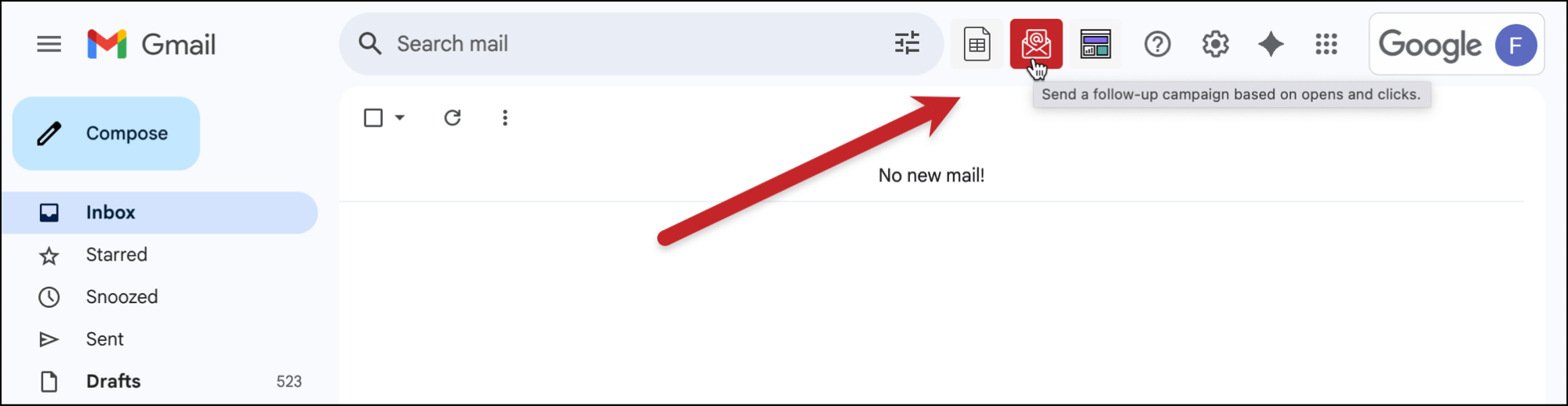
Click the “follow up” button next to the Search bar. It’s an envelope with an @ symbol symbol with an arrow.
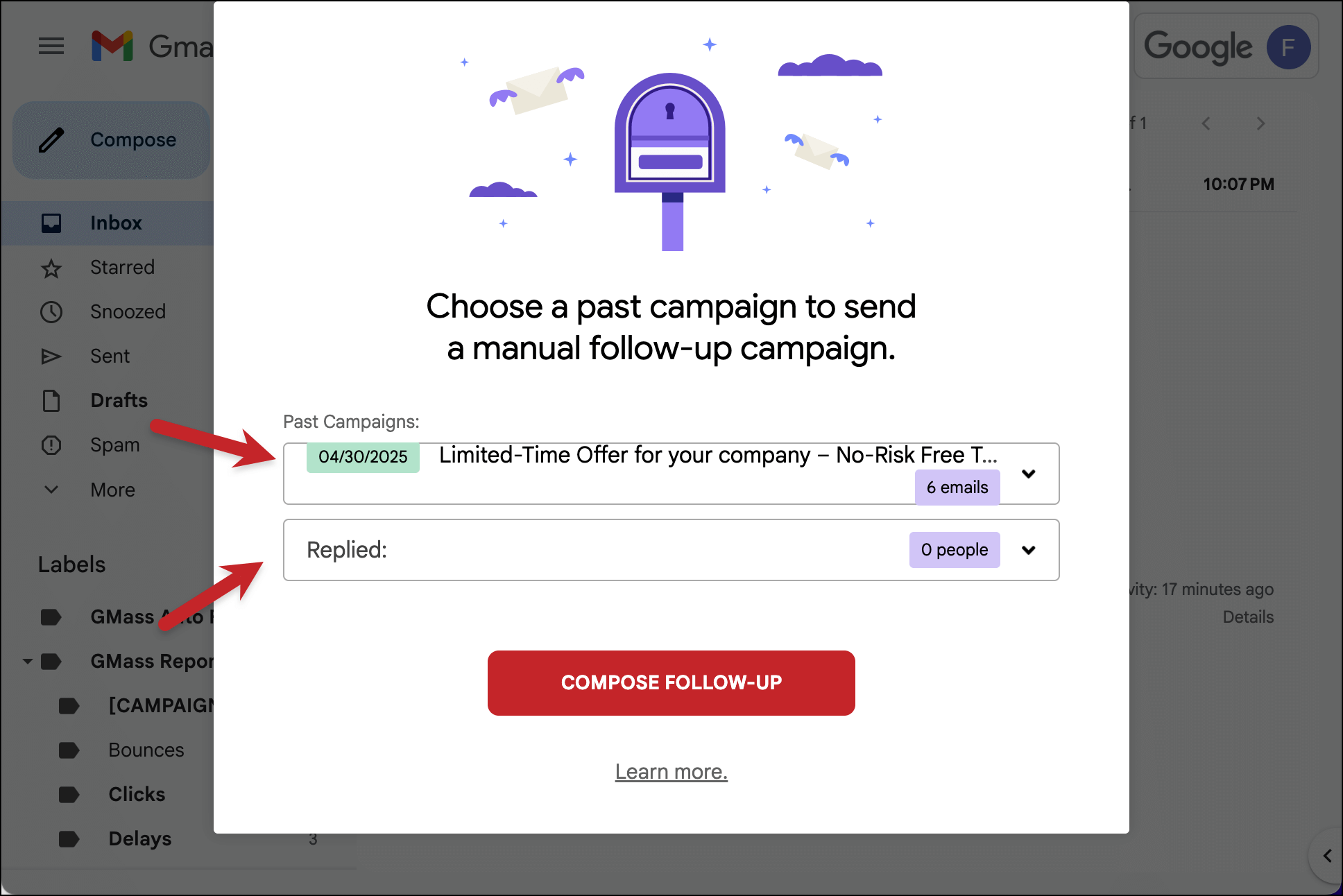
When you click the button, you’ll get a popup where you can choose your past campaign, and then the behavioral segment to which you want to send a follow up campaign. If your original campaign was based on a Google Docs spreadsheet, then GMass will connect to the same spreadsheet to allow you to personalize the follow-up with the same data.
The behavioral segments you can choose from are:
Sent: Everyone that was a recipient of the campaign
Opened: Everyone that opened the campaign
Didn’t Open: Everyone that didn’t open the campaign
Clicked: Everyone that clicked at least one URL in the campaign
Didn’t Click: Everyone that didn’t click any URL in the campaign
Opened but didn’t click: Everyone that opened the email but didn’t click any URLs
Replied: Everyone that replied to the campaign. Note that replies take a couple hours after they reach your Inbox to be associated with the campaign.
Didn’t Reply: Everyone that did not reply to the campaign.
Opened but didn’t reply: Everyone that opened but didn’t reply to the email campaign.
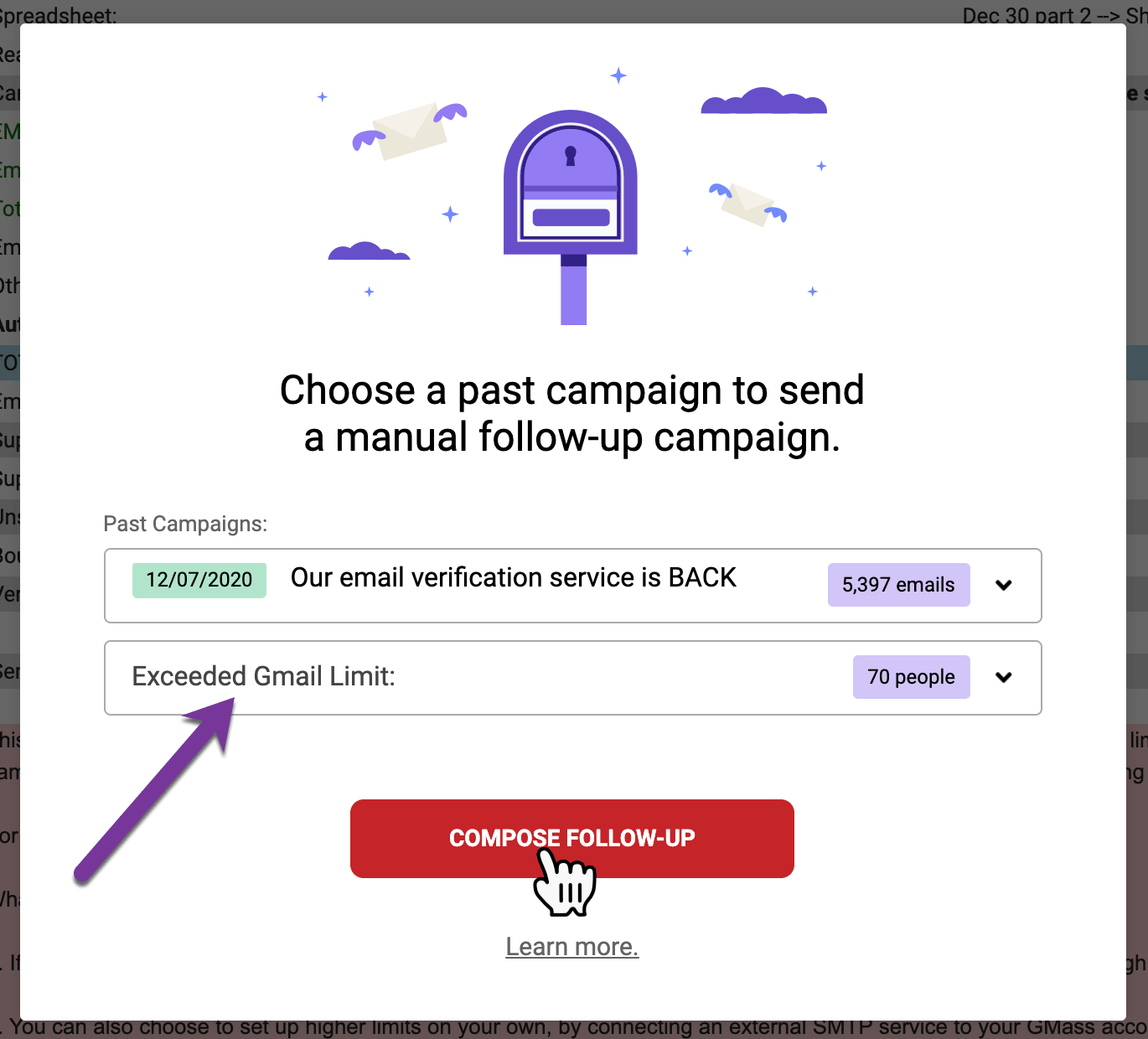
Exceeded Gmail Limit: Everyone that bounced with a message indicating that your account was over limit. This segment is useful if you want to send your campaign to people that didn’t receive it the first time because you were over limit.
Gmail API Errors: Everyone that did not receive the email because there was an error when GMass attempted to connect to Gmail. These errors are rare, but you may want to re-send the campaign to those that didn’t receive it the first time because of errors.
Blocks: Everyone that didn’t receive the email because of a spam rejection. After you’ve addressed the issue causing the spam rejection (usually a tracking domain issue), you can use this option to re-send the campaign to these people, since they didn’t get your email the first time.
You can also send follow-up campaigns based on who replied or who didn’t reply to a previous campaign. GMass’s reply management feature organizes replies, bounces, and other types of responses into different Gmail Labels after you send an email marketing campaign. Since that feature gives us the ability to tell who replied and who didn’t reply, we have now been able to enhance the follow-up campaigns feature to allow you to also follow up based on who replied and who didn’t.
Just click the follow-up campaigns button next to the Search bar, choose a past campaign, and choose from one of the new behaviors listed:
1. People who replied
2. People who didn’t reply
3. People who opened but didn’t reply
Love what you're reading? Get the latest email strategy and tips & stay in touch.
If you’re an email marketer using Gmail or Google Workspace (formerly known as G Suite) as your email sending platform, you probably want to understand just how many emails you can send through your Gmail account.
First, distinguish between a regular Gmail account and a Google Workspace account. A regular Gmail account is an account with an address containing the domain gmail.com or googlemail.com. Google Workspace, the business product of Google, means your email addresses contain your organization’s domain, like john@acme.com or ajay@wordzen.com. In this case, acme.com or wordzen.com is a domain whose email is controlled by Gmail. You can log in to your business’s email account by way of Gmail.
What are the basic Gmail sending limits?
Regular Gmail or Google Workspace free trial accounts have a limit of 500 individual emails/day.
The limits I’ve described above apply only if you’re sending individual emails to one recipient only, the kind that would be sent if you’re using GMass. They apply on a rolling 24 hour basis. That means that if you have a regular Gmail account and you send 500 emails at 2:00 p.m. on Wednesday, and it takes 10 minutes for the emails to send, you won’t be able to send any more emails until 2:10 p.m. on Thursday. Another example: if you send 100 emails from 2 p.m. to 3 p.m. on Wednesday, and 400 emails between 3 p.m. and 4 p.m. on Wednesday, then you won’t be able to send any emails until 2 p.m. on Thursday, at which time you’ll be able to send a max of 100 emails. After 4 p.m., you’ll be able to send more.
There are other limits in effect if you’re sending say, one email with 10 email addresses in the To field, and limits if you have your account set to auto-forward, and other limits explained in the URLs referenced above.
A special trick you can try, but that I haven’t tested
If you’re a Google Workplace customer, you can configure your account to use Gmail’s own SMTP relay server (smtp-relay.gmail.com) and send 10,000 emails per account per day with a maximum sending capacity of a whopping 4,600,000 emails per day across all of your Google Workplace accounts. Don’t believe me? Google states it right here.
What happens if you exceed your Gmail account limits?
When you hit your email sending limit, Gmail will show one of these error messages:
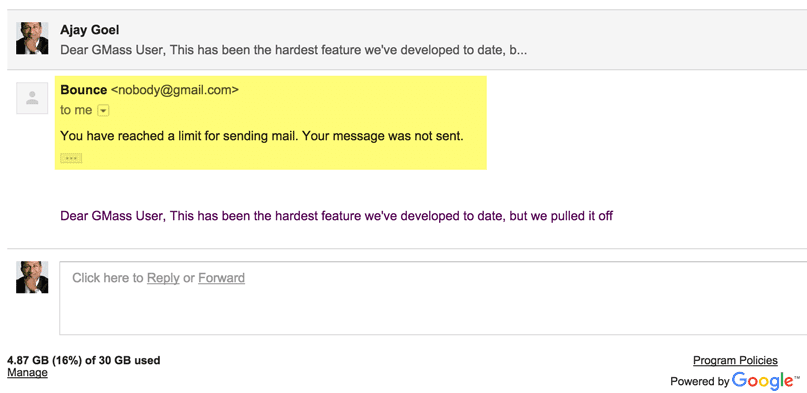
#1: “You have reached a limit for sending mail. your message was not sent”
If your account exceeds 500 emails in a single 24-hour period, then future outgoing messages will be blocked from Gmail or Google Workspace free trial accounts. As a paid Workspace subscriber, you can gain an increased limit of 2000 emails per day. To reach this goal, you must be a paid Google Workspace subscriber for over two months and your organization needs to have cumulatively paid $100 or more.
If you’re logged into Gmail, and your account is at its limit, this is what happens when you hit the Send button:
The message refused to send and remains as an unsent Draft in your account.
If you’re using any kind of external app to send emails through your Gmail account, the app will be able to successfully connect to your account and place the email in your Sent Mail folder, however, the email won’t actually send. Instead, you’ll get a bounce notification indicating the email hasn’t been sent because you are over your limit.
Solution: Use GMass to spread out your email campaign over multiple days without exceeding the daily email sending limit. When GMass detects that you are approaching the limits set by Gmail, it will automatically pause the current campaign from sending additional emails until another day has passed.
#2: “You have attempted to send mail to too many recipients at once. your message was not sent”
You may see this error message if you’re emailing 500 or more recipients in a single email.
Solution: You can send personalized bulk emails through your Gmail account with GMass. GMass utilizes different methods to send individual campaigns so that they do not exceed the Gmail recipient limit.
There’s another kind of Google limit which some Gmail accounts hit that isn’t directly related to how many emails you’ve sent but rather how quickly you sent them. This is called a “rate limit” error, and you’ll know if you’ve sent emails too fast because you’ll see this error when you try to send:
This is a Gmail API error. Meaning, you won’t see this error during the regular course of using your Gmail or G Suite account, but you might see this error in warning messages when sending mail merges or cold email campaigns with Gmail. If GMass encounters this error when sending one of your campaigns, we pause your campaign for an hour and throttle the sending speed when it resumes. Meaning, your campaign will resume sending in an hour, but this time, there will be a 5-10 second space in between emails.
How to check your email sending limit in Gmail
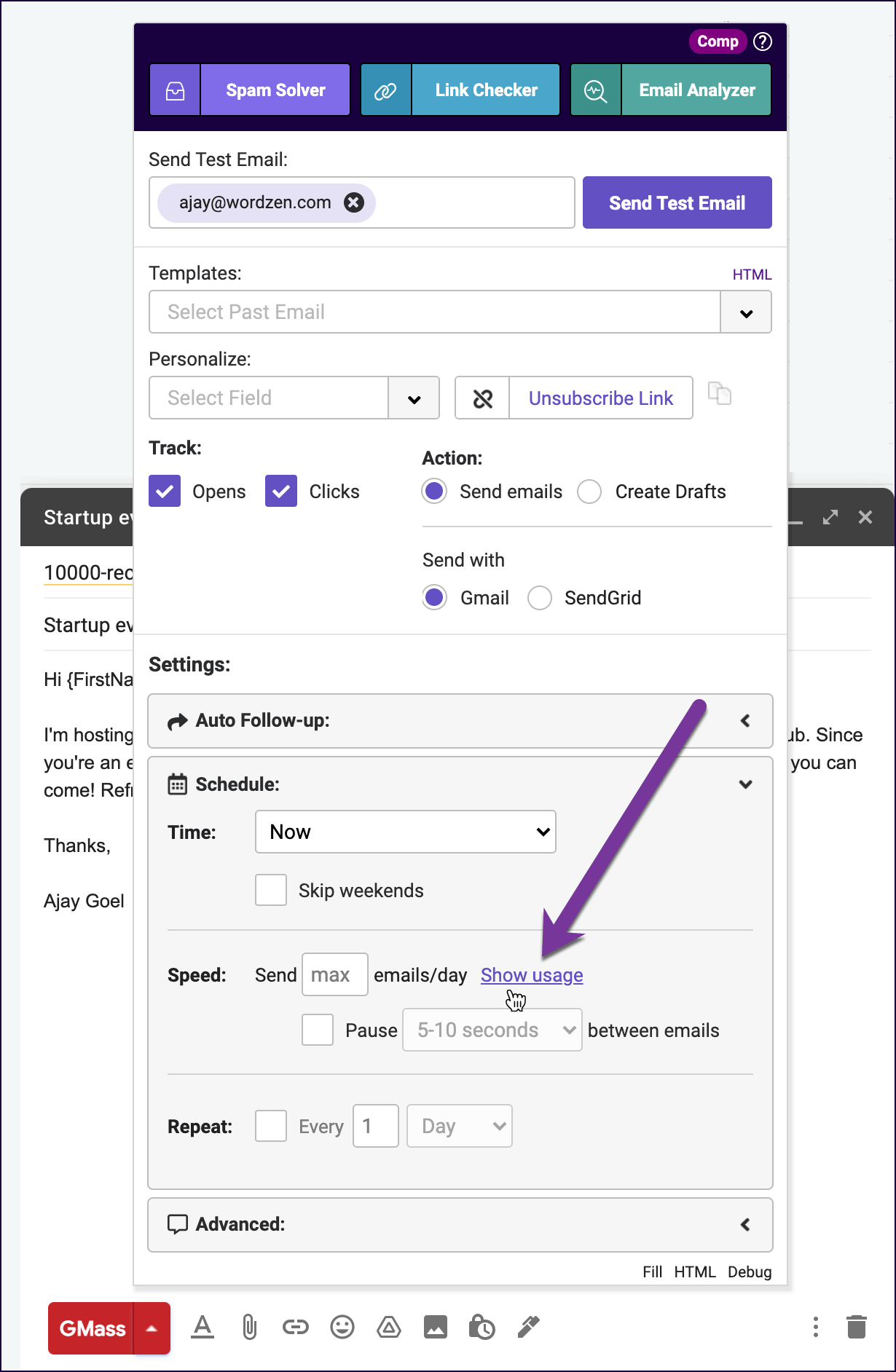
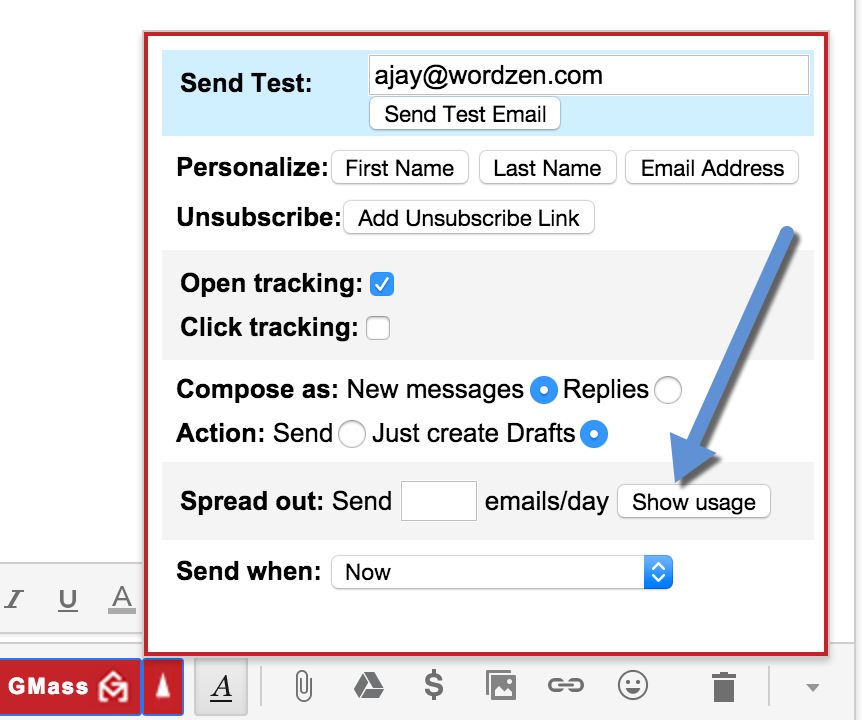
Gmail doesn’t provide an easy way of determining how many emails you’ve sent over the last 24 hours, other than looking at your Sent Mail folder and manually counting, but GMass calculates this for you and displays it. Click the Show usage button in the GMass Settings box to see how many emails you’ve sent over the prior 24 hours. This will help you determine how many emails you can send at any given time.
Click “Show usage” to have GMass count how many emails you’ve sent in the last 24 hours.
How does GMass manage your account’s sending limits?
You can send a mail merge campaign through GMass to several thousand email recipients in one shot. GMass employs several methods for sending large campaigns through your Gmail account but here are the steps we take when simply distributing a campaign over multiple days.
GMass will automatically distribute your email campaign over multiple days to avoid exceeding your account’s limits. For example, if you have a Google Apps account, where your limit is 2,000 sent emails/day, and you want to send a campaign to 10,000 people, GMass will evenly distribute your campaign at 2,000 emails/day for 5 consecutive days.
GMass counts how many emails you’ve sent through your account over the past 24 hours when calculating how many emails in your campaign can be sent right now. Let’s say that you’ve sent 15 “regular” emails through your G Suite account in the last 24 hours using the blue Gmail Send button, and now you’re sending a 2,500 person campaign. GMass will send 1,985 emails now, and 515 emails 24 hours later. In cases where you’re mixing send types, sending some campaigns natively with Gmail and sending some campaigns over SMTP, GMass will count only the emails sent natively through your Gmail account when determining where you fall within your Gmail account’s limits.
GMass will pause sending of your email campaign when it detects that you’ve exceeded your account limits. It does this by analyzing the number of your sent emails over the prior 24 hours and scanning for bounce notifications in your account that indicate you’re over your limit. When this happens, GMass will pause your campaign and retry in one hour.
How can you re-send emails to addresses that bounced because you were over your limit?
If you received the dreaded bounce that is “from” mailer-daemon@gmail.com with the Subject “You have reached a limit for sending mail”, you probably want to resend your email to the recipients that resulted in this bounce.
Fun fact: In the summer of 2019, Gmail changed the From Address associated with these “over limit” bounces. They used to come from nobody@gmail.com but now they come from mailer-daemon@googlemail.com.
In most cases, GMass will automatically re-queue these specific email addresses for your campaign. That means you don’t have to take any action, and when it’s determined that your account can send again, or if your campaign gets re-routed to an external SMTP server, then these addresses that bounced the first time will subsequently get your email.
In certain situations though you may want to manually re-send your email to the email addresses that bounced.
This is the tool to manually re-send the emails that bounced because you were over the limit.
1. Click the red @ button near the Gmail Search bar. This launches the segmentation tool.
2. Choose the campaign from the dropdown that experienced the blocking.
3. Under Behaviors, choose Over Limit.
4. Next click the main COMPOSE FOLLOW-UP button.
5. A Gmail Compose window will launch and the To field will be filled with the addresses you want to send to, the addresses that previously blocked your campaign.
6. Next load the content of your campaign by clicking the GMass Settings arrow and choosing your original campaign from the Campaigns dropdown. Your Subject and Message will be set.
7. Lastly, ensure all other GMass Settings are how they should be, such as Tracking of opens and clicks, and make sure the Schedule is set to the desired time of sending.
8. Finally, hit the red GMass button to send. Your campaign will now go to the email addresses that blocked you the first time.
Those are the fundamentals of Gmail’s and Google Workspace’s email sending limits and how GMass navigates those limits to allow you to send large mail merge campaigns. Remember that you can use the GMass unlimited sending feature to avoid these limits altogether.
See why GMass has 400k+ users and 9,000+ 5-star reviews
Email marketing. Cold email. Mail merge. Avoid the spam folder. Easy to learn and use. All inside Gmail.
Love what you're reading? Get the latest email strategy and tips & stay in touch.
Update on 3/22/16:This feature has been enhanced. Bounces are now detected automatically and bounced addresses are suppressed in future email campaigns. This is part of the new Automatic Reply Management feature.
I just deployed a hack that lets you pull bounces from your Gmail account so that future GMass mail merge campaigns skip sending to those bounced addresses. If you already have a history of sending mail merge campaigns through your Gmail account with GMass, you’ve likely accumulated some bounce-backs. You already get ridiculously high email delivery rates when using GMass, but avoiding repeatedly sending to bounced addresses will optimize your email delivery even further.
This is a hack, and in time we will release a better bounce handling mechanism. For now though, here’s how to pull your bounce list and prevent GMass from sending to past bounces:
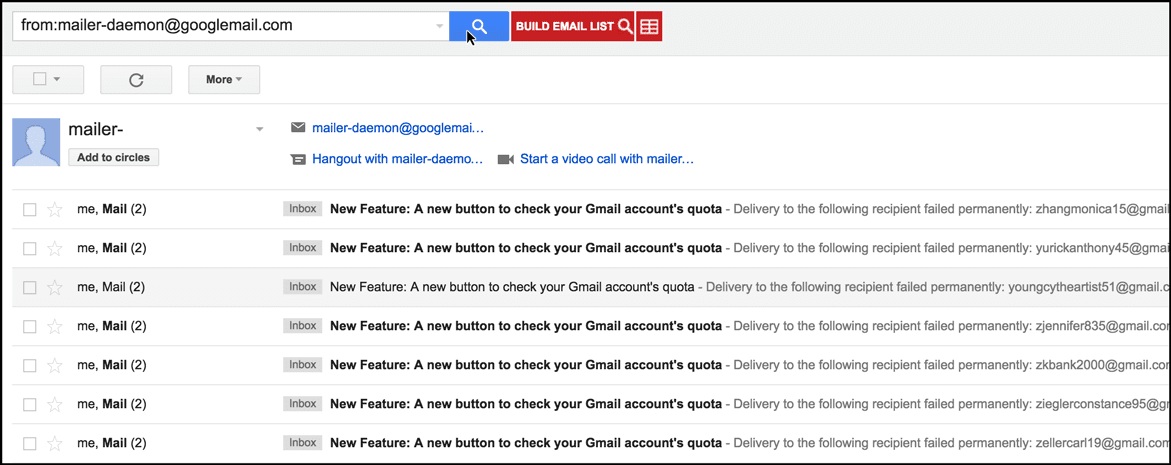
1. Use the Gmail search tool to search for “from:mailer-daemon@googlemail.com”, and then search. This will show all of the bounce notifications you’ve received.
2. Next, click the GMass “Build Email List” button. This process could take a few minutes to complete if you have a lot of bounces in your Gmail account.
3. After it’s done, a new message will launch with all of your bounced addressed in the To field. Simply discard this message by hitting the Trash button in the lower right corner. GMass has now captured all of your bounced addresses and added them to our internal database. Now, if you attempt to send to any of these bounced addresses, GMass will skip over them.
That’s it!
In the future, we will automate the process of plucking bounced addresses from your account and adding them to our database, so that you don’t have to go through this manual process. Stay tuned for that.
Ready to send better emails and save a ton of time?
GMass is the only tool for marketing emails, cold emails, and mail merge — all inside Gmail. Tons of power but easy to learn and use.
Love what you're reading? Get the latest email strategy and tips & stay in touch.
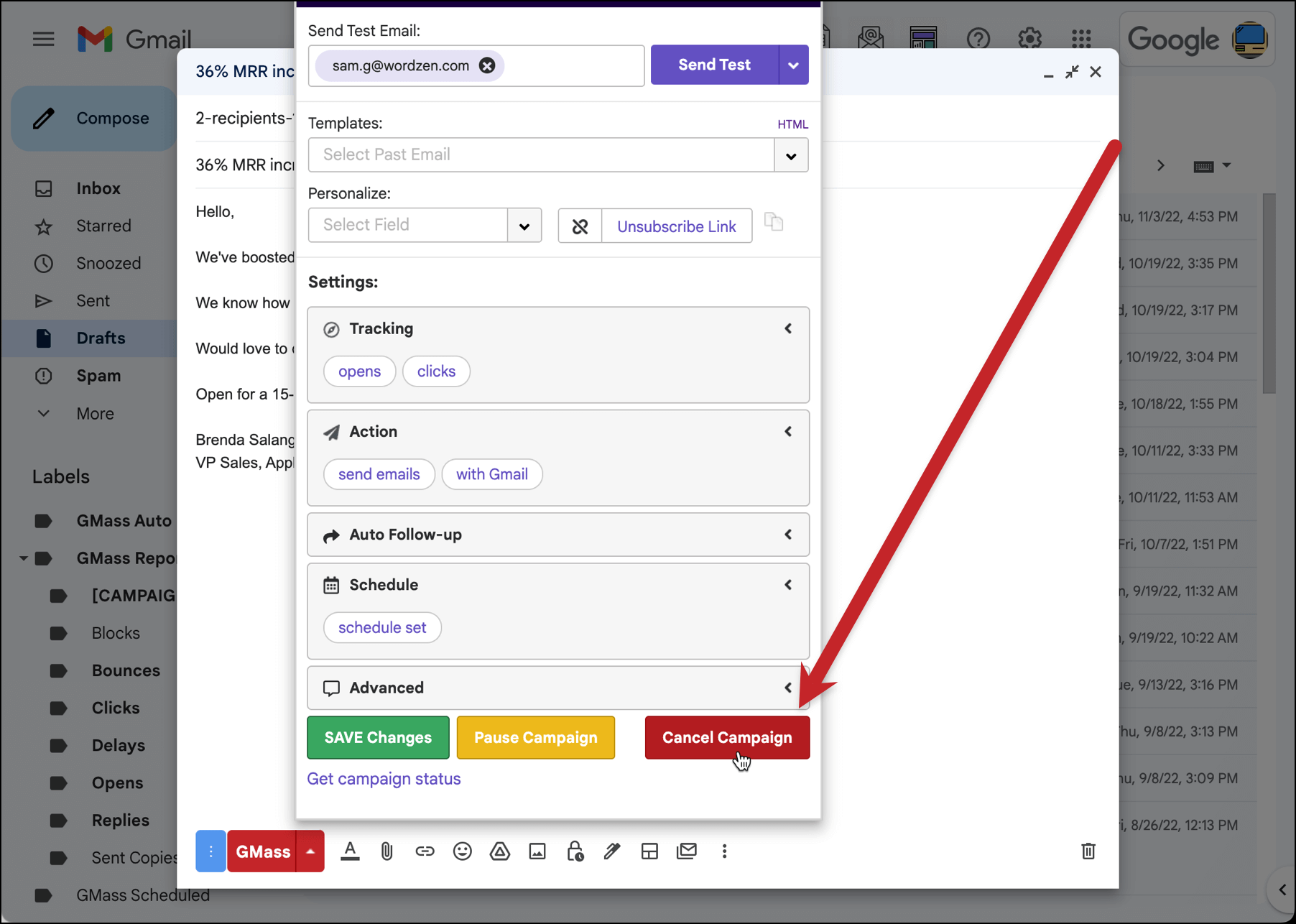
If you have a scheduled mail merge campaign, it will show under the GMass Scheduled Label.
You have a few options to cancel the campaign.
Cancel from the GMass settings box
Find the campaign under the GMass Scheduled Label or in your Gmail Drafts folder, open the Draft, click the GMass Settings arrow, and hit the Cancel button.
Cancel from the GMass dashboard
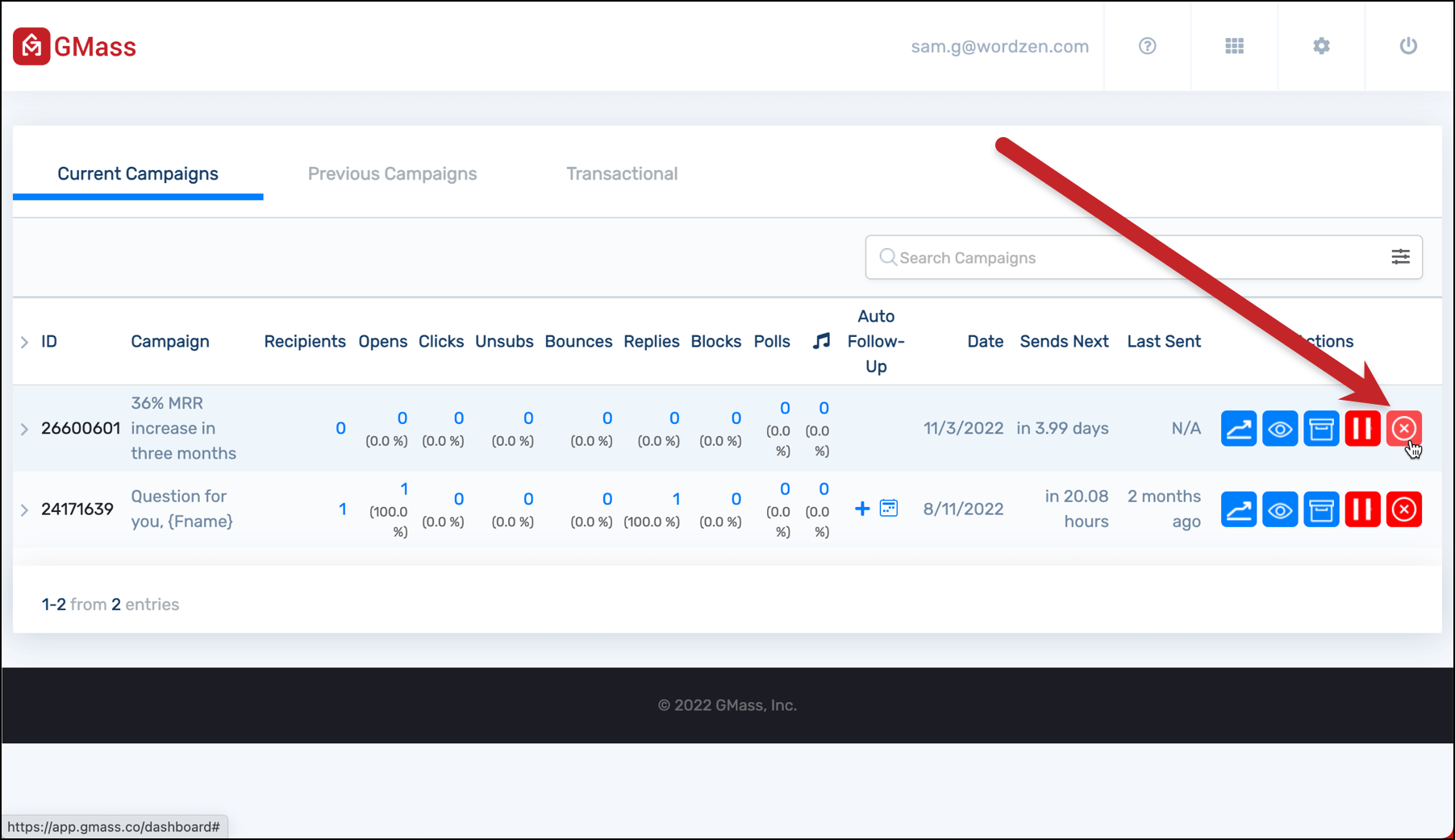
Head to your GMass dashboard. You’ll see your campaign under the Current Campaigns tab. Click the red X button to cancel.
Notes on canceling campaigns
These methods also work on a large campaign that has been set to send over multiple days. If after a couple of days, you decide you don’t want the rest of it to send, follow the same procedure to prevent further sending.
If the campaign is in the process of sending right now, then hitting the Cancel button will attempt to stop the current send and prevent future emails for the campaign from sending. If sending is in progress, up to 50 emails may send before sending is stopped.
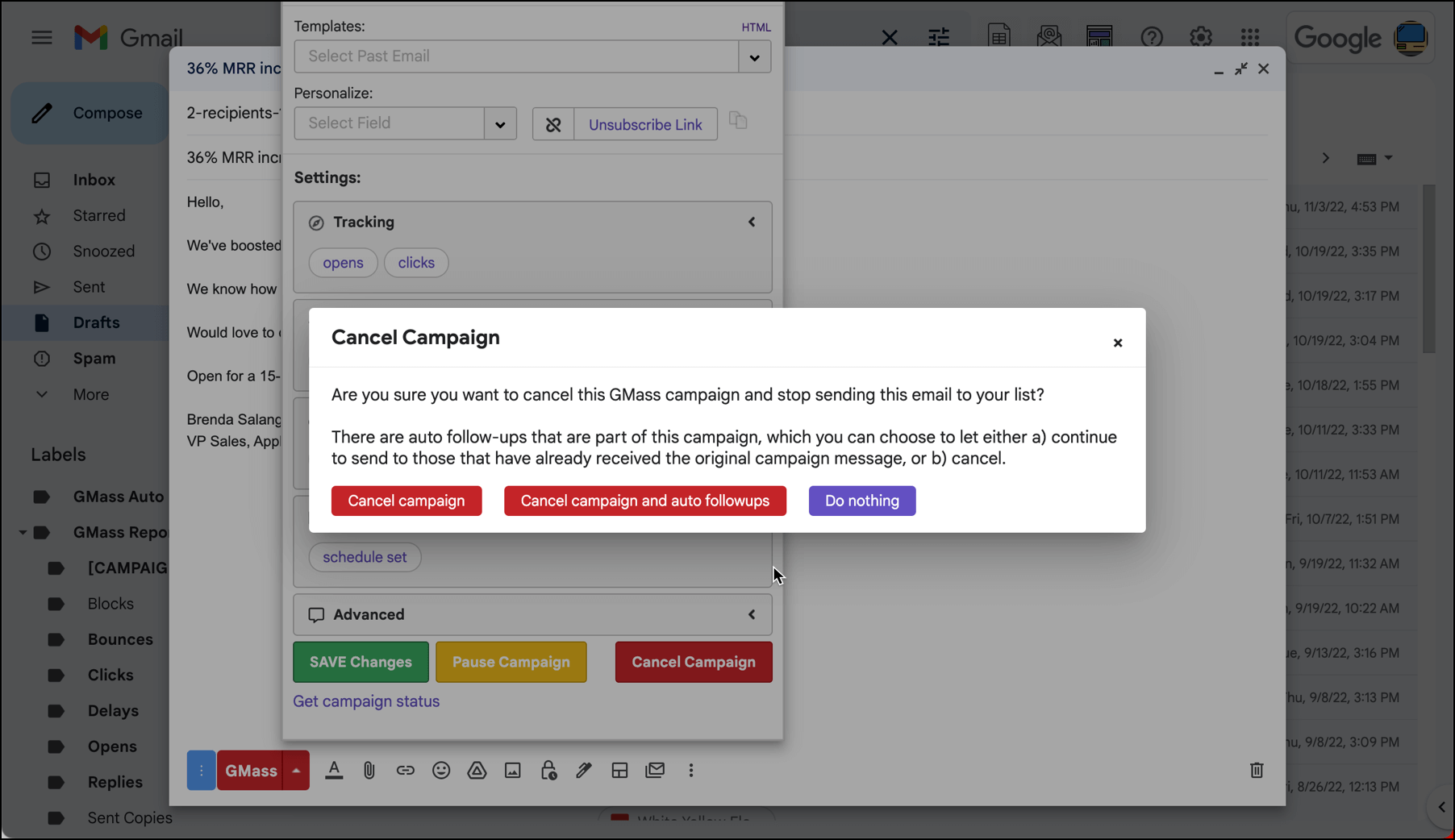
If you have auto follow-up messages scheduled with this campaign, a pop-up window will give you the option to cancel just the campaign, cancel the campaign and all future auto follow-ups, or both. (Here’s more on canceling auto follow-ups.)
One final note: Another way to cancel a campaign is to delete the email from your Drafts, or remove the GMass Scheduled label. However, those methods are more prone to error; for instance, it wouldn’t necessarily stop auto follow-ups from a large campaign already in progress. The “cleanest” methods are the two listed in this article.
Ready to transform Gmail into an email marketing/cold email/mail merge tool?
Only GMass packs every email app into one tool — and brings it all into Gmail for you. Better emails. Tons of power. Easy to use.
Love what you're reading? Get the latest email strategy and tips & stay in touch.
We’ve added a button to the GMass Settings panel that shows you how many emails you’ve sent with your Gmail account over the last 24 hours, and how many emails you can currently send without exceeding your Gmail account’s sending limits.
Want to know how many emails you’ve sent over the last 24 hours and can now send?
Just click the new “Show Usage” button:
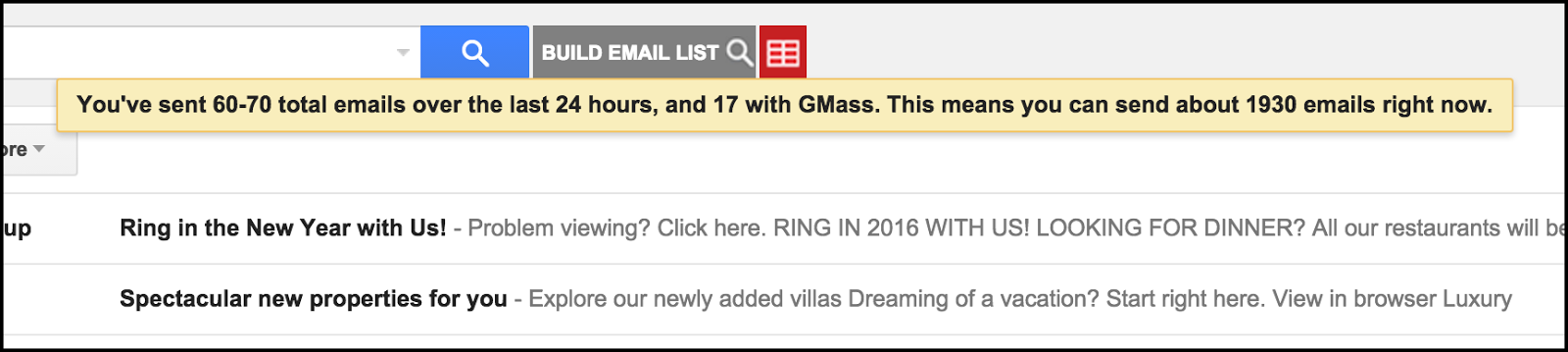
Then look at the message that is displayed at the top of your screen:
It’s that easy! Now you can tell at any given moment how many emails you’ve sent through your Gmail account over the last 24 hours and how many you can send right now.
Ready to send better emails and save a ton of time?
GMass is the only tool for marketing emails, cold emails, and mail merge — all inside Gmail. Tons of power but easy to learn and use.
Love what you're reading? Get the latest email strategy and tips & stay in touch.
Google imposes a limit to how many emails each Gmail user can send from their account in every 24-hour period. If you use your account only for personal email, that’s usually not a problem. However, if you want to send mass emails from your Gmail or Google Workspace account, you need a way around those limits. GMass provides a solution.
Gmail/Google Workspace (formerly G Suite) sending limit
If you use Gmail or if your company uses Google Workspace (formerly G Suite), then your email account is subject to a Gmail sending limit.
How many emails can be sent at once in Gmail?
Gmail sets a rate limit of 20 outgoing emails per hour. If you exceed this limit, Google might suspend your account for anywhere from 1 to 24 hours. If you gradually and consistently raise your use to a higher number, Google will tolerate the increase. But if you aggressively exceed this limit, Google will mark your emails as spam, which will damage your email deliverability because it will trigger spam filters among the receiving email services.
Anything you send to external recipients from an alias address will count toward this total, as will vacation auto-responders. And when you sync your phone to your Gmail or Google Workspace account, any emails you send from that device will count as well.
If you send an email to multiple recipients, Google counts each recipient as a separate email. If you frequently send email to the same recipients – for example, 30 members of your cycling club, or your team of 12 local volunteers – one way to expand your reach is to establish a Google Group of that membership (e.g., “SpeedyCyclers”). You can then address your email to the Google Group name, and it will count as just one unique recipient (SpeedyCyclers) even though it is distributed to all members of the group.
For individual Gmail accounts, the daily send limit is up to 500 emails per rolling 24-hour period. If you’re a typical Gmail user, you may not even know about this limit because it’s doubtful you send that many emails in a typical day. But note, Google counts each email address as a separate email, so one message sent to five recipients would count as five emails.
For Google Workspace accounts (formerly G Suite), the daily sending limit is up to 2,000 emails per rolling 24-hour period, per email address. These accounts are usually for businesses and operate under the company’s domain, such as AmalgamatedWidgets.com, but they use the same Google email (Gmail) technology.
If you’re one person using one email address, then you’re not likely to bump up against the 2,000-email daily limit. But if you’re sending a bulk email campaign on behalf of your company, and you have a large customer or prospect list, that 2,000-email sending limit won’t meet your needs. That’s because, like to the individual account, one email addressed to 5,000 recipients, it counts as 5,000 emails.
At this point, you may be asking, “how can I send more than 500 emails a day on Gmail?” There are three ways.
One is to create a Google Group, as noted above – although this is only appropriate for groups of people who know each other or have a reason to be addressed together, such as being part of the same team, club, or interest group. No one really uses this method anymore.
The other is to increase the number of external recipients by using an SMTP relay service or inbox rotation.
Okay, so what is SMTP relay?
“SMTP” (Simple Mail Transfer Protocol) is an automated system of rules, authentications, and steps that a server uses to prepare your outbound email for delivery to other email addresses. “SMTP relay” is the process of one SMTP server delivering email to another SMTP server. The SMTP process is pretty technical, so most bulk email senders use a service to manage their SMTP relay.
Although you can set up an SMTP service on Gmail, it will still impose those lower limits and block your account if you exceed them. However, if you set up an SMTP relay service on GMass, you don’t have to worry about that lower SMTP limit because you’ll be sending through GMass’ servers.
This lets you bump your daily email limit up to 10,000 recipients.
What is inbox rotation?
Inbox rotation is a technique where you distribute one campaign across multiple sending accounts. So rather than sending 5,000 emails from one account, you’d have 50 accounts sending 100 emails each.
In GMass, we call this MultiSend and all of the distribution is done automatically. You connect the accounts, create your campaign, and we handle all the distributing.
Gmail maximum recipients
Google limits the maximum number of emails you can send each day based on the number of recipients that are emailed from an authorized Gmail or Google Workspace account. Google considers a recipient as one unique email addresses, and each email sent to them within a rolling 24-hour period counts as one email.
The maximum limit applies to all the emails you send in a day, not just your bulk emails. And each email you send to a unique recipient counts as one email. So, if you send four individual emails to your boss on different work topics, two preview versions of your mass email message as tests, and then include your boss in the final mass email distribution list, that would count as seven emails (4+2+1).
Similarly, if you used the same email account to send a meeting reminder to 85 members of your cycling club, that would count as 85 emails.
That’s why it can pay to set up a separate email account with your webmail provider exclusively for bulk emails, especially if you have a large mailing list.
How many recipients does Gmail allow?
Free Gmail account — If you use a free Gmail account, you are limited to sending a maximum of 500 emails in a 24-hour period, and a maximum of 100 addresses per email.
Paid Google Workspace account — If you use a paid Google Workspace account, you are limited to sending a maximum of 2,000 emails in a 24-hour period. If you use Google’s SMTP service, a single email may have up to 100 recipients.
Free trial period — Anyone using the free trial period for a Google Workspace account is subject to 500-email maximums until they convert their account to the full paid version and complete a 60-day waiting period.
Email alias — Use of an email alias does not change these limits. Your primary account address and all of its aliases count toward a single limited number of emails per day. So, if your account includes both yourname@example.com and the alias email address marketing@example.com, then the daily limit of emails in a 24-hour period for both is 500 (for a Gmail account) or 2,000 (for a paid Google Workspace account).
If you exceed these limits, your account can be suspended for up to 24 hours. You can still access your mailbox to receive emails and use your Google account for other features, such as your calendar; but you cannot send emails during this period.
Gmail BCC limit: How many emails can you BCC in Gmail?
When you CC or BCC an email address in an email, Google counts each unique address as a separate email, just like those you put in the TO line. So, there is no numerical advantage to putting an address on the CC or BCC lines — i.e., you don’t increase your recipient limit by moving names to BCC or CC.
Some emailers use the BCC line as a way to send to many individuals without disclosing those names to the entire group. Technically, this works, but it is not considered a best practice, as it’s a hold-over from the time before everyone could afford to use an advanced email marketing service. (What once cost $1,000+/month in the earliest days of such services now costs as little as $12.95/month.)
For example, when you use GMass, even though you include many email addresses in the TO line, each email is sent individually, and recipients see only their own name — no one else’s. Not only is this a best practice, but also it has the advantage of improving email deliverability rates, which is crucial to any mass email sender who wants to avoid their recipients’ spam folders.
Increase Gmail sending limit
To get the most from your bulk email campaigns, you want to increase the send limit for your Gmail or Google Workspace account, and you want to be sure that what you send within your limit gets delivered and isn’t wasted —no message that runs afoul of a Google script, no blocked message, no undeliverable message, and so on.
How can you send more than 500 emails a day on Gmail?
There are a handful of ways to increase your Gmail sending limit, and one way to create an exception:
Multiple accounts. Establish more than one authorized Gmail or Google Workspace account, each with its own limit. For example, in addition to yourname@gmail.com, you might create yourname101@gmail.com and yourname102@gmail.com. Your customers would recognize the name, and you can expand your Gmail mass email capacity to 1,500 (3×500).In this case, you would divide your recipients into smaller groups and send your bulk emails separately to each mailing list. Of course, this means you’ll need to monitor multiple email accounts for a single campaign. This may not be practical, depending on how busy you are and what your personal bandwidth limit is.The same principle applies to Google Workspace accounts, where you might create email addresses such as updates@example.com, marketing@example.com, and promotions@example.com to increase your bulk email limit to 6,000. And with GMass MultiSend, GMass can automatically distribute a large campaign evenly across multiple Gmail/Google Workspace accounts.
Mass Email Service. It’s much more efficient to use an email marketing service such as GMass, which works right inside Gmail or Google Workspace and offers features to increase your campaign limit to 10,000. If you want those details, you can skip ahead to read more.
Google Groups. It doesn’t work for every audience, but if your recipients are tied together by some affinity (meaning, they would have a connection to each other even if you were not in the picture), then it would make sense to recipients why they are part of your group, and Google Groups can then help you expand your reach as an exception to other sending limits.You can put up to 100 email addresses in a group, and an email sent to that group counts as just one email against your limit. However, the email will be delivered to all 100 recipients. Your Google account has an upper limit of 3,000 external addresses per day, so this method would work only if you stay under that limit when adding all group members together.
Examples of series of groups could be Wild Trail Cyclists of Texas, Wild Trail Cyclists of Arizona, Wild Trail Cyclists of Oregon, etc. 30 groups of 50 members each would reach be sent to 1,500 people but count as only 30 emails. However, it means managing 30 different groups, so it can increase the amount of time you spend administering your mailing lists and handling responses.
The most efficient of these is to manage your bulk email campaign through a Gmail-centric service like GMass, which can also provide you with an array of related benefits, including advanced personalization, scheduled sends, personalized attachments, list testing to make sure your email addresses are valid, and much more.
How to send bulk emails on Gmail without getting blocked
There are several steps you should take to avoid having your mass emails blocked by recipients.
Use an SMTP relay service to authenticate your email as genuinely coming from you. This is one of several important signals Google and other spam filters use to determine the validity of your email.
Quality content. Make sure your content is worthwhile to your recipient so that they don’t mark one of your messages as spam. Once a recipient marks your emails as spam, future emails from you are likely to be sent to their junk folder (never to be read), and your sender reputation can suffer. The lower your sender reputation, the more spam filters will block your future messages.
Valid email addresses. Your undeliverable emails also affect your sender reputation, so it pays to validate every email address on your list before you send your bulk campaign. If you’re sending 2,000 emails, it’s not uncommon that as many as 200 or more addresses have become invalid and thus undeliverable, which will hurt your sender reputation.
Don’t spam. Avoid the temptation for a quick result by cutting corners and getting into spam territory, because whatever momentary gain you may enjoy will be offset by a long-term penalty from spam monitors. A handful of these independent monitors influence thousands of spam filters to block the emails you send.
Check the reputation of the IP address from which your emails are sent. If you share a server with another department or company that doesn’t observe strict reputation behavior, they could draw an unfavorable sender reputation. And fair or not, when you share a server IP address with one of them, their bad reputation can cause your emails to be sent to the spam folder. So, make sure your server IP address is clean, and if its not, move to a new, clean IP address. Note that Google likes to see IP addresses age before any email is sent from them, so experienced emailers keep several IP addresses registered well before they are needed.
Check your “From” reputation. If your sending email address has become known to spam filters as a sender of unwanted junk mail, get a new email address and be meticulous about keeping it clean.
Use GMass to manage your mass email campaigns. Not only can you enjoy the ease of using it within the familiar Gmail/Google Workspace framework, but also you can take advantage of its tools, such as a free email address validator.
You can now send mass email campaigns with 10,000 emails with Gmail using GMass, and we will distribute the emails over multiple days automatically, based on your Gmail account’s sending limits. And if you’re on a GMass plan with MultiSend, GMass can distribute your campaign across multiple Gmail accounts automatically.
As explained above, if you have a regular Gmail account, you can send up to 500 emails per rolling 24 hours. If you have a Google Workspace account (formerly G Suite), you can send up to 2,000 emails per rolling 24 hours. Here’s a guide to Gmail’s official sending limits.
With GMass, if you have a Google Sheet with 8,000 addresses, and you’re sending from a Google Workspace account, when you hit the GMass button, 2,000 emails will send immediately, another 2,000 will send 24 hours from then, another 2,000 48 hours from then, and the final 2,000 72 hours from then.
GMass itself now has over 1 million registered users, meaning I need to use this feature myself whenever I send an announcement to my users.
This feature is only useful if your emails are not time-sensitive. Most email campaigns are not time-sensitive, so I’m able to use this new capability to send GMass announcements. If you need to send 500,000 emails in an hour, then you should use a commercial emailing service meant for high volume, like MailChimp. While it pains me to recommend a different Email Service Provider, I must admit that GMass is not optimized for speed but for deliverability.
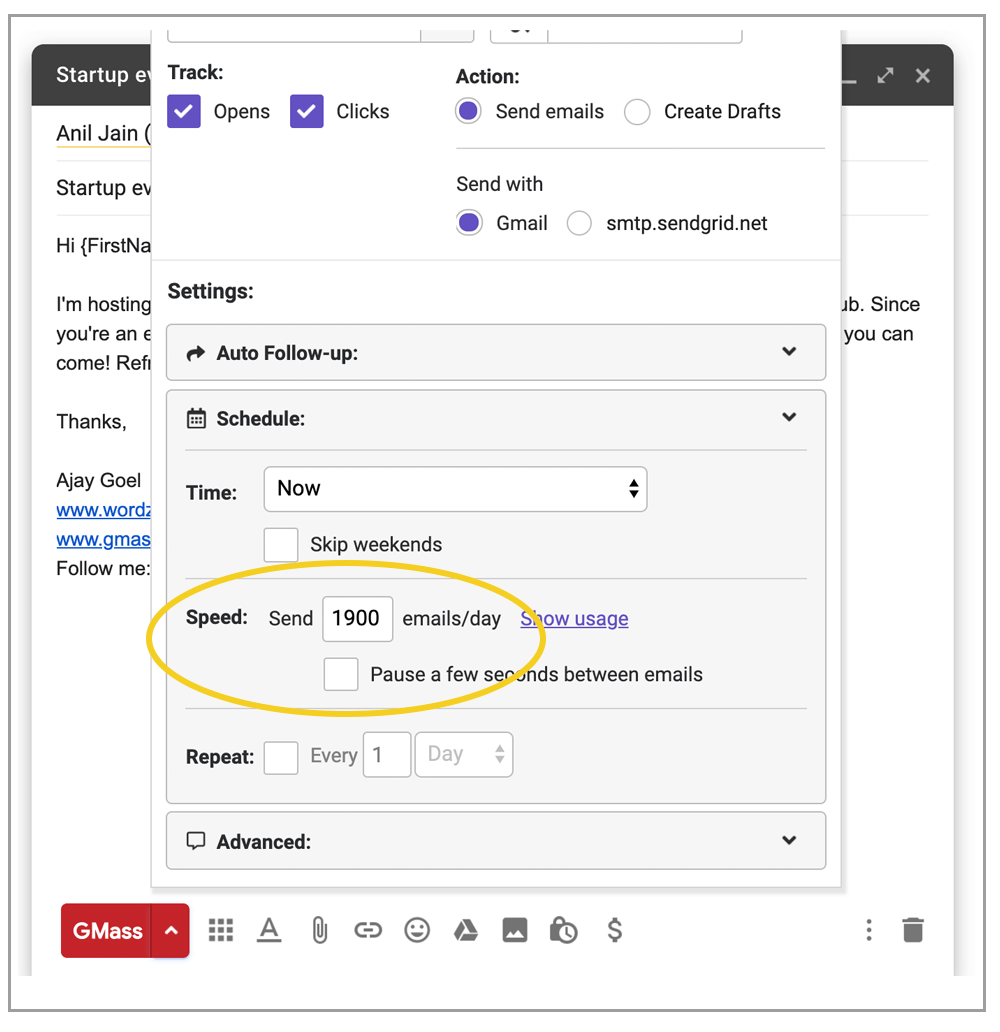
Our platform will automatically send the maximum emails/day allowed, which is 500 emails/day or 2,000 emails/day depending on whether you have a Gmail or a Google Workspace account. You can also control, however, how many go out per day with the Speed setting in the Settings box. If left blank, GMass will send the maximum of 500 (regular Gmail) or 2,000 (Google Workspace) automatically, but you can override this by setting your own value.
Here I choose to send 1,900/day, slightly less than the maximum daily limit.
How the timing works
Because Gmail tracks total emails sent on a rolling 24-hour basis, each subsequent batch of emails will be sent exactly 24 hours after the last email from the previous batch is sent. For example, if you send 8,000 emails on Wednesday at 2:00 PM, then the first 2,000 will be sent right away. If they finish sending at 2:15 PM, then the next batch of 2,000 will be sent at 2:15 PM on Thursday. Also see our article on timing.
An “alias” address will represent your large email list
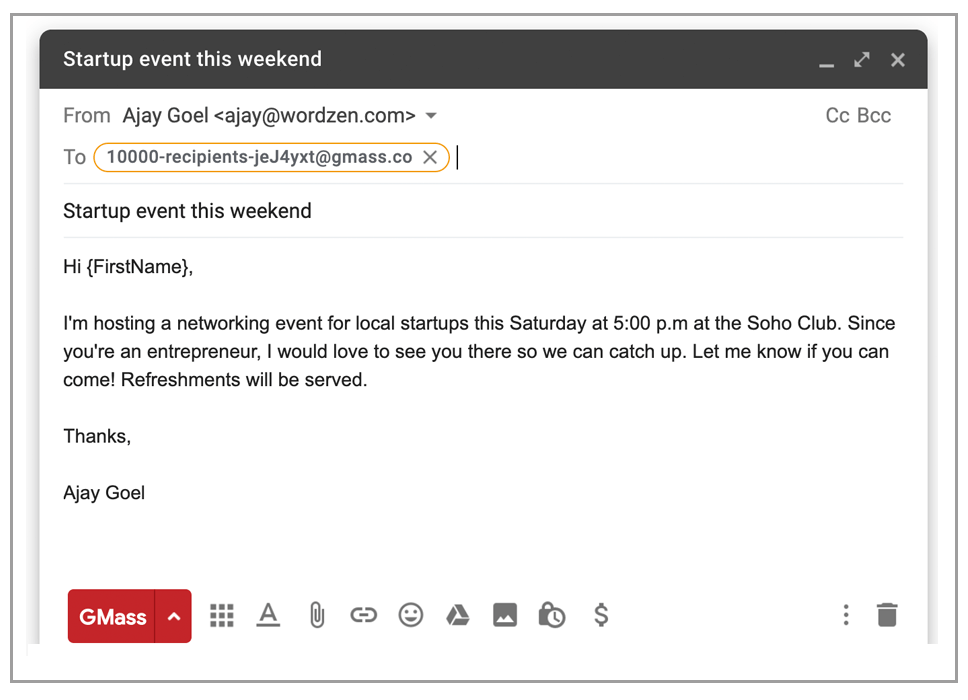
If you connect to a Google Sheet with more than 100 addresses (for example, 10,000 addresses), then instead of populating the To field with all 10,000 addresses, you’ll see an “alias” address that looks like:
10000-recipients-big-EJ1jKu@gmass.co
This address represents all 10,000 recipient email addresses.
When you hit the GMass button, the sending to the first batch of 10,000 addresses will begin. The reason we use an alias address instead of stuffing all 10,000 addresses in the To field is because the Gmail Compose window gets clunky with 4,000 or more addresses in the To field. Loading a few thousand addresses in the To field takes a long time and we don’t like making you wait. The “alias” address method is fast! Keep reading to learn just how many addresses the Compose window can hold.
Can you just paste 10,000 addresses into the Gmail “To” field?
You don’t have to use a Google Sheet. If you’re sending non-personalized email, or only need to personalize with the first/last name of contacts in your Gmail account, you can just paste all of your recipient addresses into the To field. As previously mentioned, this can slow down the Gmail interface though. We ran some experiments and concluded that the Gmail Compose window can actually hold up to 50,000 addresses!
Why send fewer emails than the maximum allowed?
If you send regular one-to-one correspondence from your Gmail account, you should leave yourself room in your account quota to send those emails. So, you may want to set your mail merge to send 450 emails/dayrather than 500 emails/day, so you have a buffer of 50 emails/day for your regular correspondence. Similarly, if you’re a Google Workspace user, you may want to set this to 1,900 instead of letting the system default to 2,000. Sometimes, Gmail doesn’t give you your account’s full sending ability, so this needs to be adjusted down in these cases. Our software, however, counts how many emails your Gmail account has sent in the last 24 hours and factors that in when sending your mail merge campaign.
We count how many emails you’ve sent (even through non-GMass methods) and adjust
If you’re a Google Workspace user and you’re sending a single mass email to 8,000 people, then unless you adjust the Speed setting your campaign will send the maximum of 2,000 emails/day over four days. If you don’t send any other emails during those four days, then this should run like clockwork. If you do send other emails, be it person-to-person emails with the regular Gmail Send button or other mass emails over those four days, prior to sending a new batch of campaign emails, we will count how many other emails have been sent from your account in the last 24 hours and adjust your campaign sending speed accordingly. This includes person-to-person emails, and even email campaigns sent from any other mail merge tool.
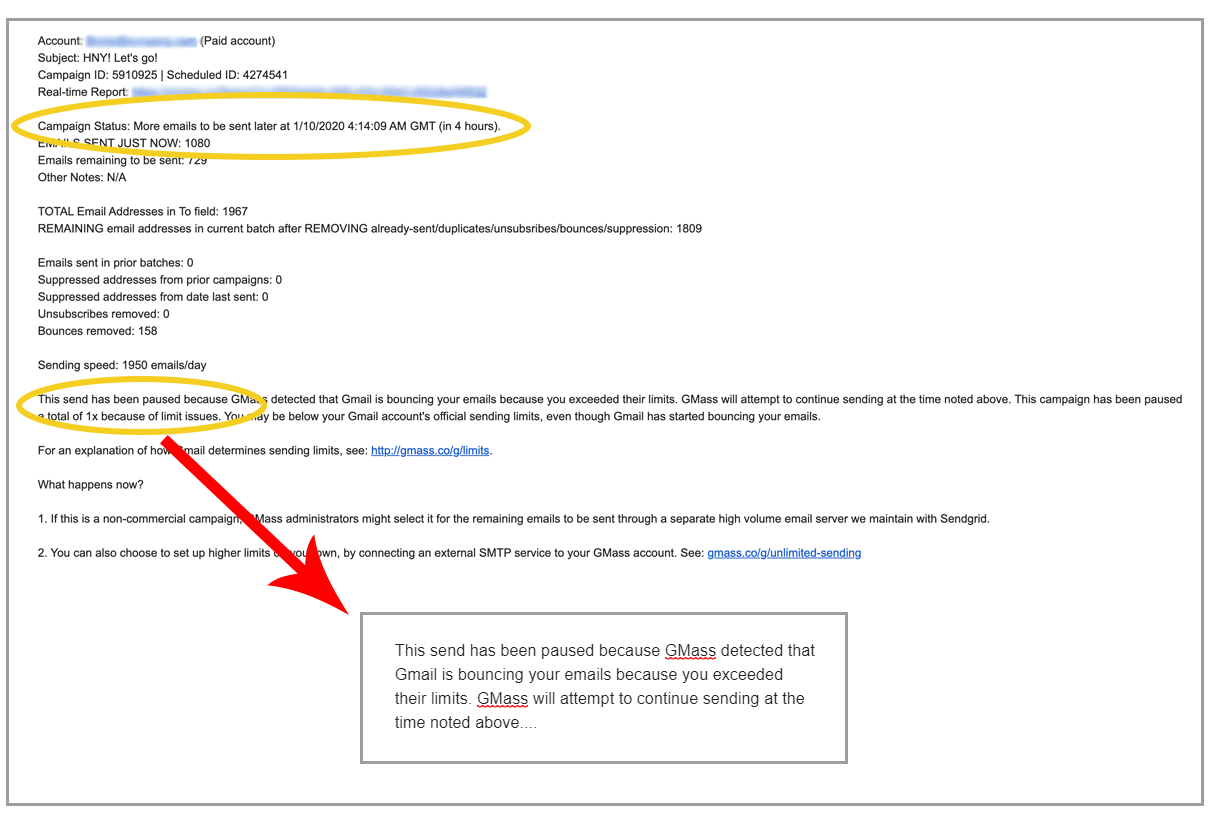
For example, if you’ve also sent 100 regular correspondence emails in the last 24 hours, now only 1,900 emails will be sent for the day’s batch instead of 2,000. After any batch of emails is sent, you receive an emailed report showing you how many emails were sent, when the next batch will send, and an explanation for any forced “throttling” put in place for you to prevent you from reaching your Gmail limits.
Here’s an example of a report after the daily Gmail limits have been exceeded for the day:
Also, if we try 30 times to send your campaign and send zero emails each time, we’ll send you an alert — as that can indicate a larger issue with your sending address.
How well does Google enforce the sending limits?
After analyzing over a million email accounts that have sent through our platform, we know that sometimes Google gives you your full account sending quota of 500 emails/day for Gmail accounts and 2,000 emails/day for Google Workspace accounts, sometimes Google decreases these limits, and sometimes Google even increases these limits. That’s right — sometimes, if an account has a high reputation and is sending squeaky clean email campaigns, you can send more than 500 or 2,000 emails/day without Google suspending your account or bouncing your emails. See our article on the factors that we believe Google takes into account when determining your true sending limits.
Want to send 100,000 emails? Bypass Gmail’s limits altogether.
You can also bypass Gmail’s sending limits and infrastructure entirely and send an unlimited number of emails from your Gmail account. Need to send a campaign to 100,000 or 250,000 people? Just connect your account to a third-party SMTP service like SendGrid, and you can send as many emails as you want, right from the familiar Gmail interface. We use GMass to send our emails to 1,000,000+ subscribers using this exact integration. In some cases, GMass will automatically send your emails through SendGrid for you when you run into your limits. Whether we do this or not is based on your sender reputation with us. If you find that your emails are not being auto “pushed” to SendGrid when you hit your limits, you should set up your own account with a third-party SMTP service and then connect it to your account.
Set up your own SMTP server and connect it to GMass, as described above.
If you’re sending low volume campaigns or have a high reputation with us, we may automatically push your campaign through our internal SMTP server when you hit a limit.
You can just have your campaign send your account’s daily maximum until all emails are sent.
You can sometimes stretch the limits of your account and choose to ignore your account’s limits and keep sending.
List of top ten highest volume campaigns we’ve sent recently.
This list of big campaigns is updated daily. This is a list of the biggest campaigns sent about a week ago. Why a week ago? So that each has enough time to accumulate “engagement” like opens, clicks, and replies, before we show you the results.
From Address
Subject
Recipients
Open Rate
Replies
Date
hunt@xxxxxxxxx.info
T_e A___l 1__h T_x S______e
49,512
2.0%
1
March 16
orders@xxxxxxxxxxxxx.au
O__y 2 W___s L___! E__n y__r C_D P___t t____!
38,791
28.5%
74
March 17
matt@xxxxxxxxxxxxxxxxxxxx.com
E_______e S_____t
38,323
2.2%
4
March 16
jessica@xxxxxxxxxxxxxxxxxx.com
{______}
28,700
0.2%
56
March 16
marcus.carter@xxxxxxxxxxxxxxxxxx.com
S____g Is H__e — Is a M__e in Y__r F_____? 🌼
26,336
28.0%
0
March 16
newsletter@xxxxxxxxxxxxxxxxxxxxxx.com
🌸 E__À - B____y in M_____: Il m____o p_r le t_e c______, il m_____o v_______o p_r il t_o c_____!
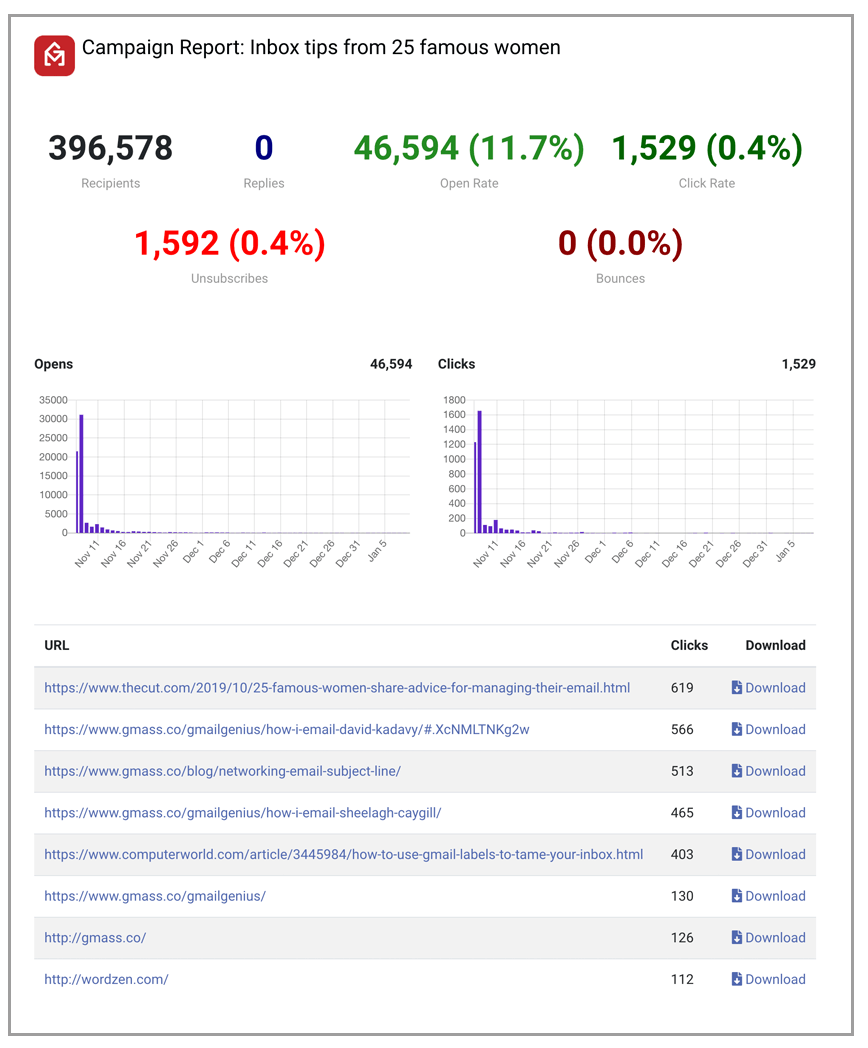
Like all campaigns sent through our system, you get full analytics on opens, clicks, unsubscribes, bounces, replies and more. Each of these segments of a campaign can be used for a follow-up campaign or can be downloaded for easy import into a CRM or database system like Salesforce or Hubspot. Here’s an example of a high-volume report where about 400,000 emails were sent using Gmail via SendGrid as the email delivery service:
Campaign report for an email sent using Gmail and SendGrid
TL;DR
Sending high-volume campaigns in Gmail can be done but managing your Gmail limits is a complex issue. We provide several options to circumvent limits though, including:
Distributing emails across days, sending a specific amount per day
Sending your campaign through our internal SMTP account
Sending your campaign through your own SMTP service
Using MultiSend to distribute your campaign across multiple sending accounts
Love what you're reading? Get the latest email strategy and tips & stay in touch.
I’ve gone through my support emails recently, and these are the most frequently asked tech support questions, so if you’ve experienced any of the following, now you’ll know why and how to resolve it:
1. Open tracking or click tracking reports aren’t showing up
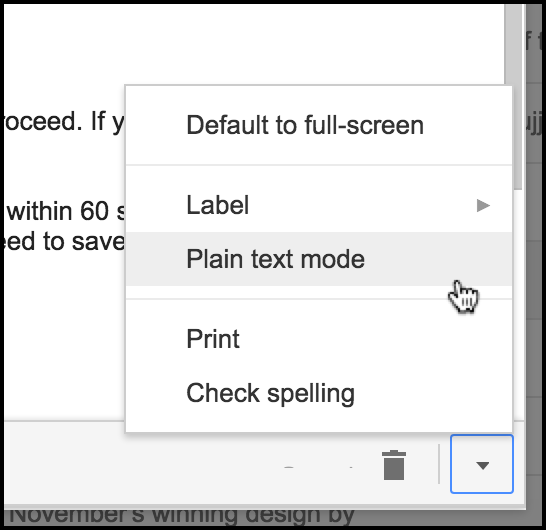
If you had “Open Tracking” or “Click Tracking” checked and still aren’t getting the correct reporting, it’s likely because your email was sent as Plain Text rather than HTML email. This can be adjusted in the lower right corner of the Gmail Compose window here:
We recently discovered a bug where if you started by connecting to a Google Sheets spreadsheet or by using “Build Email List” button, then the Compose that launched defaulted to Plain Text mode. Unless you set it to HTML yourself or you took an action in the editor, like making text bold, adding an image or hyperlink, then your email might have been sent as Plain Text and opens wouldn’t have tracked.
We’ve now resolved this, however, so that the Compose will always load in HTML mode, so you won’t need to adjust this yourself.
Some users have reported they can’t find the Reports, even though they are present. There is a tiny expansion arrow to the left of the “GMass Reports” label. Be sure to click that to see the sub-Labels, which include Open Tracking, Click Tracking, and Unsubscribes.
2. Mail-merge personalization didn’t work
If you used personalization variables in your Subject or Message like “FirstName” or “LastName”, surrounded by of course, and the right value wasn’t substituted, there are two likely causes:
a. You connected to Google Sheets, but your spreadsheet wasn’t formatted properly. The first row in your spreadsheet should contain column headings, like “First Name”, “Last Name”, “Email Address”, “Company”, etc. The actual data should start on the second row. Also, if you change those column headers after you connect your Google Sheet to your GMass campaign, that will throw off personalization.
b. You hit the blue Gmail send button rather than the red GMass send button to send your campaign. You have to hit the GMass button for all GMass functionality, including mail merge, to work.
3. Emails take too long to send
Our system was just too busy. Update December 2015: This issue has been resolved. a) We re-architected a portion of our code so that sending is super-fast now. Now, your campaign should always start sending within 60 seconds, unless of course you’ve scheduled it for the future. We’ve also disabled the “Save list as” function, because it is slow, and because we’re developing a feature which will eliminate the need to save a list entirely: you’ll soon be able to choose the recipients of any past email campaign to load into the To field.
4. The GMass buttons disappeared
If you’ve experienced a disappearing GMass button, it’s likely due to:
a. Extension has become disabled. In rare cases, the GMass extension may have become disabled. Type “chrome://extensions” in your address bar, and make sure the checkbox is checked next to GMass.
b. Conflicts with another browser extension. Several users have reported that they had Sidekick by Hubspot installed, and that prevented the GMass button from showing. Go to chrome://extensions and try disabling other extensions, but leave GMass enabled, and then reload Gmail in Chrome.
c. Failure to reload Gmail after installation. If you installed GMass but then didn’t re-load Gmail in your browser, the buttons may not show.
d. The GMass server is down. If the GMass server has gone down, the buttons will also disappear until the server comes back up. This is rare, but be sure to check the GMass Twitter feed for any reports of outages.
e. A network issue between your computer and a resource upon which GMass relies. Try accessing both www.gmass.co and www.inboxsdk.com in your browser, and make sure both websites load.
But most of the time, simply closing your tab/browser and reopening Gmail will take care of this.
Love what you're reading? Get the latest email strategy and tips & stay in touch.
We’ve implemented a concept into the GMass sending engine that software developers call “parallelism”, and in the context of GMass, that means our software can now send multiple mail merge campaigns simultaneously.
Previously if one user sent an email to 500 addresses at 1:43 PM, and another user sent an email to 700 addresses at 1:44 PM, the latter sender would have had to wait a few minutes for the first user’s emails to finish sending before his would begin sending. This behavior was fine when we first launched GMass a couple months ago, but as usage has grown, the frequency at which multiple users would initiate big campaigns within seconds of each other has increased.
By re-architecting our back-end, now both mass email campaigns will begin sending within 30 seconds of hitting the GMass button, and both will run simultaneously. I hope this increase in speed and efficiency leads to even greater user satisfaction!
See why 99% of users say they’ve had their best deliverability ever with GMass
Email marketing, cold email, and mail merge all in one tool — that works inside Gmail