<img height="1" width="1" style="display:none" src="https://www.facebook.com/tr?id=1822615684631785&amp;ev=PageView&amp;noscript=1"/>
A few months ago, we explained why your Gmail signature doesn’t show up in the Compose window when the window is launched by GMass.

Now we have written a hack so that you can save your signature with GMass and so that your signature shows up every time a Compose window is launched, even if launched by GMass.

Saving your signature to GMass is easy.

  1. Hit Compose to launch a new blank Compose window with just your signature.
  2. In the To field, put “signature@gmass.co”. The Subject can be anything.
  3. Then hit the GMass button to send it.
Compose a blank email, with just your signature, and send to signature@gmass.co with the GMass button (not the Send button). This will save your signature with GMass.
That’s all there is to it! An email will have been sent to signature@gmass.co, and your signature is now saved with GMass. Any time you use a GMass feature to launch a Compose window, including “Connect to Google Sheets”, “Build an Email List from Search Results”, or “Send a Manual Follow-up Campaign” (the three red buttons near the Search field), the Compose window will contain your signature!
Email marketing, cold email, and mail merge inside Gmail


Send incredible emails & automations and avoid the spam folder — all in one powerful but easy-to-learn tool


TRY GMASS FOR FREE

Download Chrome extension - 30 second install!
No credit card required
Love what you're reading? Get the latest email strategy and tips & stay in touch.


With a recent increase in GMass’s popularity has come an increased number of reports of Google accounts getting suspended after having used GMass. In most cases it’s spammy behavior that leads to an account suspension. It’s important to note that:

  • GMass can’t control whether Google suspends an account, nor can it help re-activate a suspended account.
  • GMass is simply a conduit to unleashing the power and full sending capabilities of your Gmail account. GMass doesn’t have the ability to skirt Gmail’s rules or give you greater sending ability than you already have.
What happens when your account gets suspended or your emails get bounced?
We’ve found that there are different levels of bounces and blocking, ranging from Gmail bouncing your outgoing emails because Google determines they’re spammy to a suspension of an entire Google account.
At the most basic level, Gmail might bounce your outgoing email with this bounce message, when you try to send:
You may also see this warning the next time you log in to your account:


Lastly, if your account gets suspended, you may get this email sent to your recovery email account:


How do you prevent your account from getting suspended?
The basic rule to prevent your account from getting suspended is to not violate Google’s Terms of Service. These are some general guidelines that will help:
  1. Don’t use GMass to send spam from your Gmail account.
  2. Don’t set up a new Gmail account and immediately send hundreds of emails with it. Despite Google stating that you can send 500 emails/day from a regular Gmail account, you can’t do that from a new Gmail account that you created minutes ago. If that was possible, spammers would certainly take advantage by creating hundreds of Gmail accounts and sending 500 emails through each account.
  3. If you’ve never sent a mass email from your Gmail account before, start by sending a lower quantity of emails and then ramping up.
  4. We’ve found that Google Apps account have greater flexibility with sending than regular Gmail accounts. We’ve noticed that even a new Google Apps account has substantial sending ability, allowing almost the 2,000 email daily limit, whereas a new Gmail account won’t have immediate mass emailing abilities.

Ultimately each individual GMass user is responsible for his or her Google account. In most cases, if you’re a responsible sender sending emails to people who want your emails, you shouldn’t encounter any of these issues. Of course, there are exceptions. In rare cases, we’ve seen reports of legitimate senders getting temporarily suspended for sending a relatively low quantity of mass emails.

What should you do if your account is suspended?

Follow Google’s instructions by starting your appeal here.

Ready to send better emails and save a ton of time?


GMass is the only tool for marketing emails, cold emails, and mail merge — all inside Gmail. Tons of power but easy to learn and use.


TRY GMASS FOR FREE

Download Chrome extension - 30 second install!
No credit card required
Love what you're reading? Get the latest email strategy and tips & stay in touch.


Overview

GMass is a unique service in the email marketing space because it’s built on top of Gmail. That means, unlike a traditional email marketing service like MailChimp, GMass doesn’t have any email sending servers or sending IP addresses. All emails are sent from our users’ Gmail accounts and therefore through Gmail’s IP addresses. The benefit of this is that your emails are sent through the world’s highest deliverability servers, since virtually nobody blocks Gmail’s IP addresses.

This, however, doesn’t mean that our users are immune to getting blocked. If the content of your email is deemed spammy, then Gmail itself may block your account, or your recipients’ email servers may block your emails.

GMass doesn’t monitor its users

GMass intentionally doesn’t monitor its users. Meaning, accounts don’t need to be approved before you can start using GMass to send an email marketing campaign. Why don’t we police our users? Because Google does most of the policing for us. If you use GMass to send spam, it’s likely that Google’s automated systems will be triggered and your Gmail account will be terminated. It’s unlikely that we’d be able to develop a better algorithm than Google already has in place for detecting and terminating spammers.
However, even Google’s spam detection mechanisms might not be fast enough in some cases. Lots of spammers succeed in using GMass to send some spam out before Google notices and terminates the associated Gmail account.

Your emails could be blocked

Because of that, it’s possible for your legitimate emails to become associated with a spammer’s emails and for you to also get blocked. How are your emails connected to the spammer’s emails? If you’re using GMass’s open tracking, click tracking, or unsubscribe features, then a “tracking domain” is inserted into your email to allow those features to work. If you’re using open tracking, then an invisible pixel is placed at the bottom of your emails, and the domain referenced is the tracking domain. If you’re click tracking your links, the links are altered so that the GMass server is hit first to record the click, and that’s done by way of the tracking domain. Unless you’ve set up your own custom tracking domain, GMass uses shared tracking domains across accounts. Typical shared tracking domains look like gmss1.com or gm.ag or gmss1.net. They are variations of the word “gmass” with the vowels removed, using various Top Level Domain (TLD) extensions from .ag to .net to .com.

Some spam filters catalog domains that are commonly found in spammy messages, so if your emails contain the same tracking domain as the spammer’s emails, then your emails can also get blocked.

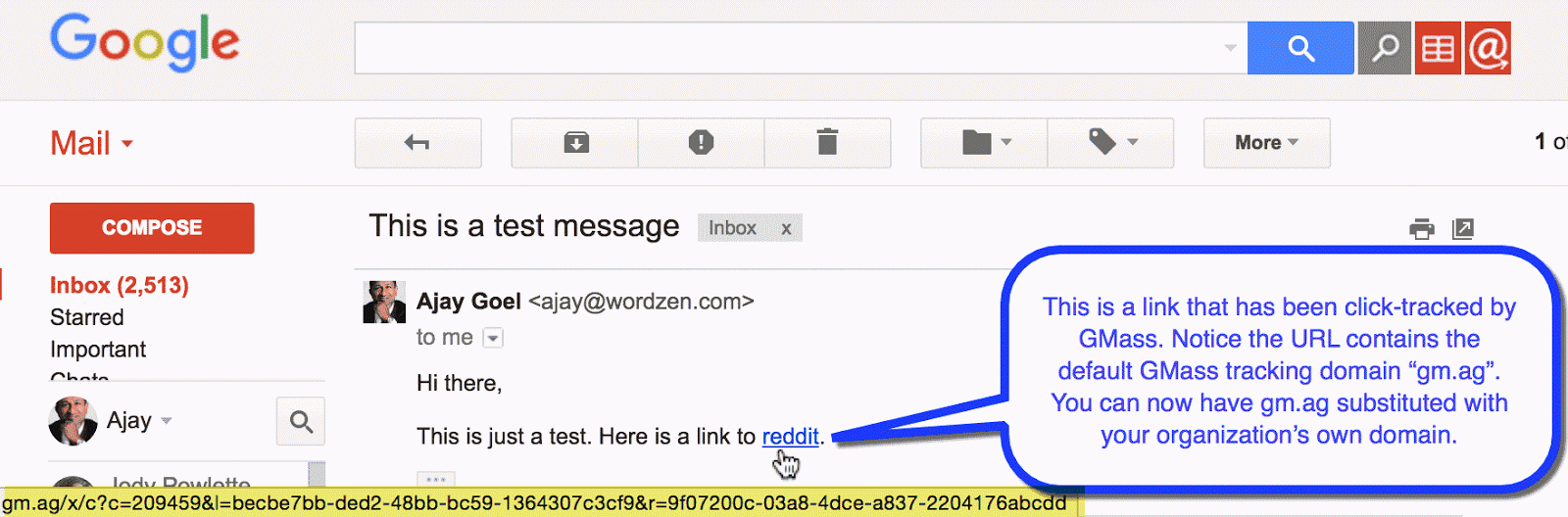
This screenshot shows an example of the role a tracking domain plays in your GMass sent emails. In this case, the tracking domain “gm.ag” is used to track clicks of the reddit link.

The simple one-step solution

 The solution is a simple one. Your accounts should use a tracking domain that is specific to just your email campaigns.

If you are able to add a DNS record for your domain…

You can easily set up a branded tracking domain for your GMass accounts that is based on your OWN domain name.

That is the single most important step you can take to maximize your deliverability and avoid blocking issues.

And even better: GMass is one of the only email service providers that serves tracking links over HTTPS, rather than the less secure HTTP. That step will help improve your deliverability even more.

Re-sending your campaign to those that blocked you

After a tracking domain has been set on your account, you may want to resend your campaign to anyone that blocked you previously. Here is how to do that.
And of course, you can always use our Spam Solver tool to test your campaign before sending to see exactly where it’s headed. (And if the answer is spam, the tool will help you get to the inbox.)
Ready to transform Gmail into an email marketing/cold email/mail merge tool?


Only GMass packs every email app into one tool — and brings it all into Gmail for you. Better emails. Tons of power. Easy to use.


TRY GMASS FOR FREE

Download Chrome extension - 30 second install!
No credit card required

Love what you're reading? Get the latest email strategy and tips & stay in touch.


If you’ve sent an email campaign with GMass, or even a test message to yourself, never copy/paste that message from your Sent Mail or Inbox into a new Compose window.

Why?

Once the email is sent, elements of it are personalized to each recipient, like the unsubscribe link, the click-tracked links, and the open-tracking pixel. If you then copy/paste that email, which has already been tagged specifically for one recipient, into a new GMass campaign, then everybody that gets the new campaign will get an unsubscribe link that unsubscribes just that one email address, and links to click that will make it look like that one email address is clicking (not the actual recipient) and all opens will be registered to that one address.

In fact, this rule doesn’t apply to just GMass. It applies to any email marketing system, even traditional ESPs like MailChimp and JangoMail. If you use a traditional ESP to send yourself a test email, never copy/paste that test email back into a new campaign to send to hundreds of email addresses.

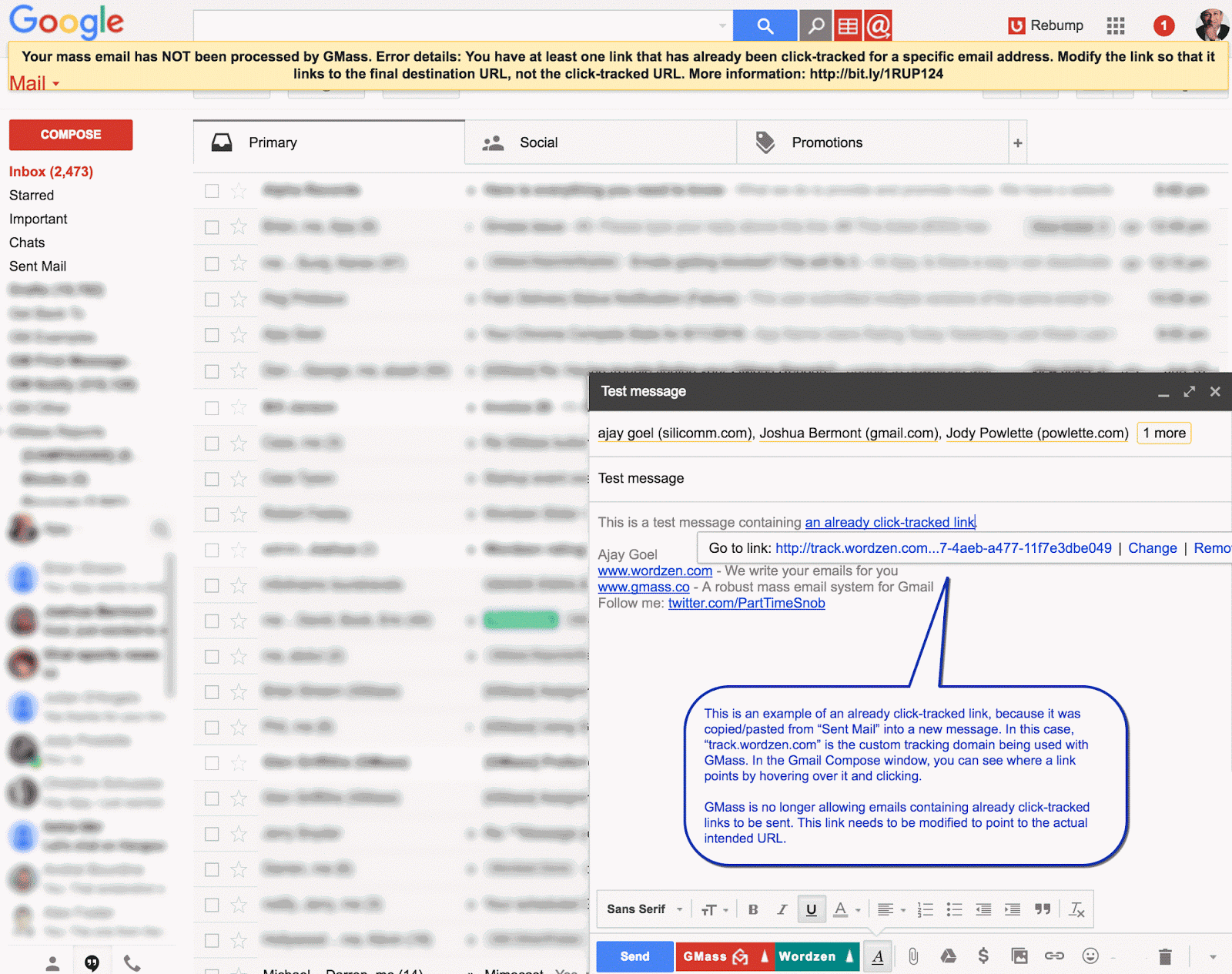
GMass is now preventing emails that contain already click-tracked links from being sent. If you copy/paste an old sent campaign into a new campaign and use the GMass button to send it, you may receive a yellow status message error that looks like:

You will also receive a report in your Inbox listing the offending links that need to be removed or changed.

How do you fix this?

To correct the issue, you’ll need to modify your links, so that they link to the actual website you wish to send your recipients to, rather than the GMass click-tracked URL. If you encounter this issue, a report will be sent to your Inbox listing the click-tracked URLs and the original URLs they should be replaced with.

In the Gmail Compose window, hover over each link and click it. Gmail will display its destination. Find the offending links, and modify them to point to the original URL.

How can I avoid this issue altogether?

For loading prior GMass content into the Gmail Compose window, use the Templates dropdown instead of copying/pasting content between campaigns.

See why 99% of users say they’ve had their best deliverability ever with GMass


Email marketing, cold email, and mail merge all in one tool — that works inside Gmail


TRY GMASS FOR FREE

Download Chrome extension - 30 second install!
No credit card required
Love what you're reading? Get the latest email strategy and tips & stay in touch.


If you’re new to GMass or new to email marketing, these resources might help you get started:

1. GMass YouTube Videos

2. GMass Quickstart Guide

The animations on the GMass homepage also show how to quickly get started using GMass.

See why 99% of users say they’ve had their best deliverability ever with GMass


Email marketing, cold email, and mail merge all in one tool — that works inside Gmail


TRY GMASS FOR FREE

Download Chrome extension - 30 second install!
No credit card required
Love what you're reading? Get the latest email strategy and tips & stay in touch.


It used to be that one of the must frustrating mistakes a GMass user could make was accidentally clicking the regular Gmail Send button instead of the GMass button.

Clicking the Gmail Send button by accident exposes members of your email list to each other and breaks personalization.

Numerous GMass users have at some point accidentally clicked the blue Gmail Send button when they meant to click the red GMass button.

The GMass Chrome extension now hides the regular Gmail Send button in certain situations and confirms intent in other situations.

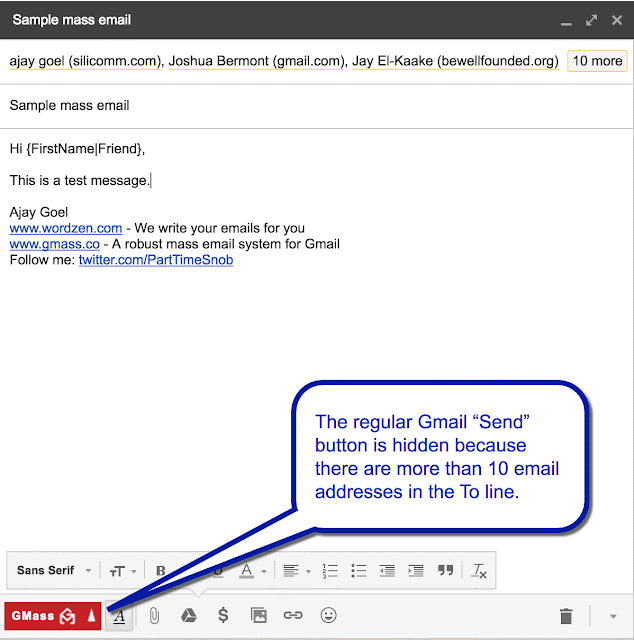
Specifically, if there are more than 20 email addresses in the To field, or if there’s a GMass alias address in the To field, the Send button will be hidden.

If, however, you have more than one Compose window open, then the Send button will NOT be hidden. If the Send button is present, and you have more than 10 email addresses in the To field, and you click Send, you’ll get a popup asking if that’s what you really meant to do, with an option to cancel the send.

We attempt to hide the Send button because we assume that if you have more than 20 addresses, it is likely that you mean to use the GMass button to send individual emails to each email address rather than the Send button where all of the email addresses would be exposed to each other.

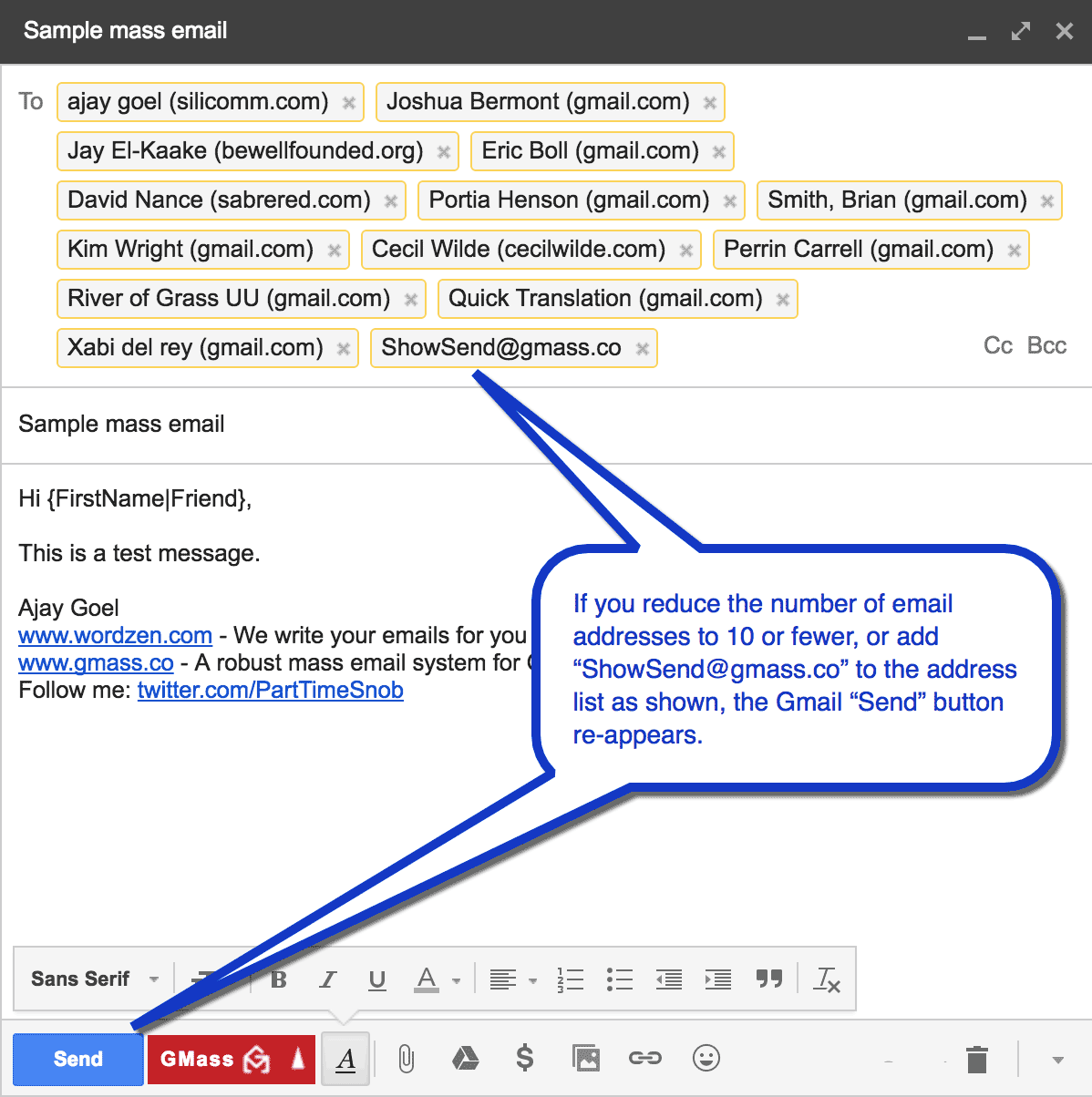
If, however, you want the Send button back after it has been hidden, you can easily make it re-appear. Just add the special email address ShowSend@gmass.co as the last address in the To field, and within a second, the Send button will re-appear and will remain in that specific Compose window.

You can then remove the ShowSend@gmass.co address if you wish.

Ready to send better emails and save a ton of time?


GMass is the only tool for marketing emails, cold emails, and mail merge — all inside Gmail. Tons of power but easy to learn and use.


TRY GMASS FOR FREE

Download Chrome extension - 30 second install!
No credit card required
Love what you're reading? Get the latest email strategy and tips & stay in touch.


The default tracking domain that GMass uses for open-tracking, click-tracking, and the unsubscribe link for Google Apps users, gm.ag, was deemed suspicious by Google for a period of about 36 hours this past weekend. The domain has since been cleared and is now functioning properly, but there are some points to consider.
On Friday morning, May 27, several users reported that the domain gm.ag, was redirecting to a phishing warning page that looks like:


For GMass Google Apps users, gm.ag is the domain that is used inside your email campaigns to make open tracking, click tracking, and the unsubscribe link work. A different domain is used for regular Gmail accounts, so this particular issue only applies to Google Apps Users.

What does this mean?

It means that during the time that Google had gm.ag listed as suspicious, some links to gm.ag would take the recipient to the “Deceptive site ahead” page above instead of the actual URL. For GMass users, that means that links in email campaigns that have been click-tracked and unsubscribe links may result in your recipient being taken to this page instead of the intended page. From the “Deceptive site ahead” page, the user does have the option to proceed to go to the final URL.

The issue was temporary, and Google removed gm.ag from the suspect list as of Saturday evening May 28.

As soon as we became aware of the issue, we took two steps:

  1. We disabled the redirects from gm.ag to the specific phishing site in question and reported the corrective action to Google.
  2. We switched the default tracking domain for Google Apps users from gm.ag to www.gmss3.net. It means that all campaigns sent after we made the switch would use www.gmss3.net, but all campaigns sent before the change will still have recipients clicking links that include gm.ag.

Why did this happen?

It happened because a single user, a phisher, used GMass to sending a scammy email, and activated click-tracking to obfuscate the destination URL. The destination URL, which Google determined was a phishing site, has since been removed from the Internet.

Why did GMass allow this phisher to use GMass?

GMass is not a traditional Email Service Provider like MailChimp or JangoMail, where a team of people approves and rejects accounts based on the user’s information. GMass is a fully automated system, and we intentionally do not police our users because:
  1. We rely on Gmail’s own spam detection mechanisms to terminate users that are abusing GMass, and therefore abusing Gmail.
  2. We could never build a better abuse detection system than Gmail already has. Gmail has been doing this for much longer than we have and has access to much more data than we do to make decisions as to whether accounts are legitimate or abusive.
I consider it one of the great benefits of GMass. For you the user, you get the world’s highest deliverability because your emails are being sent from Gmail’s email servers. For me, as an operator of an email marketing service, I don’t have to employ people to police users and approve/reject accounts.

What does this mean for me, a legitimate user?
It means you should take a step to isolate yourself from the behavior of other users. There’s only one step you need to take to protect yourself from the potential bad behavior of other users. You should set up your OWN tracking domain that is used in the open tracking, click tracking, and unsubscribe links. That way, instead of gm.ag appearing, your own domain will appear. Your own tracking domain can be a sub-domain of your organization’s domain. Click here to get started.
What about IP addresses? Do I need to make sure GMass’s sending IPs aren’t blacklisted?
No. GMass is built on top of Gmail, and all emails are sent from our users’ own Gmail accounts. That means that the emails are sent from Gmail’s own IP addresses, which are the highest deliverability IP addresses in the world. GMass is again different from a traditional ESP in this regard. A traditional ESP like MailChimp or JangoMail maintains its own sending servers and therefore its own IP addresses. They must police their users to keep their IP addresses clean. Because GMass is built on top of Gmail, however, we rely on Gmail to kick spammers off their network to keep their IP addresses clean, and they do an excellent job of this.
See why 99% of users say they’ve had their best deliverability ever with GMass


Email marketing, cold email, and mail merge all in one tool — that works inside Gmail


TRY GMASS FOR FREE

Download Chrome extension - 30 second install!
No credit card required
Love what you're reading? Get the latest email strategy and tips & stay in touch.


Sometimes it’s not enough to send a mail merge email blast “to” your list — you also need to mail merge CC or BCC addresses in there as well.

GMass makes that simple to do in your Gmail or Google Workspace account.

Most GMass users know you can send a personalized mail merge campaign using GMass and your Gmail account with a Google Sheets spreadsheet . Any of the columns in the spreadsheet can be used to personalize the Subject and Message.

And… you can also personalize the CC and BCC fields. Meaning: You can have each individual message CCed or BCCed to one or more email addresses associated with each person you’re sending to.

Below, we’ll cover the ways you can use GMass for mail merge CC and BCC emails in Gmail.

Mail Merge CC and BCC Table of Contents

Preparing your Google Sheet to Send Emails with Personalized CC and BCC

Here’s how to create your Google Sheet of contacts to include CC and BCC options.

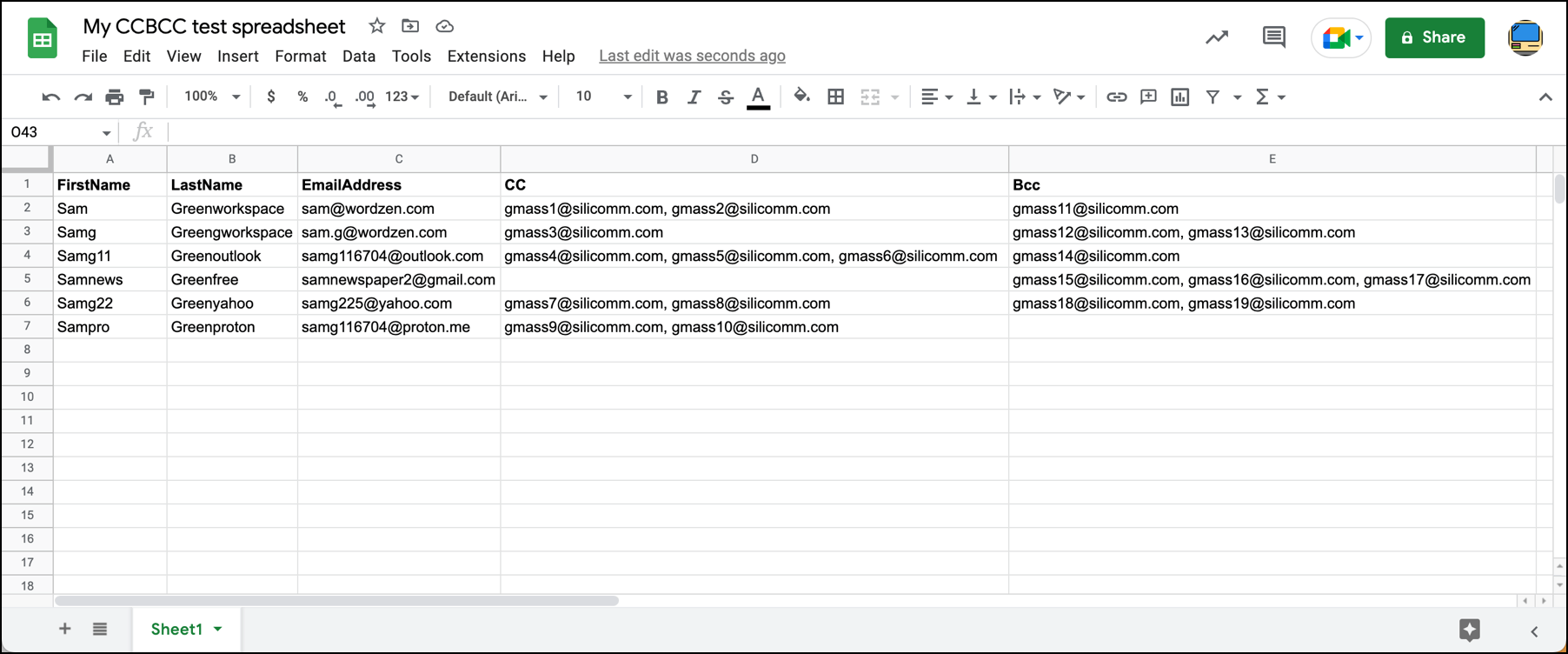
Prepare your Google Sheet with CC and BCC fields

  • Add a column for CC and/or a column for BCC after your email address column. Make sure your CC and BCC columns come after the email address column. GMass uses the first column of email addresses in a Google Sheet for the “To” field.
  • The CC and BCC columns are case insensitive. You can call the columns CC, Cc, cc, BCC, bCC, and so on. Case doesn’t matter. But other words do — so don’t call the columns something like CCaddresses.
  • Include as many emails as you want in the CC and BCC columns. In the past, GMass was only set up to allow for one CC and one BCC address per email. Now you can include as many addresses as you want for both. And you can separate the emails with a comma, semicolon, space, or any other non-email character.

Now you’re ready for your merge.

You Can Put Multiple Email Addresses in the CC and BCC Columns of Your Google Sheet to CC/BCC Multiple People

One frequent question we get is: Can I put multiple email addresses in the CC and/or BCC columns of my spreadsheet to CC and/or BCC multiple people?

The answer is yes, yes you can.

As we demoed in the example above, and you can see in this spreadsheet, you can include as many email addresses as you want in both the CC and BCC columns. Just separate the emails with a comma, semicolon, space, or any other non-email character.

Prepare your Google Sheet with CC and BCC fields

Sending Your Mass Email with Mail Merged CCs and BCCs

Head over to Gmail and connect your Google Sheet to your new campaign. (If you are new to GMass and don’t know how to do that, check out our GMass quickstart guide to get rolling in a matter of minutes.)

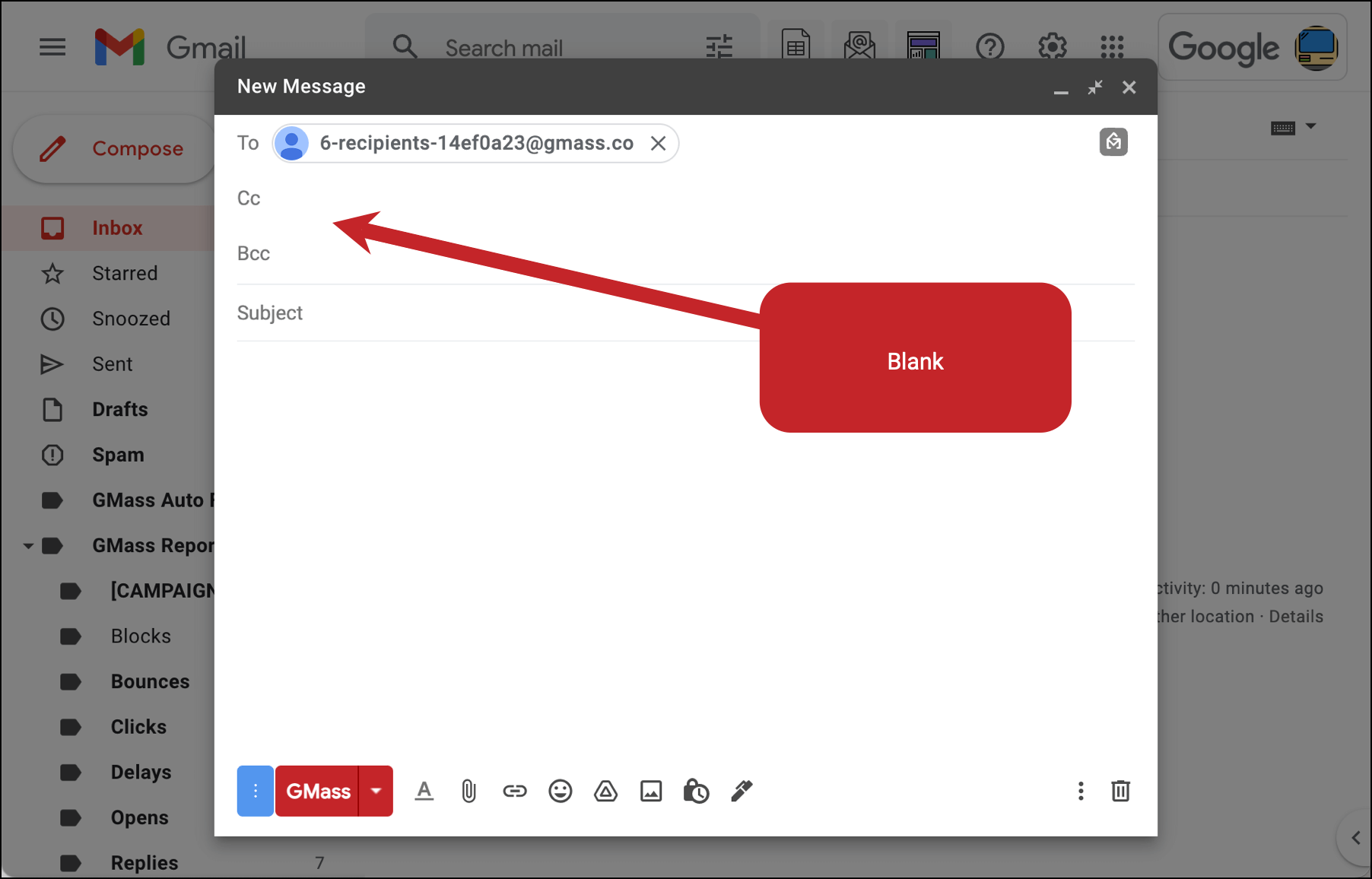
You’ll notice the CC and BCC fields in your email are blank. That’s ok. GMass will fill them in later as long as you have them in the Google Sheet you connected.

The CC and BCC fields are blank

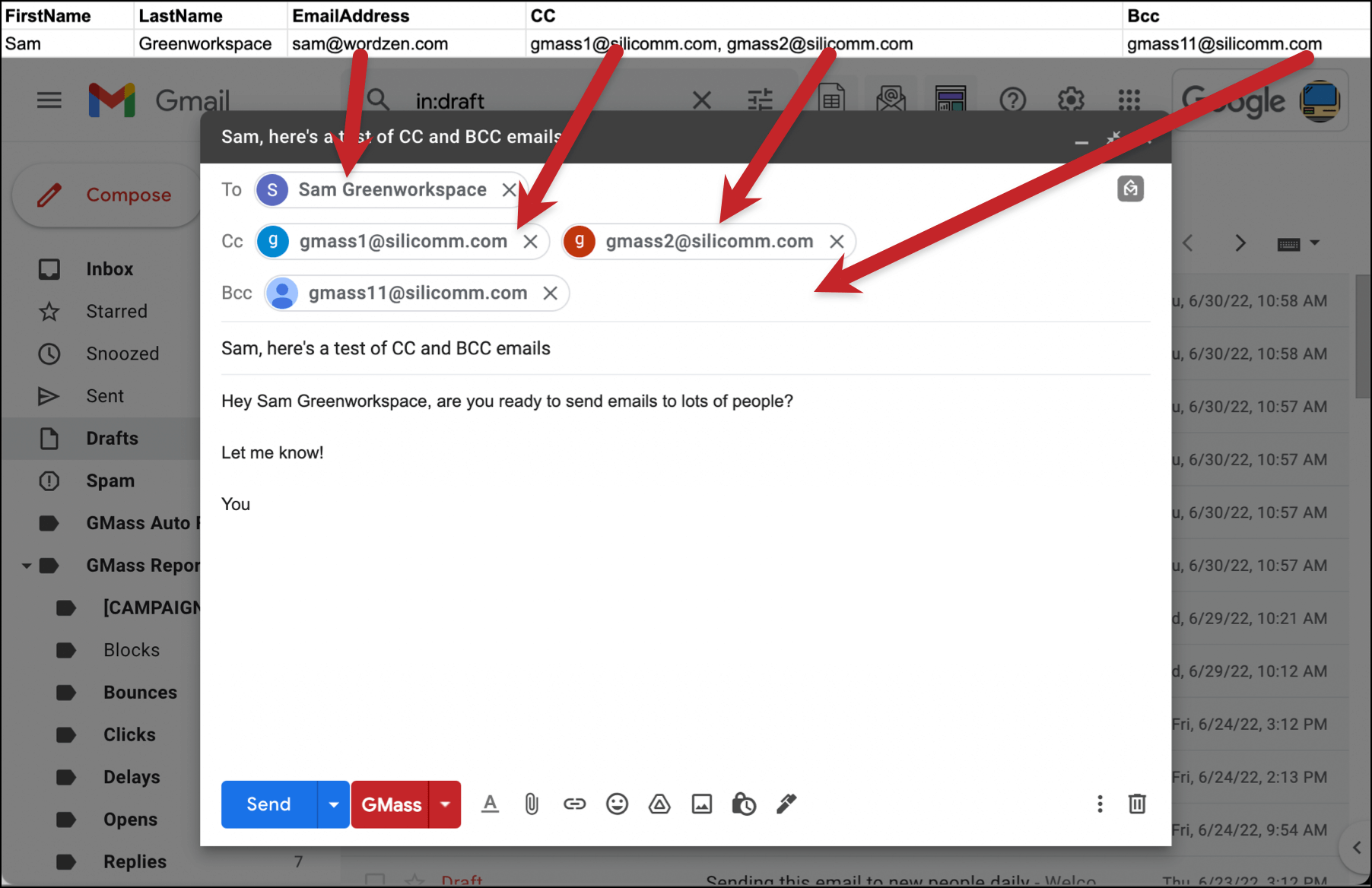
That’s it. Your email is ready to go. I created drafts of mine so I could make sure the CC and BCC fields were all set.

And from the drafts, I can see everything matches my spreadsheet perfect. For example:

CC and BCC work

But What If I Want to CC or BCC the Same Address on Every Email?

The technique above works great if you want a different mail merge CC and/or mail merge BCC for every email on your list.

But what if you want to CC or BCC the same address on every email? For example, you use Salesforce and want to BCC your Salesforce email address on everything you send to log those messages? Or what if you want to include your same sales team member on every one of your emails?

You can do that with GMass — and don’t even need to get your Google Sheet involved.

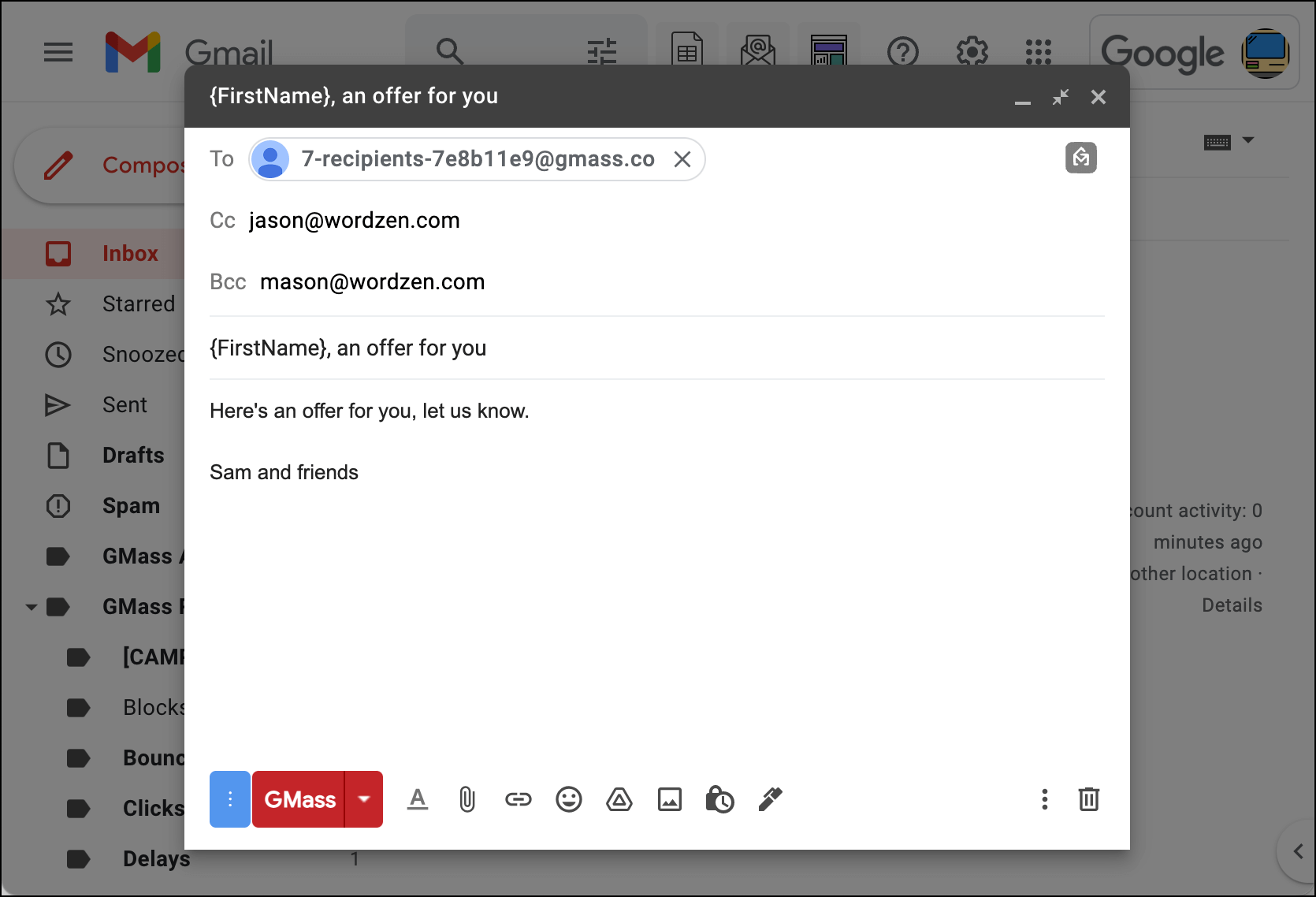
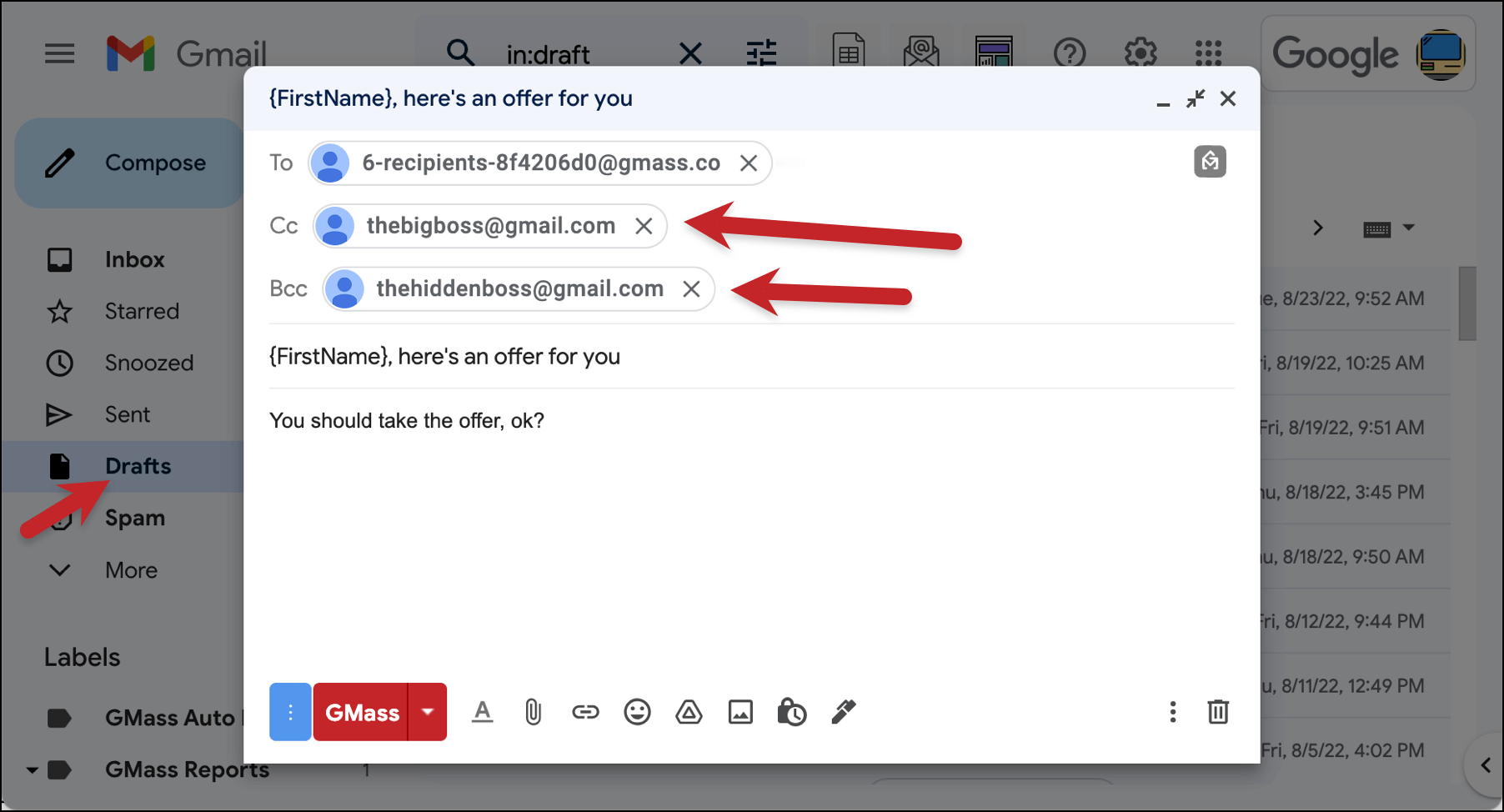
Just add the “static” CC or BCC address in the Gmail compose window.

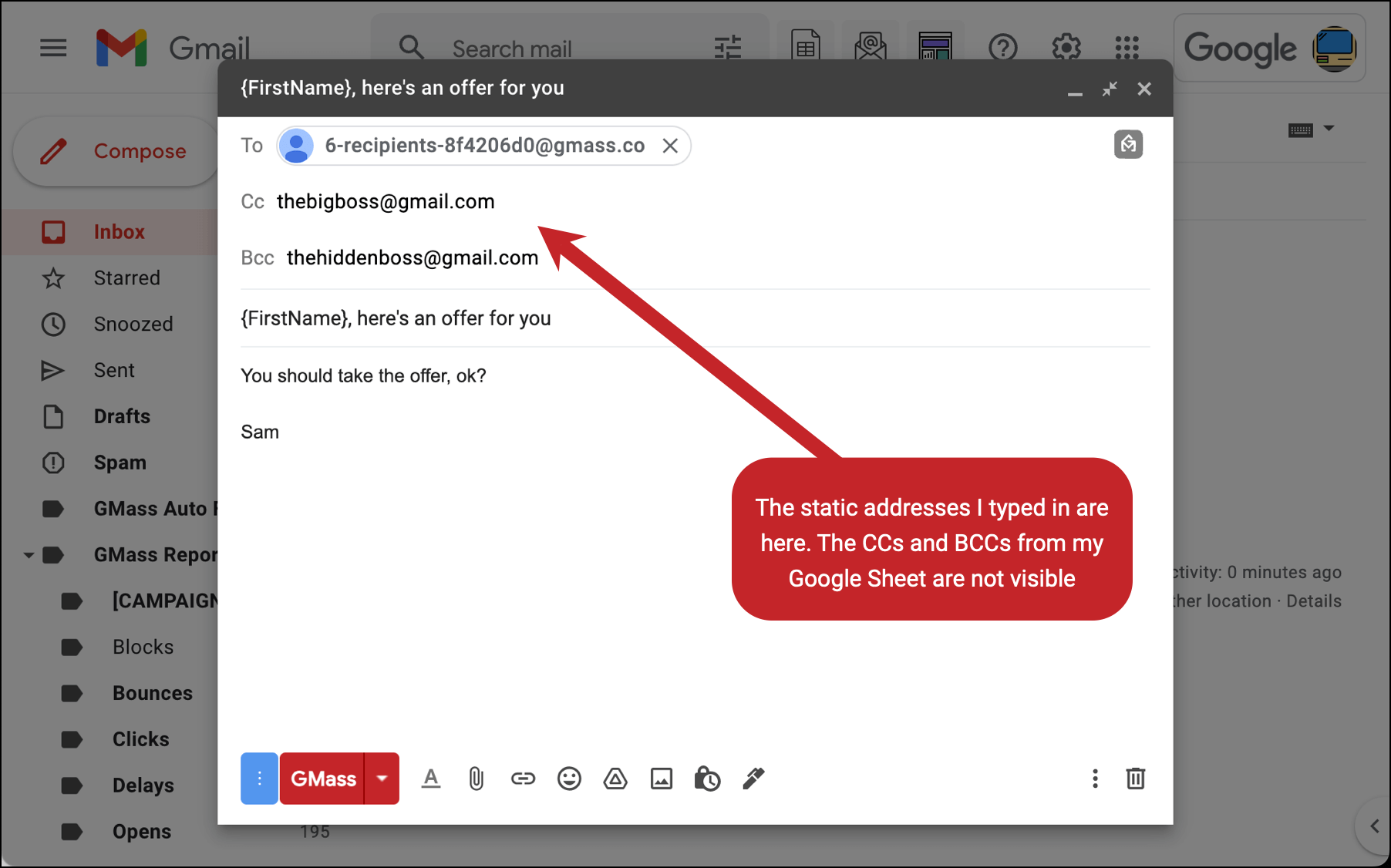
For example:

Adding in static CC and BCC addresses

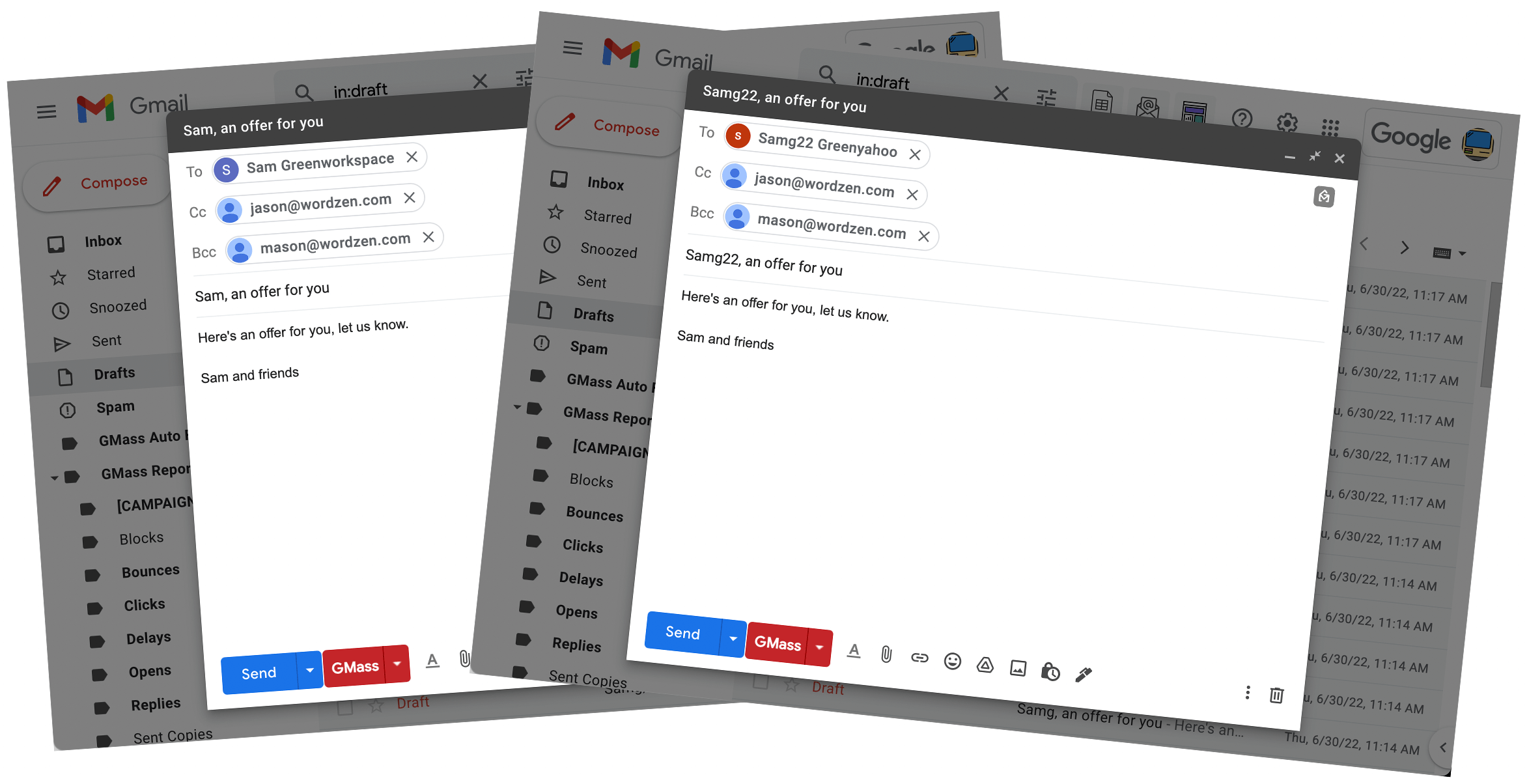
And here’s what those emails look like when I hit the GMass button to create drafts. Here are two of the drafts — you can see they’re both using the same CC and BCC addresses.

The two drafts

This technique also works if you’re sending emails with GMass and not connecting a Google Sheet. (For instance, if you just type addresses into the To field. Or if you generate lists from a Gmail search or label.)

How to blend “static” CCs/BCCs and mail merge CCs/BCCs

Putting this all together, you can send emails with both static CCs/ BCCs and mail merge CCs/BCCs.

For example, let’s say you want to use personalized CCs on every email and CC your manager on all of them as well.

Connect your Google Sheet with the columns of CCs/BCCs. Type the static CC(s) and / or BCC(s) into their respective fields in the Gmail compose window.

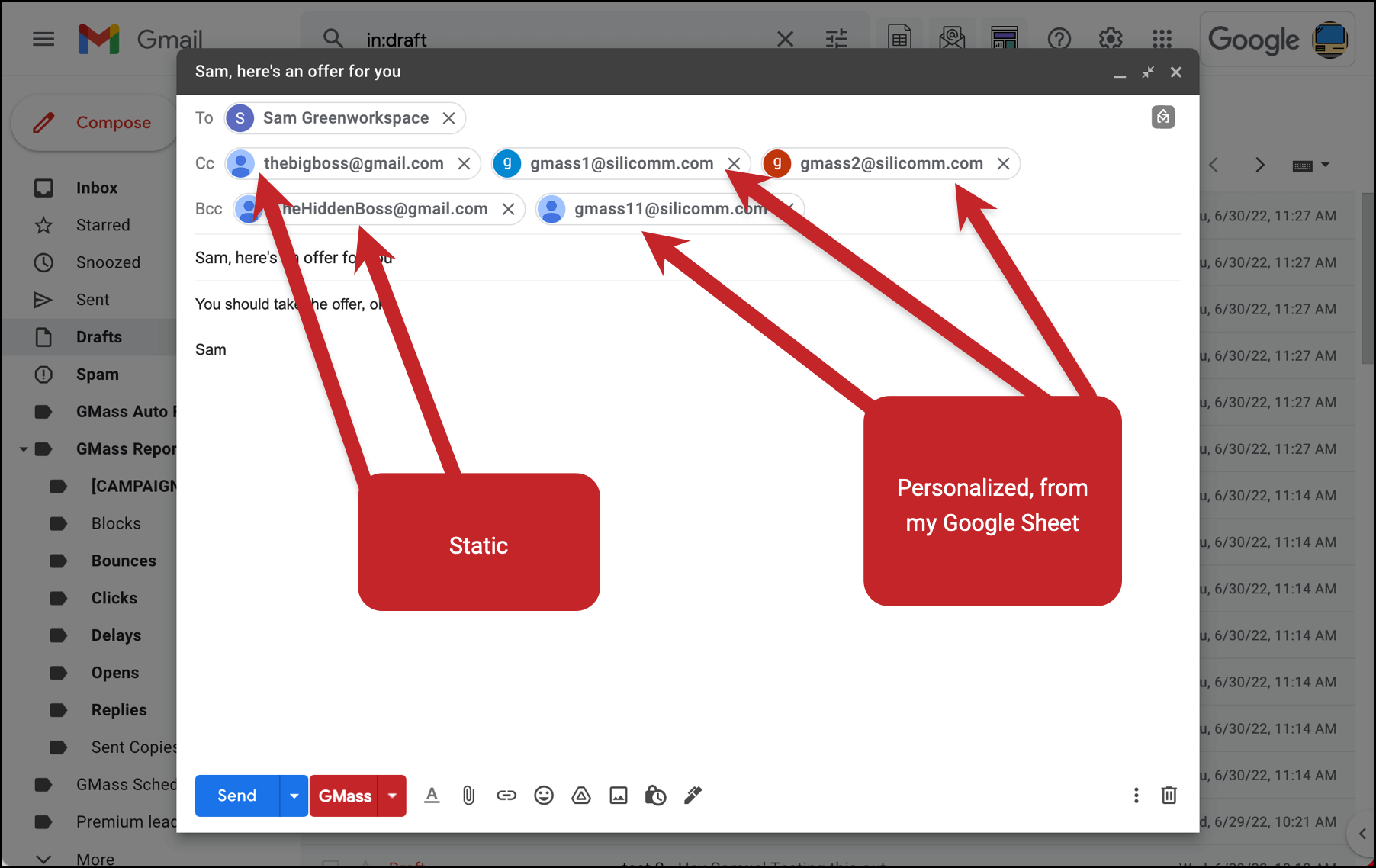
Here’s a sample:

The draft with a static and dynamic blend

And here’s what one of the emails looks like when I create drafts. I have both static and personalized CCs and BCCs in this email:

Static and dynamic mail merge CC and BCC together

CC and BCC with the GMass API

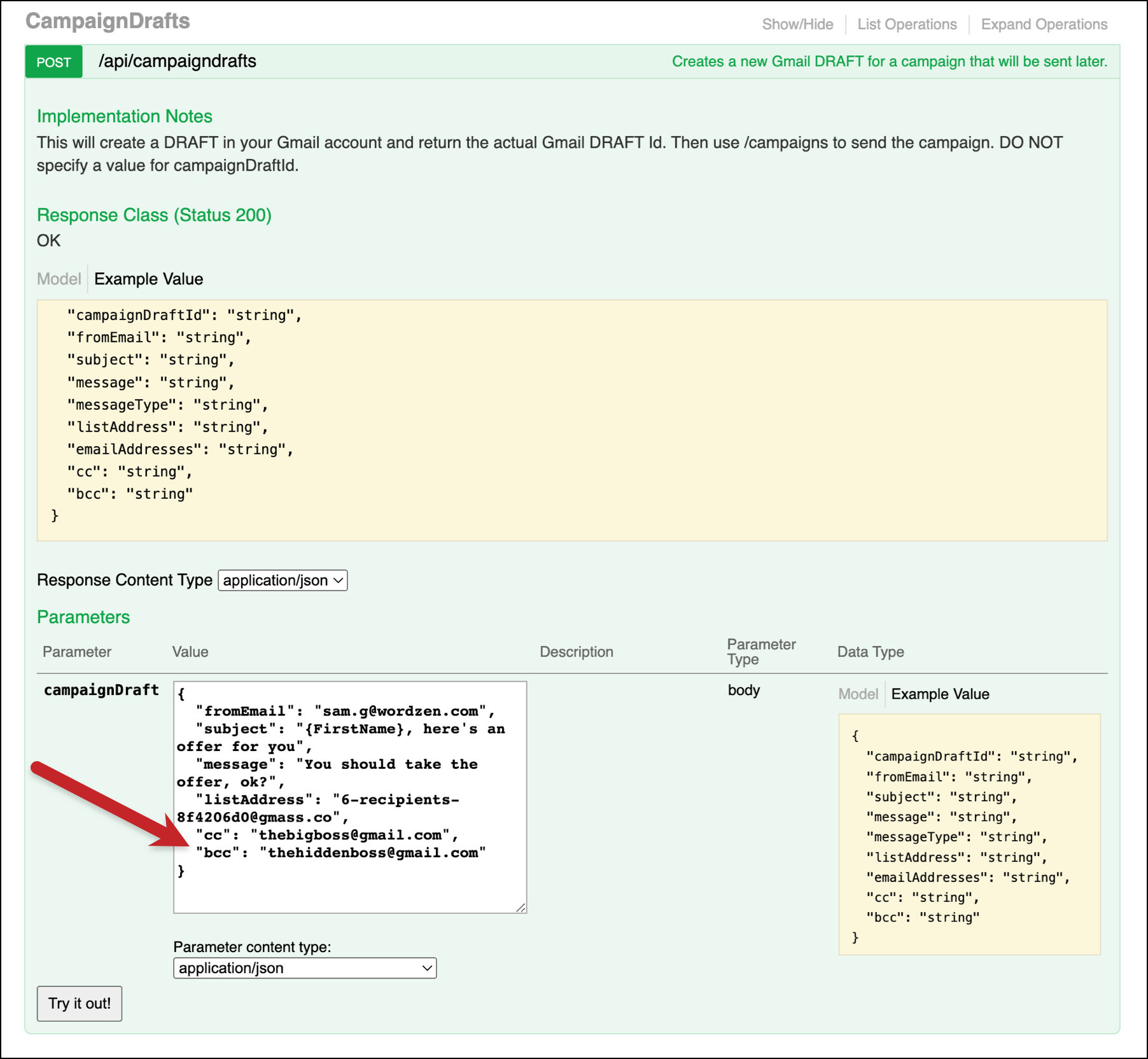
You can set static CC and BCC parameters when you create a campaign draft via the GMass API.

You can add your static CC and/or BCC address(es) as your parameters in the CampaignDrafts method. Those addresses will be CCed or BCCed on every email in the campaign.

CC and BCC added via API

And here’s the result in my Drafts folder.

CC/BCC in the API draft

You can now send the campaign using the Campaigns method in the API.

Mail Merge CC and BCC: Takeaways, and Personalizing Your Emails Even Further

The mail merge CC and BCC techniques in this article allow you to send a mail merge to multiple people per row in your spreadsheet.

If you’re still confused about CC and BCC and need a better understanding of how CC and BCC work in Gmail, please see my CC in Gmail guide and my BCC in Gmail guide.

Now that you know how to personalize the Cc and Bcc fields, you might also be interested in:

Our Gmail mail merge personalization engine is among the industry’s most powerful and dynamic. Read about all personalization capabilities in our complete guide.

See why GMass has 300k+ users and 7,500+ 5-star reviews


Email marketing. Cold email. Mail merge. Avoid the spam folder. Easy to learn and use. All inside Gmail.


TRY GMASS FOR FREE

Download Chrome extension - 30 second install!
No credit card required
Love what you're reading? Get the latest email strategy and tips & stay in touch.


One of the most frequent emails I answer from users is:

I was testing your open-tracking, and I know that certain emails weren’t opened, but GMass still reports them as having been opened.

99% of the time this is because the user opened his own sent emails from the Sent Mail folder in Gmail. Doing so triggers the download of the open-tracking pixel, which is how GMass, or any email marketing system, knows if an email is opened. Opening the email up from the Sent Mail folder is equivalent to the recipient opening the email from his/her own Inbox.

Additionally, if a particular email address bounces, and you open up the bounce notification, and the original email is underneath, then an open could be triggered also because you’re now viewing the original email underneath.

Another scenario: you set GMass to just create Drafts for a campaign rather than actually send the emails. You then open each Draft individually to customize it. GMass will count you opening the Draft as the recipient opening the email.

How do we solve this?

As of March 2022, we solved with our companion Chrome extension, Tracker Blocker. The extension will block “opens” from registering on your own emails. We also automatically remove opens from bounce notifications, even if you don’t have Tracker Blocker installed.

Ready to transform Gmail into an email marketing/cold email/mail merge tool?


Only GMass packs every email app into one tool — and brings it all into Gmail for you. Better emails. Tons of power. Easy to use.


TRY GMASS FOR FREE

Download Chrome extension - 30 second install!
No credit card required
Love what you're reading? Get the latest email strategy and tips & stay in touch.


Several users have recently reported seeing bounce backs from Gmail that look like this:

Delivery to the following recipient failed permanently:

Technical details of permanent failure:
read error: generic::failed_precondition: read error (0): error

We’ve seen bounces like this for both regular Gmail users and Google Apps users using GMass. The error is a non-standard bounce message that is specific to sending via the Google platform. What causes the error? Nobody is certain for sure, but the Internet speculates that it’s either one of the following:

  1. The remote server is rejecting the email due to an SPF failure. This is applicable to Google Apps users that are sending from their own organization’s domain, not from gmail.com or googlemail.com.
  2. The remote server is rejecting the email because Gmail’s sending IP is blacklisted, but Gmail doesn’t want the end user to know that’s the reason for the fail, so this generic message is delivered instead.
Regarding reason #2, generally we’ve seen that the deliverability through Gmail’s servers is the world’s best, but it seems that occasionally even Gmail’s servers get blacklisted.

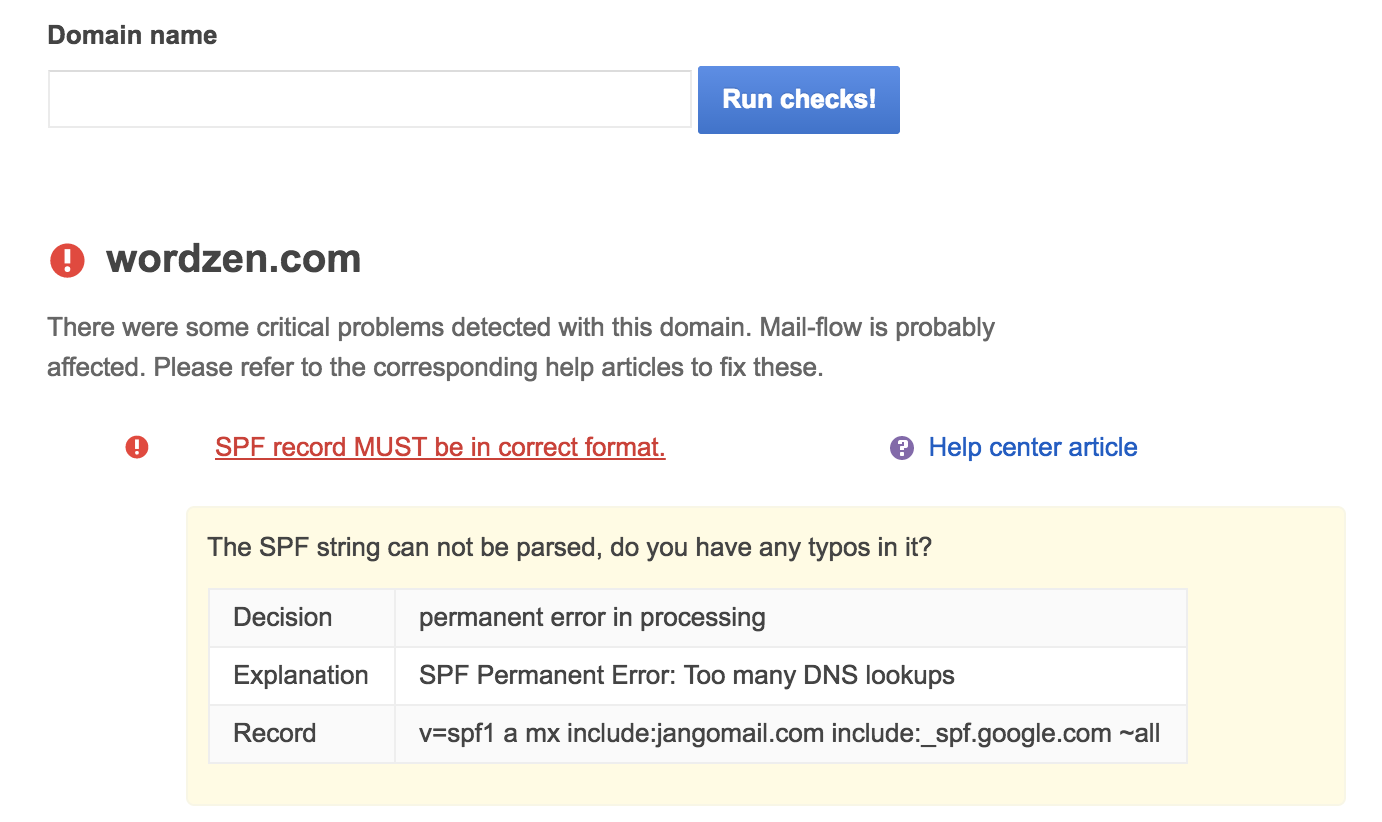
Regarding reason #1, if you’re a Google Apps user, regardless of whether you’re using GMass, ensure that you have SPF set up correctly for your domain. That means you need to configure the DNS for your domain to allow email to be sent by Google’s servers on behalf of your domain. You can check if your domain is configured allow Google to send email on its behalf via this easy-to-use tool. Just input your domain, and check the results. I just checked my own domain, wordzen.com, which runs on Google Apps, and noticed an issue, which I’m about to fix:

The SPF record for wordzen.com breaks the rules by requiring too many DNS lookups.
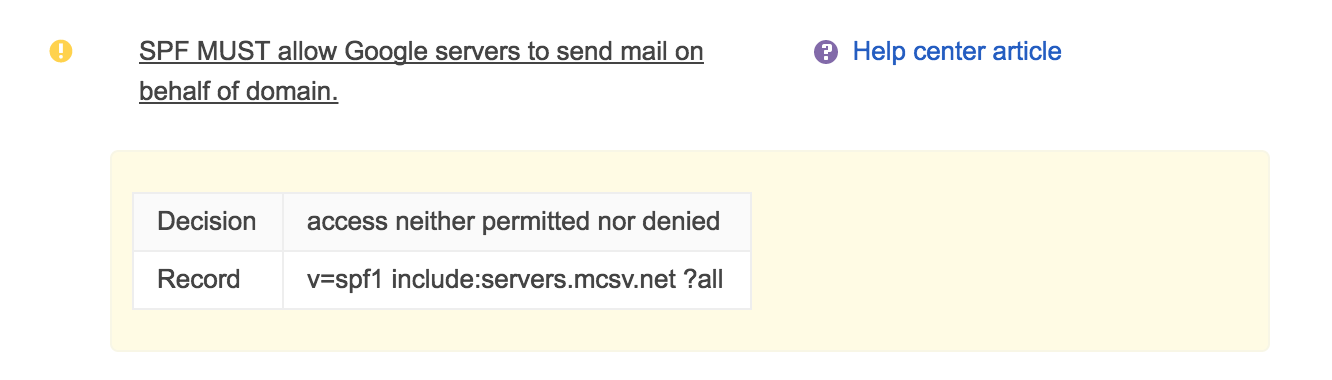
In the case of wordzen.com’s SPF record, the record includes permission for Google’s servers to send email for wordzen.com, but here’s an example of a domain of a GMass user where SPF doesn’t include Google’s servers at all:
If you still see this bounce notification after ensuring correct SPF settings, or if you’re not a Google Apps user, it could be issue #2 at play.

How is GMass handling these bounces?

Since GMass categories all bounces and replies for you, and builds an internal Bounce List for your account in order to suppress future mailings to bounced addresses, we’ve added these bounces to our “Bounce Exception” list, meaning we won’t count addresses that bounce with this message as a true bounce. That means that future attempts to send to these addresses will still work.
We’ve also deleted all bounces that were on your account’s Bounce List in the past because of this issue.

References


See why 99% of users say they’ve had their best deliverability ever with GMass


Email marketing, cold email, and mail merge all in one tool — that works inside Gmail


TRY GMASS FOR FREE

Download Chrome extension - 30 second install!
No credit card required
Love what you're reading? Get the latest email strategy and tips & stay in touch.


GMass