A Google Sheets mail merge is the best way to send a personalized email campaign (of any size) through Gmail.
Whether you need to…
- Send personalized emails at scale.
- Cold outreach to 500 (or 1,000. Or 50,000!) prospects.
- Reach out to 200 job candidates.
- Invoice 50 clients.
- Invite 25 friends to a party.
Whatever the case, you’re wound up here with me today because you know mail merge is the answer — and you can just kinda sense that Google Sheets and your Gmail account are the ideal tools to make it happen.
They are. We just need to point you in the right direction.
In this article, I’ll walk you through the four methods you can use to send a mail merge with Google Sheets.
I’ll help you figure out which method is right for you — and I’ll even give you a step-by-step guide to sending a mail merge in five minutes flat.
Google Sheets Mail Merge: Table of Contents
- What Is Mail Merge?
- Your Four Choices for a Google Sheets Mail Merge
- How to Decide Which Mail Merge Technique for Google Sheets Is Right for You
- Quickstart Guide: Sending Out a Google Sheets Mail Merge in the Next 5 Minutes
- Advanced Mail Merge Techniques: Beyond Basic Text
- The Wrap-Up: Mail Merge with Google Sheets Like a Pro
- Google Sheets Mail Merge FAQ
What Is Mail Merge?
Just to make sure we’re all speaking the same language before we begin, let’s take a quick moment to define mail merge.
Mail merge takes data from a spreadsheet or other database of contacts and automatically inserts each person’s unique info into a template — creating personalized, individual versions for each of them.
Instead of you having to manually copy and paste 100 first names and 100 personal messages into 100 emails, mail merge does it in seconds.
Each person receives their own message with their specific details.
And yes, “mail merge” is a completely antiquated sounding term but no one has come up with anything better… so we roll with it.
Using mail merge in email
This is what you’re probably here for.
A Gmail mail merge means each contact in your Google Sheet gets their own personalized email — with their name, company, custom pricing, or whatever other data you want in the message.
The key: Recipients see a normal email addressed just to them. There’s no evidence of mass sending and no other recipients visible. It looks as if you personally typed out the message.
You can merge data into subject lines, body text, links, images, and more — pretty much anywhere in an email. The more sophisticated your mail merge tool, the more you can personalize.
Using mail merge for documents, address labels, and the like
Mail merge isn’t just for email.
You can also use spreadsheets to create personalized documents in Google Docs or Microsoft Word — think certificates, letters, or contracts.
The same principle applies here as it did with email: One template, many personalized outputs.
This works for physical printed documents too, like wedding invitations with guests’ names and addresses, shipping labels for your online store, or name tags for events.
If you need to create multiple versions of something with different data, mail merge handles it.
In this article, we’re just focusing on email mail merges. We have other blog posts if you’re looking, say, to figure out how to use Google Docs for mail merge.
Your Four Choices for a Google Sheets Mail Merge
There are four primary methods to use a Google Sheet of data in an email mail merge.
Each has its pros and cons, depending on what you’re trying to accomplish.
Here’s the breakdown.
1. Using a Gmail Chrome extension
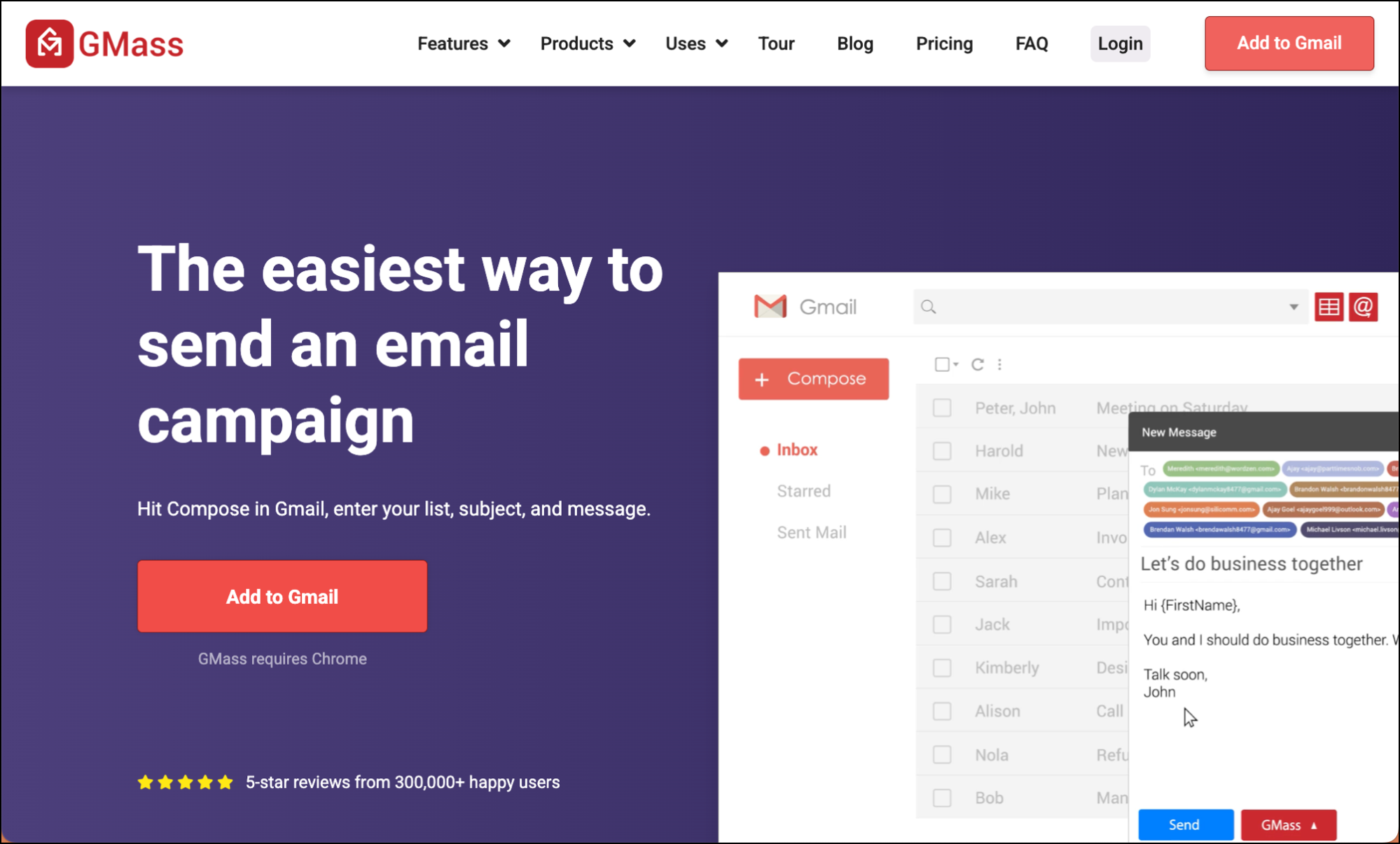
If you’re looking for the highest-quality mail merges or you’re doing anything professional or where quality is non-negotiable, you’ll likely wind up using a Chrome extension to add mail merge features to Gmail.
Chrome extensions like GMass (which was the original Gmail mail merge extension), Yesware, and Mixmax work right inside Gmail.
You connect your Google Sheet, compose in the regular Gmail window, see drafts in the regular Drafts folder, and see your sent messages in the Sent folder.
Again, the goal of Chrome extensions is turning Gmail itself into a mail merge platform.
Top 3 pros
- Works where you already work. No learning new interfaces. You’re literally using Gmail’s compose window, just with new, extra powers.
- Most feature-complete option. Extensions generally include automated follow-ups, scheduling, deliverability tools, analytics — everything you need for professional campaigns.
- Fastest setup to sending. Install extension, connect sheet, send. Under 5 minutes from start to campaign launch. (Stay tuned in this article to try that yourself!)
Top 3 cons
- Desktop and Chrome only. Chrome extensions only work in Chrome, and only on the desktop. You can’t create campaigns from your phone. (Though you’ll be able to do things like check campaign analytics on mobile)
- Costs money for professional use. Free trials exist, but you’ll pay $25+/month for real sending volumes through GMass. (Or way more for Mixmax or Yesware, as they also include significant sales team features.)
- Gmail exclusive. If you use Outlook or another email client, this won’t work for you.
2. Using a Google Sheets add-on
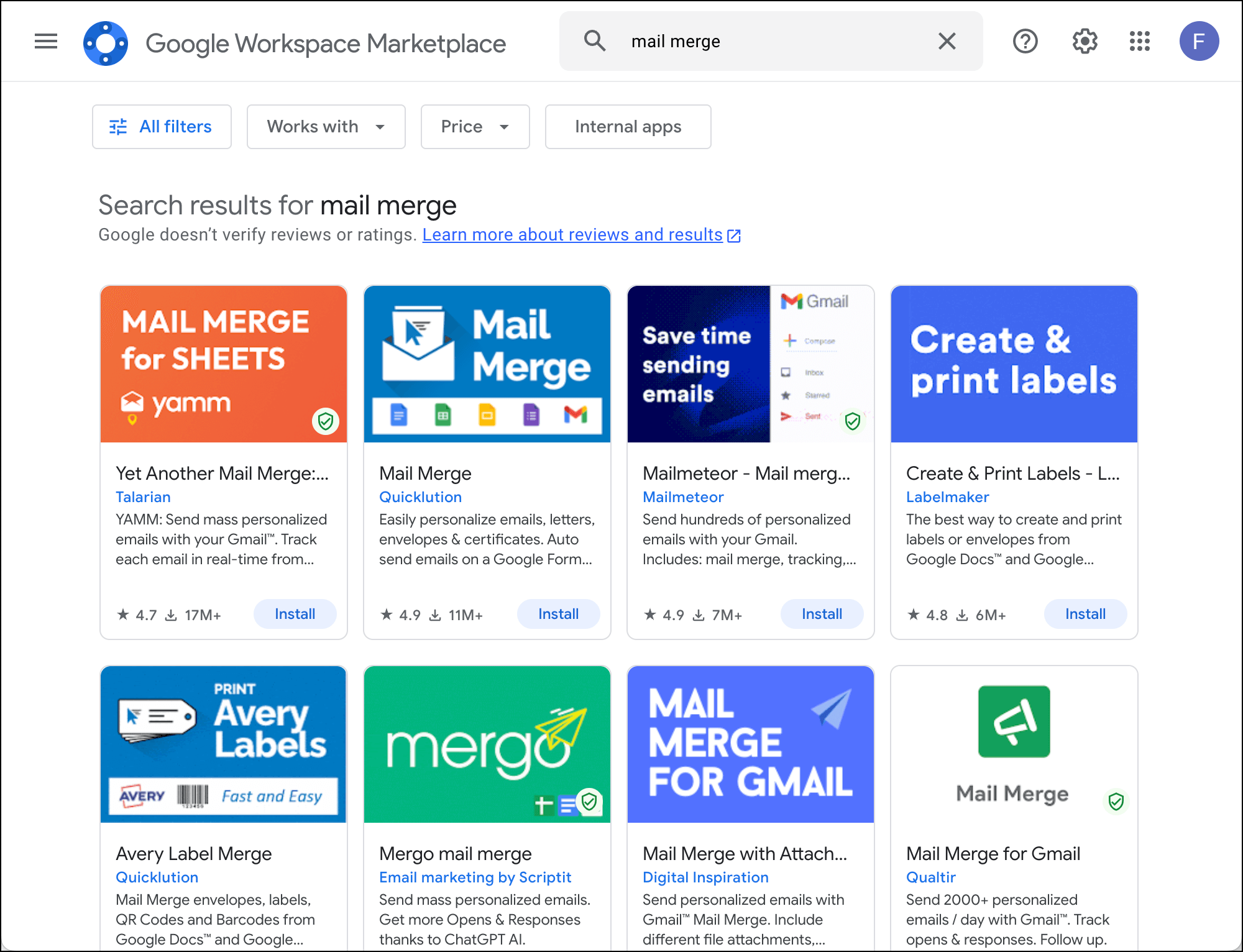
Add-ons like YAMM (Yet Another Mail Merge), Mailmeteor, and Mergo operate from inside Google Sheets. You set up and send campaigns from inside your spreadsheet rather than inside Gmail. (Though there is some going back and forth to Gmail.)
Top 3 pros
- Cheap plans available. Add-ons for Google Sheets mail merge are much less powerful and include way fewer features than the Chrome extensions. As a result, they’re usually (though not always) cheaper.
- Works in some browsers besides Chrome. Workspace add-ons play nicer with other browsers than Chrome extensions, so you can likely send your mail merges from Firefox and others.
- Sometimes you just need the simplest tool. If you just need names merged into emails, these tools handle it fine.
Top 3 cons
- Limited features. As I said before, the add-ons are underpowered — while the Chrome extensions are essentially full-featured email sending platforms. The add-ons lack features like auto follow-ups, advanced scheduling, and deliverability tools. You get basic mail merge and that’s it.
- Clunky workflow. Bouncing back and forth repeatedly between Sheets and Gmail to compose, preview, and send feels disconnected.
- Low sending limits. Even paid plans often cap you at 400-1,500 emails/day.
3. Using Google’s built-in mail merge tool
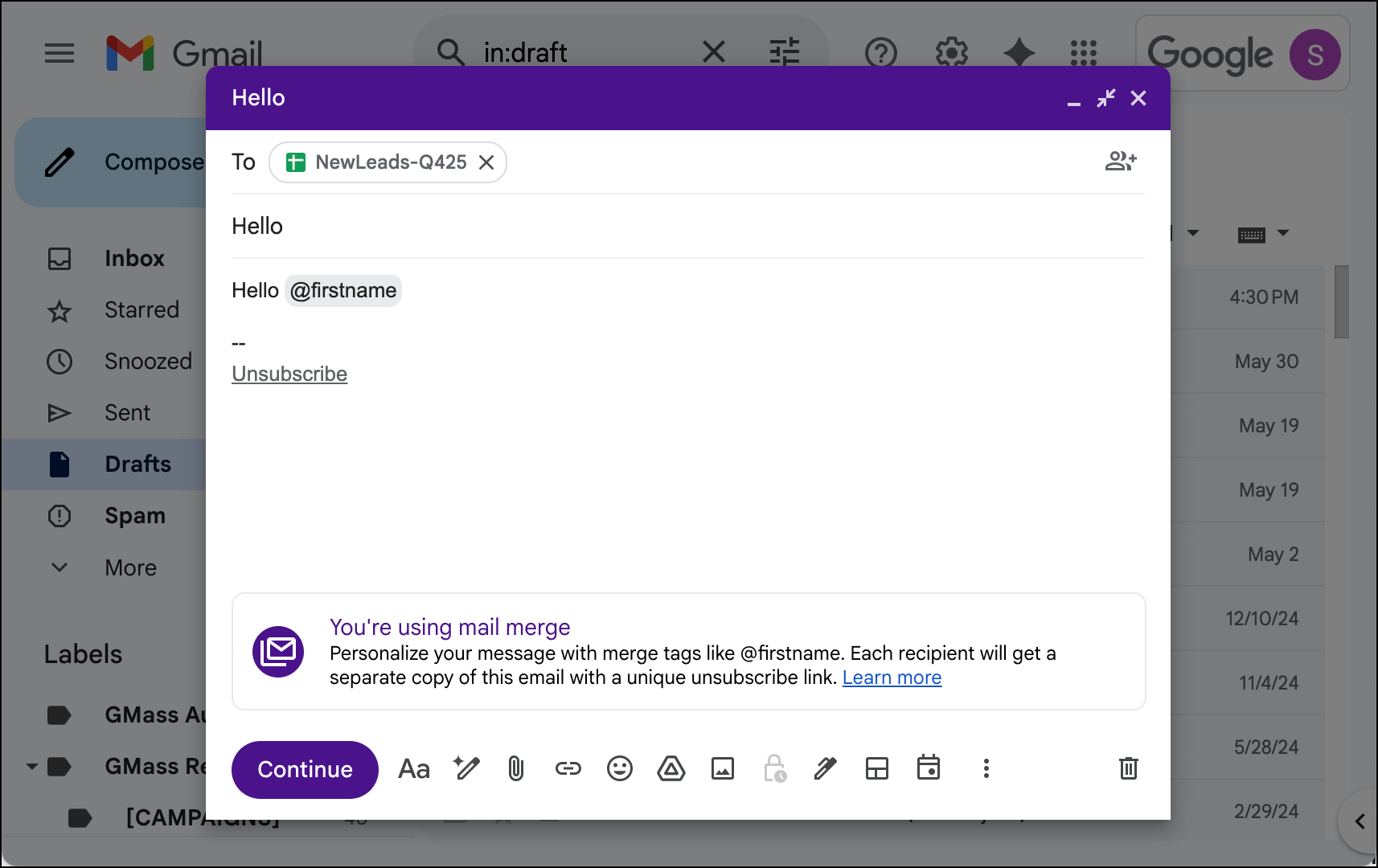
Google added native mail merge to Gmail in 2023. You probably didn’t know that because they gave the release zero fanfare and still essentially never promote the tool (**cough** there’s a reason **cough**). It’s included with certain Workspace plans.
Top 3 pros
- “Free” with paid Workspace. If you have Google Workspace’s Business Standard plan or higher, mail merge is included. (But if you’re a solo operator or small business, you probably don’t have that plan. It’s $14/month and up.)
- No installation or third-party tools needed. It’s built into Gmail already.
- Google-official solution. Some organizations prefer sticking with first-party tools.
Top 3 cons
- Extremely limited. Remember when I said add-ons had limited features? They do… but Google’s built-in mail merge is even more limited. You can’t schedule sends (yes, with their mail merge tool, it turns off their scheduling tool). There are no follow-ups and no tracking. You can’t even mail merge into the email subject line.
- Not included on the plan you probably have. Google does not include their mail merge tool in the $7/month Business Starter plan — aka the plan that everyone uses.
- Hard sending caps. There’s a maximum 1,500 recipients per day, period. No way around it.
4. Writing your own Google Apps Script
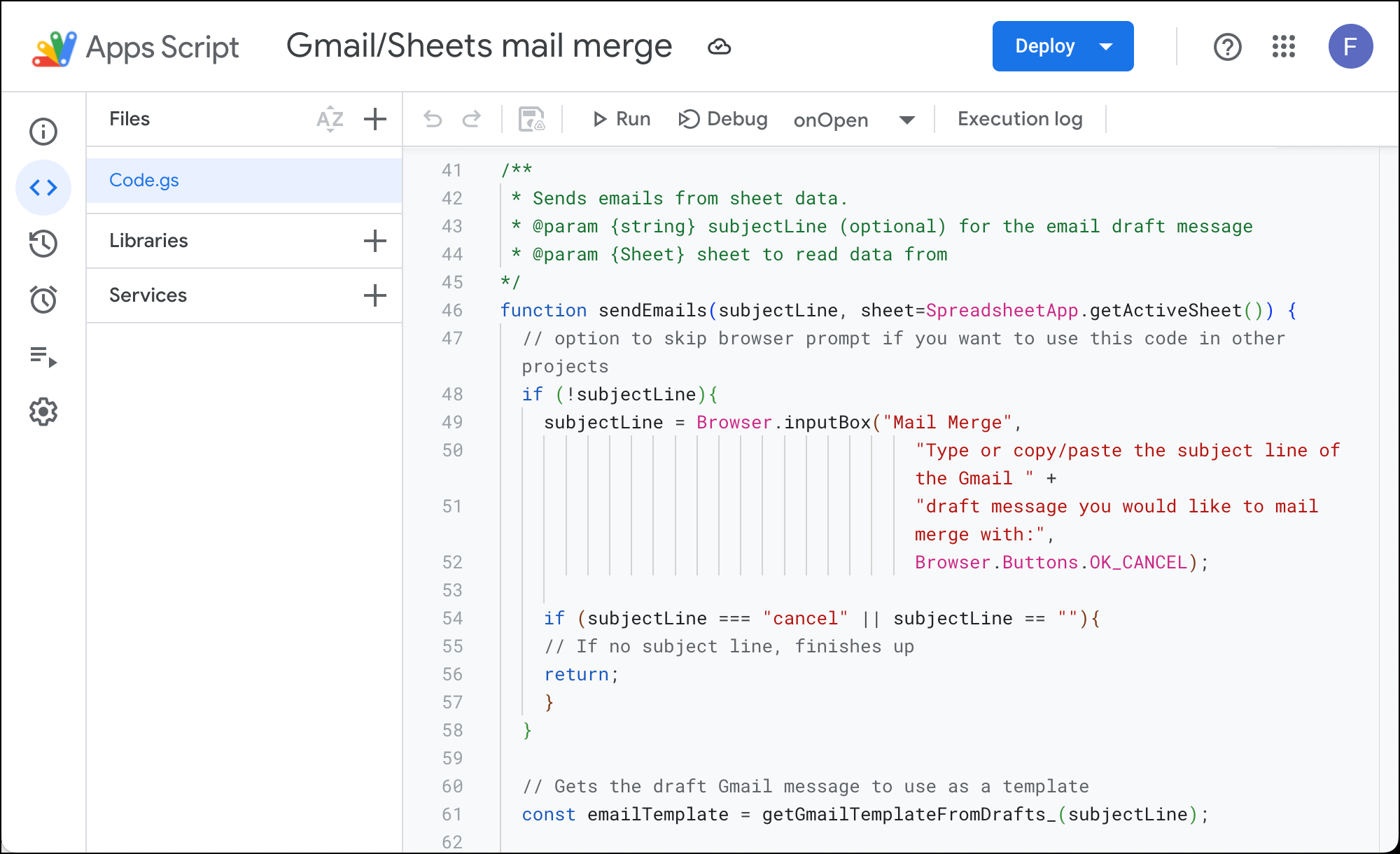
For the technically inclined, you can code your own mail merge using Google Apps Script.
There’s a starter template you can get here. Any modifications will have to come from your own developing work and/or a heavy vibe coding assist from a LLM.
Top 3 pros
- Completely free. The only cost here is your time and expertise.
- Total customization. Build exactly what you need, nothing more or less.
- Learning opportunity. This is a good project for if you want to develop Apps Script skills. I dunno. I needed to get to three pros to keep this article symmetrical and this was the best I could dream up for a third one.
Top 3 cons
- Requires coding knowledge. Though it seems like you can just cut-and-paste in the provided script… you can’t. JavaScript experience (or a lot of patience to vibe code with an LLM) is mandatory. This isn’t for beginners.
- Time-intensive setup. Expect hours of work for a basic mail merge tool, or days of development for anything beyond basics.
- No support or updates. When Google inevitably changes something and your script breaks, you’re on your own.
How to Decide Which Mail Merge Technique for Google Sheets Is Right for You
Alright. So those are your four options. How do you choose?
These are the three major questions you should ask yourself to assess:
1. Do you need your mail merge to be professional quality?
If you’re sending professional emails — cold outreach, customer communications, invoices, resumes, donation requests — you need professional features.
That means tracking, follow-ups, scheduling, advanced mail merge, and deliverability tools.
Chrome extensions are your best bet here. None of the other methods give you the features I just mentioned.
For birthday invitations or one-time personal use? A Google Sheets add-on will probably work fine. So would Google’s built-in tool, but I’m assuming you don’t have access in your plan.
2. What are you willing to put up with to save a little money?
Here’s some of what you give up with free or cheap tools, like most of the Google Sheets add-ons or Google’s built in tool…
You can’t schedule sends for optimal times. You can’t set up automatic follow-ups (which can 3x your response rates). You don’t get real analytics. You can’t test if your emails are going to go to spam. You can’t verify email addresses before sending. You can’t A/B test.
Basically, if you’re wondering if you can do something… odds are, you can’t.
There’s also a lot of back and forth between Google Sheets and Gmail, so the sending process is inefficient.
But, yes, these tools are cheap. In some cases, absurdly cheap.
So if saving around $15-$20/month is worth the trade-off on features and efficiency, go with YAMM or Google’s built-in option.
But calculate the time cost; if these limitations add two hours of work once a month, you’re valuing your time at $7.50 to $10/hour.
(And for the free route, think about the time it would take to set up your own mail merge apps script.)
3. Do you send out any other types of professional emails at scale?
This is the hidden consideration. If you’re doing mail merge, you probably also send cold emails, newsletters, or other email campaigns.
Tools like GMass handle all your different types of email campaigns from one place. Instead of paying for a mail merge tool AND a cold email tool AND an email marketing platform, you can just use your Chrome extension for everything.
Quickstart Guide: Sending Out a Google Sheets Mail Merge in the Next 5 Minutes
Alright, decision time is over. We are people of action.
Let’s get you sending.
I’ll use GMass since, based on the above criteria, you’ll probably wind up picking it (or you’ll try one of the others and then end up there eventually). Most important, it’s the fastest path from zero to campaign.
Start that timer…
1. Install the GMass Chrome extension (30 seconds)
Go to the Chrome Web Store and click “Add to Chrome“. Grant the permissions when asked — GMass needs access to Gmail to add its features.
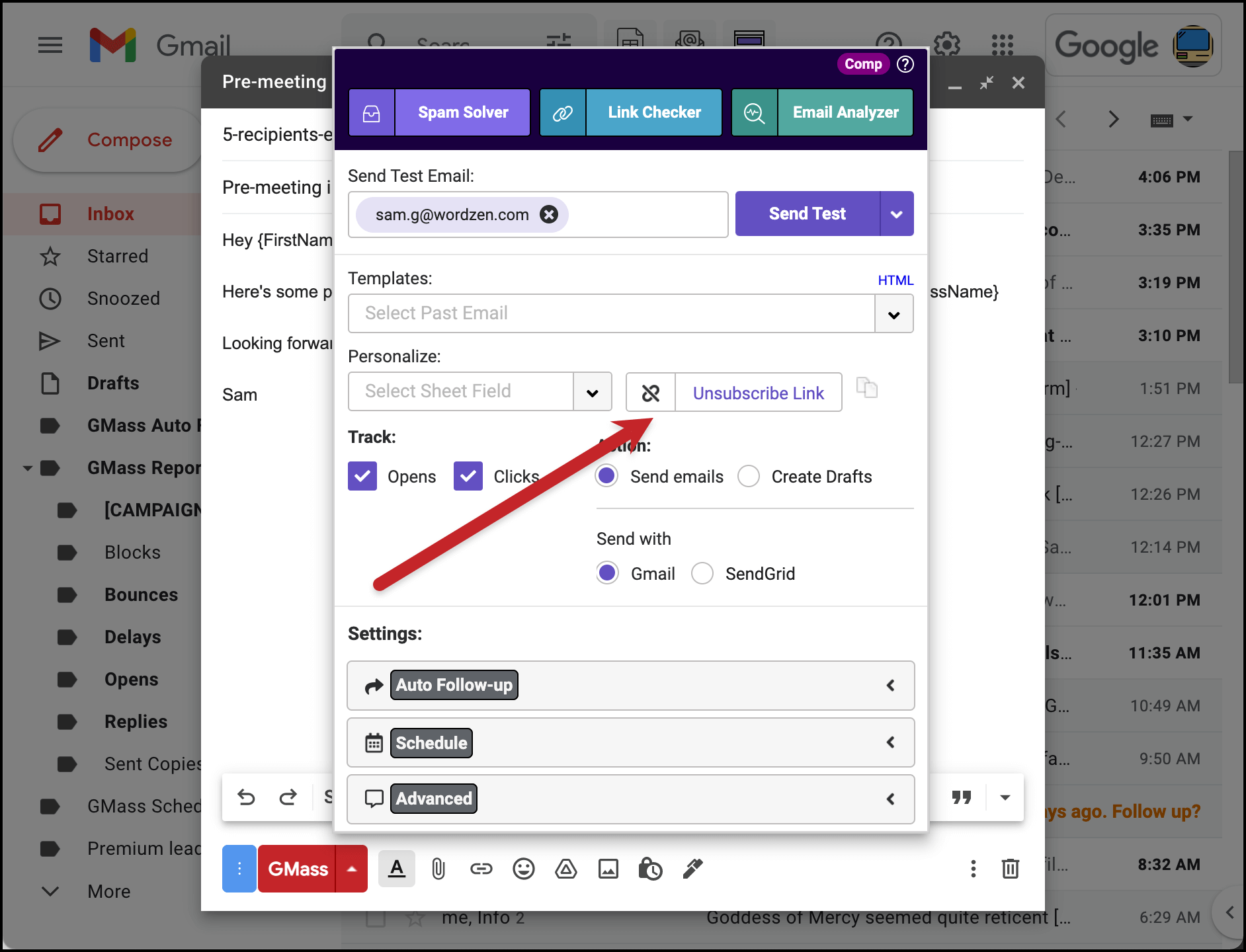
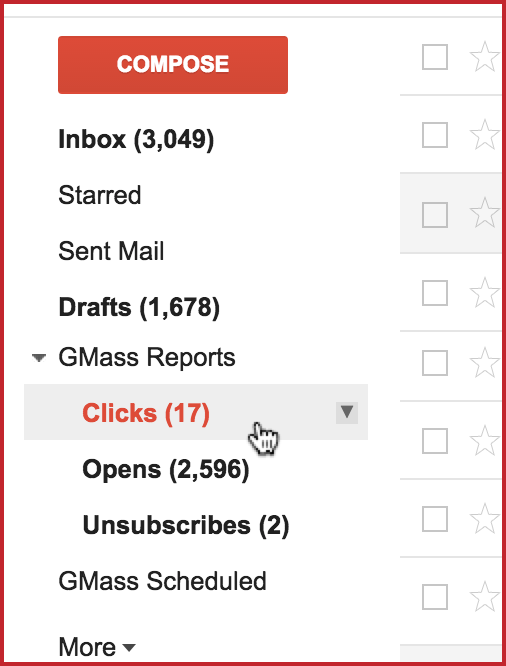
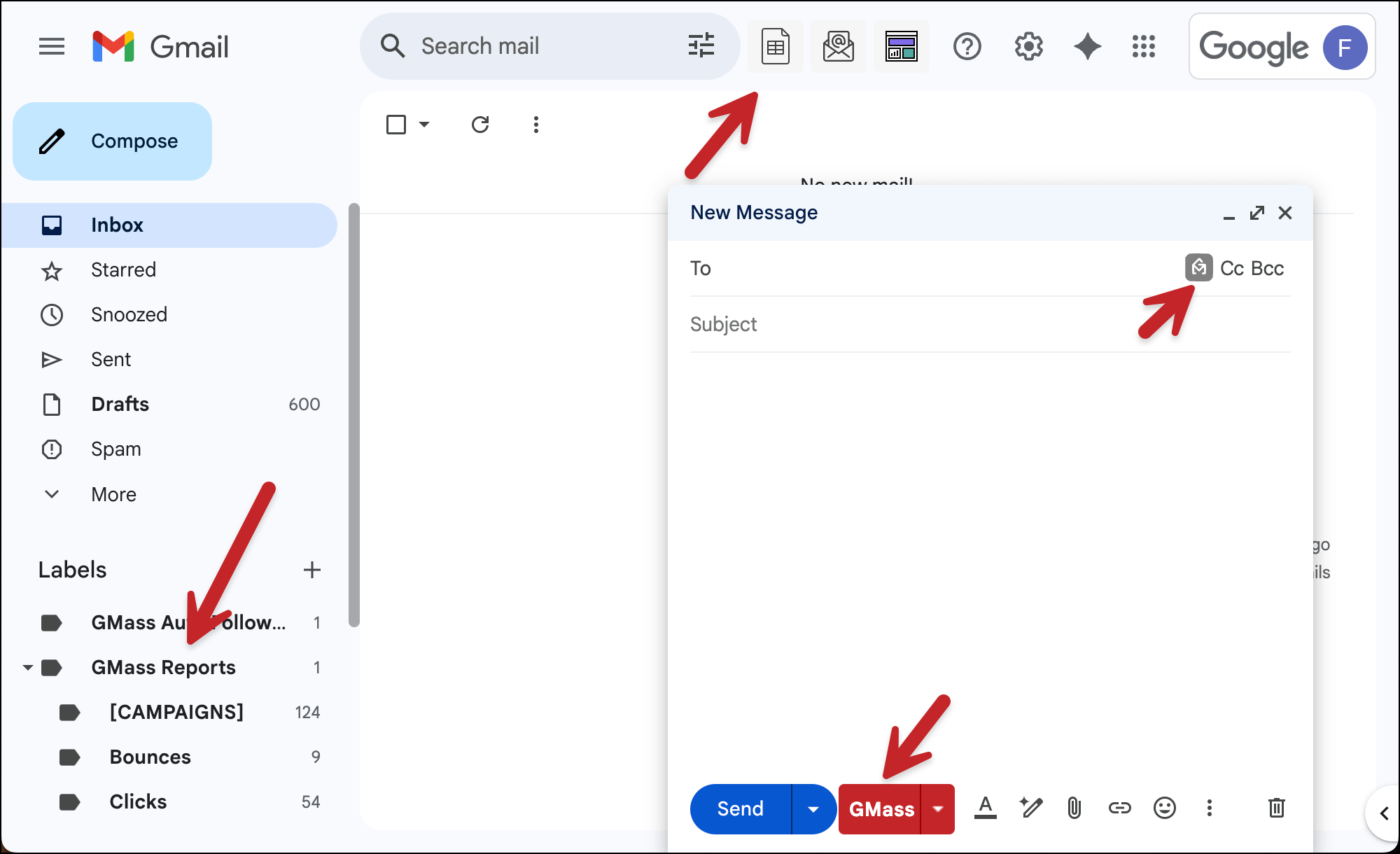
Refresh your Gmail tab. You’ll see a new red “GMass” button next to the regular blue Send button in the Gmail compose window and a few other new buttons added to Gmail.
Skip the onboarding tour for now. I can’t believe I’m saying that, since I meticulously built that onboarding tour and I think it’s incredibly useful — but we don’t have time. You can always do it later.
2. Make sure your Google Sheet is ready for merging (1 minute)
Your Sheet needs:
- Column headers in row 1 (like FirstName, Company, and Email)
- An email address column (can be named anything)
- One recipient per row, starting in row 2
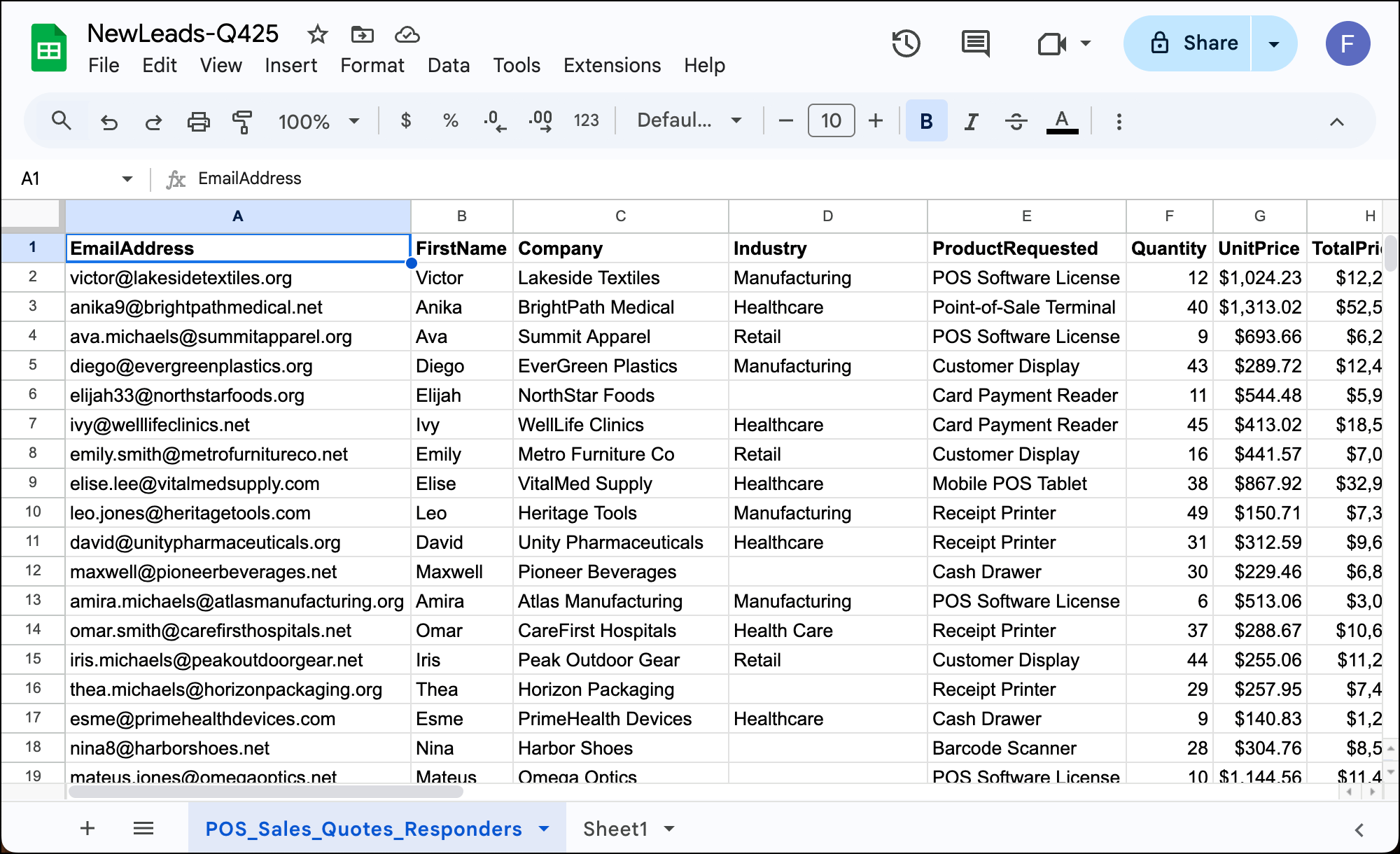
Quick advice: Remove spaces from column headers. Use “FirstName” not “First Name” — it’s cleaner for merging.
We don’t have time now during this five-minute sprint, but I did recently write a guide of all the best practices for formatting your Google Sheet for mail merge. Read it later, then share tips from it to impress people on dates.
3. Connect your Google Sheet in Gmail (1 minute, including granting permissions)
Click GMass’s sheet icon in Gmail (it appears next to the Gmail search bar after you’ve installed GMass).
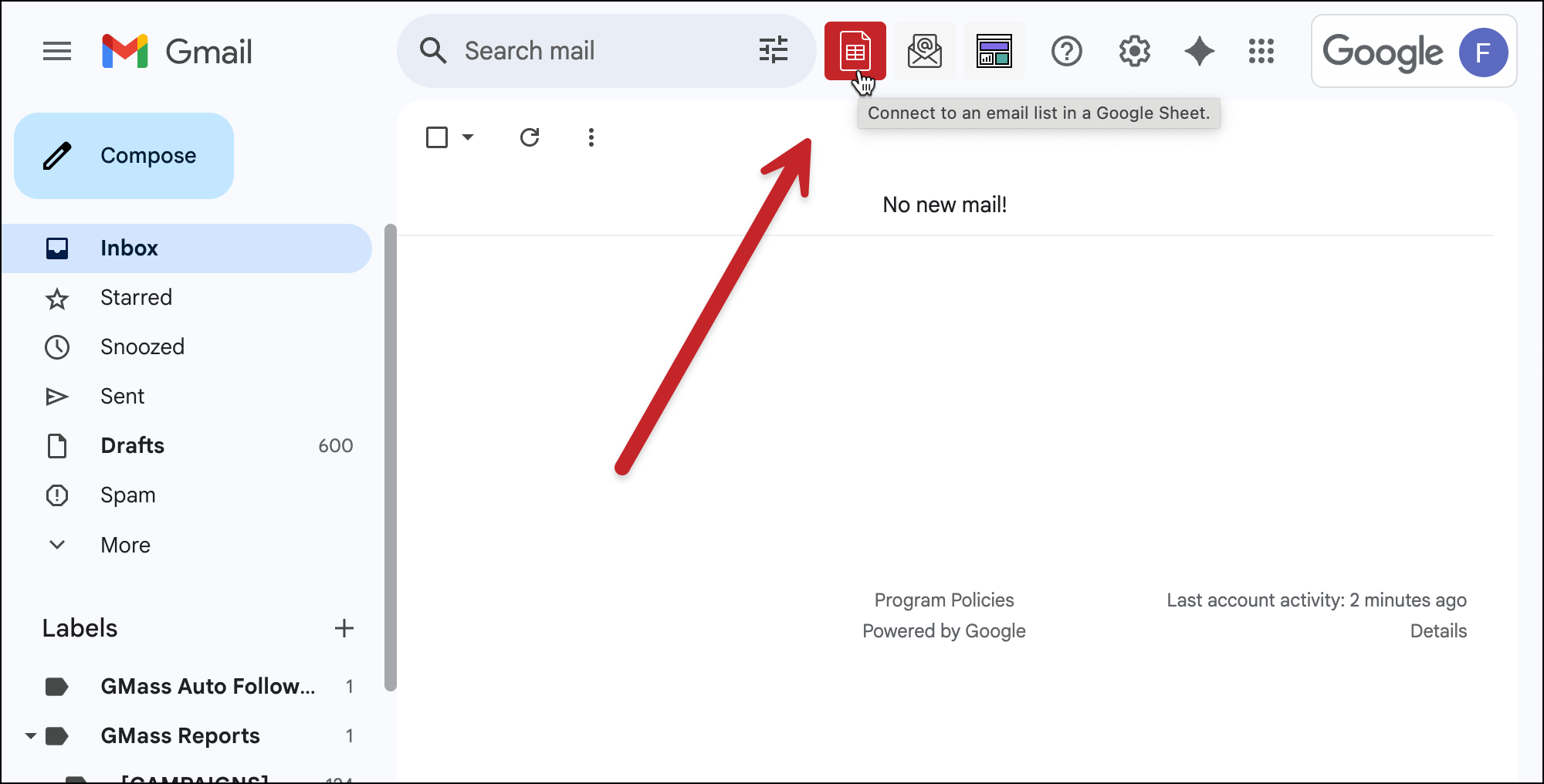
If it’s your first time, you’ll grant GMass permission to read your sheets.
Select your Google Sheet from the dropdown, then click the button marked Connect to Spreadsheet.
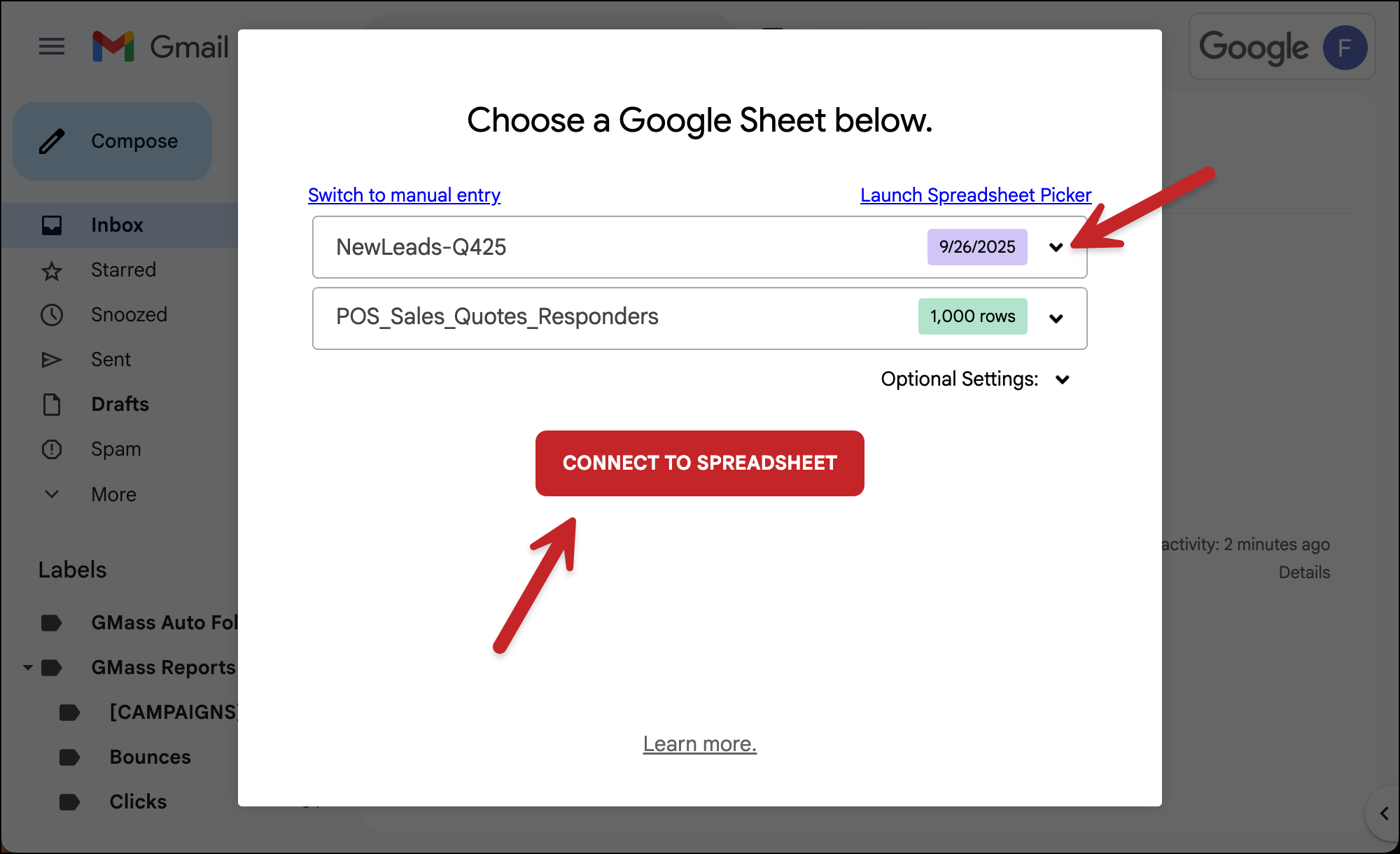
GMass instantly pulls your email addresses into the To field and compresses them all into one alias address to keep things neat.
4. Compose a quick email (2 minutes)
Type your subject line. Include merge variables using {FirstName} or whatever your column headers are.
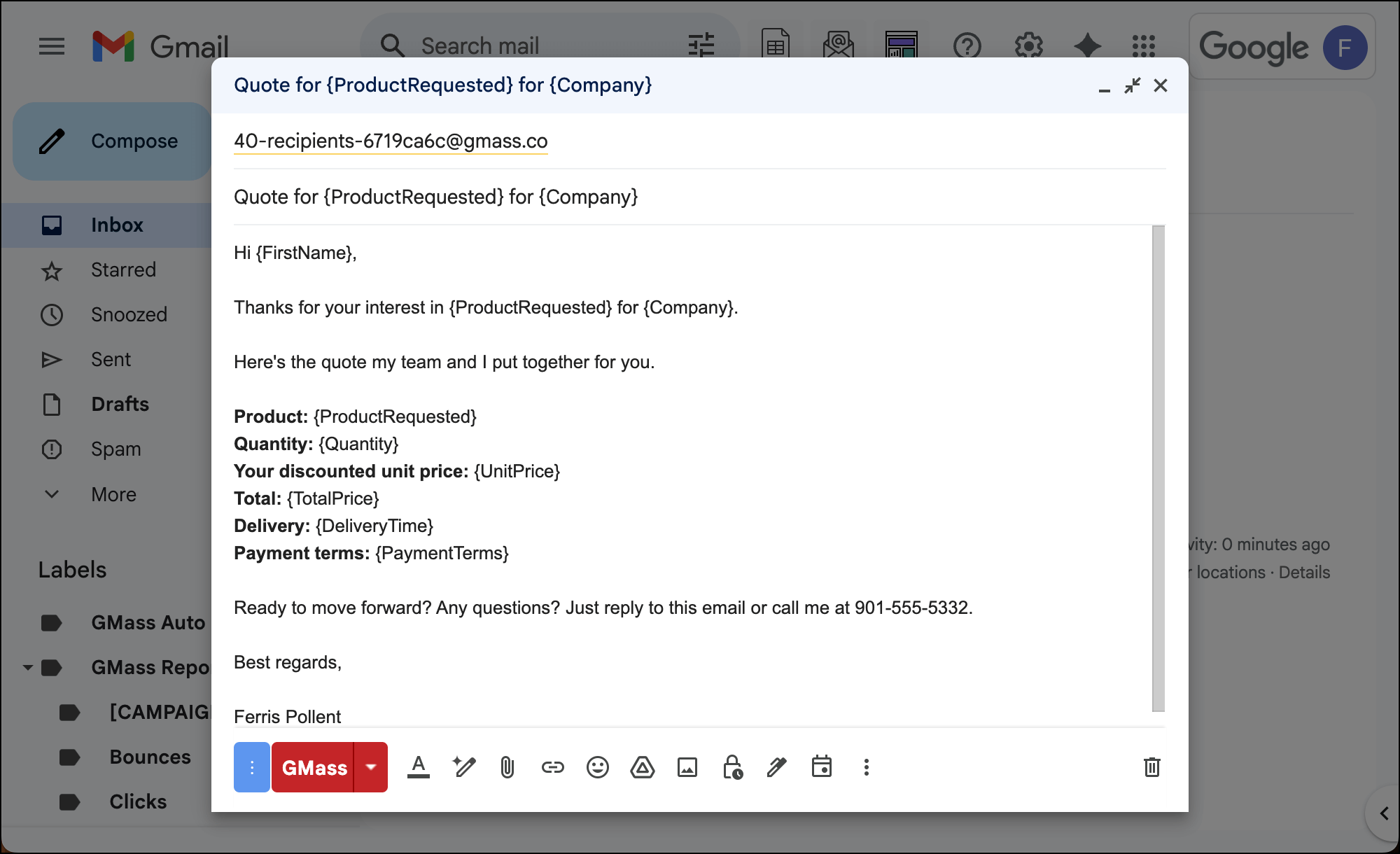
No need to go back and forth to your Google Sheet to remember them. Just type a left curly brace { and GMass will show you all your column headers. You can click on any to insert it.
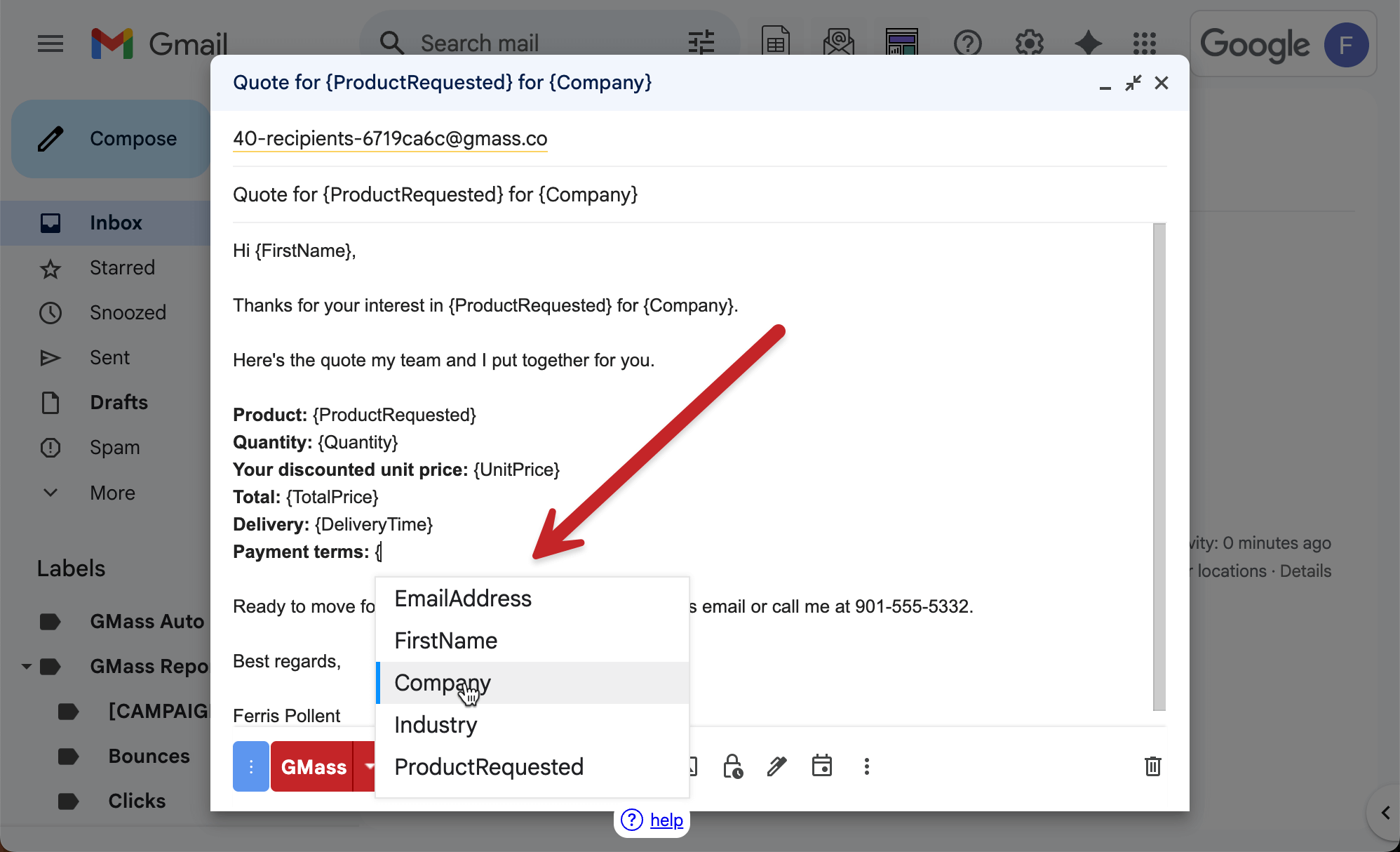
Example: “Quick question about {Company}’s marketing strategy”
In the body, personalize naturally: “Hi {FirstName}, I noticed {Company} just launched a new product line…”
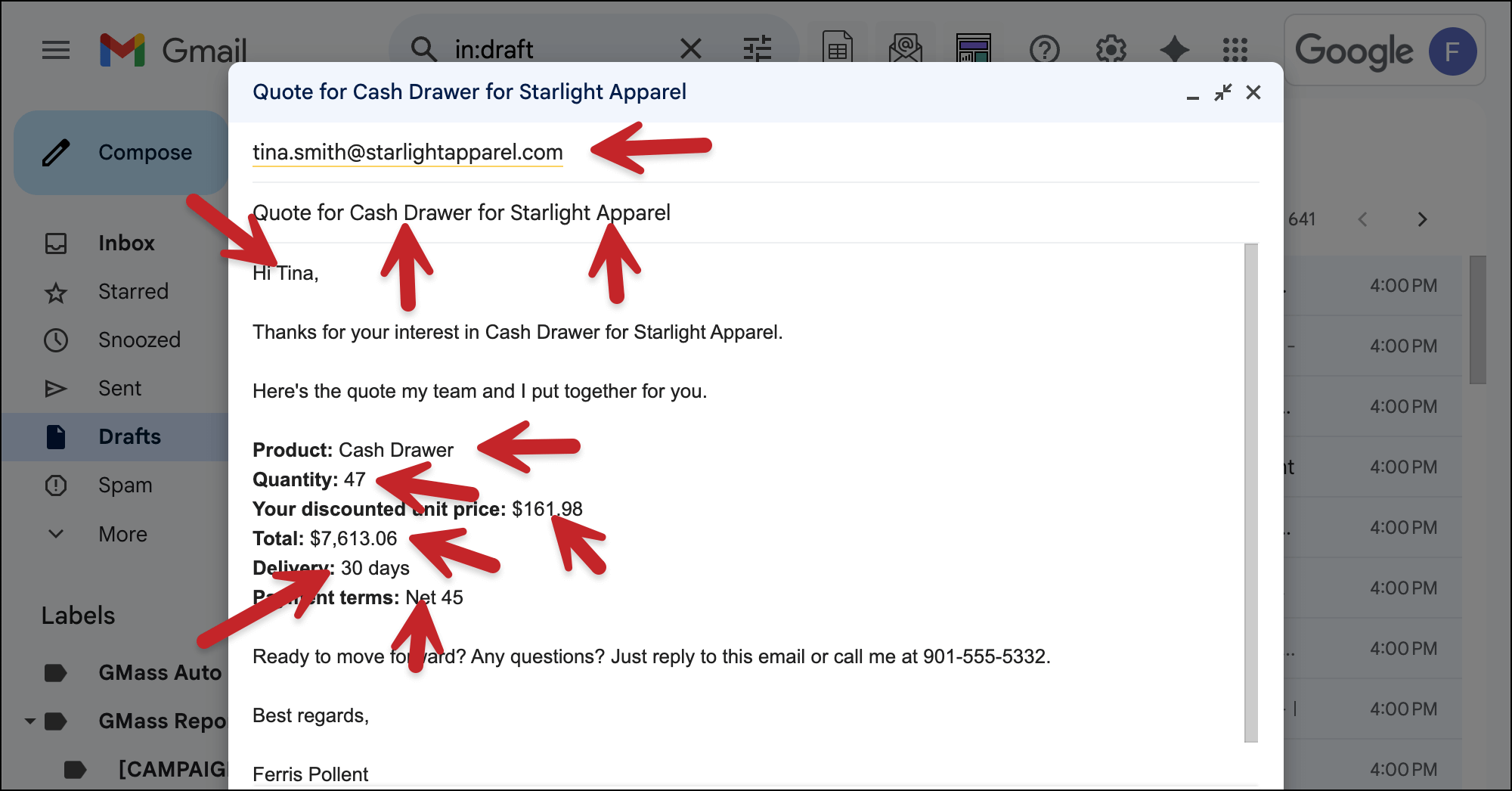
The curly brackets are how you merge in the data from your sheet. Each recipient will see their own specific information.
5. Send your mail merge campaign (30 seconds)
Normally, we’d want to test a mail merge before we send but that adds some time. So we’re going to YOLO this and send. (In the future, though, please do test your mail merges.)
Hit the red GMass button to send your campaign (NOT the blue Gmail send, or the mail merge won’t work).
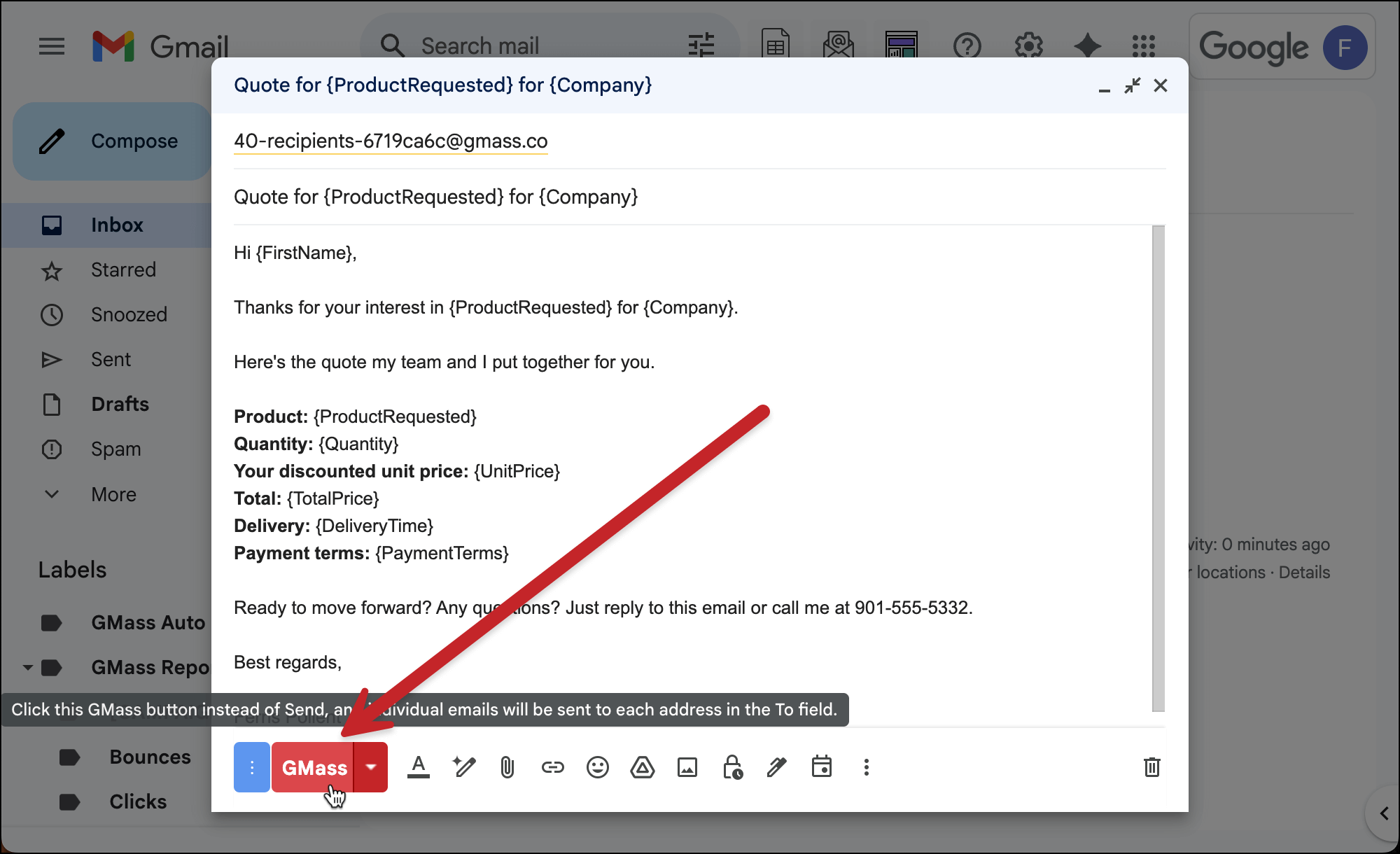
That’s it. Each person gets their personalized email individually.
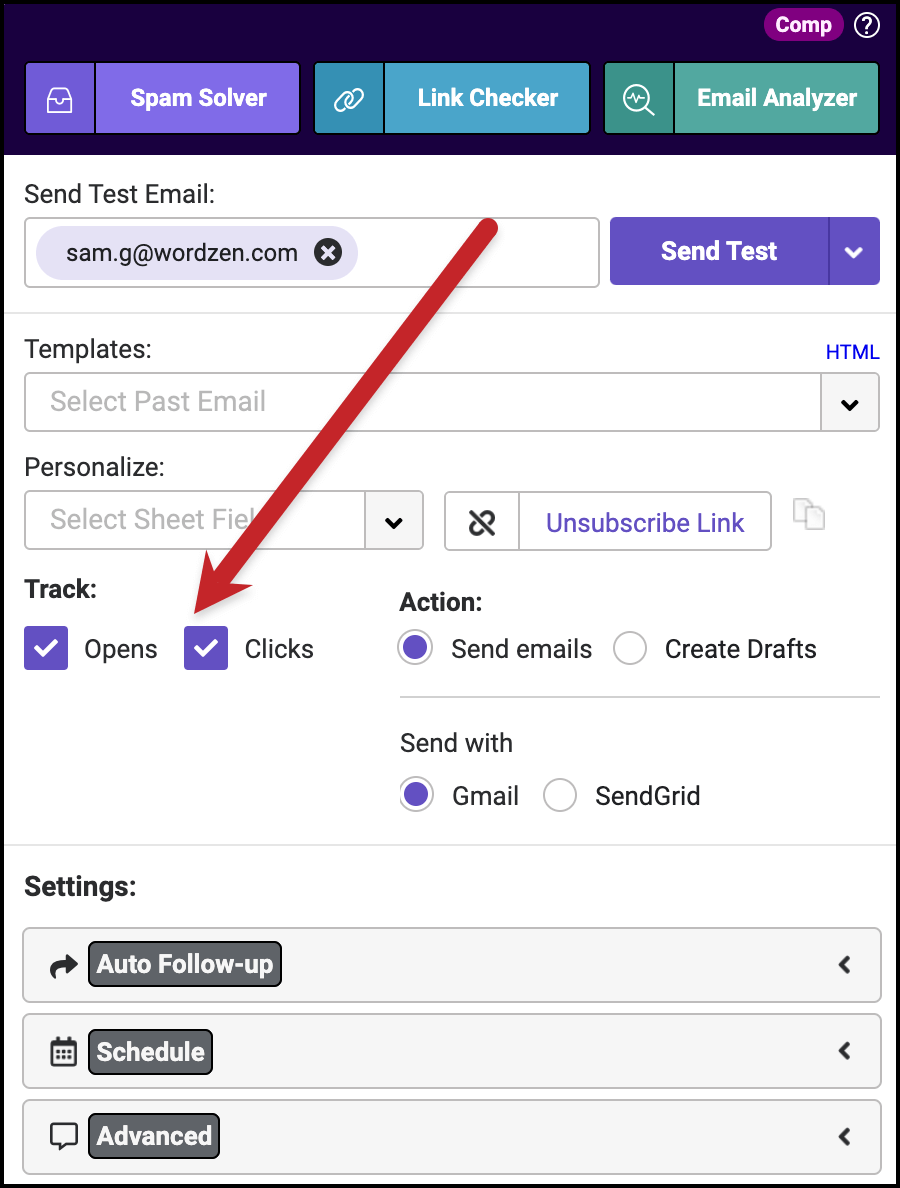
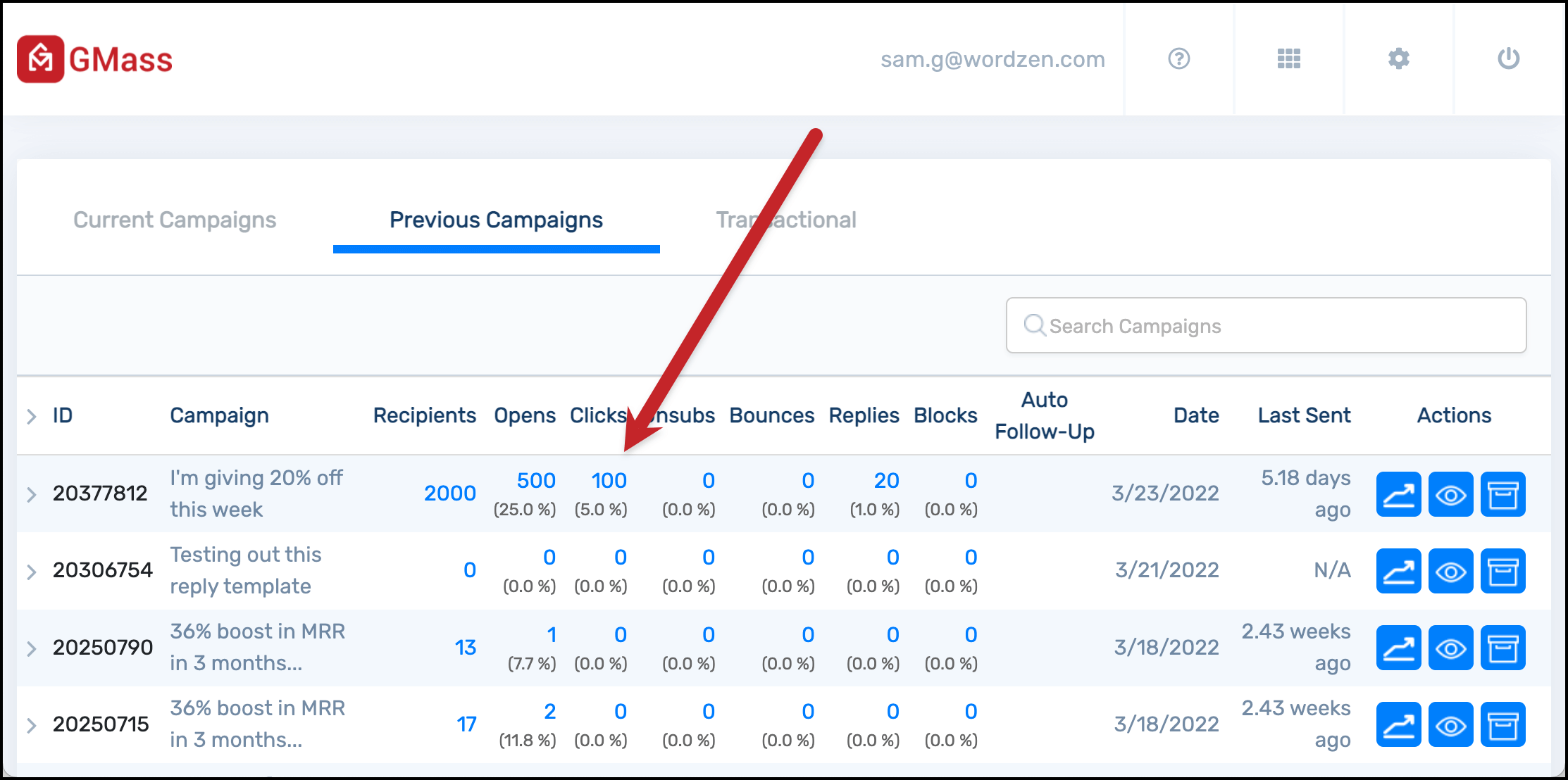
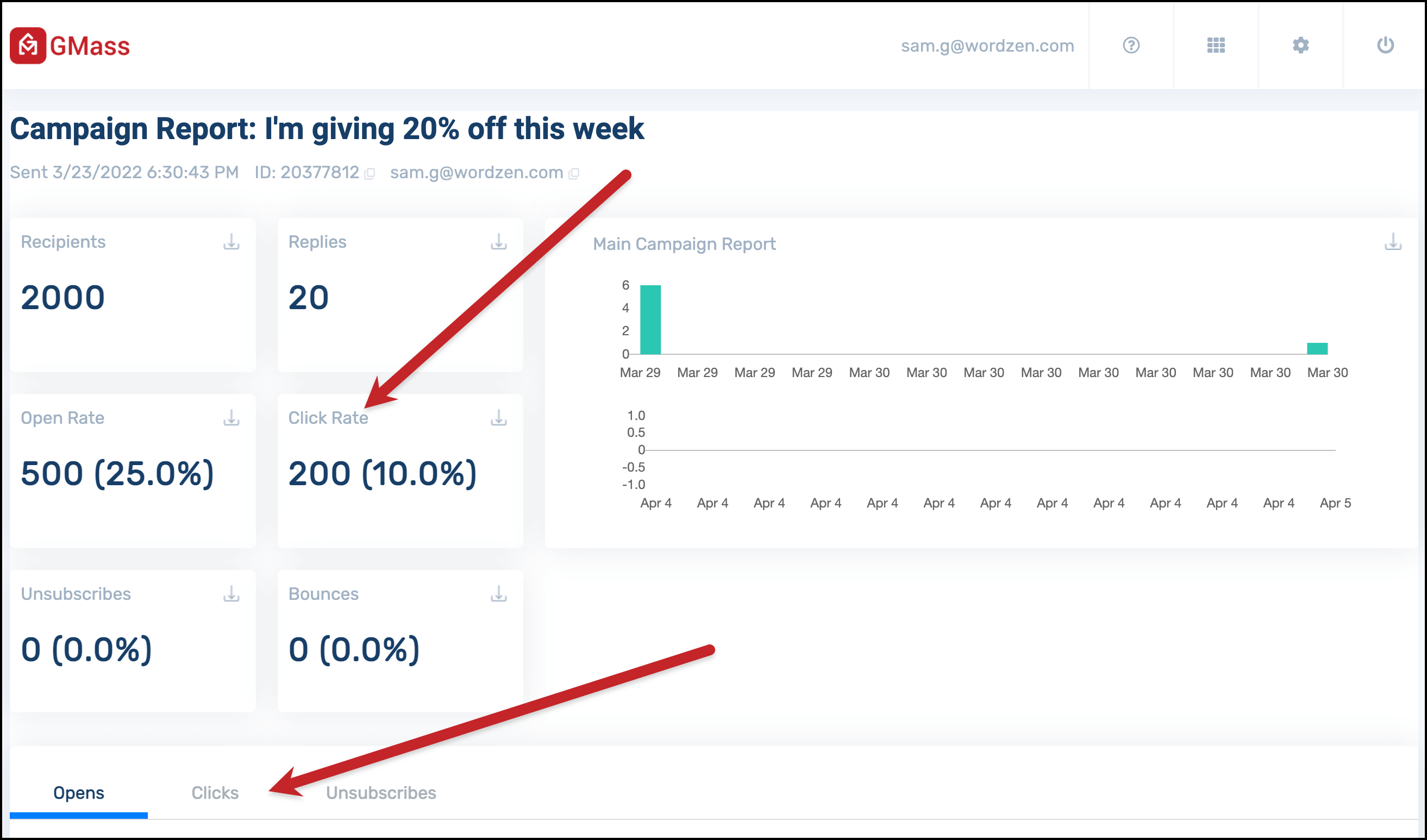
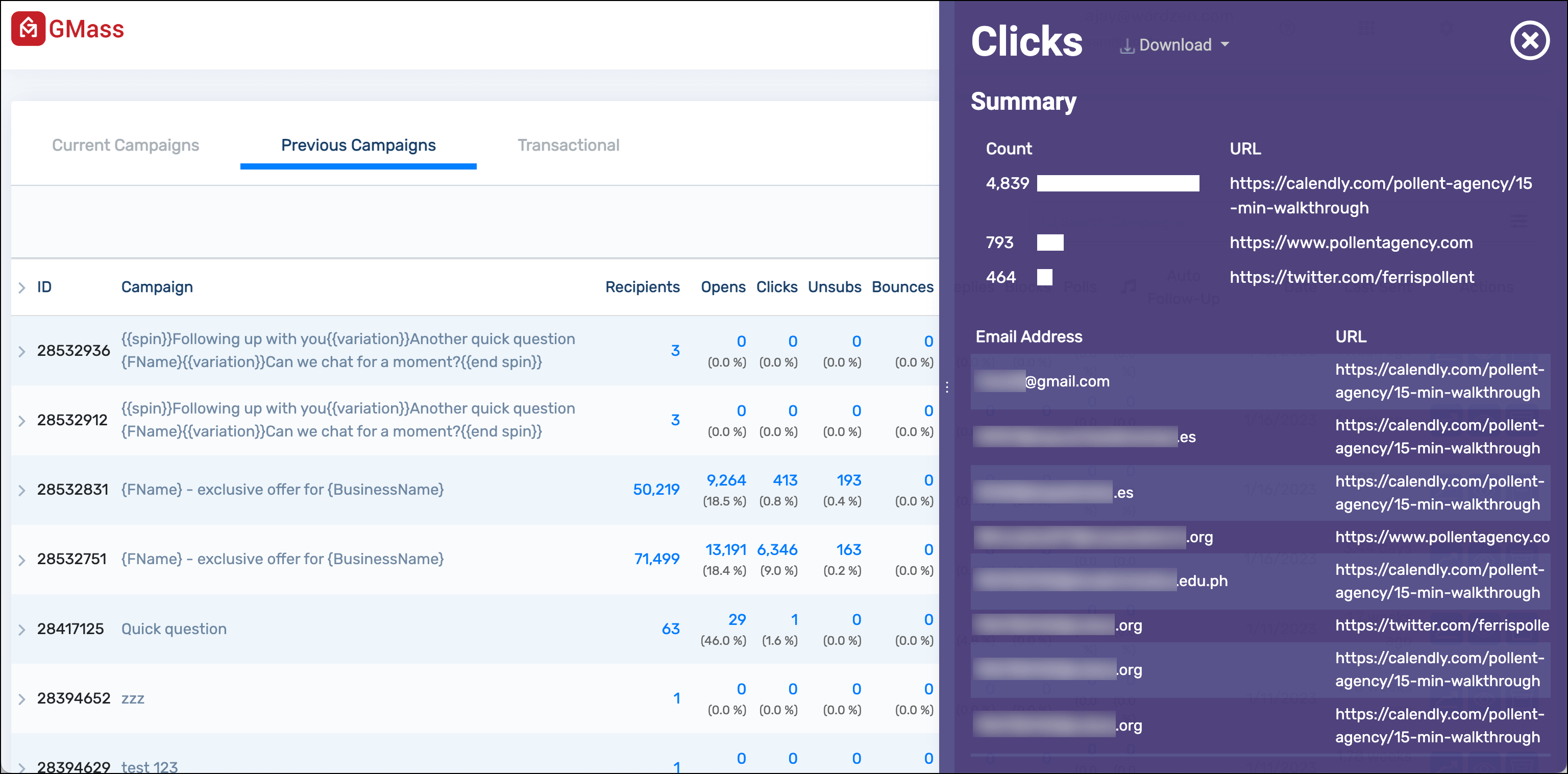
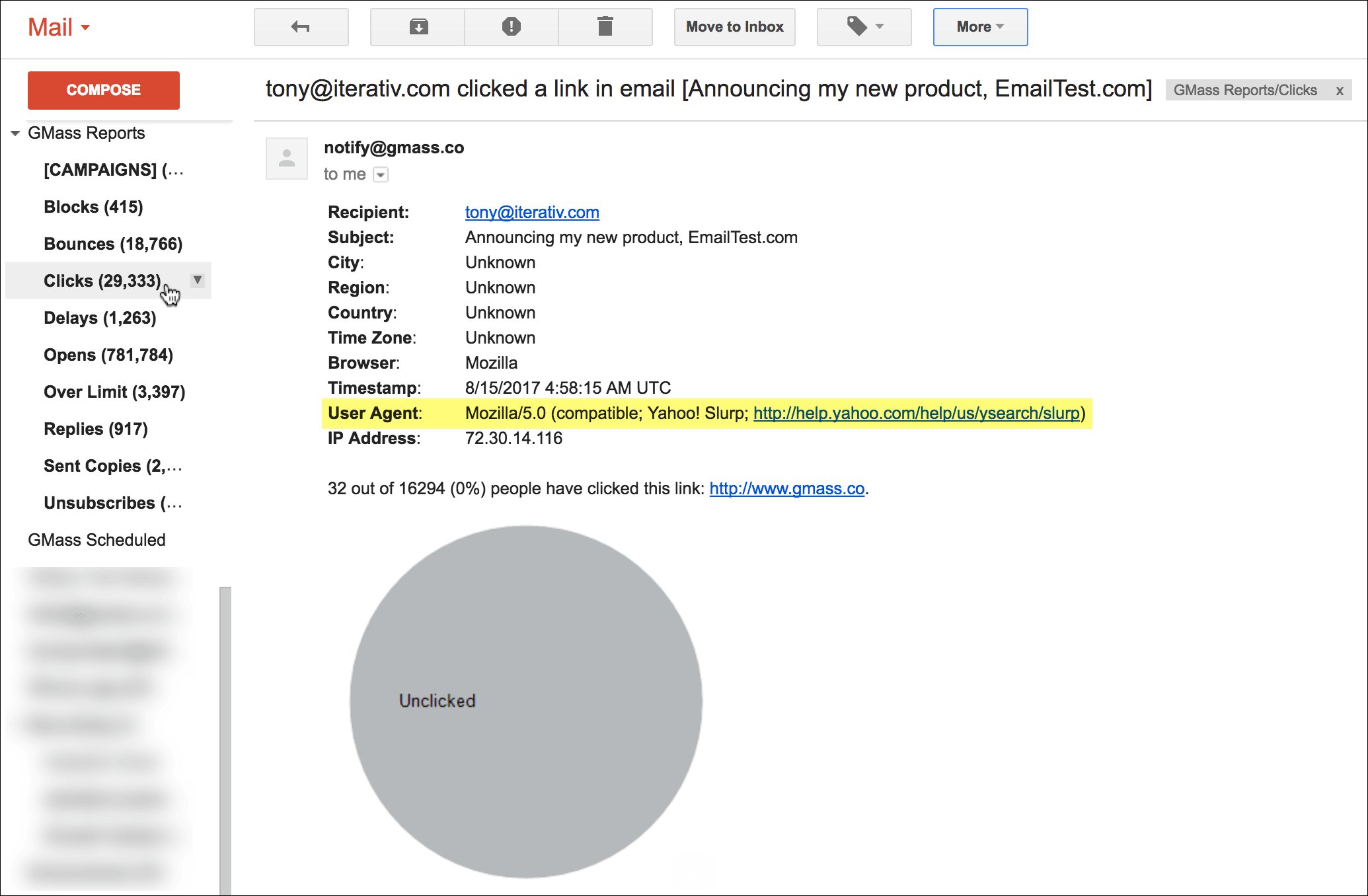
You can track opens, clicks, and replies in your GMass reporting dashboard.
Get Started with GMass
If you’re ready to run professional mail merges that actually deliver results, GMass gets you there faster and easier than any other option.
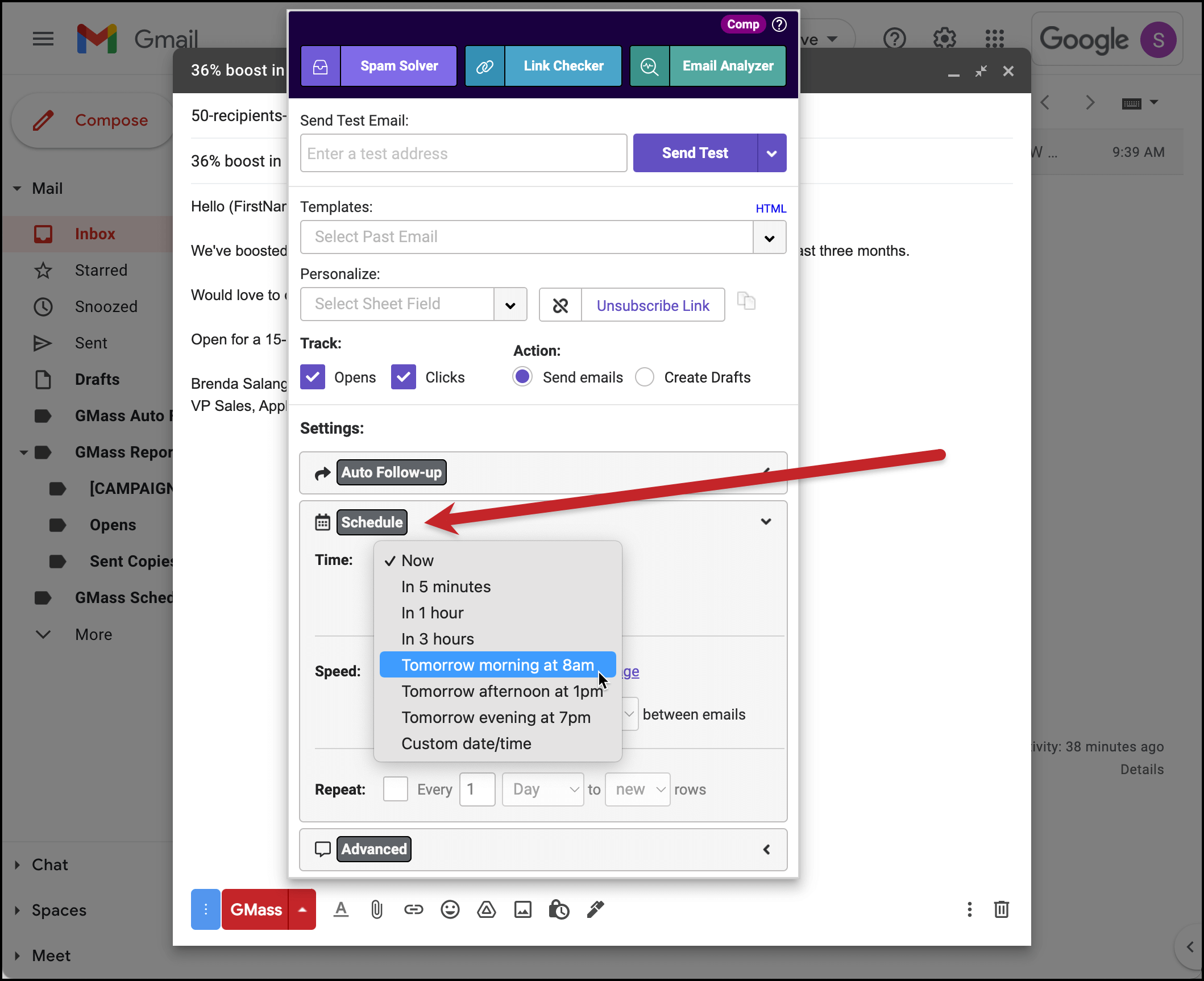
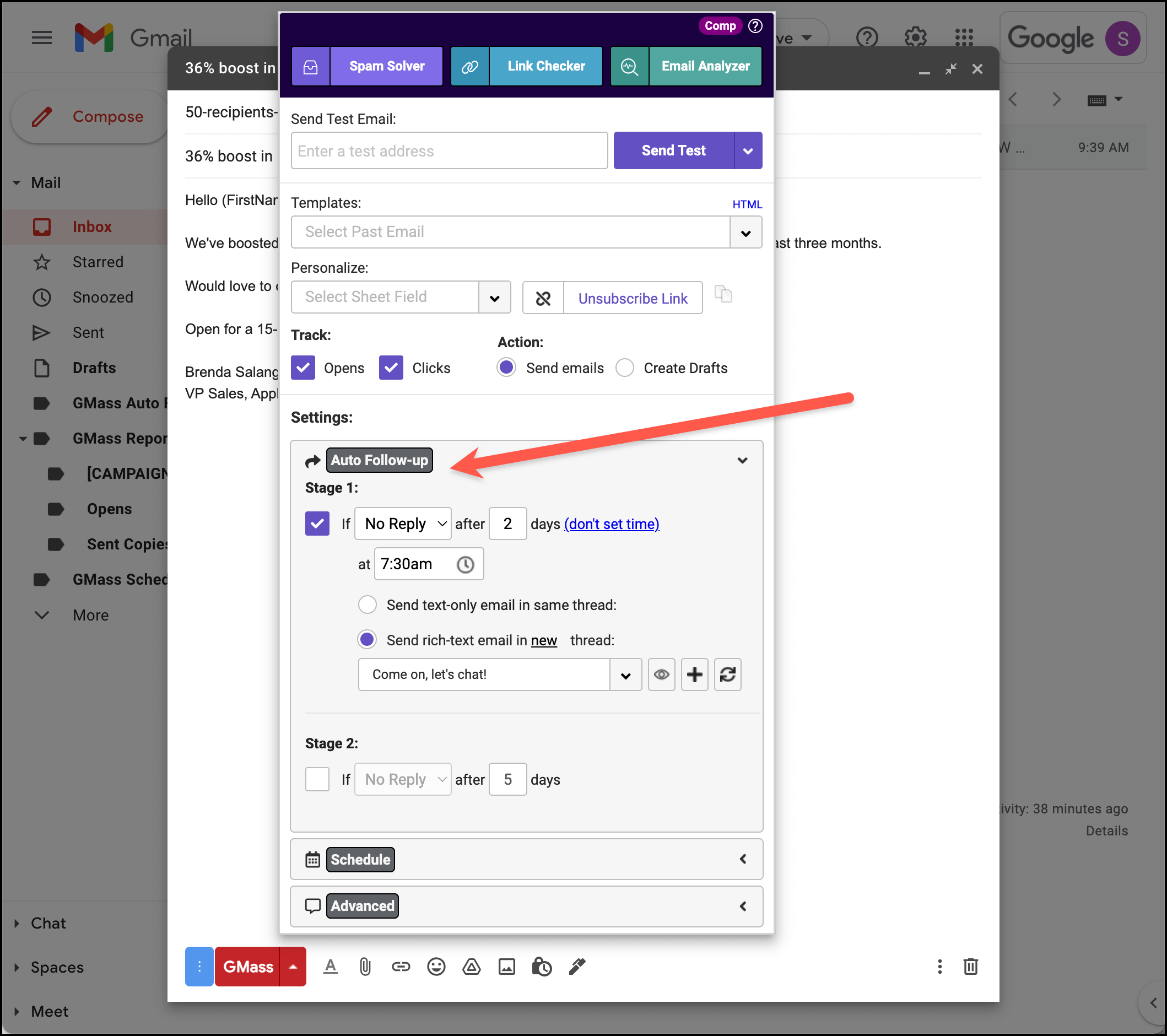
I haven’t even had a chance to cover a whole bunch of GMass’s other unique and powerful features like Spam Solver (fix your email if it’s destined for the spam folder)… the ability to break Gmail’s limits… unlimited auto follow-ups… and so much more.
All for less than you’d spend on lunch for two — and all inside of the Gmail interface you’re already comfortable with using.
Install the Chrome extension, start your free trial (no credit card required!), and send your first campaign in the next 5 minutes.
Advanced Mail Merge Techniques: Beyond Basic Text
Once you’ve mastered basic mail merge, these techniques take your campaigns to the next level.
Mail merging PDFs or other attachments
This is a technique few people know about — but you can actually send unique attachments to every mail merge recipient as well.
Add a column called “Attachment” to your Google Sheet. Put the full file path or URL for each person’s unique document.
When GMass sees this column, it automatically grabs the right file and attaches it to the recipient’s email.
This is perfect for sending personalized invoices, proposals, or reports.
Mail merging images
Create a column with URLs to different images (wrapped in HTML — don’t worry, there are instructions to help if you don’t know how to do that).
Then each of your recipients will get their own personal image in their message.
This works great for individual product recommendations, custom QR codes, or including your recipients’ company logos in your emails.
Mail merge with unique CC and BCC addresses
Need different people CCed on each email? Add “CC” and/or “BCC” columns to your sheet.
Common use: Looping in specific account managers or copying assistants on client emails without manual work.
Recurring mail merge automations
Mail merge campaigns don’t have to be one-time sends.
You can set up a campaign that goes out automatically every time you add a new contact to your Google Sheet.
You can set up the automation in just a few clicks. GMass will monitor your sheet hourly (or daily, or weekly, or whatever time frame works) and send your campaign to any new entries.
This is perfect for welcome sequences, onboarding emails, drip campaigns, renewal reminders, and more.
The Wrap-Up: Mail Merge with Google Sheets Like a Pro
There are four primary methods to mail merge Google Sheets data into emails.
Pick the best one for you based on your needs:
Need professional features? Chrome extensions like GMass give you everything — advanced mail merge, tracking, follow-ups, deliverability tools, and unlimited sends.
Sending occasionally for personal use? Super cheap tools like YAMM or Google’s built-in option work fine.
Want total control for free? Build your own with Apps Script.
Ultimately, if your emails really matter — if you’re trying to land clients, serve customers, or grow your business — invest in the right tool. The difference between 2% and 10% response rates pays for professional software hundreds of times over.
GMass takes 5 minutes to set up and costs less than a streaming subscription. You get the same mail merge powers that Fortune 500 sales teams use, right inside Gmail.
Start your free trial and see why 400,000 users trust GMass for their mail merge needs — and why they rate it an average of 4.8 out of 5 stars across tens of thousands of reviews.
Google Sheets Mail Merge FAQ
And finally, answering a few questions you might have about mail merging with Google Sheets and Gmail.
Can I use mail merge with a free Gmail account?
Yes. Most tools work with both free @gmail.com and paid Workspace accounts. Workspace accounts just have higher sending limits (2,000/day vs 500/day).
(There’s also a little tweak that has to happen if you’re sending massive bulk quantities; here’s how GMass solved that problem.)
What happens if I have blank cells in my Google Sheet?
Most mail merge tools give you the option to use fallback values.
For example, if “FirstName” is blank, you can default to “there” with {FirstName|there} so your email says “Hi there” instead of “Hi .”
Can I mail merge into subject lines?
Yes… but not with Google’s built-in mail merge tool. It inexplicably doesn’t allow mail merge tags in subject lines.
With Chrome extensions like GMass or add-ons like Mergo, yes, you can mail merge in subject lines.
Will recipients know I used mail merge?
Not if you do it right. Each person gets an individual email with no other recipients visible. Avoid obviously templated language and you’re golden.
How many mail merge emails can I send per day?
Gmail caps you at 500 (free) or 2,000 (Workspace) daily emails. Virtually all platforms will cap you around there.
GMass is the exception — it helps you (legally) break these limits to send 10,000 or more messages in a day.
Only GMass packs every email app into one tool — and brings it all into Gmail for you. Better emails. Tons of power. Easy to use.
TRY GMASS FOR FREE
Download Chrome extension - 30 second install!
No credit card required

Ajay is the founder of GMass and has been developing email sending software for 20 years.