<img height="1" width="1" style="display:none" src="https://www.facebook.com/tr?id=1822615684631785&amp;ev=PageView&amp;noscript=1"/>

If you have a non-Gmail address that you want to send a mail merge campaign from, you can still use Gmail to do so.

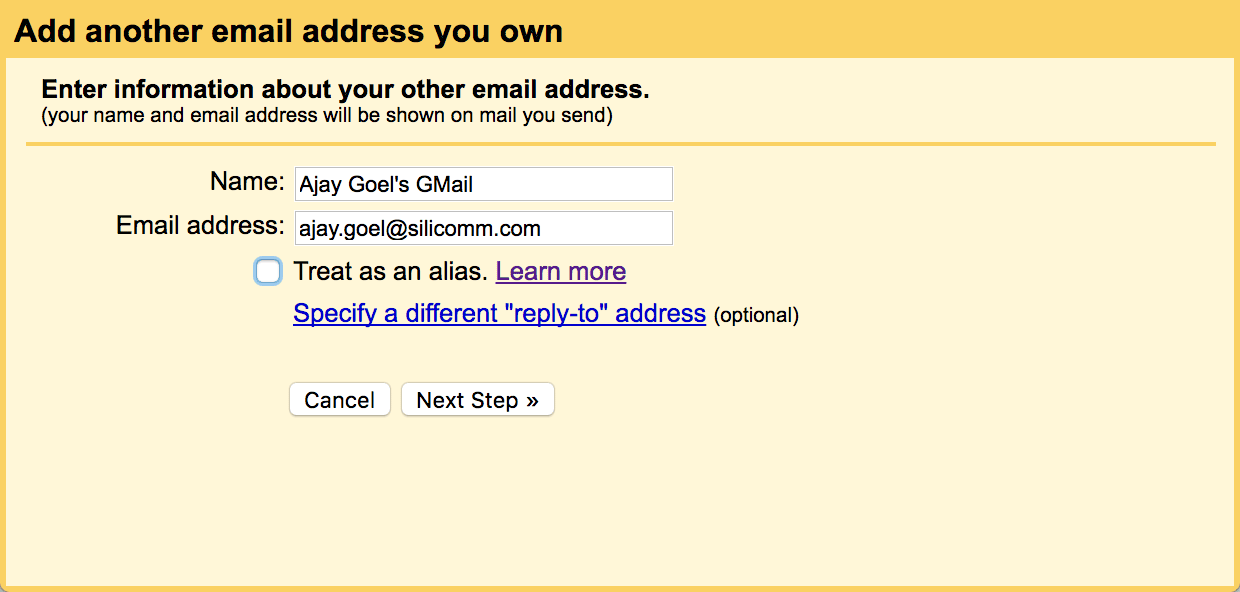
For example, one of my email addresses is ajay.goel@silicomm.com. I operate my own mail server for silicomm.com. Meaning, silicomm.com is NOT on G Suite, so ajay.goel@silicomm.com is NOT a Google account. However, I can still send a mail merge in Gmail from ajay.goel@silicomm.com.

Here’s how to create a mail merge from a non-Gmail address:

  1. Create a new Gmail account. For example, let’s say I create ajay.goel@gmail.com.
  2. Next, I set up ajay.goel@silicomm.com as an alias address in my new ajay.goel@gmail.com
    account.
    Here is the documentation from Google that explains how to do this: https://support.google.com/mail/answer/22370?hl=en

  3. Then, install the GMass Chrome extension from the GMass homepage.
  4. Then log in to the ajay.goel@gmail.com account and click any of the GMass buttons to link the account to GMass.
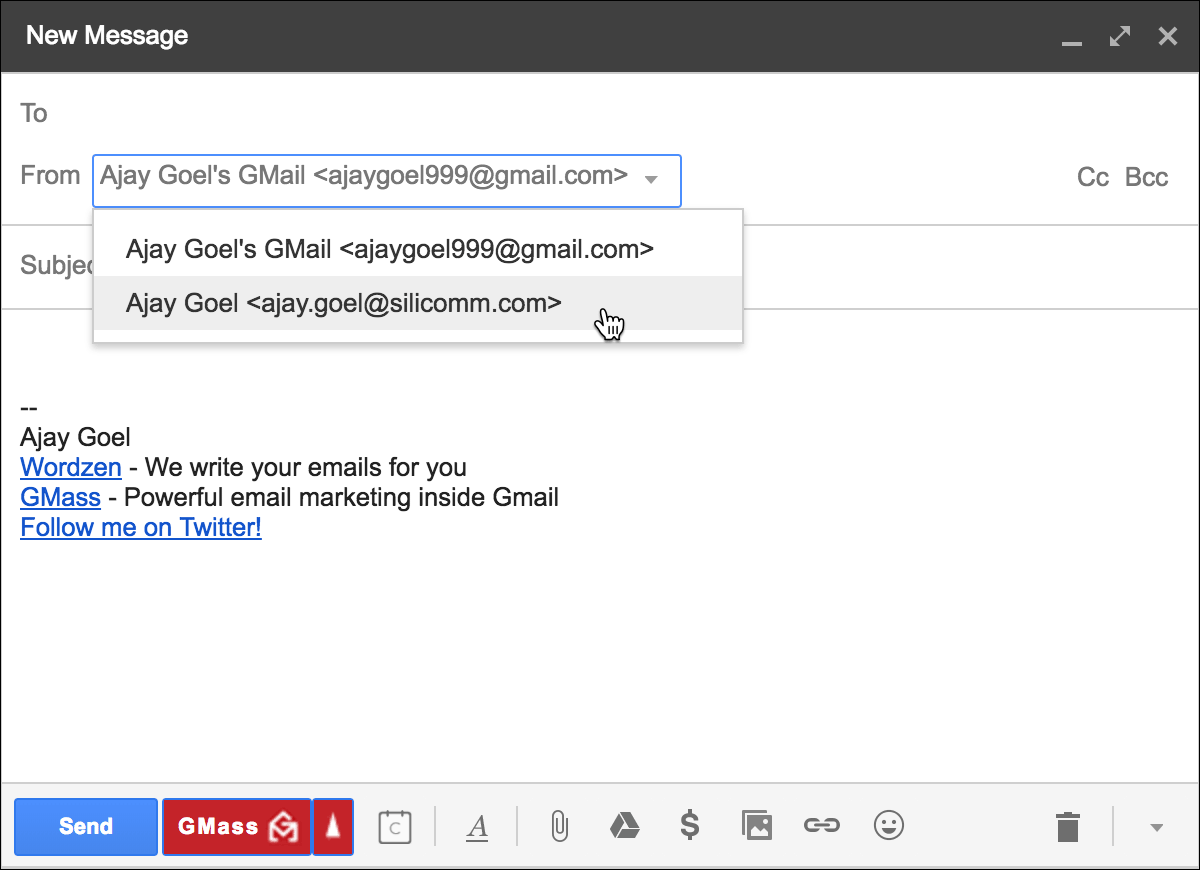
  5. Launch a Compose window, put in your addresses in the To field, set the Subject and the Message. Now be sure to change the From Address to the alias you set up in Gmail. In this example, set the From Address to ajay.goel@silicomm.com.
  6. Once your campaign looks how you like, just hit the GMass button. (You may need to subscribe if you’re sending to more than 50 recipients.)
Ready to transform Gmail into an email marketing/cold email/mail merge tool?


Only GMass packs every email app into one tool — and brings it all into Gmail for you. Better emails. Tons of power. Easy to use.


TRY GMASS FOR FREE

Download Chrome extension - 30 second install!
No credit card required

Love what you're reading? Get the latest email strategy and tips & stay in touch.


GMass runs entirely on Amazon Web Services (AWS), and it runs mostly on the Microsoft platform of web and database technologies, including using Microsoft SQL Server to store all user data. That means that all of your email lists, tracking data, campaign logs, and other data associated with your account is housed in a giant SQL Server database. Currently, that database is about 350 GB in size.

Also, GMass stores account data for life. Many systems purge data after a year or two in order to optimize storage efficiency, but thus far in our two year history, we haven’t had to do that. Think of your bank account or credit card account online — you can search transactions going back a year or two, but usually not much more than that. With GMass, your data is stored and retrievable forever as long as you have access to the Gmail account that you’re using to send mail merges with GMass.

Always looking to minimize our business expenses, I pay close attention to our monthly AWS bill, and to my dismay, it recently topped $3,000 for January. The largest portion of that is for our SQL Server instance and its associated storage, which consists of several EBS volumes.

Historically, we’ve backed up the SQL Server database files to a General Purpose SSD, but upon reading about the Cold HDD volume, and seeing that the cost per GB-month of a Cold HDD is 25% of the cost of a General Purpose SSD, I was curious to test Cold HDD’s as the backup drive for our SQL Server files.

Cost-wise, General Purpose SSD drives are $0.10 per GB-month and Cold HDD drives are $0.025 per GB-month. Meaning, if you have a 500 GB drive, a General Purpose SSD will cost $50/month while the Cold HDD drive will cost $12.50/month.

I wanted to make sure the cost savings wasn’t at the “expense” of performance. Meaning, if it took 30 minutes to backup a database file on the General Purpose SSD but 4 hours on a Cold HDD, the additional time wouldn’t be worth the cost-savings, because backing up a database is an I/O intensive process that affects performance of the overall GMass system. In fact, if you ever notice that your mail merge campaign “timed out” due to a database error, it was likely because it was during a database backup operation.

So, here are the results! I tested using a differential backup, at a point in time when our differential backup was about 30 GB in size. Drumroll please…

Time to back up 30 GB of data on a Cold HDD: 16 minutes, 45 seconds

Time to back up 30 GB of data on a General Purpose SSD: 13 minutes, 46 seconds

So there you have it. I’m happy to save 75% on my backup drive costs in exchange for about 25% longer backup times. Maybe now I can get that monthly bill back below $3,000!

You don’t need to worry about your campaigns timing out more because of this though. We recently changed our backup plan so that the overall time spent backing up database files is only 10% of what it used to be, so you should see “timeout” errors greatly reduced.

If you’re interested in learning more about exactly what data is stored on our servers, see the GMass Privacy Policy.

Ready to transform Gmail into an email marketing/cold email/mail merge tool?


Only GMass packs every email app into one tool — and brings it all into Gmail for you. Better emails. Tons of power. Easy to use.


TRY GMASS FOR FREE

Download Chrome extension - 30 second install!
No credit card required
Love what you're reading? Get the latest email strategy and tips & stay in touch.


You’re here because your emails are either going to the Spam folder or are being outright rejected with bounce messages indicating there’s a block in place.

Is it the fault of GMass?

It might be. It’s actually happened before, although it’s rare.

If you’re sending non-commercial email (club announcements, news to friends, etc.) and you’re used to always having your emails land in the Inbox, and suddenly they’re getting rejected or landing in Spam, then GMass could be the cause.

If you’re sending commercial email, like email marketing campaigns or cold email campaigns, and you’re seeing a change in deliverability, it might be that recipients aren’t engaging with your emails like they used to.

Read on to determine if GMass is the cause of the issue.

The one change GMass makes

There’s only one difference between sending an email with GMass versus the regular blue Gmail Send button, and it involves a “tracking domain” that GMass inserts into your email if you are using any of these three features:

  1. Open tracking
  2. Click tracking
  3. The unsubscribe link

If you turn all of these features OFF, then the fact you’re using GMass becomes completely invisible, and this will eliminate the possibility of GMass being the cause of a spam issue.

So one quick test you can run right now is sending the same email with GMass but turning all of these settings off (see below for how to do that).

In this guide, we will isolate the changes that GMass makes to determine whether GMass is causing the issue, or whether the issue would be present even if you didn’t use GMass.

Here is a step-by-step guide to determining if GMass is the cause of the spam issue and how to solve it. This is the same set of steps our support team uses when helping a user through this issue, and with this guide, you should be able to self-diagnose the issue and fix it yourself.

Step 1: Use the Gmail Send button to send the same email

Compose your email to the problematic email address, remove the unsubscribe link (if you included one) and send the exact same email with the Gmail Send button, instead of the GMass button.

Send with the regular Gmail “Send” button instead of the GMass button.

When you send with the Gmail Send button, the email won’t contain the GMass-inserted tracking domain. It’s the equivalent of sending with GMass with open tracking, click tracking, and the unsubscribe link all turned off.

Did your email get delivered?

If so, now send it with the GMass button one more time to confirm that it’s GMass that’s causing the spam issue.

If you’ve determined that it’s GMass causing the issue, now move onto Step 2.

If your email still didn’t get delivered after using the Gmail Send button, then there’s something about the content of your email or source of your email (if you’re using an external SMTP service) that’s causing the issue, and the issue is unrelated to GMass.

Step 2: Send with GMass again, but remove traces of GMass

When you send with the GMass button, GMass makes several changes to your email, depending on your Settings.

Track Opens: GMass adds an open-tracking pixel to the bottom of your email.

Track Clicks: GMass modifies your links to hit the GMass server first before redirecting to your final destination URL.

Unsubscribe Link: If you include the GMass unsubscribe link, then that link is personalized for each individual recipient.

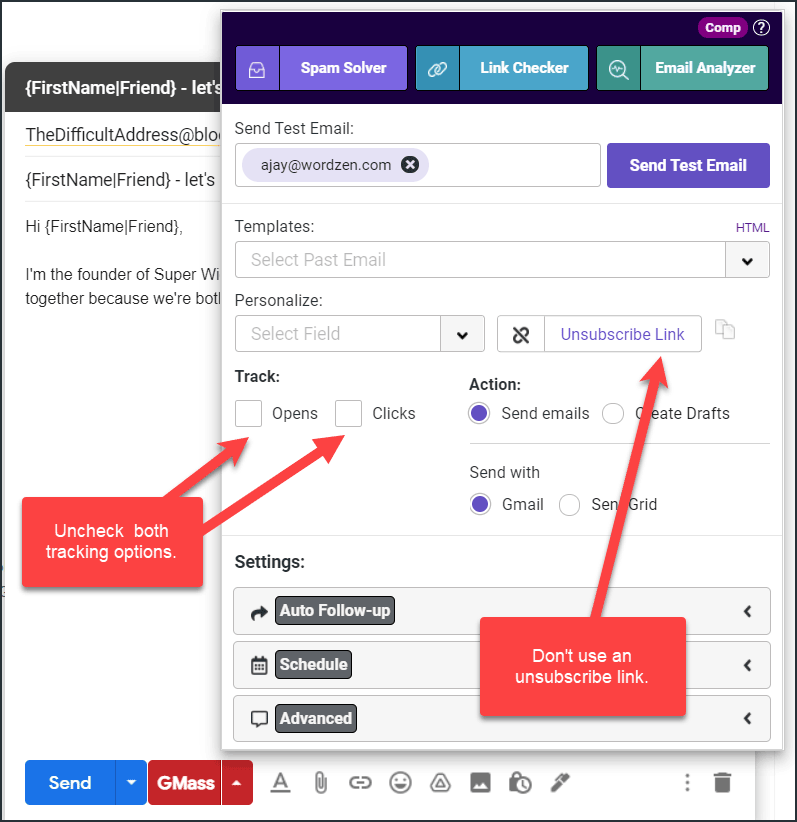
Prevent these changes that GMass makes to your email by turning OFF open tracking, turning OFF click tracking, and removing the unsubscribe link.

Prevent the changes that GMass makes by turning off open and click tracking and not including the GMass-generated unsubscribe link.

Now, send your email with the GMass button again. Now an email receiver won’t be able to distinguish between sending with the Gmail Send button versus the GMass button.

Did your email get delivered?

If so, you know it’s an issue with GMass tracking. You should set up a dedicated tracking domain, which will almost certainly fix the issue, or if you like, you can keep open/click tracking turned OFF, and skip the unsubscribe link. If you’re going to remove the unsubscribe link, your emails should be of a non-commercial nature.

If your email still didn’t get delivered, then something is very strange, because now the GMass button is acting equivalently to the Gmail Send button, and we already know that the Gmail Send button is successfully delivering your email, otherwise you wouldn’t be here at Step 2. Proceed to Step 3.

Step 3: Looking at IP address and other issues

If your email still isn’t delivering, we now know that GMass isn’t causing your deliverability issue.

The cause could be one of the following:

  • Are you using GMass with an external SMTP service? If so, the delivery issue could be because of the IP address of the SMTP server.
  • Send your email to a Gmail or a G Suite address. If it’s going to the Spam folder, open that email up from the Spam folder and examine the reason that Gmail gives for the spam issue. Sometimes Gmail will tell you outright that it’s the from address or the DKIM-signing-domain that is the reason for the block.
  • If you’re using GMass and sending via Gmail and not an external SMTP service, the receiver could be detecting that the Gmail API is being used rather than native Gmail. GMass makes use of the Gmail API for most of its functionality. This would be an extremely rare scenario, but there is a header that gets inserted into an email sent by GMass, versus the native Gmail Send button, that reveals that the Gmail API is being used.

If it’s not GMass’s fault…

If you’ve performed the steps above and determined that GMass is not the cause of the issue, then the final step is to use our deliverability tools to isolate and fix your issue.

If the issue isn’t GMass’s fault, then our support team is limited in the help it can provide you. Our support team can run the spam solver on your behalf to help you determine the cause of the issue, but then it may be your responsibility to “cure” the cause. That may involve sending “from” a different domain, or if you’re using an third party SMTP service, talking to them about their IP reputation.

Often times solving a spam/blocking issue requires a lot of trial and error on your message, playing with the subject, message, and tracking parameters, until your email finally delivers. Sometimes a single word in the subject line can make the difference between the Inbox, the Promotions folder, or the Spam folder.

Finally, if you’re truly sending unsolicited email that most people won’t want anyway, there’s probably not much anyone can do to help you. Emails should either be purely opt-in, or relevant enough to the recipient that they’ll be delighted to get your email.

So should you turn off tracking and remove the unsubscribe link?

The ultimate test of deliverability is to turn off open and click tracking and exclude your unsubscribe link, because then there’s no trace of GMass anywhere in your email. If 100% deliverability is the goal, and getting stats on opens and clicks aren’t important to you, then go ahead and take this approach. Typically this is the approach used by non-commercial emailers, where the most important factor is ensuring everyone on the list gets the email.

For most commercial emailers, stats are important, so leaving open and click tracking on, and providing an unsubscribe link, are important. In these cases, the best practice is to set up a dedicated tracking domain to isolate your reputation from all our other users.

Some spam filters are especially aggressive, such that even if you have a dedicated tracking domain, and even if your emails are purely opt-in and wanted by all of your recipients, your emails can get blocked. For example, Mimecast is a particularly aggressive spam filter that could block your email just for including any tracking in it. We’ve also noticed that optonline.net addresses are particularly aggressive in blocking emails with open and click tracking.

Should you try a competitor of GMass?

You might be wondering:

“Should I use a competitor of GMass, and will that solve the issue?”

Any competitor of GMass that sends emails directly through your Gmail account, will be equivalent to GMass with the only differentiating factor being the the tracking domain.

If you’re using GMass and are on a shared tracking domain, and that tracking domain gets flagged, you’ll have a deliverability issue. Similarly, if the competitor uses a shared tracking domain amongst its users and that shared tracking domain is flagged, then you’ll notice a deliverability issue.

If you use the competitor but turn all tracking off, then the deliverability will be the equivalent of using GMass with all tracking turned off.

Similarly, if you set up a custom tracking domain with GMass, and you set up a different custom tracking domain with a competitor, then as long as there’s no reputation difference between the two custom tracking domains, the deliverability will be equivalent.

See why 99% of users say they’ve had their best deliverability ever with GMass


Email marketing, cold email, and mail merge all in one tool — that works inside Gmail


TRY GMASS FOR FREE

Download Chrome extension - 30 second install!
No credit card required
Love what you're reading? Get the latest email strategy and tips & stay in touch.


We just added a feature that allows you to pause and resume your Gmail mail merge campaign at will. When a campaign has been scheduled or is in the middle of sending, just find the campaign’s Draft in the GMass Scheduled Label, open up the Draft, and click the Pause button.

Find your campaign’s Draft in the “GMass Scheduled” Label, open it, and click the Pause button.

If the campaign is in process of sending, sending will attempt to cease, and you’ll get an email notification when sending has paused. The campaign may send up to 50 more emails before it pauses sending.

If the campaign is not in the process of sending, but is scheduled to be sent in the future, then the campaign will not send at the scheduled time, but will instead “sleep” until it is “resumed” and after the scheduled time has passed.

Note that if you pause a campaign after some emails have already been sent, and you have auto follow-ups set for the campaign, those auto follow-ups will still send to the people that have already received the original email, unless you cancel the auto follow-up emails separately.

Pause vs Cancel

If you are certain that you are never going to want to resume the campaign, you can also cancel the campaign, which has a similar effect of pausing the campaign, with the exception that once a campaign is cancelled, it cannot be un-cancelled. If you change your mind after cancelling, you would have to re-creating the mail merge campaign from scratch.

Resume the campaign

After a campaign is paused, you can click the RESUME button to resume sending it on the schedule you’ve set. Clicking the RESUME button also has the effect of saving any edits you’ve made in the Settings box. When you click PAUSE, however, any edits you’ve made to the Settings box are NOT saved.

Email marketing, cold email, and mail merge inside Gmail


Send incredible emails & automations and avoid the spam folder — all in one powerful but easy-to-learn tool


TRY GMASS FOR FREE

Download Chrome extension - 30 second install!
No credit card required
Love what you're reading? Get the latest email strategy and tips & stay in touch.


Update: Unfortunately, GMass no longer accepts Bitcoin. This may return at some point, but for now our only payment options are credit card and PayPal.

In 2017, GMass became one of the first email marketing service providers, and one of the first SaaS companies in existence to accept Bitcoin. There are several reasons we decided to accept Bitcoin, in addition to credit cards and PayPal, as a payment method:

  • We believe in the concept behind Bitcoin and want to support the Bitcoin movement.
  • Users in certain countries have lamented that neither credit cards nor PayPal were available to them to pay for software services.
  • The transaction fees for accepting Bitcoin are far less than the transaction fees for accepting credit cards and PayPal payments, allowing us to keep a greater portion of the customer payment.
GMass-Bitcoin
Subscribe to GMass with Bitcoin. Click SUBSCRIBE, and then choose the Bitcoin tab.

However, eventually we had to stop accepting Bitcoin payments.

Because Bitcoin can’t be setup as a recurring monthly payment, Bitcoin-based subscriptions to GMass had a finite life. For example, if you subscribe to a monthly plan, your subscription will end in ONE MONTH. If you subscribe to an annual plan, your subscription will end in ONE YEAR. You can extend your subscription by paying more Bitcoin, but because Bitcoin can’t be setup as a recurring charge, we recommend that you subscribe to an annual plan if paying with Bitcoin. This led to lots of customers losing access to GMass without realizing it because their subscriptions had ended.

In addition, our payment processing company Stripe stopped accepting Bitcoin so we were no longer able to receive it.

Frequently Asked Questions

Q: If I paid with Bitcoin, can I remain anonymous?

A: The nature of Bitcoin will allow you to remain anonymous, however, we do monitor GMass subscribers for evidence of facilitating crimes via email, and we do terminate accounts used for such purposes.

Q: What exchange rate would I get if I pay with Bitcoin?

A: The BTC to USD exchange rate will be based on the prevailing price of Bitcoin at the time you subscribed.

Q: How could I access my Bitcoin wallet to make payment to GMass when that was offered?

A: When you choose to pay with Bitcoin, GMass would display the Bitcoin wallet address to send the Bitcoin to. From here, you could open a new browser tab to access your Bitcoin wallet to then send the Bitcoin to the wallet address. For example, if you use Coinbase to store your Bitcoin, you would log in to Coinbase, and use the “Send” option to send Bitcoin to the provided address. After your payment is verified on the blockchain, which should only take a few seconds, the GMass Pricing page displaying the wallet address will update and show that you have successfully completed payment and are now subscribed.

Q: When I clicked the “Open Wallet” link shown in the screenshot above, the screen just hangs. What’s wrong?

A: The “Open Wallet” link will only work if you have a Bitcoin wallet stored with Stripe, our credit card and Bitcoin merchant processor. Most Bitcoin holders have their Bitcoin stored with an online exchange like Coinbase or Gemini, so you’ll likely need to log in wherever your Bitcoin is stored to make your Bitcoin payment to GMass.

Ready to transform Gmail into an email marketing/cold email/mail merge tool?


Only GMass packs every email app into one tool — and brings it all into Gmail for you. Better emails. Tons of power. Easy to use.


TRY GMASS FOR FREE

Download Chrome extension - 30 second install!
No credit card required
Love what you're reading? Get the latest email strategy and tips & stay in touch.


Email marketing has an amazing return on investment.

The latest data shows that every dollar spent on email marketing nets $44 back.

But that same data doesn’t translate into cold email outreach.

Sending cold emails is a shot in the dark for most people.

You never know if someone is going to take the bait or simply ignore your messages.

The average person gets over 88 emails every single day.

But they only send 34.

Email marketing constantly bombards us to the point where we tune it out.

Cold outreach campaigns that find great success beyond typical open and click rates are a rare commodity.

A needle in a massive haystack.

But that doesn’t mean you should give up all hope.

Here are three clever ways to drastically increase your cold email outreach ROI.

1. Build brand awareness first on LinkedIn

Cold email outreach has one simple flaw:

It’s too cold. It’s ice cold in fact.

Getting an email from a company or person you’ve never heard of isn’t going to compel you to click.

But when you’ve heard of a brand, you’re much more likely to open the email, even if you haven’t heard of or met the individual before.

For example, if you got an email from Joe@randomcompany.com, would you open that over Joe@hubspot.com?

Probably not.

The simple hint of brand awareness gives you an edge over other cold emails that are likely flooding your target’s inbox.

So, doesn’t that mean it’s not cold outreach anymore?

Absolutely not. It only aids in your cold outreach efforts.

Here’s why:

You’ve never contacted them before. They have no clue who you are.

Meaning it’s still cold outreach at its core.

Cold emails are usually defined as emails sent to a potential customer with whom you’ve had no prior contact or relationship with.

Simply building passive brand awareness on LinkedIn doesn’t mean they will know who you are.

The goal is to get your content in front of them over and over to generate brand awareness and most of all:

Brand recognition that will play a role in your cold outreach efforts.

So when you do go to perform cold outreach, they have a higher chance of recalling your brand’s content, producing higher open rates.

Thankfully, you can perform this directly on LinkedIn due to their audience match advertising features.

First, you will want to research targets and genuinely engage with their content.

A great way to start is by scouting your cold outreach targets on LinkedIn.

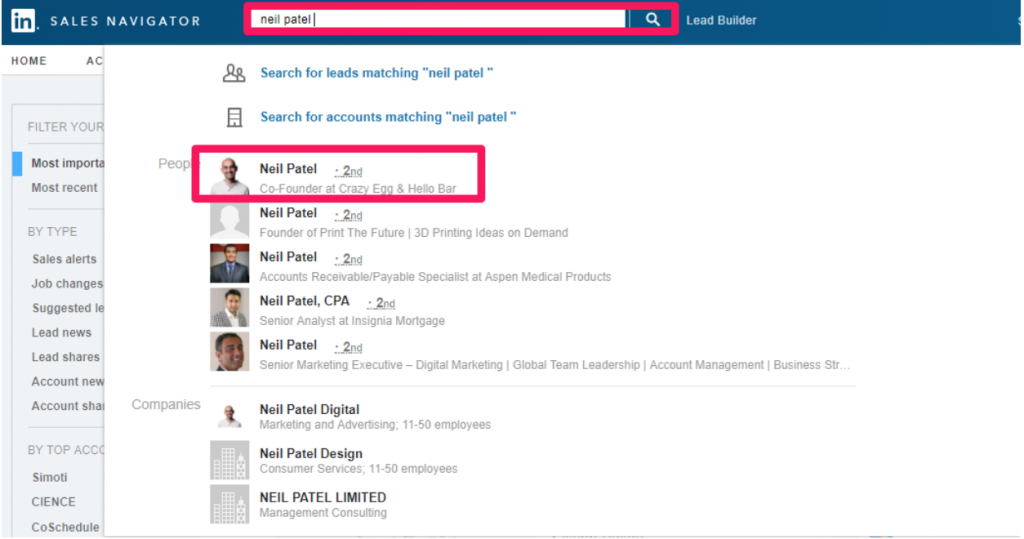
Head to LinkedIn and locate their profiles in the search bar:

Navigate to their account to see what type of content they are posting.

This will give you some ideas as to what content will resonate with them when it comes time to create ads.

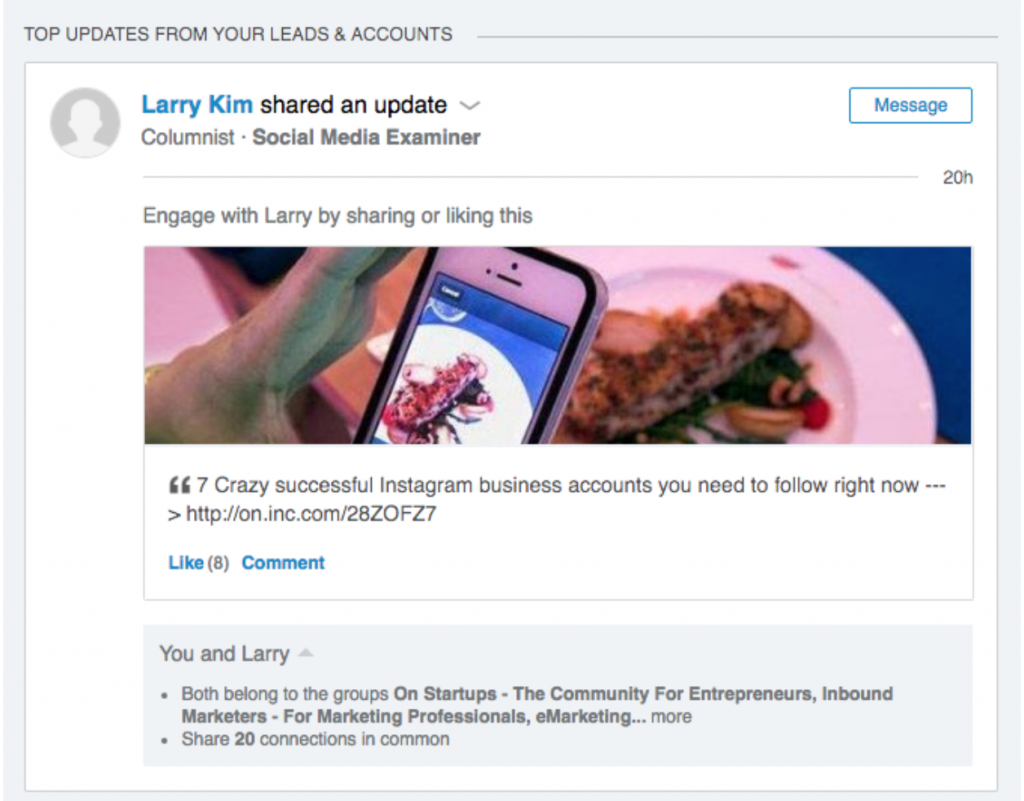
From here you can add these accounts directly into your LinkedIn Sales Navigator.

This will allow you to receive constant updates on their LinkedIn behavior. Everything from new posts and articles to status updates:

Start interacting with their content using your personal page.

Like their posts and provide insightful comments.

The goal here is to generate a hint of brand awareness and recognition upfront.

Once you’ve done this, you can even run specific content-based ads to your outreach list.

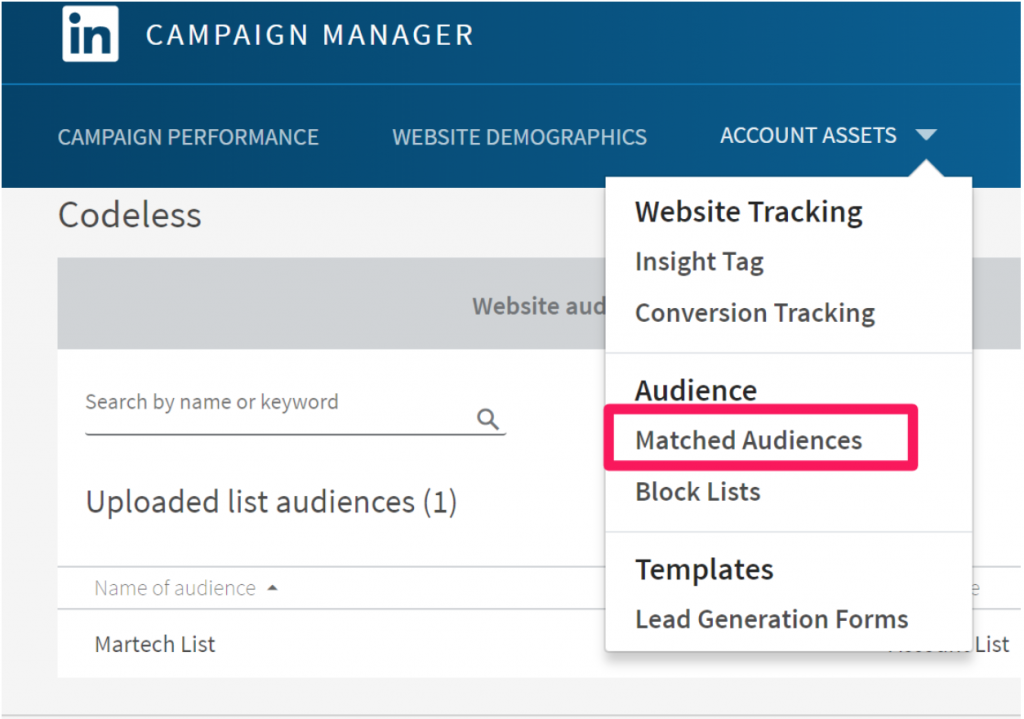
Head to the LinkedIn Ads Manager and navigate to the matched audiences section:

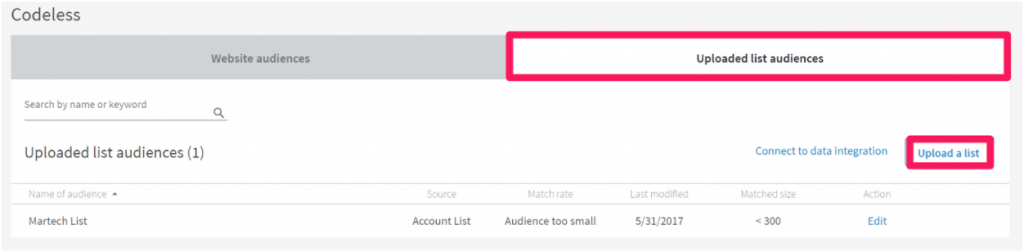
From here, select the upload list audiences option:

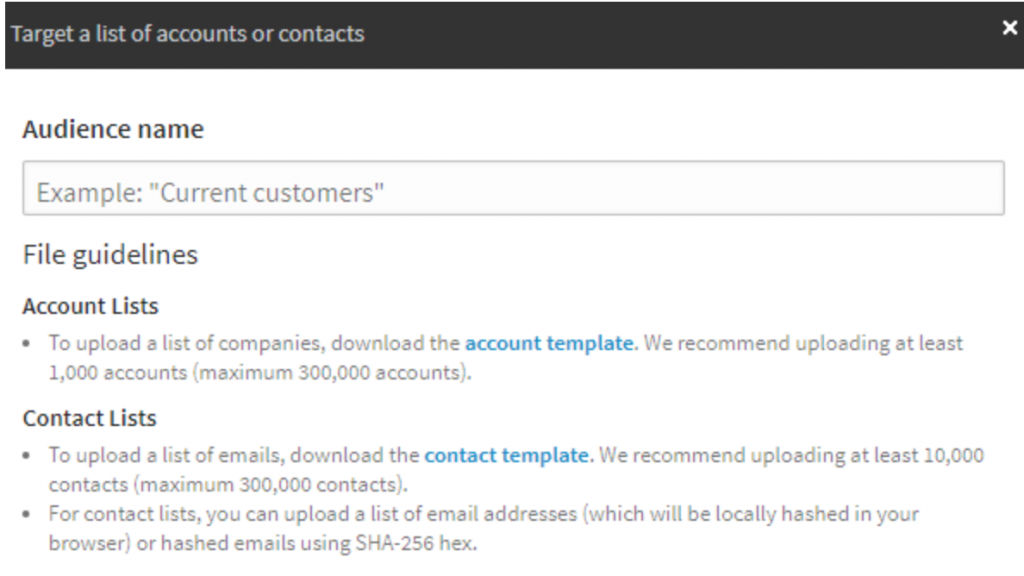
With this feature, you can directly import your email outreach list into LinkedIn.

LinkedIn will then match those emails to existing accounts for you to target ads to.

With the contact list feature, you can upload up to 300,000 contacts in a single document.

Save this audience and wait for the list to process.

Once it does, you can create a new ad campaign that shares relevant content from your company page.

Using this tactic, you’ll effectively accomplish two things:

  1. Showing true engagement with their organic content.
  2. Building passive brand awareness and recognition beforehand using ads.

Put these into practice today to drastically boost your cold email outreach success.

2. Make sure interested cold outreach targets convert

One of the biggest and most common mistakes in cold outreach is a lack of direction.

The lack of a funnel or buying journey that communicates to a target what the end goal is.

If it’s relationship building, that’s a different story.

But if you want to land these targets as a client, simply emailing them back and forth won’t cut it.

Being specific is critical to cold outreach success.

It’s the reason that calls to action exist:

You need to tell consumers what to do.

If you don’t tell them to click and download, they probably won’t.

At the bare minimum, it serves as a much-needed reinforcement.

Cold outreach is just a single touchpoint in the conversion process.

One of the best ways to increase your sales from cold outreach and produce a better ROI is by bringing those cold targets to your site with remarketing ads.

If you have cold outreach targets opening your emails but not converting, you can’t sit back and send them another drip campaign.

It didn’t work the first time, and it probably won’t the second time.

Instead, focus on remarketing to those engaged users who hit your landing pages to educate them on your value.  

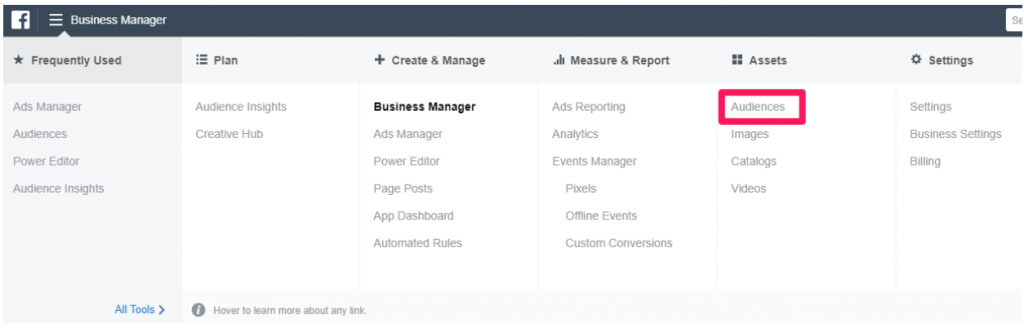
To get started, open up the Facebook Business Manager and click to the audience manager:

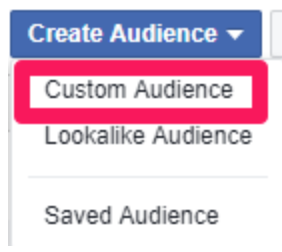
From here, create a new custom audience:

Select the website traffic option as your remarketing type:

This will allow you to bring back users who clicked through your email to your site.

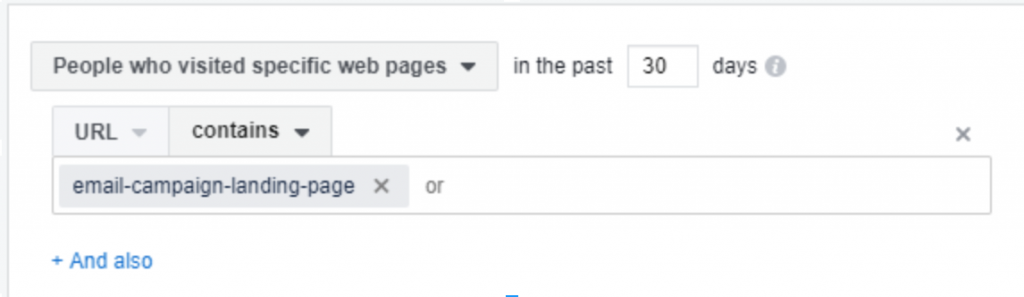
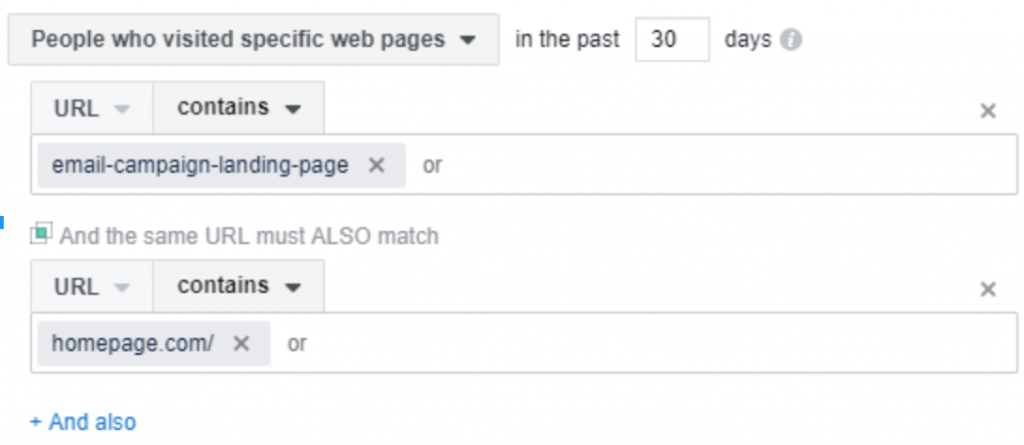
If you want to set up a basic remarketing audience, you can target everyone who landed on your landing page from the cold outreach campaign:

This will be a broader list of people who were vaguely interested in your email content.

To get more specific, you can even create audiences that are narrowed down by multiple page visits.

To do this, select “+ And also” to add another URL. For this URL, simply add your homepage.

This will target visitors who didn’t bounce from your site after a single page visit.

Meaning they were likely more interested than the initial group who simply clicked through.

You can get even more specific by narrowing the audience down via frequency.

Meaning that Facebook will add users who visited the landing page two or more times to your remarketing list.

Save this remarketing list when you’re finished tweaking the specifics.

Now it’s time to create an ad.

Since these targets are still pretty cold with only a single page visit, they aren’t going to be converting on offers.

Don’t waste time or money on ads focused on driving sales.

Focus on driving signups to a valuable offer like a webinar or an eBook.

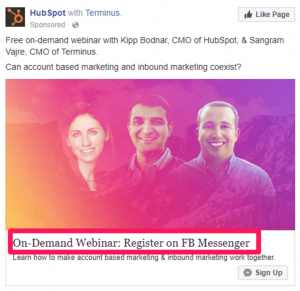
One of the best remarketing ads I’ve seen on my own Facebook was from HubSpot, who remarketed me to a webinar related to page visits on their site just a few days before:

I was still a cold target who wasn’t sure what HubSpot could offer in terms of account-based marketing.

Using a webinar-style remarketing ad, they were able to get me to come back to learn more information rather than simply convert on an expensive sale.

Focus here on educating the cold lead and slowly turning them into a prospect.

This will surely boost the ROI of your cold outreach efforts by speeding up the process of becoming a qualified lead.

3. Tie it to direct mail efforts

When you have warm leads on your email list, sending any old email will drive traffic or sales.

But cold outreach is different.

Cold outreach needs to stand out.

And not just with funny subject lines with emojis or humorous gifs in your body content.

I’m talking about something that really makes an impact in the minds of your outreach targets.

Something memorable that they surely won’t forget:

Direct mail content.

It sounds crazy on the surface, but direct mail produces higher open rates than emails.

In fact, open rates are double with direct mail.

The average ROI with direct mail is high, too:

Between 15% and 17% on average.

Most people think that direct mail is dead, but the data says otherwise.

While it’s definitely an old-school tactic, that’s what gives it such great appeal when you tie it to cold outreach.

It allows you to stand out in unexpected ways. To disrupt a saturated email market by including other elements that are sure to grab attention.

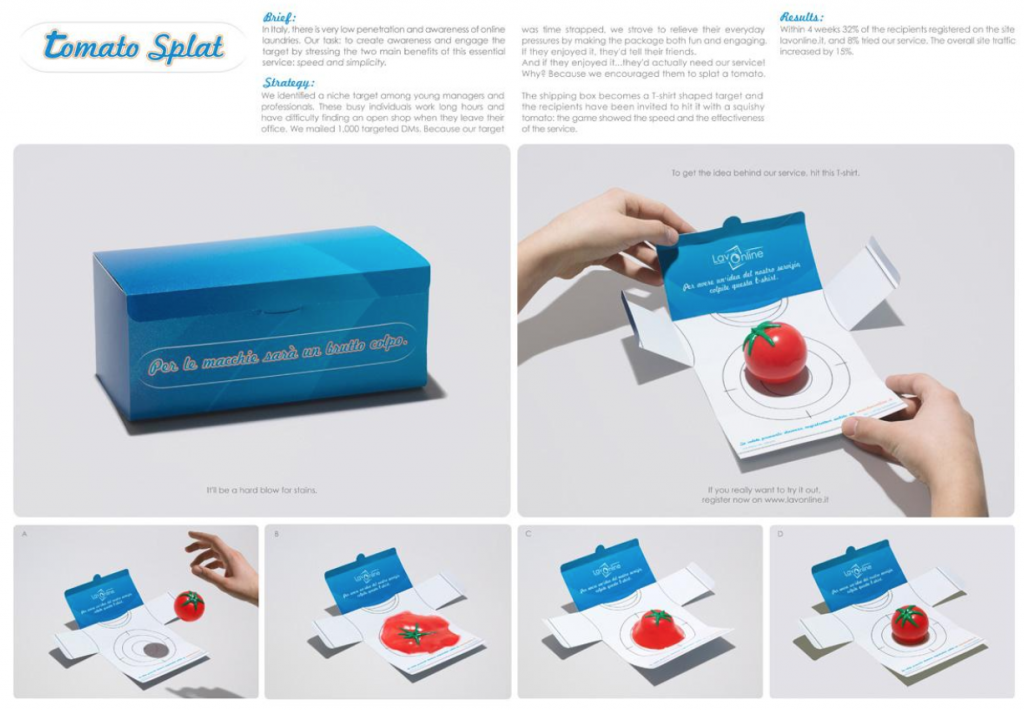
As an example, LavOnline launched a direct mail campaign to cold outreach targets in Italy who were unaware of online laundry services.

The goal was to generate buzz and stand out to consumers who weren’t brand aware yet.

Within just the first four weeks, 32% of recipients created accounts on their site. 8% converted to full-scale sales within the first month.

Plus, their site traffic increased by 15%.

Direct mail isn’t dead, and many companies are finding success with it.

Getting started with direct mail isn’t tough, either.

In fact, getting the address of your targets is relatively easy.

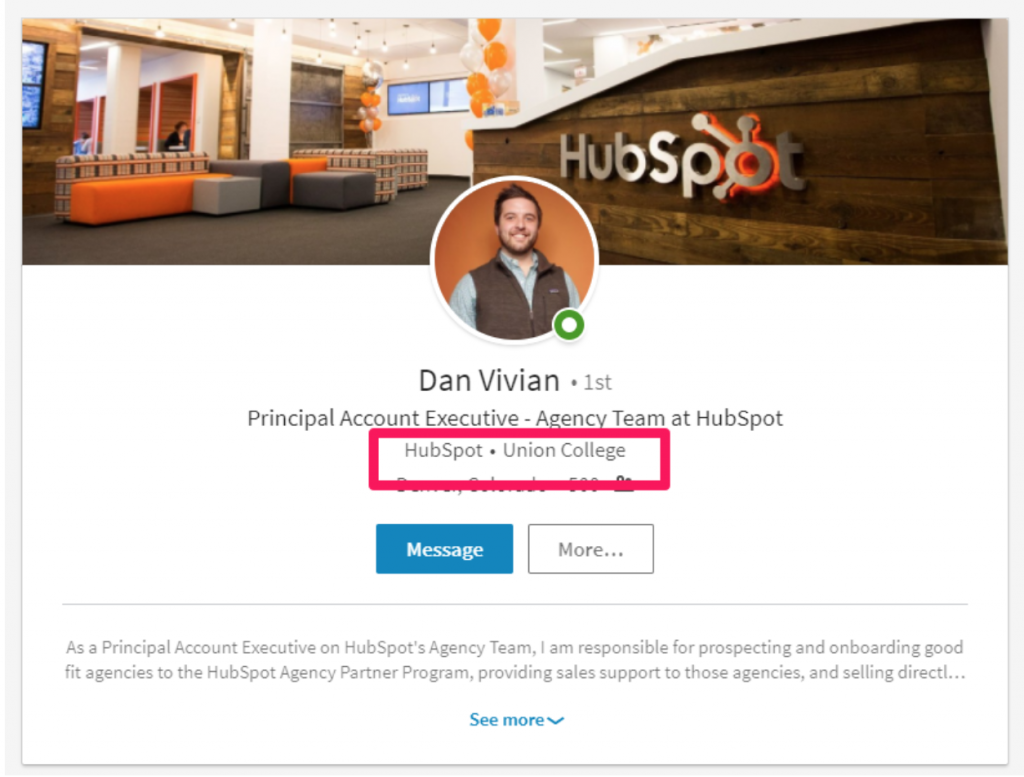
You can locate most addresses of cold targets directly on LinkedIn.

To get started, head to LinkedIn and type in your cold outreach target’s name to locate their profile:

Look at the company they work for and then simply head to that company page.

Locate their company address, and you have yourself a mailbox to target:

The key here is to simply address the mail to your contact target with the company address.

This way, you avoid the creepiness associated with sending direct mail to personal addresses.

A great way to structure cold email outreach with direct mail is to open your conversation with direct mail.

Wait for them to receive the piece and then launch your cold outreach email, being sure to touch on it in your email. This way your email is more relevant and less likely to end up in spam.

I’ve crafted a specific email template to complement this strategy and ensure high open rates for your direct mail and email tactics:

Subject: Did you receive your package?

Body:

Hey [first name]!

Just wanted to check in and see if you received the package I sent you?

I’m [your name], and I [work for company].

I know that [pain point] is tough. Especially in the [their industry] industry.

Our direct mail piece shows you [explain the purpose of direct mail piece].

We’d love to get your thoughts on the piece!

Do you have time for a call sometime this week?

Looking forward to getting to know each other and seeing how to help [solve pain point].

Cheers,

[your name]

Don’t sit back and wait for your cold outreach ROI to increase.

Take charge of your strategy and go old school with direct mail.

It allows you to be creative and showcase that your brand means business.

Combine those efforts with your cold outreach as a perfect conversation starter.

Final thoughts…

Generally speaking, email marketing is effective.

It generates 44 bucks for every dollar spent.

That’s a big return on investment.

But those same numbers don’t apply to cold outreach.

When people know you and your brand, you have a high chance of converting them with an email.

But when it’s cold outreach, you don’t.

Sitting back and allowing cold emails to go unopened isn’t an option.

And little tweaks in the subject line or tips on using specific language won’t drastically improve your ROI.

You need game-changing elements to disrupt the current cold outreach norm.

Try implementing brand awareness ads and tactics on LinkedIn for your top outreach targets.

This will help you produce great brand recognition when it comes time to email them.

Connect your cold outreach efforts to Facebook remarketing to educate targets and push them down your funnel faster.

Lastly, make a huge impact and create a lasting impression by going old school with direct mail.

Boosting your cold email outreach ROI isn’t easy, but it’s necessary for serious growth.

Ready to send better emails and save a ton of time?


GMass is the only tool for marketing emails, cold emails, and mail merge — all inside Gmail. Tons of power but easy to learn and use.


TRY GMASS FOR FREE

Download Chrome extension - 30 second install!
No credit card required
Love what you're reading? Get the latest email strategy and tips & stay in touch.


This is the FAQ for the SMTP Test Tool.

Q: What’s going on here?

A: This is a web-based SMTP test tool. If you’re familiar with SMTP servers and how they work, you know that you can manually telnet into the SMTP server and issue commands like HELO and MAIL-FROM and RCPT-TO to send a test email or just see how the SMTP server responds to commands. This web-based tool makes it so you can run diagnostic sessions on SMTP servers over the web, rather than having to use telnet and issue manual commands, which can be cumbersome.

Q: Why would I need to use this?

A: If you’re having difficulty getting emails delivered by your SMTP server, it might not be readily apparent what the issue is, and you might find yourself writing test code to figure it out. With this tool, you can easily see what’s going wrong with an SMTP server. Perhaps your login credentials are failing. Perhaps the SMTP server has run out of disk space. Perhaps the SMTP account is throttling you because of pre-established sending limits. By looking at the exact SMTP server responses, you can easily troubleshoot an issue.

Q: How is this SMTP Test Tool related to GMass? If I’m a GMass user, do I need to test my SMTP server here?

A: This SMTP Test Tool was created by GMass, and can be used by GMass users, but it’s really for everyone, including non-GMass users. If you’re a GMass user and you’re using the unlimited email sending option by connecting your account to an SMTP server, and you’ve having difficulty connecting your SMTP account, this tool will help you troubleshoot. Even if you’re not a GMass user but are using an SMTP server and having difficulty, this tool will help you troubleshoot.

Q: I’ve found other SMTP testing tools on the web. What makes this one so special?

A: I believe I’ve created the world’s best web-based SMTP testing tool, because with my tool, you can:

  • Authenticate by IP or Username/Password.
  • Specify a port other than 25.
  • Choose from multiple security options, including SSL, TLS, and STARTTLS.
  • See the SMTP conversation happen live before your eyes, shown in an easy-to-read color-coded format.
Q: I’m specifying a Username and Password, but I noticed that in the SMTP session, the Username and Password look a lot different from how I’m entering them.

A: That’s because we base-64 encode your Username and Password before passing it into the SMTP server for validation. That’s part of the SMTP standard.

Q: The SMTP server I’m testing  authenticates by IP address instead of Username/Password. How can I run a diagnostics session?

A: Leave the Username/Password fields blank, and set your SMTP server to accept connections from this IP address: 52.35.85.201. That is the IP address used for outbound connections to the SMTP server that you specify.

Q: If I enter my SMTP Username and Password, is it safe?

A: Yes, it’s pretty safe. We don’t store any of the information entered to test an SMTP server. It simply passes through ephemerally to conduct the SMTP connection test, and then the information disappears from our server.

Q: What happens if my test is successful?

A: A successful test will result in a one-line email message being sent from the email address specified to the email address specified. To protect against this tool being used to send spam, the “test message” cannot be modified.

Ready to send better emails and save a ton of time?


GMass is the only tool for marketing emails, cold emails, and mail merge — all inside Gmail. Tons of power but easy to learn and use.


TRY GMASS FOR FREE

Download Chrome extension - 30 second install!
No credit card required
Love what you're reading? Get the latest email strategy and tips & stay in touch.


I just launched the world’s best web-based SMTP test tool.

With my new tool, you can see the exact SMTP conversation between the client and the SMTP server. You can use it to test your SMTP connection to Sendgrid, Mailgun, Amazon SES, or any other SMTP server in the world.

SMTP Test Tool
The world’s best SMTP testing tool

You don’t even have to be a GMass user to use it. This is a general SMTP testing tool that anyone can use for free.

Uses of the SMTP test tool include:

  • GMass users troubleshooting the connection between GMass and your SMTP server
  • Developers troubleshooting code that connects to an SMTP server
  • Consumers troubleshooting the SMTP settings for an email client like Outlook or Thunderbird

Ready to try it? Go to the SMTP Test Tool now.

Have questions? Check out the FAQ for the SMTP Test Tool.

Are you a developer? Then you may want to read my technical review of popular SMTP services.

Email marketing, cold email, and mail merge inside Gmail


Send incredible emails & automations and avoid the spam folder — all in one powerful but easy-to-learn tool


TRY GMASS FOR FREE

Download Chrome extension - 30 second install!
No credit card required
Love what you're reading? Get the latest email strategy and tips & stay in touch.


Thousands and thousands of emails flood our inboxes daily.

Gmail even had to introduce segments into their inbox to clear the clutter from our daily lives.

It’s becoming harder and harder to reach the decision makers that you need to reach.

And following some fancy, new-aged growth hack won’t cut it.

Every day we see a new hack. A new unicorn in the midst.

Most experts will tell you to “personalize” and “add humor.”

But those aren’t tangible tips for getting someone to respond to your email.

Simply adding personalization or being funny isn’t going to land a client when nobody has heard of your business.

The reason so many of those tips work for famous entrepreneurs is simply that they have brand awareness.  

Which you probably don’t have.

Today we’re going to examine the data. Hard facts. Statistically significant numbers.

Real, tangible ways you can implement statistical data to stack the odds in your favor.

Here are five actionable email marketing statistics you should know.

1. The best date and time to send emails

When conducting an email marketing campaign, everything matters.

Everything from your tone of voice to your paragraph structure.

Even the date and time you send your campaigns can have a massive impact on final results.

But remember, this post is all about the data.

It’s all about hard numbers that can help you stack the odds in your favor.

Whimsical marketing-speak and growth hacks likely won’t work and aren’t sustainable.

You need tried-and-true, data-backed ways to bring in more responses.

One of the first places you should always start is the date and time.

It’s a critical factor and one of the easiest to control.

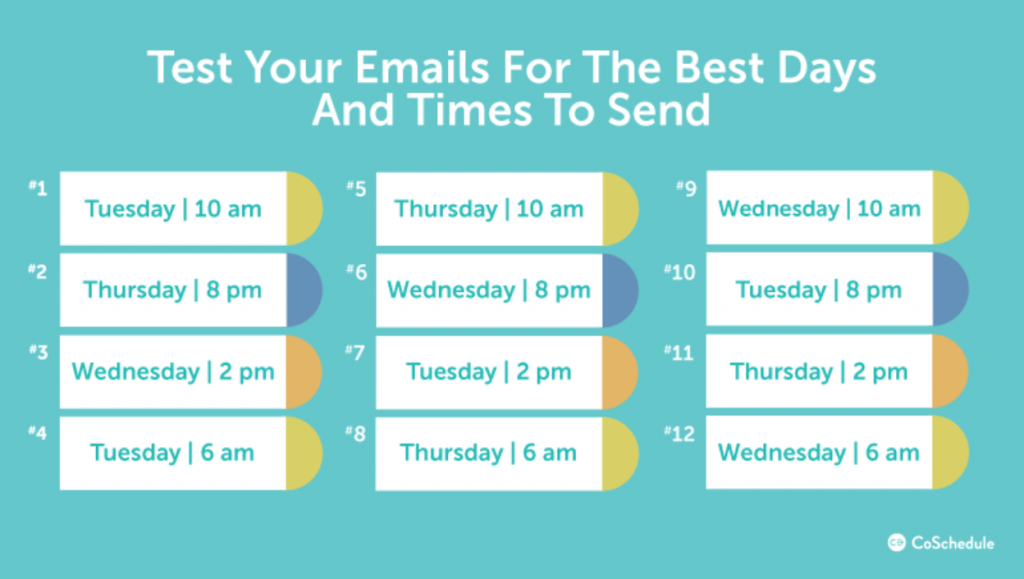
The latest meta-analysis, where CoSchedule analyzed and averaged the data between ten different studies on the best time to send an email, found some extremely useful information.

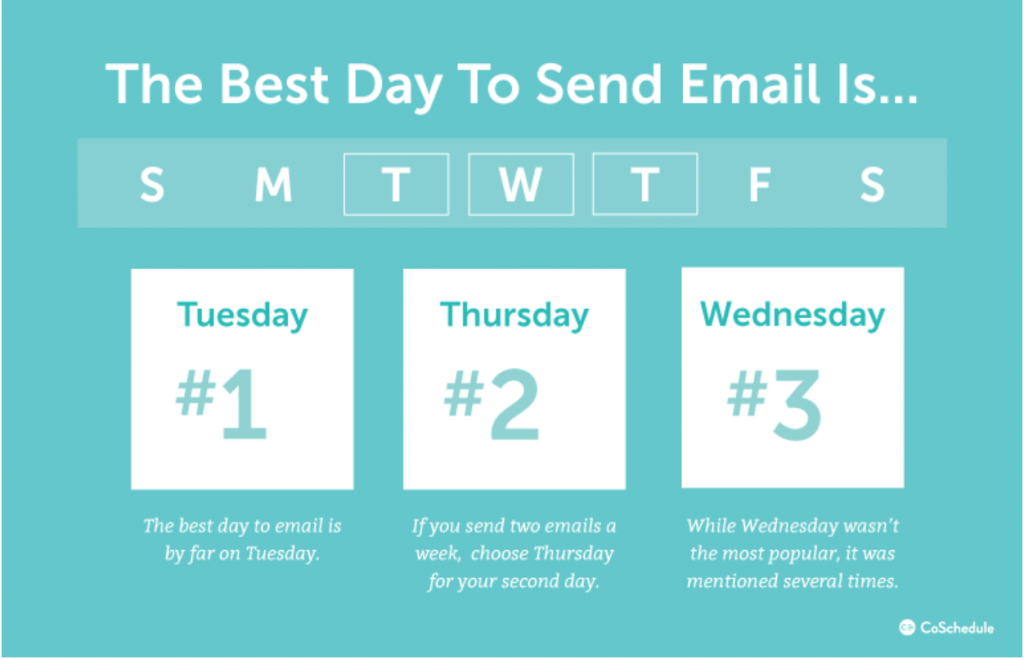
In a comparison study of the ten existing data sets, they found that Tuesday was the best day to send an email for better open, response, and conversion rates:

Behind that, Thursday ranked at #2, and Wednesday was #3.

If you’re going to send an email campaign, sending it on Tuesday is going to drive home better results.

But that’s not all.

You still need to hit the critical factor of timing.

When do you send it? What time of day?

Early, before everyone gets over the email stage of their day?

After lunch, while most workers are probably slacking off a bit?

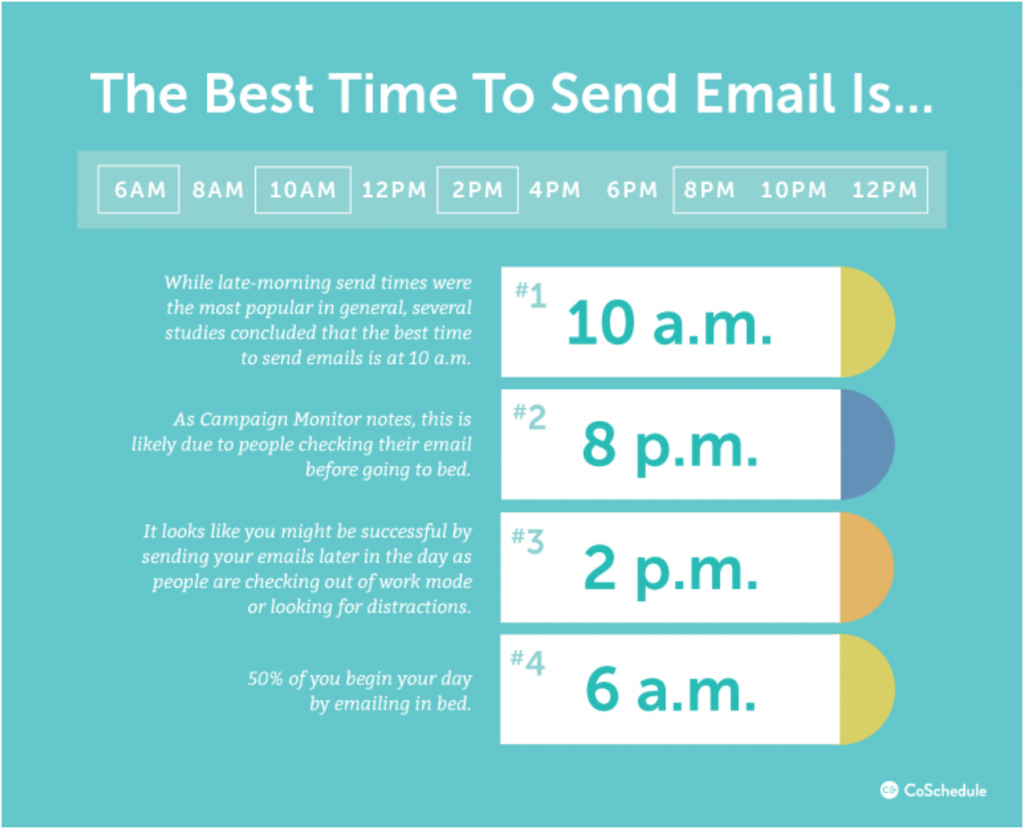
According to the meta-analysis, the best time to send an email is 10 a.m.

While it was more common for users to send emails later in the day, the analysis found that emails sent at 10 a.m. had higher open, response, and conversion rates.

Side note: The time zones in this tip should reflect where the majority of your audience is.

To get the most out of your email campaign performance, test your next email blast on a Tuesday at 10 a.m.

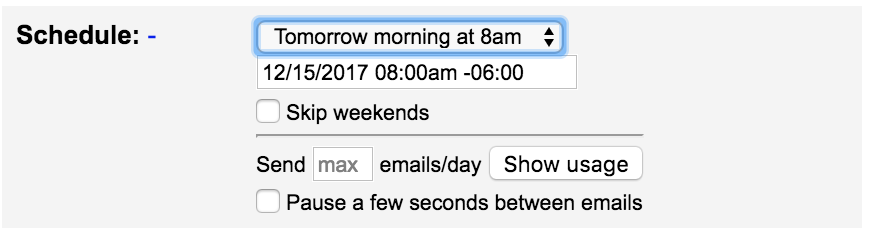
Using GMass, you can schedule out campaigns right within Google Mail for ease of use:

Try testing your next campaigns with a combination of the time and dates in the meta-analysis:

See which one performs best for your business and keep using it until performance declines.

If one starts to see declining results, perform the test again and select a new winner with your audience.

Remember: each audience will differ. It’s up to you to test and find out which time and date performs best.

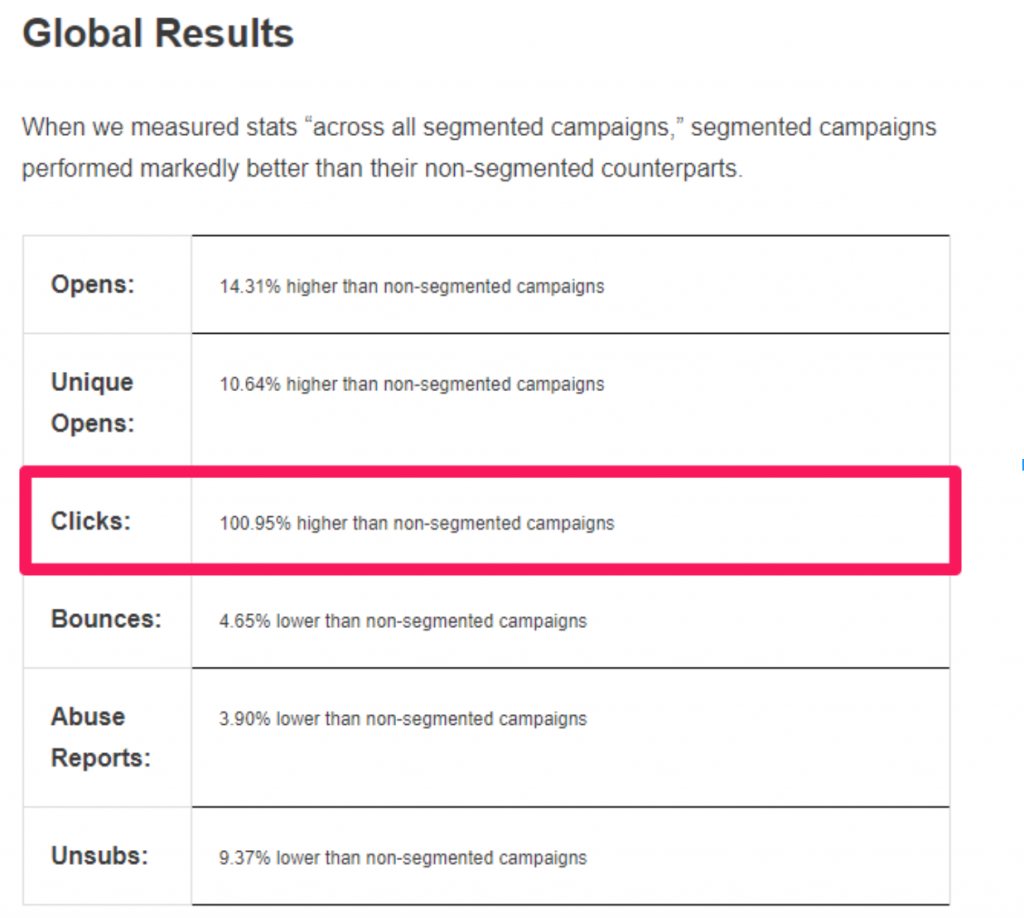
2. Generate a 100.95% higher click-through rate

That subheader almost feels like clickbait.

It almost feels like a get-rich-quick scheme. Like a scam.

But the fact is, it’s not. It’s real, statistical data.

A recent study from MailChimp found that segmented email campaigns drove 100.95% higher click-through rates than standard campaigns.

So, what exactly does segmentation entail?

There are dozens, if not hundreds, of ways to segment email groups.

You can do it by location: tapping into zip codes or city and state to offer targeted, local deals.

You can do it via date signed up or funnel stage: depending on where the users are in the lead process, they get different emails.

But the truth is, none of those have as high of an open rate as segmenting by interest groups.

Interest groups get the highest click-through rates in terms of segmentation.

Why? Just think about it.

Segmenting by funnel stages is good. But is it the best?

Probably not. Just because you have 1,000 leads who’ve signed up for a free trial doesn’t mean all of them will find your email offer appealing.

They might all have different uses, needs, or specialized case scenarios.

Within your lead group, there will always be different interests.

But when you break it down further and create sub-groups based on those interests, you reduce the pool of people while simultaneously being able to offer more specific deals.

Deals that are guaranteed to be well received by each interest group.

It’s the most highly-targeted form of email segmentation. That’s why it works.

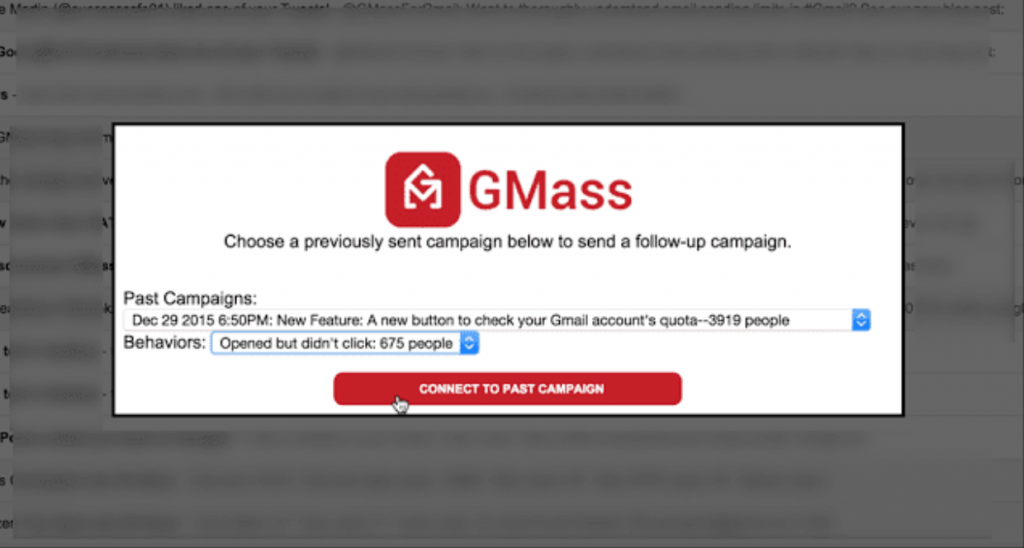
When using GMass, take advantage of the manual follow-up campaign builder where you can segment campaigns by behavioral performance.  

For example, if you notice that large groups within your list are engaged, segment them into a new campaign by connecting past campaign performance.

This will pull out those engaged users into a new list for you to target and segment by interests rather than funnel stage or a segmentation method that won’t convert as well.

3. Get 96.38% more clicks with one tweak

There are very few tactics or proven ways to get your click-through rate to skyrocket.

Segmentation is one of the few, as we just discussed.

That involves narrowing down your lists into specific groups based on similar interests.

That’s proven.

Want to generate an even higher click-through rate?

Introduce video into your emails.

A study conducted by GetResponse of nearly one billion emails found this:

Emails that included video have an average of 5.6% higher open rates and 96.38% higher CTRs than those that didn’t have video.

Video is dominating the digital marketing landscape, so it’s no wonder that video content produces such a high click-through rate.

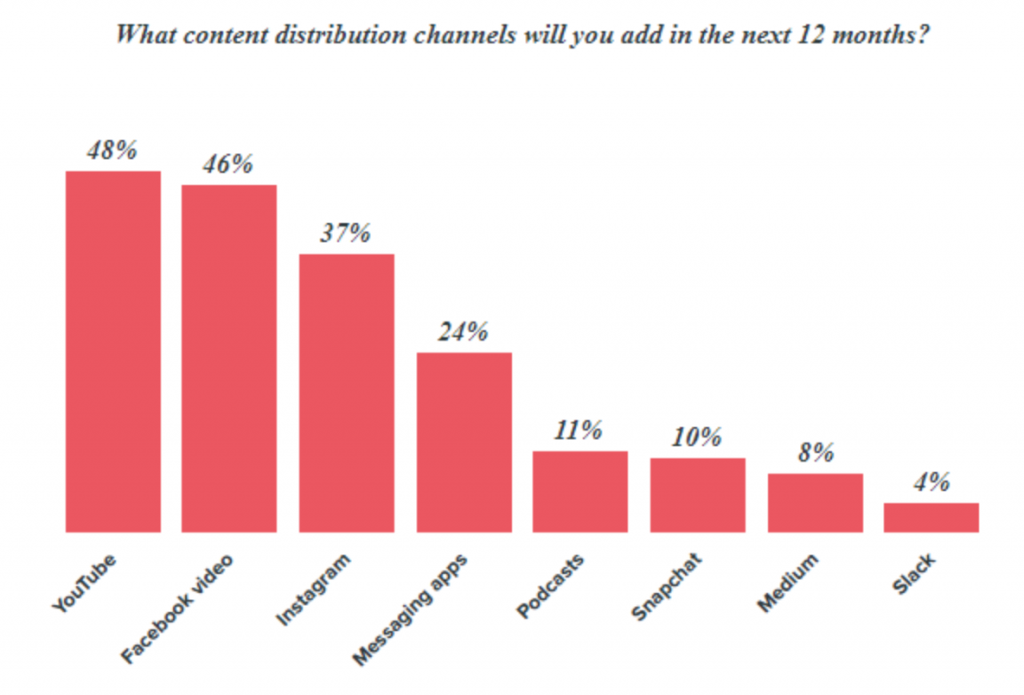
According to HubSpot’s State of Inbound Report, marketers are adding video-based platforms like YouTube to their content distribution strategy in masses.

Video is king online in terms of engagement.

YouTube has 1.5 billion logged-in monthly, active users on their platform.

On mobile devices alone, those users are spending more than one hour per day on average watching YouTube videos.

It’s safe to say that video is keeping users around like no other content medium we’ve ever seen.

Simply adding video to your emails has the power to generate 96% more clicks.

In your next email campaign, add video-based content to your segmented email list to drive those clicks even higher.

4. Increase open rates by 29%

Most personalization tips are bogus.

They tell you to simply add [first name] into the email and call it a day.

Sure, that might help with customer retention and engagement, but it’s not going to generate an open rate that shocks you.

Simple tactics like that were effective when marketers first introduced them.

But as tactics get more use, the effectiveness fades (see: Law of Shitty Clickthroughs).

When everyone is doing it, it’s no longer new or personalized.

But personalization can extend far beyond a simple name and company name.

According to a study by Experian, personalized promotional emails generate a 29% higher open rate.

When you send promotion-based or offer-based emails, you need to personalize them.

This means personalizing the basics like name and company.

But it also means going further:

Creating a unique discount code for each and every user on your list.

Why?

It makes the user feel like you’re only sending the email to them rather than to everyone on your list.

It’s deep, real personalization combined with promotional tactics to generate more opens and clicks.

With the GMass personalization guide, you have the option to create some powerful, personalized emails including things like company, city, date of birth, and coupon codes.

You can create any type of parameter or personalized column based on your own data.

Using the GMass Google Sheets integration, you can import a spreadsheet of your personalization parameters like [firstname] and [couponcode] directly into GMass.

Create customized, personalized parameters and combine those efforts with a promotional-based email containing individual coupon codes for each recipient.

For example, if you have a member of your list, you can structure the coupon code like this:

(lastname+discount percentage). The final product would be something like: Smith10.

Create this style of discount for promotion-based offers to everyone on your list.

You can even test the personalization parameters you make in the GMass draft mode to ensure successful sending.

Choose the “Just create Drafts” option to send it as a draft, enabling you to review the personalization and make sure that you don’t have any errors.

Want to increase your open rates by nearly 30%?

Add detailed personalization parameters in combination with a coupon-based promotional campaign.

5. Email automation wins the day

According to a study from the Epsilon Email Institute, email messages that are automated get 152% higher click-through rates and 70.5% higher open rates on average.

Marketing automation is crucial for success in the world of email.

Not only does it save time and labor, but it also saves money.

Less time spent running, monitoring and tweaking email campaigns means more time in your day to grow your business with other channels.

It also means paying less for time spent on emails.

Typically, workers will spend 17 hours every week checking, reading, and responding to emails.

That’s an absurd amount of time spent on emails.

But the truth is:

You don’t need to spend that much time on email anymore.

Automation seeks to circumvent typically tedious activities to send campaigns without the use of labor.

For example, if you send campaign A, you can send automatic drip follow-up emails to those who didn’t respond.

You can take those who did respond and automatically offer them a coupon or segment them into an email list.

There’s no need to sift through and do it yourself.

With GMass, you can utilize the automatic follow-up email reply system.

This feature is a drip-style email campaign that will automatically send responses to members of your list who don’t respond.

When they do respond, the drip campaign will stop, allowing you to jump in with a personalized response.

When sending a campaign, click on the settings tab and enable the auto follow-up tool:

Here you can send emails if the user does not respond.

Craft multiple stages and choose when to send the follow-up.

For example, if they don’t respond within two days, you can send another email that keeps the reply chain going, helping the recipient to see where your email came from.

It’s drip automation at it’s finest.

Implement automation using the auto follow-up tool in GMass today to skyrocket your open and click rates.

Conclusion

Growth hacks don’t work 98% of the time.

It’s why they’re called growth hacks.

They don’t come around daily. Otherwise, we’d all be the next Zuckerberg.

And simply adding personalization isn’t going to cut it in the 21st century.

Most email marketing tips are vague and lack actionable data.

Add more emojis. Add X, Y, and Z in your subject line.

But the truth is, one-off tips that worked for one person might not work for your business or clientele.

Sticking to hard numbers and data is the best way to stack the deck in your favor.

Follow the actionable email marketing statistics in this post, and you’ll have the best weapon possible on your side:

Statistical odds.

Now go out there and shatter your latest KPIs.

Sources:

Statistic 1:

https://coschedule.com/blog/best-time-to-send-email/  

Statistic 2: https://mailchimp.com/resources/research/effects-of-list-segmentation-on-email-marketing-stats/

Statistic 3:
https://www.getresponse.com/about/press-center/releases/01-12-2009.html

Statistic 4:

https://www.campaignmonitor.com/blog/email-marketing/2016/01/70-email-marketing-stats-you-need-to-know/

Statistic 5:

https://www.campaignmonitor.com/blog/email-marketing/2016/01/70-email-marketing-stats-you-need-to-know/

Email marketing, cold email, and mail merge inside Gmail


Send incredible emails & automations and avoid the spam folder — all in one powerful but easy-to-learn tool


TRY GMASS FOR FREE

Download Chrome extension - 30 second install!
No credit card required
Love what you're reading? Get the latest email strategy and tips & stay in touch.


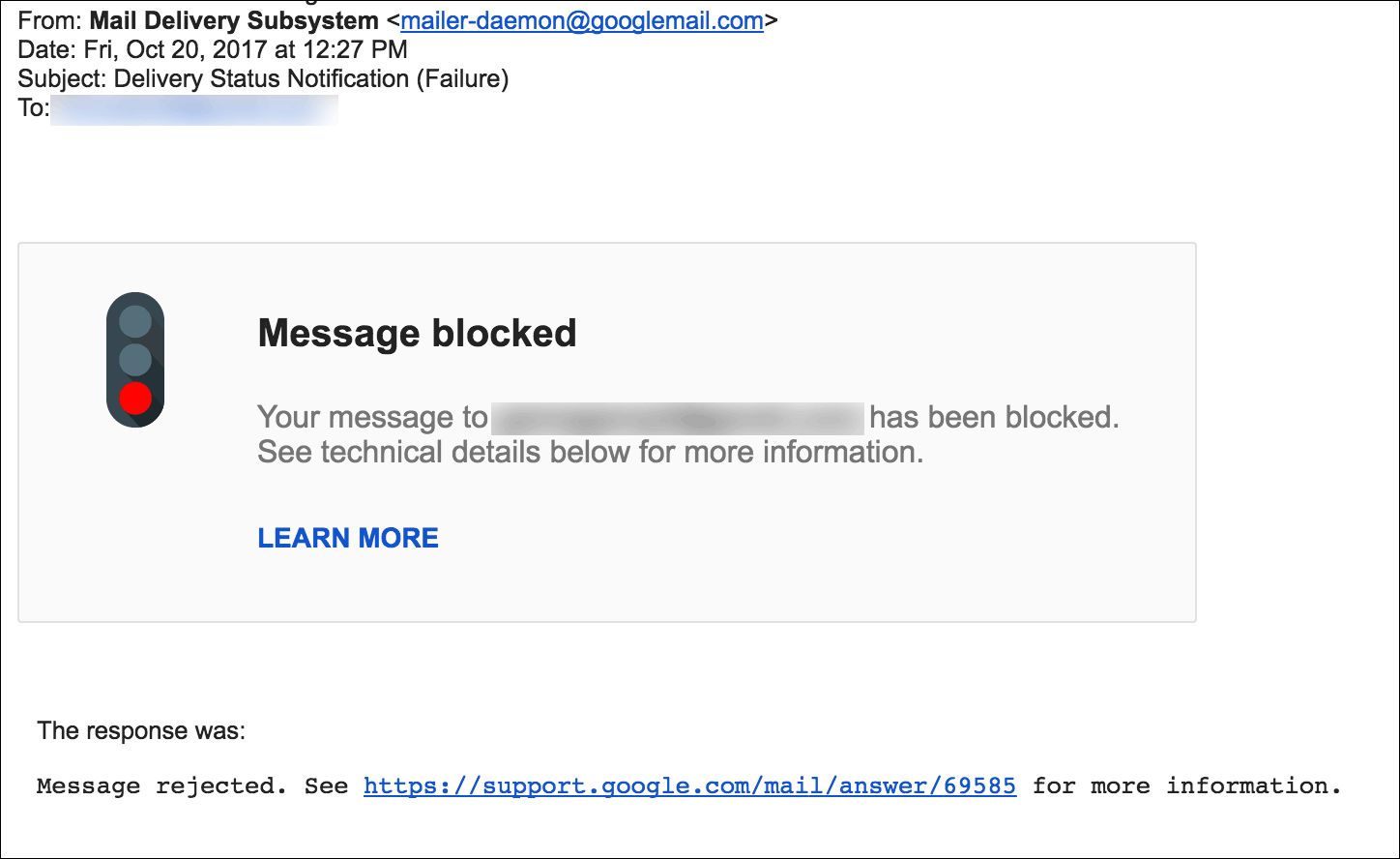
Have you ever gotten a bounce after sending an email from Gmail with a 69585 bounce code that references a URL? Specifically, a bounce message that says:

Your message to john@smith.com has been blocked. See technical details below for more information. LEARN MORE

The response was:

Message rejected. See https://support.google.com/mail/answer/69585 for more information.

Here’s a screenshot:

Gmail 69585
The mysterious 69585 Gmail bounce means that Gmail has stopped your outbound email in its tracks.


Gmail provides an irrelevant URL

You might notice that the URL that Gmail gives for more information about the 69585 bounce is a URL that gives no information on the 69585 error:

https://support.google.com/mail/answer/6596?visit_id=1-636469950368928843-4158290028&rd=1

It doesn’t explain the 69585 bounce at all. So what’s the deal?

We’re not sure why Google removed the explanation page for the 69585 bounce code, but in the past, it meant that Google blocked the email on its way out of Google’s network. The email never reached the server for the particular email address. Whereas most blocks are blocked by the receiver, a 69585 bounce is a preemptive block by Google, because they think the email you’re trying to send is spam.

Our findings about the 69585 error

In the data we’ve seen, the most common cause for a 69585 bounce is that the email contains a URL that has been flagged by the Google Safe Browsing program, or a URL that has been flagged by Gmail. It’s possible that a URL can be flagged by Gmail but shows up as clean in a Safe Browsing lookup.

The second most common cause is that based on the text content of the email, Google has determined with high confidence that the email is spam. This can apply even to emails with no URLs present at all.

This information is based on the findings of our sysadmins. The best explanation we can find directly from Google is here:

https://productforums.google.com/forum/#!msg/gmail/uH2hN6S5OyM/lzdteH-ifvYJ

The relevant part of the explanation is:

To clarify: the issue discussed on this thread is when @gmail.com users are attempting to send an email to multiple recipients (in some cases, a large number of recipients) and their outgoing mail is getting blocked by our system and is never delivered. If you’ve arrived at this thread and this is not your issue, please try using the search bar at the top to find a more relevant thread. 

With that being said, this behavior will still occur in certain instances. The free version of Gmail was not intended to be used as business email or to regularly send to large groups of people. If that is what you are attempting to do, we recommend using Google Groups or Google Apps for Work (if you’re a business). Google Groups allows recipients to opt-in, so you can ensure you’re not sending unwanted mail, and Google Apps for Work will allow you to more professionally and reliably communicate with your customers. 

While I agree with this statement, it’s worth noting that in most cases, it is possible to send a mail merge or a group email to multiple recipients from a regular Gmail account, especially if the Gmail account being used has a long history with Google and is established as a legitimate account belonging to a real person. The history and age of the account is one of the factors in determining its sending limits and general mass email sending ability.

Real-time 69585 data in GMass

Just for fun, here’s a live data feed showing how many 69585 bounces GMass has generated recently when sending emails through users’ Gmail and Google Workspace accounts. Note that GMass sends about 5 million total emails/day for about 10,000 users/day.

Date69585 BlocksUsers Affected
12/14/202527035
12/13/20251,002120
12/12/20253,528244
12/11/202510,006216
12/10/20252,074220
12/09/20252,040205
12/08/20252,218167
12/07/20251,269134
12/06/20251,383139
12/05/20252,520205
12/04/20252,212201
12/03/20252,028195
12/02/20252,992259
12/01/20256,615249
11/30/202569086

What should you do if you’re sending a mail merge and you get 69585 bounces?

  1. Try to isolate the content issue that’s resulting in the 69585. Play around with your content, and then send the email to one of your recipients, and see if you get the same bounce. If you don’t, you’ve probably happened upon the solution.
  2. GMass will categorize these bounces as “blocks”, meaning you can send a follow-up to all the “blocks” with just a couple clicks. You don’t have to manually go through all the 69585 bounces to determine who received your email and who didn’t.
  3. You can also get around Gmail’s limitations altogether by connecting your account to a third party email sending service like Sendgrid or JangoSMTP. If you do that, you can send virtually unlimited emails, and you will never be in danger of getting a 69585 bounce or an over-limit bounce.
See why GMass has 300k+ users and 7,500+ 5-star reviews


Email marketing. Cold email. Mail merge. Avoid the spam folder. Easy to learn and use. All inside Gmail.


TRY GMASS FOR FREE

Download Chrome extension - 30 second install!
No credit card required
Love what you're reading? Get the latest email strategy and tips & stay in touch.


Sendgrid Domain Whitelabel
Sendgrid requires that certain accounts set up a domain whitelabel as part of the account verification process. If you see a green bar at the top, your account has this requirement.

On April 6, 2020, SendGrid changed its sender verification requirements for new accounts created since April 6, 2020. Accounts created after this date are required to verify individual sender addresses or a sender domain. More information on SendGrid’s website here: https://sendgrid.com/docs/for-developers/sending-email/sender-identity/

If your SendGrid account was created before April 6, 2020, then the following may still apply to you if you were asked to authenticate a domain in order to send emails.

Several users have recently reported that when signing up for Sendgrid, so that they can send unlimited emails with Gmail, Sendgrid is requiring a domain whitelabel setup as part of their verification process. Not doing so limits the Sendgrid account to sending 100 emails/day.

I’ve discussed this with my Sendgrid contact, who is unaware that this is happening to certain users.

Until we can get clarity from Sendgrid on why some accounts are required to set up a domain whitelabel, while most accounts are not required to do so, we’ve devised a method to get around this requirement. In our guide to sending unlimited emails with Gmail, we advise against setting up a domain whitelabel, because our evidence shows that it hurts deliverability to begin sending from a completely new domain.

Therefore, if your Sendgrid account is requiring you to set up a domain whitelabel, and you wish to follow our recommendations of sending without a domain whitelabel, here is what you can do:

  1. Go ahead and set up a domain whitelabel in your Sendgrid account, using any domain that you have control of.
  2. Once you do so, your Sendgrid account will be verified and the 100 emails/day limit will be removed.
  3. Then, simply delete the domain whitelabel setting. Your account will remain verified and you’ll be able to send up to your plan’s limits.
See why 99% of users say they’ve had their best deliverability ever with GMass


Email marketing, cold email, and mail merge all in one tool — that works inside Gmail


TRY GMASS FOR FREE

Download Chrome extension - 30 second install!
No credit card required
Love what you're reading? Get the latest email strategy and tips & stay in touch.


GMass takes a different approach to reporting and analytics than most Email Service Providers, and in this article you can learn how to access and analyze email campaign data.

This Article Contains:

  • The Dashboard
  • Web-based Reports
    –Getting the link
    –Live Feed
  • Inside Gmail
    –Why we use a Gmail Label
    –Troubleshooting not receiving the reports
    –Replies, Bounces, Blocks
    –Manually request a report inside Gmail
  • The Main Stats
  • Domain Reports
  • Export Campaign Reports
  • Sharing Campaign Reports
  • Accuracy of Reports

There are three places you can view campaign statistics.

  1. Inside Gmail in the GMass Reports–>[CAMPAIGNS] label.
  2. On the web, using a link to a responsive, web-based campaign report.
  3. In your dashboard. The dashboard also contains a link to the web-based campaign reports.

This approach allows you to access campaign reports easily both while on the go, inside the Gmail app on iPhone and Android, and in a more real-time way on the web. The web-based report contains some extra charts and graphs showing a time-based distribution of opens and clicks.

1. Dashboard

Go to gmass.co/dashboard or click the Dashboard button at the top of Gmail if you have the GMass Chrome extension installed.

GMass dashboard

From the dashboard, you can search for any of your campaigns in the Current Campaigns, Previous Campaigns, or Transactional sections. With the advanced search options you can locate campaigns by multiple criteria, including number of recipients, dates, open rates, click rates, reply rates, and whether or not the campaign has follow-ups. GMass dashboard campaign search

Once you find your campaign, click on any of the statistics, such as Recipients, Opens, Clicks to open a panel on the right side of the screen with more details. And from there, you can download a CSV or Microsoft Excel file of the data behind each metric. Or export the data to Google Sheets.

When you click on Clicks (click inception?????), you’ll see a breakdown of how each link in your email performed, along with the raw data of who clicked what.

Click reporting

You can also click the right carat (that’s the > icon) next to the report ID to see an even more in-depth look at the campaign, including all of its settings and its follow-ups.

Extended info about a campaign

Click the “live report” icon (the one that looks like a graph) to link directly to the web-based report. The web-based report will always display the most up-to-date and easy-to-use information for a particular campaign.

2. Web-based Responsive Reports

The web-based campaign report is beautiful, easily accessible, and works on desktop and mobile.

It’s meant to stay open in a tab, auto refreshing and updating in real time so you can see your campaign’s progress.

Here’s what it looks like.

Click on any of the stats in the report and a panel on the right side of the screen will give you even more details.

Once again, if you view Clicks you’ll see how each individual link performed. You can also see open, click, and reply rate by day, if you want to see how a multi-day campaign is performing over time.

You can download the results for any of the results (e.g., opens, replies, and so on) by clicking the download icon next to the name of that stat. Or by clicking the Download link at the top of the right-side panel.

You’ll have the choice to download a CSV or Microsoft Excel file with your results — or to export to Google Sheets.

The web-based campaign report also has a section called Edit History which will show you how your campaign performed before and after you made edits.

Below that, you can see a log of everyone who opened, clicked, or unsubscribed. The first time they opened the campaign is labeled “First” and there will be a little fireworks display for each first-time opener.

Also, you can mouseover their IP address to see their location and see what browser they used to access your email.

Beneath that will be your list of links in your email with their click totals.

You can also share your campaign results on social media. Copy Shareable link at the top of the report.

Paste it into your social media app of choice. GMass will use some magic to automatically generate a chart showing your campaign performance.

Post your shareable report

And when someone clicks through, they’ll see a web-based version of your report (with all the sensitive/recipient details removed).

You can also monitor your if your campaign is sending, and the sending speed (which is great if you’re using throttling).

Where’s the link to the web-based report?

Having trouble finding the web-based report? You can get a link to the report from several places:

  1. The campaign report inside Gmail, in the GMass Reports –> [CAMPAIGNS] Label.
  2. Any “Your emails have sent” notification that we send you after your campaign finish sending.
  3. Your dashboard.

campaign report link in gmail

link in send notification

Note that the web-based report doesn’t require you to log in. The URL is public and accessible to anyone, so anyone you share it with will have access to all of that campaign’s data and your account’s full unsubscribe and bounce lists. There’s a unique identifier that’s part of the URL that will prevent anyone from guessing your report URLs, so nobody can access it unless you share it. See the Sharing section below for how to share your report data securely with your team.

Live Feed

The web-based report has a live feed showing opens, clicks, and unsubscribes in real-time. No need to reload this report — the stats update on their own via AJAX.

3. Inside Gmail

Why inside a Gmail Label?

The second place you can access your campaign reports is right inside your Gmail account, in a special label called GMass Reports –> [CAMPAIGNS].

Viewing your reports inside Gmail has the following benefits:

  1. It allows you to easily access your reports whether you’re using Gmail on your desktop or whether you’re using the Gmail app on your mobile device.
  2. You never have to log in to a separate website. You only need to be logged into your Gmail account.
  3. The rest of the GMass experience happens inside your Gmail account, and it’s nice that Reports should exist inside your Gmail account too.

Here’s a screenshot of a campaign report as shown inside the Gmail app on an iPhone.

campaign report on iPhone

The top level Campaign Report

The most important campaign report is founder the Label GMass Reports –> [CAMPAIGNS].

This is a report that summarizes all of your data in one screen. From here you can see:

  • how many emails were sent
  • how many people opened your email
  • how many people clicked a link

Here’s a sample campaign report from my own account:

my campaign report in gmail

Let’s start at the top and explore what this report shows.

It starts with a campaign ID. The campaign ID is a unique identifier for every mail merge campaign you send with GMass. If you ever need help understanding a campaign, make sure to provide our Support team with the campaign ID. Next is the Subject Line, which is self-explanatory. If your campaign was connected to a Google Sheet, the spreadsheet name is listed next.

If you’re not getting reports inside Gmail

There could be a several reasons you’re not seeing a report for your campaign:

  1. You didn’t enable Open Tracking. Campaign-level reports are triggered whenever there’s an “open” on your campaign. That’s how GMass “decides” when to generate this report and insert it into your [CAMPAIGNS] Gmail Label. If there are no opens, then this report will never be generated automatically.
  2. You did enable Open Tracking, but your email was a plain text email rather than an HTML email, which means that opens still won’t be tracked.
  3. There haven’t been any opens in a while, so the report hasn’t been refreshed. There might have been other activity, like clicks or replies or bounces, and so your statistics have been updated internally, but no report has been generated.

If any of these are the case, you should manually request a campaign report.

Event Logs for Opens, Clicks, and Unsubscribes

Anytime an email is opened, clicked, or unsubscribed, GMass places a notification in a corresponding Label. The notifications in these Labels serves as an event log for activity in your overall account. For example, you can see a live feed of all opens for all your GMass campaigns in the GMass Reports –> Opens Label.

GMass report - Opens

The following event log labels are used:

  1. GMass Reports –> Opens Label anytime an email is opened.
  2. GMass Reports –> Clicks Label anytime a link in an email is clicked.
  3. GMass Reports –> Unsubscribes Label anytime someone unsubscribes.

How can you use the event log labels?

If you ever want to send a new campaign to everyone that’s ever opened any email from you, or anyone that’s ever clicked a link in any email from you, can easily do so by going to the appropriate Label, and clicking the build email list button. Secondly, if you’re monitoring your campaign activity from your mobile device and you use the Gmail app, you can go to the appropriate Label and watch notifications appear and feel confident that people are engaging with your campaign. It’s an easy way to watch real-time activity on your campaign wherever you are and whatever device you’re using, whether it’s a laptop or mobile phone.

If you use a third party email client, like Apple Mail, sometimes these notifications can flood your Inbox, making for a very annoying experience. If that’s happening, you can turn these event notifications off.

Replies, Bounces, and Blocks

After you send an email campaign, GMass scans your Inbox looking for replies, bounces, and blocks.

  • Replies are left in your Inbox and labeled GMass Reports –> Replies.
  • Bounces are removed from your Inbox and placed in the GMass Reports –> Bounces Label.
  • Blocks are left in your Inbox and also labeled GMass Reports –> Blocks.

As of August 2023, the Replies and Bounces Labels are applied seconds after they arrive in your Inbox — thanks to GMass’s instant reply and bounce detection. For more information on how GMass categorizes and labels these messages, see the post on automated reply management. To understand how replies are found, see our detailed article about replies.

Manually request a campaign report inside Gmail

As a GMass user sending mail merge campaigns from your Gmail account, you are likely aware that campaign-level reports are sent to the [CAMPAIGNS] Label, which is a sub-Label of the GMass Reports Label. Campaign-level reports are updated every 10 minutes, as new campaign activity is recorded, like opens and clicks, however, if open-tracking is turned off, then a campaign report may never appear.

Therefore in certain situations, you may want to manually request a campaign report. These situations include:

  1. You haven’t received a particular campaign report, because you had open-tracking turned off.
  2. You have turned off GMass report notifications, in which case you will never receive a campaign report.
  3. You wish to see the campaign report for an old campaign that was sent before GMass campaign reports existed.
To request a campaign report on demand, follow these instructions:
request a campaign report
I have created a campaign code of 10626881 and used it in the Subject line to request the report for that campaign.
  1. Launch a new Compose window in Gmail.
  2. Set the To field to report@gmass.co.
  3. Enter the campaign ID of the campaign whose report you would like in the Subject field. If you do not know the campaign ID, you can find it in the email confirmation you received after the campaign finished sending. This email message will contain the campaign ID or a “Schedule ID”. Either ID is acceptable.
  4. Click the red GMass button. Do not click the Gmail Send button. You must click the red GMass button.
  5. Go to the [CAMPAIGNS] Label under GMass Reports and you will see your new report.

Understanding the Main Statistics

The core statistics for an email campaign are:

Total Recipients: Total number of email addresses that this campaign sent to.

Unique Opens: Total number of email addresses that have opened the email. This is NOT the total number of Opens, since usually there are multiple opens registered for a single email address.

Didn’t Open: Total number of email addresses that have NOT opened the email.

Unique Clicks: Total number of email addresses that clicked at least one link in the campaign. Will only show if click tracking was turned on and your email contained trackable clicks.

Replies: Total number of email addresses that replied to the campaign. Note that GMass may take a couple hours after a reply is received in your Inbox to detect the reply and update this stat.

Unsubscribes: Total number of email addresses that clicked the Unsubscribe Link, if it was inserted into the campaign.

Bounces: Total number of email addresses that came back as undeliverable because the address is invalid. Bounce detection is part of the automatic reply management feature.

Rejections because Gmail account over limit: Total number of email addresses that were not sent to because Gmail limited your account’s sending ability.

Blocks: Total number of email addresses that came back as undeliverable because the address rejected your email as spam.

Export Campaign Data

All of the reporting data is downloadable directly from this report. Just click the download link next to each statistic. If you use the download main campaign report option, you will download a CSV that contains a full list of your recipients, any personalization data that was a part of the original spreadsheet, and columns indicating whether that recipient opened, clicked, unsubscribed, bounced, or replied. You can then import this CSV file into a new Google Sheet for safekeeping and future mail merge campaigns.

download campaign CSV file
Access this report from the [CAMPAIGNS] Label under “GMass Reports” on the left side of Gmail.
Just click the “download” link shown above to download a CSV file of the report. It will look like this.

CSV campaign report

You can also download your account’s complete Unsubscribe and Bounce lists using the download all link next to each statistic.

Warning: Don’t forward this report
Because the campaign report contains download links to your full recipient lists, we recommend you only forward this report to people you trust to have access to your email marketing data.

Domain Reports

The domain report shows a breakdown of all domains sent to for a particular campaign, along with the opens, clicks, bounces, and blocks on a per-domain basis. You can even compare your individual domain-statistics to our system-wide domain statistics by clicking on any individual domain. For example, if you want to know if your open rate to gmail.com email address is better or worse than average, you can compare your open rate to our lifetime gmail.com open rate.

The domain report is available only in the web-based report.

Here you can see the domain report inside a Gmail-based campaign report.

[screenshot to come]

Here is the domain report that’s part of the web-based campaign report.

web-based domain report

How to share reports with your team

Sharing the web-based report with colleagues

Note that the web-based report doesn’t require you to log in. The URL is public and accessible to anyone, so anyone you share it with will have access to all of that campaign’s data and your account’s full unsubscribe and bounce lists. There’s a unique identifier that’s part of the URL that will prevent anyone from guessing your report URLs, so nobody can access it unless you share it.

If you wish to share the campaign report but prevent someone from downloading your lists of email addresses, use the “Shareable link” feature at the bottom. That will generate a link you can use to share your high level campaign statistics without providing access to the lists of email addresses that opened, clicked, and took other actions.

sharable link to domain report

Team leaders can see team member’s statistics

If you’re the leader of a team plan, then in your dashboard, by default, you’ll be able to view the campaign statistics for your entire team or any individual team member.

Share reports with other Gmail accounts

If you have team members, whether internal or external to your organization, with whom you would like to share your GMass Campaign-level Reports, you can now do that. By sharing reports with others, every time a report is updated under your GMass Reports –> [CAMPAIGNS] Label, each person with whom you are sharing will get the same updated report in his/her account.

Sharing a GMass campaign report

  1. Click Compose to launch a new window.
  2. Set the To field to share@gmass.co.
  3. Set the Subject to the email address of the account with whom you wish to share your reports. My email address is ajay@wordzen.com and I want to share my reports with john@wordzen.com, so I would set the Subject to john@wordzen.com.
  4. Hit the GMass button. Do not hit the Send button.

Revoke access to your campaign reports

Follow the same procedure as above except set the To field to revoke@gmass.co.

FAQ on Report Sharing

Q: Does sharing my reports with another user give them any other access to my Gmail account?

A: No. Sharing your reports only sends a copy of your campaign-level reports to them. People you share with cannot see anything in your Gmail account, nor can they send GMass campaigns on your behalf.

Q: Can I share my reports with people who don’t use Gmail?

A: No. You can only share reports with existing GMass users, and all GMass users obviously have Gmail accounts.

Q: Can I share my reports with people who aren’t paying GMass subscribers?

A: Yes. You can share reports with any other GMass users, whether they have free accounts or paid accounts.

Q: How can I see everyone I’m currently sharing reports with?

A: If you’re sharing reports, then each campaign report in GMass Reports –> [CAMPAIGNS] will have a section at the bottom detailing with whom the report is being shared.

How to export reports

You can export all of your reporting data to CSV files, which you can then further analyze using any spreadsheet or database system, including Microsoft Excel, Google Sheets, or Google’s Data Studio.

Links to export reports to CSV files are available inside the Gmail-based reports, the dashboard, and the web-based responsive reports.

Lists of email address that opened, clicked, replied, unsubscribed, and bounced are all available from the dashboard or any report.

Additionally, GMass generates several special CSV files that give you an wholistic picture of your campaign’s success.

Keeping a Google Sheet updated

If you’re using GMass to read data from your Google Sheet, you have the option to have GMass keep your Sheet updated with reporting data in real-time.

Entire Campaign as a CSV file

From either the Gmail-based report of the web-based report click the link to the “download campaign CSV”. This will be a comma-delimited file showing all recipients in the campaign along with who opened, clicked, and took other actions.

Auto follow-ups exported as a CSV file

If you’re sending email sequences with auto follow-ups, you can download a CSV file showing all campaign recipients and which follow-up stages have been sent to each recipient.

How accurate is open-tracking?

GMass uses a number of technical innovations and other tricks to make sure your campaign analytics are as accurate as possible. Still though, there are scenarios where your statistics may be inaccurate.

Open tracking can be inaccurate for several reasons, including if you open the email yourself from your Sent folder or a bounce notification.

Note: GMass invented an open-tracking technology that circumvents technology that blocks the ability to detect opens.

Additionally, certain user agents will automatically trigger opens and clicks on emails, skewing both metrics upwards. GMass’s reports separate out opens from Apple Mail into a separate stat, since Apple Mail Privacy Protection automatically “opens” emails.

A note about click-tracking just selected links

While click tracking is enabled by default, you may want to skip tracking on certain links, like YouTube links and Google Docs links. You might also be interested in the details of just how click tracking works.

See why GMass has 300k+ users and 7,500+ 5-star reviews


Email marketing. Cold email. Mail merge. Avoid the spam folder. Easy to learn and use. All inside Gmail.


TRY GMASS FOR FREE

Download Chrome extension - 30 second install!
No credit card required
Love what you're reading? Get the latest email strategy and tips & stay in touch.


GMass