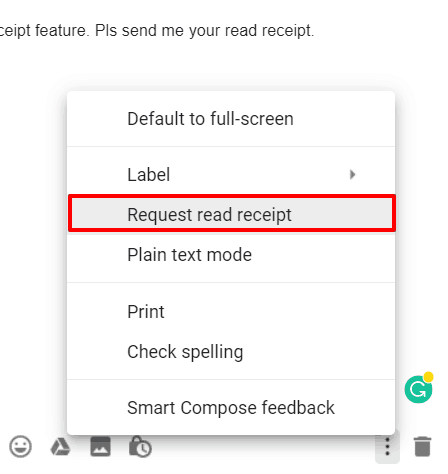
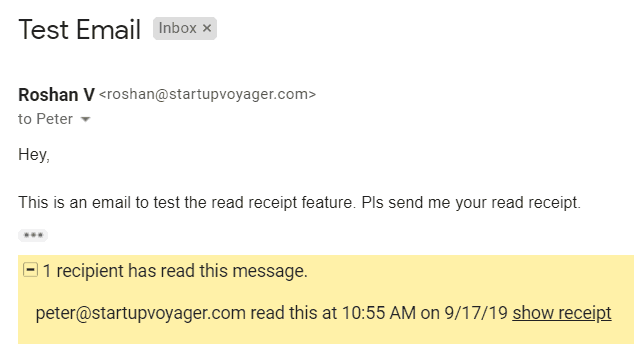
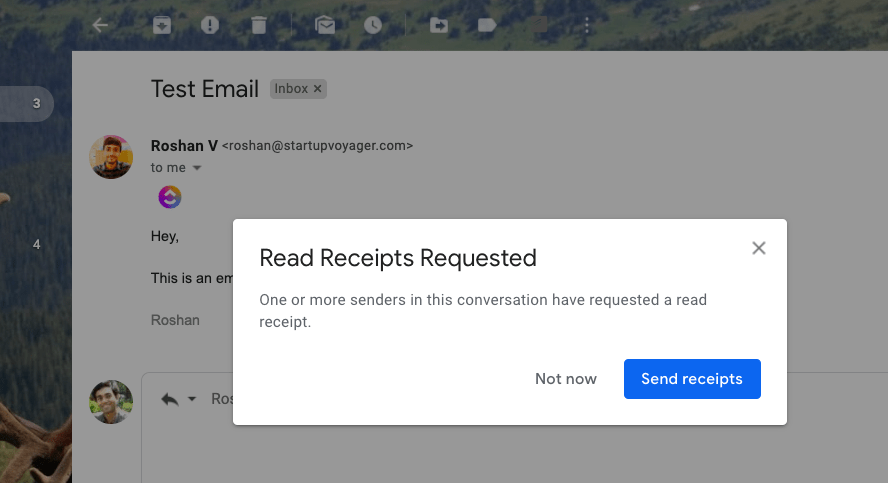
An email tracking tool can track email opens and other metrics to help a sales rep or marketing executive run effective email marketing campaigns.
It’s also useful for anyone who simply wants to know if their email has been opened or not.
But which tracking tool should you use?
In this article, I’ll list the 10 best email tracking software available today and answer some of the most common questions about email trackers.
This Article Contains:
(Use the links below to jump to a specific section)
- The 10 Best Email Tracker Software
(includes key features, pricing, pros and cons, ratings)- GMass – Advanced Email Tracking with Campaign Dashboard (Gmail)
- MailTrack – Email Tracker with limited Gmail tracking (Gmail)
- Boomerang – Real-time alerts and AI capabilities (Gmail)
- Gmelius – Basic Gmail tracker with limited features (Gmail)
- LeadBoxer – Best mail tracker for Google Analytics level reporting (Gmail and Outlook)
- Bananatag – Basic Gmail Tracking (Doesn’t work with corporate emails)
- Yesware – Comes with attachment tracking (Gmail and Outlook)
- HubSpot Sales – A bit complex reporting dashboard (Gmail and Outlook)
- Cirrus Insight – Paid Only mail tracker, works with Gmail and Outlook
- Streak for Gmail – Automatic email tracking, no dedicated dashboard (Gmail)
The 10 Best Email Tracker Software
Let’s explore the features, pros, cons, pricing, and customer ratings of the top 10 email tracking tools available today:
1. GMass
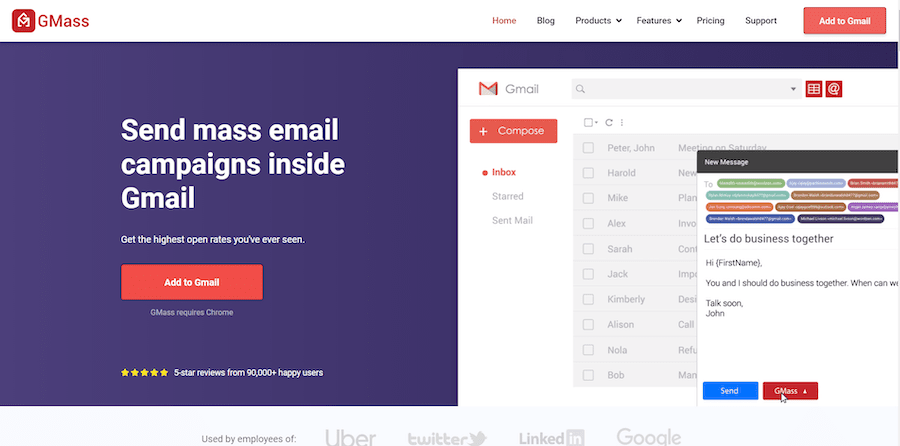
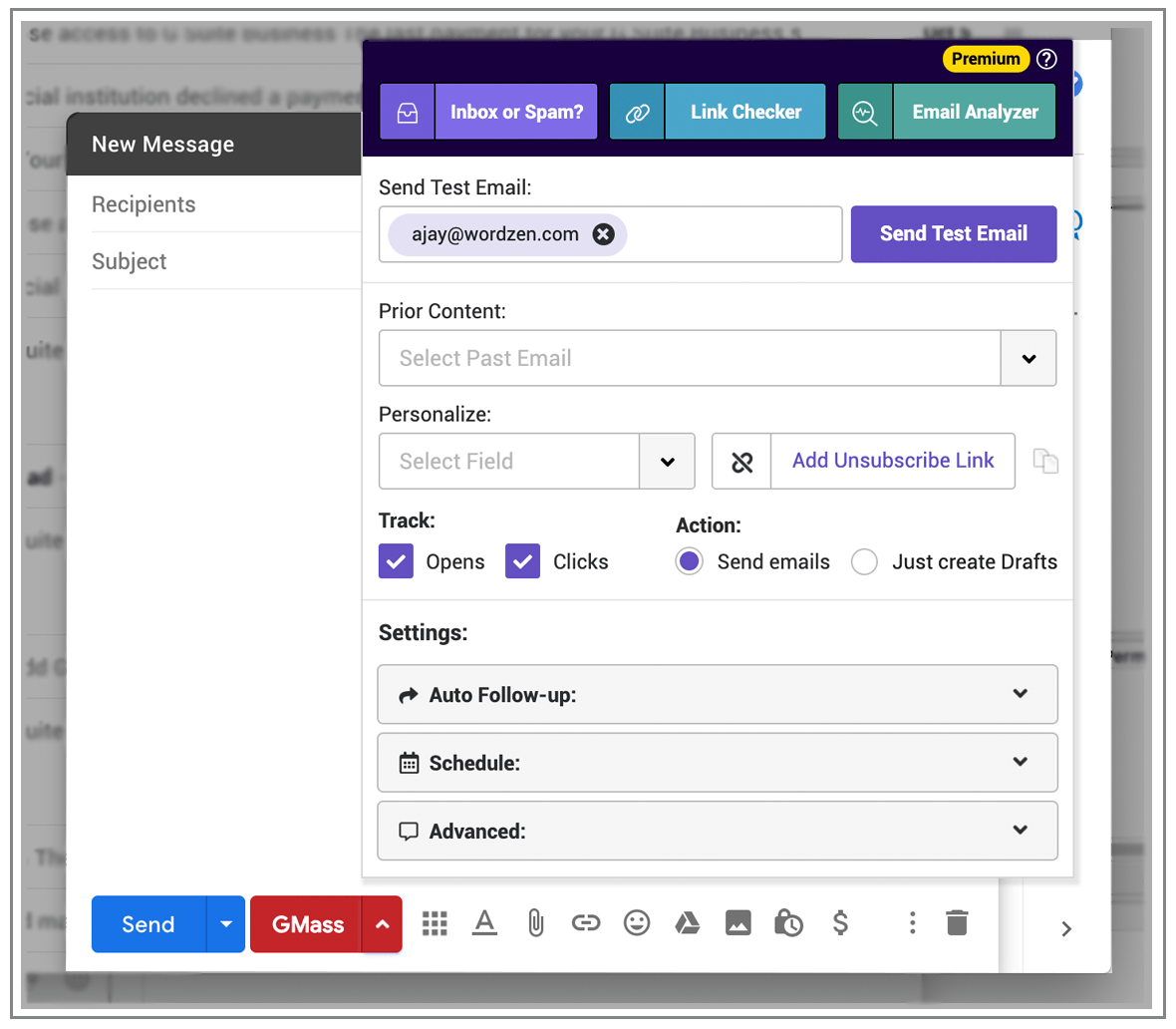
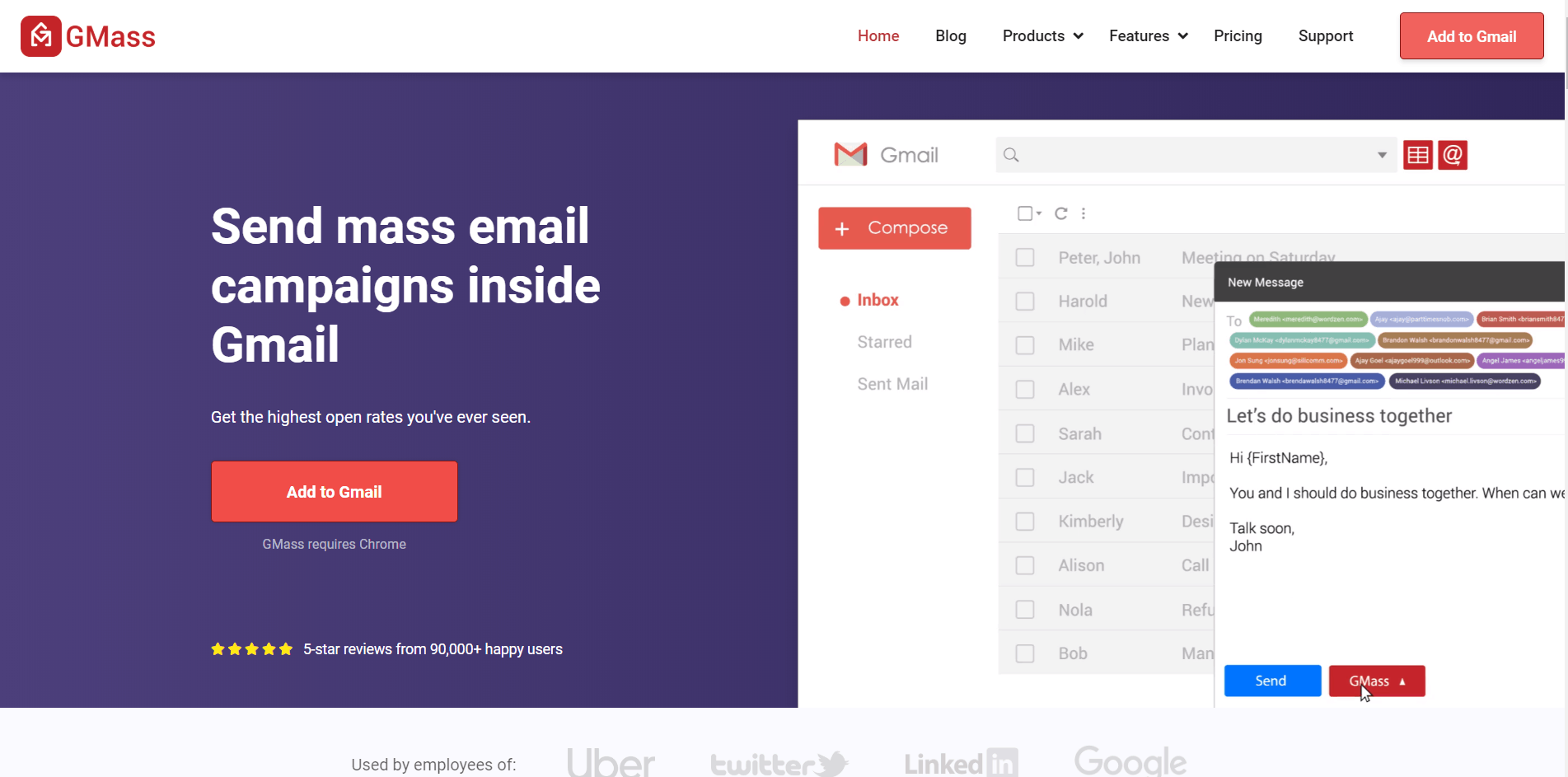
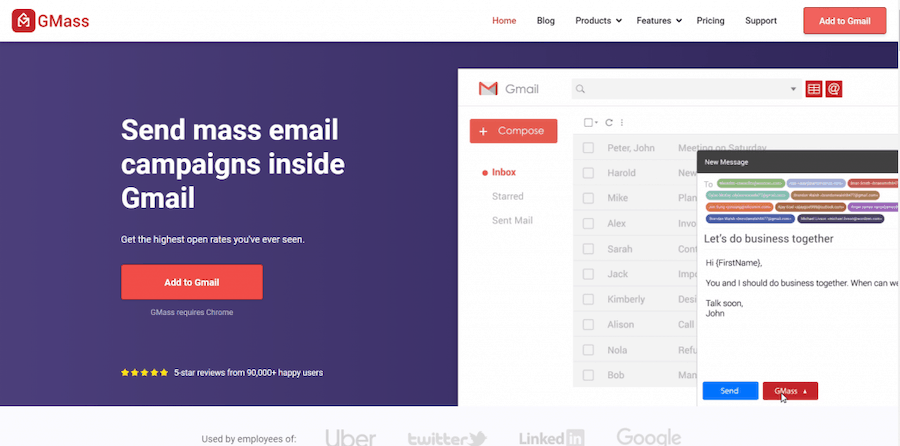
GMass is a powerful email outreach and tracking tool that lets you run email marketing campaigns from your Gmail inbox. Its robust mail merge capabilities have made it a popular email tracker used by employees from Uber, Google, Twitter, and LinkedIn.
With the GMass Chrome browser extension, you can:
- Automatically track several email metrics accurately.
- Quickly send sales and marketing campaigns to tons of people.
- Automatically personalize mass emails on a person-by-person basis.
- Easily schedule emails in advance.
- Send automated follow-up emails for maximum engagement.
Here’s a closer look at GMass’ key features:
A) Advanced Mail Merge Reports and Email Analytics
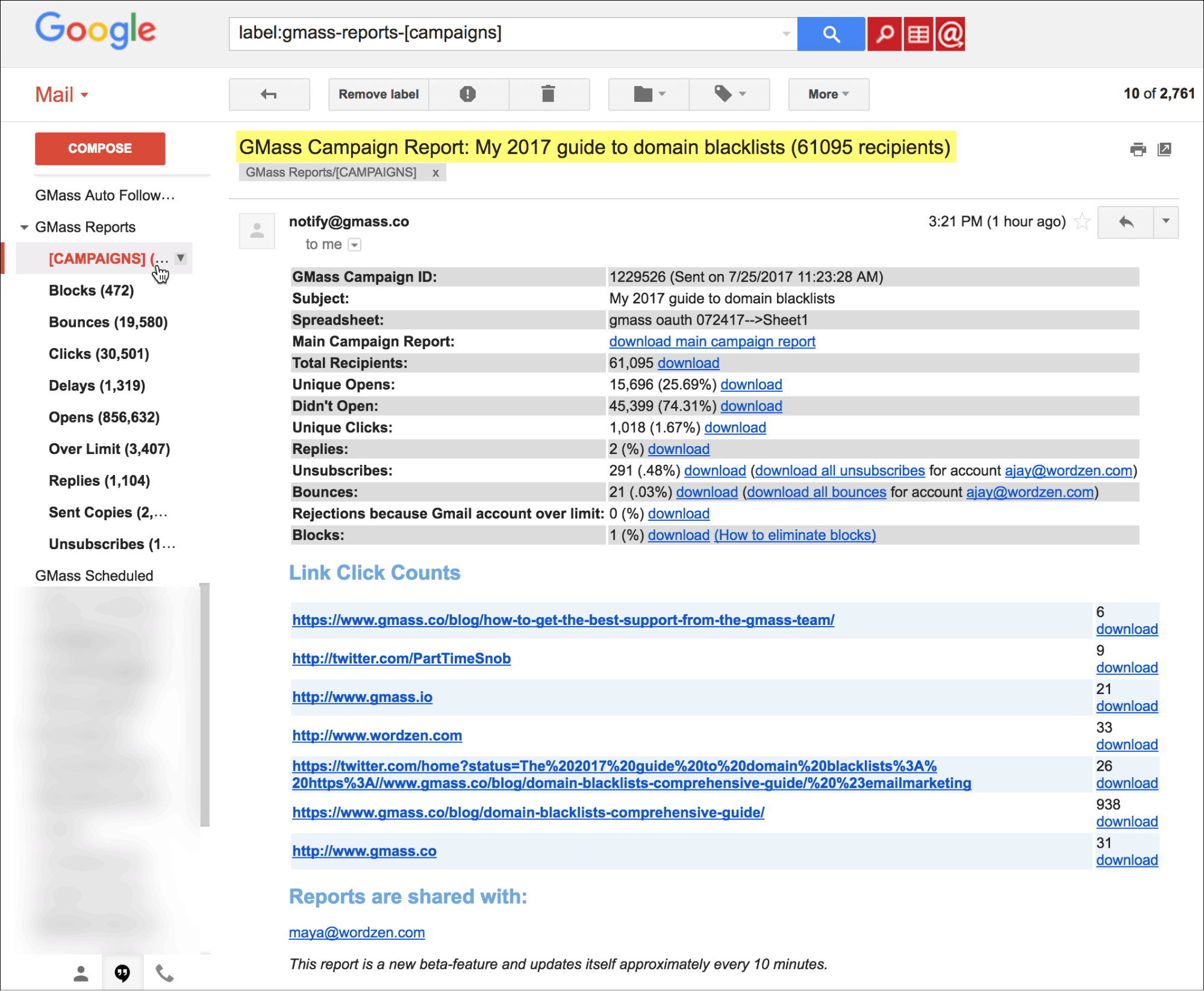
GMass accurately tracks various email metrics to give you detailed breakdowns in your Campaign Report.
The Campaign Report is automatically generated after sending each email campaign and highlights all the core email marketing statistics you need to understand how recipients interact with your campaigns and craft better emails.
Some of these metrics are:
- Total Recipients:
The total number of email addresses to which an email campaign was sent. - Unique Opens:
The total number of unique email IDs that opened your email. - Didn’t Open:
The total number of email IDs that didn’t open your email. - Unique Clicks:
The total number of unique recipients that clicked at least one link in your email. - Replies:
The total number of recipients that replied to your campaign. - Unsubscribes:
The total number of email IDs that unsubscribed from your emails. - Bounces:
The total number of emails that came back as undeliverable because the address was invalid. - Rejections because your Gmail account is over-limit:
The total number of email IDs that didn’t receive your emails because Gmail limited your account’s sending ability. - Blocks:
The total number of emails that came back as undeliverable because the address rejected your email as spam.

And unlike other email marketing tools such as Mixmax, SalesHandy, and ContactMonkey, GMass places campaign reports right inside your Gmail account.
You won’t have to open a separate tool or window to access your email tracking reports — they will be waiting for you right in your Gmail inbox!
However, GMass also lets you track your email campaign performance via a dedicated dashboard for maximum flexibility. You can also view your Campaign Reports as web-based reports on both desktop and mobile platforms.
B) Powerful Personalization
Email marketing is all about making a connection.
And how do you make a connection?
By personalizing your emails.
After all, what would you rather engage with?
Generic marketing emails?
Or those that are tailor-made for you and your needs?
But you can’t manually personalize hundreds of emails. That’s going to take forever!
Fortunately, GMass offers you automated personalization features to tailor your marketing emails on a person-by-person basis.
You get advanced functionality like:
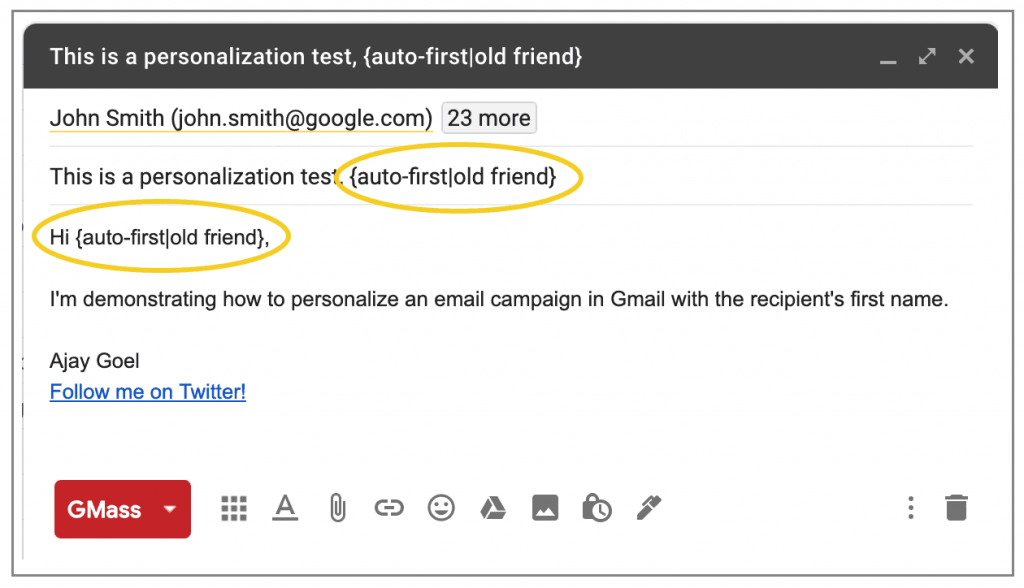
- Auto First-Name Detection and Entry: The tool auto-detects a person’s first name from their email ID and adds it to each person’s email.
- Personalize large blocks of text: GMass lets you personalize entire blocks of text in your email message on a person-by-person basis.
- Add personalized attachments: send personalized attachments for each recipient.
- Include customized links and external images: You can add customized links, URLs, and external images for each email recipient.

As the tool does all the personalizing, you won’t have to lift a finger to craft better emails!
C) Email Scheduling
Timing plays a huge role in email marketing. You need to send emails at the right time for maximum engagement.
For example, your email campaigns won’t be as successful if people receive your emails at 3 AM, right?
Ideally, you should send your campaigns when your recipients are most likely to check their inboxes.
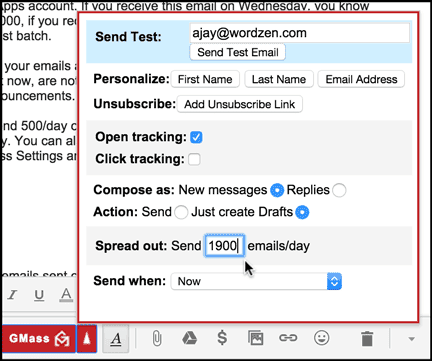
To help you here, GMass allows you to schedule your emails in advance to plan your campaigns carefully. As the tool automatically sends these emails, you won’t have to be online when they go out.
If there’s a change of plans, you can always reschedule your emails via the Gmail Drafts folder.

D) Automatic Follow-Ups
After analyzing your campaign responses, you’ll have to send meaningful email follow-ups, right?
But what if you have to follow up on hundreds of emails?
You can’t do that manually…
Don’t worry.
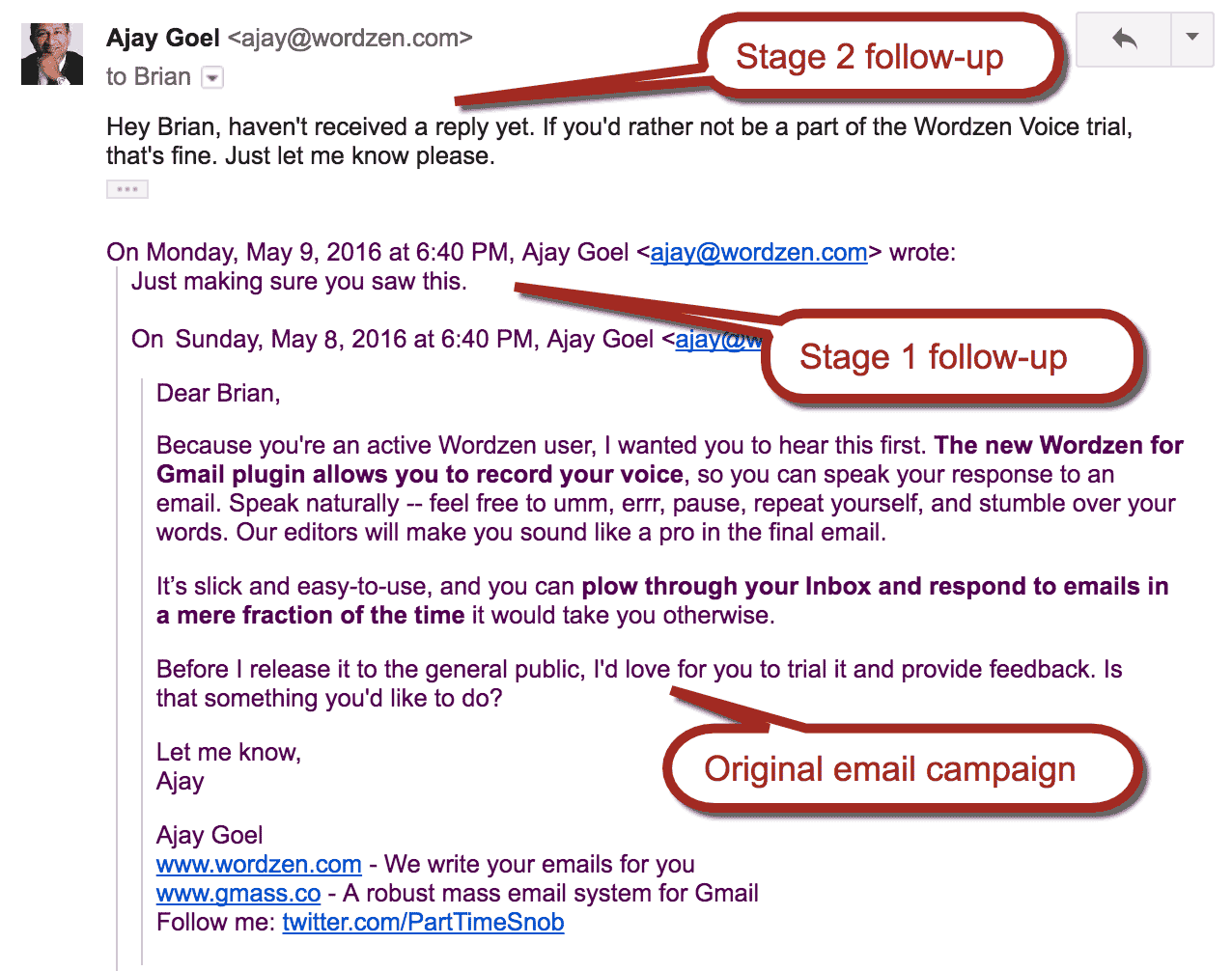
GMass supports follow-up email automation to streamline the process for you.
It can send automated follow-ups to targeted recipients for maximum engagement. You can also customize everything about these follow-up emails, like:
- The trigger for sending a follow-up. For example, GMass can send a follow-up email when a recipient clicks a particular link or replies to your email.
- The number of follow-up emails each person receives.
- The time gaps between each follow-up.
- The follow-up email message.

Pros
- Quick setup and onboarding.
- User-friendly interface.
- Can be used for both traditional emailing and cold email marketing.
- Build email lists based on Gmail account search results.
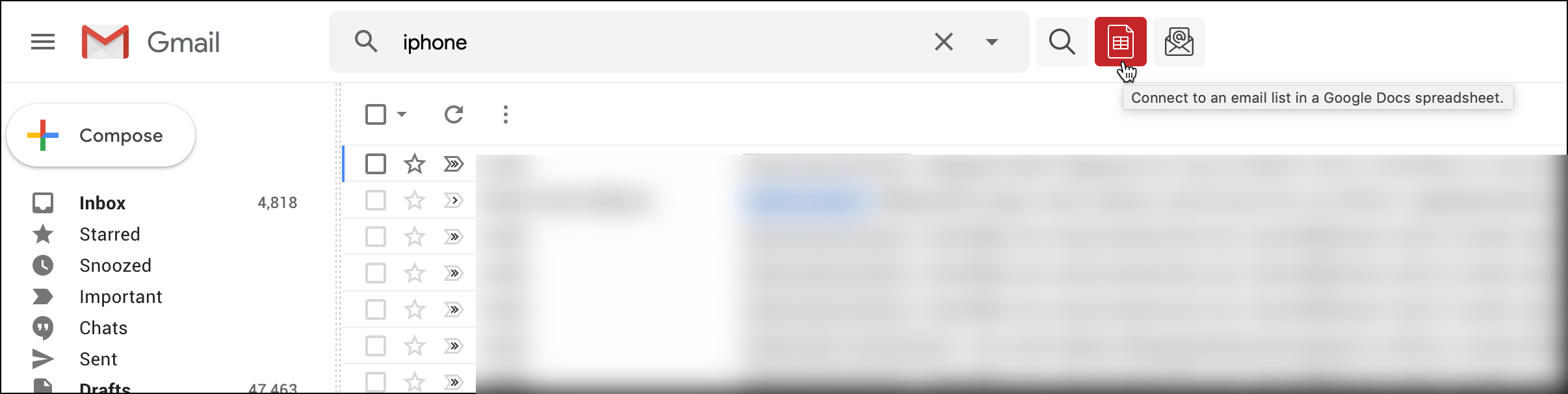
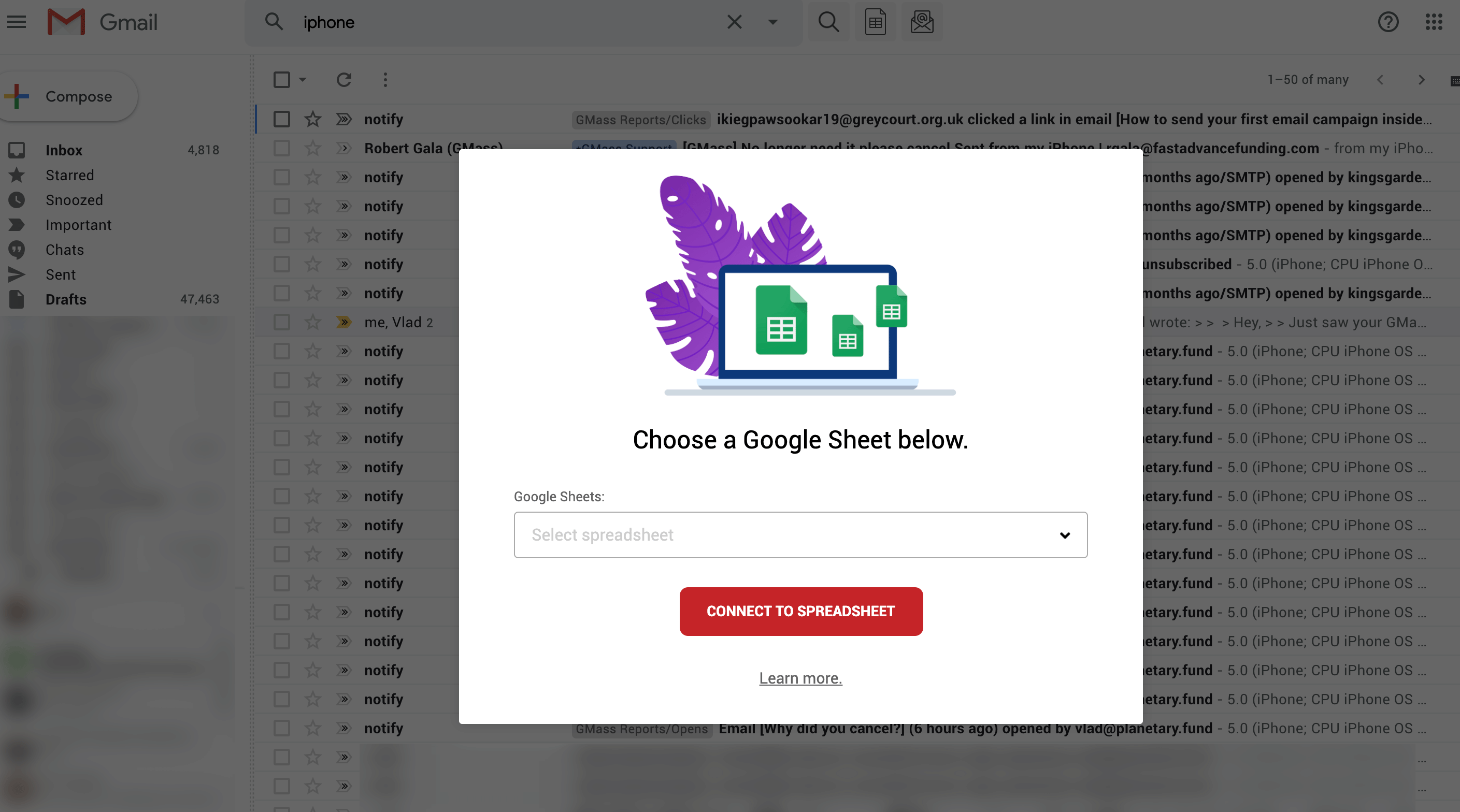
- Easily import contact lists from a Google Sheets file.
- Send automated email campaigns.
- Send unlimited emails per day via a third-party SMTP service like SendGrid.
- Works within your Gmail inbox.
- Available as a robust Gmail add-on for Android devices.
- Powerful CRM integration with Salesforce and Hubspot.
- Active customer support team.
Cons
- The software works only on Google Chrome. Browsers like Internet Explorer aren’t supported.
- Only works for Gmail and Google Workspace (formerly G Suite) accounts.
Pricing
GMass offers three pricing plans for individuals and teams.
- Individual
- Standard: $25/month (or less on an annual plan) – basic campaigns + mail merge personalization + overcome Gmail sending limits.
- Premium: $35/month (or less on an annual plan) – everything available in Standard + A/B testing + auto follow-ups, and more.
- Professional: $55/month (or less on an annual plan) – all features in Premium + high priority support.
- Team
- Professional: starts at $145/month for a group of 5.
Customer Ratings
- Capterra – 4.8/5 (740+ reviews)
- G2 – 4.7/5 (720+ reviews)
2. MailTrack

MailTrack is a simple web-based service that tracks Gmail emails to give you a read receipt for email opens. It adds a double checkmark (✓✓) read receipt to your email message whenever a recipient opens it.
Key Features
- Read receipt push notification for email opens.
- Reminders for unopened emails.
- Reply monitoring to track email responses.
- Integrates with CRM software.
- First-open email alerts.
Pros
- Detailed daily email campaign reports.
- Real-time alerts are available on Android and iOS mobile devices.
- Has a plugin for Chrome, Firefox, and Opera browsers.
Cons
- Can’t track email opens when there are multiple recipients for the same email.
- No support for Internet Explorer.
- The app might alert you when you open your own emails. This can lead to tons of unnecessary desktop notification alerts.
Pricing
Has a free plan for unlimited tracking of email open rate. Paid plans start at $1.99/month and support features like click tracking of unlimited emails and daily reports.
Customer Ratings
- Capterra – 4.5/5 (150+ reviews)
- G2 – 4.5/5 (100+ reviews)
3. Boomerang
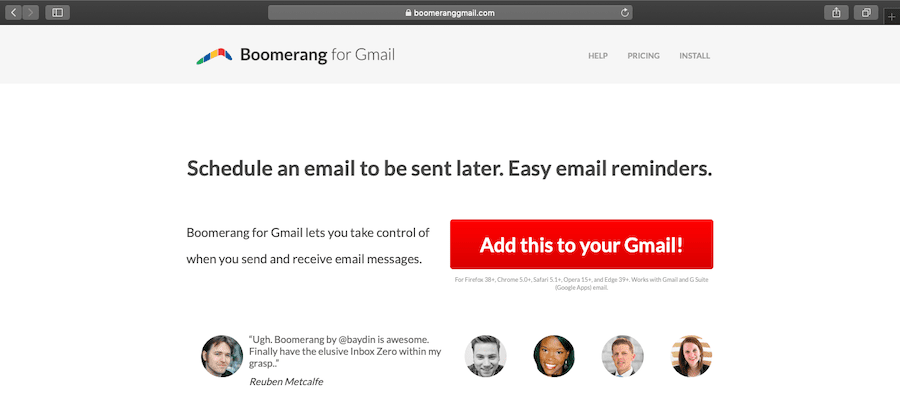
Boomerang is an email marketing tool that works with email service providers like Gmail and Outlook. Its powerful web-based service has made it a popular email tracker used by tons of small businesses.
Key Features
- AI assistant to help you craft attractive emails.
- Inbox Pause to pause new emails from coming into your Gmail inbox.
- Email scheduling with real-time alerts.
- Can send recurring email campaigns and follow-ups.
- Response tracking to track email replies.
Pros
- Add private notes to scheduled emails.
- The app has powerful sorting features to declutter your inbox.
- Supports a plugin for Google Chrome, Opera, Firefox and Edge.
Cons
- The initial setup is complicated.
- The UI is difficult to navigate.
- At times, you may have to log in repeatedly.
Pricing
Has a free email tracking plan with ten message credits per month (each message credit lets you use Boomerang for one outgoing message). Paid plans start at $4.98/month.
Customer Ratings
- Capterra – 4.7/5 (135+ reviews)
- G2 – 4.5/5 (200+ reviews)
4. Gmelius

Gmelius is a collaborative workspace that doubles as a tracking software for emails. Gmelius’s email tracking service can monitor everything that happens to your emails after you’ve hit send.
Key Features
- Detailed reports and email analytics.
- Real-time alerts on mobile and desktop for all events.
- Automatic email categorization.
- Personalized mail merge campaigns.
- CRM integration to sync all your email contacts.
Pros
- Create an email template that can be personalized and shared.
- Set reminders for automatic follow-ups.
- Schedule recurring emails to send monthly invoices, weekly meeting agendas, etc.
Cons
- Each app notification can clutter your inbox if you don’t use your device frequently.
- Limited email tracking features in the free plan.
Pricing
Pricing plans start at $12/month per user and support email collaboration features, real time notification alerts, and email activity reports.
Customer Ratings
- Capterra – 4.7/5 (30+ reviews)
- G2 – 4.5/5 (300+ reviews)
5. LeadBoxer

LeadBoxer is an online lead generation and marketing tool that tracks your emails. Its Google Chrome extension tracks email opens, link clicks, and more to provide Google Analytics level metrics from within Gmail.
Key Features
- Supports real-time alerts for your email opens.
- Can automatically identify prospects from your marketing emails.
- Provides detailed email campaign data such as your email click-through rate.
- Automatic lead scoring to rank prospects.
- Integrates with your CRM software.
Pros
- Powerful Google Analytics level reporting for email and social media campaigns.
- Reports are accessible on Android and iOS devices.
- You can filter and prioritize email prospects by company name or location.
Cons
- Expensive plans that start at $226/month.
- Difficult to use as a standalone email tracking software.
Pricing
Pricing plans start at $222/month for ten users, unlimited leads, and unlimited tracking of web and email behavior.
Customer Ratings
- Capterra – N/A
- G2 – N/A
6. Bananatag

Bananatag allows you to track emails, schedule them, and create an email template in Gmail and Outlook. It also gives you advanced email analytics and reports to break down a prospect’s overall engagement.
Key Features
- Schedule and snooze emails to manage your email schedules effectively.
- Detailed analytics and reports.
- Intuitive drag-and-drop interface to add external images and craft better emails.
- Attachment tracking (document tracking)to see how recipients interact with your email attachments.
- Sync emails to your CRM software.
Pros
- Can create email templates to save you tons of time when composing emails.
- Simple setup and user-friendly interface.
Cons
- This email tracking app doesn’t work for corporate email addresses.
- Each notification is shown through separate emails. Constant desktop notification alerts can be overwhelming if there’s a large mailing list in your inbox.
Pricing
All pricing plans have custom pricing, and you’ll have to reach out to the Bananatag team for a quote.
Customer Ratings
- Capterra – N/A
- G2 – 4/5 (20+ reviews)
7. Yesware

Yesware is a popular email tracking app for professional email marketers and sales reps.
It gives you detailed data like your campaign’s open rate, click-through rate, and attachment downloads (document tracking) in Gmail and Outlook.
Key Features
- Real-time desktop notification alerts for each email open and click tracking.
- You can personalize your emails by creating custom email templates.
- Reply monitoring to track prospect responses.
- Detailed tracking reports help take stock of your campaign progress.
- Attachment tracking to monitor how prospects use your files.
Pros
- Simple setup and user-friendly interface.
- You can easily sync your emails and activities through its Salesforce integration.
- You can set reminders to follow-up on customers.
Cons
- No auto-save feature for email campaigns.
- The app notifies you when you open your own emails — cluttering your campaign data.
- When there are multiple recipients for your email, it doesn’t clearly state who opened it.
Pricing
Pricing plans start at $19/month per user and support real-time sales email tracking, Salesforce sync, and custom email templates and reminders.
Customer Ratings
- Capterra – 4.3/5 (150+ reviews)
- G2 – 4.5/5 (700+ reviews)
8. HubSpot Sales

HubSpot Sales is sales tracking software that offers a suite of tools to boost productivity, track leads, and streamline the prospecting activities of your sales team. This sales software can also be used as a good solution for email tracking.
Key Features
- Built-in email activity stream that automatically logs each prospect’s email data.
- Automated and personalized email follow-ups.
- Predictive lead-scoring to help prioritize potential customers.
- Customizable reports that break down email metrics.
- Salesforce integration.
Pros
- User-friendly sales engagement platform.
- Build email templates that can be customized and shared with your sales team.
- You can schedule emails and follow-ups in advance.
Cons
- No mass emailing features. You can enter them in a sequence to build an email list, but you need to hit the send button for each one.
- The basic starter plan isn’t very feature-rich.
- The reporting dashboard can be difficult to use.
Pricing
Has a free email tracker plan with limited features. Paid plans start at $50/month and support two users, basic sales email tracking, and lead generation features.
Customer Ratings
- Capterra – 4.5/5 (300+ reviews)
- G2 – 4.3 /5 (7500+ reviews)
9. Cirrus Insight

Cirrus Insight is a popular email open tracker that works with email clients like Gmail and Outlook.
Key Features
- Email scheduling to send emails at a time of your choice.
- Allows you to save, personalize, and use each email template repeatedly.
- Can send drip marketing campaigns to improve email outreach.
- Email reminders to follow-up on sales and marketing pitches and quotes.
- Can schedule meetings with prospects.
Pros
- Detailed tracking of your email attachments (document tracking).
- Its Salesforce integration syncs your emails and contacts.
- Syncs with your Google Calendar to manage email schedules.
Cons
- The starter plan isn’t very feature-rich.
- The UI can be confusing for beginners.
Pricing
Cirrus Insight has paid plans starting at $10/month per user, supporting standard email tracking and productivity features.
Customer Ratings
- Capterra – 4.2/5 (100+ reviews)
- G2 – 4/5 (1000+ reviews)
10. Streak for Gmail

Streak is a lightweight CRM and email tracking tool for Gmail. You can use it to track customers, emails and create mail merges.
Key Features
- Intuitive email sidebar that displays details of tracked emails.
- Detailed reports for email activity and actionable insights.
- Personalization features for mail merges and follow-ups.
- Collaborate with your team on marketing emails.
- Automatic email response tracking.
Pros
- You can sort your emails based on the type of response.
- Color codes and customization let you manage your campaigns efficiently.
- Reports and data can be accessed from within your Gmail inbox.
Cons
- There’s no dedicated Streak dashboard.
- The app doesn’t clearly indicate which address in an email thread viewed the email.
- Their free plan isn’t very feature-rich.
Pricing
Has a free email tracking software plan with basic CRM features. Paid plans start at $19/month per user and support 800 mail merge per day.
Customer Ratings
- Capterra – 4.5/5 (400+ reviews)
- G2 – 4.5/5 (100+ reviews)
Now that we have explored the top email tracker software available today, I’ll answer some FAQs related to email.
4 FAQs About Email Tracking
Here are my answers to some of the most common questions about email tracking:
1. What is Email Tracking?
Email tracking involves monitoring the sent emails to obtain information for business decisions. You track metrics like open rate, click-through rate, and unsubscribe rate to gain insights into the performance of the tracked emails.
2. How Does Email Tracking Work?
Email tracking tools can inform you when your sent emails have been opened and replied to.
This is possible because mail tracker tools insert an invisible tracking pixel in outgoing emails. These pixel trackers can detect the exact time an email has been opened.
An email tracker can also show you whether recipients have clicked on links in your tracked emails or if they’ve unsubscribed from your emails.
3. What Are The Benefits of Email Tracking?
While anyone can benefit from email tracking, it’s especially useful for email marketers.
Here’s why:
1. It Helps You Manage Campaign Interactions
An email tracking tool lets you know when someone opens or engages with your emails. This way, the email tracking system helps you manage email campaign interactions without you having to lift a finger!
An excellent email tracking app can track when:
- A recipient opens your emails.
- They click on any link present in your email message.
- They forward an email to someone else, and more.
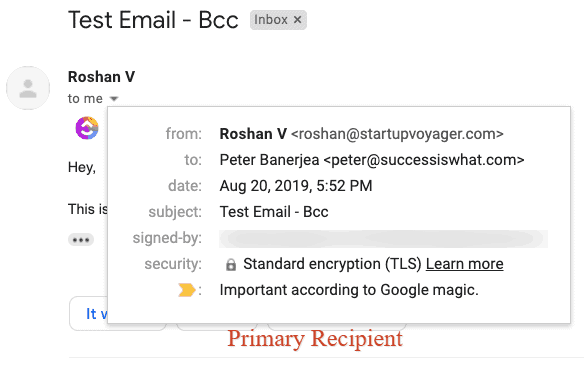
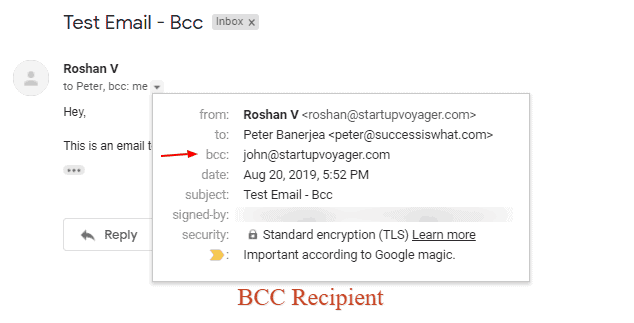
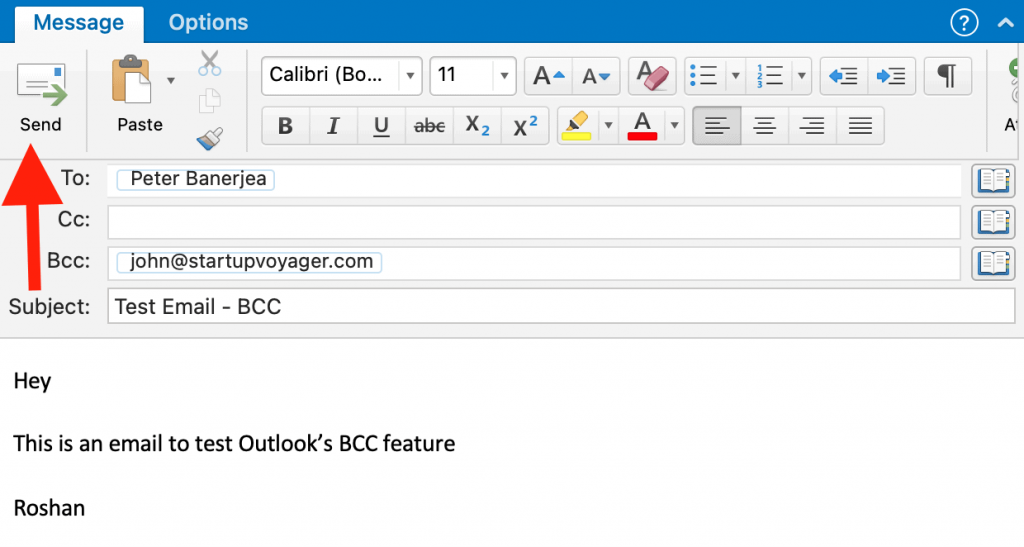
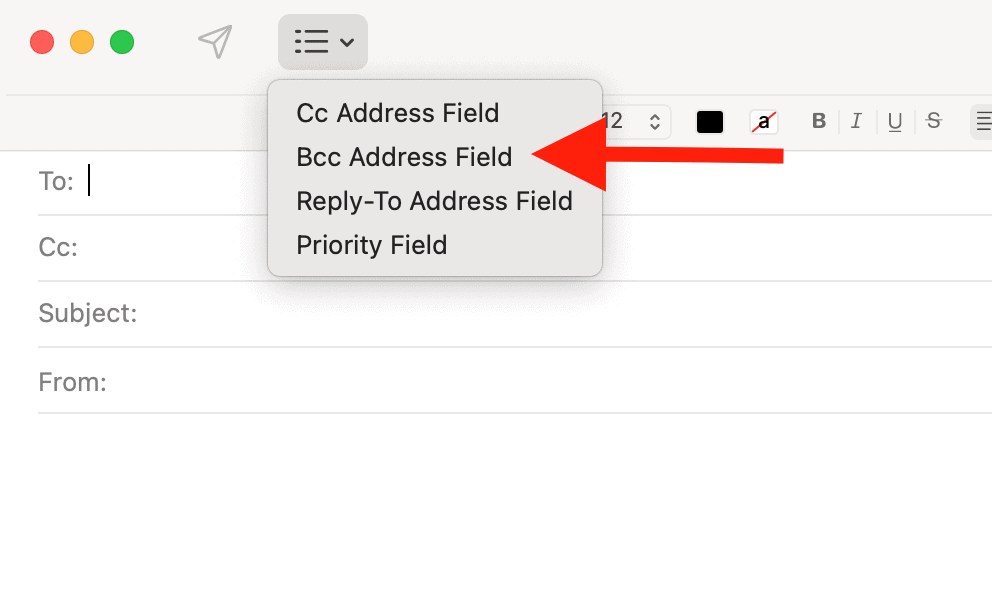
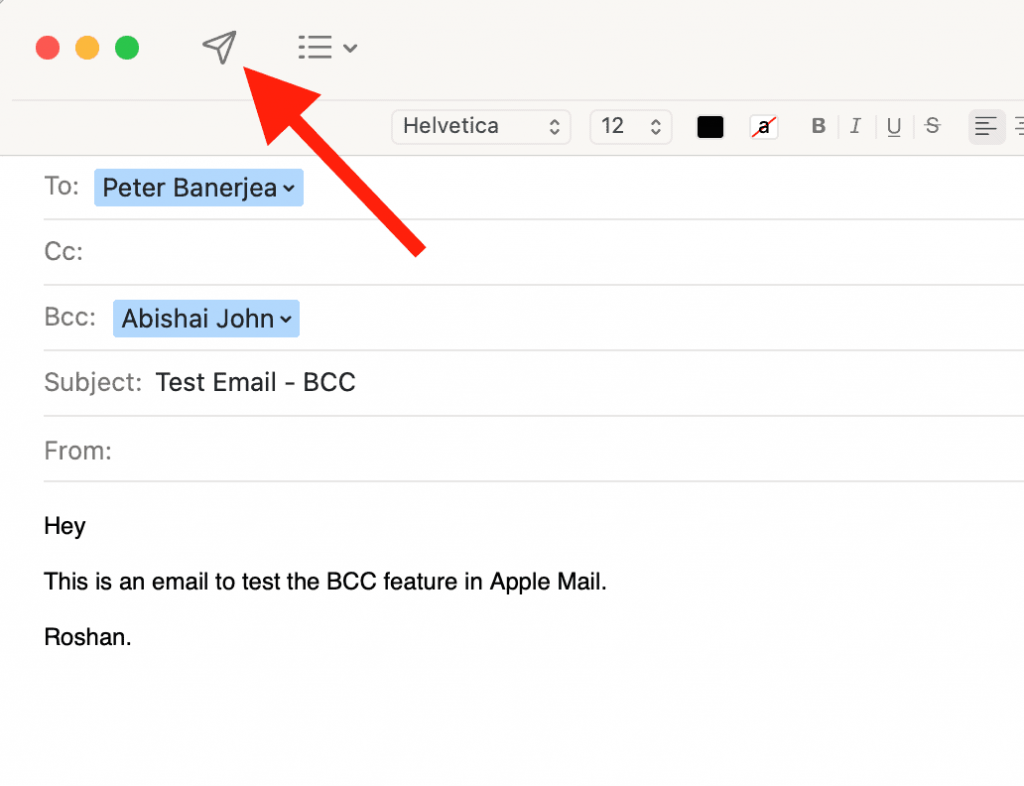
None of the above is possible if you send emails normally or by using the BCC feature.
Additionally, you’ll also get an idea of when they opened your tracked email. This can help you gauge when recipients are most active so that you can send follow-up emails at the right time for maximum engagement.
2. You Get Unique Insights into Your Email Marketing Campaigns
Ideally, an email tracking service will give you detailed reports over different aspects of your campaigns, like deliverability and conversions.
You get information on campaign metrics like:
- Open Rates (OR): The number of recipients that opened your emails.
- Click-through Rates (CTR): The number of email IDs that clicked any link in your emails.
- Bounce Rates: How many email addresses didn’t receive your emails.
- Unsubscribe Rates: How many email IDs unsubscribed from your campaigns.
How does this help you?
These metrics will help you understand:
- If your emails are going through.
- If they’re connecting with your audience.
- What’s going wrong with your emails.
- What needs to be changed.
Email senders can use these metrics to fine-tune various aspects of their emails, such as their email openings, to make them more attractive to their audience.
3. It Provides You with the Right Context for Follow-ups
With an email tracking system, email senders get actionable insights into their prospects’ interests and behavior. This helps you tweak and customize your follow-ups for maximum engagement.
For example, if you know that a person regularly engages with your mails, chances are, they’re interested in what you’re selling. You can now move them down your sales funnel and maybe give them a call, as they’re primed for a pitch.
An email tracking system helps you understand the kinds of content and links that engage your recipients. This lets you customize your follow-ups to appeal to their interests.
4. Are Email Trackers Legal?
If you’re worried if tracking your emails will get you in trouble, don’t be!
As long as you are GDPR compliant (if you’re in the EU) and follow some email tracking best practices, tracking your emails is perfectly legal. You can follow practices like including a double-opt-in and a one-click unsubscribe option to avoid legal trouble.
Wrapping Up
Choosing an email tracking software doesn’t have to be tricky.
While each of the tools I covered here is good, the GMass browser extension stays ahead with its powerful email tracking and mail merge capabilities.
GMass has got all the features you need to get the best out of your email marketing campaigns, so why not download its free Chrome browser extension and experience it for yourself?
Email marketing. Cold email. Mail merge. Avoid the spam folder. Easy to learn and use. All inside Gmail.
TRY GMASS FOR FREE
Download Chrome extension - 30 second install!
No credit card required

Ajay is the founder of GMass and has been developing email sending software for 20 years.

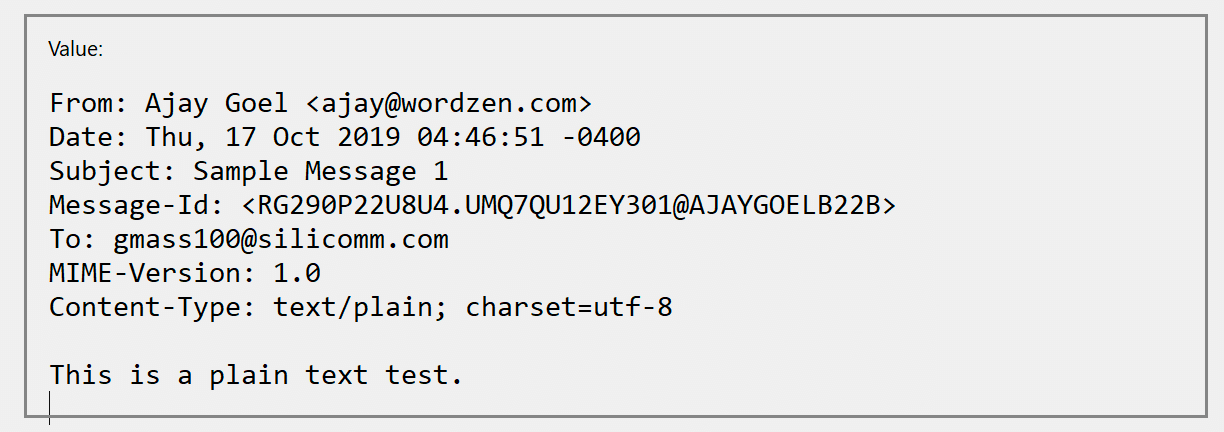 The Base64 encoded version:
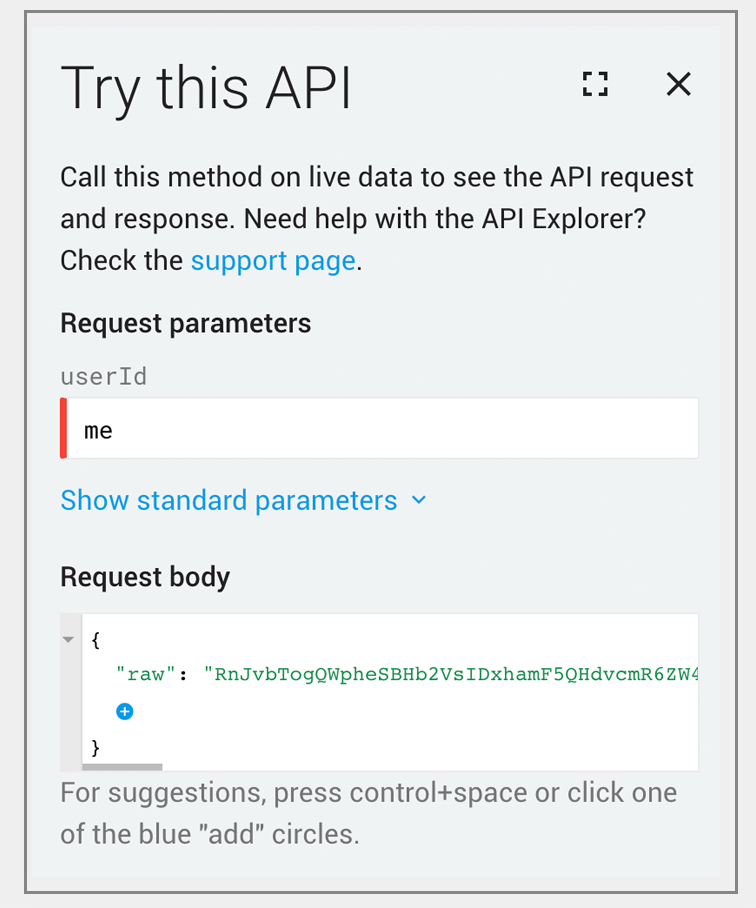
 Submission to the Gmail API:
 What appears in the “Sent Mail” folder of ajay@wordzen.com:
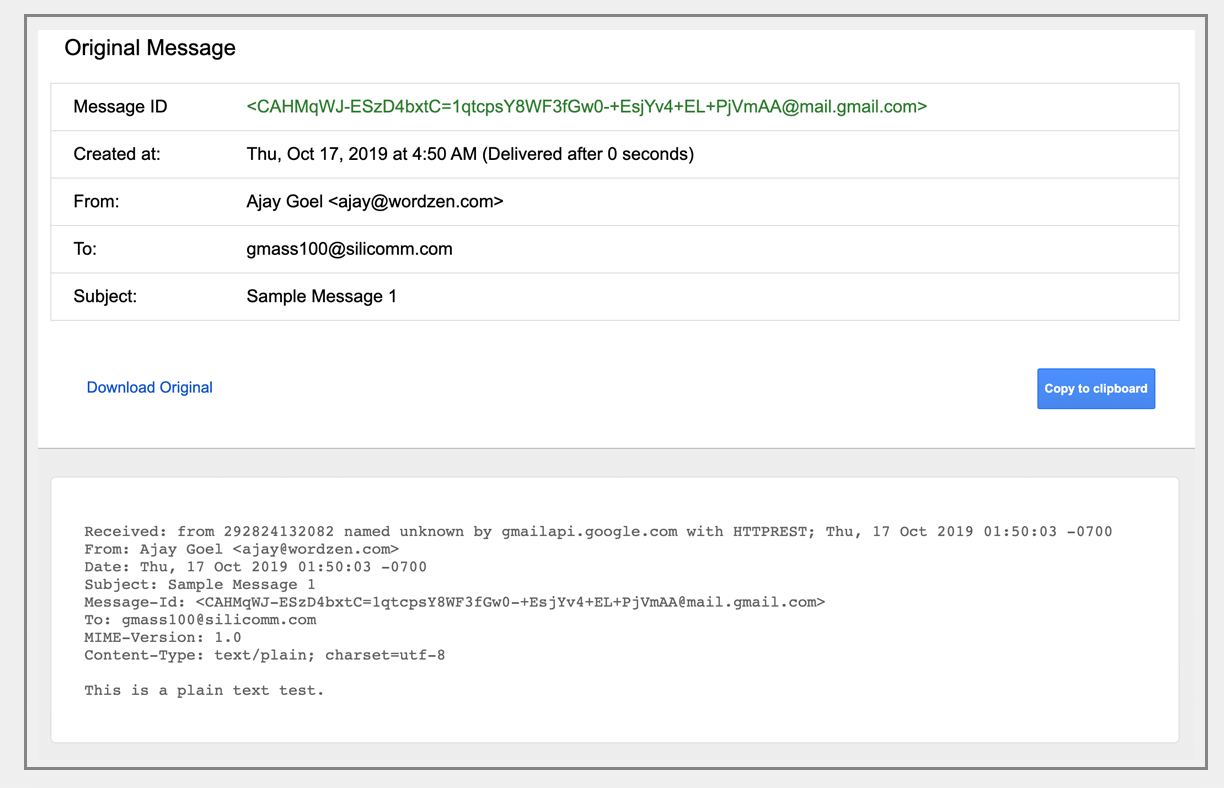 What is received by the server for gmass100@silicomm.com:
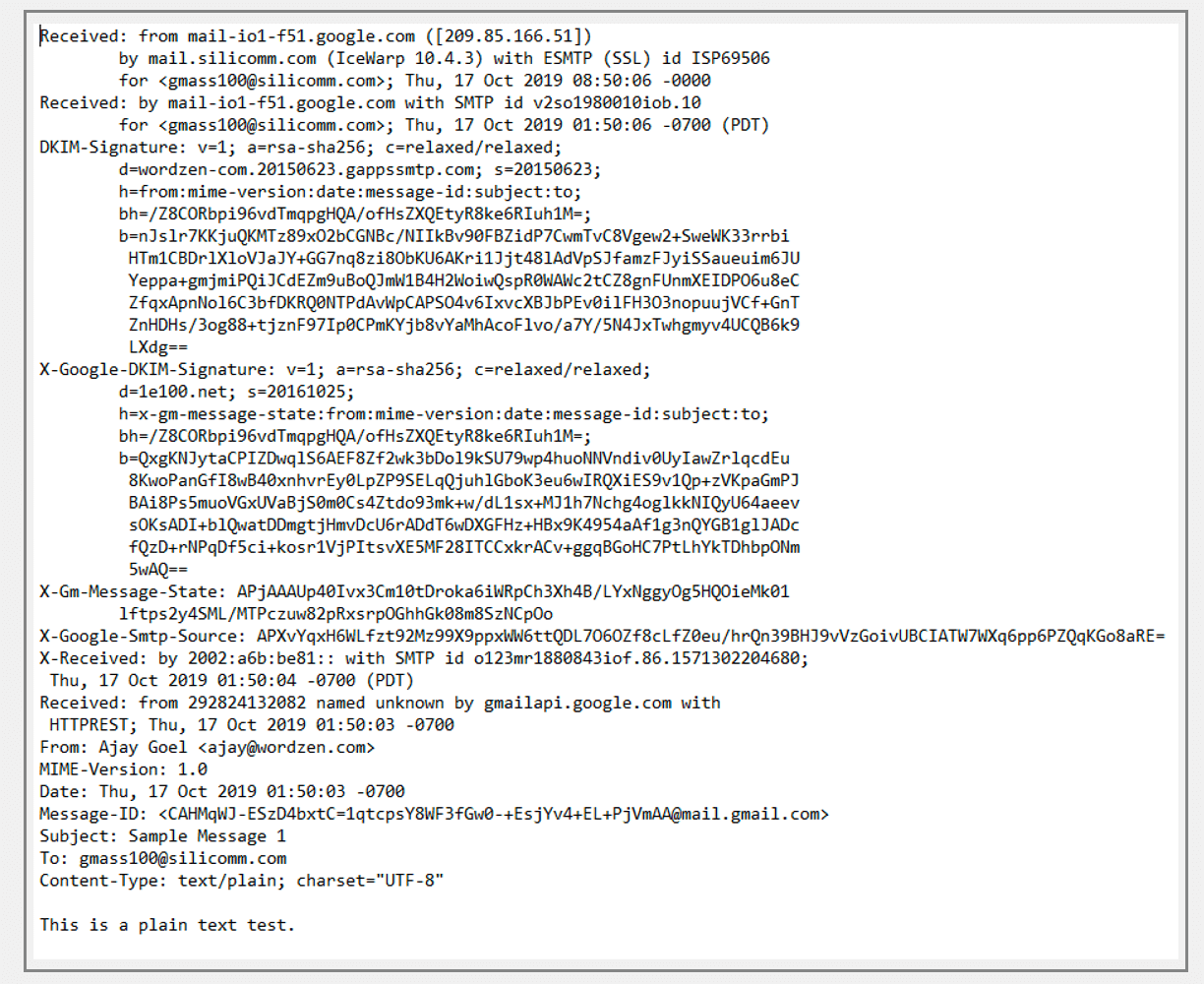 Conclusion: it works as expected!
 The Base64 encoded version:
 Submission to the Gmail API:
 What is received by the server:
 Base64 encoded:
 Submission to the API:

 Conclusion: The Gmail API replaces the plain text part that I’ve set with its own that is converted from the HTML part.