Automated email follow-ups in Gmail
Overview:
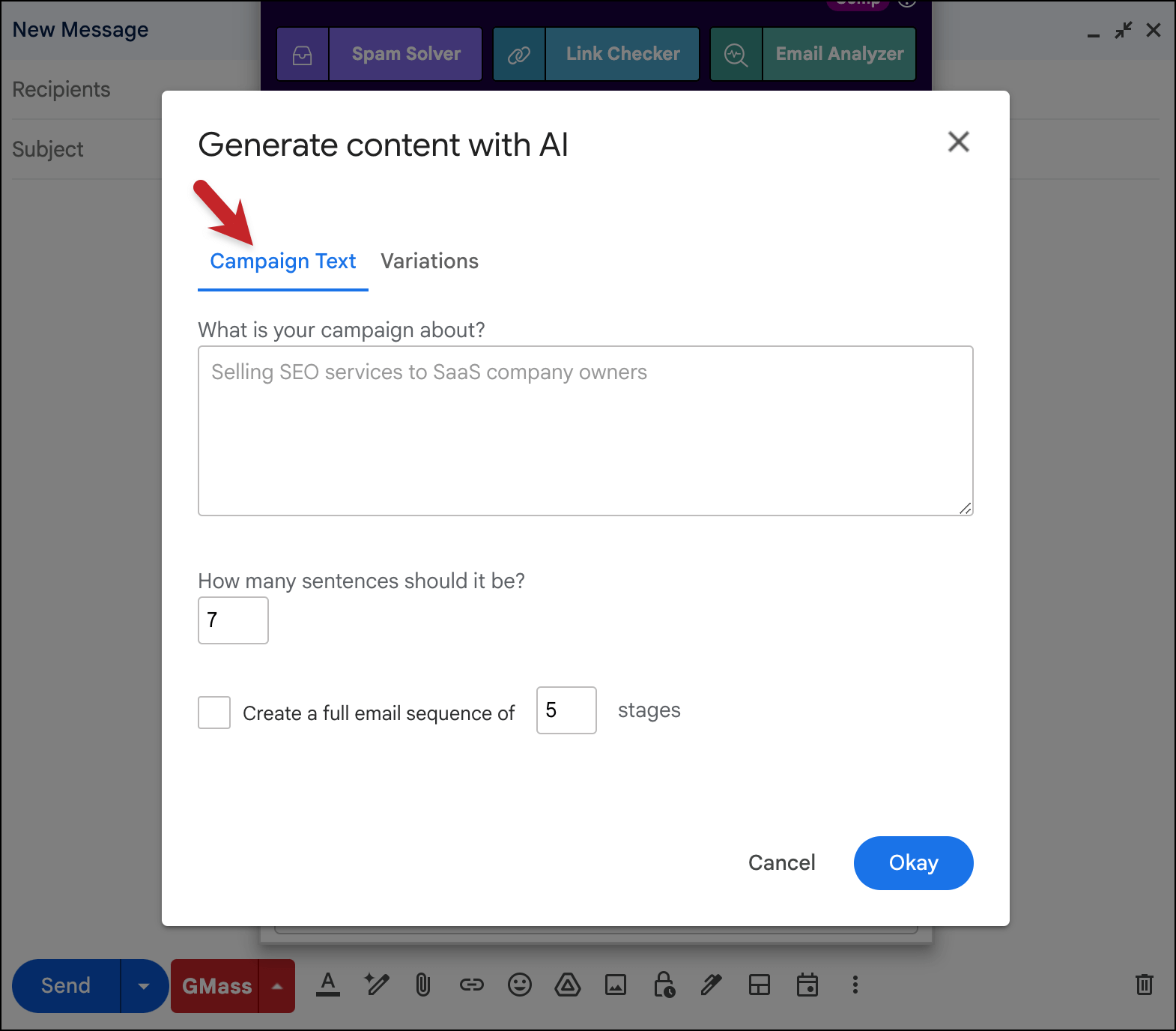
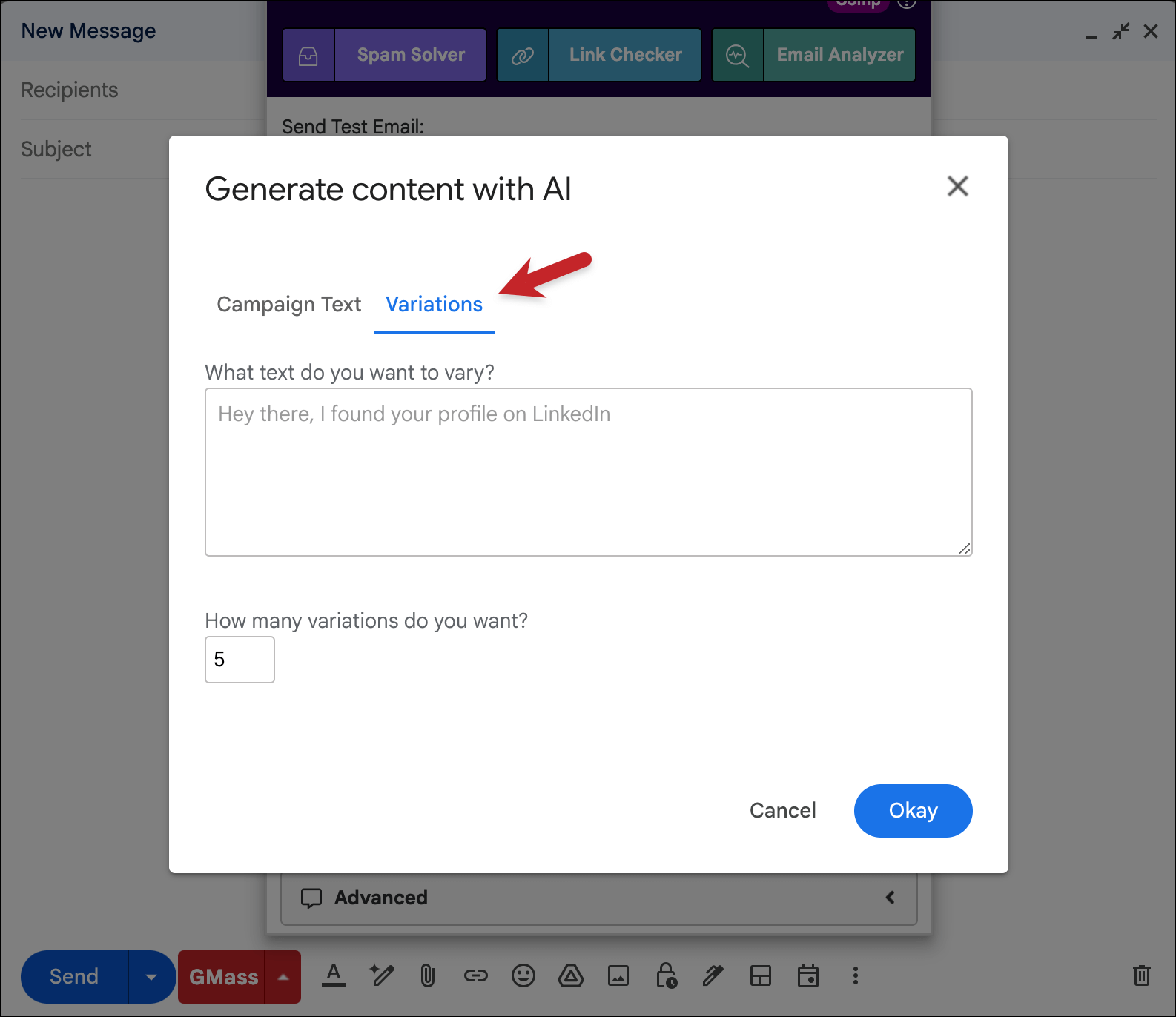
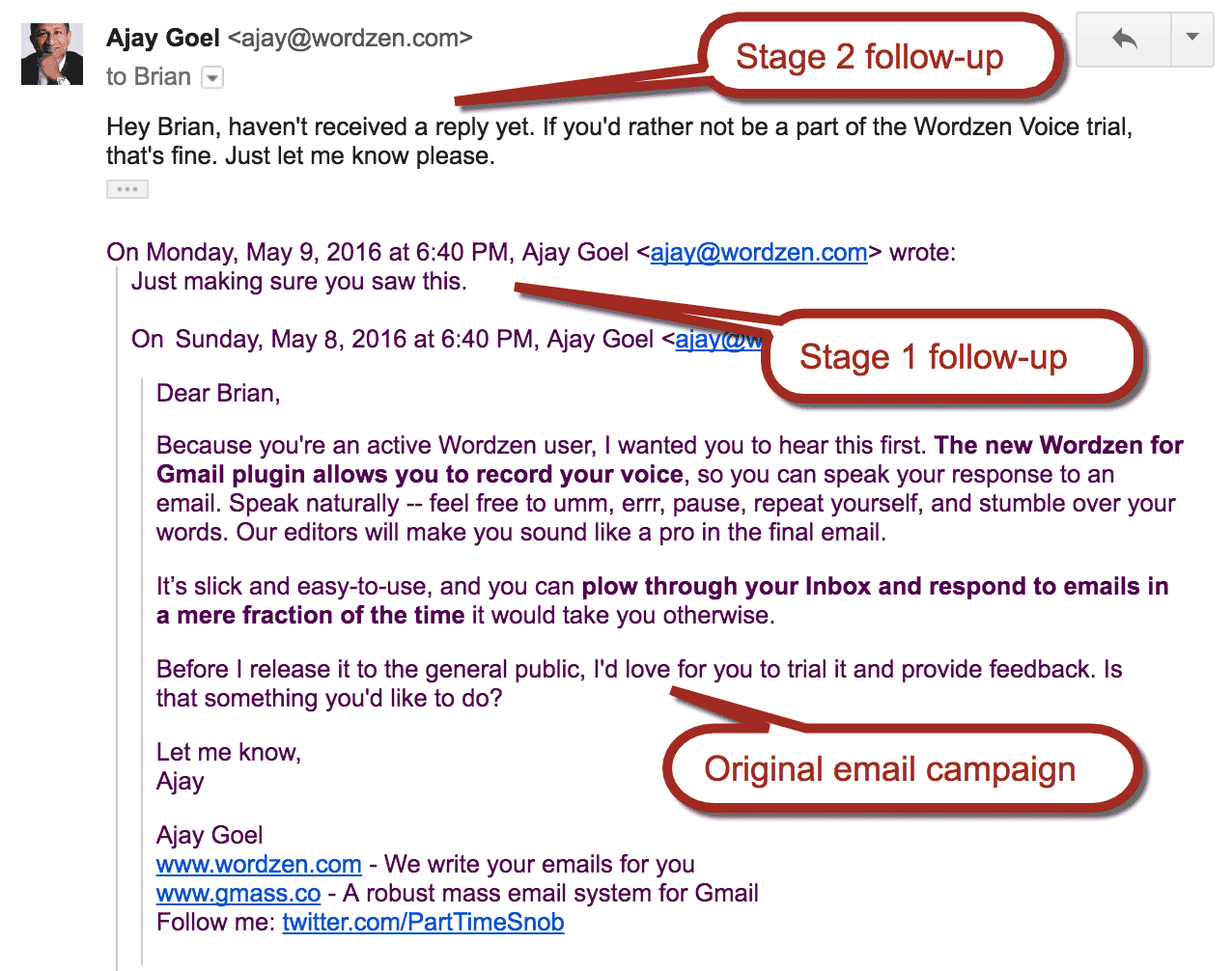
Learn how to set automatic follow-up email campaigns to be sent after an email campaign is sent, to increase your response rates dramatically. Reminders will be sent to your recipients in stages until you get a reply (or an open or click). An essential feature for cold emailers!
An example: You send an email campaign to 100 warm leads from a trade show offering to set up a demo of your product. When you send that campaign, you set it so that two days later, a reminder is sent to anyone that hasn’t replied. Three days after that, another reminder is sent, and a few days after that, a final email is sent asking for a reply.
Gmail auto follow up using GMass
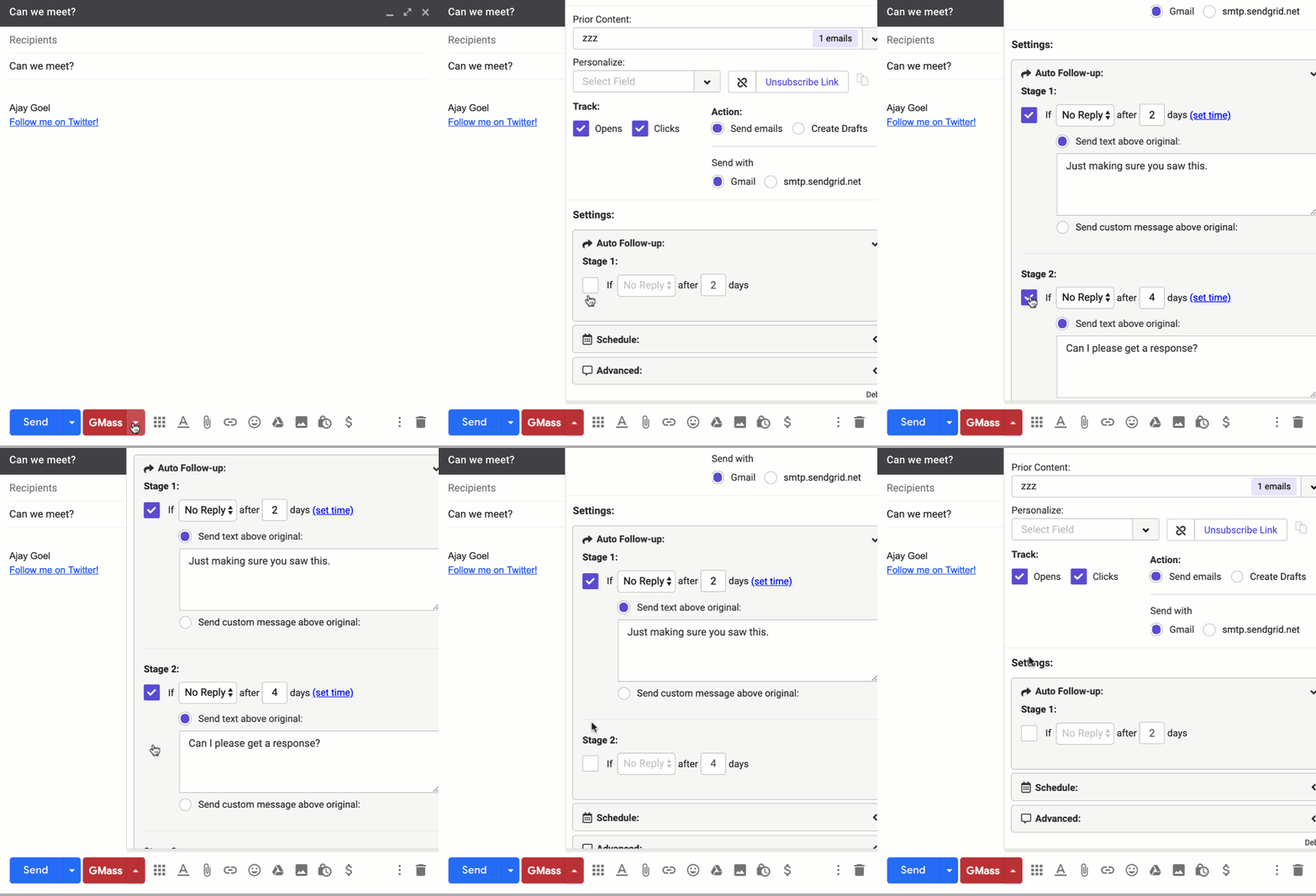
It’s easy to set up a Gmail auto follow-up using GMass, and you can try it right now using the standard follow-up language we’ve created. Just check the box next to each “stage” you want to be sent, make any adjustments to the timing and language, and hit the GMass button to send.
Testing your email sequence before you send it
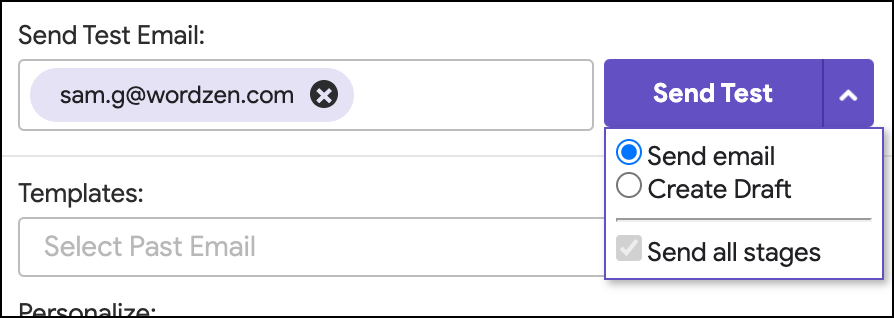
You can easily test your sequence and see exactly what it will look like in the Inbox before you send.
Important points to know
- You can use this feature for both mass emails and individual emails. If you’ve been using another Gmail tool, like Rebump, for follow-ups to your individual personal emails, you can eliminate that tool and use GMass instead to create automatic follow-ups.
- You can choose behavior associated with the automatic follow-up. You can have the follow-ups sent to people who didn’t reply, or people who didn’t open, or people who didn’t click, or everyone (ALL). If you choose “Didn’t Open” as your follow-up action, fewer follow-ups will be sent because you will almost always have more Opens than you will Replies. If you choose “Didn’t Reply” as your action, more follow-ups will be sent because “Didn’t Reply” includes unread emails. Typically, cold emailers are seeking a reply to their campaign, so cold emailers use the “No Reply” setting most often.
- Related to the behavior setting explained above, if you choose ALL, the auto follow-up stage will go to everyone in the original campaign, regardless of whether they replied, opened, or took any other action in response to your email. Additionally, whether the follow-up message goes out as a stand-alone email or as a message threaded to the same conversation as your original campaign depends on whether you set the content using the plain text box or choose a campaign from the drop-down list. If you type text in the box, then the email goes out threaded to the same email conversation you’ve already started with the prospect. If you choose a campaign from the drop-down, the subsequent emails are sent as stand-alone messages, meaning even the Subject set in that template will be seen by your recipient. When you choose a campaign from the drop-down menu, the sequence of emails goes out like a drip campaign, as if you wanted to send a training or introductory sequence of emails to your audience.
- Use the power of this feature sparingly. You likely don’t want to configure automated follow-up emails with every campaign you send. This will cause your recipients to get a lot of emails from you, so you should only use this feature to send a follow-up reminder when you genuinely want a reply.
- If you want your automated follow-up emails to include more than just plain text, you can add rich text the message to your follow-up emails. This is done by creating the auto follow-up message in the Gmail Compose window and saving it to your account, and then selecting “Send custom message…” and choosing the message from the drop-down menu. (You can also edit those messages.) You’ll also need to use this option if you want click tracking, as click tracking requires HTML.
- You can also personalize your auto follow-up emails with personalization variables, as shown in the screenshot below.
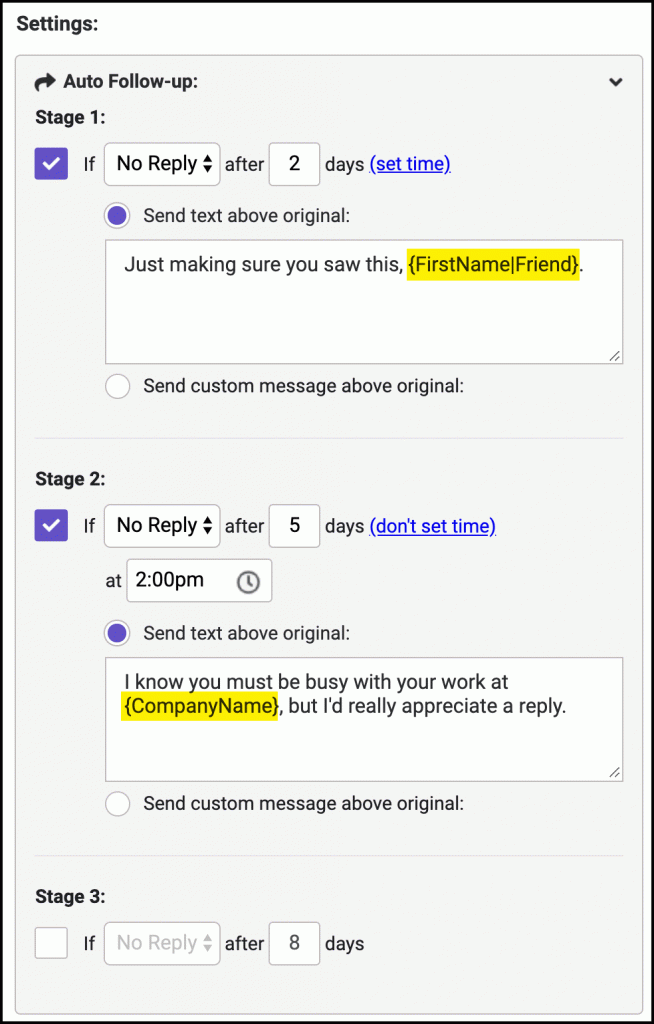
You can use personalization tags inside an auto follow-up message. Either type them manually or choose them from the Personalization drop-down menu for easy pasting. - After you’ve launched a campaign with automatic follow-ups, you can edit or cancel the auto follow-up settings. Here you can also add auto follow-ups to a campaign after the fact if you forgot to do so when you originally sent it, but be careful. Changing the settings of an already-sent campaign of scheduled emails can trigger the sending of an immediate batch of reminder emails if you’re not careful with the settings. If you change your mind and now wish to prevent auto follow-ups from being sent, just set the “Days” to 0 for any particular Stage.
- You can also manually send an auto follow-up stage on demand. In case you can’t wait for it to go out to everyone at the designated time.
- You can manually remove someone from the sequence of auto follow-ups. For more information on how to do that, see this separate blog post on manually removing someone from an auto follow-up sequence. It’s even easier if you use GMass’s dynamic lists.
- By default, GMass will send subsequent auto follow-up stages to an address even if that address is blocked earlier in the campaign. Here’s how to instruct GMass to suppress subsequent auto follow-ups to blocked addresses within a campaign instead.
- You can use this feature with or without Google Sheets. If you use it with Google Sheets, you can personalize your emails based on much more than just First and Last Name, which elevates your follow-up content from being an obvious canned response.
- If you’re setting auto follow-ups based on replies, you can toggle a domain-match setting such that if anybody at a domain responds, all future follow-ups to everybody at the same domain will stop. See the auto follow-up domain match setting doc for more information.
- Every campaign you send gets assigned a number called a Campaign ID. This ID is unique to your campaign and helps us identify your campaign if there are any issues. When we collect statistics on your campaigns, like numbers of opens and clicks, these are tied to your campaign by its unique ID. However, it’s important to know that each follow-up stage also gets assigned its own campaign ID. This is so that you can track the statistics by each individual follow-up stage and by the overall campaign at large. The campaign ID can be found in many places throughout your account, including the confirmation email you get after a batch of automated emails has been sent, the campaign report that goes into the GMass Reports–>CAMPAIGNS Label in Gmail, and your account dashboard.
- GMass allows you to set a Reply-To address for a campaign, so replies go to a different address than the one from which you sent the email. GMass will not be able to detect those replies to the different address. So if you have an auto follow-up campaign set to send until you get a reply, using a different reply-to address isn’t a great idea. GMass will show you a warning if you set up a campaign that hits those criteria.
- GMass auto-saves your settings, including auto follow-ups, as you work on them. So even if you close the settings box or close the entire email draft, your auto follow-up messages and settings will be there when you re-open.
To “signature” or not to “signature?”
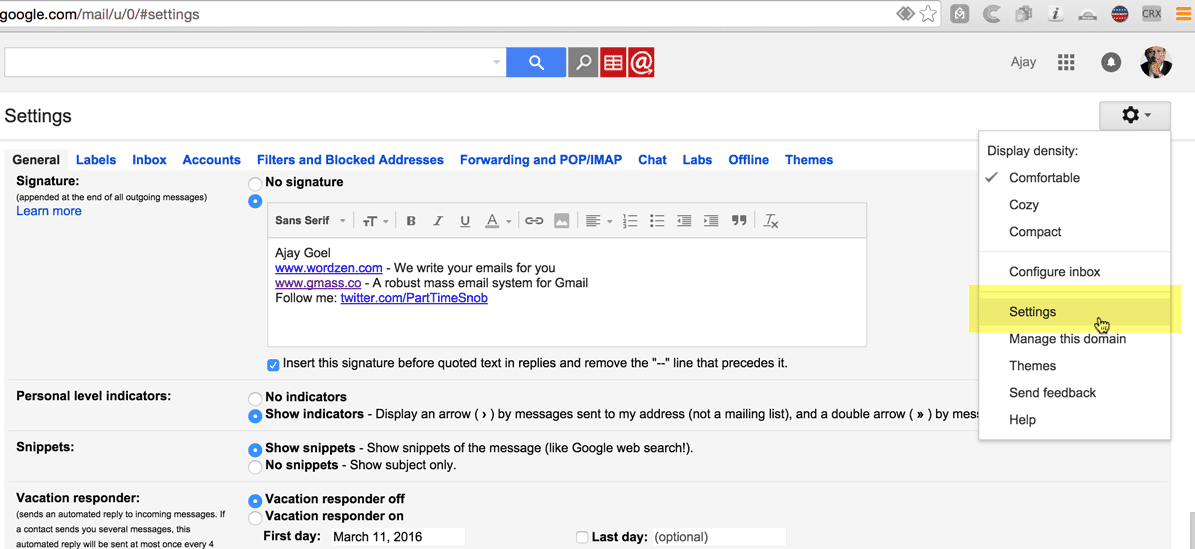
‘Tis the question. You can use the special variable {mysig} inside the text boxes to insert your Gmail signature when the follow-up email is sent. For example, your Stage 1 auto follow-up could look like this:
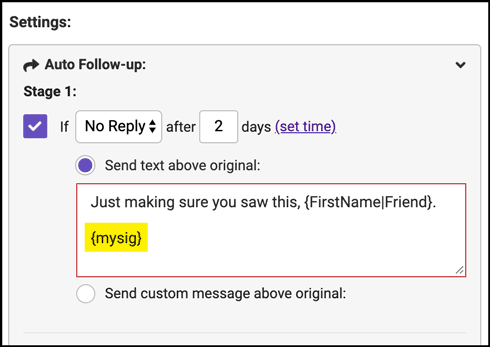
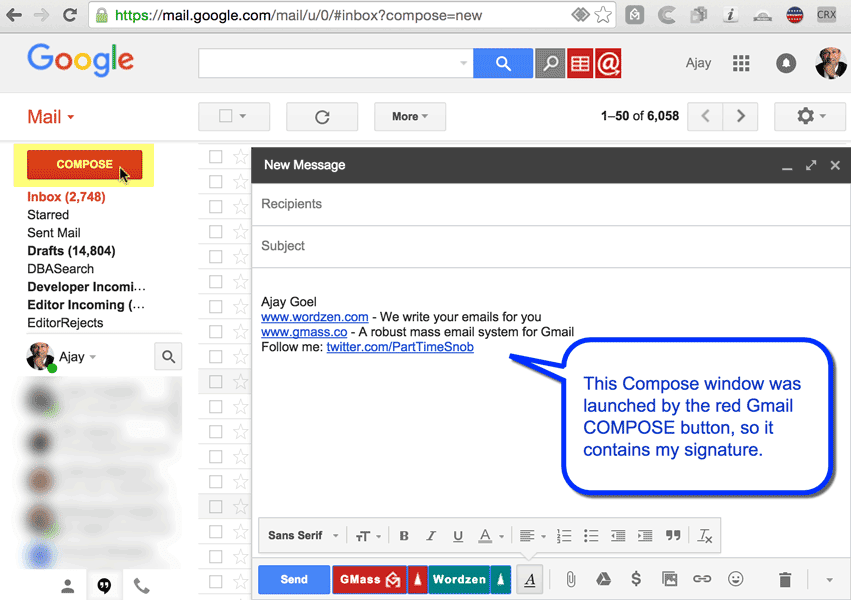
Should you include your signature in each auto follow-up, even though your signature will still be visible at the bottom of the thread? The jury’s still out on that. For the first few years of our existence, we didn’t provide the ability to include a signature in a text-based Gmail auto follow-up. Of course, if you’re using rich content by choosing a template from the “custom message” drop-down, those messages were likely to include your signature since you created them in separate Gmail Compose windows, and Gmail inserts the signature by default when you launch a new Compose window. Still, it’s a question of whether the prospect receiving your subsequent emails needs to see your signature immediately below each follow-up email and also at the bottom of the thread after the original campaign message.
GMass provides default text in each stage that you’re free to use, but we don’t include the {mysig} variable by default. You can add that if you wish, though.
How the timing works
The timing of a follow-up reminder is based on the time that each individual email in a campaign was sent, not when the campaign was launched. Example scenarios:
- The Days for each Stage are based on the time the original email is sent, not when the prior Stage was sent. For example, if Stage 1=2 Days, and Stage 2=5 Days, then Stage 1 will send 2 days after the original email, and Stage 2 will send 5 days after the original email, not 5 days after Stage 1 is sent. (There is a bit of an exception to this though — see the section below on the “Strict count of days between stages” setting.)
- If you create your campaign on Monday, but schedule it to be sent on Wednesday, with the first stage follow-up scheduled two days later, then the first follow-up to the non-responder will be sent two days from Wednesday, meaning Friday.
- If you create a campaign on Monday and use the “spread out” feature to send 100 emails/day for three days, and you include a Stage 1 follow-up going two days later, then each non-responder will get his first follow-up two days after his original email was sent. So for the 100 emails on Monday, the follow-ups will be sent on Wednesday. For the 100 emails sent on Tuesday, the follow-ups will be sent on Thursday, and so on.
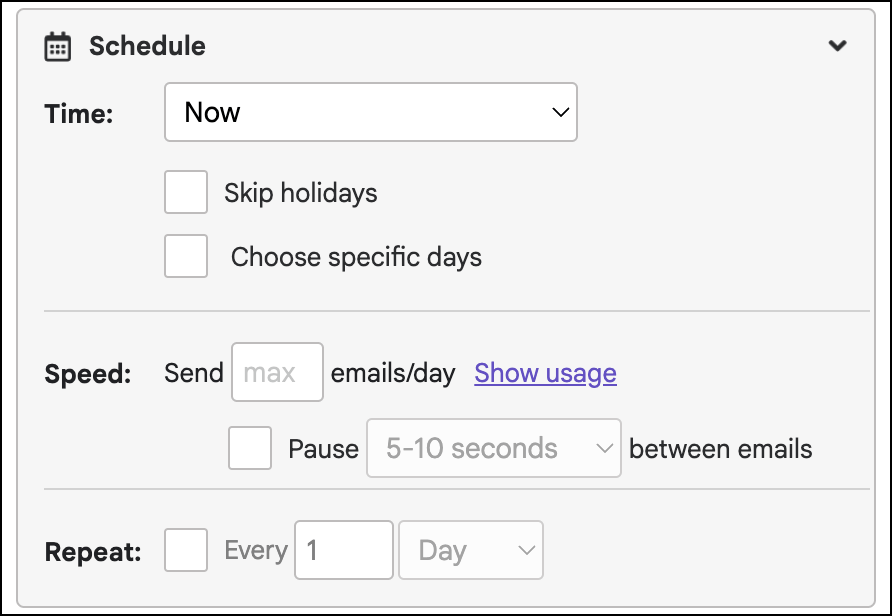
- You can also set the Time of Day for an auto follow-up sequence to go out. Without a time, the auto follow-up will go out on the exact 24-hour interval, based on the number of “days” you’ve set. With a time, the auto follow-up will go out after the specified number of days and at the specified time on that day (as long as we can send within 3 hours of the expected send time). Days and times are considered a pair. So for instance, if the expected send time is Wednesday at 11:30 PM, GMass will send follow-ups as long as it’s before Thursday at 2:30 AM.
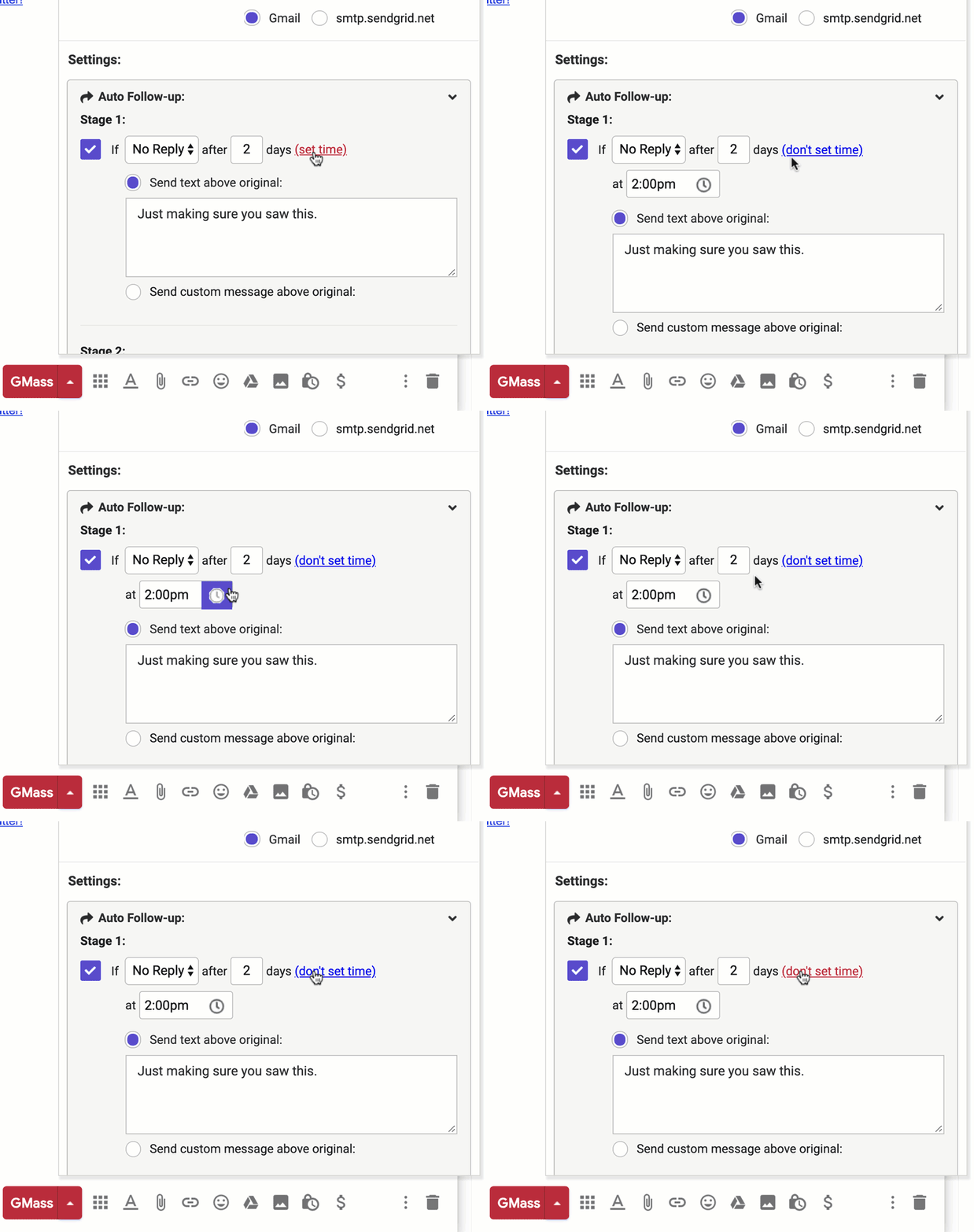
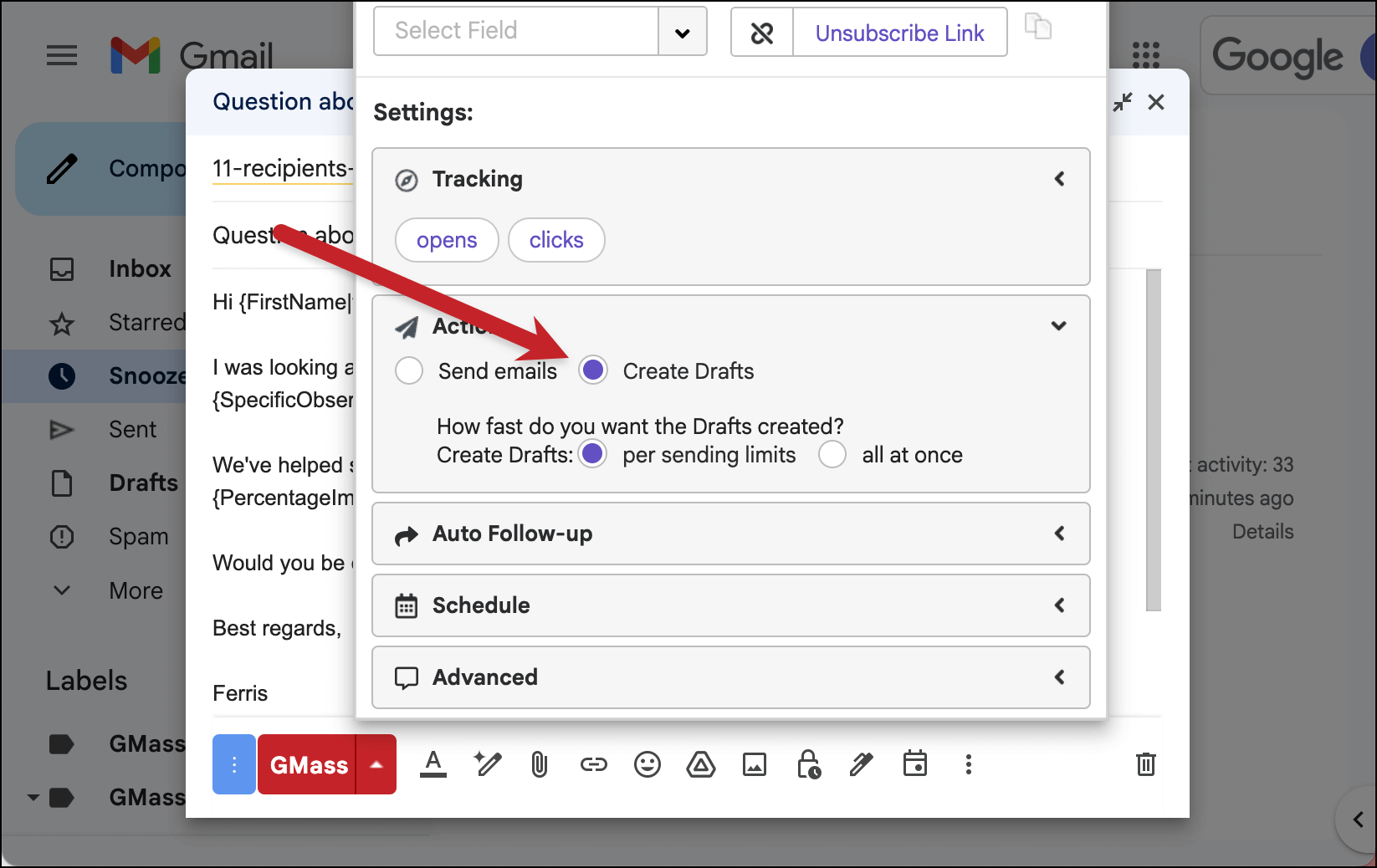
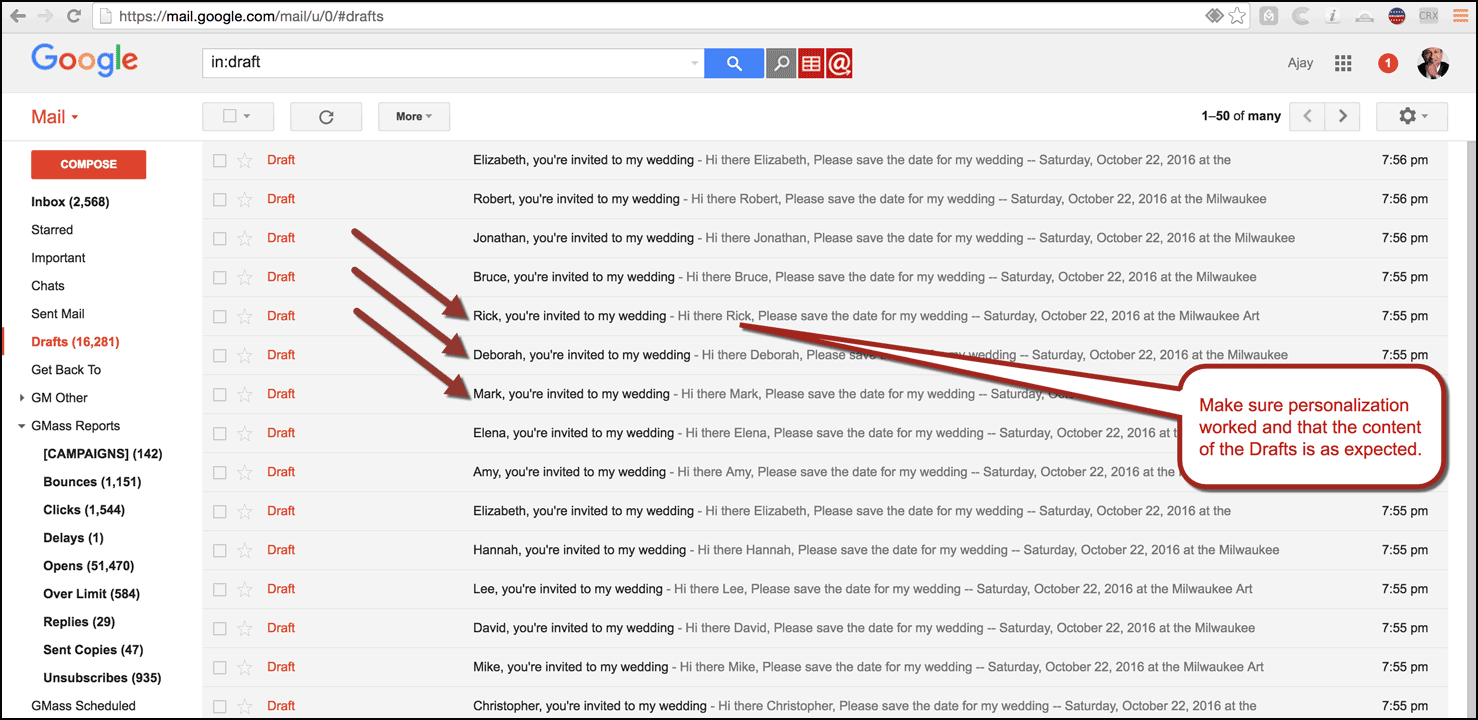
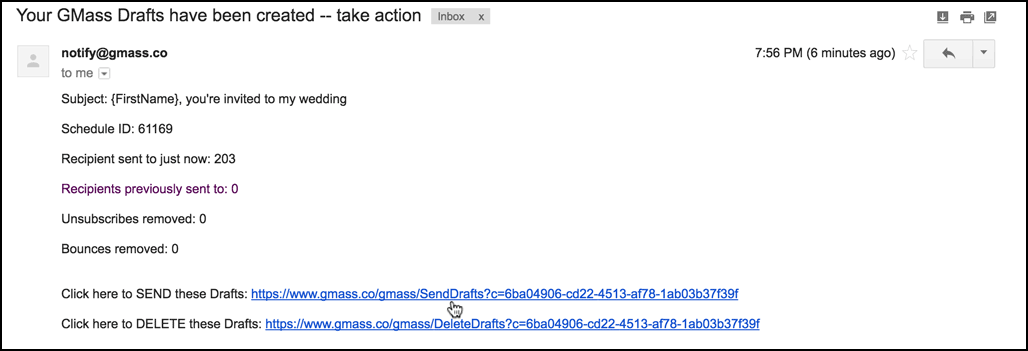
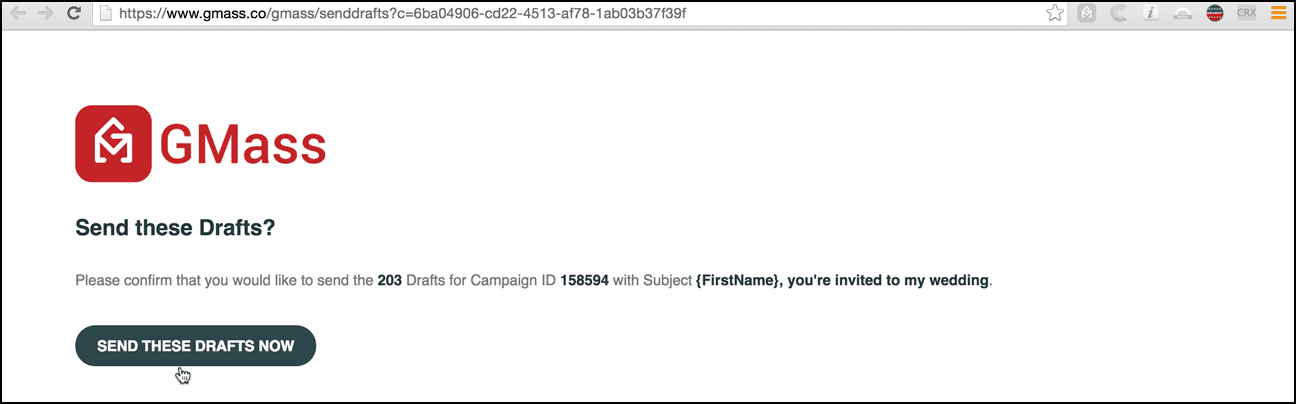
Set the specific time of day the follow-up emails should be sent. - If you use the “Just create drafts” option on your campaign on a Monday, but then wait to click the link to have the drafts sent until Tuesday, the timing of the automatic follow-ups will be based on Tuesday because that is when the Drafts were sent.
- If you enable the Skip Weekends option, then an auto follow-up will never get sent on a weekend, and the different Stage setting for Days become business days, not all days. Monday through Friday are business days. For example, if your original campaign sends on Wednesday and has a Stage 1 follow-up set to 7 days, and you enable Skip Weekends, then the Stage 1 follow-up will send 9 days later on the following Friday, since that Friday is 7 business days after that Wednesday.
- You can schedule the emails to go out as much as 1,000 days apart.
How the timing works if a campaign is paused/delayed (for various reasons) when an auto follow-up is scheduled
Sometimes there are exceptional circumstances that affect the timing of auto follow-ups.
There are three primary situations when this happens:
- You pause a campaign and its auto follow-ups. Then you resume the campaign later, after an auto follow-up was scheduled.
- You run an A/B test with a long decision window, which delays the timing of some of the emails in your campaign and their follow-ups as well.
- You hit Gmail’s daily sending limits, which prevents follow-ups from going out at their scheduled time.
We’ve built in workarounds for these scenarios to make sure everyone still gets the auto follow-ups they’re supposed to get — but there’s some math involved.
Here’s an example scenario to illustrate how it works.
Let’s say you have a campaign with a Stage 1 auto follow-up scheduled for day five a Stage 2 auto follow-up scheduled for day eight.
But… you paused the campaign on day four. And you resumed the campaign on day seven. That means those Stage 1 follow-ups didn’t go out on time. (And GMass won’t send someone Stage 2, Stage 3, and so on if they don’t get Stage 1.)
So in this case, Stage 1 will now go out after you resume the campaign on day seven.
And if you had a time set, say 2:00 P.M., the follow-up go out at that time on the day you resumed the campaign. (If you hadn’t had a time set, the follow-up would go out immediately once you resumed.)
And GMass will also make sure to keep the same time distance between your auto follow-ups from then on.
So since Stage 2 was scheduled for day eight, GMass won’t send it one day after the now-rescheduled Stage 1. GMass will calculate the difference between those two follow ups (Day 8 – Day 5) and send Stage 2 three days later.

This system makes sure everyone gets your follow-up sequence as intended, regardless of what kind of intentional or unintentional delays may come up.
The “strict count of days between stages” setting
By default, GMass auto follow-up send dates are calculated relative to the initial campaign date.
However, you might want to make sure your follow-ups are sent relative to each other. For instance, you want to make sure stage 2 goes out three days after stage 1.
Normally, that will happen. But there are potential exceptions where it wouldn’t.
For instance, let’s say you send a campaign on Monday and have stage 1 at 2 days (Wednesday) and stage 2 at 5 days (Saturday). But…
- Scenario 1: You manually send stage 1 early on Tuesday, after just 1 day. Stage 2 would still go out as scheduled after 5 days, on Saturday. That means there’s a four-day delay between the stages, not the initial three-day delay.
- Scenario 2: Your initial campaign goes out Monday. But when it comes time for stage 1 on Wednesday, your account hits Gmail’s daily sending limit. So some of your stage 1 messages go out Wednesday, but some go out Thursday. Then, when Saturday comes, you don’t hit any limits so all of stage 2 goes out. That means for some people (the ones who got stage 1 on Thursday), there’s a shorter-than-intended gap between stage 1 and stage 2.
If you want to avoid these (and similar) scenarios, you’ll want to use the GMass setting to keep a strict count of days between stages.
Go to the GMass dashboard > Settings > Auto Follow-ups. Then check the box next to Strict count of days between stages.

Now, with this setting turned on, your follow-ups will maintain their prescribed cadence. So if stage 1 is two days and stage 2 is five days, those stages will always go to a recipient three days apart — no matter what happens with delays or anything else.
Re-examining the two scenarios I laid out earlier, here’s how those would be different with Strict count of days between stages turned on.
Remember, in this scenario you send a campaign on Monday and have stage 1 at 2 days (Wednesday) and stage 2 at 5 days (Saturday).
- Scenario 1: You manually send stage 1 early on Tuesday, after just 1 day. Stage 2 would now go out on Friday, rather than the initial Saturday, to maintain the three-day spacing between stage 1 and stage 2.
- Scenario 2: Your initial campaign goes out Monday. But when it comes time for stage 1 on Wednesday, your account hits Gmail’s daily sending limit. So some of your stage 1 messages go out Wednesday, but some go out Thursday. Now, everyone who got stage 1 on Wednesday gets stage 2 on Saturday — but everyone who got stage 1 on Thursday gets stage 2 on Sunday.
One thing to note: “Strict count of days between stages” is an account-level setting, not one you select on a campaign-by-campaign basis. You can turn it on and off in your dashboard, however do know it will apply to all campaigns while it’s on.
What counts as a reply?
We’ve refined our algorithm that detects replies to an outreach campaign by poring over thousands of sample emails. Our reply detection mechanism is now fairly accurate but isn’t 100% perfect.
Generally speaking, an email is only counted as a reply if it’s a legitimate reply from a person and not a bounce or an out-of-office auto-reply. An email has a much higher chance of being counted as a reply if it appears as a reply to the same conversation thread in Gmail. Out-of-office auto-replies usually arrive as part of a separate thread, and not part of the original thread, so this is what prevents them from being counted as a reply.
And as we mentioned earlier, if you use a different Reply-To address for your campaign, GMass won’t be able to detect replies to that other address.
Images in follow-up emails
If you use the rich text content option for your Gmail auto follow-up sequences, then any images you insert into the Compose window when creating the content for your follow-up stages will also be preserved. There was a time where images would “break” when the actual follow-up email was sent, but as of April 2020, that issue is fixed. The reason the images would sometimes break is that Gmail inserts images as embedded images rather than hosted images when you use the standard “Insert Image” icon in the Compose window’s toolbar. Embedded images are images where the full content of the image is part of the email message, rather than being hosted on a web server somewhere.
Attachments in follow-up emails
Whether you include attachments in the original email or any of the subsequent follow-up stages, they are handled properly and in a manner that we think optimizes the experience for your recipient. The rules for attachments in auto follow-ups are as follows:
- Any attachments that are part of the original email will be sent as part of the original email, just as you’d expect.
- If you set rich a text follow-up stage that also has attachments, when the follow-up email goes out, it will go out with that specific stage’s attachments.
- If a follow-up stage does NOT have its own attachments, then the follow-up email will still be sent with the attachments from the original email message.
For example, let’s say your original email contains the attachment “Document.pdf.” Your Stage 1 auto follow-up is just the text “Hey, just making sure you saw this.” When that follow-up email goes out, it will still contain the attachment Document.pdf.
If, however, your original email contains the attachment “Document.pdf,” and you set your Stage 1 auto follow-up to be a rich text message with the attachment “Proposal.pdf,” then that Gmail auto follow-up email will go out with just Proposal.pdf and not Document.pdf.
Why this behavior?
Technically, we’re breaking the rules of how follow-up email replies work. If you send a regular email to someone with an attachment (by using the regular blue Gmail Send button), and then after a few days of no reply, you retrieve that email in your Sent Mail, click Reply, and type a follow-up on top of your original email, that follow-up would NOT contain the attachment from the original email (unless you re-attached it). However, we think there’s a benefit to re-sending the attachments with each Gmail auto follow-up sequence unless the sequence contains its own attachments.
Reports
When you download the Main Campaign Report CSV file for any campaign that has auto follow-ups, you get additional columns that reveal a “matrix” of the various auto follow-up stages, and which recipients have so far received which stage of follow-up.

This is especially useful if you have an automated campaign or a distributed campaign sending a certain number of emails/day. You can easily see who has received the original email, who has received each of the various auto follow-up stages, and how many days ago each follow-up stage was sent.
This report is accessible by clicking the “download main campaign report” link from any report under the GMass Reports–>[CAMPAIGNS] Label in your Gmail account.
What you see and what your recipient sees
Your recipient will see your follow-up emails on top of the original and part of the same conversational thread.
You will see the follow-up emails as part of the same email thread in your Sent Mail folder, and each consecutive follow-up reminder will include the original and any previous reminders below.
The idea is that a follow-up email looks just like it would if you had found the original email from your Sent Mail, hit Reply, and then typed a new email on top and hit Send.
Understanding why someone is in one stage but not in another
Each time a sequential stage of a campaign goes out, a complex set of rules determines exactly who gets that sequence. If your sequences are based on “replies”, then it’s easy to think that Stage 3 should go out to everyone in the campaign except the people that replied to Stage 2, but it’s actually more complex than that. When a particular stage sends, here’s how the list of recipients is compiled:
- First, the list of people in the original campaign is compiled.
- Then, a list of people that have replied to all prior stages is compiled, and that list is removed from the recipient list for the current stage.
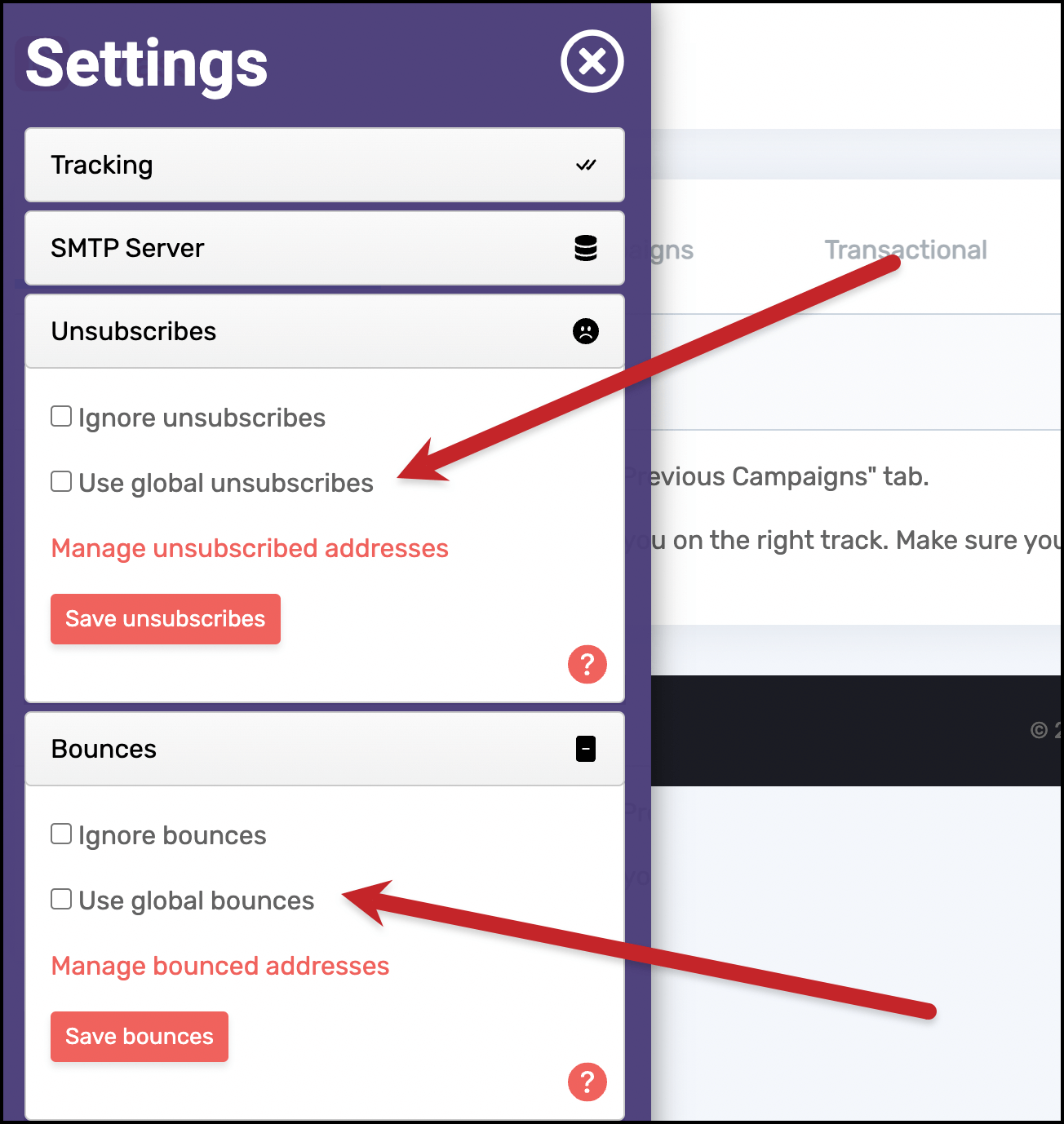
- Then, the account’s unsubscribe list is compiled and that list is removed from the recipient list for the current stage.
- Then, the account’s bounce list is compiled and that list is removed from the recipient list for the current stage.
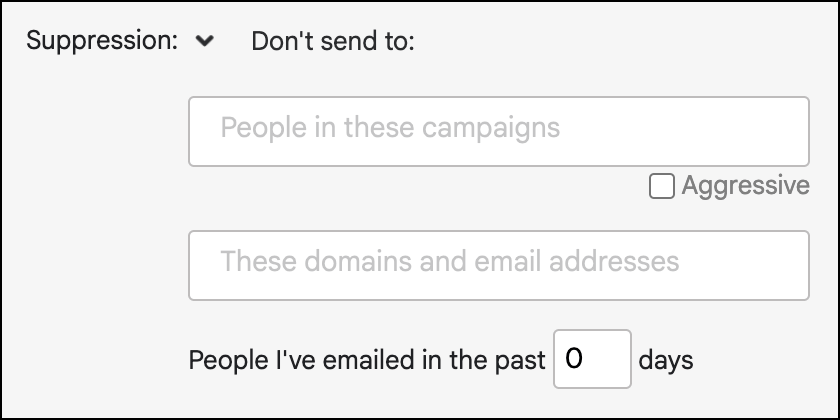
- Then, the campaign’s suppression list is examined, and anyone on the campaign-specific suppression list is removed from the recipient list for the current stage.
Timing can also play a factor. It’s easy to think that if I send a campaign to 100 people, and also have 3 stages set up, that if 10 people reply to the original campaign, that 90 people will now receive Stage 1. And that if 5 people then reply to Stage 1, then 85 people will receive Stage 2. But, what if in between Stage 1 sending and Stage 2 sending, 2 more people reply to the original campaign? Then, those 2 people will also be eliminated from Stage 2. Or, what if in between Stage 1 and Stage 2 sending, 1 person unsubscribes from a campaign that you sent them 3 months ago. Then, that 1 person will also be eliminated from Stage 1. Finally, let’s say someone replies to Stage 1 but still receives Stage 2. How did that happen? It’s possible that the person replied to Stage 1 after Stage 2 had been sent!
And when you want to see who’s getting what messages and when…
Calendar view for your past and upcoming auto follow-ups
It can be tricky to keep track of when your auto follow-ups are scheduled to go out, especially if:
- You’re using the skip weekends option.
- You’re scheduling follow-ups for a certain time.
- You’re dealing with a recurring campaign that’s starting the sequence for different recipients at different times.
With the calendar view, you can see when auto follow-up stages are scheduled to send (in your local time zone) — and who will receive them. You can also see all of the past auto follow-ups sent for the campaign.
Even if you’re using a ton of auto follow-up stages, they’ll all display here.
The calendar view takes your sequence cut-off triggers into account; for instance, if you stop the sequence when you get a reply, the numbers for future sends will reflect that. (And, when you get more replies, those numbers will go down.)
To access the calendar view of your auto follow-ups, head to the GMass dashboard. You can see which campaigns have auto follow-ups with the calendar icon.
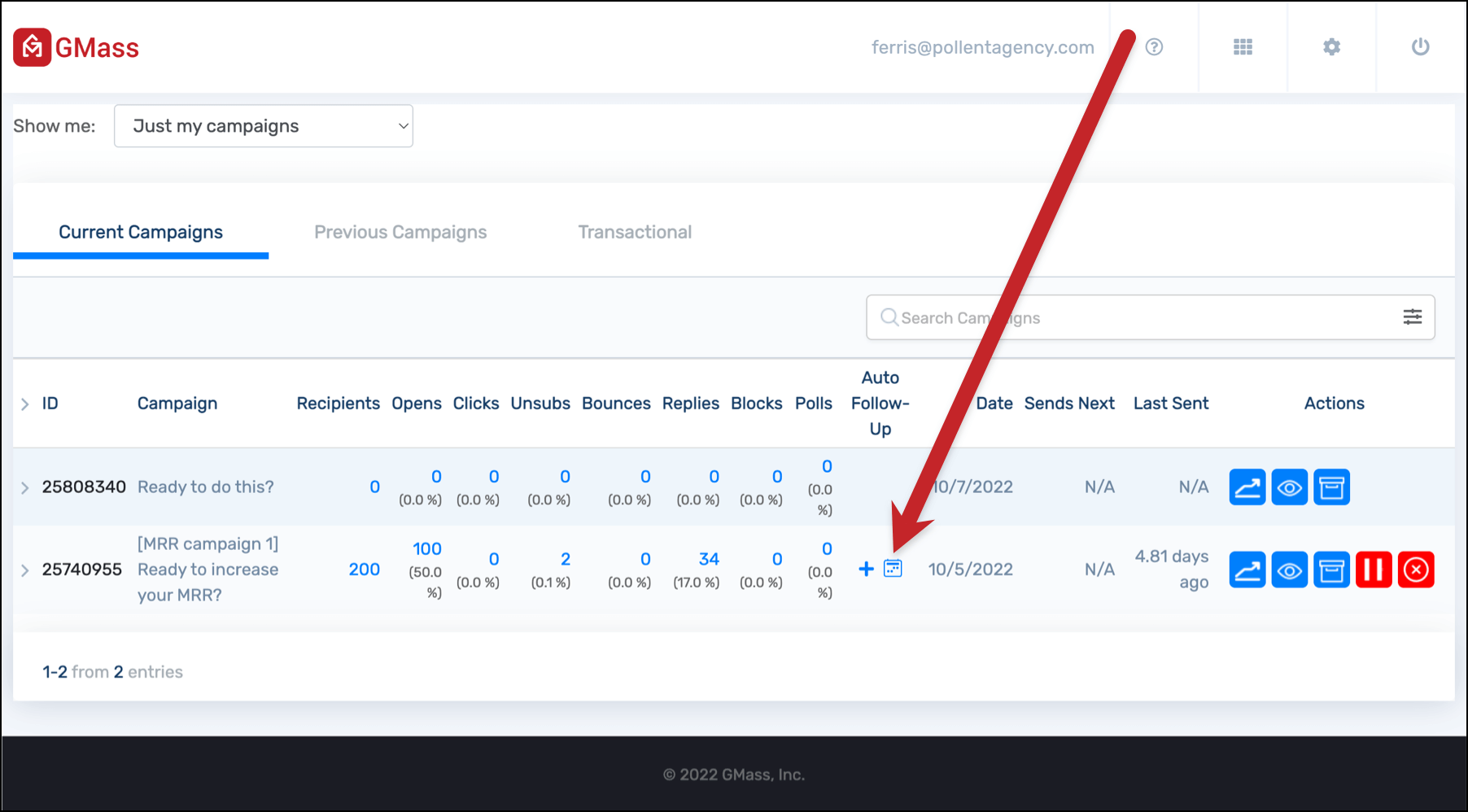
When you click the calendar icon, you’ll see a report showing you past and future auto follow-ups for the campaign.
Past sends are in orange; today’s send is in green; future sends are in blue.
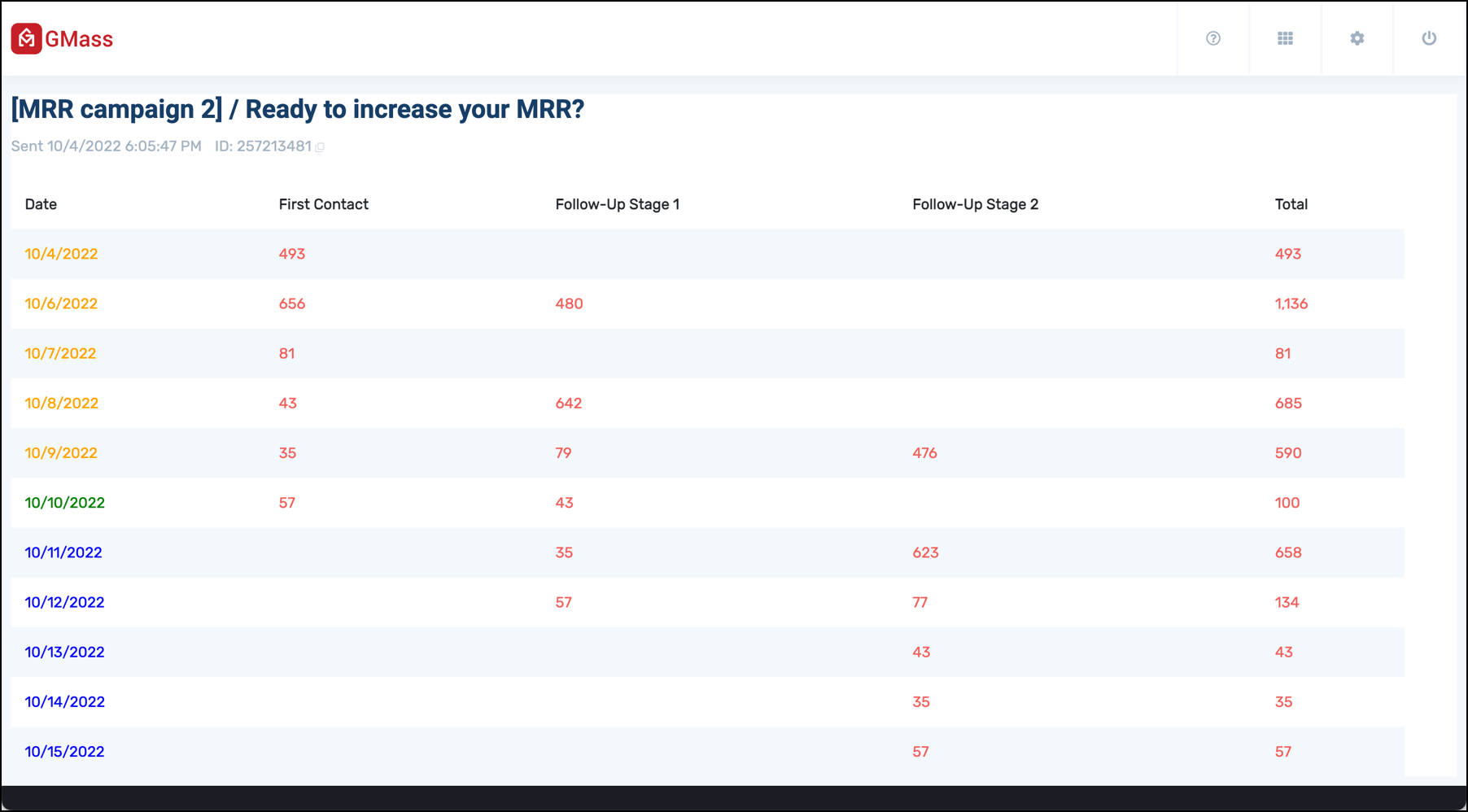
You can click any number to see a full list of the email addresses who will receive or received that follow-up. And you can download a CSV of those addresses.
If you spot someone on one of those lists for future sends and don’t want them to get the follow-up, a super quick way to remove them is to add them to the campaign’s suppression list.
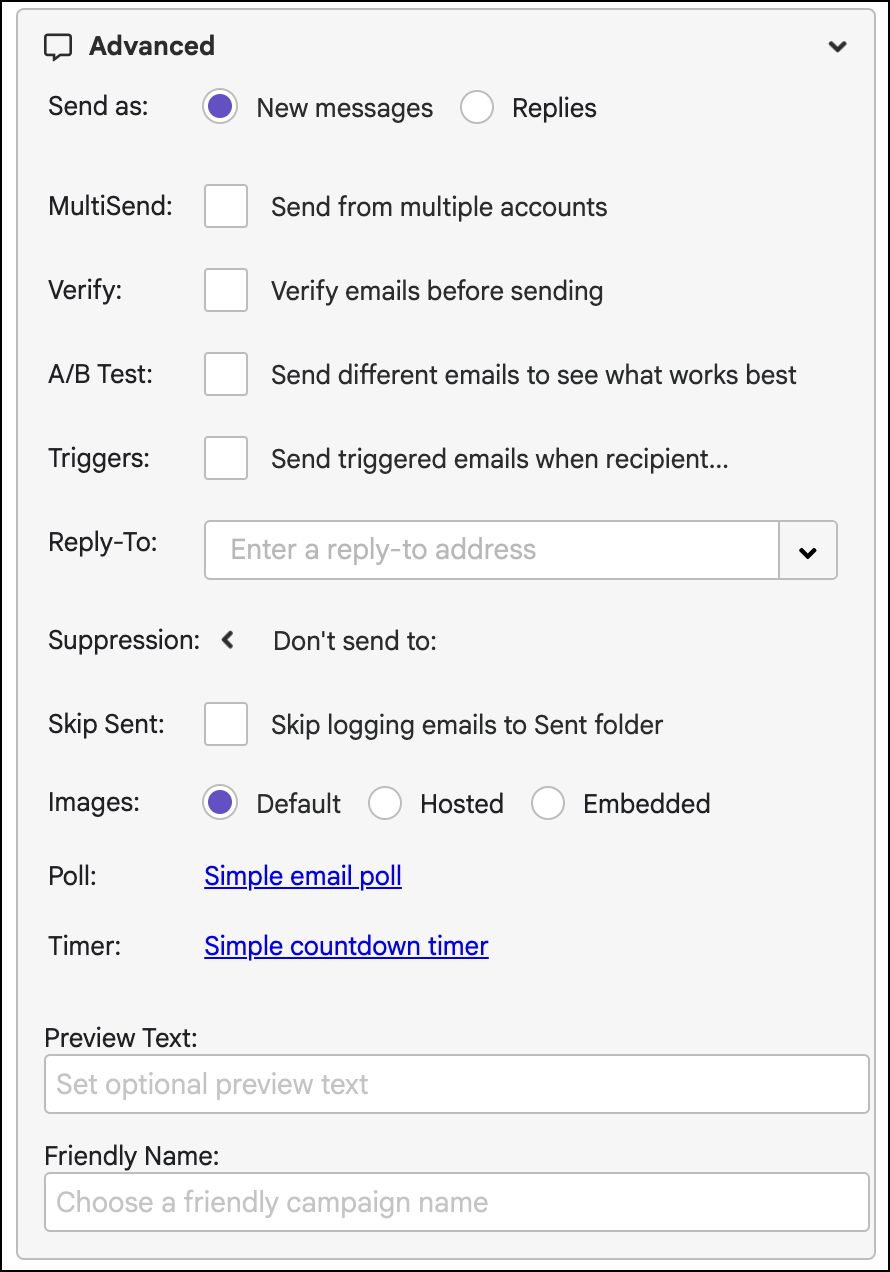
Go into Gmail and find the draft of the campaign. Open the GMass settings, and head to the advanced section.
In the Suppression area, enter that person’s email address. Then click the green SAVE Changes button.

 Beware of these dangers

The sending of auto follow-up emails is dependent upon certain factors, like being able to locate the original “sent” email in your Gmail account. Beware of these dangers which can lead to auto follow-up mishaps:
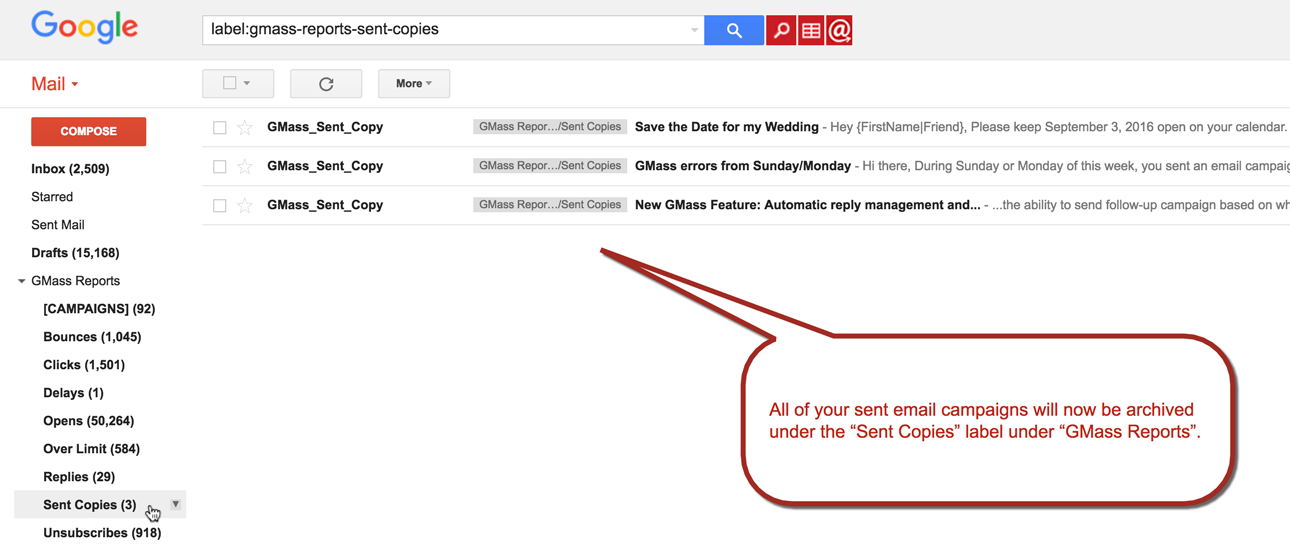
- Do not delete the original campaign from GMass Reports –> Sent Copies.
Doing so will prevent your auto follow-up emails from sending because GMass relies on finding the original campaign to construct the auto follow-up. - Do not delete the individual sent emails from your Sent Mail folder.
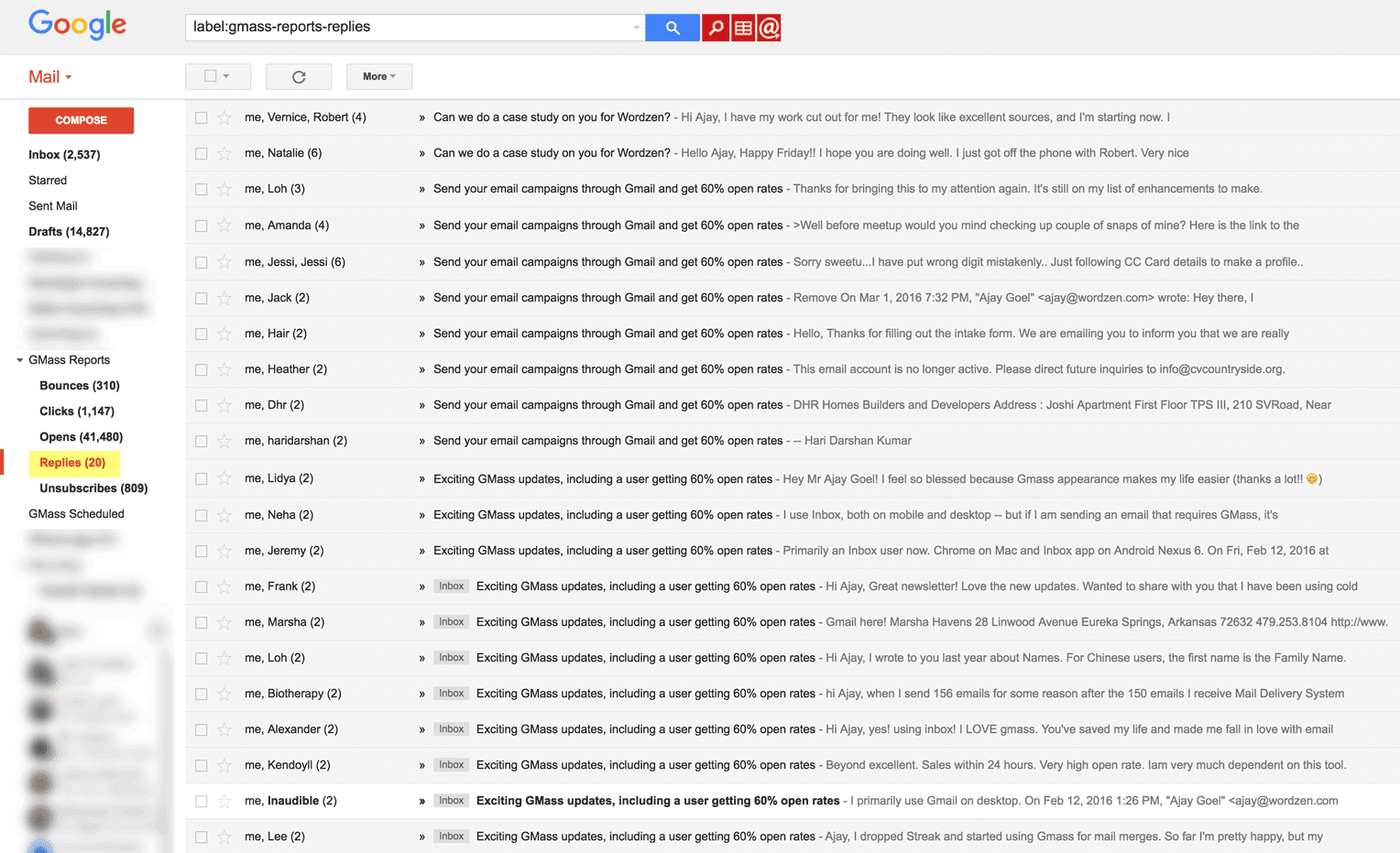
Doing so will also prevent auto follow-up emails from sending because GMass won’t be able to find the original sent email to add the follow-up to it. - Do not add the “GMass Reports –> Replies” Label manually when replies to your campaign arrive in your Inbox.
GMass will automatically apply this Label to replies. If you manually apply this Label, GMass will skip the message and be unaware of the reply, and then an auto follow-up will go out to someone that has already replied.
Did your auto follow-ups fail to send? You can send it manually
If your auto follow-up email sequence didn’t send for some reason, whether it’s your fault or ours, you can manually send a one-off follow-up email that will still be part of the same email conversation as the original email. Here’s how to do it.
Sending auto follow-ups with the GMass API
You can configure your auto follow-up sequences using the GMass API.
First you’ll need to create a CampaignDraft of the initial campaign (and get the campaignDraftId).

Then, in the Campaigns method, you can set up your auto follow-up sequence using the stage options.
stageOneDays,stageTwoDays, and so on with otherstageNumDays: Number of days before the stage is sentstageNumCampaignText: Text to use for plain text follow-upstageNumCampaignId: Campaign ID of rich text follow-up message. If you’ve specified both a text and campaign ID follow-up, GMass will use the campaign ID.stageNumAction: Determine what recipient (in)action leads to this stage.r: No replyo: No openc: No clicka: Send to everyone, regardless of the actions they’ve taken on any prior email in the sequence
stageNumTime: Time of day the follow-up should go out.
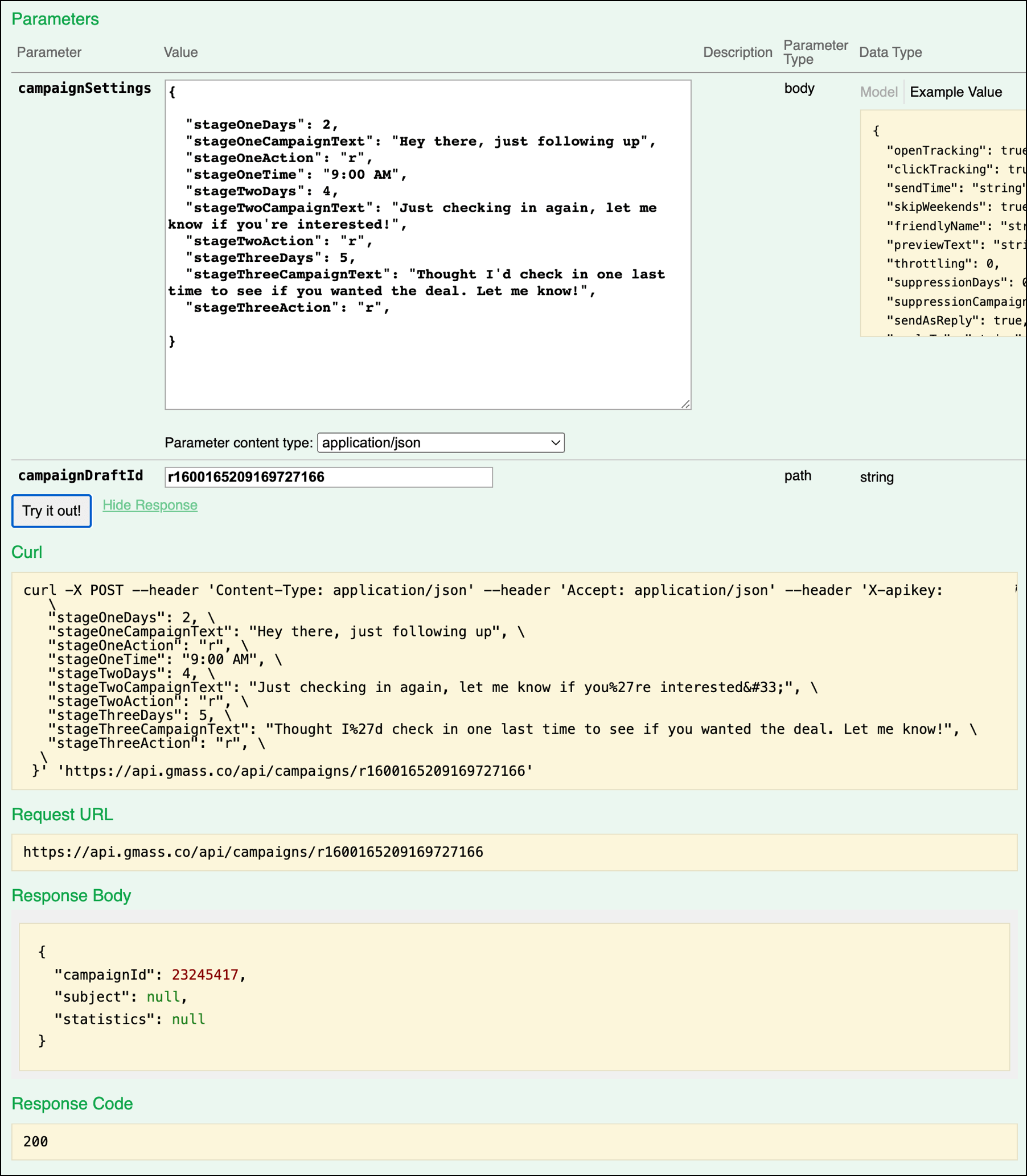
And now I can go to my Gmail drafts folder, find this campaign, and check the settings to see it’s all set up correct. I can also send myself a test of the entire sequence to double check.

Want more?
- You can configure unlimited stages of auto follow-ups.
- After you’ve set your auto follow-ups, you can cancel or edit them.
- If someone you’ve emailed calls you instead of replying to you, you may want to remove them manually from the auto follow-up sequence.
- You can use the auto follow-up settings to create a traditional drip email campaign as well. For example, if you want a series of 8 emails to go out in a timed manner after someone signs up on your website, you can do that.
- You can send any auto follow-up stage on demand, rather than waiting for it to go out at the scheduled date/time.
- Sometimes you’re emailing multiple people at an organization, hoping to get just one of them to reply. In that case, you should stop auto follow-ups for everybody at an organization if just one person replies.
- The GMass campaign DRAFT must exist in your account under the GMass Auto Follow-ups Label to edit or delete auto follow-ups. If you accidentally deleted the DRAFT, try restoring your DRAFT.
Email marketing. Cold email. Mail merge. Avoid the spam folder. Easy to learn and use. All inside Gmail.
TRY GMASS FOR FREE
Download Chrome extension - 30 second install!
No credit card required

Ajay is the founder of GMass and has been developing email sending software for 20 years.