GMass takes a different approach to reporting and analytics than most Email Service Providers, and in this article you can learn how to access and analyze email campaign data.
This Article Contains:
- The Dashboard
- Web-based Reports
–Getting the link
–Live Feed - Inside Gmail
–Why we use a Gmail Label
–Troubleshooting not receiving the reports
–Replies, Bounces, Blocks
–Manually request a report inside Gmail - The Main Stats
- Domain Reports
- Export Campaign Reports
- Sharing Campaign Reports
- Accuracy of Reports
There are three places you can view campaign statistics.
- Inside Gmail in the GMass Reports–>[CAMPAIGNS] label.
- On the web, using a link to a responsive, web-based campaign report.
- In your dashboard. The dashboard also contains a link to the web-based campaign reports.
This approach allows you to access campaign reports easily both while on the go, inside the Gmail app on iPhone and Android, and in a more real-time way on the web. The web-based report contains some extra charts and graphs showing a time-based distribution of opens and clicks.
1. Dashboard
Go to gmass.co/dashboard or click the Dashboard button at the top of Gmail if you have the GMass Chrome extension installed.

From the dashboard, you can search for any of your campaigns in the Current Campaigns, Previous Campaigns, or Transactional sections. With the advanced search options you can locate campaigns by multiple criteria, including number of recipients, dates, open rates, click rates, reply rates, and whether or not the campaign has follow-ups. 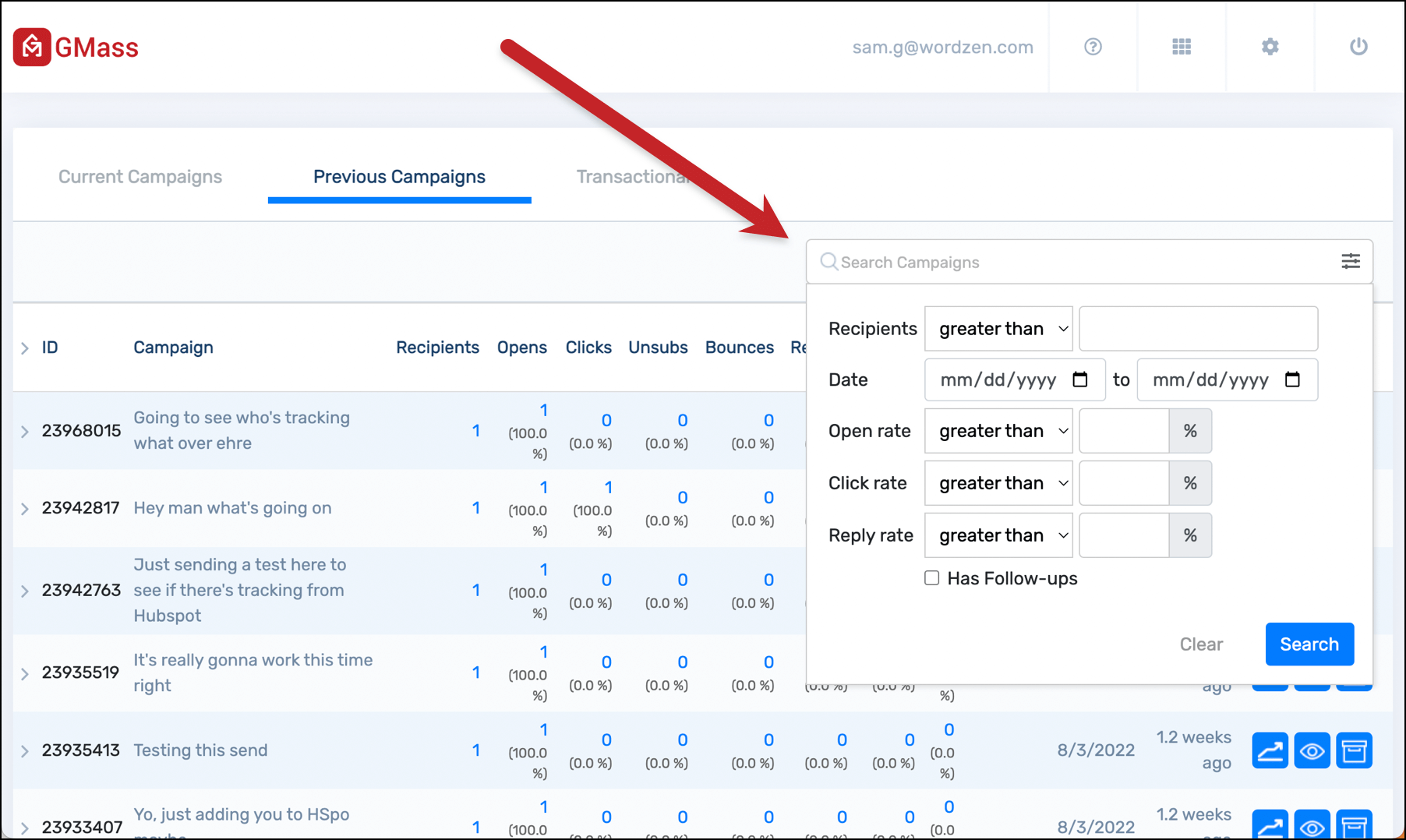
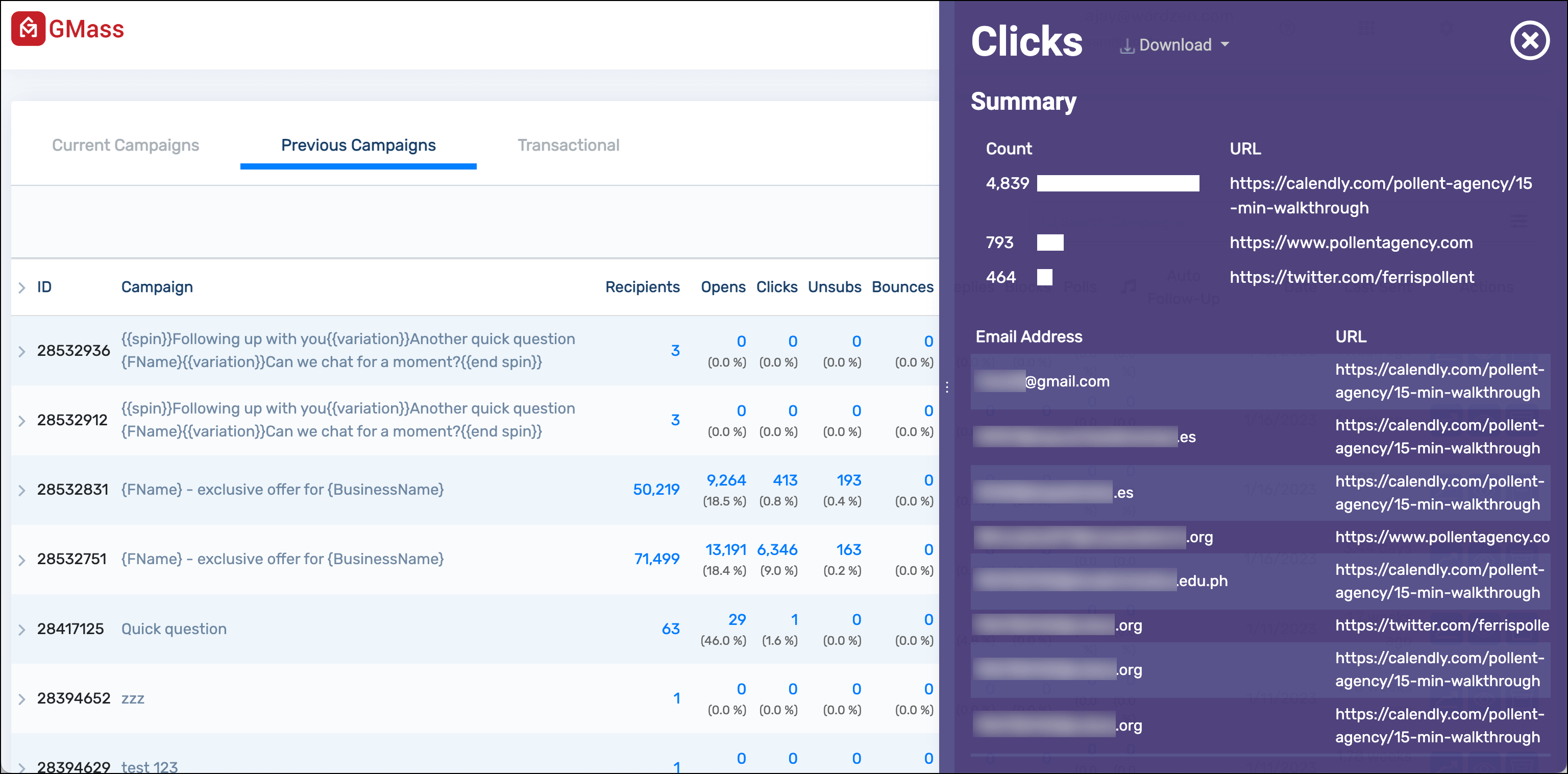
Once you find your campaign, click on any of the statistics, such as Recipients, Opens, Clicks to open a panel on the right side of the screen with more details. And from there, you can download a CSV or Microsoft Excel file of the data behind each metric. Or export the data to Google Sheets.
When you click on Clicks (click inception?????), you’ll see a breakdown of how each link in your email performed, along with the raw data of who clicked what.
You can also click the right carat (that’s the > icon) next to the report ID to see an even more in-depth look at the campaign, including all of its settings and its follow-ups.
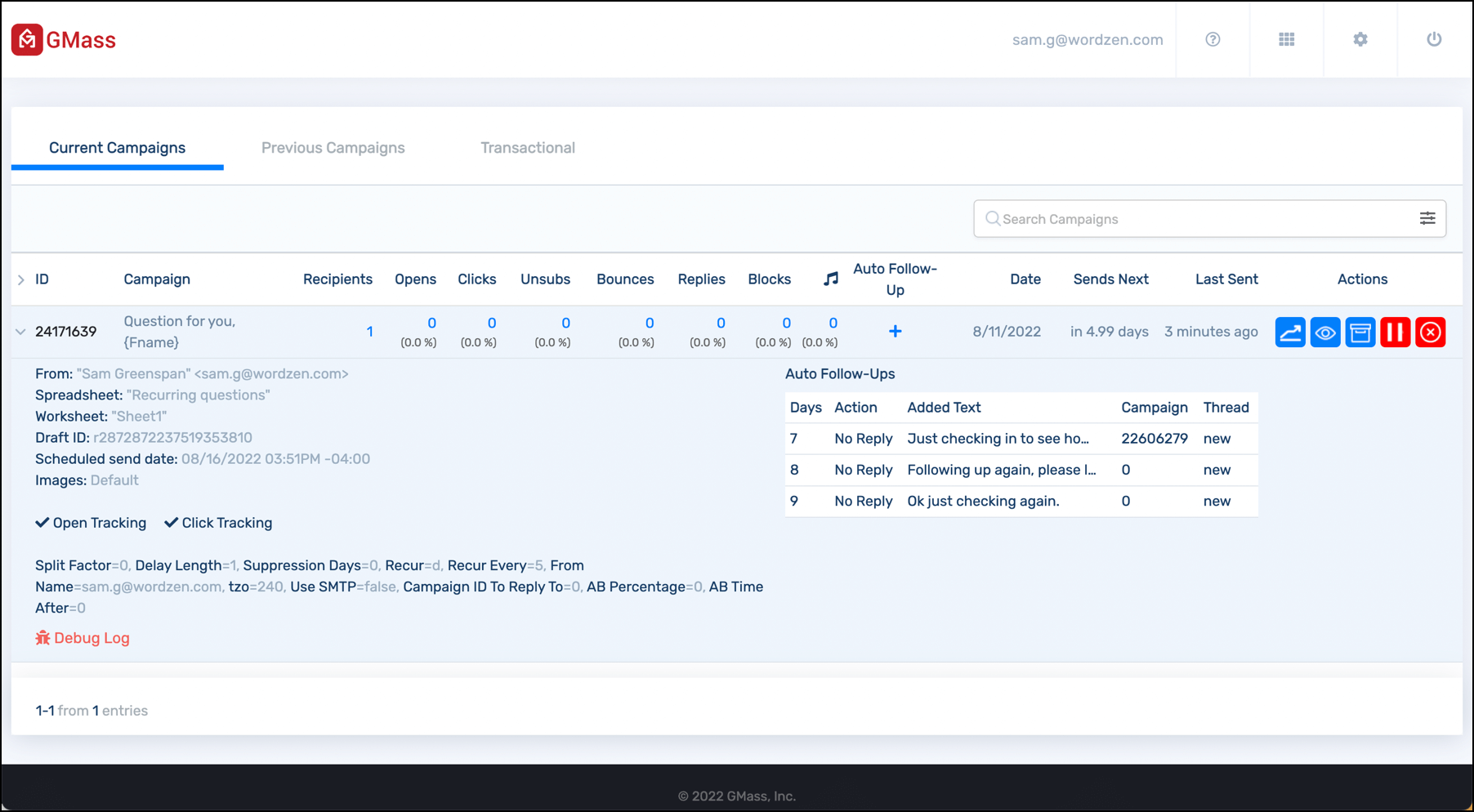
Click the “live report” icon (the one that looks like a graph) to link directly to the web-based report. The web-based report will always display the most up-to-date and easy-to-use information for a particular campaign.
2. Web-based Responsive Reports
The web-based campaign report is beautiful, easily accessible, and works on desktop and mobile.
It’s meant to stay open in a tab, auto refreshing and updating in real time so you can see your campaign’s progress.
Here’s what it looks like.
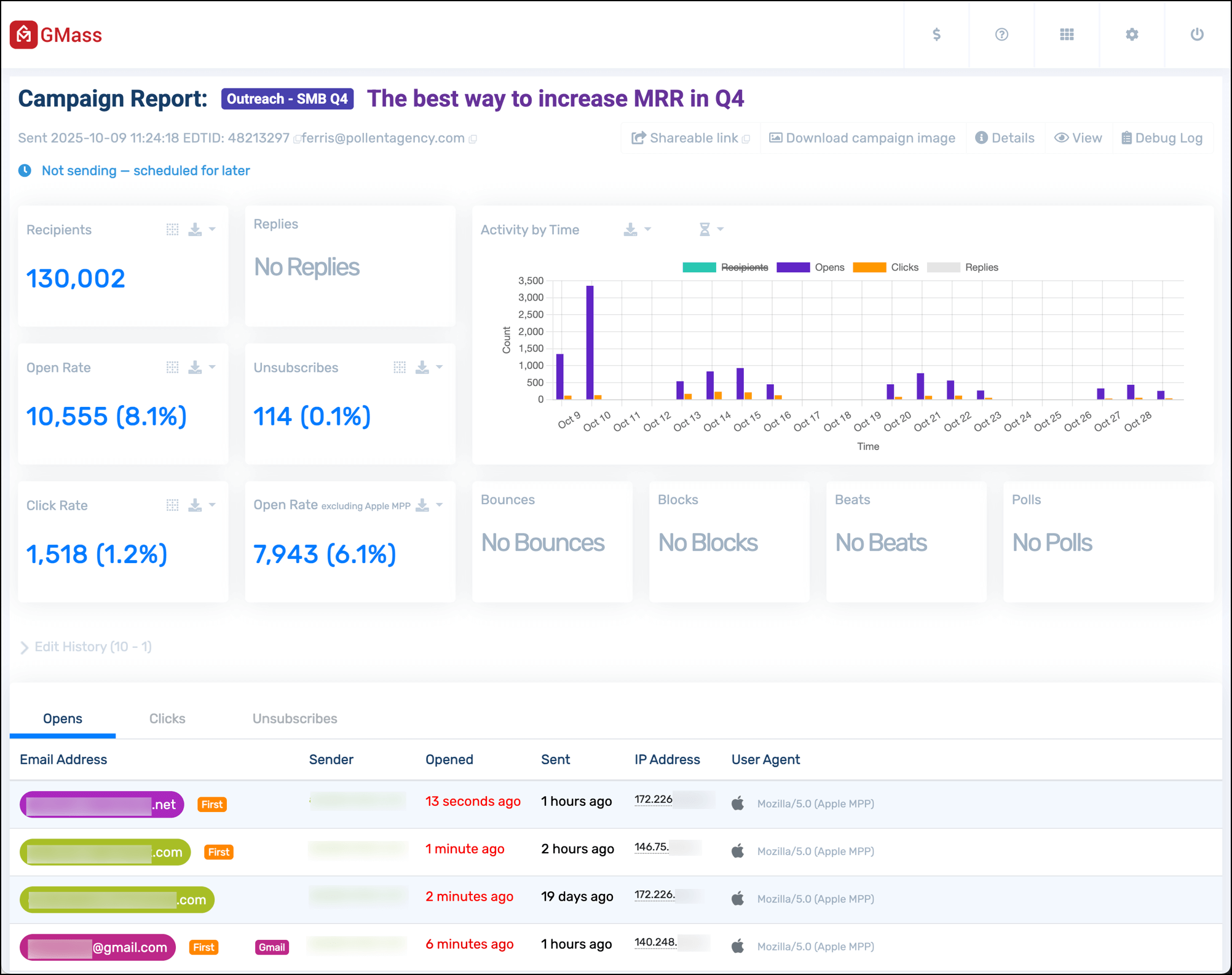
Click on any of the stats in the report and a panel on the right side of the screen will give you even more details.
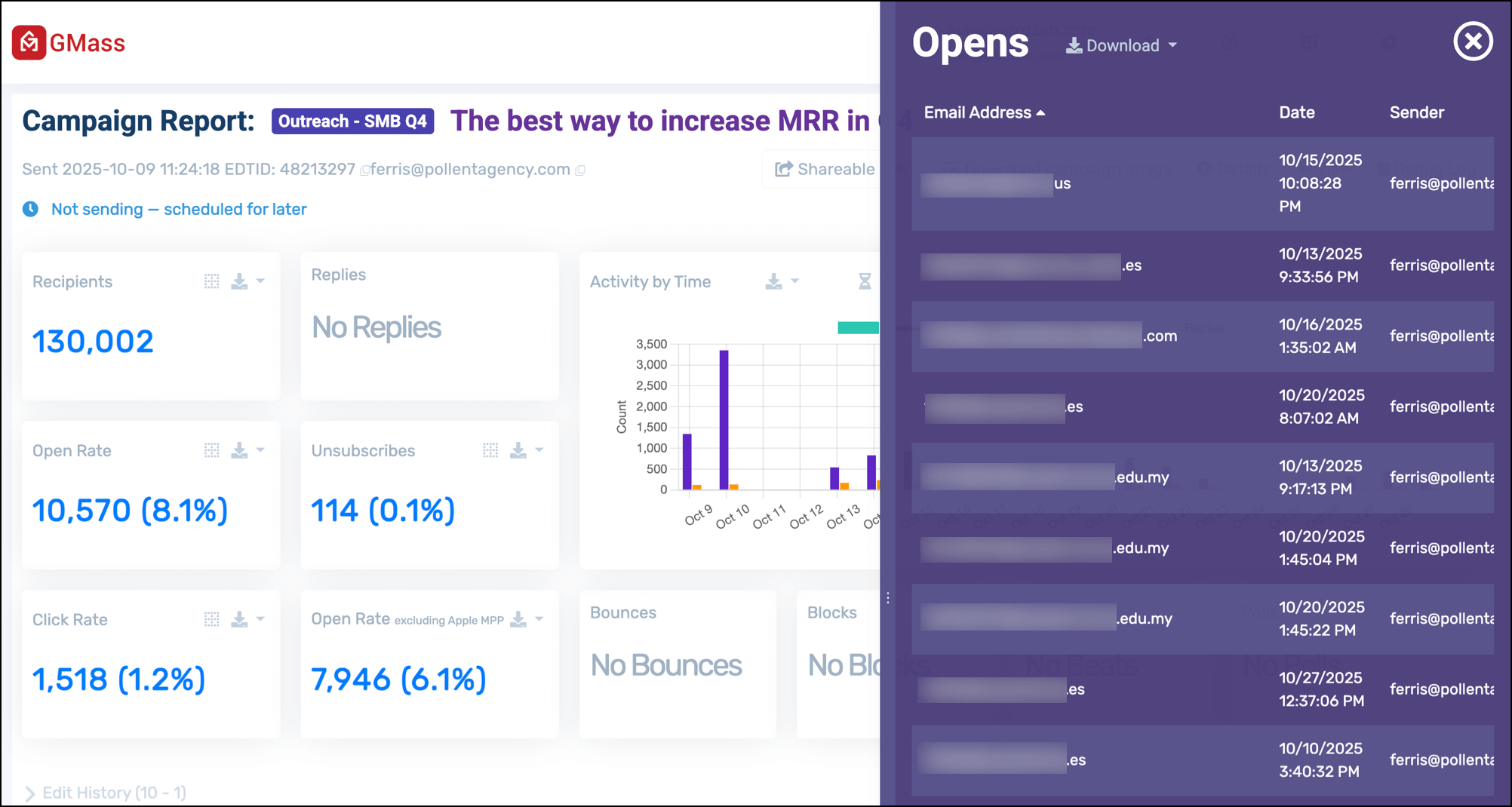
Once again, if you view Clicks you’ll see how each individual link performed. You can also see open, click, and reply rate by day, if you want to see how a multi-day campaign is performing over time.
You can download the results for any of the results (e.g., opens, replies, and so on) by clicking the download icon next to the name of that stat. Or by clicking the Download link at the top of the right-side panel.
You’ll have the choice to download a CSV or Microsoft Excel file with your results — or to export to Google Sheets.
The web-based campaign report also has a section called Edit History which will show you how your campaign performed before and after you made edits.
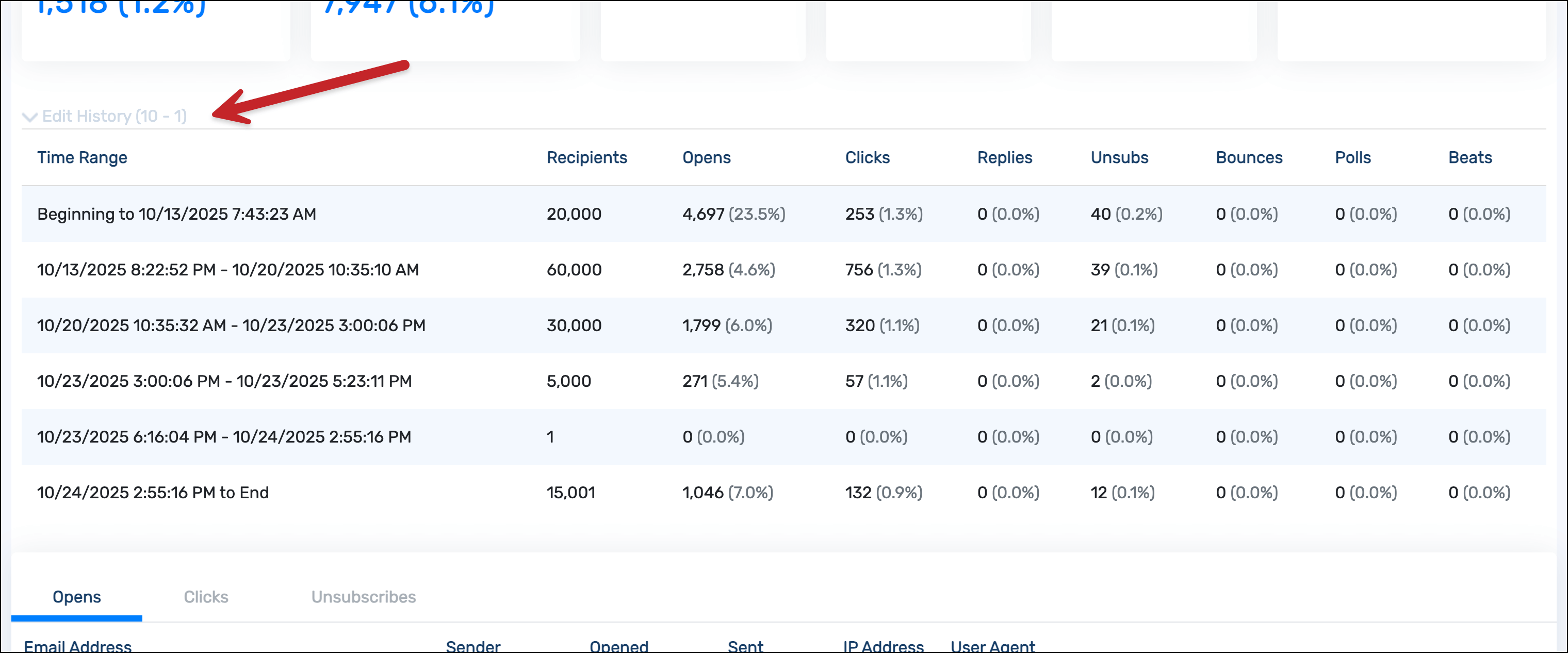
Below that, you can see a log of everyone who opened, clicked, or unsubscribed. The first time they opened the campaign is labeled “First” and there will be a little fireworks display for each first-time opener.
Also, you can mouseover their IP address to see their location and see what browser they used to access your email.
Beneath that will be your list of links in your email with their click totals.
You can also share your campaign results on social media. Copy Shareable link at the top of the report.
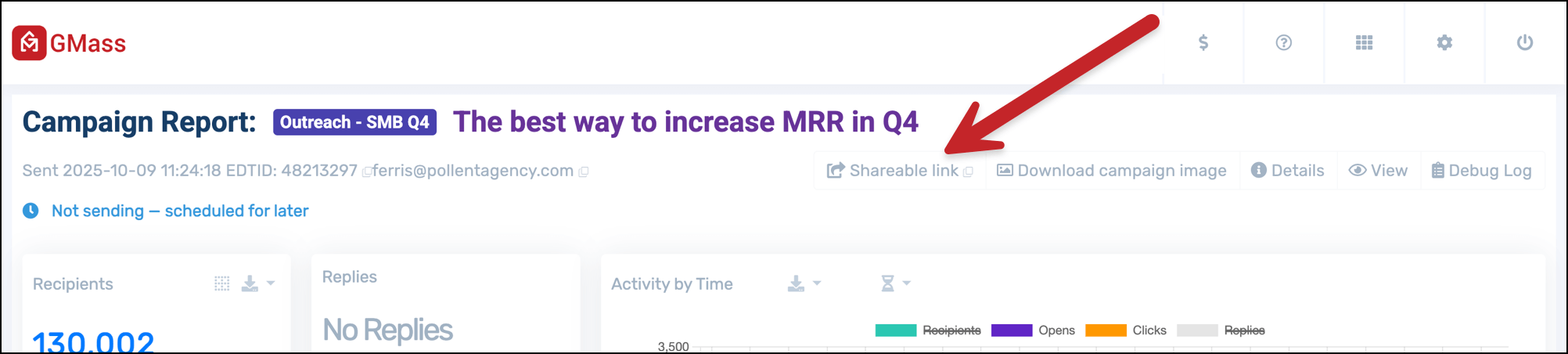
Paste it into your social media app of choice. GMass will use some magic to automatically generate a chart showing your campaign performance.

And when someone clicks through, they’ll see a web-based version of your report (with all the sensitive/recipient details removed).
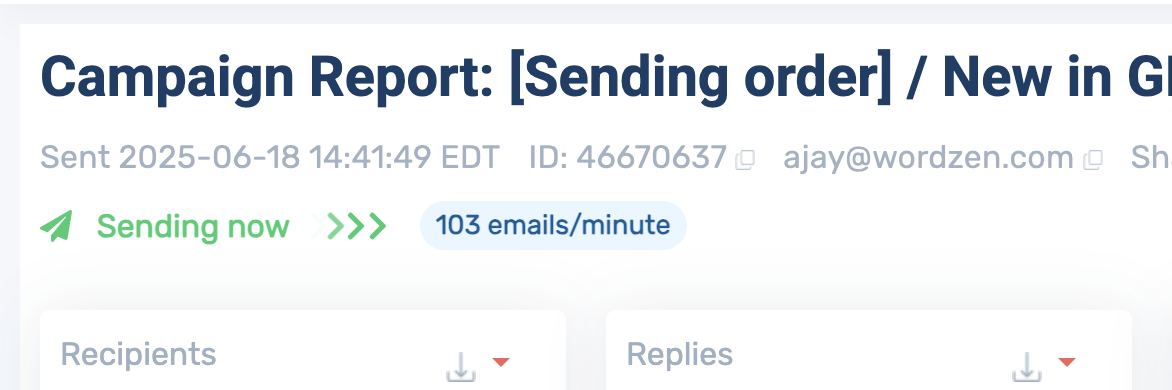
You can also monitor your if your campaign is sending, and the sending speed (which is great if you’re using throttling).
Where’s the link to the web-based report?
Having trouble finding the web-based report? You can get a link to the report from several places:
- The campaign report inside Gmail, in the GMass Reports –> [CAMPAIGNS] Label.
- Any “Your emails have sent” notification that we send you after your campaign finish sending.
- Your dashboard.


Note that the web-based report doesn’t require you to log in. The URL is public and accessible to anyone, so anyone you share it with will have access to all of that campaign’s data and your account’s full unsubscribe and bounce lists. There’s a unique identifier that’s part of the URL that will prevent anyone from guessing your report URLs, so nobody can access it unless you share it. See the Sharing section below for how to share your report data securely with your team.
Live Feed
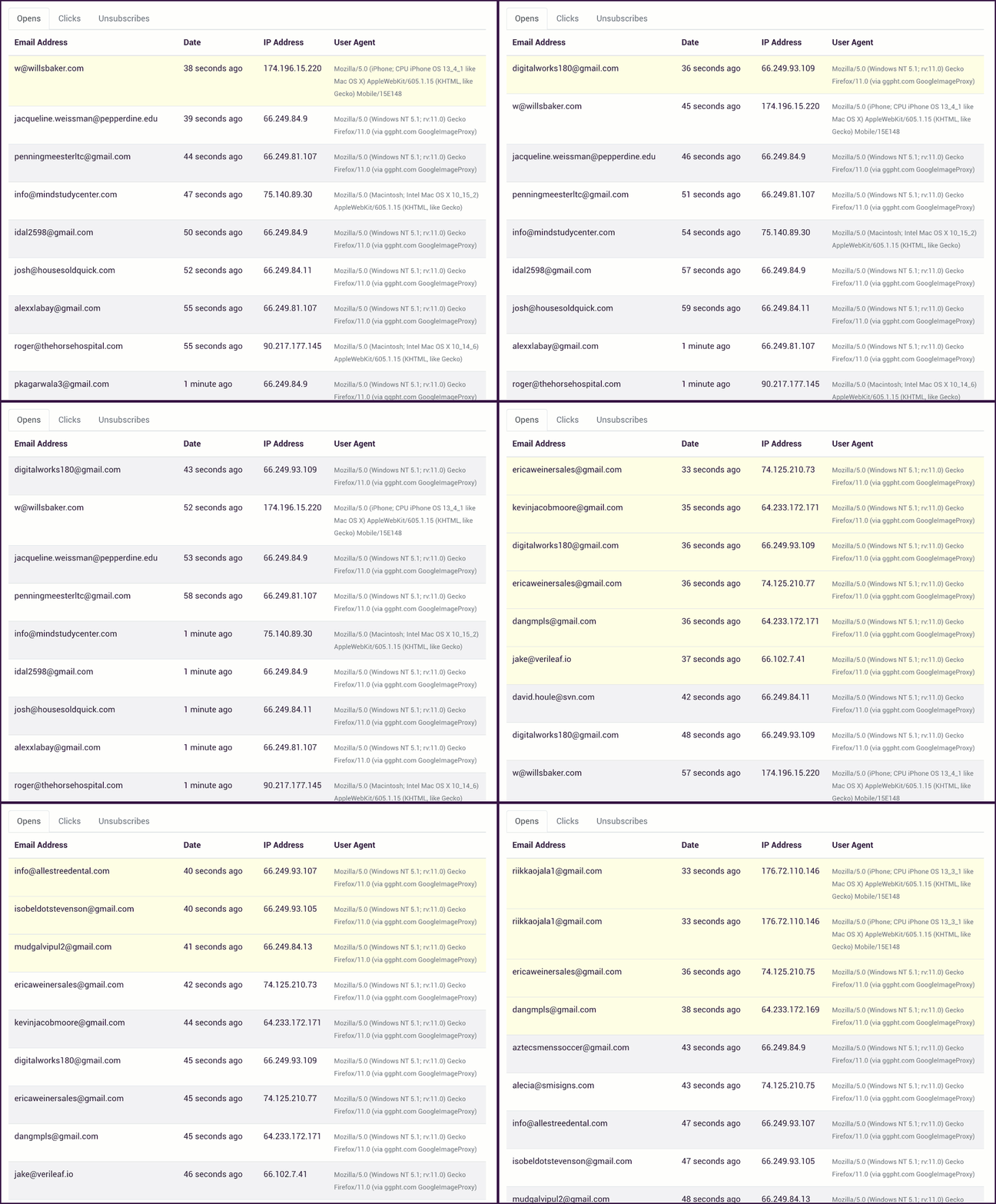
The web-based report has a live feed showing opens, clicks, and unsubscribes in real-time. No need to reload this report — the stats update on their own via AJAX.
3. Inside Gmail
Why inside a Gmail Label?
The second place you can access your campaign reports is right inside your Gmail account, in a special label called GMass Reports –> [CAMPAIGNS].
Viewing your reports inside Gmail has the following benefits:
- It allows you to easily access your reports whether you’re using Gmail on your desktop or whether you’re using the Gmail app on your mobile device.
- You never have to log in to a separate website. You only need to be logged into your Gmail account.
- The rest of the GMass experience happens inside your Gmail account, and it’s nice that Reports should exist inside your Gmail account too.
Here’s a screenshot of a campaign report as shown inside the Gmail app on an iPhone.

The top level Campaign Report
The most important campaign report is founder the Label GMass Reports –> [CAMPAIGNS].
This is a report that summarizes all of your data in one screen. From here you can see:
- how many emails were sent
- how many people opened your email
- how many people clicked a link
Here’s a sample campaign report from my own account:

Let’s start at the top and explore what this report shows.
It starts with a campaign ID. The campaign ID is a unique identifier for every mail merge campaign you send with GMass. If you ever need help understanding a campaign, make sure to provide our Support team with the campaign ID. Next is the Subject Line, which is self-explanatory. If your campaign was connected to a Google Sheet, the spreadsheet name is listed next.
If you’re not getting reports inside Gmail
There could be a several reasons you’re not seeing a report for your campaign:
- You didn’t enable Open Tracking. Campaign-level reports are triggered whenever there’s an “open” on your campaign. That’s how GMass “decides” when to generate this report and insert it into your [CAMPAIGNS] Gmail Label. If there are no opens, then this report will never be generated automatically.
- You did enable Open Tracking, but your email was a plain text email rather than an HTML email, which means that opens still won’t be tracked.
- There haven’t been any opens in a while, so the report hasn’t been refreshed. There might have been other activity, like clicks or replies or bounces, and so your statistics have been updated internally, but no report has been generated.
If any of these are the case, you should manually request a campaign report.
Event Logs for Opens, Clicks, and Unsubscribes
Anytime an email is opened, clicked, or unsubscribed, GMass places a notification in a corresponding Label. The notifications in these Labels serves as an event log for activity in your overall account. For example, you can see a live feed of all opens for all your GMass campaigns in the GMass Reports –> Opens Label.

The following event log labels are used:
- GMass Reports –> Opens Label anytime an email is opened.
- GMass Reports –> Clicks Label anytime a link in an email is clicked.
- GMass Reports –> Unsubscribes Label anytime someone unsubscribes.
How can you use the event log labels?
If you ever want to send a new campaign to everyone that’s ever opened any email from you, or anyone that’s ever clicked a link in any email from you, can easily do so by going to the appropriate Label, and clicking the build email list button. Secondly, if you’re monitoring your campaign activity from your mobile device and you use the Gmail app, you can go to the appropriate Label and watch notifications appear and feel confident that people are engaging with your campaign. It’s an easy way to watch real-time activity on your campaign wherever you are and whatever device you’re using, whether it’s a laptop or mobile phone.
If you use a third party email client, like Apple Mail, sometimes these notifications can flood your Inbox, making for a very annoying experience. If that’s happening, you can turn these event notifications off.
Replies, Bounces, and Blocks
After you send an email campaign, GMass scans your Inbox looking for replies, bounces, and blocks.
- Replies are left in your Inbox and labeled GMass Reports –> Replies.
- Bounces are removed from your Inbox and placed in the GMass Reports –> Bounces Label.
- Blocks are left in your Inbox and also labeled GMass Reports –> Blocks.
As of August 2023, the Replies and Bounces Labels are applied seconds after they arrive in your Inbox — thanks to GMass’s instant reply and bounce detection. For more information on how GMass categorizes and labels these messages, see the post on automated reply management. To understand how replies are found, see our detailed article about replies.
Manually request a campaign report inside Gmail
As a GMass user sending mail merge campaigns from your Gmail account, you are likely aware that campaign-level reports are sent to the [CAMPAIGNS] Label, which is a sub-Label of the GMass Reports Label. Campaign-level reports are updated every 10 minutes, as new campaign activity is recorded, like opens and clicks, however, if open-tracking is turned off, then a campaign report may never appear.
Therefore in certain situations, you may want to manually request a campaign report. These situations include:
- You haven’t received a particular campaign report, because you had open-tracking turned off.
- You have turned off GMass report notifications, in which case you will never receive a campaign report.
- You wish to see the campaign report for an old campaign that was sent before GMass campaign reports existed.
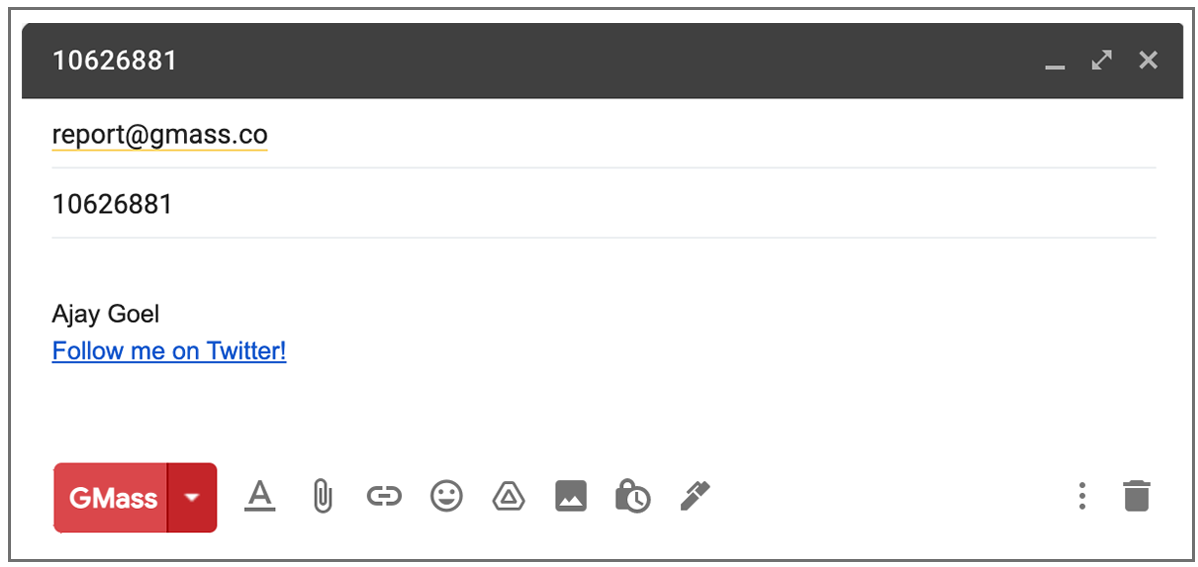
- Launch a new Compose window in Gmail.
- Set the To field to report@gmass.co.
- Enter the campaign ID of the campaign whose report you would like in the Subject field. If you do not know the campaign ID, you can find it in the email confirmation you received after the campaign finished sending. This email message will contain the campaign ID or a “Schedule ID”. Either ID is acceptable.
- Click the red GMass button. Do not click the Gmail Send button. You must click the red GMass button.
- Go to the [CAMPAIGNS] Label under GMass Reports and you will see your new report.
Understanding the Main Statistics
The core statistics for an email campaign are:
Total Recipients: Total number of email addresses that this campaign sent to.
Unique Opens: Total number of email addresses that have opened the email. This is NOT the total number of Opens, since usually there are multiple opens registered for a single email address.
Didn’t Open: Total number of email addresses that have NOT opened the email.
Unique Clicks: Total number of email addresses that clicked at least one link in the campaign. Will only show if click tracking was turned on and your email contained trackable clicks.
Replies: Total number of email addresses that replied to the campaign. Note that GMass may take a couple hours after a reply is received in your Inbox to detect the reply and update this stat.
Unsubscribes: Total number of email addresses that clicked the Unsubscribe Link, if it was inserted into the campaign.
Bounces: Total number of email addresses that came back as undeliverable because the address is invalid. Bounce detection is part of the automatic reply management feature.
Rejections because Gmail account over limit: Total number of email addresses that were not sent to because Gmail limited your account’s sending ability.
Blocks: Total number of email addresses that came back as undeliverable because the address rejected your email as spam.
Export Campaign Data
All of the reporting data is downloadable directly from this report. Just click the download link next to each statistic. If you use the download main campaign report option, you will download a CSV that contains a full list of your recipients, any personalization data that was a part of the original spreadsheet, and columns indicating whether that recipient opened, clicked, unsubscribed, bounced, or replied. You can then import this CSV file into a new Google Sheet for safekeeping and future mail merge campaigns.


You can also download your account’s complete Unsubscribe and Bounce lists using the download all link next to each statistic.
Because the campaign report contains download links to your full recipient lists, we recommend you only forward this report to people you trust to have access to your email marketing data.
Domain Reports
The domain report shows a breakdown of all domains sent to for a particular campaign, along with the opens, clicks, bounces, and blocks on a per-domain basis. You can even compare your individual domain-statistics to our system-wide domain statistics by clicking on any individual domain. For example, if you want to know if your open rate to gmail.com email address is better or worse than average, you can compare your open rate to our lifetime gmail.com open rate.
The domain report is available only in the web-based report.
Here you can see the domain report inside a Gmail-based campaign report.
[screenshot to come]
Here is the domain report that’s part of the web-based campaign report.

How to share reports with your team
Sharing the web-based report with colleagues
Note that the web-based report doesn’t require you to log in. The URL is public and accessible to anyone, so anyone you share it with will have access to all of that campaign’s data and your account’s full unsubscribe and bounce lists. There’s a unique identifier that’s part of the URL that will prevent anyone from guessing your report URLs, so nobody can access it unless you share it.
If you wish to share the campaign report but prevent someone from downloading your lists of email addresses, use the “Shareable link” feature at the bottom. That will generate a link you can use to share your high level campaign statistics without providing access to the lists of email addresses that opened, clicked, and took other actions.

Team leaders can see team member’s statistics
If you’re the leader of a team plan, then in your dashboard, by default, you’ll be able to view the campaign statistics for your entire team or any individual team member.
Share reports with other Gmail accounts
If you have team members, whether internal or external to your organization, with whom you would like to share your GMass Campaign-level Reports, you can now do that. By sharing reports with others, every time a report is updated under your GMass Reports –> [CAMPAIGNS] Label, each person with whom you are sharing will get the same updated report in his/her account.

- Click Compose to launch a new window.
- Set the To field to share@gmass.co.
- Set the Subject to the email address of the account with whom you wish to share your reports. My email address is ajay@wordzen.com and I want to share my reports with john@wordzen.com, so I would set the Subject to john@wordzen.com.
- Hit the GMass button. Do not hit the Send button.
Revoke access to your campaign reports
Follow the same procedure as above except set the To field to revoke@gmass.co.
FAQ on Report Sharing
Q: Does sharing my reports with another user give them any other access to my Gmail account?
A: No. Sharing your reports only sends a copy of your campaign-level reports to them. People you share with cannot see anything in your Gmail account, nor can they send GMass campaigns on your behalf.
Q: Can I share my reports with people who don’t use Gmail?
A: No. You can only share reports with existing GMass users, and all GMass users obviously have Gmail accounts.
Q: Can I share my reports with people who aren’t paying GMass subscribers?
A: Yes. You can share reports with any other GMass users, whether they have free accounts or paid accounts.
Q: How can I see everyone I’m currently sharing reports with?
A: If you’re sharing reports, then each campaign report in GMass Reports –> [CAMPAIGNS] will have a section at the bottom detailing with whom the report is being shared.
How to export reports
You can export all of your reporting data to CSV files, which you can then further analyze using any spreadsheet or database system, including Microsoft Excel, Google Sheets, or Google’s Data Studio.
Links to export reports to CSV files are available inside the Gmail-based reports, the dashboard, and the web-based responsive reports.
Lists of email address that opened, clicked, replied, unsubscribed, and bounced are all available from the dashboard or any report.
Additionally, GMass generates several special CSV files that give you an wholistic picture of your campaign’s success.
Keeping a Google Sheet updated
If you’re using GMass to read data from your Google Sheet, you have the option to have GMass keep your Sheet updated with reporting data in real-time.
Entire Campaign as a CSV file
From either the Gmail-based report of the web-based report click the link to the “download campaign CSV”. This will be a comma-delimited file showing all recipients in the campaign along with who opened, clicked, and took other actions.
Auto follow-ups exported as a CSV file
If you’re sending email sequences with auto follow-ups, you can download a CSV file showing all campaign recipients and which follow-up stages have been sent to each recipient.
How accurate is open-tracking?
GMass uses a number of technical innovations and other tricks to make sure your campaign analytics are as accurate as possible. Still though, there are scenarios where your statistics may be inaccurate.
Open tracking can be inaccurate for several reasons, including if you open the email yourself from your Sent folder or a bounce notification.
Note: GMass invented an open-tracking technology that circumvents technology that blocks the ability to detect opens.
Additionally, certain user agents will automatically trigger opens and clicks on emails, skewing both metrics upwards. GMass’s reports separate out opens from Apple Mail into a separate stat, since Apple Mail Privacy Protection automatically “opens” emails.
A note about click-tracking just selected links
While click tracking is enabled by default, you may want to skip tracking on certain links, like YouTube links and Google Docs links. You might also be interested in the details of just how click tracking works.
GMass is the only tool for marketing emails, cold emails, and mail merge — all inside Gmail. Tons of power but easy to learn and use.
TRY GMASS FOR FREE
Download Chrome extension - 30 second install!
No credit card required

Ajay is the founder of GMass and has been developing email sending software for 20 years.















 To get started, create your free account and get 50 free lead searches.